V1.0.1 Coex Control System Solution
Product Information
The COEX Solution is a control system designed for LED screens.
It offers a range of features and components to facilitate screen
configuration, adjustment, and maintenance. The system comprises
various components, including the Cabinet Tool, Control Software
(VMP), LED Controller, and Receiving Card Fiber Converter.
COEX System Topology
The COEX system topology is illustrated in Figure 1-2 of the
user manual. It shows how the different components of the COEX
system are connected to form the LED control system.
List of COEX System Components
| Component | Description |
|---|---|
| Cabinet Tool | It offers functions such as lighting up modules, configuring cabinets, burning programs, and managing calibration coefficients. Users can import the cabinet library file (.ncp) generated by this tool into VMP to quickly apply the configurations to the control system. |
| Control Software (VMP) | Designed as an open platform, VMP provides a seamless user experience for device management, input source configuration, screen configuration, screen correction, color management, screen adjustment, screen monitoring, preset management, and screen maintenance. It features a What You See is What You Get (WYSIWYG) interface and is compatible with both Windows and Mac operating systems. |
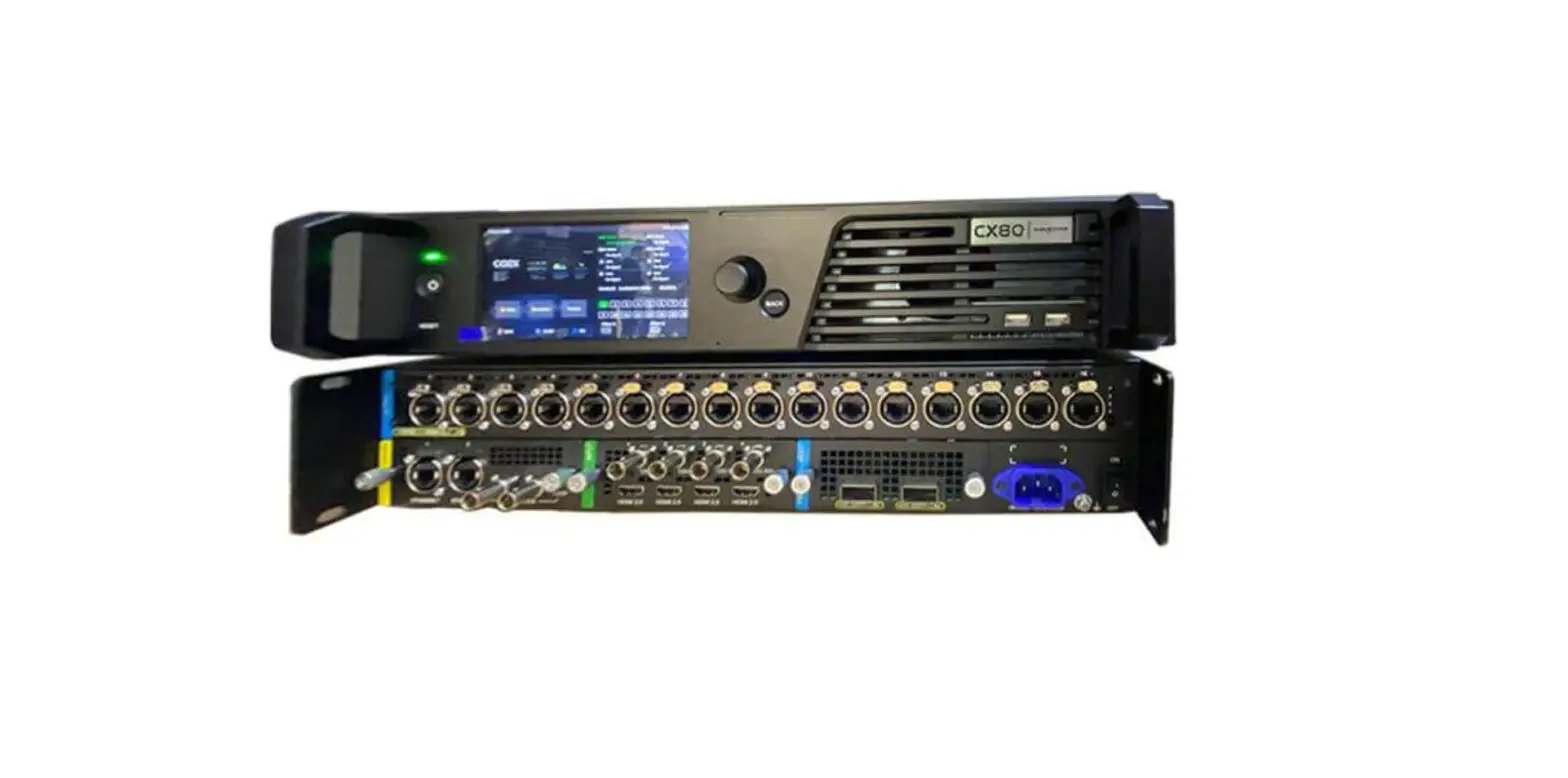
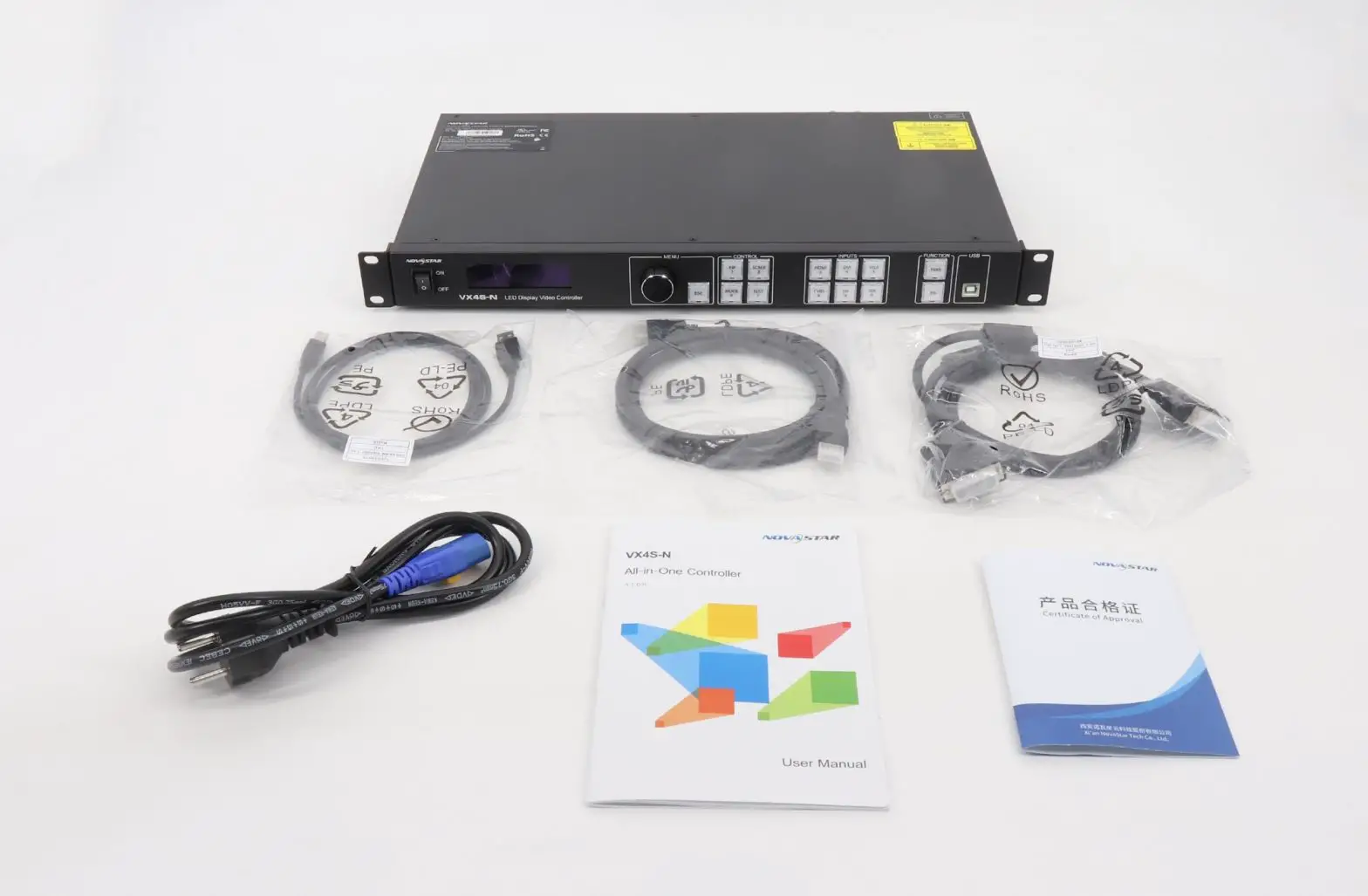
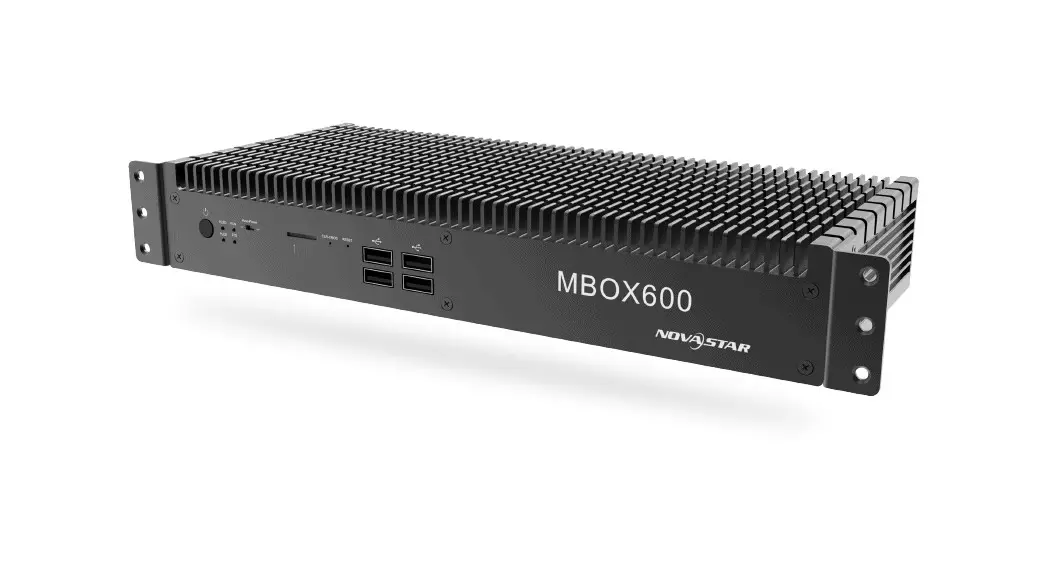
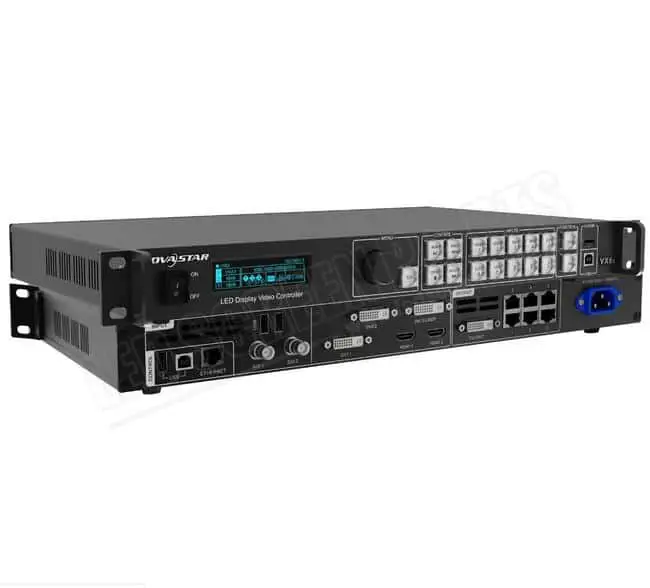
| LED Controller | The LED controller is responsible for controlling the LED display. It supports different models such as MX40 Pro, MX30, KU20 for 1G solution and CX80 Pro, CX40 Pro for 5G solution. |
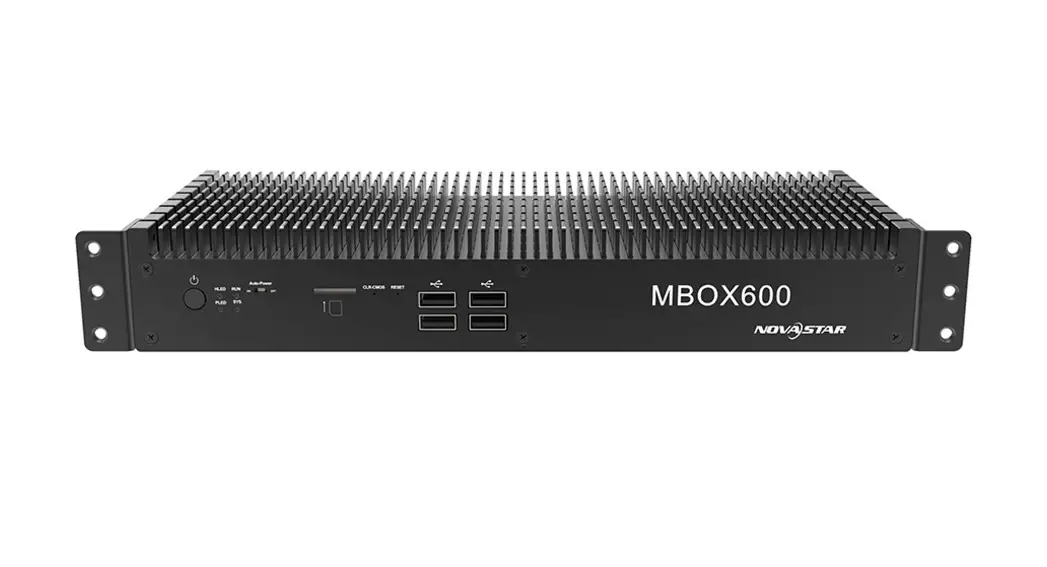
| Receiving Card Fiber Converter | The receiving card fiber converter is used for long-distance transmission of data. For the 1G solution, it supports models such as Armor series receiving cards (e.g., A10s Pro, A10 Plus-N, A8s-N) and A7s Plus, A5s Plus. For the 5G solution, it supports models like CA50E, CA50C, XA50. |
Product Usage Instructions
LED Screen Configuration and Management
- Use the Cabinet Tool to complete the debugging process and
generate an NCP file before the screen leaves the factory. - During on-site screen configuration, import the NCP file into
VMP to configure the screen and adjust the display effects. - Monitor the display status via VMP when the screen is up and
running.
Note: To fully utilize the NovaStar COEX control system’s
functionalities, it is recommended to contact NovaStar technical
engineers before the screen leaves the factory. They will assist in
completing the debugging process and generating a cabinet library
file (.ncp) that includes driver IC light-up test, frame rate
adaptive configuration, cabinet optical correction (image booster),
and cabinet thermal correction (thermal compensation).
COEX Solution
NCP File Instruction Manual
Change History
Document Version V1.0.1 V1.0.0
Release Date 2023-07-04 2023-06-06
Description Updated the supported driver ICs First release
NCP File Instruction Manual
www.novastar.tech
i
NCP File Instruction Manual
Contents
Change History ………………………………………………………………………………………………………………………………………………………….. i Contents ………………………………………………………………………………………………………………………………………………………………….. ii 1 COEX Control System Solution ………………………………………………………………………………………………………………………………… 1
1.1 COEX System Topology …………………………………………………………………………………………………………………………………….. 1 1.2 LED Screen with COEX……………………………………………………………………………………………………………………………………… 2 1.3 COEX Solution Build …………………………………………………………………………………………………………………………………………. 3 2 NCP File Introduction………………………………………………………………………………………………………………………………………………. 4 2.1 About NCP File …………………………………………………………………………………………………………………………………………………. 4 2.2 NCP Features…………………………………………………………………………………………………………………………………………………… 4 2.3 NCP File and Receiving Card Compatibility ………………………………………………………………………………………………………….. 5 2.4 NCP File and Driver IC Compatibility……………………………………………………………………………………………………………………. 5
2.4.1 Supported Driver ICs ………………………………………………………………………………………………………………………………… 5 2.4.2 New Driver IC Support Request………………………………………………………………………………………………………………….. 5 3 NCP File Key Configuration ……………………………………………………………………………………………………………………………………… 7 3.1 Cabinet Light-up ……………………………………………………………………………………………………………………………………………….. 7 3.2 Frame Rate Adaptive…………………………………………………………………………………………………………………………………………. 8 3.3 Cabinet Optical Correction …………………………………………………………………………………………………………………………………. 9 3.4 Cabinet Thermal Correction ……………………………………………………………………………………………………………………………… 11 3.5 Generate NCP file …………………………………………………………………………………………………………………………………………… 12 4 NCP File Quality Assurance……………………………………………………………………………………………………………………………………. 13 5 How to Apply NCP File…………………………………………………………………………………………………………………………………………… 14 5.1 VMP Actions …………………………………………………………………………………………………………………………………………………… 14 5.1.1 Import and Update NCP File…………………………………………………………………………………………………………………….. 14 5.1.2 Manage NCP File …………………………………………………………………………………………………………………………………… 14 5.2 Cabinet Tool Actions ………………………………………………………………………………………………………………………………………… 16 6 FAQ ……………………………………………………………………………………………………………………………………………………………………. 19 6.1 Switching to COEX System ………………………………………………………………………………………………………………………………. 19 6.1.1 Can I keep using my current screen after switching to a COEX controller?……………………………………………………… 19 6.1.2 Can I keep using my current screen after switching to the A10s Pro receiving card? ………………………………………… 19 6.1.3 Can I use NovaLCT to send NCP files to receiving cards?……………………………………………………………………………. 20 6.2 While Using COEX System ………………………………………………………………………………………………………………………………. 20 6.2.1 What should I do if the cabinet does not come with an NCP file?…………………………………………………………………… 20 6.2.2 Can I mix 1G devices with 5G devices? …………………………………………………………………………………………………….. 20 7 Specifications of Receiving Cards Supported by COEX Controllers ……………………………………………………………………………… 21
www.novastar.tech
ii
NCP File Instruction Manual
1 COEX Control System Solution
Xi’an NovaStar Tech Co., Ltd. (hereinafter referred to as “NovaStar”) has launched the new COEX Control System Solution, which features an ultra-high video processing capability, as well as innovative image quality enhancement technologies such as full-grayscale calibration, dynamic booster, and thermal compensation. These cutting-edge features ensure that every small detail and color is presented accurately and with greater clarity. Moreover, it provides support for advanced technologies like color correction, shutter fit, phase offset, and frame multiplication, making it ideal for xR virtual shooting scenarios. This will guarantee that every video capture will be seamless and flawless. On top of that, with NovaStar’s brand new VMP (Vision Management Platform), the solution combines the quaternity of design, debugging, management, and monitoring into one package. Managing the display system has never been this efficient and convenient.
Figure 1-1 Highlight features of the COEX system
1.1 COEX System Topology
Figure 1-2 COEX – LED Control System Topology
Table 1-1 List of COEX system components
Component
Description
Cabinet Tool
It offers functions such as lighting up modules, configuring cabinets, burning programs, and managing calibration coefficients. Users can import the cabinet library file (.ncp) generated by this tool into VMP to quickly apply the configurations to the control system.
Control Software (VMP)
Designed with a concept of opening platform, VMP offers a seamless, all-around user experience for device management, input source configuration, screen configuration, screen correction, color management, screen adjustment, screen monitoring, preset management, and screen maintenance. Its What You See is What You Get (WYSIWYG) interface provides a highly convenient and responsive experience for users. Currently, VMP is compatible with both Windows and Mac operating systems.
www.novastar.tech
1
NCP File Instruction Manual
Component LED Controller
Receiving card Fiber Converter (Long-distance Transmission)
Description
1G: MX40 Pro, MX30, KU20 5G: CX80 Pro, CX40 Pro
1G: Armor series receiving cards such as A10s Pro, A10 Plus-N, A8s-N, A7s Plus, A5s Plus 5G: CA50E, CA50C, XA50
1G: CVT10 Pro, CVT10 5G: CVT8-5G
Note
The 1G/5G in the table refers to the output bandwidth of a single Ethernet port. 1G: a single port loads 659,722 pixels (8bit@60Hz). 5G: a single port loads 2,592,000 pixels (8bit@60Hz).
1.2 LED Screen with COEX
The COEX control system solution can cover the entire process from screen manufacture to installation of the screen, and the following illustrates the support provided by COEX in each stage. Use the Cabinet Tool to complete the debugging process and generate an NCP file before the screen leaves the
factory. During the on-site screen configuration, import the NCP file into VMP to configure the screen and adjust the
display effects. Monitor the display status via VMP when the screen is up and running.
Figure 1-3 Build and manage LED screen with COEX
Note
To fully use the functionalities of the NovaStar COEX control system, contact NovaStar technical engineers before the screen leaves the factory to complete the debugging process and generate a cabinet library file (.ncp). The debugging process includes driver IC light-up test, frame rate adaptive configuration, cabinet optical correction (image booster), and cabinet thermal correction (thermal compensation).
www.novastar.tech
2
NCP File Instruction Manual
1.3 COEX Solution Build
Based on different LED controllers, the COEX Solution supports different receiving cards, which are listed below:
Table 1-2 COEX system build
Solution
Control Software
LED Controller
Receiving Card
Manage Screen With
1G solution VMP
MX40 Pro, MX30, KU20
Armor series receiving card such as A10s Pro, A10 Plus-N, A8s-N, A7s Plus, A5s Plus
A10s Pro: Only cabinet library file (.ncp) is supported.
Other Armor series receiving cards: both cabinet library file (.ncp) and cabinet configuration file (.rcfgx) are supported.
5G solution VMP
CX80 Pro, CX40 Pro
CA50E, CA50C, XA50 Only cabinet library file (.ncp) is supported.
Note
For COEX system, users can only import cabinet library files (.ncp) and cabinet configuration files (.rcfgx) to VMP. The files cannot be edited. Should you need to edit the cabinet library file (.ncp), please contact your LED screen manufacturer and
NovaStar technical engineers will make the changes in Cabinet Tool. Should you need to edit the cabinet configuration file (.rcfgx), please connect to a non-COEX control system
and make the changes in NovaLCT.
www.novastar.tech
3
NCP File Instruction Manual
2 NCP File Introduction
2.1 About NCP File
Background
In the past, to ensure the normal function of the screen, it was common practice to use a cabinet configuration file (.rcfgx) to light up the display, use an image quality file (.nrf/.vglcx) to improve the display effect, and use firmware program (.zip) to update the screen functionalities. Moreover, all these files need to be coordinated so they comply with each other. This can be somewhat cumbersome for the on-site staff as how to obtain these files and how to properly store them would not be an easy task. However, now with the brand new COEX control system, users can complete the entire cabinet debugging process with a single NCP file.
Introduction
Six in one, the NCP file combines the cabinet configuration file, receiving card firmware program, image booster (cabinet optical correction), frame rate adaptive parameters, mode adjustment parameters, and thermal compensation (cabinet thermal correction) into one file. By uploading the NCP file from a computer or pre-loading the file in the control system, users can utilize the NCP file at any time to light up the screen with a few clicks and achieve optimal display effects. To generate the NCP file from the Cabinet Tool, please contact NovaStar technical engineers before the screen leaves the factory.
Figure 2-1 NCP file content
2.2 NCP Features
Compared to the old-fashioned cabinet configuration file (.rcfgx), the cabinet library file (.ncp) enables users to light up the screen with just a few clicks. On top of that, the display effect configurations stored in the file are made by NovaStar technical engineers to ensure better display effects.
Table 2-1 Comparison between (.ncp) file and (.rcfgx) file
Comparison
Cabinet Configuration File (.rcfgx)
Cabinet Library File (.ncp)
Content
Only includes cabinet configuration
Includes the cabinet configuration file, receiving card firmware program, image booster (cabinet optical correction), frame rate adaptive parameters, mode adjustment parameters, and thermal compensation (cabinet thermal correction).
Functionality
Only for lighting up the screen
On top of lighting up the screen, it also comes with functions such as image booster, frame rate adaptive, mode adjustment, and thermal compensation.
Generated by LED screen manufacturer or NovaStar NovaStar technical support engineers
www.novastar.tech
4
NCP File Instruction Manual
Comparison
Cabinet Configuration File (.rcfgx) technical support engineers
How to obtain LED screen manufacturer
Generated from NovaLCT
Cabinet Library File (.ncp)
LED screen manufacturer Cabinet Tool
2.3 NCP File and Receiving Card Compatibility
NCP files can only be used on specific receiving cards. Please refer to 7 Specifications of Receiving Cards Supported by COEX Controllers for the specifications of supported receiving cards. In addition, to generate the NCP file from the Cabinet Tool, please contact NovaStar technical engineers before the screen leaves the factory.
Table 2-2 List of supported receiving cards
Solution
Supported receiving cards
1G solution
Armor series receiving card such as A10s Pro, A10 Plus-N, A8s-N, A7s Plus, A5s Plus
5G solution
CA50E, CA50C, XA50
2.4 NCP File and Driver IC Compatibility
NCP files can only be generated for supported module driver ICs. When the end user switches to the COEX control system, or when the LED screen manufacturer designs a new cabinet, to use the NCP file, it is recommended to first check whether the driver IC is supported and then submit a request to NovaStar technical support engineers. If the driver IC is supported, NovaStar technical support engineers will perform the debugging process and
generate an NCP file as soon as possible. If the driver IC is not supported, NovaStar technical support engineers will escalate the request to NovaStar dev
team. Once the dev team is finished and the driver IC is supported, support engineers will then complete the debugging process and generate an NCP file.
2.4.1 Supported Driver ICs
NCP files can only be used on specific driver ICs and the frame rate adaptive function is only supported by some driver ICs. Supported driver ICs are listed in Table 2-3.
Table 2-3 List of supported driver ICs
Solution
Supported Driver ICs
1G solution
Supports frame rate ICND2055, ICND2065, ICND2069, MBI5253A, MBI5253B, MBI5754B,
adaptive
MBI5264, MBI5264B, MBI5264C, CFD555A
5G solution
Does not support frame rate adaptive
ICND2053P, ICND2153, ICND2153P, ICND2055S, ICND3065
MBI5051B, MBI5153, MBI5251, MBI5252, MBI5252B, MBI5353B, MBI5754B, MBI5759
XM10480, XM11202G, SM16259, SM16389, SM16389SF, MY9748, MY9758
SCL8081, DP3264, NT27002S, TBS3268
Supports frame rate ICND2055, ICND2065, ICND2069, ICND2076, MBI5264, MBI5264B,
adaptive
MBI5264C
Does not support MBI5759, MBI5850, MY9748, MY9758, XM11202, XM11480 frame rate adaptive
2.4.2 New Driver IC Support Request
When the user needs an NCP file but the driver IC is not supported, they can submit a request to NovaStar technical support engineers to seek support for the new driver IC.
The procedure of the driver IC support request is illustrated in Figure 2-2. Based on the user’s requirements, such as whether to support frame rate adaptive, NovaStar dev team will evaluate the development time and work out an agreeable timeline.
www.novastar.tech
5
Figure 2-2 New Driver IC Support Request
NCP File Instruction Manual
www.novastar.tech
6
NCP File Instruction Manual
3 NCP File Key Configuration
The Cabinet Tool is used to configure and generate NCP files. The key configurations of an NCP file include cabinet light-up, frame rate adaptive, cabinet optical correction, and cabinet thermal correction. Among them, cabinet light-up is a required configuration, and cabinet optical correction is another required configuration for receiving cards that support the image booster.
Figure 3-1 NCP File Key Configuration
3.1 Cabinet Light-up
Overview
To perform the basic display debugging for cabinets, ensuring that the refresh rate, brightness efficiency, bit depth, grayscale start effect, Gamma, and low grayscale effect (no color cast, no coupling, no color patch) of the cabinet meet the standards of LED screen manufacturers. Cabinet light-up requires the cooperation of NovaStar technical support engineers and driver IC manufacturers.
Prerequisites
Obtain the cabinet specifications from the LED screen manufacturer (must include the max frame rate of the cabinet).
How to Configure
On the homepage of the Cabinet Tool, click Cabinet to display the Cabinet Files screen. Click Add Cabinet and then complete the configurations under the 1. Cabinet Info, 2. Construction, and 3. Display Mode tabs.
Figure 3-2 Display mode
www.novastar.tech
7
NCP File Instruction Manual
3.2 Frame Rate Adaptive
Overview
To adjust the display effects for varying frame rates range from 23.98 Hz to the max frame rate supported by the screen (max frame rate is decided by the screen’s hardware configuration), ensuring that the max brightness and color temperature remain consistent at different frame rates. It is suitable for scenarios that need to change the frame rate, such as using different types of video sources with different frame rates, and achieving perfect playback of high frame rate videos.
Figure 3-3 Frame Rate Adaptive
Prerequisites
The receiving card supports frame rate adaptive. Currently all 5G receiving cards support frame rate adaptive. As for 1G receiving cards, only A10s Pro supports this feature.
The driver IC supports frame rate adaptive. Frame rate adaptive is supported on the following driver ICs: – COEX 1G solution: ICND2065, ICND2055, MBI5253A, MBI5253B, MBI5754B, MBI5264, CFD555. – COEX 5G solution: ICND2065, ICND2055, ICND2076, MBI5264, XM11202, XM11480. More driver ICs will be supported for frame rate adaptive in the future. If you have any questions, please contact NovaStar.
Perform display debugging to ensure that the basic display effects of the screen meet the standard.
How to Configure
Users can add, copy, edit, or delete frame rate, and export Frame Rate Report from the left side of the 3. Display Mode tab under the Frame Rate Presets section.
www.novastar.tech
8
Figure 3-4 Frame rate adaptive parameters
NCP File Instruction Manual
Note
Flickering may occur when the selected frame rate exceeds the maximum supported by the screen. For example, if the maximum frame rate is 196 Hz and a frame rate of 240 Hz is selected, flickering will occur since it exceeds the screen’s hardware capability.
3.3 Cabinet Optical Correction
Overview
Using a professional colorimeter to correct the cabinet’s optical factors (such as color gamut, brightness, grayscale, and color temperature) to achieve precise brightness control and accurate color display. When adjusting the effect parameters, it includes the color management, precise grayscale, and 22bit+ functions of the image booster: Color Management
With the help of NovaStar’s unique color management algorithm, the image booster will realign the LED screen’s color gamut to approximate the standard color gamut of BT.709, BT.2020, and DCI-P3, and eventually, the color gamut is adjusted to be consistent with the video source, eliminating color deviation and reproducing natural colors.
Figure 3-5 Before and after color management
Precise Grayscale
With the help of professional optical instruments, individually correct the 65,536 levels of grayscale of the driver IC to fix the display problems at low grayscale conditions, such as brightness spikes, brightness dips, color cast
www.novastar.tech
9
NCP File Instruction Manual and mottling. This will achieve pinpoint accuracy in grayscale control, allowing for a significant improvement in the quality of LED display images.
Figure 3-6 Before and after precise grayscale adjustment
22bit+ Harnessing the power of image quality algorithms, the bit depth of low shades of grayscales on the screen is elevated, resulting in an incredible 64-fold surge in dynamic contrast. This process effectively addresses common issues such as grayscale loss and contour lines that arise in case of insufficient grayscale on the screen, allowing for richer grayscale shading and intricate detail presentation for on-screen images.
Figure 3-7 Before and after 22bit+ is enabled
Prerequisites
For auto or custom collection, a CA410-VP427, CA410-VP427, or CA410-P427H (when brightness is over 3,000 nits) colorimeter must be connected to the Cabinet Tool.
How to Configure
Navigate to the 4. Correct Cabinets tab and select a mode and frame rate (the debugging process is normally conducted at 60 Hz, 120 Hz, and 240 Hz). Then, fill in the settings for synchronization, collection method, and collection indicators. When auto or custom collection is selected, the colorimeter will automatically collect screen data after clicking
Start. When manual collection is selected, users can measure and fill in the screen data manually. Once the screen data collection is completed, users can adjust the parameters and view the display effects under the Effect Settings section.
Note
If you already have an image quality file (.nrf/.vglcx), you can simply import it and then adjust the parameters.
www.novastar.tech
10
Figure 3-8 Correct Cabinets
NCP File Instruction Manual
3.4 Cabinet Thermal Correction
Overview
Using the C3200 scientific-grade camera to correct the cabinet thermal factors, effectively eliminates the crossshaped blue or red stripes on the cabinet or module display caused by uneven heat dissipation.
Figure 3-9 Before and after thermal compensation
Prerequisites
Performing the thermal factor collection with the help of NovaStar high-precision calibration system and C3200 scientific-grade camera and generating a thermal coefficients file.
How to Configure
Navigate to the 5. Configuration tab, select On, click Browse, and select a coefficient file on the pop-up window. Then, click Send and Save Rv-card Config and adjust the strength of thermal compensation.
www.novastar.tech
11
Figure 3-10 Configuration
NCP File Instruction Manual
3.5 Generate NCP file
On the Cabinet Files screen, click Release to start the cabinet file releasing process. Verify the file version and status and click Generate Library. The generated NCP file will be delivered to the LED screen manufacturer by NovaStar technical support engineers and then delivered to end users.
Figure 3-11 Generate NCP file
www.novastar.tech
12
NCP File Instruction Manual
4 NCP File Quality Assurance
Once an NCP file is generated, both NovaStar and the LED screen manufacturer will conduct quality assurance to ensure the NCP file can drive the cabinet properly and achieve optimal display.
Figure 4-1 QA process
NovaStar Quality Assurance
NovaStar will conduct quality assurance on the NCP file. For example, the xR virtual shooting QA checklist is listed in Table 4-1. NovaStar will deliver the NCP file to the LED screen manufacturer once it passes the QA process.
LED Screen Manufacturer Quality Assurance
The LED screen manufacturer will conduct quality assurance based on the application scenario of the cabinet.
On-site Quality Assurance
The end-user may also conduct on-site quality assurance on the NCP file.
Table 4-1 QA checklist
Test Type Single cabinet test
Small screen test (minimum cabinet size of 3×3) Big screen test
Test Item Basic tests (such as cabinet information, brightness, refresh rate, max frame rate, and low latency) Image booster Grayscale curve Adjust mode HDR-PQ curve Frame rate adaptive (100% brightness) Frame rate adaptive (10% brightness) Camera shooting test Stability test Upload NCP file for the entire screen Thermal compensation Full-grayscale calibration Camera shooting test Upload NCP file for the entire screen Calibration coefficient management Stability test
www.novastar.tech
13
NCP File Instruction Manual
5 How to Apply NCP File
NCP files can be applied both on VMP and Cabinet Tool. It is recommended to use VMP. The supported actions are listed in Table 5-1.
Table 5-1 Supported actions
NCP Actions Description
Supported actions VMP (V1.2.1 and later)
Edit
Edit NCP file content.
Generate
Generate NCP file.
Import Export Sync
Import NCP file into the software.
Export NCP file from the software.
Sync NCP file between the device
and the local computer, or sync
NCP file between devices.
View
View the cabinet information of an NCP file.
Update
Update the configuration file and firmware program contained in the NCP file to the receiving card.
Cabinet Tool (V1.0.2 and later)
5.1 VMP Actions
5.1.1 Import and Update NCP File
Open VMP and select Tools > Maintain from the toolbar. Under the Cabinet tab, select the cabinet that needs to be updated, click Update, and then import and update the NCP file on the pop-up window.
Figure 5-2 Import and Update NCP File
5.1.2 Manage NCP File
Open VMP and select Settings > Cabinet Library from the toolbar. Then, click Manage Packs to manage cabinet library files.
www.novastar.tech
14
Figure 5-3 Cabinet Library
NCP File Instruction Manual
Import NCP File
Click Add and then click Upload File on the pop-up window to import one or more files. Finally, click the Add button on the pop-up window to finish importing the selected NCP file. When Local pack is selected, the imported NCP file will be saved under the VMP installation directory. When Device pack is selected, the imported NCP file will be saved in the LED controller’s storage space.
Figure 5-4 Import NCP File
Export NCP File
Select one or more files on the Manage Packs screen and then click Export. When exporting multiple files at once, they will be packaged into a compressed file (.zip).
Sync NCP File
Sync between the device and the local computer
Select one or more files to be synced on the Manage Packs screen and then click
.
www.novastar.tech
15
NCP File Instruction Manual
Sync between devices a. Select one or more files to be synced on the Manage Packs screen and then click Sync NCP. b. Select one or more devices you want to sync the files. c. Click Sync.
View NCP File Information
Select an NCP file, and you can view the cabinet information such as cabinet model, resolution, max frame rate, receiving card model, status, version, and revision under the Cabinet List section.
5.2 Cabinet Tool Actions
Edit, Generate, and Import NCP File
To import, edit, or generate NCP files, click Cabinet on the homepage of the Cabinet Tool to navigate to the Cabinet Files screen.
www.novastar.tech
16
Figure 5-5 Edit, Generate, and Import NCP File
NCP File Instruction Manual
Note The Export button on the Cabinet Files screen is to export project files (.project). It cannot be used to export NCP files.
Use NCP File to Update Cabinet
On the homepage of the Cabinet Tool, click Burn. On the Single Burn and Batch Burn screens, use the NCP file to update the cabinet.
Figure 5-6 Single Burn
www.novastar.tech
17
Figure 5-7 Batch Burn
NCP File Instruction Manual
www.novastar.tech
18
NCP File Instruction Manual
6 FAQ
6.1 Switching to COEX System
6.1.1 Can I keep using my current screen after switching to a COEX controller?
You can switch to a COEX controller and keep using your current screen. If you experience a display issue after the switch, you may follow the instructions listed below depending on whether you have an NCP file: I have an NCP file
– Import NCP file: Select Tools > Maintain from the VMP toolbar and then import the NCP file on the Cabinet screen.
– Edit NCP file: If the current NCP file does not meet your requirements, please contact your LED screen manufacturer and NovaStar technical support engineers will modify and provide an updated NCP file.
I don’t have an NCP file
– Import .rcfgx file: Select Tools > Maintain from the VMP toolbar and then import the .rcfgx file on the Cabinet screen.
– Edit .rcfgx file: If the current .rcfgx file does not meet your requirements, please switch back to your previous controller and modify the file using NovaLCT. Unfortunately, VMP does not support modifications to .rcfgx file.
– Obtain an NCP file: If you’d like to use the frame rate adaptive (only on supported driver ICs), image booster, or thermal compensation, please contact your LED screen manufacturer and NovaStar technical support engineers will provide an NCP file based on your requirements.
If the screen is experiencing abnormal calibration effects after the switch, you may follow the instructions listed below depending on whether there are calibration coefficients in the receiving card flash: There are calibration coefficients in the receiving card flash
You may read back the coefficients using VMP and apply them to the active screen.
There are no calibration coefficients in the receiving card flash
You may recalibrate the screen with the help of NovaStar high-precision calibration system and C3200 scientificgrade camera. After that, you can upload, save, adjust, and read the coefficients on the Coefficient Management screen of VMP.
6.1.2 Can I keep using my current screen after switching to the A10s Pro receiving card?
You can switch to the A10s Pro receiving card and keep using your current screen. You will gain access to many functions such as dynamic booster, full-grayscale calibration, shutter fit, thermal compensation, frame rate adaptive, adjust mode, and 90° image rotation after the switch.
If you experience a display issue, you may follow the instructions listed below depending on whether your controller is a COEX controller:
Non-COEX Controller
– If you have an .rcfgx file for the cabinet, you may import the .rcfgx file using NovaLCT to update the cabinet.
– If you have an NCP file, please refer to the following instructions. NCP file contains configurations for frame rate adaptive (only on supported driver ICs), image booster, and thermal compensation to enable the screen to deliver more satisfying display effects.
Method 1: Select Tools > More > Send NCP from the NovaLCT toolbar to update the cabinet. The cabinet light-up and frame rate adaptive configurations will take effect after this. For mode adjustment, image booster, and thermal compensation, please connect to a COEX controller and enable these functions on the Screen Settings of VMP under the Image Quality tab.
Method 2: Connect to a COEX controller and select Tools > Maintain from the VMP toolbar and then import the NCP file on the Cabinet screen.
COEX Controller
You may import the .rcfgx file using VMP to update the cabinet. But VMP does not support modifications to the .rcfgx file. For better display effects and more efficient configuration file management, please contact your LED screen manufacturer and have NovaStar technical support engineers provide an NCP file.
www.novastar.tech
19
NCP File Instruction Manual
– Import NCP file: Select Tools > Maintain from the VMP toolbar and then import the NCP file on the Cabinet screen.
– Edit NCP file: If the current NCP file does not meet your requirements, please contact your LED screen manufacturer, and NovaStar technical support engineers will modify and provide an updated NCP file.
6.1.3 Can I use NovaLCT to send NCP files to receiving cards?
You can use NovaLCT to send NCP files to receiving cards of all models. The operations are as follows: To send the NCP file and update the cabinet, you may select Tools > More > Send NCP from the NovaLCT toolbar. If you frequently use both a COEX controller and a non-COEX controller, it is recommended to contact your LED screen manufacturer for an NCP file. You can send NCP files both on NovaLCT and VMP, greatly reducing the hassles of managing configuration files. Once you have sent the NCP file using NovaLCT, the Armor series receiving cards will support the following functions: A10s Pro
Cabinet light-up and frame rate adaptive configurations will take effect. For mode adjustment, image booster, and thermal compensation, please connect to a COEX controller and enable these functions on the Screen Settings of VMP under the Image Quality tab.
Receiving cards other than A10s Pro Cabinet light-up configurations will take effect. You may also enable the image booster on the Image Booster screen of NovaLCT.
6.2 While Using COEX System
6.2.1 What should I do if the cabinet does not come with an NCP file?
If the screen is experiencing an abnormal display, you may follow the instructions listed below depending on the receiving card model. Armor Series Receiving Cards
– Import .rcfgx file: Select Tools > Maintain from the VMP toolbar and then import the .rcfgx file on the Cabinet screen.
– Edit .rcfgx file: If the current .rcfgx file does not meet your requirements, please connect to a non-COEX controller and modify the file using NovaLCT. Unfortunately, VMP does not support modifications to .rcfgx file.
– Obtain an NCP file: If you’d like to use the frame rate adaptive (only on supported driver ICs), image booster, or thermal compensation, please contact your LED screen manufacturer and NovaStar technical support engineers will provide an NCP file based on your requirements.
CA50E Receiving Card Please contact your LED screen manufacturer and NovaStar technical support engineers will provide an NCP file based on your requirements.
6.2.2 Can I mix 1G devices with 5G devices?
1G and 5G devices cannot be mixed due to different bandwidths. It is recommended to use 1G controllers with 1G receiving cards and 5G controllers with 5G receiving cards.
www.novastar.tech
20
NCP File Instruction Manual
7 Specifications of Receiving Cards Supported by COEX
Controllers
Table 7-1 Specifications of Receiving Cards Supported by COEX Controllers
Product model
A5s Plus A7s Plus A8s-N
A10s Plus-N A10s Pro
Load capacity
512×384 512×512 512×384 512×512
512×512
Parallel RGB data groups 32
32
32
32
32
Serial data groups
64
64
64
64
64
Dynamic booster
Full-grayscale calibration
18bit+
22bit+
Precise grayscale
Color management
Shutter fit
HDR
Mapping function
Temperature & voltage
monitoring
Bite error detection
Pixel level brightness and
chroma calibration
Thermal compensation
Frame rate adaptive
Adjust mode
90° image rotation
CA50E 768×512 32 64
www.novastar.tech
21