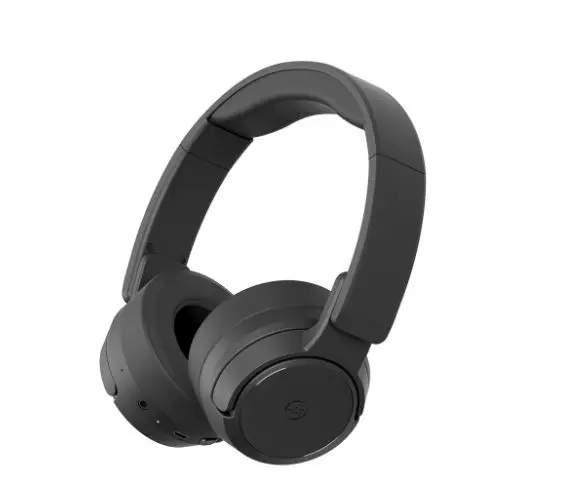
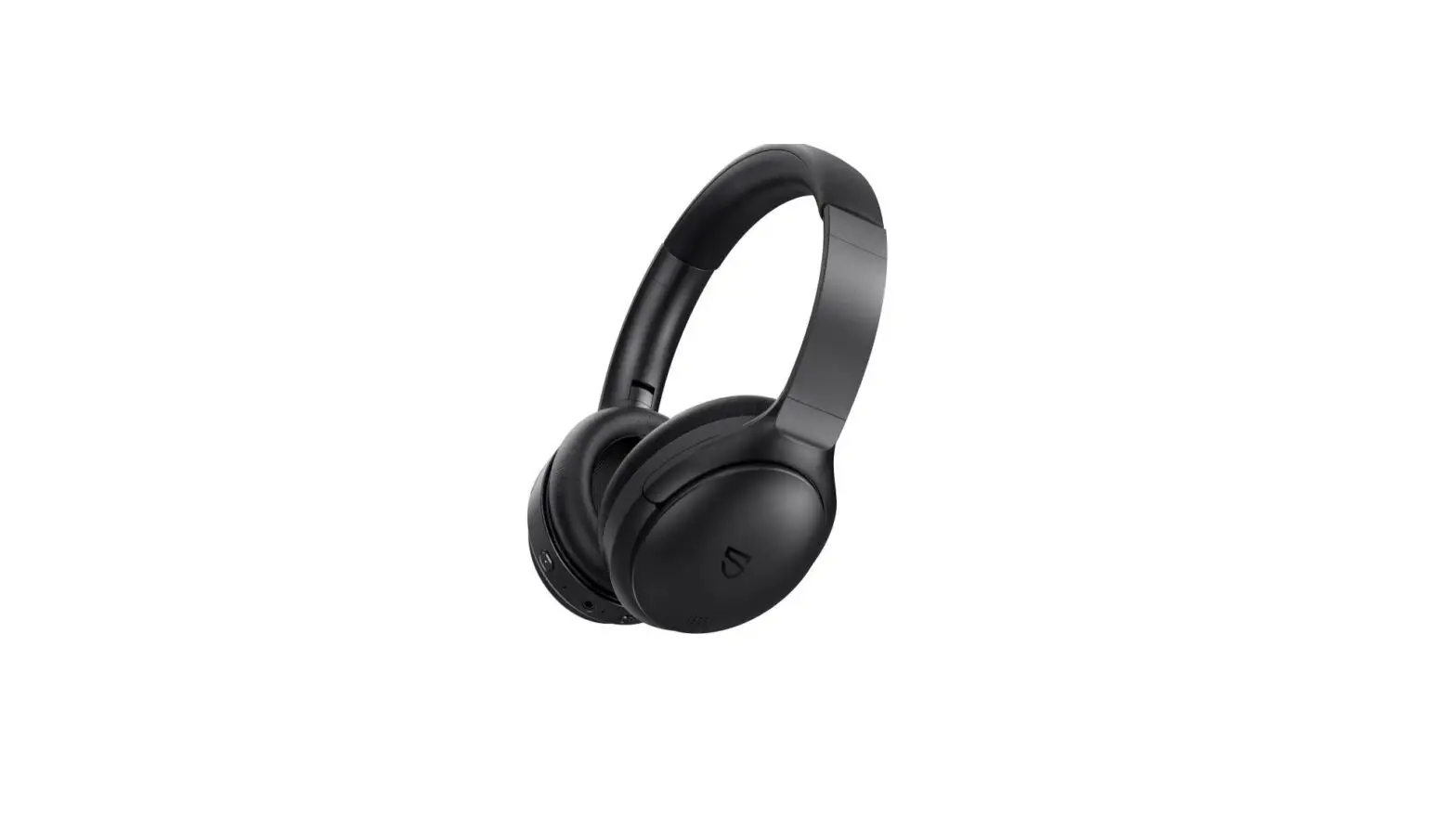
NS-AHBTOENC, NS-AHBTOENC-C Noise Canceling Over Ear Headphones
Product Information
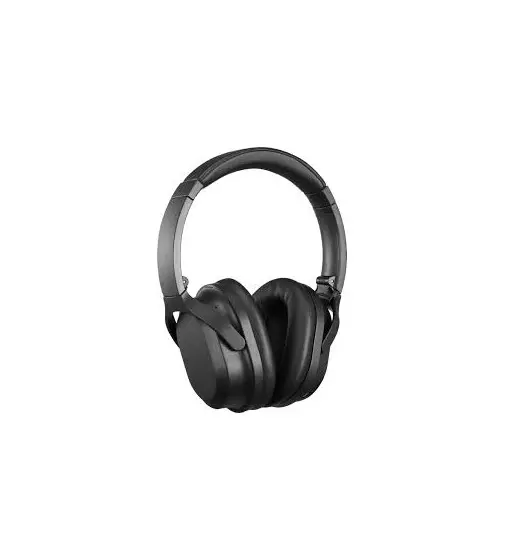
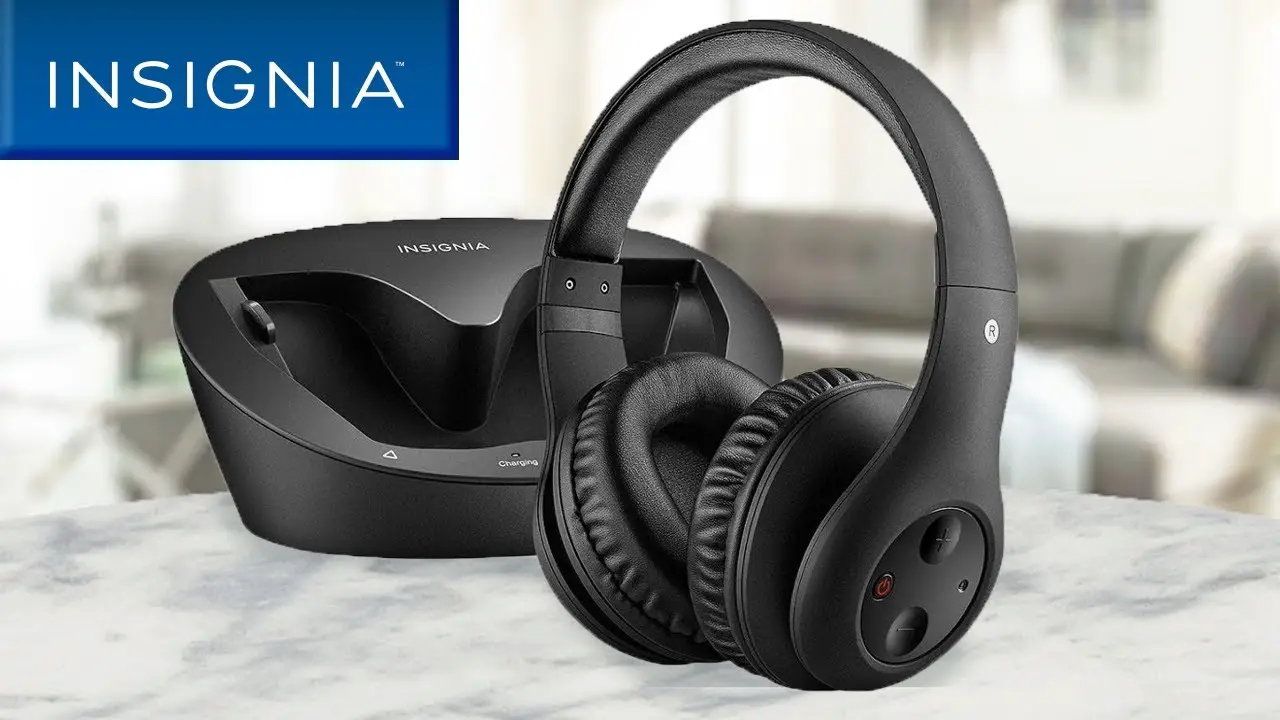
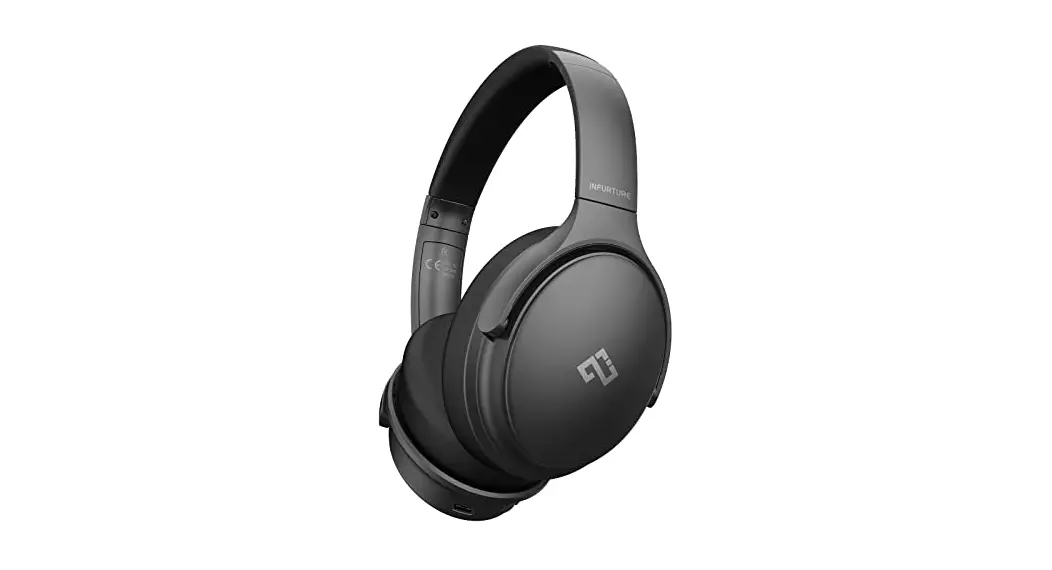
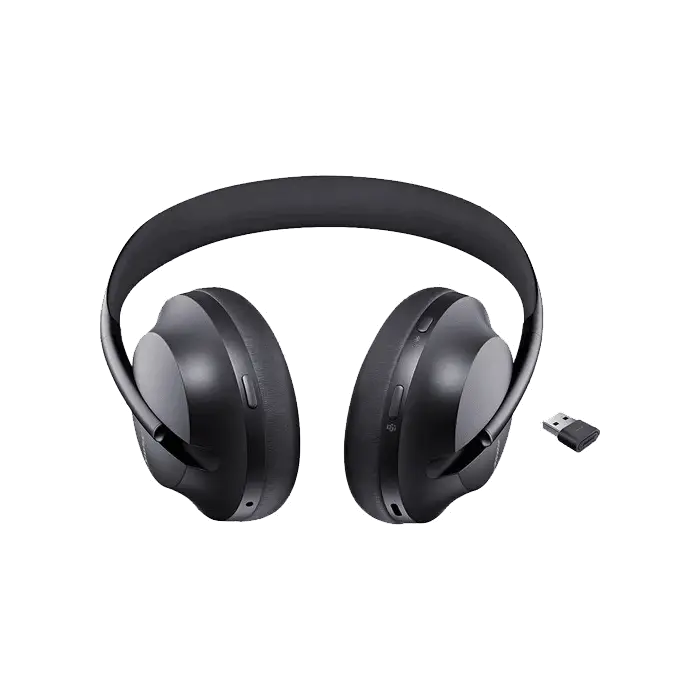
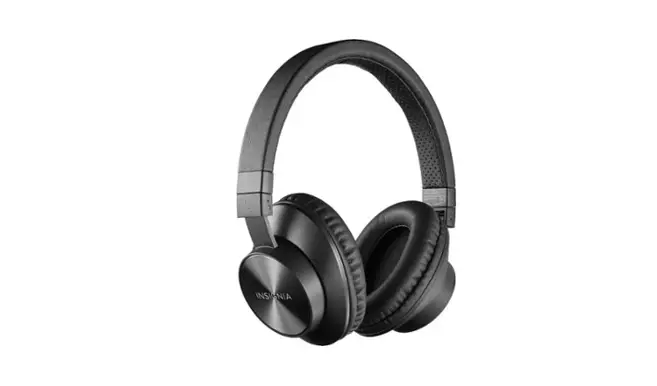
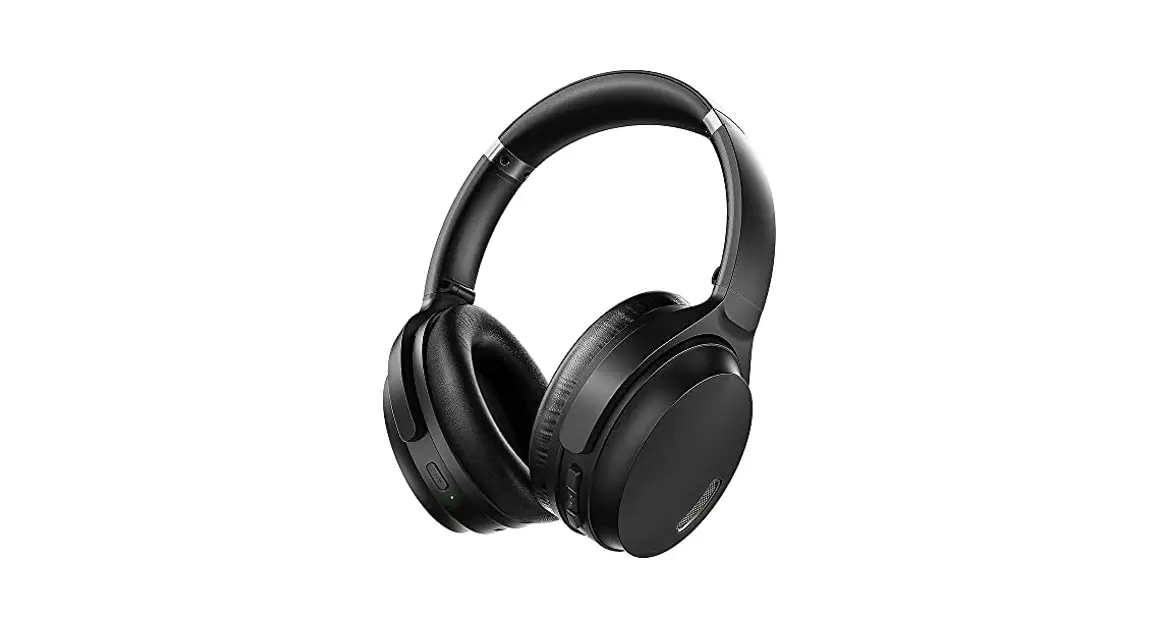
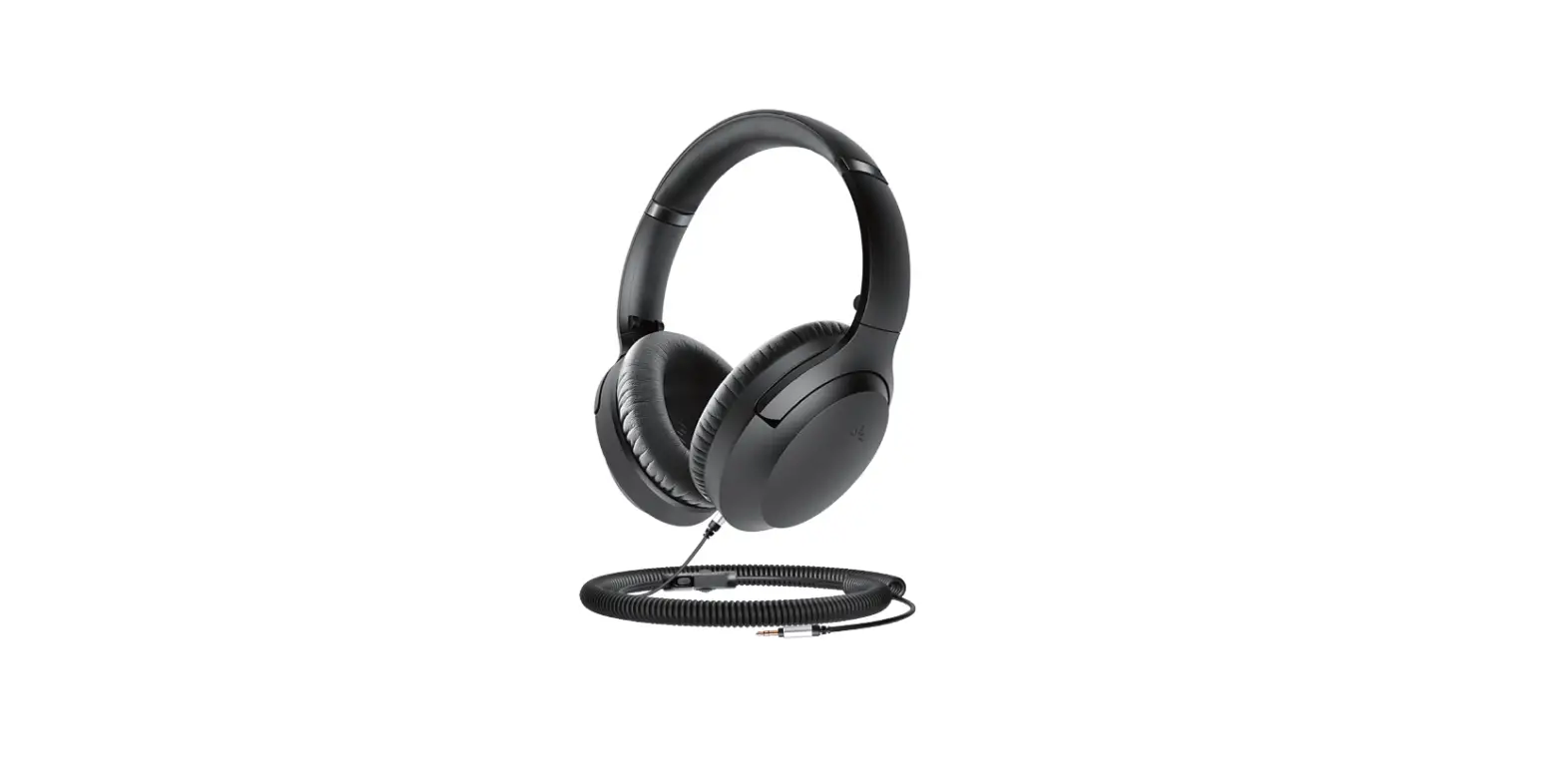
The Insignia Noise-Canceling Over-Ear Headphones
(NS-AHBTOENC/NS-AHBTOENC-C) are a high-quality audio accessory
designed to provide an immersive listening experience. These
headphones come with various features to enhance your audio
enjoyment, including active noise-canceling technology, Bluetooth
connectivity, and a touchpad for easy control.
Package Contents
- Insignia Noise-Canceling Over-Ear Headphones
- 3.5 mm audio cable
- Micro USB charging cable
- User manual
Features
- Noise canceling feature to reduce external sounds
- Bluetooth connectivity for wireless audio streaming
- Touchpad for convenient control of playback, volume, and
calls - Monitor mode for amplifying external sounds
- Built-in microphone for hands-free calling
- 3.5 mm audio jack for wired connection
- Micro USB port for charging
Product Usage Instructions
Power On/Off
To turn on the headphones, follow these steps:
- Place the headphones around your head.
- Press and hold the power button for more than two seconds.
- The LED will blink blue and you will hear a voice prompt saying
“Power on”.
To turn off the headphones, follow these steps:
- Press and hold the power button for more than three
seconds. - The LED will blink red and you will hear a voice prompt saying
“Power off”.
Pairing
To pair the headphones with a cell phone or MP3 player, follow
these steps:
- Make sure the headphones are turned off.
- Press and hold the pairing button for four seconds.
- The blue and red LEDs will blink alternately.
- On your phone or MP3 player, select “INSIGNIA NS-AHBTOENC” from
the list of discovered devices. - Enter the password “0000” (four zeros) if prompted.
Noise Canceling
To activate or deactivate the noise-canceling feature, follow
these steps:
- To turn on noise canceling: Press and release the ANC (Active
Noise-Canceling) button. - To turn off noise canceling: Press and release the ANC button
again.
Play/Pause and Volume Control
To play or pause audio and adjust the volume, follow these
steps:
- To play or pause: Double-tap the touchpad with one finger or
press and release the play/pause button. - To increase or decrease volume: From the middle of the
touchpad, slide a finger towards “+” or “-“.
Answering and Ending Calls
To answer an incoming call, double-tap the touchpad with one
finger or press and release the answer call button. To end a call,
double-tap the touchpad with one finger or press and release the
end call button.
Other Functions
- To skip to the next or previous track, slide a finger towards
“<” or “>”. - To reject an incoming call, long hold the touchpad or press and
hold the reject call button for more than two seconds, then
release. - To redial the last phone number, double-press the redial
button. - To enter monitor mode, press and release the monitor button. To
exit monitor mode, press and release the monitor button again. - To activate the voice assistant, press and hold the touchpad
with one finger for two seconds.
Charging
To charge your headphones, follow these steps:
- Plug the micro USB connector into the micro USB port on the
headphones. - The charging LED will turn on, indicating that the headphones
are being charged. - Once fully charged, the charging LED will turn off.
Using with the 3.5 mm Audio Cable
If you want to listen to music when the headphones are powered
off, you can use the included 3.5 mm audio cable. Simply connect
one end of the cable to the 3.5 mm audio jack on the headphones and
the other end to your phone or computer.
QUICK SETUP GUIDE
Insignia Noise-Canceling Over-Ear Headphones
NS-AHBTOENC/NS-AHBTOENC-C
PACKAGE CONTENTS
· Bluetooth Noise-Canceling Headphones · 3.5 mm audio cable
· USB charging cable · Quick Setup Guide
FEATURES
· Noise canceling technology helps block out external noise · Bluetooth lets you make wireless connections · Rechargeable battery provides up to 20 hours of music playback with ANC, or up to 40 hours without ANC · Built-in microphone to make phone calls · Foldable design allows for easy, compact storing · Earcup controls adjust volume and change audio tracks
Before using your new product, please read these instructions to prevent any damage.
Front view
Right side view
L
R
Left side view
Monitor button Monitor LED
Indicator LED (Power/Pairing/Play/Pause) button
Noise Canceling LED Noise canceling (ANC) button
3.5 mm audio jack
Monitor/ANC microphone Touchpad
R
L
R
Micro USB port Charging LED Microphone
BLUETOOTH AND NOISE CANCELING BASIC INDICATION
ACTION Power on
OPERATION Press and hold the (power button) more than two seconds.
Power off
Press and hold the (power button) more than three seconds.
Pairing mode
Press and hold the (pairing button) more than four seconds in power off mode.
Noise canceling on Noise canceling off Play/Pause Volume Up/Down
Press and release the ANC (Active Noise-Canceling) button to enter the ANC mode. Press and release the ANC button to exit the ANC mode. Double-tap the touch pad with one finger or press and release the button. From the middle of the touchpad, slide a finger towards + or -.
LED INDICATION
Blue LED lights for 1.5 seconds
Red LED lights for 1.5 seconds
Blue and red LEDs blink alternately
Green LED on
Green LED off
LED off
LED off
Next/Previous track From the middle of the touchpad, slide a finger towards < or >.
Answer call
Double-tap the touch pad with one finger or press and release the when a call is incoming.
Ending call
Double-tap the touch pad with one finger and release the touch pad or press and release the when a call is finished.
Reject call
Long hold the touch pad or press the for more than two seconds, then release when a call is incoming.
Redial
Double-press the to redial the last phone number.
Monitor on
Press and release the monitor button to enter the monitor mode. When the monitor mode is off, press and hold the touch pad with your palm or more than two fingers to enter monitor mode.
Monitor off
Press and release the monitor button to exit the monitor mode.
Voice assistant
Press and hold the touch pad with one finger for two seconds to hear the voice assistant.
3.5 mm audio jack 3.5 mm audio cable connection to the phone or computer to listen to music when power off.
Micro USB port Plug the micro USB connector into this port to charge your headphones.
LED off LED off LED off LED off LED off Orange LED on
Orange LED off LED off LED off Charging LED on
SOUND “Power on” “Power off” Two short beeps “ANC on” “ANC off”
Two high beeps for maximum volume
One long beep Two long beeps Two long beeps Two short beeps “Monitor on”
“Monitor off”
CHARGING YOUR HEADPHONES
· When the red indicator LED blinks three times every five minutes and the voice prompt says”battery low,”you need to charge the battery. Plug the charging cable into your computer or adapter and into the micro USB port on your headphones. The red LED turns on to indicate that the battery is charging and turns off when fully charged.
USING WITH THE 3.5 MM AUDIO CABLE
You can use your headphones with non-Bluetooth enabled devices or on airplanes (in which the use of Bluetooth may be restricted) by taking advantage of the headphones’ audio jack. · Connect the 3.5 mm end of the included audio cable to the headset’s audio jack and the 3.5 mm end to the audio device’s headphone jack. Notes: · Corded operation does not require battery power for music listening. · The Bluetooth, microphone, and digital sound enhancement will not work via the audio cable. · Finish your call before connecting to the audio jack.
USING YOUR HEADPHONES
Turning your headphones on and off 1 Place the headphones around your head. 2 Press and hold (power button) more than two seconds. The LED blinks blue (when turned on) or red (when turned off) and the voice
prompt says”Power on”or”Power off”.
PAIRING YOUR HEADPHONES
Notes: · Range is 33 feet (10 meters) · Supports easy pairing
· Prompts you by saying “Your device is connected,” when connected · Supports a battery indicator icon on an iOS device
Pairing with a cell phone or MP3 player
1 With your headphones turned off, press and hold (pairing button) for four seconds. The blue and red LEDs blink alternately.
2 On your phone or MP3 player, select INSIGNIA NS-AHBTOENC from the list of discovered devices, then enter the password 0000 (four zeros) (if
required) to pair your headphones.
For more information on pairing Bluetooth devices to your cell phone or MP3 player, see the device’s documentation. Note: After your headphones have been successfully paired with the cell phone or MP3 player, your headphones will automatically reconnect to the phone or MP3 player.
Pairing with a computer running Windows Note: Before you pair your headphones with the computer, make sure that the computer is equipped with Bluetooth. Refer to the computer’s documentation or contact the computer manufacturer for more information. If your computer is not Bluetooth compatible, install a Bluetooth USB adapter (dongle). 1 Turn on Bluetooth on the computer. For instructions, see the computer’s documentation or contact the computer manufacturer. 2 Double-click the Bluetooth icon in the system tray, then click Add a device. 3 With your headphones turned off, press and hold (pairing button) for four seconds. The LED blinks blue and red alternately. Pairing
mode is activated. 4 Double-click the INSIGNIA NS-AHBTOENC icon on the computer or highlight the icon, then click Next.
Note: If you are unable to locate the INSIGNIA NS-AHBTOENC icon, click the Search Again button. 5 If required, enter 0000 (four zeros) in the Bluetooth security code field, then click Next. 6 After your headphones are paired, click Close.
Note: To make your headphones as your default playback device, refer to your computer User Guide or Windows Help.
Pairing with a Mac computer Note: Before you pair your headphones with the computer, make sure that the computer is Bluetooth compatible. Refer to the computer’s documentation or contact the computer manufacturer for more information. If your computer is not Bluetooth compatible, install a Bluetooth USB adapter (dongle).
1 Turn on Bluetooth on the computer. For instructions, see the computer’s documentation or contact the computer manufacturer. 2 Click the Bluetooth status menu. 3 Click Set up Bluetooth Device. The Bluetooth Setup Assistant opens. 4 Click Continue. 5 Select Headset as the device type, then click Continue. 6 With your headphones turned off, press and hold (pairing button) for four seconds. The LED blinks blue and red alternately. Pairing
mode is activated. 7 Select INSIGNIA NS-AHBTOENC, then click Continue. The computer gathers information. 8 Click Continue. 9 Enter 0000 (four zeros) into the Passkey field, then click Continue. 10 Click Quit to finish.
Note: To use your headphones, they must be selected as the default input and output device on the computer. 11 Click System Preferences, then click Sound. 12 Under Input, select INSIGNIA NS-AHBTOENC, then under Output, select INSIGNIA NS-AHBTOENC.
RESETTING YOUR STEREO HEADPHONES
· With your headphones turned off, press and hold the power/pairing button for ten seconds until the red LED flashes 10 times and your headphones enter pairing mode.
SPECIFICATIONS
Bluetooth version: Supported profiles: Frequency spectrum: Working distance: Operating temperature: Operating time:
Standby time: Size:
Weight: Average charging time:
Bluetooth 5.0 A2DP, AVRCP, HFP, HSP 2.4 ~ 2.4835 GHz ISM Band Up to 33 ft. (10 m) 23 ~ 122° F (-5 ~ 50° C) Talk: 22 hours Music: 20 hours, NC+playback music track Up to 400 hours 6.69 × 2.30 × 7.5 inches (17.0 × 7.61 × 19.06 cm) 8.47 oz (240 g) 3. 5 hours
TROUBLESHOOTING
No power · Make sure that the headphones’battery is charged. · Make sure that your headphones are turned on. No sound or low volume · Turn up the volume on your headphones and Bluetooth device. Make sure that your Bluetooth device is not muted. · Shorten the distance between your headphones and your Bluetooth device. · Make sure that your Bluetooth device is turned on, Bluetooth is turned on, and INSIGNIA NS-AHBTOENC is selected. · Make sure that your headphones are not paired to another Bluetooth device. · Make sure that your Bluetooth device is not paired to another Bluetooth device. Cannot establish Bluetooth connection · Make sure that your headphones are in pairing mode. Press and hold the button for four seconds to re-enter pairing mode. · Shorten the distance between your headphones and your Bluetooth device. · Turn your devices off, then on. Re-pair your headphones and your Bluetooth device. · Make sure that your headphones are not paired to another Bluetooth device. · Make sure that your Bluetooth device is not paired to another Bluetooth device. · Make sure that your headphones and Bluetooth device are both in pairing mode. · Make sure that you have selected INSIGNIA NS-AHBTOENC on your Bluetooth device. My Bluetooth device keeps unpairing · Shorten the distance between your headphones and your Bluetooth device. · If the battery on your Bluetooth device is low, recharge the battery. · If the battery on your headphones is low, recharge the battery. INSIGNIA NS-AHBTOENC does not appear on my Bluetooth device · Shorten the distance between your headphones and your Bluetooth device. · Put your headphones into pairing mode, then refresh your list of Bluetooth devices. For more information, see the documentation that came with your Bluetooth
device. Poor sound quality · Shorten the distance between your headphones and your Bluetooth device. · Pair your headphones to a different Bluetooth device. · Try changing the volume on your Bluetooth device. The microphone isn’t working · The microphone only works with a Bluetooth connection. My headphones are paired, but I can’t get audio · Make sure that your source device is outputting audio to your headphones. See the documentation that came with your source device.
LEGAL NOTICES
FCC Supplier’s Declaration of Conformity: Brand name / model number: INSIGNIA NS-AHBTOENC This device complies with Part 15 of the FCC Rules. Operation is subject to the following two conditions: (1) this device may not cause harmful interference, and (2) this device must accept any interference received, including interference that may cause undesired operation. Suppliers Name: Best Buy Purchasing, LLC. Suppliers Address (USA): 7601 Penn Ave South, Richfield, MN 55423 U.S.A. Suppliers phone number: 1-877-467-4289. FCC Caution: Changes or modifications not expressly approved by the party responsible for compliance could void the user’s authority to operate the equipment. FCC Statement: Note: This equipment has been tested and found to comply with the limits for a Class B digital device, pursuant to Part 15 of the FCC Rules. These limits are designed to provide reasonable protection against harmful interference in a residential installation. This equipment generates, uses, and can radiate radio frequency energy and, if not installed and used in accordance with the instructions, may cause harmful interference to radio communications. However, there is no guarantee that interference will not occur in a particular installation. If this equipment does cause harmful interference to radio or television reception, which can be determined by turning the equipment off and on, the user is encouraged to try and correct the interference by one or more of the following measures: · Reorient or relocate the receiving antenna. · Increase the separation between the equipment and receiver. · Connect the equipment into an outlet on a circuit different from that to which the receiver is connected. · Consult the dealer or an experienced radio/TV technician for help. RSS-Gen & RSS-247 Statement: This device complies with Industry Canada licence-exempt RSS standard(s). Operation is subject to the following two conditions: (1) this device may not cause interference, and (2) this device must accept any interference, including interference that may cause undesired operation of the device. Le présent appareil est conforme aux CNR d’Industrie Canada applicables aux appareils radio exempts de licence. L’exploitation est autorisée aux. deux conditions suivantes : (1) l’appareil ne doit pas produire de brouillage, et (2) l’utilisateur de l’appareil doit accepter tout brouillage radioélectrique subi, même si le brouillage est susceptible d’en compromettre le fonctionnement. RSS-102 Statement This equipment complies with Industry Canada radiation exposure limits set forth for an uncontrolled environment. Cet équipement est conforme à l’exposition aux rayonnements Industry Canada limites établies pour un environnement non contrôlé. deux conditions suivantes : (1) l’appareil ne doit pas produire de brouillage, et (2) l’utilisateur de l’appareil doit accepter tout brouillage radioélectrique subi, même si le brouillage est susceptible d’en compromettre le fonctionnement.
ONE-YEAR LIMITED WARRANTY
Visit www.insigniaproducts.com for details.
CONTACT INSIGNIA:
1-877-467-4289 (U.S. and Canada) www.insigniaproducts.com
INSIGNIA is a trademark of Best Buy and its affiliated companies. Distributed by Best Buy Purchasing, LLC. 7601 Penn Ave South, Richfield, MN 55423 U.S.A. ©2019 Best Buy. All rights reserved. Made in China
V2 ENGLISH 19-0117
 Insignia Consumer Electronic Products