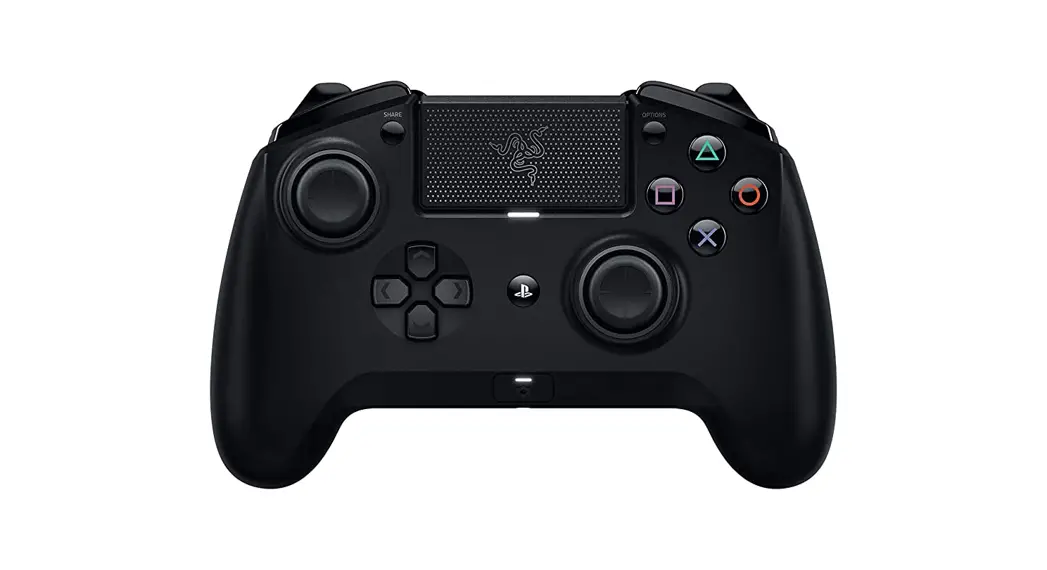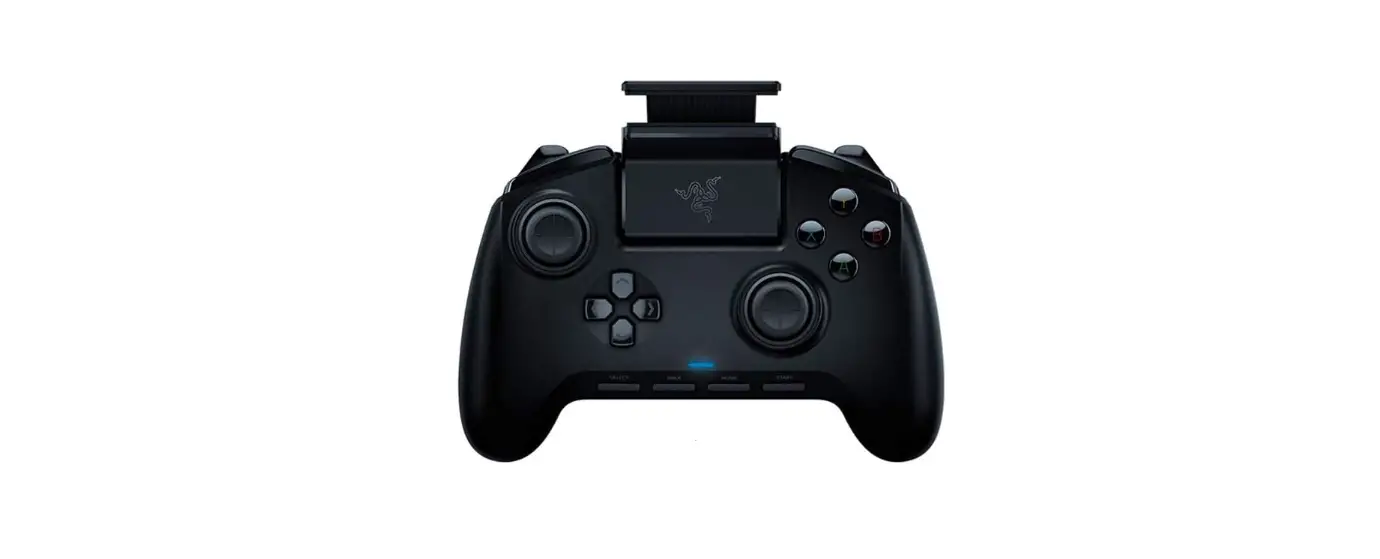
Razer RZ06-02800100-R3U1 Raiju Mobile Gaming Controller
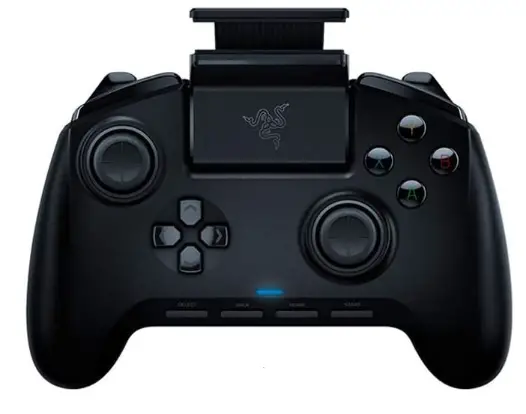
PACKAGE CONTENTS / SYSTEM REQUIREMENTS
PACKAGE CONTENTS
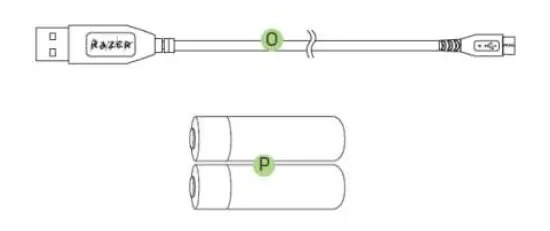
- Razer Serval
- Battery casing
- 2 AA batteries
- USB to micro USB cable
- Detachable game clip
- 2 Analog stick rubber grip caps
- Important product information guide
SYSTEM REQUIREMENTS
- Android (Android 4.2 mobile device / Razer Forge TV)
- Wired Mode: USB 2.0 port
- Wireless Mode: Bluetooth 3.0® or higher
REGISTRATION / TECHNICAL SUPPORT
REGISTRATION
Sign up now for a Razer Synapse account to get real-time information on your product’s warranty status. To learn more about Razer Synapse and all its features, visit www.razerzone.com/synapse.
If you are already a Razer Synapse user, register your product by clicking on your email address at the Razer Synapse application and select Warranty Status from the dropdown list.
To register your product online, visit www.razerzone.com/registration. Please note that you will not be able to view your warranty status if you register via the website.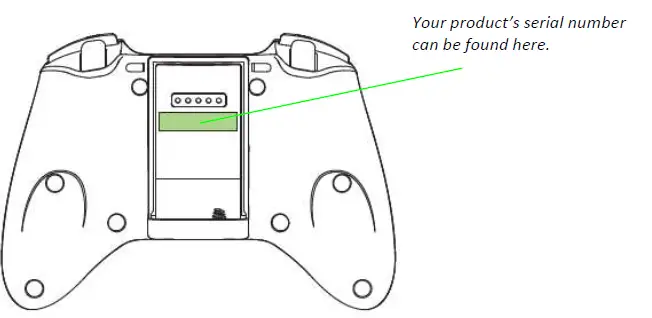
TECHNICAL SUPPORT
What you’ll get:
- 1-year limited manufacturer’s warranty.
- Free online technical support at www.razersupport.com.
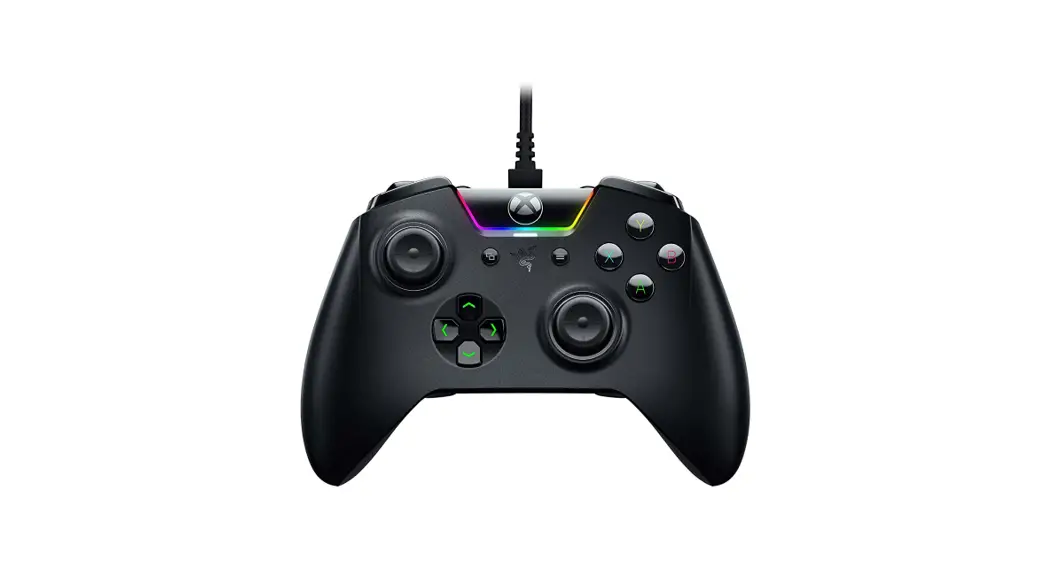
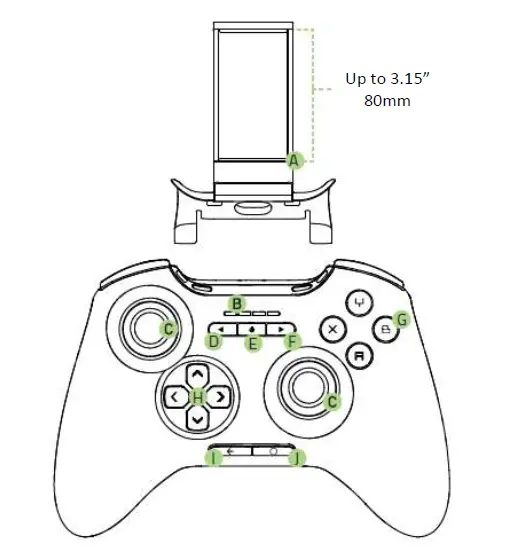
DEVICE LAYOUT
- Detachable game clip
- Status indicator
- Analog sticks
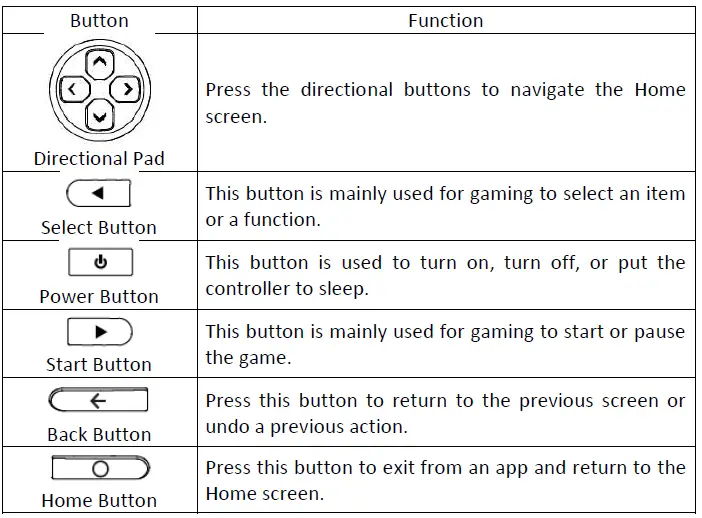
- Select button
- Power / Mode button
- Start button
- Action buttons
- Directional pad
- Back button
- Home button

- Micro USB port
- Shoulder buttons
- Shoulder triggers
- Battery casing

- USB cable
- Batteries

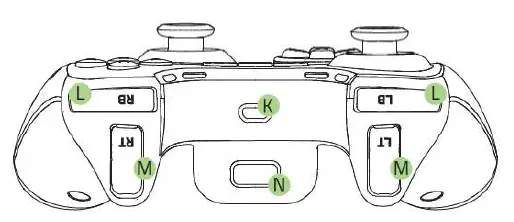
Controller Basics LED Status
 LED Status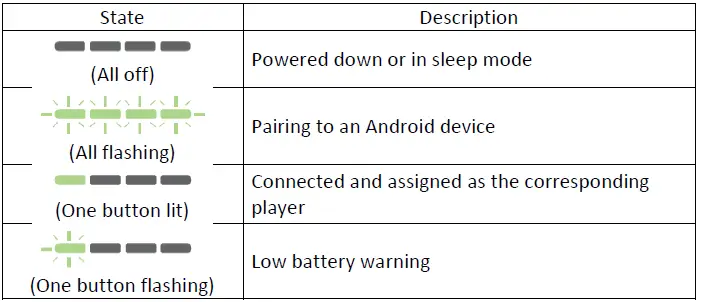
PAIRING WITH YOUR RAZER FORGE TV
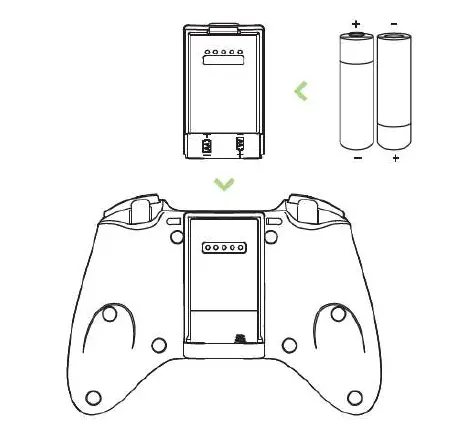
- Insert the batteries into the battery casing and attach the battery casing to the controller.

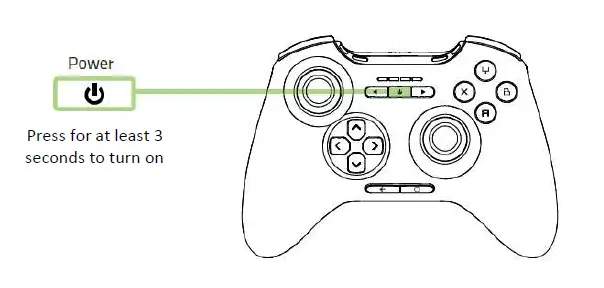
Note: Use only 2 AA ALKALINE batteries. Using non-Razer-approved batteries may harm the device and/or cause serious physical injury to the user. - Press the Power button for at least seconds to turn on the controller.

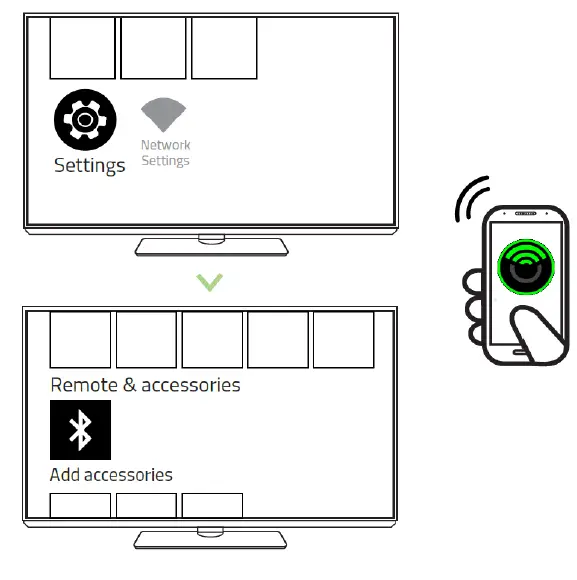
Press for at least 3 seconds to turn on  From the Home screen of your Forge TV, go to Settings > Remote & accessories, and select Add accessories using the Forge TV Remote app. (Process may vary for Android devices with the customized user interface.)
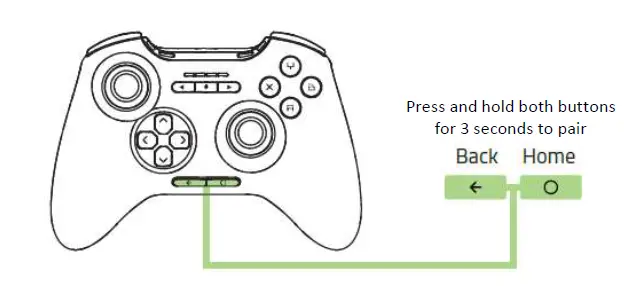
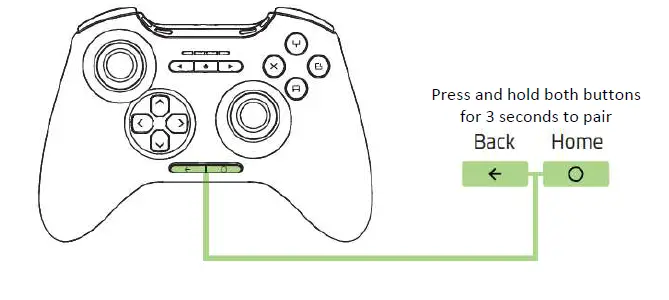
 Simultaneously hold the Home and Back buttons for at least 3 seconds on the controller to activate pairing mode.
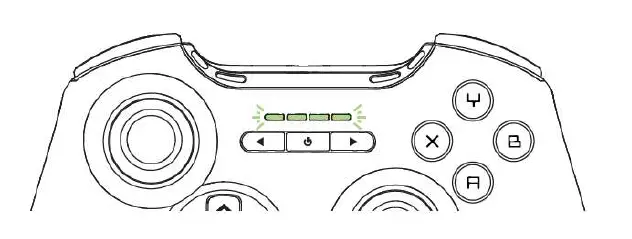
All 4 LEDs will blink simultaneously to indicate that the controller is attempting to connect with the Razer Forge TV. Once paired, you only need to press the Power button for half a second to turn on the controller.
For subsequent pairing with other devices, simultaneously hold the Back and Home buttons for at least 3 seconds to reactivate pairing mode.
Press and hold both buttons for 3 seconds to pair
 From the Home screen of your Forge TV, go to Settings > Remote & accessories, and select Add accessories using the Forge TV Remote app. (Process may vary for Android devices with the customized user interface.)
 Simultaneously hold the Home and Back buttons for at least 3 seconds on the controller to activate pairing mode.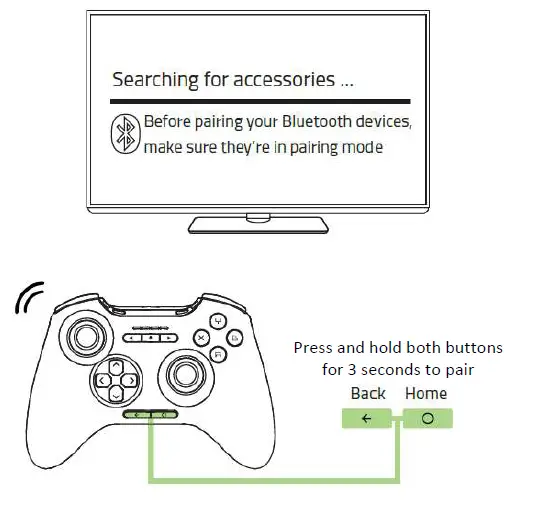
USING A WIRED CONNECTION (OPTIONAL)
Connect the USB cable from the Razer Serval to your Forge TV’s USB port.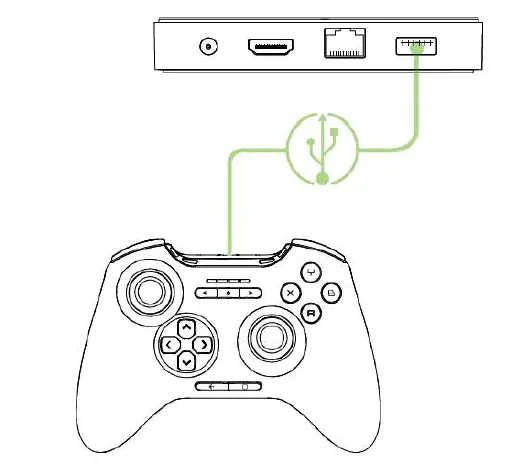
You are now ready to use the Razer Serval on your Razer Forge TV. Have fun!
PAIRING WITH ANDROID MOBILE PHONES
- From the Home screen of your Android mobile phone*, go to Settings > Network Connections (or Wireless & Network), select Bluetooth and switch it on. (Process may vary for Android devices with customized user interface.)

- While the controller is turned on, simultaneously press and hold the Home and Back buttons for at least 3 seconds on the controller to activate pairing mode.

- When the controller is discovered, select it from the list of discovered devices, and wait until the controller is paired. Once paired, you only need to press the Power button for half a second to turn on the controller.
 You are now ready to use the Razer Serval on your Android mobile phone. Have fun!
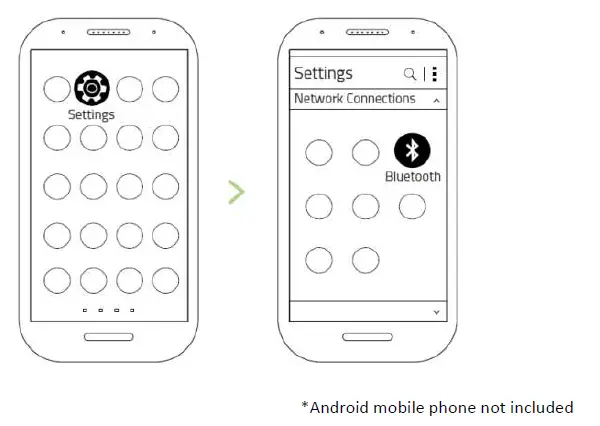
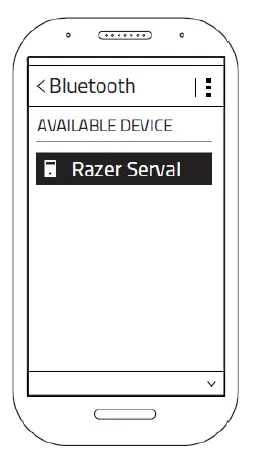 You are now ready to use the Razer Serval on your Android mobile phone. Have fun!
PAIRING WITH MULTIPLE DEVICES
The Razer Serval can remember up to four unique device pairings; allowing you to seamlessly switch between multiple devices.
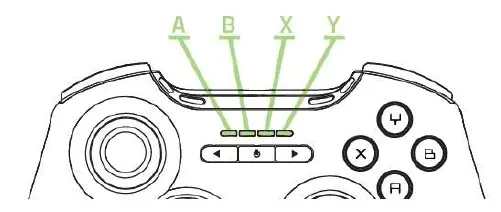
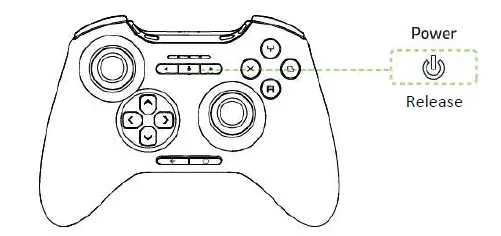
To save a recently paired device while the Razer Serval is turned on:
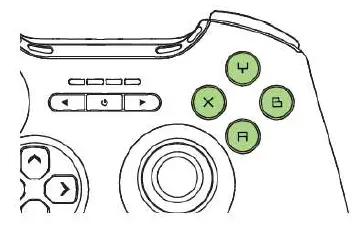
- Press and hold the Power button for less than 3 seconds, then immediately press the Action button you want to associate with the device.

A corresponding LED will blink 3 times to indicate that the device is successfully saved.
- Release the Power button.

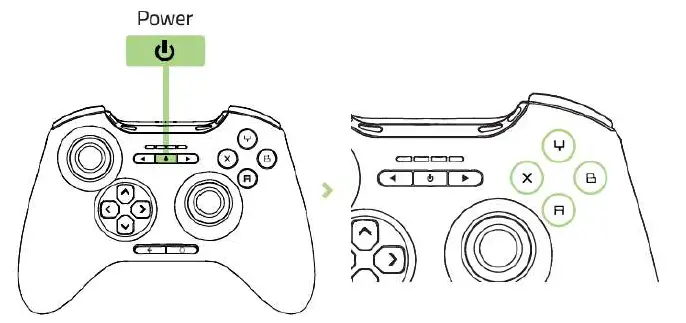
To load a saved device:
- Turn off the Razer Serval by pressing the Power button for at least 3 seconds.

- Press and hold the corresponding Action button for the saved device

- Press the Power button for half a second to turn on the Razer Serval.

- Release the corresponding Action button for the saved device.
You are now ready to use the Razer Serval on multiple devices. Have fun!
ACCESSORIES
DETACHABLE GAME CLIP
Attach the game clip to the controller if you are using an Android phone.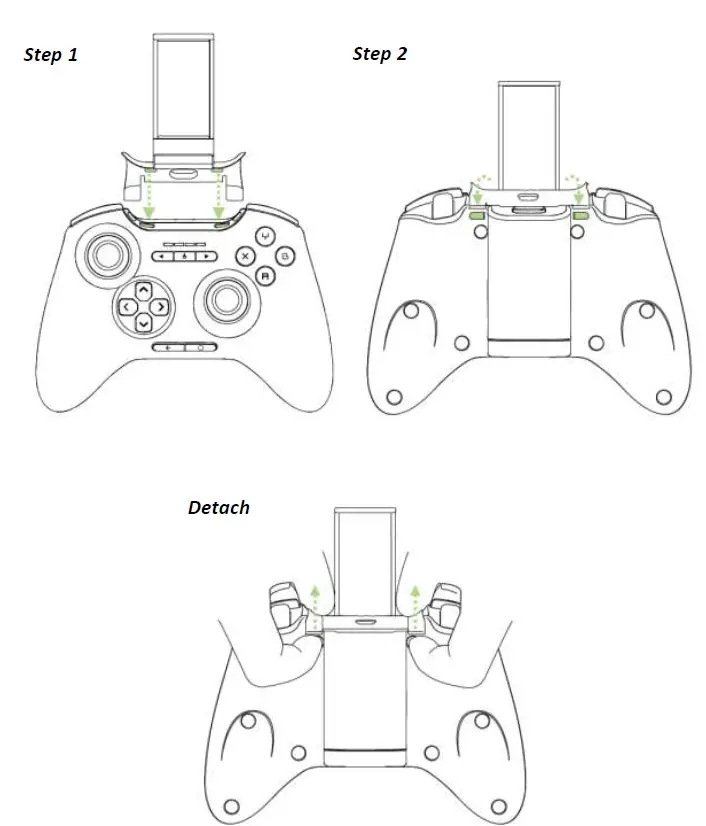
ANALOG STICK RUBBER GRIP CAPS
The additional texture on the rubber grip caps prevent your thumbs from slipping off the analog sticks during intense gaming sessions.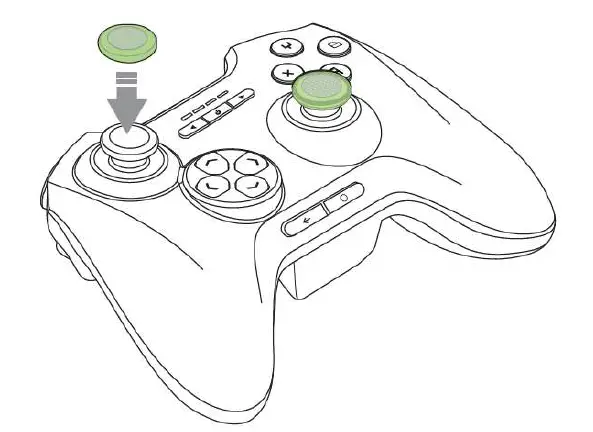
RESTORING TO DEFAULT SETTINGS
To restore your Razer Serval to its original settings, turn off the Razer Serval, and then press and hold the Up, Home and Y buttons. While the button are pressed, press and hold the Power button for at least 2 seconds. All 4 LEDs will blink simultaneously to indicate that reset is successful.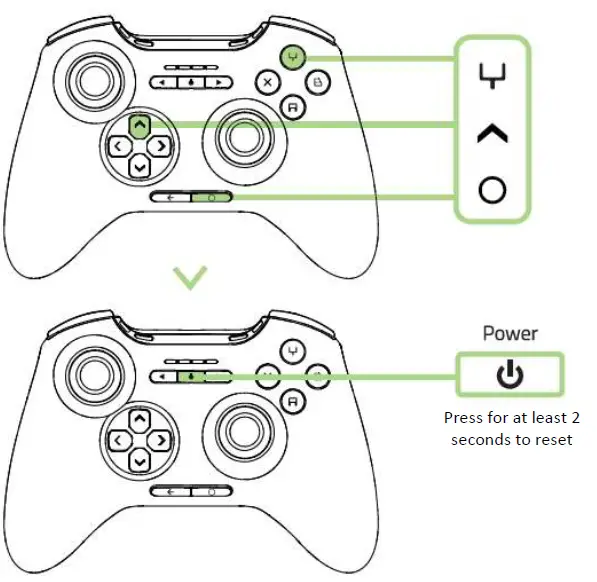
LEGALESE
COPYRIGHT AND INTELLECTUAL PROPERTY INFORMATION
©2015 Razer Inc. Patent Pending. All Rights Reserved. Razer™, the Razer Triple- Headed Snake logo, the Razer distressed word logo and other trademarks contained herein are trademarks or registered trademarks of Razer Inc. and/or its affiliated or associated companies, registered in the United States and/or other countries.
The Bluetooth® word mark and logos are registered trademarks owned by Bluetooth SIG, Inc. and any use of such marks by Razer is under license. Android, Android TV, Google Cast, and other marks are trademarks of Google Inc.
Razer Inc. (“Razer”) may have copyright, trademarks, trade secrets, patents, patent applications, or other intellectual property rights (whether registered or unregistered) concerning the product in this guide. Furnishing of this guide does not give you a license to any such copyright, trademark, patent or other intellectual property right. The Razer Serval (the “Product”) may differ from pictures whether on packaging or otherwise. Razer assumes no responsibility for such differences or for any errors that may appear. Information contained herein is subject to change without notice.
LIMITED PRODUCT WARRANTY
For the latest and current terms of the Limited Product Warranty, please visit www.razerzone.com/warranty.
LIMITATION OF LIABILITY
Razer shall in no event be liable for any lost profits, loss of information or data, special, incidental, indirect, punitive or consequential or incidental damages, arising in any way out of distribution of, sale of, resale of, use of, or inability to use the Product. In no event shall Razer’s liability exceed the retail purchase price of the Product.
COSTS OF PROCUREMENT
For the avoidance of doubt, in no event will Razer be liable for any costs of procurement unless it has been advised of the possibility of such damages, and in no case shall Razer be liable for any costs of procurement liability exceeding the retail purchase price of the Product.
GENERAL
These terms shall be governed by and construed under the laws of the jurisdiction in which the Product was purchased. If any term herein is held to be invalid or unenforceable, then such term (in so far as it is invalid or unenforceable) shall be given no effect and deemed to be excluded without invalidating any of the remaining terms. Razer reserves the right to amend any term at any time without notice.
FAQS
No, it can not work with the Playstation classic.
wired controllers or 2 motors like the 8bitdo pro 2?
8bitdo Ultimate 2.4G controller has 2 motors.
No, it does not work with Steam Deck.
But we are actively working on it now and will provide more information when it is available.
No, 8Bitdo Ultimate 2.4G controller does not have Hall Effect sticks. They are ALPS Joysticks.
No, it can not work with xbox. 8Bitdo Ultimate 2.4G controller is compatible with Windows & Android & Raspberry Pi.
mega sg?
No, please note that it does not work with our other controller.
No, they are different.
The USB adapter 2 ($19.99) can not be used with this controller.
No, it does not work with Steam Deck.
But we are actively working on it now and will provide more information when it is available.
No, it does not work with Steam Deck.
But we are actively working on it now and will provide more information when it is available.
No, it does not work with Steam Deck.
But we are actively working on it now and will provide more information when it is available.
No, it does not work with mac or iOS.
The 8Bitdo Ultimate 2.4g Controller is for Windows 10 and Android.