
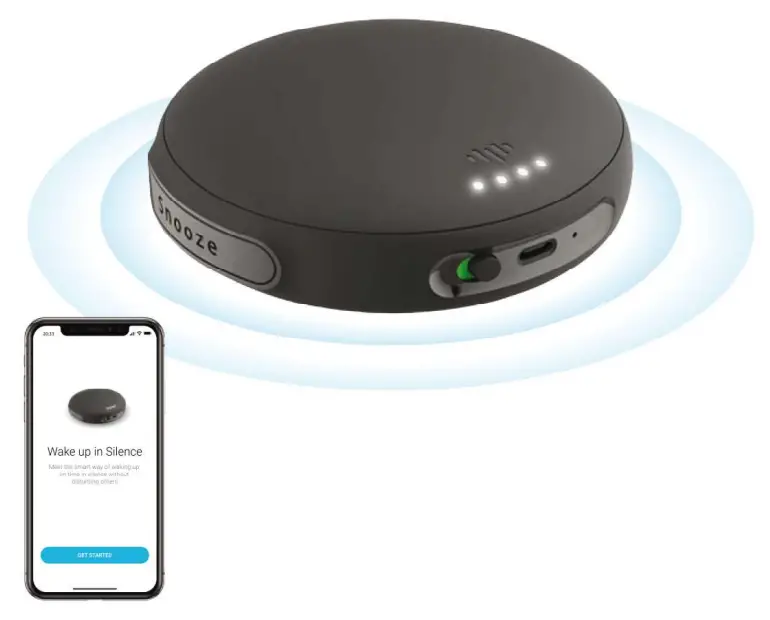
User Manual ver 1.0
APP OPERATIONS
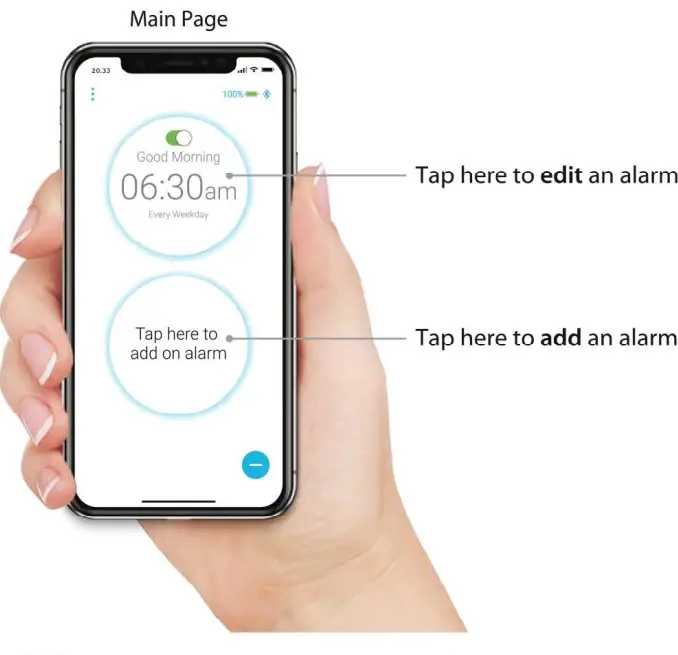
110%  Battery Status
 Bluetooth Status
 Setting Menu
 Toggle the On/Off of Individual Alarm
 Delete Alarms
WHAT YOU NEED
Any device with 10510 / Android 5.0 or above s
A power charger or power bank
WHAT’S INCLUDED

DEVICE SETUP
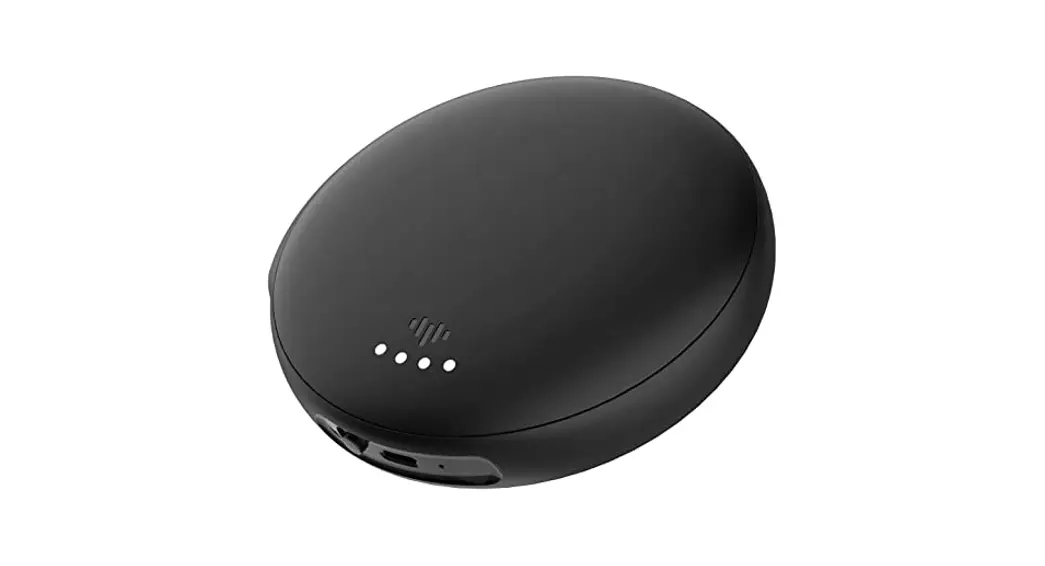
- Charge the SmartShaker 3 Connect the charging cable to the SmartShaker 3 and a US8-C power charger.
 The 4 LEDs on the SmartShaker 3 will continuously blink white indicating that the device is charging.
The 4 LEDs will stop blinking once charging Is complete.
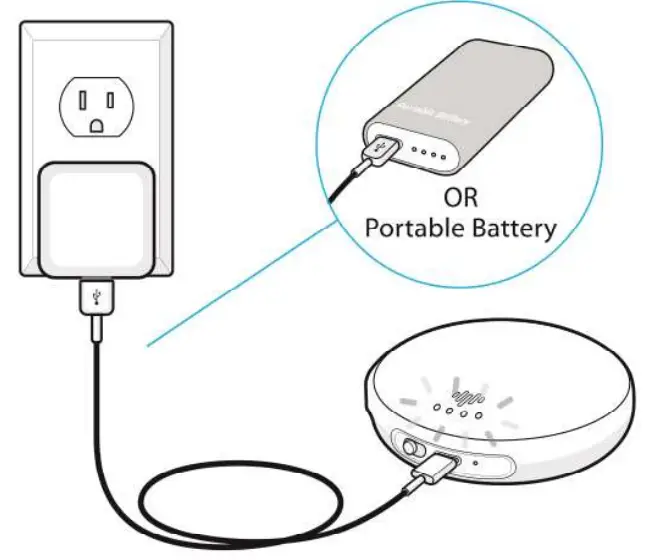 The 4 LEDs on the SmartShaker 3 will continuously blink white indicating that the device is charging.
2. Install the SmartShaker 3 App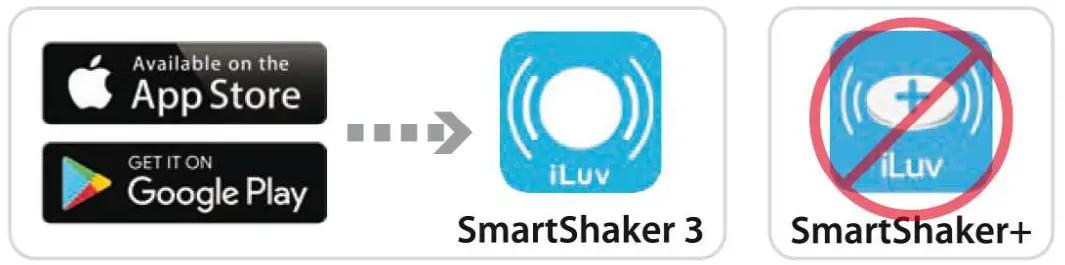 Search and download “SmartShaker 3″ on the Apple App Store or Google Play Store.
” Please do not install SmartShaker+ App
3. Turn on Bluetooth on your mobile device.
4. Launch the SmartShaker 3 App and follow the instructions.
DEVICE INTRODUCTION
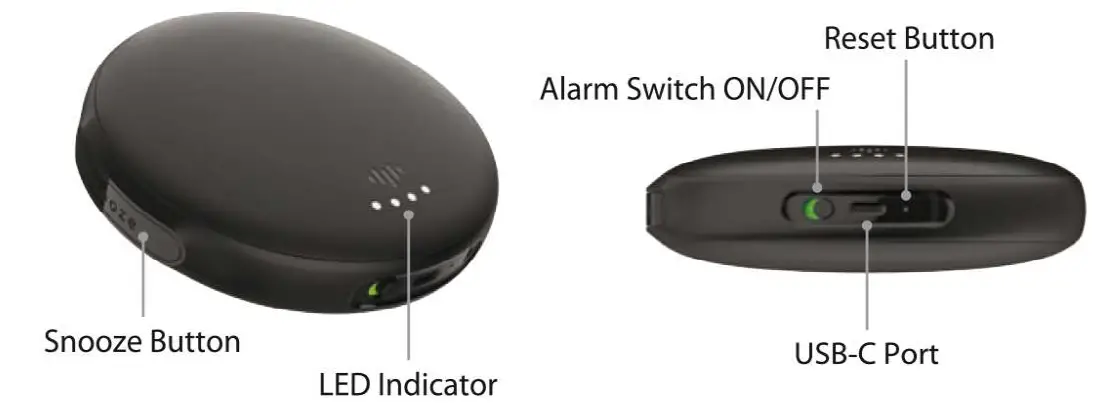
Snooze Button
-Press once to check the battery
– Press once to snooze the alarm if the alarm is active
On/Off Switch
- Off: Disable alerts for all incoming calls, messages and alarms
- On: Enable alerts for all incoming calls, messages and alarms
Reset Hole
Reset for SmartShaker 3
USB-C Charging Port
Connected to any charging adapter/power bank / PC with 5V 1A output
LED Solid Color Light
 Blinking Color Light
 Light Off
 All Blinking Blue Pairing modeAll Blinking White Active alarm*
 LED settings must be enabled on the app.
 All Blinking Green Incoming Call/Message
All Solid Blue Firmware Update Mode
Battery LED indication after pressing snooze…………75-100%……………….50-75%………….25-50%………….10-25% <10% <10% | LED status when in charging………….72-100%…………….50-75%…………………..25-50%……………<25% |
DEVICE SPECIFICATION
- Dimension and weight
Dimensions: 3.93.711.3″ (100mm X 100mm X 34mm)
Weight: 170g - Compatibility
iOS devices with IOS 10 or above
Android devices with Android 5.0 or above - Connectivity
Bluetooth 5.2 - Frequency, power, and coverage
Bluetooth” frequency: 2402 – 2480 MHz
Max output power 2.5mW (4 dBm)
Bluetooth” coverage: Up to 15 m ( 45FT)
“Coverage can be reduced by the walls and large objects - Power and battery
Battery power 1 x 1500mAh U-ion Polymer Battery
Power consumption: Active with strong vibration < 900mA Idle position < 200 pA
Operating time: Up to 14 days per charge
Charging time: Up to 1 hour 45 minutes .5V 1000 mA - Cables and connections
Cable length: 1 m ( )
Contacts: USB-A to USB-C - Environmental requirements
For indoor use only
Temperature:15° – 35°C – 95T
Relative humidity: 5% – 95% (non-condensing) - What’s include
SmartShaker 3 Main unit
Charging able
Manual
FAQS
- In the app stores which app is for SmartShaker 3?
SrnartShaker 3, not SmartShalter+ - How long will the SmartShaker 3 continue to vibrate if left untouched?
5 minutes. - How can I snooze the alarm?
Press the snooze button on the device or press the snooze button on the App. - Can I customize the timing for the snooze interval?
The default is 9 minutes however you can edit the timing by going to Menu -> Time Setting -> Snooze Interval. - How can I stop the alarm?
Slide the Alarm button to off or press the off button on the App. - How can I enable alerts for incoming calls?
Go to Menu -> Alert Setting and then toggle the ‘Alert for phone calls”. Please make sure the SmartShaker3 is on. - How can I enable alerts for incoming messages?
Go to Menu -> Alert Setting and then toggle the “Alert for SNS Messages”. Please make sure the SmartShaker3 is on.
TROUBLESHOOTING
- My SmartShaker 3 isn’t responding.
Plug the SmartShaker 3 into a power source to make sure the device is fully charged.
You can check the battery level by pressing the snooze button. - My app isn’t connecting to my SmartShaker 3
i. Make sure Bluetooth is enabled on your phone.
ii. Place the SmartShaker 3 and the connected phone closely together.
If this cannot help, try below
. i. Force close the SmartShaker 3 App.
ii. Toggle Bluetooth on your mobile.
iii. Reset your SmartShaker 3. iv. Open your app again.
NOTE: This equipment has been tested and found to comply with the limits for a Class B digital device, pursuant to part 15 of the FCC Rules. These limits are designed to provide reasonable protection against harmful interference in a residential installation. This equipment generates uses and can radiate radio frequency energy and, if not installed and used in accordance with the instructions, may cause harmful interference to radio communications. However, there is no guarantee that interference will not occur in a particular installation. If this equipment does cause harmful interference to radio or television reception, which can be determined by turning the equipment off and on, the user is encouraged to try to correct the interference by one or more of the following measures:
– Reorient or relocate the receiving antenna.
– Increase the separation between the equipment and receiver.
– Connect the equipment into an outlet on a circuit different from that to which the receiver is connected.
– Consult the dealer or an experienced radio/TV technician for help
Changes or modifications not expressly approved by the party responsible for compliance could void the user’s authority to operate the equipment. This device complies with Part 15 of the FCC Rules. Operation is subject to the following two conditions: (1) this device may not cause harmful interference, and (2) this device must accept any interference received, including interference that may cause undesired operation.
Hereby, iLuv Creative Technology declares that the radio equipment type SmartShaker 3 is in compliance with Directive 2014/53/EU. The full text of the EU declaration of conformity is available at the following internet address: www.iluv.com
TROUBLESHOOTING:
When the battery is completely drained while not in use for a long period of time, try charging it a few times as it will resume its normal charging process. Restart the charging process if the charging indicator does not respond or is turned off after a few minutes.
ONE YEAR LIMITED WARRANTY
EUROPEAN UNION
TWO YEARS LIMITED WARRANTY

![Sound And See - Sound/light Therapy Bluetooth Alarm Clock User Manual [sharper Image / Merchsource]](https://static-data1.manualsee.com/1/img/305/14559/2020/12/Light-Therapy-Bluetooth-Alarm-Clock.png "Sound And See - Sound/light Therapy Bluetooth Alarm Clock User Manual [sharper Image / Merchsource]")