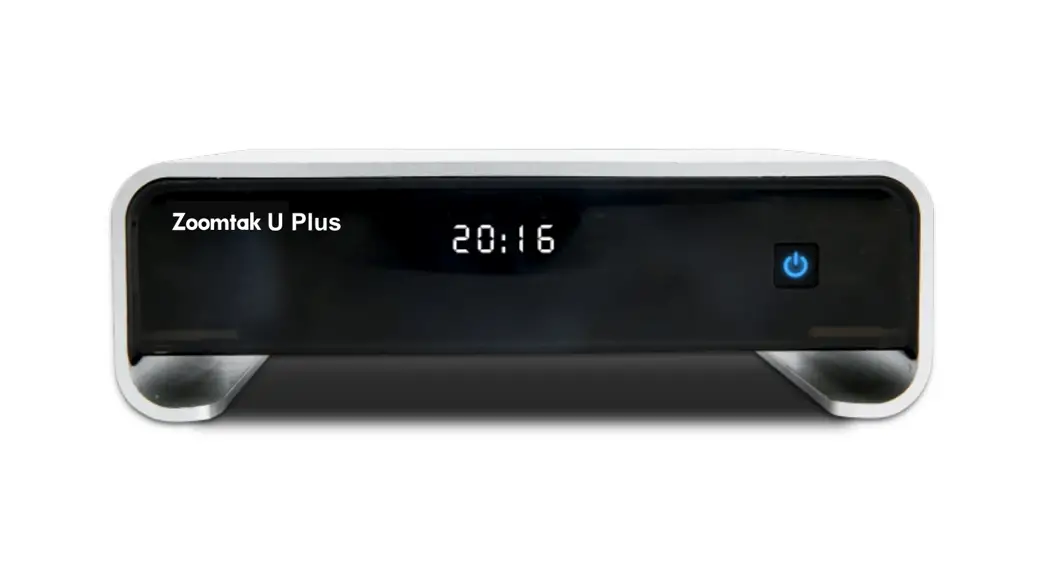

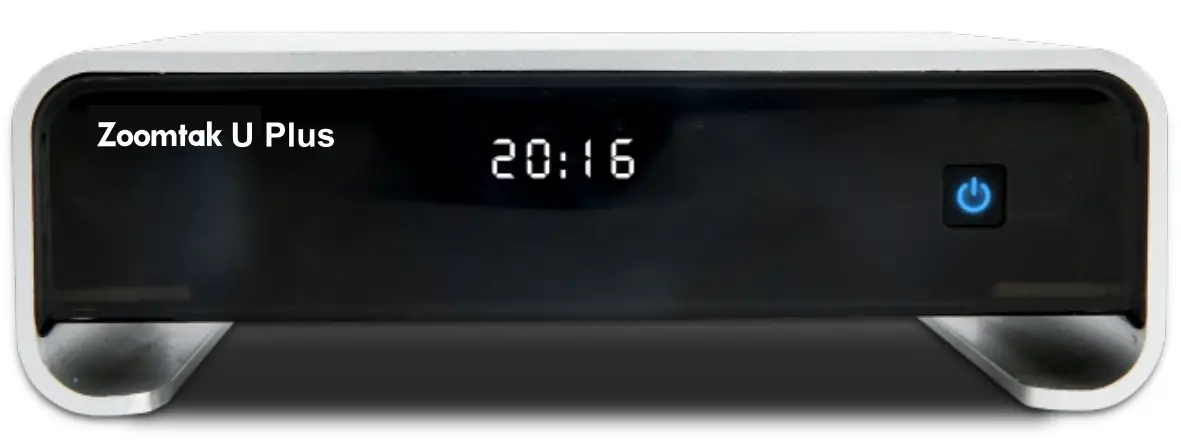
User Guide
Preface
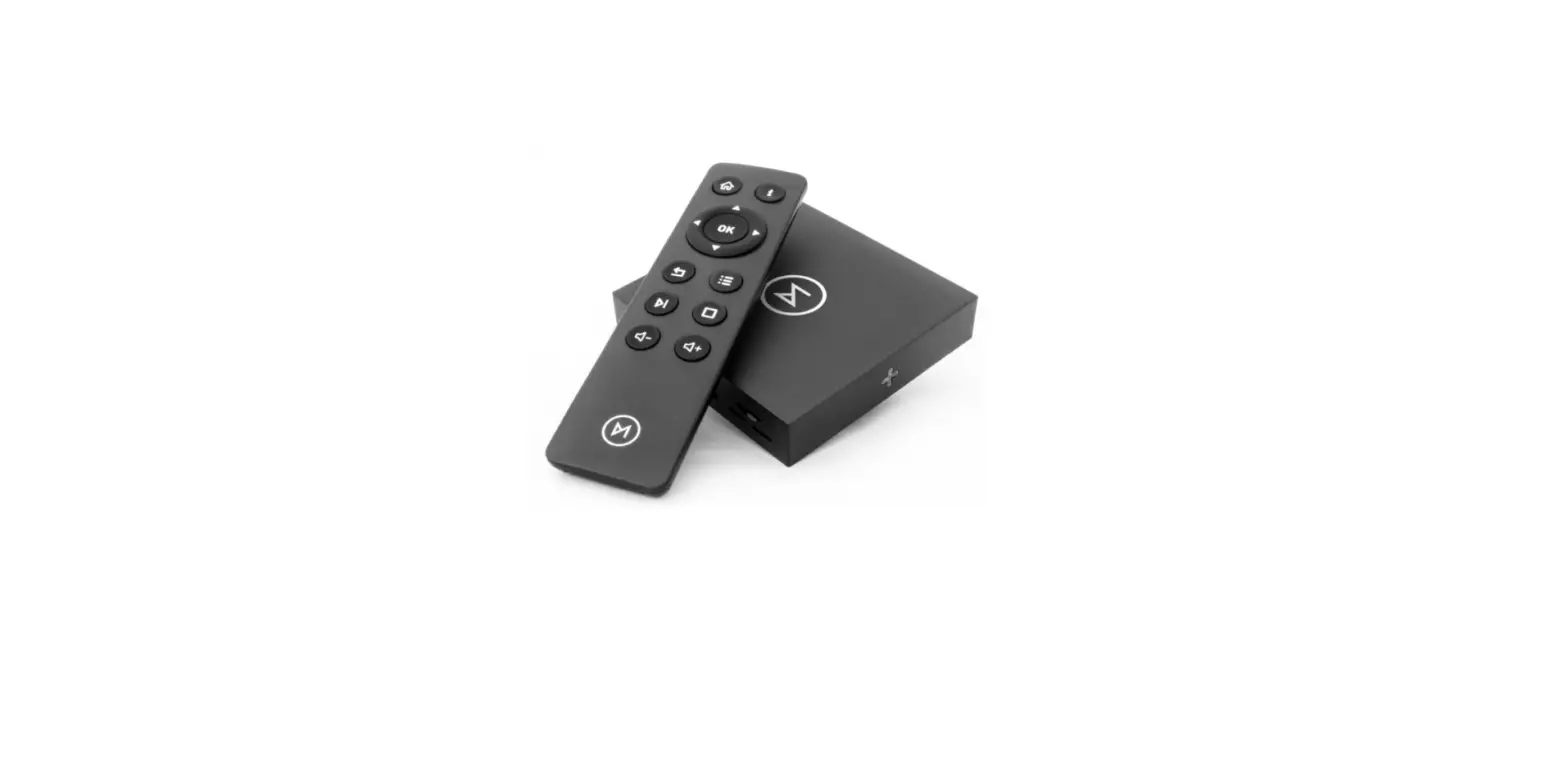
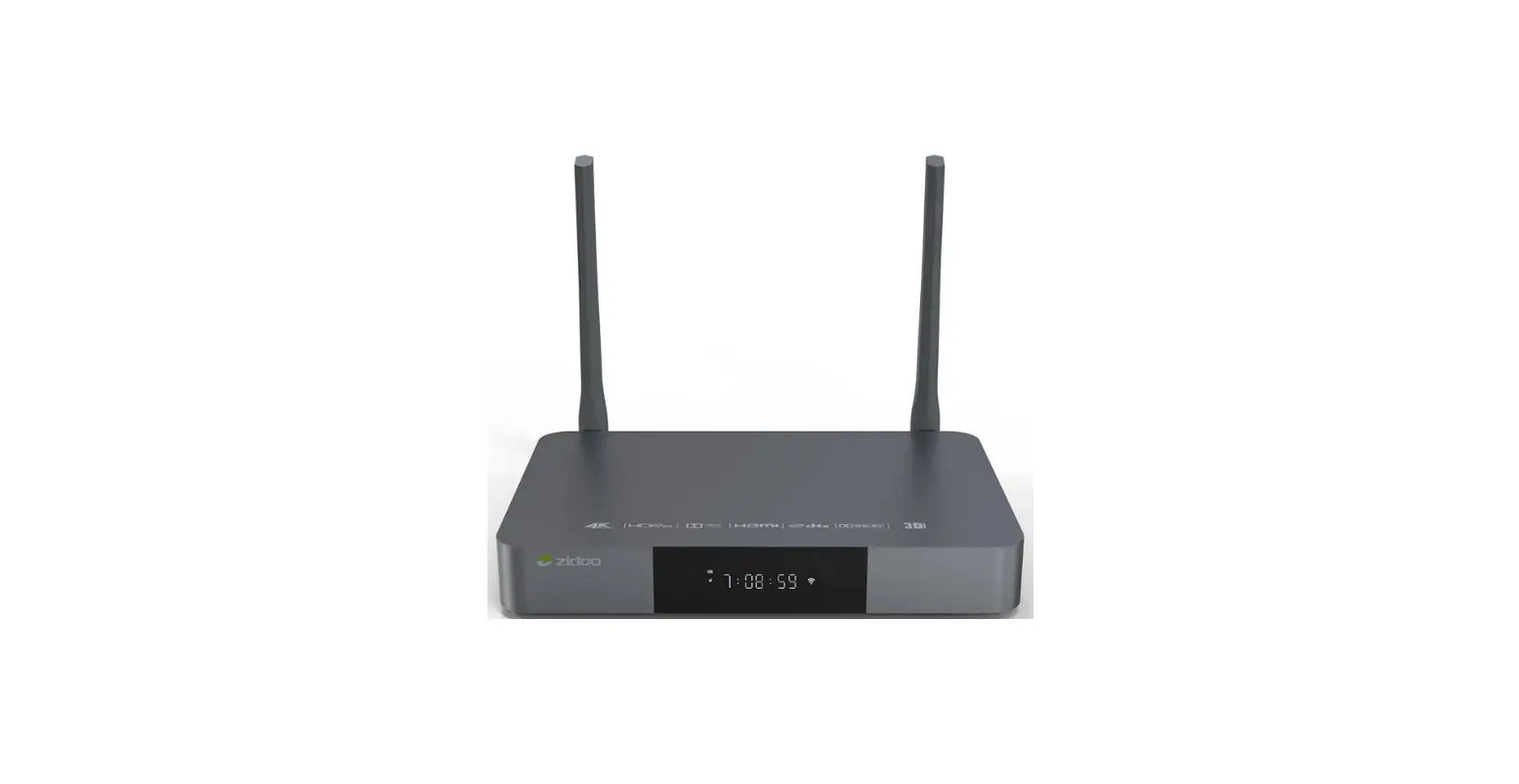
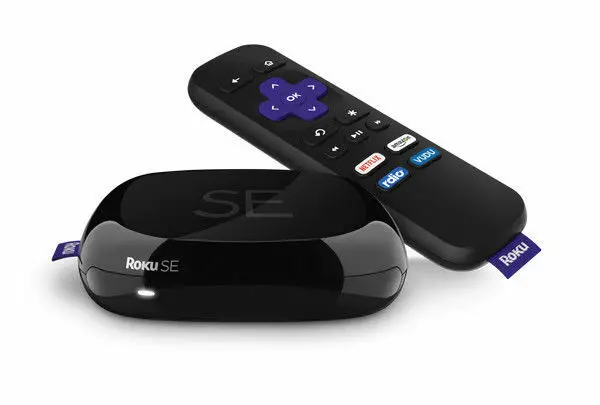
Thanks very much for choosing our Smart TV BOX. In order to make it more convenient for you to use proficiently, we provide you with a user manual. Please read it carefully before using it and properly keep it for reference.
Statements
We have made every effort to provide the most current information about the product. We do not grant any guarantees as to the contents of the present instruction manual and disclaim any implied guarantees concerning the market value or suitability for specific purposes. The information contained here is an instruction intended to enable the correct usage and maintenance of the receiver.
We reserve the right to introduce amendments, changes, or translations of the user manual without prior notification thereof. For this reason, we recommend you regularly visit our website in order to obtain the latest information.
 Specification
 Specification
- New aluminum housing for best cooling.
- Android 6.0 Marshmallow OS
- Amlogic S912 Octa core ARM Cortex-A53 up to 2GHz+ ARM Mali-T820MP3 GPU up to 750MHz
- Memory 2GBytes DDR3 and internal storage 16GBytes eMMC
- Video Decoder: 4Kp60 10-bit H.265, 4Kp60 VP9 Profile 2, 4Kp30 H.264
- Support audio formats: MP3, WMA, AAC, FLAG, etc.
- Support photo formats: JPG, JPEG, BMP, GIF, PNG.
- USB2.0X3 Host connectors and SD/MMC card reader.
- Ethernet Gigabit Rj45 Port and internal WiFi 802.11 ac/a/b/g/n Dual Band WiFi (2.4ghz/5gHZ)
- Composite Audio/Video output, support all television.
- Support all standard SD/HD/UHD video output formats: 480i/p, 576i/p, 720p, 1080i/p, 4Kx2K
- Supports a 3D HDMI display.
 Package Contents
 Package Contents
| NO. | Picture | Name | Piece |
| 1 | 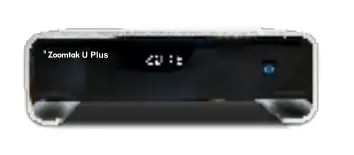 | Smart TV BOX | 1 |
| 2 | 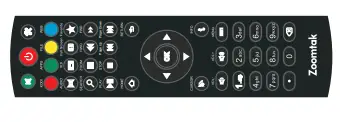 | IR remote control | 1 |
| 3 | 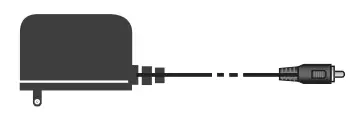 | Power Adaptor | 1 |
| 4 | 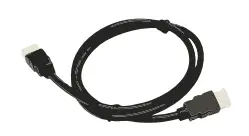 | HDMI Cable | 1 |
| 5 |  | User Guide | 1 |
Note: Other contents are optional.
 Remote Control
 Remote Control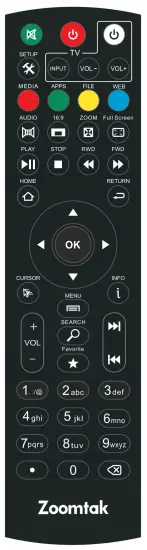
Button Definition
 | Power on/off |  | Mute |
 | MEDIA |  | APPS |
 | FILE |  | WEB |
 | Settings |  | Audio L/R |
 | Screen Ratio |  | Zoom in/out |
 | Full Screen |  | Play/Pause |
 | Stop |  | Rewind |
 | Forward |  | Home |
 | Navigation: Press to navigate Left/Right; Up/ Down Press OK to confirm your choose | ||
 | Volume Up Volume Down |  | Next One Last One |
 | Cursor/ IR |  | Return |
 | Menu |  | Information |
 | Search |  | Favorite |
 | Figure Button |  | Delete |
 Connection Diagram
 Connection Diagram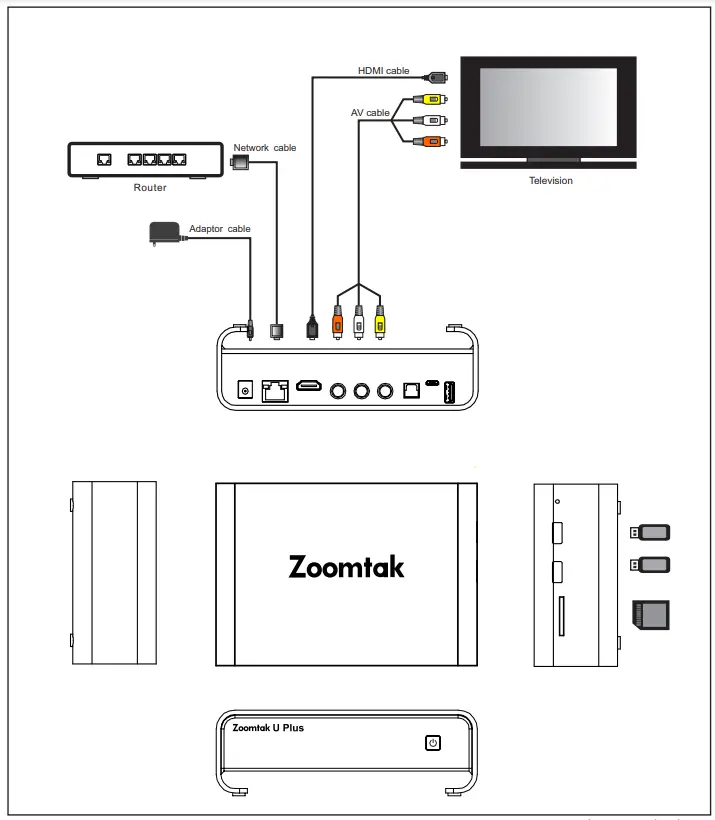
HDMI connection
a. Connect HDMI cable into the product interface, the other side into a TV set. b. Set the TV Output Display Settings to 720p or 1080p and then transferred to the corresponding TV HDMI Component Video status.
A/V connection
If your TV has no HDMI connecter, Don’t worry! you can connect your TV via AV cable. Connect AV cable into the product interface, the other side into a TV set.
 Settings
 Settings
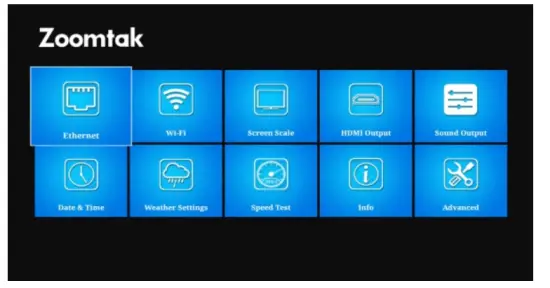
Move to the “Settings” icon, and press ok to enter into system settings. You will see the menu in the following picture. If you want to see more settings, please select the “More Setting” icon.
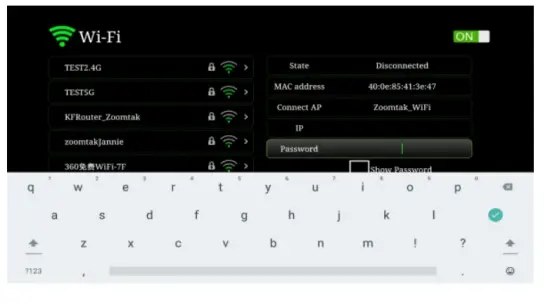
Wi-Fi
With Wi-Fi enabled, you’ll need to click on your network’s name and enter the password.
An on-screen keyboard should appear if you’re using the standard infrared remote control.
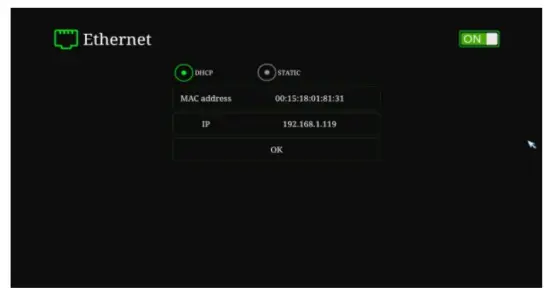
Ethernet
If you will use a network cable instead of Wi-Fi, please select this option instead.
 Troubleshooting
 Troubleshooting
Warning
Under any circumstances, never try to repair the box by yourself, this will invalidate the warranty. Do not open the box due to electric shock risk. If any fault occurs, first check the following instruction before taking the box for repair. If you are unable to remedy a problem by following hints, consult your dealer for help.
| Problem | Solution |
| No signal on the TV | 1) Check if the HDMI or AV cable is securely connected. 2) Check if you have selected the correct input source on your TV. |
| Can not turn on your Smart TV Box | 1) Check if the power connector is completely plugged into the DC socket of your Smart TV Box. 2) Check if the power supply is stable. |
| Can not connect to the network | 1) Make sure that the network cable is securely connected and the Ethernet works well. 2) Make sure that the WiFi network is connected and the security key for the encrypted network is correct. 3) Make sure that you select the correct IP address settings. |
| Remote Control does not respond | 1) Make sure that the batteries are good. 2) Make sure that the distance between the remote control and your Smart TV Box is no longer than 8 meters. |
| Some TV can not display the entire screen | Setup the screen display position of your Smart TV Box. Settings->display->Display position |
FCC Warnning:
This equipment has been tested and found to comply with the limits for a Class B digital device, pursuant to part 15 of the FCC Rules. These limits are designed to provide reasonable protection against harmful interference in a residential installation. This equipment generates, uses, and can radiate radio frequency energy and, if not installed and used in accordance with the instructions, may cause harmful interference to radio communications. However, there is no guarantee that interference will not occur in a particular installation. If this equipment does cause harmful interference to radio or television reception, which can be determined by turning the equipment off and on, the user is encouraged to try to correct the interference by one or more of the following measures:
- Reorient or relocate the receiving antenna.
- Increase the separation between the equipment and receiver.
- Connect the equipment into an outlet on a circuit different from that to which the receiver is connected.
- Consult the dealer or an experienced radio/TV technician for help.
Caution: Any changes or modifications to this device not explicitly approved by the manufacturer could void your authority to operate this equipment.
This device complies with part 15 of the FCC Rules. Operation is subject to the following two conditions: (1)This device may not cause harmful interference, and (2) this device must accept any interference received, including interference that may cause undesired operation.
This equipment complies with FCC radiation exposure limits set forth for an uncontrolled environment. This equipment should be installed and operated with a minimum distance of 20cm between the radiator and your body.