
VisionTechShop TVP-B/TVP-P Price Computing Scales
INTRODUCTION
- TVP-B, TVP-P series of economic price computing scales are very compact, reliable, high accuracy and much stable.
- It use LCD display with white LED back light, with the different back light operation.
- 10 indirect PLU ,it can store 10 unit price values
- Accumulation and change function
- Auto unit price clear operation
- Weighing units conversion(kg/lb/oz)
- Standard RS-232 can be connect to receipt and label printer
KEY DESCRIPTION
| Keys | Description |
| ZERO | Returns the display to zero. In parameter settings, to escape from the menu |
| TARE | Subtracts the tare values, change to gross to net mode and enter parameter settings. |
| SAVE | Enter to auto clear mode |
| CH | Used to do memory recall, give change and memory clear |
| M+ | Add the current data aggregated. In parameter setting mode, used to scroll up the menu, Used to print out a label or receipt papet |
| UNIT | Used to change unit (lb / oz / kg) |
| PLU | Used to store or recall unit price, In parameter setting mode, used to scroll down the menu |
| C | Used for canceling the memorized and input data. |
| 0~9 | Used for setting unit price data. |
| · | Decimal Point key is used to set the decimal of the unit price |
| QTY | Quantity key, use for without weighing. |
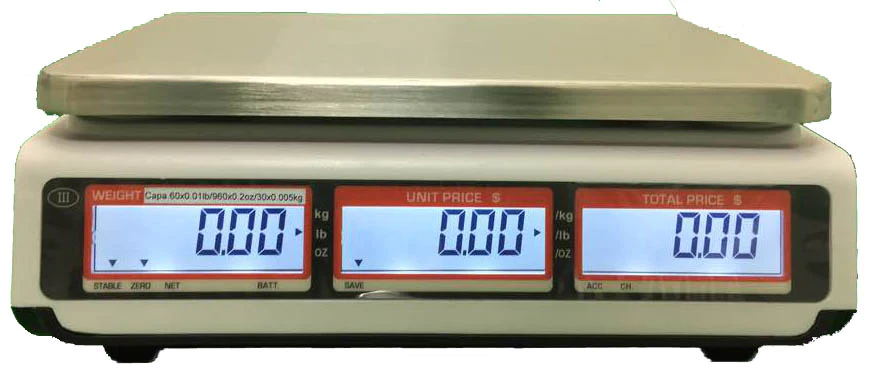
DISPLAY SYMBOLS
| Symbols | Description |
| BATT. | Battery indicator. When it’s illuminated, battery should be recharge |
| NET | Net Weight |
| STABLE | Stable indicator. When it’s illuminated, the scale is stable |
| ZERO | Zero indicator. When it’s illuminated, the scale is in Zero point |
| lb/oz/kg | Current weighing unit |
| SAVE | Save Indicator |
| CHARGE | Battery charging indicator |
| ACC | Accumulation indicator |
| CH | Check out indicator |
| PT | Pre-tare indicator |
GENERAL INSTRUCTION
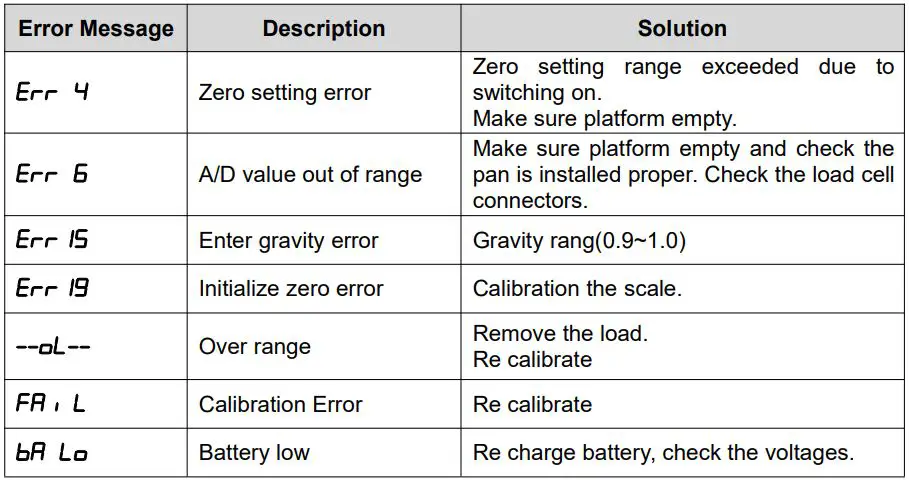
- When battery goes low, the BATT symbol indicator will be show on automatically. It is the time to charge the battery with the AC power. If scale goes on being used without proper charging, the display window will show “BAT LO” every 5 minutes, and scale would be shut down automatically after 2 hours of warning in order to protect the battery. Please charge the battery immediately, or scale cannot be used. To charge battery, just plug AC adapter or main power cord, scale turn on power is not necessary.
- There is an LED left side of the total price display window to indicate the status of battery charging. If the LED is green the battery has a full charge. and red indicates the battery is being charged. please keep charge battery at least 1 hour after LED turn to green to insure full charge.
- Before starting using scale, please check if the bubble is in the middle of the level ; if not, please make appropriate adjustment.
BASIC OPERATION
POWER ON/OFF
Power switch is located below the right side of the scale. Switch on the scale by pressing on/off. The display is switched on and the self test is started. If you want to switch off press again the key.
Zero the scale
When there is no item on the scale but reading is not zero, press the ZERO key to turn on ZERO indicator. When the weight goes over 2% of the full capacity, “read zero” function is obsolete.
Tare
Put container on the platter,once the weight reading is stable, press the TARE key, the TARE indicator will be on and the container’s weight will be deducted. When it is time to
clear the TARE, take off the container, and press TARE key again.
Pre-tare
This method allows you to enter a value for the tare weight from the keypad. This is useful if all containers are the same or if the container is already full but the net weight is required and the weight of the container is known.
- Ensure display is in zero.
- Enter the known tare weight by using numeric keys.
- Press TARE to enter, weight will be stored as tare weight and displayed with minus sign ,the stable ,zero,net and PT indicator will be on.
- Place the container on the platform, net weight will be displayed.
Overload Warning
Please do not add item that is over the maximum capacity. When reading “—OL—“ and hear beeping sound, remove the item on the platter to avoid damage to the load cell.
Unit price setting
To trade with your scale, it is necessary to setting a unit price of the goods, scale then uses this unit price to determine how much that goods are on the platter.
When scale displays the weight of the goods placed on the scale, set the unit price through numeric keys. Set unit price is showed in UNIT PRICE window display, TOTAL PRICE window display shows the total price of the goods. To cancel the previous unit price, press C key .
Change unit
You can use the UNIT key to change unit(kg/lb/oz). Press UNIT key will change the weighing unit circularly, and the pertinent indicator will on.
ACCUMULATOR OPERATION
Prepare to accumulate
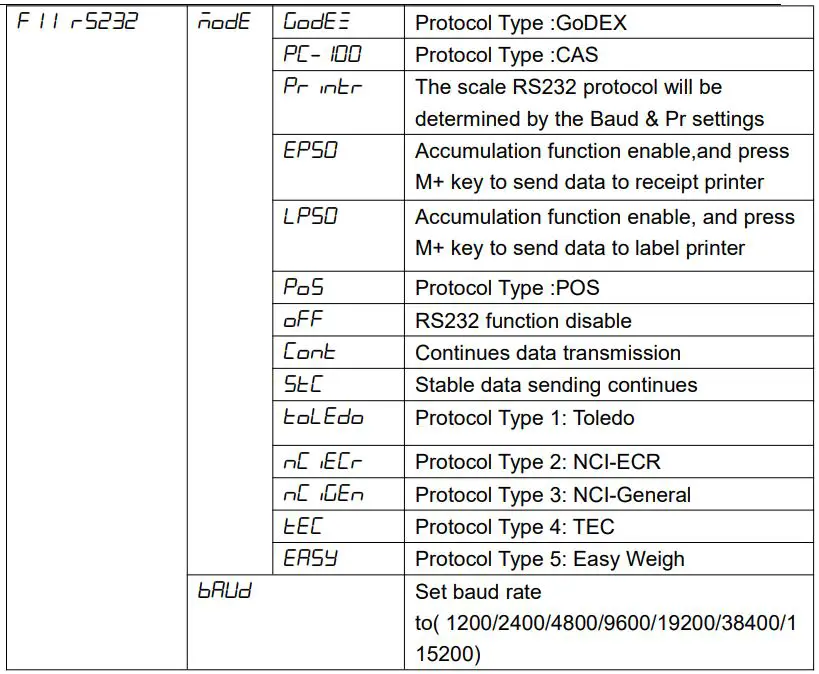
The scale can be set to accumulate manually by pressing M+ key, To enable the accumulation function on, see parameters F11RS232 >mode > EP50 Confirm the platter is empty,the current accumulator values is reset to zero, and the weight reading is stable.only when weight more than 20d
Accumulative operation
Put the weighing item on a platter,wait for the weight reading to be stable, and press the M+ key,the window will show total x, this is current total value.
Account operation
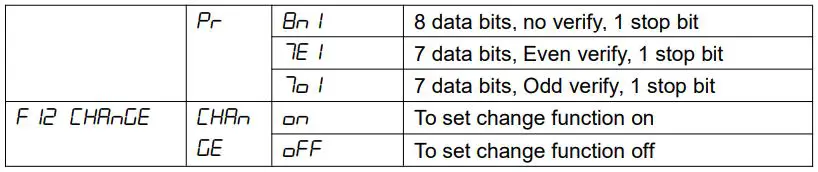
To enable the change function on, see parameters F12 change > on After do accumulate operate, you can press CH key, WEIGHT window will show the summed price, key in paid money by keyboard, this will show on Unit Price window, and the Total Price window will show the return value. Press TARE key to return normal weighing mode and clear memory, if you don’t want clear memory, press ZERO key to return normal weighing mode.
Note: if you haven’t do accumulate operation, you also can use Account function, the summed price is current total price.
UNIT PRICE MEMORY
Scale can store 10 sets unit price.
Save the unit price
Hold the PLU key for 3 seconds after you key in the unit price, it will show “save pos” , press numeric key 0~9 to select which memory location you want to use. After you do, the unit price is stored in the scale.
Load the unit price
If you want to use the unit price stored in the scale, press PLU key, scale will shows “load pos”, press numeric key 0~9 to select which memory location’s price you want to use, current unit price will change to the value stored in the memory.
OTHER FUNCTION
Backlight
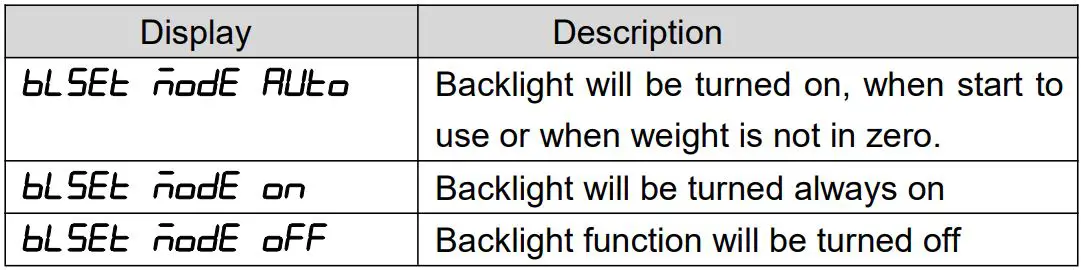
In normal weighing mode, Press and hold . key until to show the display Press the M+ key to change the settings back light display mode to Auto / On /Off.
Automatic unit price clear
Scale can set automatic unit price clear, when return to zero, scale will clear the unit price automatically. Press SAVE key will turn on / off automatic unit price clear function, when SAVE indicator on, automatic unit price clear disable when SAVE indicator off, automatic unit price clear enable.
Commodities Without Weighing
Using numeric keys to input unit price, Press QTY key to enter QTY mode Using numeric keys to input quantity in the weight window, the total price will be show automatically Press QTY key to return normal weighing mode.
SPECIFICATION
| MODEL | TVP-12B/TVP-12P | TVP-30B/TVP-30P | TVP-60B/TVP-60P | |
| Capacity | 12lb / 6kg / 160oz | 30lb / 12kg /480oz | 60lb / 30kg / 960oz | |
| Readability | 0.002lb / 0.001kg / 0.05oz | 0.005lb / 0.002kg / 0.1oz | 0.01lb / 0.005kg / 0.2oz | |
| Max. Divisions | 6000e | |||
| Weighing Units | lb / oz / kg | |||
| Display | 0.59inch /15mm digits LCD Display with white LED back Light | |||
| Platter size | 8 x 10.5inch / 204 x 265mm | |||
| Housing | ABS Plastic and Stainless Steel pan | |||
| Interface | RS232 Output standard | |||
| Operation Temperature | 14°F – 104°F / -10°C – + 40°C | |||
| Power | AC Adaptor 12V/500mA , Rechargeable Battery 6V/3.2Ah | |||
| Battery life | Approx.60 Hours LCD (no backlight) | |||
| Keypad | 20 membrane keys | |||
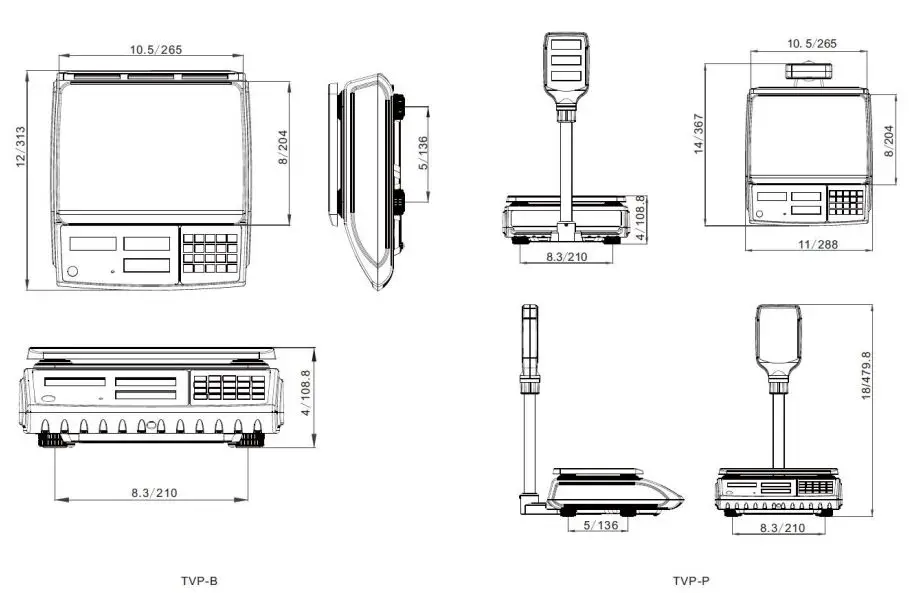
| Dimensions (inch/mm) | Bench | 10.5 (W) x 12 (D) x 4 (H) / 265 (W) x 313 (D) x 108.8 (H) | ||
| Pole | 11 (W) x 14 (D) x 18 (H) / 288 (W) x 367 (D) x 479.8 (H) | |||
| Gross weight | Bench | 9lb (4.1kg) | ||
| Pole | 9.9lb (4.5kg) | |||
| Approvals | NTEP: Certificate No.19-038 | |||
DIMENSIONS (inch/mm)
ERROR MESSAGE 
SELECTING THE PRINTER
For printer setting, it need to enter the parameters settings to select F11> RS232 > mode > EP50/LP50, use M+ key to select options
RS232 OUTPUT
The TVP-B& TVP-P Series of scales can be ordered with a standard RS-232 output. It can be connected to DEP-50 receipt printer & DLP-50 label printer
Print Format 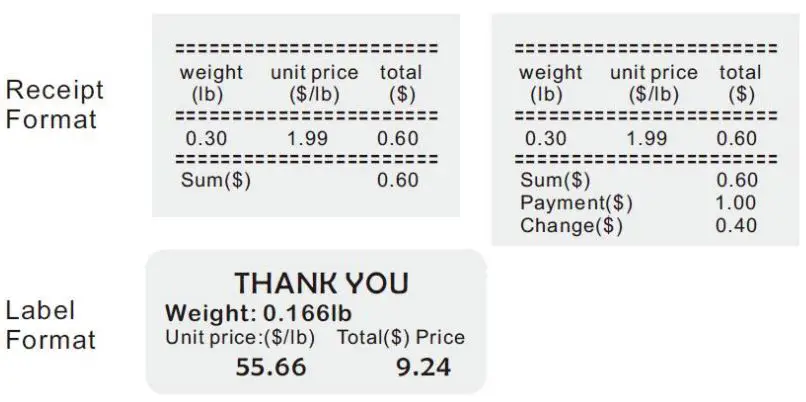
Diagram: Serial interface 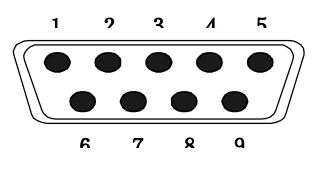
| Pin 2 | RXD | Input | Receiving data |
| Pin 3 | TXD | Output | Transmission data |
| Pin 5 | GND | ― | Signal ground |
9pin D Connecter:
Scale Computer
- Pin 2 Pin 3
- Pin 3 Pin 2
- Pin 5 Pin 5
- Turn on the scale. Press and hold
 key during the self test. Display will show “Pn” briefly PIN is activated. Press the PIN number to get into the parameter menu.
 - The default PIN number is “0000”
- Press numeric key 0 four times , display will be shown Pn – – – –
- Press key to confirm, It will enter into the parameter settings and will to show “ menu unit kg” .
Enter to Selected Menu - Press , it can confirm which will be shown displayed.
Select the Menu - Press
 . It can choose menu block one by one.
Return to Weighing Mode - Press
 escape from the menu and exit to weighing mode
 key during the self test. Display will show “Pn” briefly PIN is activated. Press the PIN number to get into the parameter menu.
 . It can choose menu block one by one.
 escape from the menu and exit to weighing mode
Active Parameter 

Press  key to choose “lb”,“oz ”or “kg” unit in the setting mode, capacity will be show in lb, oz or kg values.