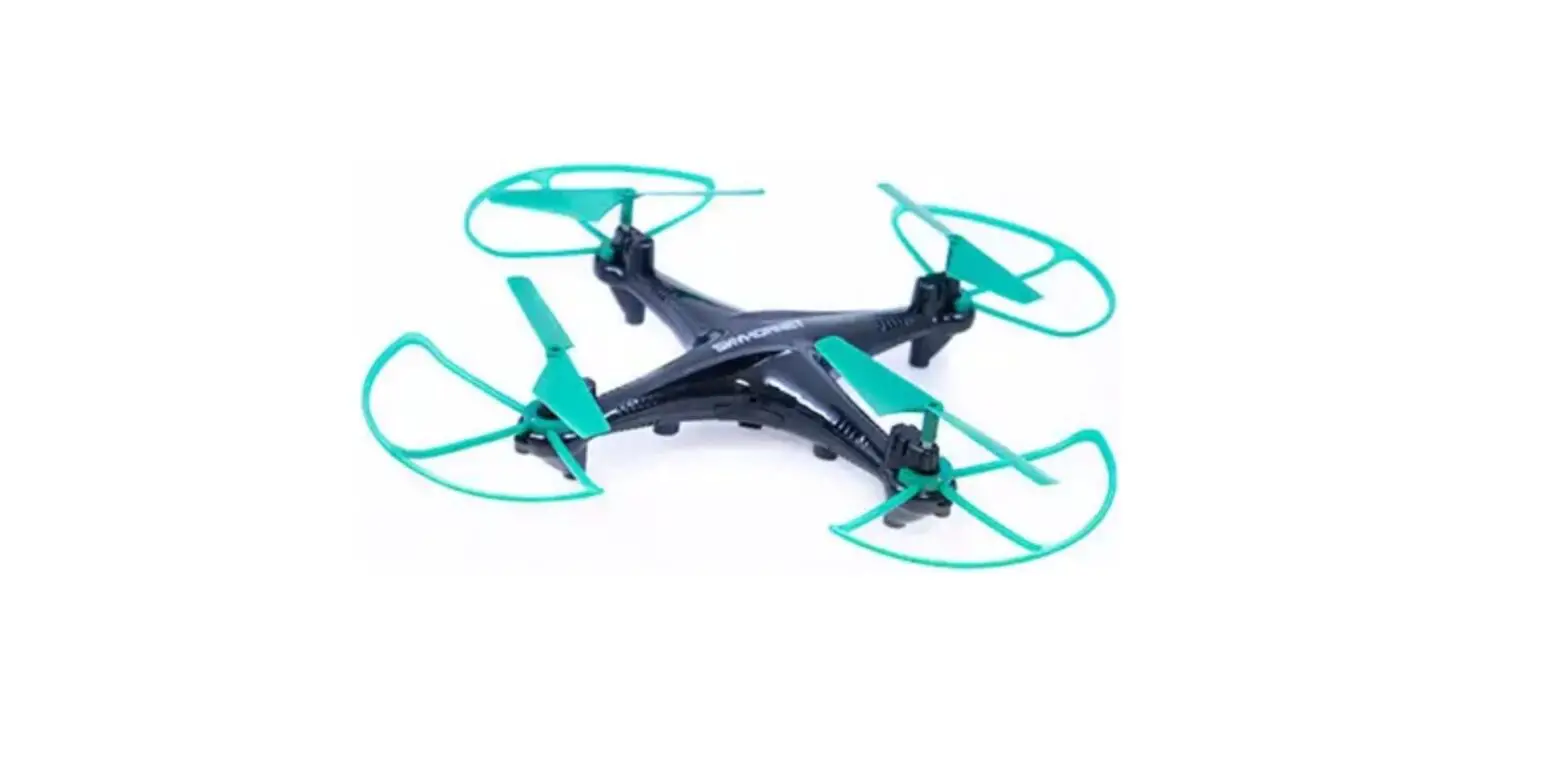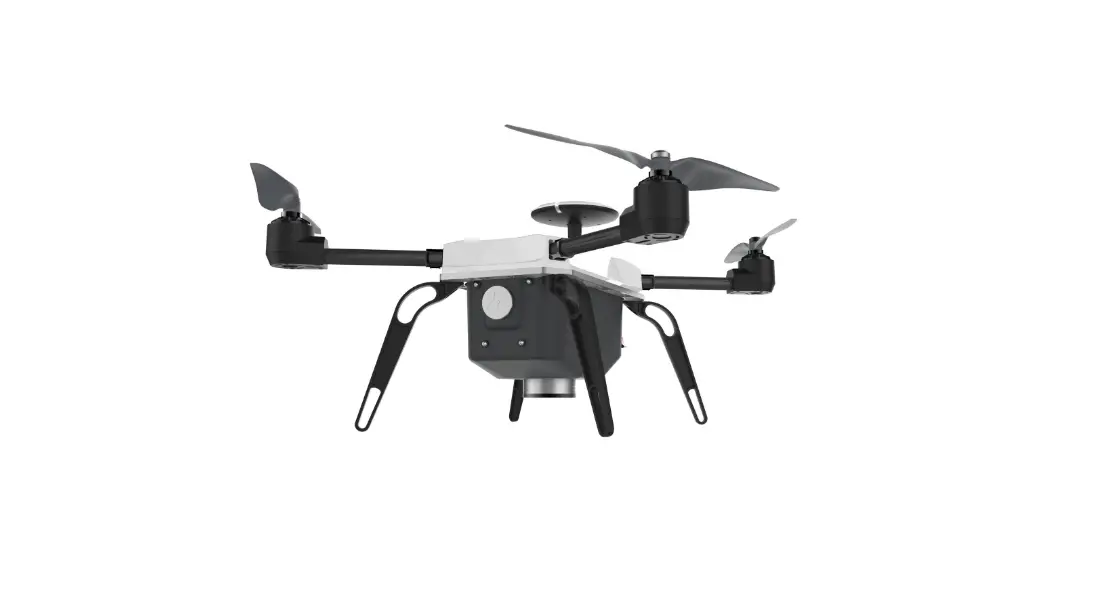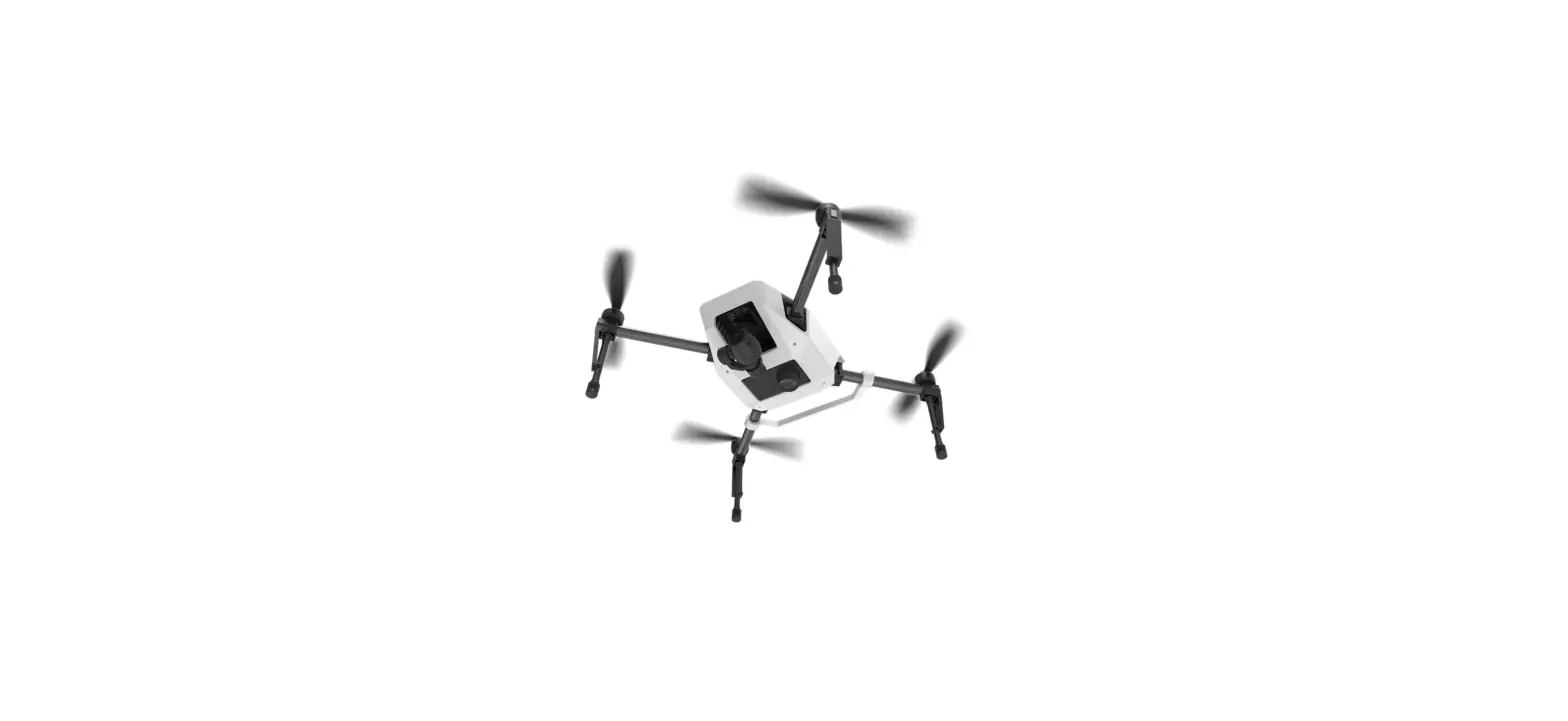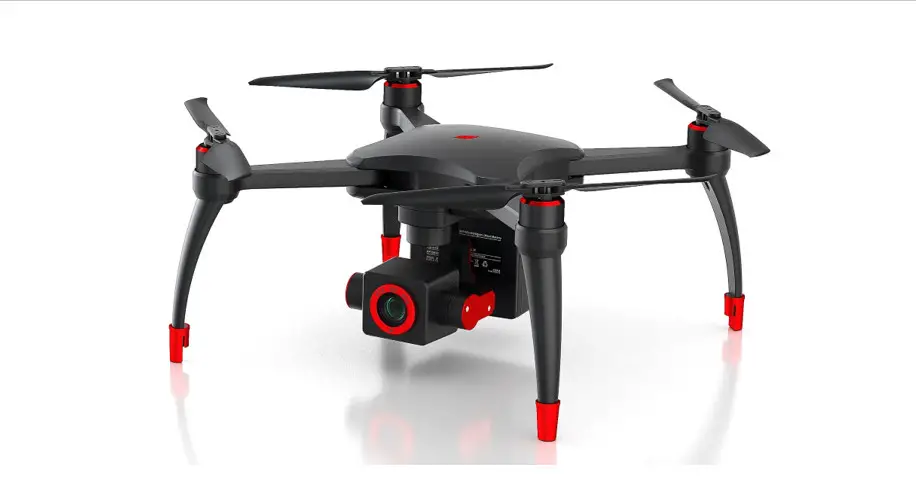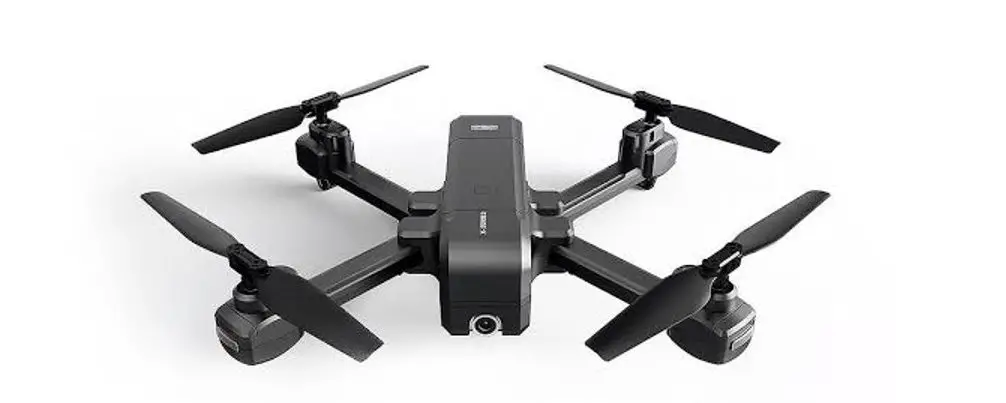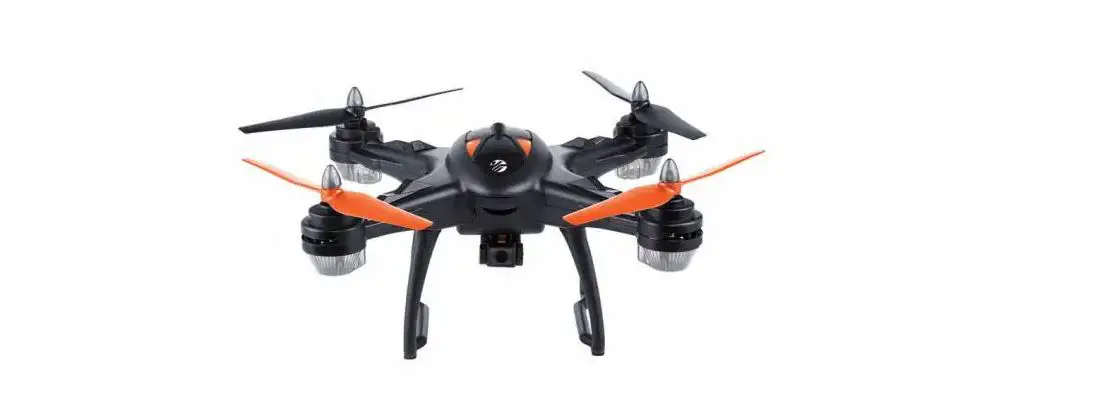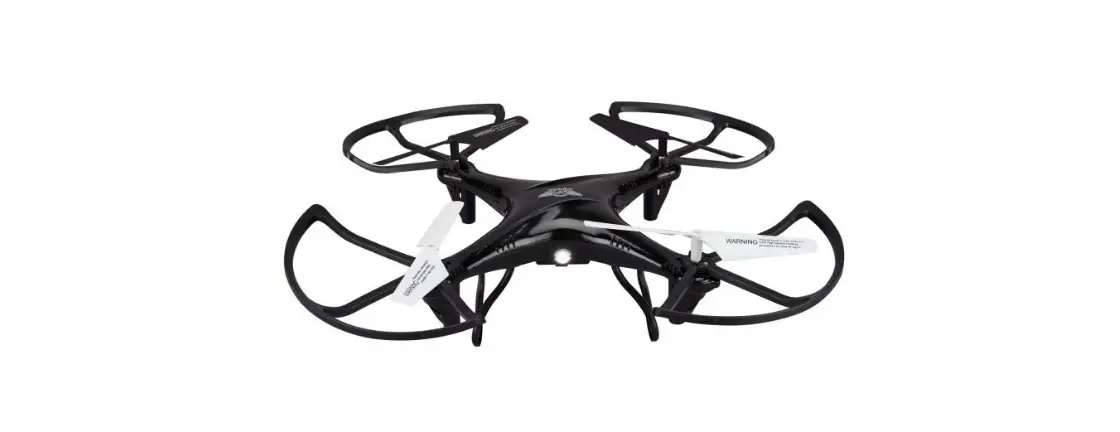

GPX Sky Rider DRC377 v1742-01 Falocon 2 PRO Drone
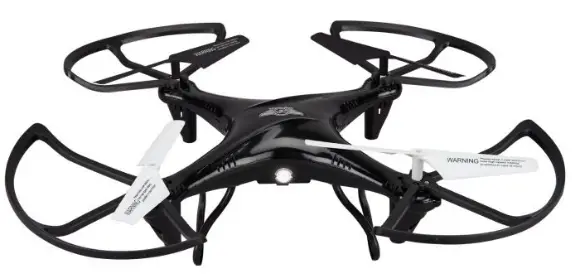
INSTRUCTION
Warnings & Precautions
- Important Safety Instructions
- Read and follow all instructions.
- Keep these instructions for future reference.
- Heed all Warnings.
- Intended for children ages 14 and higher. Adult supervision is required.
- Only use attachments/accessories specified by the manufacturer.
- Before flying, always check the body, rotors, and battery for any damage or obstructions.
- Battery should be free from cracks or swelling.
- Keep the rotors clear of any obstructions and body parts to avoid potential damage and injury.
- Manufacturer and dealer assume no liability for accidental damages from improper use or installation of parts, or from damage incurred from worn or broken parts.
- Pilots are responsible for their actions and any damage caused from improper use.
- Pilots should keep the craft in sight at all times during flight. If you lose sight of the craft at any time, power down and cease flight immediately.
- Only fly in large, open areas that are free from obstacles or potential hazards, such as trees, power lines, ceiling fans, and the like.
- Flying over bodies of water is not recommended.
- Flying at night is not recommended.
- Never try to retrieve the craft from areas you cannot safely reach, such as rooftops or trees.
- Never launch the craft from your hand.
- Never leave the craft unattended while it is powered on or while the battery is charging.
Additional Warnings & Precautions
- WARNING: To reduce the risk of fire or electric shock, do not expose this apparatus to rain, moisture, dripping, or splashing.
- CAUTION: Use of controls or adjustments or performance of procedures other than those specified may result in personal injury.
- WARNING: Changes or modifications to this unit not expressly approved by the party responsible for compliance could void the user’s authority to operate the equipment.
- CAUTION: Danger of explosion if battery is incorrectly replaced. Replace only with the same or equivalent type.
- Lithium batteries, like all rechargeable batteries, are recyclable and should be recycled or disposed of according to state and local guidelines. They should never be disposed of in normal household waste, and they should never be incinerated, as they might explode. Contact your local government for disposal or recycling practices in your area.
- WARNING: Shock hazard – Do Not Open.
- Battery shall not be exposed to excessive heat such as sunshine, fire, or the like.
- Keep new and used batteries away from children. If the battery compartment does not close securely, stop using the product and keep it away from children.
- If you think batteries might have been swallowed or placed inside any part of the body, seek immediate medical attention.
- Do not mix old and new batteries.
- Completely replace all old batteries with new ones.
- Do not mix alkaline, standard (carbon-zinc), or rechargeable (ni-cad, ni-mh, etc) batteries.
- Batteries should be recycled or disposed of as per state and local guidelines.
- WARNING: This product may contain chemicals known to the State of California to cause birth defects, or other reproductive harm (California Prop 65). Wash hands after handling.
- This product meets and complies with all Federal regulations.
Features
- 360° flips & tricks
- 2 speed settings
- 6-axis gyroscope
- 3 MP Camera (photo & video) with SD card slot
- 480 x 640 resolution
- Control distance: up to 150 feet
- Headless Mode
- LED navigation lights
- Operating time: 6-8 minutes
- Charge time: 40-50 minutes
Includes
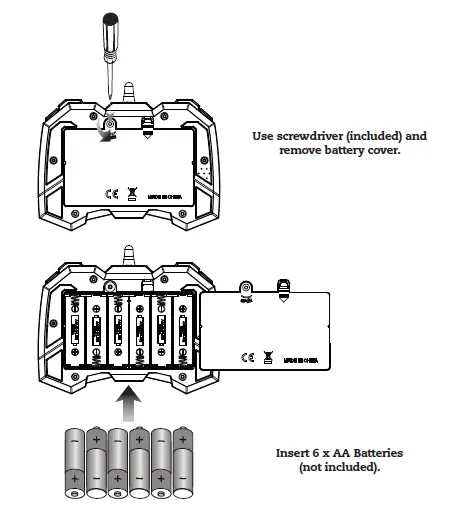
- 2.4 GHz remote control: requires 6
- AA batteries (not included)
- Built-in rechargeable lithium polymer battery
- USB cable for battery recharge
- 4GB SD card
- Screwdriver
- 4 replacement rotors
- User’s guide & warranty
Overview
Craft Layout & Features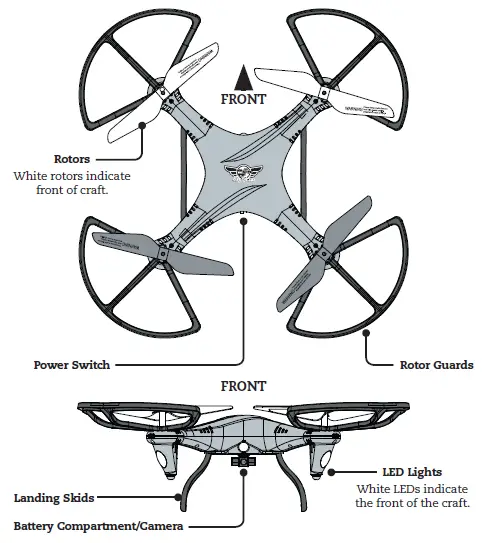
Assembly Instructions
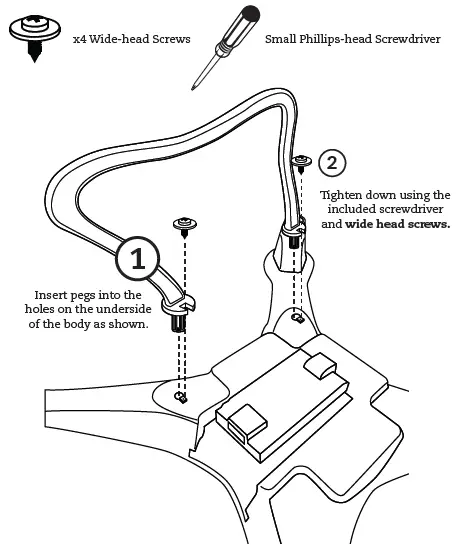
Landing Skids
Rotor Guards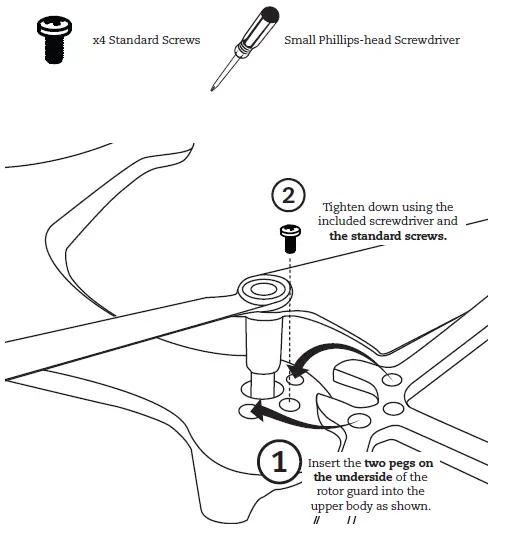
Remote Control
Button Layout & Functions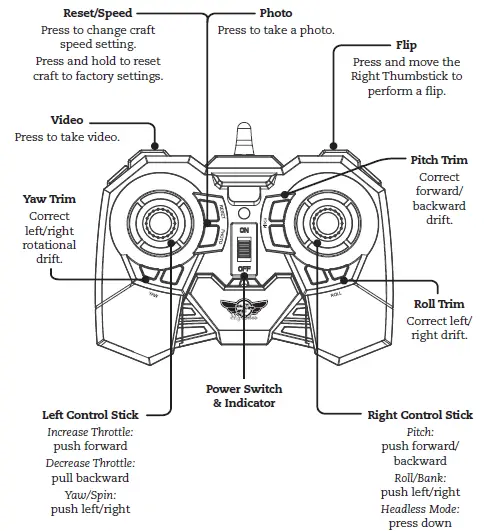
Remote Battery Installation
Charging the Battery
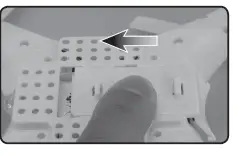
- Step 1 Make sure the craft is powered OFF, then remove the battery cover.

- Step 2 Disconnect the power plug connecting the battery to the craft. It is strongly recommended to remove the battery when charging. This will reduce the chance of damage or injury

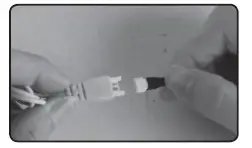
- Step 3 Attach the plug on the battery to the plug on the charging cable. Be sure to match the plugs correctly or damage may occur.

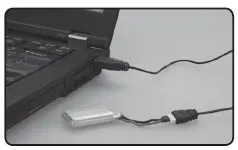
- Step 4 Plug the charging cable into the USB port of a powered ON computer or USB power adapter (not included). The battery will now charge.

- Step 5 When charging is complete, reinstall the battery in its bay, reconnect the power plug from the battery to the craft, and close the battery cover. Be sure to match the plugs correctly and securely close the battery cover or damage may occur

Craft/Remote Link
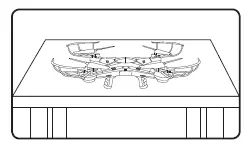
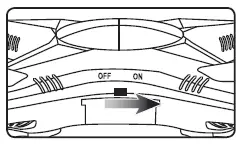
Before flying, the craft and the remote must be linked together and the gyroscopes on the craft must be allowed to calibrate. Begin with the craft and remote powered OFF.
- Step 1 Place the craft on a flat, level surface. This is necessary for the craft’s gyroscopes to properly align

- Step 2 Power the craft ON. The LED formation lights will blink in unison as the craft searches for a signal from the remote

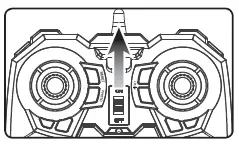
- Step 3 Power the remote control ON. The light on the remote will blink as it searches for the signal from the craft. An audible chime will sound when the remote and the craft have linked with each other.

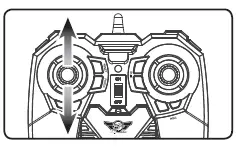
- Step 4 Push the Left Control Stick directly forward, then backward. A chime will sound when the craft is calibrated and ready to fly.
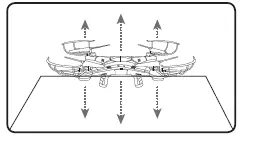
- Step 5 Push the Left Control Stick (throttle) forward to take off. Use both thumbsticks to control the craft. If you notice a tendency to drift, you may need to adjust the trim controls to fine tune the handling (see next section).

When You’re Done Flying…
After safely landing, keep the Left Control Stick (throttle) in the lowest position (OFF) and power OFF the remote first. This will ensure that no signals are accidentally sent to the craft, reducing the chance of injury. After this is done, it is safe to pick up and power OFF the craft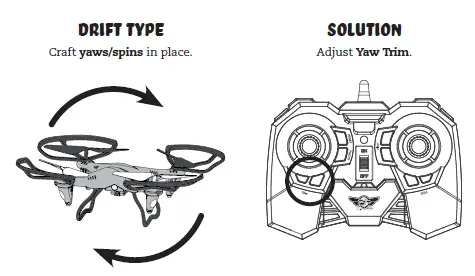
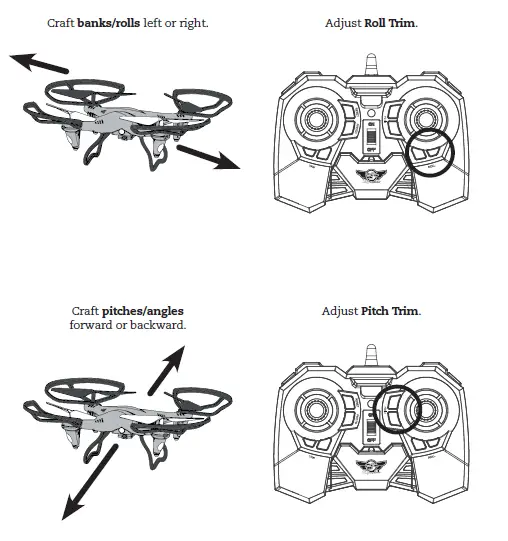
Trim Adjustment
Setting Trim & Countering Drift
- Even after the craft is calibrated, it may show a tendency to drift while airborne.
- Adjusting the trim will help counter this effect and allow for better control the craft.
- To avoid potential damage, adjust the trim while attempting a stable hover.
- Try to avoid making any exaggerated movements with the flight controls.
- Adjust one trim setting at a time to avoid confusion.
- Remember, the white rotors and LED lights indicate the front of the craft.
- Adjusting the trim will help with drift but it will not entirely eliminate it.
- Turbulence and other environmental conditions may influence the craft’s flight characteristics
Tips for Safe Operation
- It is recommended to only fly in large, open spaces that are free of obstacles like power lines, trees, ceiling fans, etc.
- When flying indoors, avoid walls and ceilings, as the craft will be drawn towards them if closer than 2 to 3 feet.
- Stand behind the craft when first taking off, so that you and the craft are facing the same “forward” direction. This will make it easier to know which direction the unit is flying.
- Remember that the white propellers and white LED navigation lights indicate the front of the craft.
- Novice pilots should move the controls slowly and deliberately to get used to the craft’s flying characteristics. Try using one control at a time.
- Practice basic flight operations like take off, hovering, and landing.
- If you crash, throttle down the engines IMMEDIATELY to reduce the chance of damage or injury.
- If anything obstructs the propellers for any reason, throttle down IMMEDIATELY and safely clear the obstruction. Check for possible damage before flying again
Speed Setting
- The craft has two settings for the responsiveness of the flight controls. Press the Reset/Speed Setting button once to set the desired speed.
- Low: Gives smooth and predictable control. The remote will chime once to indicate the speed.
- High: Higher setting for faster performance. The remote will chime twice to indicate the speed.
Flips & Tricks
Before attempting any stunts, be sure that there is ample clear space around the craft, ideally 9 to 10 ft. in every direction. It is not recommended to attempt to stunt around or through any obstacles, as this may result in unintended damage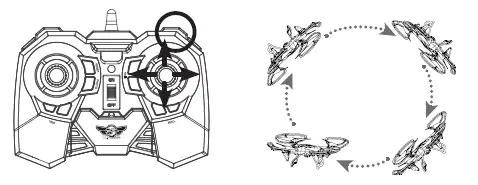
Headless Mode
Headless Mode changes the default orientation of the craft, where the red LEDs/red rotors indicate the front of the craft. Instead, the craft will reorient its “front” based on the first Right Control Stick input from the user. This can be useful if you become disoriented while flying, or cannot visually determine which direction is “true front”. To activate Headless Mode, press the Right Control Stick once. Press again to deactivate Headless Mode. The craft’s LED lights will blink and a chime will sound to indicate that Headless Mode is active.
Camera & Memory Card
Make sure the remote and the craft have been successfully paired (indicated by a red light on the remote) and the Micro-SD card is installed in the camera before attempting to use
Video
To record video, press the Video button on the remote. The indicator light will turn green for as long as the camera is recording. Press the video button again to stop recording video, the light will turn back to red.
Photos
- To take a single image, press the Photo button once. The indicator light will turn from red to green, then back to red.
- Press and hold the Photo button to take a 3 photo burst. The indicator light will flicker green 3 times, then switch back to red.

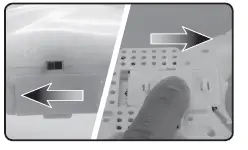
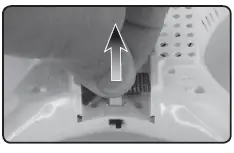
SD Card Install & Removal/Camera Angle Adjustment 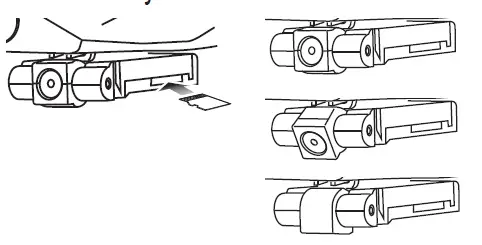
View Photos/Video on a Computer
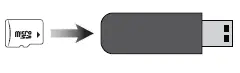
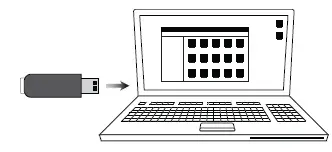
- Remove Micro-SD card from camera and connect to included USB adapter.
- Be sure to insert correctly or damage may occur.

- Connect to a USB port of a computer. Use the computer’s file browser to access photos and videos.

Troubleshooting
Gyroscope Recalibration
If the craft is experiencing difficulty flying or is behaving erratically, the craft’s gyroscopes may be misaligned and will need to be recalibrated. Do not attempt to do this while flying. Safely land the craft and place it on a flat, level surface before attempting this procedure.
Remote Reset
If you are still having difficulty flying, it may help to reset the remote. This will clear the trim settings and reset them to default. Do not attempt to do this while flying. Safely land the craft before attempting this procedure. Press and hold the Reset button for 3-4 seconds. The remote will beep once when the reset is complete. Note: Short presses of the Reset button adjust the craft’s speed settings, you must press and hold the button to properly perform the reset.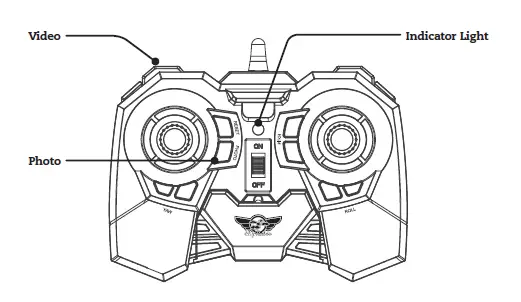
| PROBLEM | POSSIBLE CAUSES | SOLUTION |
| Craft does not respond to controls. | • No power to remote or craft. • Poor contact between power plugs. • Craft is out of range.
• Trim not set or needs adjustment.
• Gyroscopes misaligned. • Trim settings too far out of adjustment. • Damage to body, rotors or other major components. • Low battery power. | • Check remote batteries, replace if needed. • Check craft battery, be sure it is fully charged. |
| • Be sure the power plugs are firmly connected. | ||
| • Be sure the remote has an unobstructed line of sight to the craft. | ||
| • Remain within the remote’s 150 ft. range. | ||
| Craft drifts while in flight. | • Adjust trim settings (see pg. 12). | |
| Craft is difficult to control or flies erratically. | • Recalibrate gyroscopes (see previous page). • Reset remote (see previous page). | |
| • Repair or replace parts as needed. | ||
| LED lights ON but craft does not respond to controls. | • Recharge the battery. |
Parts Replacement
Standard parts such as extra batteries and remotes are available online for purchase when in stock. However, any non-standard parts such as cameras, screws, bodies, SD cards etc. can be ordered by placing an inquiry with our parts department at: [email protected].
Rotor Replacement
Use a small Phillips head screwdriver (included) to remove and replace the center screw connecting the rotor to the motor shaft. It is extremely important to use the correct rotor, A or B, for replacement. Using the incorrect rotor will make the craft impossible to control. The marking can be seen on the underside of the rotor near the shaft.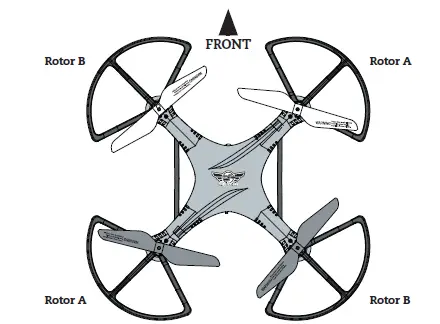
Warranty
See included 30 Day Warranty for warranty information. Warranty and the most up-to-date version of this User’s Guide can also be found at: http://gpx.com/drc377.html
International Support
To download this User’s Guide in English, Spanish, and French, or to get answers to frequently asked questions, visit the support section at: www.gpx.com
Customer Support
- Contact Information
- Website: www.gpx.com
- Email Support: [email protected]
- Email Parts: [email protected]
- Phone Support: 1-888-999-4215
FCC
Warning: Changes or modifications to this unit not expressly approved by the party responsible for compliance could void the user’s authority to operate the equipment.
NOTE: This equipment has been tested and found to comply with the limits for a Class B digital device, pursuant to Part 15 of the FCC Rules. These limits are designed to provide reasonable protection against harmful interference in a residential installation. This equipment generates, uses, and can radiate radio frequency energy and, if not installed and used in accordance with the instructions, may cause harmful interference to radio communications. However, there is no guarantee that interference will not occur in a particular installation. If this equipment does cause harmful interference to radio or television reception, which can be determined by turning the equipment off and on, the user is encouraged to try to correct the interference by one or more of the following measures:
- Reorient or relocate the receiving antenna.
- Increase the separation between the equipment and receiver.
- Connect the equipment into an outlet on a circuit different from that to which the receiver is connected.
- Consult the dealer or an experienced radio/TV technician for help