
SIMPLE MANUAL
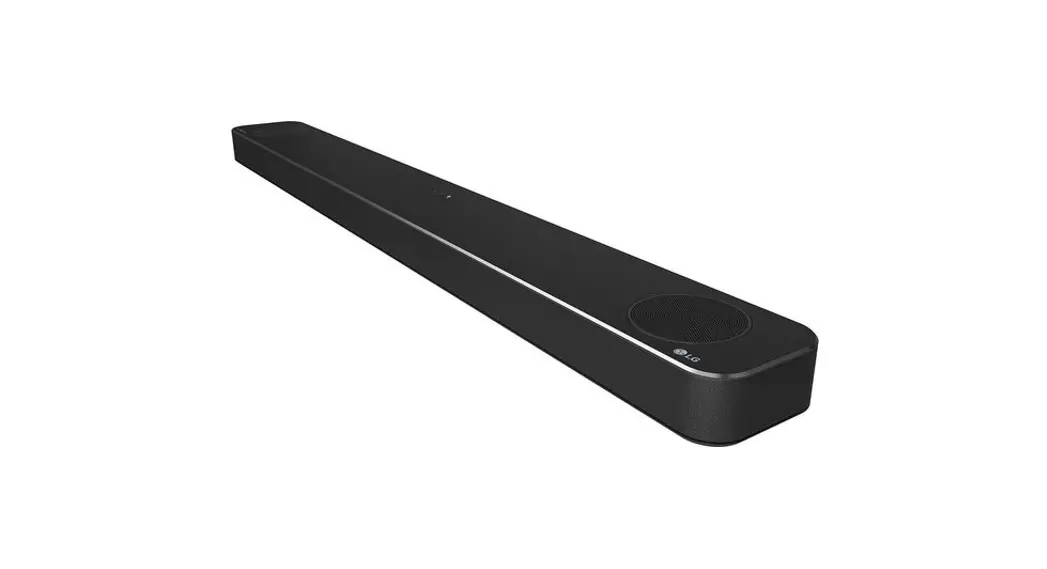
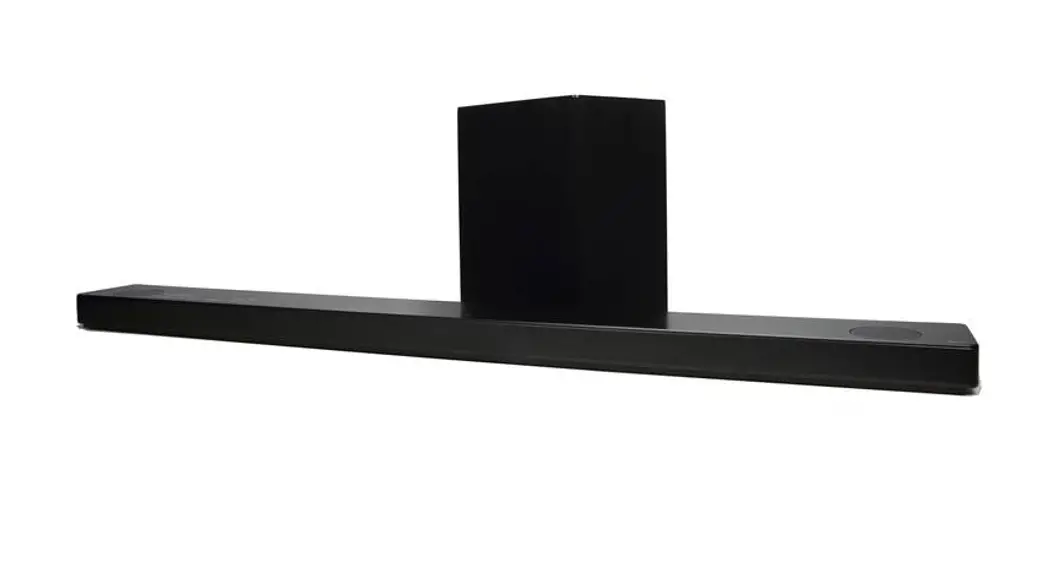
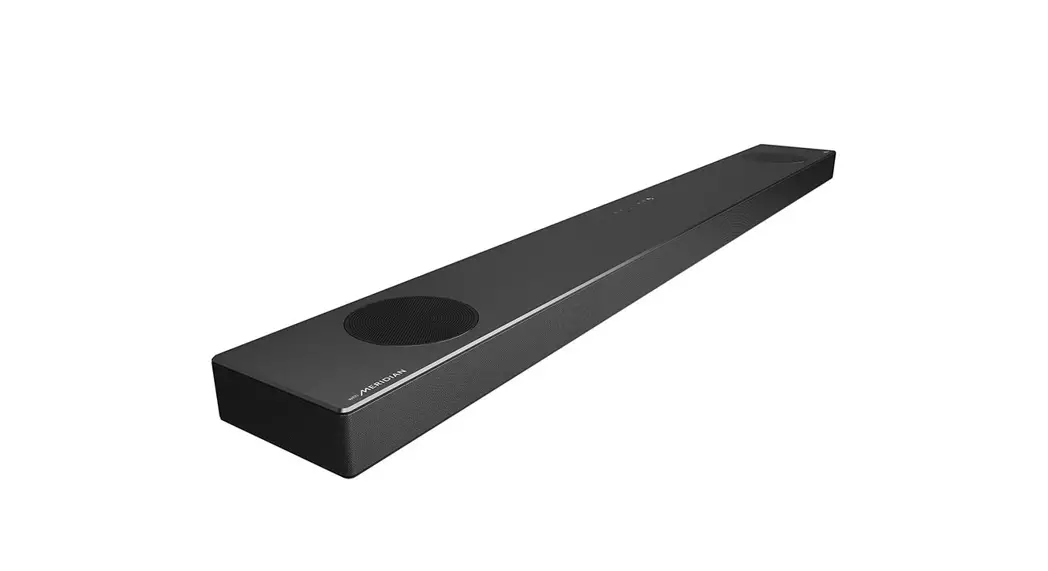
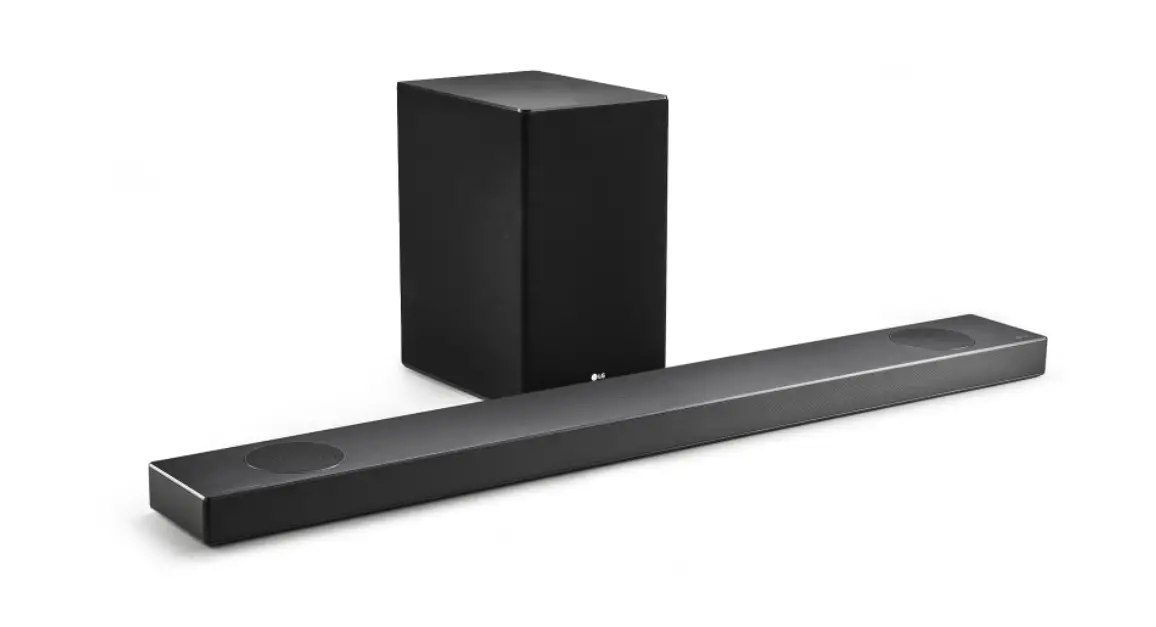
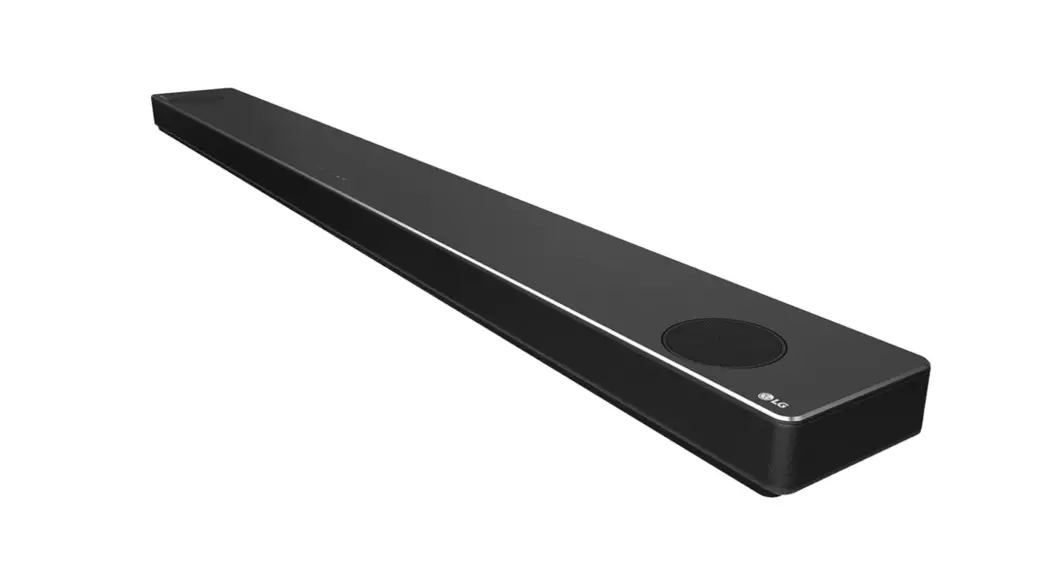
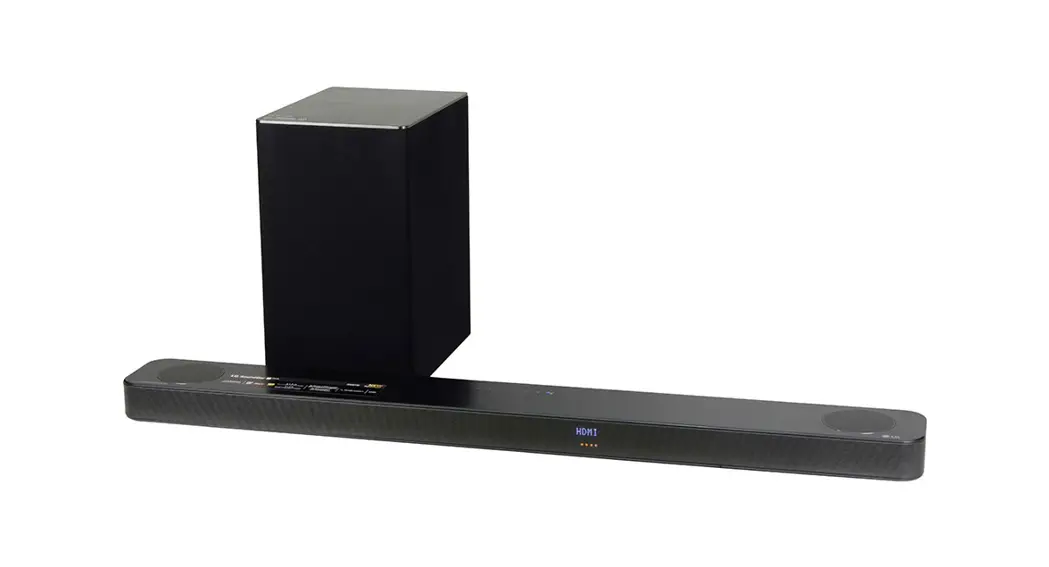
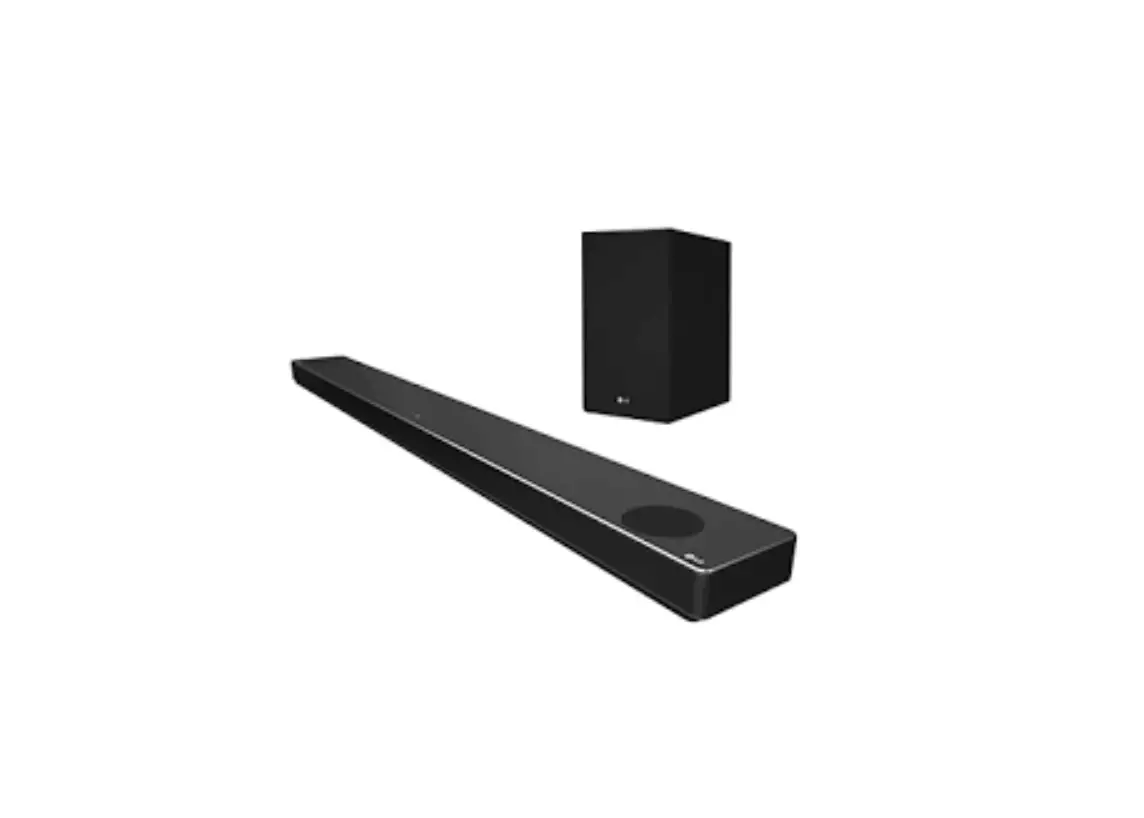
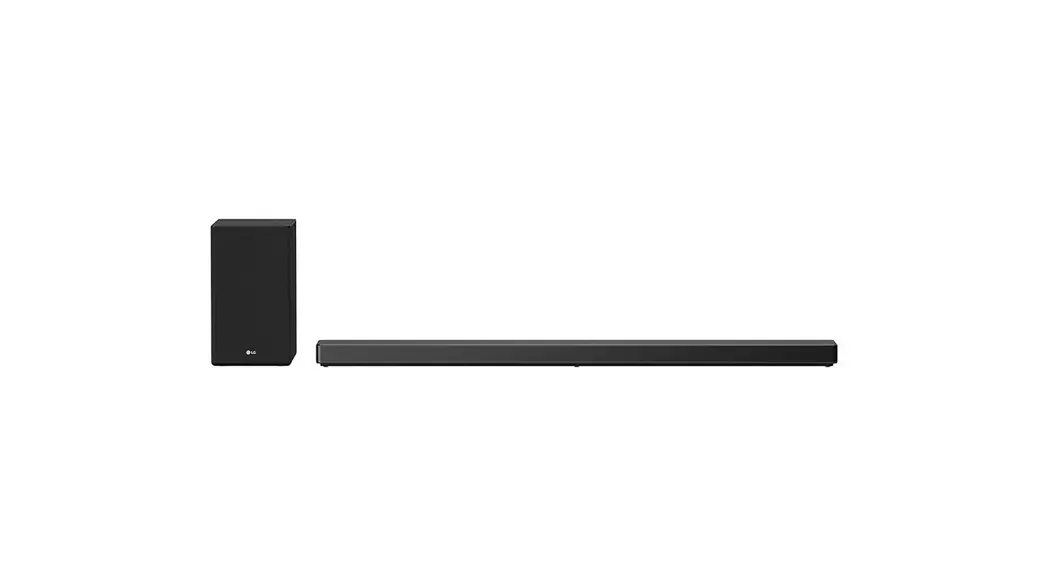
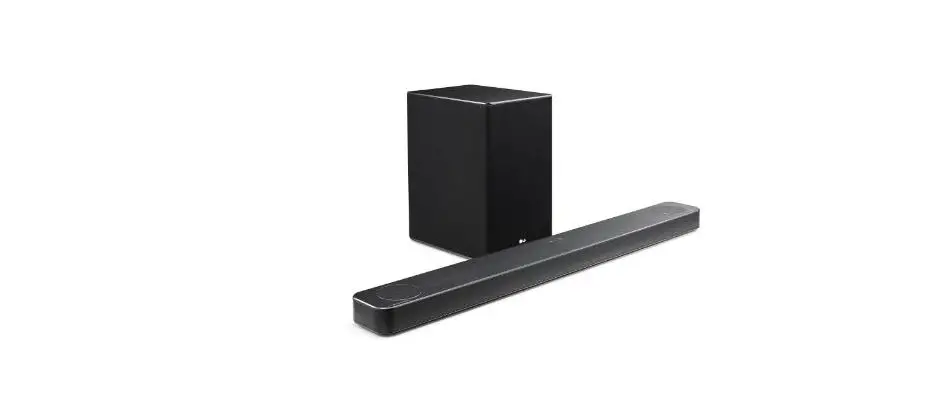
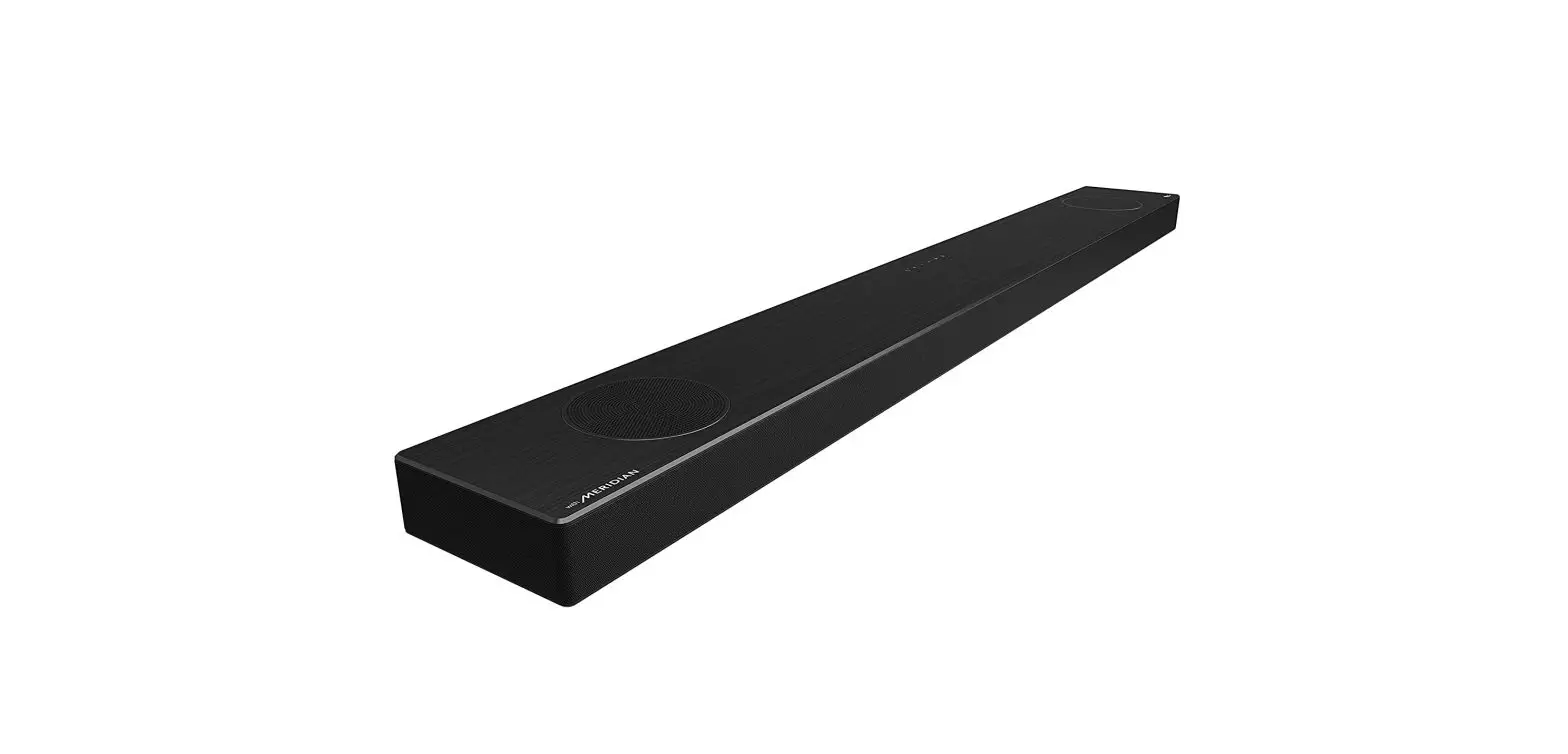
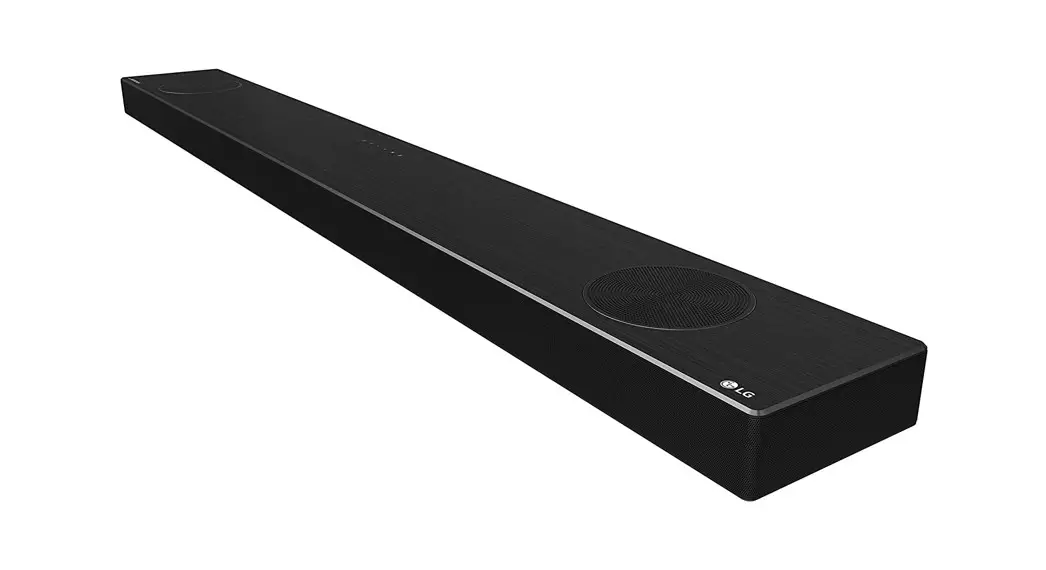
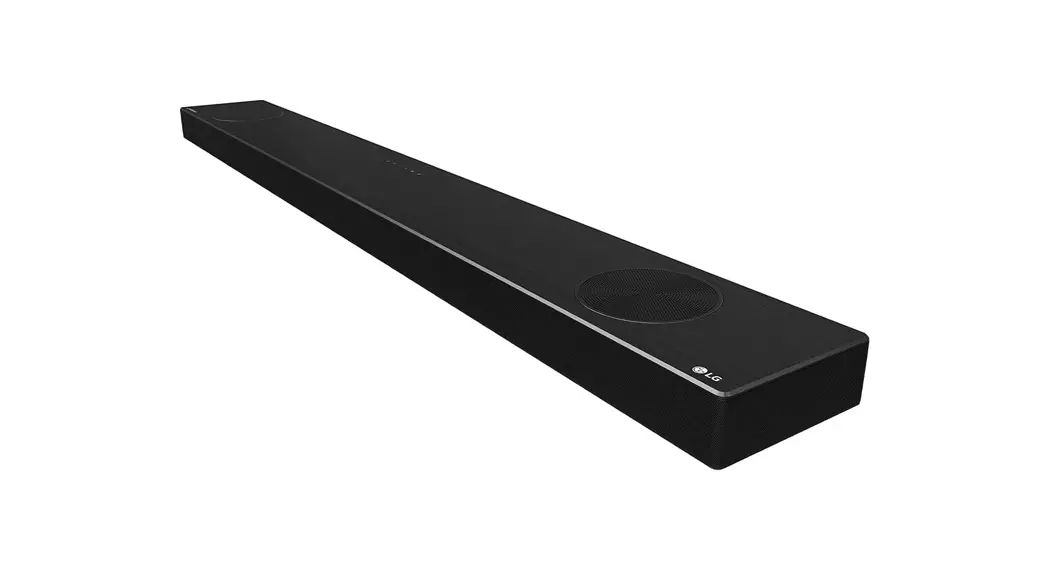
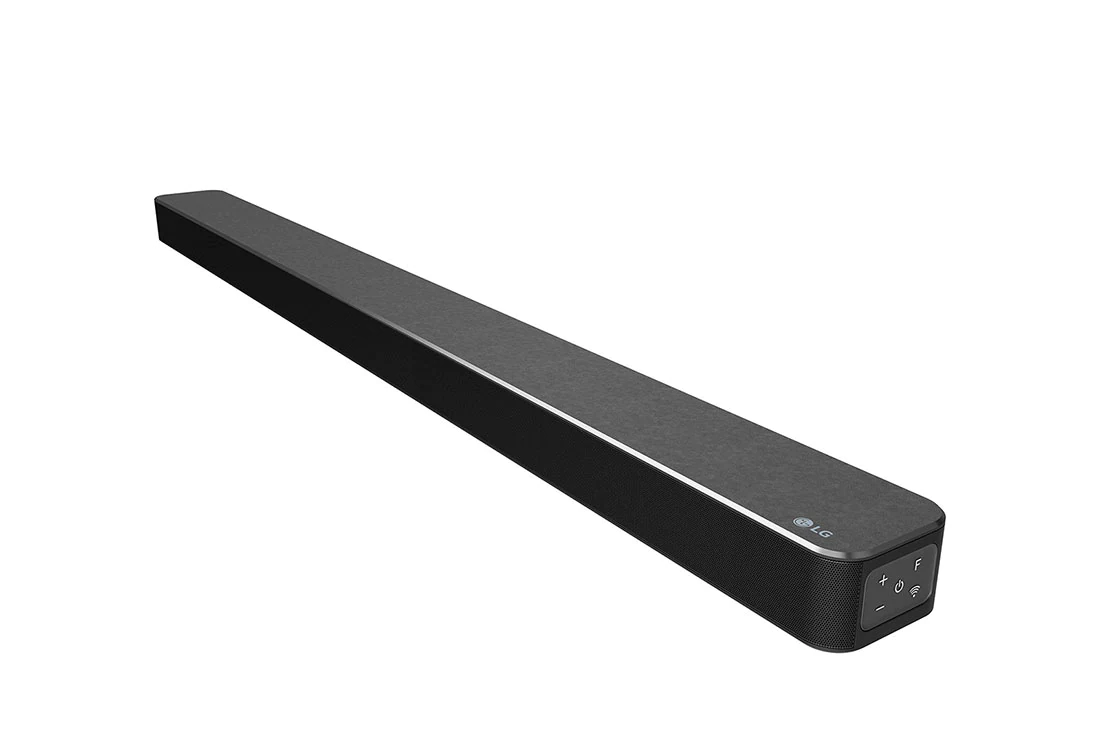
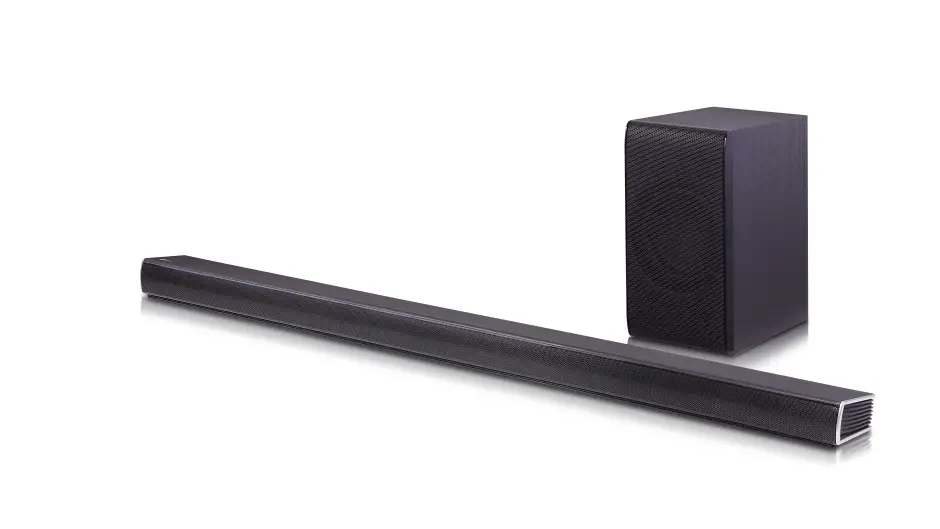
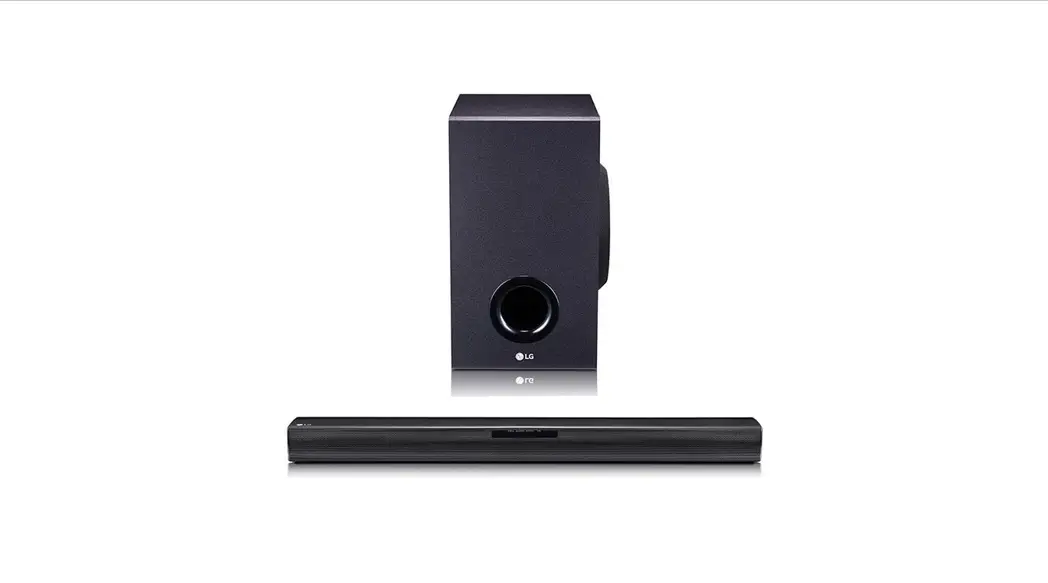
LG Wi-Fi Sound Bar
Please read this manual carefully before operating your set and retain it for future reference.
To view the instructions for advanced features, visit http://www.lg.com and then download Owner’s Manual. Some of the content in this manual may differ from your unit.
MODEL
DSN9YG

www.lg.com
Copyright © 2020-2021 LG Electronics Inc. All Rights Reserved.
Front Panel
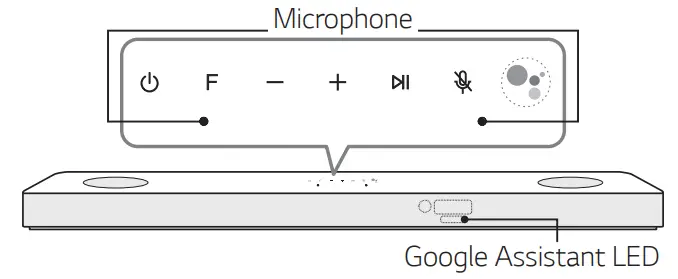
 (Standby) · · · · · · · · · · · ·Switches the unit ON or OFF.
F (Function) · · · · · · · · · · · · · · · · · · · · · · · · · ·Selects function.
– / + (Volume) · · · · · · · · · · · · · · · · · · · · · · Adjusts volume. · · · · · · · · · · · · · · · · · · · · · · · · · · · · · · · · · · · · · · · · Play/pause
 (Mic mute) · · · · · · · · · · · · · · · · · · · · · · · · · · · · · · · · · · · · · · · ··
Enables and disables Voice recognition.
 · · · · · · · · · · · · · · · · · · · · · · · · · · · · · · · · · · · ·
Standby and Stop feedback of Google Assistant.
 Reset the Unit
Press and hold the on the unit until you hear the beep sound once.
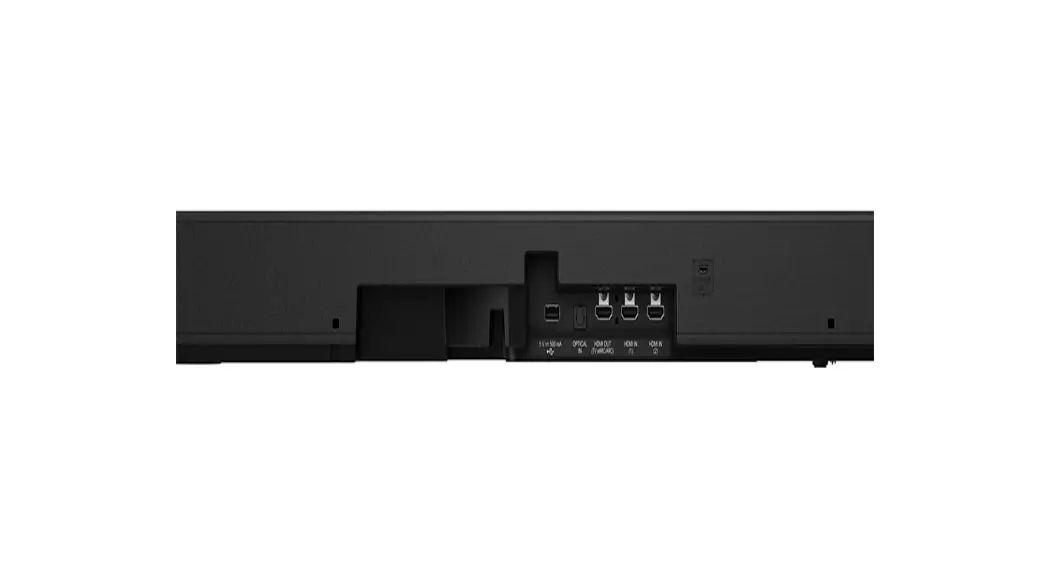
Rear Panel
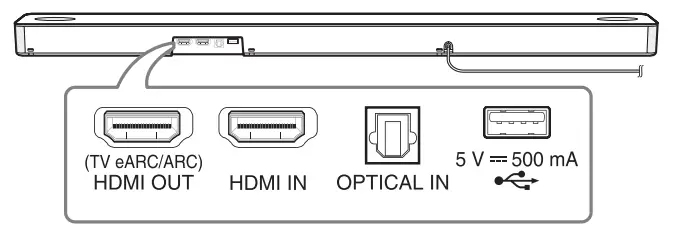
HDMI OUT (TV eARC/ARC) · · · · · · · Connect to a TV.
HDMI IN · · · · · · · ·Connect to device with HDMI OUT.
OPTICAL IN · · · · · · · · · · · · ·Connect to an optical device.
USB port · · · · · · · · · · · · · · · · · · · ·Connect to a USB device.
Make sure to properly align and connect the optical cable; improper alignment may cause damage to the jack.
Subwoofer Connection
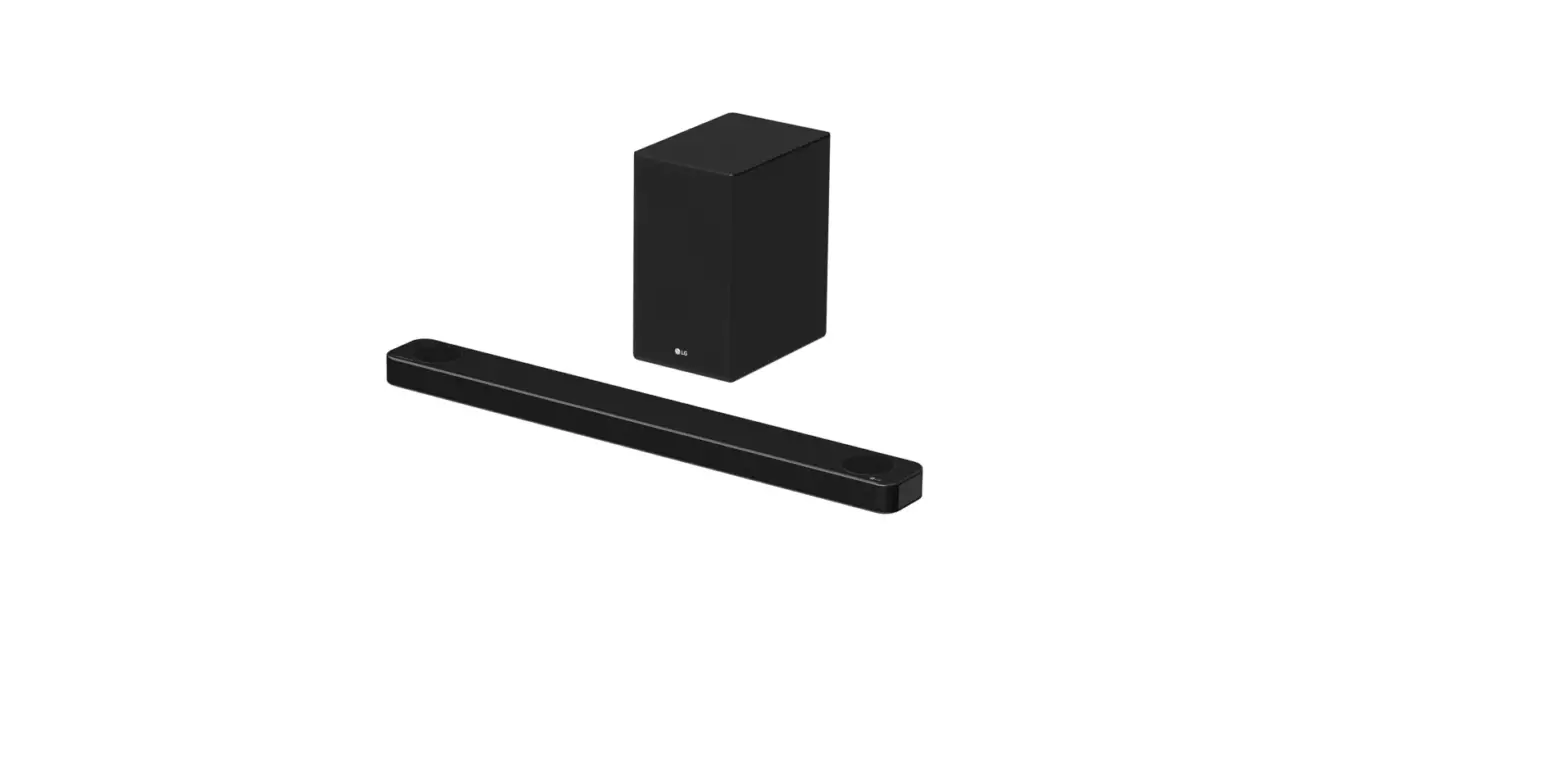
Place the wireless subwoofer near the soundbar and follow the steps below.
- Connect the power cord of the soundbar and the wireless subwoofer to the outlet.
- Turn on the soundbar.
• The soundbar and wireless subwoofer will be automatically connected. The subwoofer’s green LED turns on.
Manually Subwoofer Connection
If the subwoofer does not make a sound, try to connect manually.
- Press Pairing on the rear of the wireless subwoofer.
• The green LED on the rear of the wireless
The subwoofer blinks quickly.
(If the green LED does not blink, press and hold the Pairing.) - Turn on the soundbar.
• Pairing is completed. The green LED on the rear of the wireless subwoofer turns on.
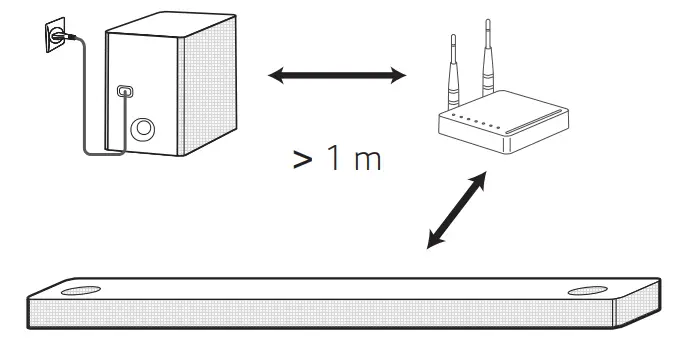
Keep the soundbar and the subwoofer away from the device (ex. wireless router, microwave oven, etc.) for over 1 m to prevent wireless interference.
TV Connection
Connect the soundbar and TV using Optical ( A ) or HDMI ARC ( B ).
A Optical Connection
- Connect the soundbar to the TV using an Optical cable.
- Set up [External Speaker (Optical)] on your TV setting menu.
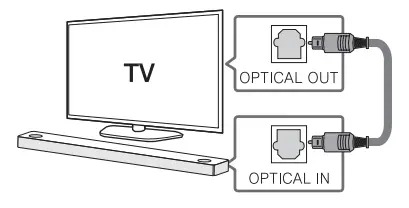
B HDMI (TV eARC/ARC) Connection
- Connect the soundbar to the TV using an HDMI cable.
- Set up [External Speaker (HDMI ARC)] on your TV setting menu.
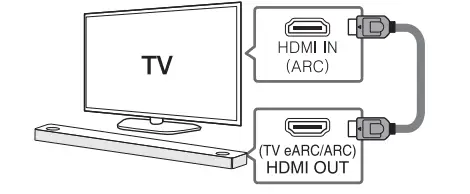
• HDMI connection is unavailable if your TV does not support HDMI ARC.
• If this unit is connected by OPTICAL and ARC at the same time, the ARC signal has a higher priority.
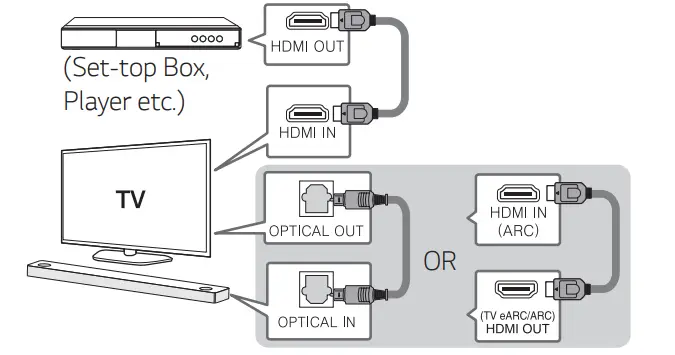
Additional Device Connection
- Connect to the external device as follow.

- Set the input source by pressing F repeatedly.
Network Connection
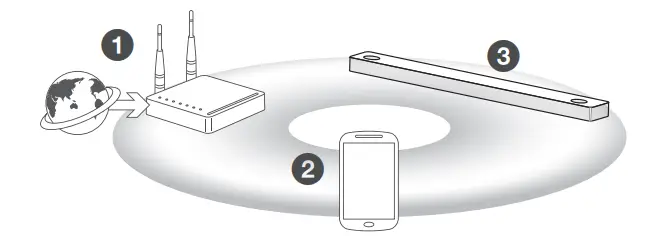
- Check network condition. A router connected to the network should be installed.
- Connect your smart device to your home network.
- Connect the sound bar to the power supply.
All devices should be connected to the same router.
Step.1 Install the “Google Home” App
Download the Google Home App from the Google Play or App Store.
Step.2 Set up the Wi-Fi connection with the app
- Connect your smart device to the Wi-Fi network that you’ll use for your unit.In the case of iOS devices, it should be turned on Bluetooth setting on your smart device.
- Launch the “Google Home” app.
- Follow the steps for Wi-Fi connection on the app.
• When the unit is properly connected to Wi-Fi, “CONNECTED” will appear on the display window with sound.
- When connect to Wi-Fi, this app may request to create a Google Account. You will need a Google account to use this app.
- “Google Home” app is provided by Google.
It might be revised by a change of Google Policy. - For more information (Set up, Usage, Help, etc.), research “Google Assistant Help” or visit the website. https://support.google.com/assistant This public site is provided for devices that work with Google Assistant.
- The unit may not be available for use on some functions from the “Google Assistant Help” site.
- The speaker is not compatible with the” Smart ThinQ” app. Therefore it is not available in setup and cannot be controlled by using the “Smart ThinQ” app.
Bluetooth Connection
Step 1. Connect the Wi-Fi
Make sure the unit connects to Wi-Fi by using the “Google Home” app.
The Bluetooth function is inactive before connecting to Wi-Fi.
Step 2. Change Function
Select the Bluetooth function by pressing F repeatedly.
Step 3. Find and Select your speaker name
Select the speaker name that was set on the “Google Home” app on the device list of your smart device. When successfully connected to Bluetooth, “PAIRED” will appear on the display window.
How to Use “Google Assistant”
Make sure the unit is connected to Wi-Fi.
Case 1. Say “Hey Google”
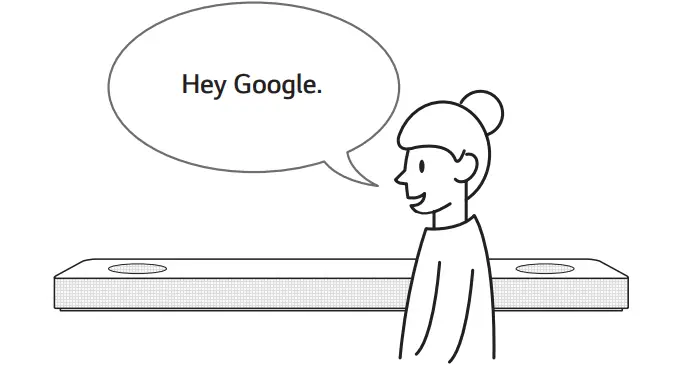
The Google Assistant only responds to voice commands when you are using Wi-Fi or BT (Bluetooth) as the input.
If you are using HDMI, Optical, ARC, Optical Sound Sync, or USB input, then you must use the button to activate the Google Assistant.
Case 2. Press
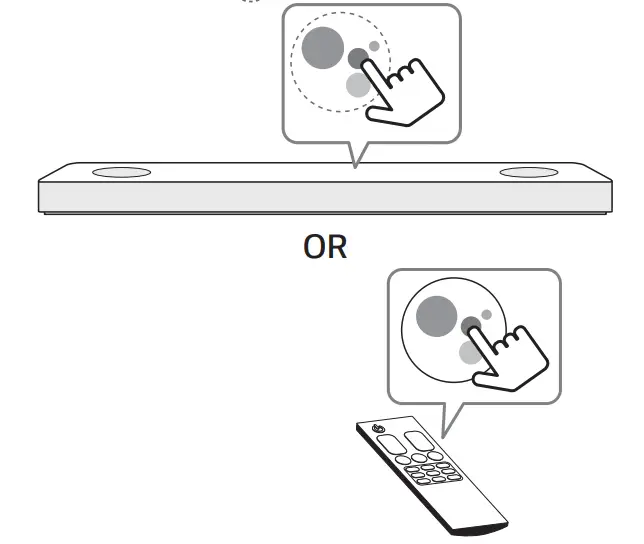
Voice command
- Plan your day
“Tell me about my day.”
“What’s my next meeting?”
“Set a reminder to check the schedule at 6 pm.” - Weather
“What’s the weather?”
“What’s the weather for tomorrow?”
“What’s the weather in New York?” - Music
“Play the music.” “Next song.”
“Previous song.” “Pause the music” - Availability
“How many calories in a hot dog?”
“How do I get to Ocean Beach?”
“How do you say hello in Korean?”
“Talk to Best Jokes.” - Internet
“What movies are showing this weekend?”
“Why is the sky blue?”
“What is the smallest country in Europe?”
“How much sugar is there in a Coke?” - Subscriptions
“What are the latest headlines?”
“Play Time’s The Brief.” - Smart Home
“Turn up the thermostat.”
“Set the thermostat to 22 degrees”
“Dim the lights in the kitchen.”
“Is the light on in the living room?” - For more information on the voice
commands, refer to the “Google Home” app screen or visit the website. https://support.google.com/assistant - If you’re having problems with Voice
recognition or this product, suggest your feedback by saying “Hey Google, feedback”.
It is helpful to Google’s Service quality enhancement.
Additional
Comfortable Function
With the Google Assistant built-in, you can control compatible smart home devices such as TVs, lights, switches, plugs, thermostats, and more by simply using your voice.
For more information, visit the below website.
- Set up, Usage, and more: https://support.google.com/assistant
- Compatible LG appliance models: Visit http://www.lg.com and then search the information.
Download LG Sound Bar Application
You can manage the speaker settings and control the speaker by using “LG Sound Bar”.
Download “LG Sound Bar” on the App Store or Google Play Store.
AI Room calibration
AI Room Calibration is a sound tuning tool, which adjusts the audio settings of the Sound Bar based on the room acoustics and environment.
To access the AI Room Calibration it is necessary to install the “LG Sound Bar” app. On the [Sound Setting] menu, choose [AI Room Calibration].
Remote control
Replacement of Battery
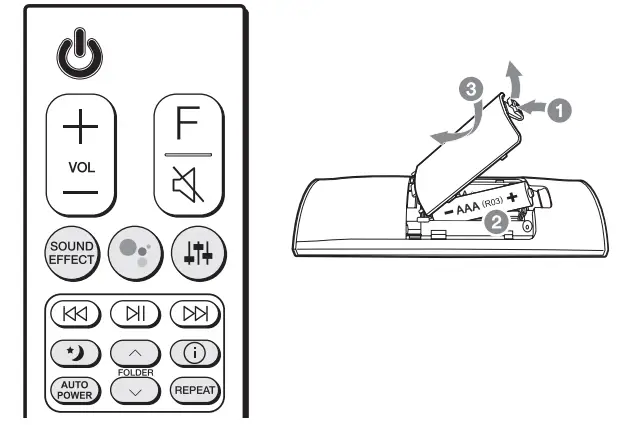
SOUND EFFECT: Selects a sound effect mode.
– TV remote: Long press SOUND EFFECT and press it again to use the TV remote control. : Standby and Stops feedback of Google Assistant. : Adjusts the sound level of each speaker.
– Surround sound: Long press and press it again. : Turns on or off the Night-time mode.
FOLDER ∧/∨: Searches a folder.: Displays the information of a file, an input source, a connected Bluetooth device name, or an application name.
AUTO POWER: Automatically turns on by an input source.
REPEAT: Listens to your files repeatedly or randomly.
Additional Information
Specification
| Power requirements | Refer to the main label. |
| Power consumption | Refer to the main label. |
| Networked standby: 6.5 W (If all network ports are activated.) | |
| Dimensions (W x H x D) | Approx. 1220.0 mm x 57.0 mm x |
| Bus Power Supply (USB) | 5 V  500 mA 500 mA |
| Amplifier (Total R MS Output power) | 520 W RMS |
| Design and specifications are subject to change without notice. | |
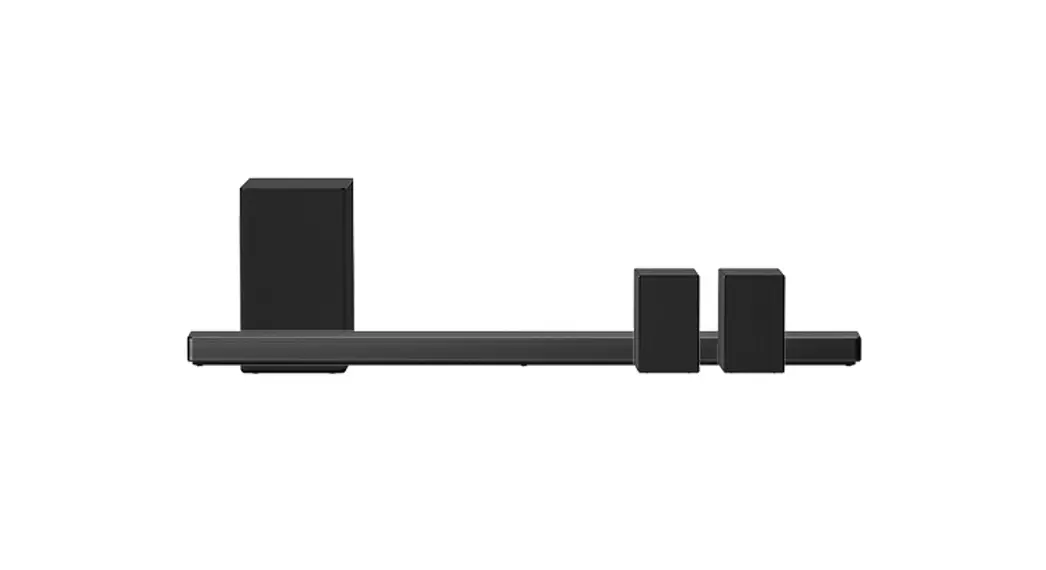
Rear Speakers Ready
Ready for surround sound with Rear Speakers Kit sold separately. (SPK8-S)
To enjoy content containing Dolby Atmos® and DTS: X®, the connected device and content must support Dolby Atmos® and DTS: X®.
How to disconnect the wireless network connection or the wireless device
Turn off the unit by pressing the power button for more than 3 seconds.

OPEN SOURCE SOFTWARE NOTICE INFORMATION
To obtain the source code under GPL, LGPL, MPL, and other open-source licenses, that is contained in this product, please visit http://opensource.lge.com.
In addition to the source code, all referred license terms, warranty disclaimers, and copyright notices are available for download.
LG Electronics will also provide open source code to you on CD-ROM for a charge covering the cost of performing such distribution (such as the cost of media, shipping, and handling) upon email request to [email protected].
This offer is valid for a period of three years after our last shipment of this product. This offer is valid to anyone in receipt of this information.
For more information about Google’s open-source, visit the device settings of the Google Home app.
Disclaimers
- Google, Google Home, Google Play, Chromecast built-in, and other related marks and logos are trademarks of Google LLC.
- The Google Assistant requires an internet/data connection. Data rates may apply.
- The Google Assistant is not available in certain languages and countries.
- Subscriptions may be required, and additional terms, conditions, and/or charges may apply.
- Controlling certain devices and features in your home requires a compatible smart device.
Declaration of Conformity

Hereby, LG Electronics declares that the radio equipment type Wi-Fi SOUND BAR is in compliance with Directive 2014/53/EU. The full text of the EU declaration of conformity is available at the following internet address:
http://www.lg.com/global/support/cedoc/cedoc#
The use of the 5150 – 5350 MHz band is restricted to indoor use only. This restriction exists in Belgium (BE), Bulgaria (BG), Czech Republic (CZ), Denmark (DK), Germany (DE), Estonia (EE), Ireland (IE), Greece (EL), Spain (ES), France (FR), Croatia (HR), Italy (IT), Cyprus (CY), Latvia (LV), Lithuania (LT), Luxembourg (LU), Hungary (HU), Malta (MT), Netherlands (NL), Austria (AT), Poland (PL), Portugal (PT), Romania (RO), Slovenia (SI), Slovakia (SK), Finland (FI), Sweden (SE), Northern Ireland (UK(NI)), Switzerland (CH), Iceland (IS), Liechtenstein (LI), and Norway (NO).
For the consideration of the user, this device should be installed and operated with a minimum distance of 20 cm between the device and the body.
| Frequency range | Output power (Max.) |
| 2402 to 2480 MHz | 9 dBm |
| 2412 to 2472 MHz | 20 dBm |
| 5180 to 5320 MHz | 23 dBm |
| 5500 to 5700 MHz | 23 dBm |
| 5730 to 5821 MHz | 13 dBm |
SN9YG.DDEULLK_SIMPLE_ENG_MFL71841338.indd 8
2021-08-02
10:24:19
www.lg.com
Copyright © 2020-2021 LG Electronics Inc. All Rights Reserved.
 Google Assistant, your own personal Google
 LG Open Source
 LG Electronics & Home Appliances | Shop Now | LG USA