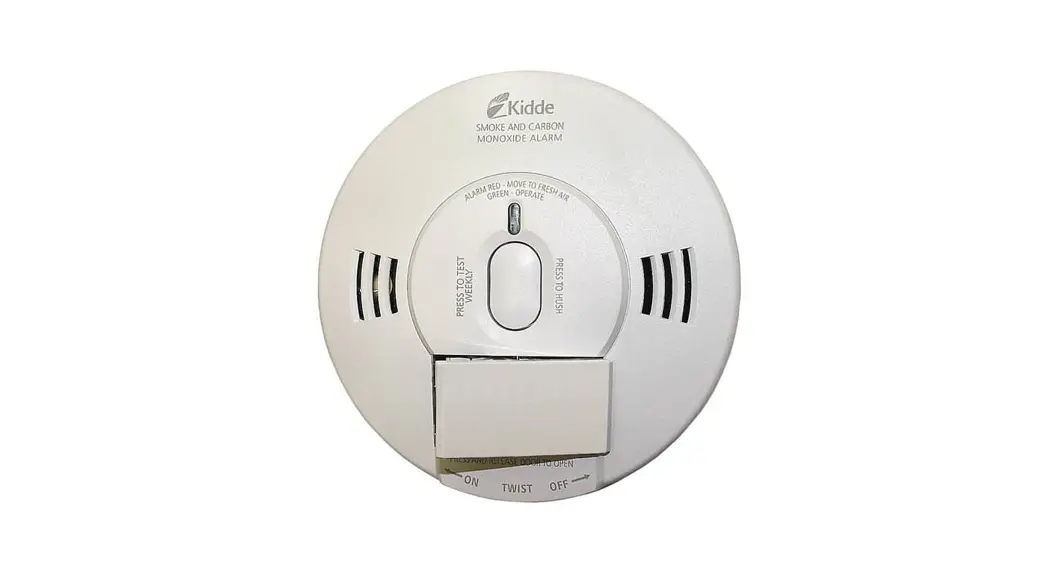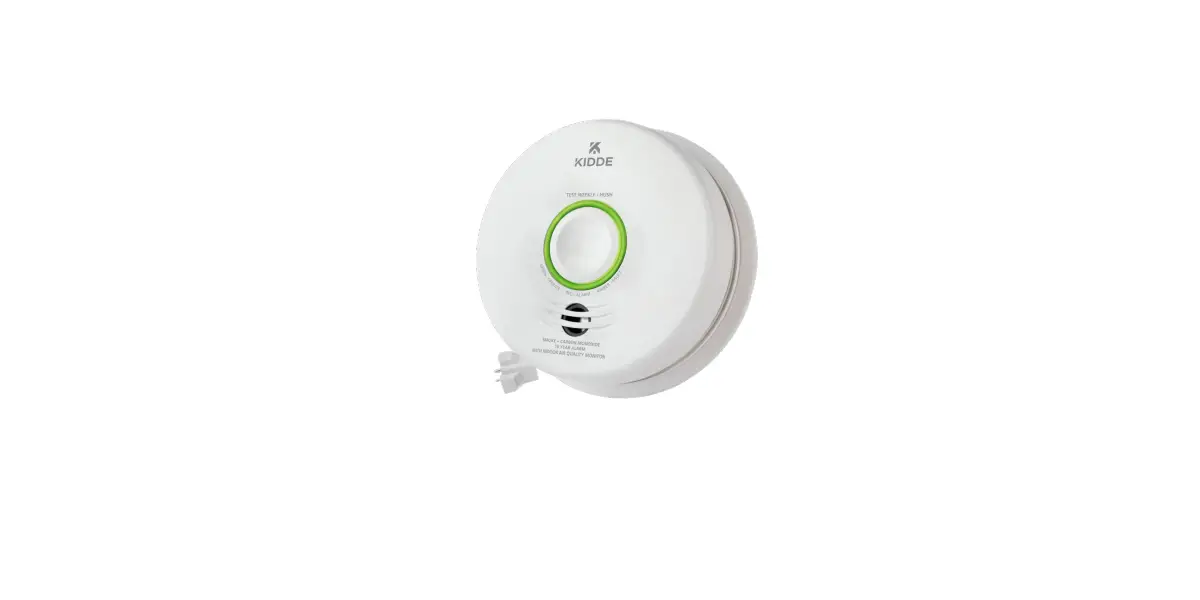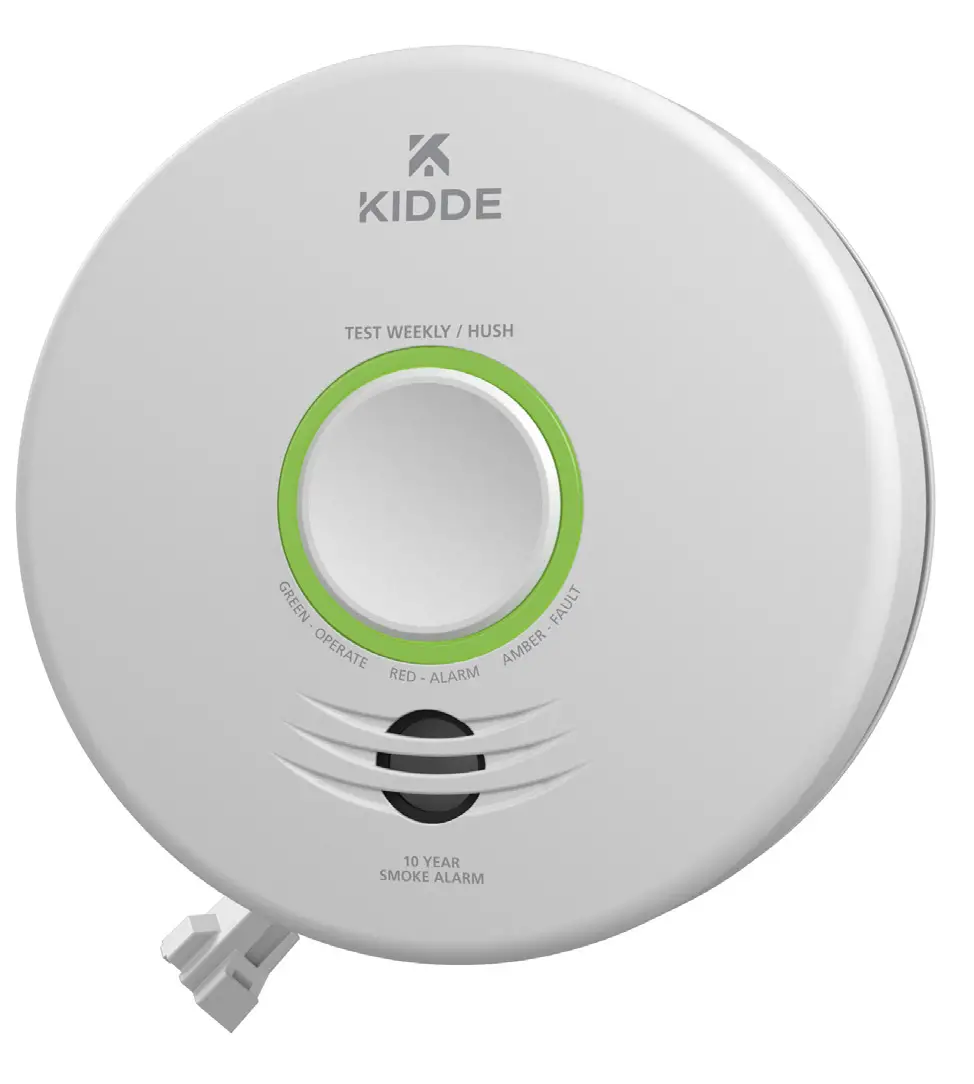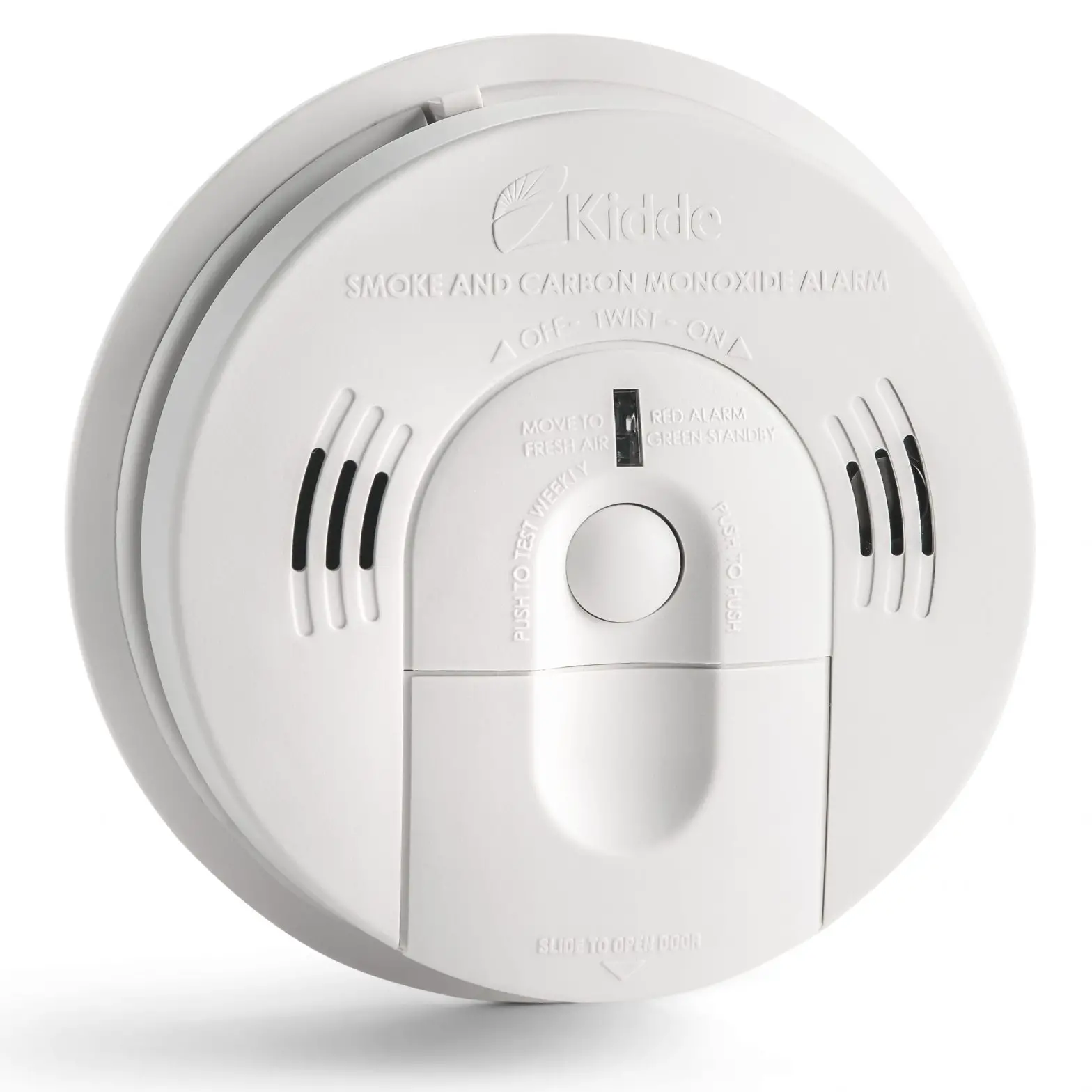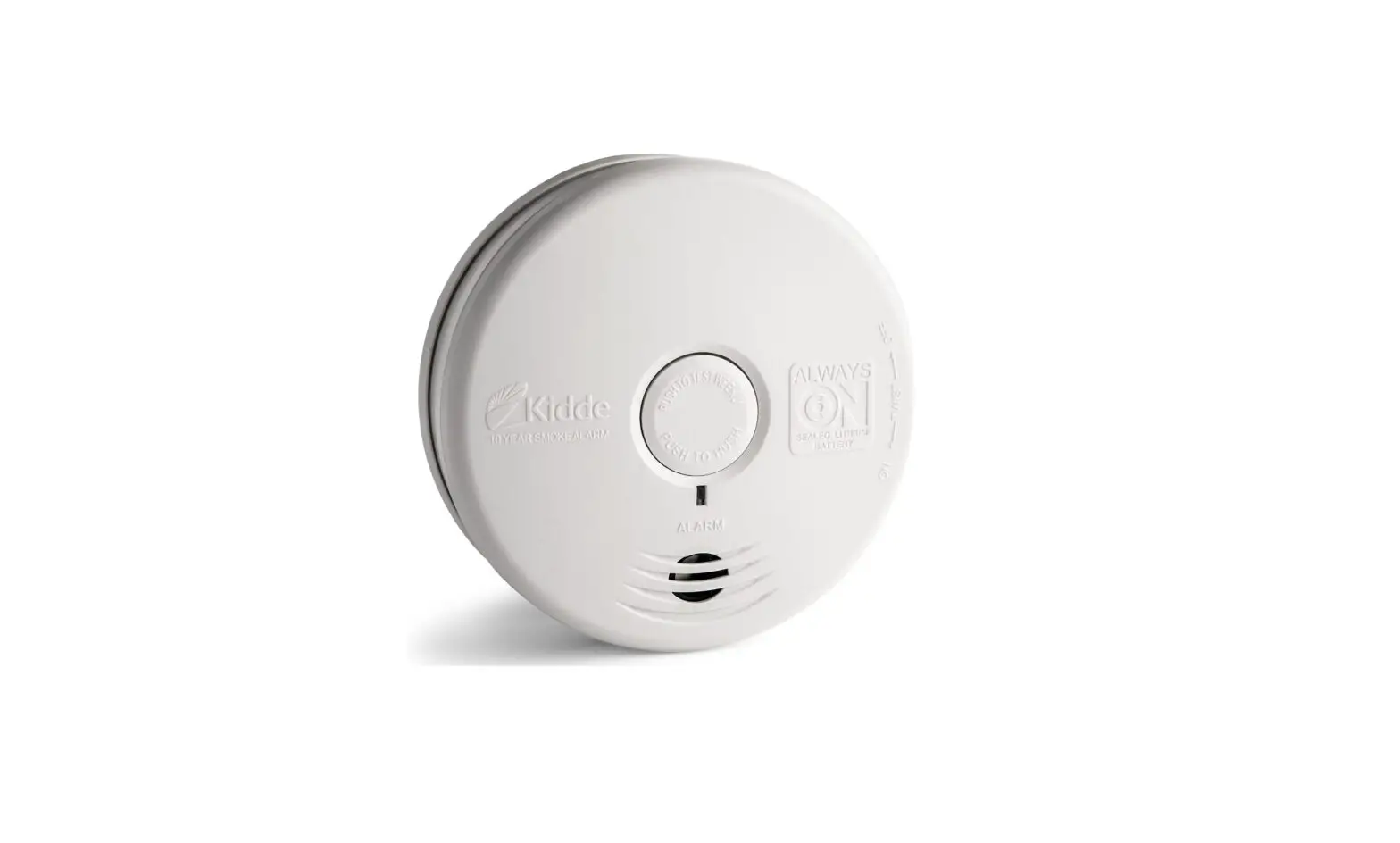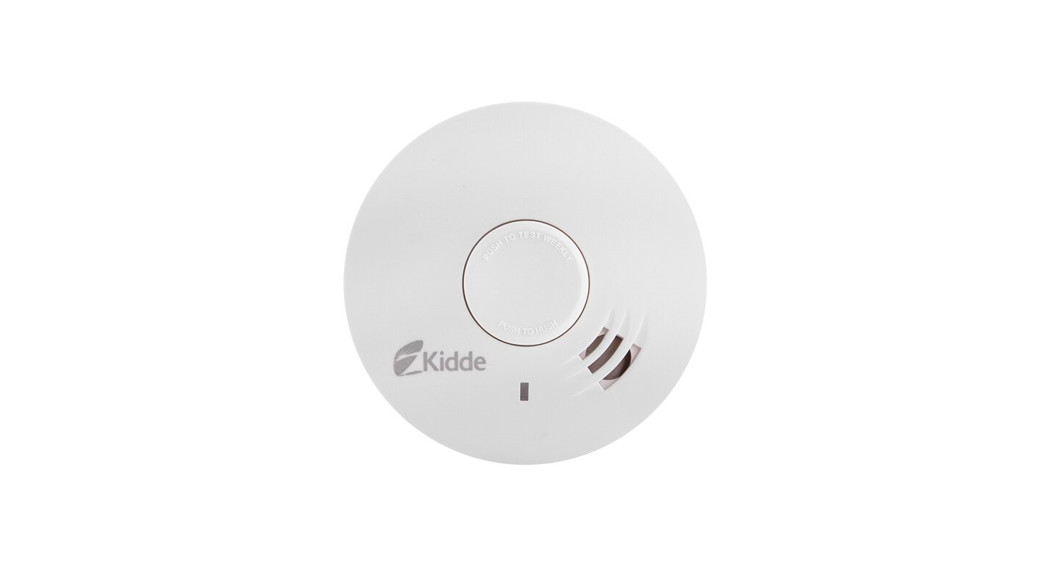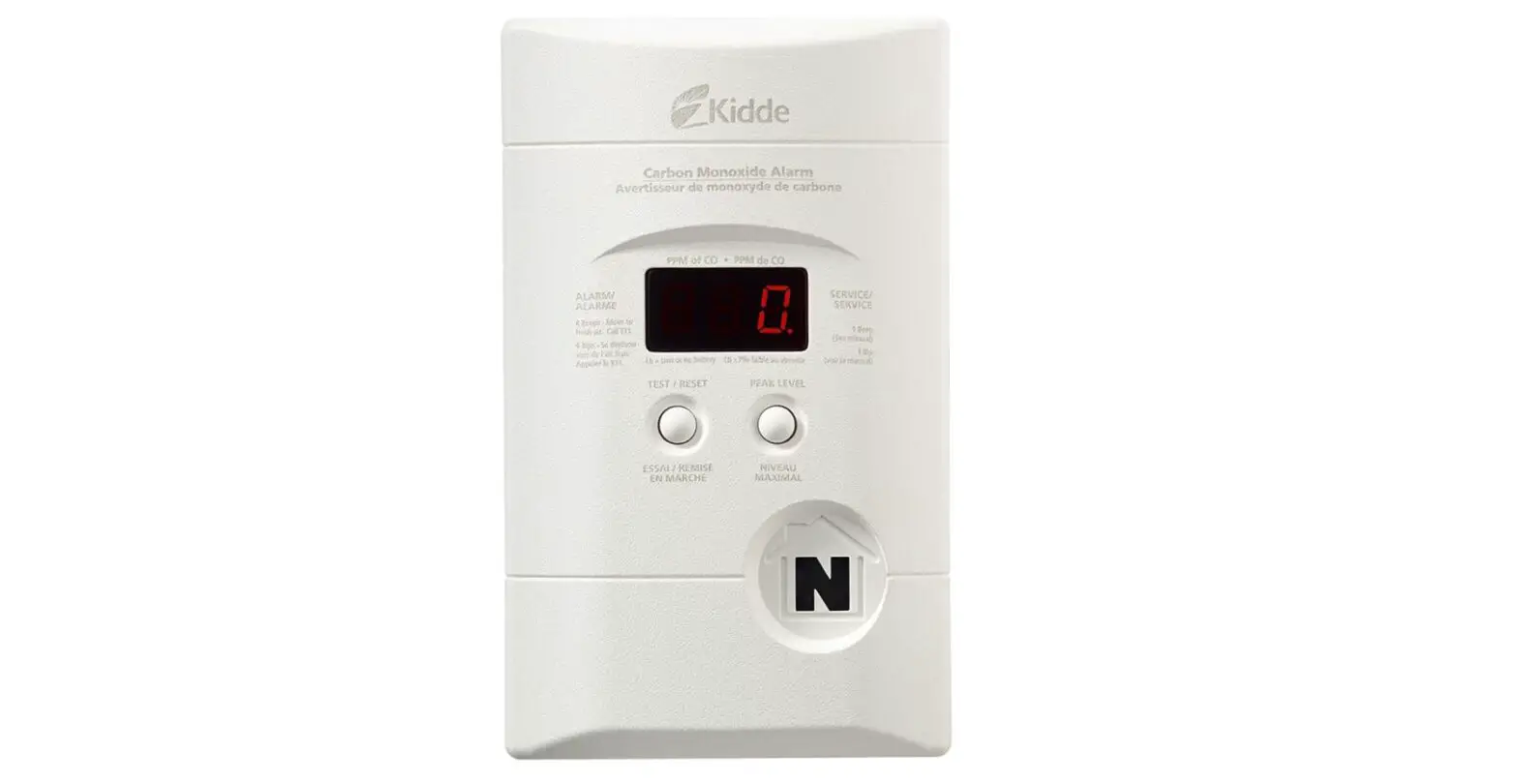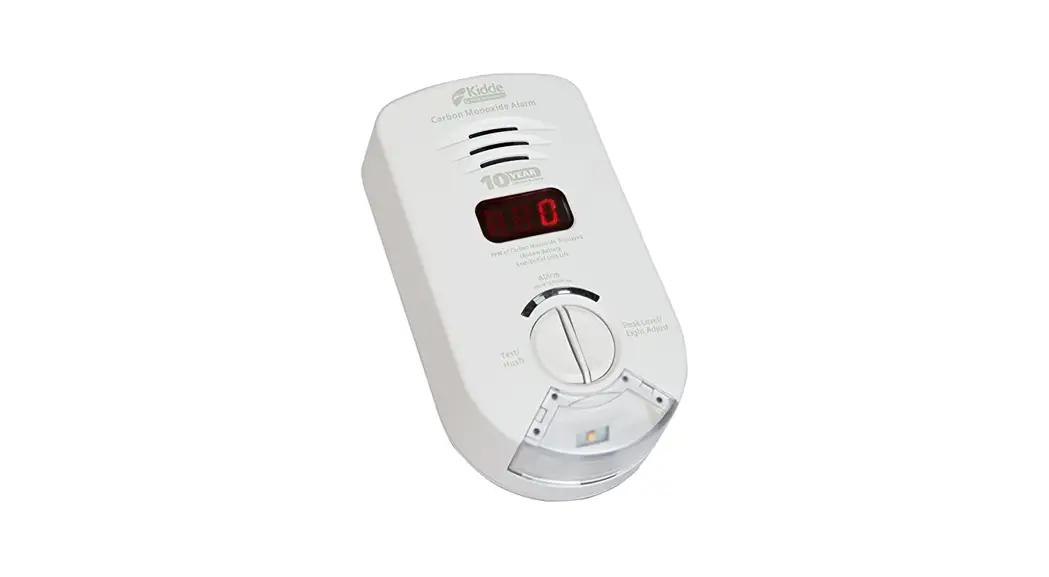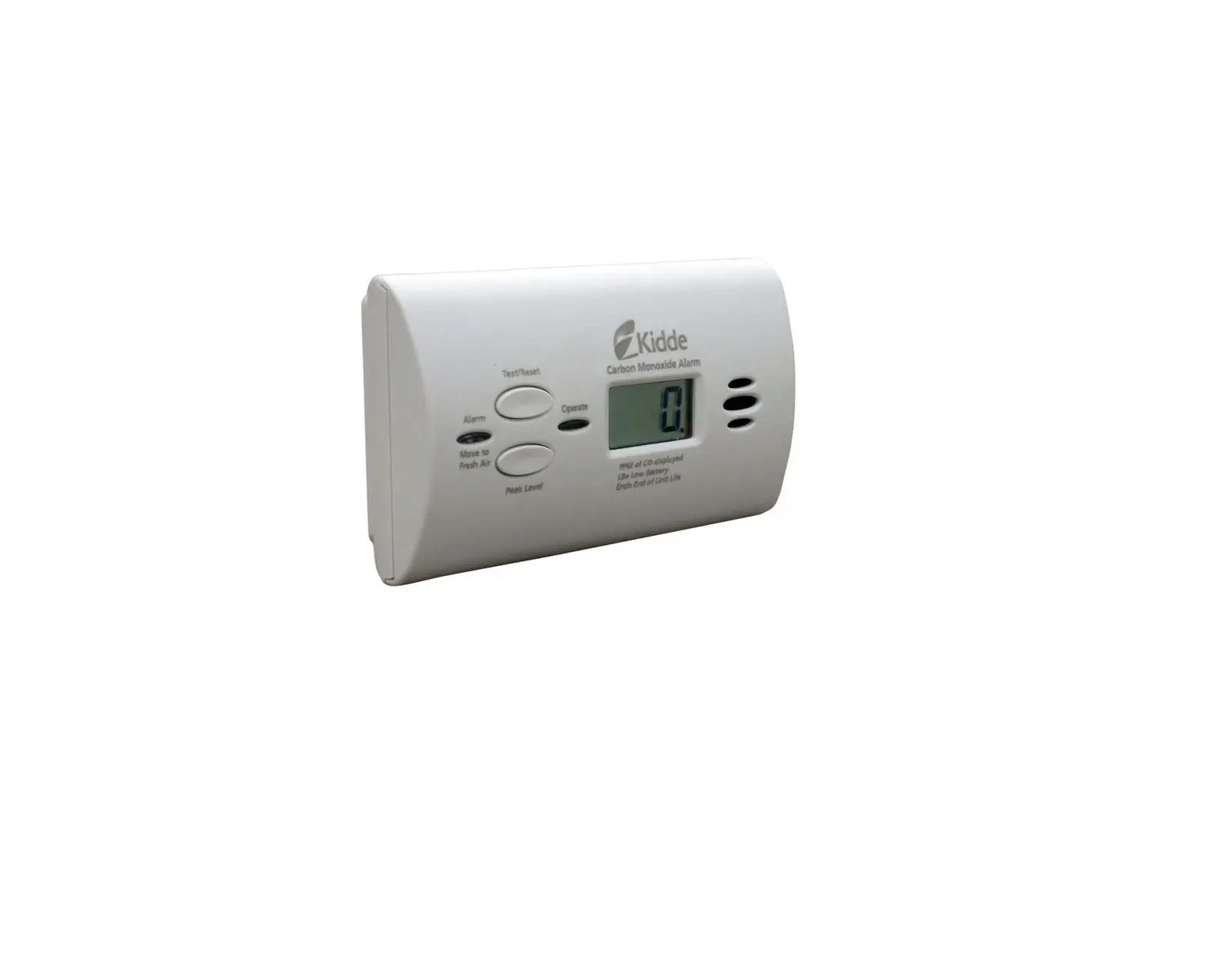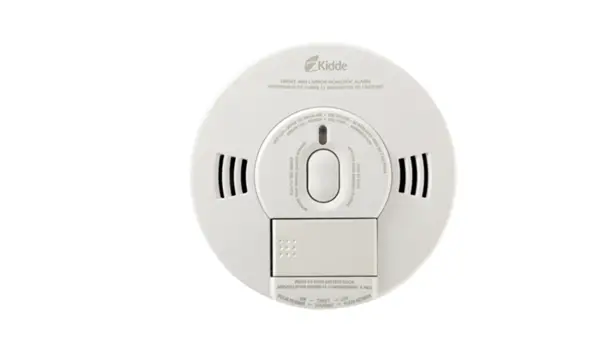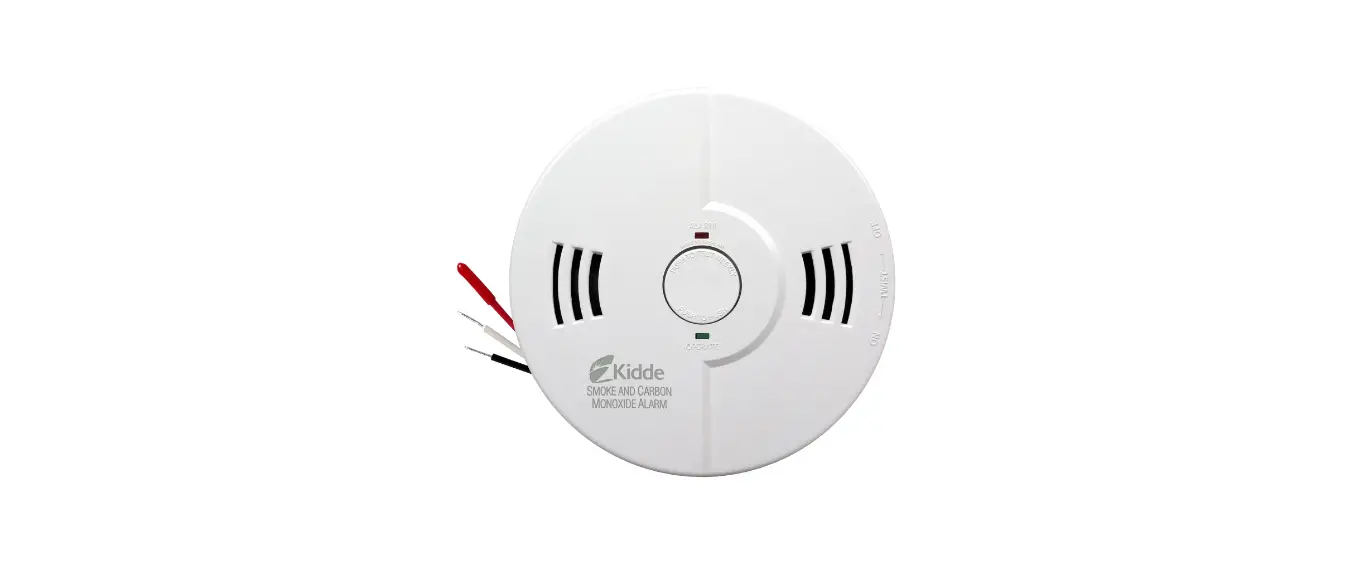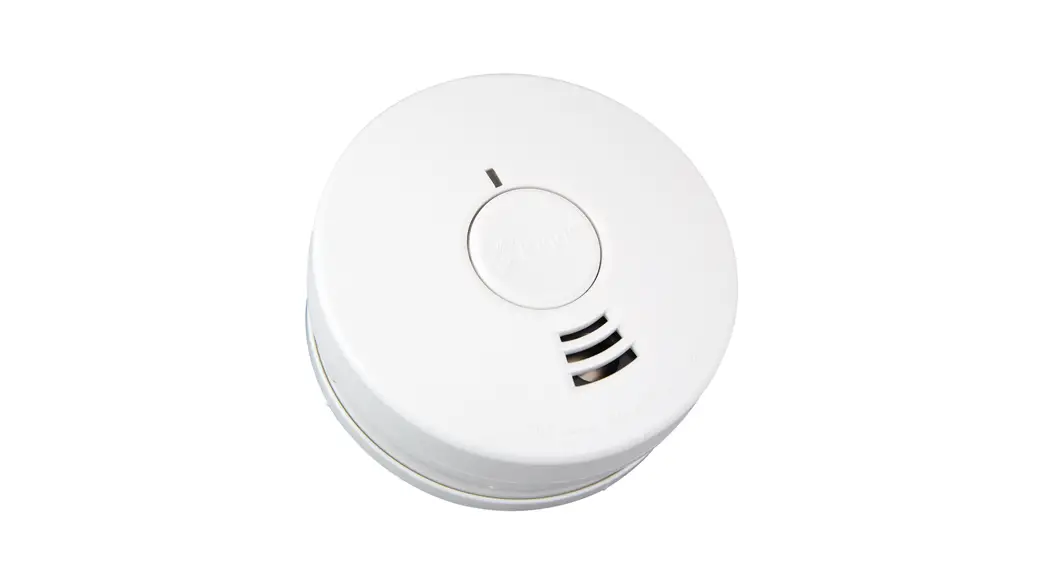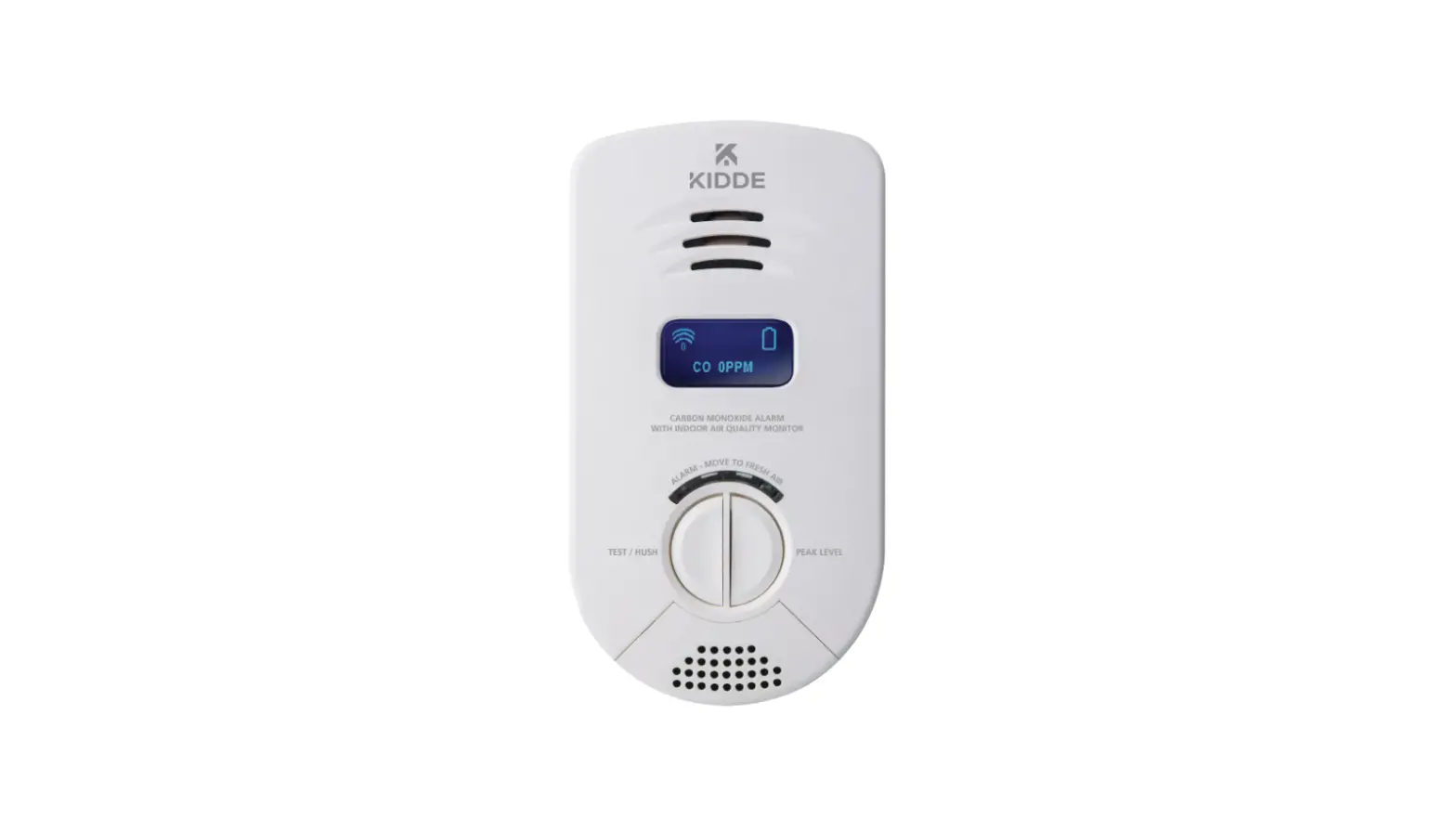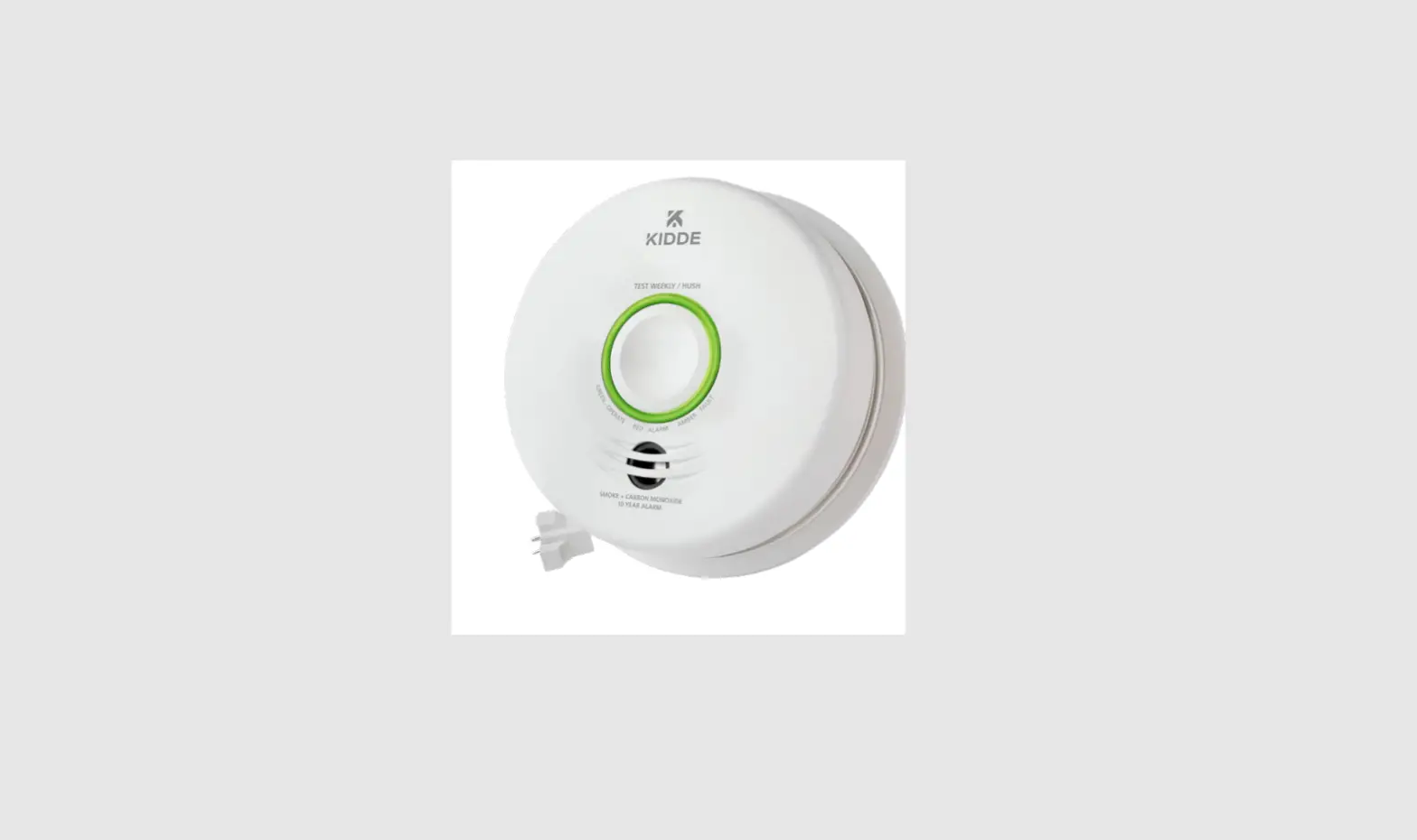

Kidde P4010ACSCO-WF Smoke + Carbon Monoxide Smart Alarm
Amazon Alexa
Kidde’s Wi-Fi alarms are compatible with Amazon Alexa and Google Assistant. Use simple voice commands to check the status of your device. Let’s get you set up!
Get Started with Alexa
- Install the Kidde app from the App Store or Google Play, or scan the QR code shown in Step 1 of the Quick Start Guide included with your Wi-Fi device.
- Open the Kidde app, create and activate your account.
- Tap “Add a device” and select the appropriate Kidde Wi-Fi device.
- Follow the in-app steps to set up and connect your Wi-Fi device to the app.
- After setup is complete, in your Kidde app:
- Click on “Account”
- Scroll down to SMART HOME INTEGRATIONS
- Select the “Alexa” toggle button
- Now close the Kidde app and open the Alexa app.
- In your Alexa app:
- Click on “More”
- Click on “Skills & Games”
- Click the Magnifying Glass and search for “Kidde Alarm”
- Click on “Kidde Alarm”
- Click on “Launch”
- Once enabled, log in with your Kidde app username and password.
You’re all set to use your Kidde Wi-Fi device through Alexa. Just say “Alexa…” *Per UL standards, Test and Smart Hush™ are not available using voice assistants.
Just ask Alexa
- “Alexa, ask Kidde alarm status in the Living Room.”
- “Alexa, ask Kidde alarm smokelevel in the Living Room.”
- “Alexa, ask Kidde alarm carbon monoxide level in the Living Room.”
- “Alexa, ask Kidde alarm battery level in the Living Room.”
Google Assistant
Get Started with Google Assistant
- Install the Kidde app from the App Store or Google Play, or scan the QR code shown in Step 1 of the Quick Start Guide included with your Wi-Fi device.
- Open the Kidde app, create and activate your account.
- Tap “Add a device” and select the appropriate Kidde Wi-Fi device.
- Follow the in-app steps to set up and connect your Wi-Fi device to the app.
- Install the Google Home app and log in with your Google Account.
- In your Google Home app:
- Tap + (Add) Button Select “Set Up Device”
- Select “Works With Google”
- Click Magnifying Glass and search “Kidde Alarm”
- Click link and log in to your Kidde app account
- Click OK
You’re all set to use your Kidde Wi-Fi device through Google Assistant. Just say “Hey Google…” Per UL standards, Test and Smart Hush™ are not available using voice assistants.
Just say “Hey Google:”
- “Hey Google, what is the smoke level in the Living Room?”
- “Hey Google, what is the carbon monoxide level in the Living Room?”
- “Hey Google, what is the battery level in the Living Room?”
A Carrier Company Google is a trademark of Google LLC.
©2022 Carrier. All Rights Reserved
 Amazon.com. Spend less. Smile more.