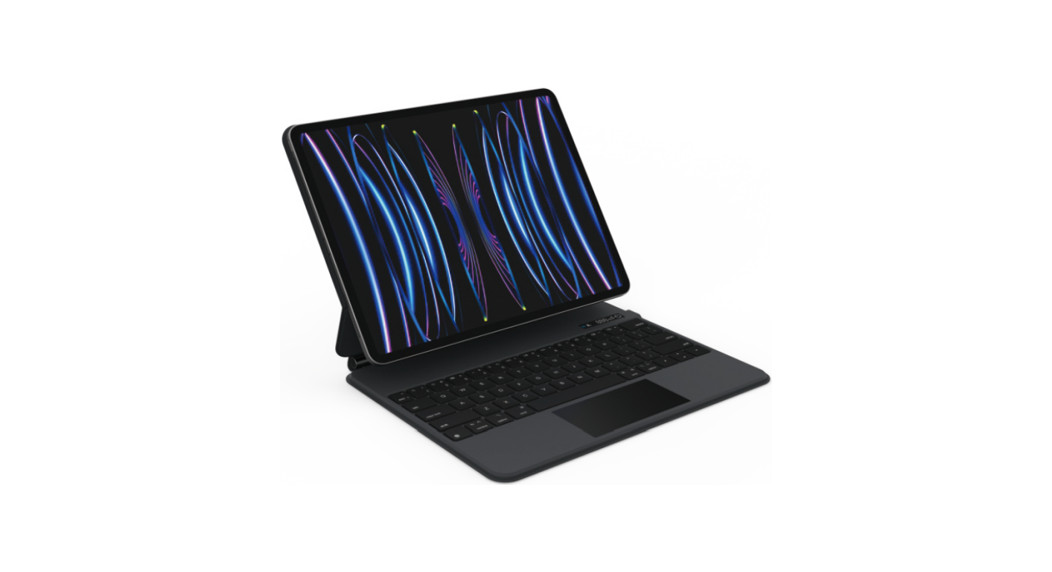
 A1895 Pro Wireless Keyboard
User Manual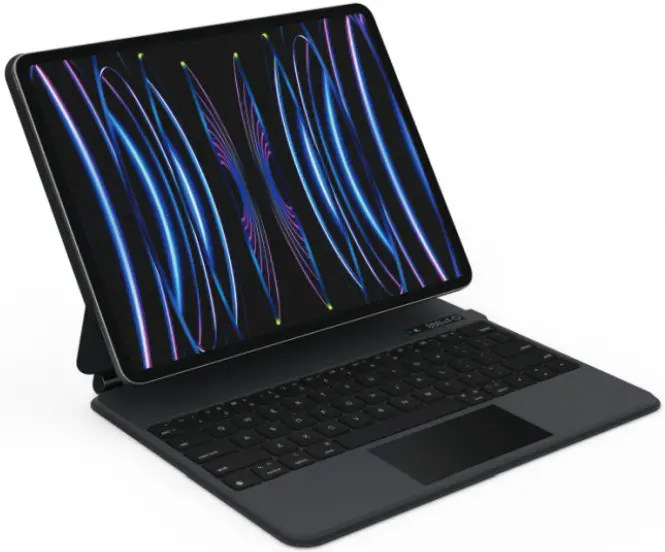
A1895 Pro Wireless Keyboard
FCC: This equipment has been tested and found to comply with the limits for a Class B digital device, pursuant to Part 15 of the FCC Rules. These limits are designed to provide reasonable protection against harmful interference in a residential installation. This equipment generates uses and can radiate radio frequency energy and, if not installed and used in accordance with the instructions, may cause harmful interference to radio communications. However, there is no guarantee that interference will not occur in a particular installation. If this equipment does cause harmful interference to radio or television reception, which can be determined by turning the equipment off and on, the user is encouraged to try to correct the interference by one or more of the following measures:
- Reorient or relocate the receiving antenna.
- Increase the separation between the equipment and receiver.
- Connect the equipment into an outlet on a circuit different from that to which the receiver is connected.
- Consult the dealer or an experienced radio/TV technician for help.
Product Description
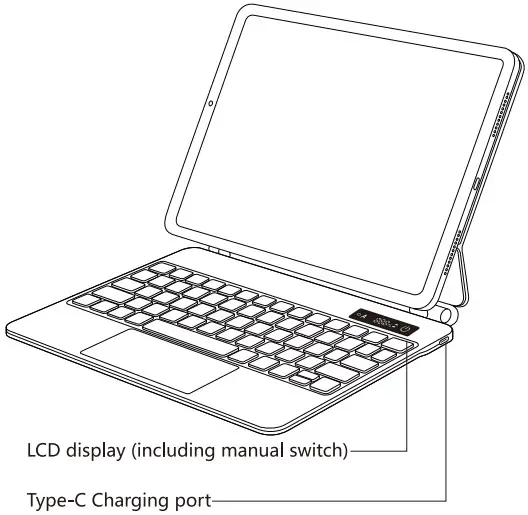 LD display (including manual switch)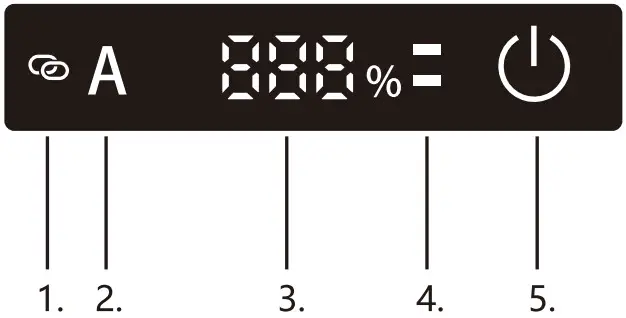
- Bluetooth status light
- Caps Lock Indicator
- Power display
- Charging indicator
- Manual Power switch
Instructions For Use
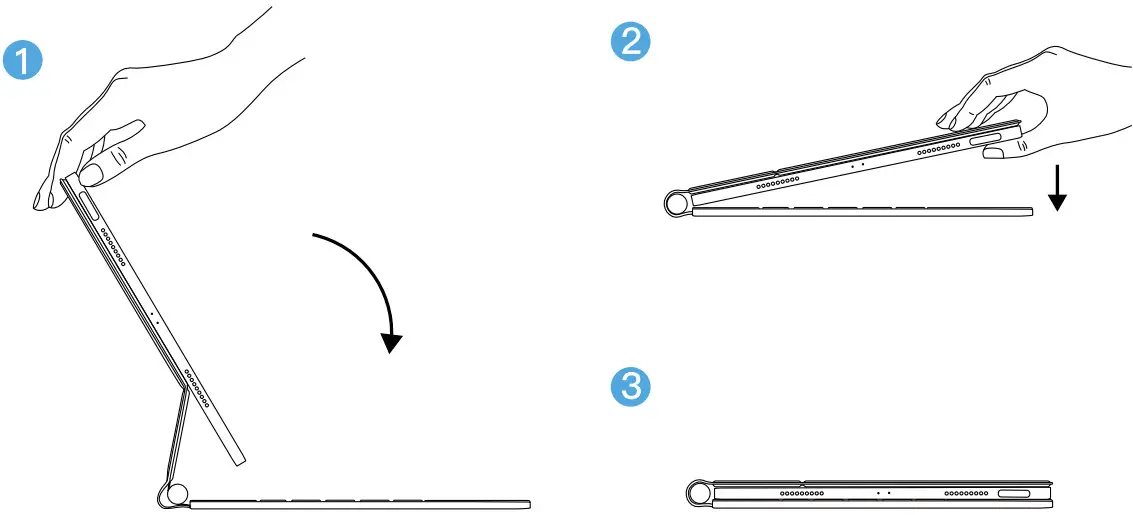
- The keyboard will automatically power on after the keyboard s opened from the folded state to 90°, LCD display lights up.
Tips: If the display is not bright, please close it and open it again or use manual power on (double-Click the * * sign on the LCD).
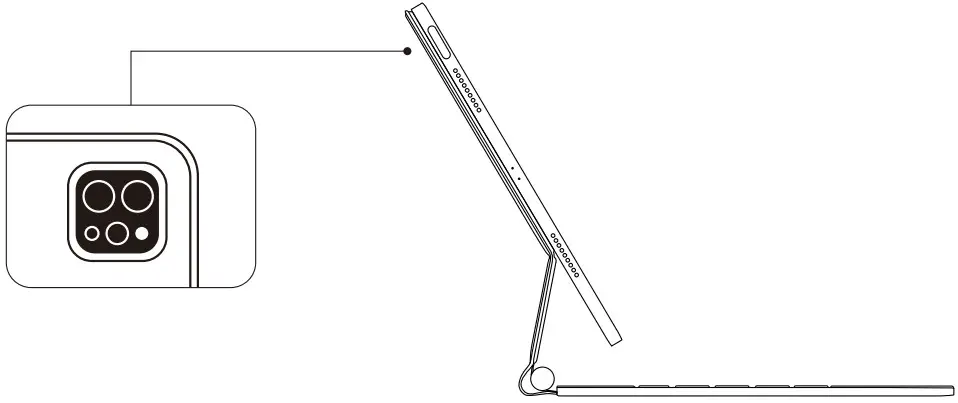
- Align the tablet with the correct model to the camera hole and place it on the keyboard magnetic bracket.

- The Bluetooth signal will automatically activate
 blink on the LCD screen after booting, turn on the iPad Bluetooth and search for “A1895 Pro” and connect. After the connection is successful, the indicator light will auto off.
- After use, close the tablet and keyboard, and the keyboard will automatically shut down.

 * sign on the LCD).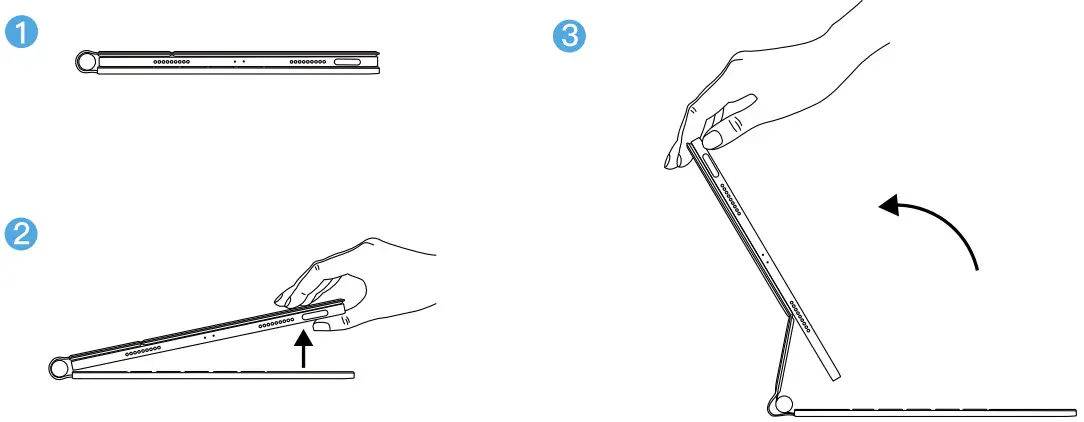
 blink on the LCD screen after booting, turn on the iPad Bluetooth and search for “A1895 Pro” and connect. After the connection is successful, the indicator light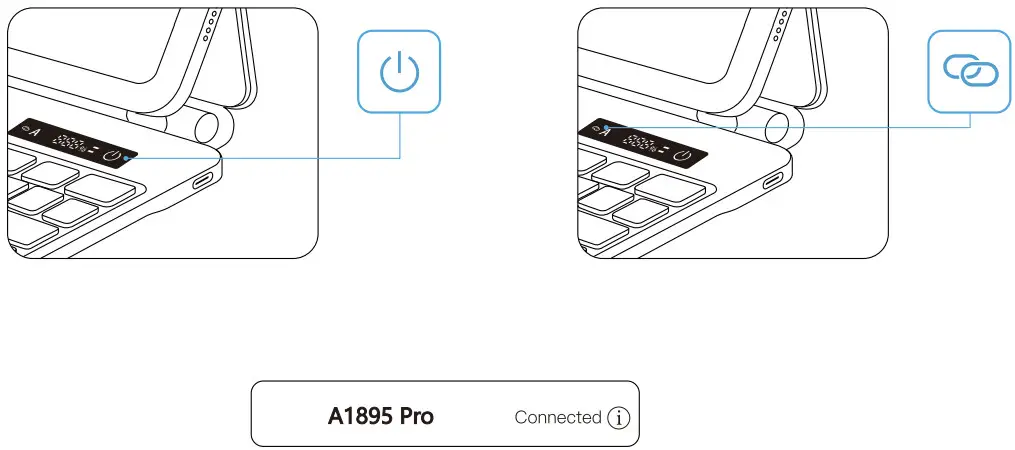
Product Description
| Purpose | Function Button | Purpose | Function Button |
| Undo input | 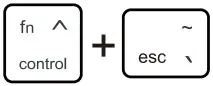 | Play / Pause | 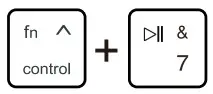 |
| Brightness — | 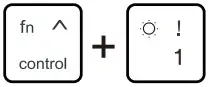 | Next song (music) | 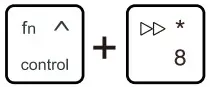 |
| Brightness + | 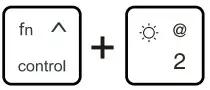 | Mute | 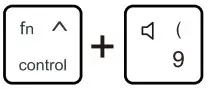 |
| Turn on/off Virtual keyboard | 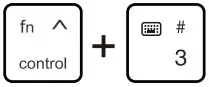 | Volume of sound — | 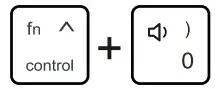 |
| Open search | 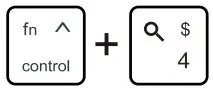 | Volume of sound + | 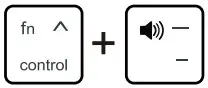 |
| Turn on/off Siri | 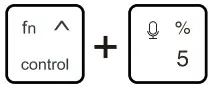 | Keyboard light on/off | 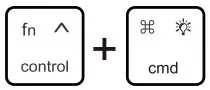 |
| Previous (Music) | 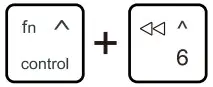 | Keyboard light color switch | 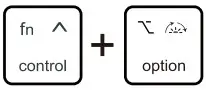 |
IOS trackpad gestures
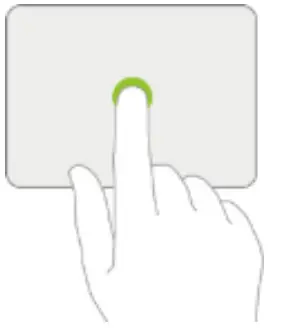 | Tap: Press with one finger until you fell a little click | 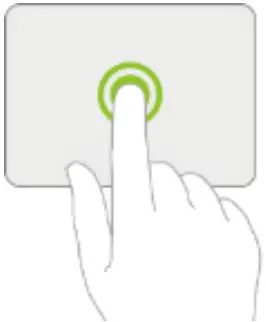 | Tap and hole: Press and hold with one finger |
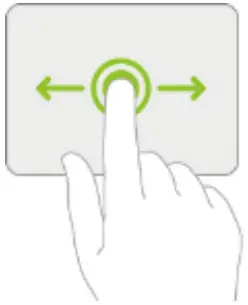 | Drag: Tap and hold an item, then swipe your finger acrooss the trackpad to move it | 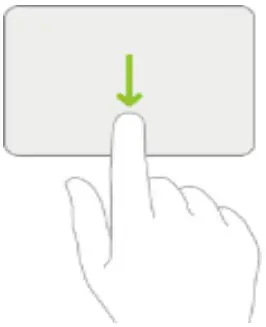 | Go th the Home Screen: Swipe the pointer across the bottom of the screen with one finger. Once the Dock appears, wipe the pointer across the bottom of the screen again. Or tap the bar at the bottom of the screen |
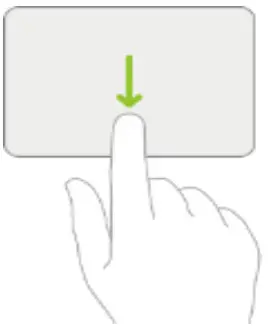 | Open the Dock: Swipe the pointer across the bottom of the screen with one finger. | 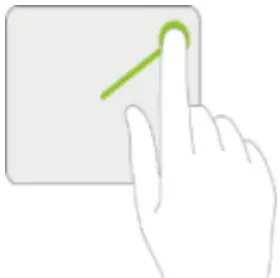 | Open Control Center: Move the pointer with one finger to select the status icon in the upper right, then tap. Or select the status lcon n the upper right, then swipe up with one finger |
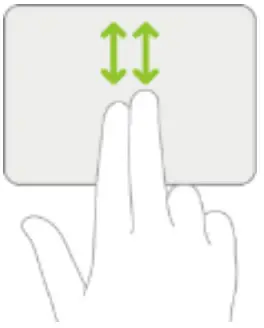 | Scroll up or down: Swipe up or down with two fingers | 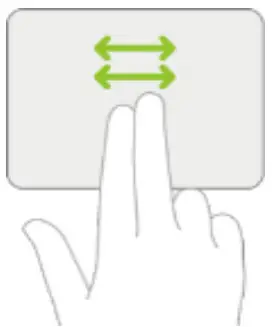 | Scroll left or right: Swipe left or right with two fingers |
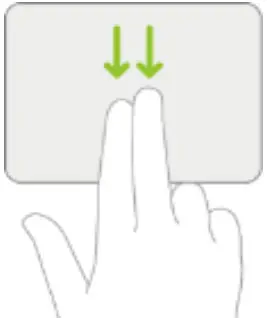 | Open Search from Swipe down with two fingers | 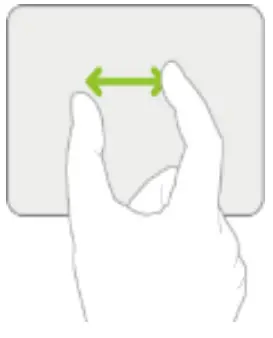 | Zoom: Place two fingers close together. Pinch to zoom in,or pinch to zoom out. |
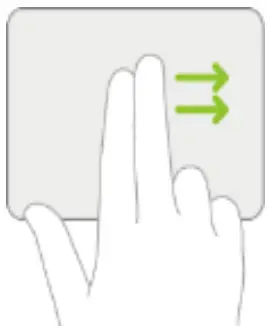 | Open the Today viow: When the Home or Lock screen is visible swipe right with two fingers. | 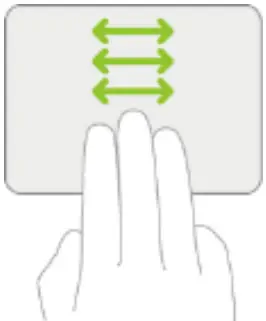 | Switch between open apps: Swipe left or right with three fingers |
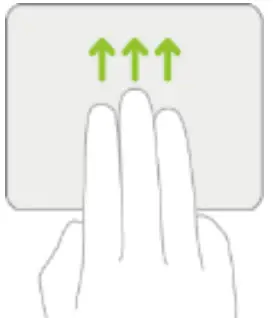 | Go to the home screen: Swipe up with three fingers | 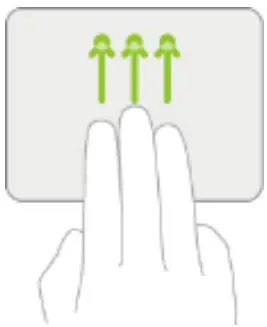 | Open the App Switcher: Swipe up with three fingers, pauss, then lift your finger. Or pinch with four fingers, pause and lift your fngers |
Tips:
- iPad operating system: I0S 15.0 and above.
- Sensitivity setting: Settings→General→Touchpad→Tracking speed (adjust to a suitable speed).
- Abrormal toueh function:
(1) Settings→Accessibility→Touch→AssistiveTouch is turned on or off.
(2) When there is no mouse icon on the tablet screen, you can double-finger zoom once to restore th touchpad
Indicator lights and other function descriptions

- Power on / off: Double-click the “” power key or unfold the keyboard at 90° to power on, and fold it to 0° to power off.
- Power display: “
 ” power display value 0%-100%
 - Charging display light: “
 ” charging white light is breathing and flashing, fully charged white light is always on.
 - Caps Lock Indicator: In the uppercase input mode, the indicator light “
 ” displays the character A in uppercase, and does not display in the lowercase input mode.
 - Bluetooth connection: After the keyboard is turned on, it automatically enters the pairing state and releases the Bluetooth signal light.lf the Bluetooth signal light disappears after not being connected for a long time, press and hold “” for 3 seconds to reenter the pairing mode, and the Bluetooth signal light flashes at the same time, turn on the tablet and turn on the Bluetooth function, find “A1895 Pro”, and click pairing.
- Low battery reminder: When the battery is lower than 20%, the % symbol flashes on the display.
- Reset: Press and hold
 at the same time to restore factory settings.
 ” power display value 0%-100%
 ” charging white light is breathing and flashing, fully charged white light is always on.
 ” displays the character A in uppercase, and does not display in the lowercase input mode.
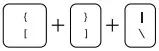 at the same time to restore factory settings.
Product Parameters
| Brand Name | Goojodoq |
| Model | A1895 Pro |
| Lithium battery capacity | 600mAH |
| Charging time | ≥ 3 hours |
| Charging current | 400mA |
| Working voltage | 3.3-4.2V |
| Lights out working current | <10mA |
| Working current in backlight mode | ≥ 77mA |
| Continuous working time with backlight on | ≥ 6-8 hours |
| Light off continuous working time | ≥ 100 hours |
| Standby time | ≥ 1500 hours |
| Backlight sleep time | 60 seconds |
| Keyboard sleep time | 10 minutes |
Tips
- Please store and use the product at room temperature.
- Do not disassemble, repair and remodel the product by yourself.
- Do not expose this product to rain or wet environment
- Do not use chemical solvents to wipe this product,
- Do not throw, to avoid product damage due to falling,
- If not used for a long time, charge the product every 2 months.
- Do not throw it away at wil, or put it in a fire at high temperature, so as not to cause danger.