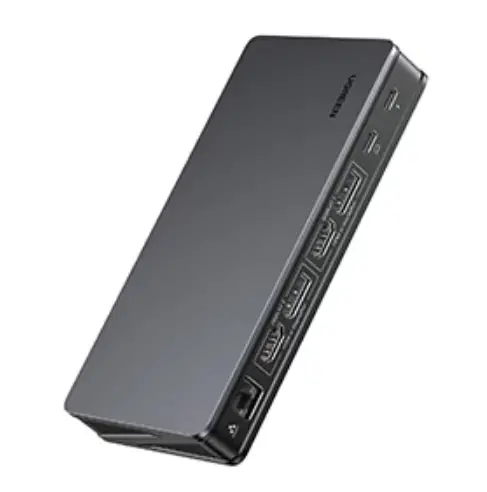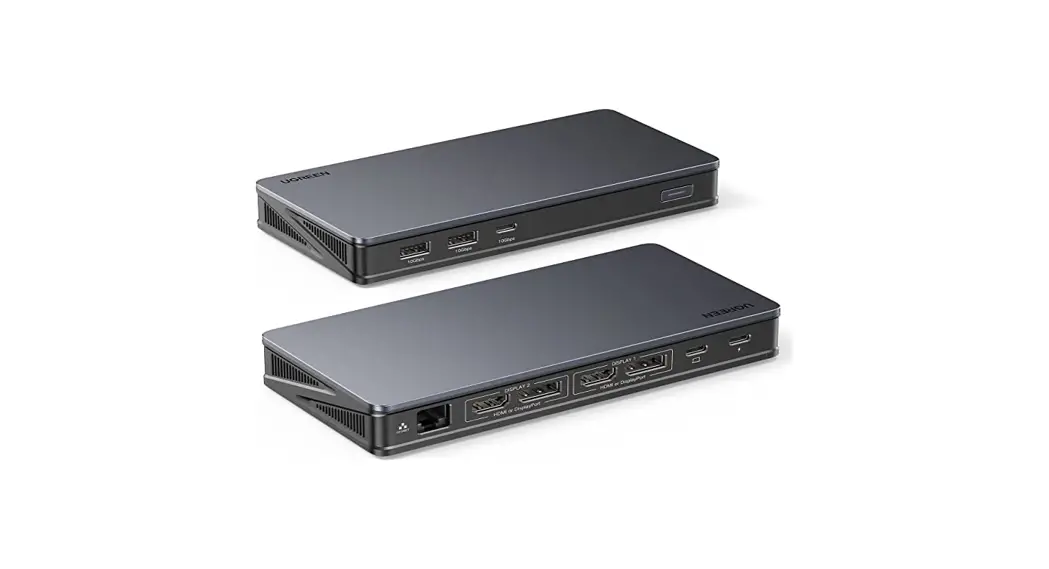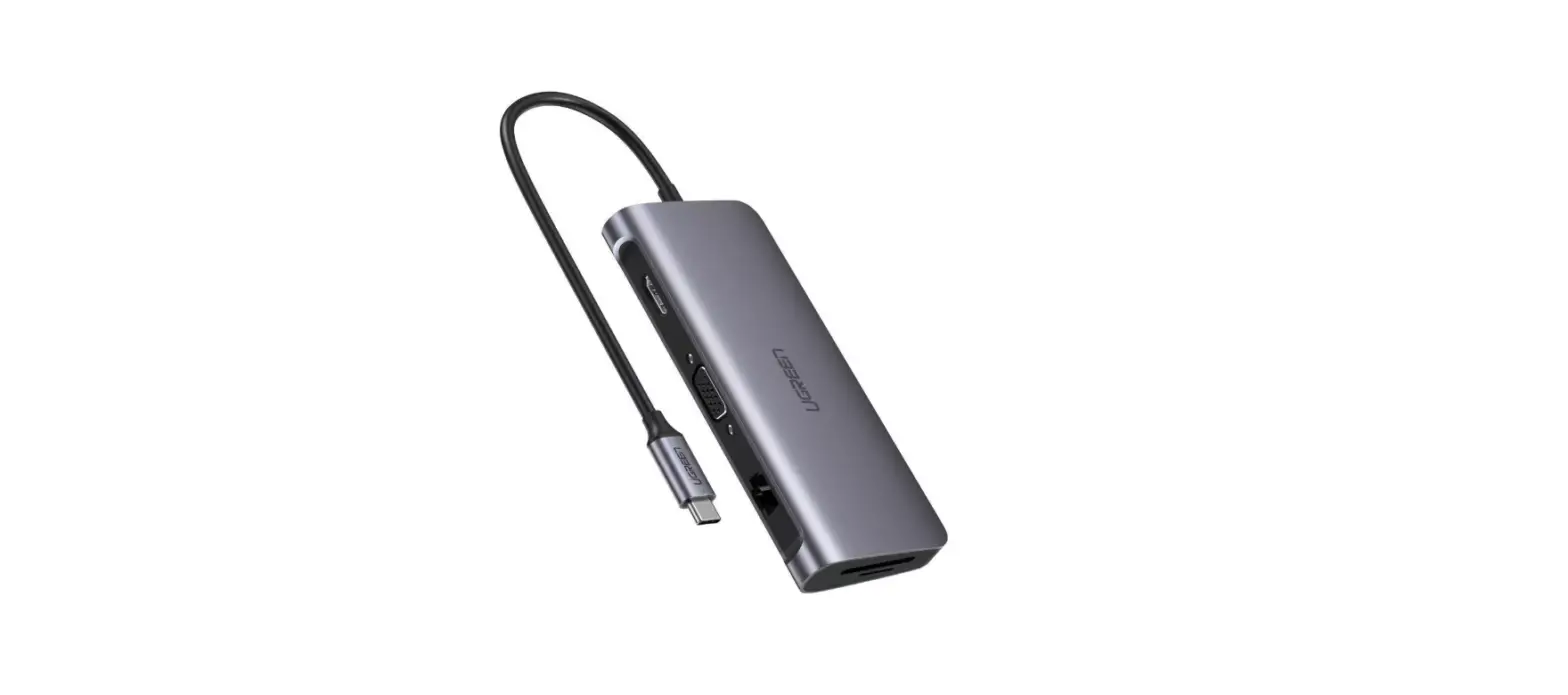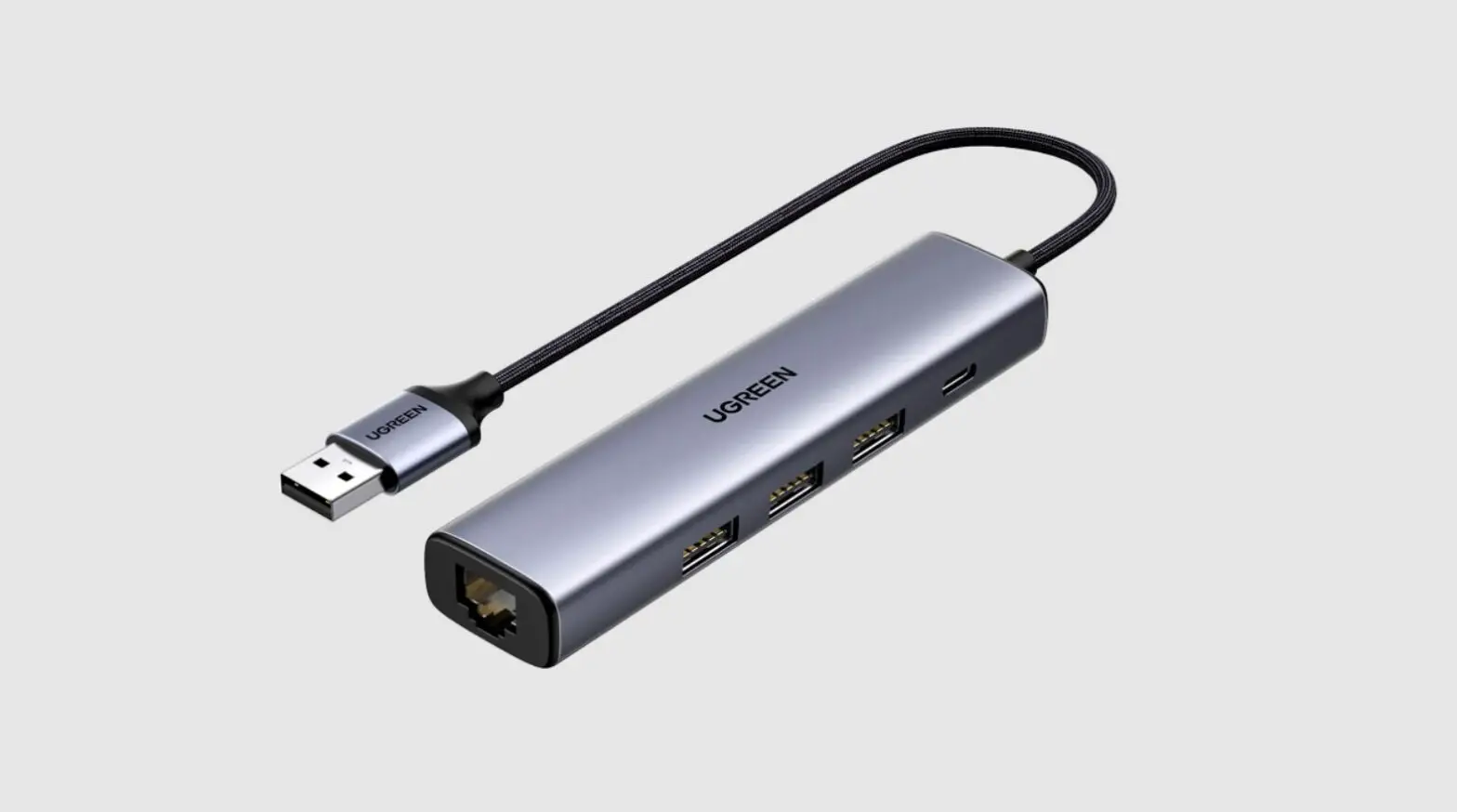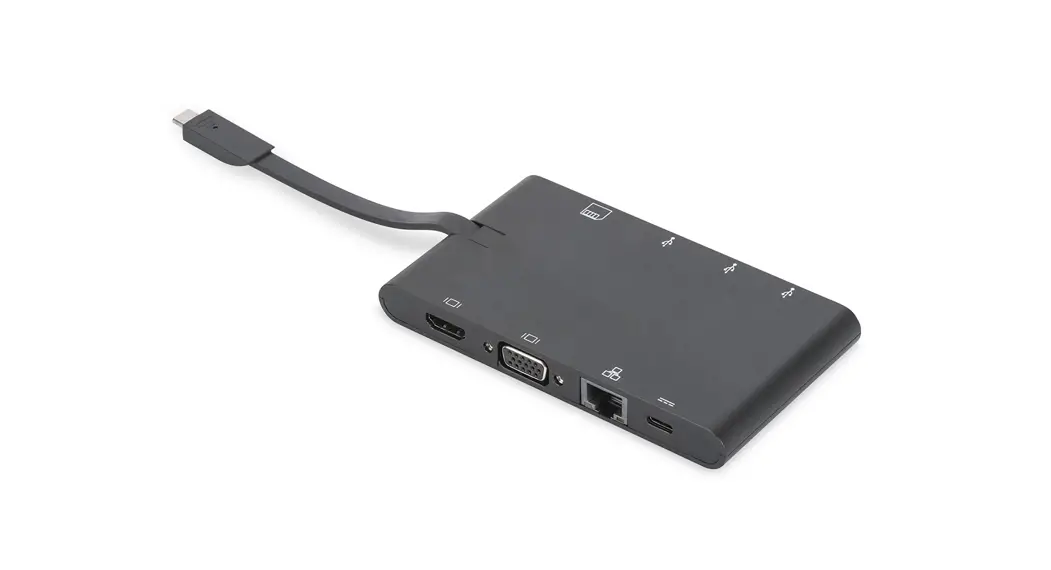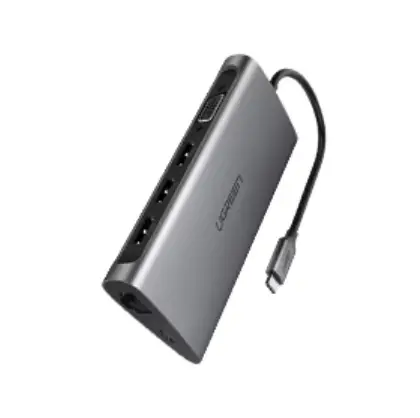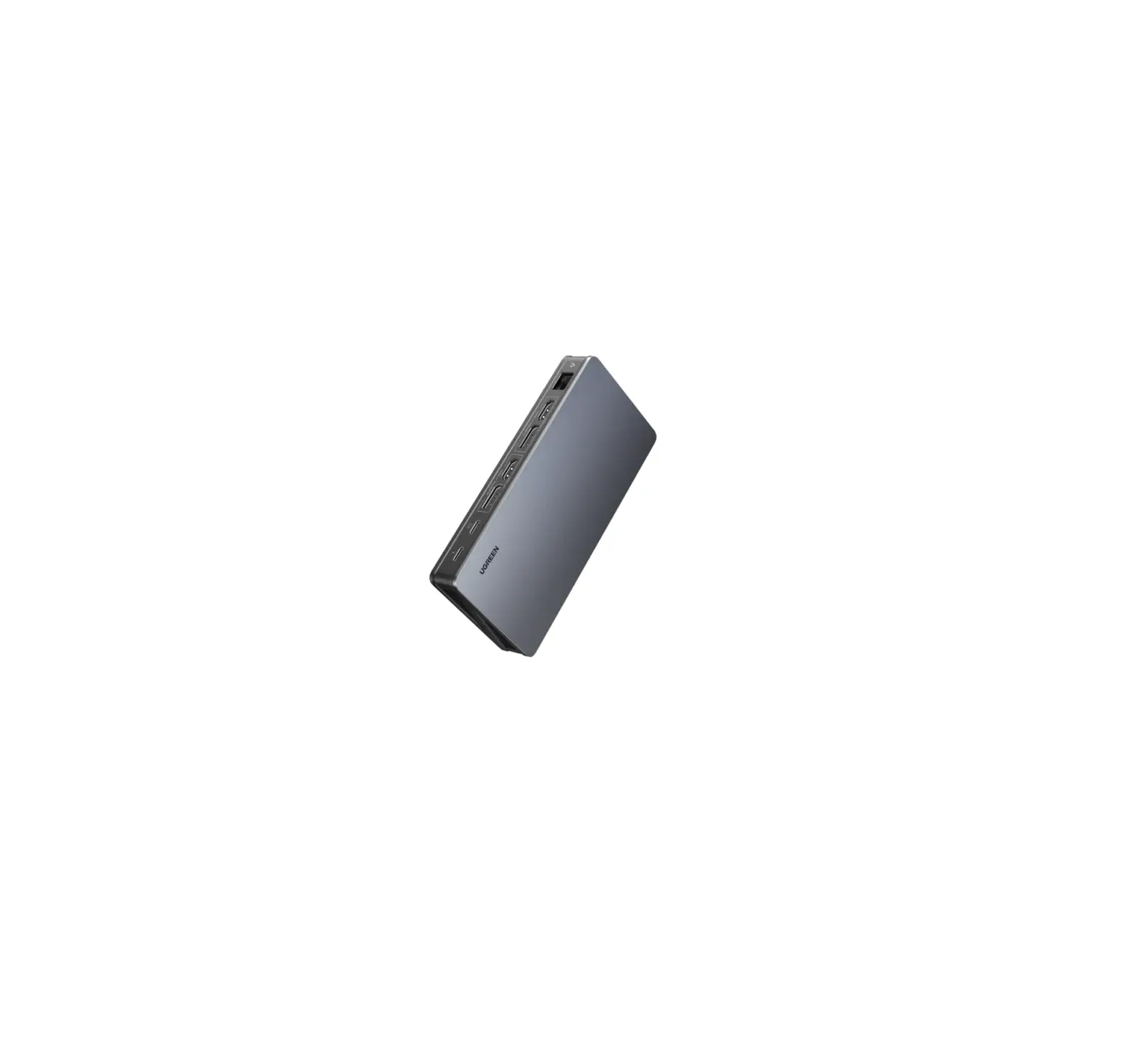
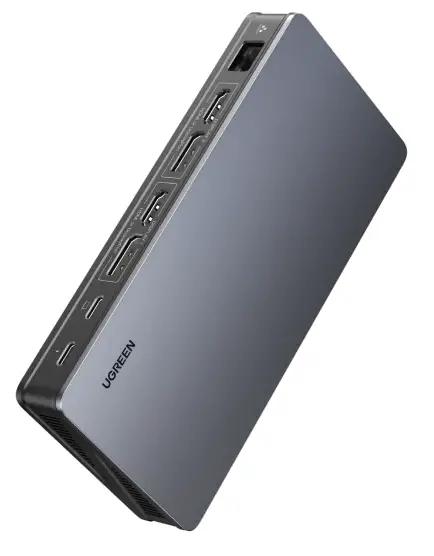
UGREEN 90912 USB C Docking Station Driver
Take as macOS Monterey (version 12) as an example:
一. Before Installation
- If you have installed a previous version of the DisplayLink driver, please uninstall the DisplayLink Manager app and reboot your system before proceeding.
- Enter “System Preferences”>”Security & Privacy”.
- Click “General”>Select “APP Store and identified developers”
Note: Depending on your system’s security settings, the installer may be blocked and present you with a warning. Before installation, please ensure the DisplayLink driver is approved by clicking the “Allow” button in the “Security & Privacy”. There is also a chance that the warning message about the blocked System Extension will not appear, but macOS may still block the extension. After the driver installation completes, please double-check that the necessary approval was granted.
二. Driver Installation
- Please install the driver first before connecting the dock to your computer. It is recommended to get the driver here: https://www.mediafire.com/file/fr83tkdnbx9akif/90912.zip/file
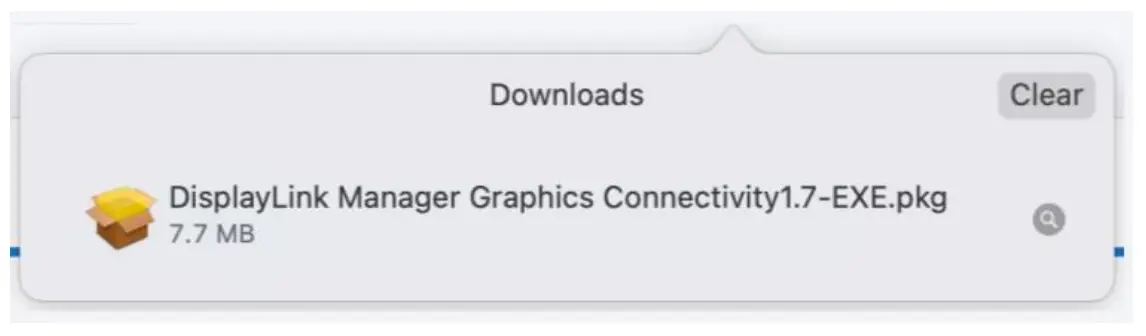
Tips: For optimal operation, please update the driver to the latest versions available. - Click “Download”.
- Click “Accept”.
- Double click.

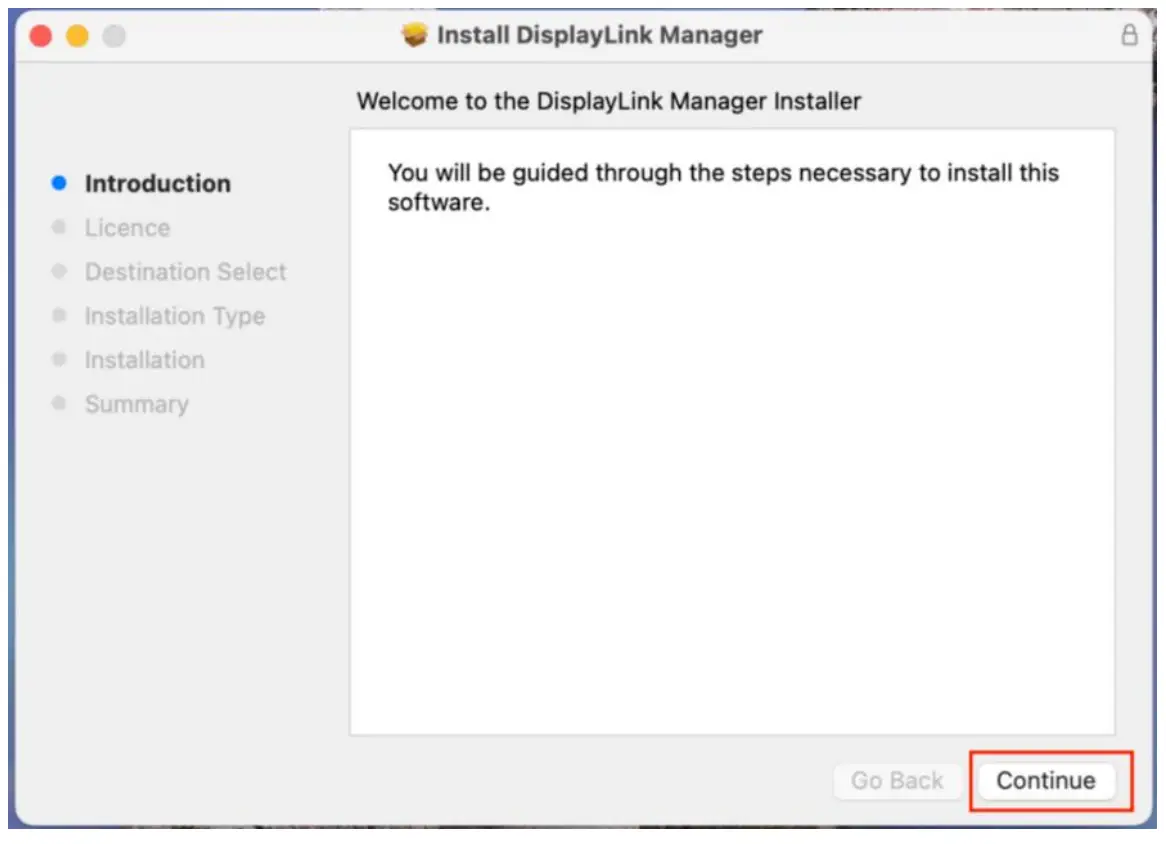
- Click “Continue” on “Introduction” page.

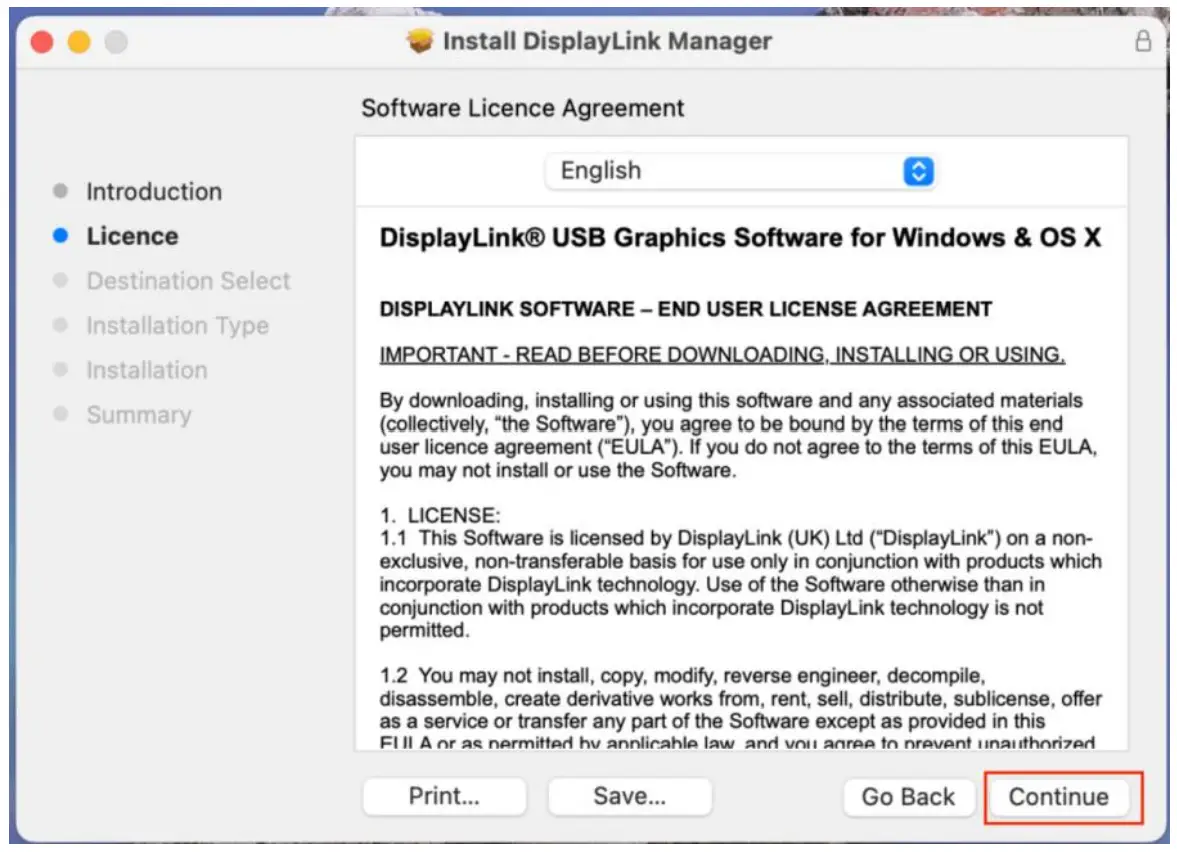
- Click “Continue” on “Licence” page.

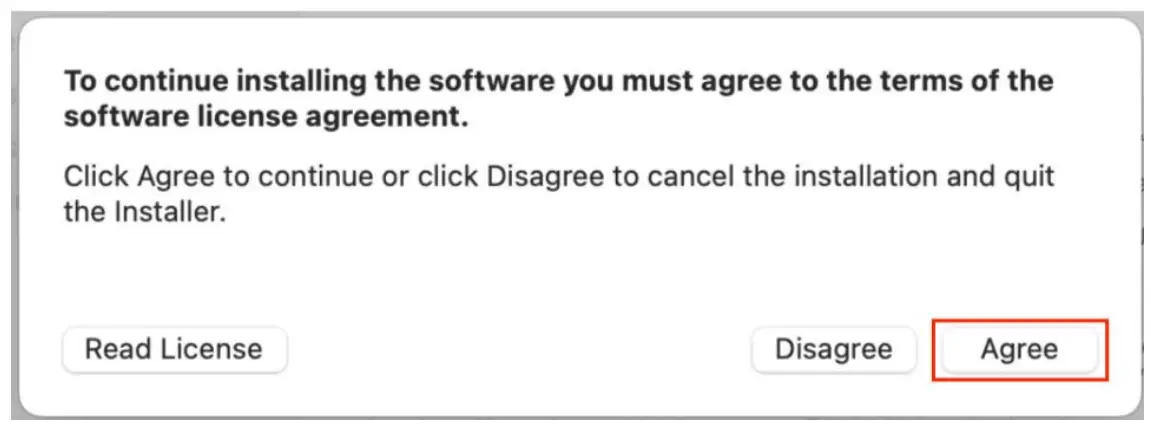
- Click “Agree” when prompted.

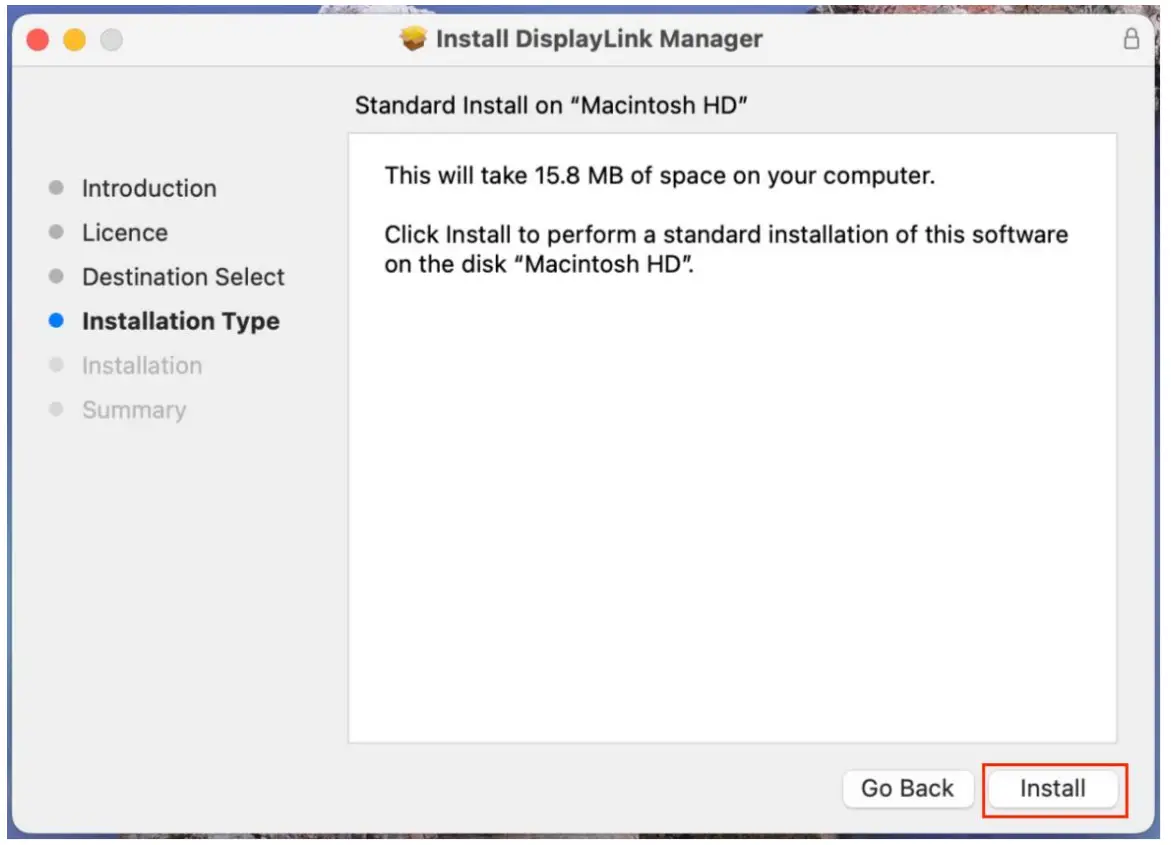
- Click “Install” on “Installation Type” page.

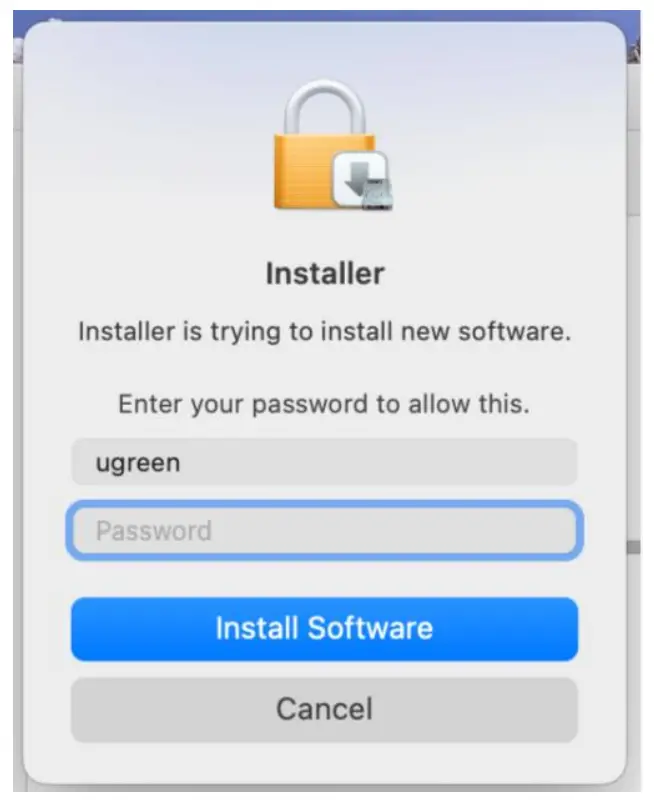
- Input your password and click “Install Software”.

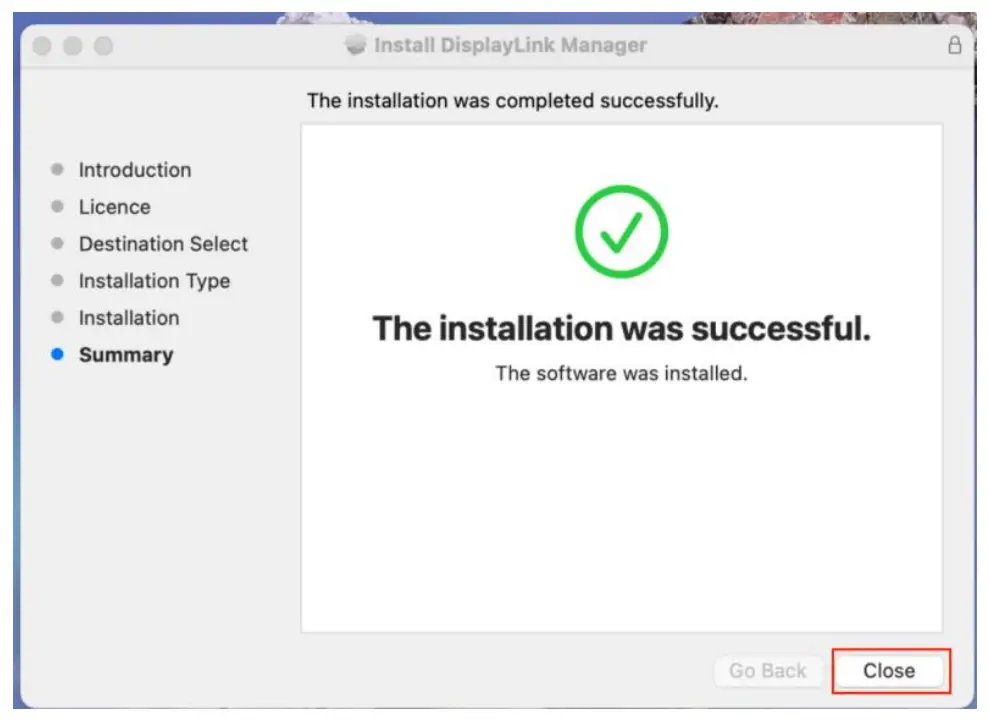
- When the driver is installed successfully, please click “Close” on “Summary” page as the following picture shows.

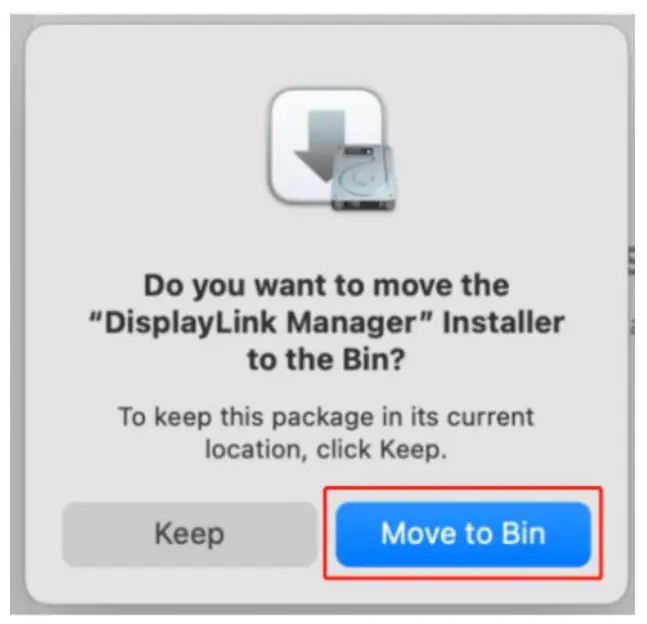
- Click “Move to Bin”

三. How to Use
How to Use To enable “Screen Recording”
Note: Starting with macOS Catalina 10.15, the OS requires the user to permit “Screen Recording” for DisplayLink devices to work correctly. The message is generated by the OS and the screen is not recorded by DisplayLink. Approving it enables the DisplayLink driver to access the pixels it needs to render a mirrored or extended screen and send them over USB from your computer to the DisplayLink display
- Enter “System Preferences” > “Security & Privacy”.
- Scroll down to “Screen Recording” > click “<
 >” > click “+” > search and select DisplayLink Manager.
 - Enter password to allow the system to make changes.
- Click “Quit and Reopen” when prompted.
- Click “< >” to save the changes.
- Click “<
 >” > Click “Home” > Click “Launch automatically after login”.
 >” > click “+” > search and select DisplayLink Manager.
 >” > Click “Home” > Click “Launch automatically after login”.