Weave Home Mesh Router
Product Information:
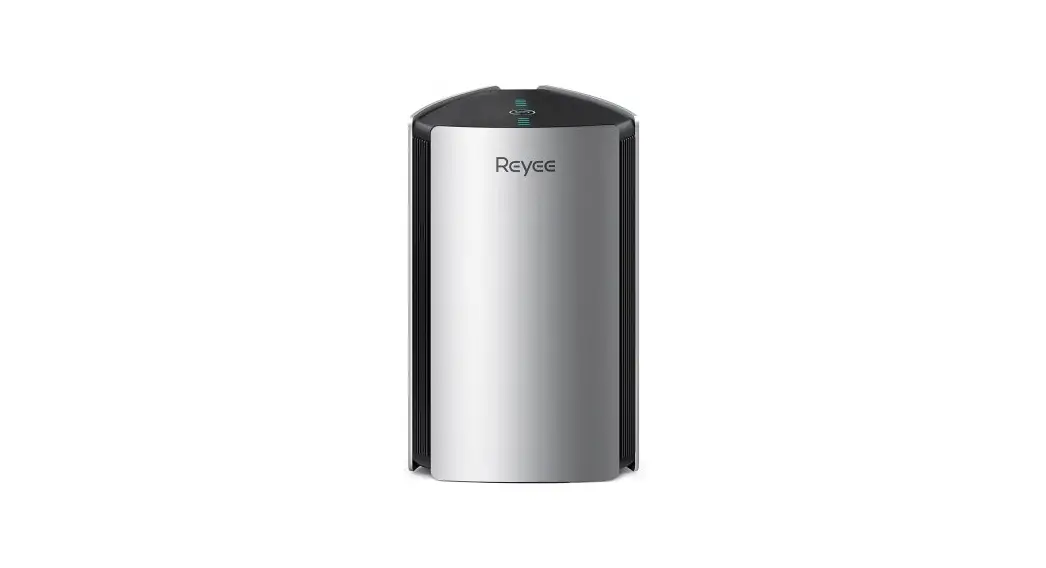
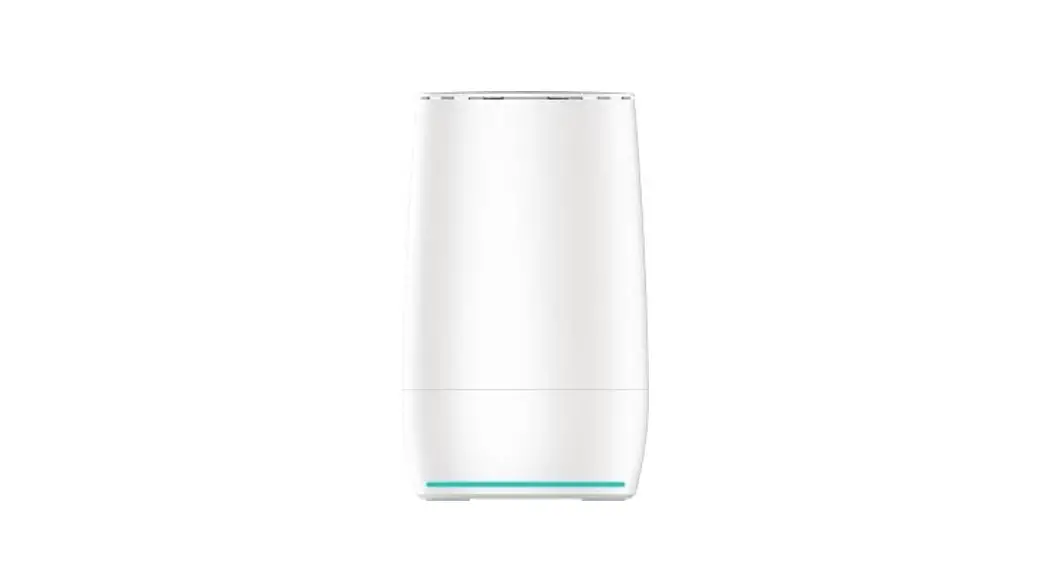
The product is a Home Mesh Router system by HFCL Limited. It is
designed to provide a seamless and reliable Wi-Fi connection
throughout your home. The router supports both standalone and cloud
modes, and it can be controlled using the IO Weave mobile App.
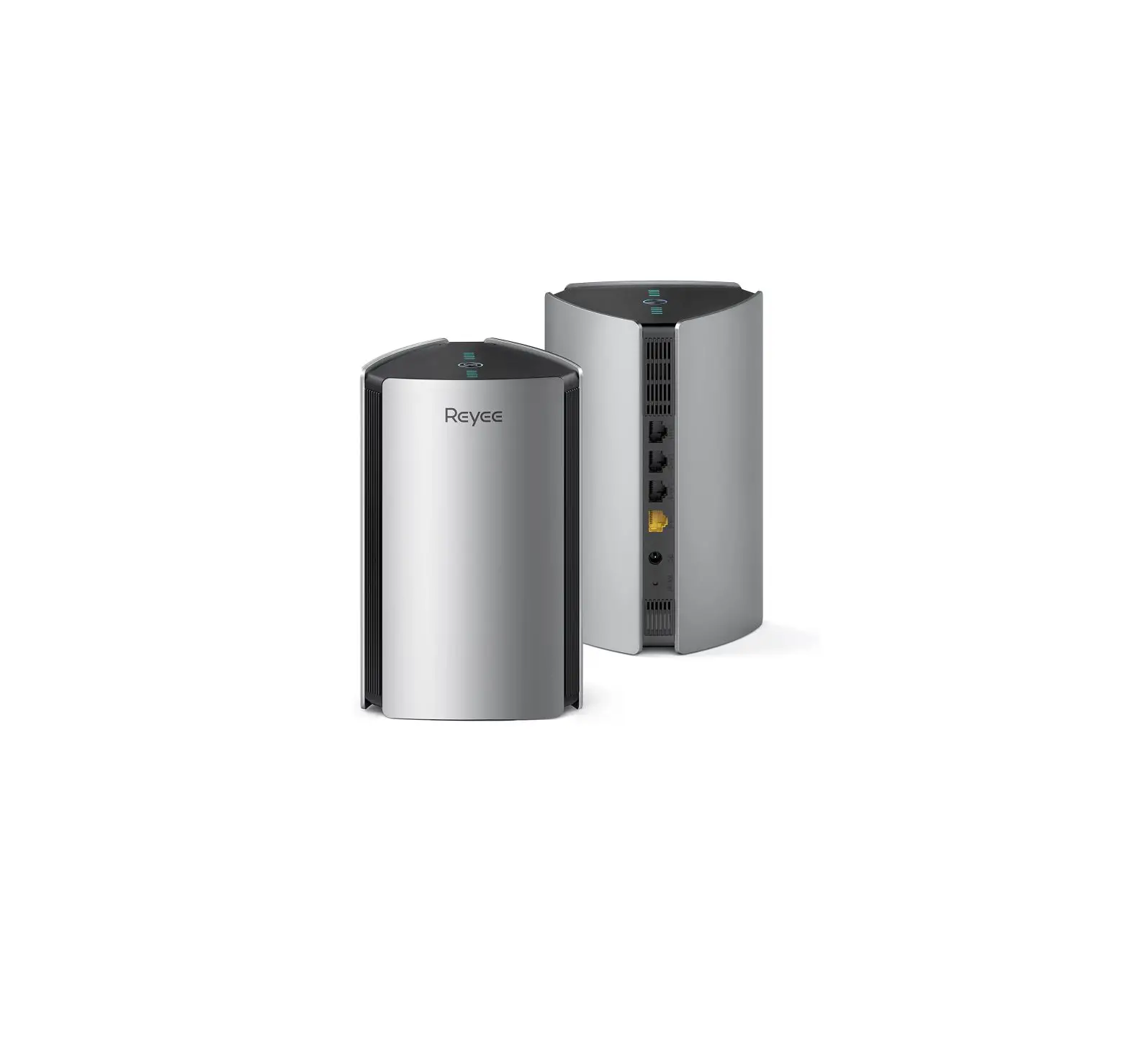
The Home Mesh Router comes with multiple LAN and WAN ports, LED
indicators for status monitoring, a WPS/Sync button for easy setup,
and a reset button for troubleshooting. The router also includes
safety precautions to ensure proper usage and durability.
Product Usage Instructions:
- Step 1: Power on the Home Mesh Router by connecting it to the
WAN cable. Once powered on, the LED indicator will show a yellow
light. - Step 2: Download the IO Weave mobile App from the App Store or
Google Play. - Step 3: Follow the instructions provided in the IO Weave mobile
App to set up the Weave Mesh system. The app will guide you through
the configuration process.
If you encounter any issues or need assistance, you can contact
HFCL Limited through their Toll-Free Number (India: 8792 701 100)
or via email at [email protected]. You can also visit their
website at hfcl.com | io.hfcl.com or reach them at their address:
8, Commercial Complex, Masjid Moth, Greater Kailash-II, New Delhi-
110048.
Please note that the specifications of the product are subject
to change without notice. Ensure to follow the safety precautions
mentioned in the user manual for proper usage and maintenance of
the Home Mesh Router.
Set-up in 3 easy steps
Step 1
Power on the Home Mesh Router and Connect it to the WAN cable & there will be yellow light
Step 2
Download the IO Weave mobile App from App Store/ Google Play
by HFCL
Step 3
Follow the instructions on the IO Weave mobile App to setup Weave Mesh system
by HFCL
Toll Free Number India: 8792 701 100 Email: [email protected] Website: hfcl.com | io.hfcl.com Address: 8, Commercial Complex, Masjid Moth,
Greater Kailash-II, New Delhi- 110048
HFCL Limited. All Rights Reserved. IO by HFCL and IO logo are registered trademarks of HFCL Limited. Specifications are subject to change without notice.
Weave
Quick Start Guide
LAN Port 1 Gbps F
WAN Port 2.5 Gbps E
WPS/Sync Button D
LED Indication A
hfcl.com | io.hfcl.com
DC Adapter Point B
Reset Button C
What’s in the box
Depending on pack size
Home Mesh Router (Qty 1, 2, 3 or 5)
Safety Precautions
Keep device away from high temperature
Away from high voltage cables
Power Adaptor (Qty 1, 2, 3 or 5)
Disconnect before cleaning
Ethernet Cable (Qty 1)
Avoid damp cloth for wiping
Don’t disassemble the router
LED Indications
INDICATORS STATE
Device is off.
Master (On Controller) USER ACTION
Connect the Power Cable.
STATE
Device is off.
Agent (On Satellite) USER ACTION
Connect the Power Cable.
Initializing / Connecting to Internet
Check WAN cable / Configure WAN
Initializing / Connecting to Internet
settings correctly or else contact your ISP
Stable WAN link. Operating in Standalone mode.
No action required
Stable Mesh link
Unstable WAN link Operating in Standalone mode
If problem persists contact your ISP
Unstable Mesh link
Use Weave APP to setup Mesh
No action required
Place this satellite closer to the Controller and re-establish mesh link
Stable WAN link. Operating in Cloud mode
No action required
Unstable WAN link. Operating in Cloud mode
Error State
If problem persists contact your ISP
Power down and power up the unit. OR factory reset the unit. OR raise a support ticket
Software upgrade in progress
Do not reboot!
Stable WAN link. Operating in Cloud mode
Unstable Mesh link. Operating in Cloud mode Error State
Software upgrade in progress
No action required
Place this satellite closer to the Controller and re-establish mesh link
Power down and power up the unit. OR factory reset the unit. OR raise a support ticket.
Do not reboot!
 HFCL | Leading Digital Network Solutions | Manufacturers of Optical Fiber Cables
 IO by HFCL| End-to-End Managed Wi-Fi Solution for building digital networks of tomorrow.