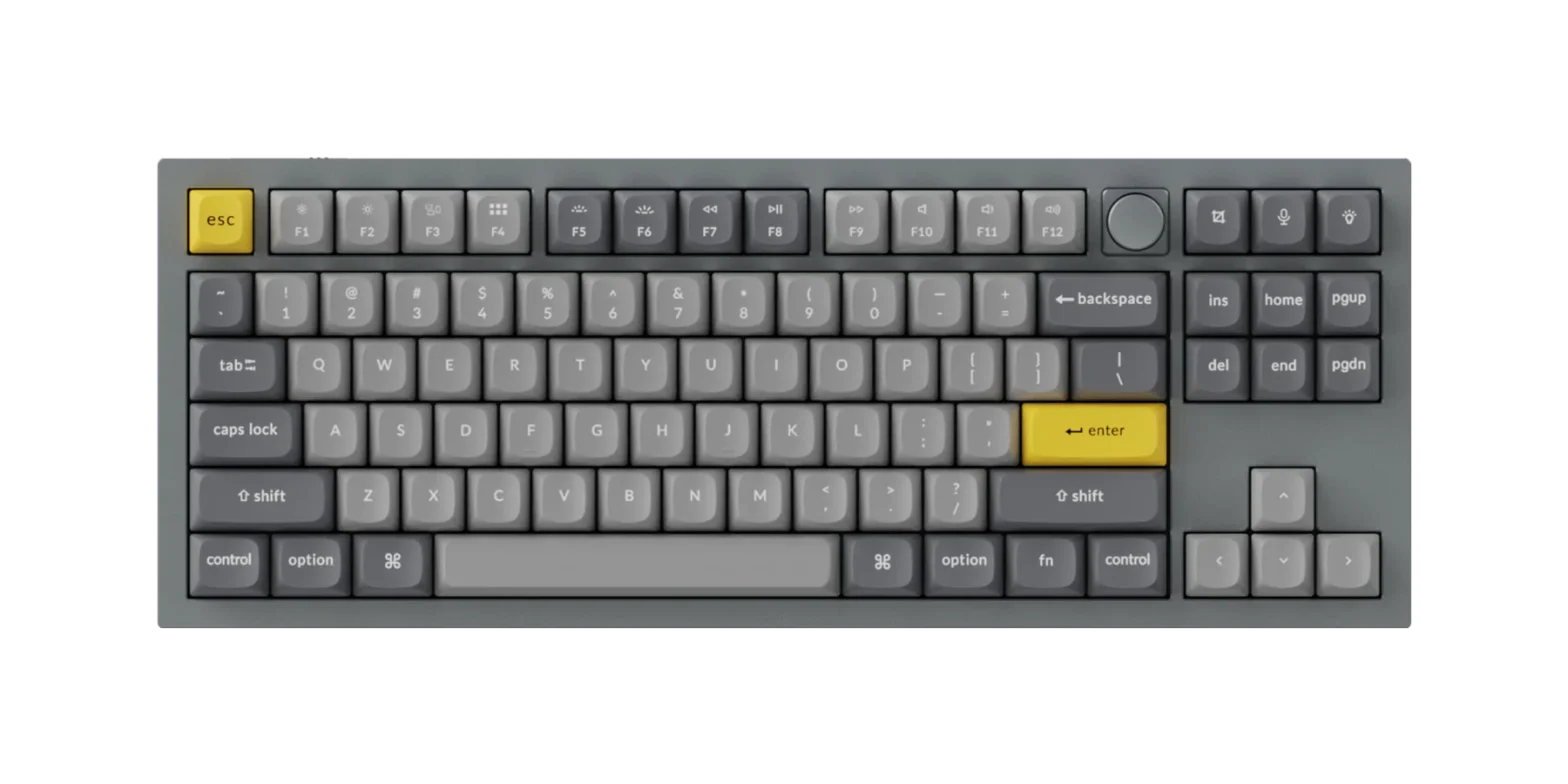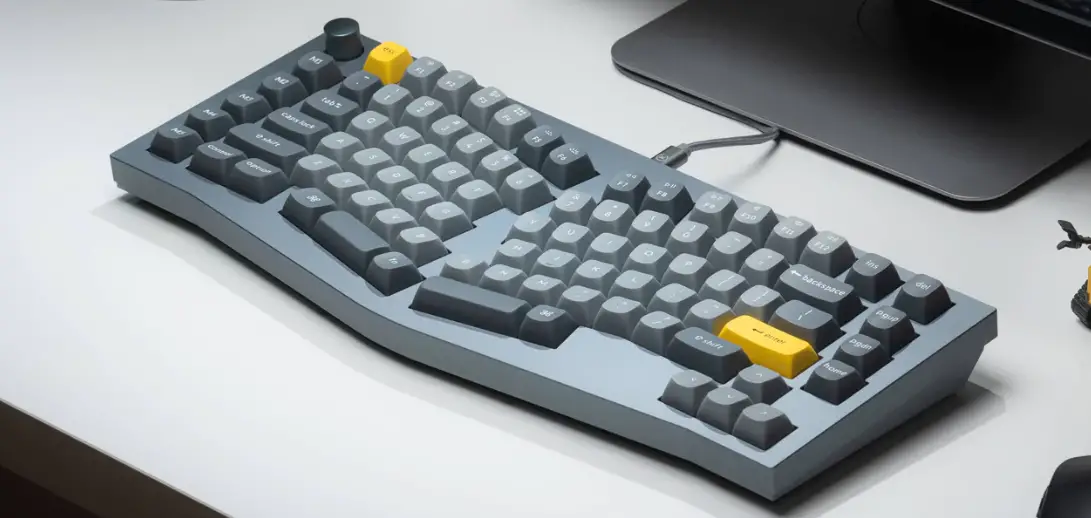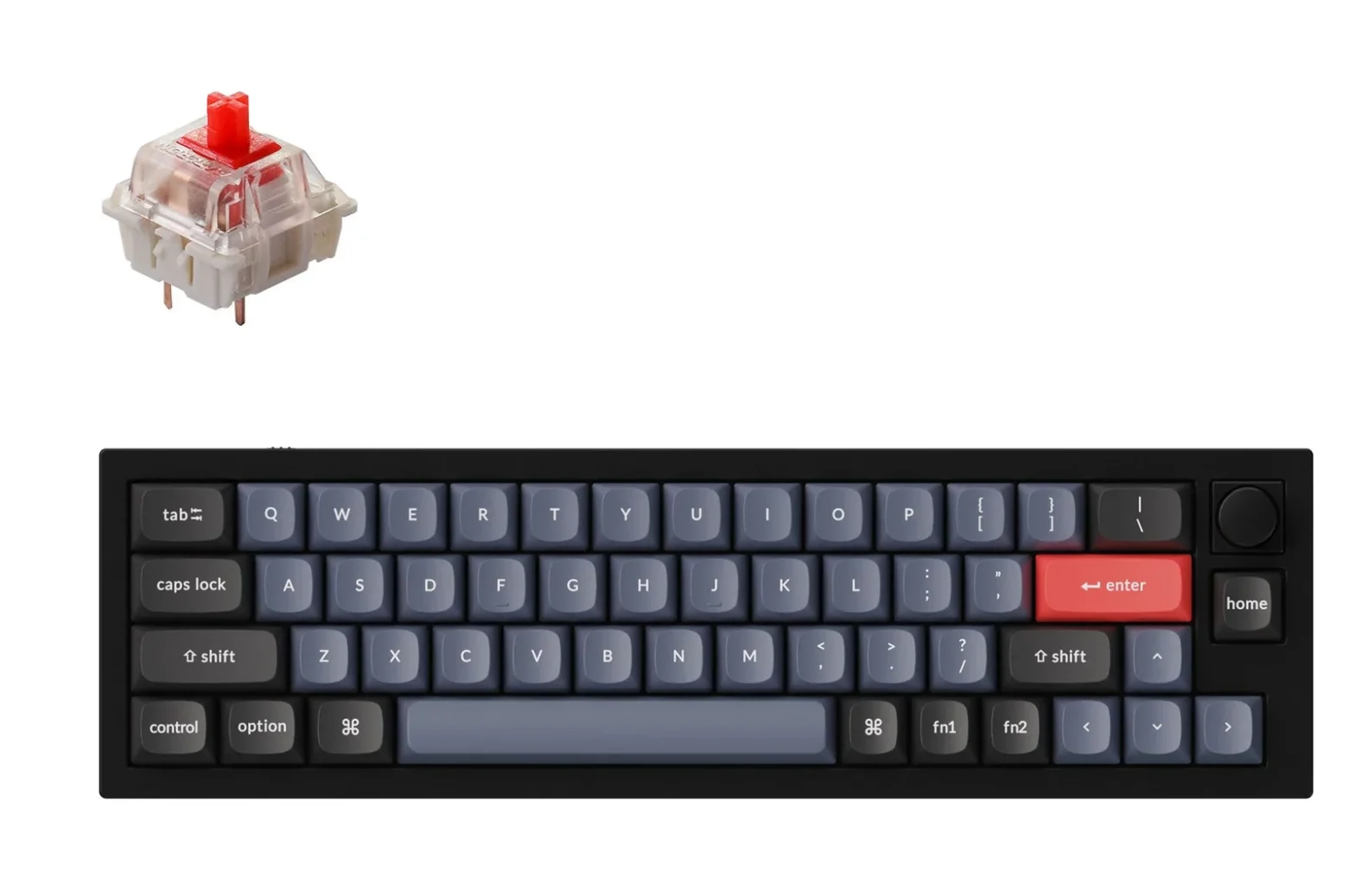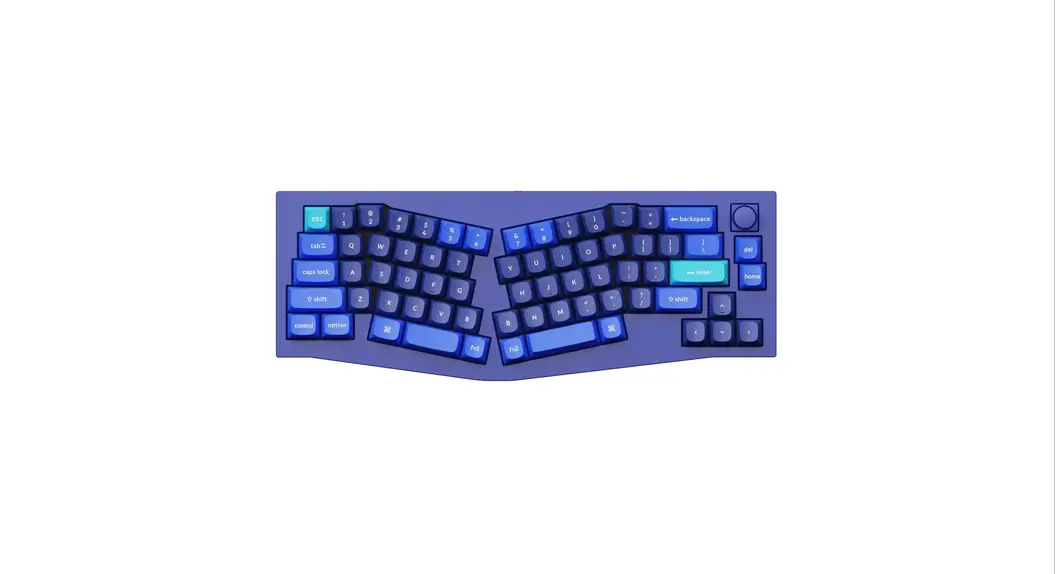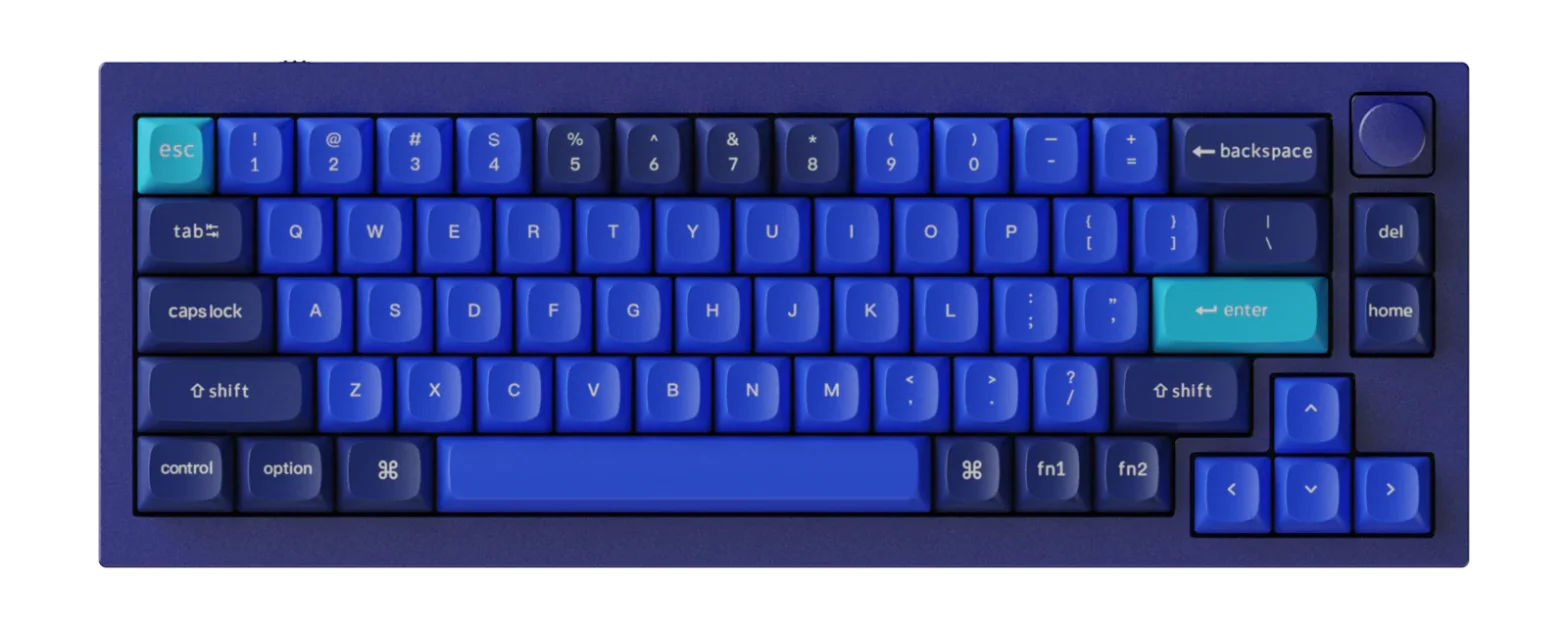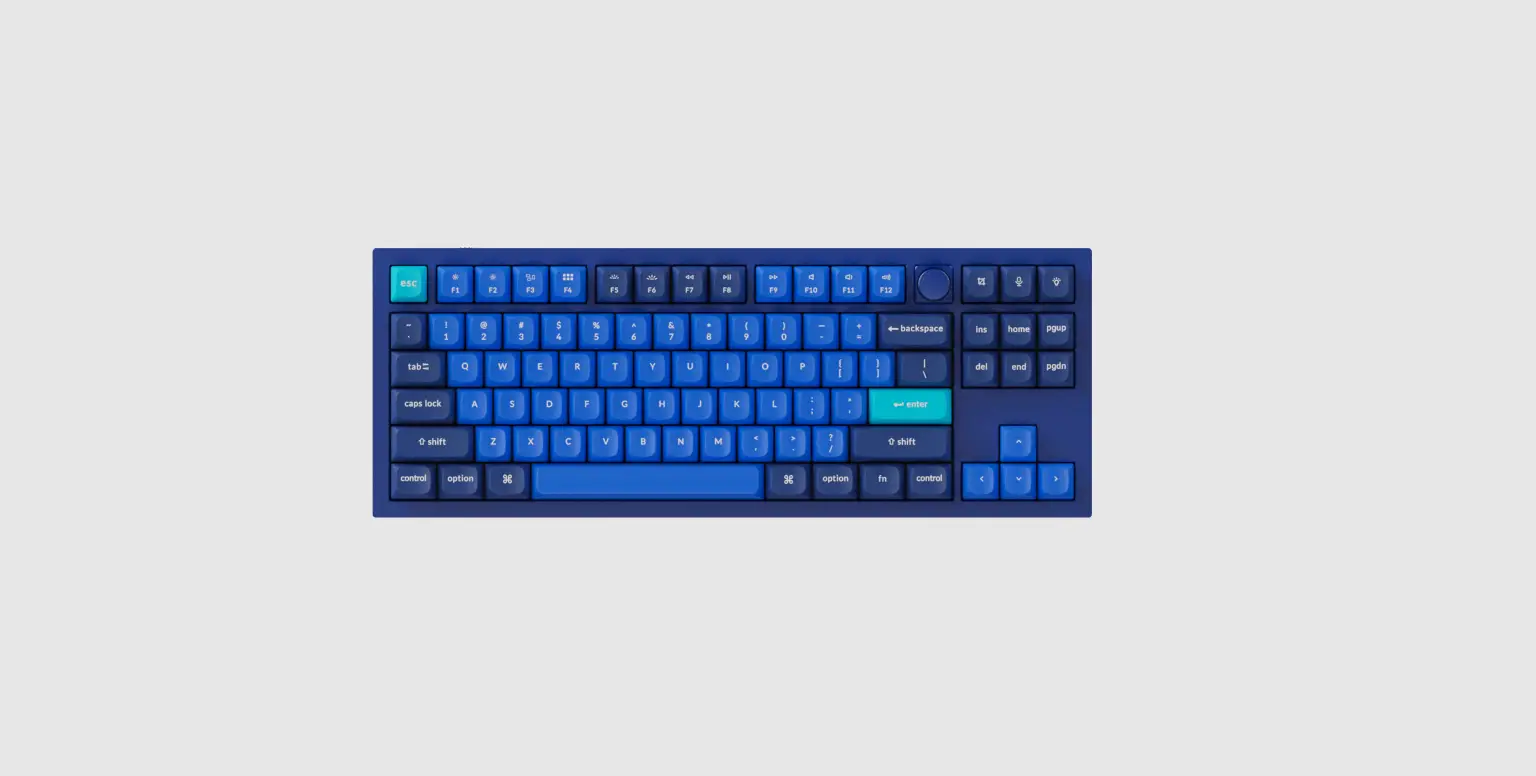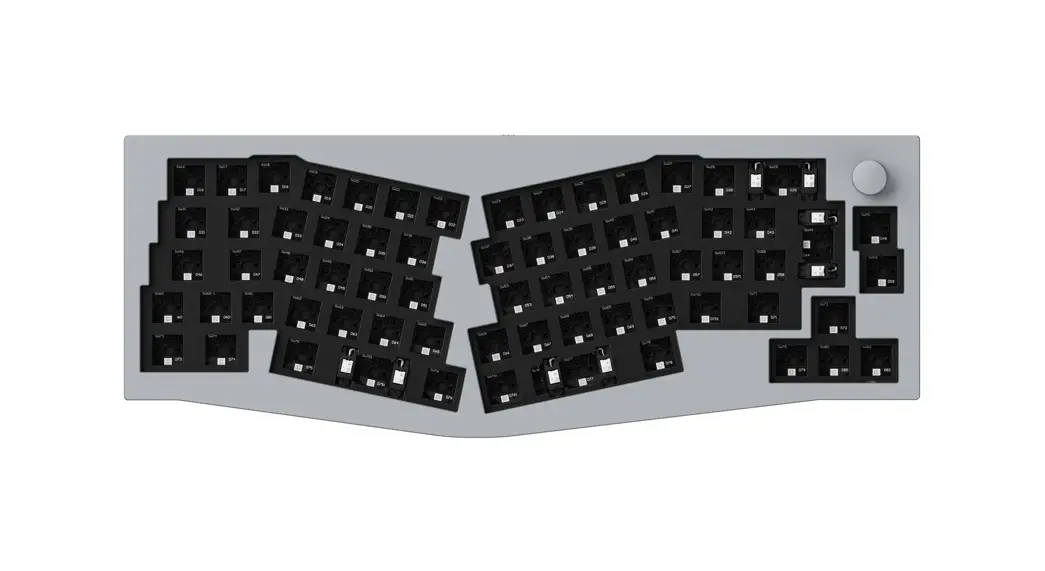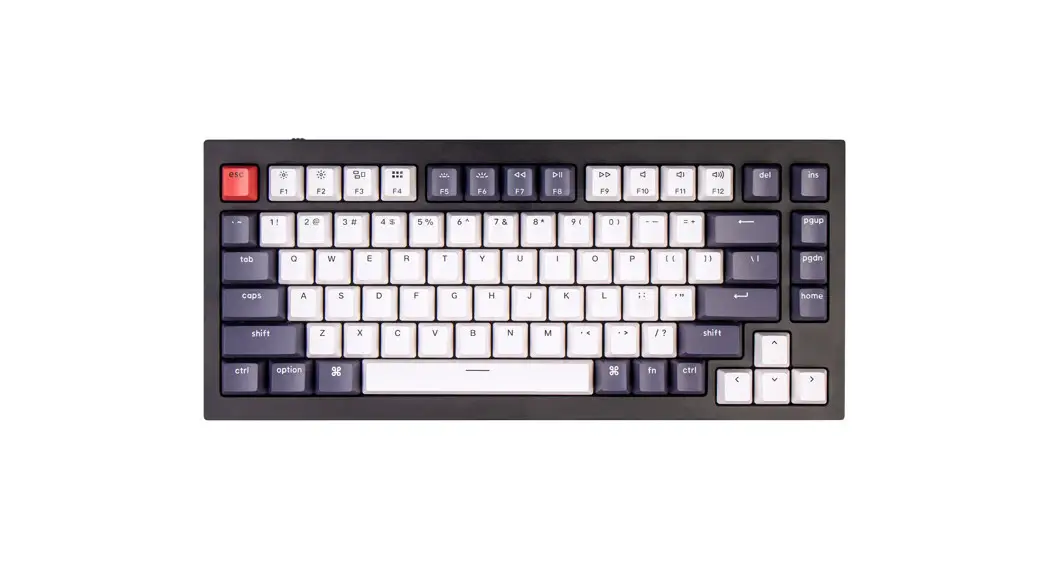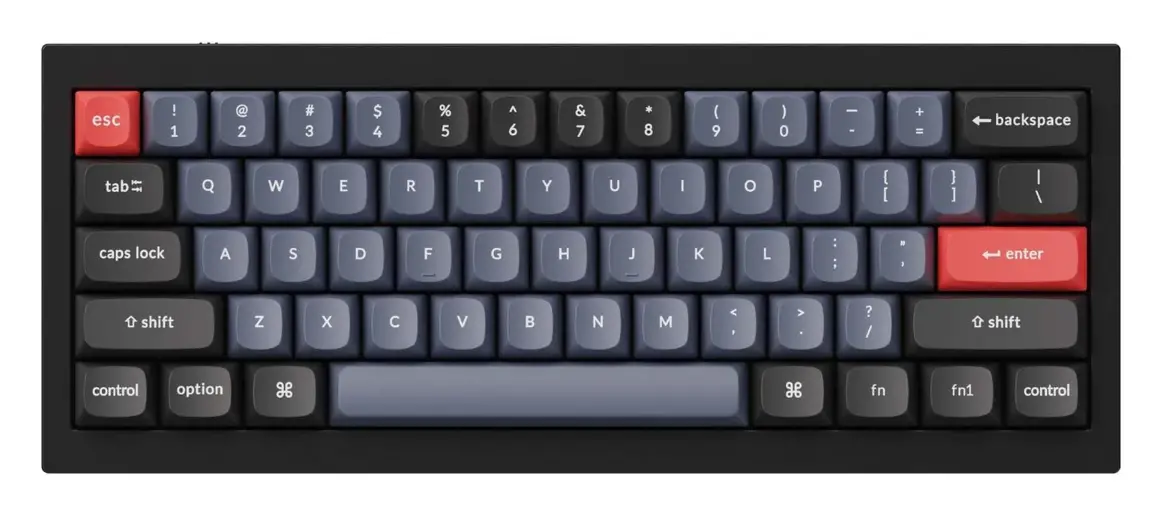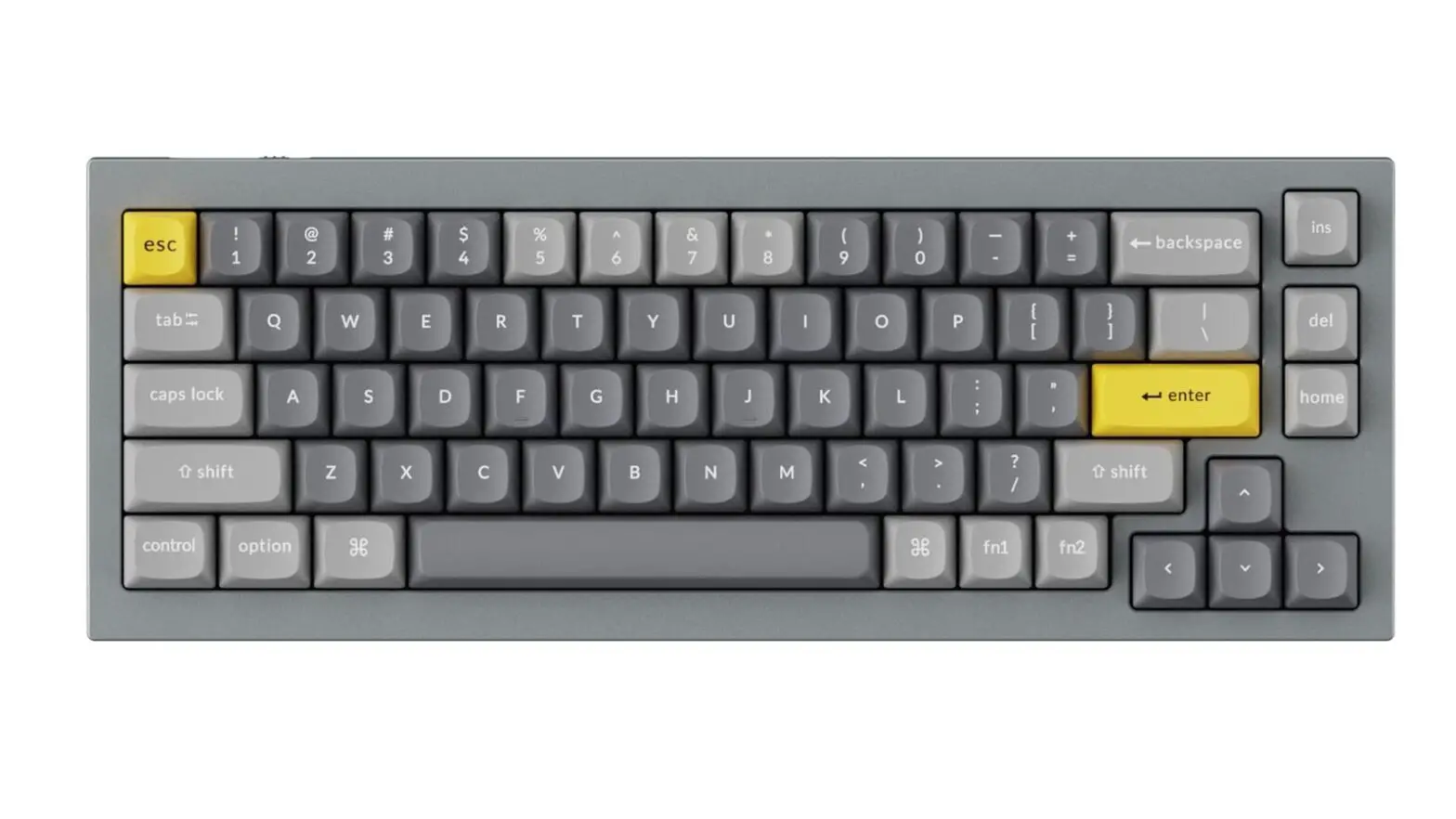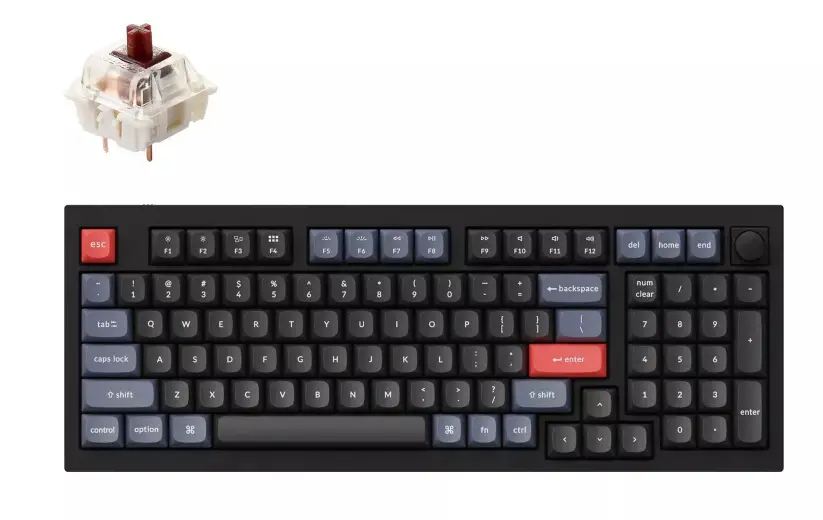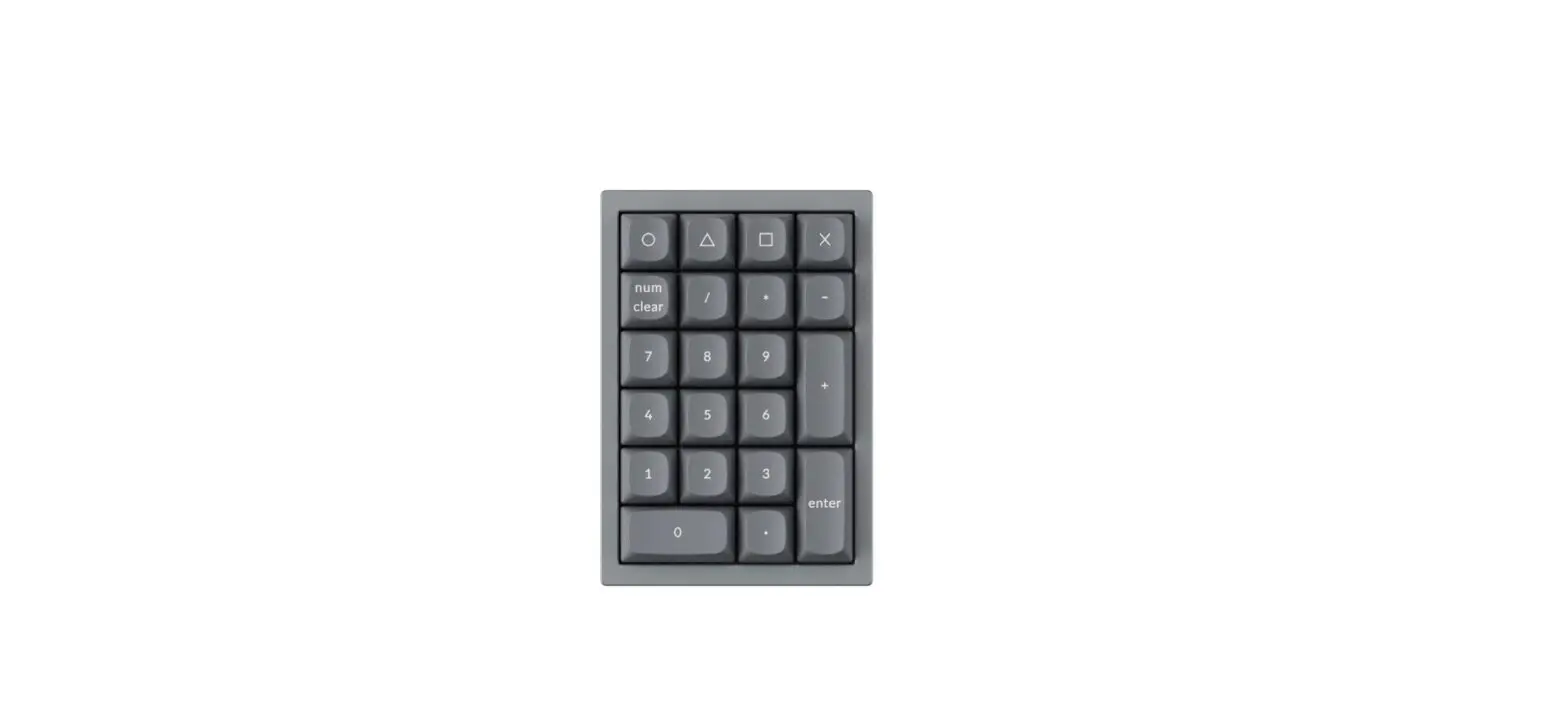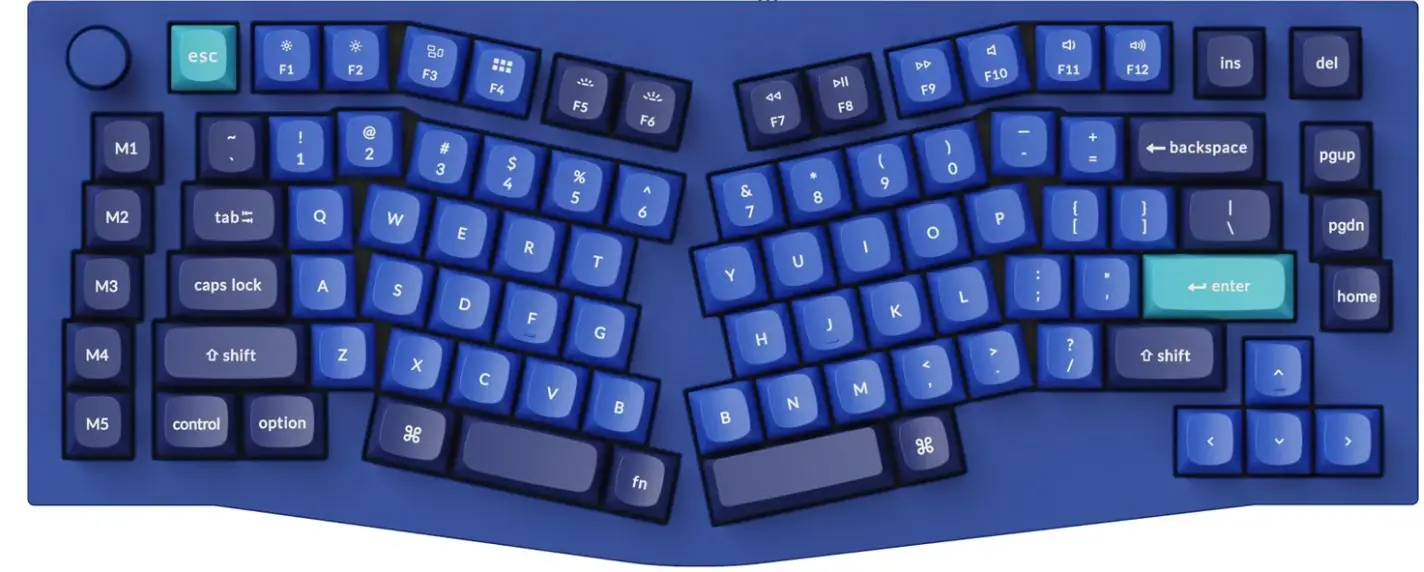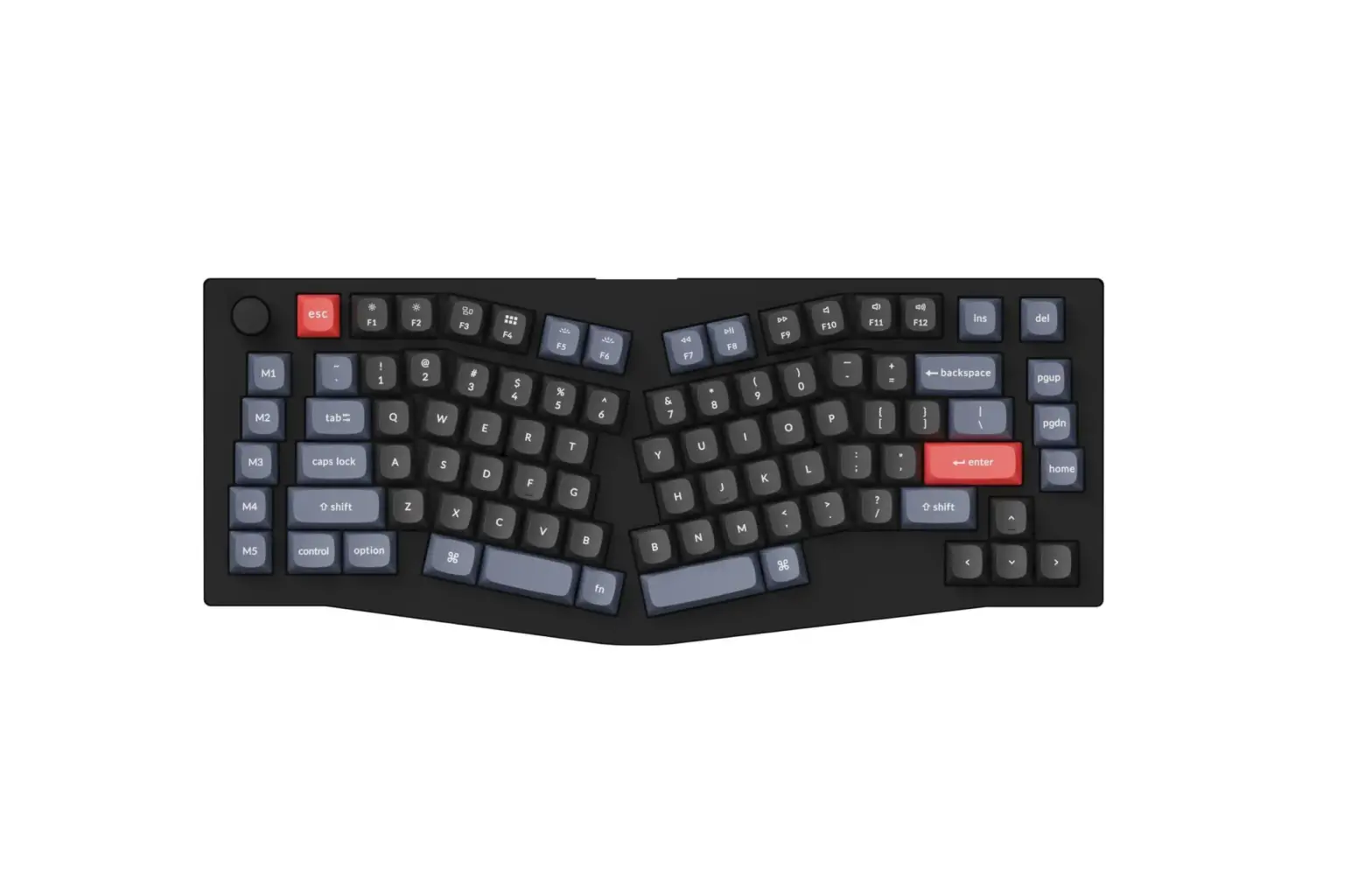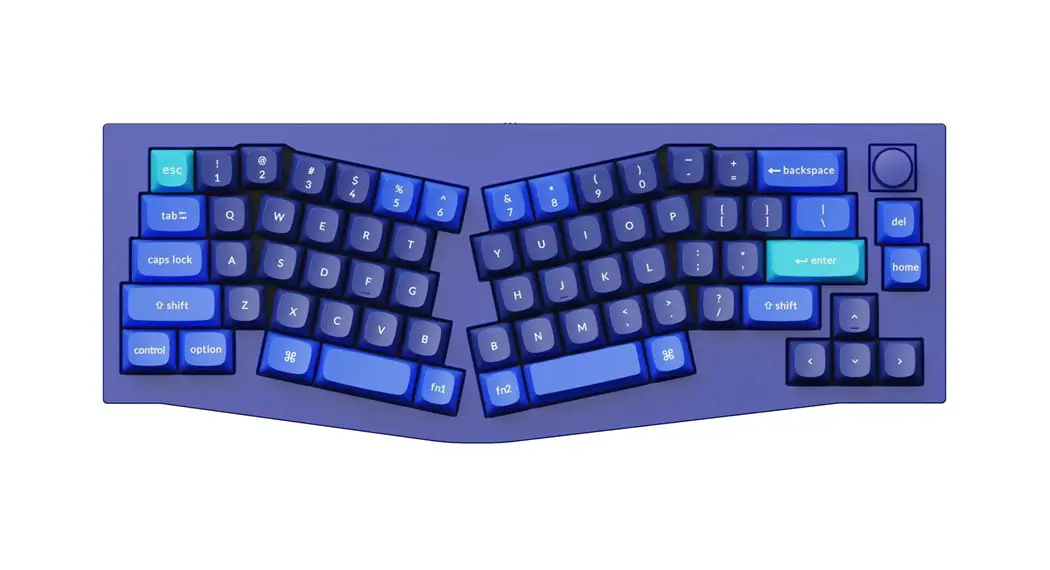
Keychron Q8 Knob Version Customizable Keyboard User Manual

Fully Assembled Version
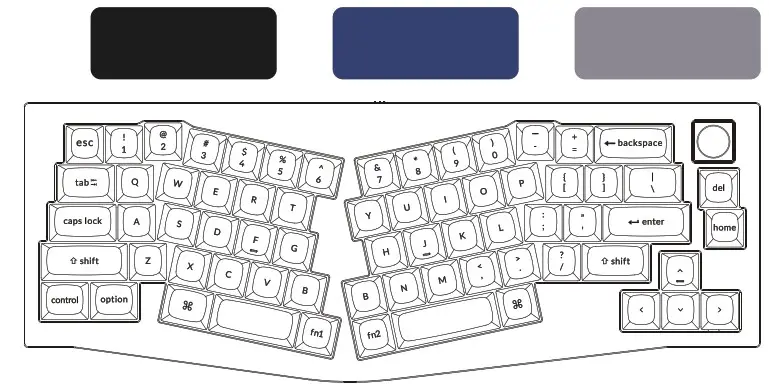
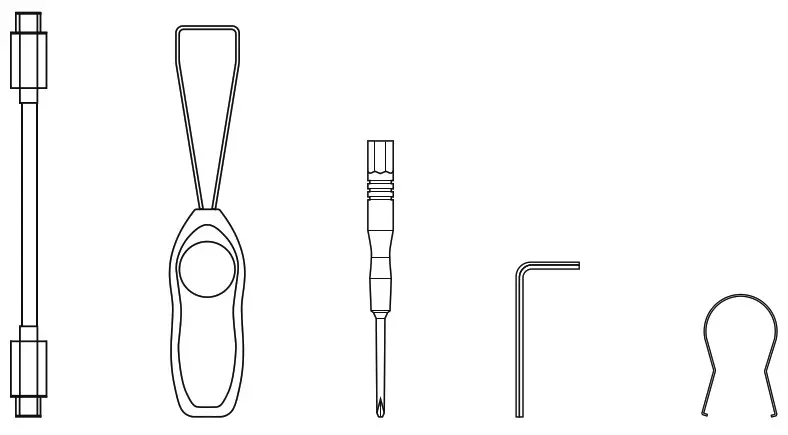
Keyboard
- 1x Fully Assembled Keyboard
Including
- 1x Aluminum Case
- 1x PCB
- 1x Steel Plate
- 14x Gaskets (8 Installed and 6 in the Box)
- 5 Sets x Stabilizers
- 1 Set x Keycaps (PBT Double-shot)
- 1 Set x Switches (Gateron G Pro)
Cable
- 1x Type-C to Type-C Cable
- 1x Type-A to Type-C Adapter
Tools
- 1x Switch Puller
- 1x Keycap Puller
- 1x Screwdriver
- 1x Hex Key
Barebone Version
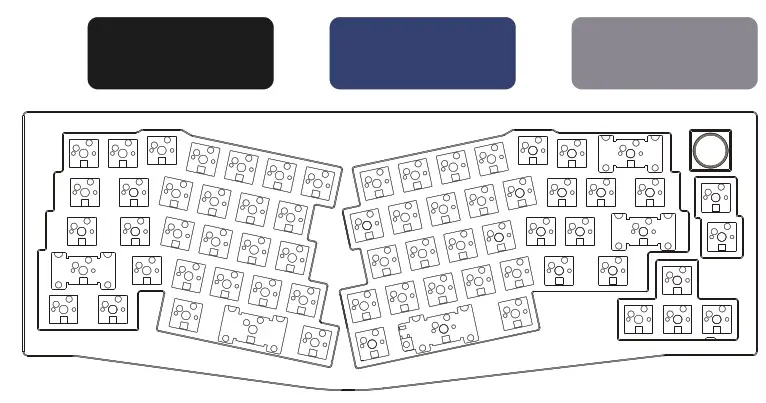
Keyboard Kit
- 1x Keyboard Kit (Without Keycaps & Switches)
Including
- 1x Aluminum Case
- 1x PCB
- 1x Steel Plate
- 14x Gaskets (8 Installed and 6 in the Box)
- 5 Sets x Stabilizers
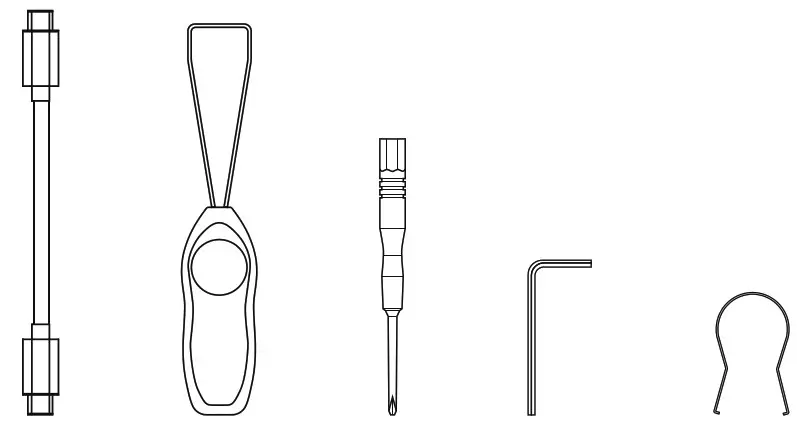
Cable
- 1x Type-C to Type-C Cable
- 1x Type-A to Type-C Adapter
Tools
- 1x Switch Puller
- 1x Keycap Puller
- 1x Screwdriver
- 1x Hex Key
QUICK START GUIDE
If you are a Windows user, please find the appropriate keycaps in the box, then follow the instructions below to find and replace the following keycaps.
Mac / Windows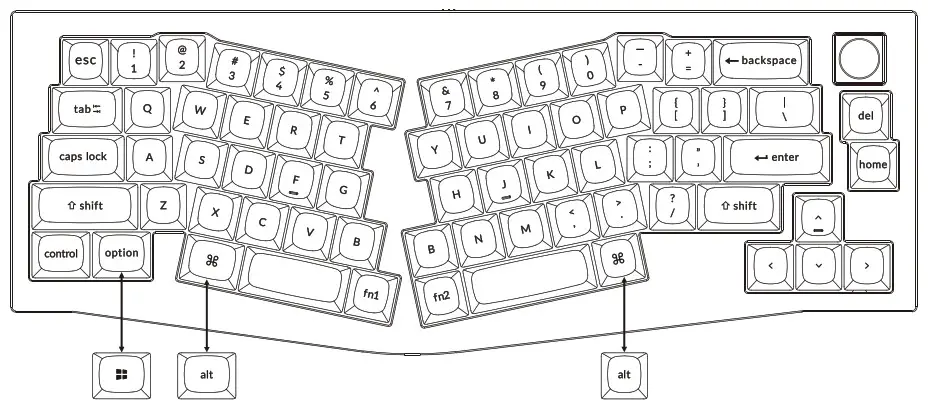
1. Switch To The Right System
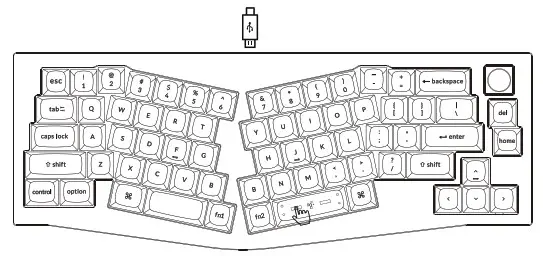
Please make sure the system toggle on the top center has been switched to the same system as your computer’s operating system.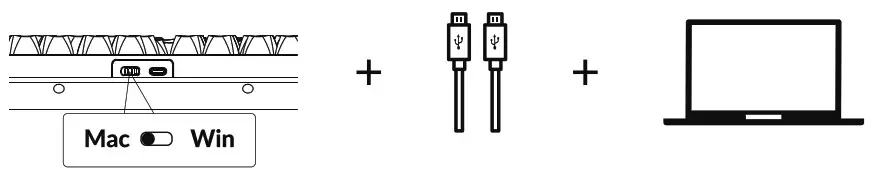
2. The VIA Key Remapping Software
Please visit caniusevia.com to download the latest VIA software to remap the keys. If the VIA software cannot recognize your keyboard, please reach out to our support to get the instruction.
3. The Layers
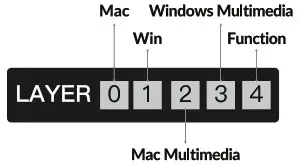
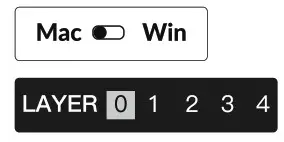
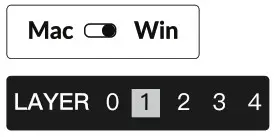
| There are five layers of key settings on the keyboard. The layer 0 is for the Mac system. The layer 1 is for the Windows system. The layer 2 is for the Mac Multimedia keys. The layer 3 is for the Windows Multimedia keys. The layer 4 is for the Function keys. | If your system toggle is switched to Mac, then the layer 0 will be activated. | If your system toggle is switched to Windows, then the layer 1 will be activated. |
 |  |  |
4. Multimedia Key and Function Key
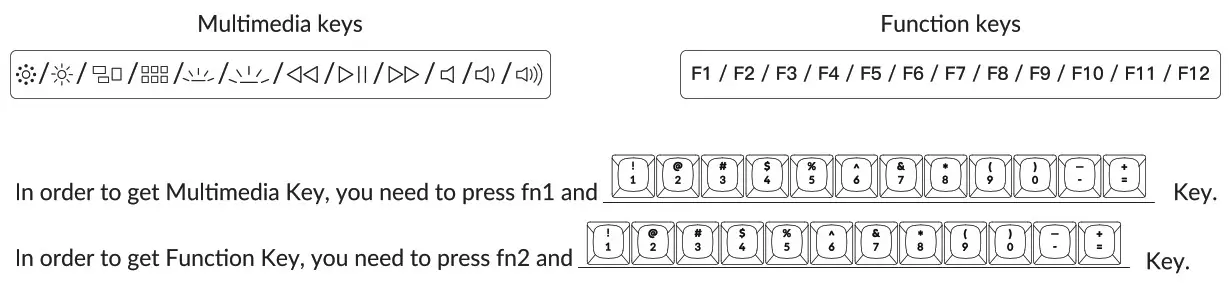
5. The Backlight
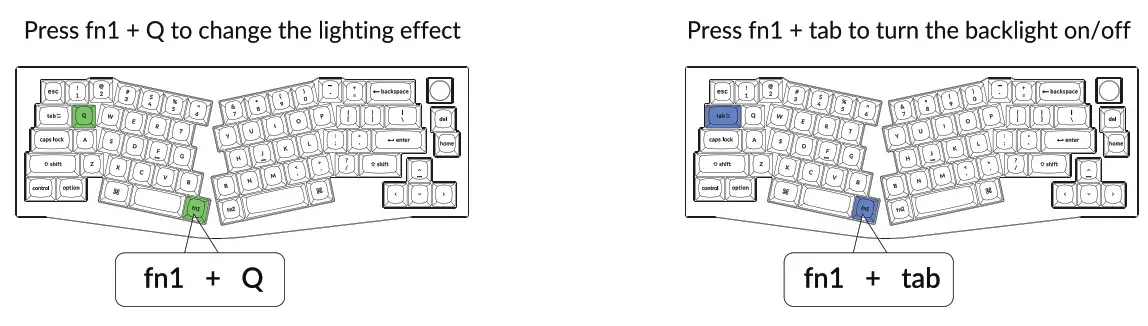
6. Adjust The Backlight Brightness
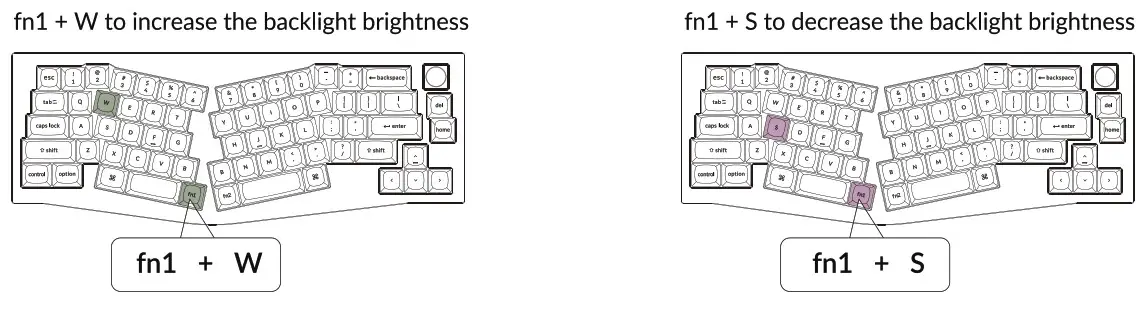
7. Adjust The Backlight Speed
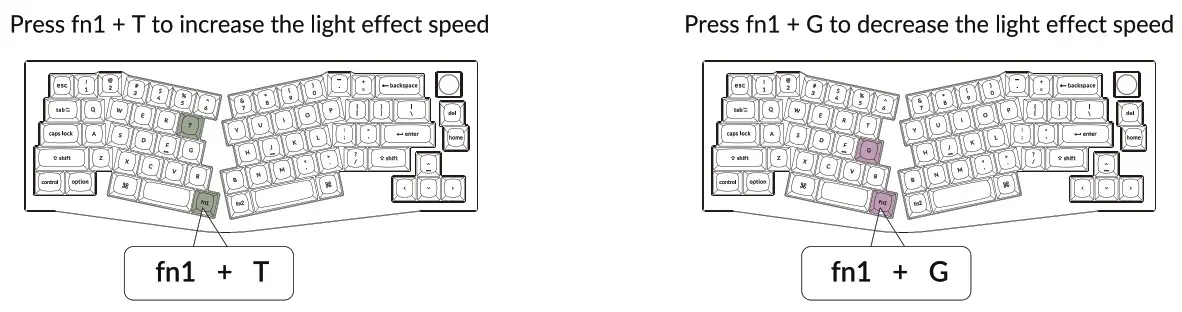
8. Warranty
The keyboard is highly customizable and easy to be rebuilt. If anything goes wrong with any of the keyboard components of keyboard during the warranty period, we will only replace the defective parts of the keyboard, not the whole keyboard.

9. Watch The Building Tutorial On Our Website
If you are building the keyboard for the first time, we highly recommend you watch the building tutorial video on our website first, then start building the keyboard yourself.

10. Factory Reset
Troubleshooting? Don’t know what’s going on with the keyboard?
1. Try factory reset by pressing fn1 +J +Z (for 4 seconds).
2. Download the right firmware for your keyboard from our website.
Remove the power cable from the keyboard.
3. Remove the space bar keycap to find the reset button on the PCB.
4. Hold the reset key while plugging in the power cable and then release the reset key. The keyboard now will enter DFU mode.
5. Flash the firmware with the QMK Toolbox.
6. Factory reset the keyboard again by pressing fn1 + J + Z (for 4 seconds).
* Step by step guide can be found on our website.
Q8 CUSTOMIZABLE KEYBOARD SPECIFICATIONS
Specifications
| Layout | 65% |
| Switch type | Mechanical |
| Width | 119.3 / 136.1 mm |
| Length | 358 mm |
| Front height | 19.7 mm (without keycaps) |
| Back height | 31.5 mm (without keycaps) |
| Front height | 31.2 mm (with OSA keycaps installed) |
| Back height | 41.5 mm (with OSA keycaps installed) |
| Keyboard feet height | 2.7mm |
| Angle | 5 degree |
Q8 MECHANICAL KEYBOARD OVERVIEW
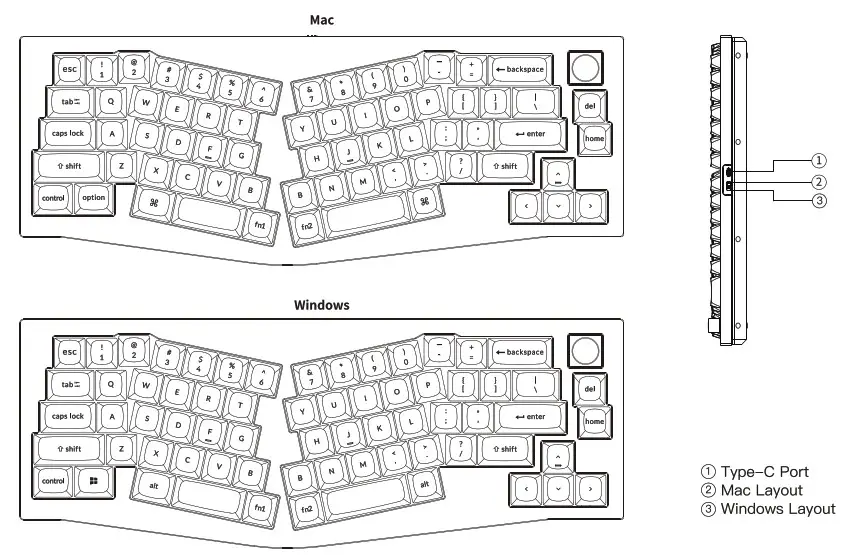
DEFAULT KEY LAYOUT
LAYER 0: This layer will be activated when your keyboard’s system toggle is switched to Mac.
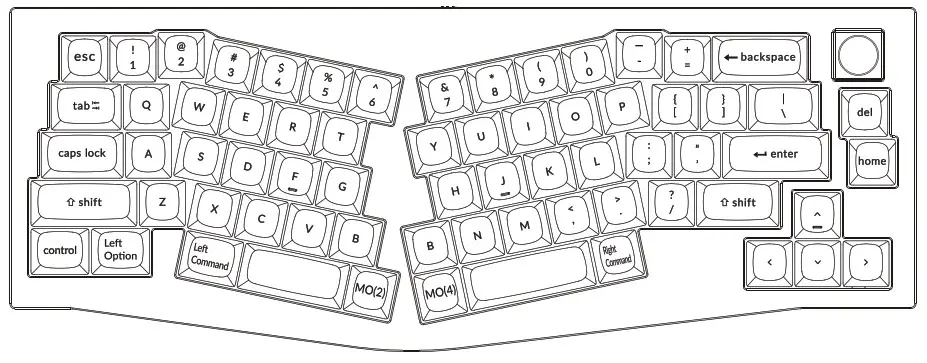
LAYER 1: This layer will be activated when your keyboard’s system toggle is switched to Windows.
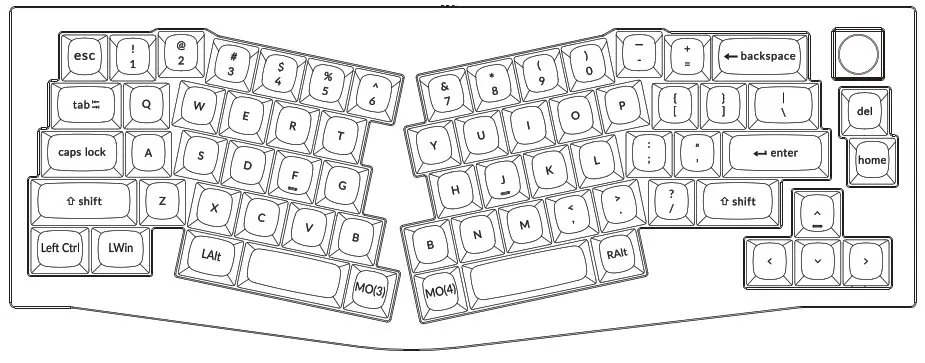
LAIt = Left Alt LWin = Left Windows RAIlt = Right Alt
LAYER 2: This layer will be activated when your keyboard’s system toggle is switched to Mac and press the fn1/MO(2) key.
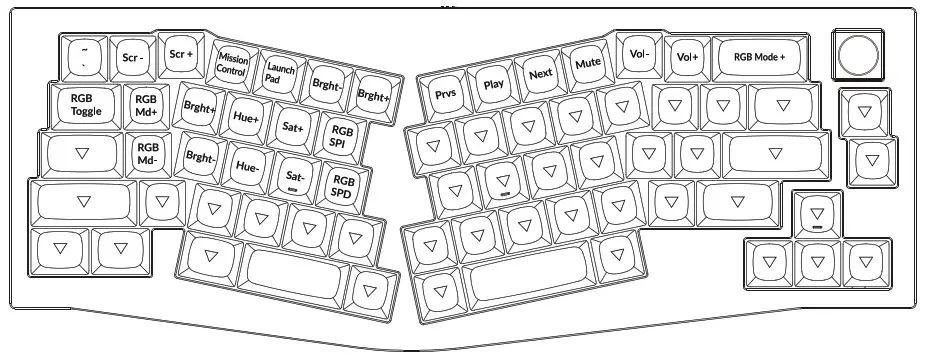
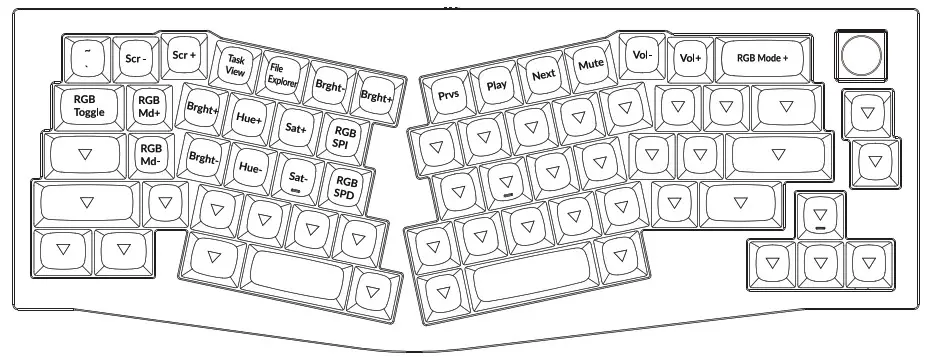
LAYER 3: This layer will be activated when your keyboard’s system toggle is switched to Windows and press the fn1/MO(3) key.
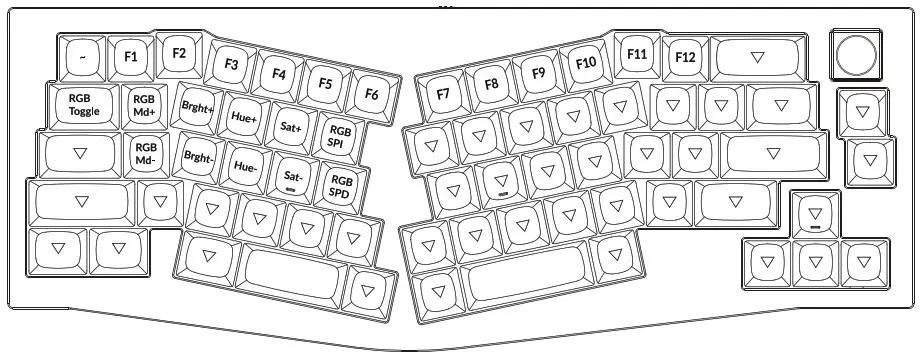
LAYER 4: This layer will be activated when you press the fn2/MO(4) key.
KEY DESCRIPTION
KEY DESCRIPTION
| Scr- | Screen Brightness Decrease | RGBMd+ | RGB Mode Next |
| Scr+ | Screen Brightness Increase | RGBMd- | RGB Mode Previous |
| Bright- | Backlight Decrease | Hue+ | Hue Increase |
| Bright+ | Backlight Increase | Hue- | Hue Decrease |
| Prvs | Previous | RGB SPI | RGB Speed Increase |
| Play | Play/Pause | RGB SPD | RGB Speed Decrease |
| Next | Next | MO(1) | Layer 1 will be activated when holding this key |
| Mute | Mute | MO(2) | Layer 2 will be activated when holding this key |
| Vol- | Volume Decrease | MO(3) | Layer 3 will be activated when holding this key |
| Vol+ | Volume Increase | MO(4) | Layer 4 will be activated when holding this key |
| RGB Toggle | Turn Backlight on/off |
Third party input tools are not compatible with the keyboard.
Due to compatibility, versions, brands, and drivers of Windows/macOS, functionalities of third Party input tools may be affected while using the keyboard. Please make sure your operating system and drivers are up to date.
Certain fn keys or multimedia keys does not work under Windows/Android mode.
Functionalities of certain multimedia keys may be disabled due to compatibility, versions, brands, and drivers of Windows/Android OS.
Safety Precaution:
Keep the product, accessories, and packaging parts out of reach of children to prevent any accidents and choking hazards.
Always keep the product dry to avoid corrosion.
Do not expose the product to extreme temperatures below -10°C (5°F) or above 50°C (131°F) to preserve the lifespan of the keyboard.
Keychron, Inc.
Dover, DE 19901, United States
Find us at: https://www.keychron.com
[email protected] @keychron
  @keychron
  @keychronMK
Designed by Keychron
Made in China
Read More About…..
Keychron Q8 Knob Version Customizable Keyboard
Download
Keychron Q8 Knob Version Customizable Keyboard User Manual – [ Download PDF ]