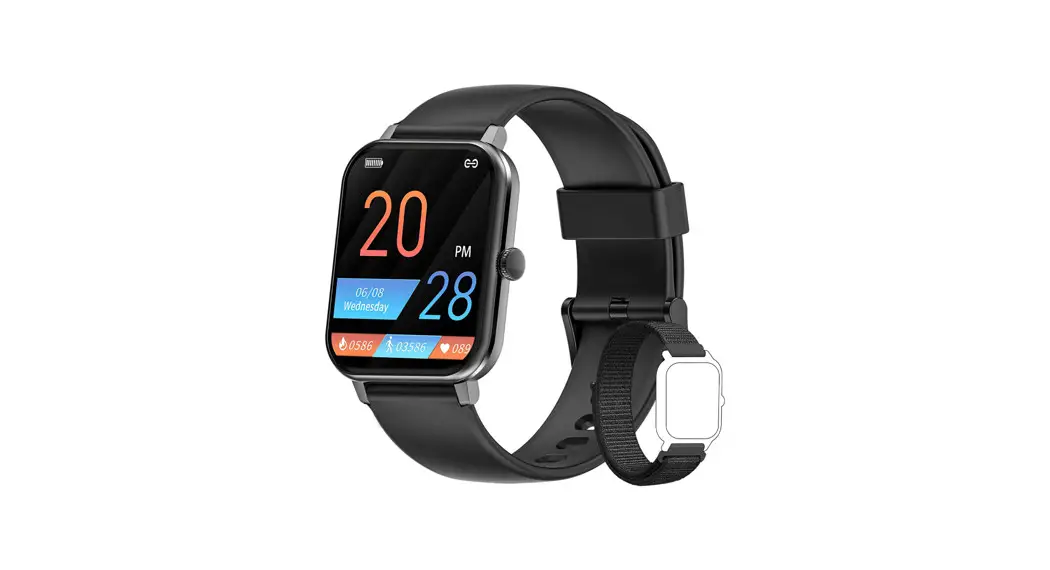
 Connect Guide
Please read carefully 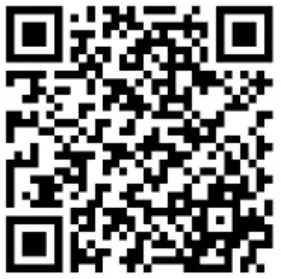 https://app.help-document.com/gloryfit/download/index1.html
Attention:
- After the user receives the smartwatch, please charge first, and it will automatically turn on after 10-30 minutes of charging
- If your phone is an Android device, please turn on the GPS system. This is Google’s setting for the Bluetooth function
- For iPhone users,if you unbind the smartwatch on the app, you must ignore the device in the system Bluetooth, and then you can search the smartwatch on GloryFit again.
If your phone is Android :
Please follow the steps below to connect the watch
The following takes Samsung S10+ as an example, other Android phones will be different
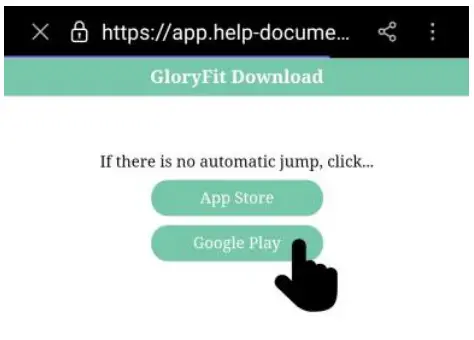
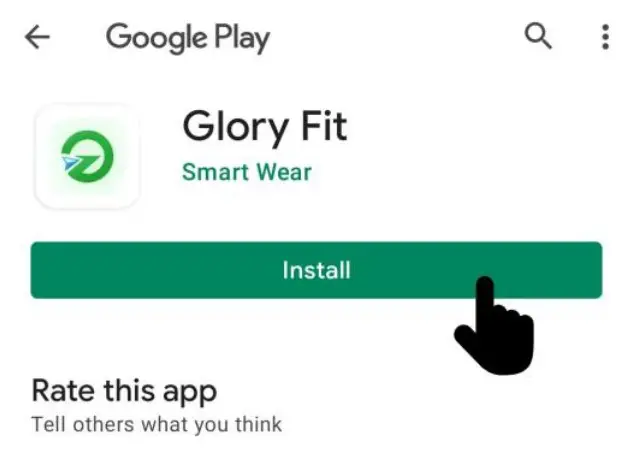
1:Please scan the QR code on the homepage User instruction with your mobile phone, click on the link to enter the download split page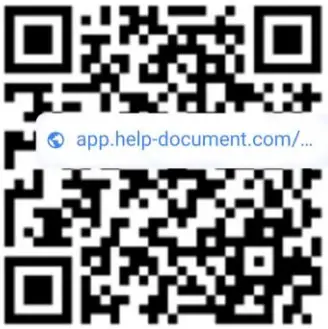 | 2-1:It will automatically jump to the Google Play page. If there is no jump, you can click on Google Play to jump to the software market. 2-2:You can directly search and download gloryfit software on Google Play
| 3:Click install to download Gloryfit
|
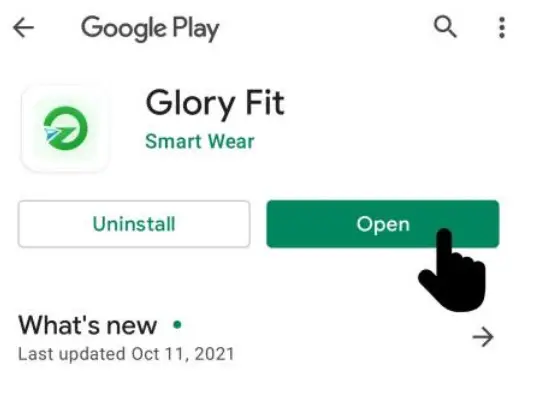
| 4:After downloading, click open to open the software
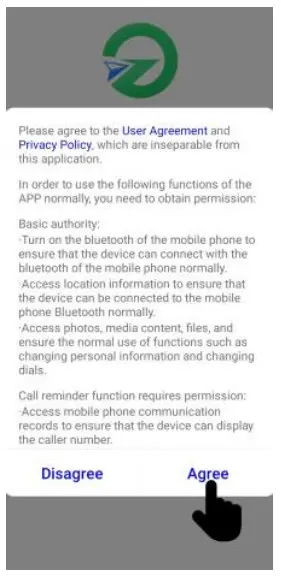
| 5:Please agree to the user agreement and privacy policy, please click “Agree” to agree to this agreement.
| 6-1:You can use your email to register and log in to the APP dedicated account, 6-2:Use other third-party social software to log in. This function only reads the username and nickname of the social account. |
| 7:Please input your email address
| 8:Enter the email address and click to get the verification code
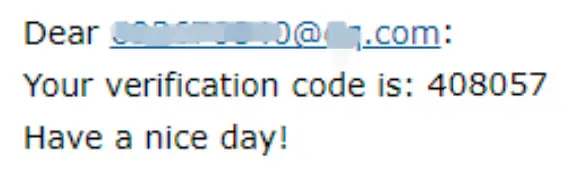
| 9:Check the verification code in your mailbox
|
| 10:Enter the verification code in the email in the verification code input field
| 11:Click login to log in to your account
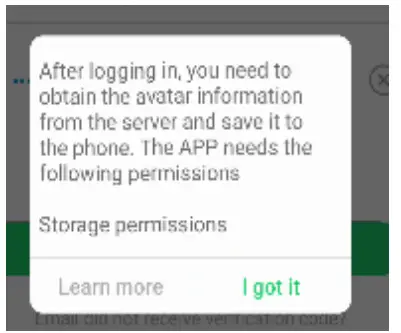
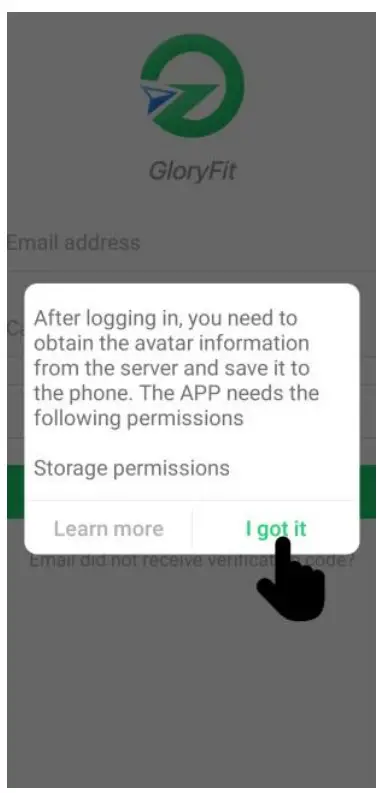
| 12:Prompt the permission request box, please click “I got it”
|
| 13:Gloryfit needs storage permission, click “i got it”(If your phone does not have this step, please ignore)
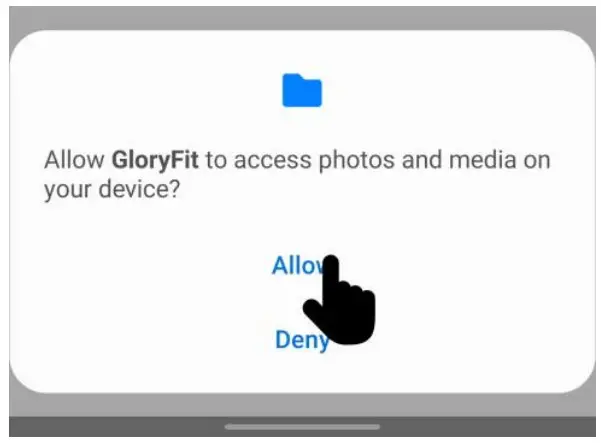
| 14:After allowing storage and reading permissions, gloryfit will be able to save personal nicknames and avatars, please click “Allow”
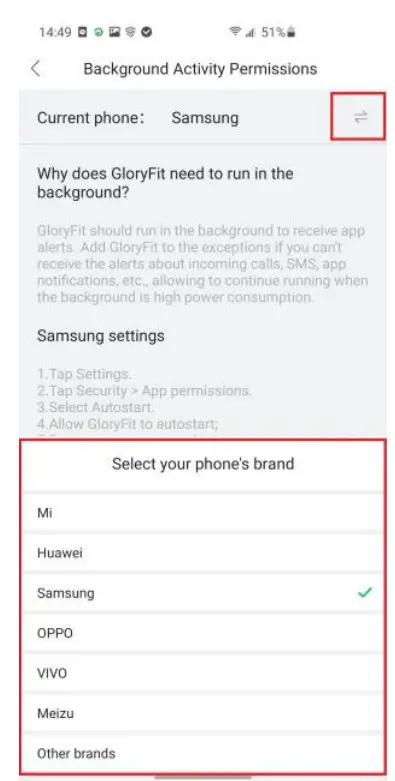
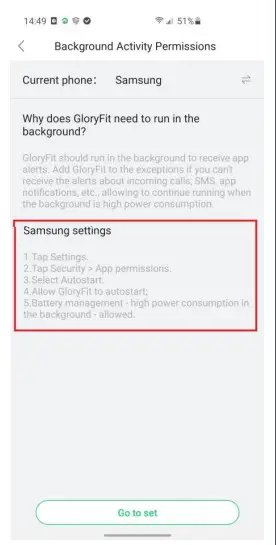
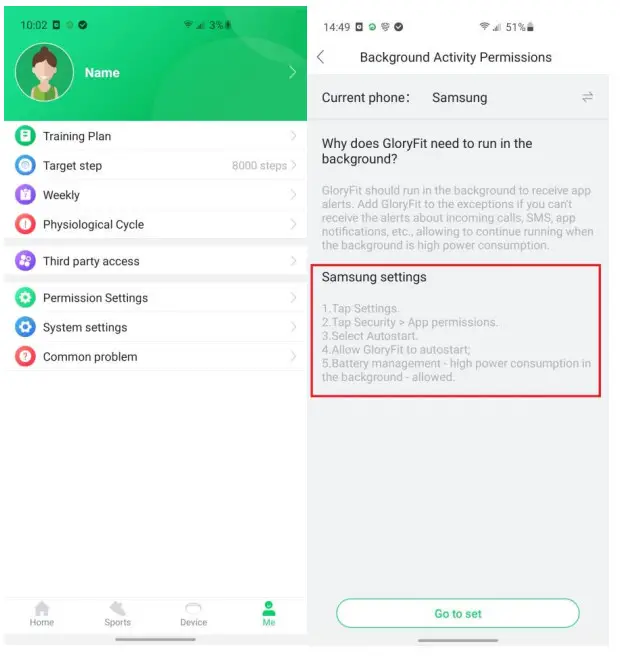
| 15:Start to set background running permissions, click on the two-way ar row in the upper right corner, select your phone model, and click it
|
| 16:Please read each step of the setting method in detail.
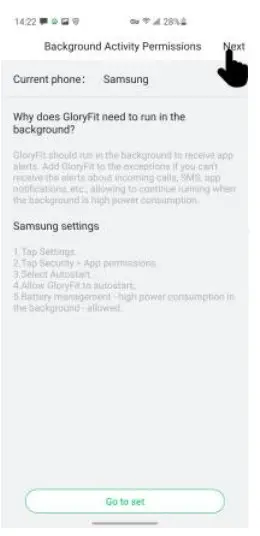
| 17:After setting, click on the upper right corner Next
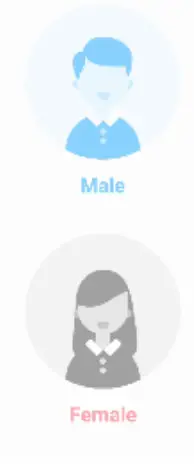
| 18:Swipe to set your gender, then click the arrow to go to the next page
|
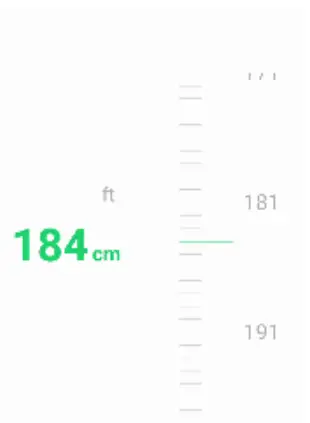
| 19:Swipe to set your height, then click the arrow to go to the next page
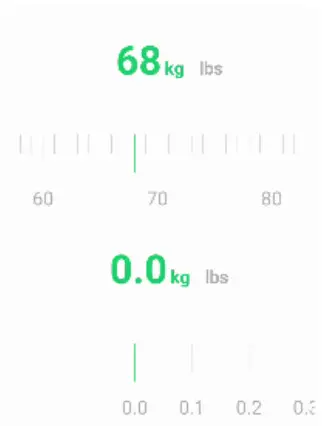
| 20:Swipe to set your weight, then click the arrow to go to the next page
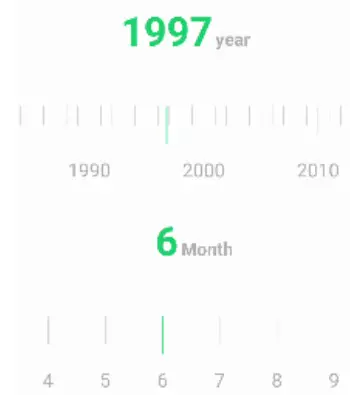
| 21:Swipe to set your age, then click the arrow to go to the next page
|
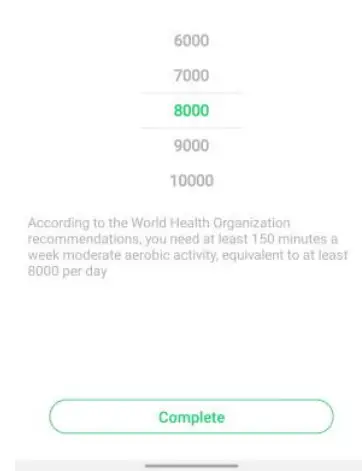
| 22:Swipe to select your daily sports mirror goal, then click “complete”
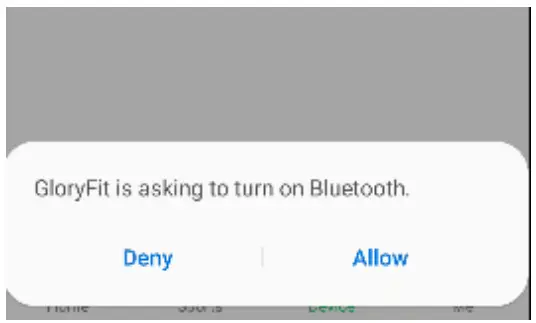
| 23:Gloryfit needs Bluetooth permission, click “allow” to turn on Bluetooth
| 24:A reminders will pop up here, indicating that the software needs to retrieve Bluetooth and GPS permissions, please click “I got it
|
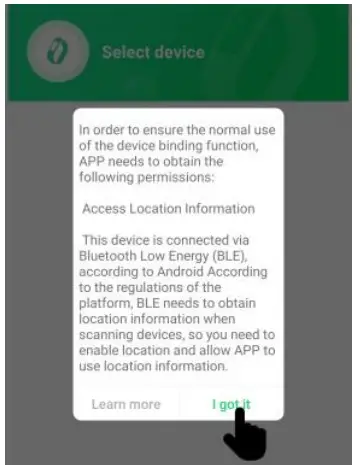
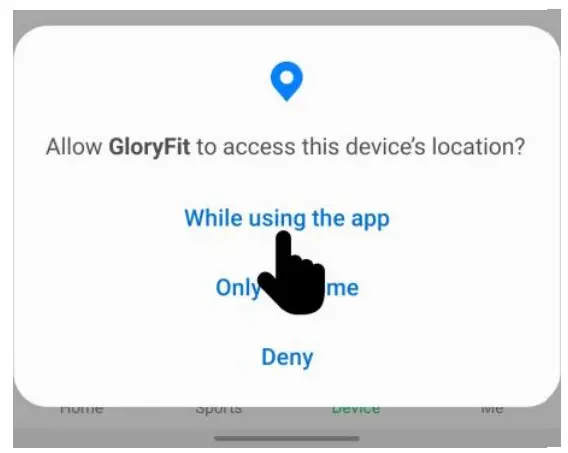
| 25:Click “while using the app” to agree to this permission
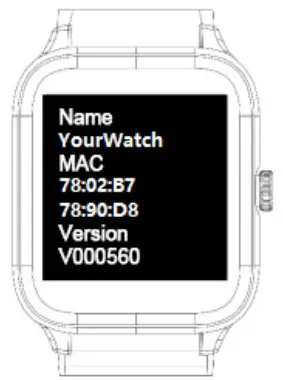
| 26:Please check the Bluetooth address on the watch side, the specific setting location is: drop-down menu → settings → device info
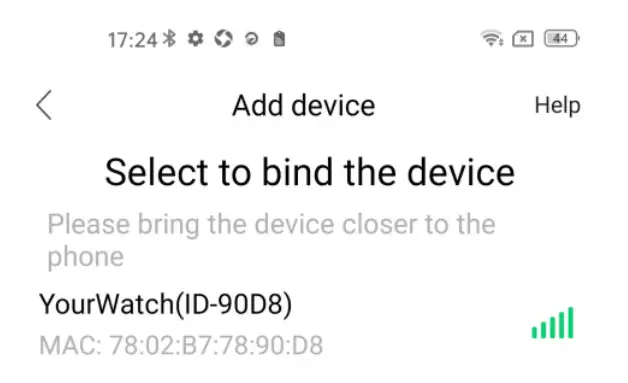
| 27:After searching for the corresponding product model, click to connect to the watch.
|
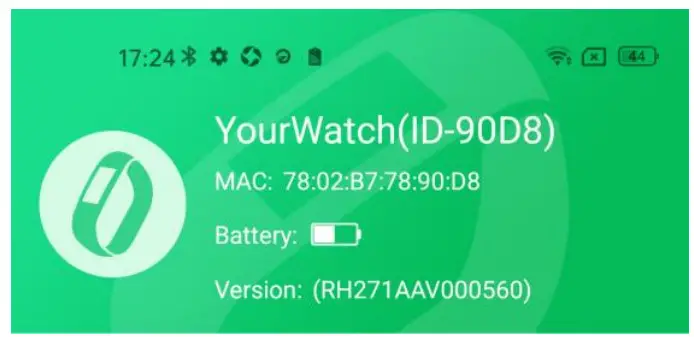
| 28:After a successful connection, you can see the watch’s Bluetooth name, Mac address, watch battery level, watch version number and other information
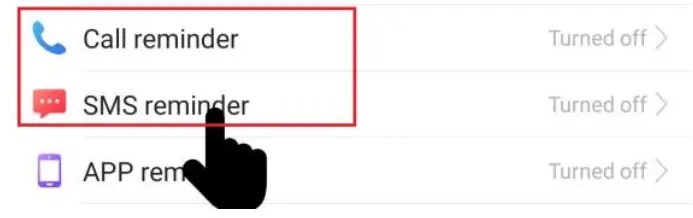
| 29:Turn on the call or SMS push function in the function menu below
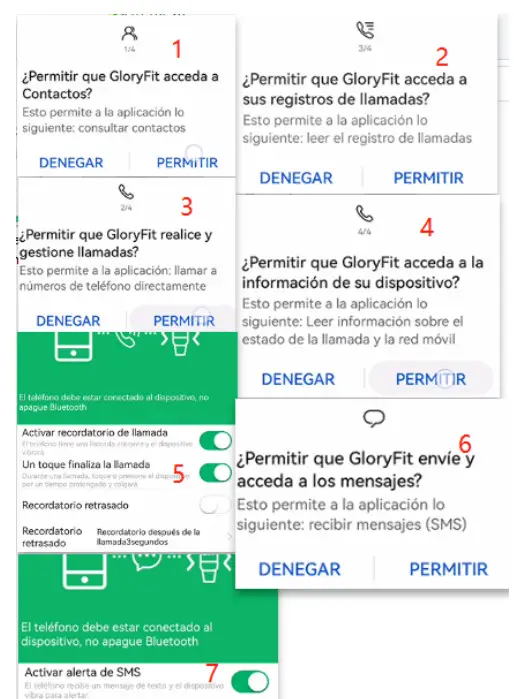
| 30:Open the corresponding option switch on the setting page of incoming call and text message respectively, and return to the previous page after the setting is completed
|
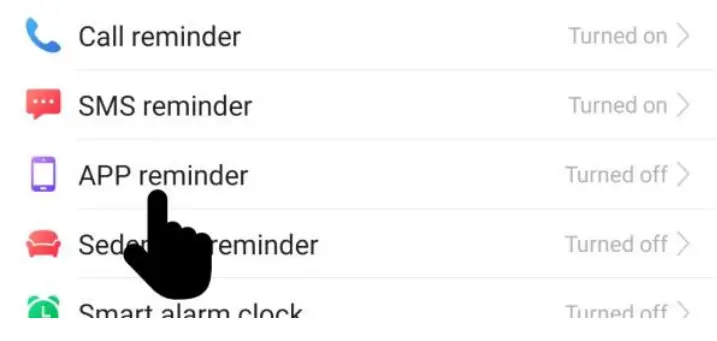
| 31:Go back to the function menu and enter the”APP reminder” setting
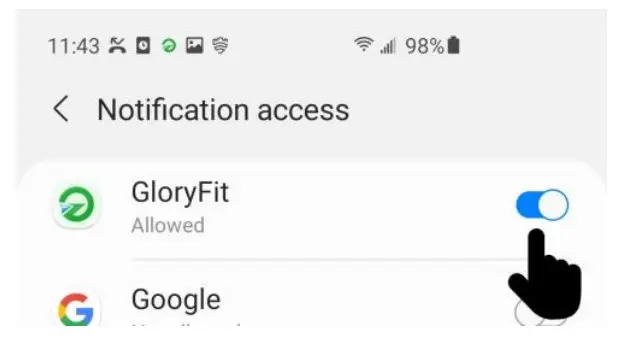
| 32:Click OK to enter the “Notification of Use Rights” interface, find glory fit, keep it turned on, and return to the previous page after setting
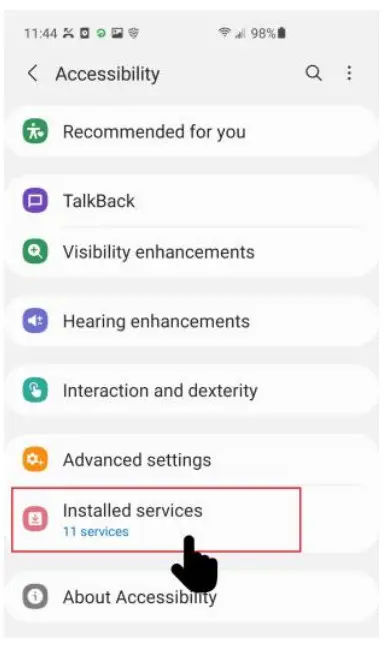
| 33:Click “Enter Accessibility”; then click to enter “Installed Services” (If your phone does not have this step, please ignore)
|
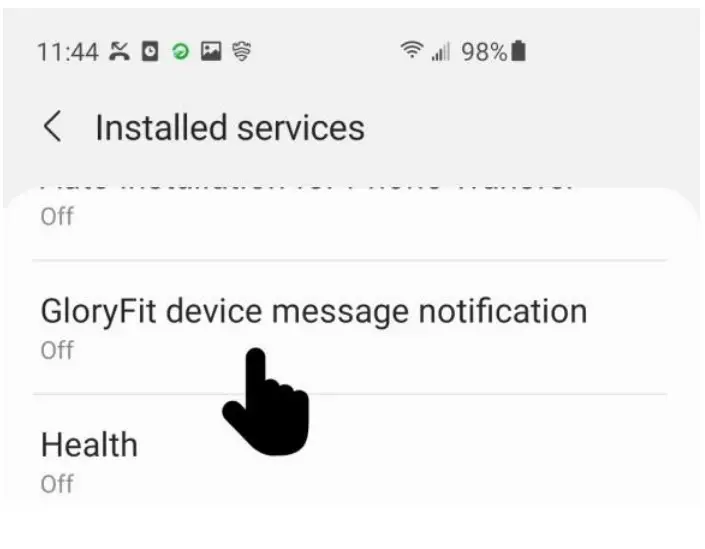
| 34:Find “glory fit device message notification” (If your phone does not have this step, please ignore)
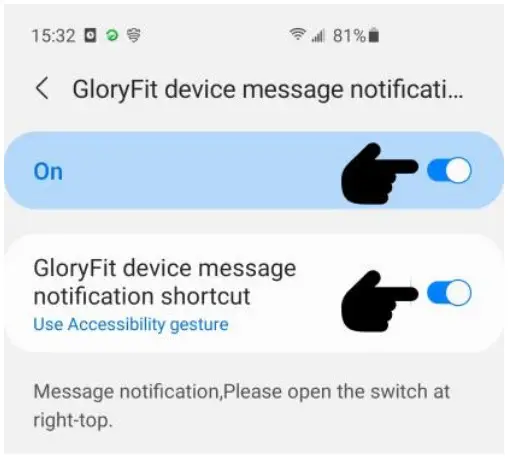
| 35:Turn on the switch and return to the “APP reminder” interface after the setting is completed (If your phone does not have this step, please ignore)
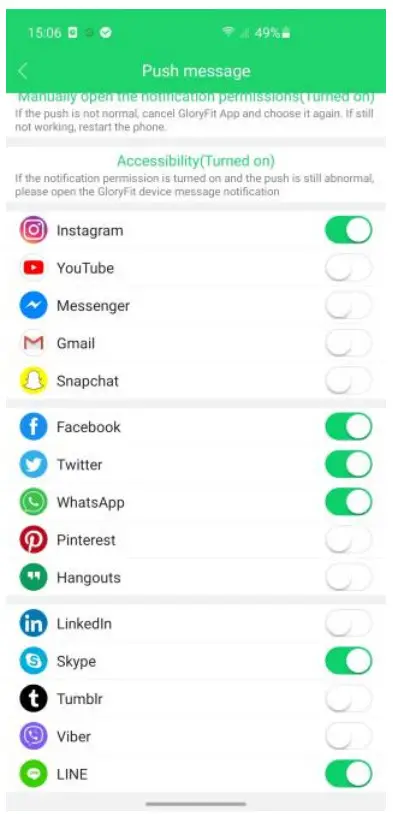
| 36:Tur on the software switch you need to notify, such as: ins, Facebook, Twitter, WhatsApp, Skype, LINE, etc.
|
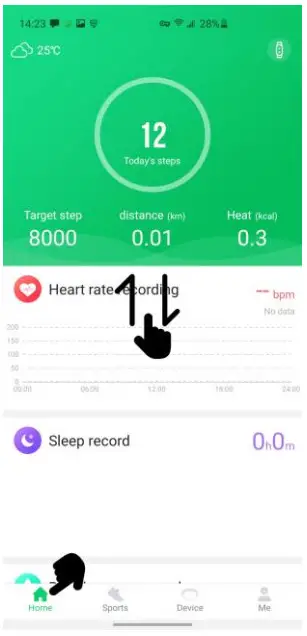
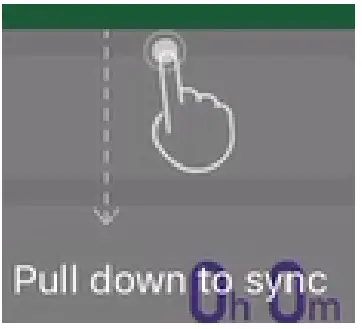
| 37:Return to the home page, and pull down the screen to manually sync all data to the watch.
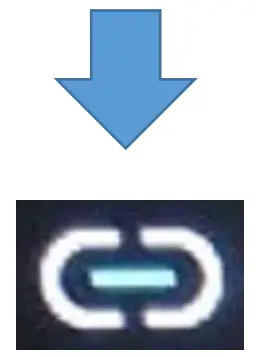
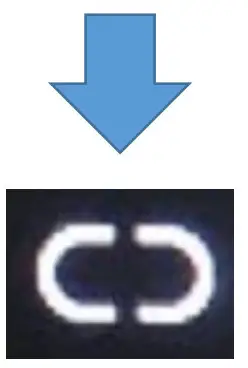
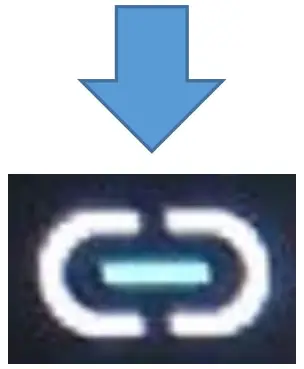
| 38:If connected succesfully, the Bluetooth icon of the watch will change its status:
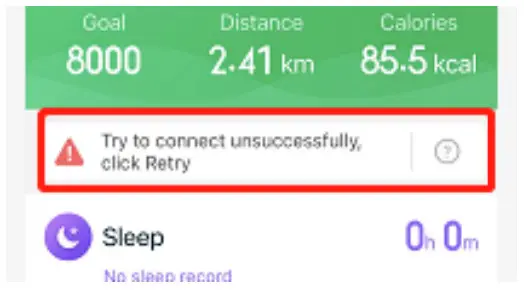
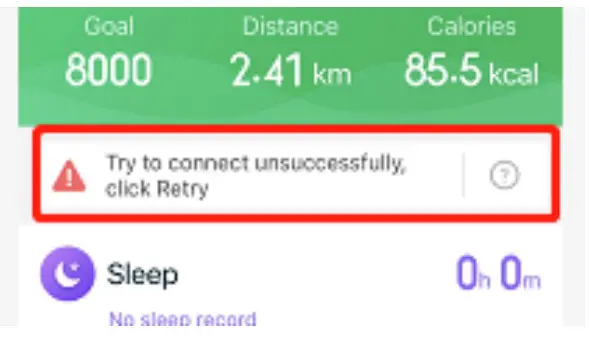
| 39:When the distance between the watch and the phone is too far, or when it has not been connected for a long time, the APP will display a prompt “try to connect failed, please try again”
|
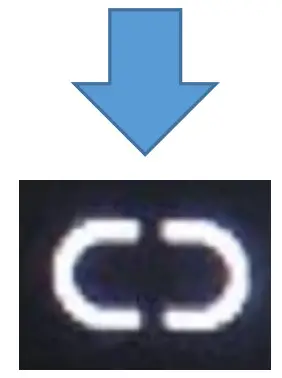
| 40:At this time, the Bluetooth status of the watch will change to a disconnected state
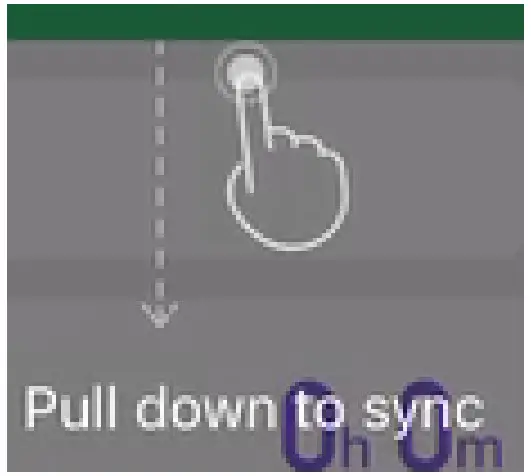
| 41:Please bring your watch close to your phone, then return to the “home” page and pull down the page to refresh manually, you can restore the connection
|
If your phone is iOS system:
Please follow the steps below to connect the watch
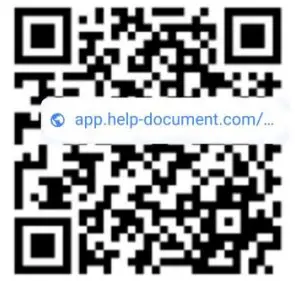
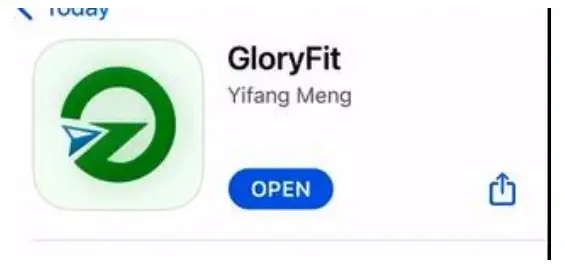
| 1-1:Use the camera to scan the QR code above, open it in Safari, and then automatically jump to the App Store 1-2:Search for glorified on the App Store to download
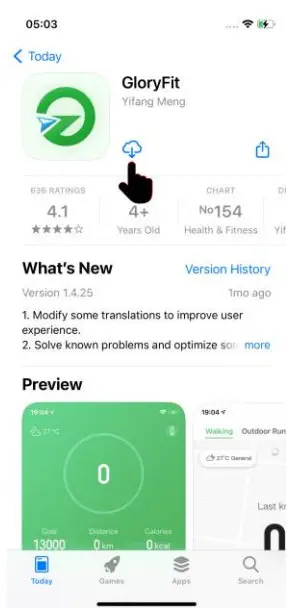
| 2:Download Gloryfit
| 3:Start to download |
| 4:Click “open” to open the software
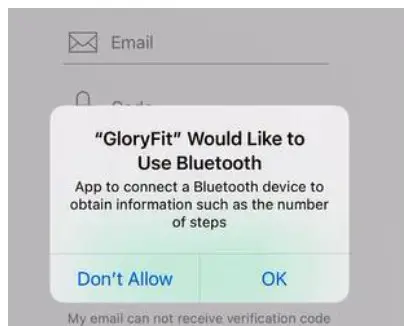
| 5:If you open the APP for the first time, you need to grant permission to use the Bluetooth function, click “OK”
| 6:Please enter your email address.
|
| 7:Click “get” to get the verification code
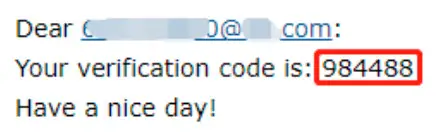
| 8:Find the verification code email in your mailbox
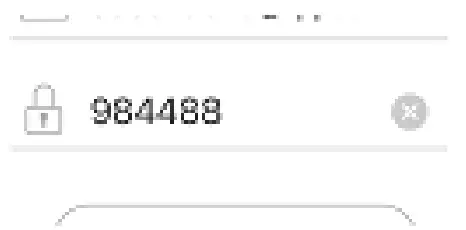
| 9:Enter the code
|
| 10:Tick to agree to the user agreement and privacy service agreement
| 11:Then click “login” to log in to your account
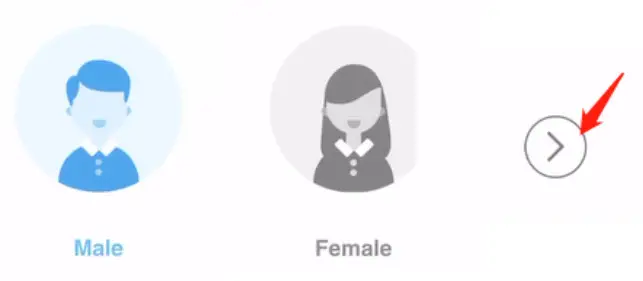
| 12:Click to select gender, and then click next
|
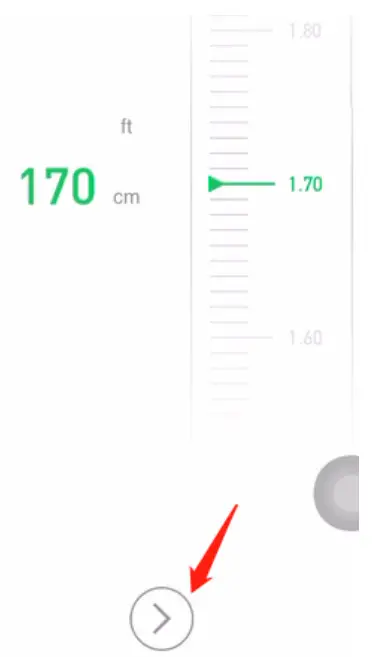
| 13:Swipe to select your height content, then press next
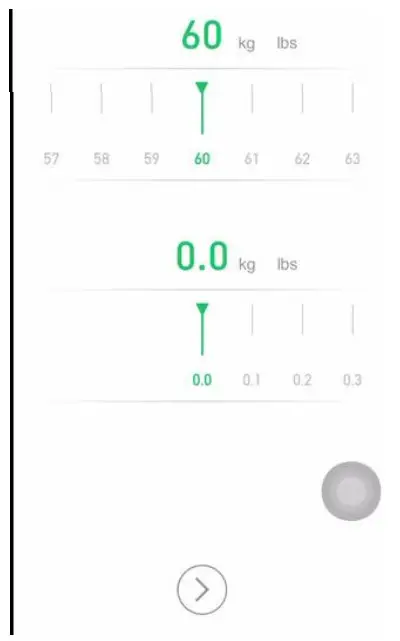
| 14:Swipe to select your weight information, then press Next
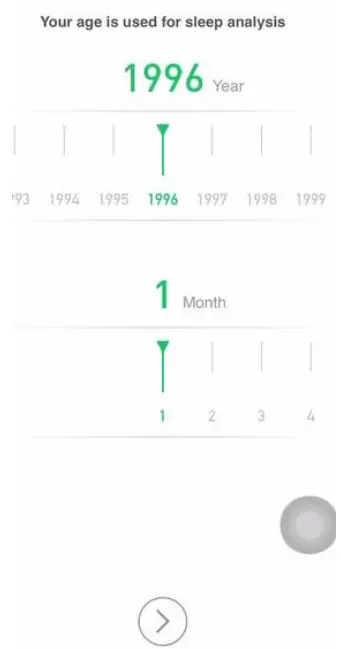
| 15:Swipe to select your age information and next
|


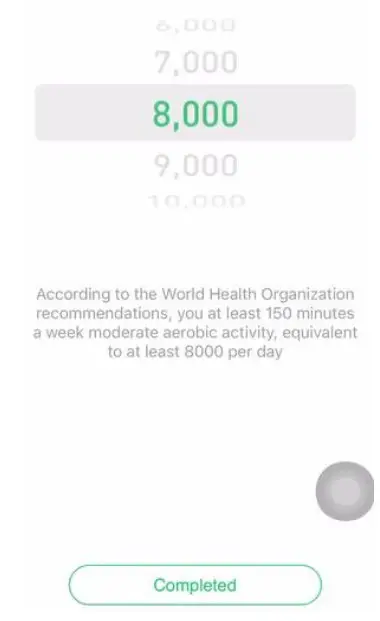
| 16:Swipe to select your sports goal, and then press “Completed” to enter the software
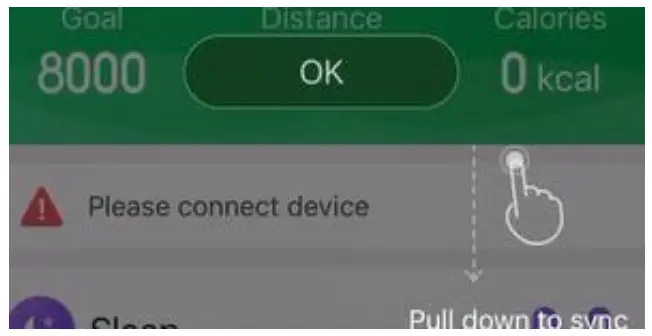
| 17:Prompt swipe to refresh the page, click “ok” to enter the next step
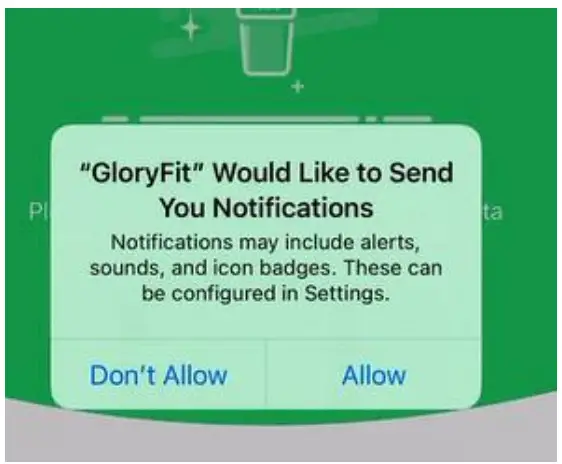
| 18:Gloryfit wants to send you a notification, click “allow”
|
| 19:Gloryfit wants to send you a notification, click “allow”
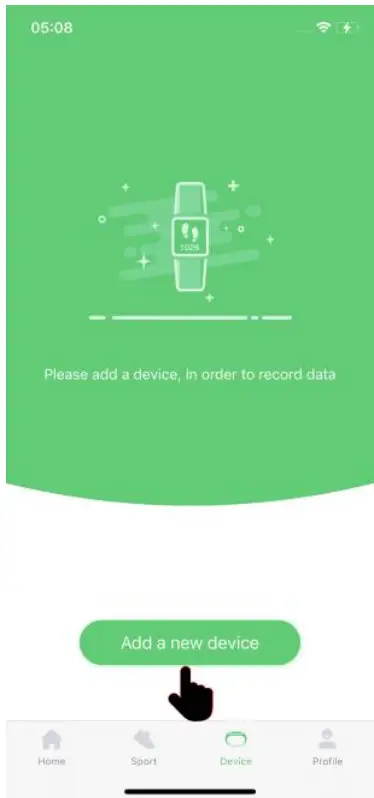
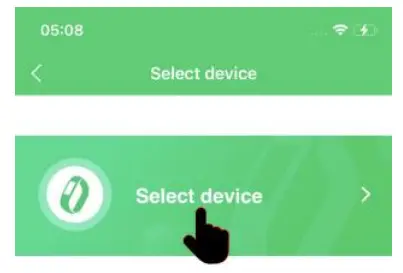
| 20:Click “select device” to find the device.
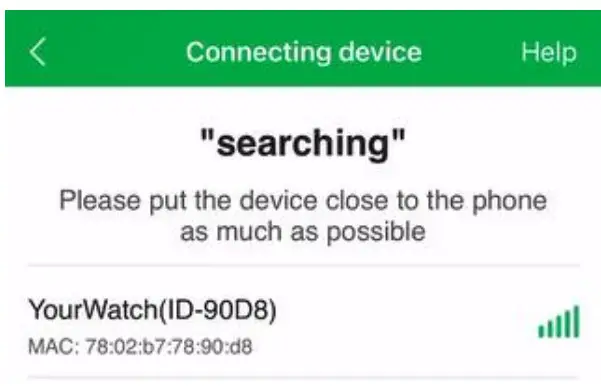
| 21:Searching the corresponding product, model click it to connect the watch.
|
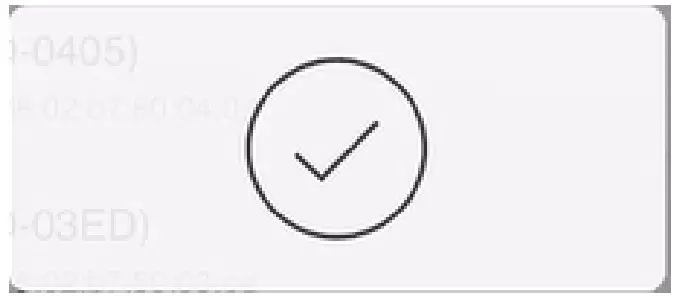
| 22:Successfully connection √
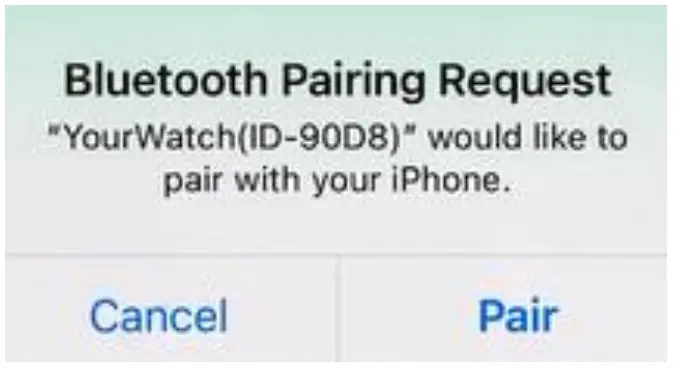
| 23:The software asks if it is bound to Bluetooth, click “Pair”
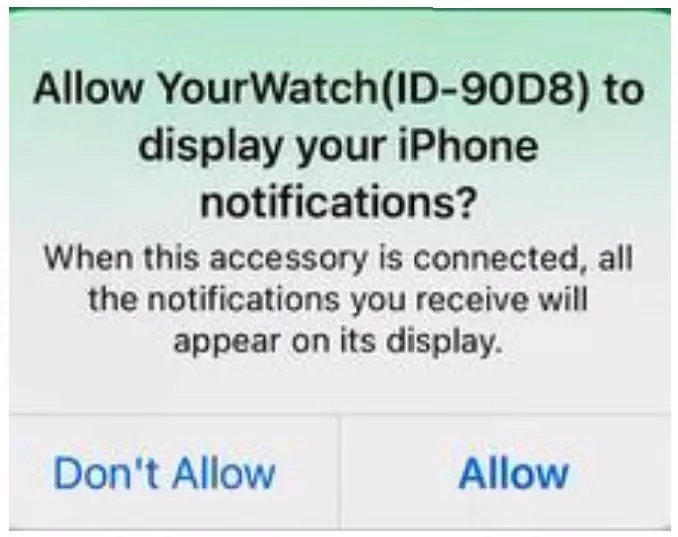
| 24:Notification, click “allow”.
|
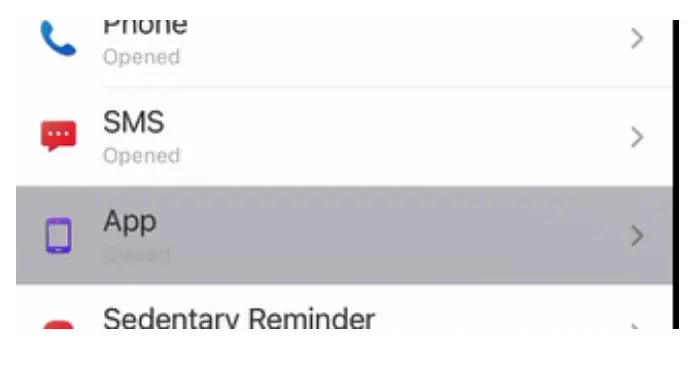
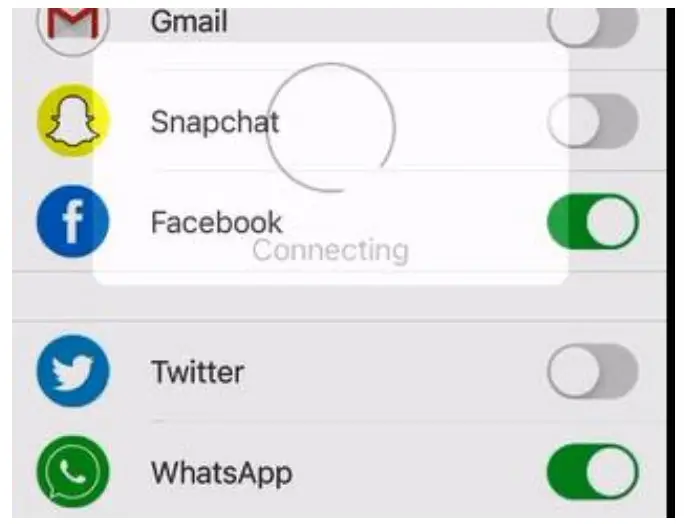
| 25:Click on the APP to enter the third-party software message push settings.
| 26:Turn on the switch that you want to receive app messages.
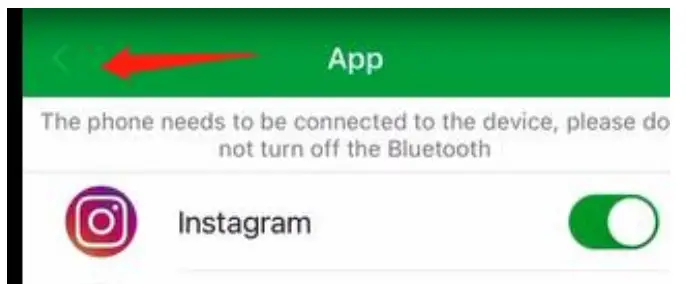
| 27:After setting, click the arrow to return to the device page.
|
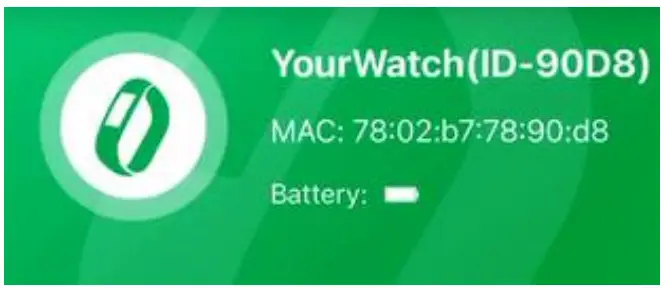
| 28:If setting successfully, you can view the Bluetooth name, Mac address, battery and other information of the watch on the device page.
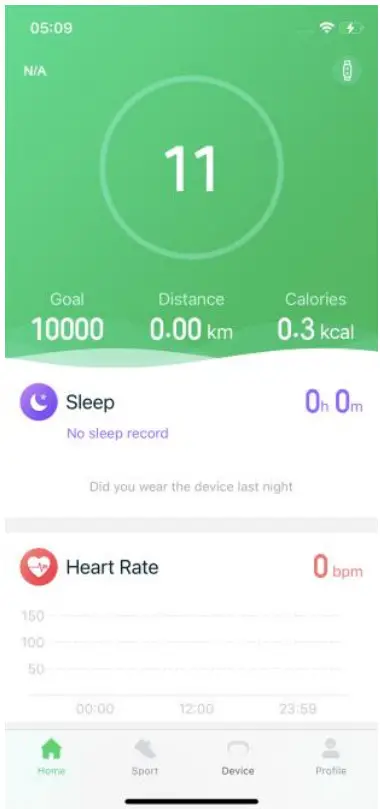
| 29:You can view the basic data on the homepage. The data of the unbound new device is empty.
| 30:Connecting successfully,the Bluetooth icon of the watch will change its status:
|
| 31:When the distance between the watch and the mobile phone is too far, the APP will prompt “Failed to connect, please try again”
| 32:At this time, the Bluetooth status of the watch will change to a disconnected state:
| 33:Please bring your watch close to your phone, then return to the “home” page and pull down the page to refresh manually, you can restore the connection
|
App background description
For your better experience, please ensure that Gloryfit APP can always keep running in the background. For this reason, you need to set the background running permission according to your mobile phone model; Different brands of mobile phones have different setting methods and need to be explained separately.
Take some Android phones as an example Samsung
Quick access: Gloryfit → my → permission setting → background running permission setting → go to setting → battery → optimize battery usage → glory fit → close
Huawei
Start, by allowing background activity.
Quick access: glory fit → my → permission setting → background running permission setting → go to setting → start management→ Gloryfit
Turn off automatic management, and turn on Allow auto-start, allow associated startup, and allow background activities. Xiaomi
- Quick access: Gloryfit → my → permission setting → background running permission setting → go to setting
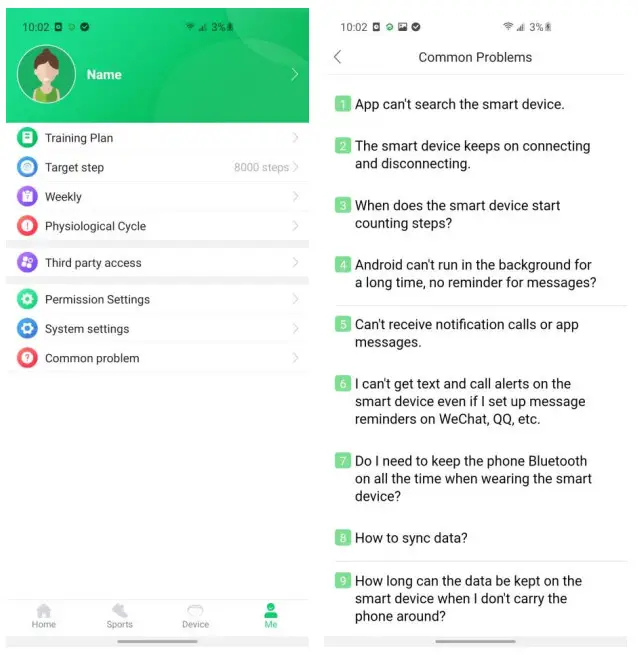
- If you encounter other problems, please enter the “me” interface in gloryfit, and then click permission settings to see more permission setting methods
- If you have any other questions, please contact us via email: [email protected]
Solutions to common problems
APP can’t find the device
- Make sure the watch is turned on, if it is not turned on, please press and hold the button for 5 seconds to turn it on.
- If the phone is Andriod, please check whether the GPS location service of the phone is turned on, if it is turned off, please turn on the location service in the system settings interface, and then search again.
- Some Android phones need to unbind the device in the system Bluetooth device after binding. The setting path: System Settings → Bluetooth → Click the gear icon on the right → Forgot device
- If the phone is iOS, please try to ignore the device in the system Bluetooth device, setting path: System Settings → Bluetooth → click the exclamation mark icon on the right → Ignore this device
- After using for a period of time, when data cannot be synchronized, reset the device to factory settings, then re-bind and synchronize If it still does not work, please try the following:
- Restart the phone’s Bluetooth
- Reset the smartwatch
- Restart the phone system
- Restart GPS positioning
If you have any other questions, please contact us via email: [email protected]
The device connects and disconnects repeatedly
- Determine if there is an obstruction between the device and the phone, the human body or metal jewelry, they may be interfered with Bluetooth and cause instability
- If the phone is iOS, please check whether the system Bluetooth is bound to too many Bluetooth devices, please manually ignore the devices that are not in use at the moment
- If it’s Android, please check whether the APP has been added to the whitelist; you need to open the background permission, (some phones need to be set to “Allow self-starting”, “Allow management to start”, “Allow background activities”, “Background pull-down lock”, ” “Unlimited use time”, “Open APP to start automatically”, “Allow the system to wake up”, “Close APP quick freezing”)
- If it still does not work, please try to restart the Bluetooth of the mobile phone, or restore the factory settings of the watch
If you encounter other problems, please enter the “me” interface in Gloryfit, and then click Common problem to see more help instructions