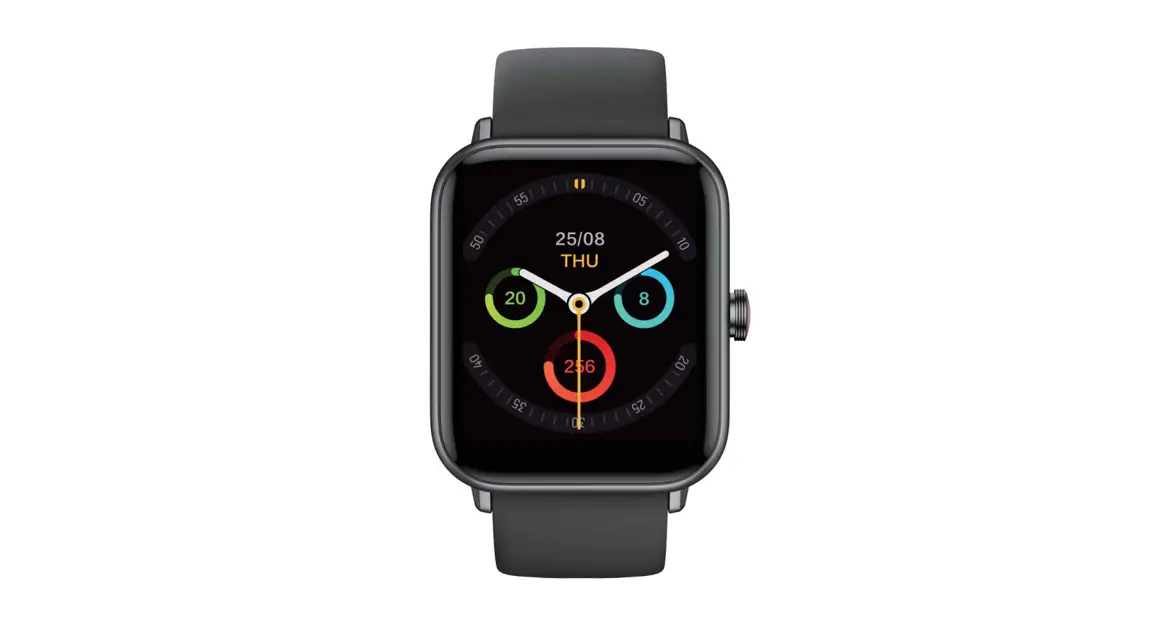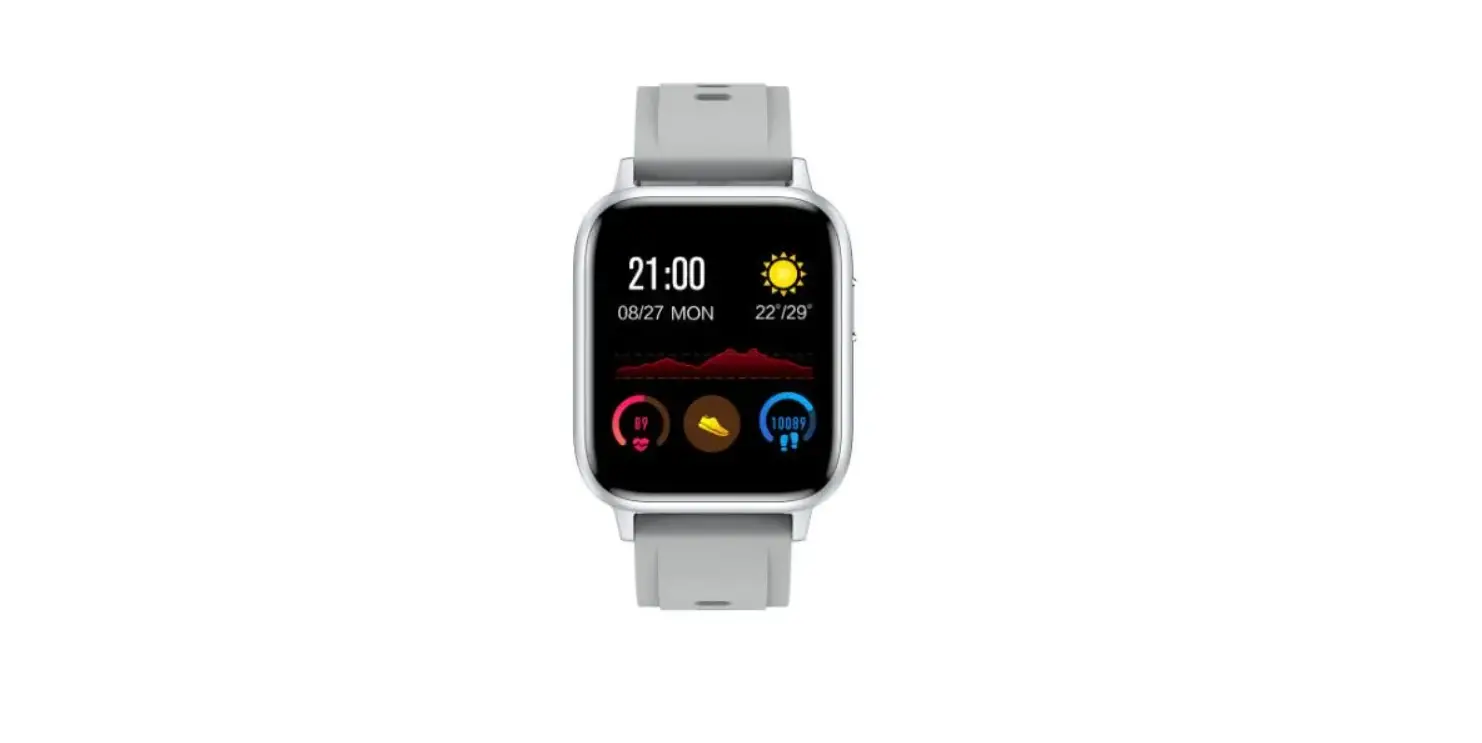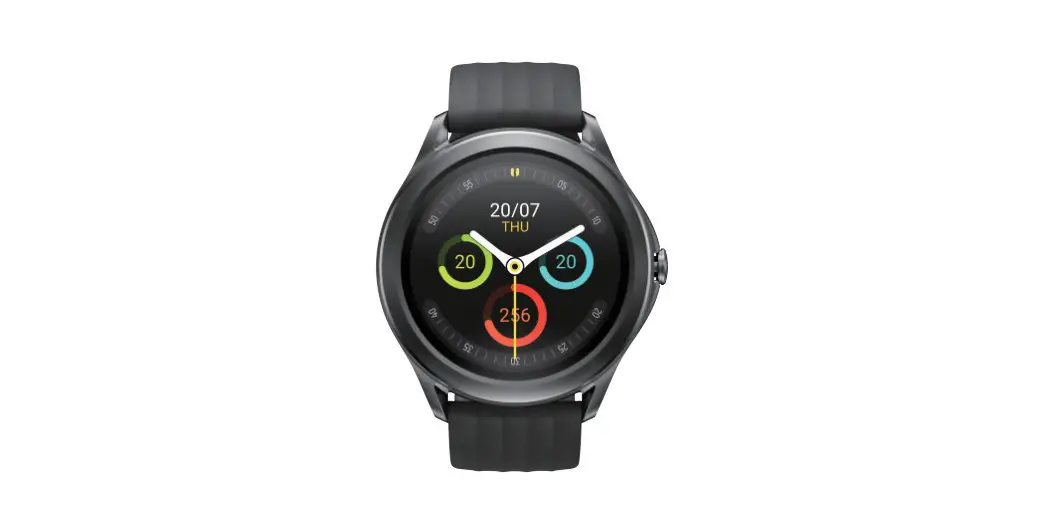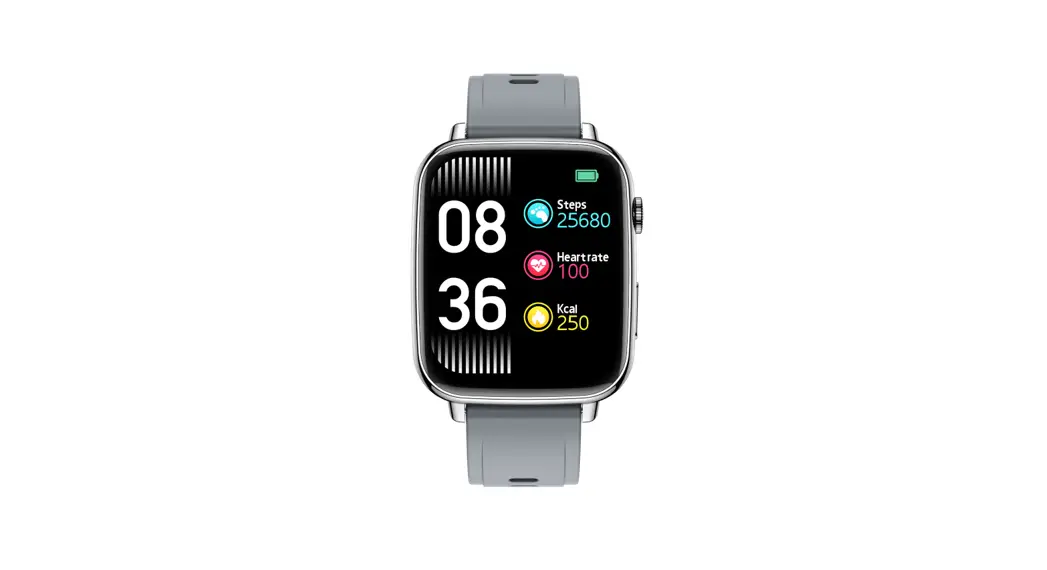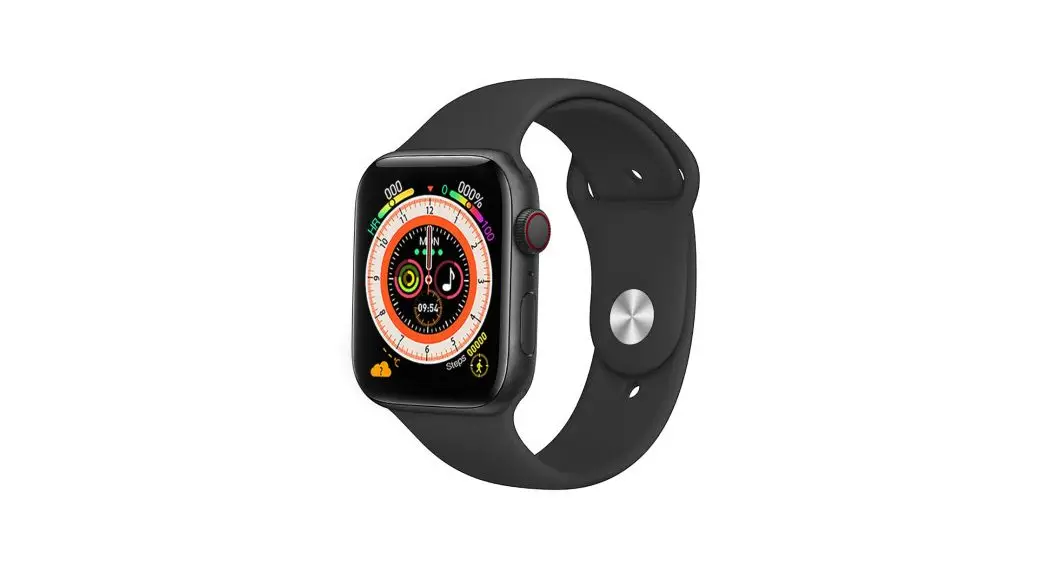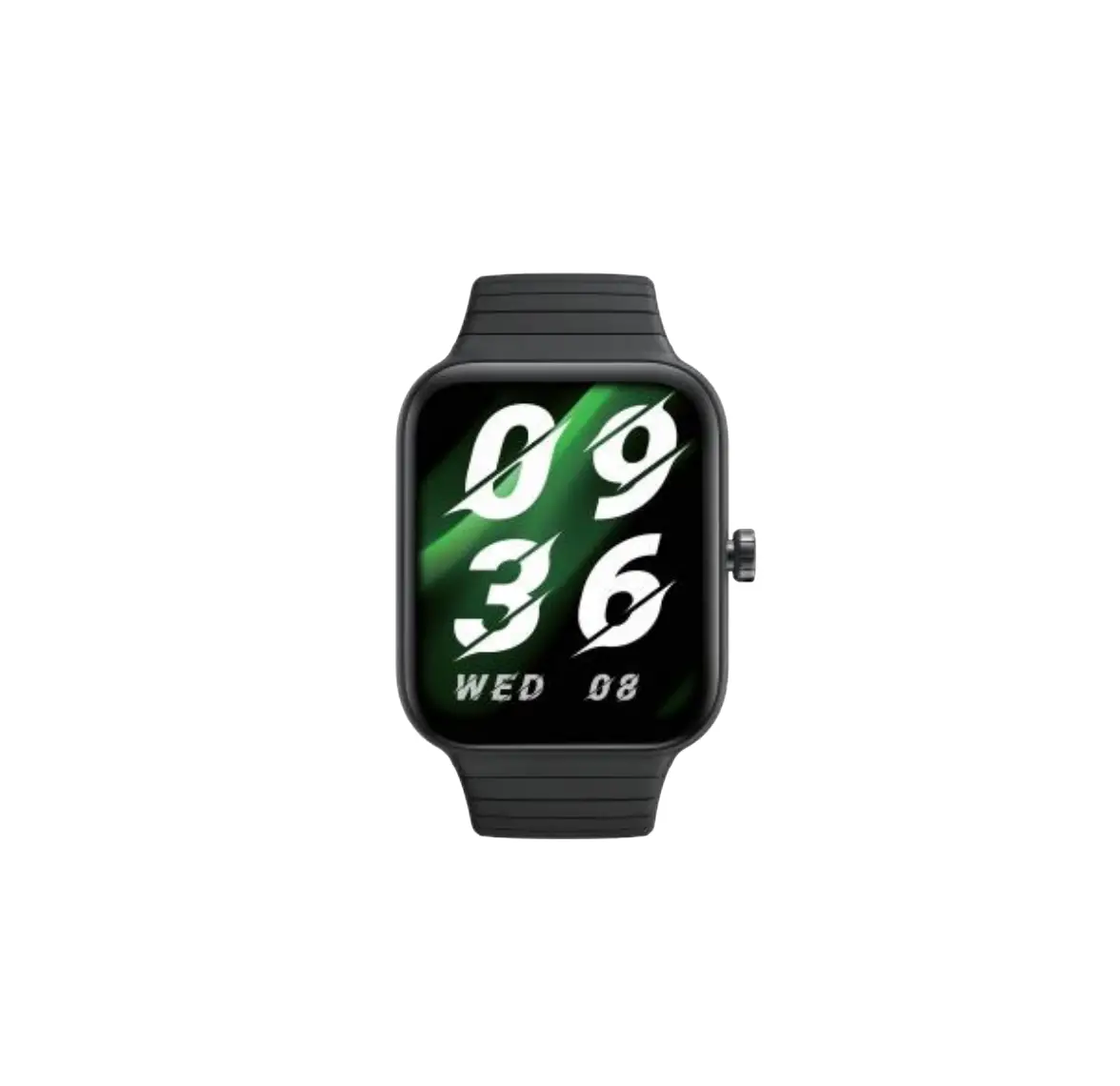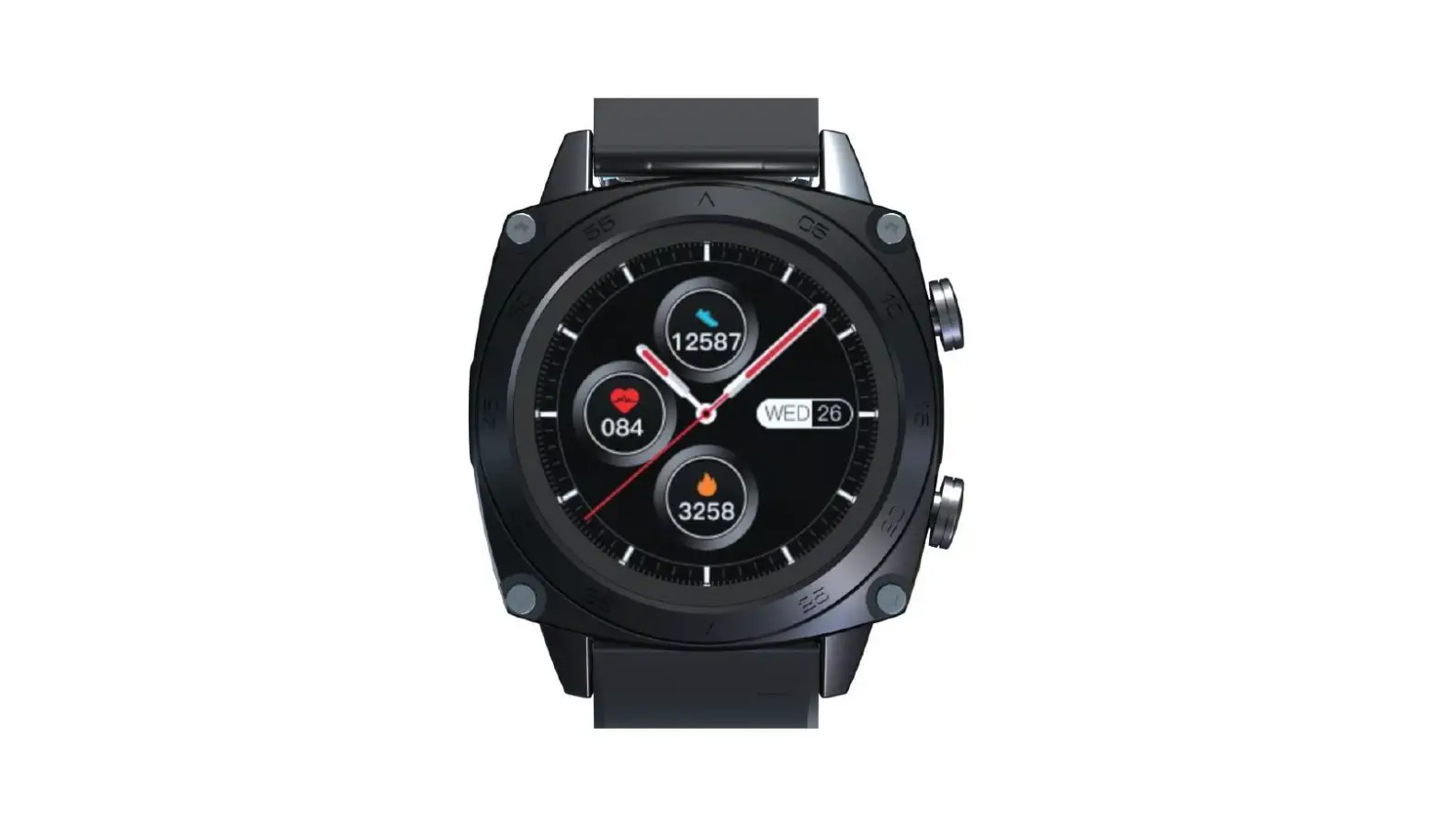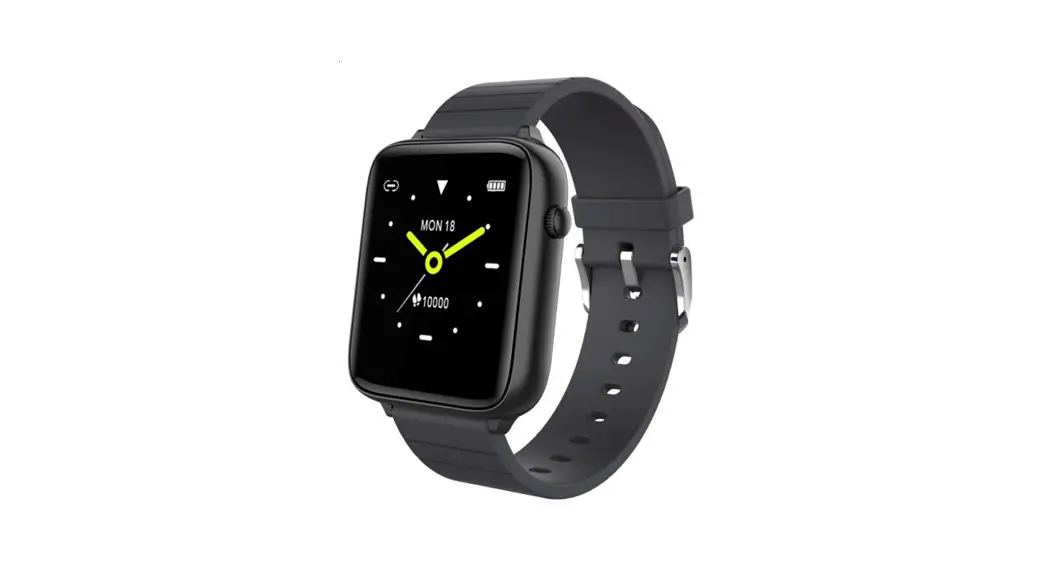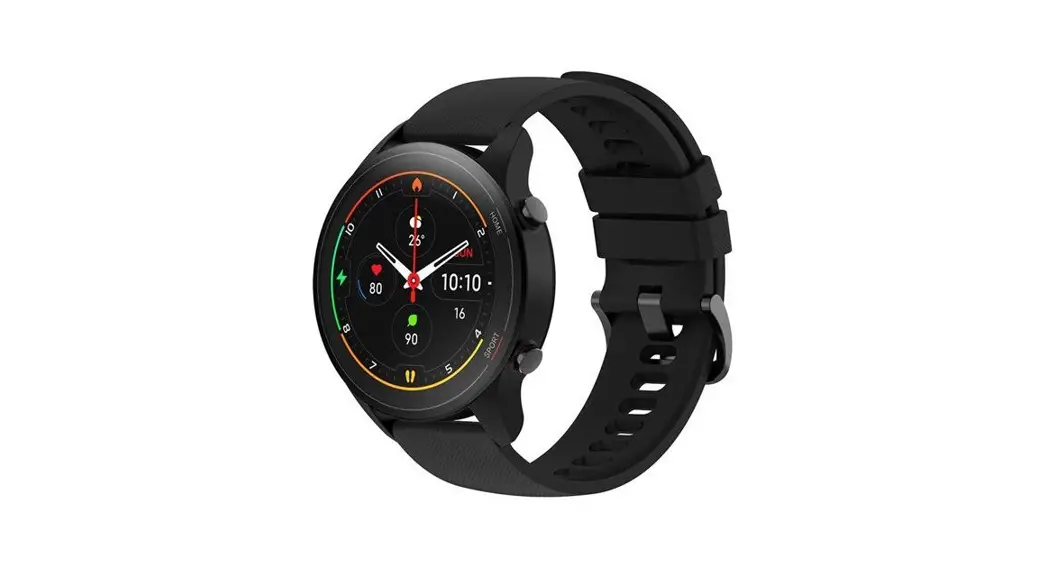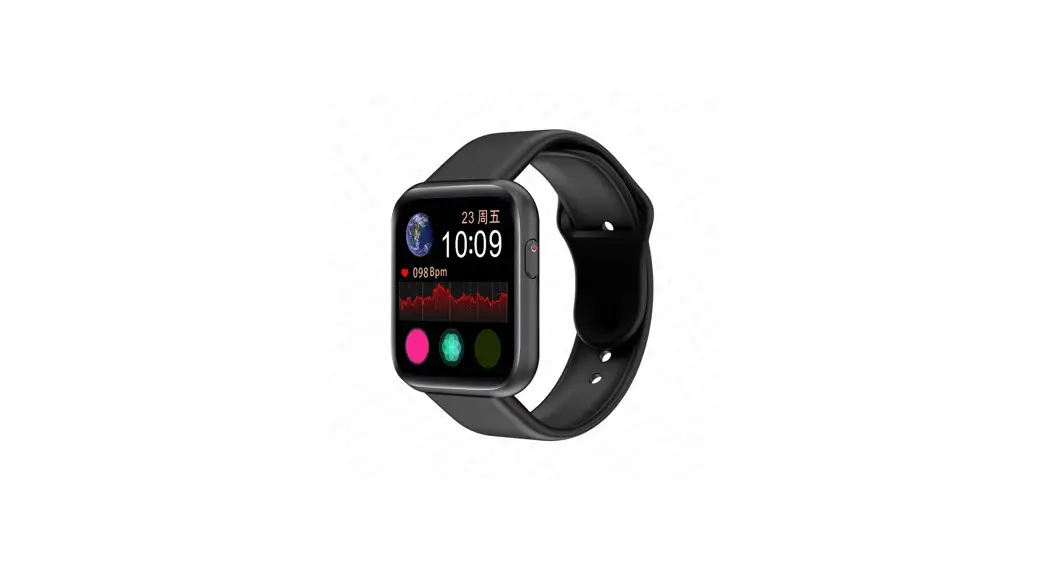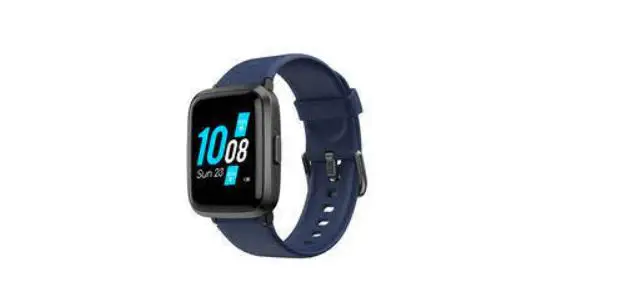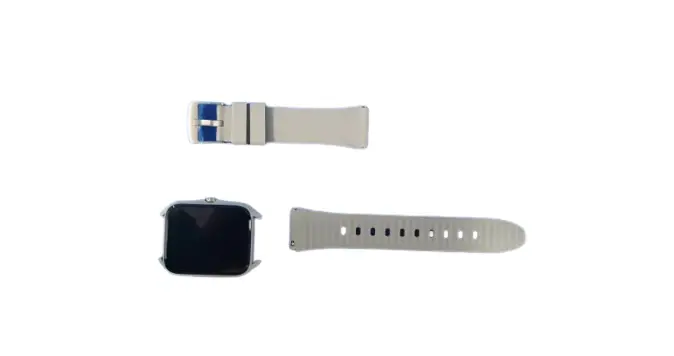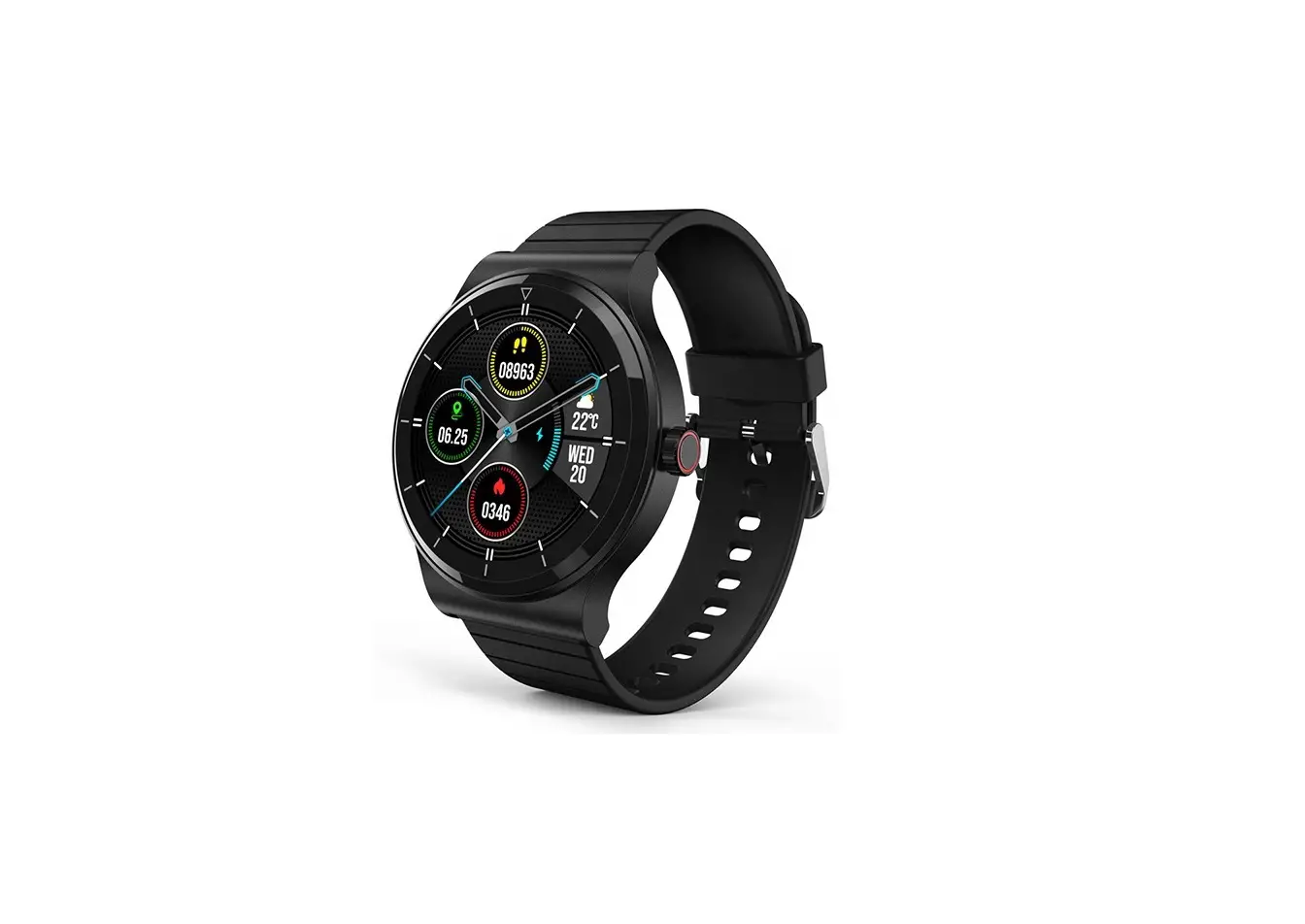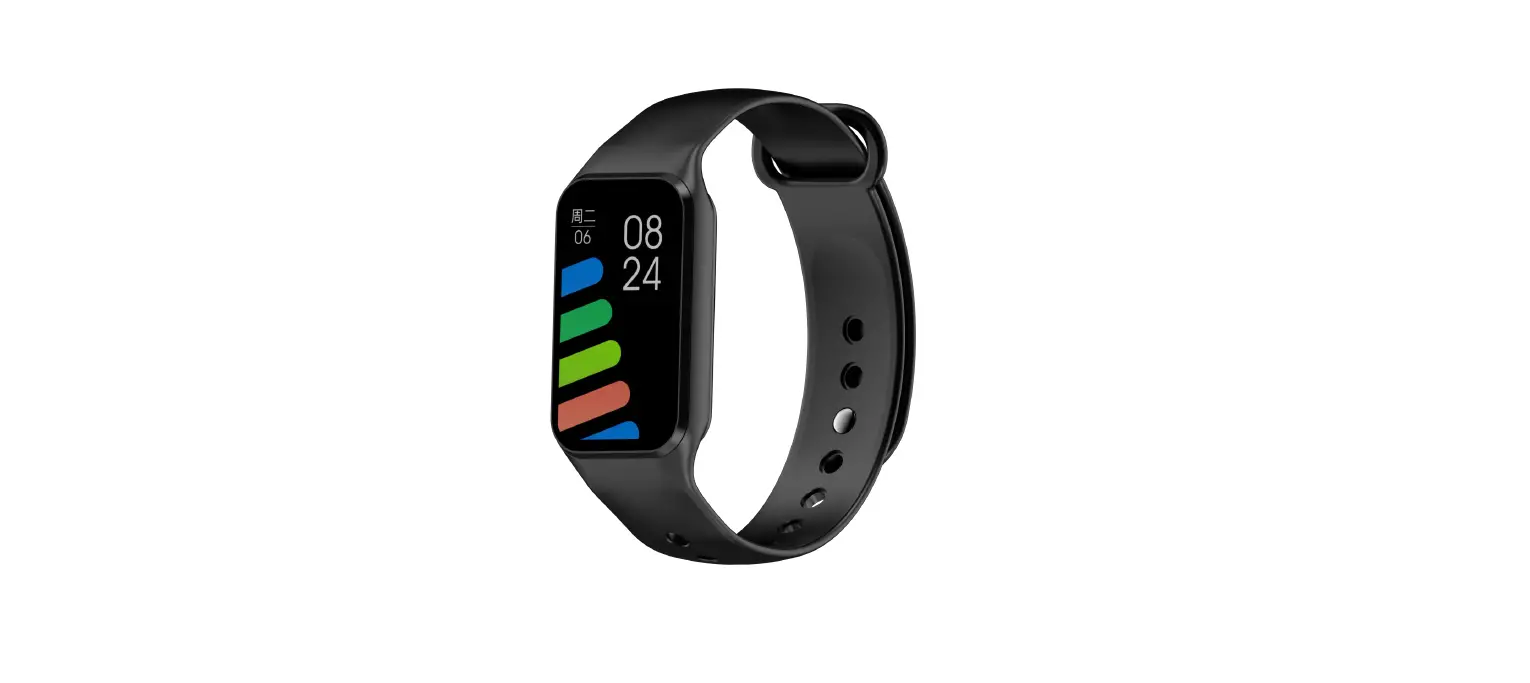

Shenzhen Hairuichuang Technology R1 Smart Watch
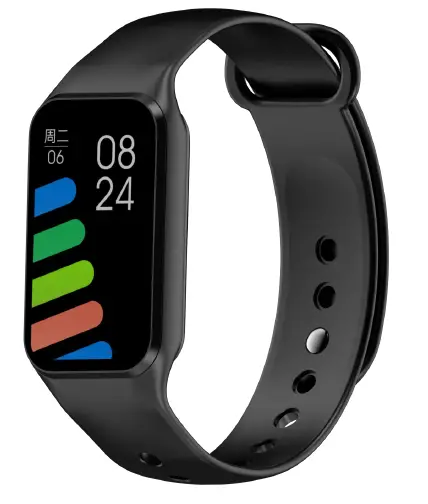
Specifications
| Model | R1 | Waterproof | 5ATM |
| Charging voltage | 5V | Bluetooth version | BLE 5.0 |
| Screen Size | 1.47 inch | Standby time | 20-30 days |
| Charging time | 2.5 hours | Screen material | Glass |
| Battery capacity | 180 mAh | Operating temperature | -10℃-40℃ |
| Battery life | 5-7 days | Strap width | 18mm |
Note:
- The battery life refers to the duration of operation under the condition of daily use with the average screen-on times of 200 times/ day and the vibration of 30 times/ day for incoming calls, text messages, and App messages.
- The standby time represents the electricity consumption when it is not being worn or it is being let stand.
- The distance between the mobile phone and the watch shall be kept less than 10 meters please. And please refresh the interface of the APP if disconnection.
- It is recommended to use a conventional charger above 5V for charging, not the USB interface at the computer terminal.
NOTE: This equipment has been tested and found to comply with the limits for a Class B digital device, pursuant to part 15 of the FCC Rules. These limits are designed to provide reasonable protection against harmful interference in a residential installation. This equipment generates uses and can radiate radio frequency energy and, if not installed and used in accordance with the instructions, may cause harmful interference to radio communications. However, there is no guarantee that interference will not occur in a particular installation. If this equipment does cause harmful interference to radio or television reception, which can be determined by turning the equipment off and on, the user is encouraged to try to correct the interference by one or more of the following measures:
- Reorient or relocate the receiving antenna
- Increase the separation between the equipment and receiver.
- Connect the equipment into an outlet on a circuit different from that to which the receiver is connected.
- Consult the dealer or an experienced radio/TV technician for help.
Changes or modifications not expressly approved by the party responsible for compliance could void the user’s authority to operate the equipment.
This device complies with Part 15 of the FCC Rules. Operation is subject to the following two conditions: this device may not cause harmful interference, and (2) this device must accept any interference received, including interference that may cause undesired operation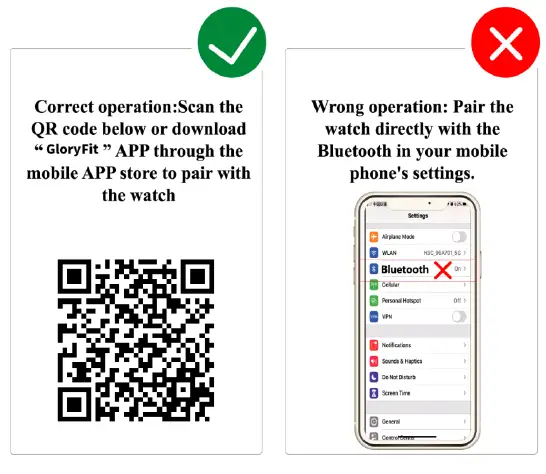
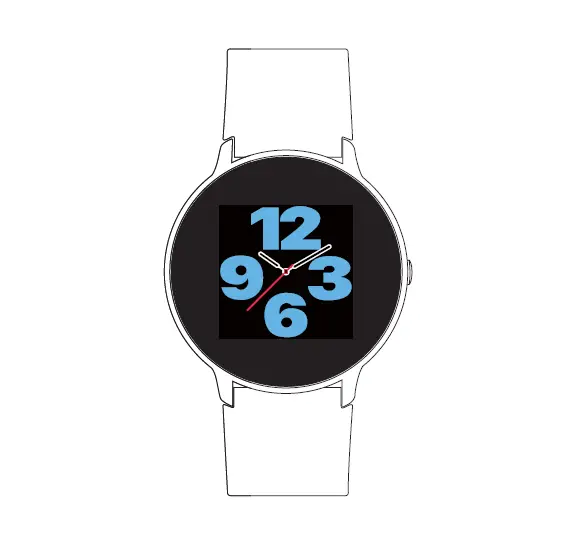
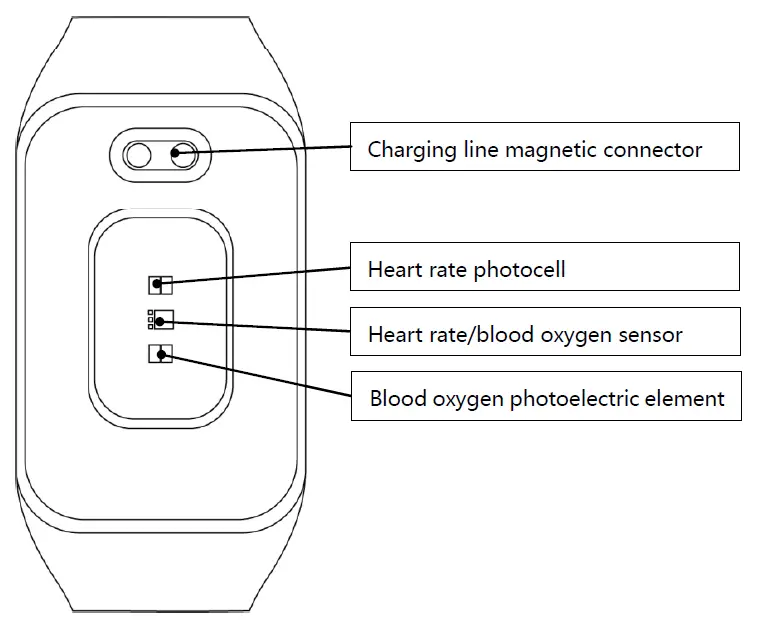
Description of appearance

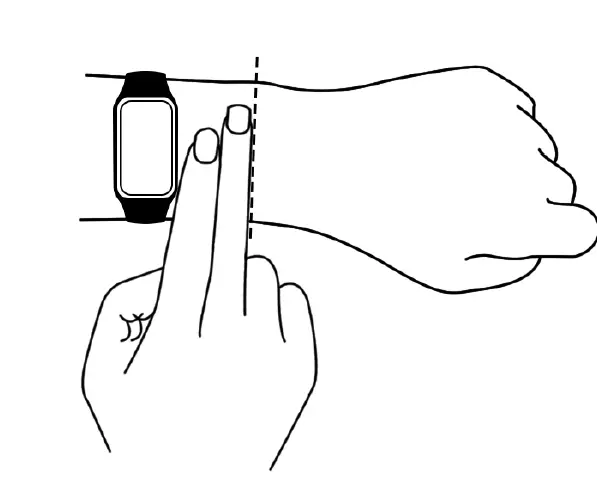
Note: Please wear the watch properly without the strap being tightened too tightly or too loosely , and keep it away from carpal. Please wear it tightly when taking
GloryFit Download and Device Binding
Please access corresponding permission for the software, including the permission of notification, location and Bluetooth.
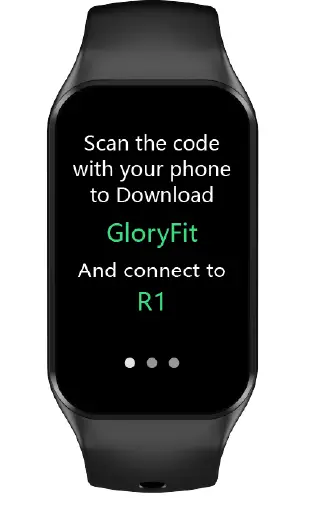
- Start up by lon g press of the key or start up automatically by charging. Access to the interface of download and binding after touch the screen.

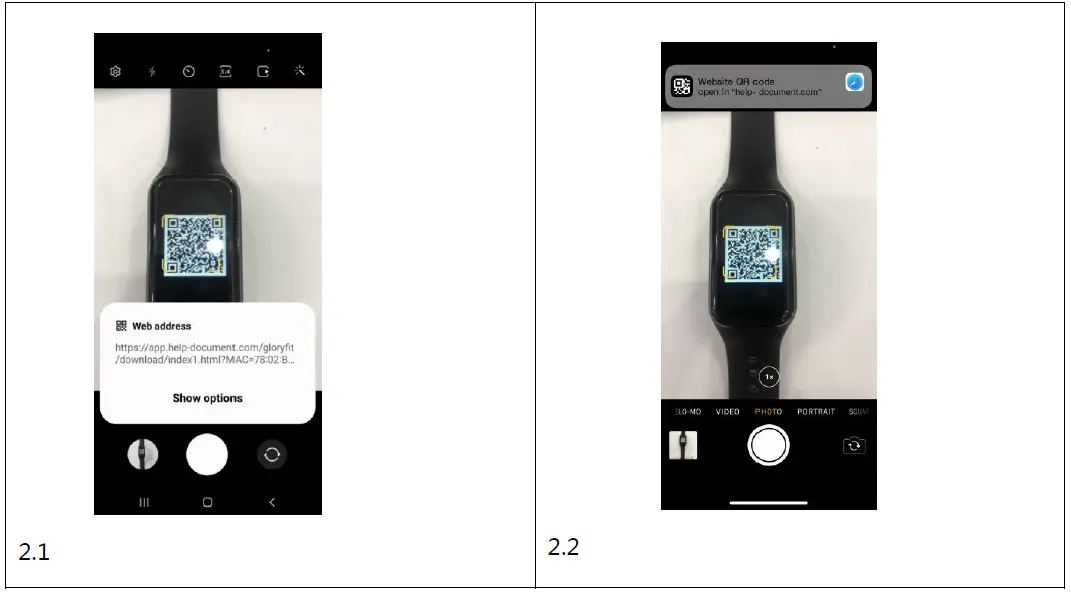
- Slide left to access the QR code, and scan the QR code to download the APP
- As for Android, you may scan with your c amera, or you can download the QR code scanning tool in the APP Store to scan and download the code. However, you also can search GloryFit from Google Play if you don t want to use the QR code.
- As for Apple, especially the system of iOS 11 and above, you may directly scan with your phone.

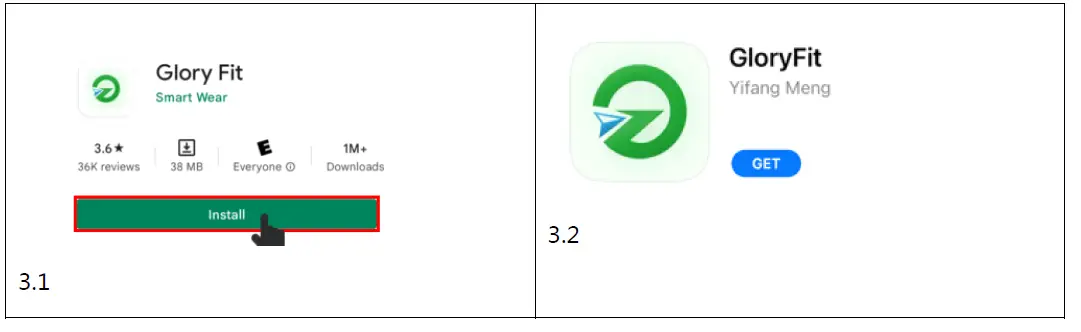
- Download GloryFit
- Please click Install to download as for Android
- Please click GET to download as for Apple

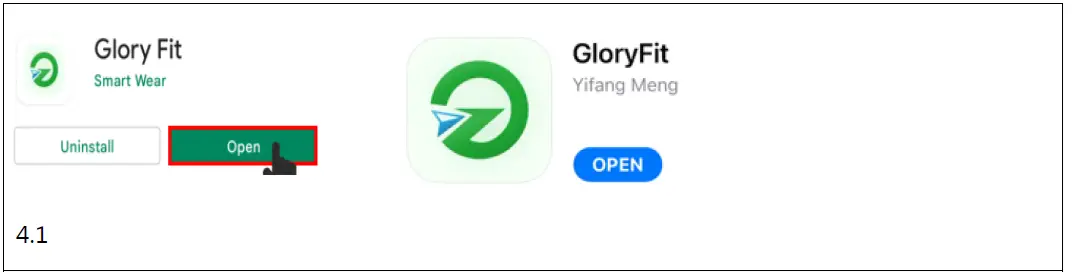
- Open GloryFit after the download is done
- Open the software by clicking Open

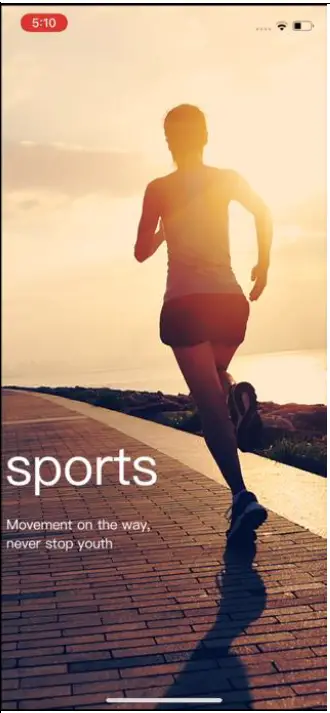
- Access the welcome page

- Open the software by clicking Open
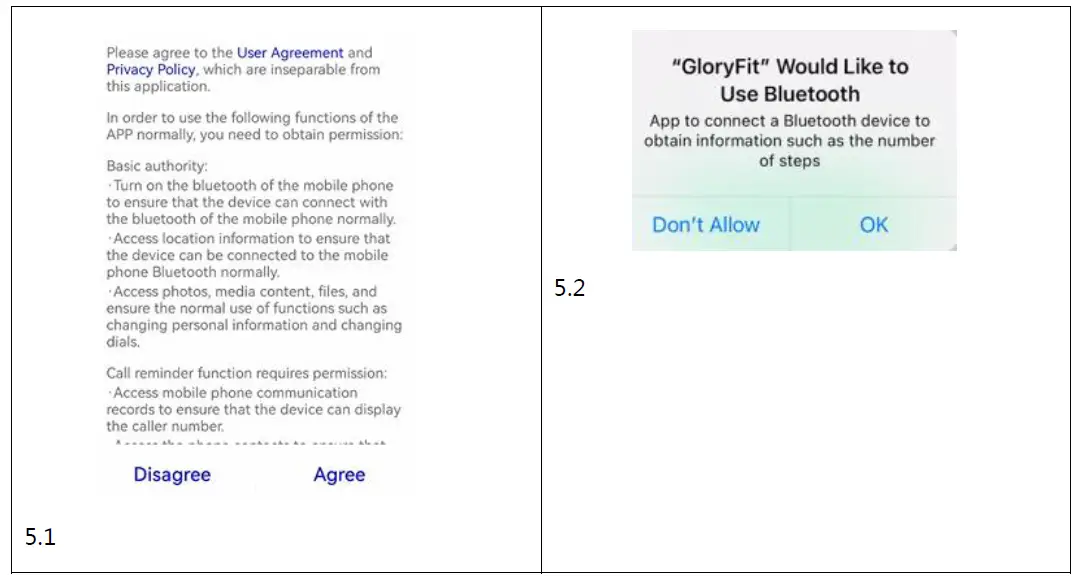
- Give corresponding permissions and click Agree
- As for Android, click Agree when it prompts to agree the User Agreement and Privacy Policy
- As for Apple, click OK when it prompts to get Bluetooth

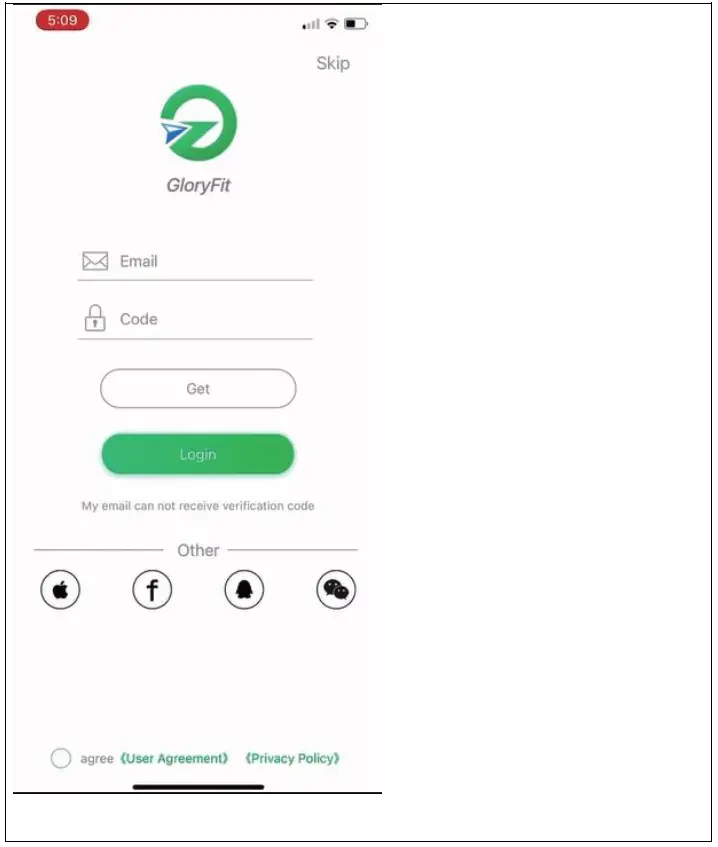
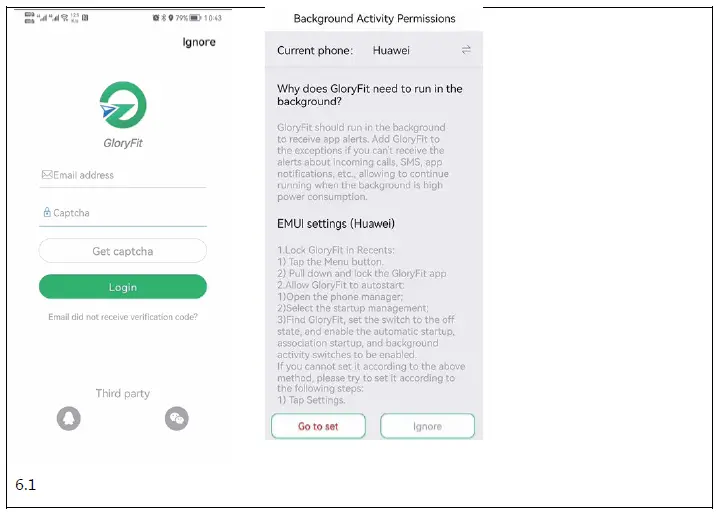
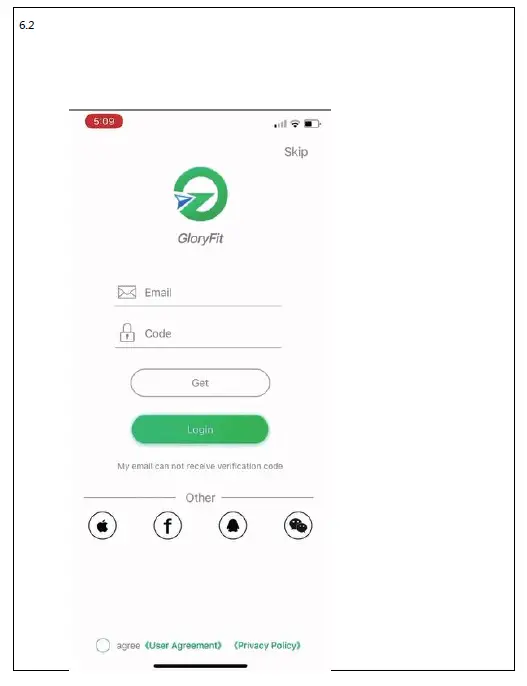
- Use email to register your account and then log in
- Check Agree for the User Agreement and Privacy Policy (not available for Android)
- Type in your email in the email box
- Click Get captcha to get the verification code
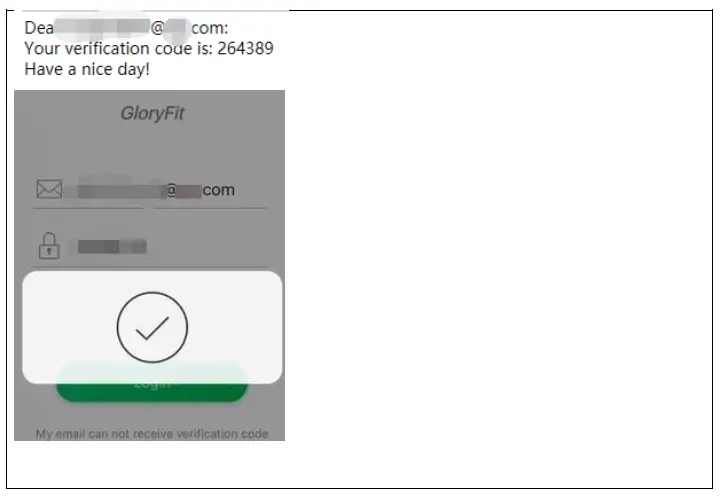
- Type in the verification code into the box
- Click Login to log in
- Login success


- You can log in without an account as well, however, you cannot experience all functions without such an account.
- As for Android, it will display the content related to background settings. Please read it carefully and set the APP to run in the background. After setting, please click Ignore to for the next step.

- As for Apple, it will prompt to click the lower left corner to agree to the User Agreement an d Privacy Policy, and then click Ignore to skip for login.

- As for Android, it will display the content related to background settings. Please read it carefully and set the APP to run in the background. After setting, please click Ignore to for the next step.
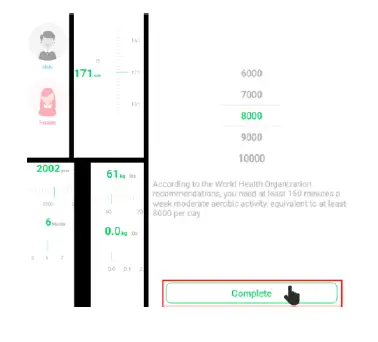
- Set your personal BMI information, such as height, weight, sex, age, goal and so on.

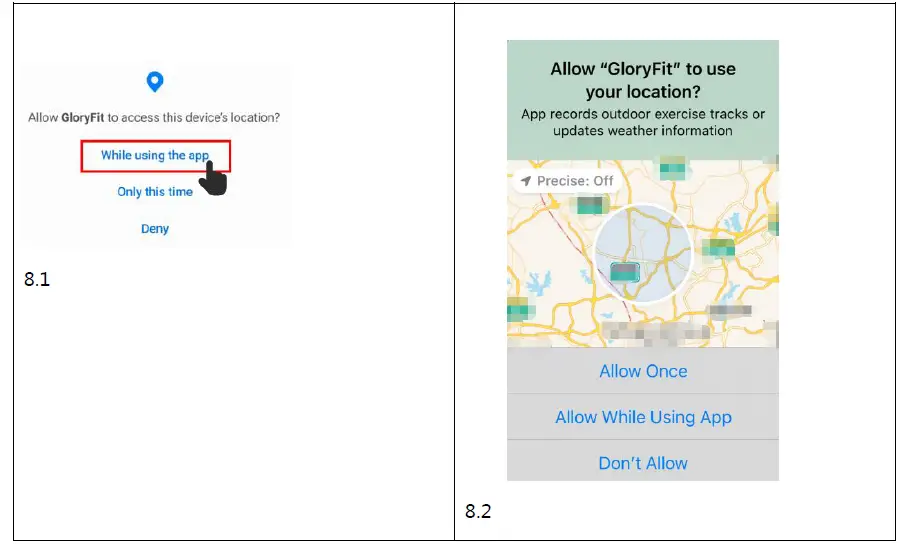
- Allow APP to get the location permission
- For Android, it will remind you to set the location permission, please click allow
- For Apple, please allow the location permission when using the APP

Access equipment Interface Click OK for the main interface of the APP 
Scan the code for binding:
- Click “Device” in any interface of GloriFit
 GloryFit prompts that notification permission is required. Click allow please
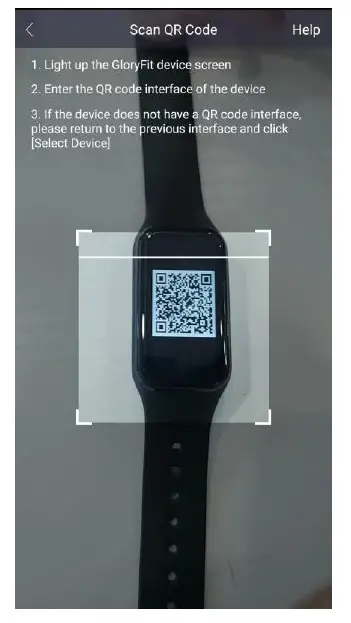
 - Click code scanning in the upper right corner of the screen

- Allow APP to get photog raphing permission

- Touch the screen, access the QR code page, and make your phone to scan the QR code of the watch
 After recognition, for Apple, it will prompt to se t the permission to bind Bluetooth and allow notification (No such operation for Android)
- Confirm to bind Bluetooth, please click “Pair”
- Get the notification permission, please click “Allow”

- Binding succeeded

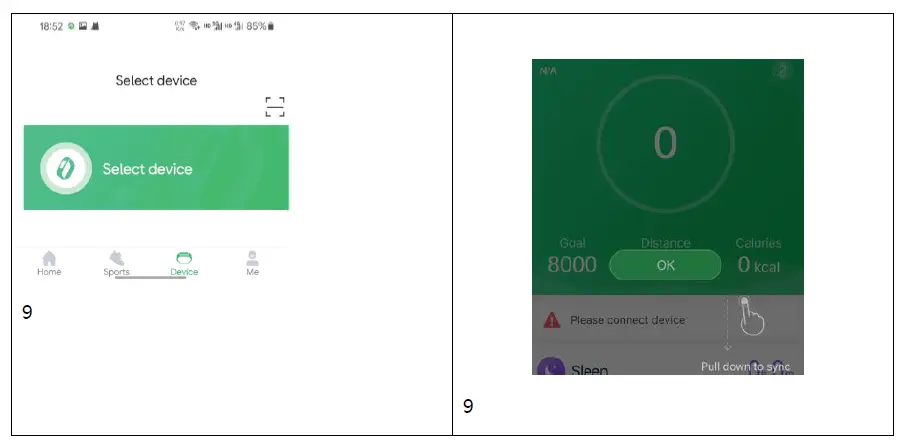
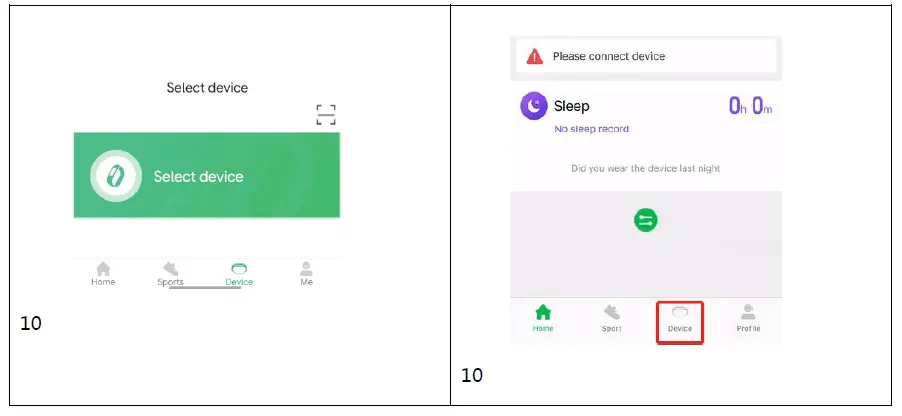 GloryFit prompts that notification permission is required. Click allow please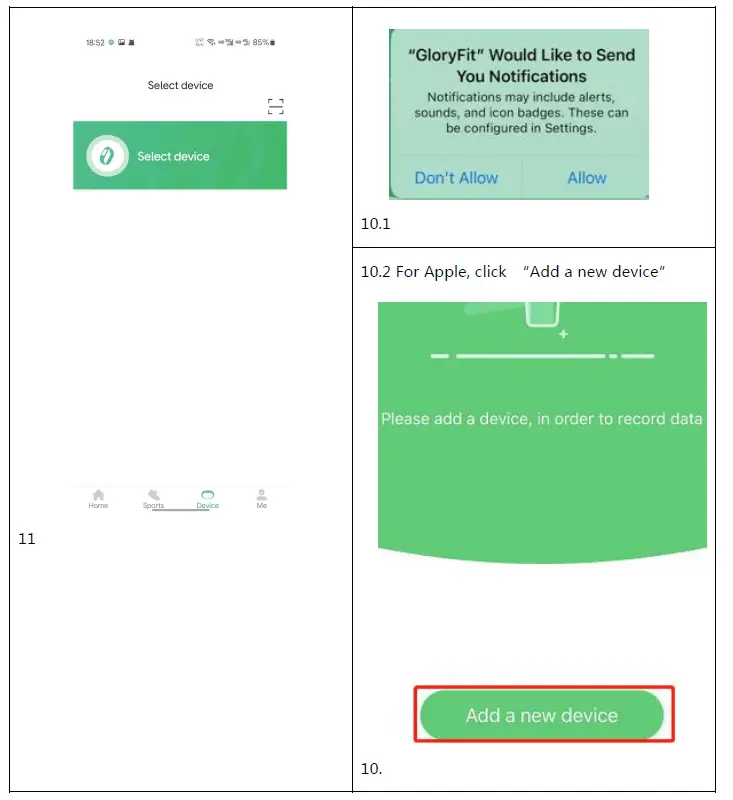
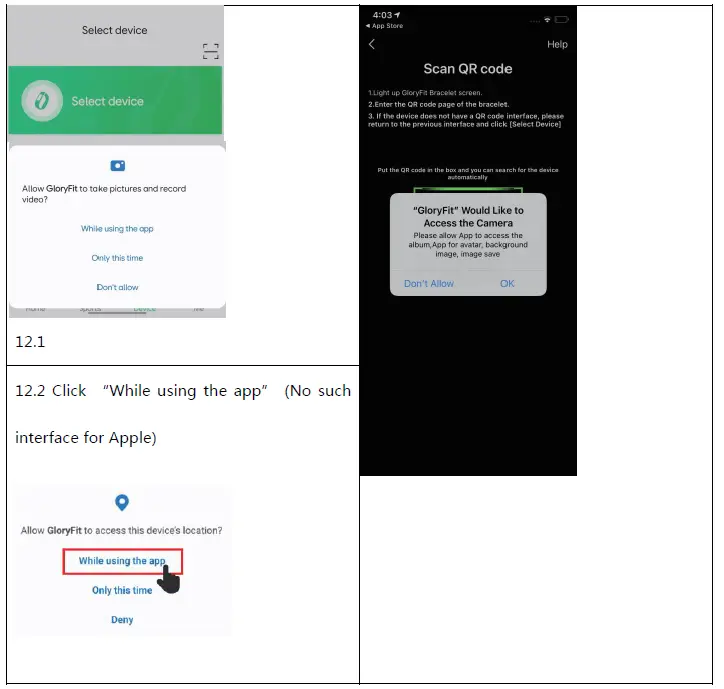
 After recognition, for Apple, it will prompt to se t the permission to bind Bluetooth and allow notification (No such operation for Android)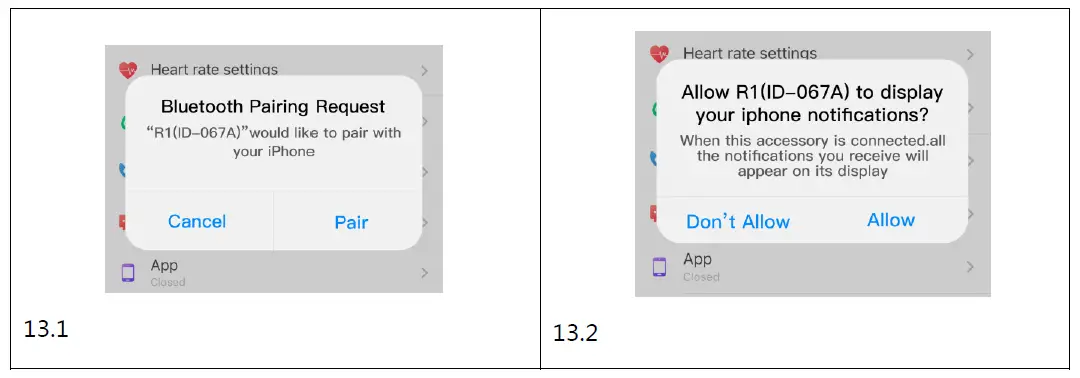
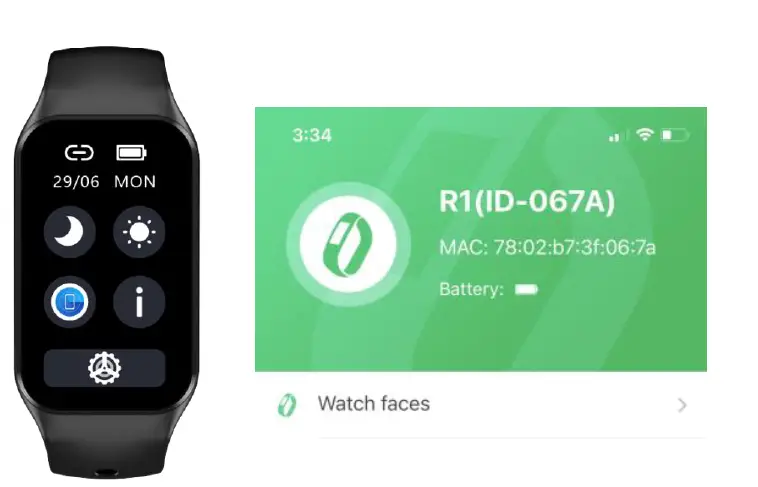
Function introduction
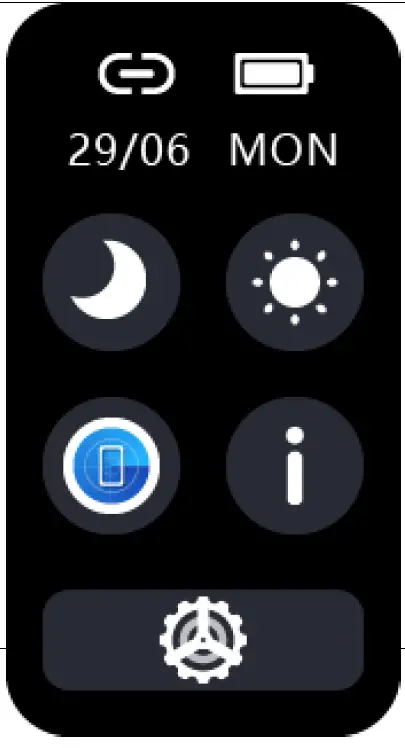
- Do Not Disturb mode ON OFF:
 means the mode is OFF;
 means the mode is ON.
 - When the function of Do Not Disturb is enabled, New messages cannot be received, and vibrate cannot be vibrated.
- Meanwhile, the function of raising a hand to activate the display will be disabled temporarily.
- Find My Phone mode: It is ineffective to click it when the watch is not connected to a phone. When the watch is connected to a phone, click the icon and the phone will ring.
- View the device information, including device name, Mac address, and device version.
- Set the brightness of the watch screen: It is provided with 4 levels of brightness, and the default is the first level of brightness.
- System settings: Including change of dial, QR code for download, device information n, restore factory defaults, power off, and the like.
 means the mode is OFF;
 means the mode is ON.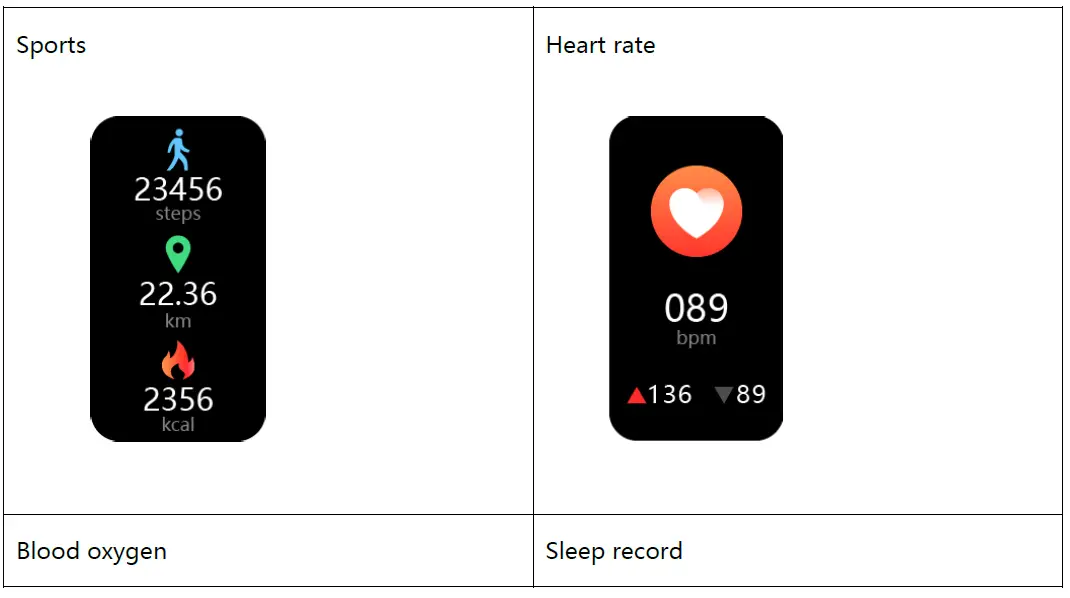
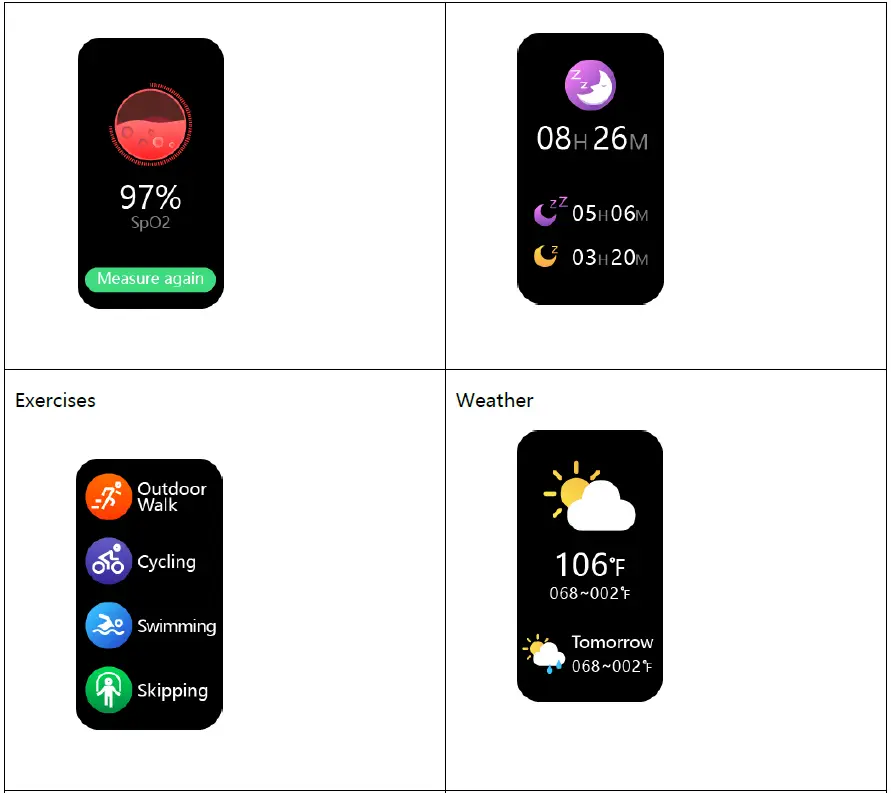
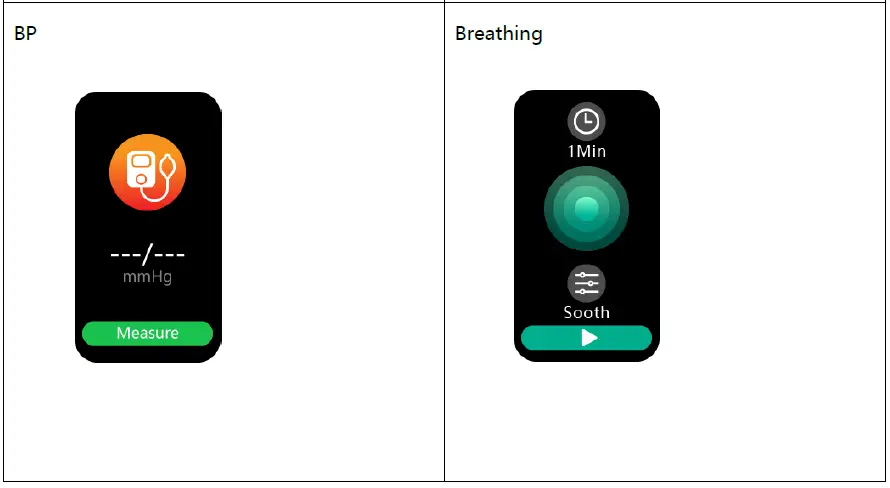
Note: This device is not a medical device, and the monitoring data is not intended for medical purposes and only for reference.
- For iOS system: App will be cleaned up by iOS under standby or sleep mode if the iPhone hasn’t been used for a while (e.g. over 2 hours). The watch will be disconnected from the App. Data sync between watch, notification center and GloryFit App stops. Open the APP on your iPhone again, it will automatically reconnect to the watch.
- For Android system:
 Please enable Background activities permission settings on the phone to receive notifications and alerts. Smartphone will stay connected with the watch, even when the phone is in standby mode (the screen is not lighted up), and will not be cleaned up by the Android system.
 - For Huawei mobile phone, the steps are as follows: Settings Application Application Startup Management GloryFi t Manual management, Enable all permissions (allow self start, allow associated start, allow background activities).
 Please enable Background activities permission settings on the phone to receive notifications and alerts. Smartphone will stay connected with the watch, even when the phone is in standby mode (the screen is not lighted up), and will not be cleaned up by the Android system.
Frequently Asked Questions
Could not find the watch in GloryFit App
- Update”GloryFit” to the latest Version.
- Disable Bluetooth, restart the Bluetooth, and then reconnect (3)”GloryFit” can support Android 6.0, iOS 9.0, Bluetooth 4.2 or above.
The watch received no alerts, text messages or phone calls
- Enable the notification setting for incoming calls, SMS, and each App in the “Glo ryFit”APP
- Check the Bluetooth connection.
- The watch needs to stay connected to the phone via Bluetooth.
Bluetooth is often disconnected
- The Bluetooth signal intensity is obviously faded for distances above 7 meters.
- The Bluetooth connection on stability could be affected by obstacles, e.g. the human body, metal jewelry etc.
- Whether the Bluetooth function of the mobile phone is abnormal.
About data
Please synchronize the watch with your phone via “The glory fit”App at least once a day.
How to restart the watch?
- Slide up on Default dial Setting Switch Off.
- Connect the charger For common usage problems, open the app personal center FAQ/Help to view and solve them.