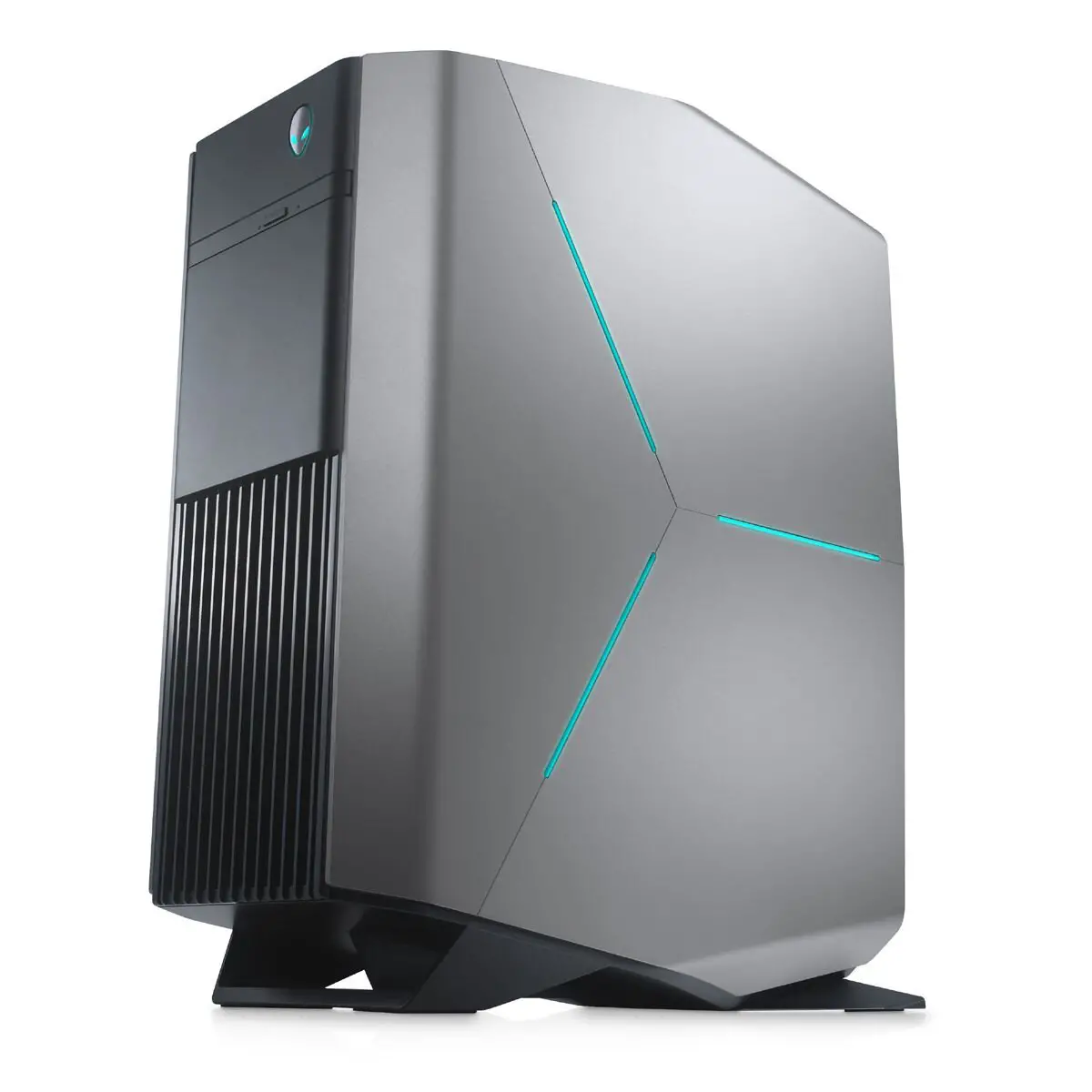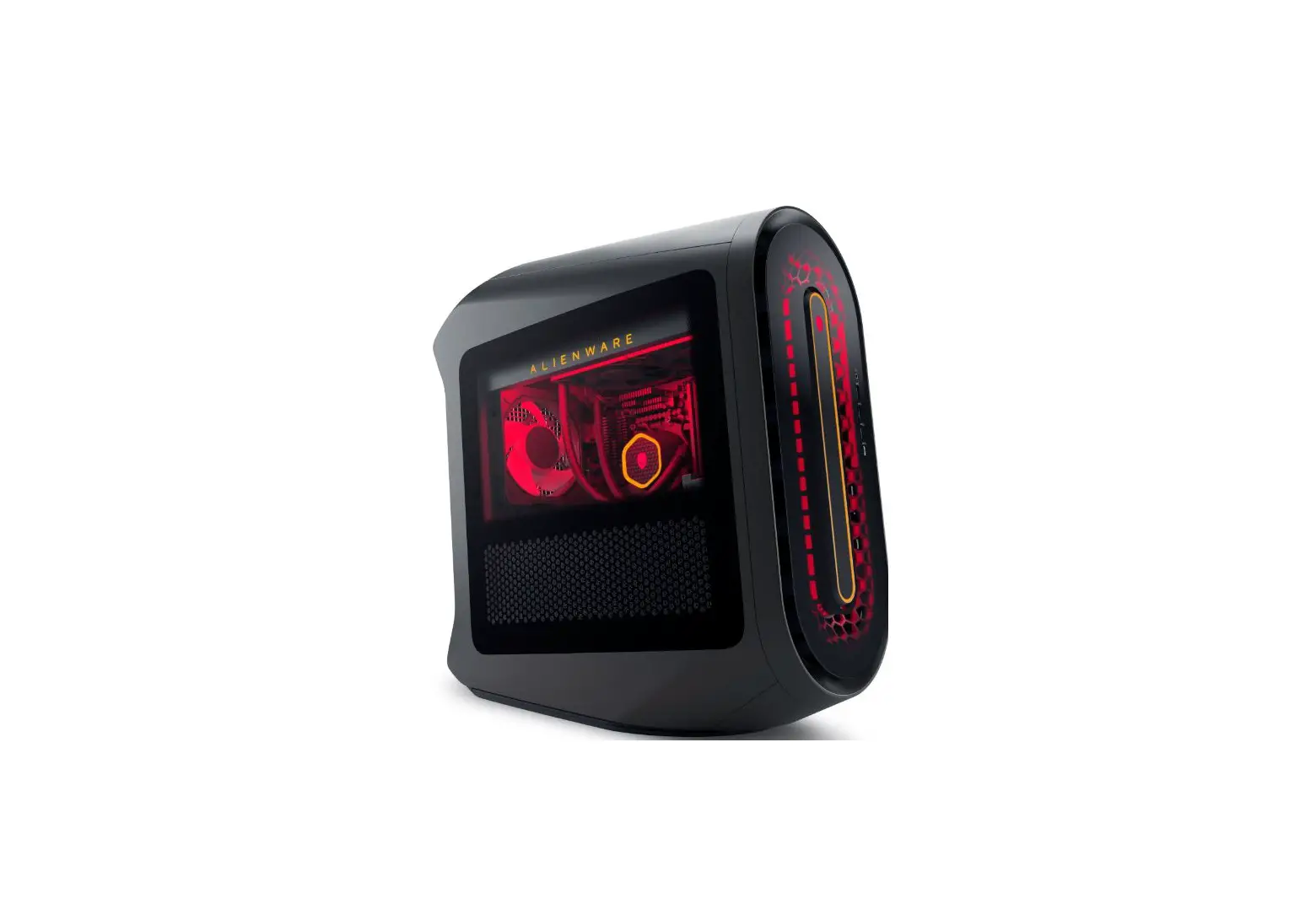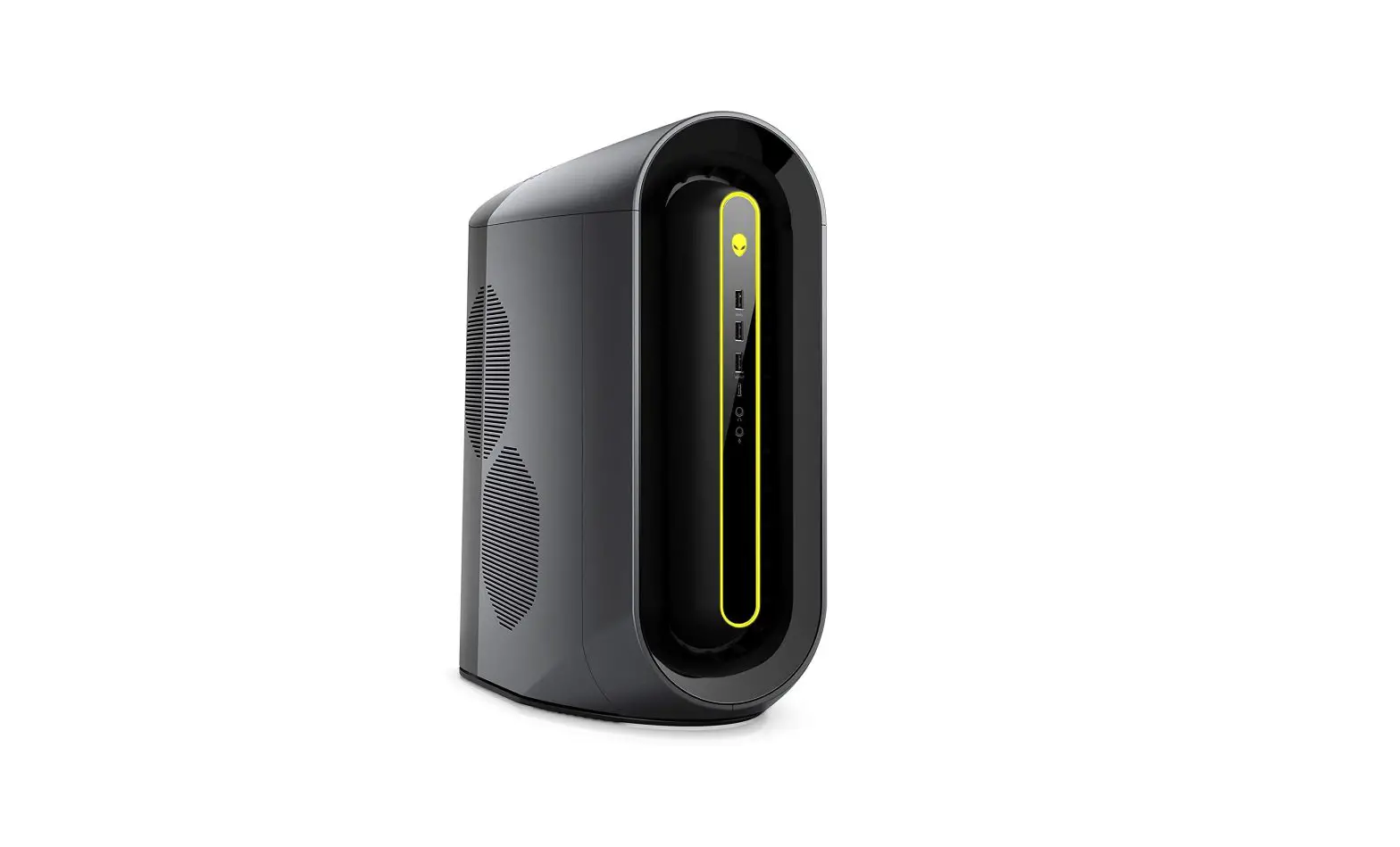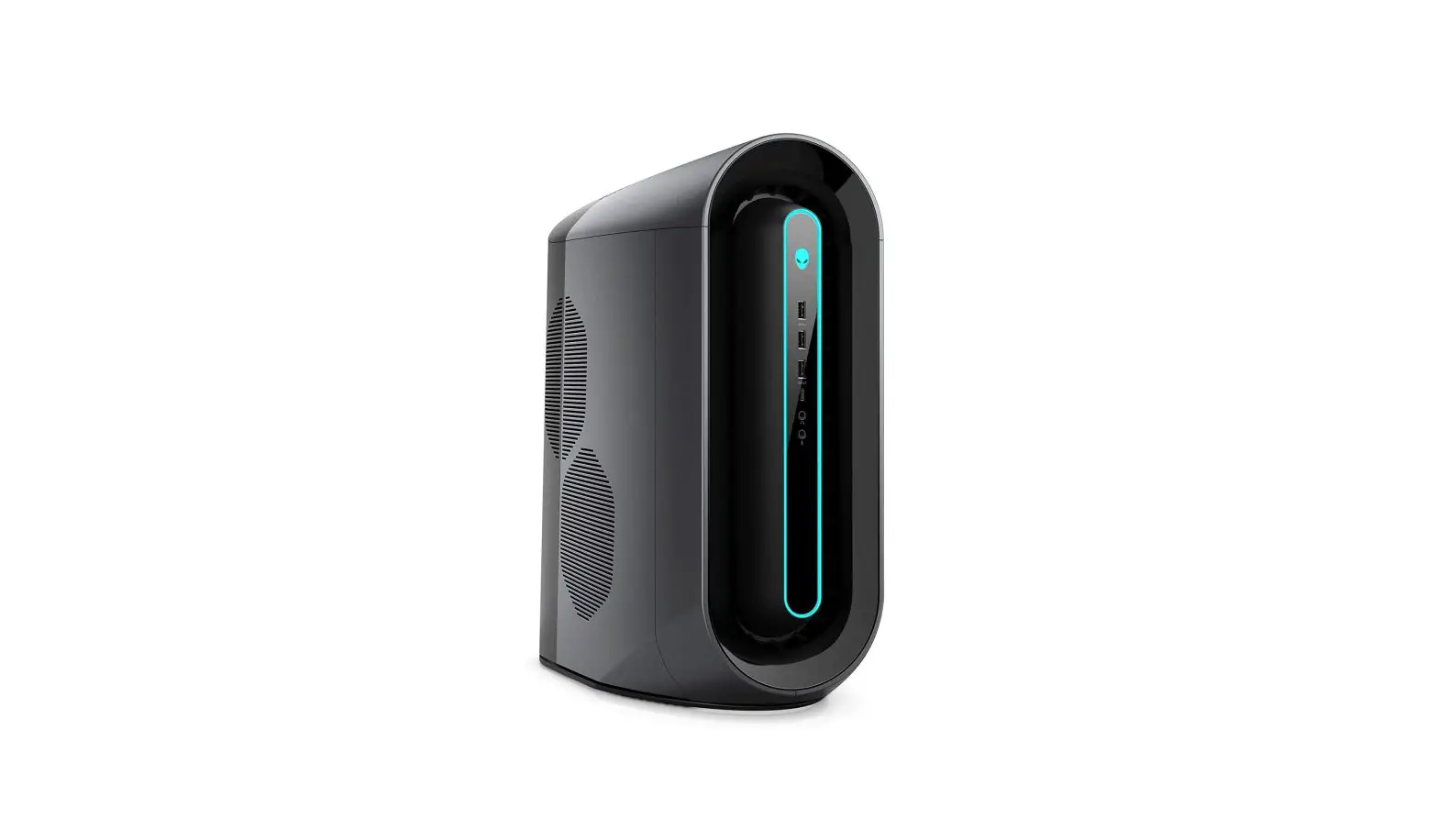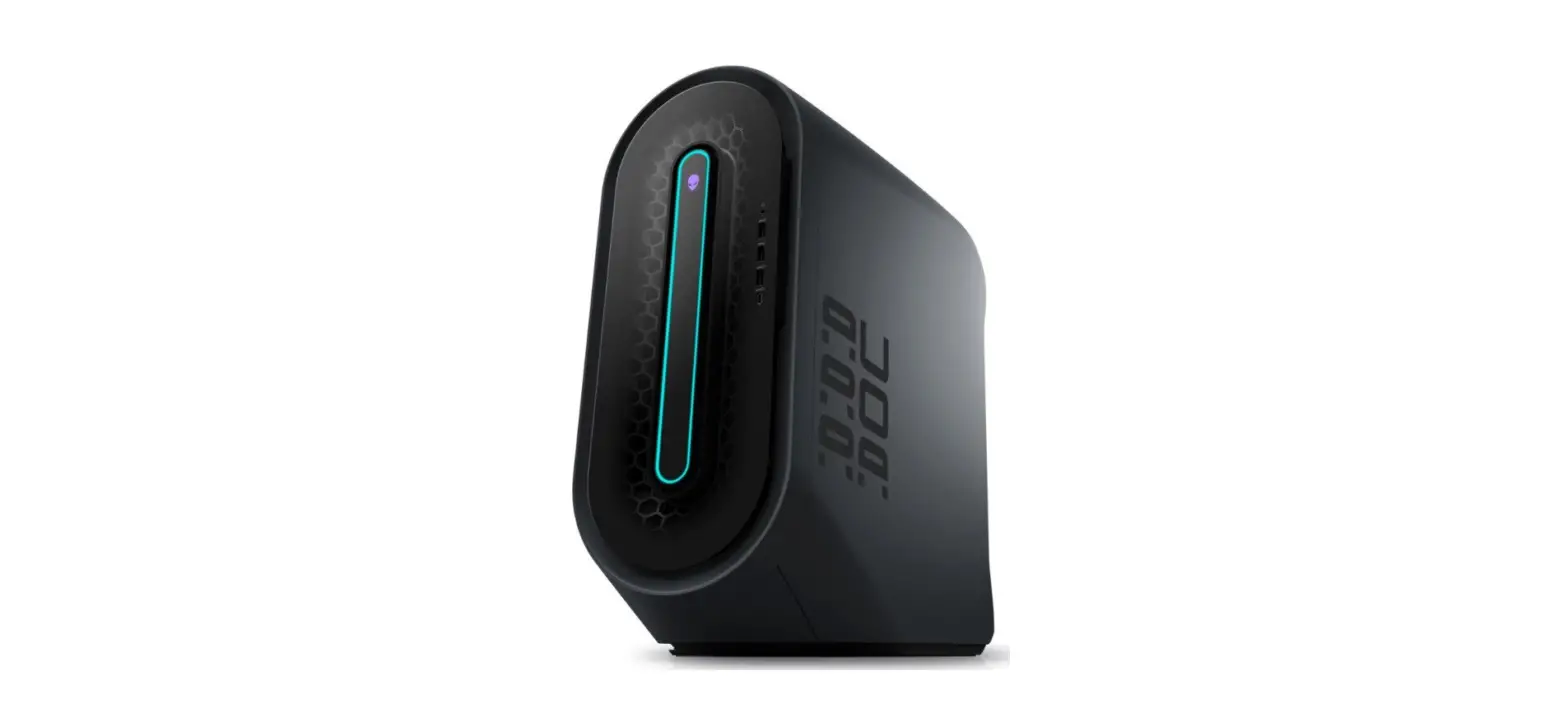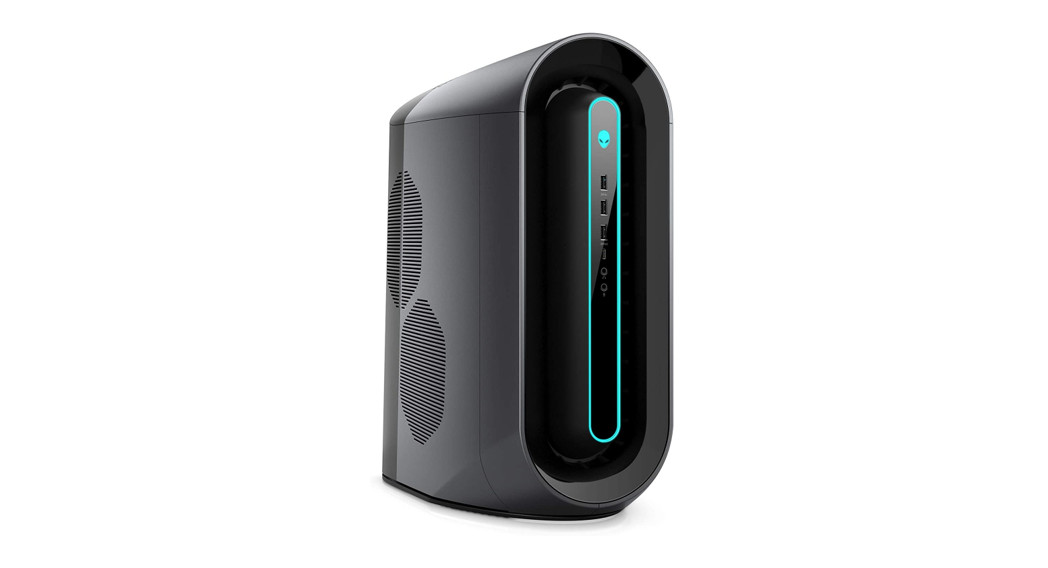

Alienware Aurora R11
Setup and Specifications
Regulatory Model: D23M
Regulatory Type: D23M003
May 2021 Rev. A07
Notes, cautions, and warnings
 NOTE: A NOTE indicates important information that helps you make better use of your product.
 CAUTION: A CAUTION indicates either potential damage to hardware or loss of data and tells you how to avoid the problem.
 WARNING: A WARNING indicates a potential for property damage, personal injury, or death.
© 2020-2021 Dell Inc. or its subsidiaries. All rights reserved. Dell, EMC, and other trademarks are trademarks of Dell Inc. or its subsidiaries. Other trademarks may be trademarks of their respective owners.
Set up your computer
- Connect the keyboard and mouse.

- Connect to your network using a cable, or connect to a wireless network.
- Connect the display.

 NOTE: The DisplayPort on the back panel of your computer is covered. Connect the display to the discrete graphics card of your computer.NOTE: If you have two graphics cards, the card installed in PCI-Express X16 (graphics slot 1) is the primary graphics card.
 - Connect the power cable.
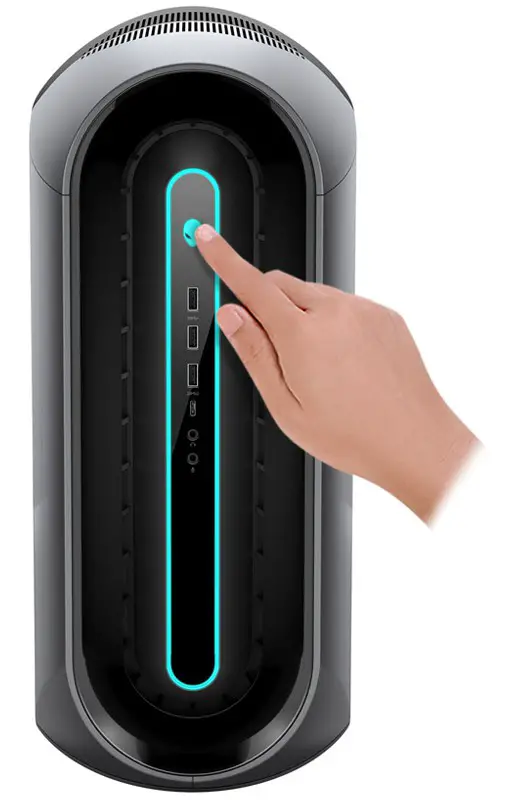
- Press the power button.

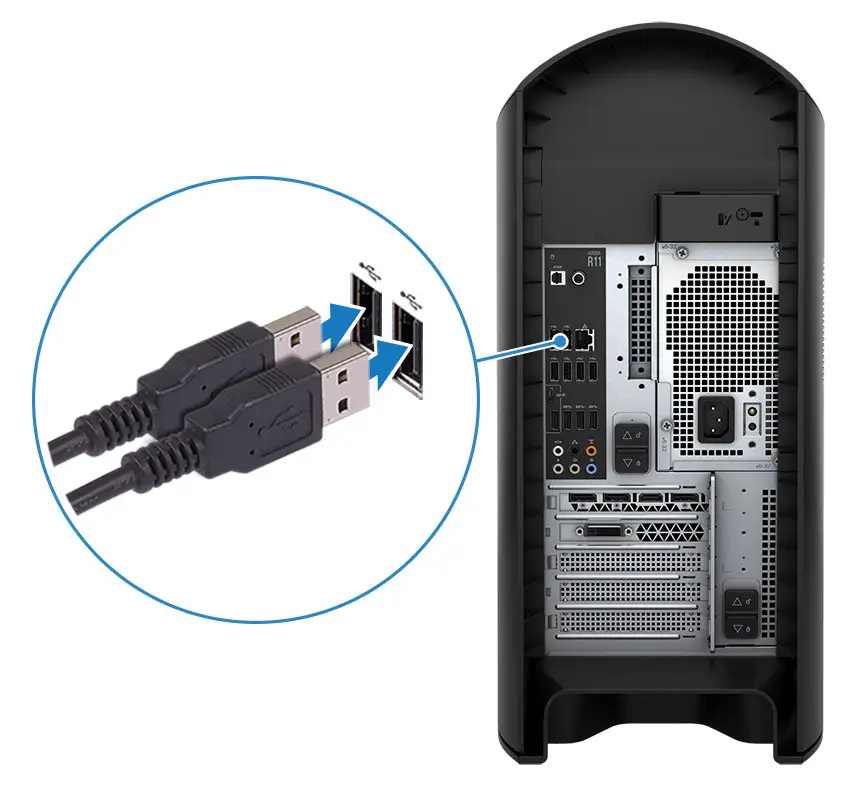
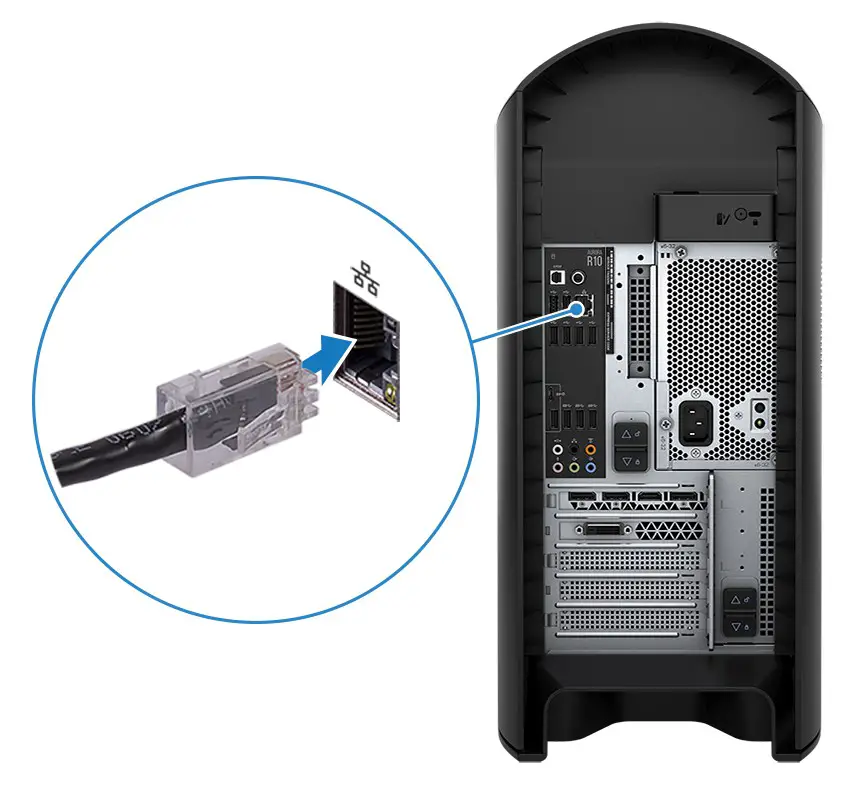
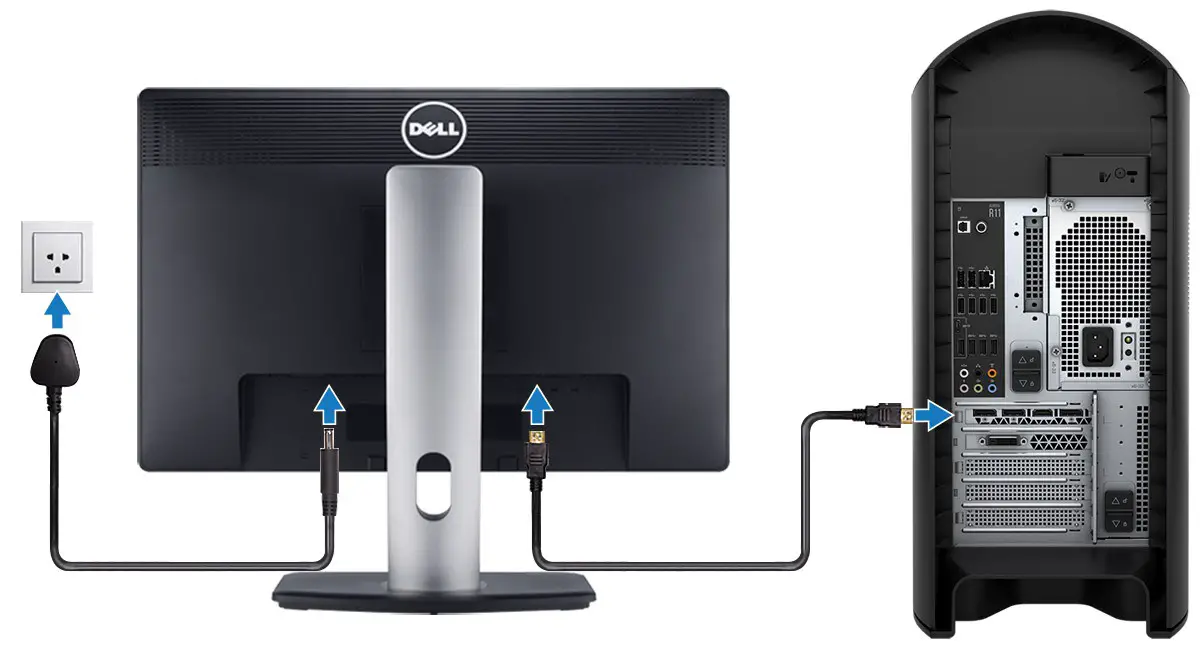
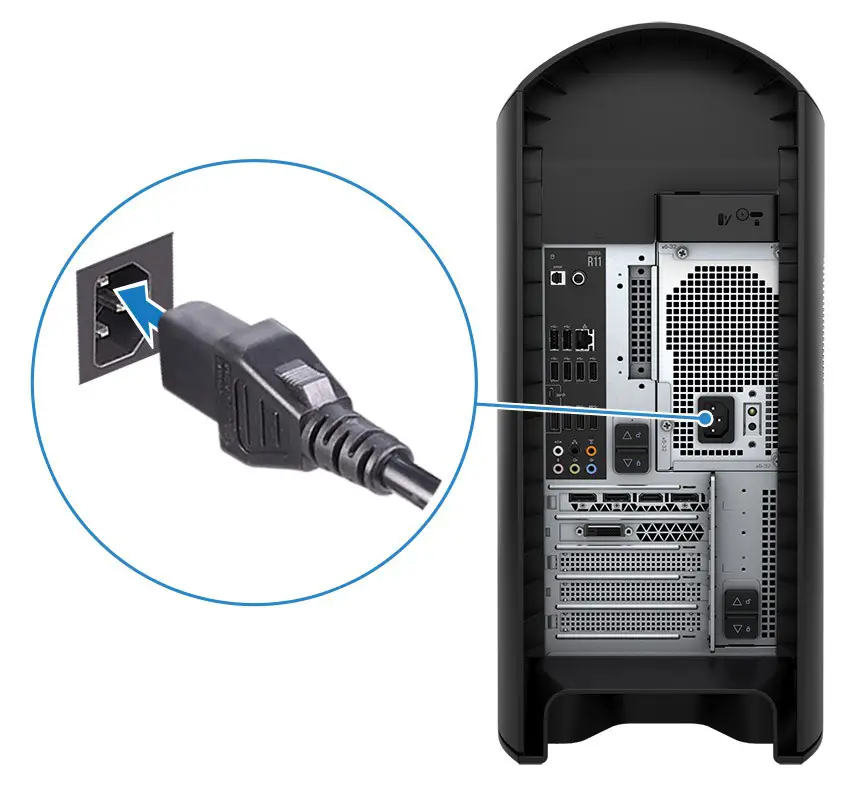
Views of Alienware Aurora R11
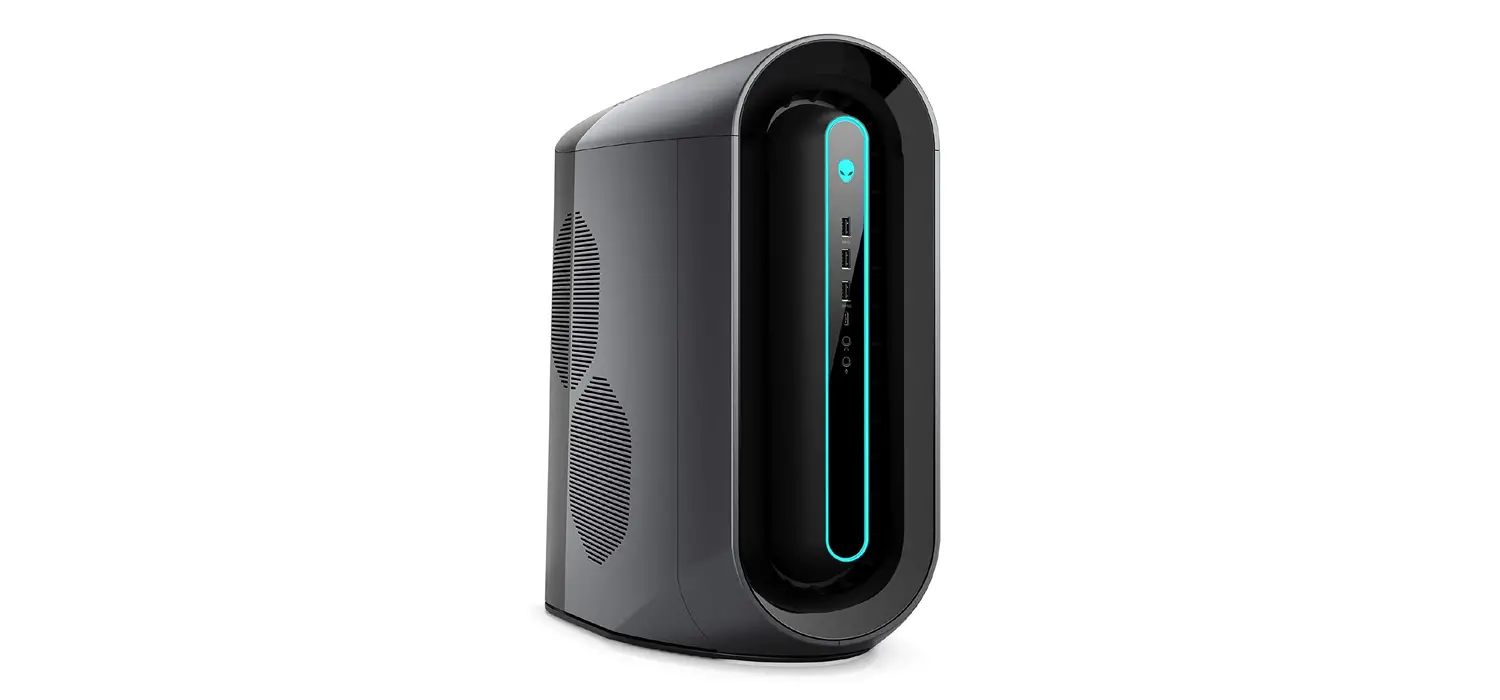
Front

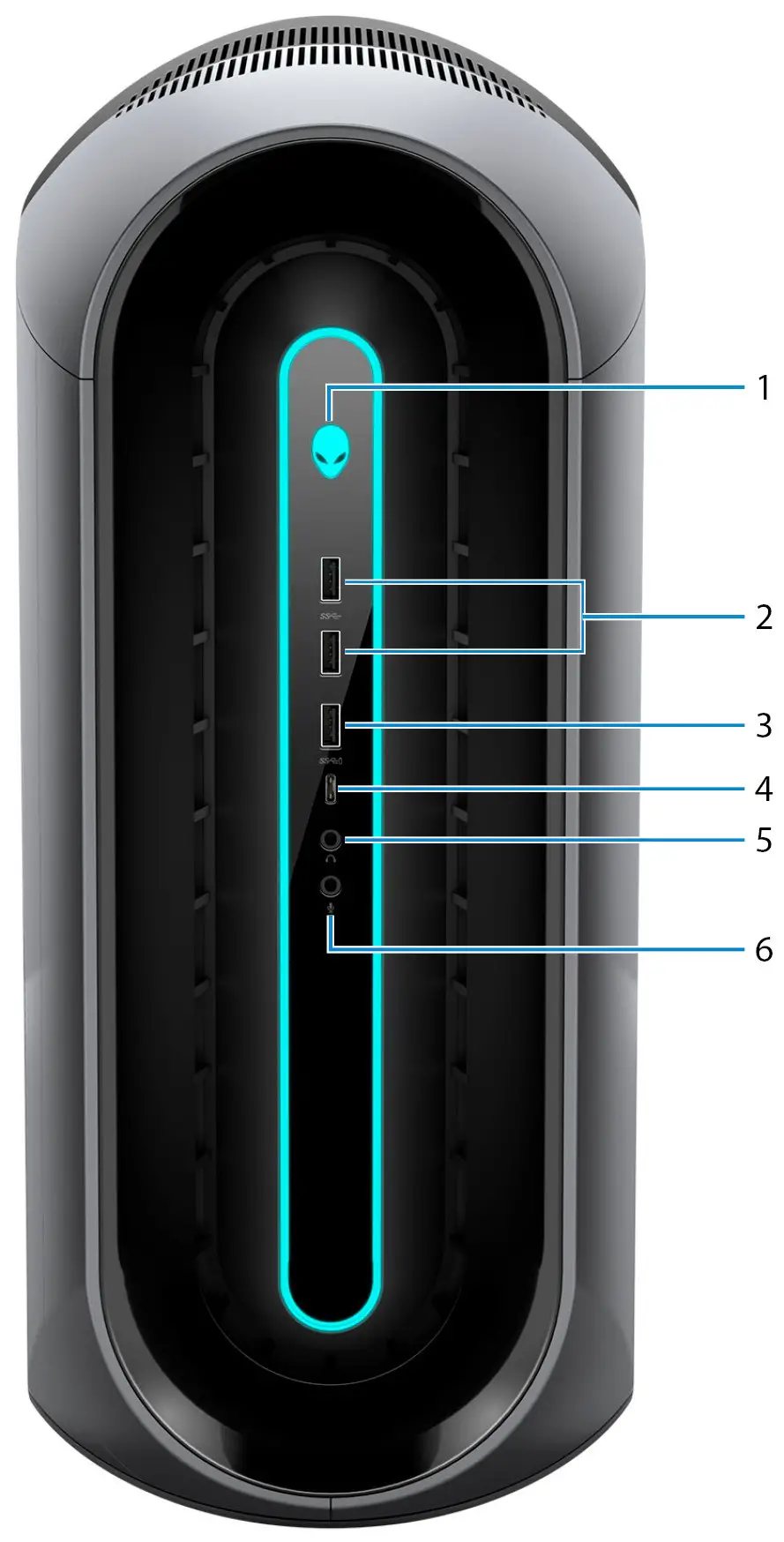
- Power button (Alien head) Press to turn on the computer if it is turned off, in sleep state, or in hibernate state. Press to put the computer in sleep state if it is turned on. When the computer is turned on, press the power button to put the computer into sleep state; press and hold the power button for 4 seconds to force shut-down the computer. NOTE: You can customize the power-button behavior in Windows. For more information, see Me and My Dell at www.dell.com/support/manuals.
- USB 3.2 Gen 1 ports (2)
Connect peripherals such as external storage devices and printers. Provides data transfer speeds up to 5 Gbps. - USB 3.2 Gen 1 port with PowerShare
Connect peripherals such as external storage devices and printers.
Provides data transfer speeds up to 5 Gbps. PowerShare enables you to charge connected USB devices. NOTE: Certain USB devices may not charge when the computer is turned off or in sleep state. In such cases, turn on the computer to charge the device. - USB 3.2 Gen 1 Type-C port with PowerShare
Connect peripherals such as external storage devices and printers. Provides data transfer speeds up to 5 Gbps. PowerShare enables you to charge connected USB devices. NOTE: Certain USB devices may not charge when the computer is turned off or in sleep state. In such cases, turn on the computer to charge the device. - Headphone port
Connect a headphone or speakers. - Microphone port
Connect an external microphone to provide sound input.
Back
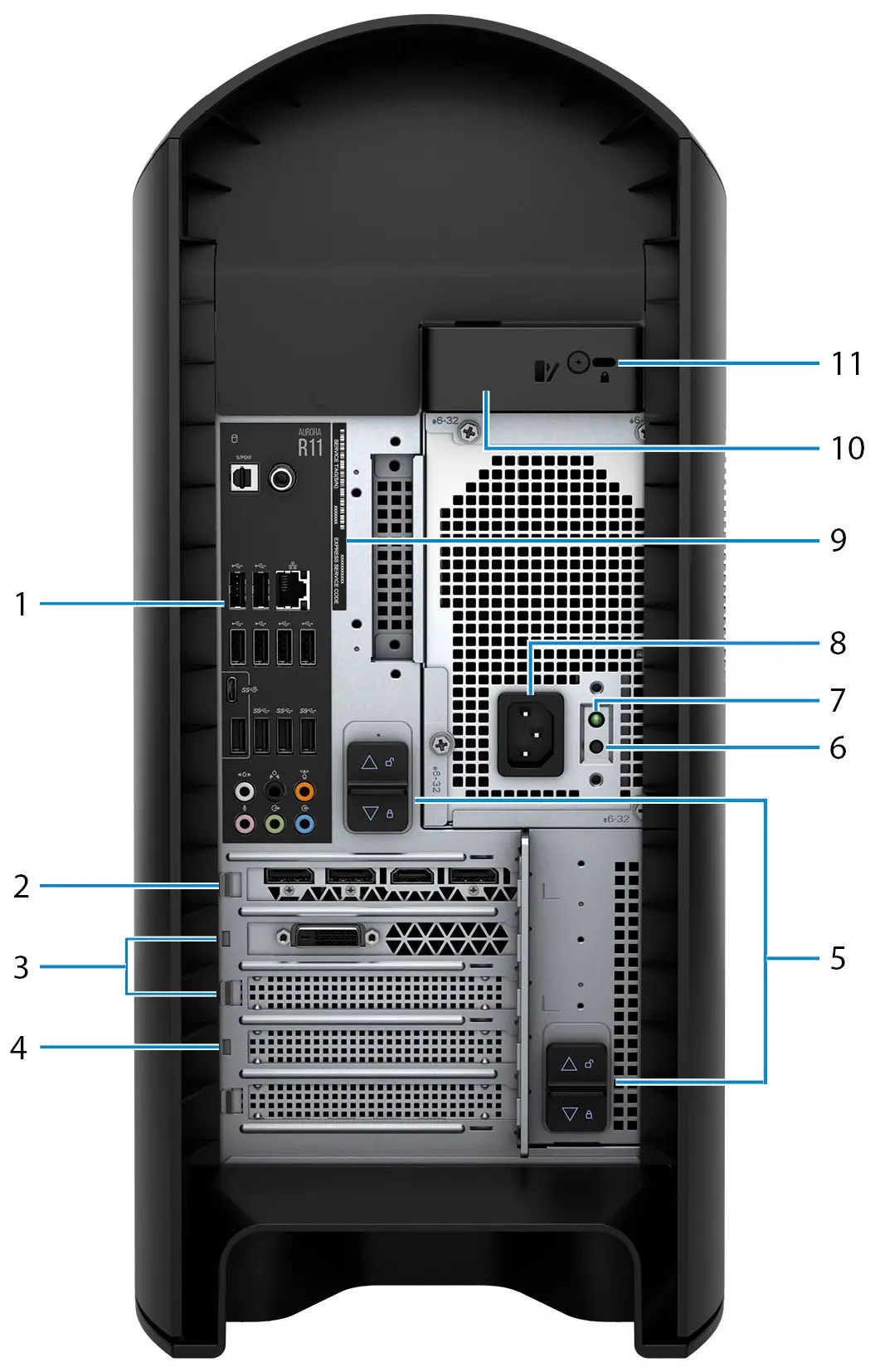
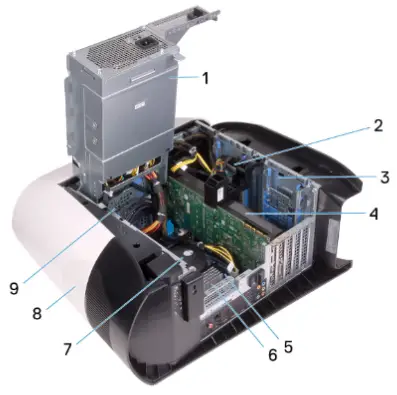
- Back panel
Connect USB, audio, video, and other devices. - PCI-Express X16 (graphics slot 1)
Connect a PCI-Express card such as graphics, audio, or network card to enhance the capabilities of your computer. For optimal graphics performance, use a PCI-Express X16 slot for connecting the graphics card. NOTE: The PCI-Express X16 slot works at X8 lanes only. NOTE: If you have two graphics cards, the card installed in PCI-Express X16 (graphics slot 1) is the primary graphics card. - PCI-Express X4 slots (2)
Connect a PCI-Express card such as graphics, audio, or network card to enhance the capabilities of your computer. NOTE: The PCI-Express X4 slot 3 works at X2 lanes only. - PCI-Express X16 (graphics slot 2) Connect a PCI-Express card such as graphics, audio, or network card to enhance the capabilities of your computer. For optimal graphics performance, use a PCI-Express X16 slot for connecting the graphics card.
NOTE: The PCI-Express X16 slot works at X8 lanes only. - Power-supply cage release-latches (2) Allows you to remove the power supply unit from your computer.
- Power-supply diagnostics button
Press to check the powersupply state. - Power-supply diagnostics light
Indicates the power-supply state. - Power port
Connect a power cable to provide power to your computer. - Service Tag label
The Service Tag is a unique alphanumeric identifier that enables Dell service technicians to identify the hardware components in your computer and access warranty information. - Side panel release latch Allows you to remove the side panel from your computer.
- Security-cable slot (for Kensington locks)
Connect a security cable to prevent unauthorized movement of your computer.
Back panel
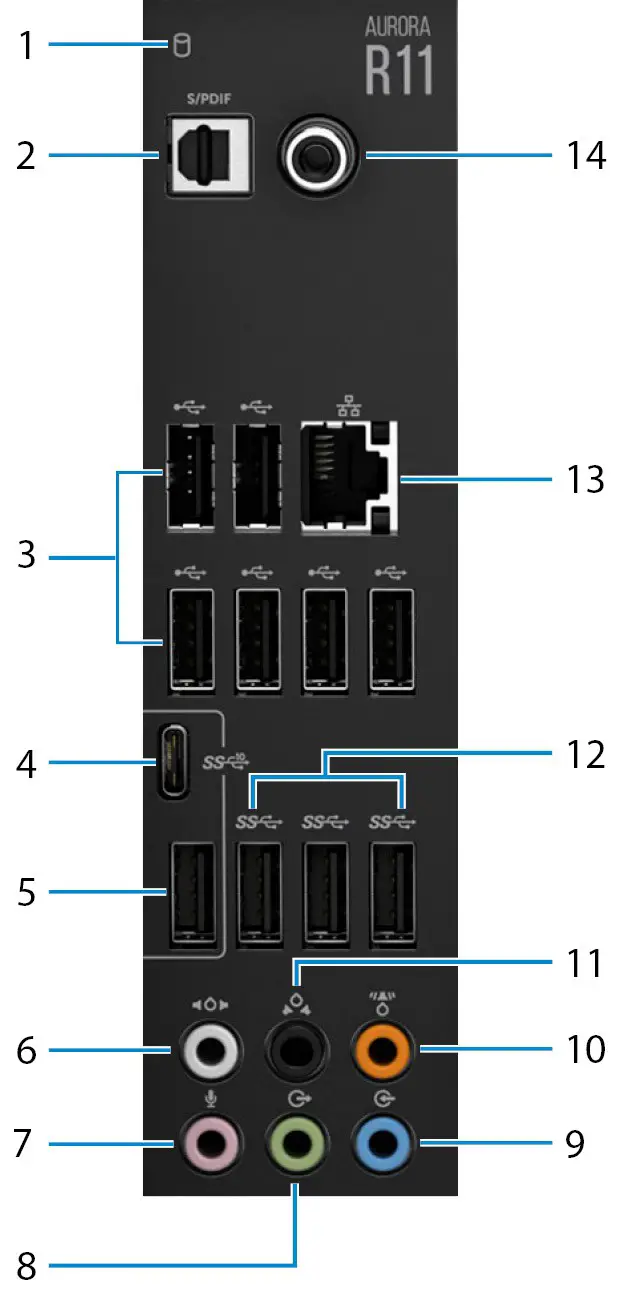
- Hard-drive activity light
The activity light turns on when the computer reads from or writes to the hard drive. - Optical S/PDIF port
Connect an amplifier, speakers, or a TV for digital audio output through an optical cable. - USB 2.0 ports (6)
Connect peripherals such as external storage devices and printers. Provides data transfer speeds up to 480 Mbps. - USB 3.2 Gen 2 (Type-C) port
Connect peripherals, such as external storage devices and printers. Provides data transfer speeds up to 10 Gbps. NOTE: This port does not support video/audio streaming or power delivery. - USB 3.2 Gen 2 port
Connect peripherals, such as external storage devices and printers. Provides data transfer speeds up to 10 Gbps. - Side L/R surround port
Connect audio-output devices such as speakers and amplifiers. In a 7.1 speaker channel setup, connect the side-left and side-right speakers. - Microphone port
Connect an external microphone to provide sound input. - Front L/R surround line-out port
Connect audio-output devices such as speakers and amplifiers. In a 2.1 speaker channel setup, connect the left and right speakers. In a 5.1 or a 7.1 speaker channel setup, connect the front-left and front-right speakers. - Line-in port
Connect recording or playback devices such as a microphone or CD player. - Center/subwoofer LFE surround port
Connect the center speaker or the subwoofer. NOTE: For more information about the speaker setup, refer the documentation that shipped with the speakers. - Rear L/R surround port
Connect audio-output devices such as speakers and amplifiers. In a 5.1 or a 7.1 speaker channel setup, connect the rear-left and rear-right speakers. - USB 3.2 Gen 1 ports (3)
Connect peripherals such as external storage devices and printers. Provides data transfer speeds up to 5 Gbps. - Network port (with lights)
Connect an Ethernet (RJ45) cable from a router or a broadband modem for network or Internet access. The two lights next to the connector indicate the connectivity status and network activity. - Coaxial S/PDIF port
Connect an amplifier, speakers, or a TV for digital audio output through a coaxial cable.
Specifications of Alienware Aurora R11
Dimensions and weight
The following table lists the height, width, depth, and weight of your Alienware Aurora R11.
Table 1. Dimensions and weight
| Description | Values |
| Height: | |
| Front height | 441.80 mm (17.39 in.) |
| Rear height | 481.60 mm (18.96 in.) |
| Width | 222.80 mm (8.77 in.) |
| Depth | 431.90 mm (17 in.) |
| Weight (maximum) | 17.80 kg (39.24 lb) NOTE: The weight of your computer depends on the configuration ordered and manufacturing variability. |
Processors
The following table lists the details of the processors supported by your Alienware Aurora R11.
Table 2. Processors
| Processors | Wattage | Core count | Thread count | Speed | Cache |
| 106 Generation Intel Core i3-10100F | 65 W | 6 | 12 | 3.60 GHz/4.1 GHz | 12 MB |
| 10’h Generation Intel Core i3-10100 | 65 W | 6 | 12 | 3.60 GHz/4.1 GHz | 12 MB |
| 106 Generation Intel Core i5-10400 | 65 W | 6 | 12 | 2.90 GHz/4 GHz | 12 MB |
| 106 Generation Intel Core i5-10400F | 65 W | 6 | 12 | 2.90 GHz/4 GHz | 12 MB |
| 106 Generation Intel Core i5-10600K | 125 W | 6 | 12 | 4.10 GHz/4.50 GHz | 12 MB |
| 106 Generation Intel Core i5-10600KF | 125 W | 6 | 12 | 4.10 GHz/4.50 GHz | 12 MB |
| 106 Generation Intel Core i7-10700 | 65 W | 8 | 16 | 2.90 GHz/4.60 GHz | 16 MB |
| 10’h Generation Intel Core i7-10700K | 125 W | 8 | 16 | 3.80 GHz/4.70 GHz | 16 MB |
| 10’h Generation Intel Core i7-10700F | 65 W | 8 | 16 | 2.90 GHz/4.60 GHz | 16 MB |
| 10th Generation Intel Core i7-10700KF | 125 W | 8 | 16 | 3.80 GHz/4.70 GHz | 16 MB |
| 10th Generation Intel Core i9-10900 | 65 W | 10 | 20 | 2.80 GHz/4.60 GHz | 20 MB |
| 10’h Generation Intel Core i9-10900K | 125 W | 10 | 20 | 3.70 GHz/4.90 GHz | 20 MB |
| 10’h Generation Intel Core i9-10900F | 65 W | 10 | 20 | 2.80 GHz/4.60 GHz | 20 MB |
| 10’h Generation Intel Core i9-10900KF | 125 W | 10 | 20 | 3.70 GHz/4.90 GHz | 20 MB |
Chipset
The following table lists the details of the chipset supported by your Alienware Aurora R11.
Table 3. Chipset
| Description | Values |
| Chipset | Intel Z490 |
| Processor | th |
| DRAM bus width | 10 |
| Flash EPROM | Generation Intel Core i5/i7/i9 |
| PCIe bus | 128 bit |
| Description | 256 Mb |
Operating system
Your Alienware Aurora R11 supports the following operating systems:
- Windows 10 Home (64-bit)
- Windows 10 Professional (64-bit)
Memory
The following table lists the memory specifications of your Alienware Aurora R11.
Table 4. Memory specifications
| Description | Values |
| Memory slots | Four UDIMM |
| Memory type | DDR4 |
| Memory speed | 2933 MHz up to 3400 MHz (XMP memory) |
| Maximum memory configuration | 128 GB |
| Minimum memory configuration | 8 GB |
| Memory size per slot | 8 GB, 16 GB, and 32 GB |
| Memory configurations supported | ● 8 GB, 1 x 8 GB, DDR4, 2933 MHz ● 16 GB, 1 x 16 GB, DDR4, 2933 MHz ● 16 GB, 2 x 8 GB, DDR4, 2933 MHz ● 32 GB, 2 x 16 GB, DDR4, 2933 MHz ● 64 GB, 2 x 32 GB, DDR4, 2933 MHz ● 64 GB, 4 x 16 GB, DDR4, 2933 MHz ● 128 GB, 4 x 32 GB, DDR4, 2933 MHz ● 8 GB, 1 x 8 GB, DDR4, 3200 MHz ● 16 GB, 1 x 16 GB, DDR4, 3200 MHz ● 16 GB, 2 x 8 GB, DDR4, 3200 MHz ● 32 GB, 2 x 16 GB, DDR4, 3200 MHz ● 64 GB, 2 x 32 GB, DDR4, 3200 MHz ● 64 GB, 4 x 16 GB, DDR4, 3200 MHz ● 128 GB, 4 x 32 GB, DDR4, 3200 MHz ● 16 GB, 1 x 16 GB, DDR4, 3400 MHz ● 32 GB, 2 x 16 GB, DDR4, 3400 MHz ● 64 GB, 4 x 16 GB, DDR4, 3400 MHz |
Ports and connectors
The following table lists the external and internal ports available on your Alienware Aurora R11.
Table 5. Ports and connectors
| Description | Values |
| External: | |
| Network | One RJ-45 port |
| USB | ● Six USB 2.0 ports ● Five USB 3.2 Gen 1 ports ● One USB 3.2 Gen 1 (Type-C) port with PowerShare ● One USB 3.2 Gen 2 port ● One USB 3.2 Gen 2 (Type-C) port ● One USB 3.2 Gen 1 port with PowerShare |
| Audio | ● One audio output/headphone port (supports 2 channel audio) ● One audio input/microphone port ● One optical S/PDIF port ● One coaxial S/PDIF port ● One front L/R surround line-out port ● One side L/R surround port ● One rear L/R surround port ● One center/subwoofer LFE surround port ● One line-in port |
| Video | Not supported |
| Media-card reader | Not supported |
| Power port | 110 V/220 V |
| Security | Kensington lock slot |
| Internal: | |
| PCIe expansion card slots | ● Two PCIe x16 slots ● Two PCIe x4 slots |
| mSATA | Not supported |
| SATA | Four |
| M.2 | ● One M.2 card slot for WLAN and Bluetooth ● One PCIe/SATA M.2 card slot for 2242/2260/2280 solidstate drive
|
Ethernet
The following table lists the wired Ethernet Local Area Network (LAN) specifications of your Alienware Aurora R11.
Table 6. Ethernet specifications
| Description | Values |
| Model number | Killer E3000 Ethernet controller integrated on system board |
| Transfer rate | 10/100/1000/2500 Mbps |
Wireless module
The following table lists the Wireless Local Area Network (WLAN) module specifications of your Alienware Aurora R11.
Table 7. Wireless module specifications
| Description | Option one | Option two | Option three |
| Model number | Qualcomm QCA9377 (DW1810) | Intel AX201 | Killer 1650i |
| Transfer rate | Up to 433 Mbps | Up to 2400 Mbps | Up to 2400 Mbps |
| Frequency bands supported | Dual band 2.4 GHz/5 GHz | Dual band 2.4 GHz/5 GHz | Dual band 2.4 GHz/5 GHz |
| Wireless standards | Wi-Fi 5 (WiFi 802.11ac) | Wi-Fi 6 (WiFi 802.11ax) | Wi-Fi 6 (WiFi 802.11ax) |
| Encryption | •64-bit/128-bit WEP •AES-CCMP •TKIP | •64-bit/128-bit WEP •AES-CCMP •TKIP | •64-bit/128-bit WEP •AES-CCMP •TKIP |
| Bluetooth | Bluetooth 4.2 | Bluetooth 5.0 | Bluetooth 5.0 |
GPU–Discrete
The following table lists the specifications of the discrete Graphics Processing Unit (GPU) supported by your Alienware Aurora R11. NOTE: Install AMD Vega 20 only into the PCIe slot 1 of your computer. If installed on PCIe slot 4, the power-supply unit cannot be closed.NOTE: If you are using any other graphics card other than AMD Vega 20, it can be installed into the appropriate PCIe slot i.e. X4, X8 or X16 on your computer.
Table 8. Discrete graphics specifications
| Controller | Number of cards (maximum) | External display support | Memory size | Memory type |
| AMD RX 5700 (ECS) | 1 | Three DisplayPort and one HDMI port | 8 GB | GDDR6 |
| AMD RX 5700 XT (ECS) | 1 | Three DisplayPort and one HDMI port | 8 GB | GDDR6 |
| AMD RX 5600 | 1 | Three DisplayPort and one HDMI port | 6 GB | GDDR6 |
| AMD Vega 20 | 1 | Three DisplayPort and one HDMI port | 16 GB | GDDR6 |
| NVIDIA GeForce GTX 1650 | 1 | One HDMI port and one DVI-D port | 4 GB | GDDR5 |
| NVIDIA GeForce GTX 1650 Super | 1 | One HDMI port and one DVI-D port | 6 GB | GDDR5 |
| NVIDIA GeForce GTX 1660 | 1 | One DisplayPort, one HDMI port and one DVI-D port | 6 GB | GDDR5 |
| NVIDIA GTX 1660Ti | 1 | One DVI port, one HDMI port and one DisplayPort | 6 GB | GDDR6 |
| NVIDIA RTX 2060 | 1 | One DVI port, one HDMI port and one DisplayPort | 6 GB | GDDR6 |
| NVIDIA RTX 2060 Super | 1 | One DVI port, one HDMI port and one DisplayPort | 8 GB | GDDR6 |
| NVIDIA RTX 2070 Super | 2 | Three DisplayPort and one HDMI port | 8 GB | GDDR6 |
| NVIDA RTX 2080 Super | 2 | Three DisplayPort and one HDMI port | 8 GB | GDDR6 |
| NVIDIA RTX 2080Ti | 2 | Three DisplayPort and one HDMI port | 11 GB | GDDR6 |
| LC NVIDIA RTX 2080 Super | 1 | Three DisplayPort and one HDMI port | 8 GB | GDDR6 |
| NVIDIA GeForce RTX 3060Ti | 1 | Three DisplayPort and one HDMI port | 8 GB | GDDR6 |
| NVIDIA GeForce RTX 3070 | 1 | Three DisplayPort and one HDMI port | 8 GB | GDDR6 |
| NVIDIA GeForce RTX 3080 | 1 | Three DisplayPort and one HDMI port | 10 GB | GDDR6X |
| NVIDIA GeForce RTX 3090 | 1 | Three DisplayPort and one HDMI port | 24 GB | GDDR6X |
Audio
The following table lists the audio specifications of your Alienware Aurora R11.
Table 9. Audio specifications
| Controller | Controller |
| AMD RX 5700 (ECS) | AMD RX 5700 (ECS) |
| AMD RX 5700 XT (ECS) | AMD RX 5700 XT (ECS) |
| AMD RX 5600 | AMD RX 5600 |
| AMD Vega 20 | 7.1 channel output, Microphone-in stereo headphones, and headset combo connector |
Storage
This section lists the storage options on your Alienware Aurora R11.
Your computer supports one of the following configurations:
- One M.2 2242/2260/2280 solid-state drive, one 3.5-inch hard drive, and two 2.5-inch hard drives
- One 3.5-inch hard drive and two 2.5-inch hard drives NOTE: The primary drive of your computer varies depending on the storage configuration.
Table 10. Storage specifications
| Storage type | Interface type | Capacity |
| Two 2.5-inch hard drives | SATA AHCI 6 Gbps | Up to 2 TB |
| One 3.5-inch hard drive | SATA AHCI 6 Gbps | Up to 1 TB |
| One M.2 2230/2280 solid-state drive | ● SATA AHCI 6 Gbps ● PCIe NVMe up to 32 Gbps | Up to 1 TB |
Power ratings
The following table lists the power rating specifications of Alienware Aurora R11.
Table 11. Power ratings
| Description | Option one | Option two |
| Type | 550 W | 1000 W |
| Input voltage | 90 VAC to 264 VAC | 90 VAC to 264 VAC |
| Input frequency | 47 Hz to 63 Hz | 47 Hz to 63 Hz |
| Input current (maximum) | 8 A | 14 A |
| Output current (continuous) | 5.1 V/20 A, 12 VA1/18 A, 12 VA2/18 A, 12 VA1+12 VA2/28 A, 12 VB/16 A, 12 VC1/18 A, 12 VC2/18 A, 12 VC1+12 VC2/20 A, 3.3 V/15 A, 5.1 Vaux/4A | 5.1 V/20 A, 12VA/42 A, 12VB/52 A, 12VD/16 A, 3.3 V/20 A, -12 V/0.5 A, 5.1Vaux/4 A |
| Rated output voltage | 5.1 V/12 VA1/12 VA2/ 12 VB/12 VC1/12 VC2/3.3 V/ 5.1 Vaux | 5.1 V/12 VA/12VB/12VD/3.3 V/-12 V/5.1 Vaux |
| Temperature range | ||
| Operating | 5°C to 50°C (41°F to 122°F) | 5°C to 50°C (41°F to 122°F) |
| Storage | -40°C to 70°C (-40°F to 158°F) | -40°C to 70°C (-40°F to 158°F) |
Computer environment
Airborne contaminant level: G1 as defined by ISA-S71.04-1985
Table 12. Computer environment
| Description | Operating | Storage |
| Temperature range | 10°C to 35°C (50°F to 95°F) | –40°C to 65°C (–40°F to 149°F) |
| Relative humidity (maximum) | 20% to 90% (non-condensing) | 5% to 95% (non-condensing) |
| Vibration (maximum)* | 0.26 GRMS | 1.37 GRMS |
| Shock (maximum) | 40 G for 2 ms with a change in velocity of 20 in/s (51 cm/s)† | 105 G for 2 ms with a change in velocity of 52.5 in/s (133 cm/s)‡ |
| Altitude (maximum) | –15.2 m to 3,048 m (–50 ft to 10,000 ft) | –15.2 m to 10,668 m (–50 ft to 35,000 ft) |
* Measured using a random vibration spectrum that simulates user environment.
Measured using a 2 ms half-sine pulse when the hard drive is in use.
Alienware Command Center
Alienware Command Center (AWCC) provides a single interface to customize and enhance the gaming experience. The AWCC dashboard displays most recently played or added games, and provides game-specific information, themes, profiles, and access to computer settings. You can quickly access settings such as game-specific profiles and themes, lighting, macros, and audio that are critical to the gaming experience.
AWCC also supports AlienFX 2.0. AlienFX enables you to create, assign, and share game-specific lighting maps to enhance the gaming experience. It also enables you to create your own individual lighting effects and apply them to the computer or attached peripherals. AWCC embeds Peripheral Controls to ensure a unified experience and the ability to link these settings to your computer or game.
AWCC supports the following features:
- FX: Create and manage the AlienFX zones.
- Fusion: Includes the ability to adjust game-specific Power Management, Sound Management, and Thermal Management features.
- Peripheral Management: Enables peripherals to appear in and be managed in Alienware Command Center. Supports key peripheral settings and associates with other functions such as profiles, macros, AlienFX, and game library.
AWCC also supports Sound Management, Thermal Controls, CPU, GPU, Memory (RAM) monitoring. For more information about
AWCC, see the Alienware Command Center Online Help.
Getting help and contacting Alienware
Self-help resources
You can get information and help on Alienware products and services using these online self-help resources:
Table 13. Alienware products and online self-help resources
| Self-help resources | Resource location |
| Information about Alienware products and services | www.alienware.com |
| My Dell app |  |
| Tips |  |
| Contact Support | In Windows search, type Contact Support, and press Enter. |
| Online help for operating system | www.dell.com/support/windows |
| Access top solutions, diagnostics, drivers and downloads, and learn more about your computer through videos, manuals and documents. | Your Alienware computer is uniquely identified by a Service Tag or Express Service Code. To view relevant support resources for your Dell computer, enter the Service Tag or Express Service Code at www.dell.com/support. For more information on how to find the Service Tag for your computer, see Locate the Service Tag on your computer. |
| VR Support | www.dell.com/VRsupport |
| Videos providing step-by-step instructions to service your computer | www.youtube.com/alienwareservices |
Contacting Alienware
To contact Alienware for sales, technical support, or customer service issues, see www.alienware.com. NOTE: Availability varies by country/region and product, and some services may not be available in your country/region. NOTE: If you do not have an active Internet connection, you can find contact information about your purchase invoice, packing slip, bill, or Dell product catalog.