 IZZO Swami Kiss Golf GPS Rangefinder
 IZZO Swami Kiss Golf GPS Rangefinder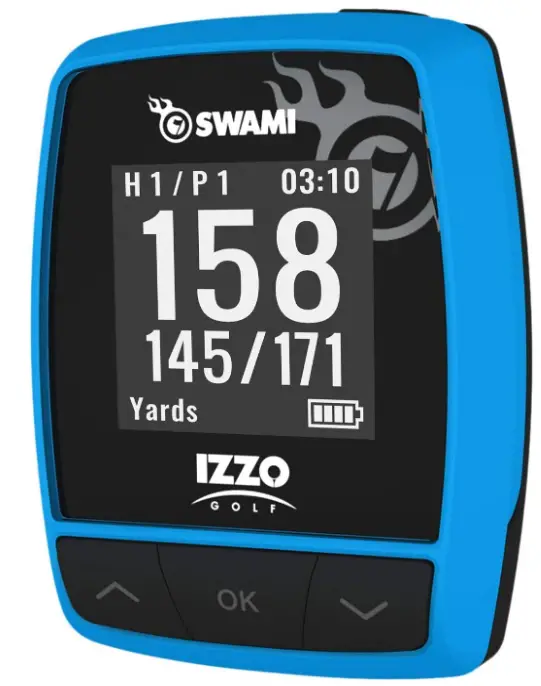
INTRODUCTION
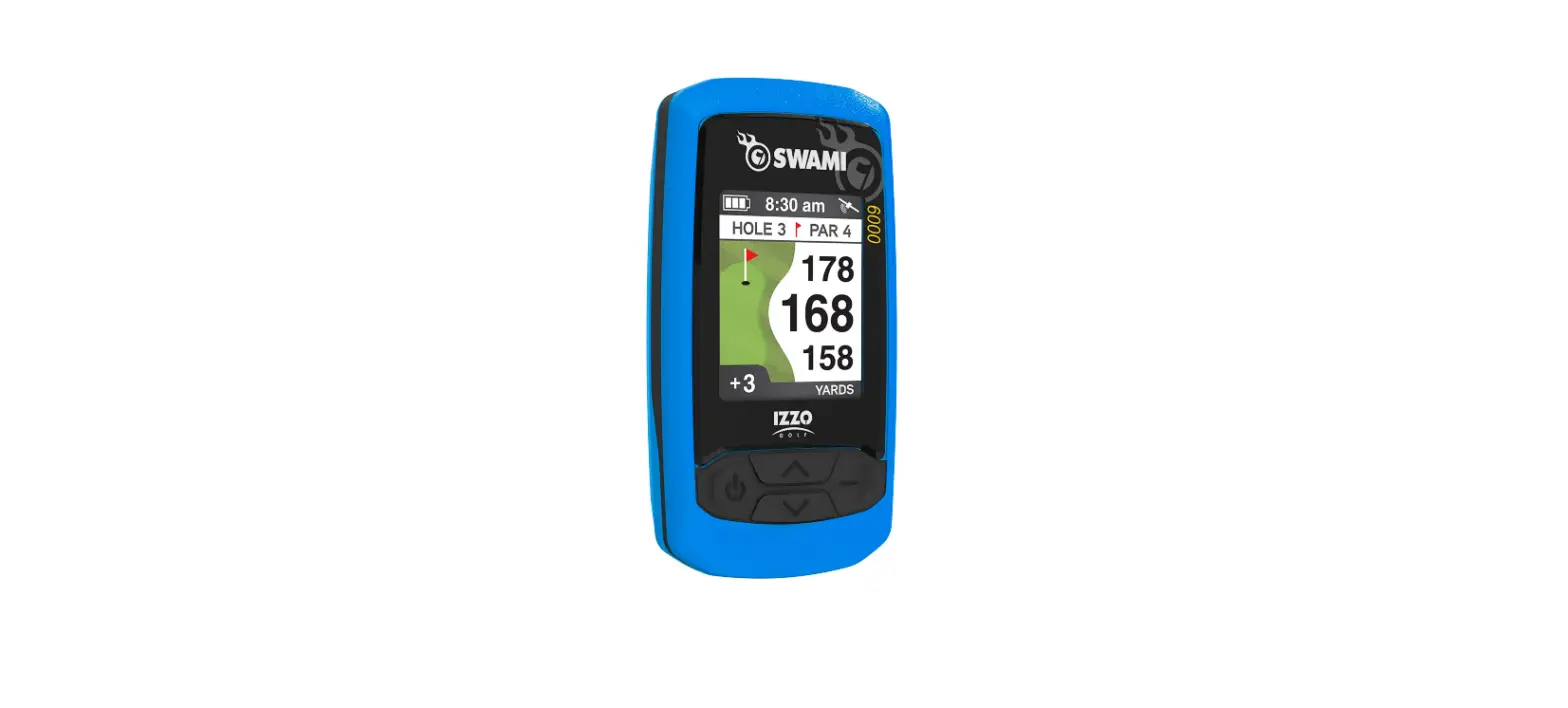
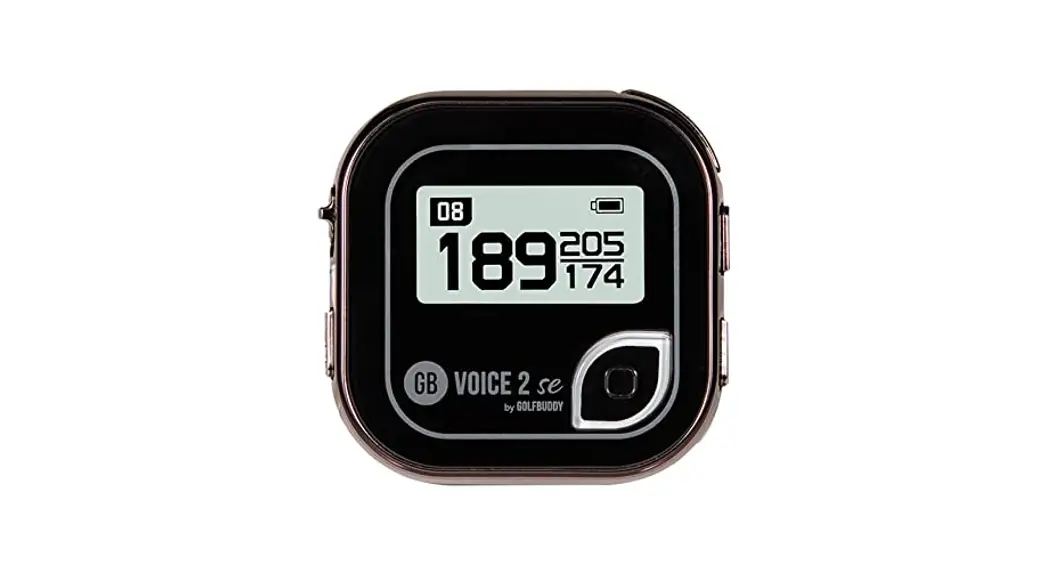
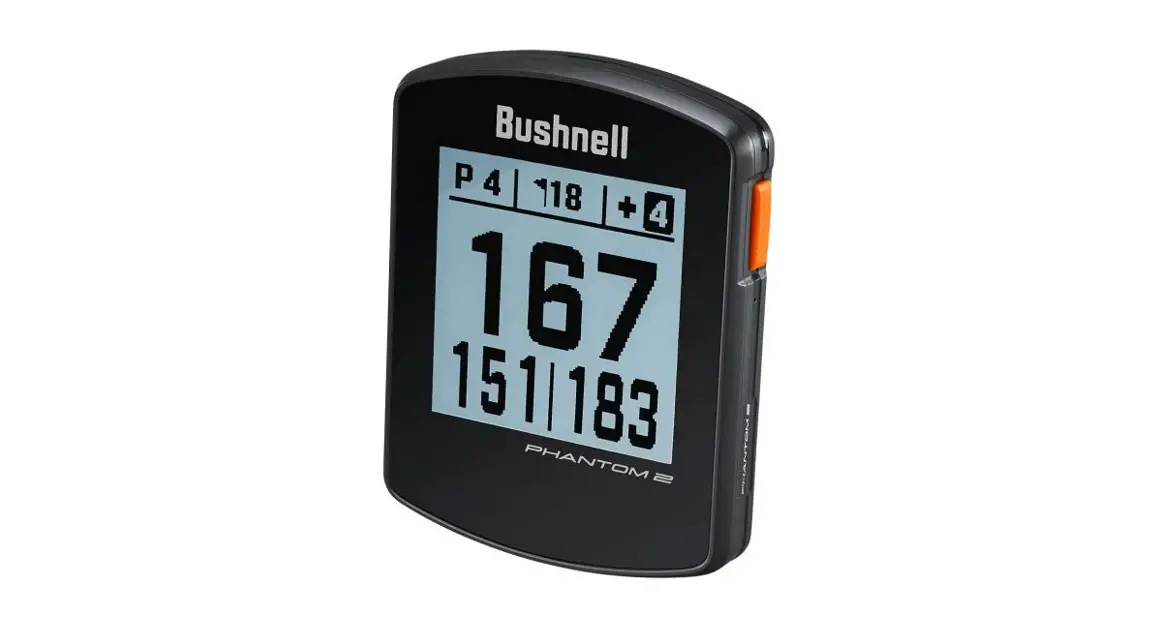
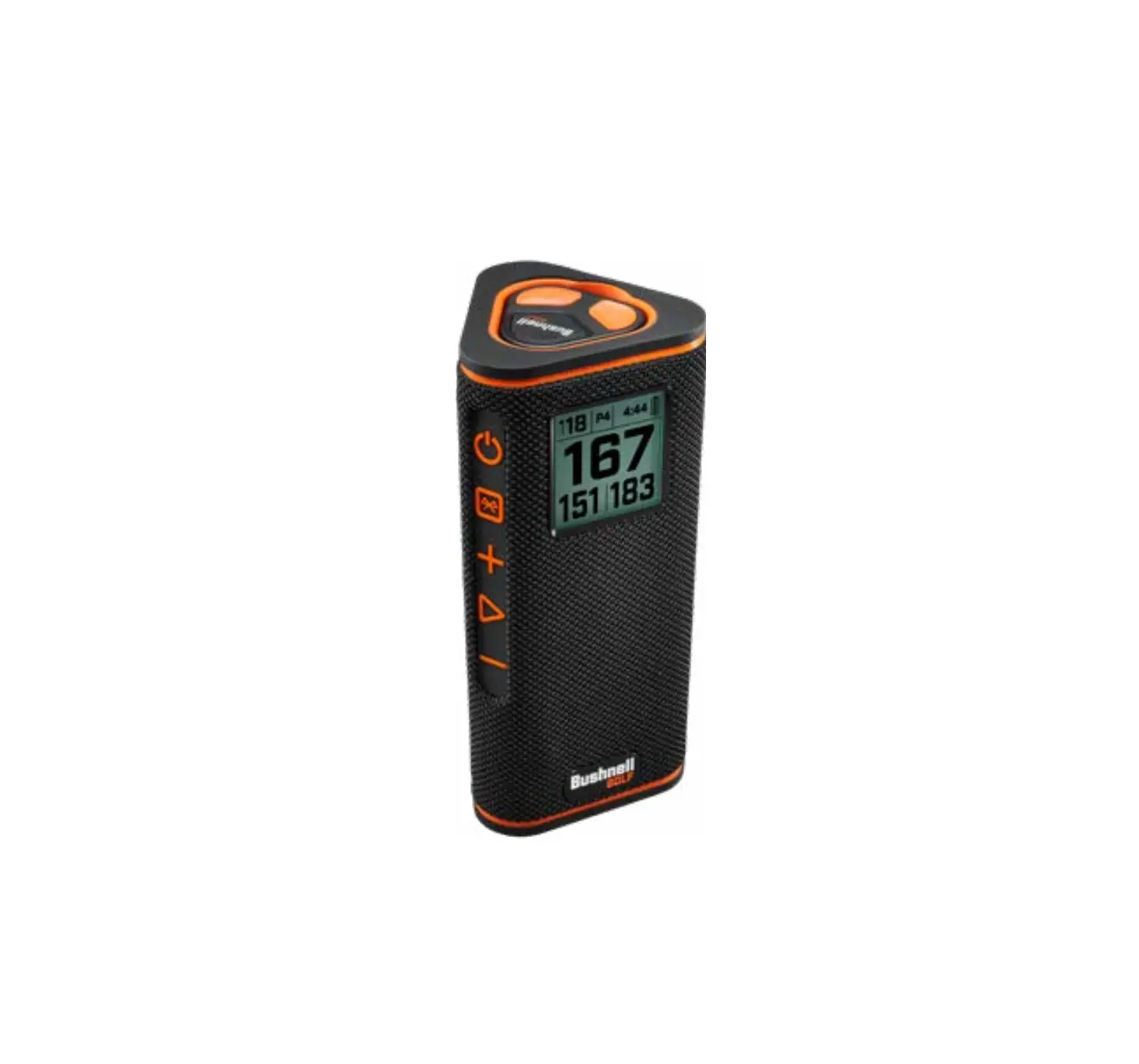
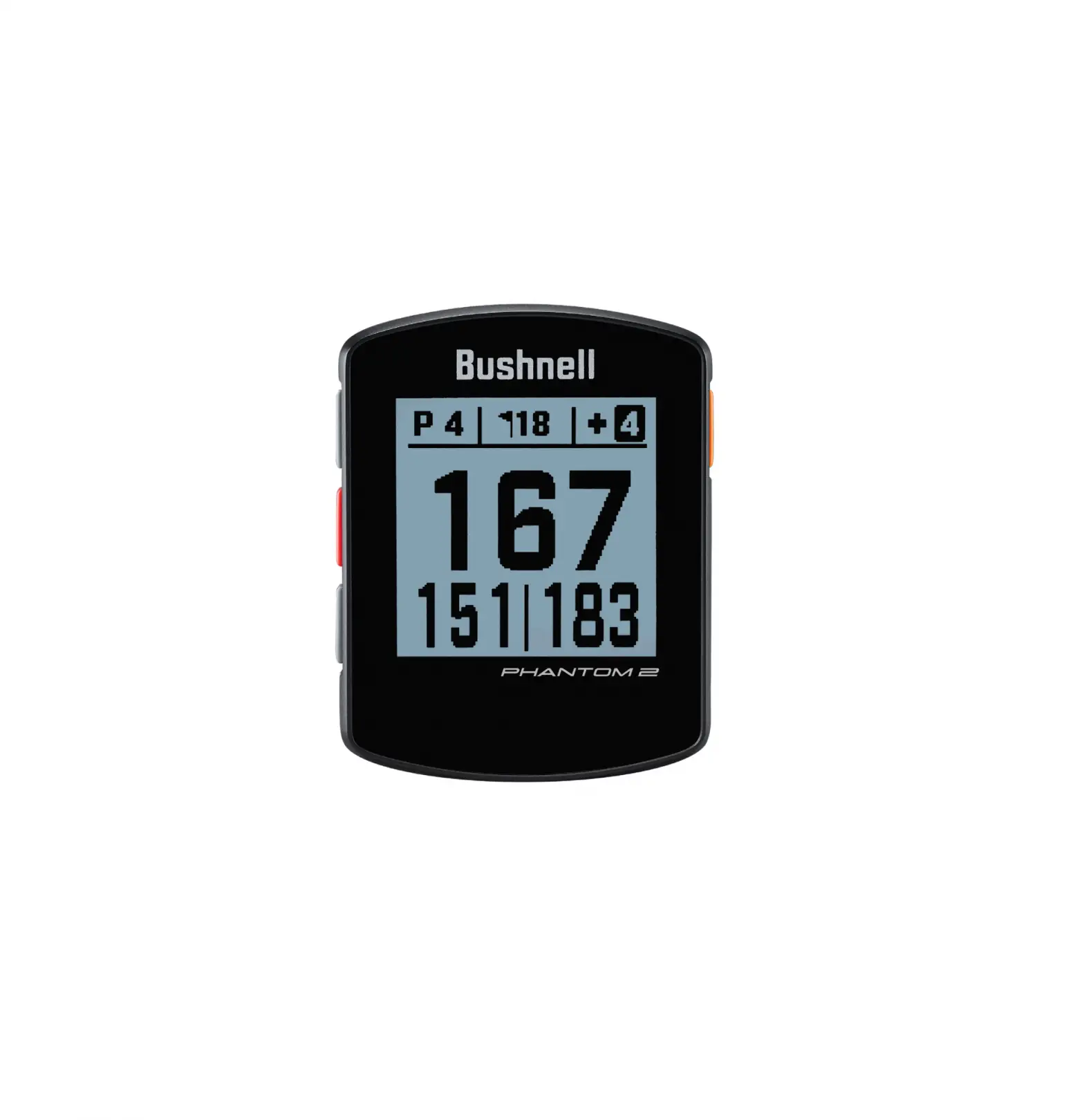
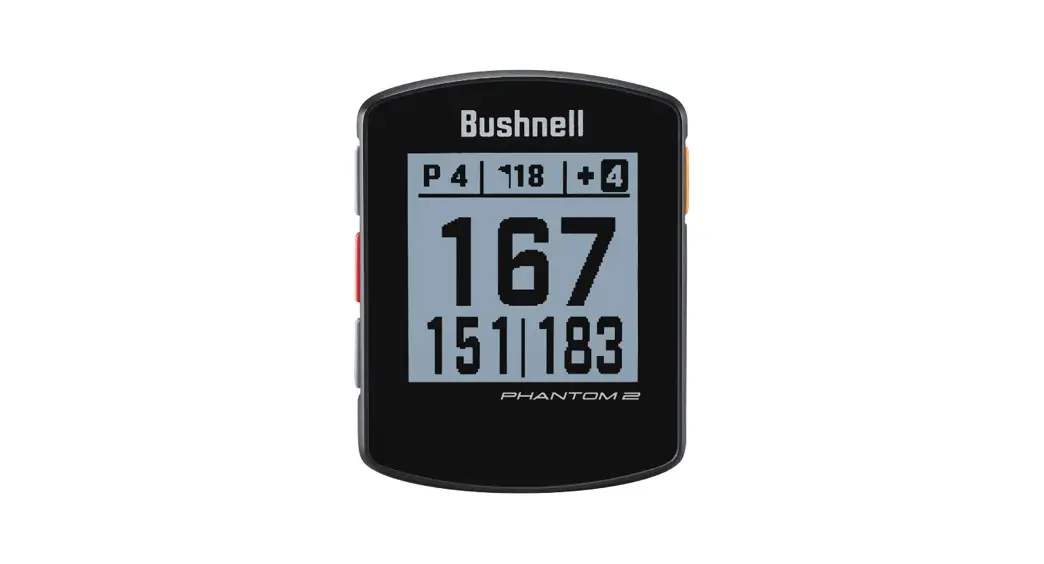
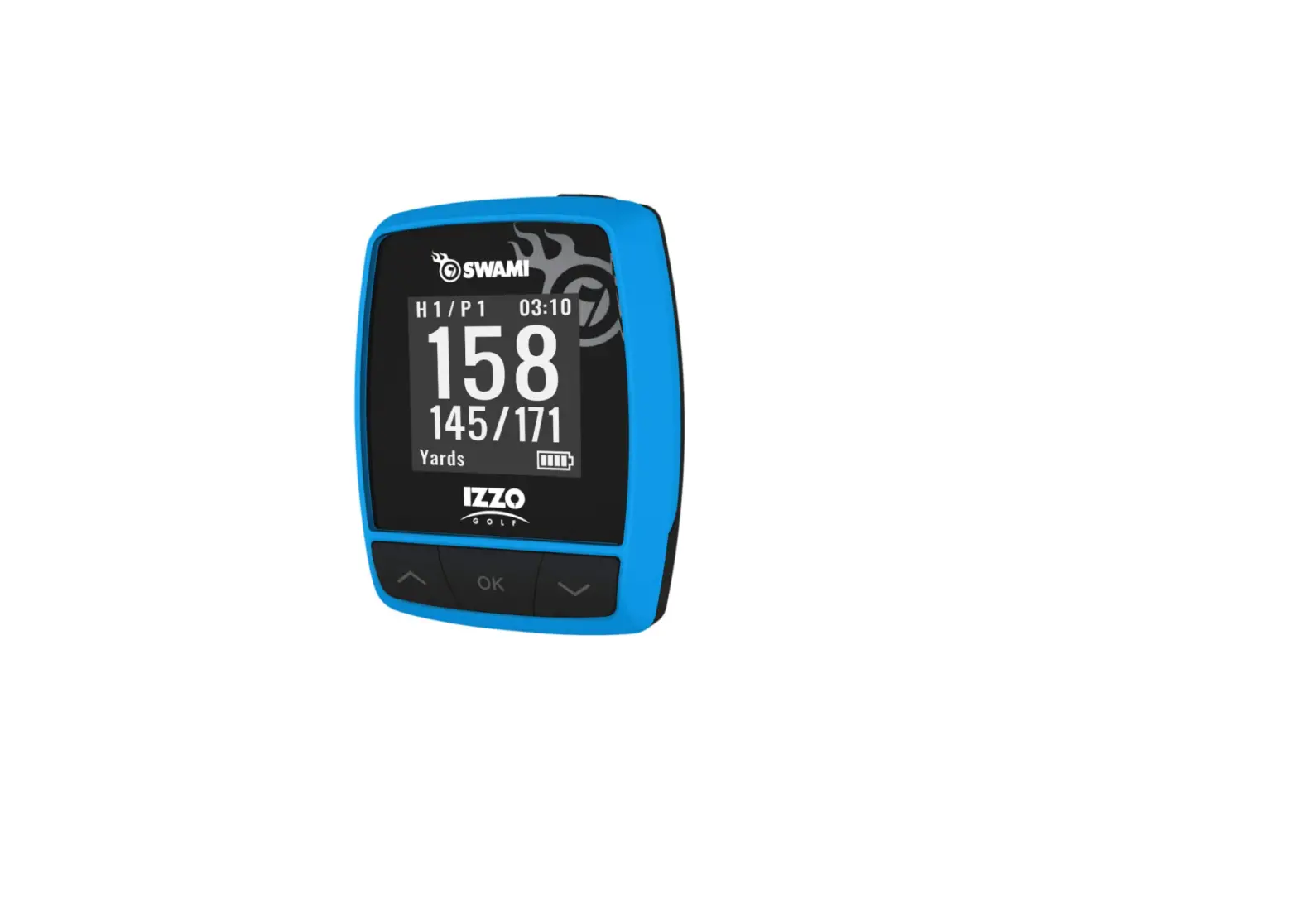
Does your game require a little bit more accuracy? The new Swami Kiss is the ideal product for you in that case. Its straightforward, svelte design is ideal for a handheld golf GPS rangefinder since it fits comfortably in your hand. The Swami Kiss was created so that all you have to do is configure the GPS setting, attach it to the cart, and play! The gadget may show yardage in two distinct ways: the traditional Front, Center, and Back display, or a newer, simpler “Simple Mode” that simply shows yardage to the Center of the green, with Front & Back distances on the following screen.
The Swami Kiss Golf GPS Rangefinder offers precise distances to the front, center, and back of the green as well as layup and carry distances to hazards and doglegs thanks to its more than 38,000 preloaded global course maps. Course map additions and updates are free and simple to do, and there are no yearly subscription fees!
The SWAMI KISS may be small in size, but it’s packed with features! Get instant distances to the Front, Center & Back of the green, as well as both layup & carry distances to hazards & doglegs. The KISS comes preloaded with over 38,000 global courses; with no annual fees, free course updates & additions! Other convenient features include auto-hole advance, a digital scorecard and an internal magnet for ultra-convenient cart frame mounting & viewing.
SPECIFICATIONS:
| Product | SWAMI KISS Golf GPS |
| # of Courses | 38,000+ |
| Battery | 270mAh Lithium Ion Polymer |
| Battery Life | Up to 16 hours |
| Weight | 2.8 oz. / 79 g |
| Display Size | 1.28” (128 x128 pixels) |
| Water Resistant | Protected against light rain |
CHARGING
- Insert micro USB charging end into the Swami KISS & then insert the USB end of the charging cord into a USB charging port or AC adapter (included). The recommended USB charging rate is 5V, 1A.
- A complete full charge will take roughly 6 hours of charging time.
- When connection is made, Battery Icon bars will pulsate to indicate charging.

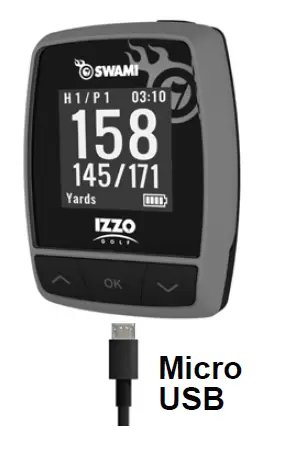
NOTE: Battery Icon bars will stop pulsating when charging is complete.
DESCRIPTION OF TERMS
- PRESS – PRESS & RELEASE button quickly.
- HOLD – PRESS & HOLD button until desired screen appears or change happens.

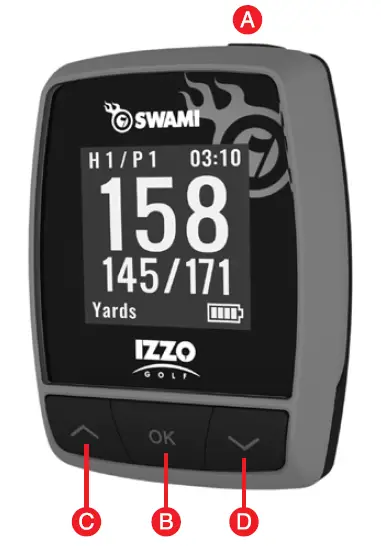
- [POWER] Button: HOLD to power on. HOLD to power off.
- [OK] Button: PRESS to select options & to toggle between Green, Hazards, and Scorecard. PRESS & HOLD to return to previous screen.
- [UP] Button: PRESS to scroll up, change holes.
- [Down] Button: PRESS to scroll down, change holes.
HOW TO USE
DISPLAY DIAGRAM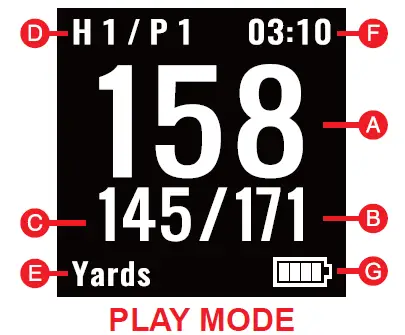
- Distance to the Center of Green
- Distance to the Back of Green
- Distance to the Front of Green
- Hole/Par
- Unit of Measurement (Y/M)
- Time
- Battery Level

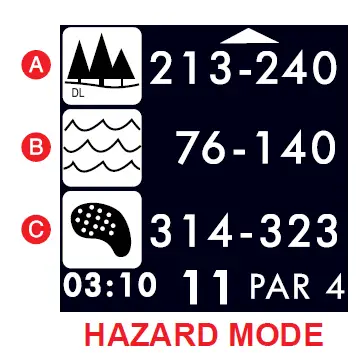
- Distance to front and back of Dogleg
- Distance to layup or carry Water
- Distance to layup or carry Bunker
AT GOLF COURSE

- PRESS [ OK ] button to select Play Golf.
- Device will begin searching for satellite signal (HOLD [ OK ] button to cancel).
- Once satellite connection is established, the nearest golf courses will be listed. Use [ UP/DOWN ] buttons to scroll to desired course, PRESS [ OK ] button to select course.
PLAY MODE
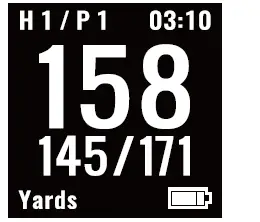
- PRESS [ OK ] button to toggle between Hazard, Scorecard, and Shot Distance screens.
- To exit Play Mode at any time, HOLD [ OK ] button.
HAZARD VIEW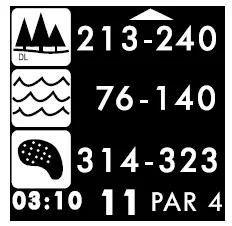
- PRESS [ OK ] button to access the Hazard screen.
- Only 3 hazards will show at a time. If a hole has more than 3 hazards, scroll by using [ UP/DOWN ] buttons. (Hazards that are behind you will not be displayed).
- To exit, PRESS [ OK ] button to view Scorecard, Shot Distance (if enabled), or return to Play Mode.
SHOT DISTANCE
NOTE: Shot Distance must be turned On in Settings.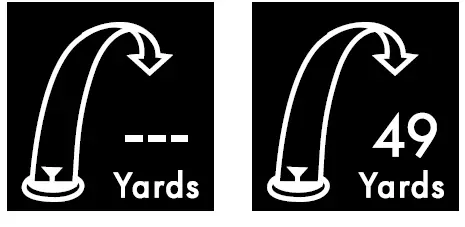
- PRESS [ OK ] button to access Shot Distance.
- To start measuring Shot Distance, PRESS the [ DOWN ] button.
- As you travel to your ball, the distance will begin calculating.
- Once you arrive at your ball, the distance displayed is the distance of your previous shot (the distance you traveled).
- To reset, PRESS the [ DOWN ] button.
- PRESS the [ OK ] button to view next/previous screen.
SCORECARD
NOTE: Scorecard must be turned On in Settings.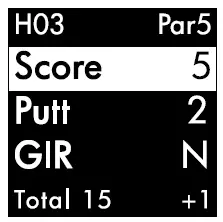
- PRESS [ OK ] button to access Scorecard.
- Use [ UP/DOWN ] buttons until number of total strokes for that hole is displayed.
- HOLD the [ DOWN ] button to scroll to Putts, use [ UP/DOWN ] buttons until correct number of putts is displayed.
- HOLD the [ DOWN ] button to scroll to GIR (Greens in Regulation). Use [ UP/DOWN ] buttons to select Y/N (Yes or No).
- To exit, PRESS [ OK ] button to return to Play Mode.
AUTO-HOLE ADVANCE
- The device will automatically switch to the next hole if Scorecard is turned OFF or ON.
END ROUND
- When finished with round, HOLD [ OK ] button to return to Main Menu.
- If Scorecard is turned on, use the [ UP/DOWN ] buttons to scroll to desired option, PRESS [ OK ] to select.
- Save & Exit – Save Scorecard, end round, and return to Main Menu.
- Discard & Exit – Discard Scorecard, end round, and return to Main Menu.
- Cancel – Select to return to Play Mode.
YARDAGE LAYOUT
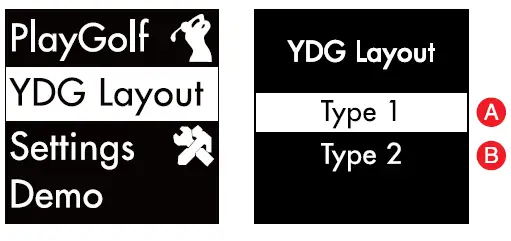
Select to choose how you would prefer the distances to display in PlayGolf Mode. Use [UP] & [DOWN] buttons to choose Type 1 (A) or Type 2 (B). Keep your selected Type highlighted, then PRESS & HOLD [ OK ] to go back to the Main Menu.
TYPE 1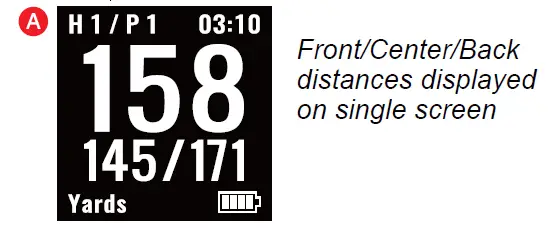
TYPE 2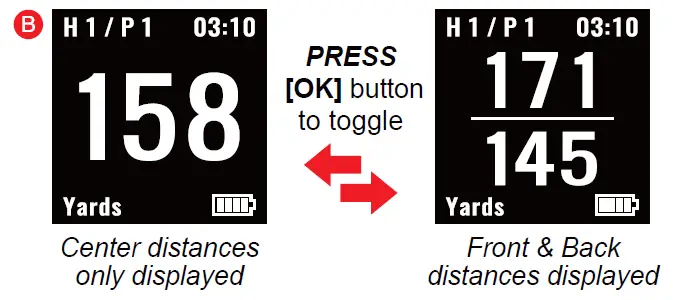
NOTE: If you PRESS [OK] on Type 1 or Type 2, the Kiss will display an example of how the yardages will display in PlayGolf. PRESS [OK] to go back to the YDG Layout options and then PRESS & HOLD [OK] to go back to the Main Menu.
SETTINGS
- Use [ UP/DOWN ] buttons to scroll to Settings.
- PRESS [ OK ] button to access Settings Menu.
- Use [ UP/DOWN ] buttons to scroll through Settings Menu.
- PRESS [ OK ] button to select desired setting.
- HOLD [ OK ] button to return to Main Menu.

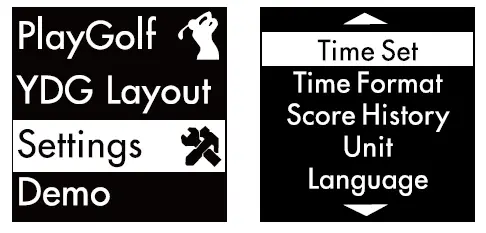
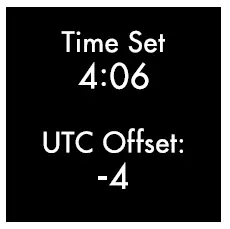
TIME SET
NOTE: To set the correct time, select PlayGolf to connect to the satellites. The watch will then automatically set the correct time (must be outside).
- Use [ UP/DOWN ] buttons to manually adjust the time by hour.

- PRESS [ OK ] button to save and return to Settings Menu.
TIME FORMAT
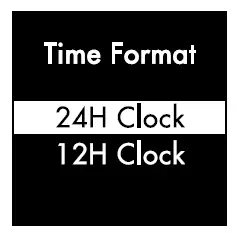
- PRESS [ OK ] button to scroll down. Use [ UP/DOWN ] button to select 12 hour or 24 hour clock.

- HOLD [ OK ] button to save and return to Settings Menu.
SCORE HISTORY
- Use [ UP/DOWN ] buttons to scroll to the saved score you would like to view, then PRESS [ OK ].
- PRESS [ OK ] button to save and return to Settings Menu.
UNIT
- Use [ UP/DOWN ] buttons to change unit of measure to Yards or Meters.
- PRESS [ OK ] button to save and return to Settings Menu.
LANGUAGE
- Use [ UP/DOWN ] buttons to scroll through Languages (English, Espanol, Français, Deutsch).
- PRESS [ OK ] button to select Language and return to Settings Menu.
- PRESS [ OK ] button to save and return to Settings Menu.
BACKLIGHT
- Use [ UP/DOWN ] buttons to scroll through the amount of time the Backlight stays on (5s, 10s, 30s, off).
- PRESS [ OK ] button to save and return to Settings Menu.
DISPLAY TYPE
- Use [ UP/DOWN ] buttons to toggle the display type (Type 1 or Type 2).
- PRESS [ OK ] button to save and return to Settings Menu.
DAYLIGHT SAVINGS TIME (DST)
- Use [ UP/DOWN ] buttons to toggle DST (On/Off)
- PRESS [ OK ] button to save and return to Settings Menu.
SCORECARD
- Use [ UP/DOWN ] buttons to toggle Scorecard (On/Off).
- PRESS [ OK ] button to save and return to Settings Menu.
SHOT DISTANCE
- Use [ UP/DOWN ] buttons to toggle Shot Distance (On/Off).
- PRESS [ OK ] button to save and return to Settings Menu.
HAZARDS
- Use [ UP/DOWN ] buttons to toggle Hazards (On/Off).
- PRESS [ OK ] button to save and return to Settings Menu.
MODEL INFO
- PRESS [ OK ] button to return to Settings Menu.
DEMO
Select to enter DEMO Mode. Exit by pressing and holding the [OK] button.
MAGNETIC CART MOUNT
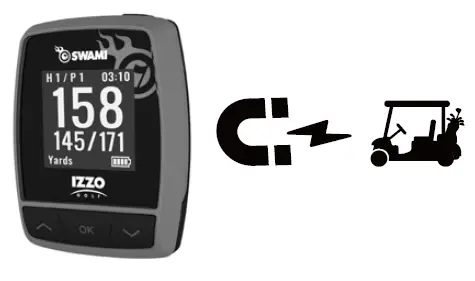
The SWAMI KISS contains a strong magnet inside of the unit. Use the magnet to attach to a metal surface for hands-free use on the course. To attach, simply line up the back of the unit with a metal surface and allow the magnet to connect before letting go.
FAQs
Do these come with charging cable?
Yes, it comes with a USB charging cable.
how is unit charged
Very easily. Plug one end of the provided cord into the bottom of the unit, the other end into a standard 110V wall outlet. The display will show you the progress of the charge.
Just received this…can’t find courses….just keeps on searching…firmware update fails…going to return unless someone can help?
I purchased one of these recently and have not had any problems with it. I have used it out on the course and it does what I expected it to do for a simple GPS. The yardages have accurate. My suggestion would be to return it for another one. I say that because my golf buddy also has one that works just as well as mine. I think you may have just receive a rare factory defective unit. I wouldn’t waste the time trying to fix it. Tell them you want a new one.
How do you charge this
The unit comes with a charging brick and USB mini charging cord. Plug the brick into A/C outlet.
Does anyone make a holder for this swami GPS to hang it on my golf bag?
It should have a ring on it to hang from the golf bag or cart.
Does this give me distance to pin location?
No. It isn’t tracking the pin location for the day. It provides a front, center or back of green distance.
Is there any setting that I can select to turn the Swami off if I forget to do so, or if the device sits in one place without moving for a long time?
The Swami does not currently have an auto shutoff feature but we are working to update the unit so it includes the auto shutoff feature. Once we have made the update to the unit we will be sending out a mass email to our customers notifying them they can go to our website and upload the newest firmware, which will then have the auto shutoff feature. If you have further questions or would like help uploading the latest firmware, please contact IZZO directly.
If it advances to next hole before you enter your score can you go back to enter? I had another swami that did not let you go back to enter a score.
Yes, you can. Press and hold the “OK” button to return to the main menu. From there use the “Up/Down” buttons to scroll to go to scorecard and then scroll to the hole you would like to edit or input your score for and click “OK” button. Then use the “Up/Down” buttons to adjust the score to par and hit the “Ok” button to save it. If you would like further assistance, please give us a call at 1-800-284-1220 and will be happy to help.
Does it have a belt clip
No this model does not have a belt clip, mainly because it’s designed to be a “pocket” unit and with the integrated magnet built into the outer casing, it can easily be secured to the frame of any riding golf cart for convenient, eye-level, hands-free viewing throughout the round.
Does this require a monthly or yearly service contract?
No, it does not. We do not charge any kind of monthly or yearly fee; the device comes preloaded with more than 35,000 course maps worldwide. We also provide course updates for free on the IZZO product support page. The device also comes with a 1-year warranty from the date of purchase.
Does this have course layout, also?
No, it does not show the layout of the course.
Does it have a case?
No, it does not include a case.
Does this show the shape of the green?
The device is capable of displaying yardage in 2 different ways; the standard Front, Center & Back display, or a new, more “Simple Mode” that displays yardage to the Center of the green only, with Front & Back distances on the next screen. With more than 38,000 preloaded global course maps, the Swami Kiss Golf GPS Rangefinder provides accurate distances to the front, center and back of the green, as well as layup and carry distances to hazards and doglegs. There are no annual subscription fees and course map additions and updates are free of charge and easy to do!
Is the battery replaceable and, if so, where can you purchase them?
I’m sorry to say the battery is not replaceable. If you are experiencing battery issues please contact us so we can troubleshoot this further. IZZO Customer service… (800) 284-1220
How can I reset the device?
Press all three buttons at the same time, and hold for five seconds.