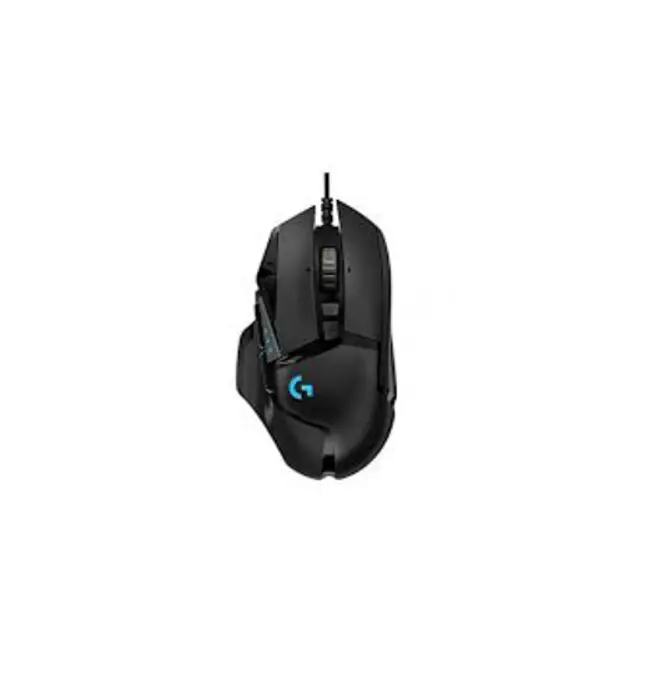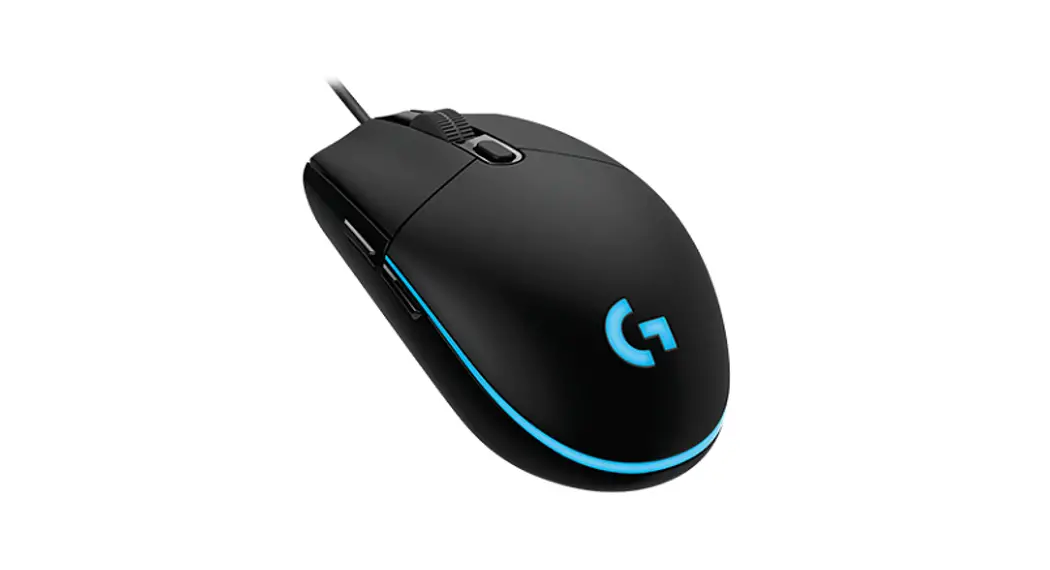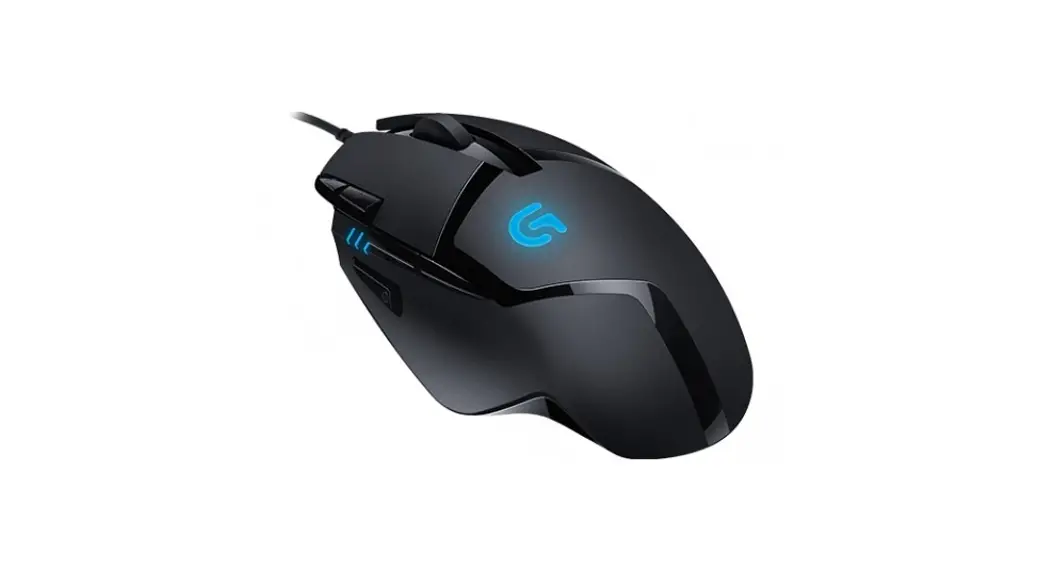
 Logitech® G402 Hyperion Fury™
Setup Guide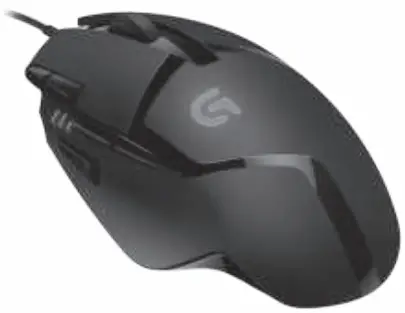
1 | 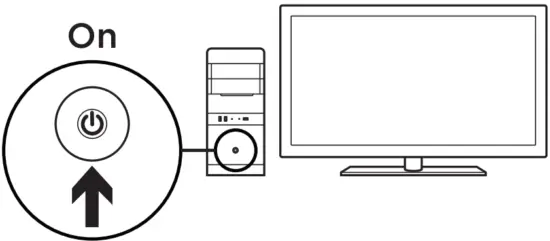 | |
2 | 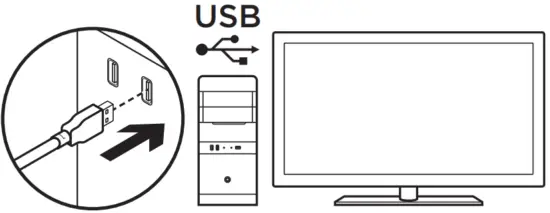 | Your G402 Hyperion Fury is ready to play games. If you would like to customize your Hyperion Fury, refer to the next section. |
3 | 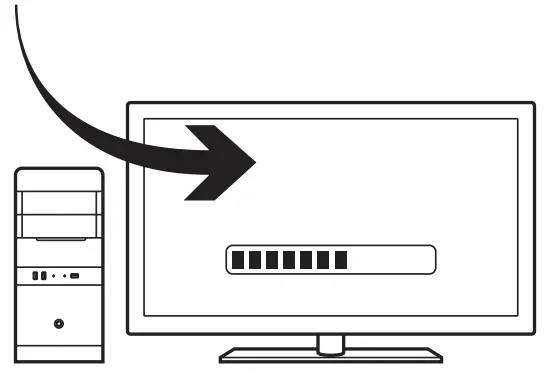 | You can customize the onboard profile of the G402 Hyperion Fury—button programming and tracking behavior— using the Logitech Gaming Software. Download this free software and learn how to customize the Hyperion Fury at www.logitech.com/support/g402hyperionfury |
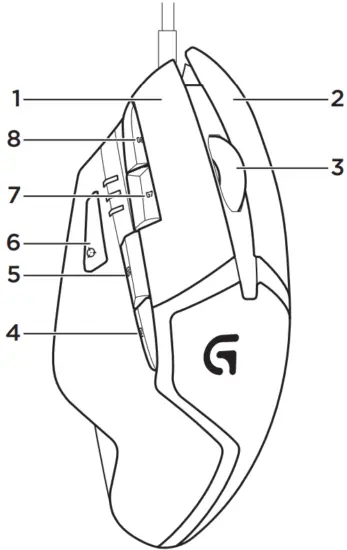
- Left (Button 1)
- Right (Button 2)
- Wheel click (Button 3)
- Back (Button 4)
- Forward (Button 5)
- DPI Shift (Button G6)
- DPI Down (Button G7)
- DPI Up (Button G8)
Default Settings:
DPI Values: 400/800/1600/3200
DPI Shift Value: 400
USB Report Rate: 1000/sec (1ms)
Logo lighting: On, with breathing effect
Onboard profile
Hyperion Fury allows you to tweak your settings until they are perfect and store them in its onboard memory.
You can adjust button functions, DPI values, USB report rate, and logo lighting style using the optional Logitech Gaming Software, available for download from www.logitech.com/support/g402hyperionfury.
DPI indicators
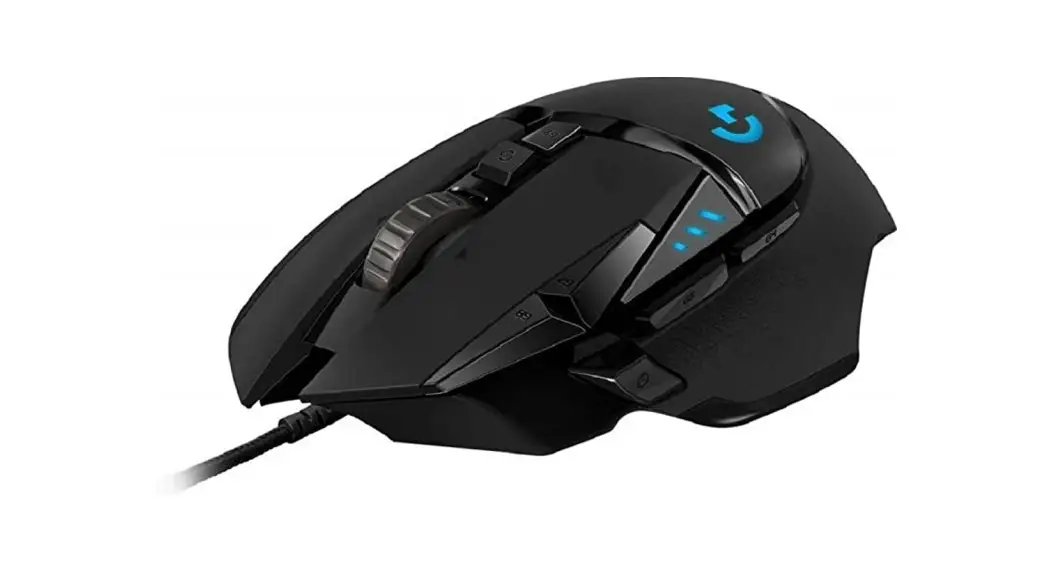
DPI values are shown using the three LEDs indicated in the mouse drawing. The image below shows which DPI value is being indicated by the LED panel.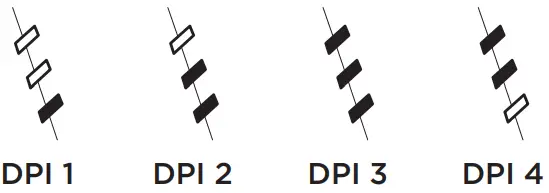
Tips
Try the default profile settings in practice games before changing these settings.
Advanced gamers can customize each game according to their specific button configuration and sensitivity switching needs. In automatic game detection mode, the Logitech Gaming Software stores this information and applies it automatically when the game is detected.
www.logitech.com/support/g402hyperionfury
 Logitech | Defy Logic - Tools to Create a Better Tomorrow