
Zintronic Inserting SD card to A and P Camera Series
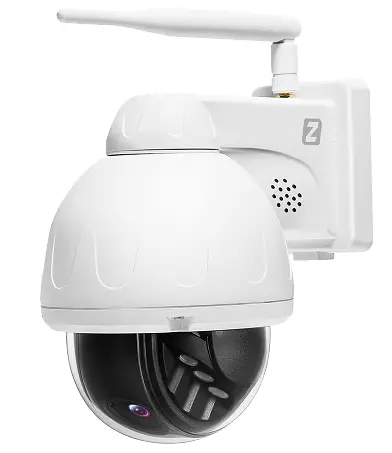
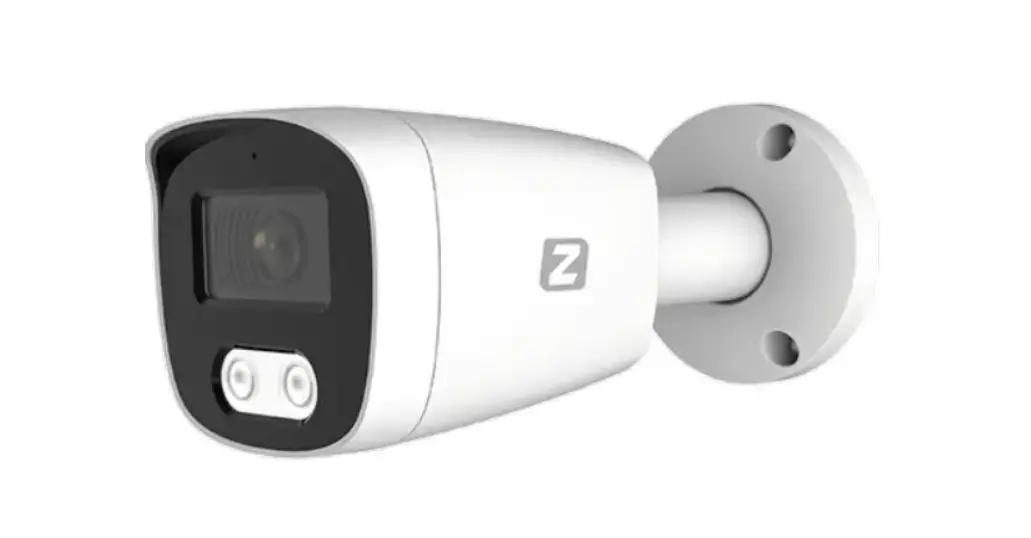
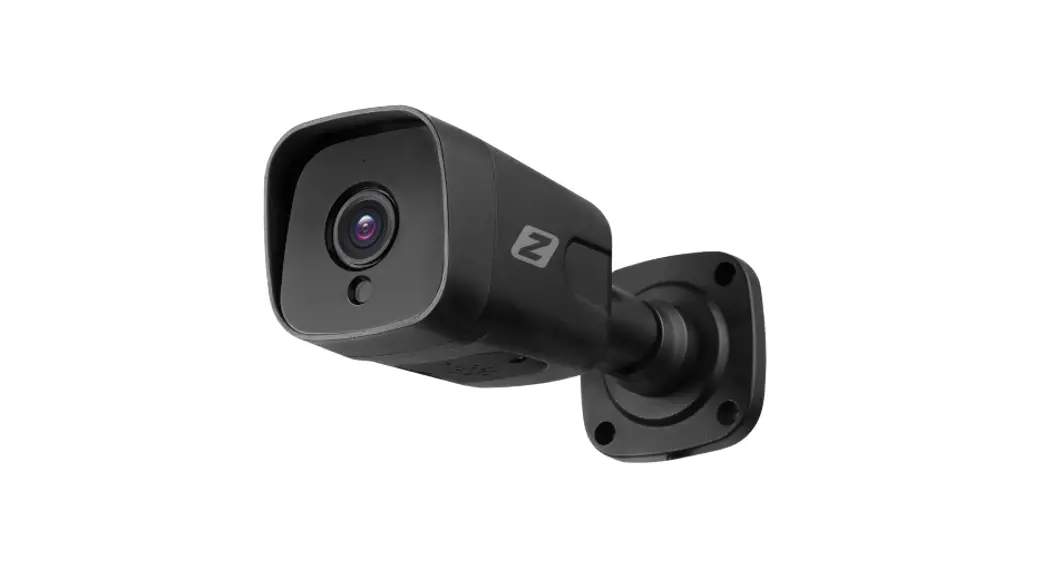
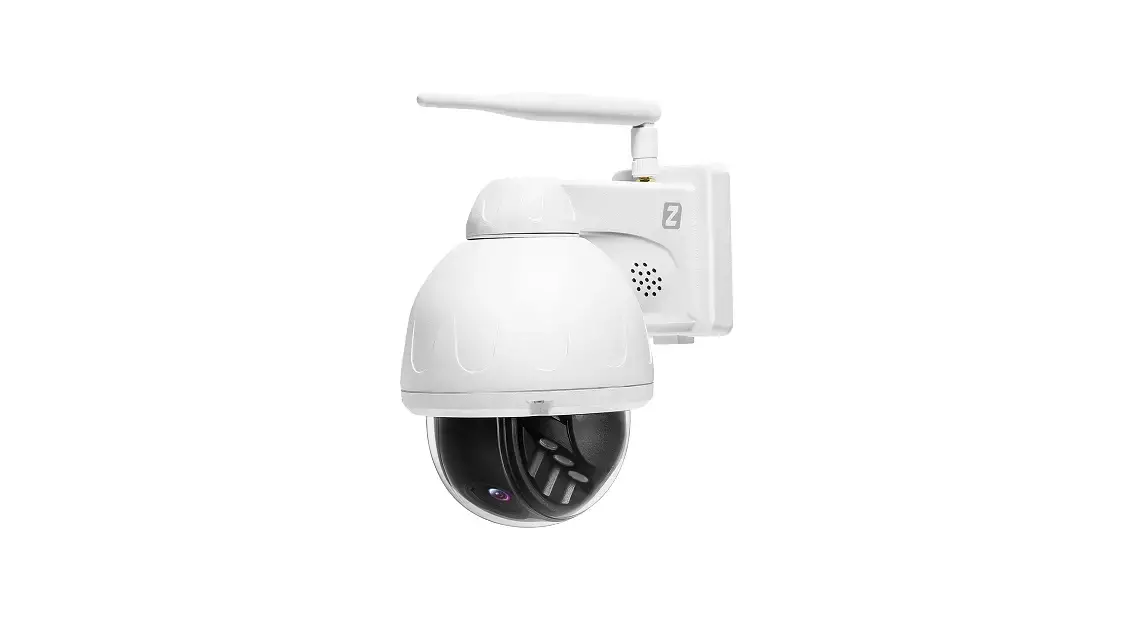
This manual refers to Zintronic® ‘A’ & ‘P’ product series.
P5 camera SD card insertion.
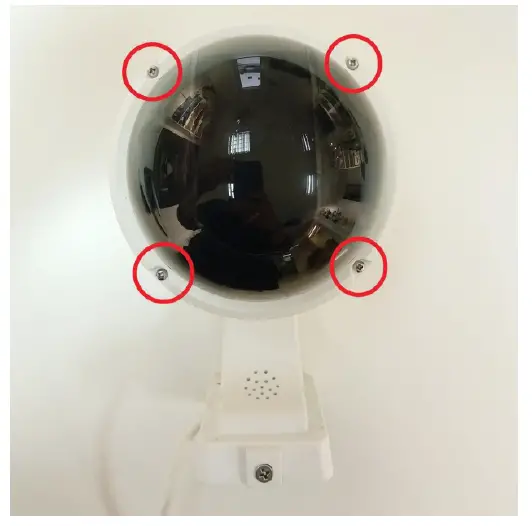
- Turn off the camera by unplugging DC 12V, take off the dome by unscrewing four screws shown on the photo below.

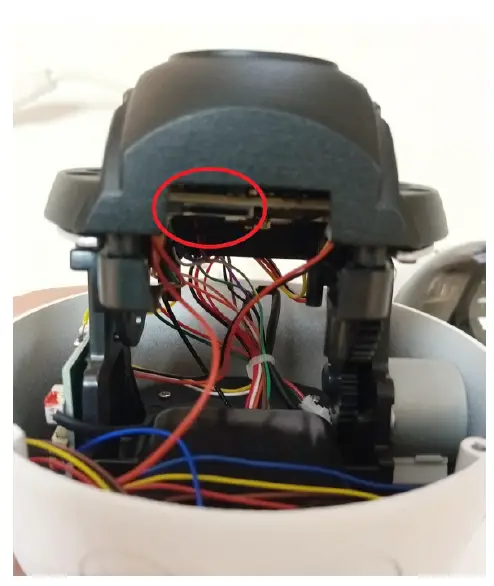
- After you took of the dome turn camera eye to face you (like on the photo).

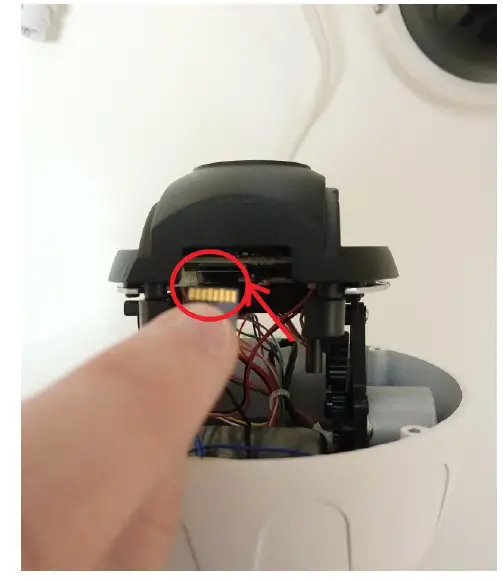
- Move the camera eye up to uncover SD slot.

- Insert SD card (golden pins facing eye of the camera, as shown on picture).
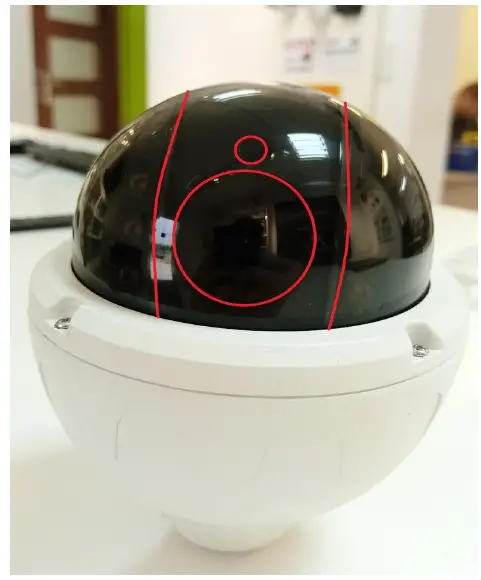
- Screw back the dome, but be careful not to do it in a bad way. You need to fit the cut in the camera blackfilm to camera eye, as shown on picture below.

P5 Pro camera SD card insertion.
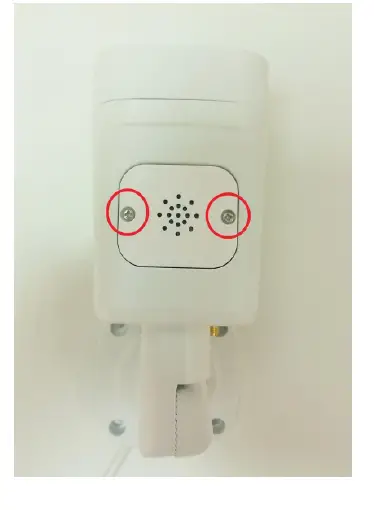
- Unscrew two screws on SD card slot, using hex key which is inside your camera box.

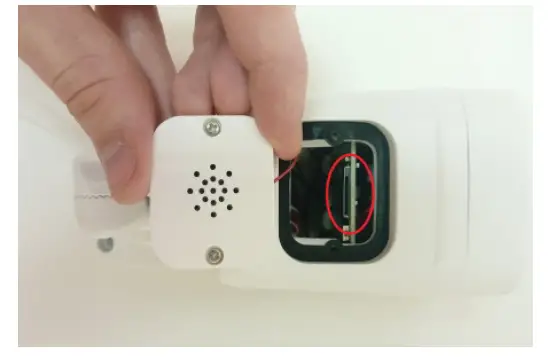
- After unscrewing them, you will see SD card slot.

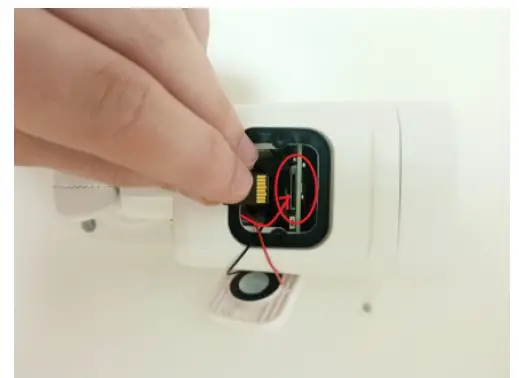
- Insert SD card (golden pins facing audio speaker

- Screw back the SD card flap.
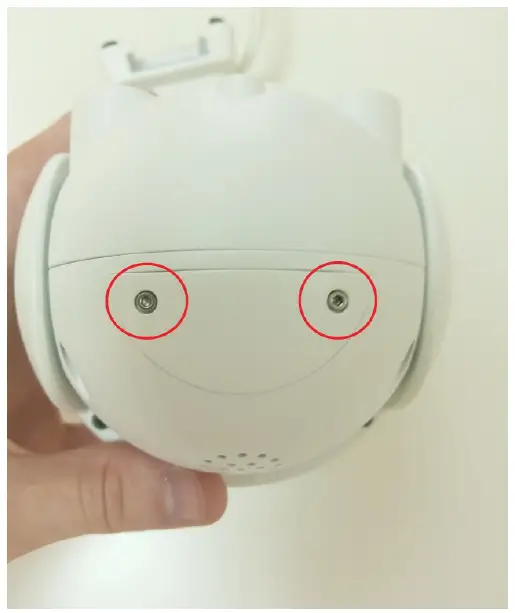
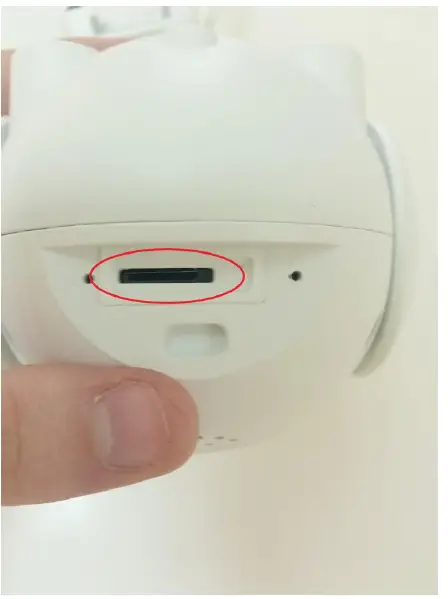
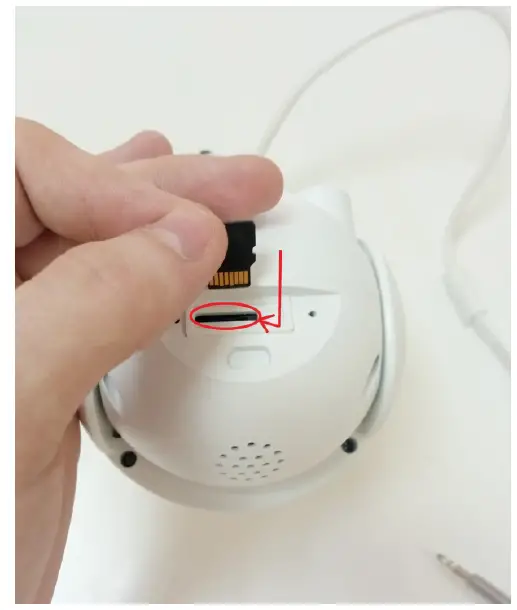
P4 camera SD card insertion.
- Unscrew two screws from SD card flap.

- After unscrewing you will see SD card slot.

- Insert SD (golden pins facing eye of the camera)

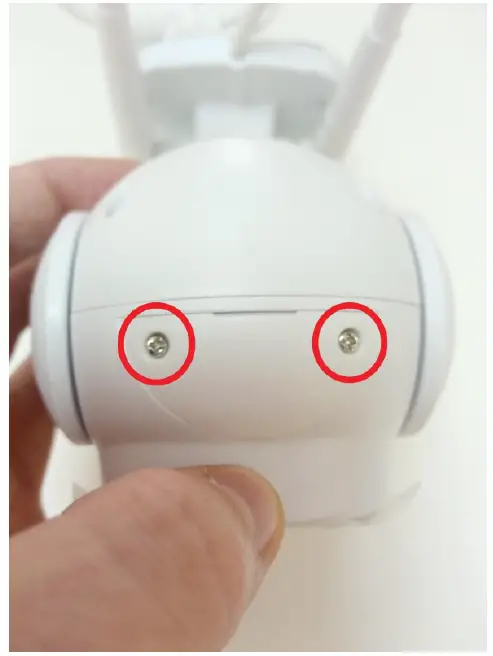
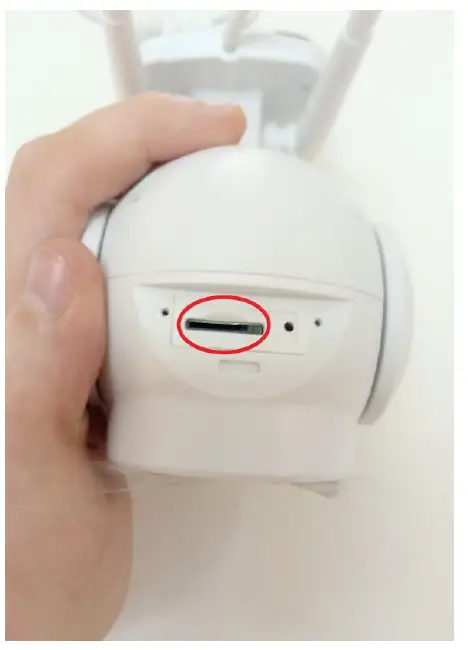
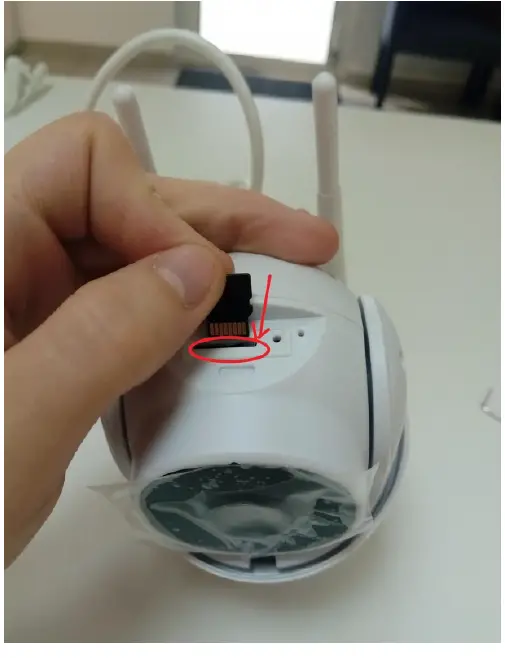
- Unscrew two screws from SD card flap

- You will see SD card slot after doing that

- Insert SD card (golden pins facing camera speaker) assemble SD card flap and screw it to the body of the camera.
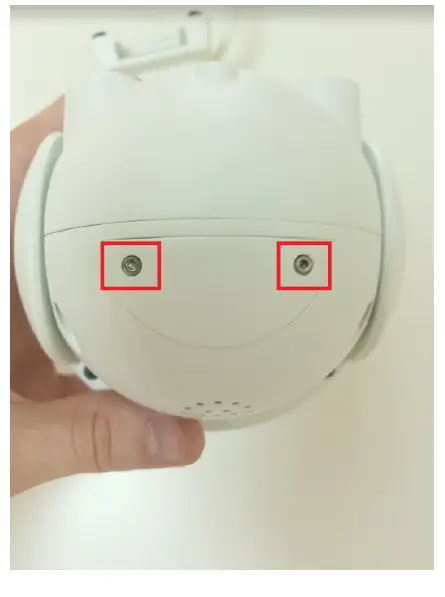
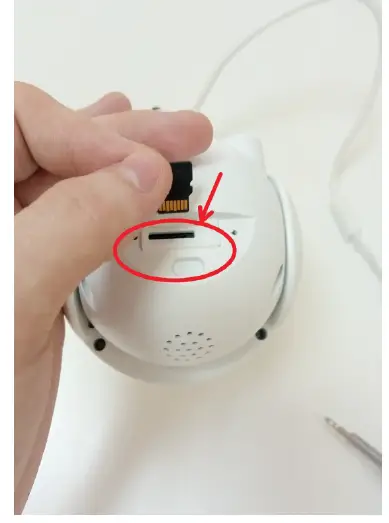
A5 camera card insertion.
- Flip the camera upside down, you will see SD card flap, unscrew two screws as shown on picture below.

- Take away the flap.

- Insert SD card (golden pins facing the top of the camera).

- Assemble the SD card flap and screw it to the camera body, remember to screw flap on with the dot facing towards camera holder.
ul. J. K. Branickiego 31
15-085 Bialystok
+48 (85) 677 70 55
[email protected]