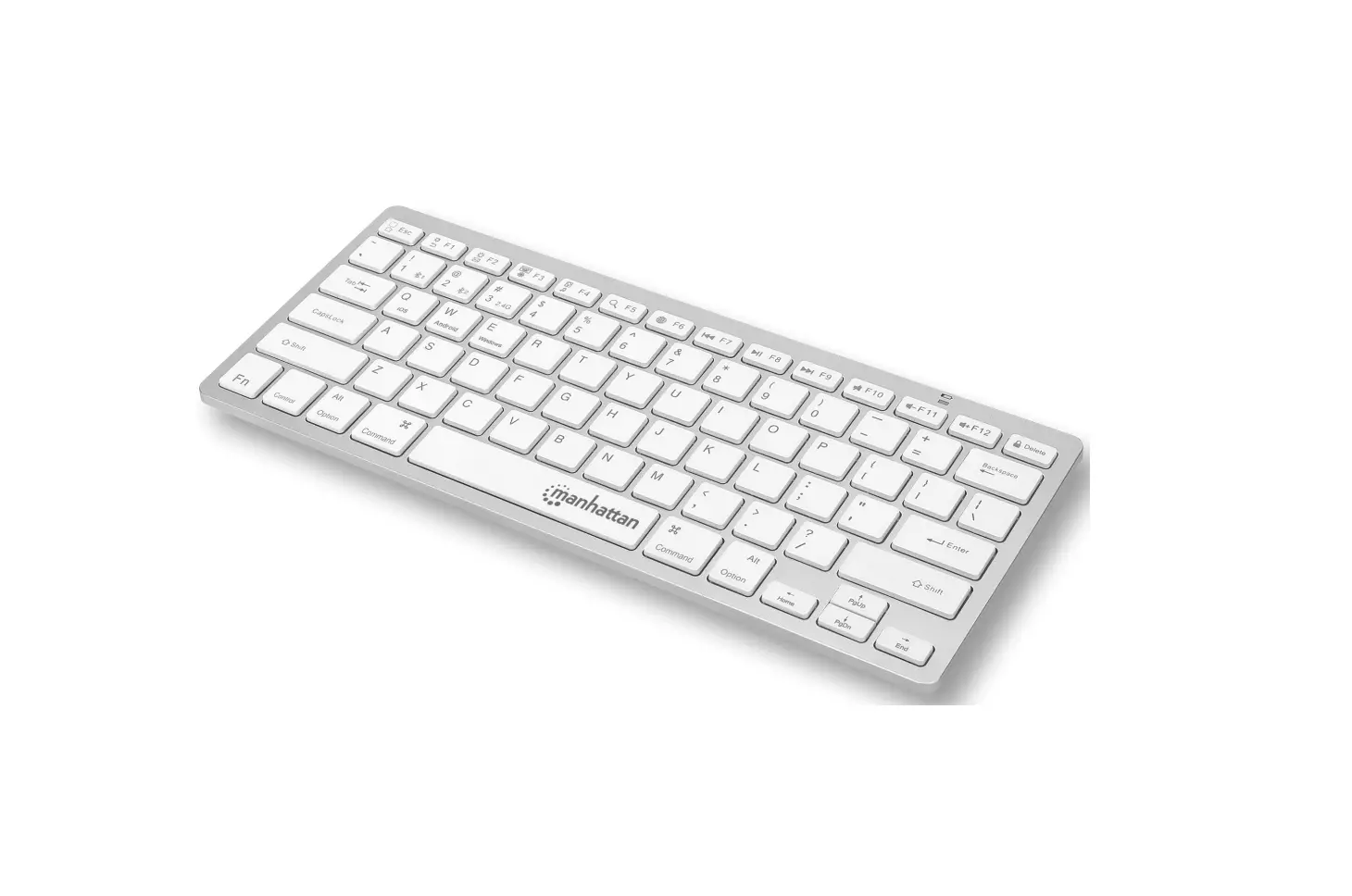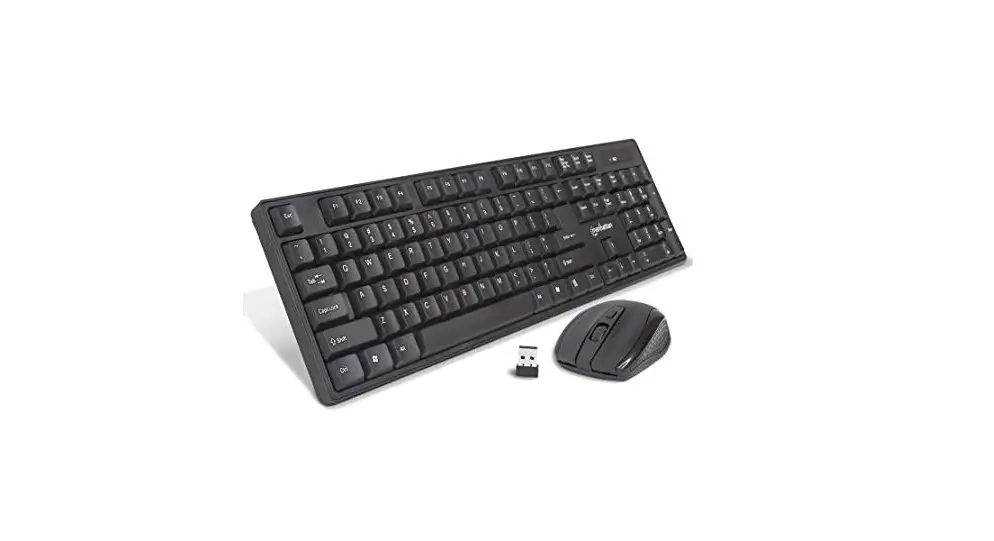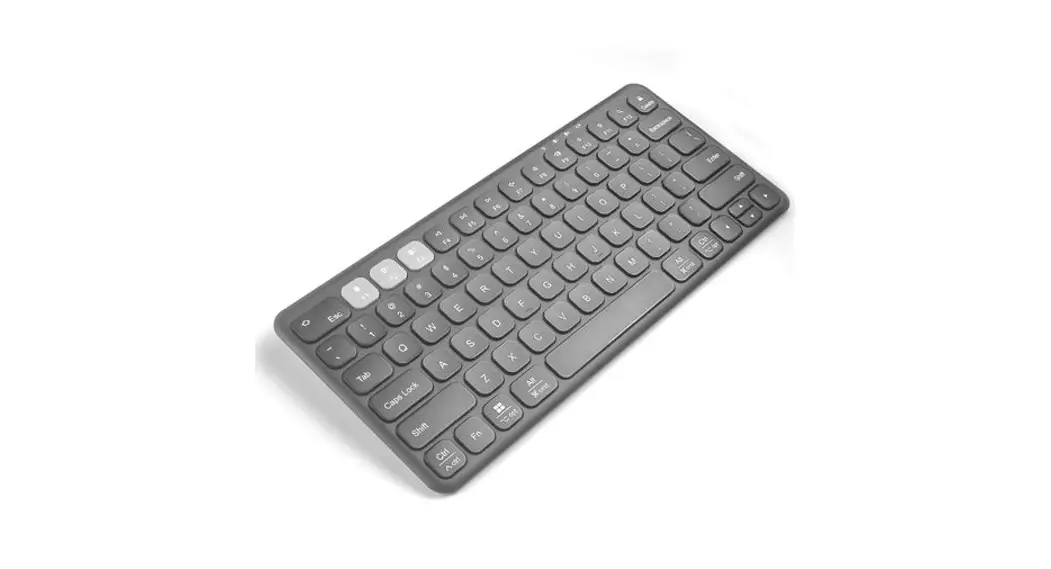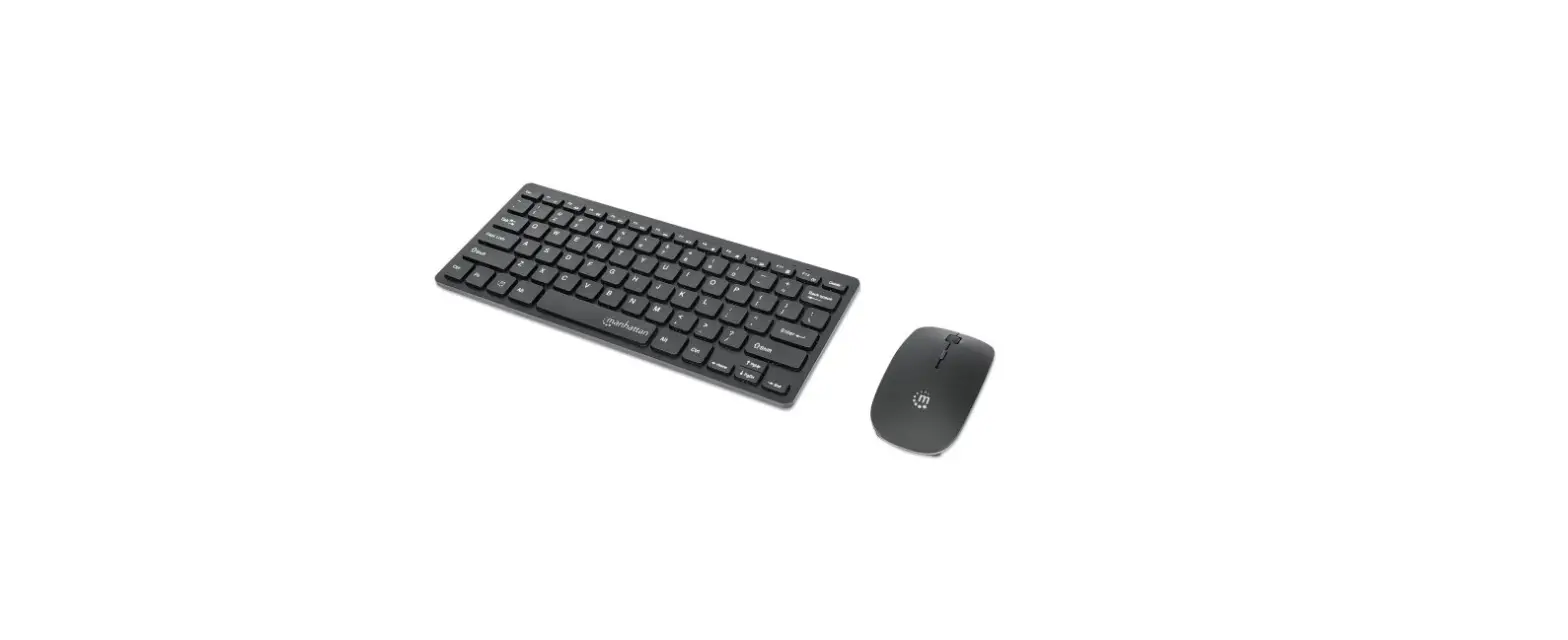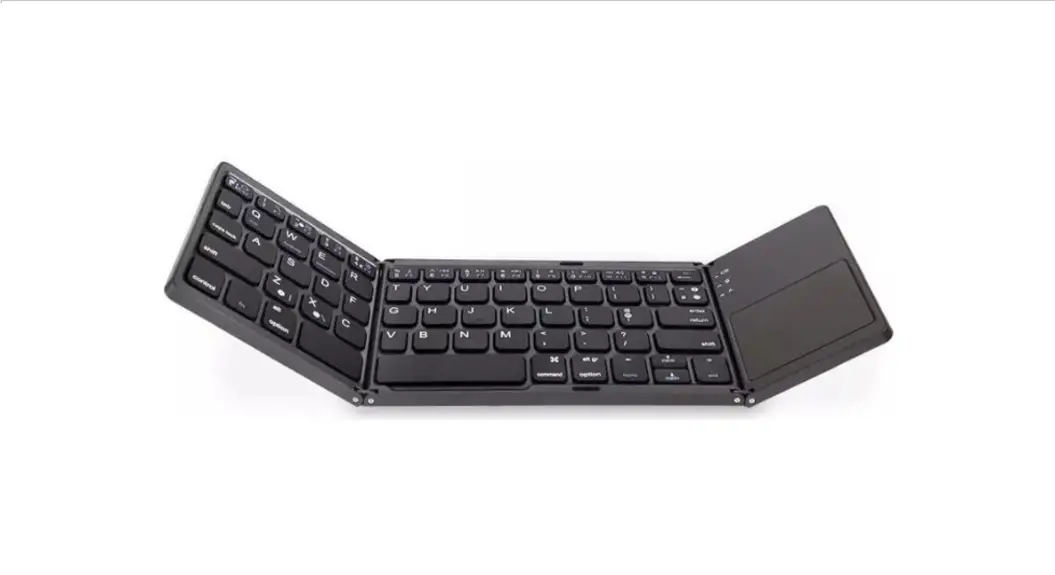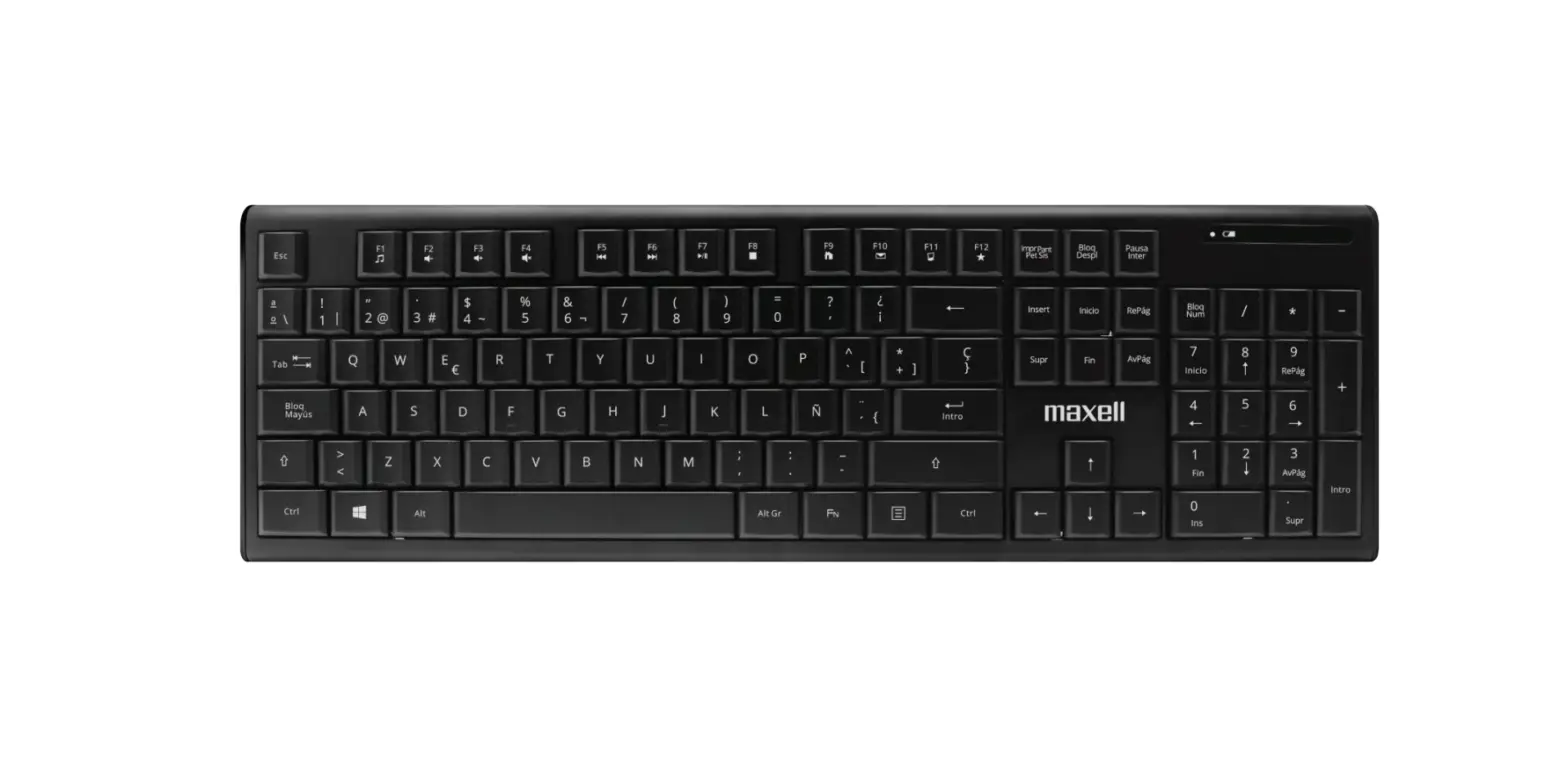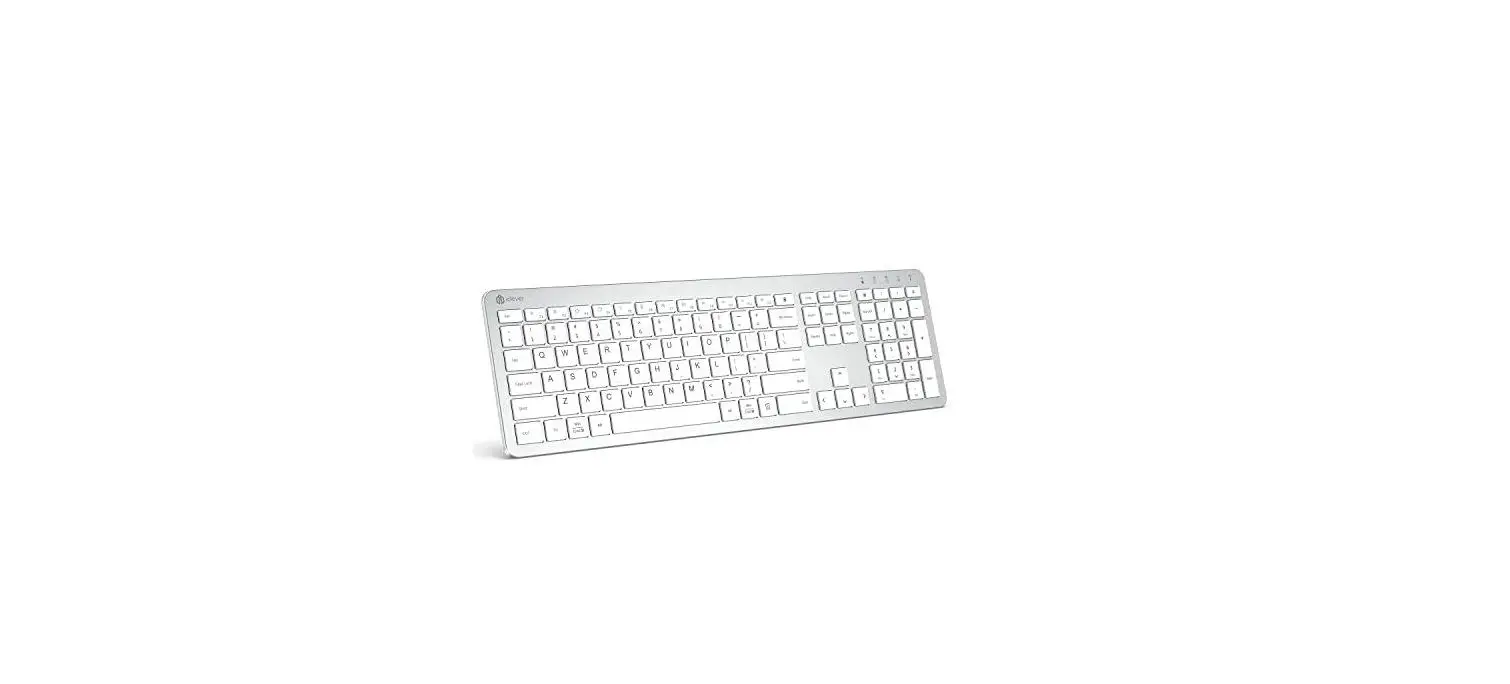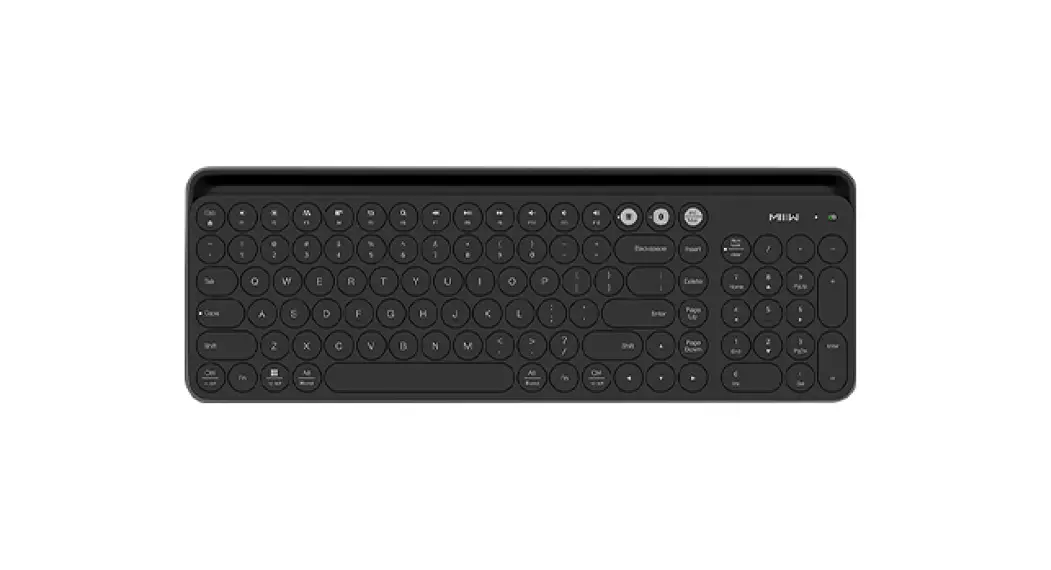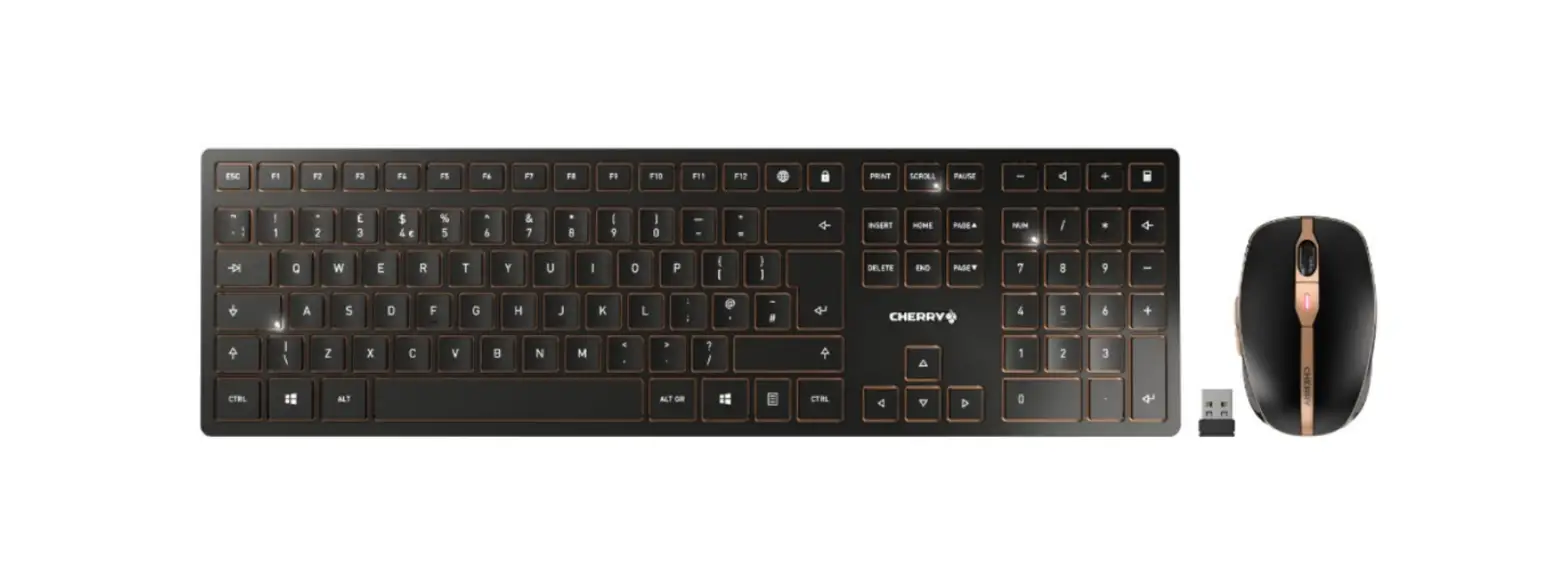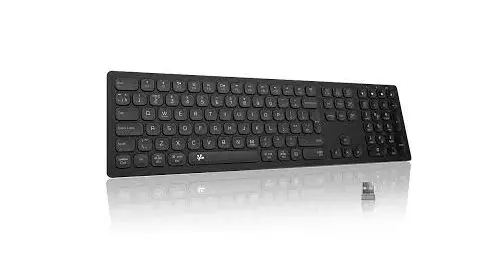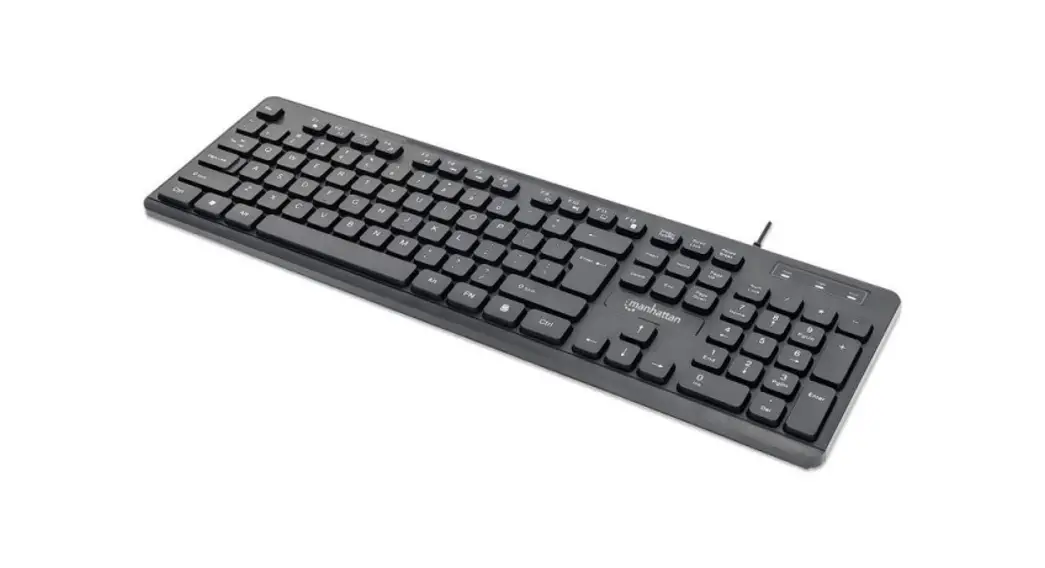
Manhattan 180559 Ultra Slim Dual-Mode Wireless Keyboard Instructions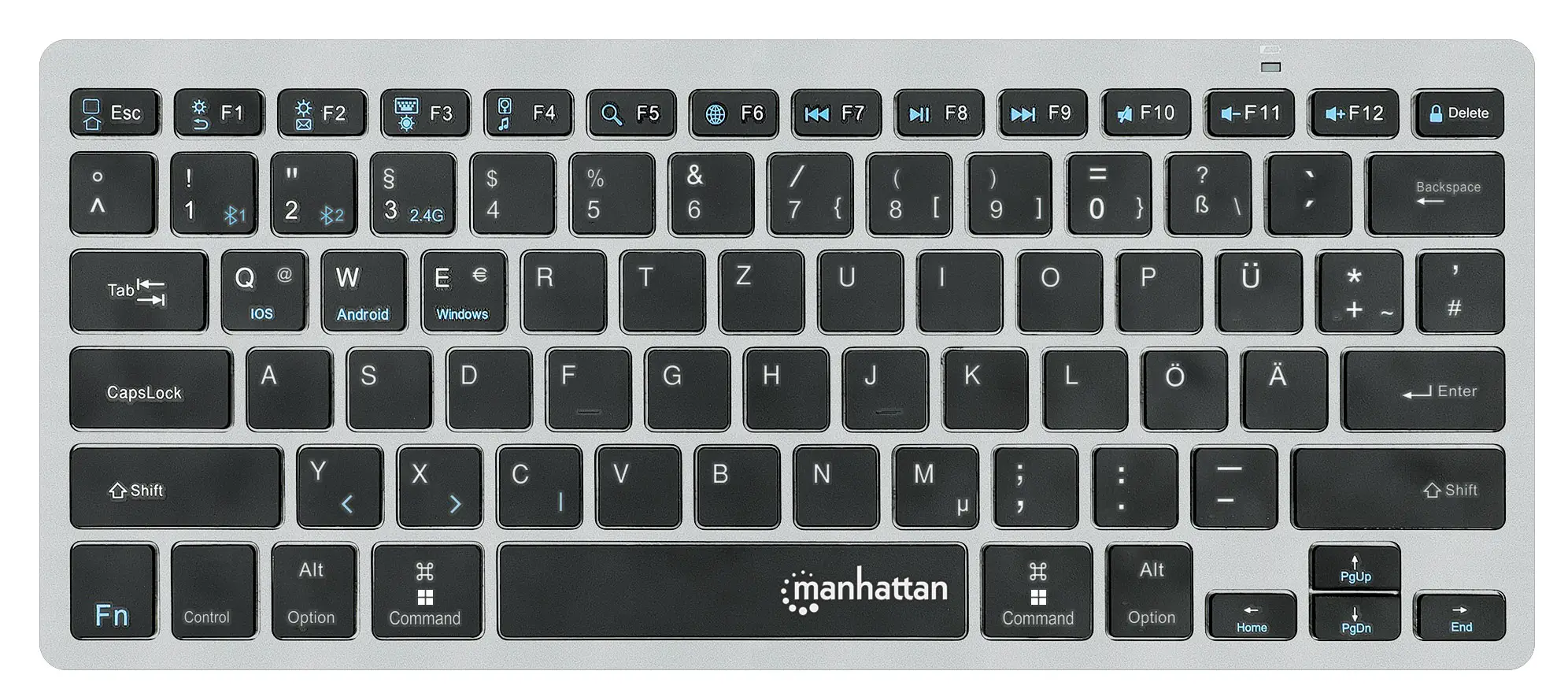
Connecting
This keyboard can connect to three devices at once: two through Bluetooth and one through the USB receiver. See step 3 to connect/pair different devices.
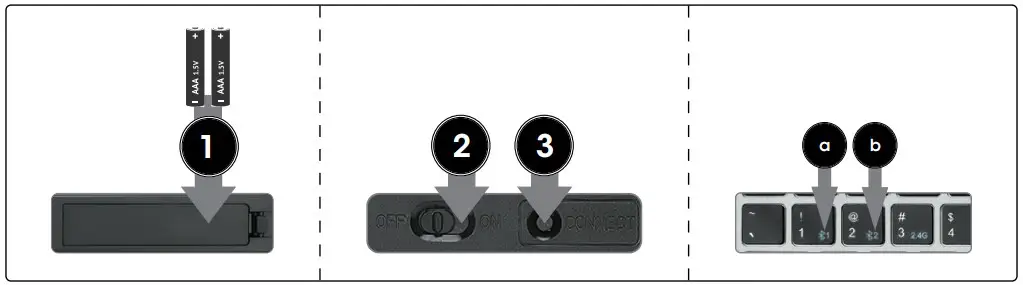
- Insert 2 AAA batteries (included) into the battery compartment on the back of the keyboard and replace the cover.
- Set the power switch to ON.
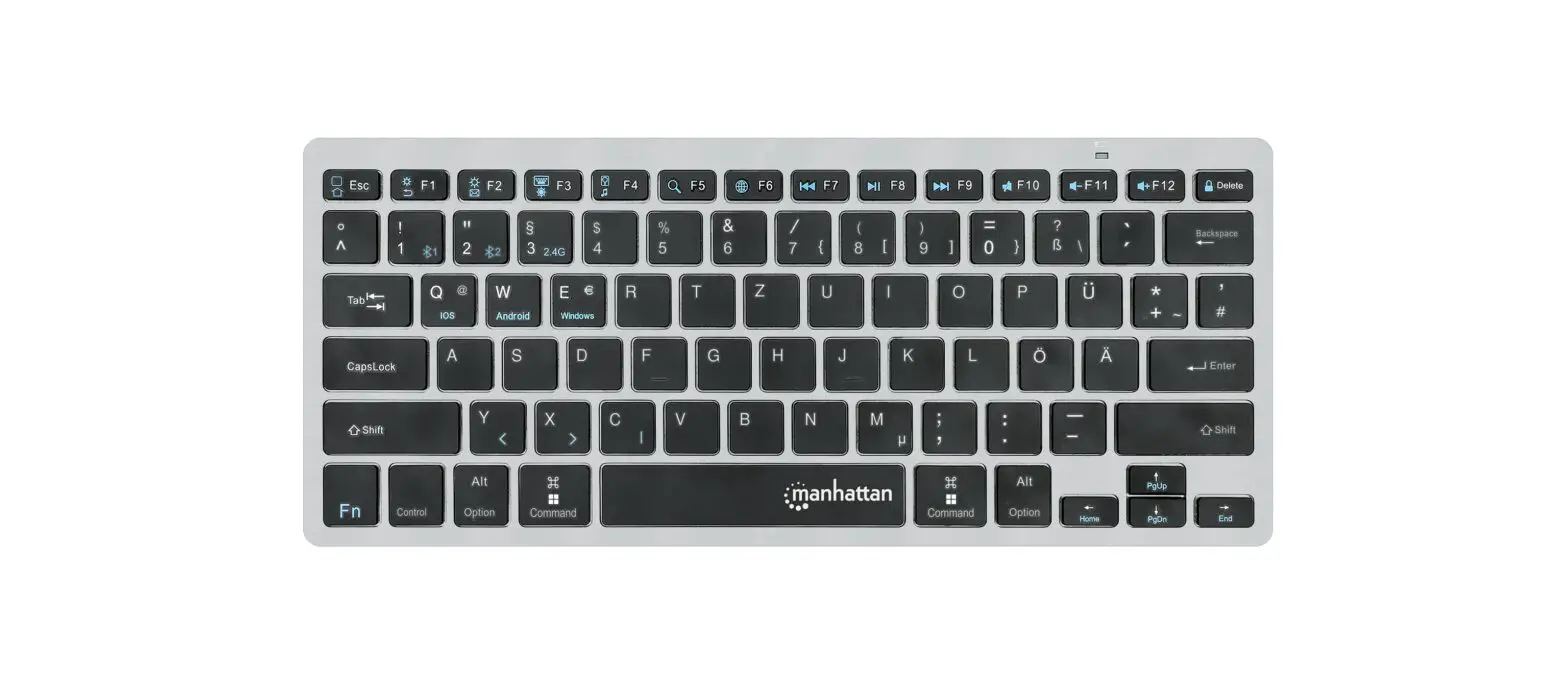
- Connect/pair devices. NOTES: Once connected, confirm your device type by pressing Fn + Q for iOS/macOS, Fn + W for Android, or Fn + E for Windows. Switch between devices using the funtions in the Functions table. The first paired device is Bluetooth 1 (a). The second paired device is Bluetooth 2 (b). To add a different device, “forget”/unpair/remove the keyboard before repeating the steps to pair to a new device. For connection issues or failures, unpair/remove this device from your Bluetooth device list and repeat the steps to pair it again.
- Connect via 2.4 GHz USB receiver: This connection is Plug and Play; no driver is required.
- Press the CONNECT button on the underside of the keyboard. Then press Fn + 3.
- Take the wireless receiver from the keyboard’s underside and plug it into an available USB port on your computer (Note: complete step while LED flashes).
- Wait 30 seconds for the receiver to work.
- Pair via Bluetooth:
Mac/iOS/Android:
- Go to your device’s Bluetooth Preferences/Settings. Make sure Bluetooth is turned on in your device.
- Press the CONNECT button on the underside of the keyboard and select BLE Keyboard/BT Keyboard from the device list when it appears. Confirm pairing if a dialog box appears.
- Complete the installation by pressing the hotkey combination for your device type: Fn + Q for Mac/iOS or Fn + W for Android. To pair a second device, repeat these steps.
Windows 10:
- Open the Start menu. Start typing “Bluetooth” and select Bluetooth and Other Devices Settings from the Best Match results.
- Make sure Bluetooth is turned on in your device. Click Add Bluetooth or Other Device. On the Add a Device screen, select Bluetooth.
- Press the CONNECT button on the underside of the keyboard and select BLE Keyboard/BT Keyboard from the device list when it appears.
- Complete the installation by pressing the hotkey combination for your device type: Fn + E. To pair a second device, repeat these steps.
LEDs
| Status | Description |
| Slow flashing | Pairing mode |
| Fast flashing | Issue connecting; confirm a device type |
| Off | Pairing complete |
| On (3 s) | Power turned on |
| Slow flashing | Low battery |
| On (sustained) | Caps Lock on |
Functions
| Function | iOS | Mac | Android | Windows | |
| Fn + | Esc | Home | Mute/Unmute | Home | Browser Home Page |
| F1 | Decrease Brightness | Return | |||
| F2 | Increase Brightness | ||||
| F3 | On-screen Keyboard | Settings | Settings | ||
| F4 | Screenshot | Media Player | |||
| F5 | Search | Start Menu/Search | |||
| F6 | Switch keyboard language | Switch keyboard language | |||
| F7 | Previous Track | ||||
| F8 | Play/Pause | ||||
| F9 | Next Track | ||||
| F10 | Mute/Unmute | ||||
| F11 | Decrease Volume | ||||
| F12 | Increase Volume | ||||
| Del | Lock Screen/Sleep | ||||
| Q | Use keyboard with iOS device | ||||
| W | Use keyboard with Android device | ||||
| E | Use keyboard with Windows device | ||||
| 1 | Switch to Bluetooth device | ||||
| 2 | Switch to Bluetooth device | ||||
| 3 | Switch to device using USB receiver | ||||
For specifications, please visit manhattanproducts.com. Register your product at
register.manhattanproducts.com/r/180559 or scan the QR code on the cover.
WASTE ELECTRICAL & ELECTRONIC EQUIPMENT
Disposal of Electric and Electronic Equipment (applicable in the E.U. and other countries with separate collection systems)
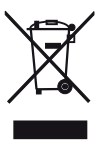
This symbol on the product or its packaging means that this product must not be treated as unsorted household waste. In accordance with EU Directive 2012/19/EU on Waste Electrical and Electronic Equipment (WEEE), this electrical product must be disposed of in accordance with the user’s local regulations for electrical or electronic waste. Please dispose of this product by returning it to your local point of sale or recycling pickup point in your municipality.
REGULATORY STATEMENTS
FCC Class B | Dongle FCC ID 2ADQY-180559DGL
This equipment has been tested and found to comply with the limits for a Class B digital device, pursuant to Part 15 of Federal Communications Commission (FCC) Rules. These limits are designed to provide reasonable protection against harmful interference in a residential installation. This equipment generates, uses and can radiate radio frequency energy, and if not installed and used in accordance with the instructions may cause harmful interference to radio communications. However, there is no guarantee that interference will not occur in a particular installation. If this equipment does cause harmful interference to radio or television reception, which can be determined by turning the equipment off and on, the user is encouraged to try to correct the interference by one or more of the following measures: reorient or relocate the receiving antenna; increase the separation between the equipment and the receiver; connect the equipment to an outlet on a circuit different from the receiver; or consult the dealer or an experienced radio/TV technician for help.
The frequency band used by this product is 2402 – 2480 MHz. The maximum emitted transmission power is 0.0123 mW E.I.R.P. This device complies with the requirements of CE RED 2014/53/EU. The Declaration of Conformity for is available at:

North & South America
IC Intracom Americas
550 Commerce Blvd.
Oldsmar, FL 34677, USA

Asia & Africa
IC Intracom Asia 4-F, No. 77, Sec. 1, Xintai 5th Rd.
Xizhi Dist., New Taipei City 221, Taiwan

Europe
IC Intracom Europe
Löhbacher Str. 7
D-58553 Halver, Germany
All trademarks and trade names are the property of their respective owners.
 Manhattan Products: HDMI Adapters, Cables, TV Mounts, Barcode Scanners
 Manhattan Products Account and Product Registration