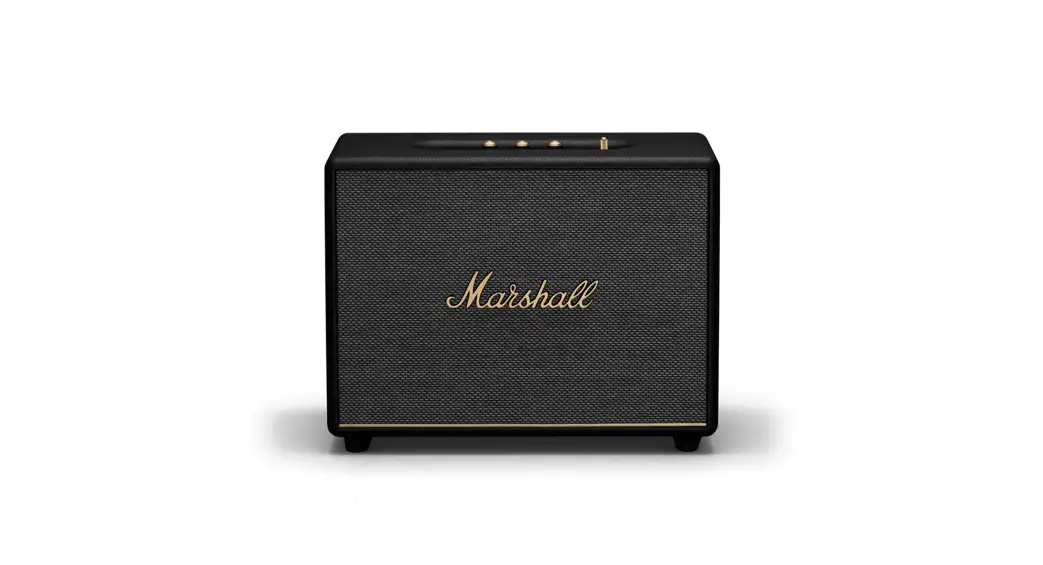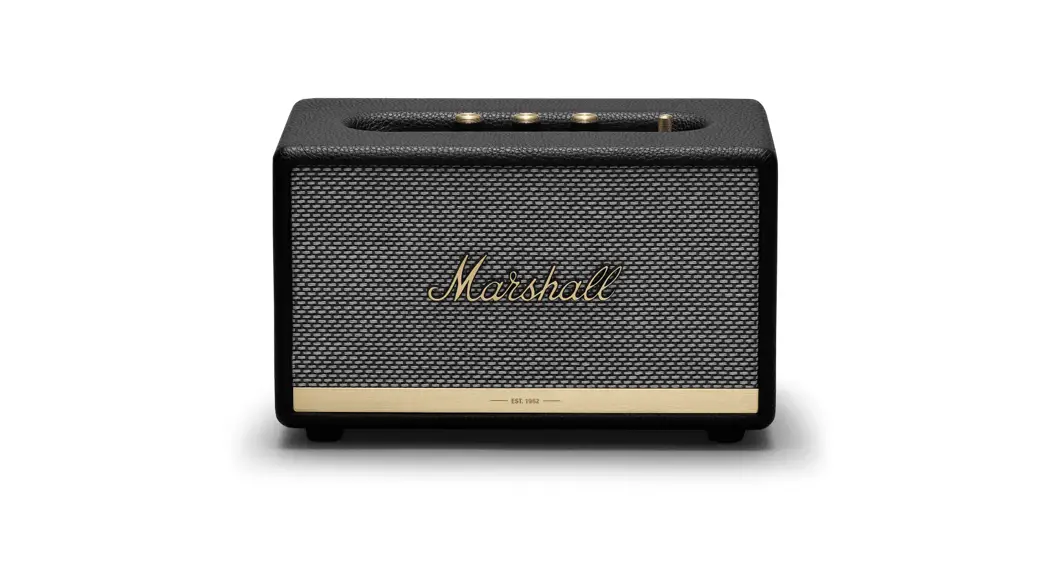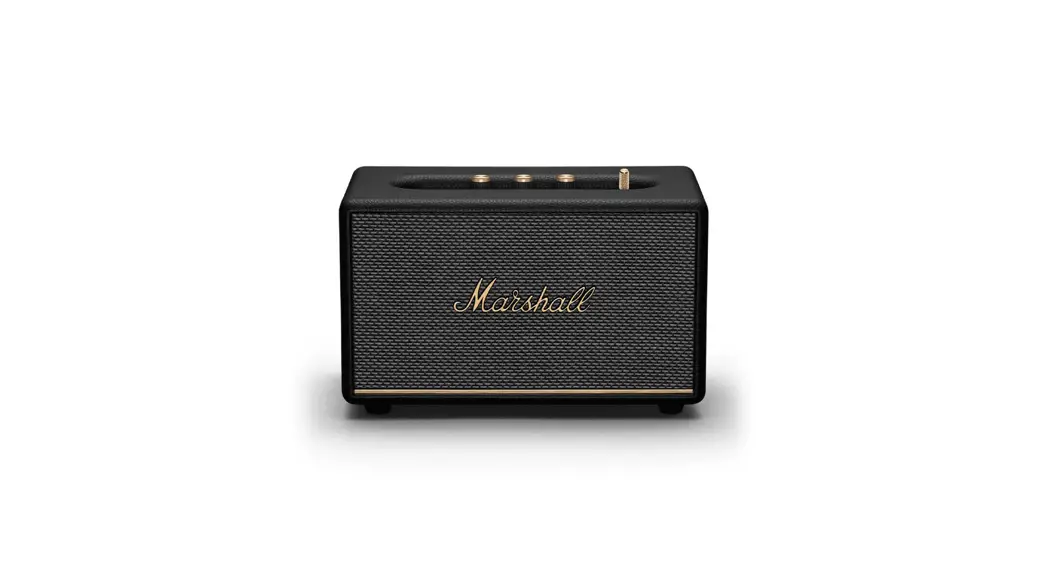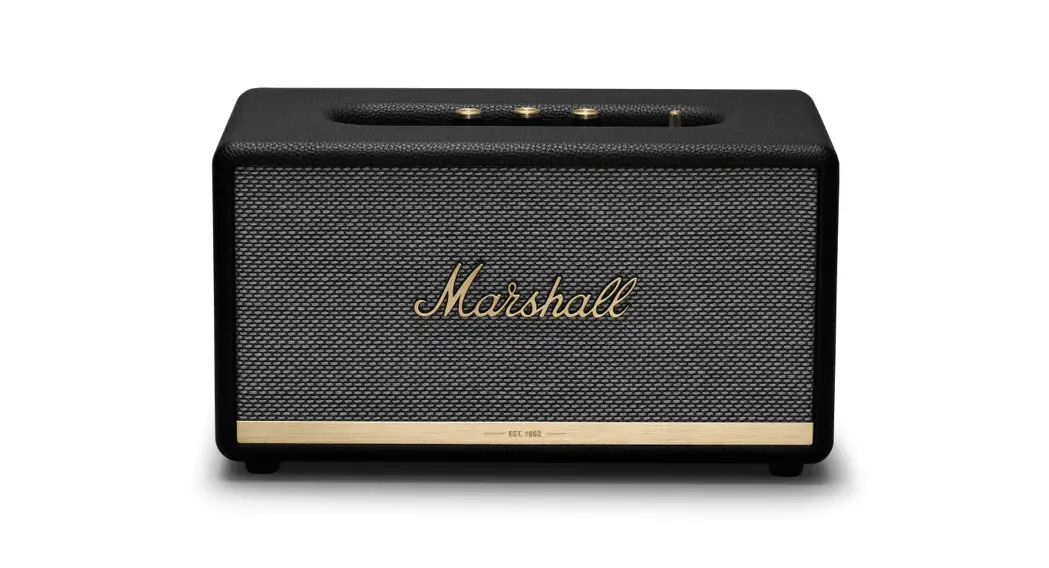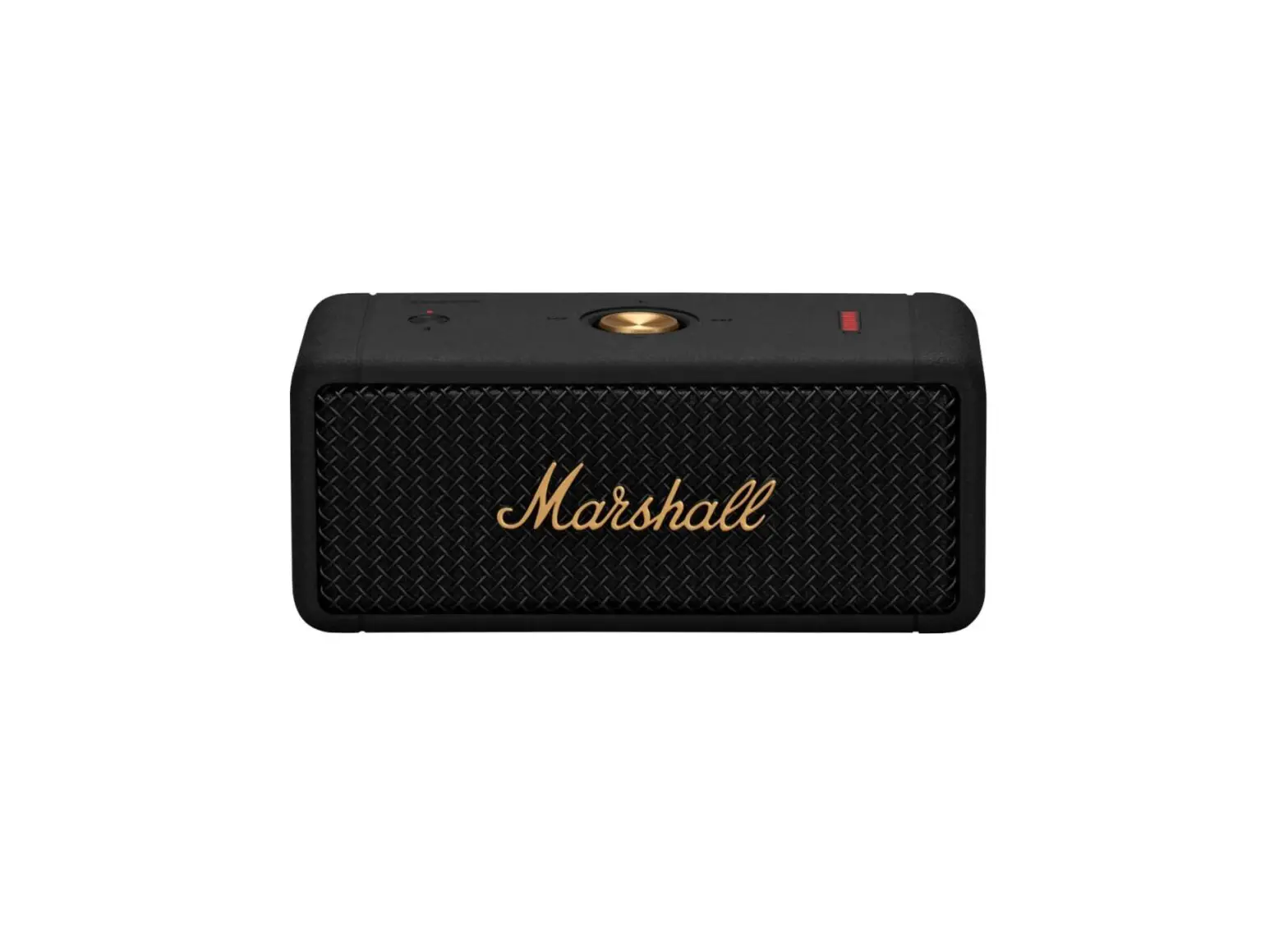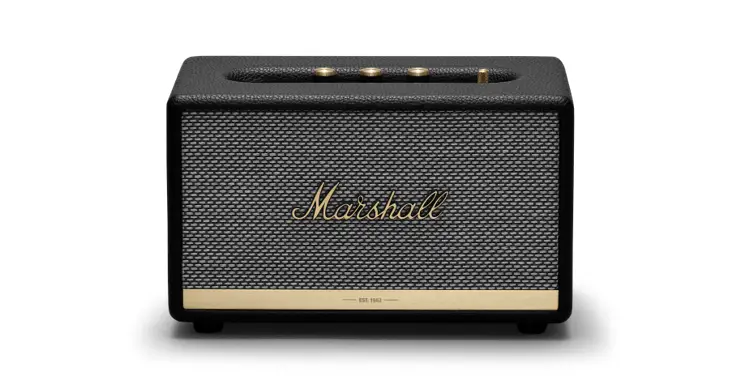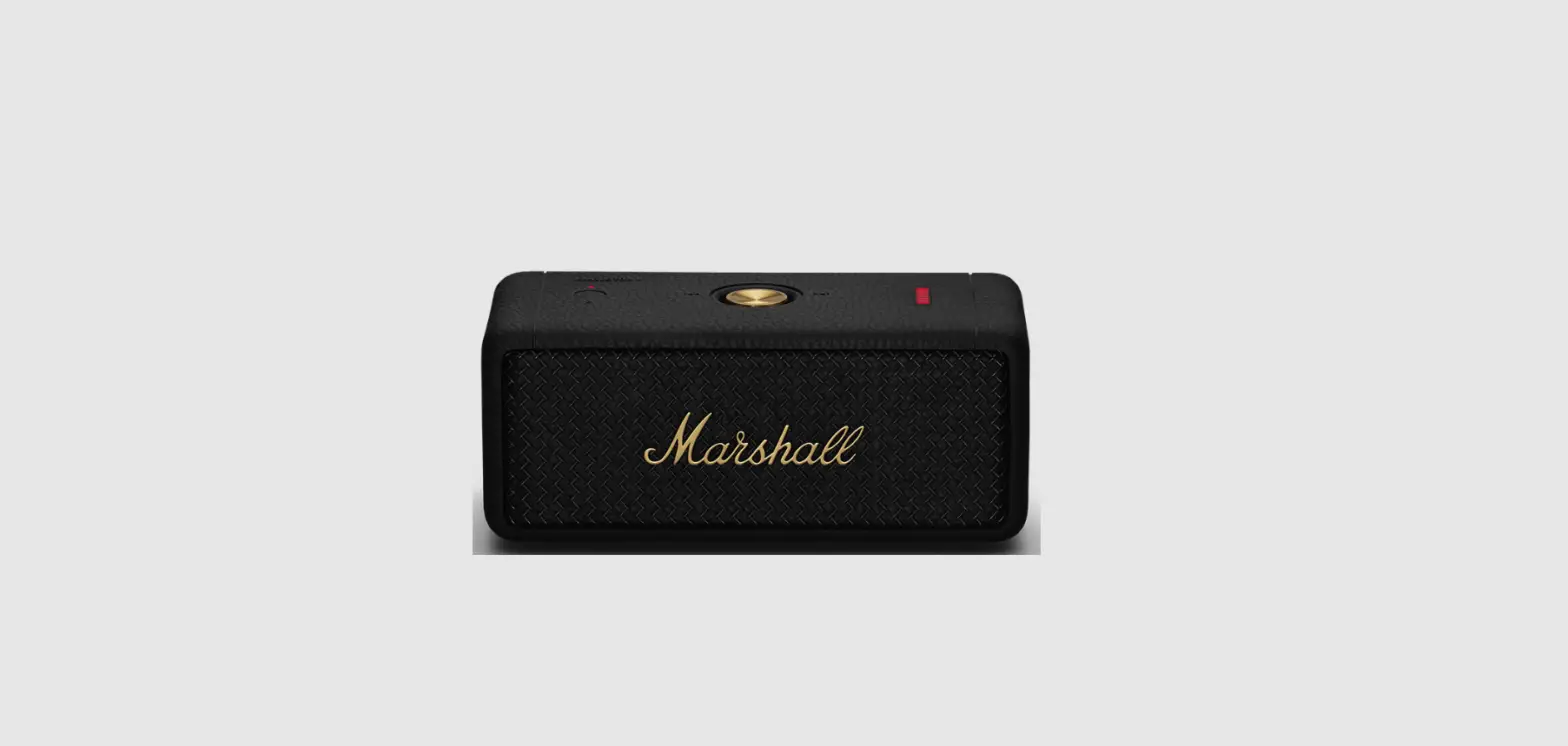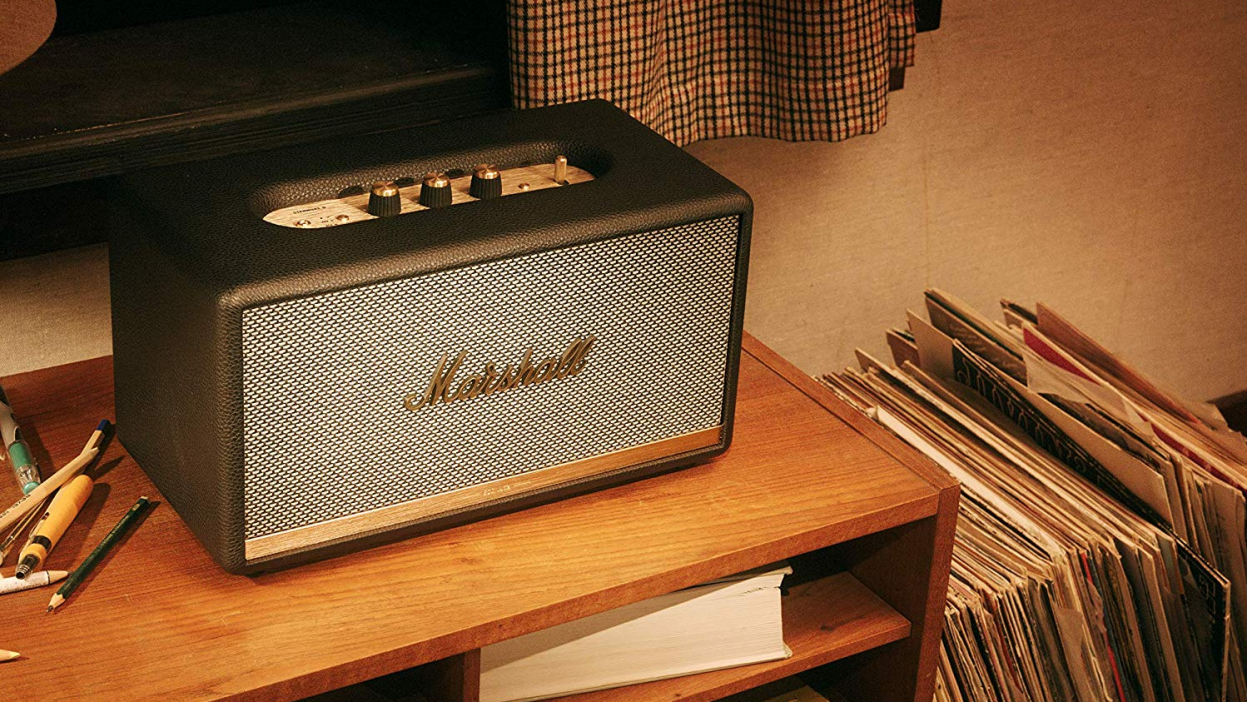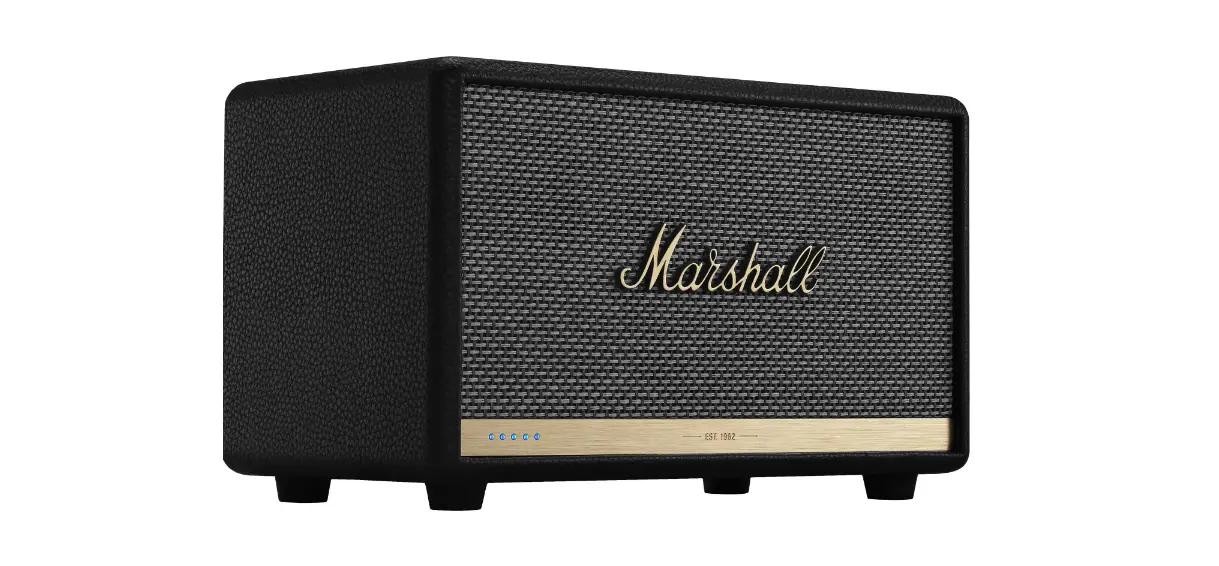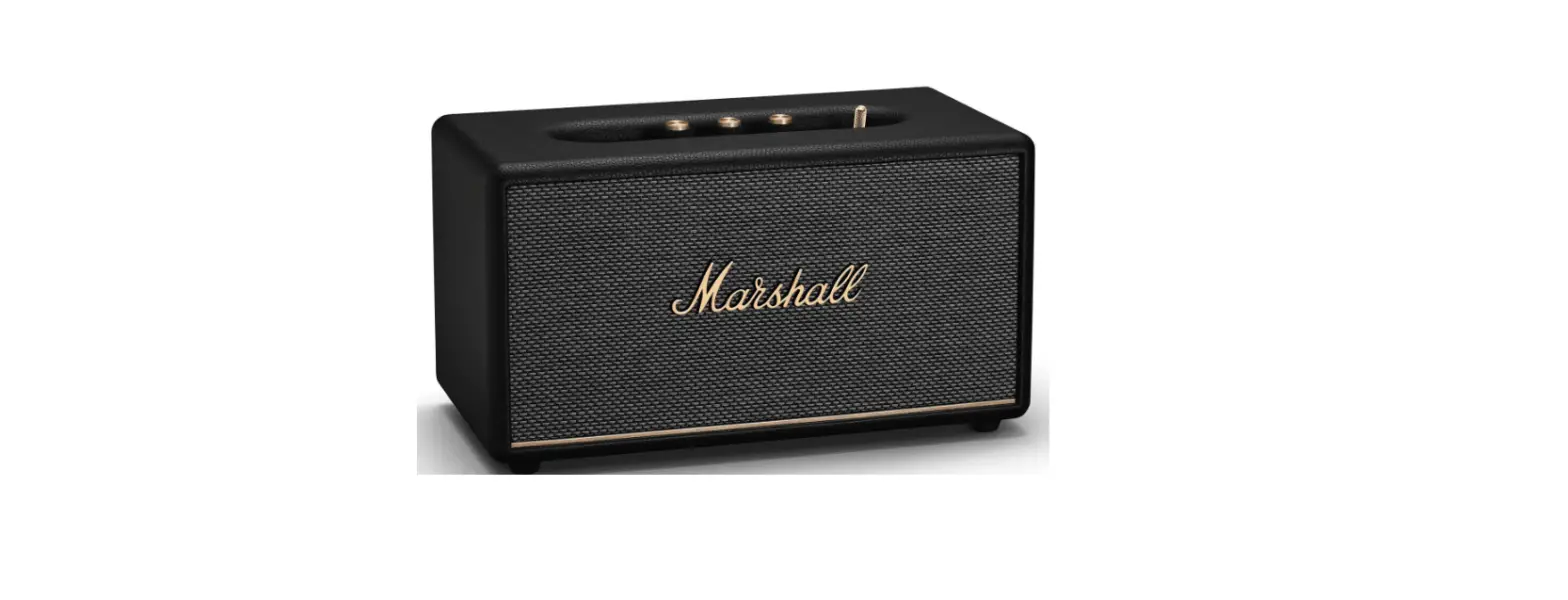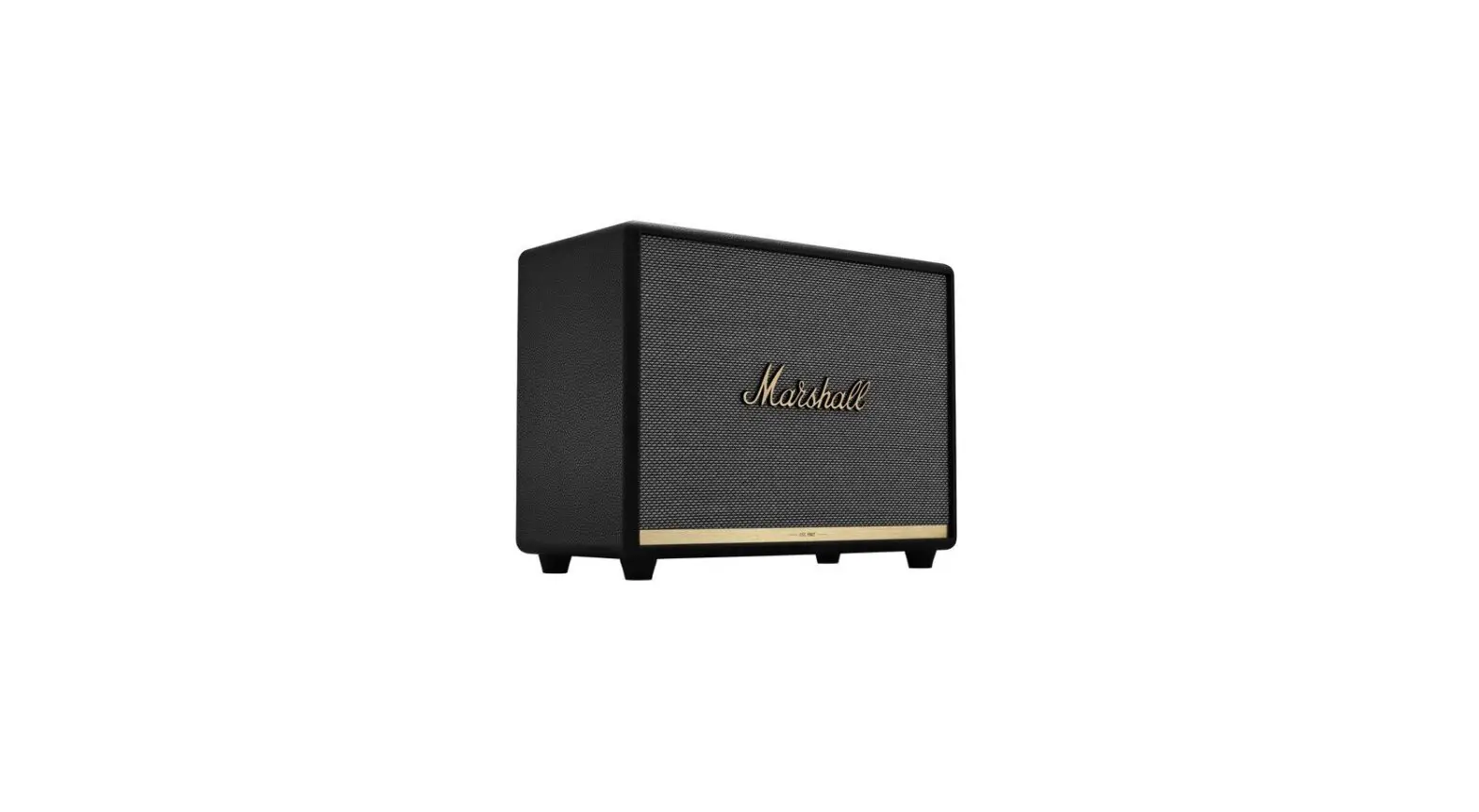

Marshall WOBURN II Bluetooth Speaker
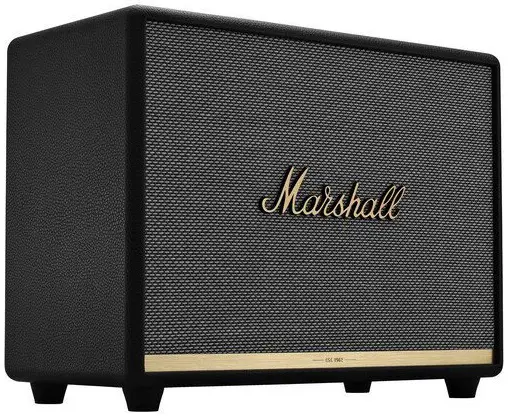
Product Information
The Woburn III is a high-quality speaker system that features a range of connectivity options, allowing you to enjoy your audio from a variety of sources. The device includes a 3.5 mm input for analogue audio devices, an RCA input for turntables, and an HDMI ARC input for TVs. The speaker also comes with a range of audio controls, including volume, bass, and treble, as well as media controls for Bluetooth playback. The Woburn III is easy to set up and use, with instructions included in the user manual.
Product Usage Instructions
Getting Started
- Connect the mains lead to the mains input on the speaker.
- Connect the mains plug to the wall socket.
- Use the power switch to turn the speaker on.
- Download the Marshall Bluetooth app and follow the in-app instructions to set up your speaker.
Note:
Always ensure that the mains lead, plug, and speaker are compatible with your mains supply and wall socket. Always unplug the mains lead from the wall socket before disconnecting it from the speaker.
Bluetooth Pairing
- Use the source button to select Bluetooth.
- Push and hold the source button until the Bluetooth LED pulses red.
- Select WOBURN III from your audio device’s Bluetooth list.
Note:
Woburn III can be connected to two Bluetooth devices at the same time. If a connected device is playing, a second connected device cannot start playing until the first device is paused.
Connecting an Aux Device
- Connect a 3.5 mm stereo jack to the AUX input on the top of the speaker.
- Connect the other end of the lead to the audio output on your audio source.
- Use the source button to select AUX.
Note: Audio leads are not included.
Connecting an RCA Device
- Connect a lead with RCA jacks to the RCA input on the back of the speaker.
- Connect the other end of the lead to the output on your audio source.
- Use the source button to select RCA.
Note:
The turntable must be equipped with an RIAA amplifier or connected via a separate preamplifier. Audio lead and RIAA amplifier are not included.
Connecting a TV with HDMI
- Plug an HDMI lead into the HDMI port on the back of Woburn III and the HDMI ARC port on your TV.
- Turn on the speaker and use the source button to select HDMI.
- Turn on your TV and select HDMI ARC audio output and choose PCM (2-channel) as format.
Note:
HDMI leads are not included. For information about your TV’s HDMI support, labeling of ports, and user instructions, please consult its user manual.
This is an interactive document, click on the section you are looking for.
DEVICE LAYOUT
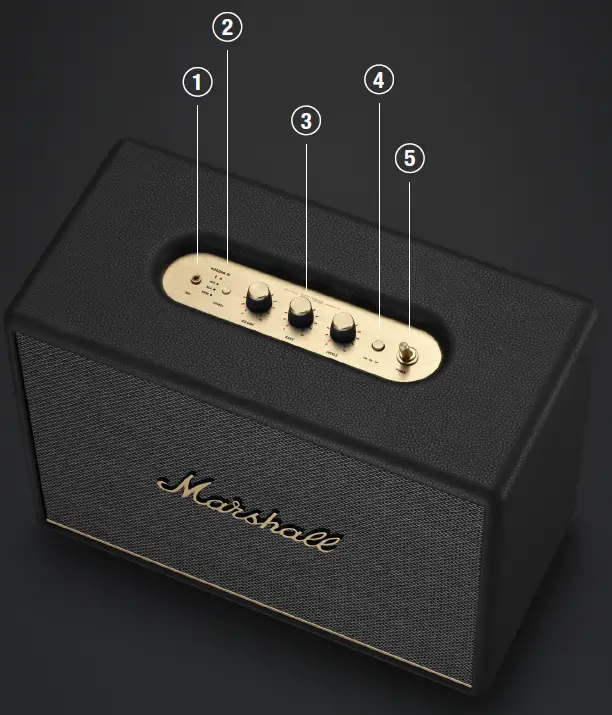
- 3.5 MM INPUT
Plug in an analogue audio device with a 3.5 mm stereo jack. - SOURCE SELECTION
Push the source button to toggle between Bluetooth®, AUX, RCA, and HDMI audio sources. A lit indicator shows which source is selected. This can also be selected from the Marshall Bluetooth app. Caution: Make sure that the volume is set to low on both the speaker and the audio device before using the speaker. - AUDIO CONTROLS
Woburn III includes three controls for adjusting the audio.- Volume control
- Bass control
- Treble control
- MEDIA CONTROL
Control the audio directly from the top panel when playing via Bluetooth.- Push to play or pause
- Push right to skip forward
- Push left to skip back
- Hold left or right to rewind or fast forward
Playback can also be controlled from the Marshall Bluetooth app.
- POWER SWITCH
Use the power switch to turn the speaker on or off.
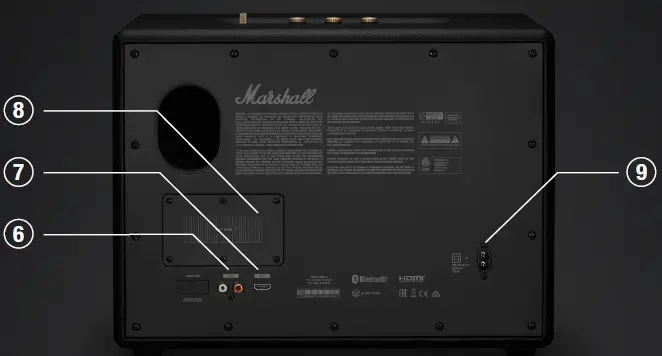
- RCA INPUT (LEFT AND RIGHT)
Plug in an RCA audio device, such as an RIAA turntable. - HDMI ARC INPUT
Plug in an HDMI-supported TV. - HEAT SINK
Dissipates heat from the internal power supply. - POWER INPUT
Use the included mains lead to connect Woburn III to the wall socket.
GETTING STARTED
- Connect the mains lead to the mains input on your speaker, then connect the mains plug to the wall socket.
- Use the power switch to turn the speaker on.
- Download the Marshall Bluetooth app and follow the in-app instructions to set up your speaker.
Important:
Always ensure that the mains lead, plug and speaker are compatible with your mains supply and wall socket.
Caution:
Always unplug the mains lead from the wall socket before disconnecting it from the speaker.
BLUETOOTH PAIRING
- Use the source button to select Bluetooth.
- Push and hold the source button until the Bluetooth LED pulses red.
- Select WOBURN III from your audio device’s Bluetooth list.
Woburn III can be connected to two Bluetooth devices at the same time. If a connected device is playing, a second connected device cannot start playing until the first device is paused.
CONNECTION
CONNECTING AN AUX DEVICE
- Connect a 3.5 mm stereo jack to the AUX input on the top of the speaker.
- Connect the other end of the lead to the audio output on your audio source.
- Use the source button to select AUX.
Note: Audio leads are not included.
CONNECTING AN RCA DEVICE
- Connect a lead with RCA jacks to the RCA input on the back of the speaker.
- Connect the other end of the lead to the output on your audio source.
- Use the source button to select RCA.
Note:
The turntable must be equipped with an RIAA amplifier or connected via a separate preamplifier. Audio lead and RIAA amplifier are not included.
CONNECTING A TV WITH HDMI
- Plug an HDMI lead into the HDMI port on the back of Woburn III and the HDMI ARC port on your TV.
- Turn on the speaker and use the source button to select HDMI.
- Turn on your TV and select HDMI ARC audio output and choose PCM (2-channel) as format.
If Woburn III is powered on and connected to a TV, turning on the TV will auto-select HDMI as source.
Note:
HDMI leads are not included. For information about your TV’s HDMI support, labelling of ports and user instructions, please consult its user manual.
NETWORK STANDBY MODE
Woburn III will go into network standby if left unused for 10 minutes to save energy. Any connected Bluetooth device will be disconnected. Interact with any control or button on the top panel, reconnect a Bluetooth device or play anything via the physical inputs to wake up the speaker.
PERFORMING A FACTORY RESET
A factory reset will return the speaker to its original settings, excluding any firmware updates.
Note: This will delete all user settings and the speaker needs to be set up again.
- Push and hold the media control for more than 10 seconds and the speaker will reset.
- Remove WOBURN III from your audio device’s Bluetooth list before pairing again.
MARSHALL BLUETOOTH APP
Download the Marshall Bluetooth app to get the most out of your speaker and keep it up to date with the latest software.
TROUBLESHOOTING
| PROBLEM | CAUSE | ACTION |
| The speaker does not turn on | The speaker is not connected to mains electricity supply. | Connect the mains lead to the speaker and a working wall socket. |
| The speaker is not responding | A software problem has occurred. | Unplug the mains power plug from the wall socket, wait for 15 seconds, then plug it in again. |
| There is no audio or audio is too low | The wrong audio source is selected. | Use the source button to select the audio source. |
| The audio device is not connected. | Ensure that the device is connected to Woburn III. | |
| Volume is set too low on either the audio source or the speaker. | Slightly increase the volume on your audio source or the speaker. | |
| The audio is distorted | Volume is set too high on the audio source. | Turn down the playback volume on the audio source. |
| The volume, bass, or treble is set too high on the speaker. | Lower the volume, bass, or treble on the speaker. |
| PROBLEM | CAUSE | ACTION |
| Cannot connect or pair with a Bluetooth device | Bluetooth is not enabled on your device (smartphone, tablet, computer). | Activate Bluetooth on your audio device. |
| A Bluetooth device is already connected to the speaker. | Disconnect the connected Bluetooth audio device before setting the speaker in pairing mode. | |
| The speaker is not in pairing mode. | I. Use the source button to select Bluetooth. | |
| II. Push the source button until the Bluetooth LED pulses red. | ||
| Bluetooth connection | The two Bluetooth | Move the devices |
| drops out | devices are too | closer to each other |
| far apart, or the | so that they are | |
| connection is affected | unobstructed by | |
| due to obstacles. | obstacles such as walls | |
| or doors. | ||
| The back of the | When playing music | The temperature of the |
| speaker is hot to | on high volume for an | heat sink is well within |
| touch | extended period, the | safety limits and the |
| heat generated by the | speaker can be used | |
| internal power supply is | without any corrective | |
| dissipated via the heat | actions. | |
| sink on the back of the | ||
| speaker. |
| PROBLEM | CAUSE | ACTION |
| Bluetooth connection | There is a strong | Move the speaker to |
| drops out | electric field | another spot or turn off |
| surrounding the | or move the interfering | |
| speaker. Items such | electronic device. | |
| as microwave ovens, | ||
| wireless network | ||
| adapters, fluorescent | ||
| lights and gas cookers | ||
| use the same frequency | ||
| range as the Bluetooth | ||
| device. This may lead to | ||
| electrical disturbances. | ||
| Erratic behaviour | The speaker is not | Download the Marshall |
| using the latest | Bluetooth app and | |
| firmware version. | connect to the speaker. | |
| Follow the in-app | ||
| instructions to ensure | ||
| that the speaker has the | ||
| latest firmware version. | ||
| There is a software | Perform a factory reset | |
| error. | by pressing the media | |
| control for more than 10 | ||
| seconds. The speaker | ||
| needs to be set up | ||
| again, see the GETTING | ||
| STARTED instructions. |
MARSHALLHEADPHONES.COM
Design of device and packaging are intellectual properties of Zound Industries International AB and Marshall Amplification Plc. © All Rights Reserved. MARSHALL, Marshall Amps, their respective logos, “Marshall” and “Marshall” trade dress are trademarks and intellectual property of Marshall Amplification Plc and may not be used without permission. Permission granted to Zound Industries International AB. The Bluetooth® wordmark and logos are registered trademarks owned by the Bluetooth SIG, Inc. and any use of such marks by Zound Industries International AB is under license. Google Play is a trademark of Google LLC. App Store is a service mark of Apple Inc., registered in the U.S. and other countries. R 0.17.