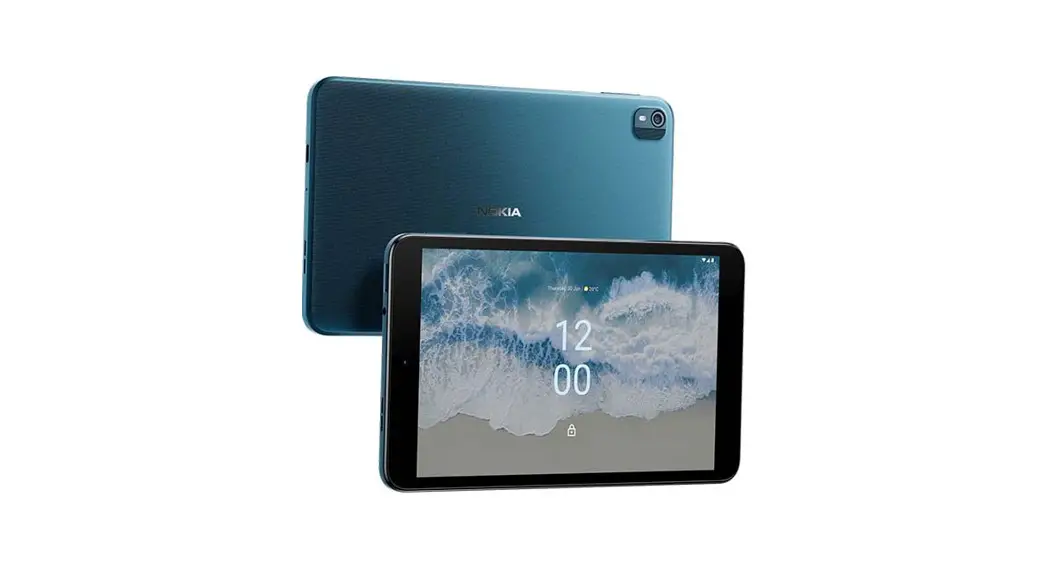
NAVITEL Т787 4G Android 12 ТаЫеt User Manual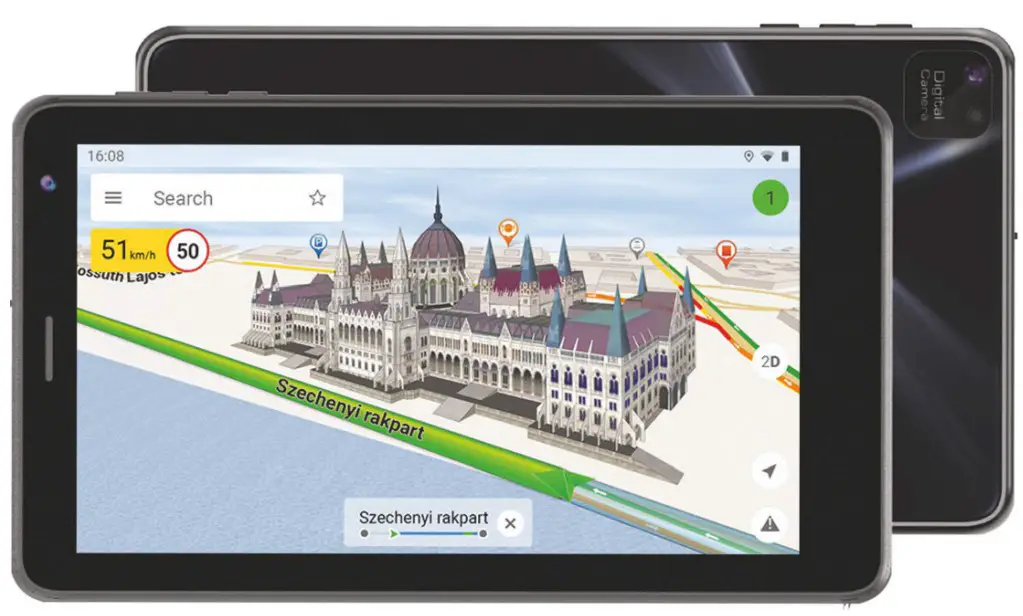
Package contents
- NAVITEL T787 4G Tablet
- Car windscreen holder
- Car charger 12/24 V
- Home charger
- USB-C – USB-A cable
- User Manual
- Warranty Card
Device layout
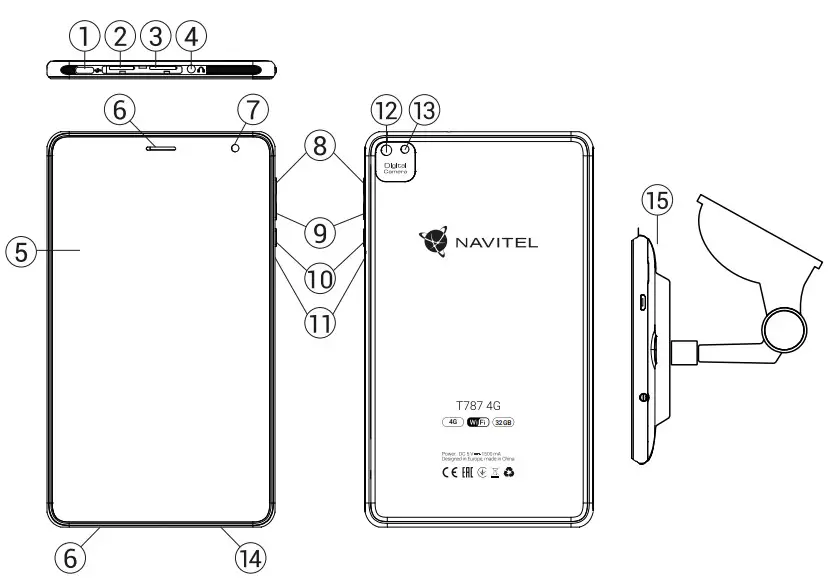
- Type-C connector
- MicroSD slot
- MicroSIM slot
- 3.5 mm jack
- Screen
- Speaker
- Front-camera
- Volume +
- Volume –
- On/off
- Reset
- Main camera
- Flash
- Microfon
- Car windscreen holder
Technical specifications
| Main characteristics | |
| Battery Type | Polymer-Lithium, 2800 mAh/3.7 V |
| Power adapter | output USB 5 V, 1.5 A |
| Dimensions (mm) | 108х188х9,2 |
| Hardware specifications | |
| CPU | MTK8765 1.5 GHz |
| RAM | 3 GB DDR |
| Flash Memory | 32 GB |
| Screen Resolution | 7.0’’ 1024х600 IPS |
| Wi-Fi | 802.11 a/b/g/n |
| Bluetooth | Bluetooth 4.0 |
| 3G | WCDMA B1, B2 |
| 4G | B1, B2, B7, B20 |
| GPS | yes |
| G-sensor | yes |
| Camera | Front 2 MP, Main 5 MP |
| SD slot | MicroSD, up to 128 GB |
| SIM Card slot | MicroSim |
| USB port | USB-C |
| Earphone jack | Mini-jack 3.5 mm |
| FM radio | yes |
| Video format | AVI, MOV, TS, M2TS, FLV, 3GP, MP4, MPEG, DAT, MKV (XVID/Vidx/H.264), RM/RMBV |
| Audio format | MP3, WMA, APE, FLAC, OGG, WAV |
| OS | Android™ 12 |
Note: the package, appearance, specifications that do not change the overall functionality of the device may be changed by the manufacturer without prior notice.
NAVITEL s.r.o. hereby declares that the device NAVITEL T787 4G is compatible with the European directive RED 2014/53/EU.
The full text of Declaration of conformity is available at the following internet address:
www.navitel.cz/en/declaration_of_conformity/t787-4g
Using Device in Vehicle
Windscreen holder and battery charger are delivered as part of the product package.
Windscreen holder
Carefully select a place to attach the holder. Do not attach the holder to the windscreen in a way that limits the driver’s line of sight.
If the car windscreen contains a built-in heating system or UV protection, the quality of signal reception may be lower than usual.
Set-up of windscreen holder
First remove the protective layer from the vacuum cup. Then, select an appropriate place to attach the holder. Make sure the area is clear of dust, dirt, and moisture, and then secure the vacuum cup on the windscreen. Under normal operating conditions, the vacuum cup holder locks the device well. However, if you leave it there overnight, the holding strength may get weaker as a result of moisture condensation due to temperature fall. For this reason, in order to prevent the device and holder from being damaged, it is recommended to remove the device and holder from the windscreen.
Safety requirements
- Do not disassemble or repair tablet by yourself. In case of tablet failure, contact the service center.
- Permissible ambient temperature in operating mode: -10 to +40 °С. Storage temperature: +5 to +55 °С. Relative humidity: 5% to 90% without condensation (25 °С).
- Put the tablet away from fire sources to avoid explosion or fire.
- Do not expose the tablet to physical impacts.
- The manufacturer is not responsible if the screen is damaged by the user.
- Avoid contacting the tablet with sources of electromagnetic radiation.
- Do not use chemicals or detergents to clean the product; always turn off the tablet before cleaning.
- Use accessories only approved by manufacture
Installing and removing micro SIM/micro SD cards
To install microSIM/microSD card:
- Shut off the device.
- Open the stub on the tablet’s top.
- Insert the card into the slot exactly as it shown on the screen sticker.
To remove microSIM/microSD cards:
- Shut off the device.
- Open the stub on the tablet’s top.
- Carefully remove the card.
Accounts
Use accounts to synchronize your data – e-mails, contacts, calendar, etc.
Adding an account
Go to  Application Menu >
  Settings, then scroll down to the “Accounts” section. Press “Add account”.
You can add the following account types:
- Google – add a Gmail account to synchronize your calendar, contacts, mail, app data, as well as Google+ services.
- Corporate email – add a corporate email account.
- IMAP email – add a personal email account (IMAP protocol).
- POP3 email – add a personal email account (POP3 protocol).
Contacts
You can save contacts, phone numbers, email addresses, and other related information.
New contacts
To add a new contact:
- Go to
 Contacts > New contact.
 - Enter the contact’s information.
- Press “√” (top right corner) to save the contact.
 Contacts >
  New contact.
Edit a contact
- Press
 to open the contact list.
 - Select the contact you want to edit, then press. After editing, press “√“ to save the changes.
 to open the contact list.
 . After editing, press “√“ to save the changes.
Delete a contact
- Press to open the contact list.
- Select a contact which you want to delete.
- Press
 , in the pop-up list select “Delete“.
 - Mark the contacts you want to delete, then press “OK” .
 , in the pop-up list select “Delete“.
Backup contacts
You can export your contact data to an external memory card.
- Press to open the contact list.
- Press > “Import/Export“.
- Select “Export to storage“.
Import contacts
Press to open the contact list. - Press > “Import/Export“.
- Select “Import from storage“.
Favorite contacts
You can favorite frequently used or special contacts to access them more quickly. To do that, select a contact from your list, then press on the star icon next to their name.
To view your favorites, press “All contacts“ (top left corner), and select “Favorites“ in the pop-up list.
Phone call
Making a phone call
- Press
 .
. - Select a contact from your contact list or press to enter a number using the dial pad. You can press to remove the last entered digit.
- Press to make the call.
 to make the call.
Receiving a phone call
When you get an incoming call, three options are available:
- Answer the phone – press and drag the
 icon onto the
  icon.
icon. - Hang up – press and drag the icon onto the
 icon.
icon.
 icon.
icon. icon.
icon.Hang up and write a message – press and drag the  icon onto the
  icon.
icon.
Call history
To view your call history, go to  Phone >
  History. You can choose to only view:
- Incoming calls
 .
. - Outgoing calls .
- Missed calls

 .
. .
.
Message
Sending a message
- Go to
 Messages >
  New message.
 - Enter the intended recipient’s number or press
 and find the recipient in your contact list.
 - Write the text you want to send.
- Press
 to send the message
 Messages >
  New message.
 and find the recipient in your contact list.
 to send the message
Answering messages
You will be notified when you receive a new message.
- Go to Messages.
- Select the message you want to reply to.
- Enter the text you want to send.
- Press to send the message.
MMS
- Go to Messages > New message.
- Enter the recipient’s number or press and find the recipient in your contact list.
- Press clip icon in the top right corner, then select one of the following options:
- Capture picture – capture a photo that will be automatically attached to the message.
- Capture video – capture a video that will be automatically attached to the message.
- Record audio – record an audio file that will be automatically attached to the message.
- Pictures – attach a picture stored on your device.
- Videos – attach a video stored on your device.
- Audio – attach an audio file stored on your device.
- Slideshow – create a picture slideshow to attach to the message.
- Press to send the message.
Wi-Fi
Enabling and disabling Wi-Fi
Wi-Fi can be turned on from the Home Screen.
- Press
 in the Quick Settings Menu. The icon will turn white when Wi-Fi is on.
 - Press on the icon again to disable Wi-Fi, if necessary.
 in the Quick Settings Menu. The icon will turn white when Wi-Fi is on.
Alternatively:
- Go to Application Menu > Settings.
- In the “Wireless&Networks“ section, find the “Wi-Fi” entry.
- Use the toggle on the right to turn Wi-Fi on/off.
Connecting to a Wi-Fi network
When Wi-Fi is turned on, a notification icon  will appear in the Status Bar showing that there are available Wi-Fi networks.
To connect to a network:
- Put your finger on the left side of the Status Bar and swipe down to display the list of notifications.
- Tap on “Wi-Fi network available“. You will be shown the list of available networks.
- Choose a network from the list and tap on the corresponding entry. If the network is password protected, you will be prompted to enter the password.
Every time you connect to a new network, the device “remembers“ it and connects automatically when it is available. To make your device “forget“ a network, long press on the network’s name, then select “Forget network“ from the pop-up list.
Note: “forgetting” a network includes “forgetting” the password, thus to connect to a secured network again, you will have to re-enter the password.
Mobile network
To enable mobile Internet access, press Application Menu > Settings.
Note: you need to have a SIM card installed for mobile Internet to work.
Bluetooth
Enabling and disabling Bluetooth
Bluetooth can be turned on from the Home Screen:
- Press
 in the Quick Settings Menu. The icon will turn white when Bluetooth is on.
 - Press on the icon again to disable Bluetooth.
 in the Quick Settings Menu. The icon will turn white when Bluetooth is on.
Another way to enable Bluetooth:
- Go to Application Menu > Settings.
- Find the “Bluetooth” entry.
- Use the toggle on the right to turn it on/off.
Connecting devices via Bluetooth
- Tap on the Bluetooth entry to see the Bluetooth settings.
The entry at the very top displays the name of your device and indicates whether it is visible to other Bluetooth devices. Tap on the entry to toggle the visibility of your device. - The “Available devices“ section below shows the devices that your device can currently see. Tap on a device’s entry to pair with it. Another section will appear, titled “Paired devices“, where all the Bluetooth connections to your device will be displayed.
- To unpair a device, press
 on the right in the device’s entry, then press “Unpair“.
Tethering & Portable hotspot
You can share your device’s data connection with other devices. First, enable your mobile Internet connection. Then, go to Application Menu > Settings and in the “Wireless&- Networks“ section press “More…“, then “Tethering&portable hotspot“. You will see several sharing options.
Wi-Fi hotspot
- Tap on the entry to configure your Wi-Fi hotspot.
- Press “Set up Wi-Fi hotspot“. A window will pop up.
- Choose a name for your network and type it in the “Network SSID“ text field.
- Choose a security protocol for your network or leave it open.
- Enter a password to protect your network, if necessary.
- Set the maximum number of allowed connections (1-8).
- Press “Save“.
- Use the toggle in the top right corner to turn on the hotspot.
USB tethering
Share Internet connection between two devices via USB cable.
- Connect your device to the other device.
- A USB icon will appear in the Status Bar. In the list of notifications you will see “Connected as a media device“ (or other connection mode). It does not matter for tethering.
- Go to Application Menu > Settings, under “Wireless&Networks” select “More…”, then “Tethering&portable hotspot“.
- Tick the checkbox on the right in the “USB tethering“ entry.
Bluetooth tethering
Share Internet connection between two devices paired via Bluetooth.
- Enable Bluetooth on both devices.
- Pair the devices.
- If you want to use the other device’s Internet connection, press in the device’s entry under “Paired devices”, then, under profiles, select “Internet access“.
- If you want to share your Internet connection with the other device, perform step 3 on said device (consult the user manual for the device, if necessary).
Camera
The camera allows you to take pictures and record videos.
To access the camera, tap on the  icon on the Home Screen, or go to Application Menu > Camera.
Press  to switch between front and main cameras.
Taking a picture
Point the camera at whatever you want to capture.
“Stretch” and “pinch” the screen to zoom in or out, if necessary.
Press to  take a picture. It will be saved automatically to the gallery.
Recording a video
- Press
 to start recording a video. The icon will turn red, and a small red circle will appear in the bottom left corner of the screen indicating that the recording is in process. A timer next to it will show the length of the recording.
 - If necessary, you can zoom in and out while recording by “stretching” and “pinching” the screen.
- Press once more to stop recording. The video will be saved to the gallery
Camera settings
Press to open the Camera Settings Menu. It is divided into three tabs –  General, Photo, and
  Video settings.
Press  to open another menu, where you can set up exposure level, color effect, white balance, and day/night mode.
After changing the settings, tap anywhere on the screen to exit the Camera Settings Menu.
View gallery
Tap on the square frame in the down right corner of the screen to go to your gallery, where all your pictures and videos are contained.
You can perform various actions (i.e. edit, crop, rotate, mute, delete) on the items in your gallery. To do that, select an item from the gallery, then  press and choose an action from the list.
Sharing pictures and videos
Select an item from the gallery, then press  in the top right corner and choose a sharing method from the list. Press
  to share the file via Gmail (as an attachment).
Sound recorder
- Go to Application Menu >
 Sound recorder.
 - Press
 to start recording.
 - Press to stop.
- Press
 to play back the recording, if necessary.
 - Press “Save”, if you want to save the audio file, or press
“Discard“ to delete it.
 Sound recorder.
 to start recording.
 to stop.
 to play back the recording, if necessary.
Settings
To open the Settings Menu:
- Go to Application Menu > Settings.
- Tap on the Status Bar and in the pop-up menu press .
The Settings Menu is divided into 5 sections:
- Wireless networks – set your device’s wireless connection, such as Wi-Fi, Bluetooth, mobile network, etc.
- Device – theme, sound, display, storage options, etc.
- Personal – location, security, language, backup.
- Accounts – Google and email accounts.
- System – time and date, accessibility, software version, legal information, etc.
Wireless & Networks
SIM cards
Enable/disable your SIM card using the toggles on the right, or edit them by tapping on their respective entries.
Wi-Fi
Connect to wireless networks, view and edit your connection settings.
Bluetooth
Pair your device with other Bluetooth devices in the vicinity.
Data usage
View your data usage statistics.
(press “More…“ to access the menus listed below)
Airplane mode
Disable all communication with your device.
Default SMS app
Set your default messaging application.
Tethering&portable hotspot
Share your Internet access with other devices.
VPN
Configure your virtual private networks.
Mobile networks
Enable/disable mobile data connection.
Device
Display
Select your wallpaper, set up notifications, brightness, font size, etc.
Storage
Choose a default write disk, view available and occupied space on your storage units.
Battery
View your battery status – current charge, time left, energy consumption per process.
Apps
View and manage your installed applications.
Personal
Location
Location service settings.
Security
Set up screen lock, SIM card protection, and other security parameters.
Language&input
Select your preferred language and input method.
Backup&reset
Backup your important data to Google servers or perform factory reset on your device.
Accounts
Create, edit, and manage your Google and email accounts.
System
Date&time
Set current date and time, date and time display format, your time zone.
Scheduled power On&Off
Set your device to turn on or off automatically at a certain time.
Accessibility
Accesibility options for people with disabilities.
About tablet
Updates, status, model number, software version, etc.
Navitel Navigator is a multifunctional navigation application used for efficient address search and route planning. NAVITEL T787 4G Tablet includes pre-installed latest version of Navitel Navigator software.
Press the  icon in your home screen to run the program. You will be able to download maps of 45 European countries available for free.
Program interface
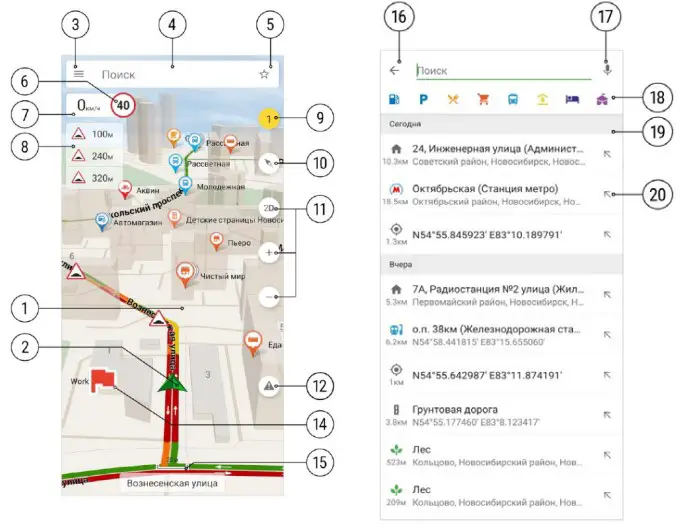
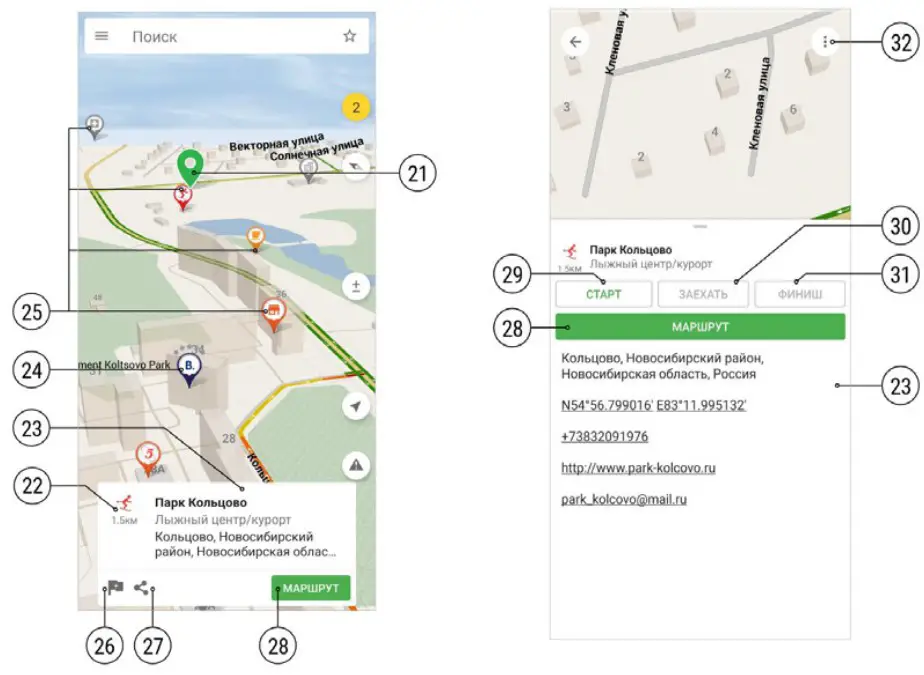
| # | Element | Function |
| 1 | Map | The map window opens when the pro- gram starts. If the location is not de- termined, the map “Earth” is opened. When zooming in on the map in a loaded area a detailed map is displayed. If there are no maps downloaded, zooming in dis- plays a white map area. |
| 2 | GPS cursor | If the current location is deter- mined, a green cursor is displayed. If the current location is not determined, a gray circle is displayed at the location of the last determined location. |
| 3 | Main menu button | In the main menu, you can access the following sections: “Maps”, “Navitel. Market”, “Settings”, “My trips”, “About the application”, “Feedback”, “News”. |
| 4 | Search query input string | In the line for entering a search query, you can enter:
|
| 5 | Button to enter the sections “My places” and “Favorites” | “My Places” section allows the user to save the coordinates or addresses of places that are important as waypoints and build routes faster with their help. The most frequent searches are dis- played in the list in the “Favorites” sec- tion. |
| 6 | Speed limit indicator | This indicator displays speed limit on the road section. The speed is displayed if the current location is determined. If the location is not determined, the speed limit is not displayed. When the speed is exceeded within the set value, the background of the indicator is yel- low, when the speed is exceeded above the set value, it is red. |
| 7 | Current speed indicator | This indicator displays the current speed. The indicator is displayed if the current location is determined. If the lo- cation is not determined, “- -” characters are displayed in place of the indicator. |
| 8 | Speedcam, POI and route events indicator | SpeedCam, POI objects and events along the route indicating the distance to them on the indicator are displayed along the laid route forward to a dis- tance not exceeding 20 km. When pressing on the objects on indicator, their location on the map is displayed. |
| 9 | Traffic information button-indicator | By default, the traffic service is enabled. If a location is defined, the “center point” of the square is considered to be the current location, otherwise the “center point” is the center of the displayed map area. The button-indicator and the roads on the map are colored according to the current information about traffic jams:
|
| 10 | Compass button- indicator | The indicator shows how the map is currently oriented. When pressed, the orientation of the map changes: the top of the map is oriented to the north or in the direction of travel. |
| 11 | Map buttons | Click 2D to display buildings on the map in 2D. Click 3D to enable 3D display. Use the +/- buttons to change the scale of the map. |
| 12 | Traffic event input button | The traffic events service allows users to mark and see the marks of the other users on the map about various events on the road. If an event is marked without selecting a specific point on the map, it will be saved in the place on the road where the user was at the moment the event input but- ton was pressed. |
| 13 | Return to current location button | Appears on the right side of the map above the button for adding a traffic event when you click on any area of the map once. Pressing the button moves the map to the current location. |
| 14 | Waypoint on the map | These are the points added using the “My places” service. Waypoints are always dis- played on the map. |
| 15 | Current map scale indicator | Shows the current map scale. |
| 16 | Return button | This button is used to return to the pre- vious screen. |
| 17 | Microphone button | This button is used for voice input of in- formation in the search bar. |
| 18 | POI category selection bar | Infrastructure objects are divided into 10 categories. To search for objects in a certain category, click on the icon corresponding to this category. |
| 19 | Seacrh history | The user’s search queries are displayed here in chronological order. |
| 20 | Button for pinning the result in the search bar | This button is used when searching se- quentially for an address or object. Click- ing the button for a position in the list of search results pins that option in the search bar. |
| 21 | Point on the map | Appears when you click on any area on the map. After clicking a window appears with information about the object or point at the selected location. |
| 22 | Distance to a point on the map | Displays distance from the position where the GPS cursor is located. If the position is not defined, the distance from the last determined location is displayed. |
| 23 | Info window | Displays information about an object or point. Click on the info window to open a panel with more detailed information. Swipe the window down to collapse it back to its original size. |
| 24 | Booking.com objects | Information about Booking ac- commodation facilities (hotels, apartments, hostels) with the ability to book an accommodation directly from the Navitel application. |
| 25 | POI objects | Displays infrastructure objects of differ- ent categories on the map. |
| 26 | Add waypoint button | Used this button to add selected point to waypoints list. |
| 27 | Share button | Use this button to share information about the selected point in another application. |
| 28 | Route button | Use this button to create a new route from the current location or the point selected as the start. |
| 29 | Start button | Use this button to set start point of your route. |
| 30 | Drive through button | Use this button to set intermediate point in your route. |
| 31 | Finish button | Use this button to set destination point of your route. |
| 32 | Additional info button | Displayed only when the info window is maximized. The following actions are available in the additional menu:
|
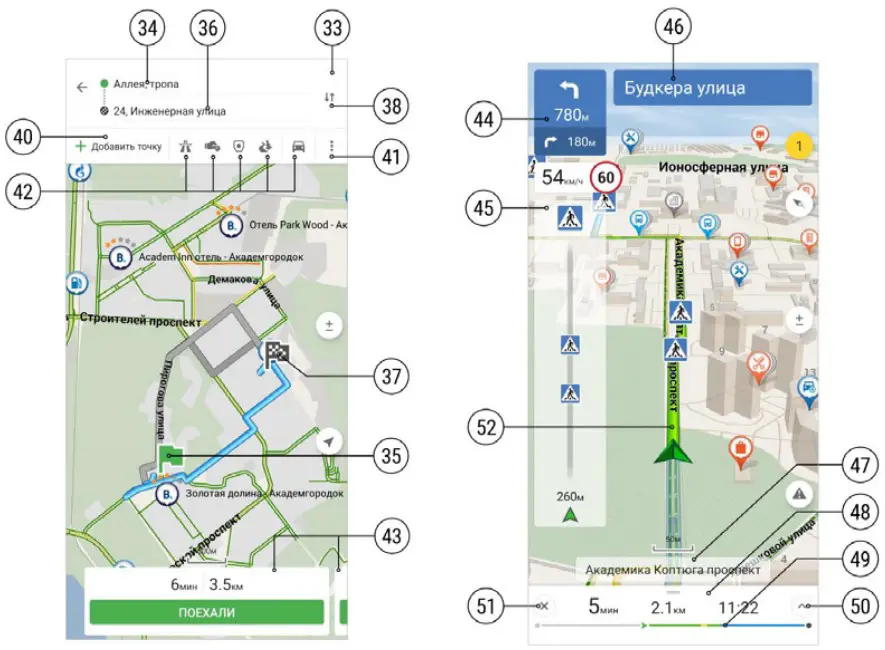
| 33 | Route editor | The panel contains fields for setting start and finish points, route editing buttons, as well as buttons for selecting the most common navigation settings. |
| 34 | Start point | Field to enter start point of the route. |
| 35 | Start point icon | Icon of start point on the map. |
| 36 | Finish point | Field to enter finish point of the route. |
| 37 | Finish point icon | Icon of finish point on the map. |
| 38 | Start and finish point interchange button | Use this button to interchange start and finish points. Can’t be used, when there are intermediate points in the route. |
| 39 | Delete point and point positioning buttons | Use this buttons to change position of the point in the route and delete them, if necessary. |
| 40 | Add point button | Use this button to add point to the route. |
| 41 | Route editor open button | Use this button to open route editor. |
| 42 | Frequent settings buttons | Use this button to choose the most fre- quent settings for your route. |
| 43 | Alternative routes | Up to 3 alternative routes may be shown with estimated driving time distance. |
| 44 | Maneuver indicator | Shows the next two maneuvers along the route and distance to each of them. |
| 45 | Approach progress bar | When approaching a speedcam, POI, or route event, the approach progress bar is displayed. |
| 46 | Street after maneuver | Displays the name of the street following the next maneuver |
| 47 | Current street | Displays the name of the current street. If the street is unknown, the direction of route is shown. |
| 48 | Indicator panel | The panel displays the estimated travel time, the distance remaining to the end of the route, and the estimated time of arrival. |
| 49 | Current route progress bar | The remaining part of the route and waypoints are displayed here. Traffic congestion is indicated by color if the traffic jam service is enabled. |
| 50 | Additional actions menu button | Press the button or swipe the progress bar up to open an additional menu of actions available to the user in the driving mode. |
| 51 | Route reset button | Press the button to reset the current route. |
| 52 | Current route line | The color of the current route line can display the current traffic congestion if the traffic jam service is enabled. If the service is disabled or there is no infor- mation for the current road, the route line is displayed in blue. |
Building the route
To build a route, select the desired object from the list or a point on the map and click the Route button in the information window at the bottom of the screen.
After pressing the button, the program enters the route editing mode, in which you can select a vehicle and set some navigation settings (avoiding motorways, toll roads, dirt roads, and roads with vignettes). To specify more precise navigation settings, use the route editor menu (Route editor menu −> Settings). For more information on navigation settings, see the Navigation Settings section of the manual.
After switching to edit mode, the program plots up to three route options from the GPS cursor to the selected point. Suggested options with indication of distance, estimated travel time and the Let’s go button are available in the windows at the bottom of the screen. Swipe the information window to the left to see alternative options. The difference in alternative routes is also displayed on the map.
Press the Let’s go button to enter the driving mode for the selected route.
You can view a route whose starting point is not the same as your current location.
Do the following:
- Select the point that should be the starting point of the route.
- In the expanded information window of the point, click the Start button. In the route editor, specify the final waypoint of the route.
You can also select a point on the map and press the Route button in the information window of the point. Add intermediate points if required. - elect the appropriate route from the proposed alternatives (if available) and review it in edit mode.
After pressing the Let’s go button and starting moving, the route is rebuilt from the GPS cursor to the selected finish point. The specified starting point does not appear in the route.
For more detailed information on building and changing a route, assigning interface elements, download the user manual for Navitel Navigator 11:
https://download.navitel.su/Manuals/NN-11_mob_UserManual.pdf.
Online services
Navitel.Traffic
This service provides real-time information about density of traffic on the map. If a part of a road is marked green on the map, this
means that road traffic here is normal, if it is marked yellow – traffic is rather dense, orange – traffic is heavy, red – there is a traffic jam. To configure the service select “Menu” > “Settings” > “Online services”.
Navitel.Cloud
Navitel.Cloud service allows you to save your settings, waypoints, and search history in the cloud data storage. The data saved in the cloud can be restored afterwards in case you have reinstalled the program. If you use Navitel Navigator on several devices, waypoints and history data can be synchronized between all of them, which might come handy, saving you time otherwise spent transferring the necessary files.
The Internet connection is required.
Click the Login button to log in to your personal account and synchronize device data with data from cloud storage.
Navitel.Market
On the page that is displayed when Navitel.Market is selected, there is a list of additional functions that are provided to users for a fee.
If access to the functionality is not purchased, clicking on its name opens a page with a functionality description and the Buy button.
The purchase is made using the system store.
If access is purchased, clicking on the name of the functionality starts the corresponding service.
If you are running the app on a new device and the previously purchased functionality is not available, restore purchase by clicking the Restore button in the additional menu of the Navitel.Market section.


 Booking.com | Official site | The best hotels, flights, car rentals & accommodations
 NAVITEL Declaration of Conformity