
Universal Douglays Rouch To Tune 2.0 Wifi And Google Play Instructions

Universal Douglays Rouch To Tune 2.0 Wifi And Google Play Instructions

universal-LOGO

universal douglays Rouch to Tune 2.0 WiFi and Google Play
universal-douglays-Rouch-to-Tune-2-0-WiFi-and-Google-Play-PRO

Enabling Wi-Fi

  1. Turn on phone
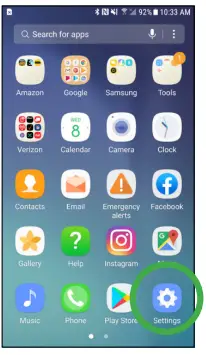
  2. Click on “Settings” icon
    universal-douglays-Rouch-to-Tune-2-0-WiFi-and-Google-Play- (1)
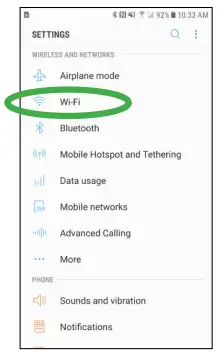
  3. Click on Wi-Fi
    universal-douglays-Rouch-to-Tune-2-0-WiFi-and-Google-Play- (2)
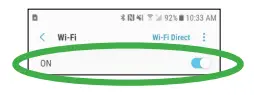
  4. Turn Wi-Fi on
    universal-douglays-Rouch-to-Tune-2-0-WiFi-and-Google-Play- (3)
  5. Select network name
  6. Login with password, if needed

Uninstalling Original Touch to Tune App

  1. Locate existing app on phone
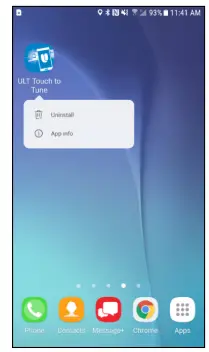
  2. Press and hold the app icon until Uninstall/App info dialog box appears
  3. Select Uninstall
    universal-douglays-Rouch-to-Tune-2-0-WiFi-and-Google-Play- (4)

Logging in to Google Play

  1. Turn on phone
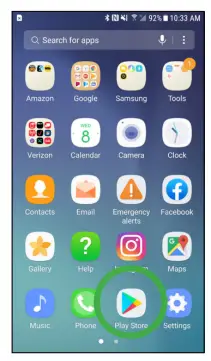
  2. Click on “Play Store” icon
    universal-douglays-Rouch-to-Tune-2-0-WiFi-and-Google-Play- (5)
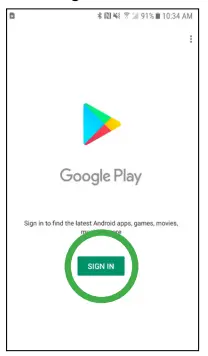
  3. Click Sign In
    universal-douglays-Rouch-to-Tune-2-0-WiFi-and-Google-Play- (6)
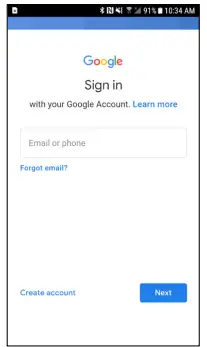
  4. Create account or enter existing account and hit next
    universal-douglays-Rouch-to-Tune-2-0-WiFi-and-Google-Play- (7)
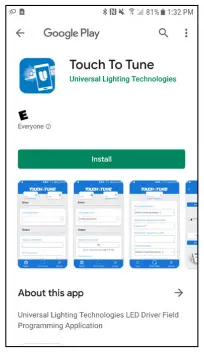
  5. Search for Touch To Tune App
  6. Select the app and download
    universal-douglays-Rouch-to-Tune-2-0-WiFi-and-Google-Play- (8)
  7. Email [email protected] to request password
  8. Enter password provided
Documents / Resouces

Download manual
Here you can download full pdf version of manual, it may contain additional safety instructions, warranty information, FCC rules, etc.


Related Manuals