 AOT001 Orbit
User Manual
Introduction
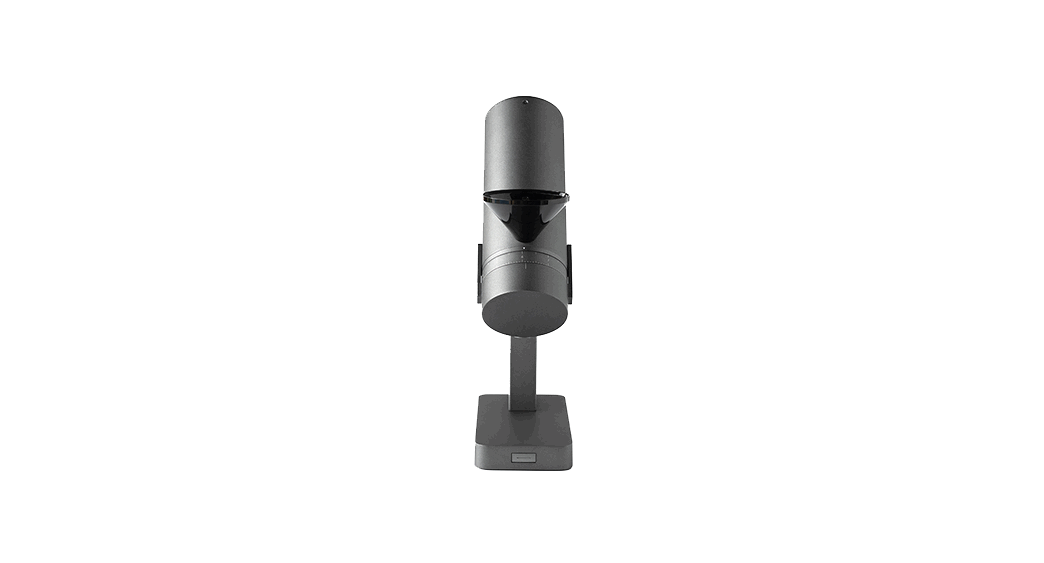
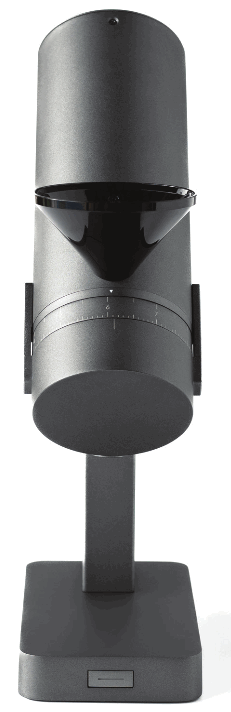
The Orbit is a 64 mm flat burr grinder built with the latest Acaia technology from the ground up. Designed for home and light commercial spaces, the Orbit is convenient and versatile. It will optimize your workflow and offer a coffee grinding experience like never before.
The stepless grind size adjustment dial is intuitive and precise. With the built-in auto reverse cleaning process and a knocker, grind retention for single dosing is kept at a
minimum.
The companion Orbit app gives you full control of the Orbit. You can personalize the button behavior, experiment with RPM profiling, or even control the RPM manually through the app.
Grind precisely the right amount every time with Acaia Sense Technology. The Orbit can connect with the Lunar and become one of the most precise grind-by-weight grinder in the industry.
With the Orbit, a new coffee grinding experience awaits. Follow this guide to explore all that it has to offer.
Safety Information
Read the information below very carefully before using our Orbit. It contains important safety information for this appliance. Incorrect handling of this product could result in personal injury or physical damage. Please keep these instructions for future reference.
! Before cleaning, servicing, and assembling /disassembling the grinder, unplug the electrical supply and wait for at least 5 minutes.
! Use only an AC power source with voltage within the product specification.
!Never immerse the grinder in water.
! Never place fingers or any objects inside the Orbit Spout.
! Never operate the Orbit without the Orbit Spout properly installed.
! Never operate the Orbit without the Hopper properly installed.
! The Orbit is intended to grind roasted whole coffee beans only.
! For EU: This appliance can be used by children aged from 8 years and above, and people with reduced physical, sensory, mental capabilities, or lack of experience and knowledge, if they are under supervision or have been given instructions concerning use of the appliance in a safe way and understand the hazards involved.
! For EU: Children shall not play with the appliance. Cleaning and user maintenance shall not be made by children without supervision.
! For other than EU: The appliance is not to be used by people (including children) with reduced physical, sensory, mental capabilities, or lack of experience and knowledge, unless they are under supervision or have been given instructions.
! Instructions include the use of accessories.
! This appliance is intended to be used in household and similar applications such as:
– staff kitchen areas in shops, offices, and other working environments;
– farm houses;
– by clients in hotels, motels, and other residential type environments;
– bed and breakfast type environments
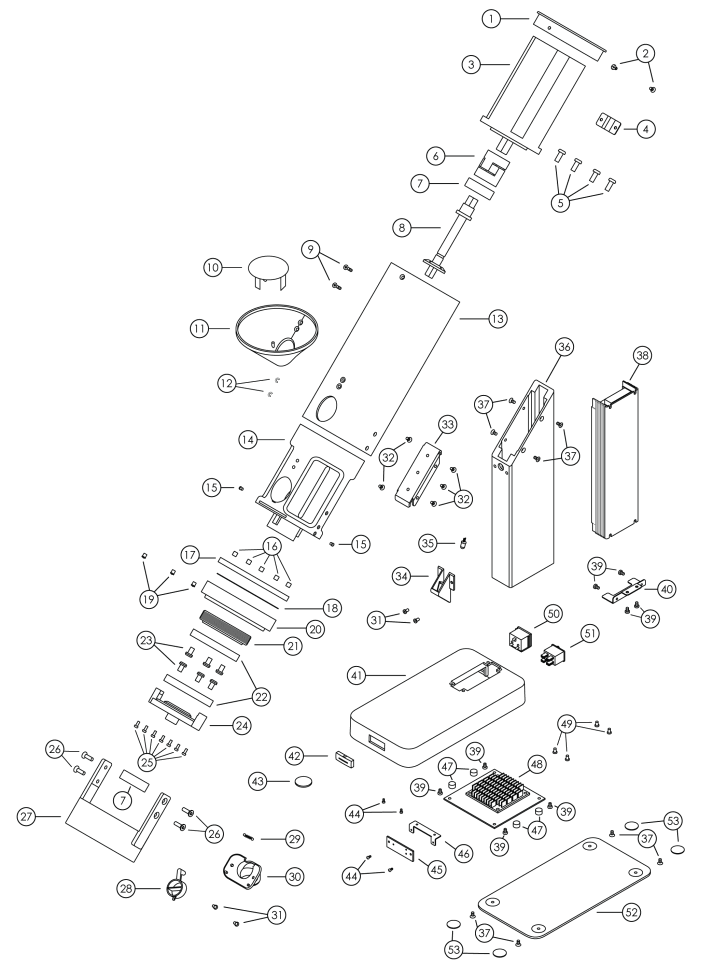
Parts Identification
| NO | Description | QTY |
| 1 | Motor housing cover | 1 |
| 2 | m3x8mm self-tapping screw – black 2 | 2 |
| 3 | Motor | 1 |
| 4 | Cable bracket | 1 |
| 5 | m5x12mm screw | 4 |
| 6 | Connecting shaft | 1 |
| 7 | Bearing | 2 |
| 8 | Bearing shaft | 1 |
| 9 | m3x12mm screw for e-ring – black 2 | 1 |
| 10 | Hopper hand protector | 2 |
| 11 | Hopper | 2 |
| 12 | e-ring d2.5 | 1 |
| 13 | Motor housing | 1 |
| 14 | Bean chamber | 2 |
| 15 | d3x4mm ball plunger | 1 |
| 16 | 5x5rnm magnet | 1 |
| 17 | Detent ring | 2 |
| 18 | SECC plating | 5 |
| 19 | d4x6.5mm ball plunger | 1 |
| 20 | Adjustment dial | 1 |
| 21 | Burr thread | 3 |
| 22 | 64mm burr | 1 |
| 23 | m5x8rnm screw | 1 |
| 24 | Burr carrier | 1 |
| 25 | m2.5x6mm screw | 6 |
| 26 | m4x16mm screw flat head – black | 1 |
| 27 | Burr housing | 7 |
| 28 | Knocker ring | 4 |
| 29 | Knocker spring | 1 |
| 30 | Spout | 1 |
| 31 | m3x5mm screw – black | 4 |
| 32 | m3x8mm screw flat head | 5 |
| 33 | Support bracket | 1 |
| 34 | LED cover | 1 |
| 35 | LED | 1 |
| 36 | Support pillar | 4 |
| 37 | m3x8mm screw flat head – black | 2 |
| 38 | Power supply | 1 |
| 39 | m3x5mm screw i-head | 3 |
| 40 | Power bracket | 2 |
| 41 | Base chassis | 2 |
| 42 | Switch cover | 1 |
| 43 | m20x2mm magnet | 1 |
| 44 | m2x4mm screw | 2 |
| 45 | LED switch pcb | 1 |
| 46 | Switch bracket | 4 |
| 47 | m8x5mm magnet | 1 |
| 48 | Orbit main control board | 4 |
| 49 | 3x8mm screw i-head | 5 |
| 50 | Power plug | 1 |
| 51 | Main power switch | 5 |
| 52 | Base | 2 |
| 53 | Rubber foot – black | 1 |
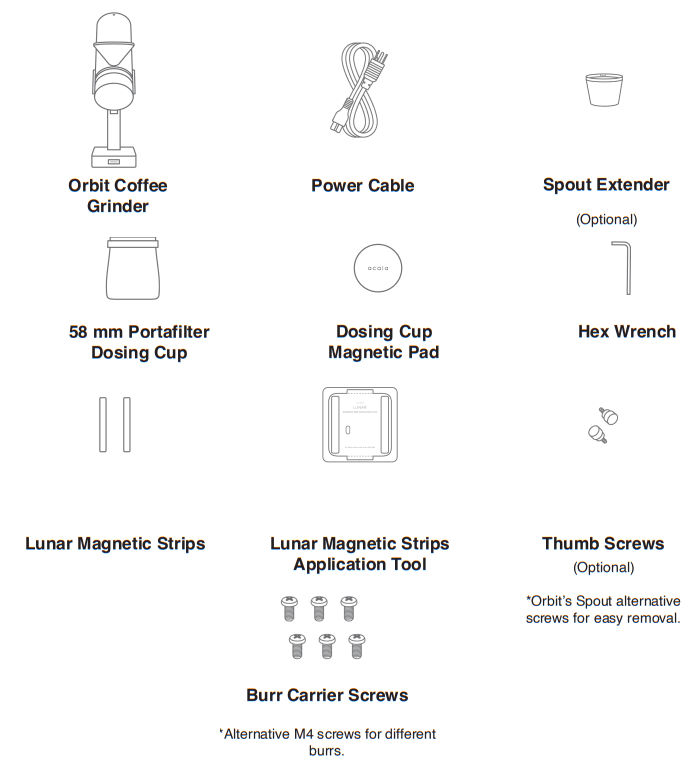
In The Box
 Setting Up the Orbit
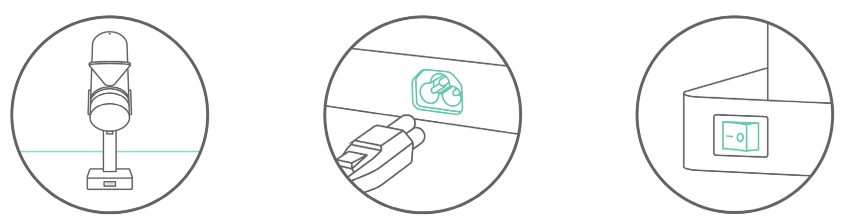 | ||
| Place the Orbit on a flat, stable surface. | Plug into a 100V~240V AC power source. | Turn on the main ower switch at the back. |
 | ||
| Attach the spout extender to the Orbit spout. | Apply the Dosing Cup Magnetic ad under the 8 mm dosing cup and place the cup on the base of the Orbit. | Click the Orbit button in the front. When the button light is on, you are ready to go. |
Note:
- Acaia tests every unit with coffee beans during the quality control process. Some ground coffee may remain in the grinder or the packaging.
- Please avoid setting the dial beyond the burr touching point.
Orbit Overview
 | Click |
| Double Click |
| Triple Click |
| Press and Hold |
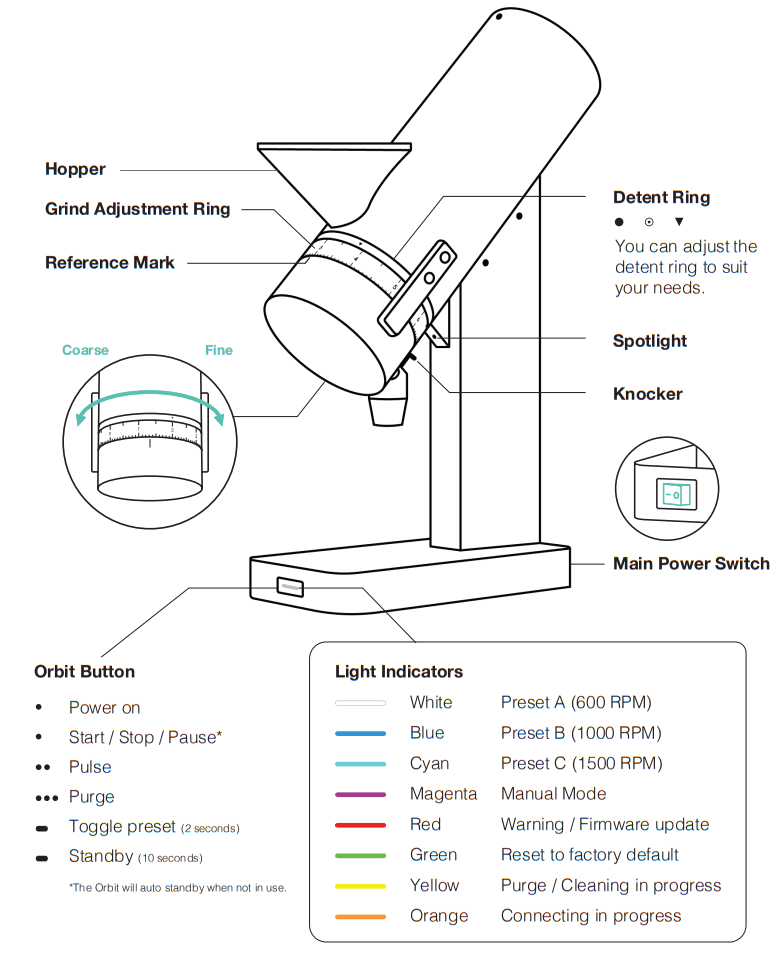
General Information
Orbit Grinding
The Orbit comes with unique features to meet your coffee brewing needs. The grinder is single-dosing friendly with features such as automatic cleaning purge that helps to educe retention when grinding. You can also activate Orbit’s grind-by-weight function by pairing with the latest Acaia Lunar and enjoy an effortless dosing experience.Built and designed with Acaia’s proprietary technology from the motor driver to the companion app, Orbit offers advanced control of RPM and overall energy savings. See the nformation below to explore the features of Orbit.
Start / Stop Grinding
Click the Orbit button to easily start / stop a grinding session.
Adjust Grinding Speed
Press and hold the Orbit button to switch between 3 default RPM profiles. The 3 presets are each represented by a different color light. You can access the RPM profiling eature through the Orbit app.
| LED Indicator Color | Preset Name (In App) | Preset RPM |
White | Preset A | 600 RPM |
Blue  | Preset B | 1000 RPM |
Cyan  | Preset C | 1500 RPM |
Hot Start / Cold Start
You can either start grinding by adding beans into the Orbit while the grinder is started (hot start) or before it is started (cold start). Note that the particle distribution of the round coffee may slightly change depending on the way you start grinding.
Knocker
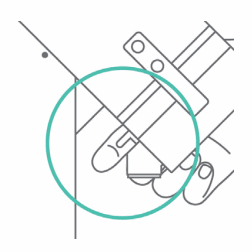
The knocker is just behind the Orbit spout. Use the knocker 2 to 3 times to knock out as much retention as possible. You can change the direction of the knocker for left anded or right handed users. Please refer to our Orbit videos list on how to change the orientation of the knocker.
Burr Zero Point
The point where the burrs can no longer be adjusted finer. When turning the adjustment
dial finer, it will encounter total resistance and will not be able to turn.
DO NOT attempt to turn on the grinder when burrs are at zero as damage may occur. Note that the “0” on the grind adjustment ring does not equal the Burr Zero Point for your Orbit.
Burr Touch Point
The point where the burrs make initial contact with each other, and make an audible sound of metal-on-metal scraping. This is the finest possible grind setting. If performing a burr alignment or installing new burrs, the burr touch point may change position. Orbit users are advised that attempting to grind finer than the burr touch point may result damage to the burrs or motor.
Stepless Adjustment
Orbit’s setting dial has a 0.75 mm thread pitch that allows smooth and continuous adjustment from espresso to filter coffee in just one rotation. That gives plenty of room to ine-tune your shots, as well as swap from small pour over brews to large batcheswhenever you need to.
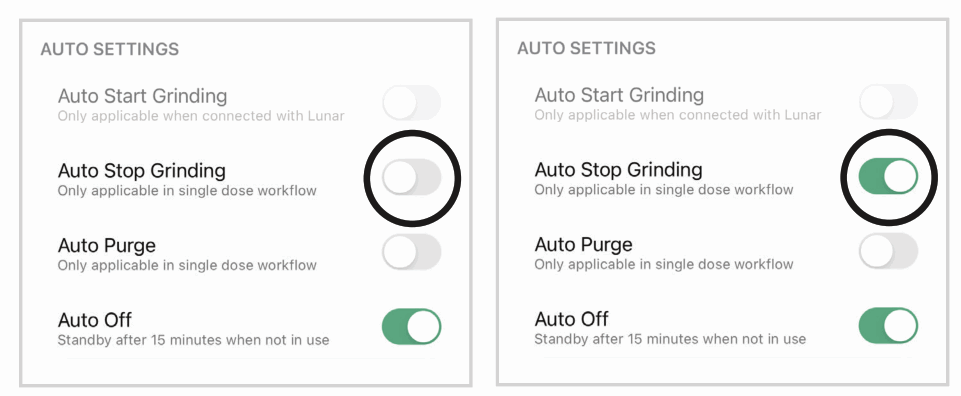
Auto-stop
The Orbit will automatically stop grinding once the bean chamber is empty after 3 seconds. If the Orbit is turned on without any beans in it, the grinder will automatically top after 15 seconds.
You can adjust the auto-stop setting through the Orbit App for continuous grinding. Once the auto-stop setting is turned off, the grinder will continue grinding until it is anually stopped by the Orbit button.
Auto-purge
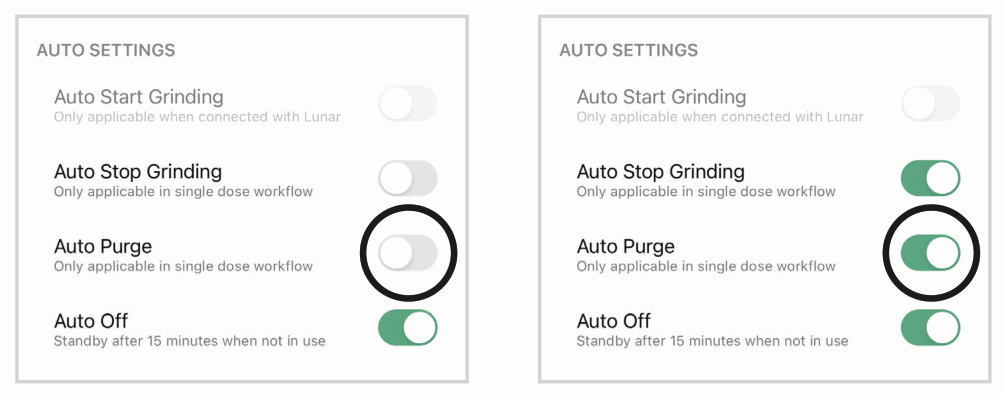
Orbit will automatically purge after each grind to reduce the retention. The Orbit will show a yellow light when in purging with a fast reverse spin, then a forward spin. You can manually trigger the purging sequence by triple clicking the Orbit button. This setting can be turned off through the Orbit App. Once turned off, the Orbit will not auto-purge after each grind.
Stall Prevention
When grinding, if the Orbit burrs stall and stop grinding, it will automatically stop the motor. The button will flash red to notify the user that a stall has occurred, and the rbit will then restart the motor to try to grind again. In many cases, the momentary pause and restart will correct the stall and grinding will continue successfully. After talling times, the Orbit will stop the motor and will not attempt to restart again. In this case, you may need to adjust the grind coarser and try again, open the grinder to clear a piece of debris (such as a piece of concrete or wood that was mixed in with the beans), or contact customer service for support. If the Orbit encounters extremely ard eans or rocks and any other foreign objects, it may shut down automatically without warning immediately to protect the system from overloading. If this issue occurs, lease follow our deep cleaning instructions and remove any beans or foreign objects.
Note:
- To see our single-dose grinding workflow, go to the Orbit videos list on the Acaia YouTube Channel.
- The auto-stop and auto-purge function are both ON by default. The auto-purge sequence will only be initiated when the auto-stop function is on.
- The Orbit should only be used to grind roasted coffee beans. Attempting to grind other materials or products may result in damage or malfunction of the grinder.
Advanced Control with the Orbit App
The companion Orbit App gives you advanced control over the Orbit. You can fully customize your Orbit by adjusting button actions, RPM profiles, and other settings.
App Overview
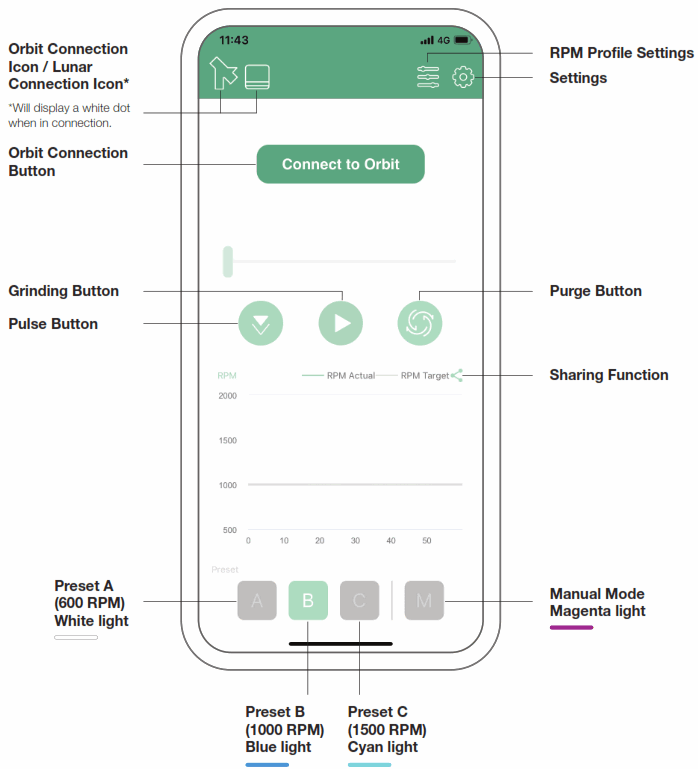
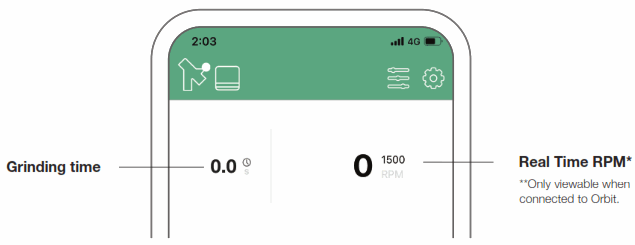
When Connected to the Orbit
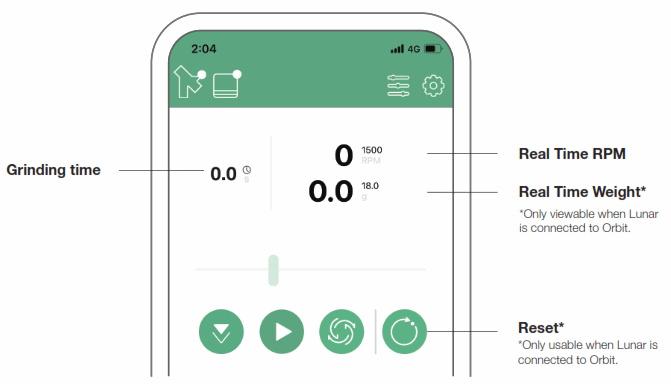
When Connected with Orbit and Lunar
RPM Profile Overview
The Orbit features Acaia’s first-in-class RPM profiling, which allows you to explore new particle size distributions created by shifting the RPM of the grinder. When grinding coffee, the rotation speed of the burrs (RPM) has an effect on the uniformity of the grinds created. With the Orbit, you can design your own RPM profile to experiment with ow shifting RPM affects the uniformity and flavor of your brews.To access the RPM profiling feature, first connect the Orbit app to your Orbit grinder. For each rofile (A, B, and C) you can set a 2-stage RPM profile. The stages can be setbetween 600-1500 RPM, and also include a timer to set how long each stage should run. RPM rofiling is only available while the Orbit is connected to the Orbit app. The modified settings from the app will be saved to the Orbit, and first stage settings will be saved nto the App preset.
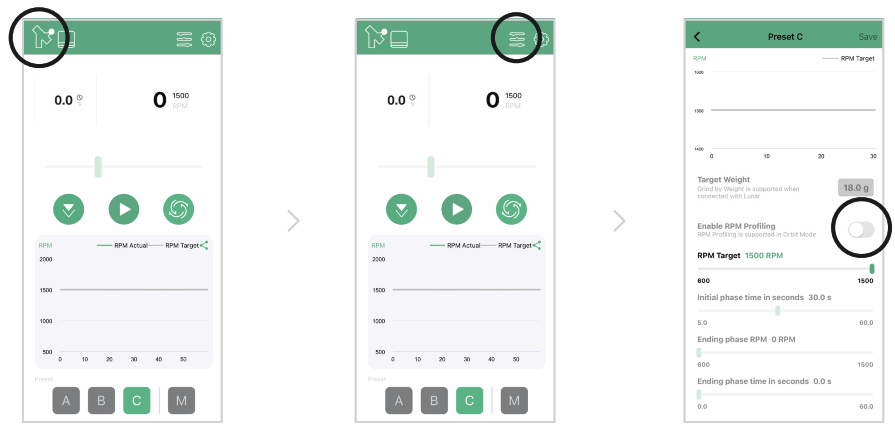 | ||
| To adjust this setting, first make sure you are connected to Orbit through the app | Choose either Preset A, B, or C. Enter the RPM profile ettings. | Enable the RPM profiling option. ou are nable to use this option if not connected to Orbit. |
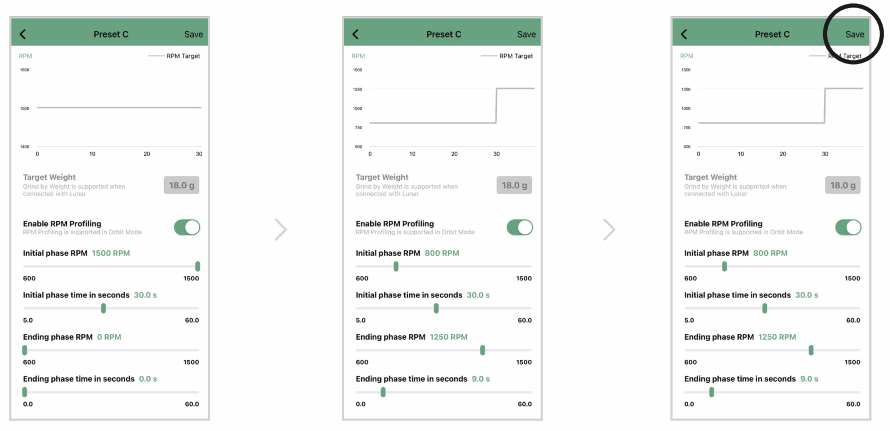 | ||
| When RPM profiling is enabled, the adjustable options ill turn active. | You can adjust the RPM profile settings as desired. | Save the settings through the upper-right corner. The modified ettings will be saved into the Orbit. |
Time-based Grinding
The Orbit has a time-based grinding function that is only accessible through the Orbit App. You can set the desired grinding time length for each grinding session. The rinder will automatically stop when the target time is reached.
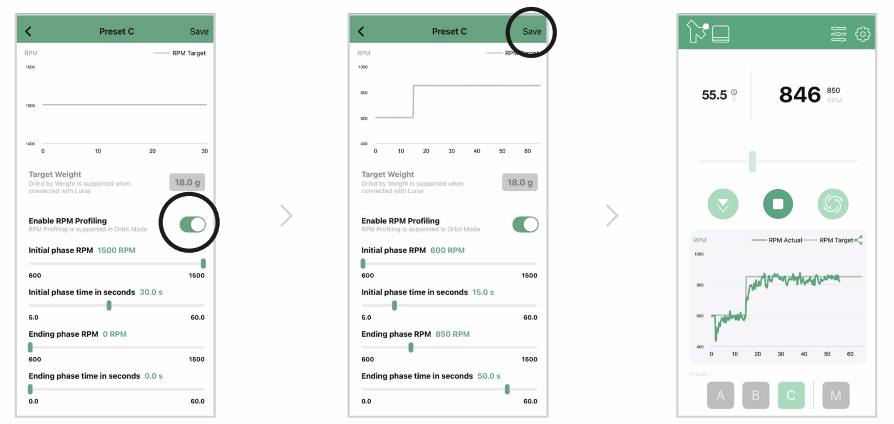 | ||
| With RPM profiling enabled, change the initial and ending phase time to limit the grinding length of one session. | Save the settings through the upper- ight corner. | Once the settings are saved, the rbit will stop rinding when the ending phase time is reached. |
Manual Grinding
Orbit’s manual grinding mode enables you to control the RPM freely in real time. During a single grinding session, you can change the speed of the grinder by simply ragging he RPM slider in the Orbit App. You can see the real time RPM graphed in the chart on the App main page.
The Orbit will display a Magenta light when in manual mode. Please note that RPM profiling is not enabled in manual mode.
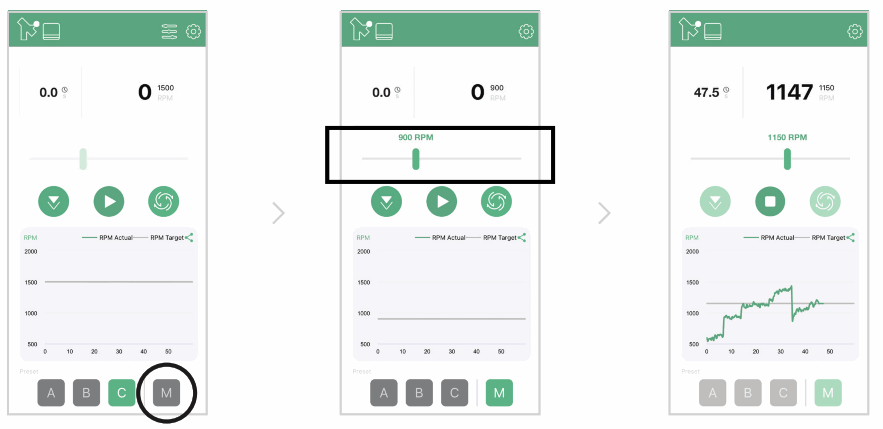 | ||
| Connect to Orbit through the rbit App and choose Preset M (Manual Mode.) | The RPM slider will turn active hen switched to Manual Mode. | Drag the RPM slider to change the speed of the grinder. The real time RPM will be reflected through thegray line in the graph below. |
Settings Menu
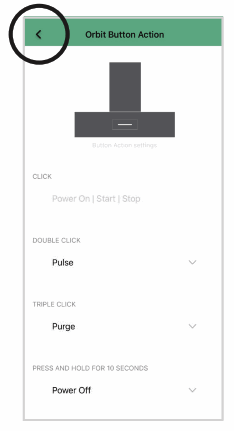
Tap the settings icon on the upper right corner of the Orbit App main page to enter Orbit App settings. The overall settings are listed below: Orbit Button Actions You can also design your own workflow by customizing the Orbit button actions through the App. There are three button actions customizable: Double Click, Triple Click, Press and old for 10 seconds. The customizable options are Pulse, Purge, and Power Off. Please note that the action [ Click ] is set to power on, start, and stop. This action is not customizable.
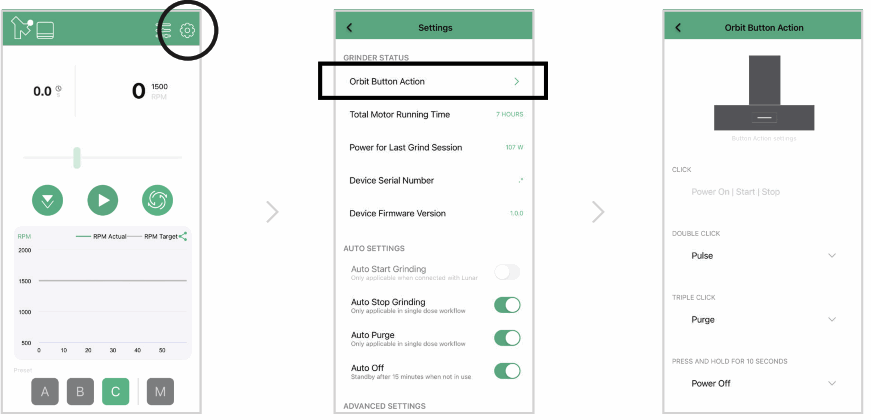 | ||
| Connect your Orbit to the Orbit App. nter the ettings Menu through the icon in the upper right corner. | Tap [ Orbit Button Action ] at the top of the setting page. | Tap [ Orbit Button Action ] at the top of the setting page. |
 | ||
| Leave the settings page to save. | ||
Auto Start Grinding
- The default setting is OFF.
- On: Auto Start enabled; Orbit automatically starts grinding once a cup or container weighing more than 5 grams is placed on Lunar.
- Off: Auto Start disabled; start grinding by clicking the Orbit button.
- Auto Start is only supported in grind-by-weight mode.
Auto Stop Grinding
- The default setting is ON.
- On: Auto Stop enabled; grinder will automatically stop grinding when
– 3 seconds after grinding session ends;
– No coffee beans are detected for around 15-17 seconds after a grinding session is started. - Off: Auto Stop disabled. Auto Purge will also be disabled.
- Auto Stop is only supported in single dose grinding.
Auto Purge
- The default setting is ON. Auto Purge Setting can only be turned on when Auto Stop Setting is on.
- On: Auto Purge enabled.
- Off: Auto Purge disabled.
- Auto Purge is only supported in single dose grinding.
Auto Off
- The default setting is ON.
- On: Auto Off enabled; Orbit automatically enters standby mode after 15 minutes.
- Off: Auto Off disabled.
Clear Paired Acaia Scale
Tap [ Clear ] to clear paired Acaia Scale. Each Orbit can only pair with one Lunar at the same time. If you want to pair with another Lunar, please reset the pairing here from the App, or reset the Orbit to factory default.
Reset to Default
Tap [ Reset ] to reset Orbit to factory default. All settings including RPM profiles, button actions, and pairing will be reset to factory default. Enable / Disable Acaia Scale Connection
- The default setting is ON.
- On: Connection to Acaia Scale enabled; Lunar will automatically pair / connect to Orbit when placed on the grinder.
- Off: Connection to Acaia Scale is disabled; Lunar will NOT automatically pair / connect to Orbit when placed on the grinder.
Grind-by-Weight with the Acaia Lunar
Mode Introduction
The Orbit comes with a grind-by-weight mode that can be activated through a paired Acaia Lunar. In grind-by-weight mode, you can set the target weight and desired RPM or your grinding session. The grinder will automatically stop grinding once the target weight is reached.
Acaia Sense Technology
When the target weight is reached, the Orbit will automatically stop the motor and complete the grinding session. With the machine learning Acaia Sense technology built in, the predictive offset will be dynamically adjusted each time to ensure the most accuracy and repeatability of the dose in grind-by-weight.
Acaia Lunar on Orbit
You can enable the grind-by-weight mode by connecting the Orbit to the Lunar. With the Lunar connected, the Orbit supports 3 customizable presets for weight-based grinding, also including an auto-start grinding function to give you a hands-free operating experience.
See the instructions in the next section on how to pair your Lunar to Orbit and how the Lunar functions when connected to the grinder.
Auto-Grinding for Hands-free Operation
The Orbit bears an auto-start function that supports an auto-grinding workflow. With the auto-start and auto-stop setting both enabled, you can grind easily by just placing our cup on the paired Acaia Lunar. The Orbit will start grinding once a cup weighing more than 5 grams is placed on the Lunar, and stop when the target weight is reached. You can enable the auto-start setting via the Orbit App, or through the paired Acaia Lunar.
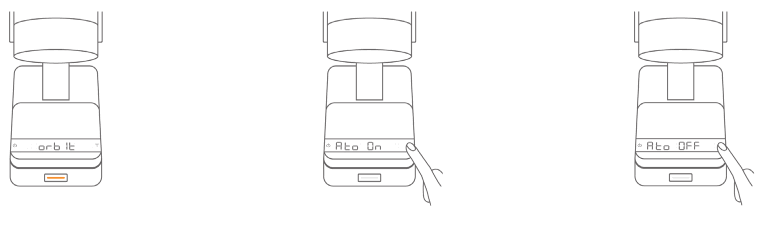 | ||
| To turn on auto- tart through he Lunar, first make sure the Lunar is paired to the Orbit. | Press and hold on the scale until the Lunar isplays [ Ato On ]. | To disable it, press and hold once again until [ Ato OFF ] appears. |
Grind-by-Weight Workflow with the Acaia Lunar
Follow the steps below to set up the grind-by-weight function with the Acaia Lunar.
Apply Lunar Magnetic Strips
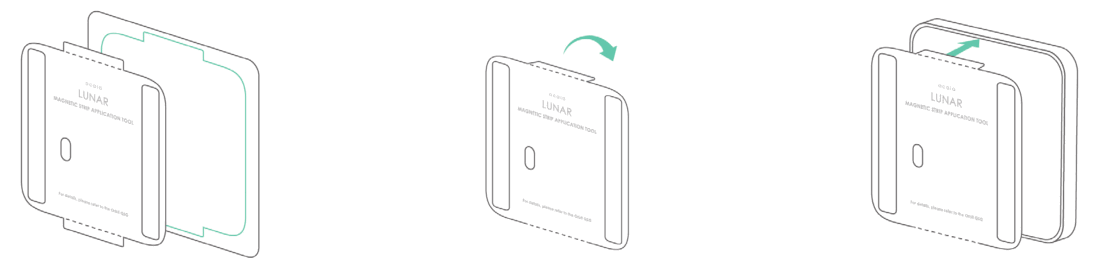 | ||
| Remove the Lunar magnetic trips application tool along the dotted line. | Fold the flaps at the top and bottom of the application tool long the dotted line. | Align and insert the application tool flaps into the Lunar base gap. |
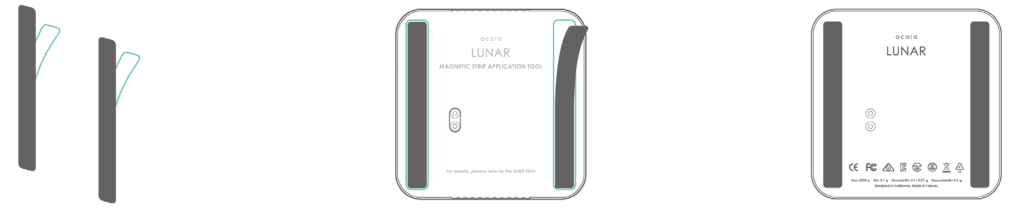 | ||
| Peel off the backing paper of the magnetic strips. | Align the magnetic strips with the application tool nd attach the strips to the Lunar. | Remove the application tool. |
Pairing with the Lunar for the First Time
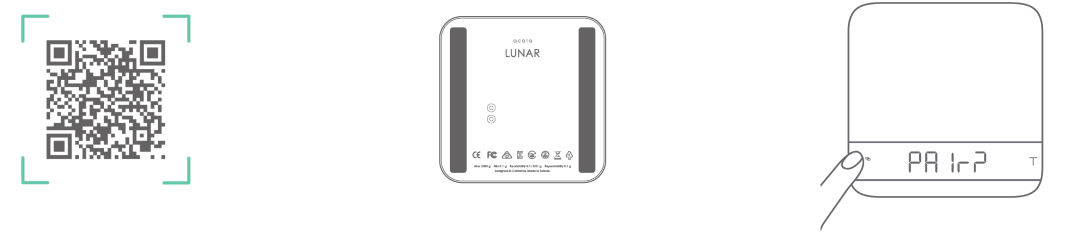 | ||
| Make sure both the Lunar and he Orbit are using the latest firmware via the Acaia Updater App. | Check if the Lunar has the agnetic strips ligned correctly. | When the Lunar is off, press and hold the button for 10 seconds until the LED displays ‘Pair?’. |
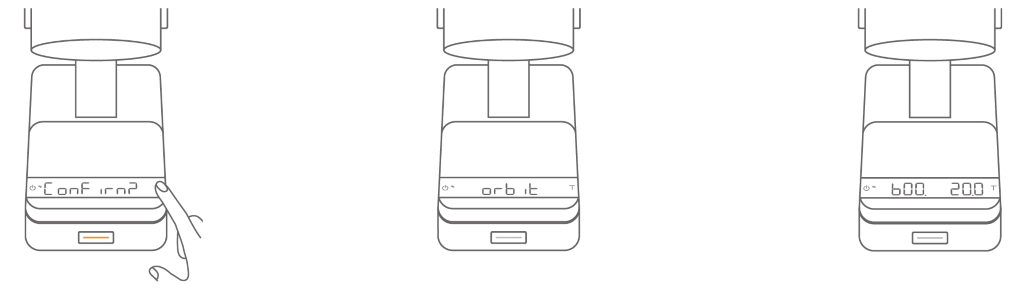 | ||
| Place the Lunar on the Orbit. When the Orbit button urns orange and the Lunar displays ‘Confirm?’, tap on the Lunar to confirm airing. | When the Lunar displays Orbit’, the pairing is complete. | You will only need to pair the Lunar once. The unar will automatically connect with the Orbit ext time it s placed on the Orbit. |
Note: One Orbit can only pair with one Lunar at the same time. If you want to pair with another Lunar, please reset the pairing in the App, or reset the Orbit to factory default.
Weight-Based Grinding
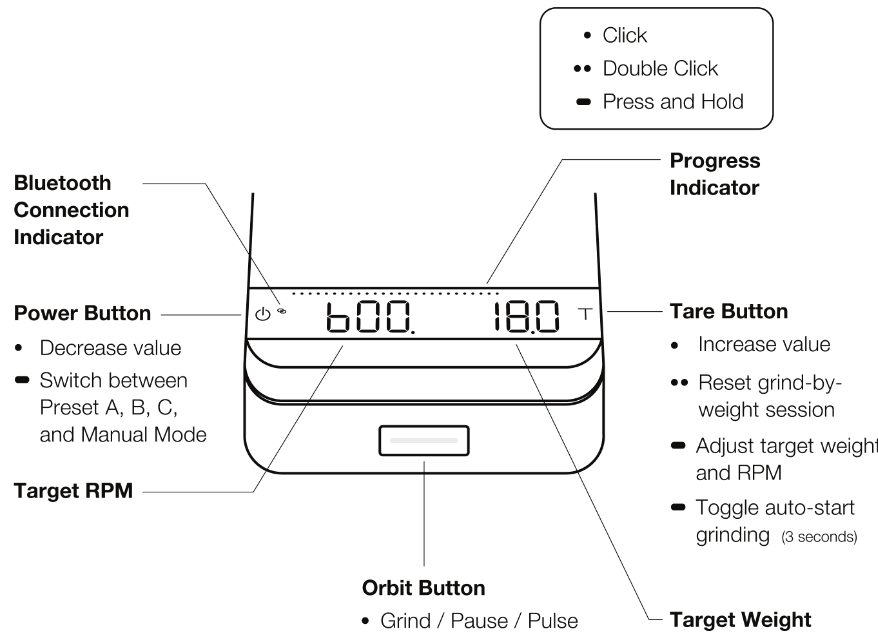
Adjusting Weight and RPM in Grind-by-weight Mode
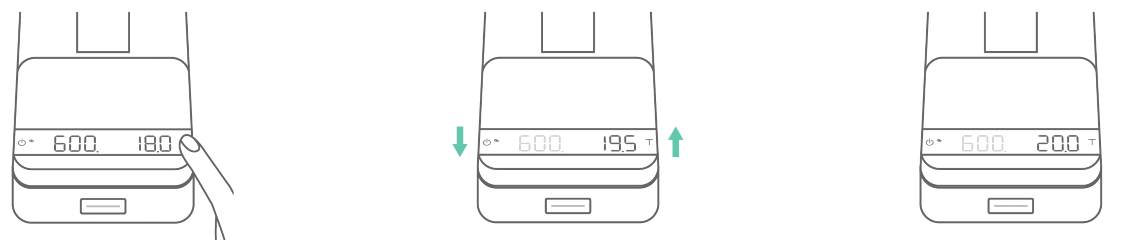 | ||
| To adjust the target weight and RPM, press and hold until the weight starts blinking. | When the weight starts blinking, tap to increase and tap to ecrease. | When you reach the desired target weight, wait 5 seconds to move on to the RPM adjustment. |
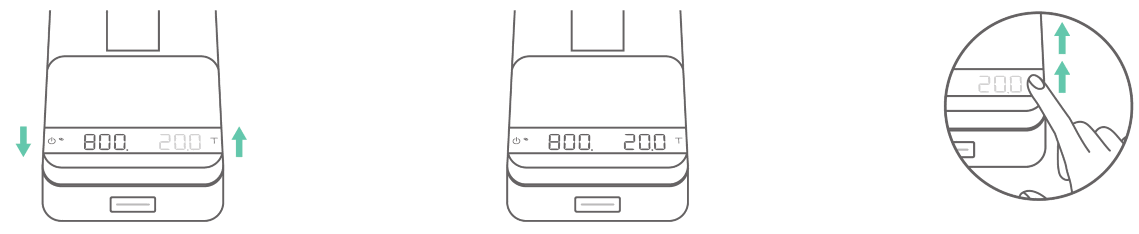 | ||
| When the RPM starts blinking, tap to increase and ap to decrease. | When you reach the desired RPM, wait 5 seconds to save. | When adjusting target weight and RPM, ress nd hold / to speed up the adjustment. |
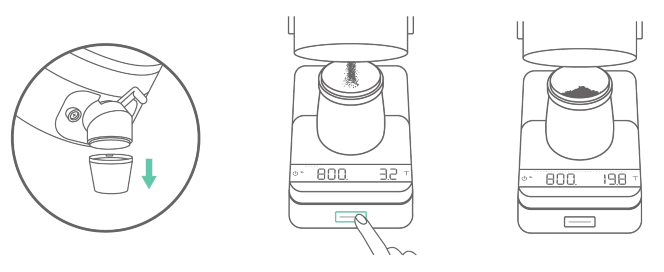 | ||
| Make sure to remove the spout extender from the Orbit spout and place the dosing cup on the Lunar. | To begin the grinding session, click the rbit button. The rbit will start grinding until the target weight is reached. | When the target weight is eached, the Orbit will automatically stop the motor. |
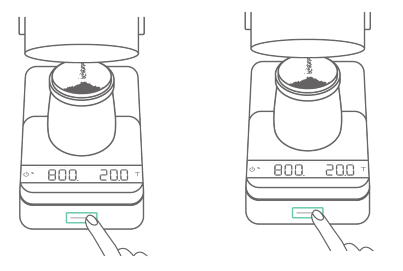 | |
| At the end of each session, you can click the Orbit button to pulse a small amount f coffee if needed. | Remove the dosing cup or double tap to reset the current grind-byweight session. |
Product Care Information
Care and Cleaning
Do not immerse the Orbit in water. Use a soft cloth with warm water only to clean the product. Do not use detergent or other chemicals for cleaning as this can damage the product.To maintain a low retention for the Orbit, we recommend cleaning the spout regularly in the steps below:
- Remove the spout extender and use the knocker multipletimes.
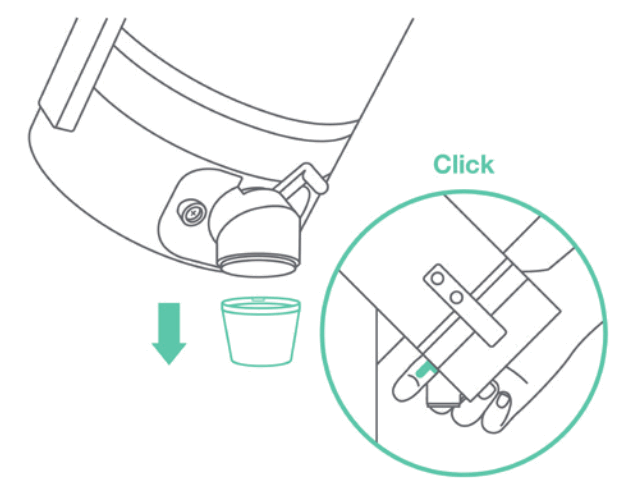
- Using a small cross slot screwdriver, remove the two screws from the Orbit spout on the burr housing.
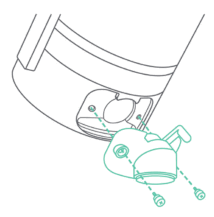
- Remove the spout. Clean the Orbit spout with a brush and\ activate purge by triple clicking the Orbit button.
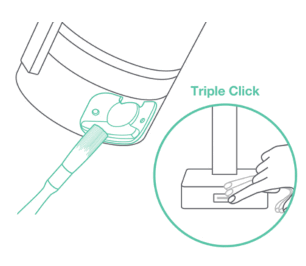
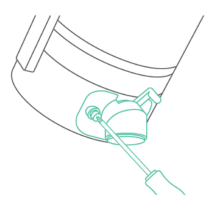
- Reassemble the Orbit spout with the burr housing and fasten with two screws. These screws can be replaced with thumb screws for easy assembly.
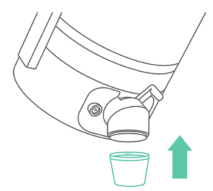
- Attach the spout extender.
Do not perform burr cleaning or burr replacement without proper knowledge or technique. Acaia is not responsible for realignment or reassembly of the grinder once it is isassembled.
Appendix
Troubleshooting
The Orbit button will turn Red and stop grinding when the motor encounters an issue. The following are some instructions for basic troubleshooting:
- Turn off the main power and adjust the dial towards a coarser grind. Try restarting the grinder.
- If step 1 does not fix the issue, please follow our cleaning steps and clean the Orbit thoroughly. Make sure there are no foreign substances in the bean chamber before restarting the grinder.
- If the Red light still persists, please contact our customer support service for further assistance.
Troubleshooting Table
| Issue | Troubleshooting |
| Unable to connect to Acaia Lunar | Make sure the Acaia Lunar is using the latest firmware. Follow the nstructions in the Grind-by-weight with Acaia Lunar section to re-onnect. |
| Orbit produces no coffee ground when grinding | Follow our cleaning steps and clean the Orbit thoroughly. Restart the grinder. |
| Follow our cleaning steps and clean the Orbit thoroughly. Restart the grinder. | Clean the grind residue from the end of the drive shaft, and he central hole of the burr carrier after reassembling the burr carrier. |
| Orbit shut down during grinding with out warning | Follow our cleaning steps and clean the Orbit thoroughly. Check if there are any foreign objects in the Orbit. |
Reset to Default
To reset the Orbit to factory default, press and hold the Orbit button in the front while the Orbit is in standby mode. Hold for about 10 seconds and release the Orbit button hen the button turns Green . Once released, the Orbit will be reset to factory default.
You can also reset the Orbit to factory default with the Orbit APP.
Enter the Orbit Firmware Update Mode
To enter the Orbit firmware update mode, press and hold the Orbit button in the front while the Orbit is in standby mode. Hold for about 15 seconds and release the Orbit utton when the button turns from Green to Red . Once released, the Orbit will enter firmwareupdate mode.
Specifications
| Model | AOT001 |
| Product Weight | 5600 g ± 10 g |
| Product Dimensions | W: 254 mm L: 108 mm H: 394 mm |
| Rated Voltage | 100V-240V |
| Frequency | 50/60Hz |
| Motor | 200W Brushless DC Motor |
| Material | Aluminum, PC, Stainless Steel |
| Operating Ambient Temperature | 0 – 40c |
| RPM Profile | 600-1500 Adjustable RPM Profile |
| Duty Cycle | Recommended duty cycle for Orbit is 60s running time with a rest time of 30s |
| Connectivity | Bluetooth 5.0 |
| Warranty | 1 Year |
| Inside the Package | Acaia Orbit Coffee Grinder – Eclipse x 1 Power Cable x 1 Spout Extender x 1 58 mm Portafilter Dosing Cup (M) x 1 Dosing Cup Magnetic Pad x 1 Hex Wrench x 1 Lunar Magnetic Strip x 2 Lunar Magnetic Strips Application Tool x 1 Thumb Screw x 2 Burr Carrier Screw x 6 |
Copyright
This user manual is protected by copyright. All rights reserved. No part of this manual may be reproduced, processed, duplicated or published in any form by photocopying, icrofilming, reprinting or any other method, in particular electronic means, without the written consent of Acaia.
© Acaia, California, 2022.