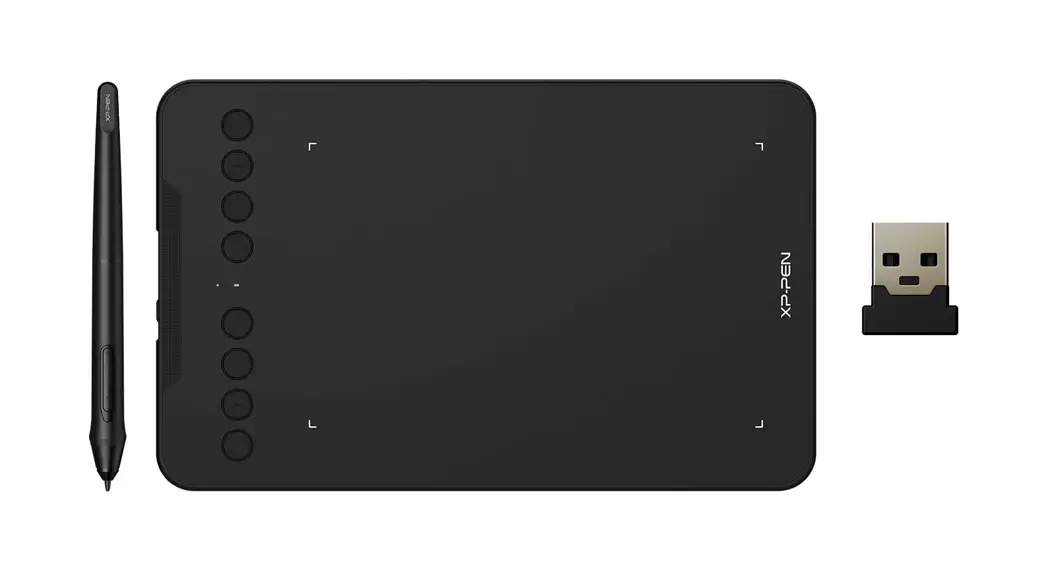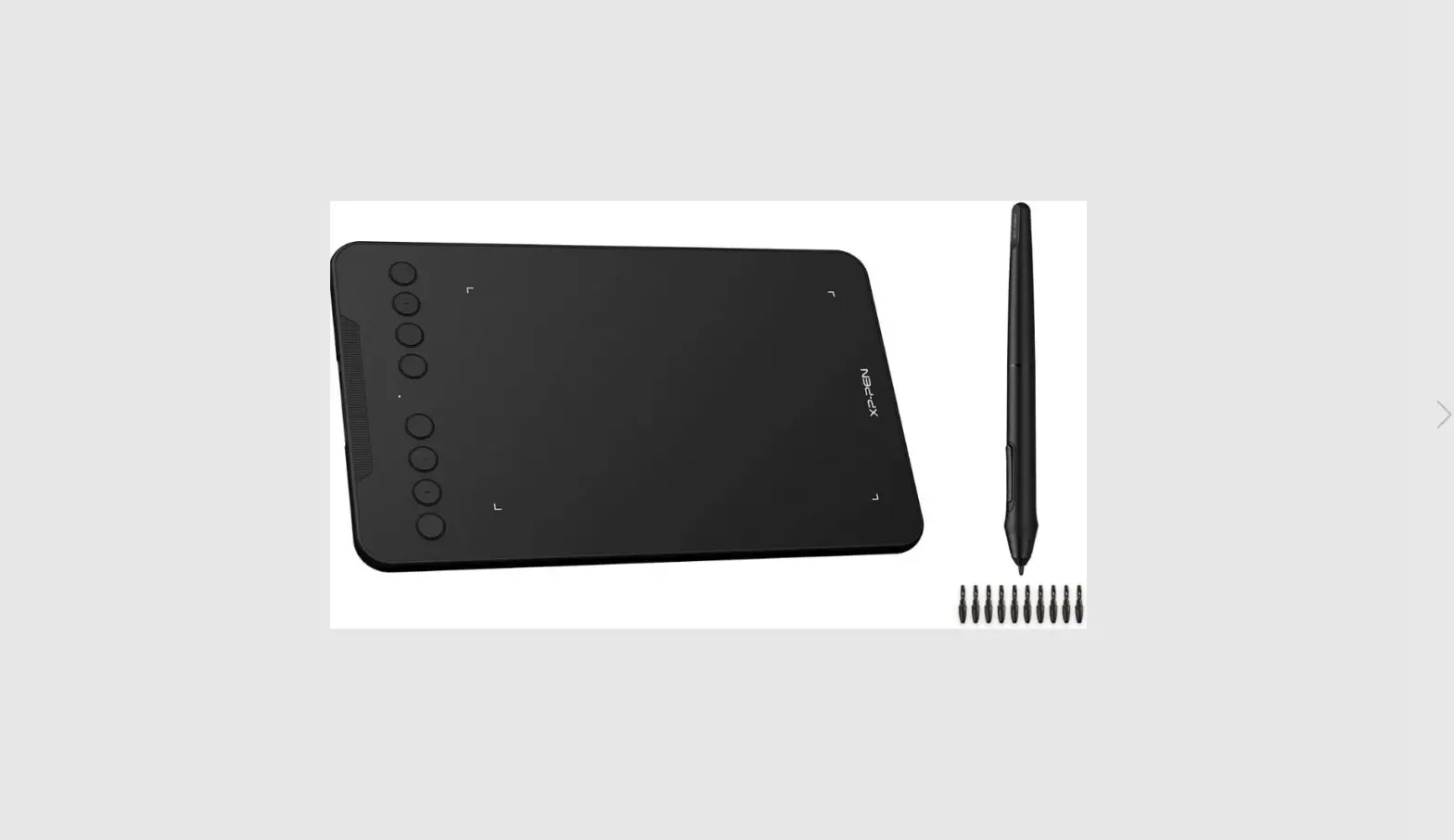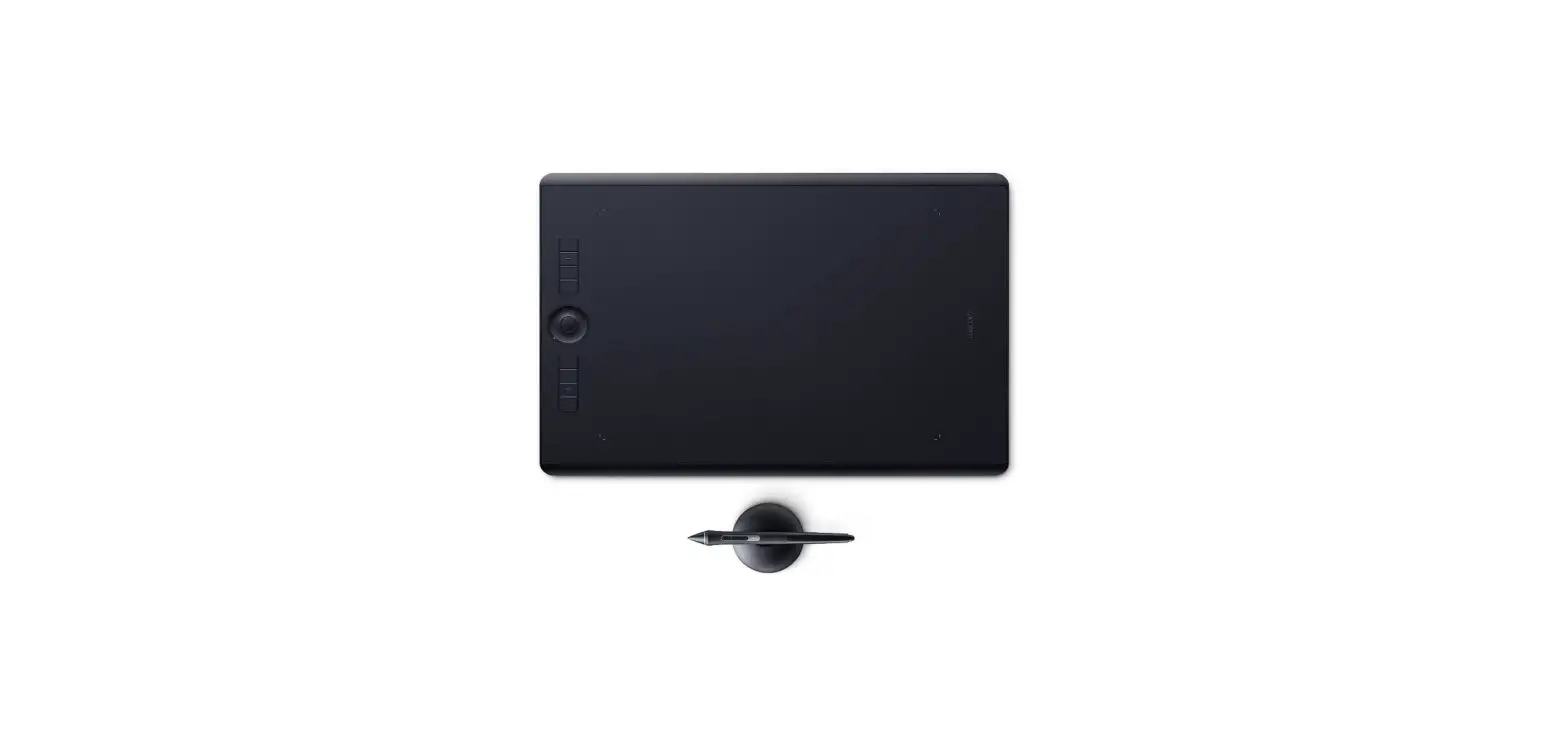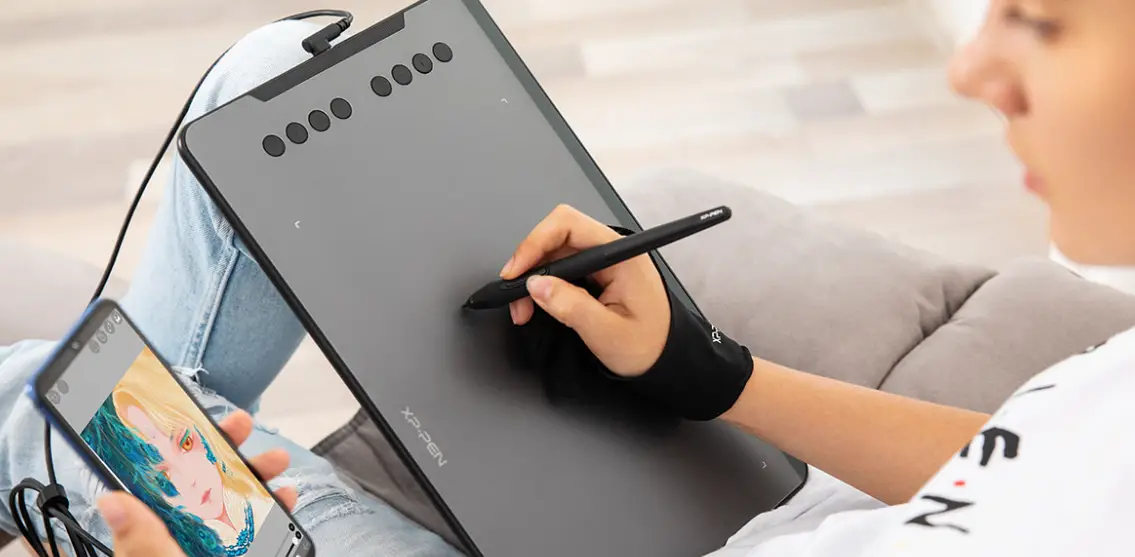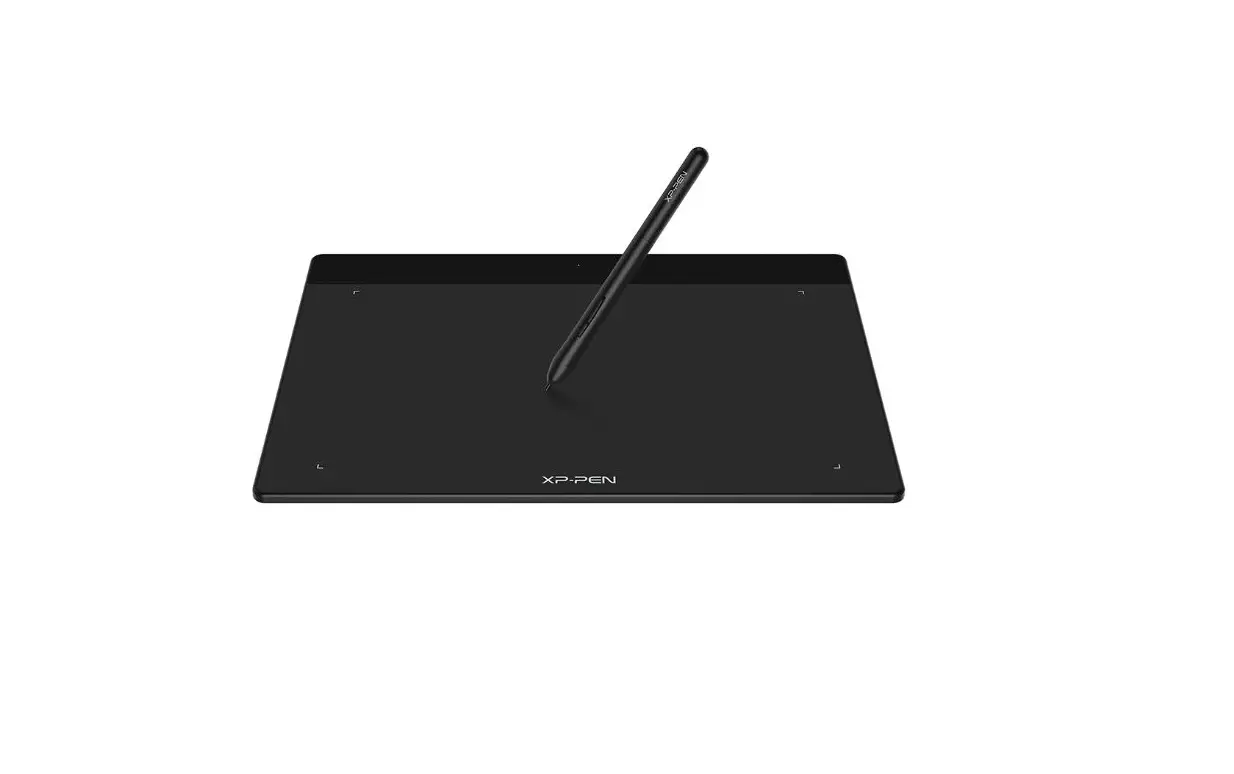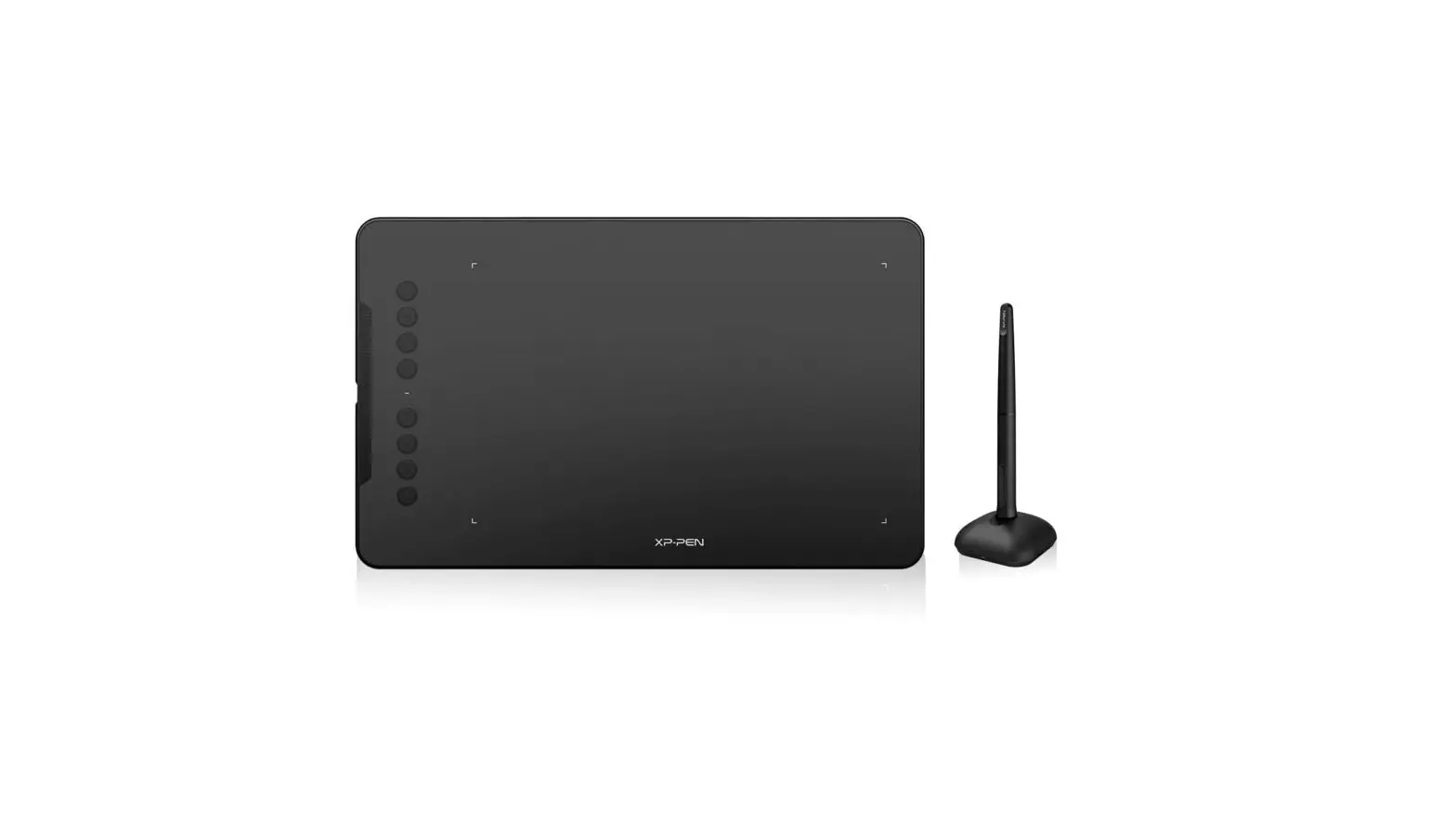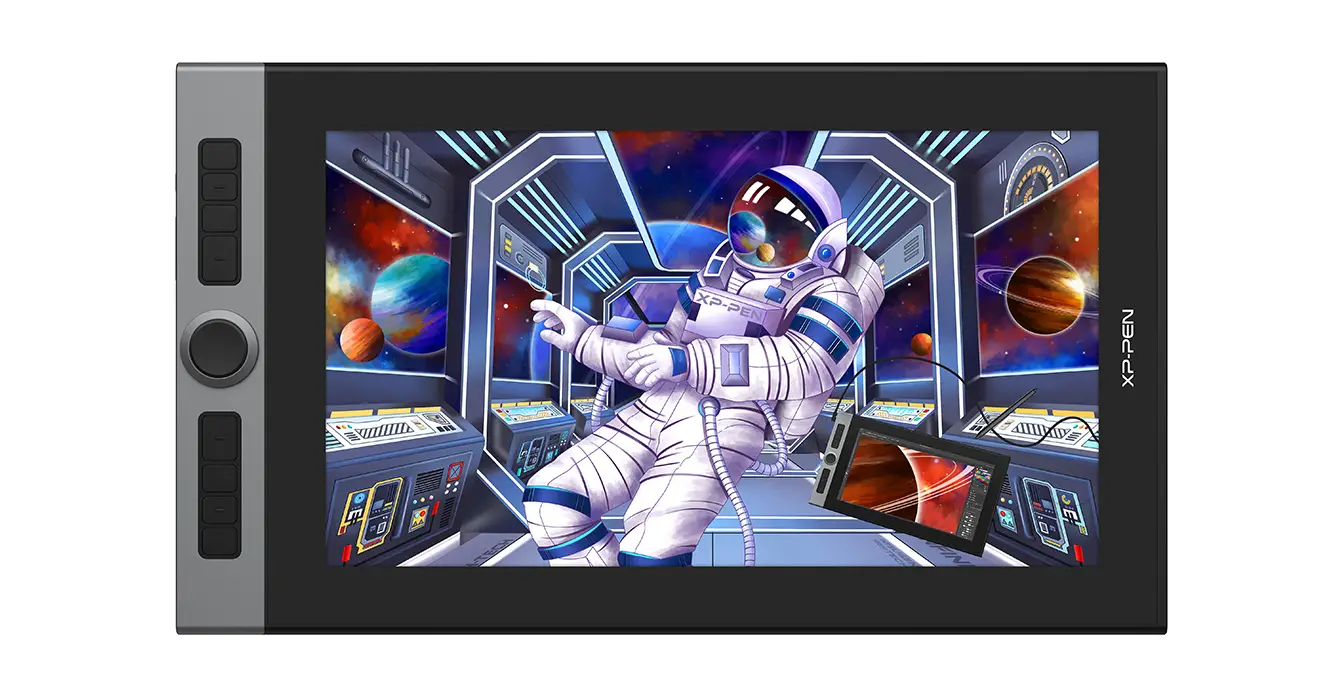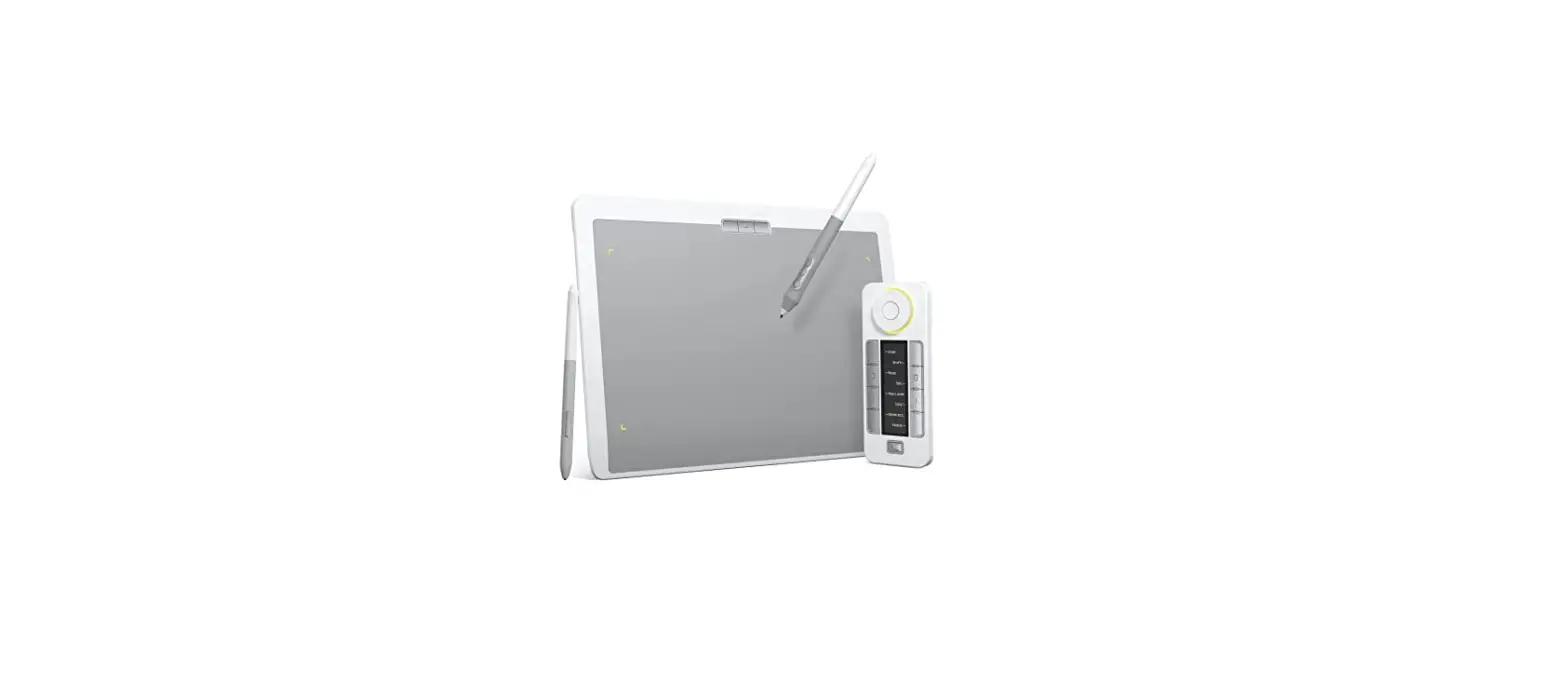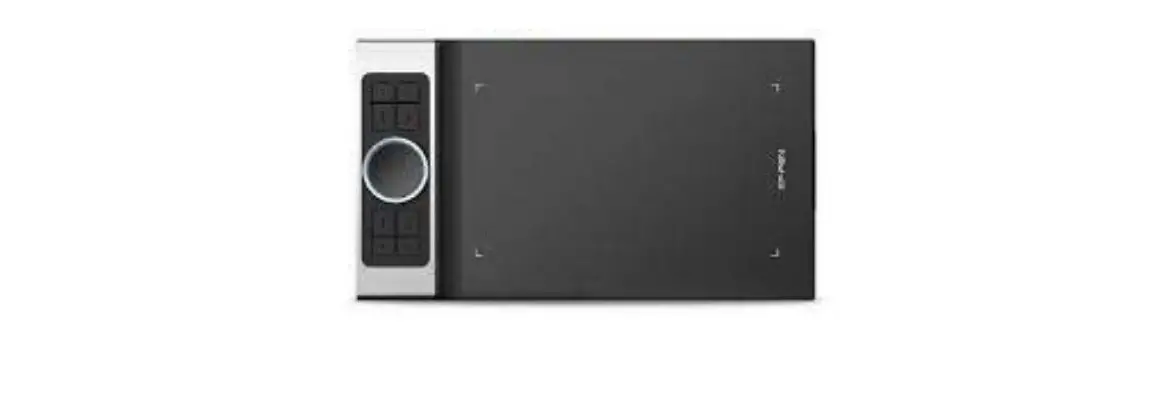

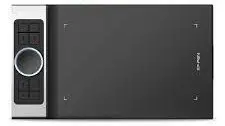
XP-PEN Deco Pro SW/MW Bluetooth Wireless Graphics Drawing Tablet
Overview
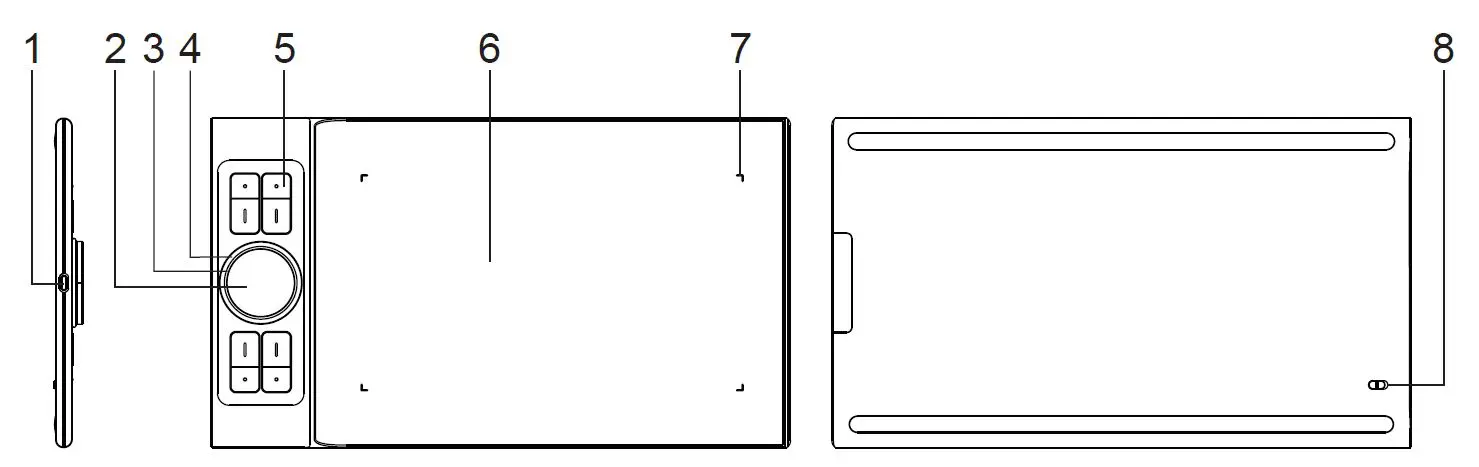
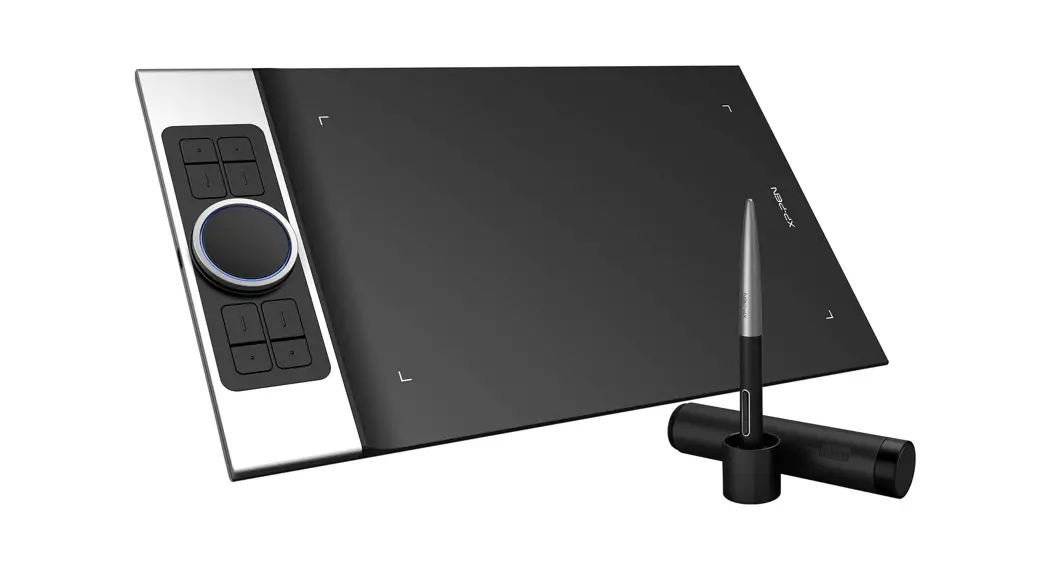
- USB-C port
- Trackpad/Touch
- Indicator 1
In blue status:- Flashing slowly: No Bluetooth connected
- Flashing quickly: Waiting for pairing with Bluetooth connection (Long press the shortcut key on the top left for 3 seconds)
- Always On: Successfully paired
In red status:
a. Flashing: Low battery (20%)
b. Always On: Charging
c. Off: Fully charged
A purple color indicates that the red and the blue indicator are both On simultaneously
- Roller
- Shortcut keys
- Active area
- Indicator 2:
Handwriting indicator:- Flashing: The stylus is in the active area, but not touching the pen tablet
- Always On: The stylus is in contact with the active area
- Off: The stylus is outside the active area
- Power key
Getting Started
Wired Connection
Connect the pen tablet to your computer. The pen tablet will get started automatically.
Wireless Connection
A. Connection to the Bluetooth receiver
Plug the Bluetooth receiver into the computer and then toggle the power key to turn the pen tablet on.
B. Direct Bluetooth connection (Windows/Mac OS only)
- Toggle the power key to turn the pen tablet on. Then long-press the shortcut key on the top left for 3 seconds to enter Bluetooth pairing (with the blue indicator flashing quickly).
- Turn on the Bluetooth on the computer, set up and add Bluetooth device, search for device name Deco Pro SW/MW and complete Bluetooth pairing by clicking the device name (with the blue indicator always on).
- Toggle the power key to turn the pen tablet off after use.
Install the Driver
- Make sure your pen tablet was connected to the computer.
- Visit the XP-PEN website (www.xp-pen.com), choose Support section and click Download. Choose product model and download the latest driver according to your computer system.
- Follow the prompts to finish the driver installation.
Note:
For the best performance of your device, we highly recommend you check and update driver regularly from XP-PEN website.
If you need any further assistance, please contact us:service@xp-pen.com
www.xp-pen.com