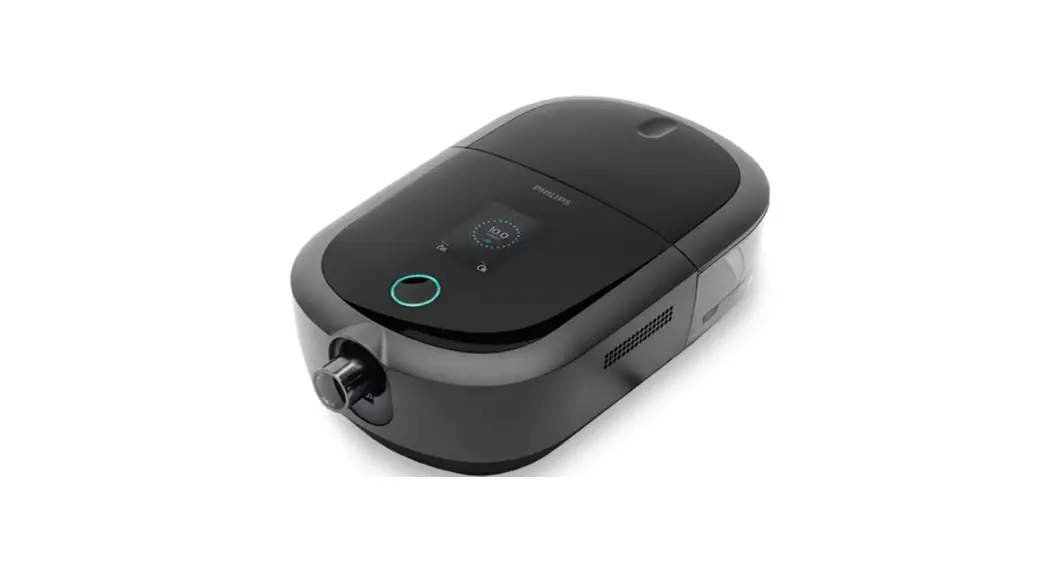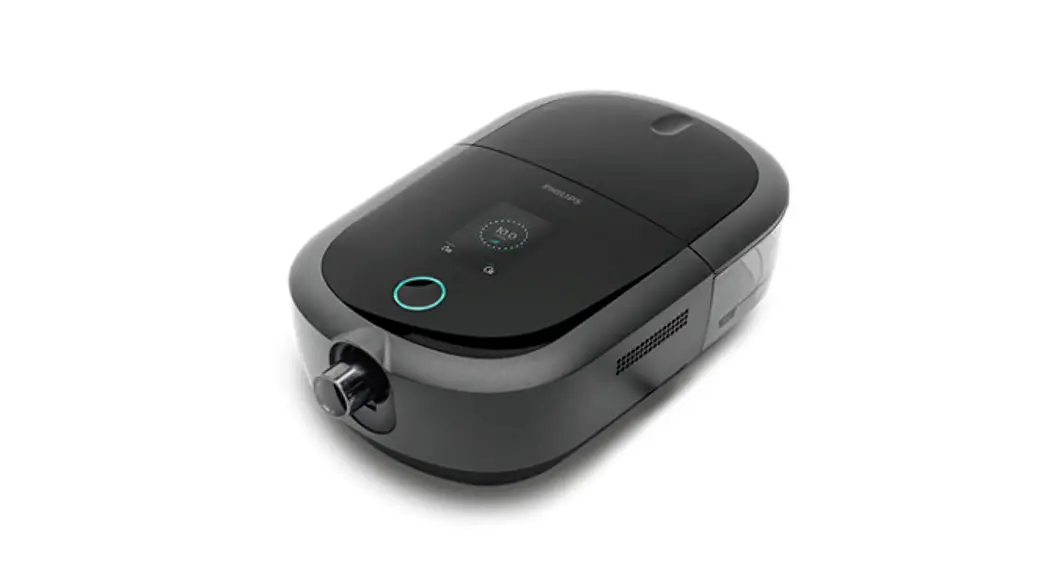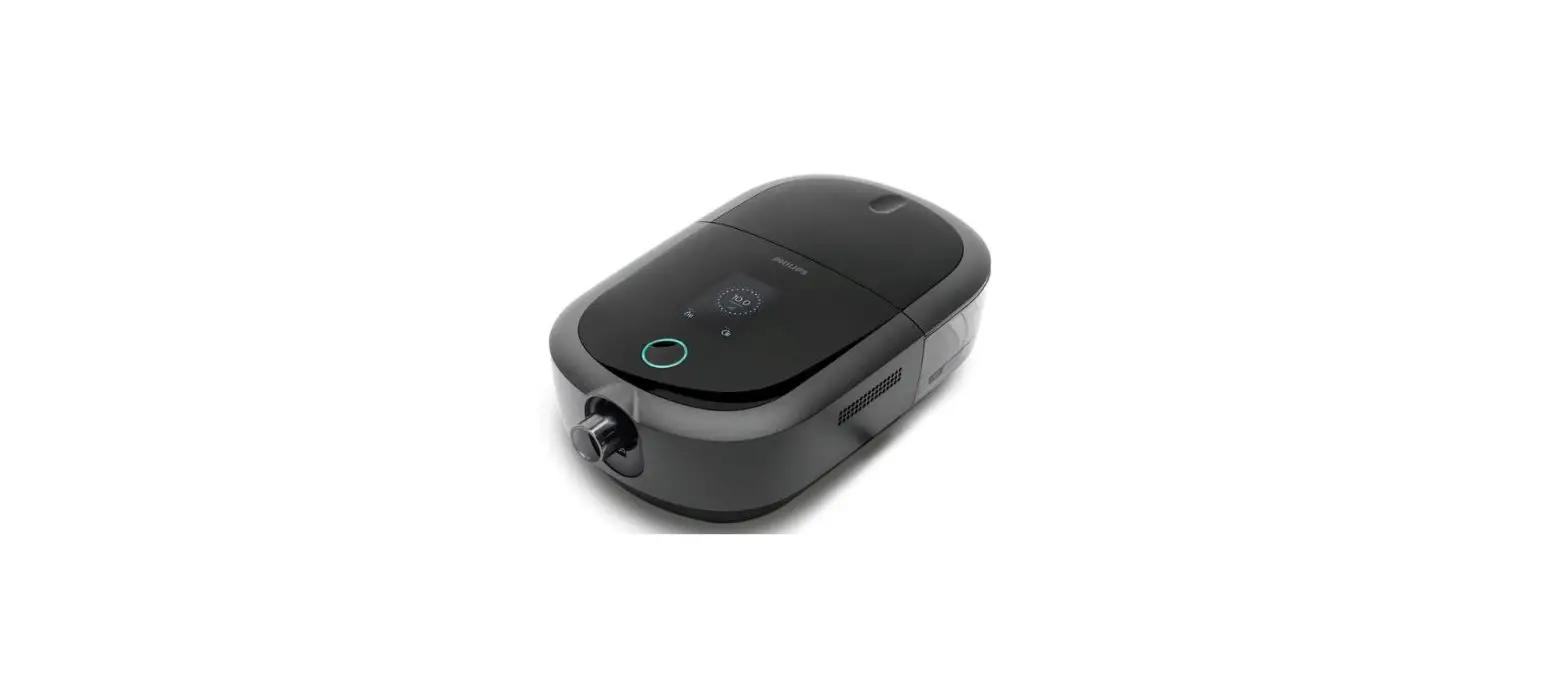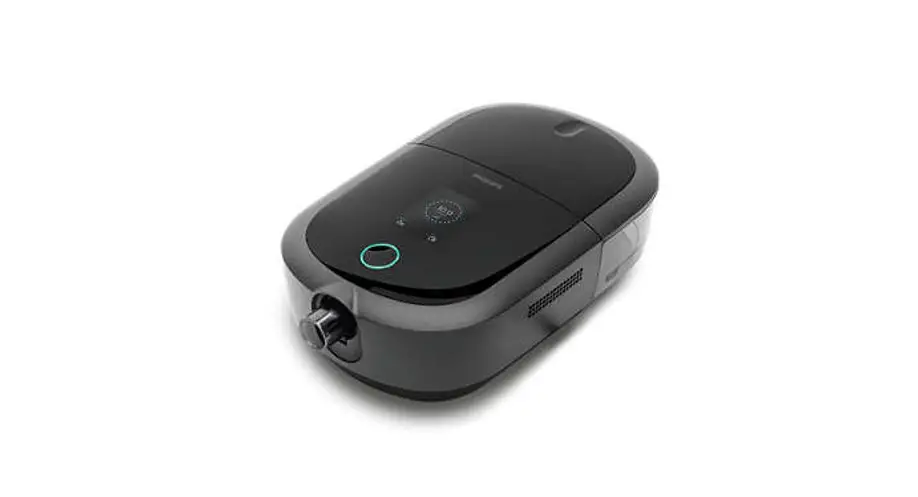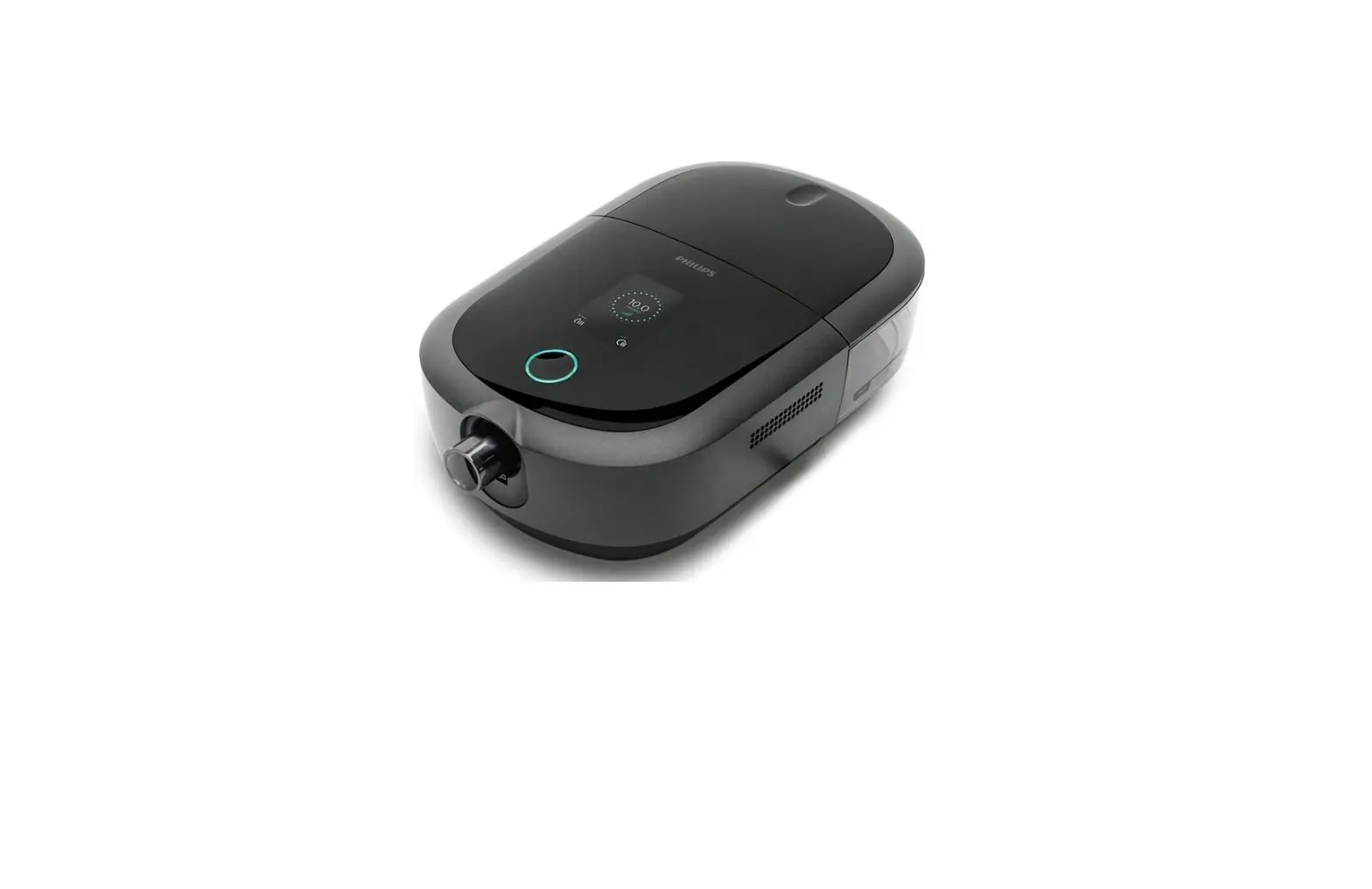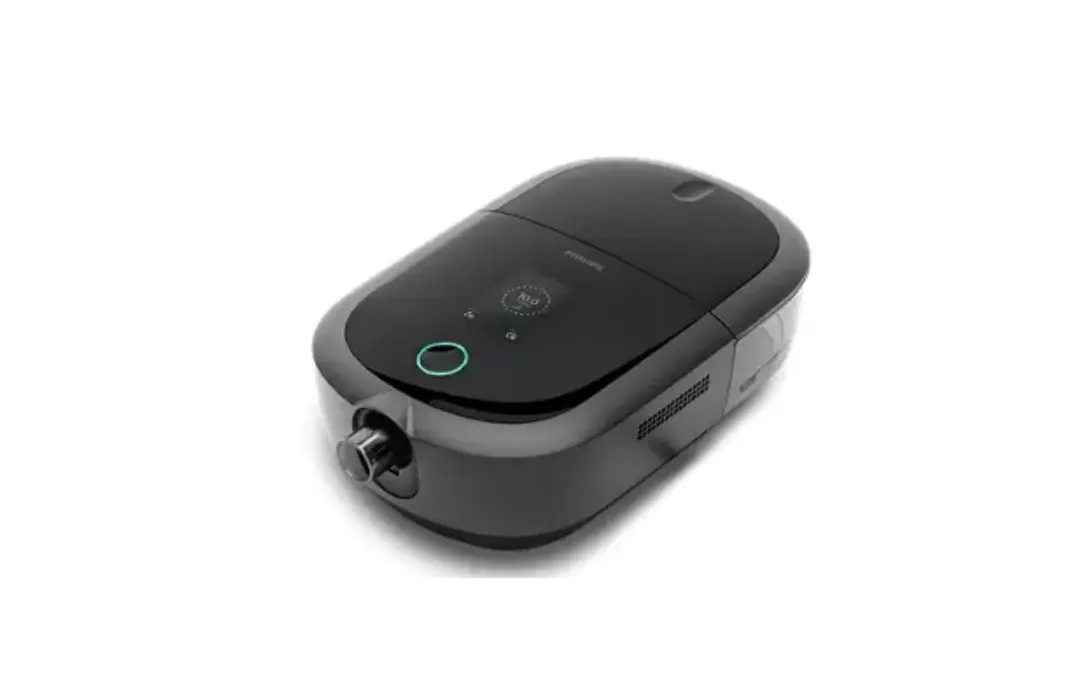
PHILIPS Auto CPAP Advanced Dream Station 2 User Guide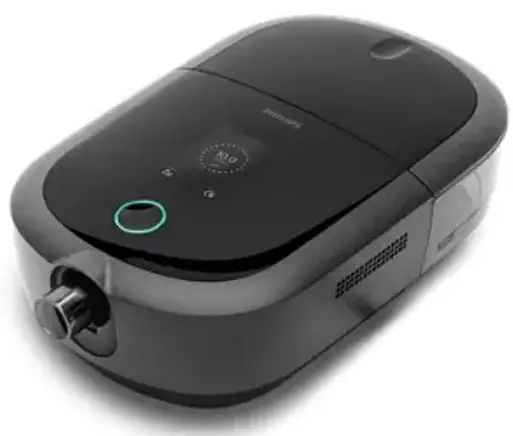
Connecting to DreamMapper
Sync your device to your tablet or mobile phone using the DreamMapper app, available in the App Store and Google Play

- With the device and mobile phone powered up and in close proximity, initiate Bluetooth setup and pairing in DreamMapper. Follow the pairing instructions in DreamMapper.

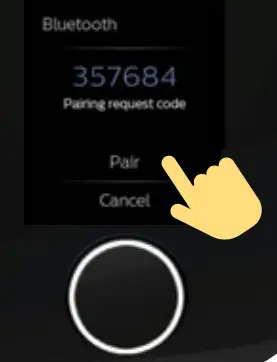
- A 6-digit PIN will appear on the DreamStation 2 screen. Depending on your phone, you will need to either enter the PIN into DreamMapper or tap “Pair” on the device screen within 30 seconds to complete the pairing.

- The screen displays “Pairing to Device” and then “Success: Bluetooth Device is now paired.”



Get started with therapy
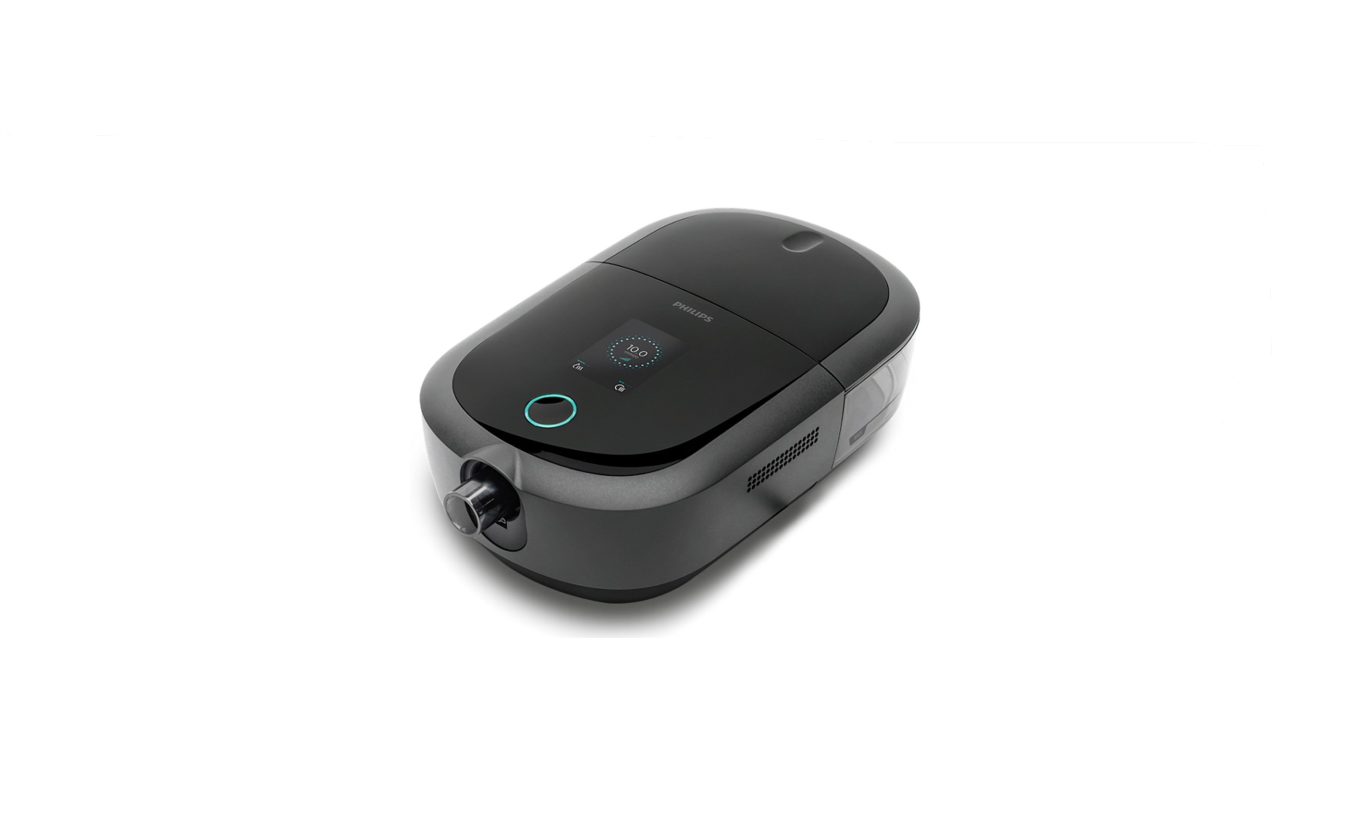
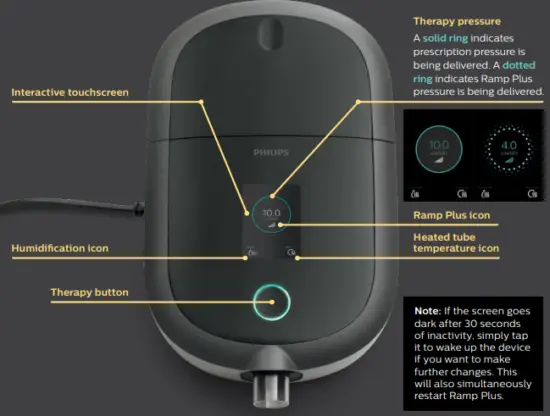
To begin therapy, press the Therapy button. A blue ring indicates therapy is on.
Customize your settings
 Ramp Plus
The Ramp Plus feature allows you to set a comfortable starting pressure while you fall asleep.
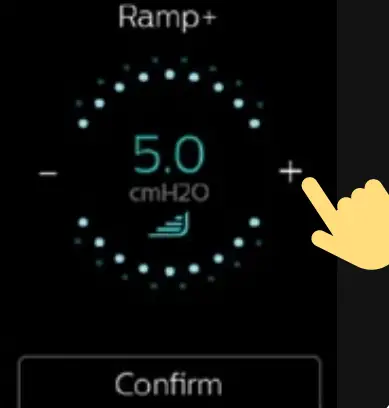
- Tap the Ramp Plus icon to view and adjust your Ramp Plus pressure.
- Tap the + or – symbols until you reach a comfortable setting. Ramp Plus settings can be turned off or set from 4 to 10 cm H2O.
- Tap “Confirm” to save the setting.
 Humidification (if available)
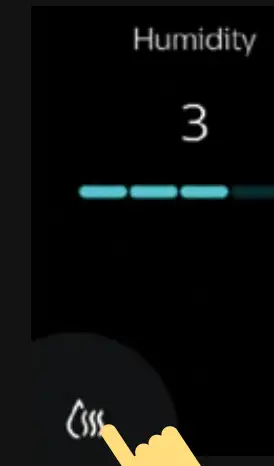
- Tap the humidification icon to view your current setting.
- Tap again until you reach a preferred moisture level. Humidification can be turned off or set from 1 (minimum) to 5 (maximum).
Once humidification is set, it will be saved and automatically activated for future therapy sessions.
 Heated tube temperature (if available)
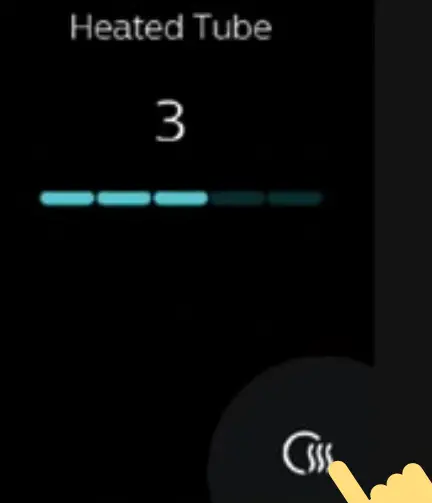
- Tap the heated tube icon to view your current temperature setting.
- Tap again until you reach your preferred temperature. Heat can be turned off or set from 1 (minimum) to 5 (maximum).
Once the temperature is set, it will be saved and automatically activated for future therapy sessions.
Therapy data summary
To stop airflow, press the Therapy button. A summary of your therapy data will be displayed. Access to certain information will depend on what your provider has set.
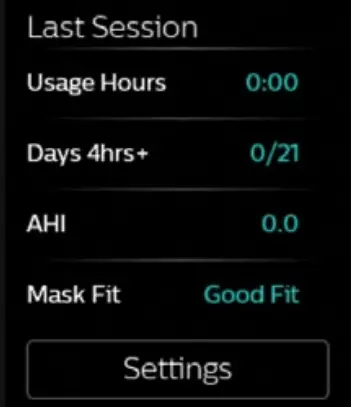
Last Session screen
Information in blue indicates that you can tap to learn more or take action.
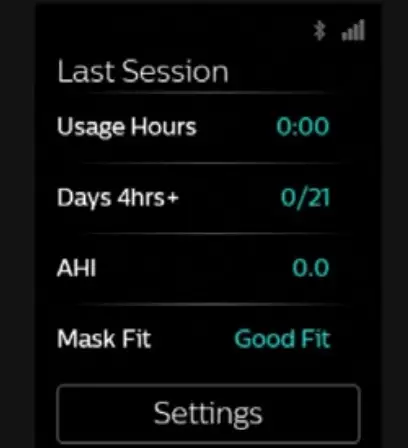
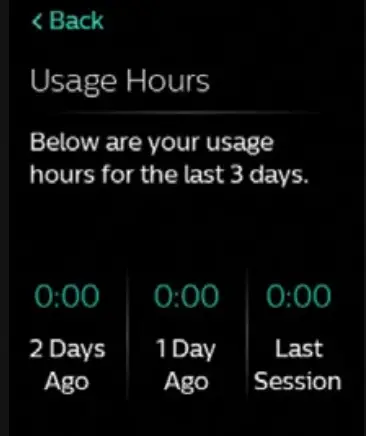
- The Usage Hours screen displays the amount of time you received therapy in hours and minutes during your last 3 sessions.

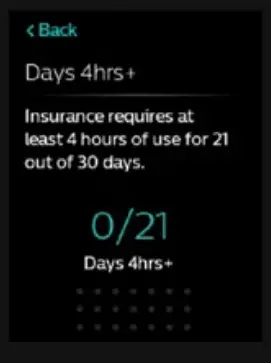
- The Days 4hrs+ screen displays the total number of sessions lasting 4+ hours that you’ve had in the past 30 days. Once you have reached your goal, “Complete” will be displayed.

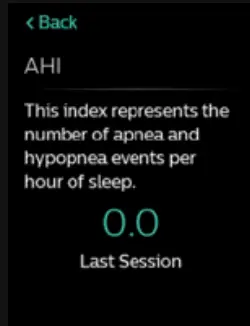
- The AHI screen displays the Apnea-Hypopnea Index (AHI) value for the most recent one-day time frame (if enabled by your provider).

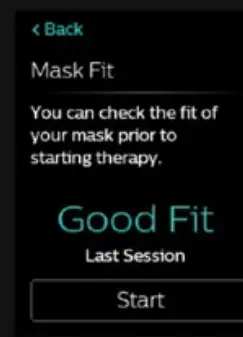
- The Mask Fit screen displays how your mask fit during your last session. You can also run a Mask Fit check. Put on your mask and tap “Start” to initiate the Mask Fit check.

Settings
Comfort, device, and data
Access to certain information will depend on what your provider has set.
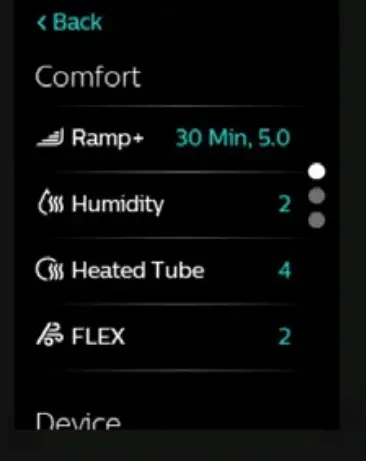
- To make adjustments to settings and to access additional information, tap “Settings.”

- Adjust available Comfort settings. Information in blue indicates that you can tap to make changes.
a. Ramp Plus time and pressure
b. Humidity
c. Heated tube (if available)
d. Tube size
e. FLEX
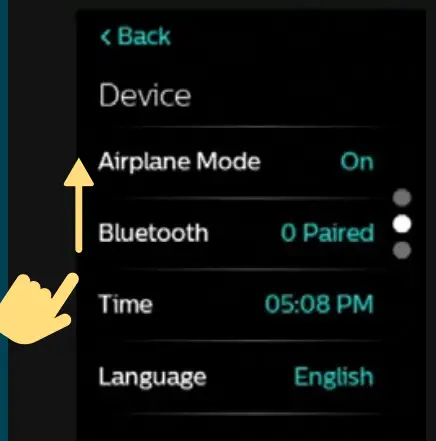
- Swipe up to view additional device information like adjusting airplane mode, clearing Bluetooth pairings, and resetting time or language.
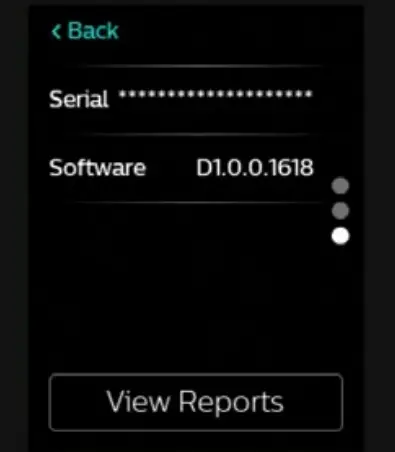
Tap on the information in blue to make changes. You can also view the device’s serial number and software version.
- Tap “View Reports” to select a date range and view additional therapy data summaries. To exit out of Settings at any time, tap “Back” to return to the Last Session screen.

Consult your User Manual for detailed troubleshooting information.
Cleaning and maintenance
To keep your device and components in good working condition, you must clean them regularly.
It’s also important for maintaining your good health.
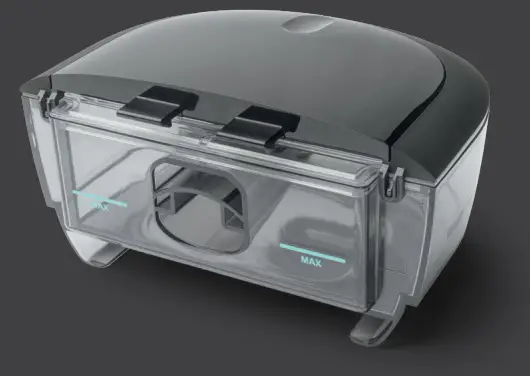
Humidifier water tank, seal, and lid
Clean daily with water and mild dishwashing detergent.
Tubing and adaptors
Clean daily with water and mild dishwashing detergent.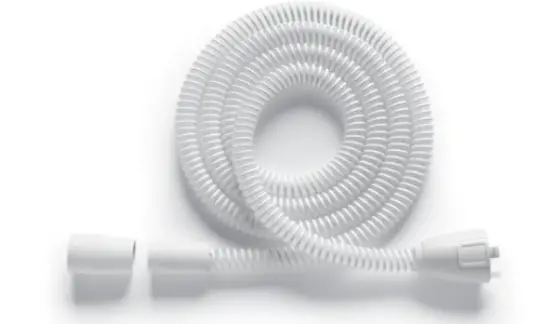
Filters
Clean gray, reusable filter every two weeks with water. Replace every 6 months.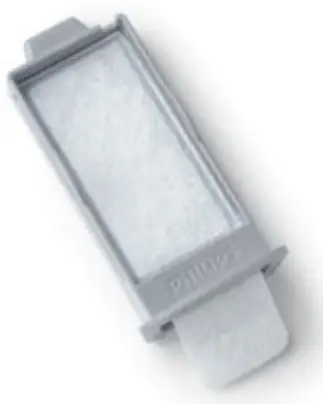
Do not clean blue, disposable filter.
Replace every 30 nights.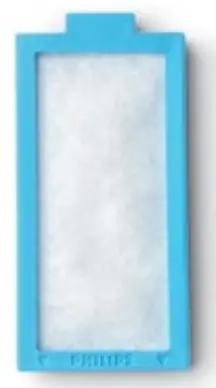
Consult your User Manual for detailed care and cleaning information.
© 2020 Koninklijke Philips N.V. All rights reserved. Specifications are subject to change without notice.
Trademarks are the property of Koninklijke Philips N.V. or their respective owners.
http://www.philips.com/respironics
Respironics Inc.
1001 Murry Ridge Lane
Murrysville, PA 15668 USA
REF: 1149265
1149265 R01
ZL 11/23/2020
 Choose your country/language | Philips Respironics