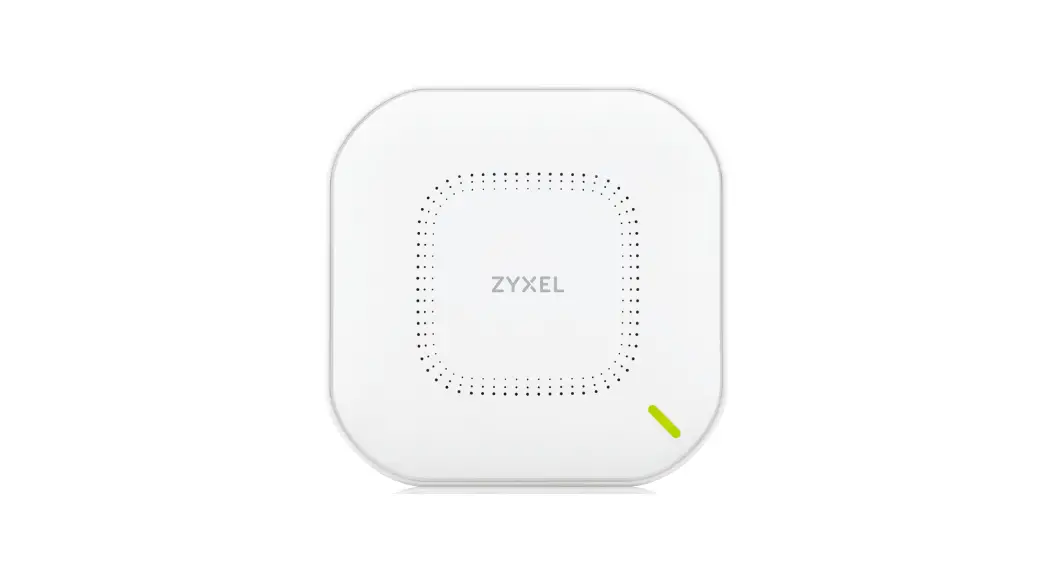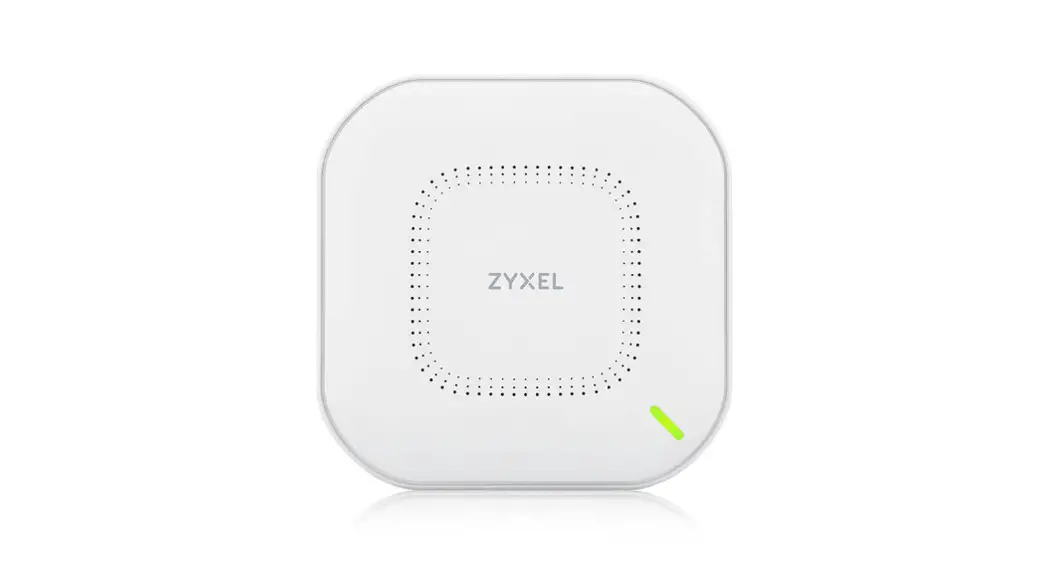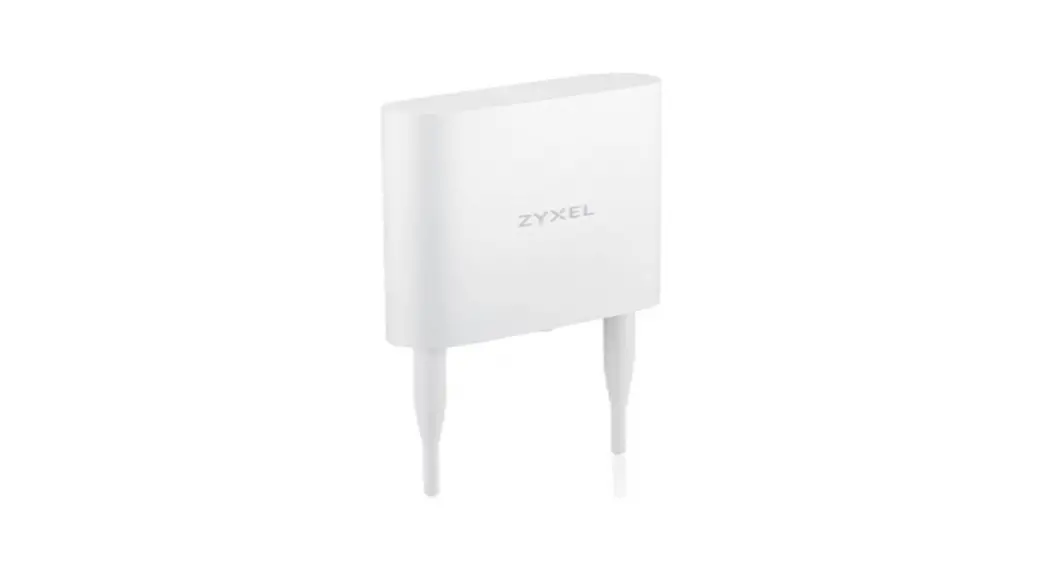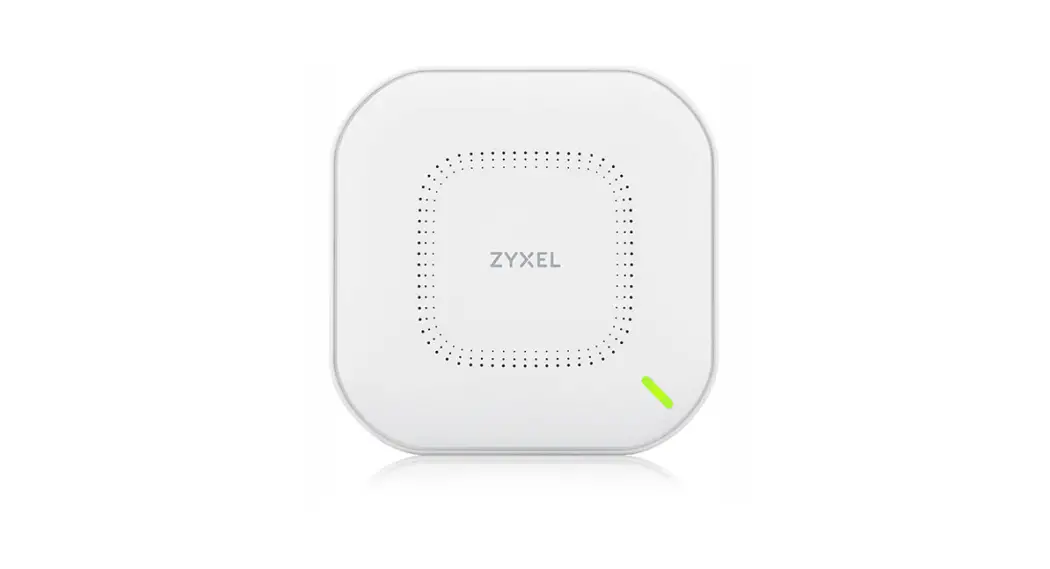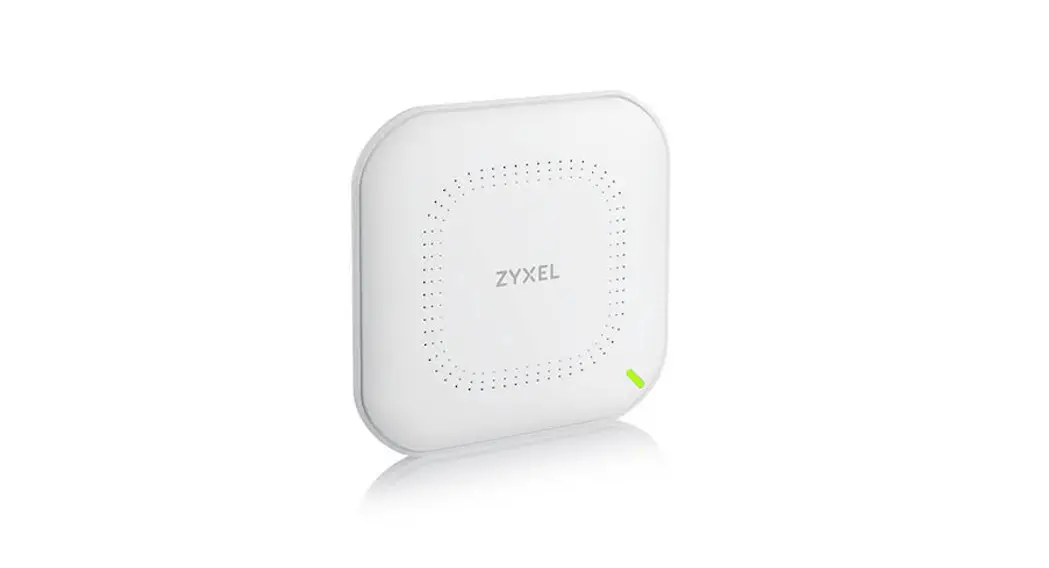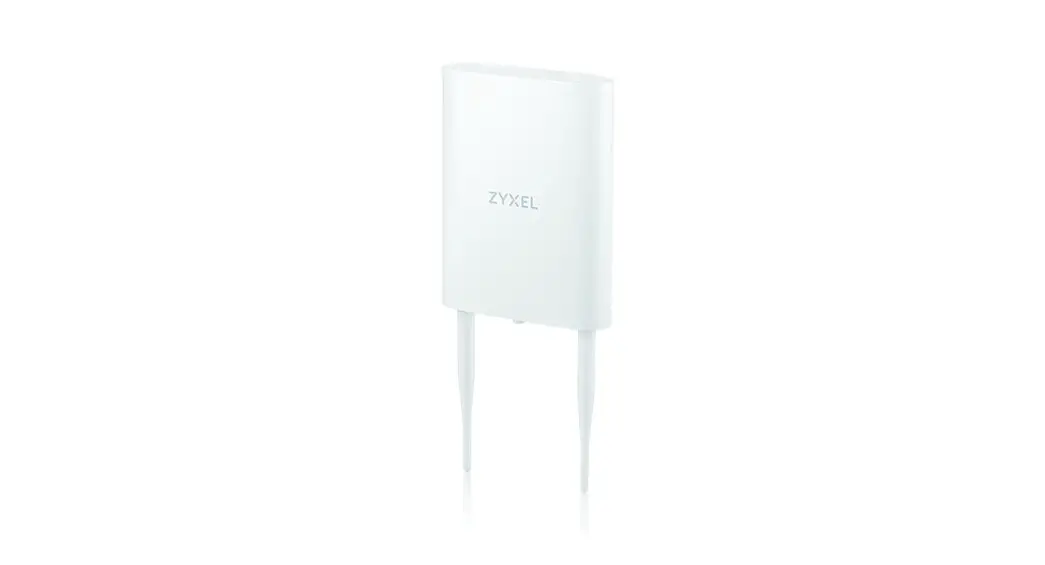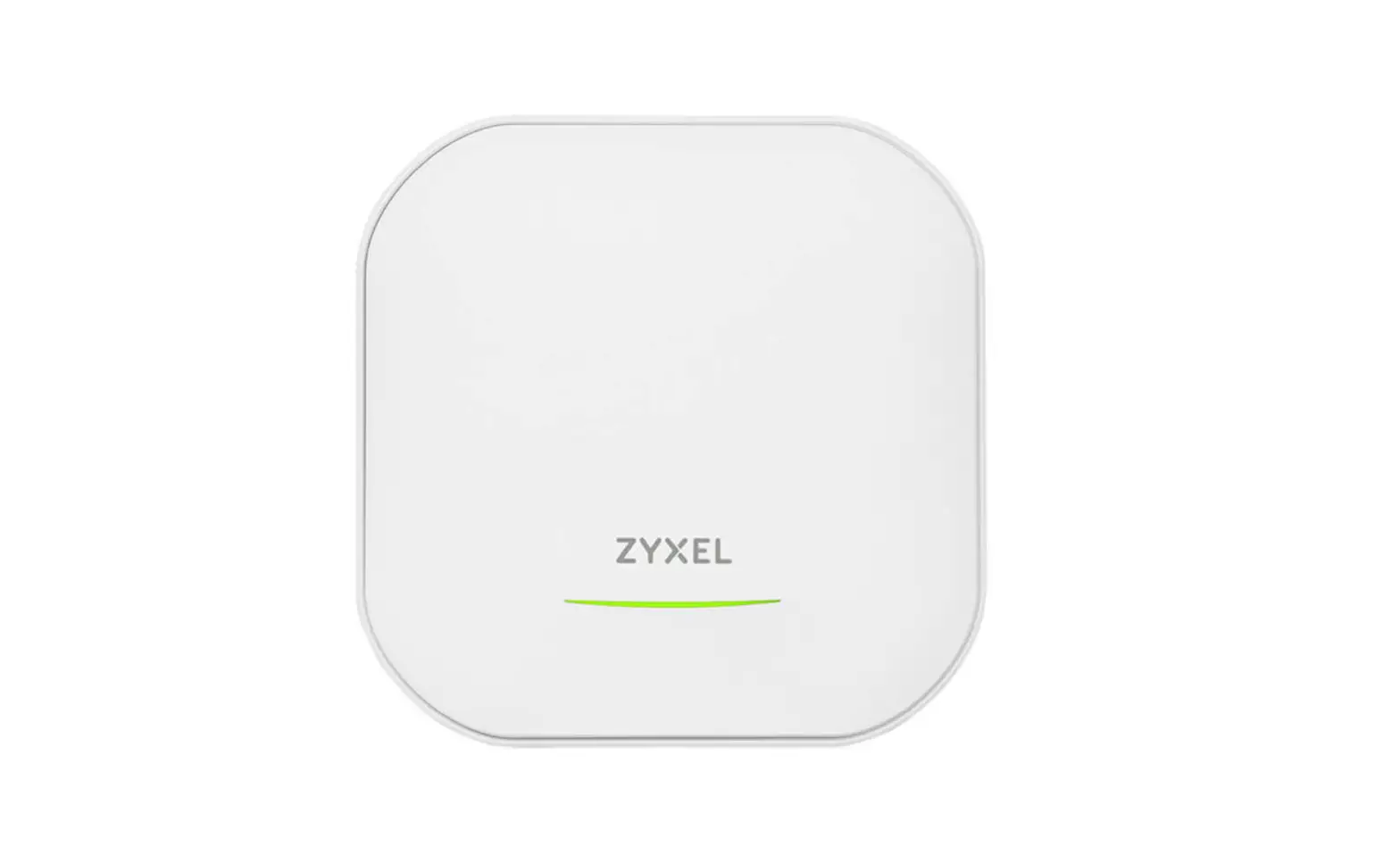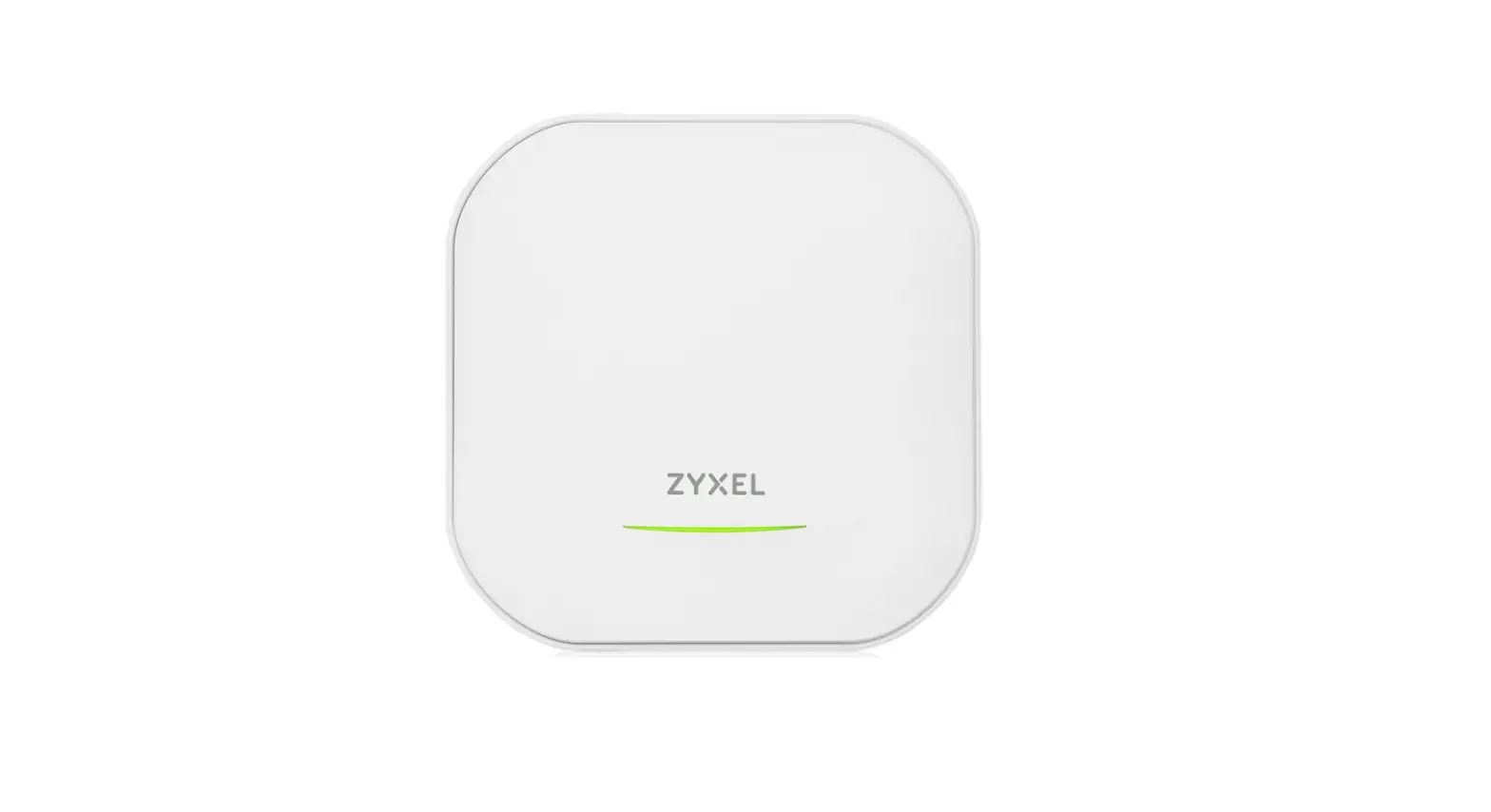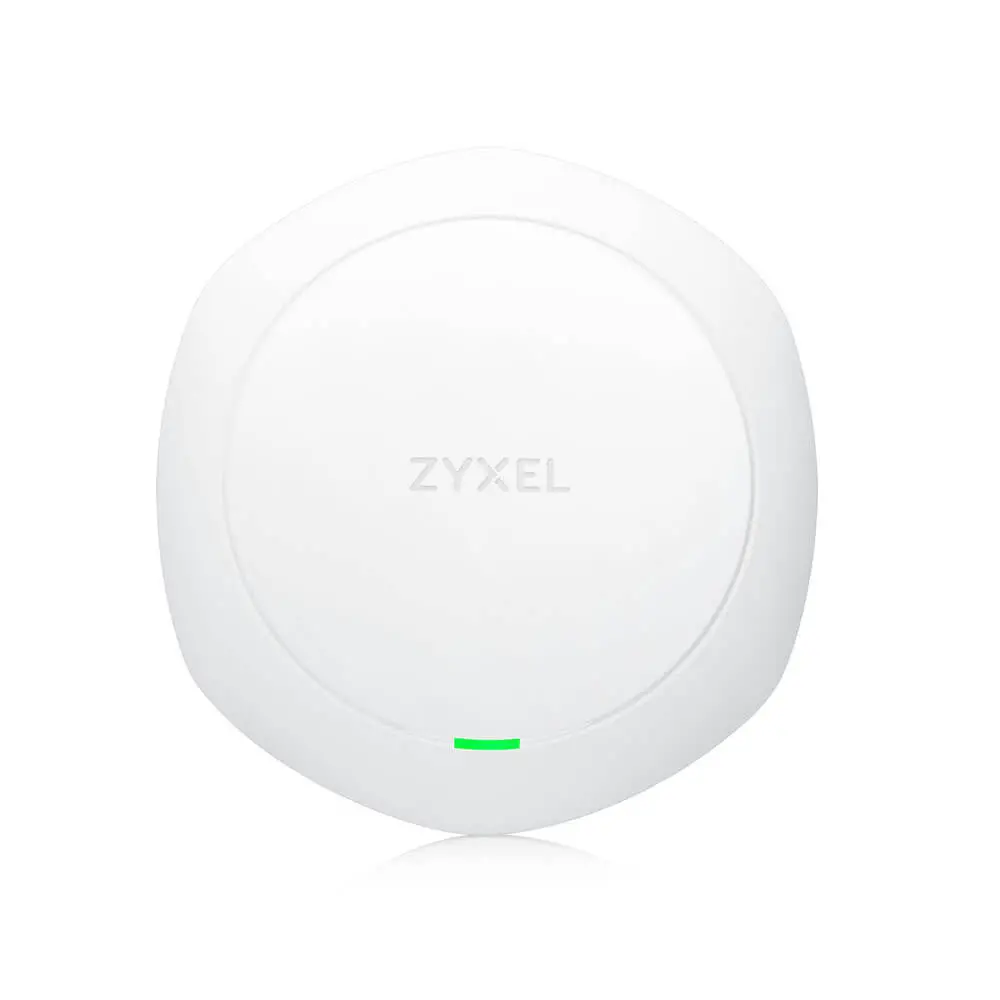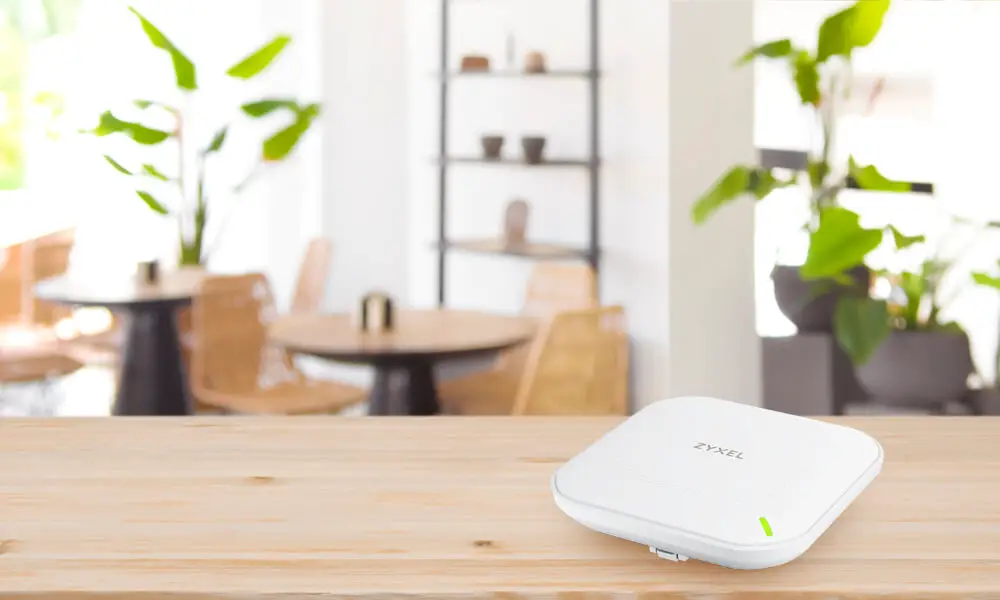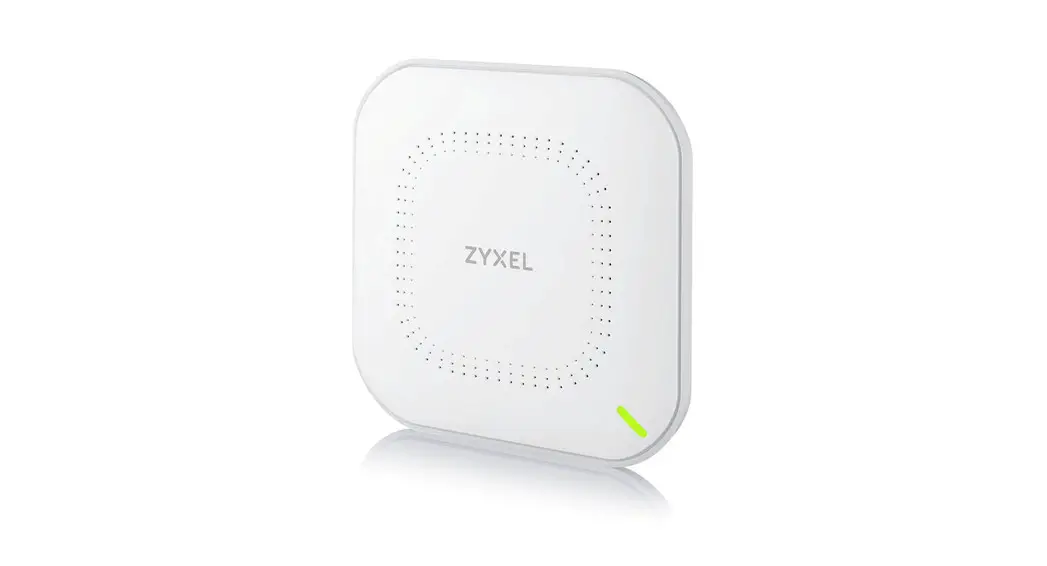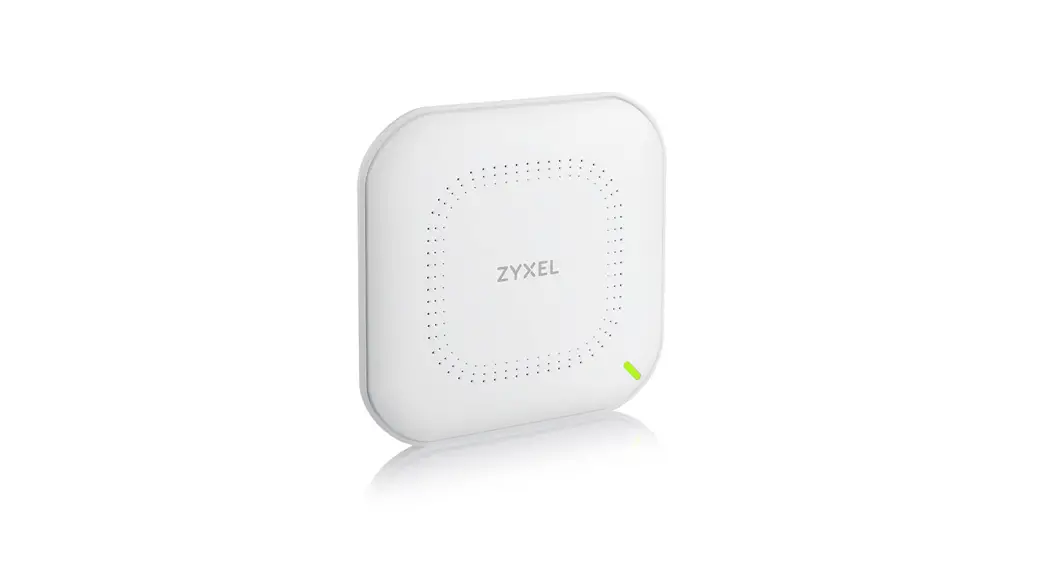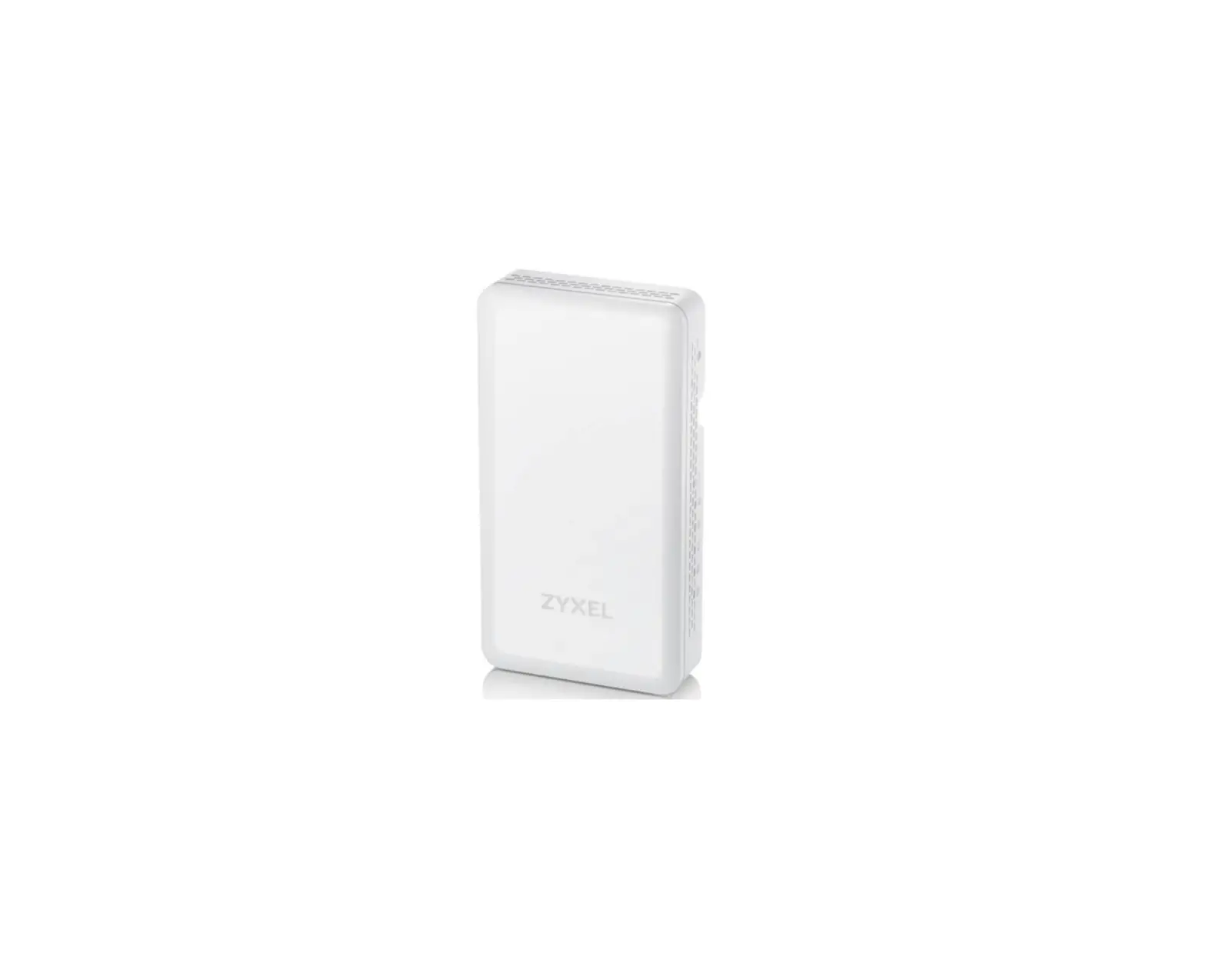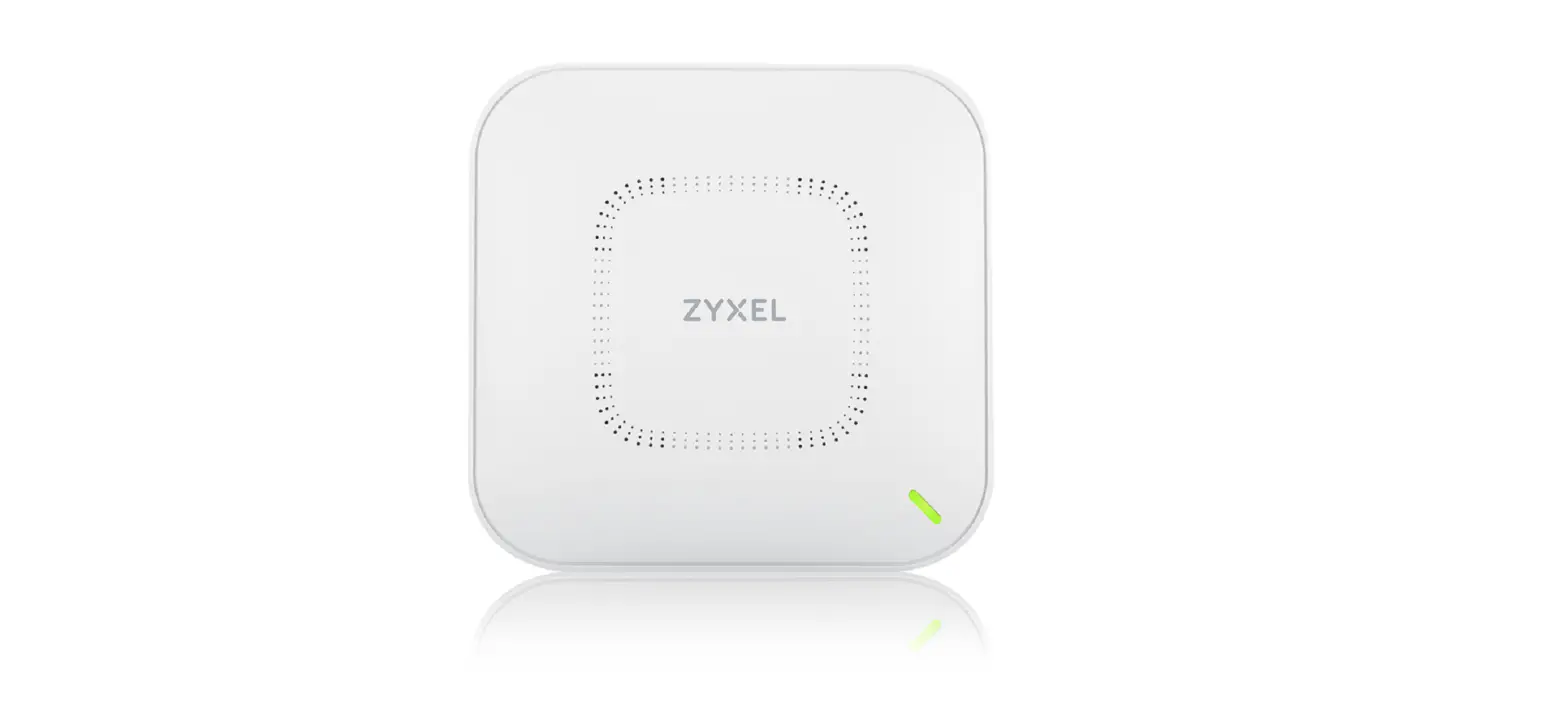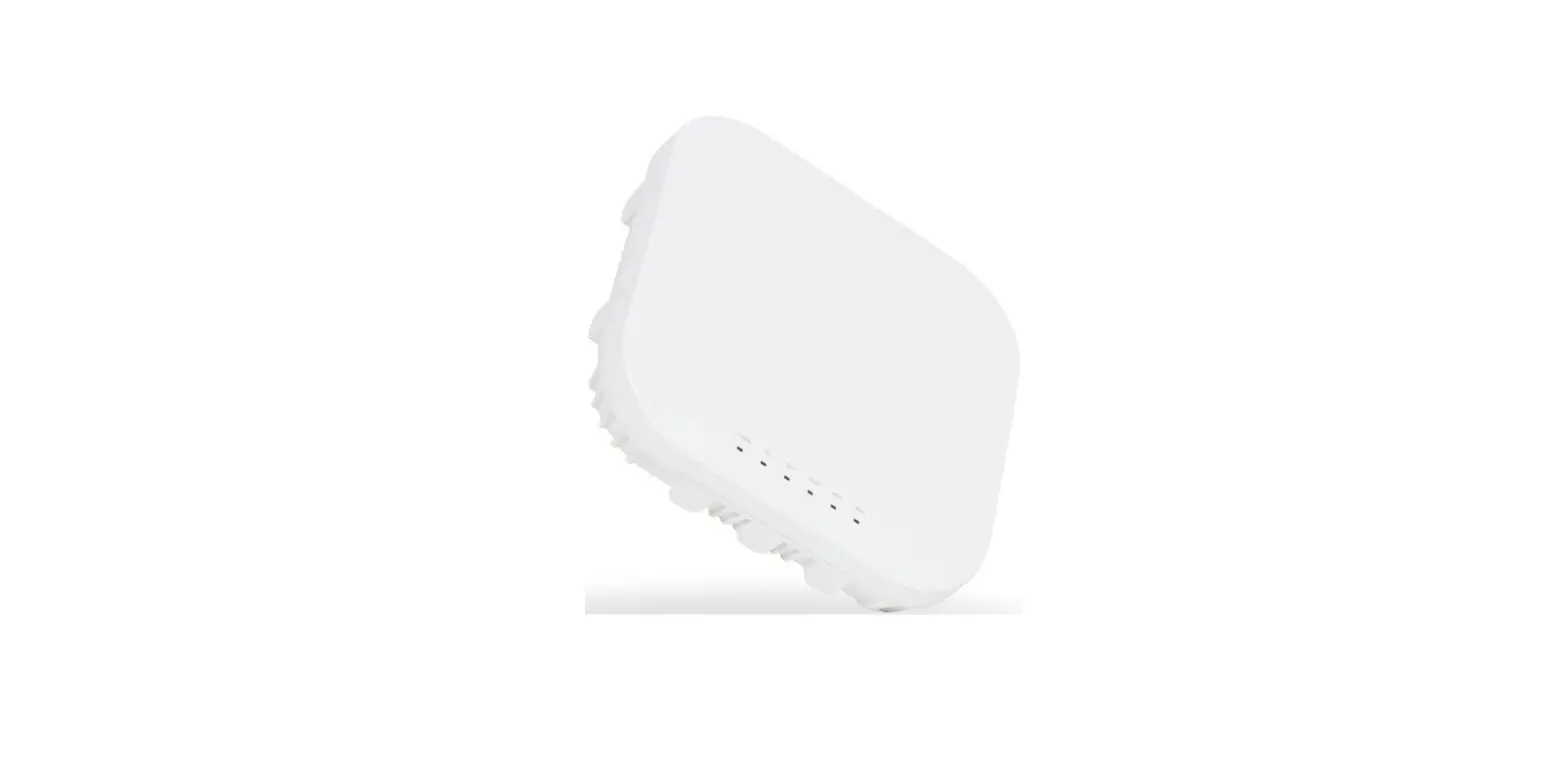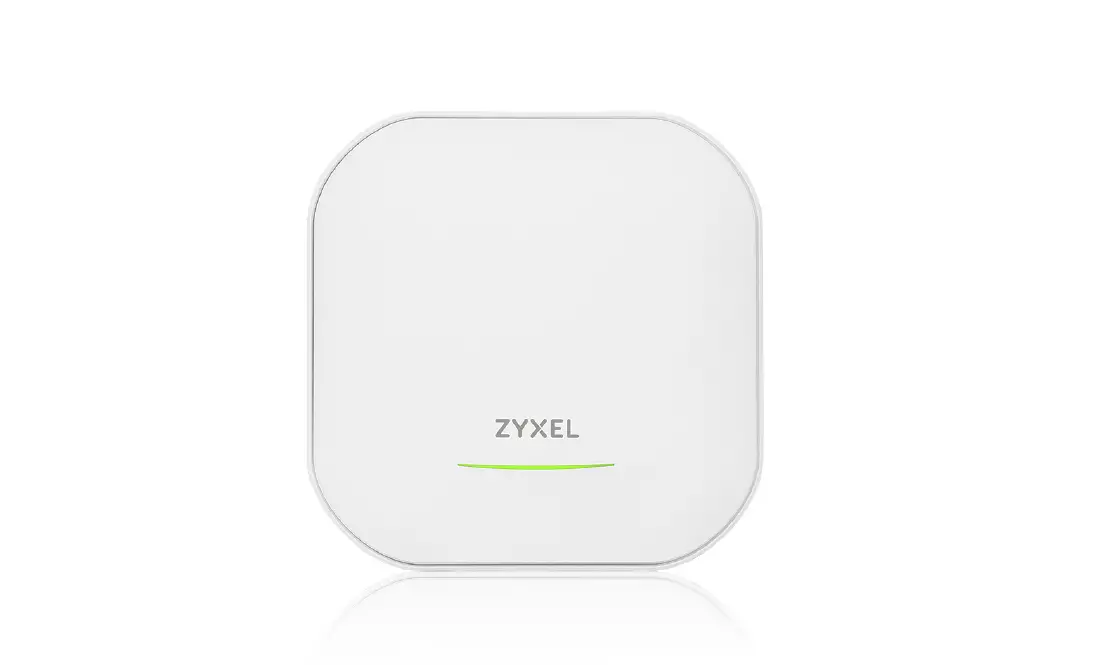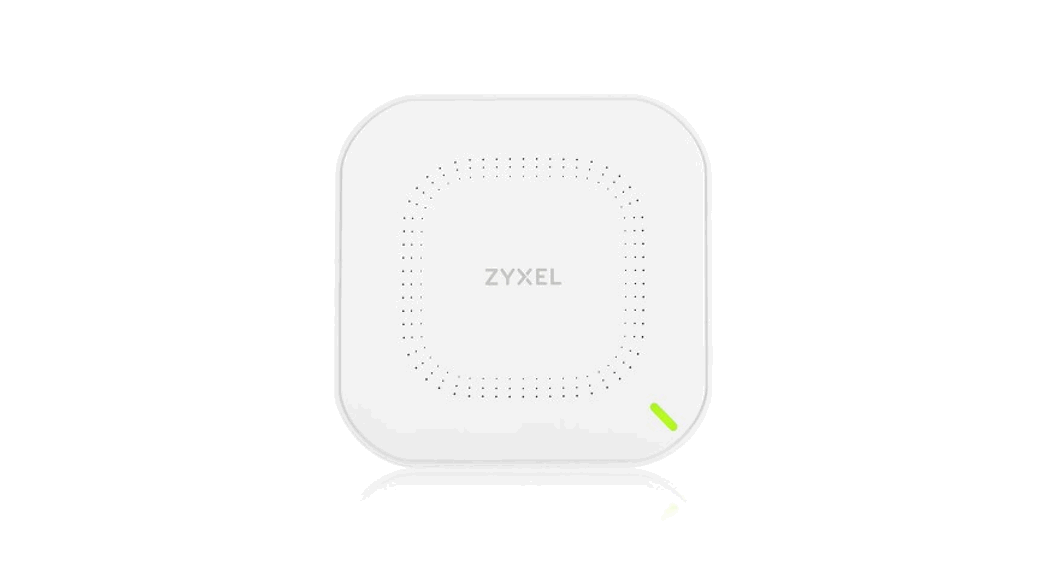
 NWA50AX 80211ax (WiFi6) Dual- Radio
PoE Access Point
Quick Start Guide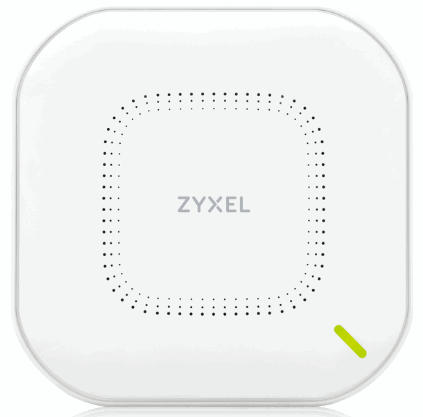
Video tutorials
How to Configure NWA5OAX Access Point with Nebula APP
How to Configure NWA5OAX Access Point with Nebula – Web Version
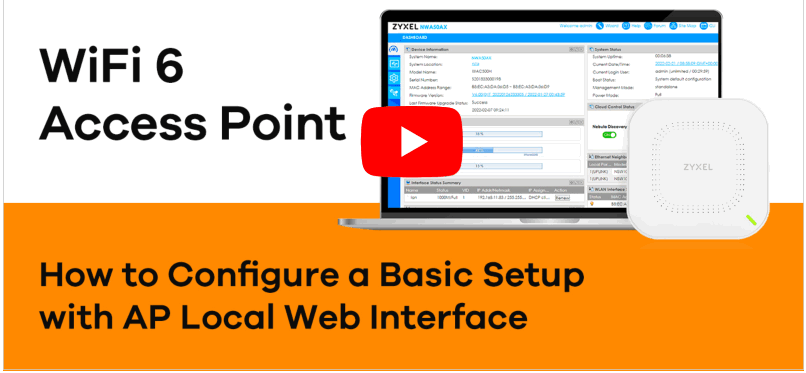
How to Configure Zyxel Access Point with Local Web Interface
Hardware Installation
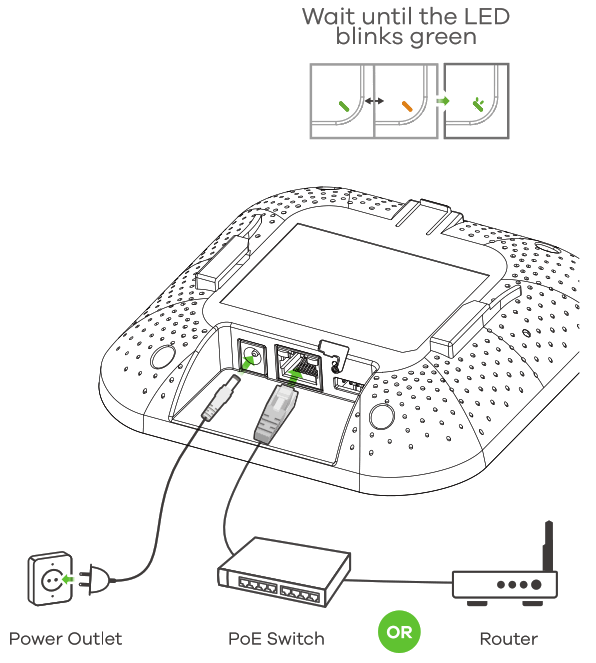
Connect the UPLINK port to a router with Internet access. If you are not using PoE, connect the Zyxel Device power socket to an appropriate power source.
Option 1ANubula Registration with the App
Use the Zyxel Nebula Mobile app to register the Zyxel Device to the NCC using the QR code.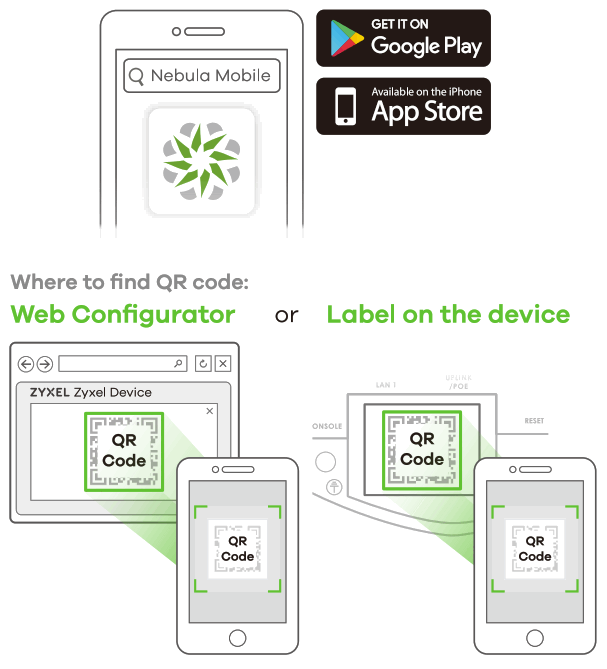 Download and open the Zyxel Nebula Mobile app. Log in with your Zyxel account. Create an organization and site or select an existing site. Scan the Zyxel Device’s QR code to add it to the site. (You can find the QR code in its web configurator or on a label on the device or its box.)
Note: The Zyxel Device will go into cloud management mode automatically after it is registered to a site.
Option 1 B Nebula Registration with the Web
Use the Zyxel Nebula portal to register the Zyxel Device to the NCC using the MAC address and serial number.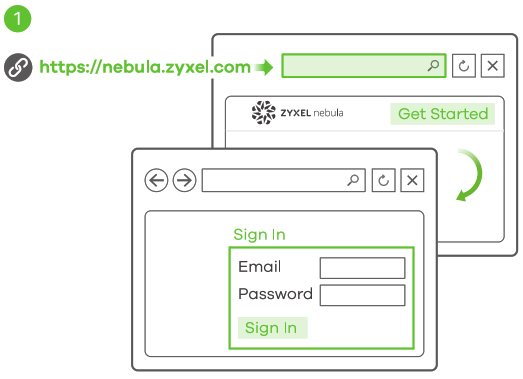 CID Follow the steps below to manage the Zyxel Device through the Zyxel cloud-based network management system. Note: Make sure the connected router has Internet access.
- Go to the Zyxel Nebula Control Center (NCC) website (https://nebula.zyxel.corn). Click Oct Started to sign up for a rnyZyxel account and log in.

- Create an organization and a site (network) in the NCC.
- Enter the Zyxel Device’s LAN MAC address and serial number (S/N) (see the label on the device) in the NCC configuration screen.
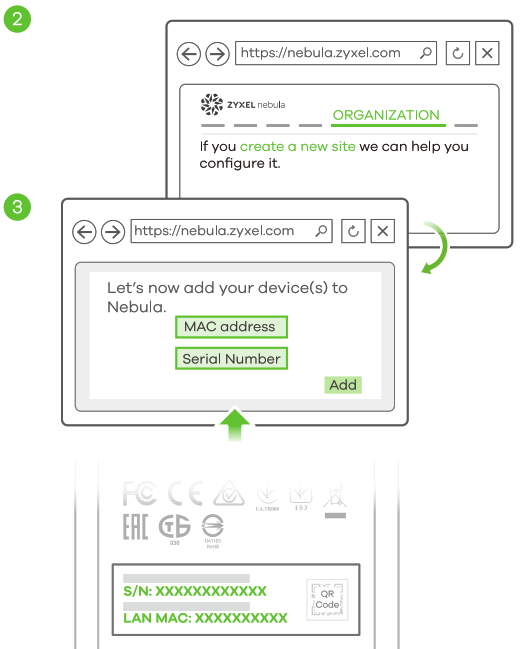
Note: The Zyxel Device will go into cloud management mode automatically after it is registered to a site. See the NCC User’s Guide for more information about configuring the Zyxel Device through the NCC.
Option 2 Direct Management
Use the web configurator to directly manage the Zyxel Device.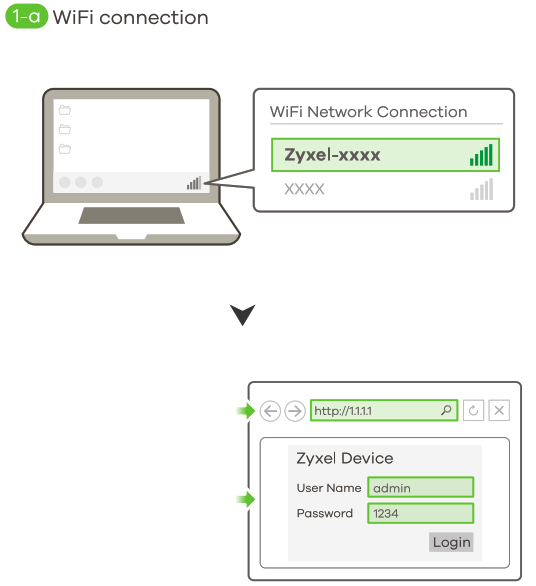
 http://1.1.1.1orsetup.zxyel.com (First-time configuration only)
 User Name: admin Login Password:1234 (default)
1-a From a WiFi-enabled computer, search for the Zyxel Device’s default WiFi network name (Zyxel-xxxx, where xxxx is the last four characters of the MAC address) and connect to it. Open your web browser and enter “http://1.1.1.1setup.zyxel.com)” for the initial configuration. Enter the default user name (admin) and password (1234). Click Login.
Note: If the Zyxel Device cannot connect to the Internet, use the DHCP-assigned IP address of the Zyxel Device to access its web configurator. Check the connected router or DHCP server for the IP address of the Zyxel Device. 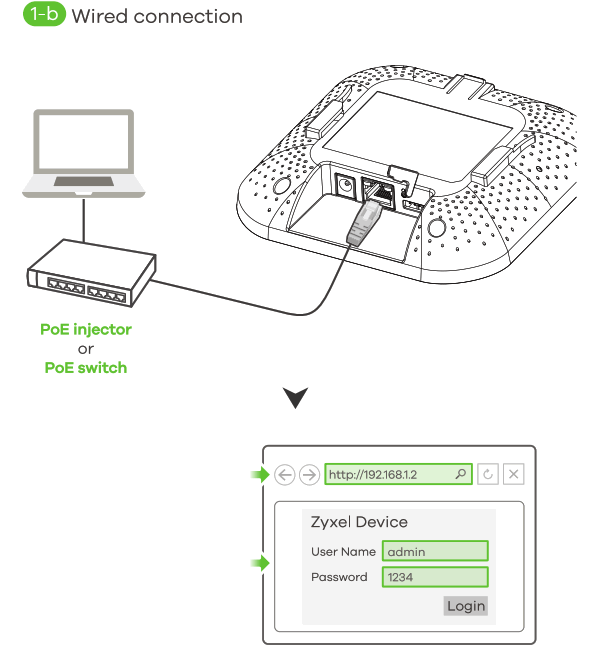 http://192.168.1.2 User Name: admin Login Password:1234 (default)
1-a Use an Ethernet cable to connect your computer to the UPLINK port of the Zyxel Device through a PoE injector or PoE switch.
Use its DHCP-assigned IP or default static IP address “http://192.168.1.2” to access the web configurator. Make sure your computer IP address is in the same subnet as Zyxel Devices’s.
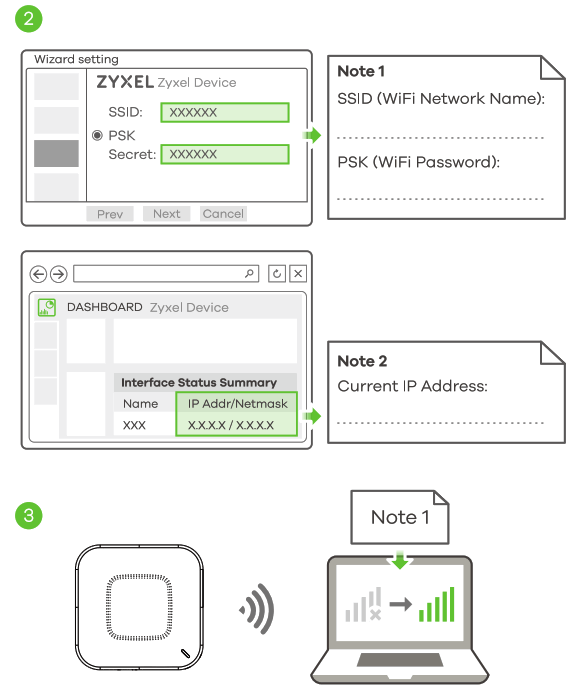
2 The wizard appears automatically. Use the wizard to set up your Zyxel Device. Note: It takes 1 to 2 minutes to apply your wizard changes. The LED turns steady blue if you change the Zyxel Device default settings and the WiFi is on.
3 Use the Zyxel Device’s new wireless settings (SSID and key) to re-connect to the Zyxel Device’s WiFi network for Internet access if you change them in the wizard (or log in to the web configurator when the Zyxel Device is using a WiFi connection). The LED turns steady green when WiFi clients connect to the Zyxel Device.
Note: 1.1.1.1 (setup.zyxel.com) is for initial setup only. It is not usable after the Zyxel Device is configured.
Note: Check the Dashboard screen and note down the Zyxel Device’s IP address in case you need to access its web configurator again.
Wall / Ceiling Mounting
The mounting kit is for wall or ceiling mounting. You need to choose how you want to mount your Zyxel Device first.
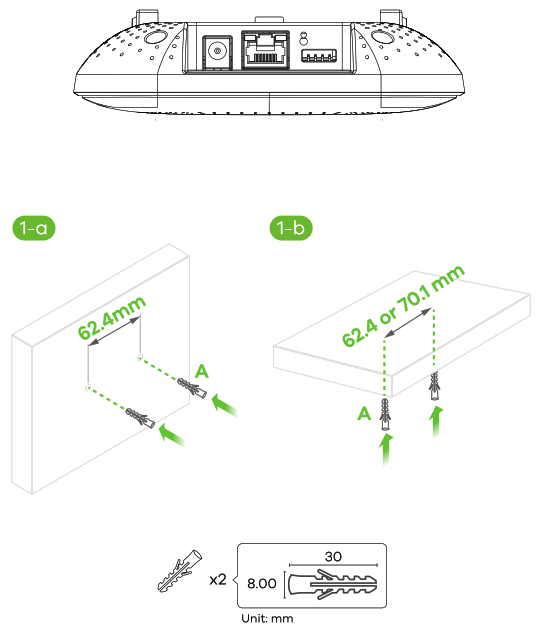 1-a Wall mounting: Drill two holes for the screw anchors (A), 62.4 mm apart. Insert the screw anchors into the wall.
1-b Ceiling mounting: Drill two holes for the screw anchors (A), 62.4 mm or 70.1 mm apart. Insert the screw anchors into the ceiling.
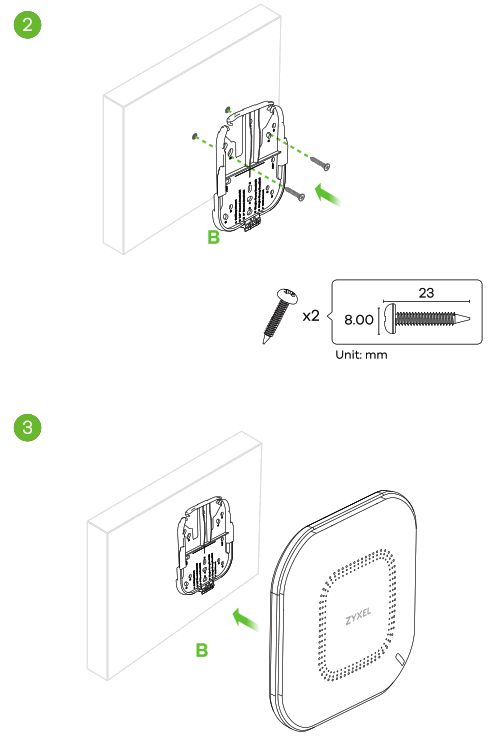
2 Install two mounting screws through the holes on the bracket (B) into the plugs/anchors to secure the bracket to the wall/ceiling. Make sure the screws are snugly and securely fastened to the wall/ceiling.
3 After the bracket is attached to the wall/ceiling, slide the Zyxel Device onto the bracket until it clicks into place.
T-bar Ceiling mounting
Clips (ACCESSORY-ZZ0105F) are sold separately.
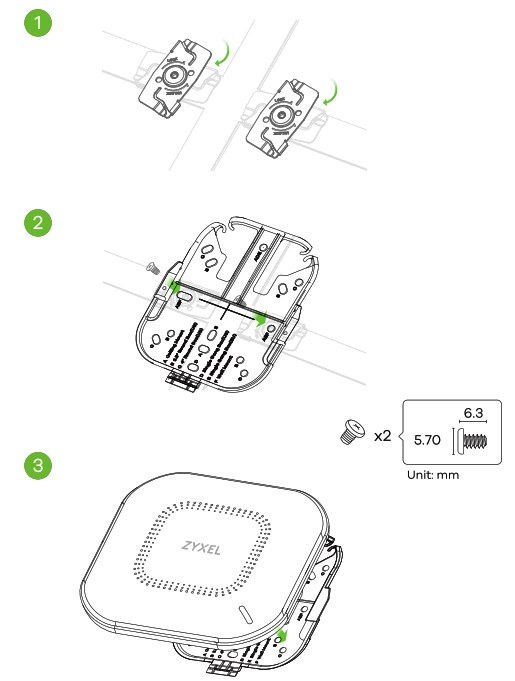 1 Attach two clips to the ceiling grids as shown.
2 Install two screws to secure the bracket to the clips.
3 Slide the Zyxel Device onto the bracket until it clicks into place.
Note: Clips (ACCESSORY-ZZ0105F) are sold separately.
Desk Mounting
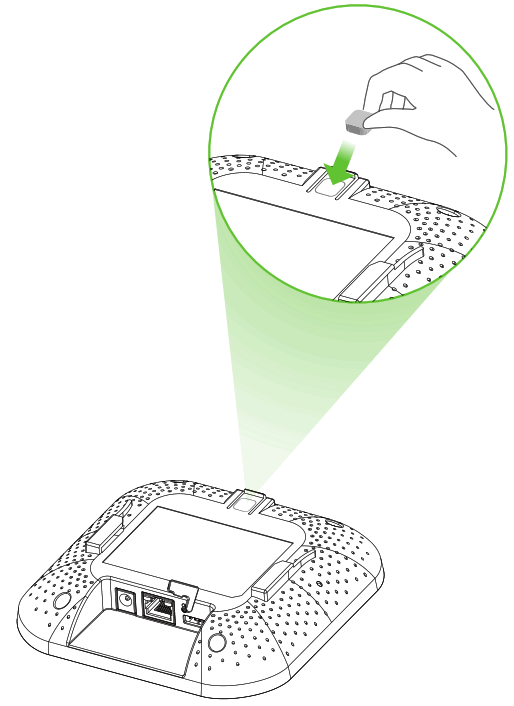
1 Remove the adhesive backing from the rubber pad.
2 Align and attach the rubber pad to the gray square to stabilize the Zyxel Device.
3 Place the Zyxel Device on the desk.
Support Information
EU  httos://supportzvxel.eu httos://supportzvxel.eu | EU, Russia httos://supportzvxel. |
Taiwan + 886 2 2739 9889 + 886 2 2739 9889 [email protected] [email protected] | USA + 1800 255 4101 [email protected] |
See the User’s Guide at www.zyxel.com for more information, including customer support and safety warnings.
EU Importer
Zyxel Communications A/S Gladsaxevej 378, 2. th. 2860 Soborg, Denmark https://www.zyxel.com/dk/da/
UK Importer
Zyxel Communications UK Ltd. 2 Old Row Court, Rose Street, Wokingham, RG40 1XZ, United Kingdom (UK) https://www.zyxel.com/uk/en/
US Importer
Zyxel Communications, Inc 1130 North Miller Street Anaheim, CA 92806-2001 https://www.zyxel.com/us/en/
Copyright © 2022 Zyxel and/or its affiliates. All Rights Reserved.