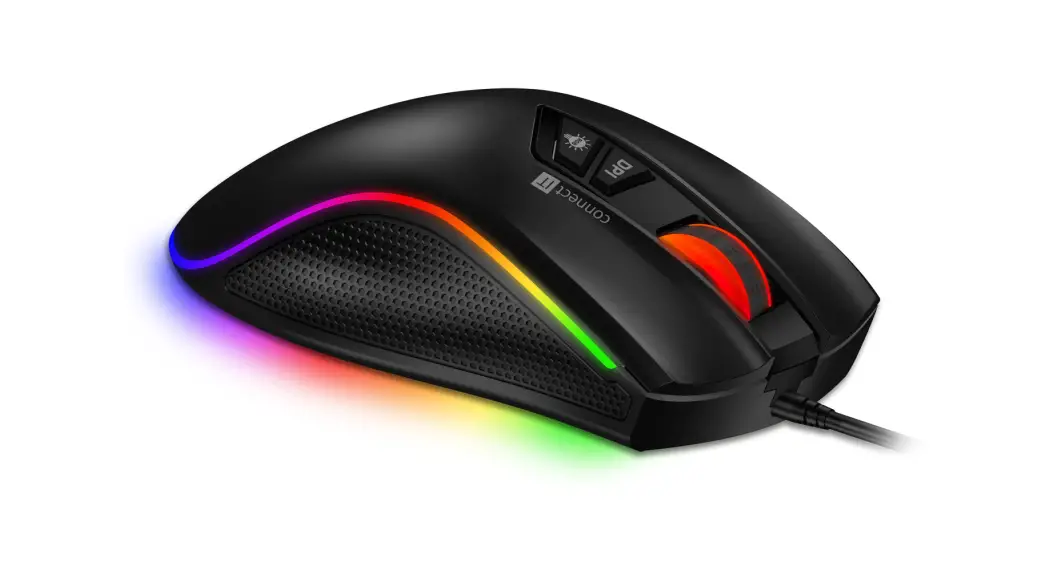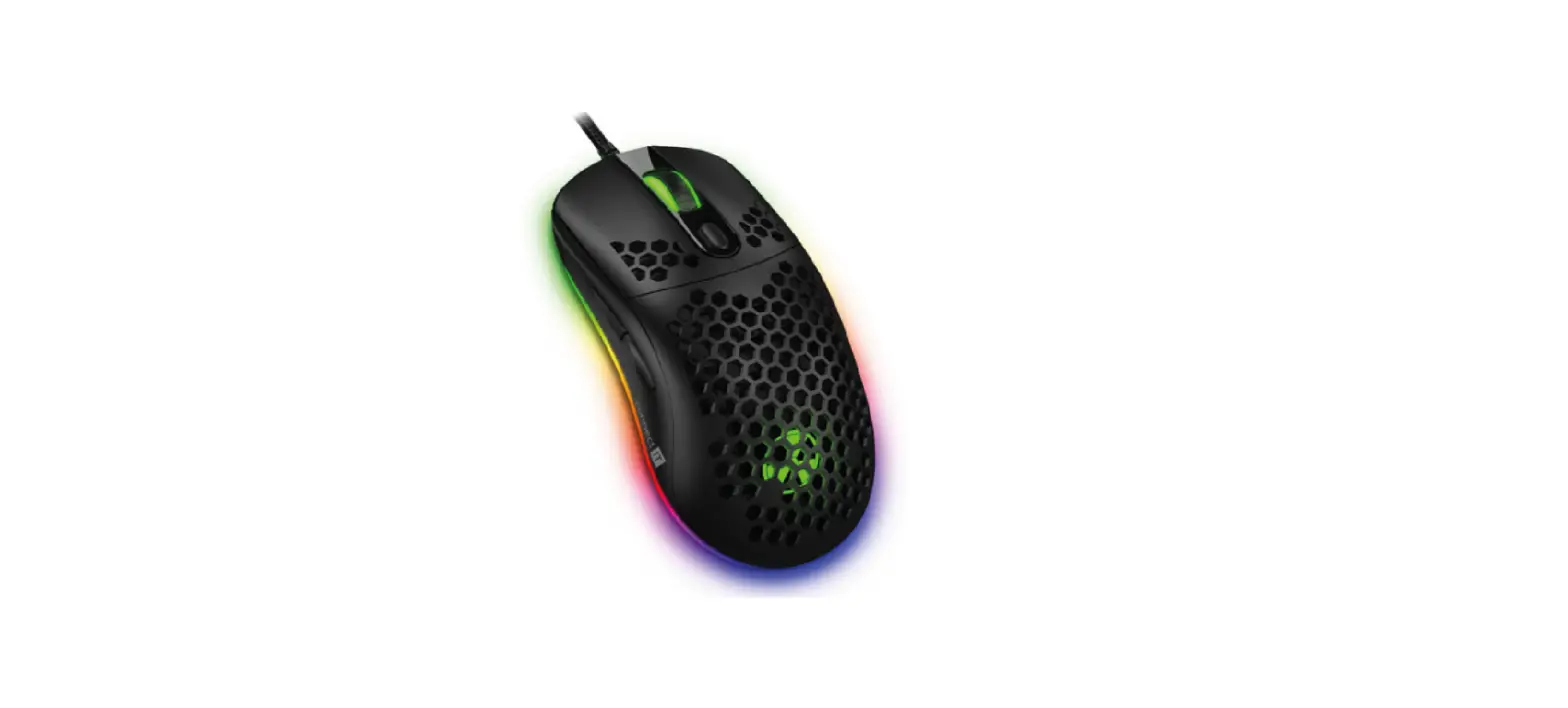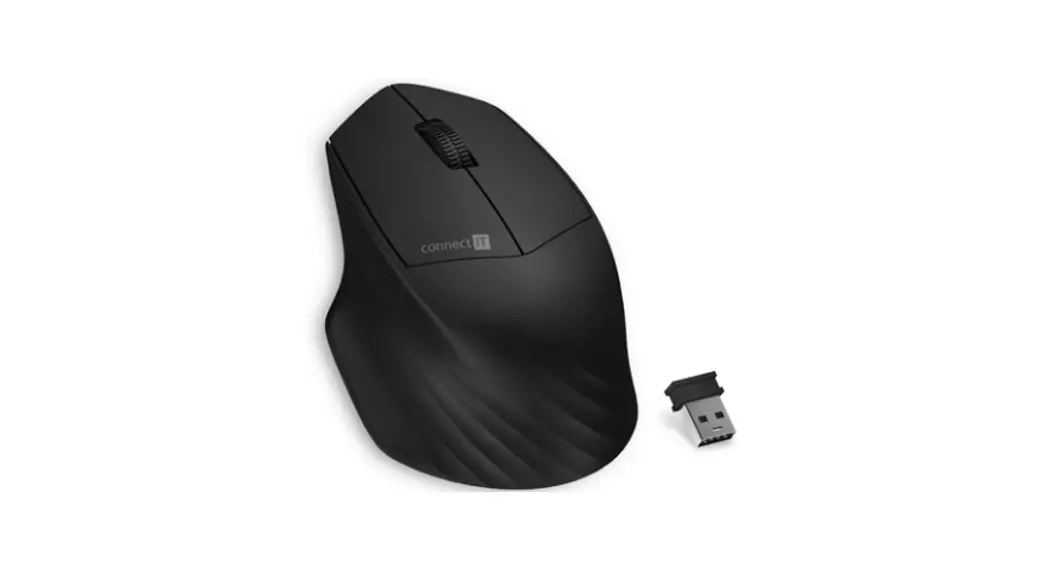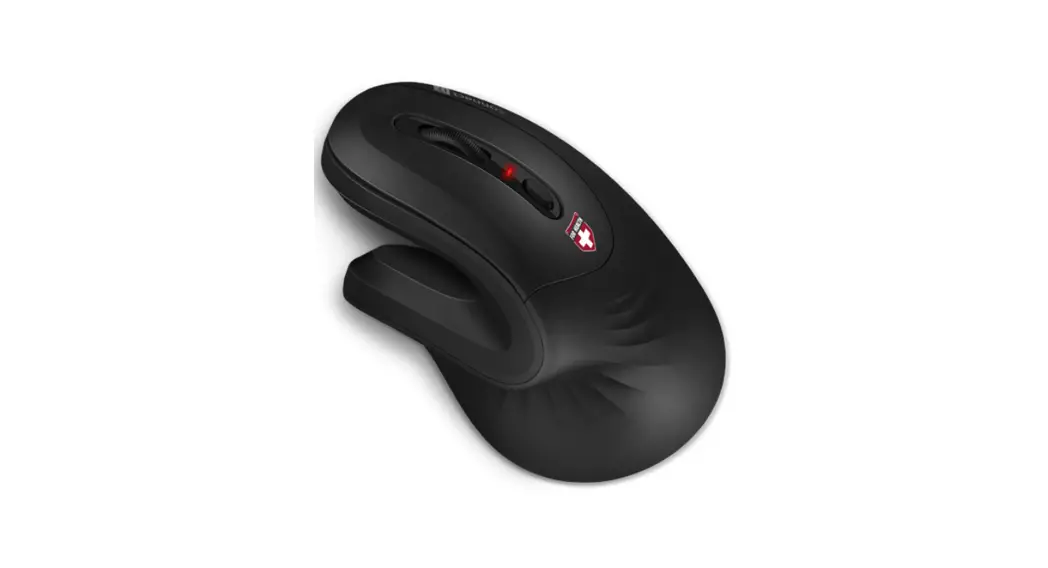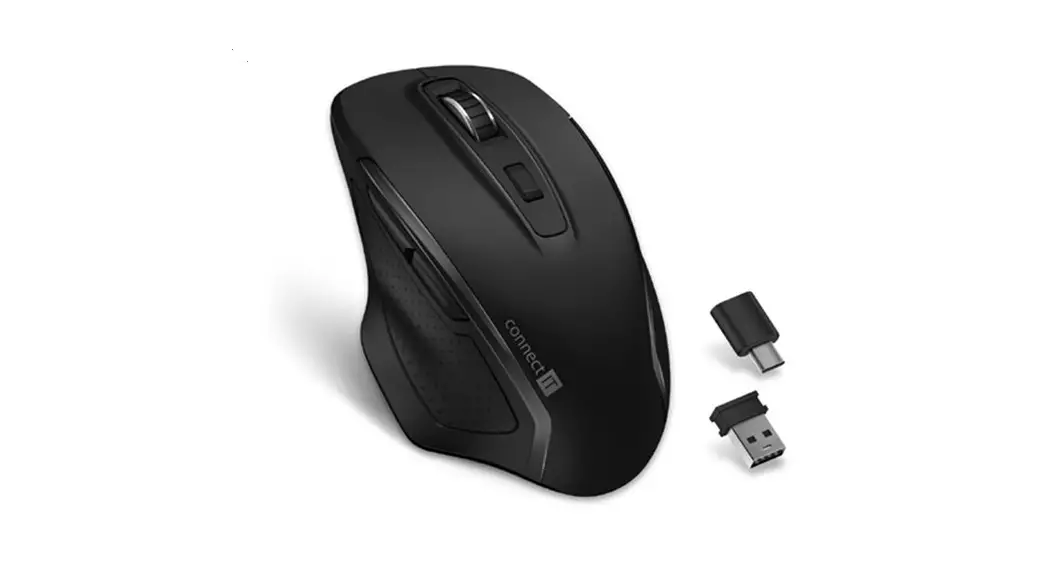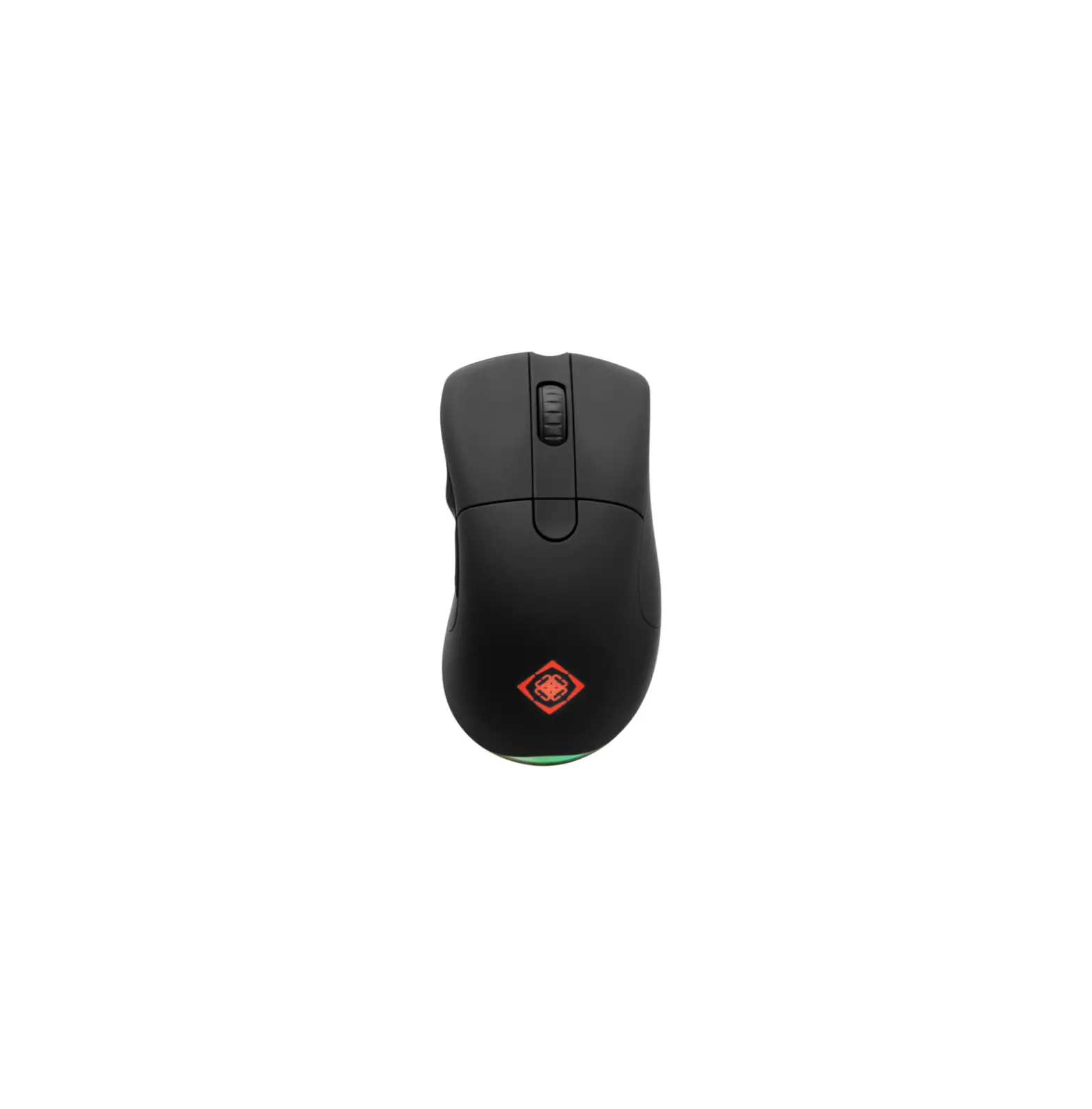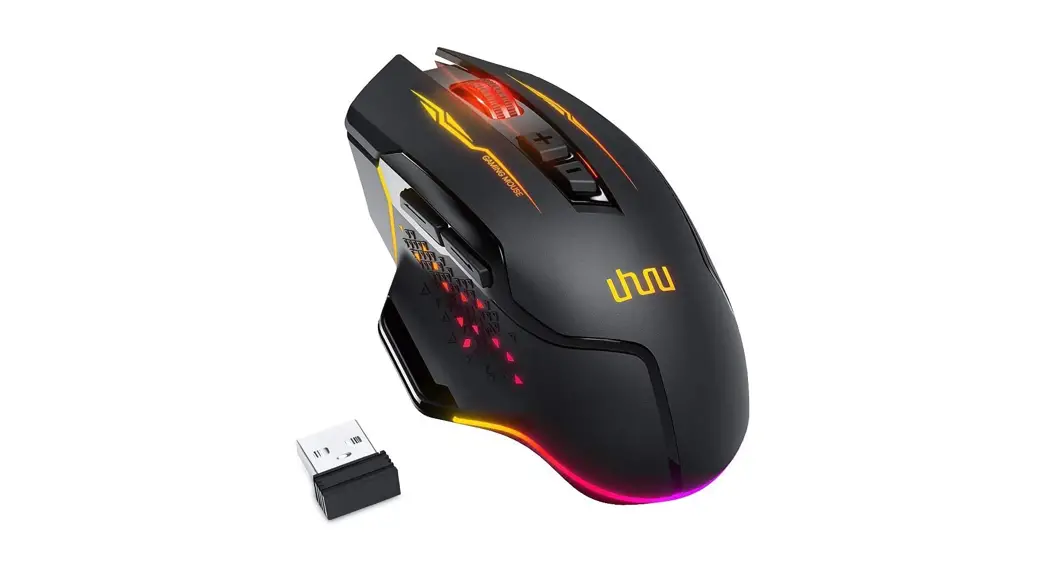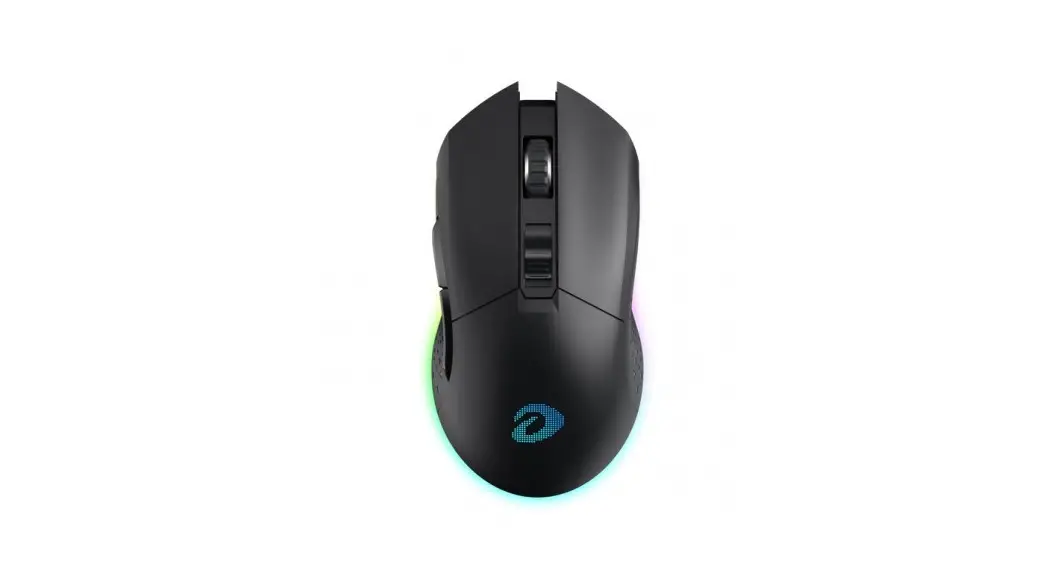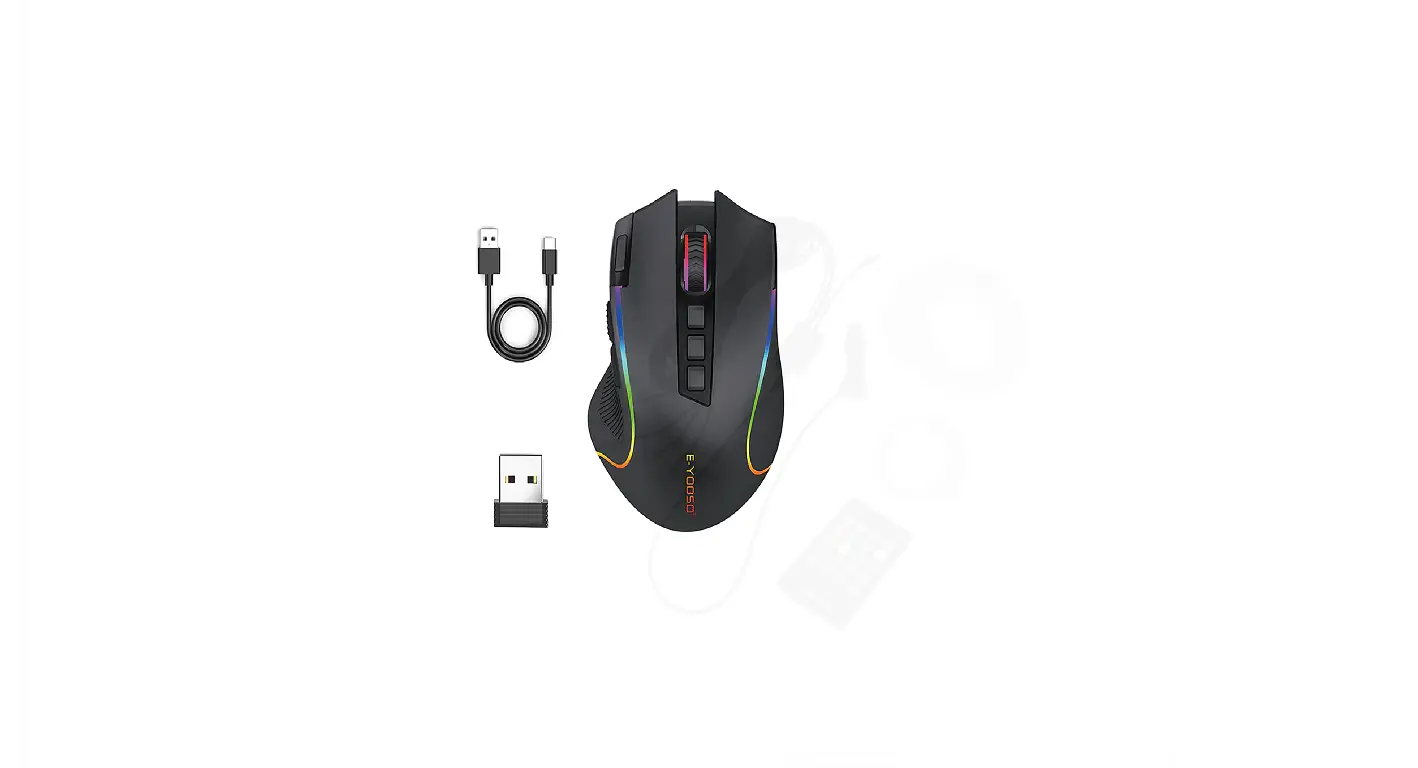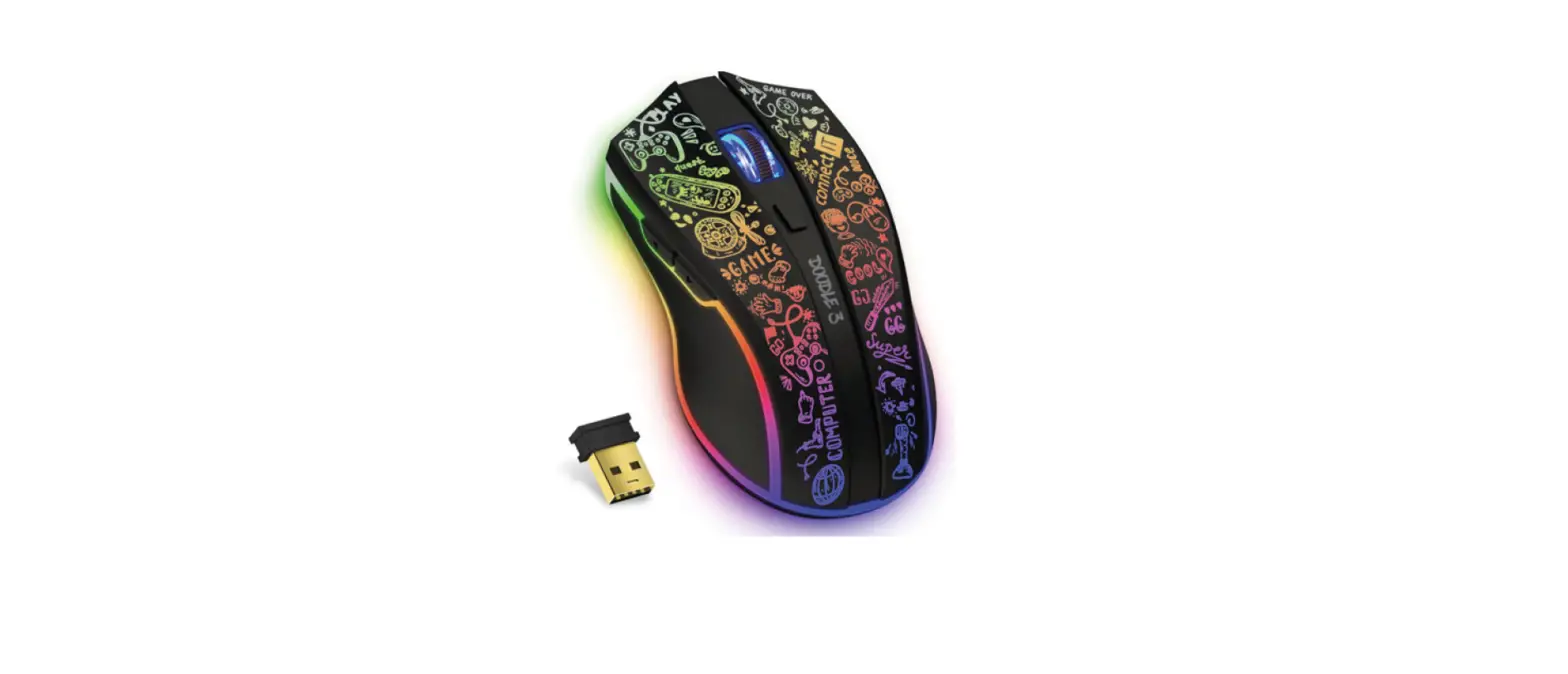

connect IT CMO-3530-DD Wireless Gaming Mouse
THANKYOU FOR BUYING A CONNECT IT PRODUCT.
Do you want to be the first to know about other news of CONNECT IT? Follow us on soclal media.
- Before putting this product into operation please read through the User’s Manual carefully, even if you are already familiar with the use of similar products. Use the product only as described in this User’s Manual
- Keep this User’s Manual for future reference. It is an integral part of the product and ma!:J contain important instructions for commissioning this product its operation and cleaning.
- Make sure that all other people handling this product are familiar with this Manual. If you hand the product over to other people, make sure that they read this User’s Manual. which shall be given to them together with the prcx:luct.
We recommend keeping the original packaging of the product, proof of purchase and the warranty card, if supplied, at least for the warranty period. In case of transport we recommend packing the product in the original packaging, in which it has been delivered in, as it protects it best against damage during transport. Scan this QR code to get the latest version of the User’s Manual. In your smartphone, open the QR code reader application and point the srnartphone at this code – the page for downloading the latest version of the User’s Manual will open:
TECHNICAL SPECIFICATIONS
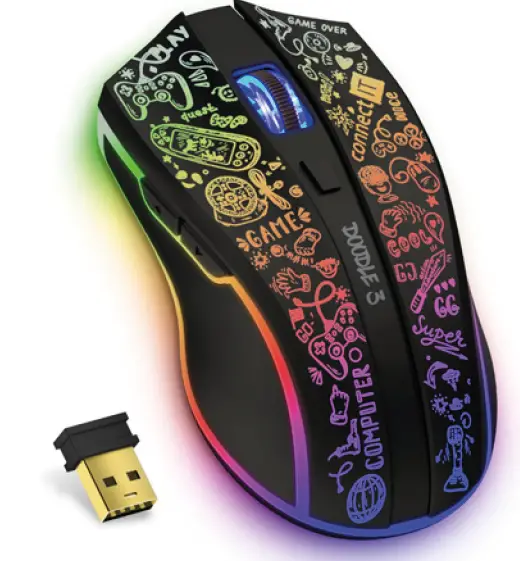
- RNBW backlight
- Precise and sensitive optical sensor
- Resolution: 800/1200/1600/2400/4800 □Pl
- Gold-plated USB-A nano receiver
- Wireless technology 2.4 GHz
- Operating range up to 10 rn
- 150 cm long charging cable
- Operating time up to 72 hours
- Easy Plug & Play installation
- Interface: USB 1.1 and higher
- Dimensions: 105 x 64 x 37 mm
- Weight: 84 g
- Mouse with software
- System requirements: Microsoft Windows OS
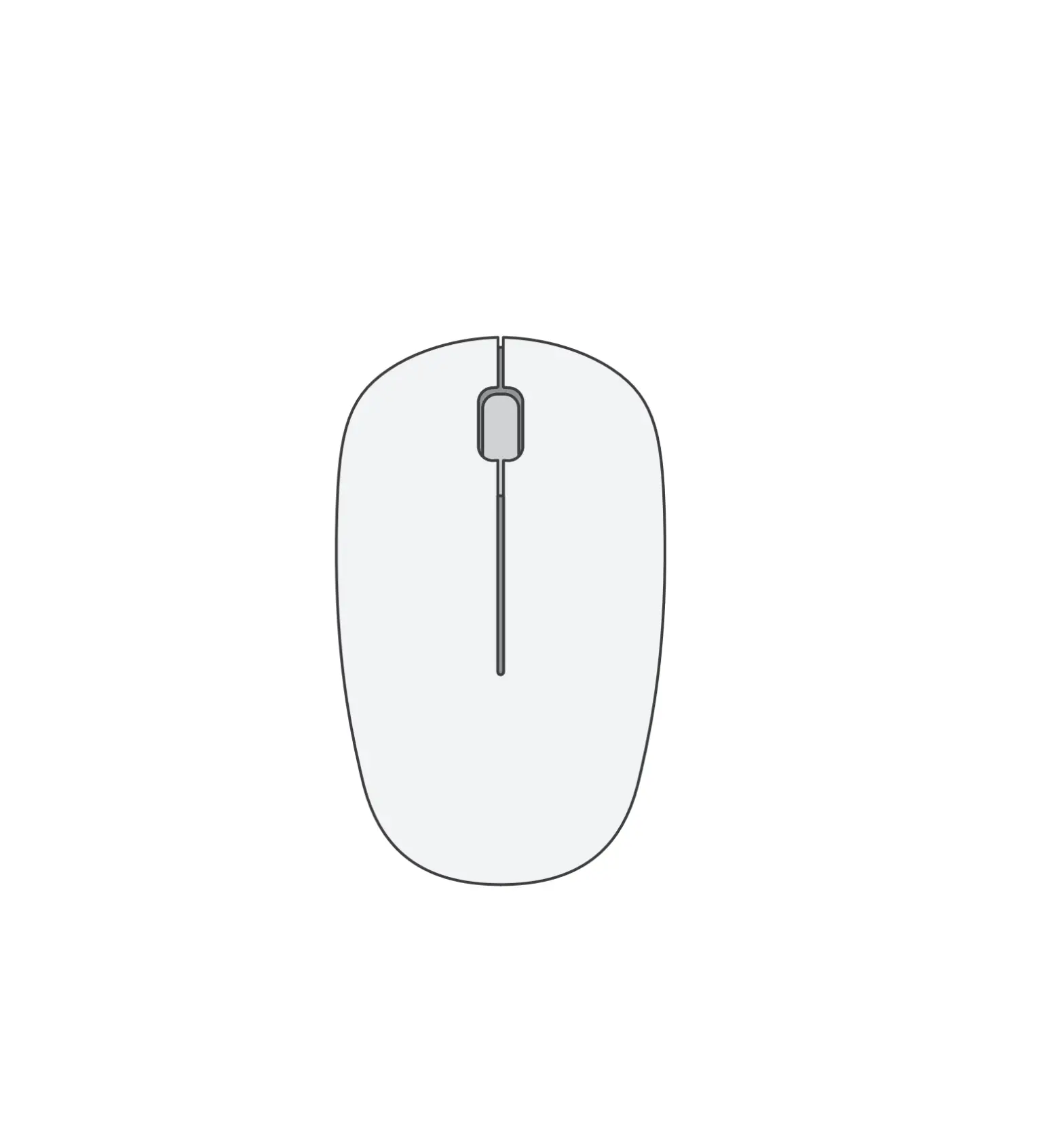
Description of Each Part
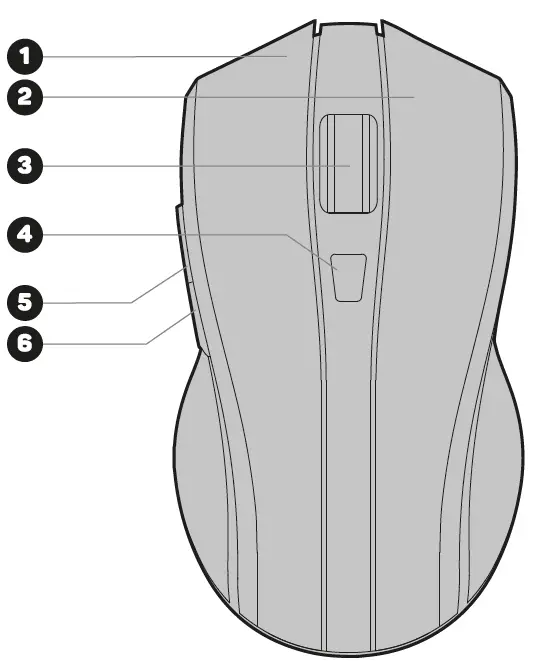
- Left mouse button
- Right mouse button
- Scrollwheel
- DPl setting
- Forward
- Back
INSTALLATION
- Click on Next.
- Select the destination folder and click Next to confirm. To select a different destination folder, click Browse, select another folder, and then click OK.
- Press the Install button to start the program installation.
- Click Finish to complete the installation.
SOFTWEAR
software where yoo can create macros, reconfig,re m□”8e b,ttons, ed;t mc”8e propert;es, and all ofth;s can be stored 1n 5 different user profiles.
User profiles
There are tabs in the software for up to 5 user profiles. You can save individual profiles (Save Profile) or load already created profiles (Load Profile]. Changes made to the profile can be saved by pressing .OK” or .Apply”. If you do not wish to save the changes, press ,Cancel”.
Button Setting
The software allows you to reconfigure ever\:! button on the mouse, provided that at least one button is set with the left click function. You can choose from the following options:
Classical functions
You can assign classical functions to each of the keys, which are as follows:
| Left mouse click |
| Right mouse click |
| Mouse wheel click |
| Pressing the forward button |
| Pressing the backward button |
| Left mouse doubleclick |
| Optionto set the repetition from1 to 20 clicks of the right left or middle mouse button |
Edit
Each of the buttons can be assigned functions to facilitate work on the computer, and these functions are as follows:
| Copies the selected file, folders, text, etc |
| Cuts the selected file, folder, t ext and others |
| Opens a new document browser. and other, based on the currently active window in Windows |
| Launches the . ope·n menu according to the current active windowin Windows |
| Paste the selected file, folder, text etc. to be copied |
| Starts the ·print” menu according to the active window in Wind ows |
| Undoes changes made (e.g in programs like Won::I. Excel. etc.] |
| Saves the last version of the act ive window |
| Selects all possible content in the active window |
| Undoes the last change made in the active window |
| Modifier key Ctrl |
| Modifier key Alt |
| Modifier key Shift |
| Windows key |
Multimedia
Each of the buttons can be assigned multimedia functions, which are as follows:
| Media player |
| Previous audio/video track |
| Next audio/video track |
| Play/Pause an audio/video track |
| Stop the audio/video track |
| Mute the soundtrack |
| Increase the volume of the audio track |
| Decrease the volume of the audio track |
Windows
Each of the buttons can be assigned Windows features that speed up PC work, and these features are:
| Opens the M!:J Computer folder |
| E-mail cliem |
| Web browse r start |
| Search in browser and operating system |
| Closes the active window |
| Search documents and web pages |
| Maximize the active window |
| Minimizethe active window |
| Displays the ‘File’ menu in the file explorer |
| Show Desktop (minimizes all open windows) |
| Run functions in Windows |
Combo key
It is possible to assign a combination of different ke!,JS and shortcuts to the button in the Software. If you choose this option, a pane opens where !:JOU have a choice of multiple modifier ke!,JS [Ctrl, Shift, Alt Win) and to these modifier ke!,JS !:JOU choose a key with which !:JOU can create interesting combinations.
Keyboard keys
An!d character can be assigned to an!d button in this subsection. For example, !dOI.J can assign a .space bar• function to the right button, and so on.
Disable
When this option is selected, the button is locked
Macro manager
Each of the mouse buttons can be assigned a macro, which you create beforehand in the ,Macro Setting· tab.
- Click on the “New· button and tl:Jpethe name of the macro. Press the “Enter” kelJ to accept the name and this will create an emptl:J macro.
- You can start recording commands into the macro by pressing the ·start Recording” button.
- To stop recording the macro, press the ·stop Recording” button.
- Now your macro is created and you can assign it to the appropriate button in the “Button Setting” section
You can further edit the created macro b\J right-clicking in the recorded commands window and these corrmands are as follows:
| Click ing this option will start recording the macro again, but before the selected sequence |
| After pressing this option, you start recording the macro again, but after the selected sequence |
| Inserts a left mouse click mouse wheel press, right mouse press. forward button press, or back button press in front of the selected location |
| Deletes the selected sequence in the macro |
Notice
INSTRUCTIONS AND INFORMATION REGARDING THE DISPOSAL OF USED PACKAGING MATERIALS
Packaging materials and old appliances shall preferably be The packaging materials of this can be disposed of as sorted waste. The same applies to the plastic bags made of polyethylene (PE) and other materials – please hand them over
DISPOSAL OF WASTE ELECTRICAL & ELECTRONIC EQUIPMENT
In accordance with the European Directive 2012/19/EU on waste electrical and electronic equipment (WEEE), this appliance waste. It must be disposed of at a collection site for recycling of waste electrical and electronic equipment. The proper disposal of this product helps to prevent adverse impacts on the environment and human health, which could otherwise result from improper waste disposal. The disposal shall be carried out in accordance with waste management regulations. For more detailed information about the recycling of this product, contact the local authorities, household waste disposal services or the shop where you have bought the product. For proper disposal, renewal and recycling, hand the products over to the designated collection sites. Alternatively, in some EU or other European countries, you can return the products to your local dealer when buying an equivalent new product. The proper disposal of this product helps to preserve valuable natural resources and prevent potential adverse impacts on the environment and human health, which could result from improper waste disposal. For details, contact your local authorities or the nearest collection facility. In case of improper disposal of this type of waste, fines may be imposed in accordance with national legislation.
For business entities in the EU countries
If you want to dispose of electrical and/or electronic equipment, please contact your dealer or supplier for the necessary information. Disposal in other countries outside the European Union
This symbol is valid in the European Union. If you want to dispose of this product contact your local authorities or your dealer for the necessary information about the proper wal:J of disposal. In accordance with the law, we provide the take-back. processing and free environmentally friendly disposal of electrical and electronic equipment through the collective system of REMA System, a.s. The main purpose is to protect the environment by ensuring the efficient recycling of waste electrical and electronic equipment. For the current list of collection sites, see the web www.rema.cloud () This product meets all the basic requirements of the applicable EU directives. It is CE marked. This mark indicates the conformity of the product’s technical characteristics with the applicable technical regulations. The EU Declaration of Conformity is available at www.connectit-europe.com