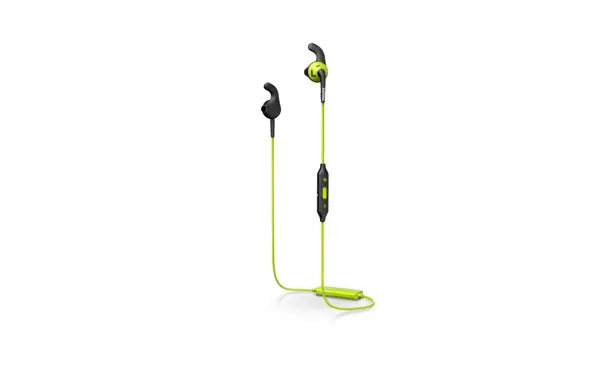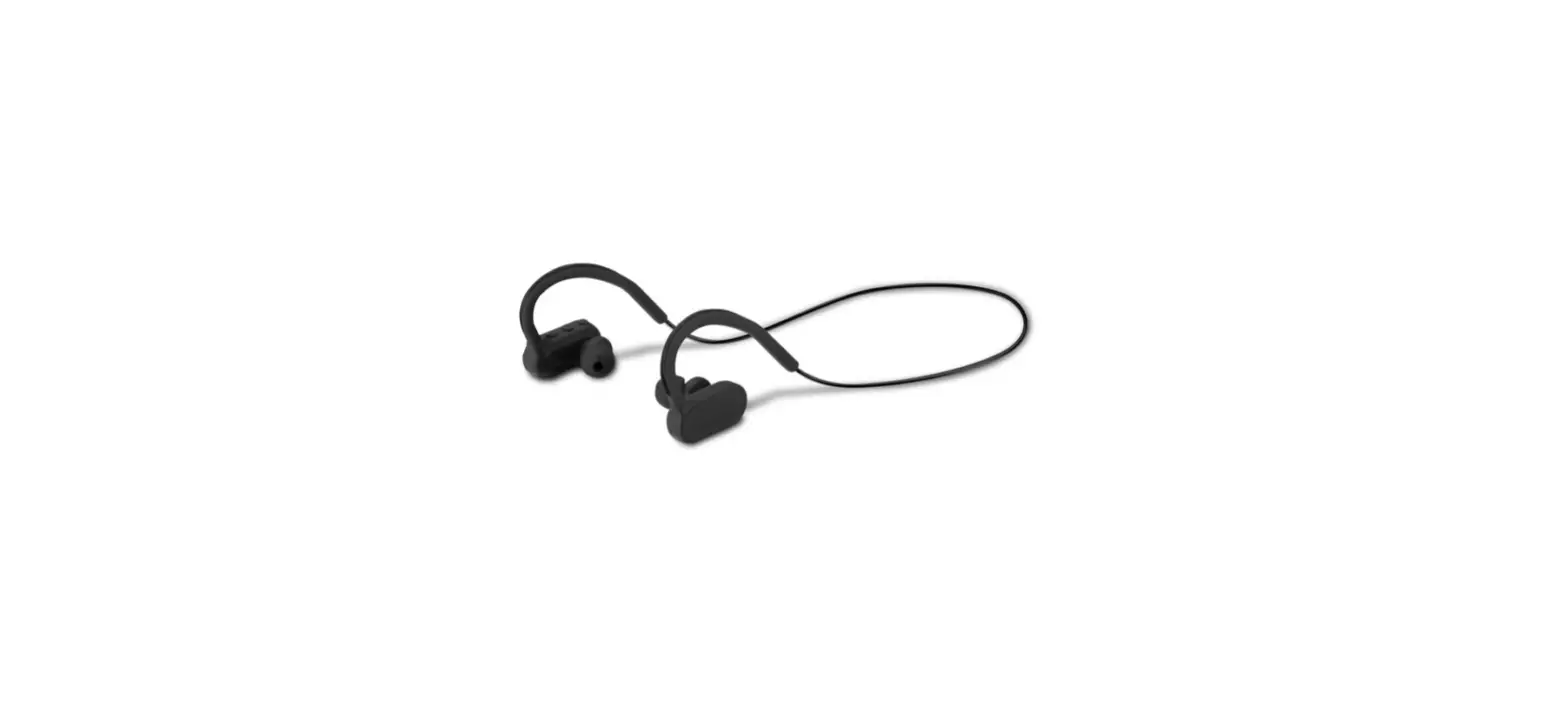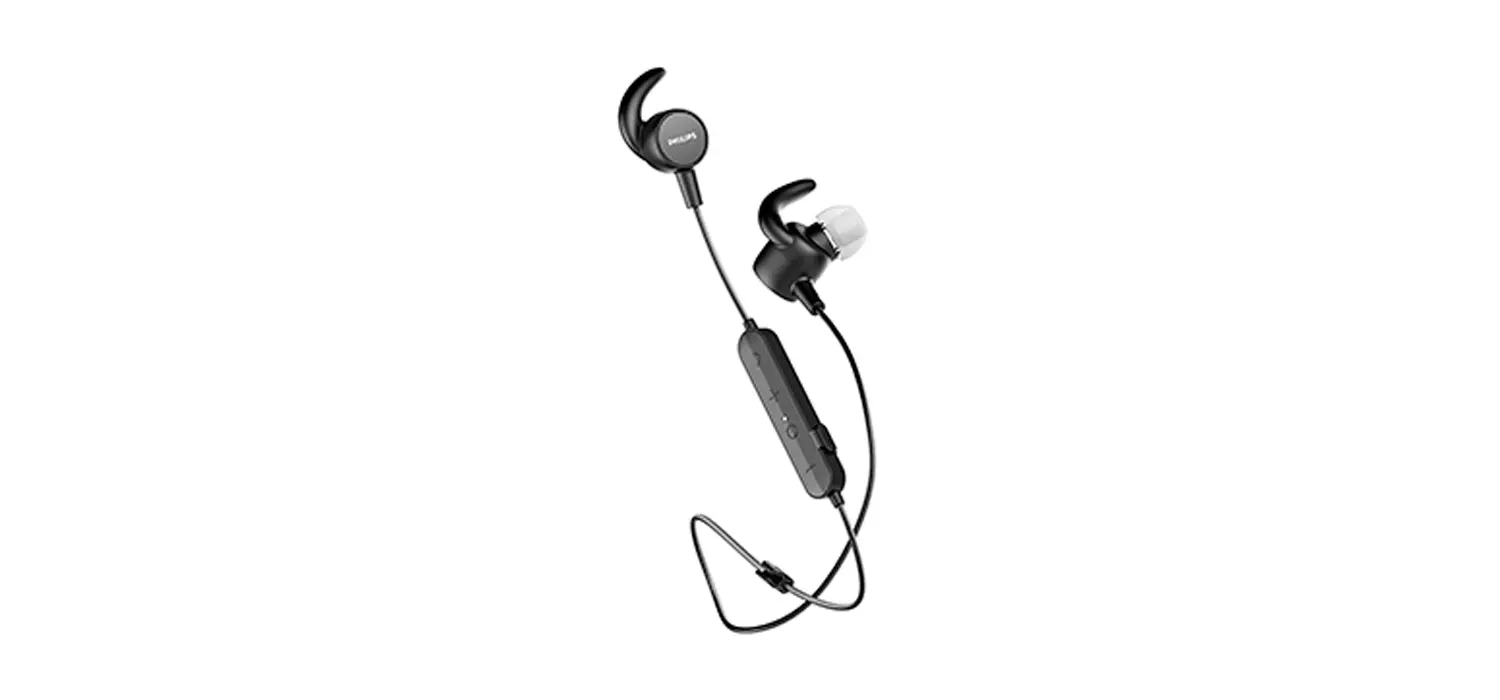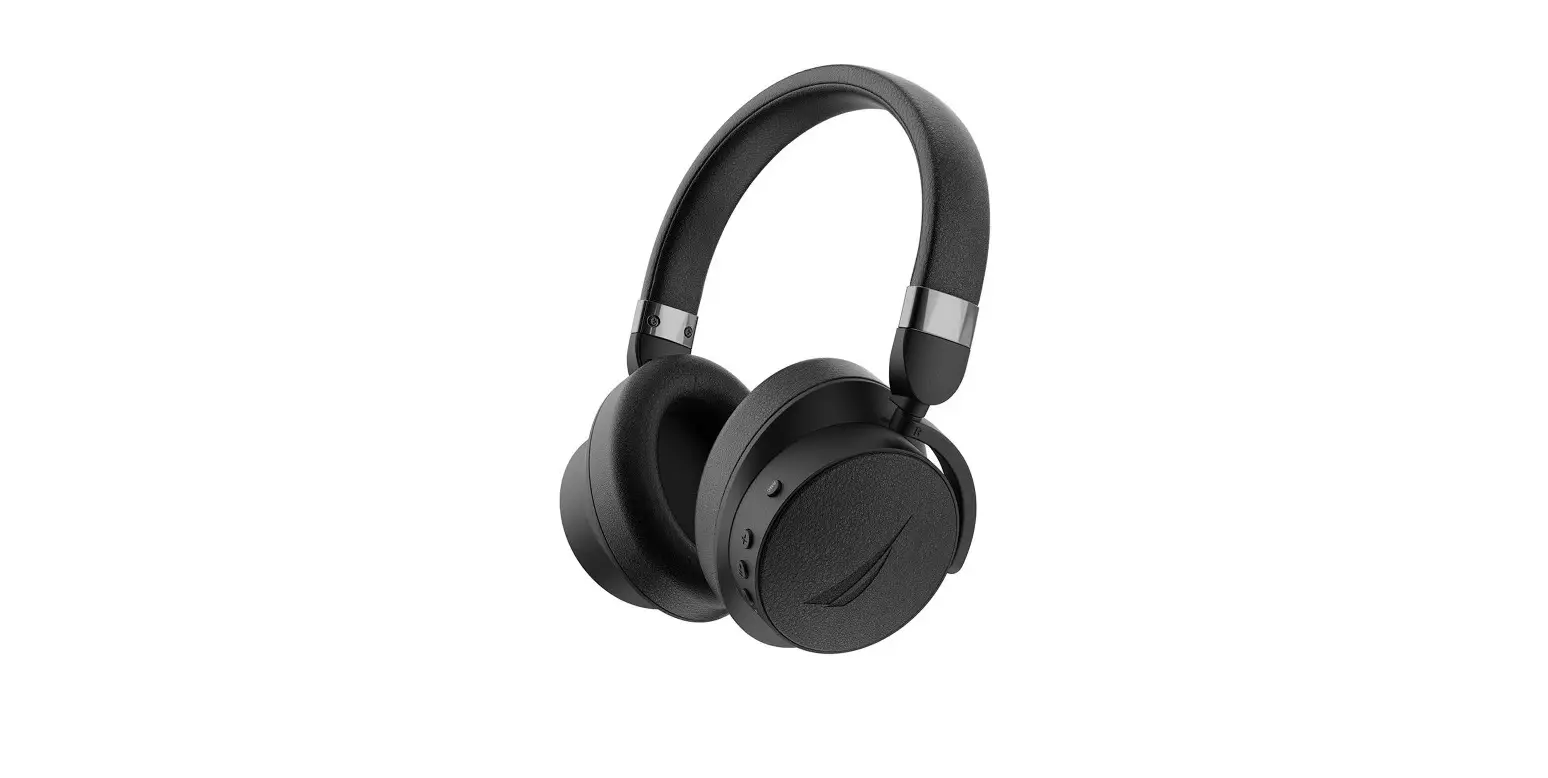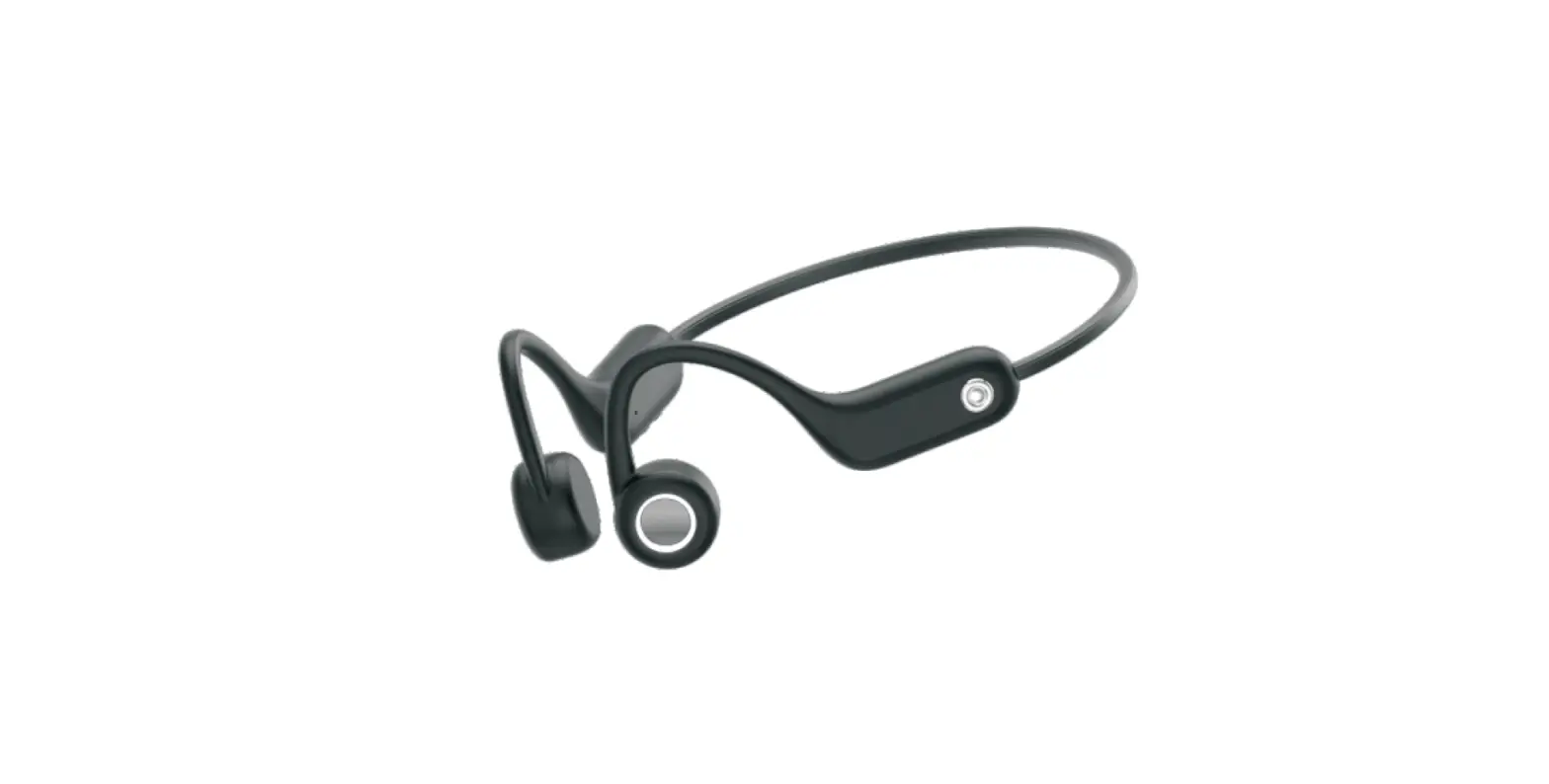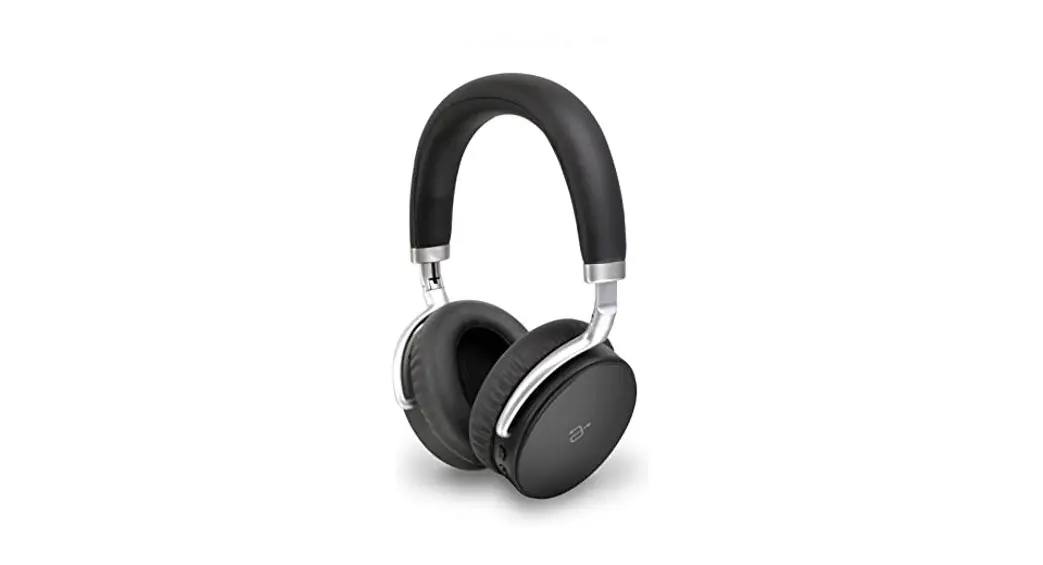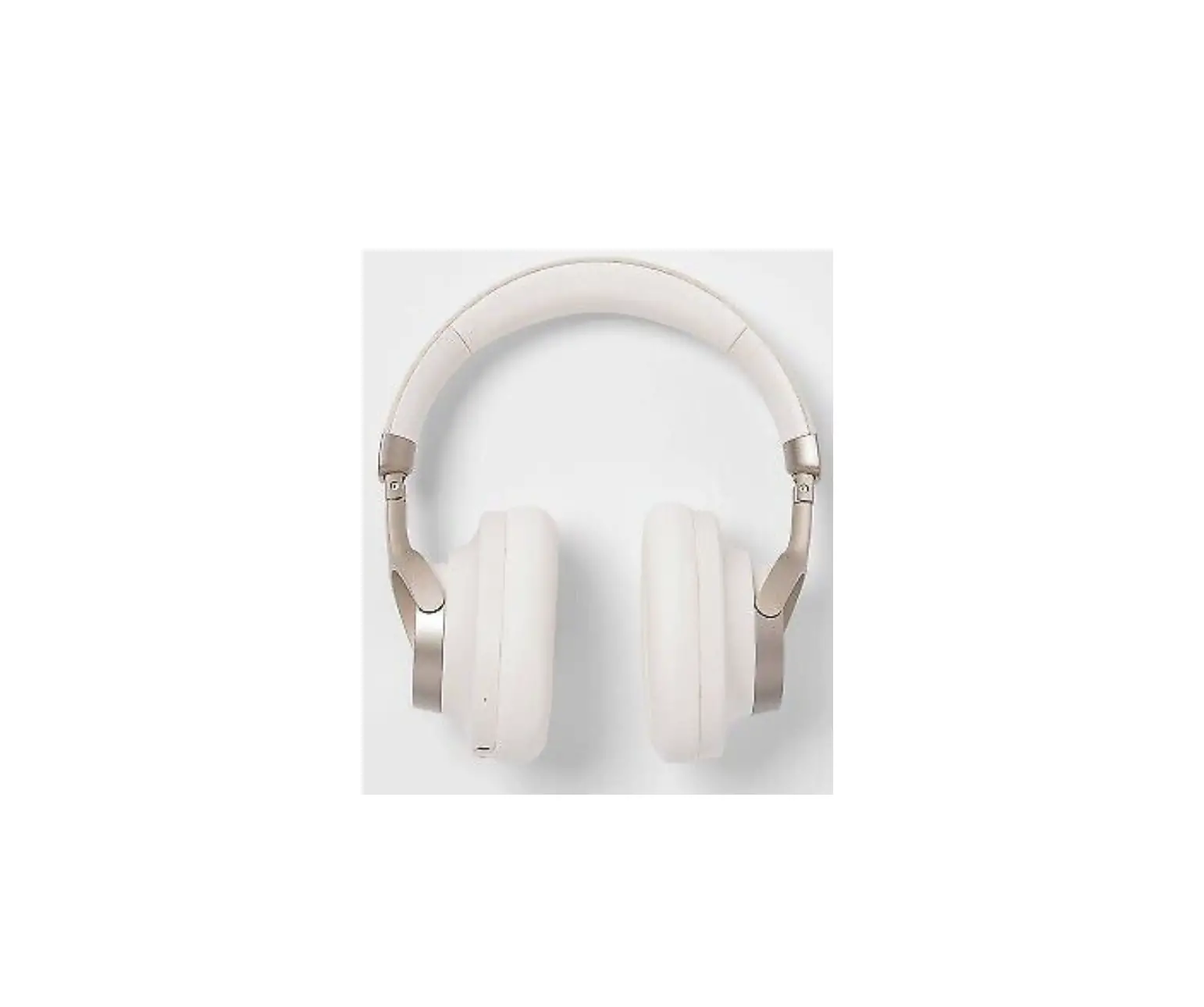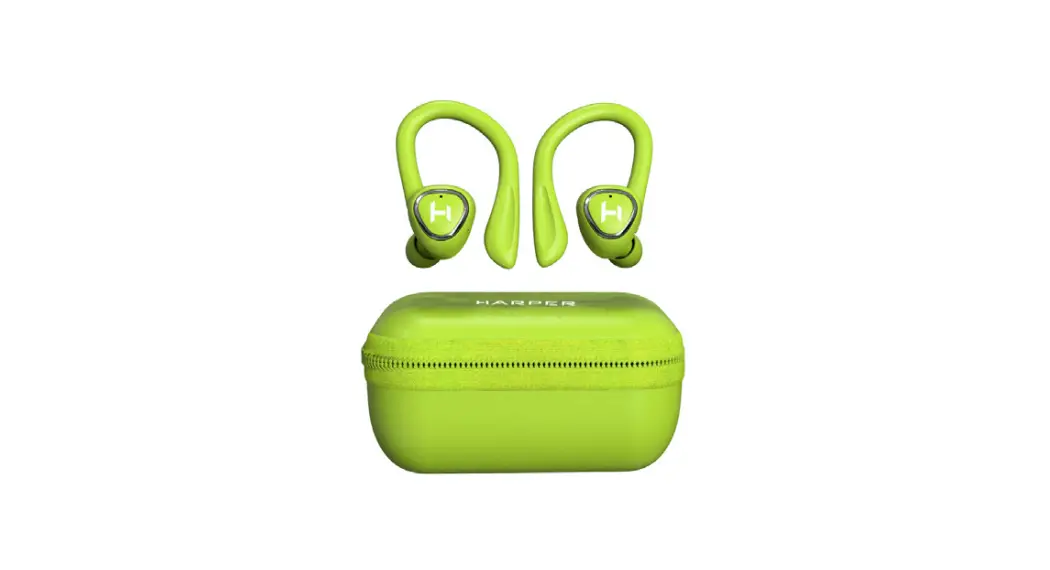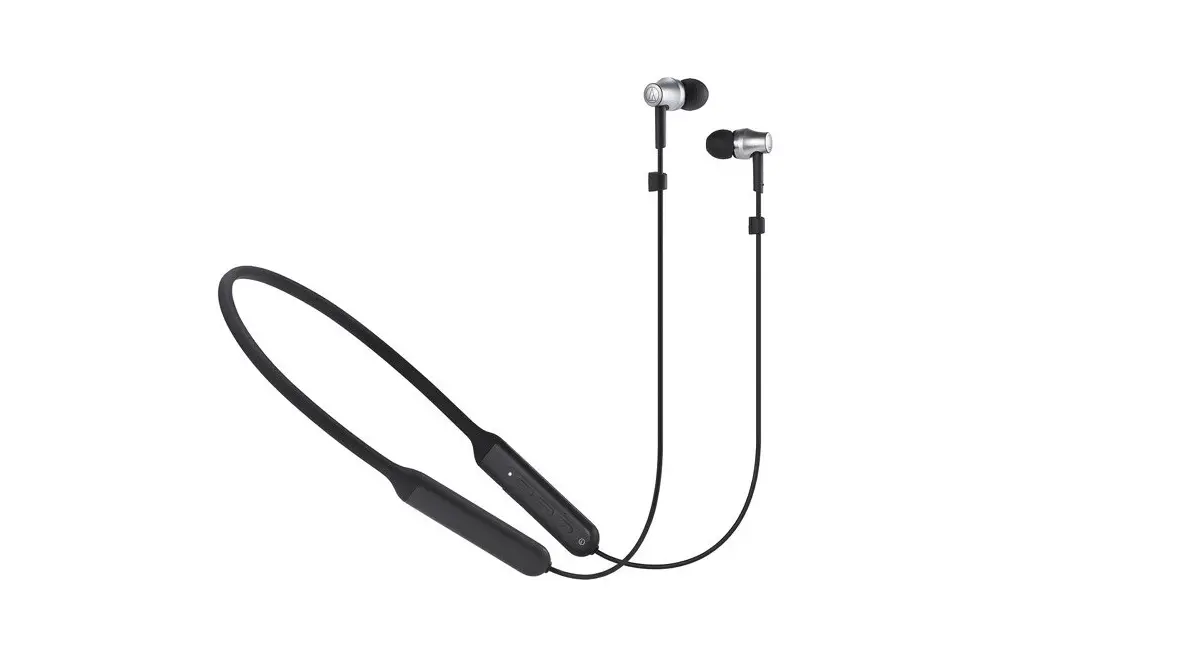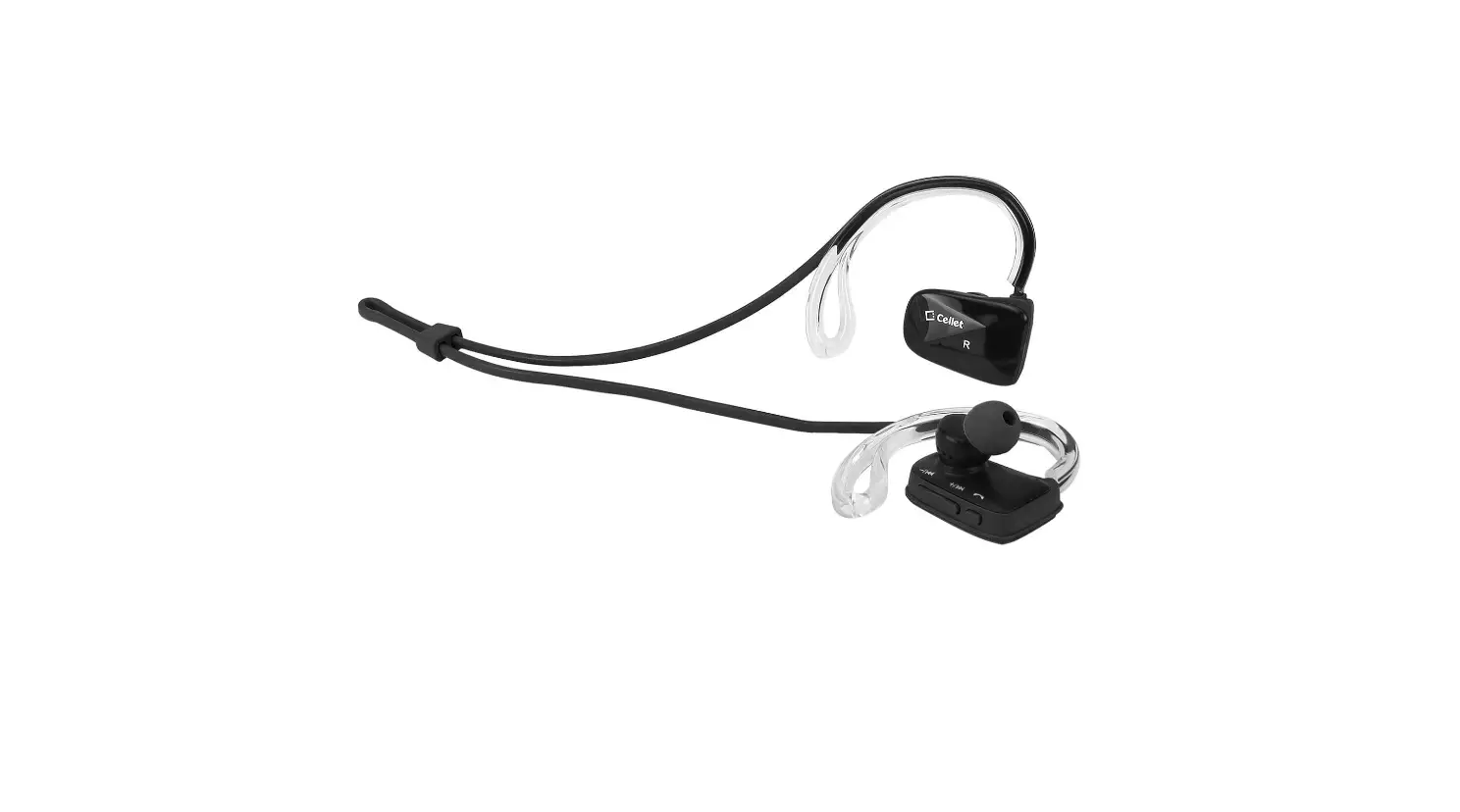

Cellet A50 Sports Bluetooth Stereo Headphones
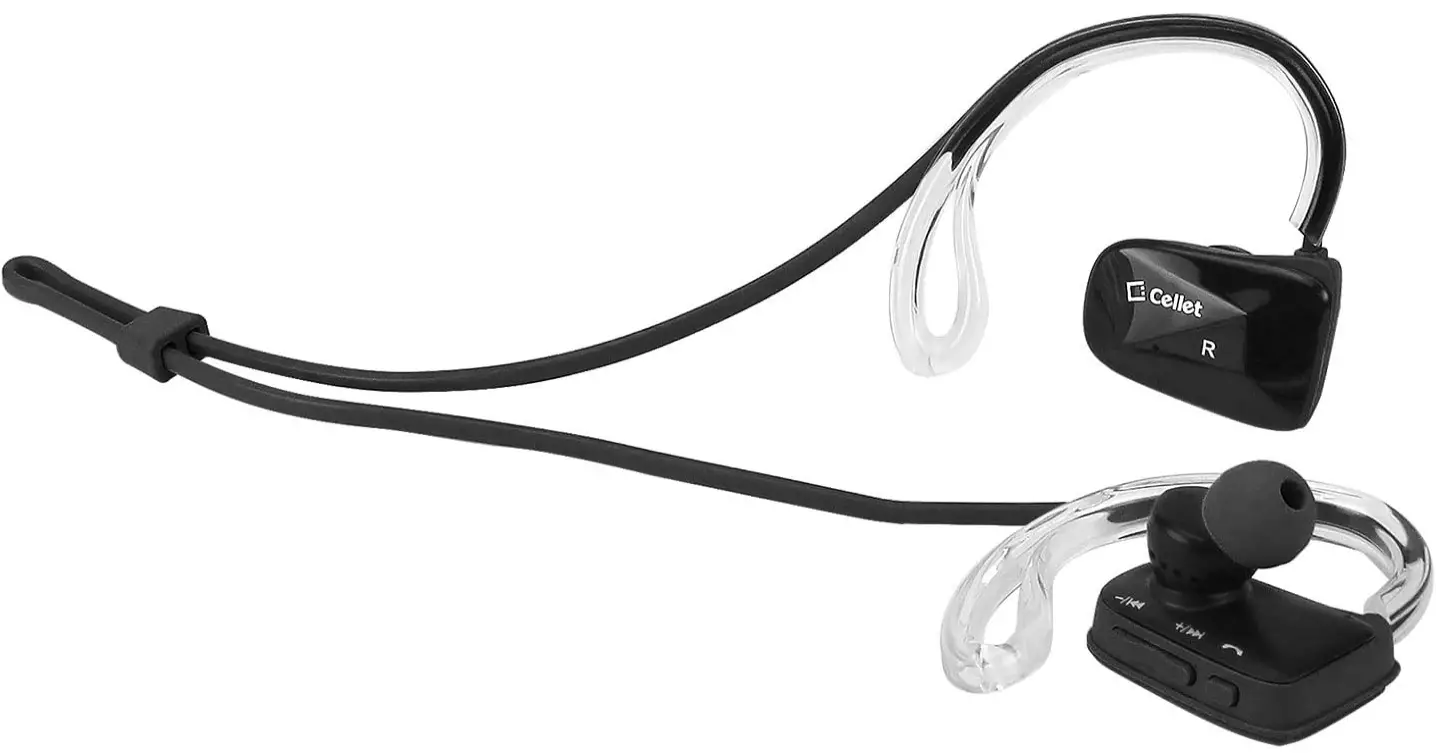
Specification
- Brand Cellet
- Model A50
- Color BLACK
- Form Factor In-Ear
- Connectivity Technology Wired
- Weight 0.141 ounces
- Dimensions 6.7 x 5.6 x 1.5 inches
- Frequency 2.4 GHz
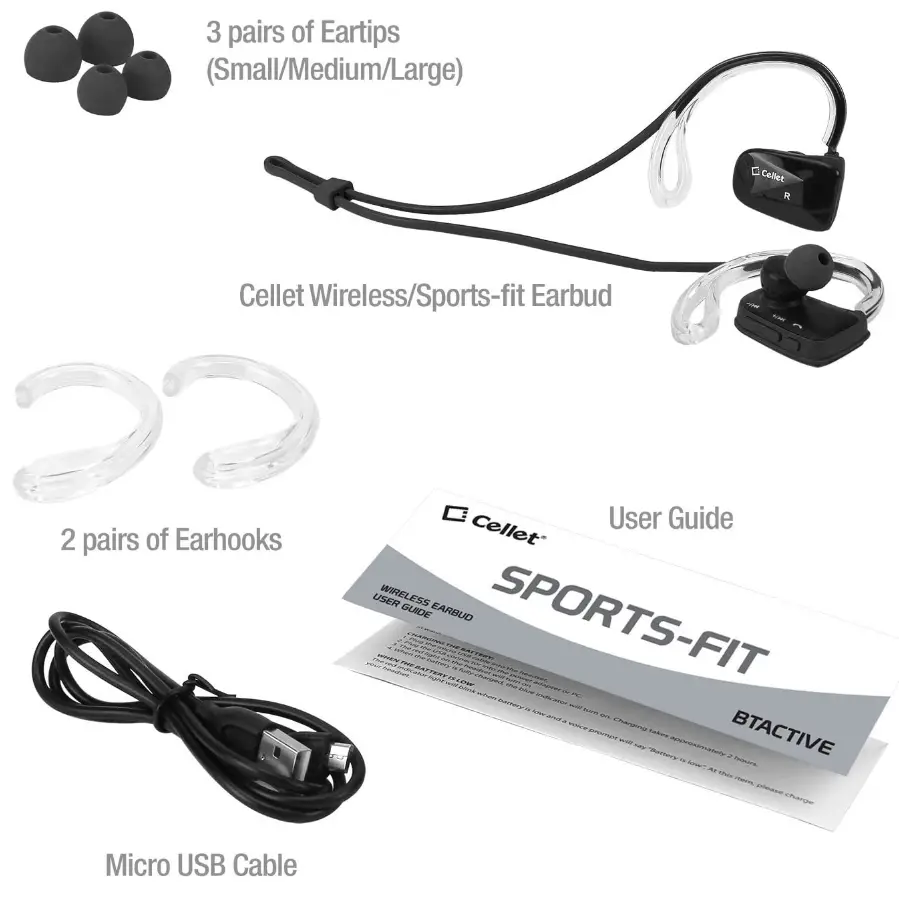
What’s in the box
- Eartips
- Earhooks
- USB Cable
- User Guide
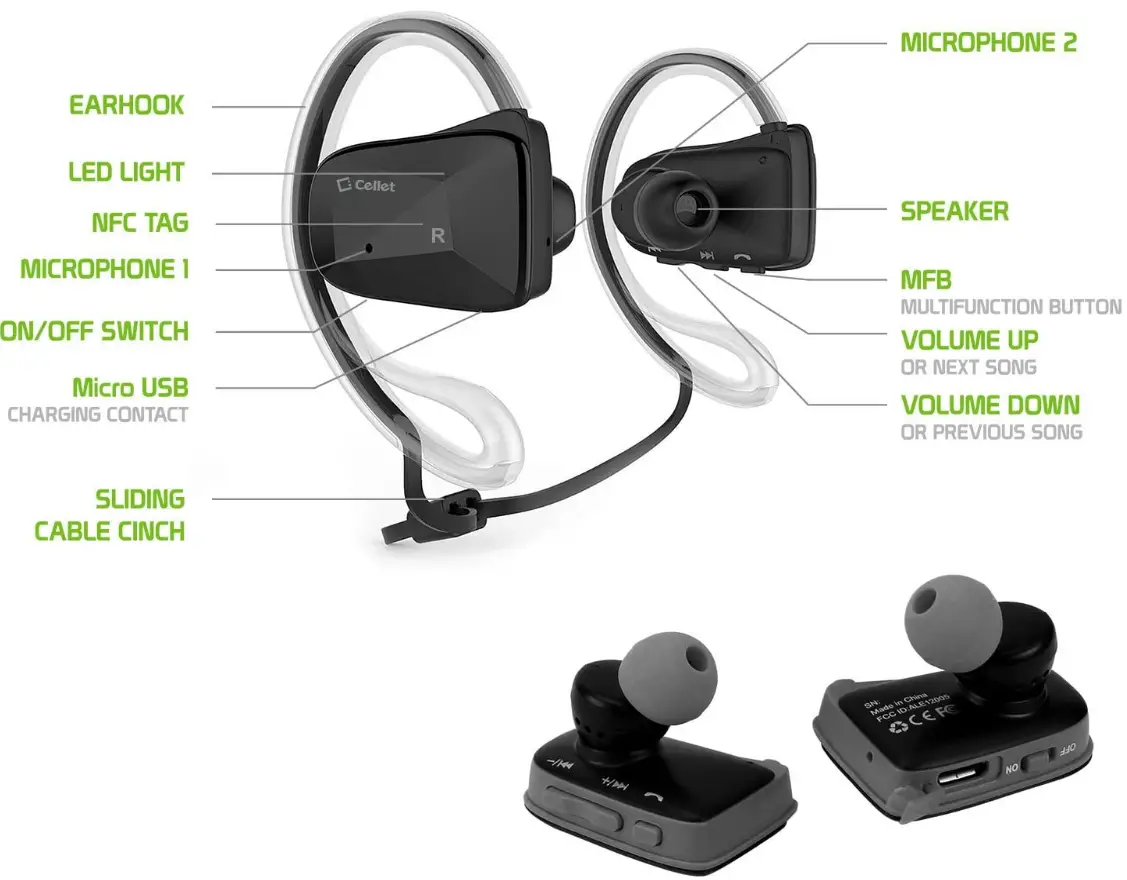
- Wireless Stereo Headset

Overview
Work out intensively while listening to clear-sounding music comfortably with the Cellet Sports-Fit Wireless Headset. Equipped with Wireless Version V4.1 technology, it provides a more stable connection, less power consumption, and multipoint functionality (connect 2 phones at the same time) NFC connectivity lets you pair it with your phone instantly. Noise-isolating earbuds deliver high-quality sound and dual microphones have noise cancellation features that deliver clear communication between you and your caller. Internal rechargeable Li-ion battery offers up to 6 hours of talk time and up to 5 hours of music playback time. Sweatproof, this set was designed to withstand the most rigorous workouts and the ergonomically angled shape ensures a secure fit as you exercise. Included in the package are a micro USB cable for charging purposes, 3 different sizes of earbud tips (small, medium, large,) ear hooks (small and large), and a user guide.
- Uses Wireless V4.1 technology to use less power consumption, provides a more stable connection and multipoint functionality (connect 2 phones at the same time)
- NFC connectivity for instant pairing
- Dual microphones offer noise cancellation features for clear communication
- Sweatproof – designed to withstand the most rigorous workouts
- Ergonomically angled designed earbuds for a secure, comfortable fit

Connection
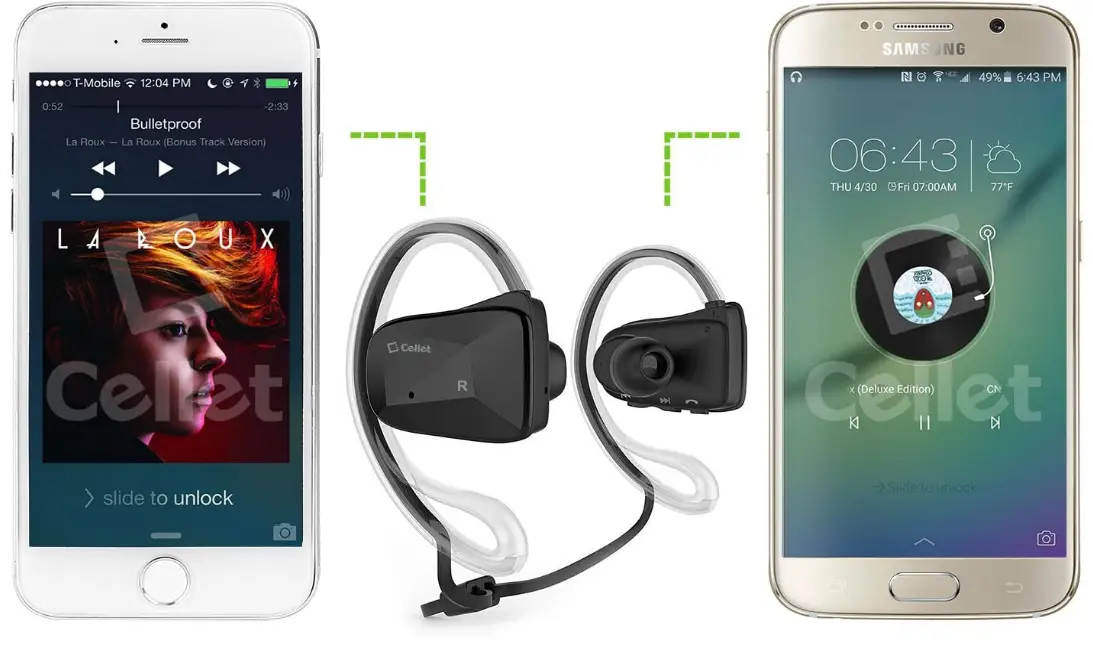
- Put your earphones in pairing mode. The initial step is to put your earphones in pairing mode.
- Go to Settings – Bluetooth on your phone.
- Scan for new devices under the Bluetooth category.
- Select your device and connect.
- Play your favorite music.
Care and Maintenence
- Partial charging is better than a full charge. Try to keep the level at 80% or under if you can. Don’t charge overnight.
- Avoid getting the battery too hot.
- Try not to use your headphones as they charge.
- Turn your headphones off when you’re not using them.
Description
Works with All Smartphones and following
- Apple iPhone Xr, Xs Max, Xs, X, 10 SE, 8 Plus, 8, 7 Plus, 7, 6S Plus, 6S, 6 Plus, 6, 5S, 5C, 5 Lighting 4S, 4, 3GS, 3G, iPod Touch, iPod Nano
- Samsung Galaxy Note 9, Note 8, S9, S9+, S9 Plus, S9 Plus, S8, S8 Plus, S8+, S8 Plus, S8 Active, S7, S7 edge, S7 Active, Note 5, S6, S6 edge+,S6 edge, S6 Active, Grand Prime, J3, J3 Prime, Express Prime 2/3 Amp Prime 2/3, Sol2, J3 Achieve, J3 Star, J7, J7 Perx, J7 V, J7 Prime, Halo, J7 Refine, J7 V 2nd Gen, J7 Star, Prevail, Precedent, S7, Jitterbug Touch3, Stardust, J5, J1
Features
FAQs
Toggle the listed headphones. Pull down the phone’s top shade on an Android device, then long-press the Bluetooth icon. It will immediately take you to the Bluetooth menu, where you may enable it and then start looking for devices. To link a pair of headphones, tap their name.
Connect your headphones to the mixer’s mic input to utilize them as a microphone. Make sure the mic levels are all the way down, speak into the microphone, and then raise them as necessary.
If your Bluetooth devices aren’t connecting, they probably aren’t in pairing mode or are out of range. If you’re having persistent Bluetooth connection troubles, try rebooting your devices, or having your phone or tablet “forget” the connection.
You can use Fast Pair with your Bluetooth equipment. Android 6.0 or later is installed on your phone. Bluetooth and location services are enabled on your phone.
Ensure that Bluetooth is activated. Determine which pairing process your device employs. Set the discoverable mode to on. Ensure that the two devices are sufficiently close to one another. Turn the devices on and off again. Remove outdated Bluetooth connections.
On headphones, there is typically a mark to identify an internal microphone. The majority of the time, there’s a tiny hole on the bottom of the ear cups (this may or may not have a microphone symbol next to it).
On your computer, right-click the sound icon and select “Open Sound Settings” after turning on your Bluetooth headset. Your input device should be listed in the dropdown menu under “Input” there. From the selection, choose your Bluetooth microphone.
Make sure your device’s mute button is not active. Verify that your computer and microphone are properly connected by checking your headset or microphone. Make sure your microphone or headset is set as the default recording device on your computer.
To locate the passcode for your phone, navigate to the Bluetooth menu on it. The Bluetooth option for your phone is often available under the “Settings” menu. In the Settings menu, there should be an option to “Get code” or something equivalent, which would allow you to find the code for your phone.
Remove the headphones’ charging cable from the device. For 10 seconds, press and hold the power button. When the LED light starts to blink, your headphones have been successfully reset.
If the battery level is too low, smart power management features on some devices may disable Bluetooth. If your phone or tablet isn’t pairing, ensure sure it and the device you’re trying to link with have adequate juice.
On the left headphone’s rear, near the volume dial, is a button with an icon that refers to a muted microphone. The sound is silenced if the button is depressed. If the button is up, speaking is no problem.
with a twist, is the quick response. The technique, if your Bluetooth headphone has a microphone, is: First plug the USB microphone (if needed, use a lightning adaptor) (if needed, use a lightning adapter)
Right-click the speaker icon in the lower-right portion of the Windows taskbar after making sure your headset or microphone is plugged in. For recording devices, click. Use the same volume and distance while speaking into the microphone as when recording. Keep an eye on the microphone’s input level as you speak.
If the headphones’ power won’t turn on, the battery might not be installed properly or could need to be changed. To fix this problem, make sure you look through the following things. Important: Consult the product’s instructions if you require model-specific details to accomplish any of the tasks.