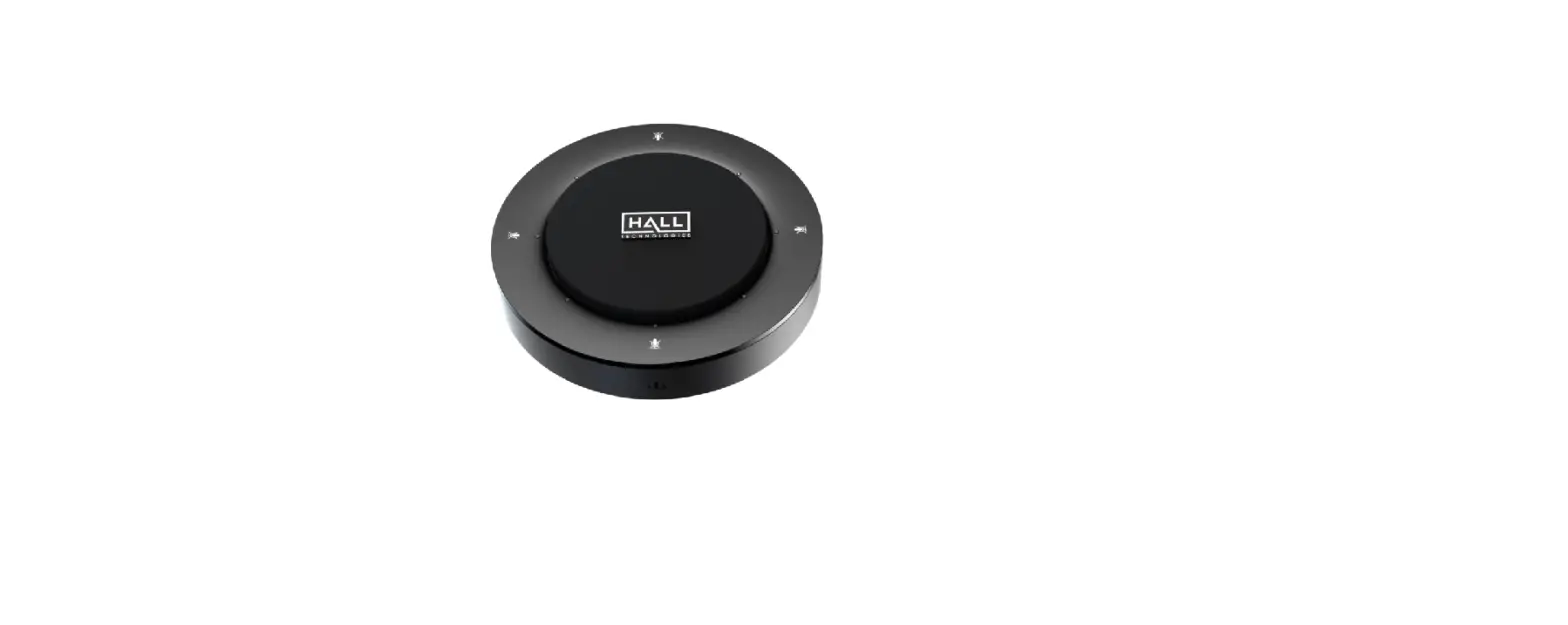

HALL TECHNOLOGIES HT-SATELLITE-EXT Add-On Microphone for the Mercury Video Bar
Introduction
OVERVIEW
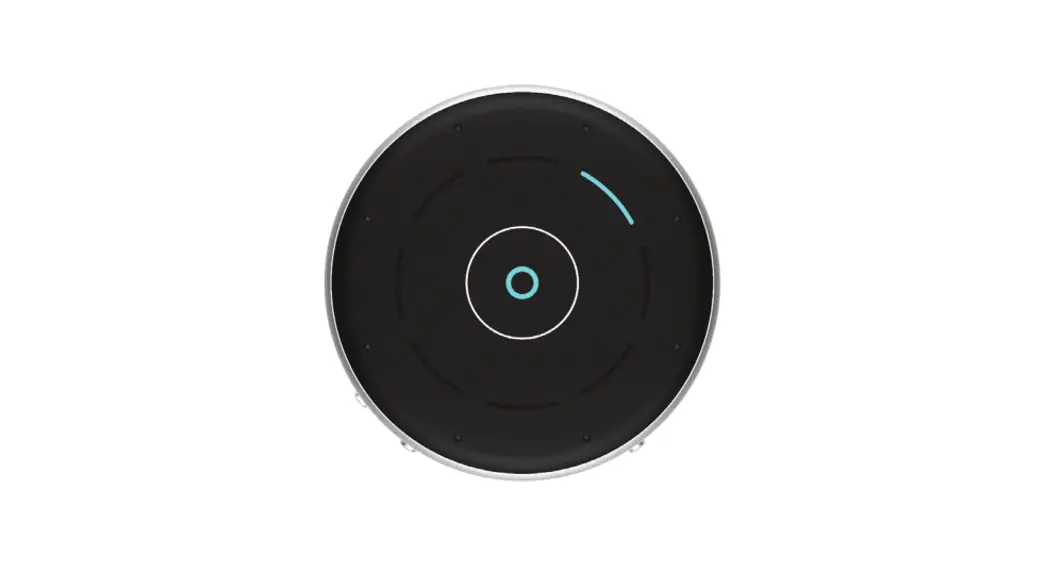
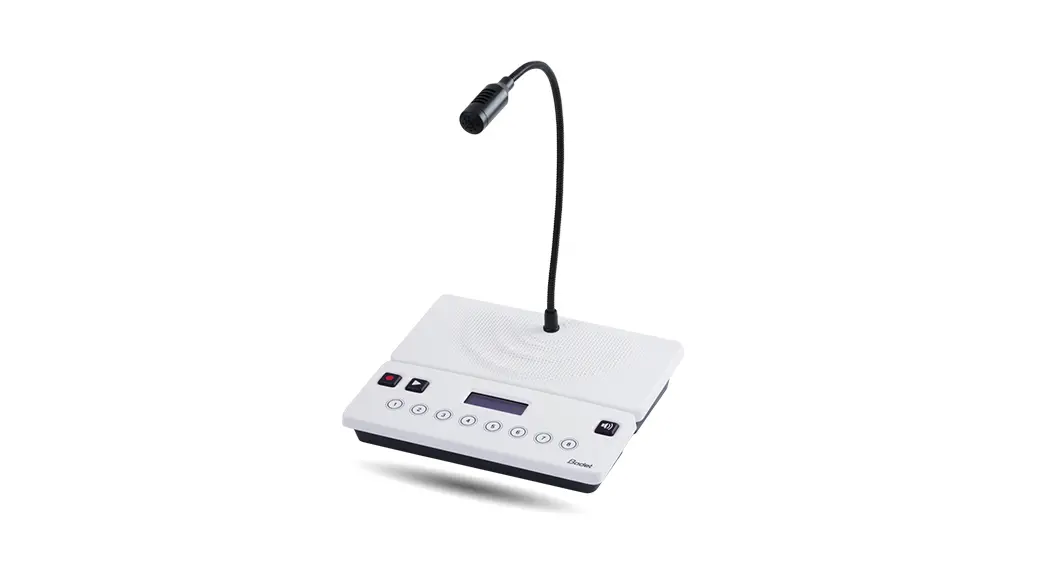
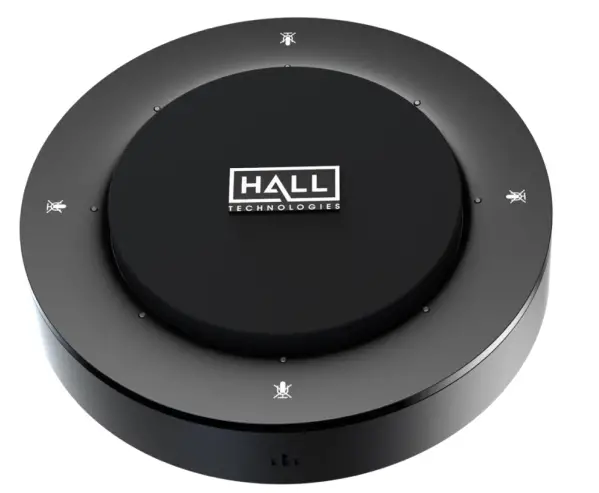
This product is an add-on microphone for Video Bar to extend pickup distance. It is ideal for applications at huddle/small/ medium rooms.
FEATURES
- 4 x MEMS omnidirectional microphone arrays with a range of 3 ~ 5 meters.
- Supports AEC (Acoustic Echo Cancellation), AGC (Automatic Gain Control), ANS (Automatic Noise Suppression) and full duplex communication, making all participants feel like they are talking face-to-face.
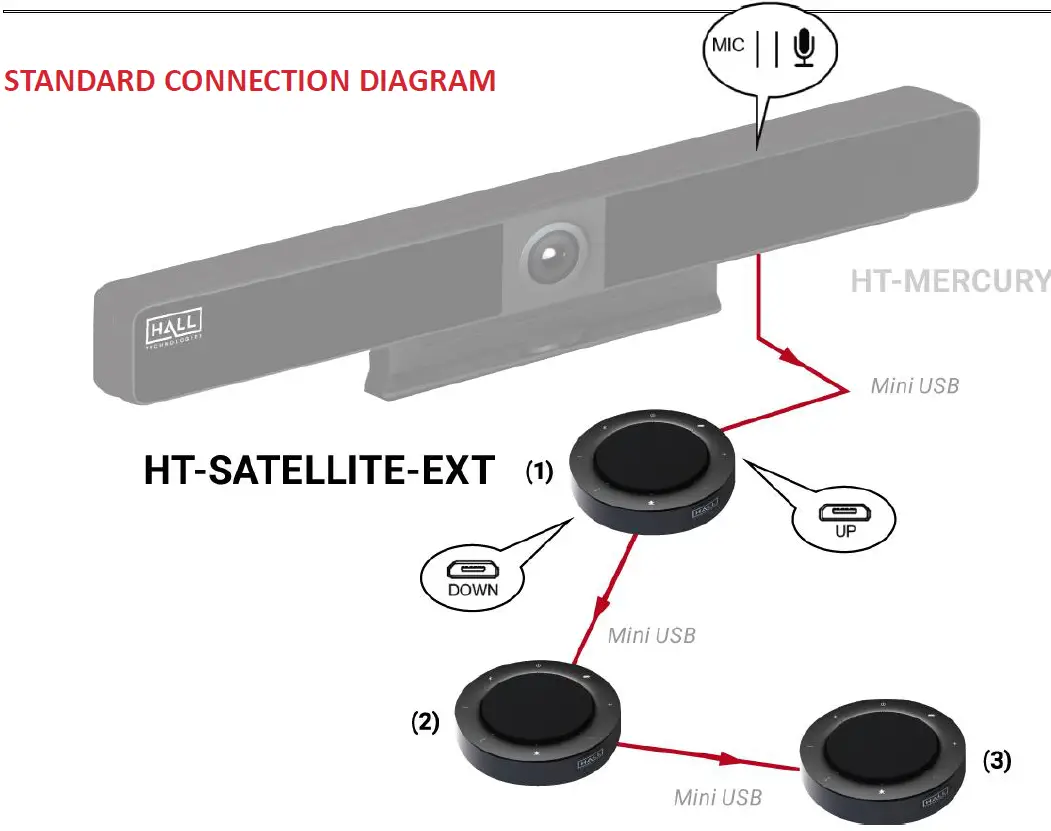
- Cascade up to three times for extending pickup range.
- Mic mute button with LED feedback.
- Able to work with VB10-000 for audio signal extension over Ethernet.
PACKAGE CONTENTS
- 1 x Microphone
- 1 x 7m USB-Mini Cable
Panel Description
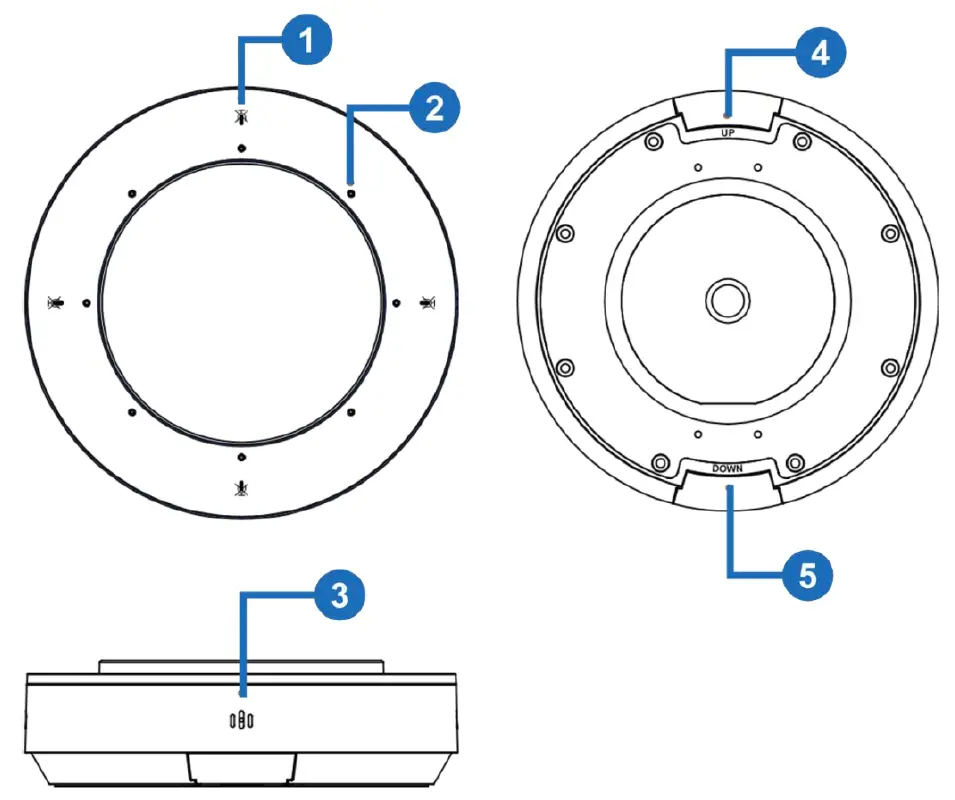
| ID | Name | Description |
| 1 | 4 x Mute/Unmute buttons. Press any of these buttons to mute or unmute all microphones, including the one at the Video Bar and all other MIC10-000 units. | |
| 2 | Status LED |
|
| 3 | Microphone | 4 x omnidirectional microphone arrays for picking up sound. |
| 4 | UP | Connect to the video bar or the upper level microphone. This port supports power input. |
| 5 | DOWN | Connect to the other extensible microphone. This port supports power output |
INSTALLATION
Note: Before installation, please ensure the device is disconnected from the power source.
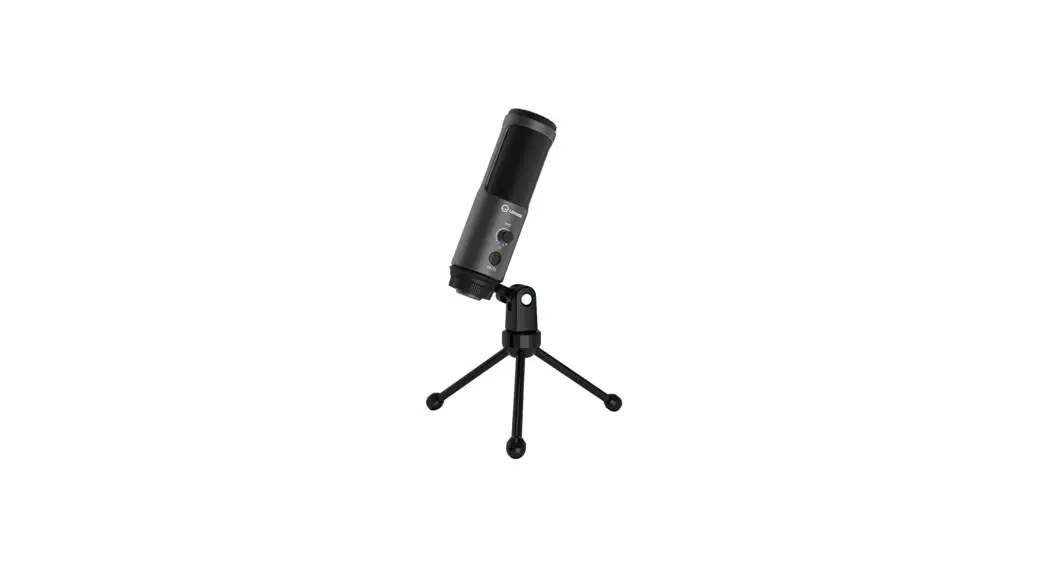
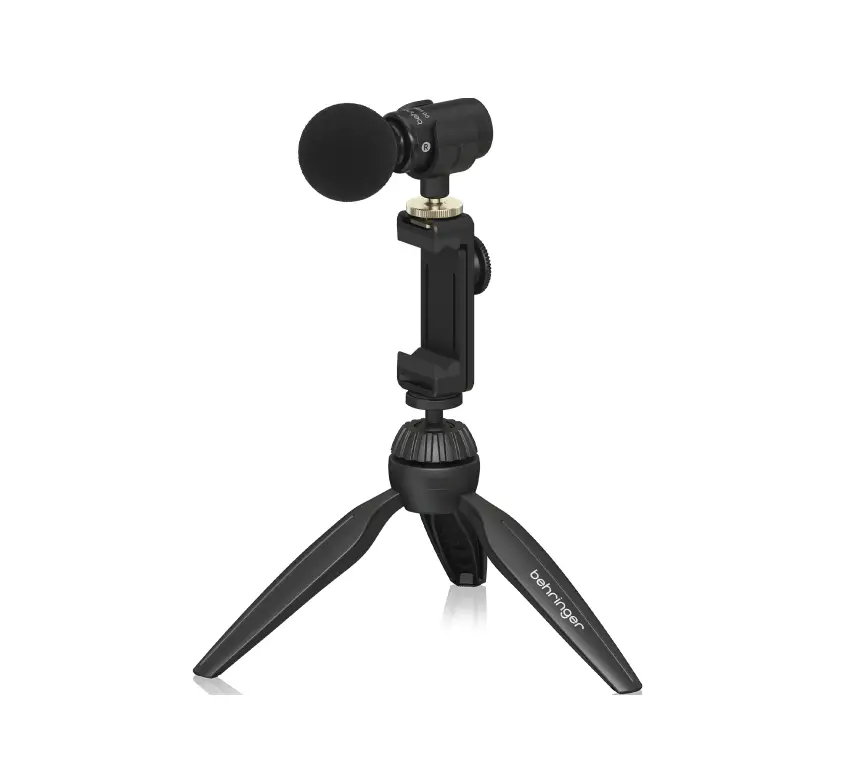
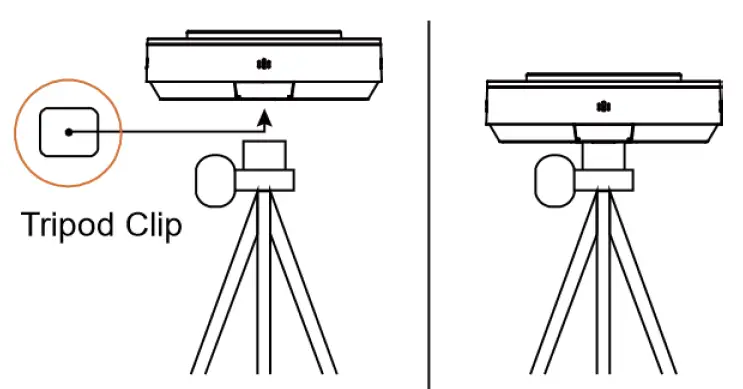
The device can be placed on the desk or be installed on a tripod.
To install the device on the wall:
- Screw the tripod’s clip into the 1/4 (British standard) thread hole at the device’s bottom.
- Secure the device along with the clip on the tripod, adjust them to a position and height you desire.
Application
STANDARD CONNECTION DIAGRAM
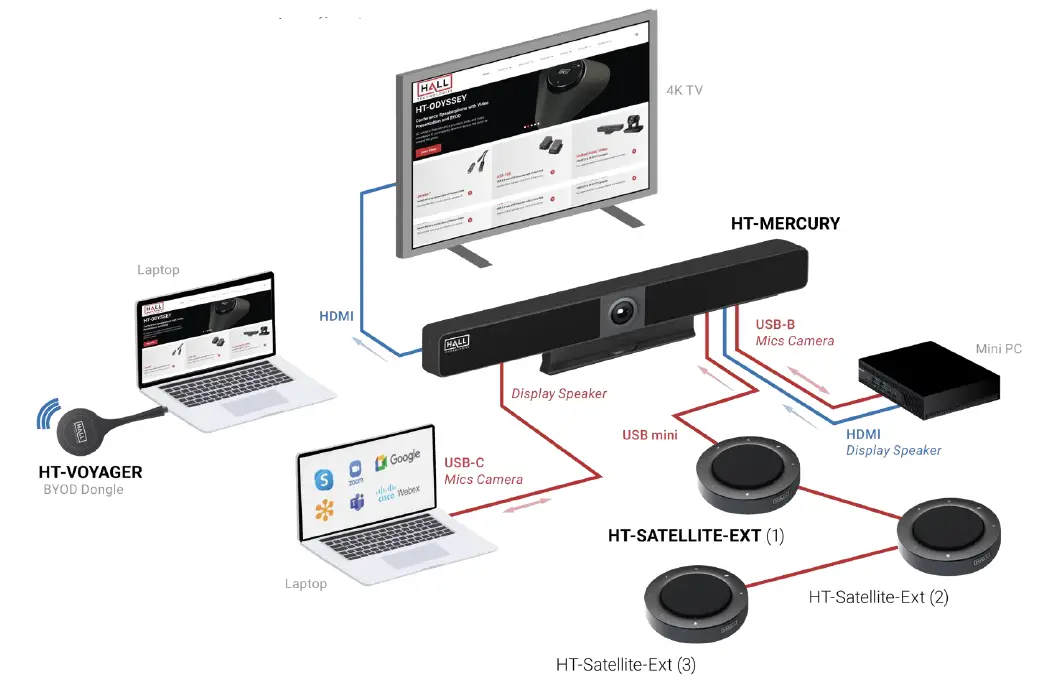
FULL APPLICATION SETUP DIAGRAM
Showing HT-MERCURY Video Bar connections and applications, HT-VOYAGER BYOD Dongle usage depicted
API Commands
Additional commands not found in the Web GUI such as AEC enable/disable, AGC enable/disable, ANC enable/disable, and others can be found in the HT-MERCURY API Commands document.
Troubleshooting
Used in connection with HT-MERCURY Video Bar
| Problem Type | Problem | Options |
| USB |
USB-C not connecting | Verify connected cable supports USB-C |
| The response time to output video of USB 3.0 and Type-C is typically 6-8 seconds, although the response time between PC’s can differ | ||
| Confirm the PC can transmit video over USB-C by installing the DisplayLink device driver: https://www.displaylink.com/downloads | ||
| PC charge reminder pop-up | This pop-up is normal since the HT-MERCURY charging power might be different than what the laptop requires | |
| To ensure the laptop doesn’t lose power, connect a dedicated power supply | ||
| Audio | No audio at far end on soft codec call (i.e. Meet, Teams, Zoom, etc.) | Verify the HT-MERCURY microphone is not muted (red LED means muted) |
| Verify the microphone selected in the soft codec is the HT-MERCURY | ||
| Verify the soft codec microphone is not muted | ||
| No audio heard on HT- MERCURY | Verify the HT-MERCURY is selected as the desired speaker output in the laptop by clicking on the speaker icon to open the audio output | |
| Verify the HT-MERCURY is not muted | ||
| Verify the levels are turned up on both the laptop and the HT-MERCURY |
Specifications
| Audio and Video | |
| Input / Output | Mini USB |
| Microphone | |
| Microphone | 4 x Omnidirectional microphone arrays; Pick-up Range: 3~5m |
| Communication and Control | |
| USB | Mini USB |
| General | |
| Operating Temperature | 0°C ~ 40°C (32°F to 104°F) |
| Storage Temperature | -20°C ~ 60°C (-4°F to 140°F) |
| Humidity | 10% to 90%, non-condensing |
| Power Supply | Powered by Video Bar |
| Power Consumption | 1.5W (Max) |
| Dimension (φ x h) | 123mm x 36mm/4.84” x 1.42” |
| Net Weight | 0.29kg/0.638lb |
1234 Lakeshore Drive, Suite #150, Coppell, TX 75019
halltechav.com / [email protected]
(714)641-6607
 Home - Hall Technologies
 DisplayLink Downloads Page | Synaptics