
Features
- Screen Casting
- Up to 9 devices casting at the same time
- Screens could be rearranged or shown in a floating window at the receiver
- Support Airplay for Apple devices
- Support Miracast for Android/Windows devices (Win8.1+, hardware related)
- Support Chromecast for Chrome OS/Chrome Browser/Android
- (Client App) support Windows/macOS/Android/iOS/Chrome OS
- (Client App) support both primary and extended screen casting (Windows/macOS)
- (Client App) Support application/window Casting (Windows/macOS)
- Photo/Video Sharing
- Casting photos/videos from album (iOS/Android)
- Corresponding control for picture/video/audio/slides from both mobile and IFP
- Desktop sync
- Sync desktop of IFP to 30+ devices
- Touchback control
- Screen Copy
- Copy one IPF screen to others
- One to multi-screen casting
- Remote Control
- Touchpad control
- Air-Mouse (Gravity Accelerometer) control
- Remote Camera
- Show camera of mobile device on IFP
- Device Management
- Mobile management – Authorize one mobile device as admin to control away from the IFP
- Moderator mode – Ask for permission for any incoming request
- Invite to share – Invite screencast from admin
- Touchback control – Authorize any device in desk sync mode to control the panel
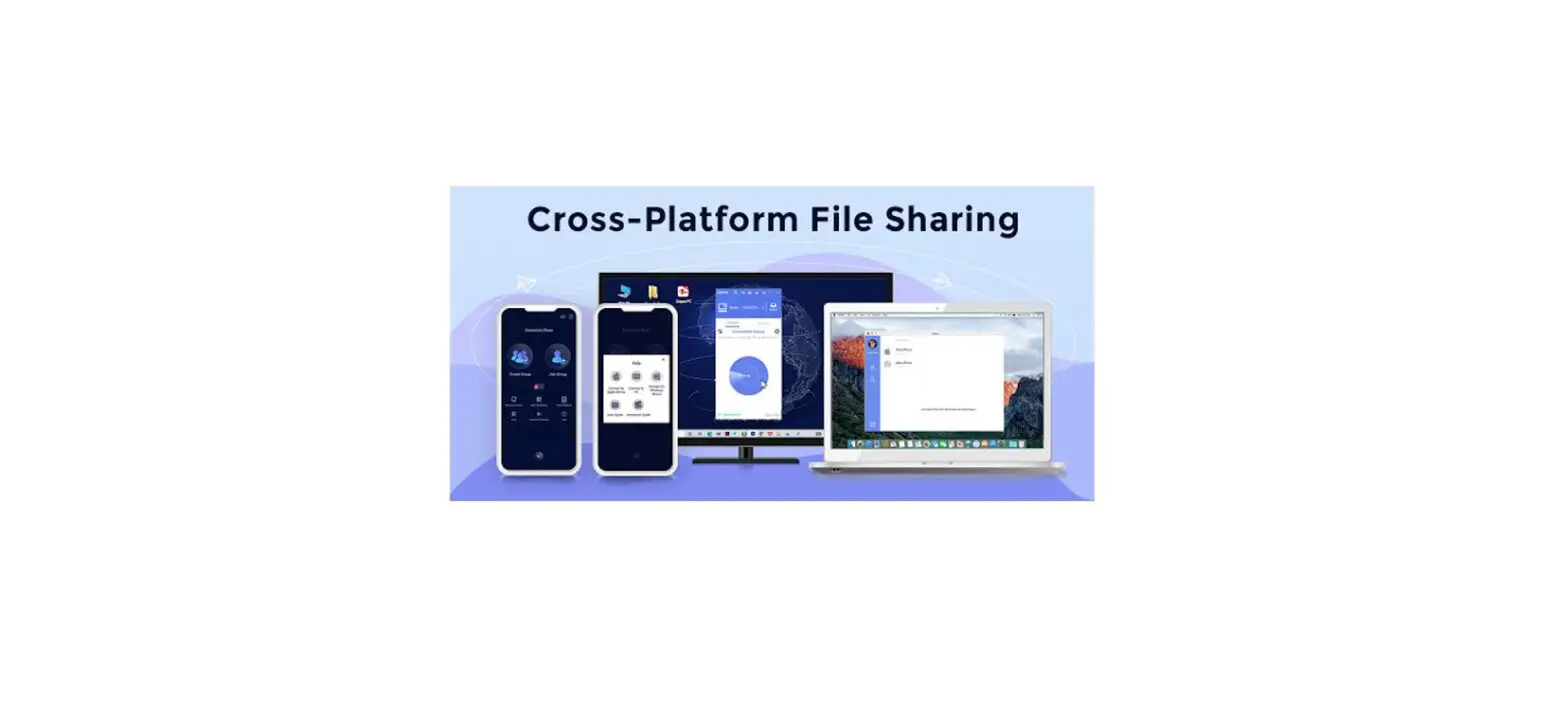
- File sharing – Share file among connected devices
- Disconnect all devices
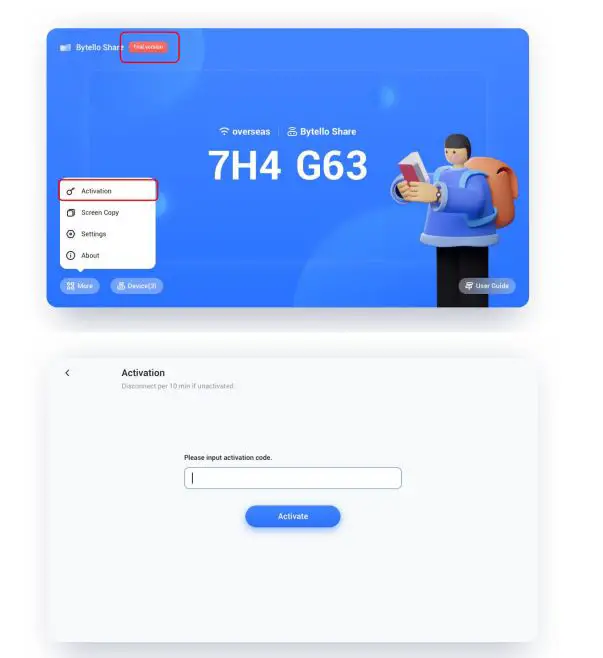
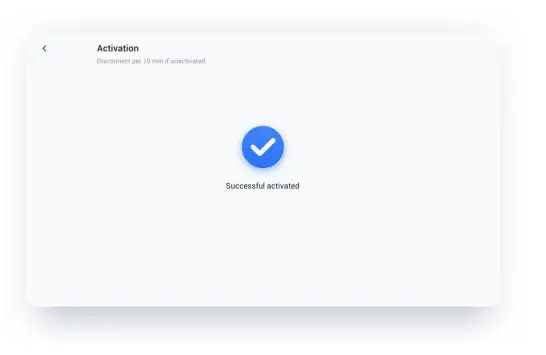
How to activate display panel via activation code
- Open the software main interface, find and click the menu. You can see the “Activation” entrance. If you can’t see it, that means it has been activated.
- Click the “Activation” icon, enter an activation code and make confirm.The software would be activated.


Screen Casting via Standard Protocol
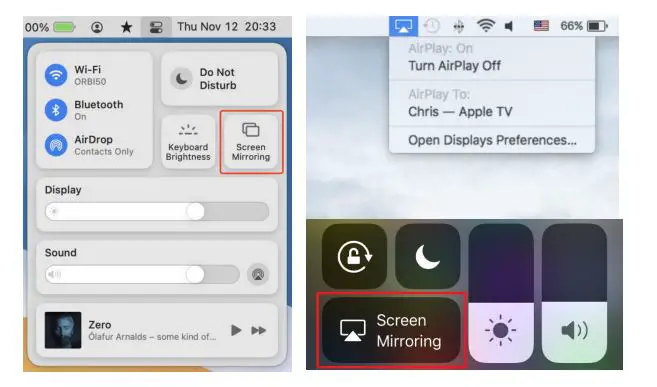
Airplay Mirroring
- For security consideration, Airplay support is disabled by default, it could be enable in sever settings.
- When Apple device is in the same network with BytelloShare server. You can simply cast the screen by choosing the “Screen Mirroring” from Control Center (the entry may different due to the OS versions).

Android Miracast/Chromecast
- For security consideration, Miracast/Chromecast support is disabled by default, it could be enable in sever settings.
- For Miracast, please make sure the client device is nearby the server device;
- For Chromecast, please make sure the client and server are in the same network.
Android Device
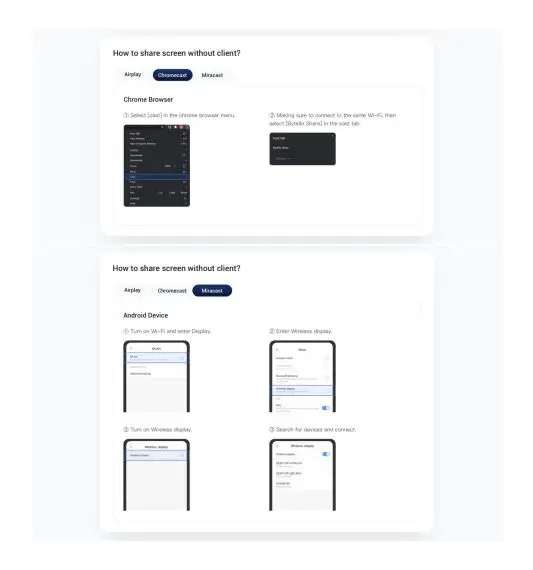
Find “Wireless Display” in Quick Setting menu or settings, then choose the target device.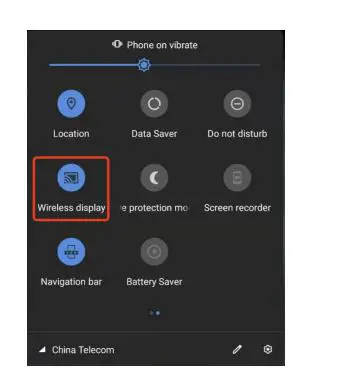
Windows Device
Press Win+P, click “Connect to a wireless display”, choose the target device. Not all windows devices support Miracast, please check the below link:
https://www.tenforums.com/tutorials/59107-check-miracast-support-windows-10-pc.html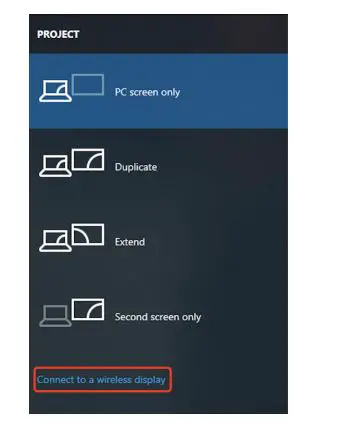
Chrome OS/Browser: Choose “Cast…” from the menu.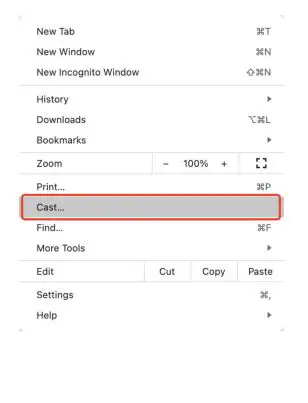
Screen Casting by Client Application
Connect (with a code)
A connection code is displayed on the server.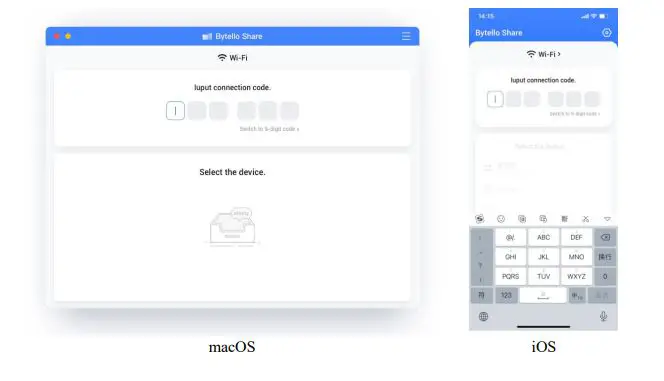
Input the connection code on client to connect to the server.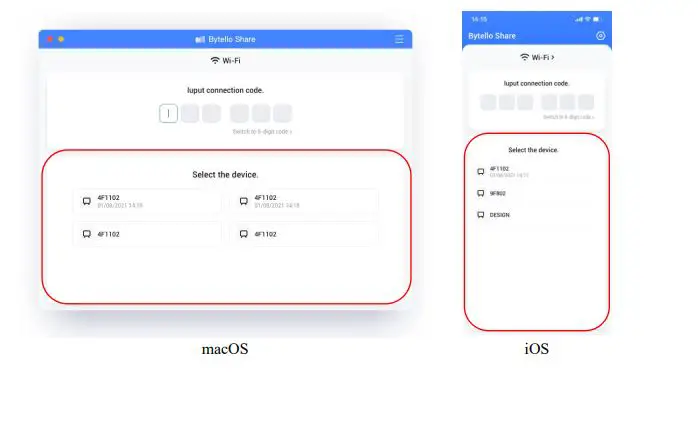
Note: If the connection code on the server is 9-digits, please switch to 9-digits input mode on the sender.
Mirroring
Click “Start” will casting the client to the server.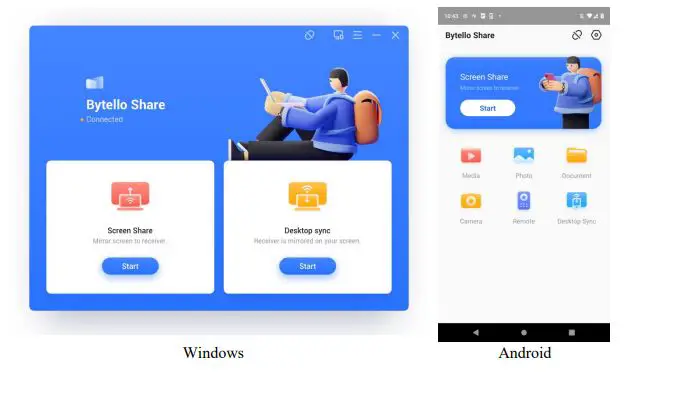
For Windows/macOS, you can share one application or window instead of entire desktop, or you can choose to share primary or extended screen.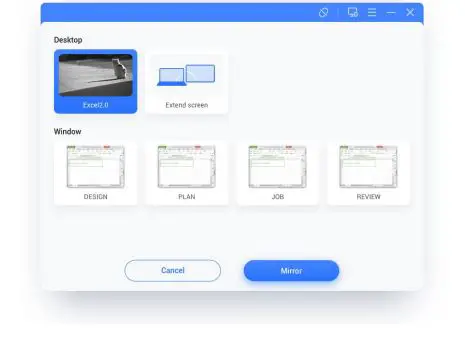
Notes
- Touchback control is only available when casting entire desktop and needs to be authorized from the server-side in device management page.
- When multi-screen sharing at the same time, touchback only available on the maximized screen.
- Touchback could not be used on mobile systems (Android, iOS) due to system limitations.
- For the IFP system that supports free-form mode, the sharing content could be shown as a window by sliding down from the top of the screen.
Floating window
Click this button on touch panel to turn the casting screen into a floating window.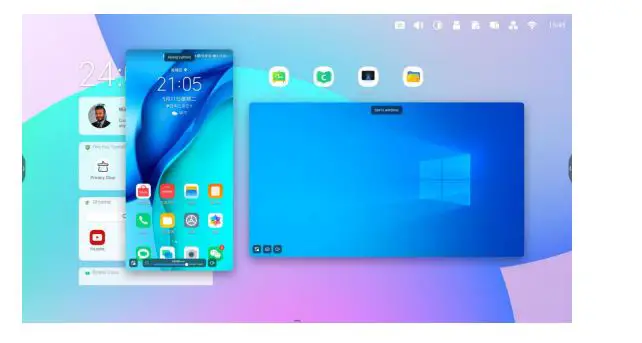
Screen rearrange
Long press the casting screen and drag the window to adjust the order.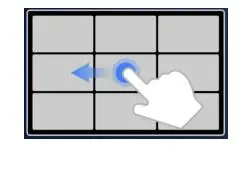
Photo/Video sharing
For mobile devices, user could choose sharing photos or videos from album, operations like zoom in/out, adjusting playback progress can be made from the mobile devices or IFP.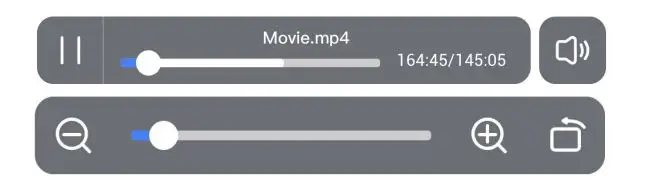
Desktop sync
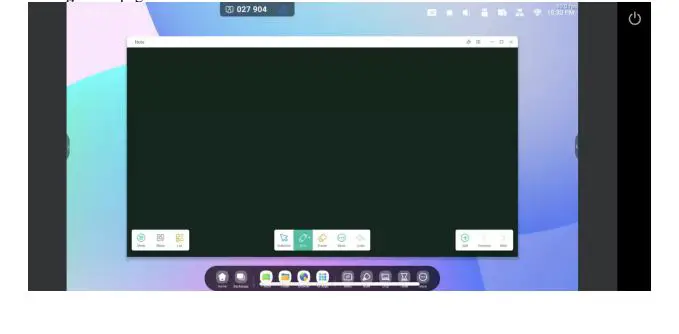
- Mobile devices could sync the desktop of the server.
- Annotation could be made by enter the annotation mode from the icon beside the connection code.
- Touchback is disabled by default for safety considerations, could be enabled from the device management page.

Screen copy
Make a group of displays, copy one screen to others to make them show the same content. The content may from a sender device or it can be anything on the display.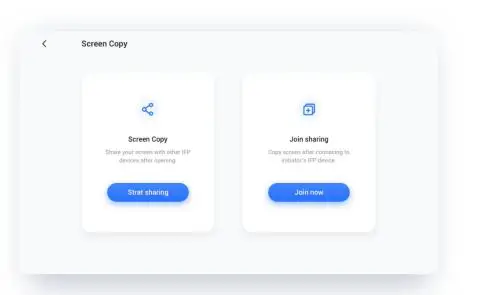
- Choose “Screen Copy” – “Start Sharing” from the source device.
- Choose “Screen Copy” – “Join now” from the target device.
- All target device will sync the desktop from the source.
Remote Control
Android phone or iPhone could be used as a touchpad or air-mouse to control the server.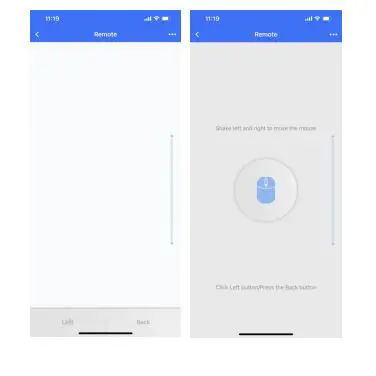
Remote Camera
Android phone or iPhone could share the camera view to the server.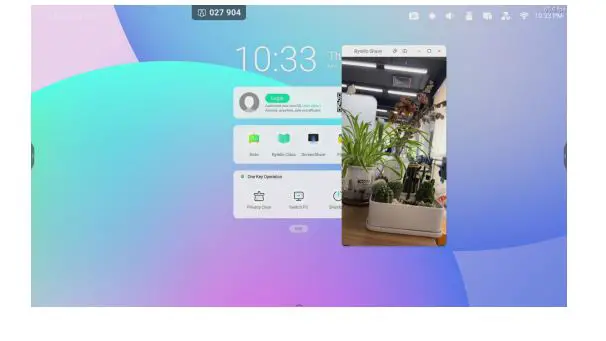
Device Management
The device management page shows all connected device status, and do several quick controls.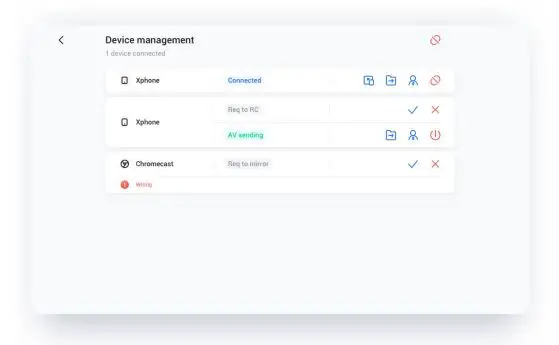
Invite to share
One could invite connected devices to cast their desktop from the server.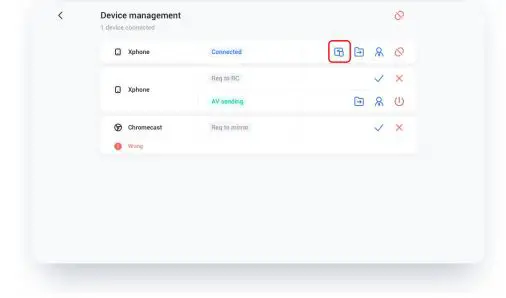
File sharing
The file on the server could be sent to any connected device.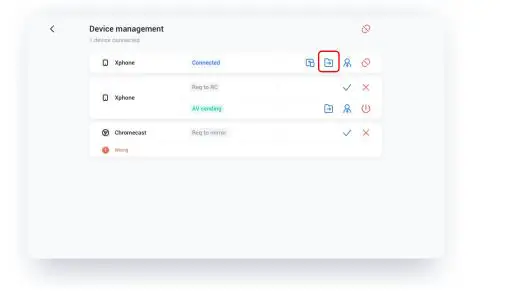
Admin authorizes
Set one device to the administrator to accept or reject further casting requests.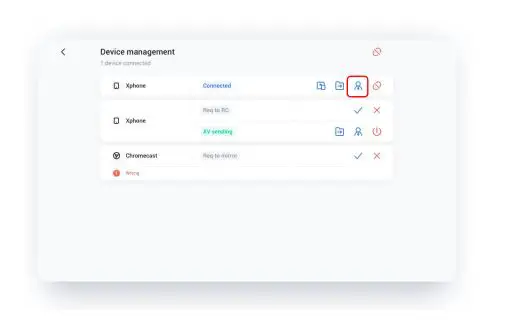
Stop sharing / disconnect one or all devices
Stop sharing or disconnect from admin.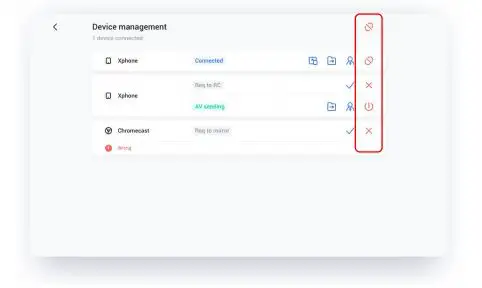
Settings
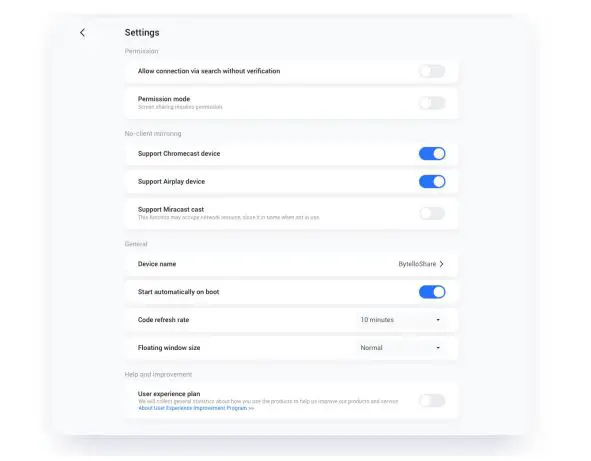
- Device name
- Change the device name of the server, for any clients to identify.
- Allow this device to be discovered
- The server can be searched by the sender’s device.
- Permission mode
- When enabling the “Screenshare requires permission” option in settings, any casting request will ask for permission.
- Support Chromecast/Airplay device
- Make the server discoverable for Chromecast/Airplay-supported devices.
- Support Miracast device
- Make the server discoverable for Miracast-supported devices.
- Start automatically on boot
- The server application will run as the system start.
- Code refresh rate
- The connection code will change every several minutes to prevent the user from remembering.
- Floating windows size
- Normal (connection code with icon), small (only icon), minimize (disabled)
About
Update the software version or view the legal agreement. When there is a new version, please click “Update” to upgrade.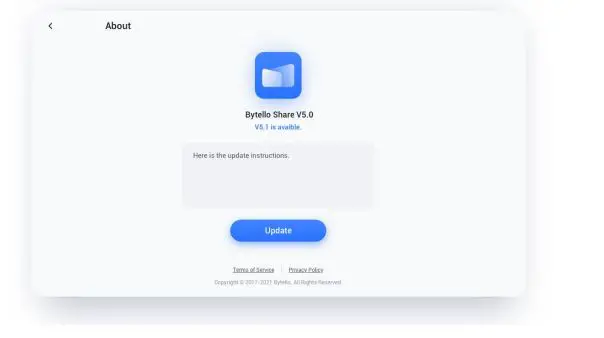
User Guide
Including how to use the app client for connection and how to cast screen via AirPlay、 ChromaCast、Miracast.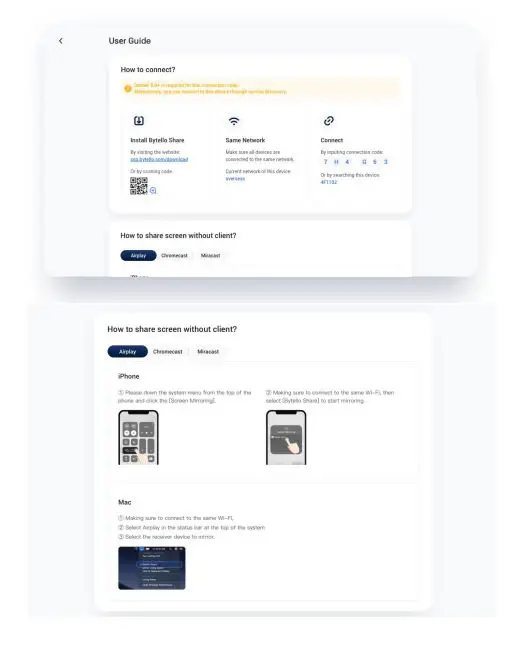
 Windows 10 Help Forums