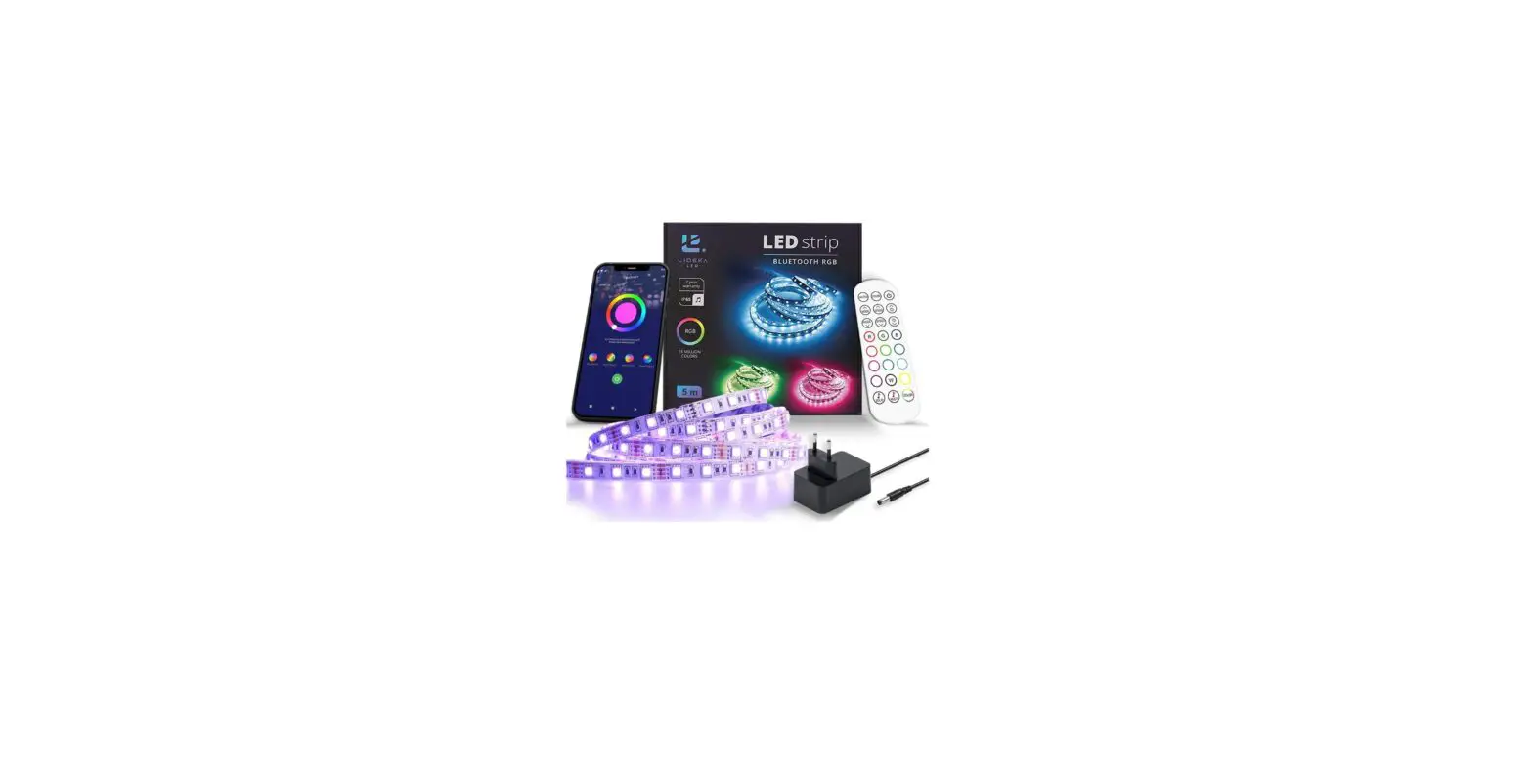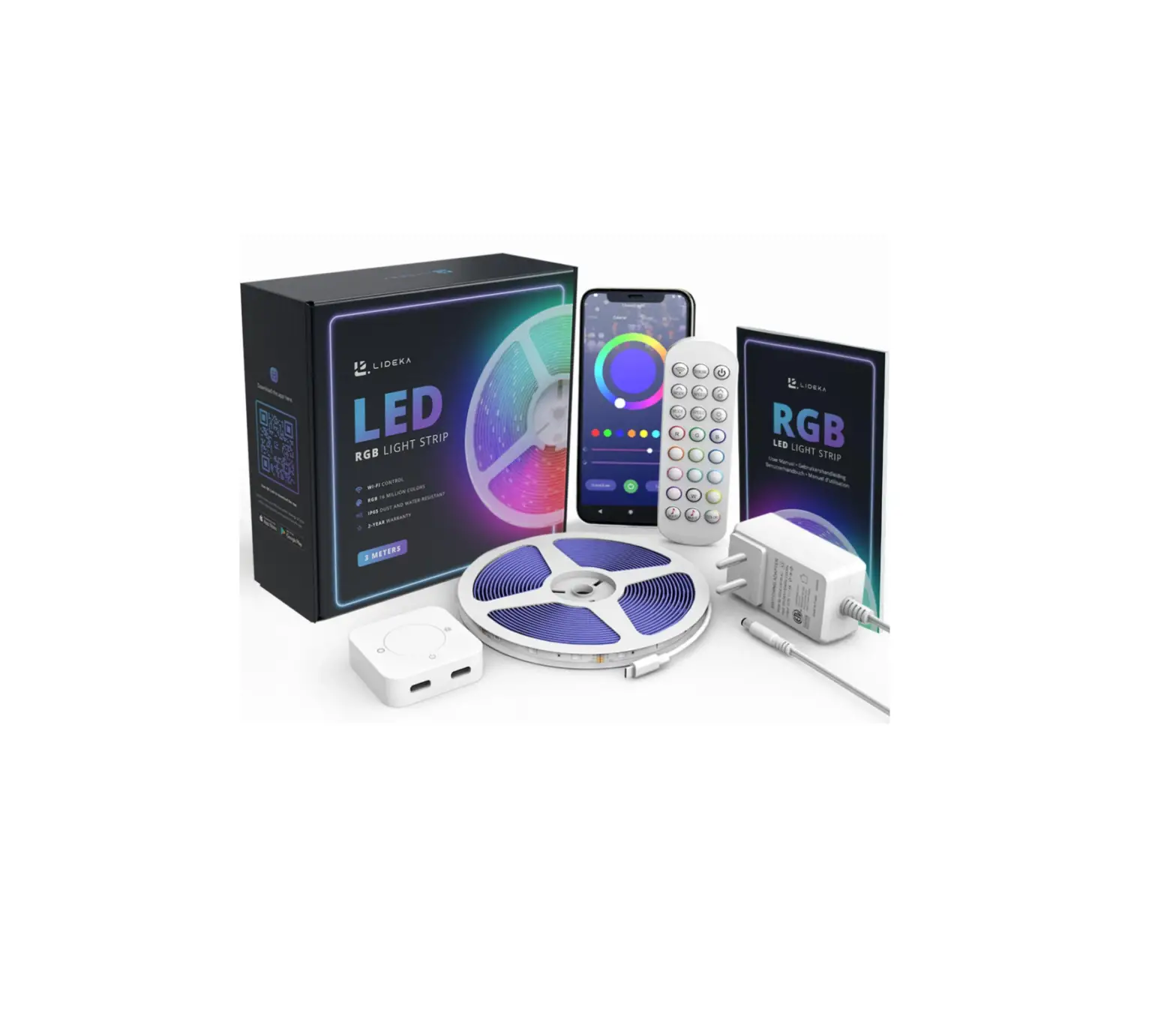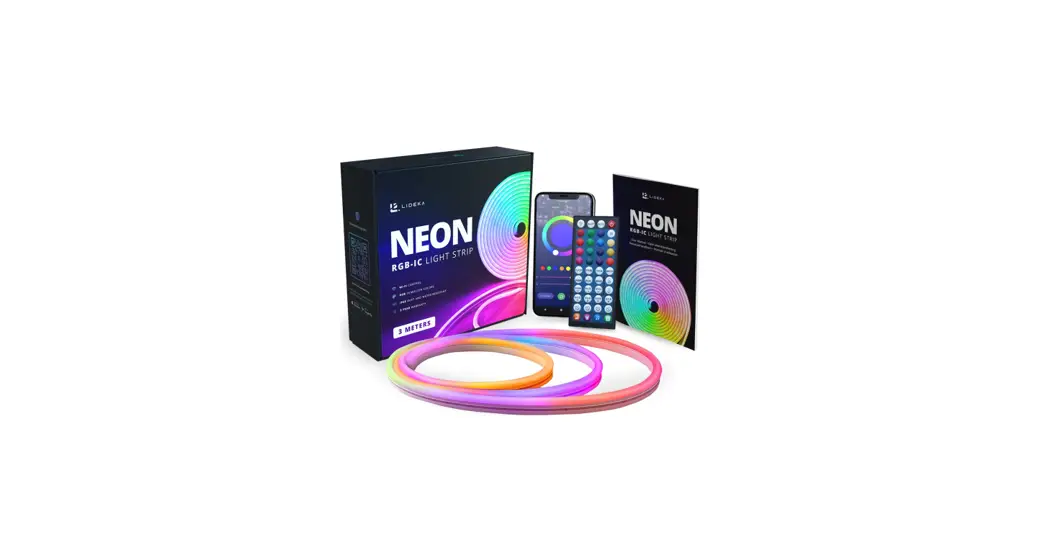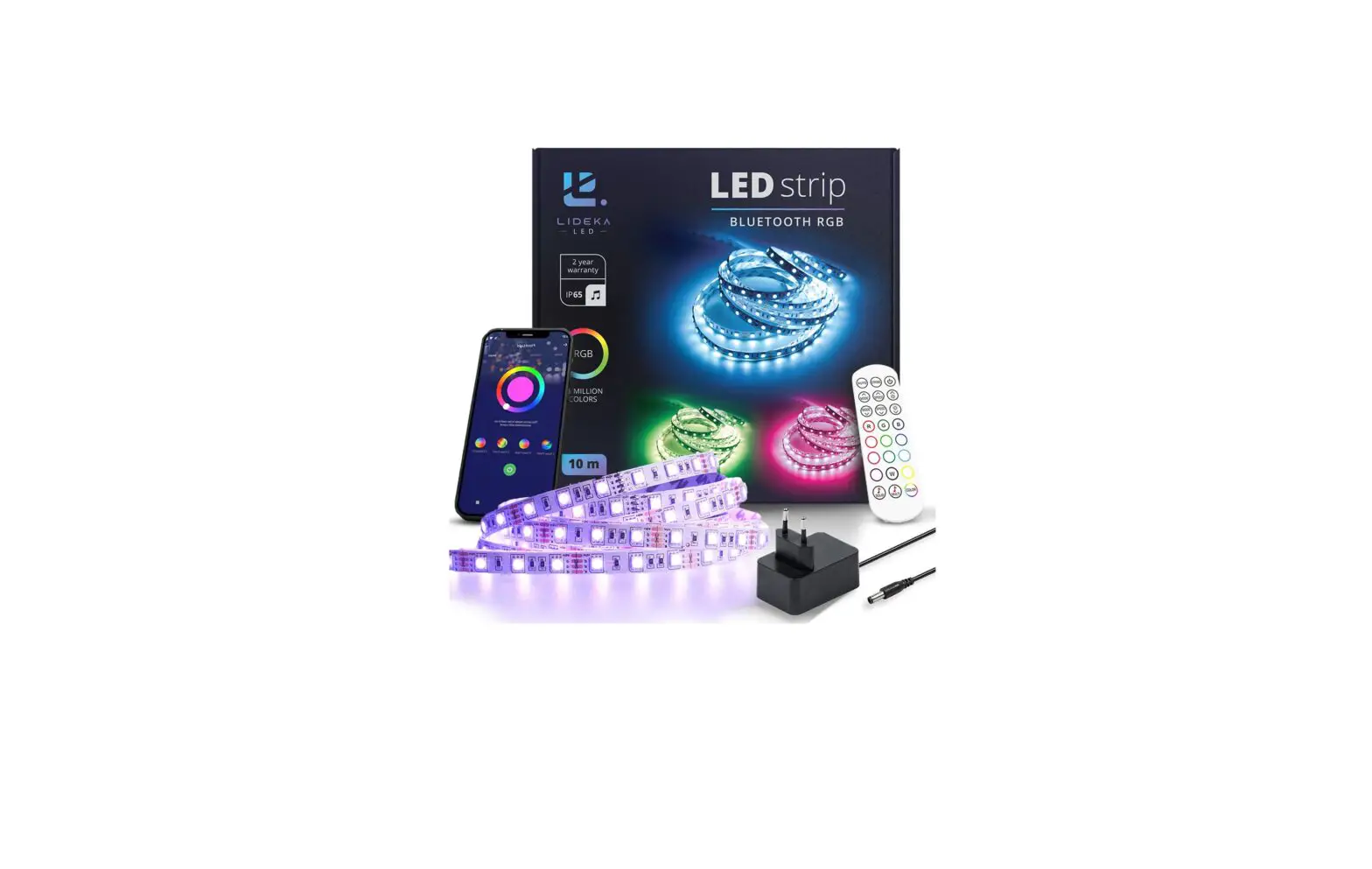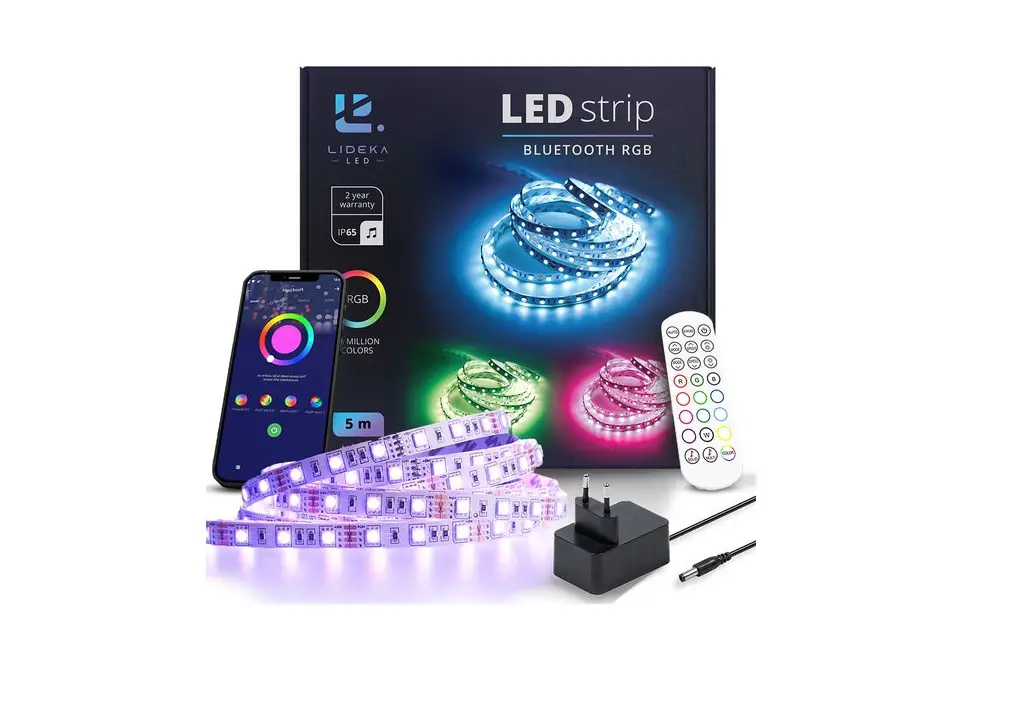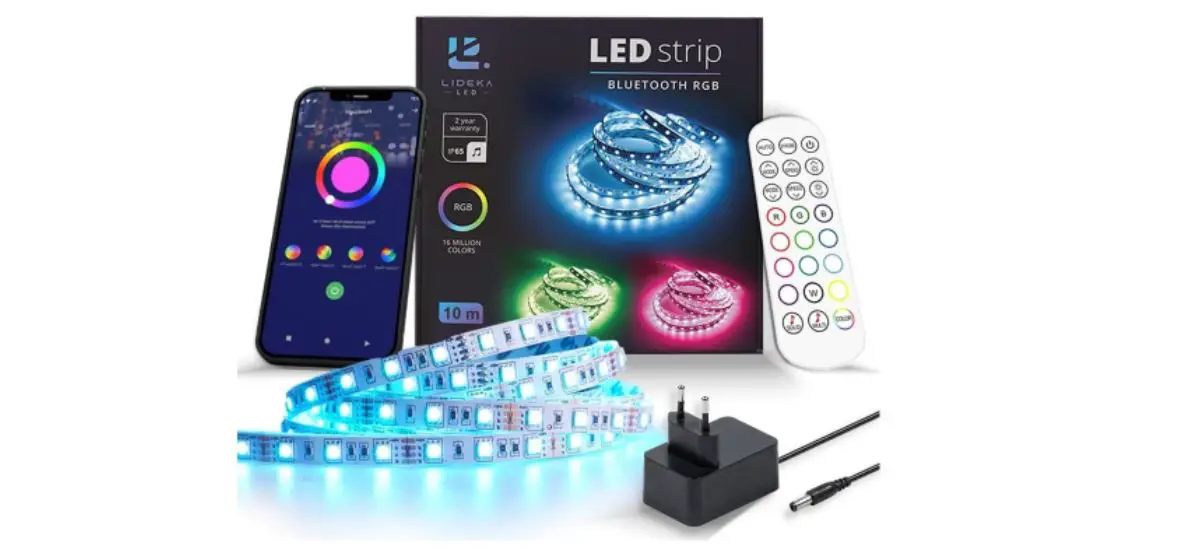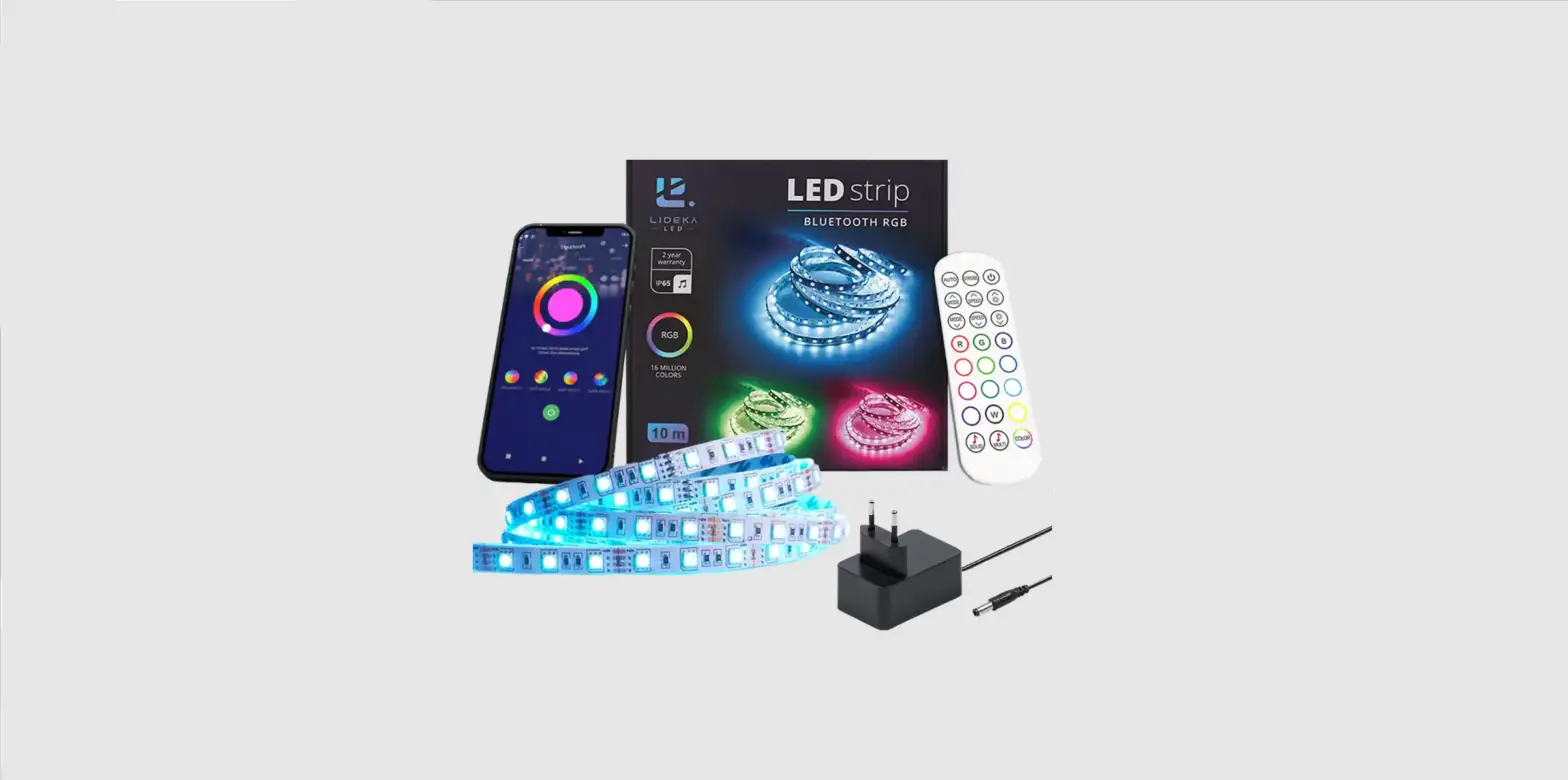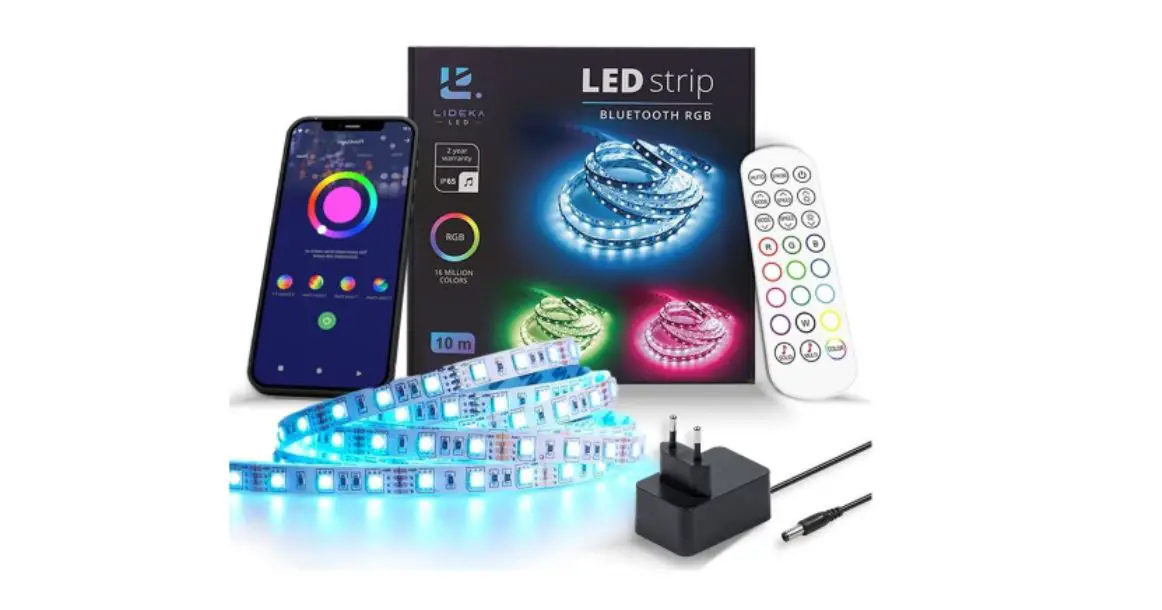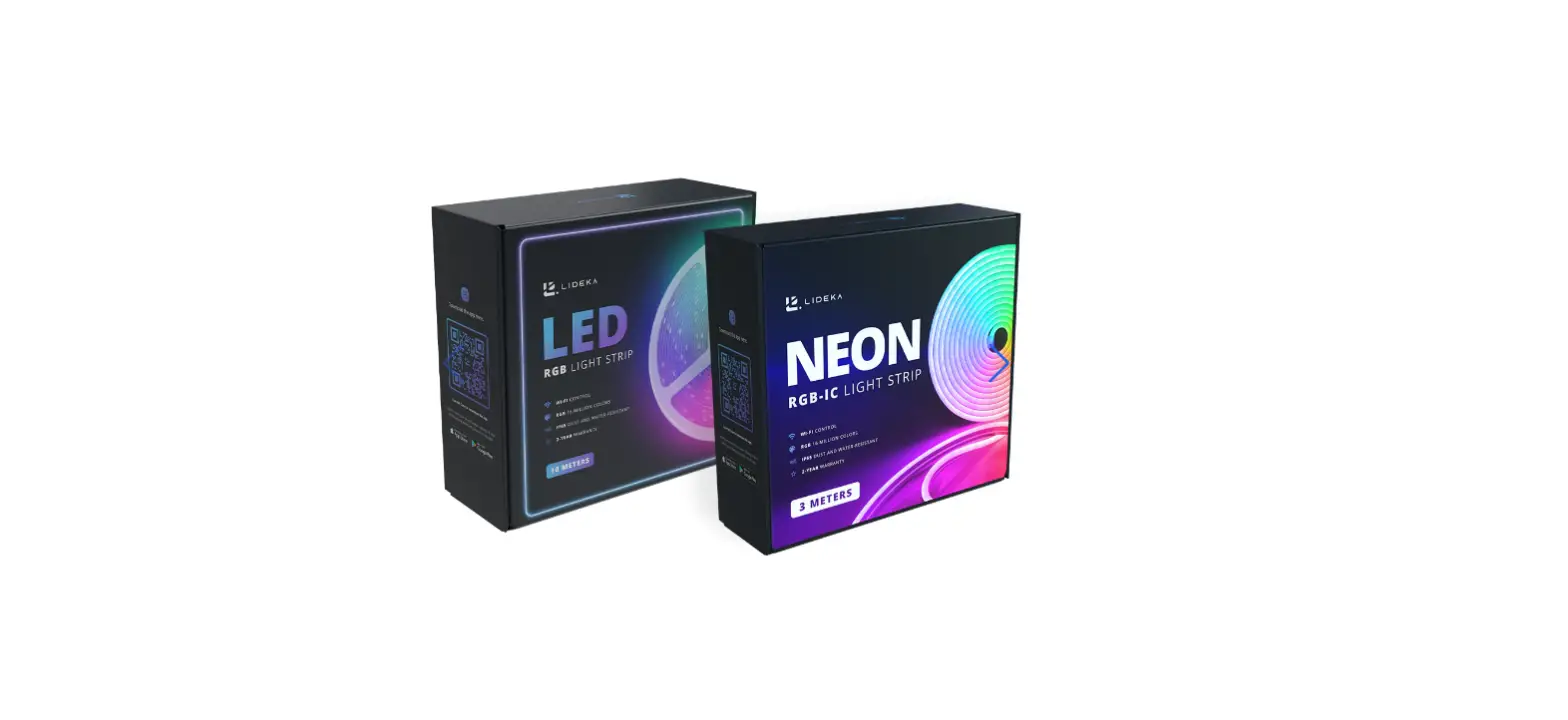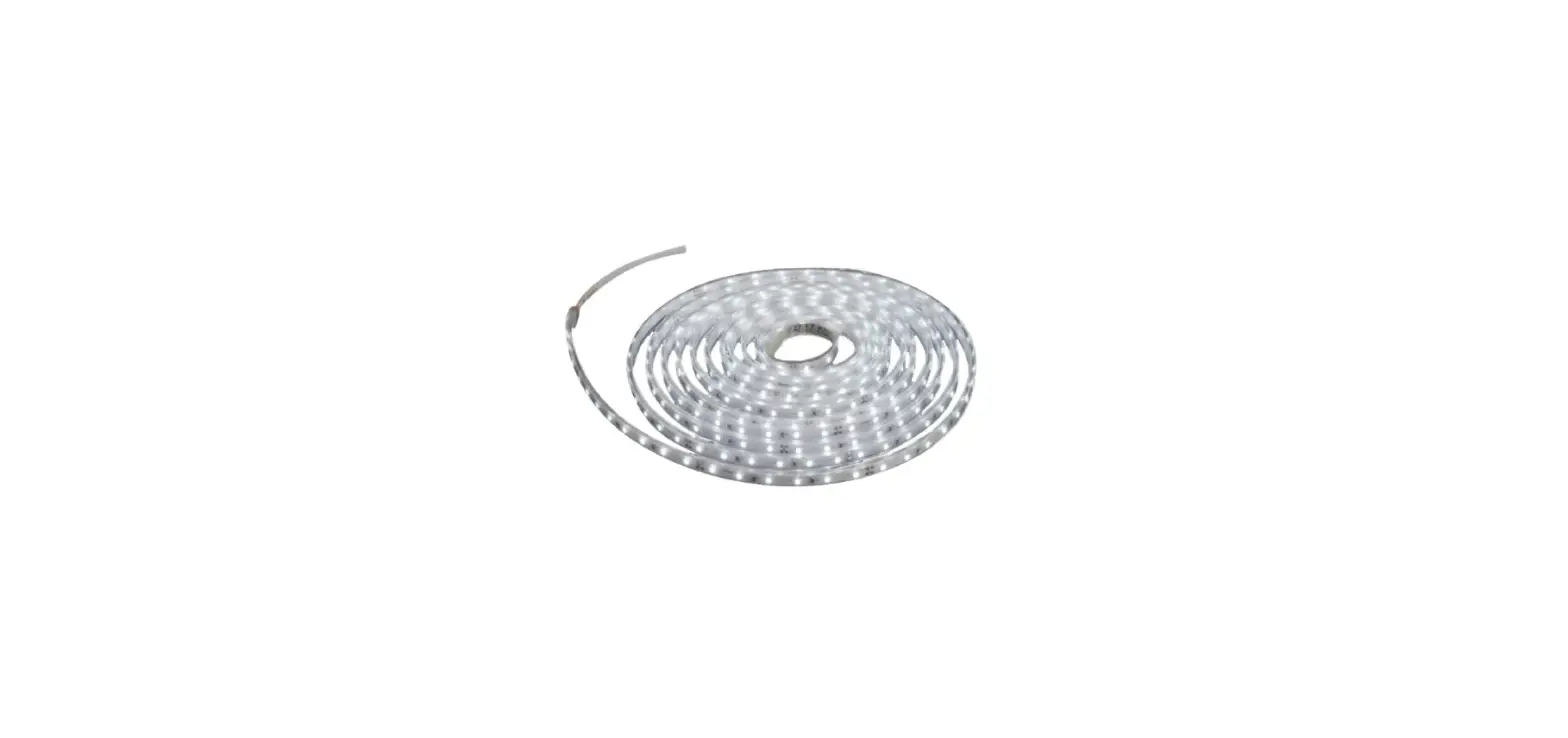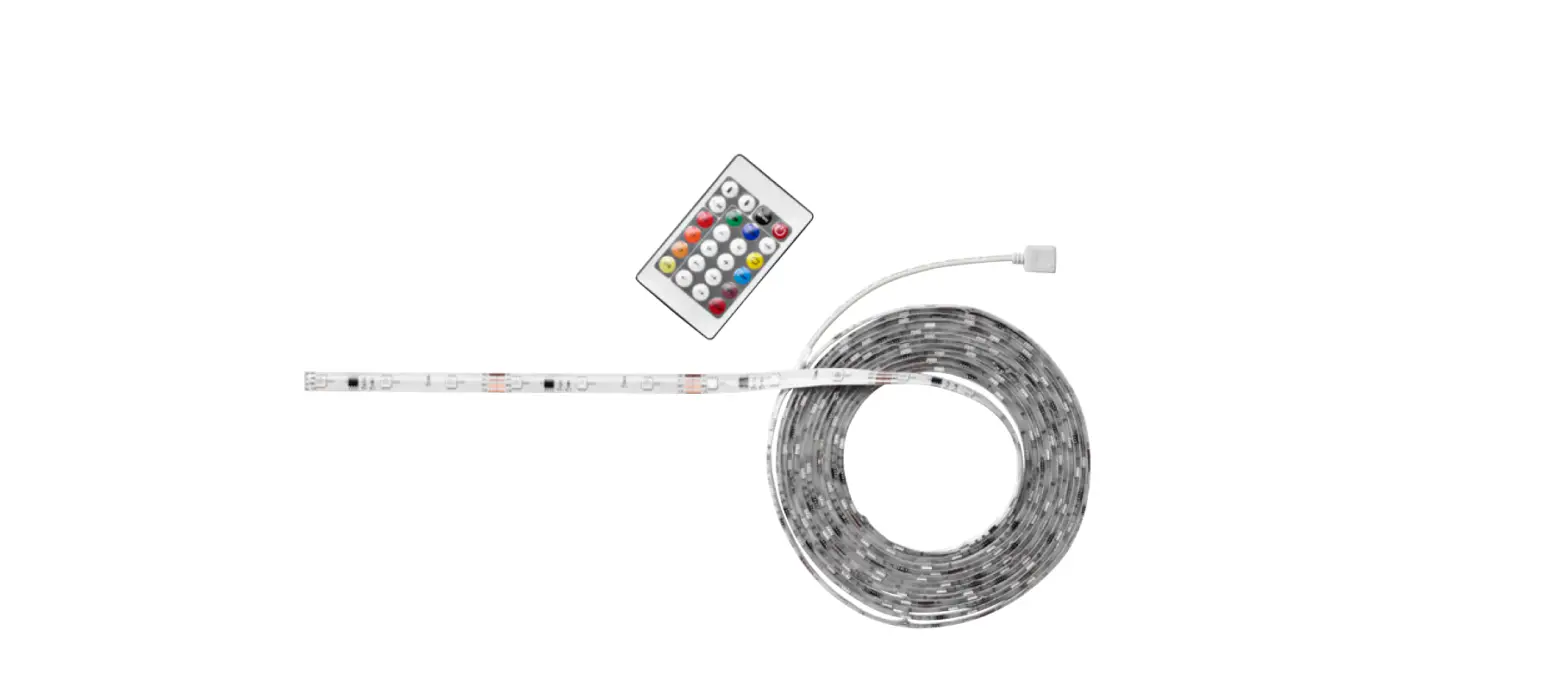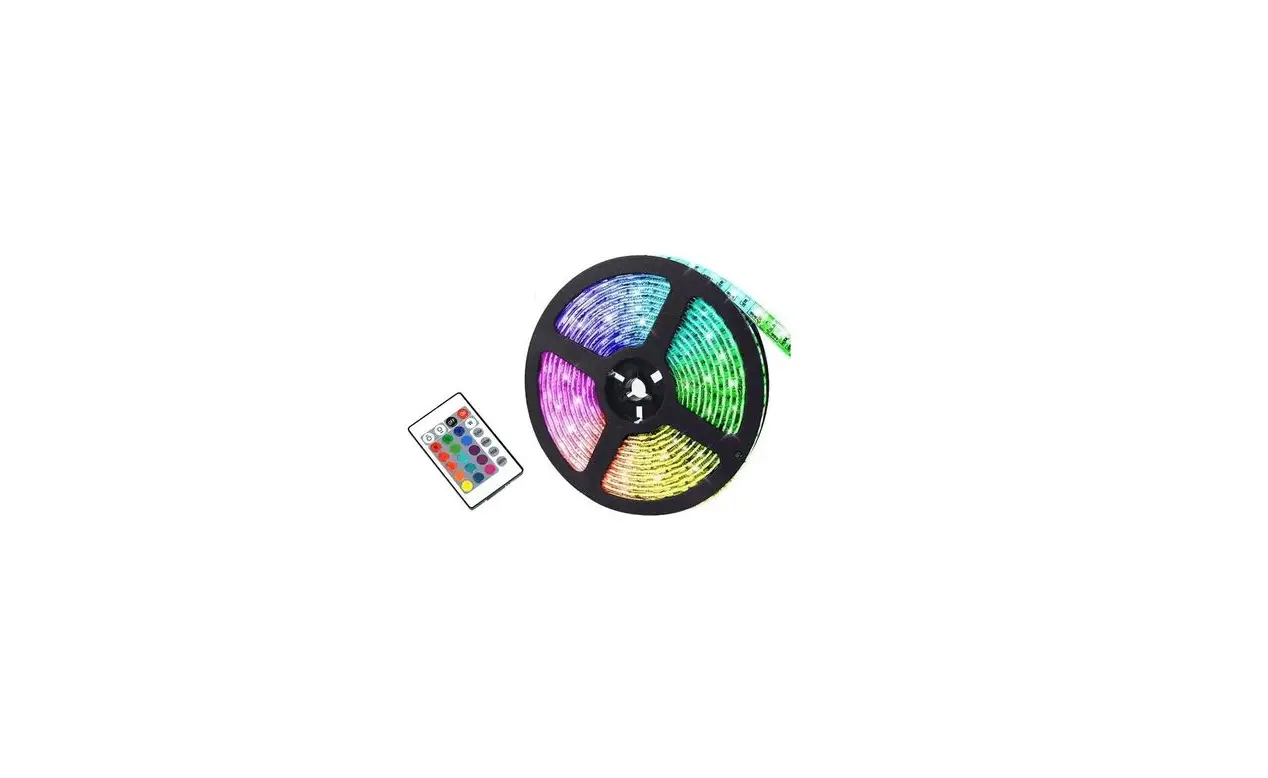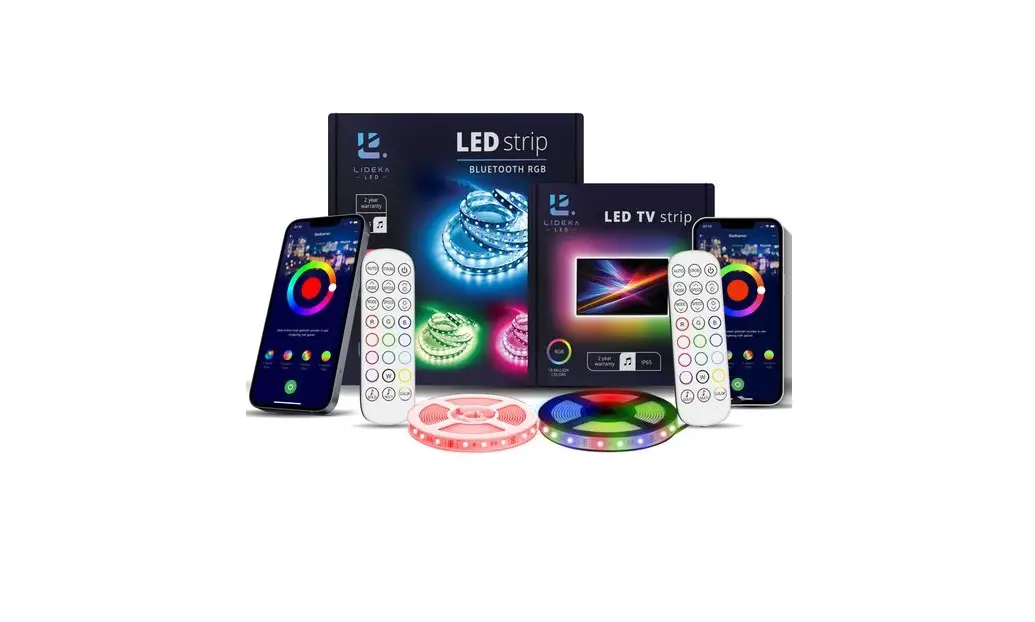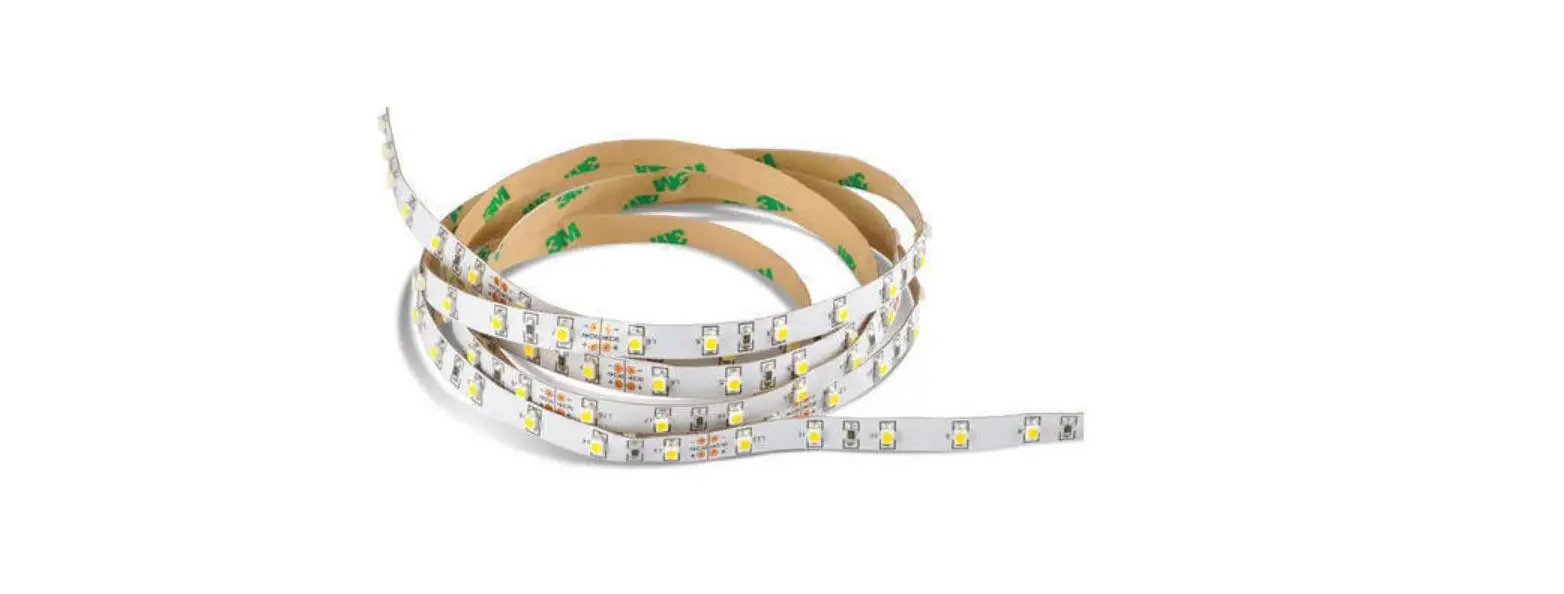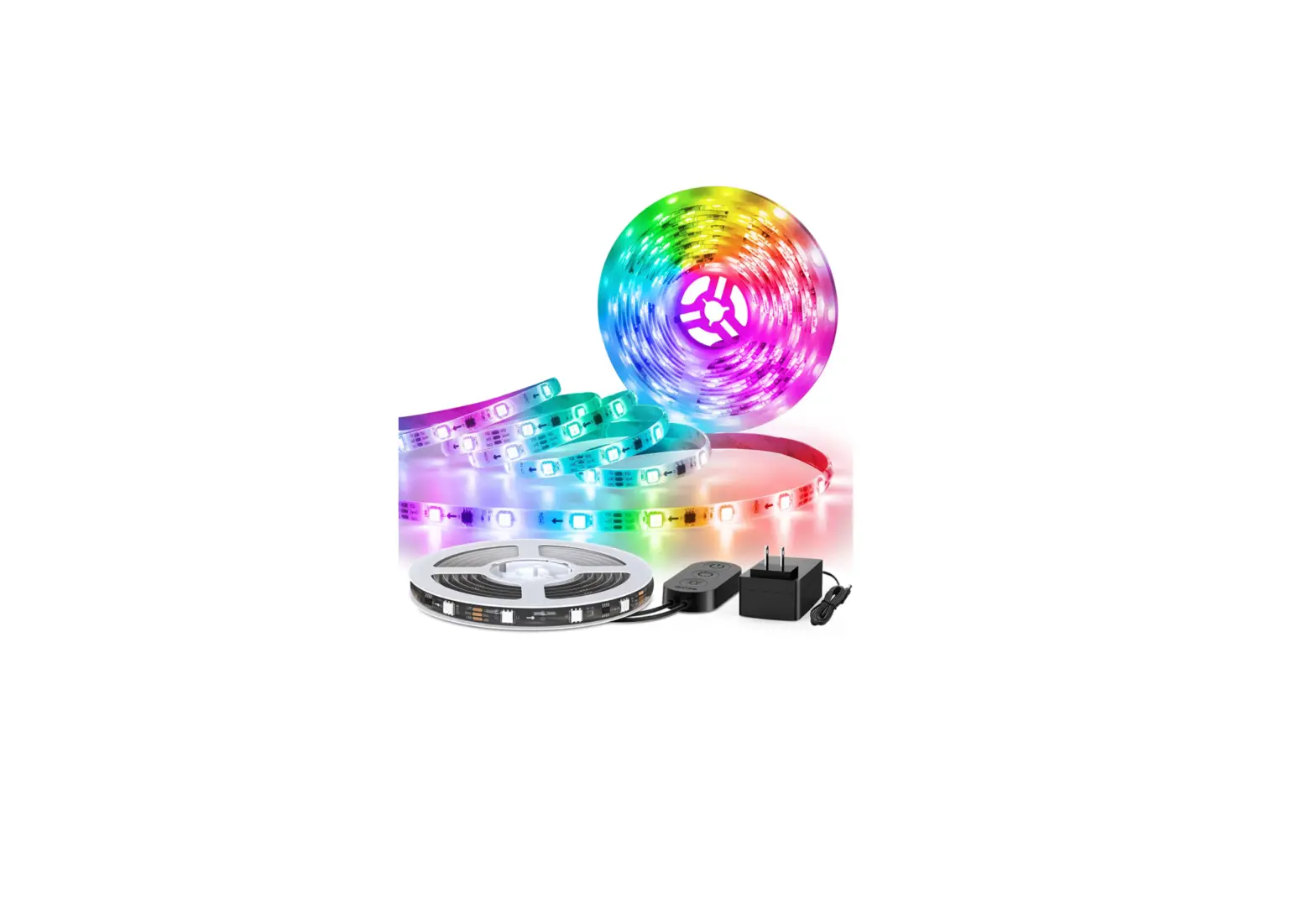
Lideka SMD 5050 RGBIC 5 Meter Dreamcolor LED
Strip Light Instruction Manual
Product Feature
- Support WiFi 2,4GHz 802.11 b/g/n wireless network.
- Support remote/local control through 2G/ 3G/ 4G/ 5G.
- Added device can be shared with family members
Product Parameter
Tension : DC 5-24V
Courant max : 3A
Puissance max : 72W
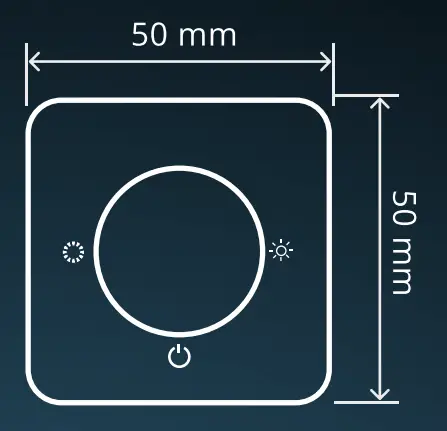
Tailed controller : L50×W50×H15mm
Humidity : 80% RH
Working temperature: -10°C- 45° C(14°F – 113°F)
Product Dimension
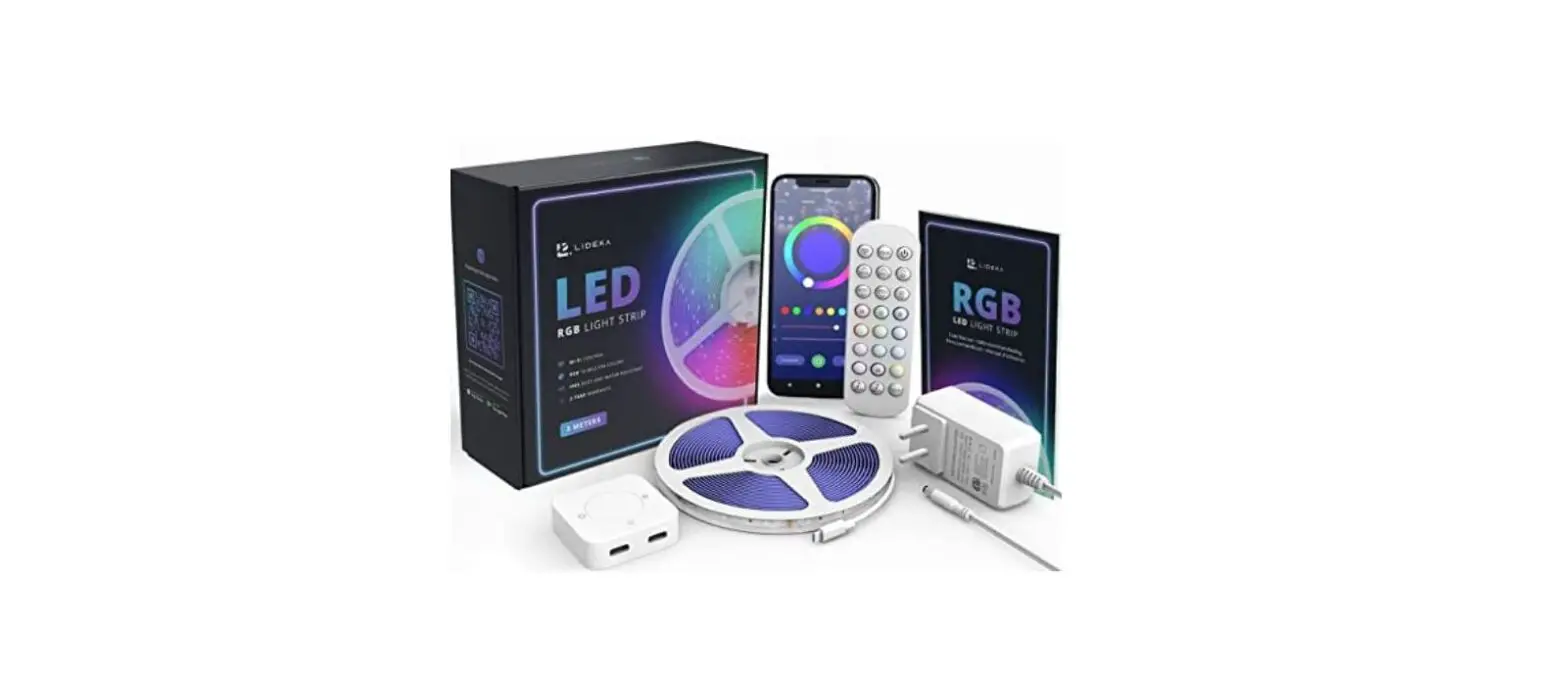
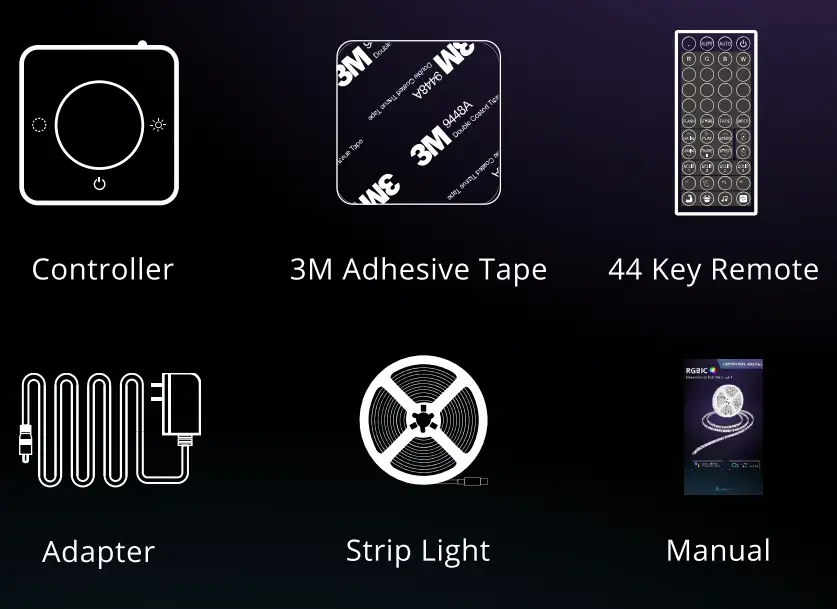
What’s in the package?
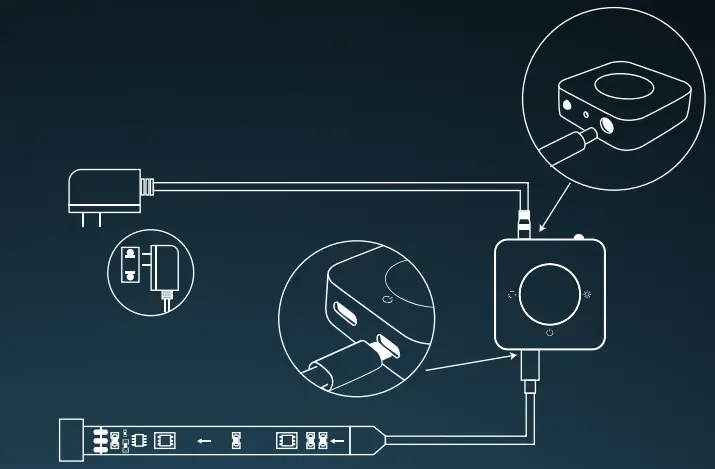
Installation diagram
Add Device
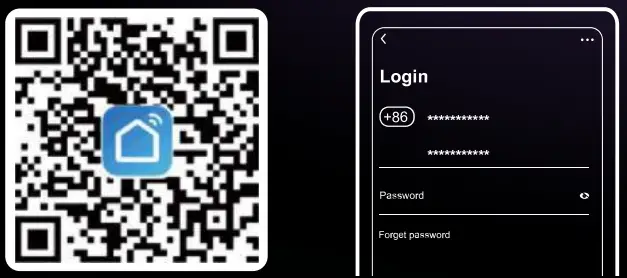
- Download Smart Life App
Search by Name or scan the QR code below to download the App on your smart phone. - Register with your mobile number or email. A verification code will be sent to you.
- Add Device
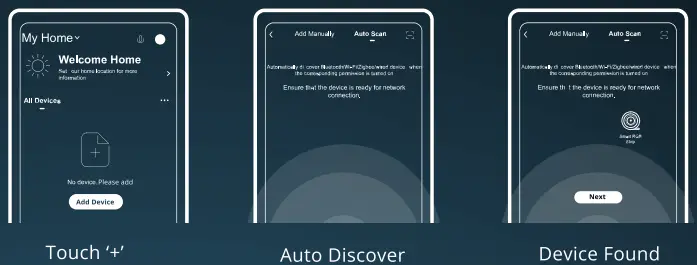
A. Power on the strip light and open Smart Life App.
B. Make sure GPS, WIFI and Bluetooth are enabled.
C. Tap ‘+’ on the right corner to start adding device.
D. Searching nearby device automatically and wait for seconds.
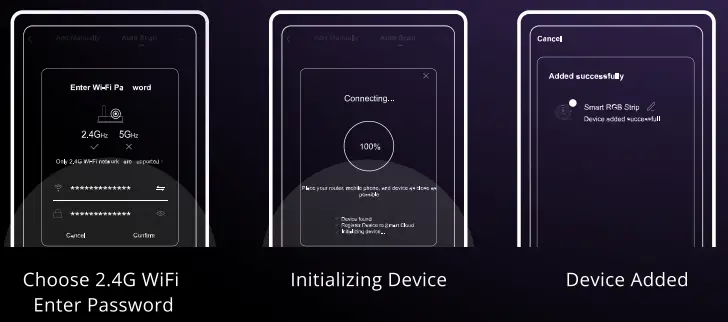
E. After device found, choose 2.4G Wi-Fi and input password as this will register the device to the cloud service.

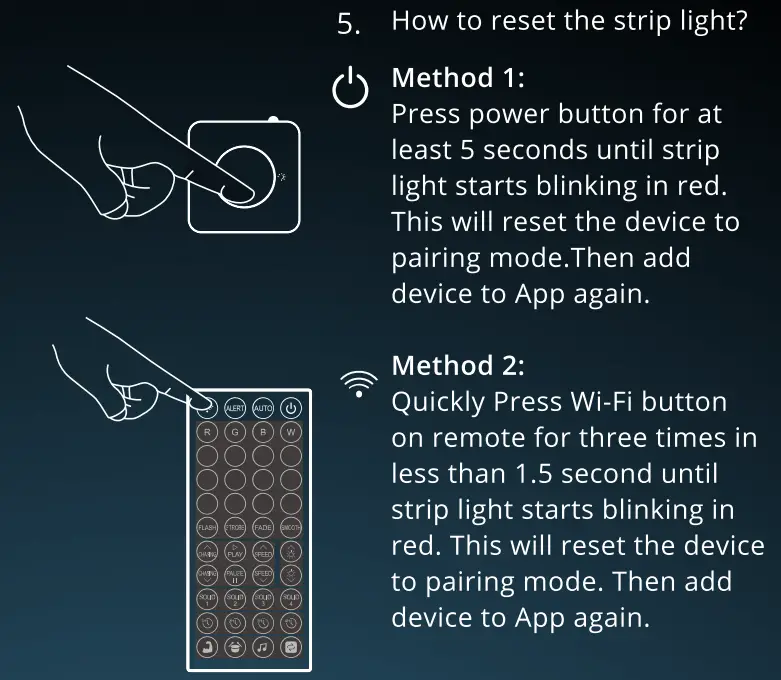
- You need to reset the device in the following situations.
A. When you can’t connect the device to your App. B. When someone else wants to add the product to their phone.
C. When you change your Wi-Fi status, such as changing Wi-Fi name or password or replace your router.
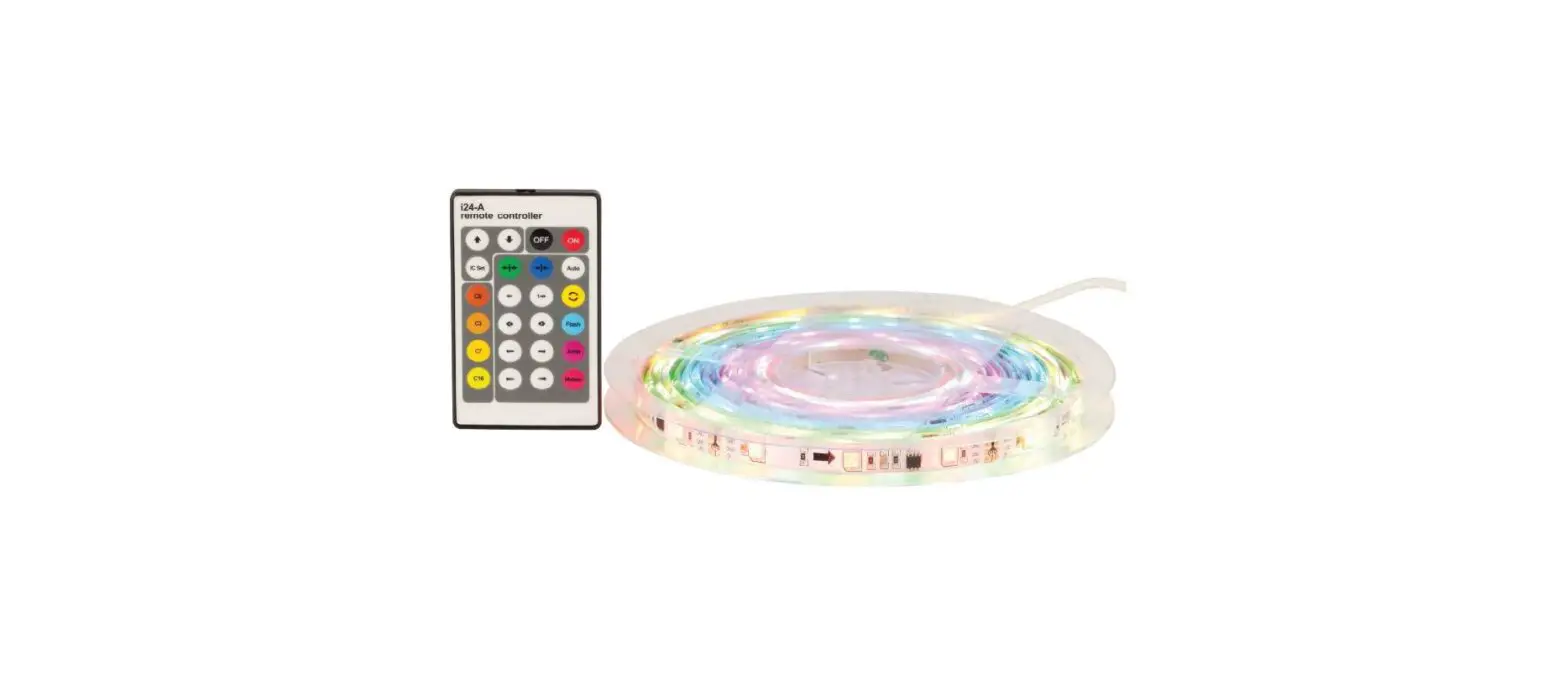
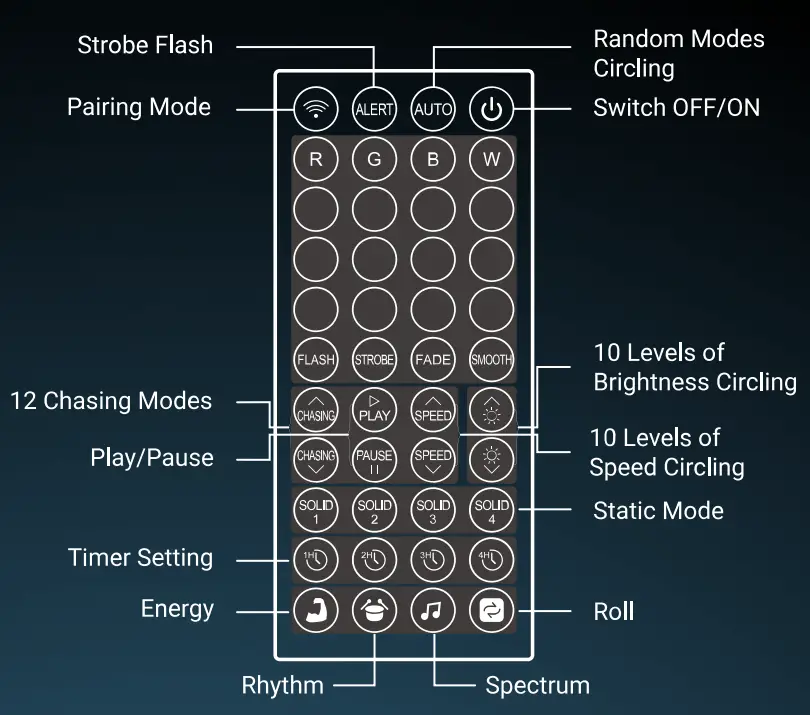
6. Controller Box / Remote Control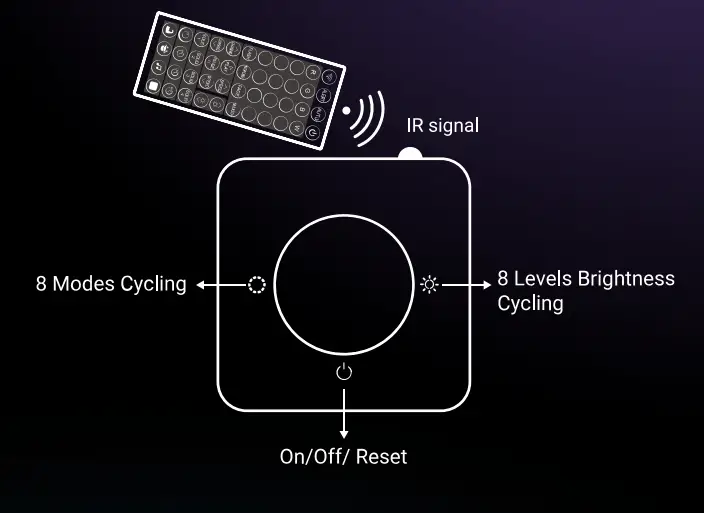
7. App Control / Voice Control
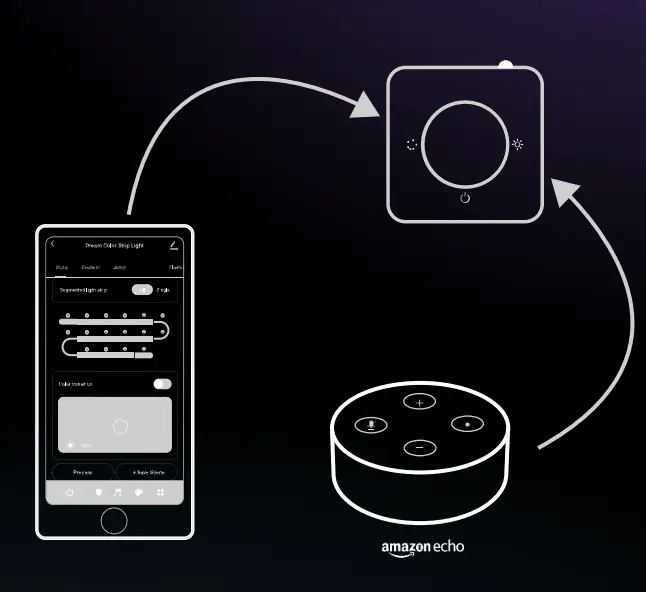
Link Smart Life Account to Echo
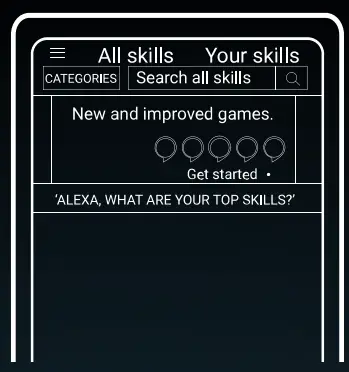
- Open Alexa App, Tap on the menu on upper left corner.

- Go to `Skills’

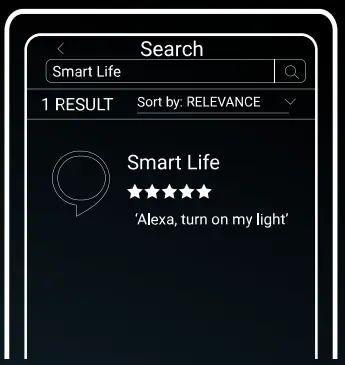
- Search for `Smart Life’ skill in the search bar.

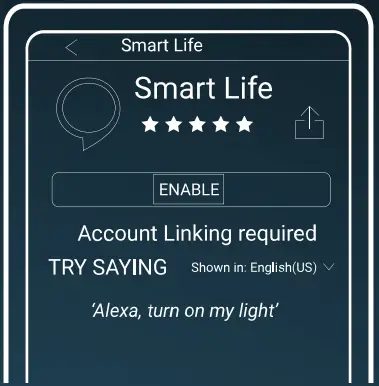
- Choose `Smart Life’ Skill

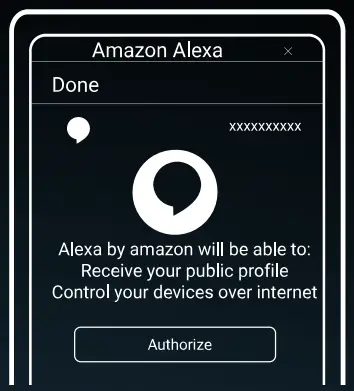
- Enable Button

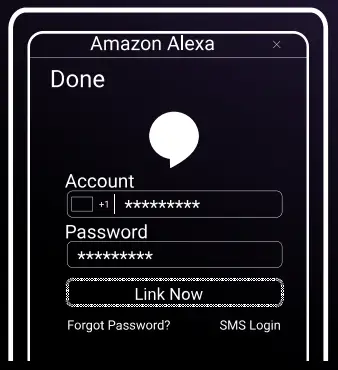
- Enter your Smart Life Account information and tap on `Link Now’ to link your account to your Amazon Account

- Your Amazon Echo is connected to your smart life system.

- Two ways to discover devices
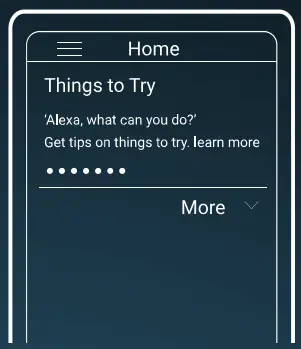
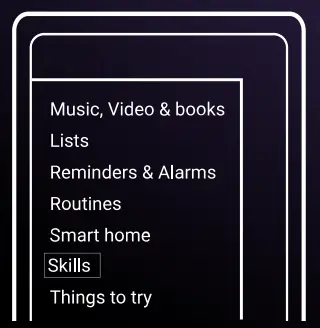
- Discover devices on the Alexa App: ‘Home’ `Smart Home’ ‘Discover Devices’.
- Voice Control to discover devices, you could say `Alexa discover devices’.
Control Devices by Voice Commands
Now you can control your smart devices through Echo. Speak to Echo like following
- Alexa, turn on/off strip light.
- Alexa, set strip light to 50 percent.
- Alexa, brighten/increase strip light.
- Alexa, dim/decrease strip light.
Link Smart Life Account to Google Home
Make sure you have successfully set up Google Home.
- Click ‘+’ on the menu of Google Home App home page, then click ‘Set up device. Select Works with Google.
- Find ‘Smart Life in the list. Select your region, input your Smart Life account and password, then click ‘Link Now’. After you assign rooms for devices, your devices will be listed in the Home Control page.
- Control Your Smart Devices through Google Home Now you can control your smart devices through Google Home. Take bedroom light as the example, the supported voice commands are as below:
- OK Google, turn on/off bedroom light.
- OK Google, set bedroom light to 50 percent.
- OK Google, brighten bedroom light.
- OK Google, dim bedroom light.
- OK Google, set bedroom light to red.