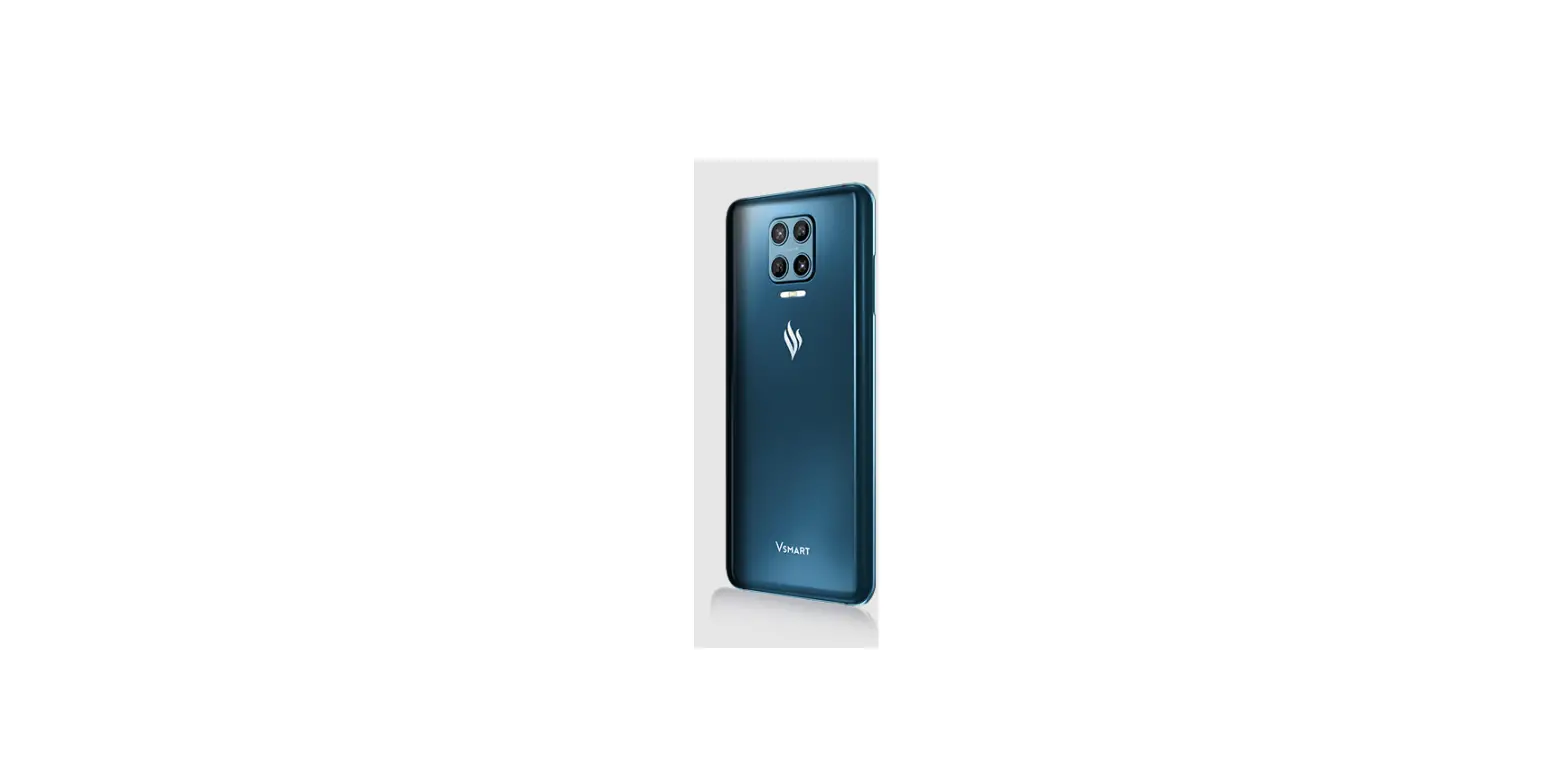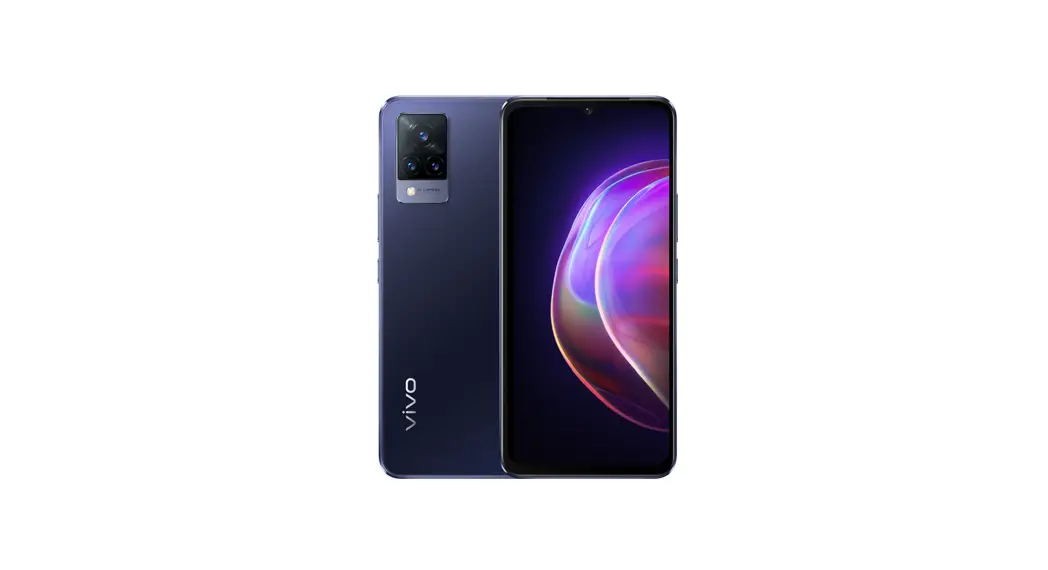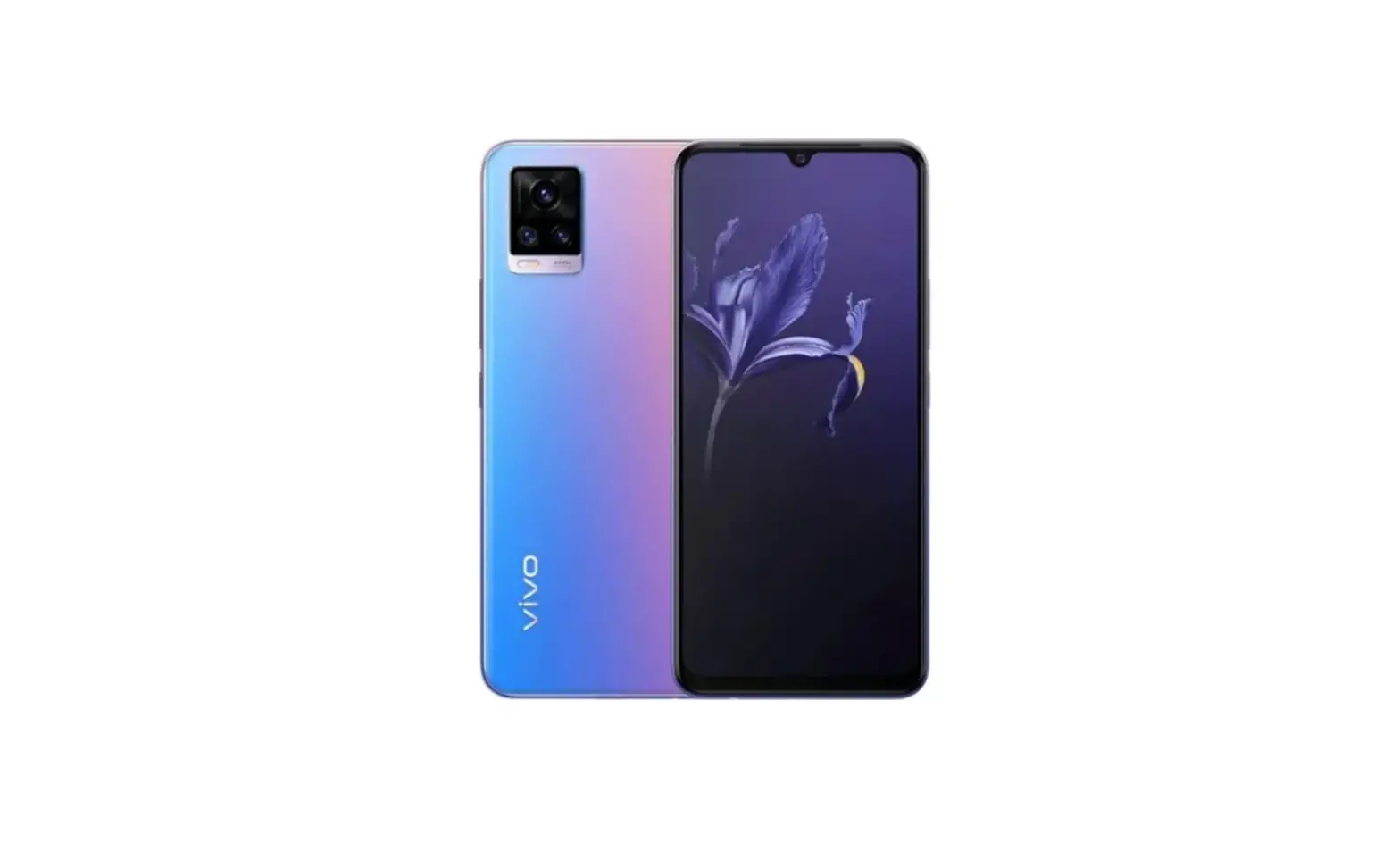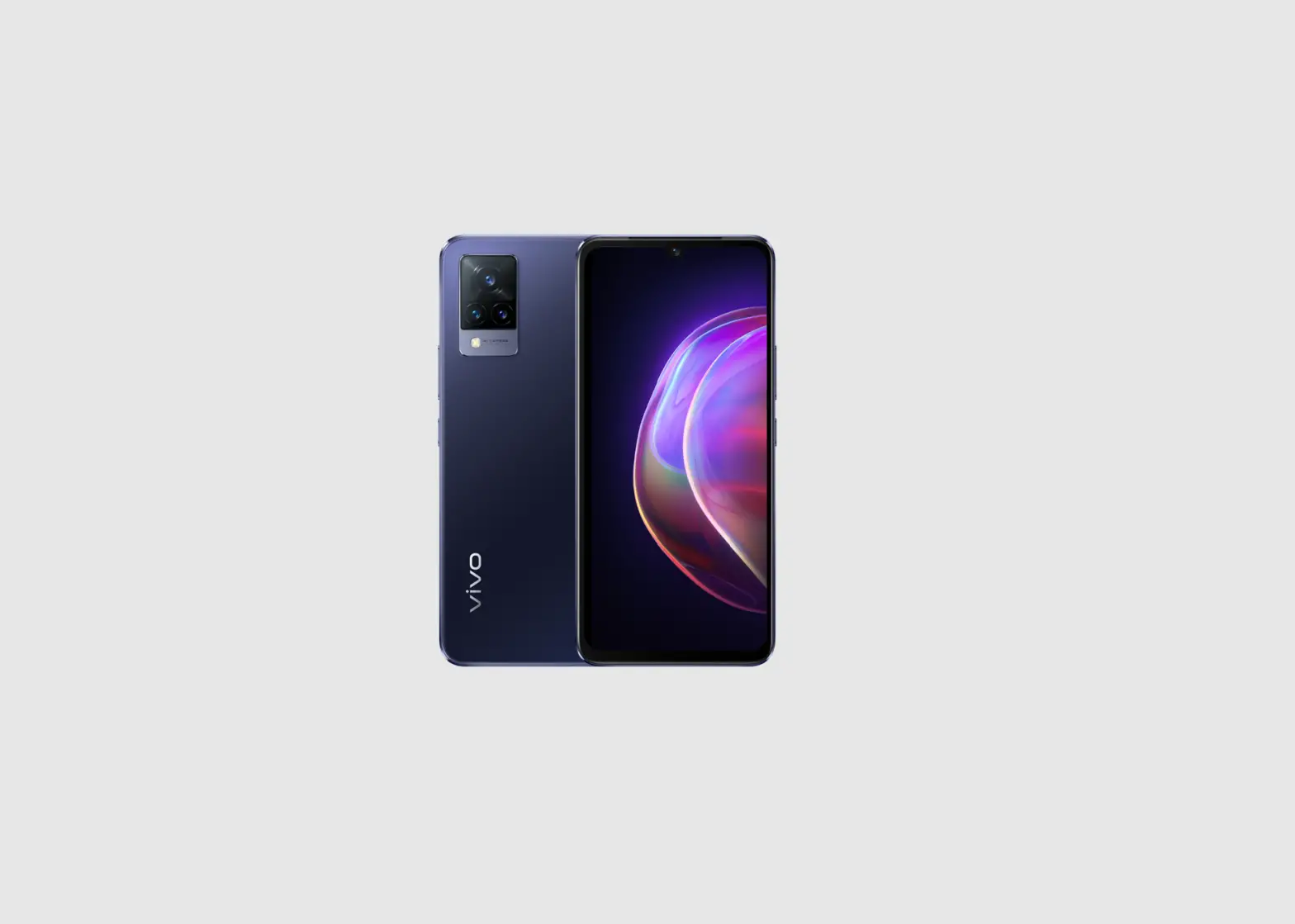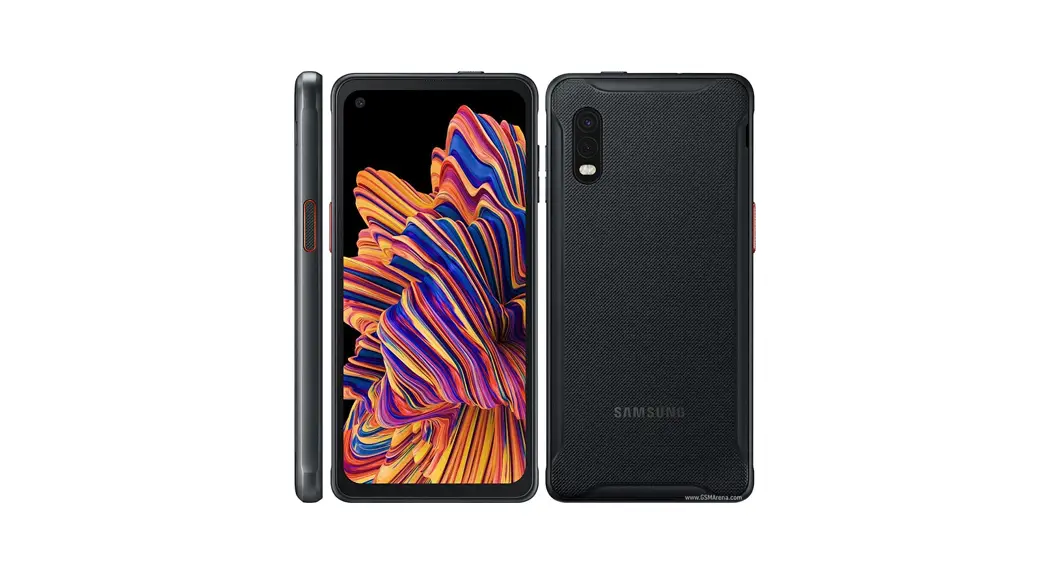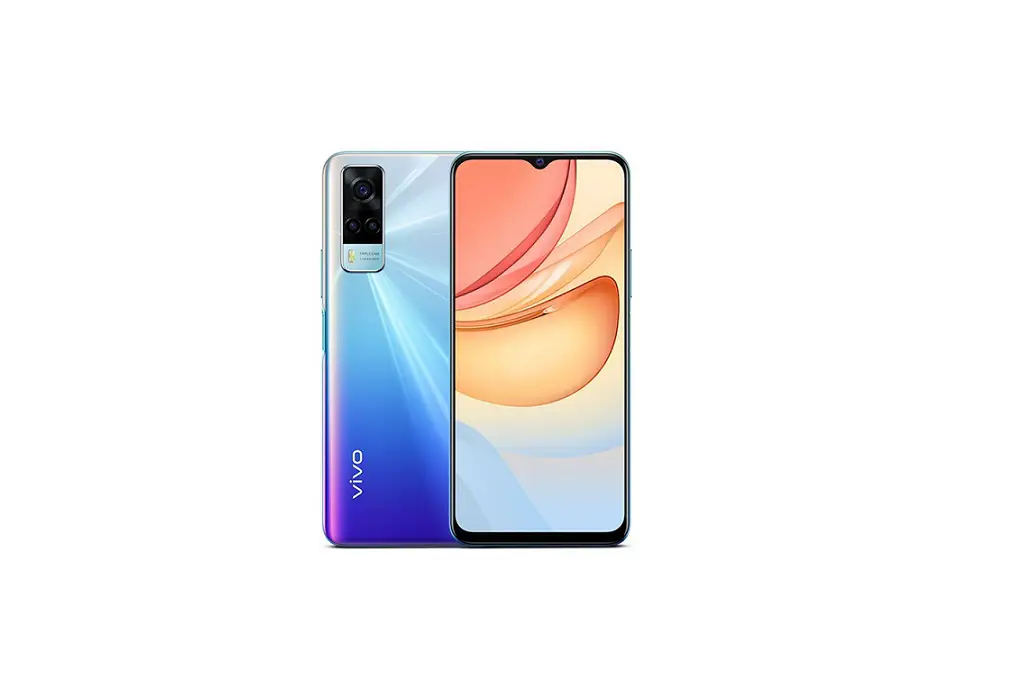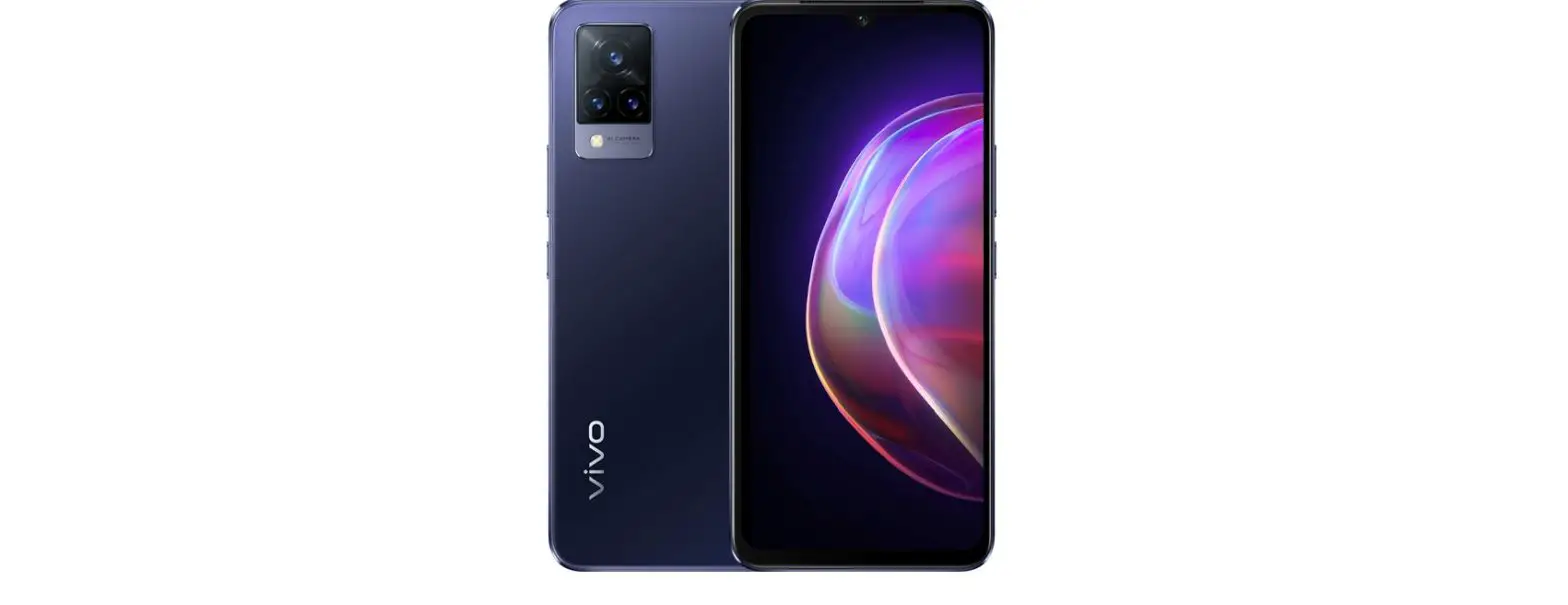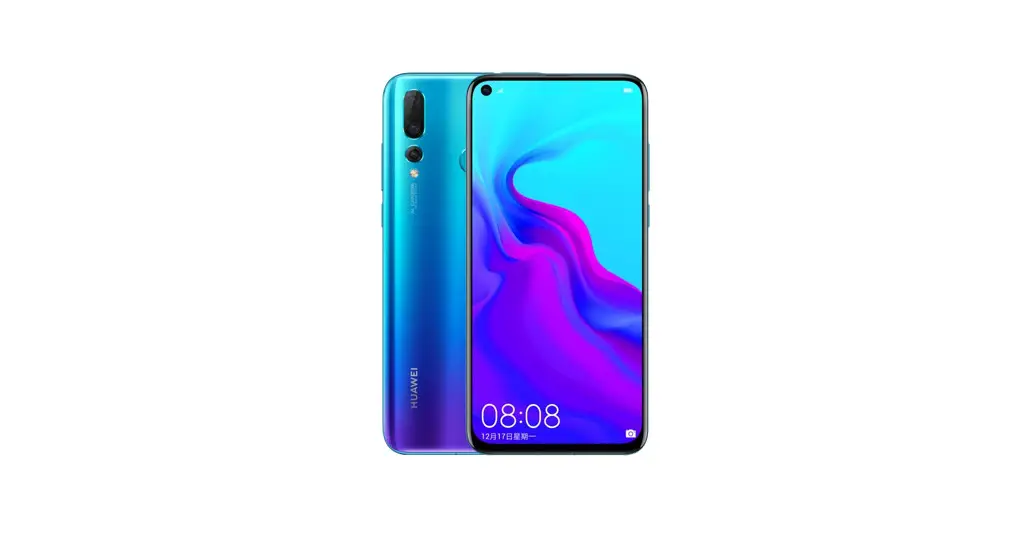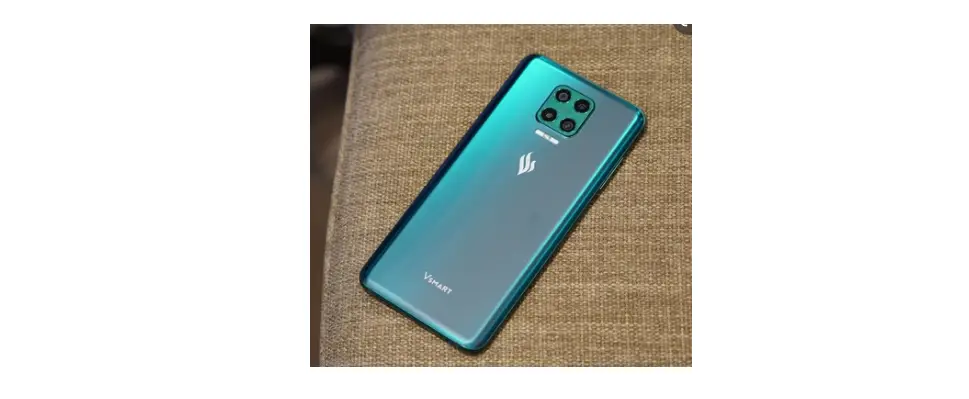

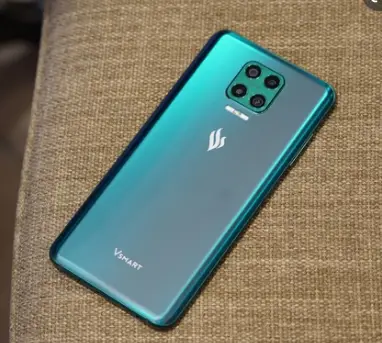
VSMART V740S One Smartphone
What else is in the box?
- Vsmart One Smartphone
- Power Adapter
- USB Type-C Cable
- Ejector Pin
- Headset
- Case cover
- Quick Start Guide (ENG & ESP)
- Anti-viral screen protection ftlm
- Safety Information Guide
Find More Information
Visit our website: www.vsmart.net/us/warranty
Data and messaging rates may apply for downloads and app usage.
How to replace the SIM
Insert a SIM
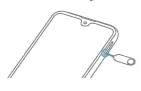
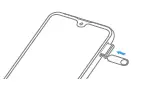
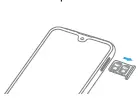
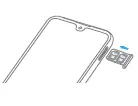
- Insert the SIM card eject tool into the small hole in the SIM card tray.

- Press to eject the tray, but don’t force it.

- To replace the preinstalled SIM, remove it from the tray and replace it with the new SIM.

- Insert the SIM tray back into the device completely and in the same orientation that you removed it

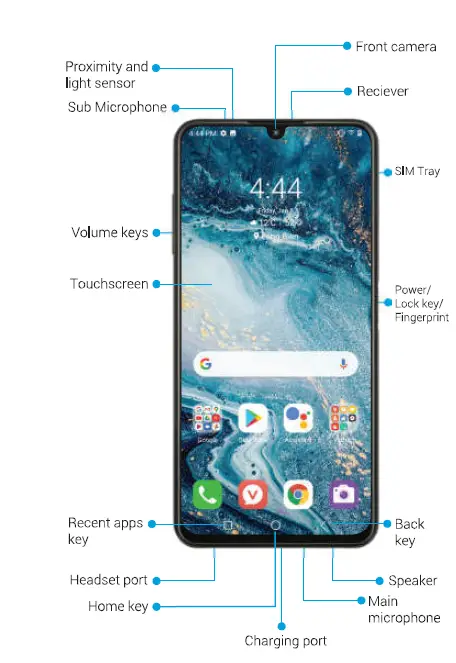
Your New Phone 
Connect Wi-Fi & Other Devices
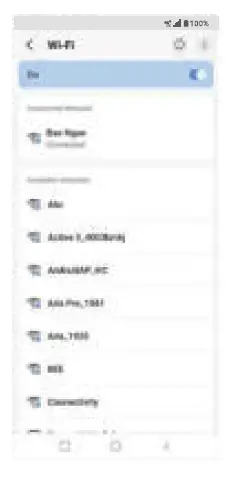
Connect to Wi-Fi Network
- Swipe up on the Home screen, tap Settings >connect•·
- Select Wi-Fi.
- Tap On C , and select the desired network.
- Enter the password, and tap Connect.

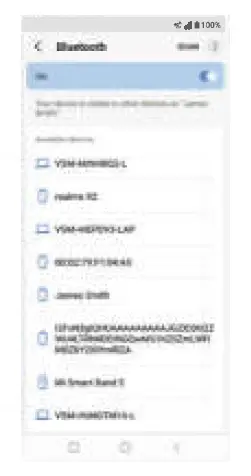
Use Bluetooth
- Swipe up on the Home screen, tap Settings > connect•·
- Select Bluetooth.
- Tap On C, and select the desired device
- When Bluetooth pairing code appears and tap Pair.

Call Family & Friends
Make a Call
- From the Home screen, tap Phone! I.
- Make a call by selecting one of the following options:
- Enter a phone number into the keypad -=, and tap Call
- Choose a recently called contact in Recents 8.
- Choose a saved contact in Contacts, I.
- – Choose a favorite contact in Favorites
Email & Messaging
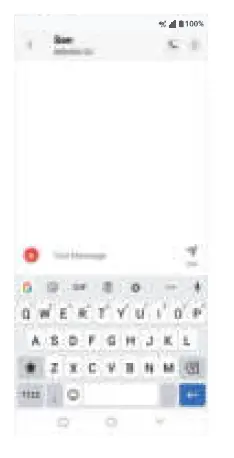
Create a new conversation
- From the Home screen, tap messages.
- TapOto creates a new message.
- In the To field, enter a contact, phone number, or email, and then tap•or select from frequents or all contacts.
- Tap to attach a file. Send photos, videos, contact information O, or files .
- Tap to send a message.
 Email Setup
 - Swipe up on the Home screen, tap Gmail
- Follow instructions on the screen to set up your account.

 Email Setup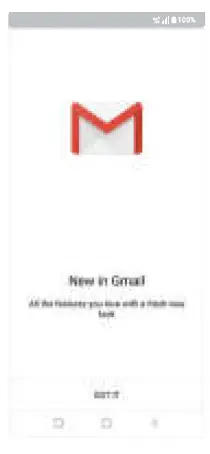
Easily Adjust Settings
Settings Menu
Swipe up on the Home screen, tap Settings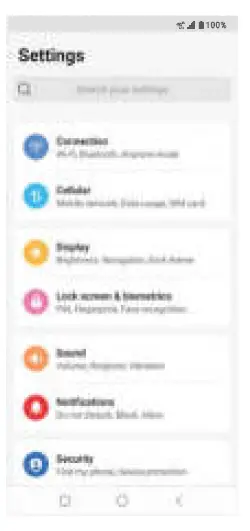
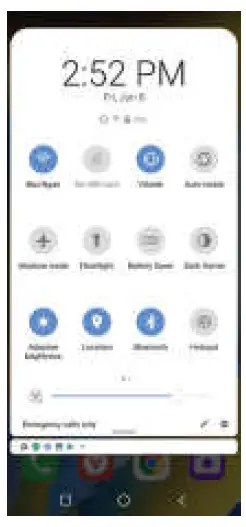
Quick Settings
- Swipe your finger down on the Home screen to open the Notifications panel.
- Swipe down again to see the Quick Settings menu.
- Tap a setting to toggle it on or off.

| COPYRIGHT OF YINSMART RfStARrn & MANUFACTURING. ROHS | DESIGN BY DATE | N.T.B.Ngan 06.01.2021 | � VinSmart Research & Manufacturing., JSC V1MA1rT | |||
| DRAWN BY | T.V.Tu | VINCODE: A07F01071 | MASS (g) | |||
| (Restriction Of Hazardous Substances) | DATE | 15.07.2020 | PART NAME: Quick Start Guide | |||
| THIRD ANGLE PROJECTION @-Et | CHECKED BY DATE | M.T.TU 15.07.2020 | MODEL NAME: Aris_V740 | REVISION | ||
| APPROVE BY | H.V.Loi | SIZE | UNIT | SCALE | SHEET | |
| DATE | 15.07.2020 | MM | 1.00 | |||