Razer Naga Pro Support
FAQ
At a Glance: Razer Naga Pro
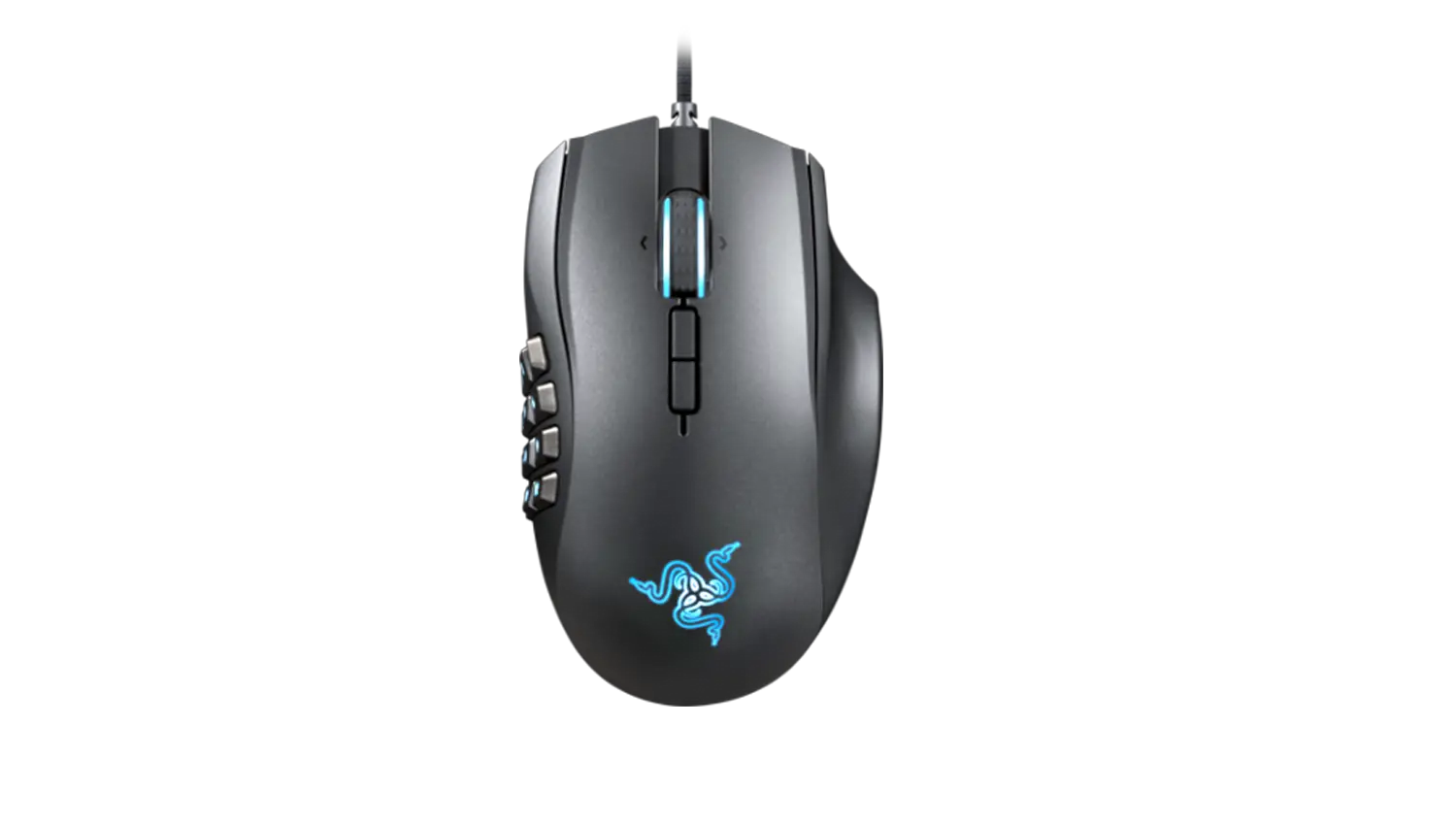
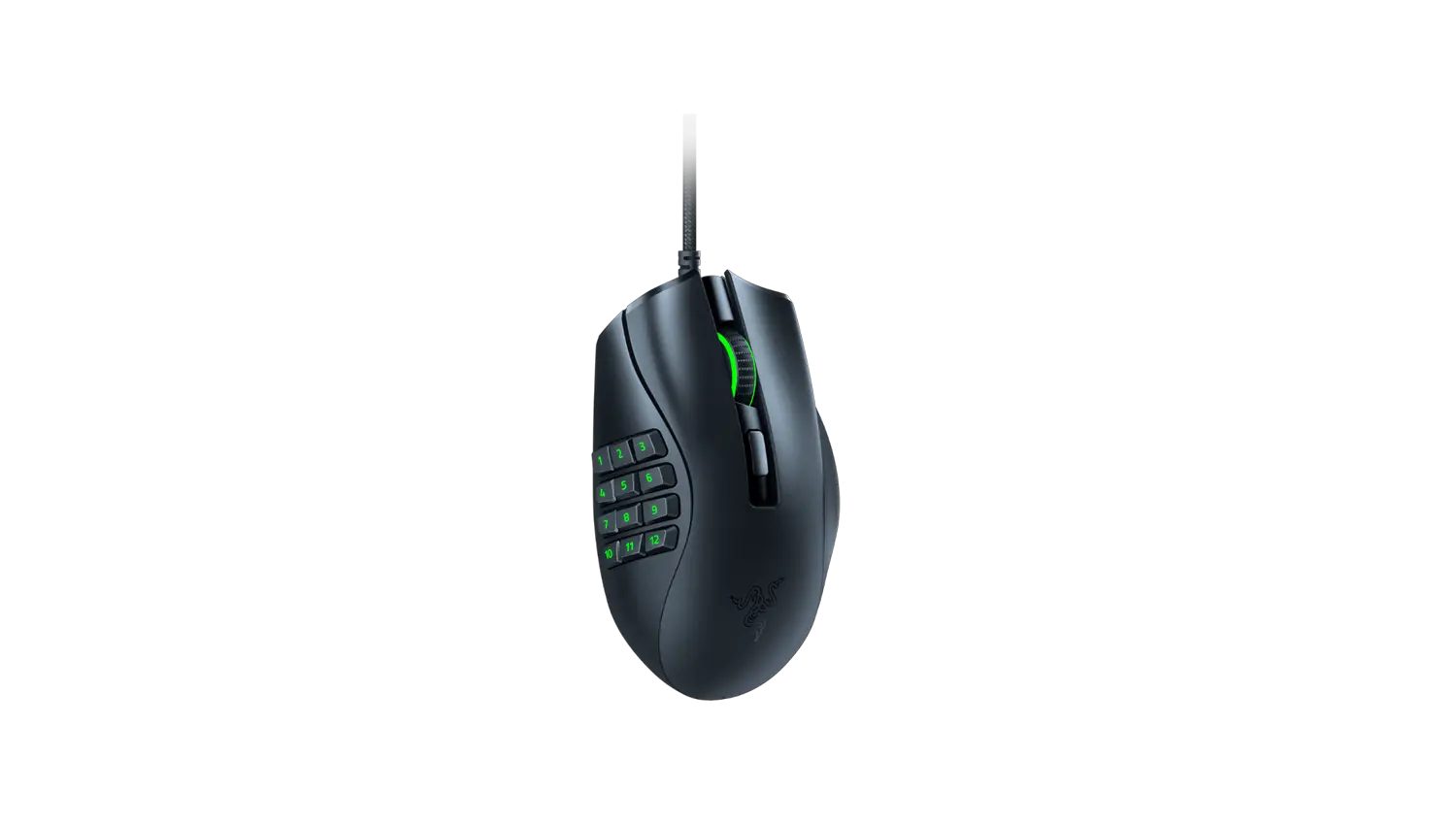
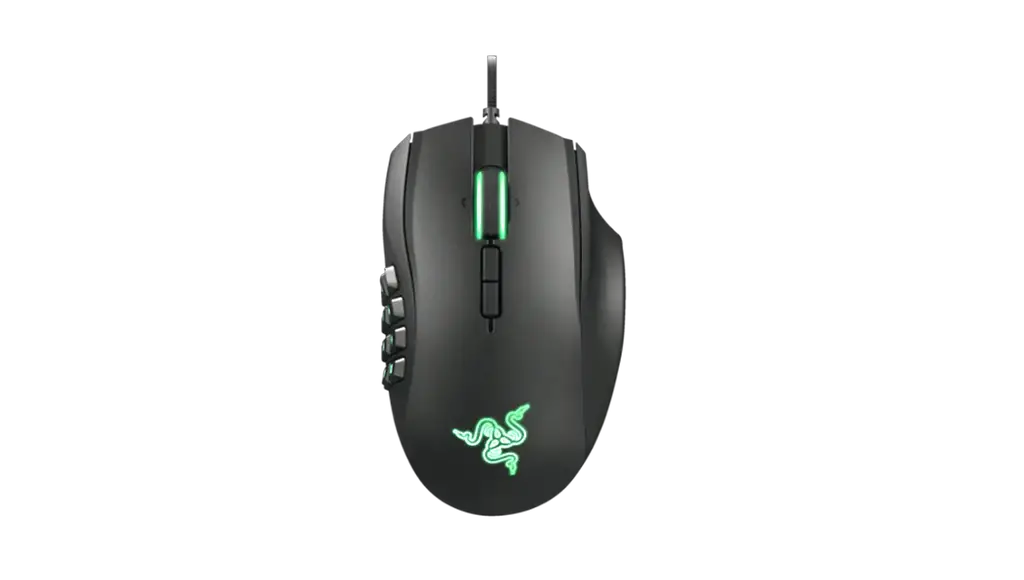
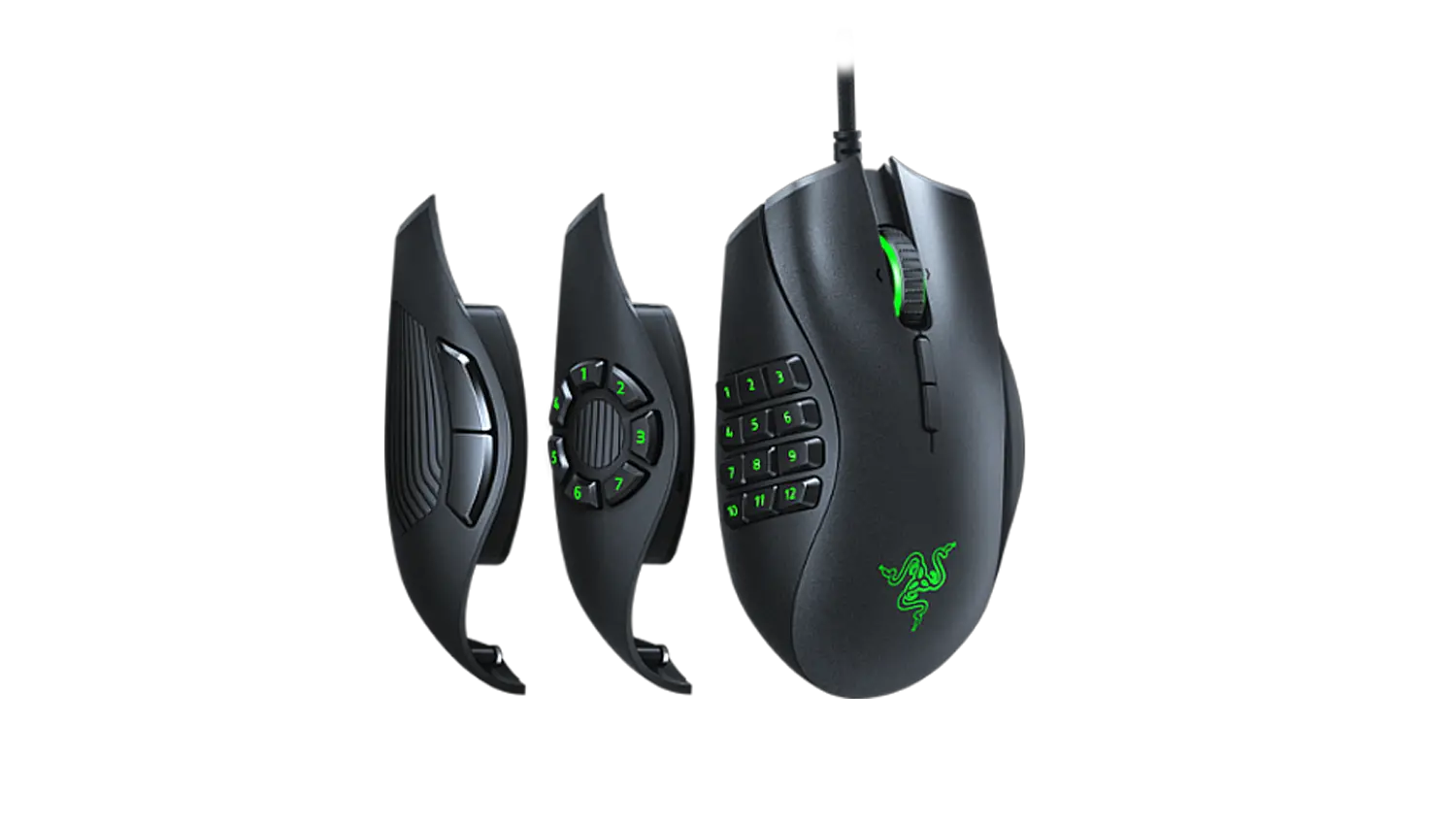
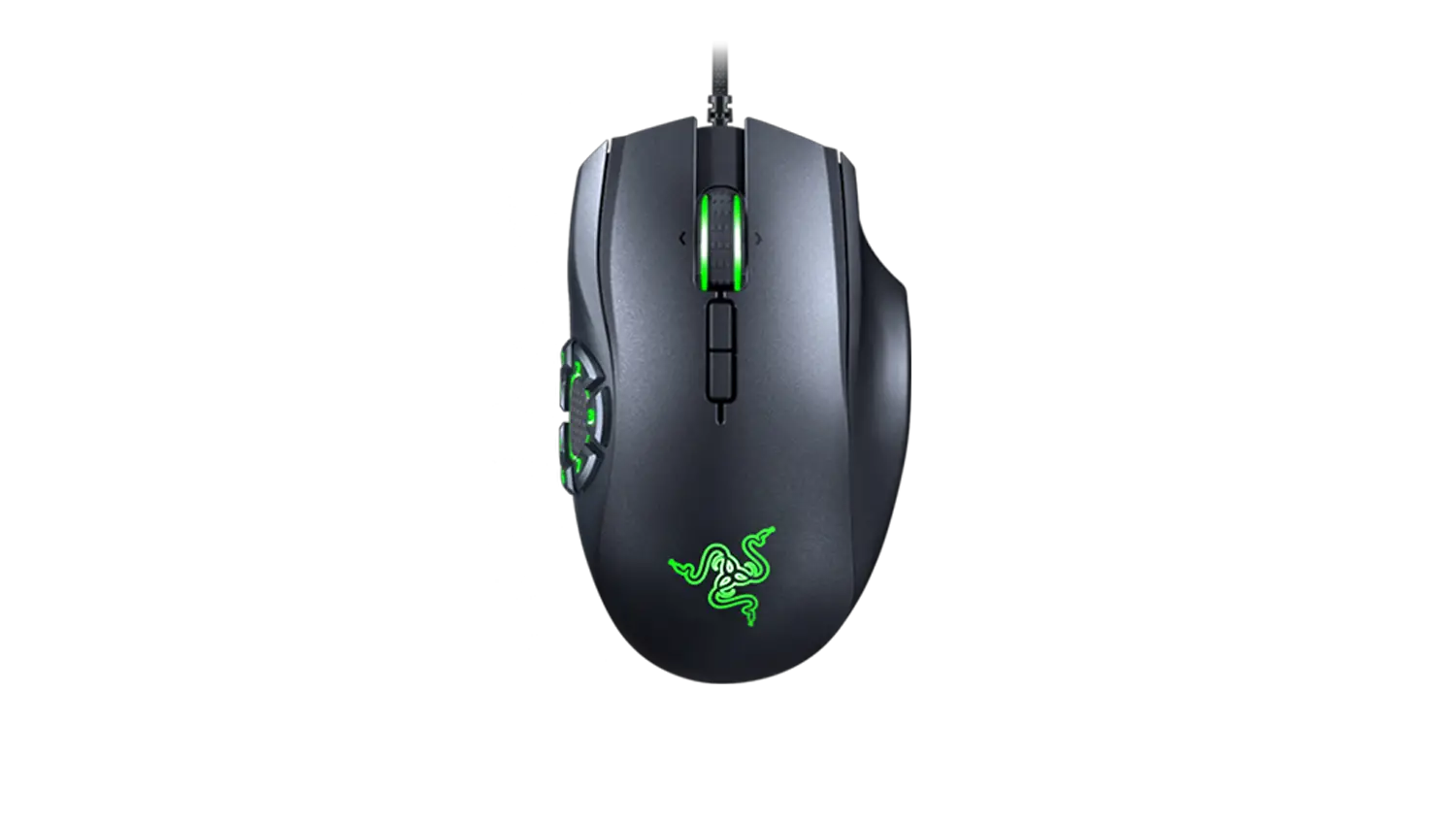
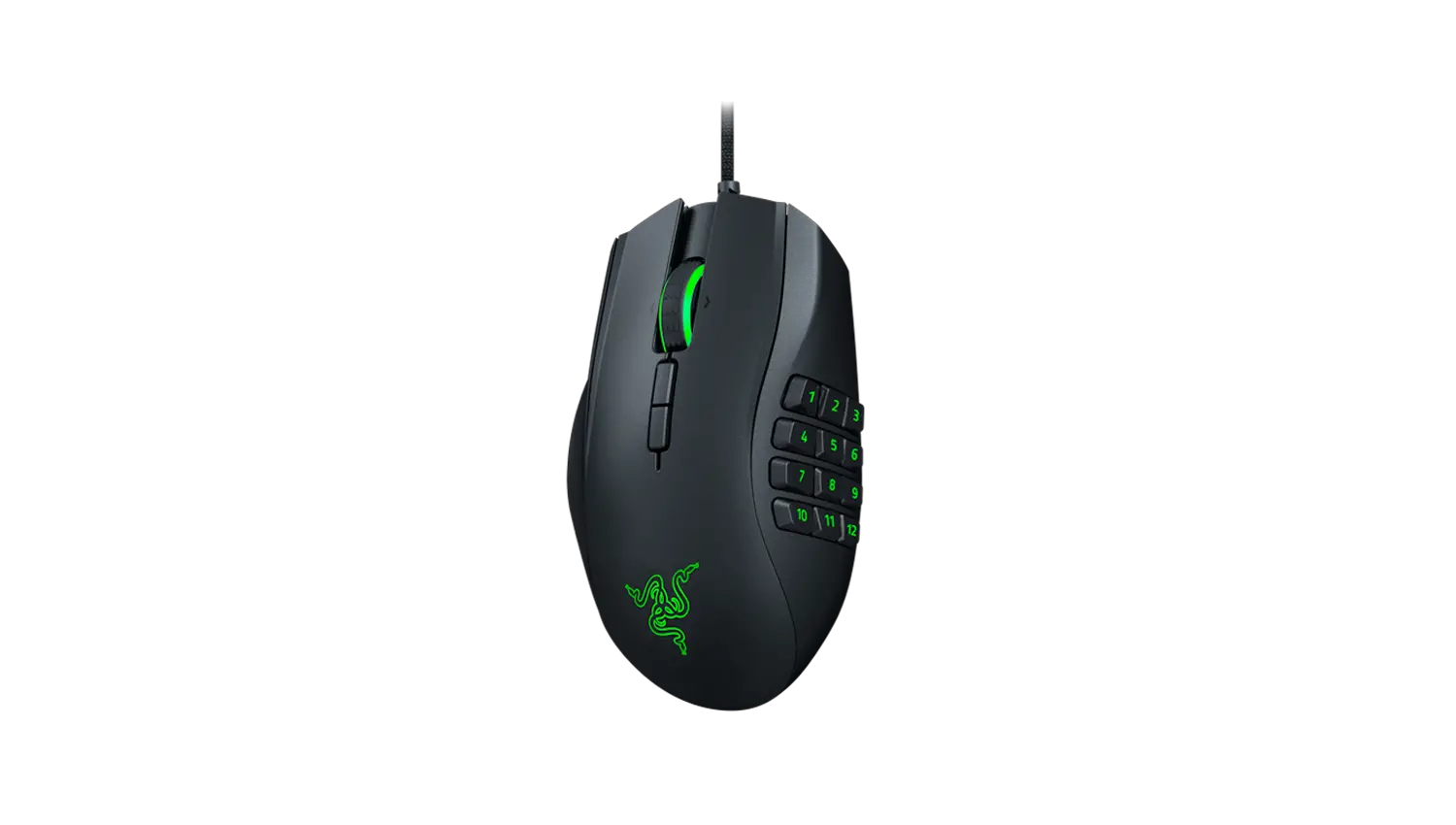
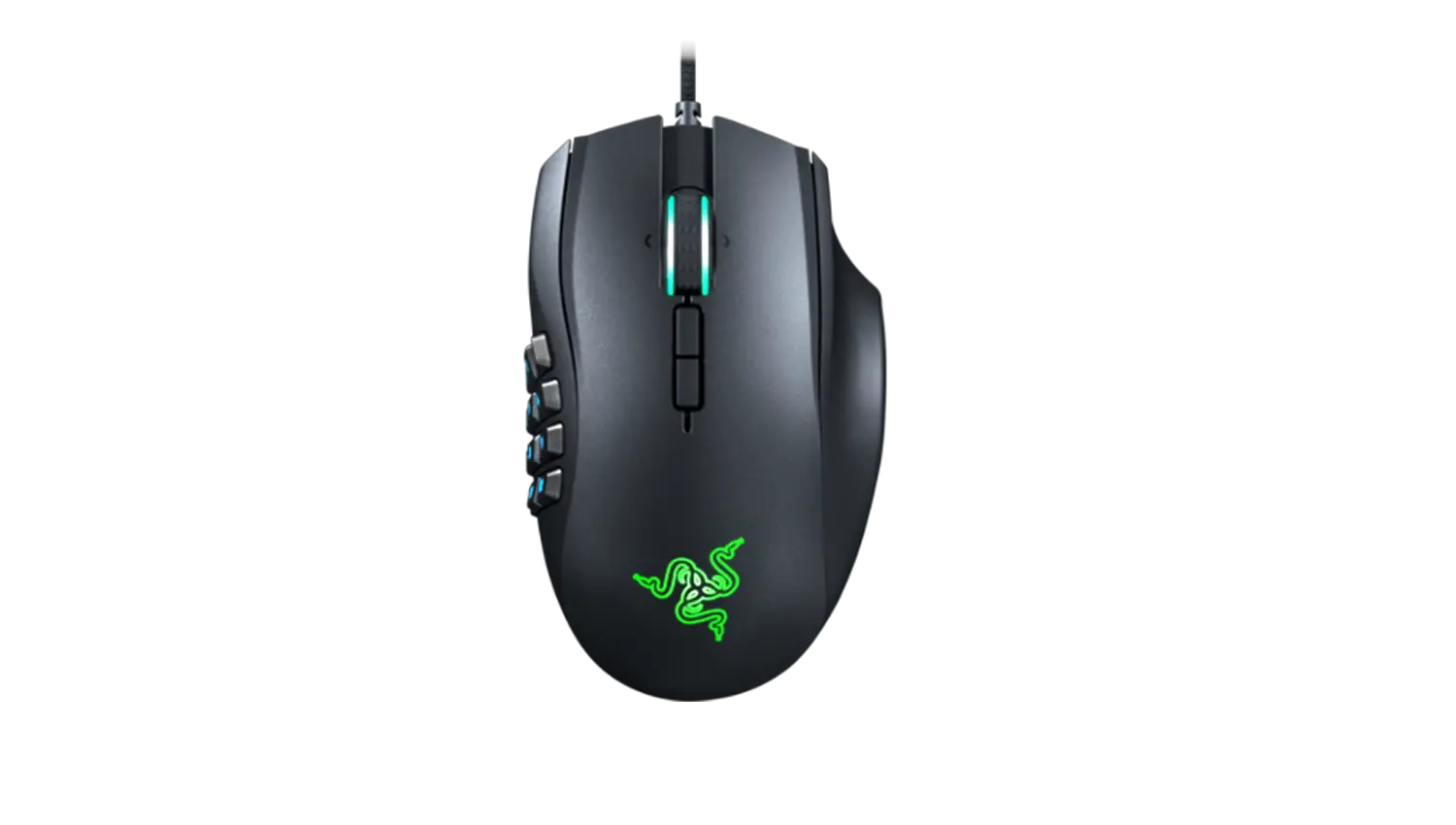
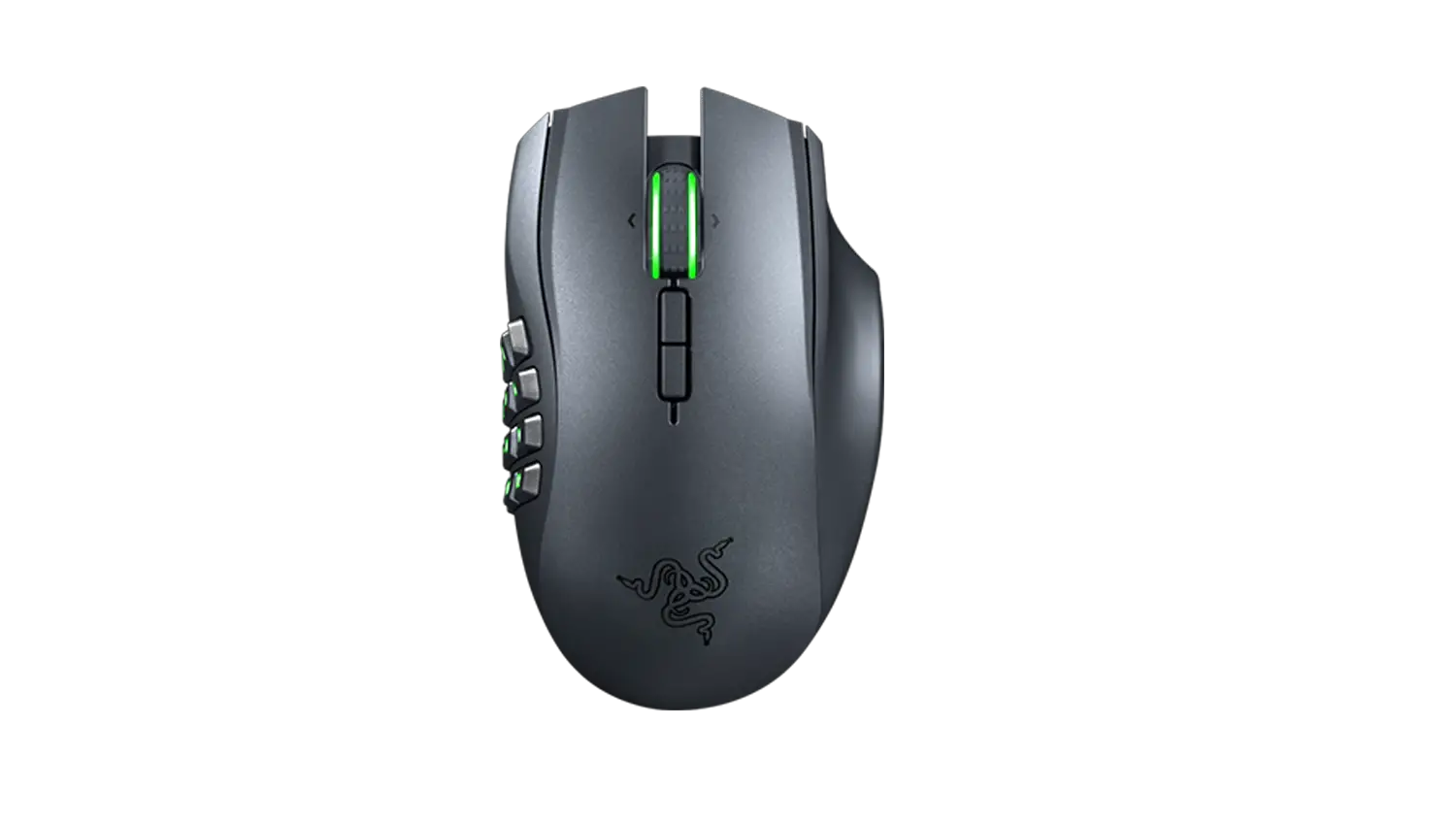
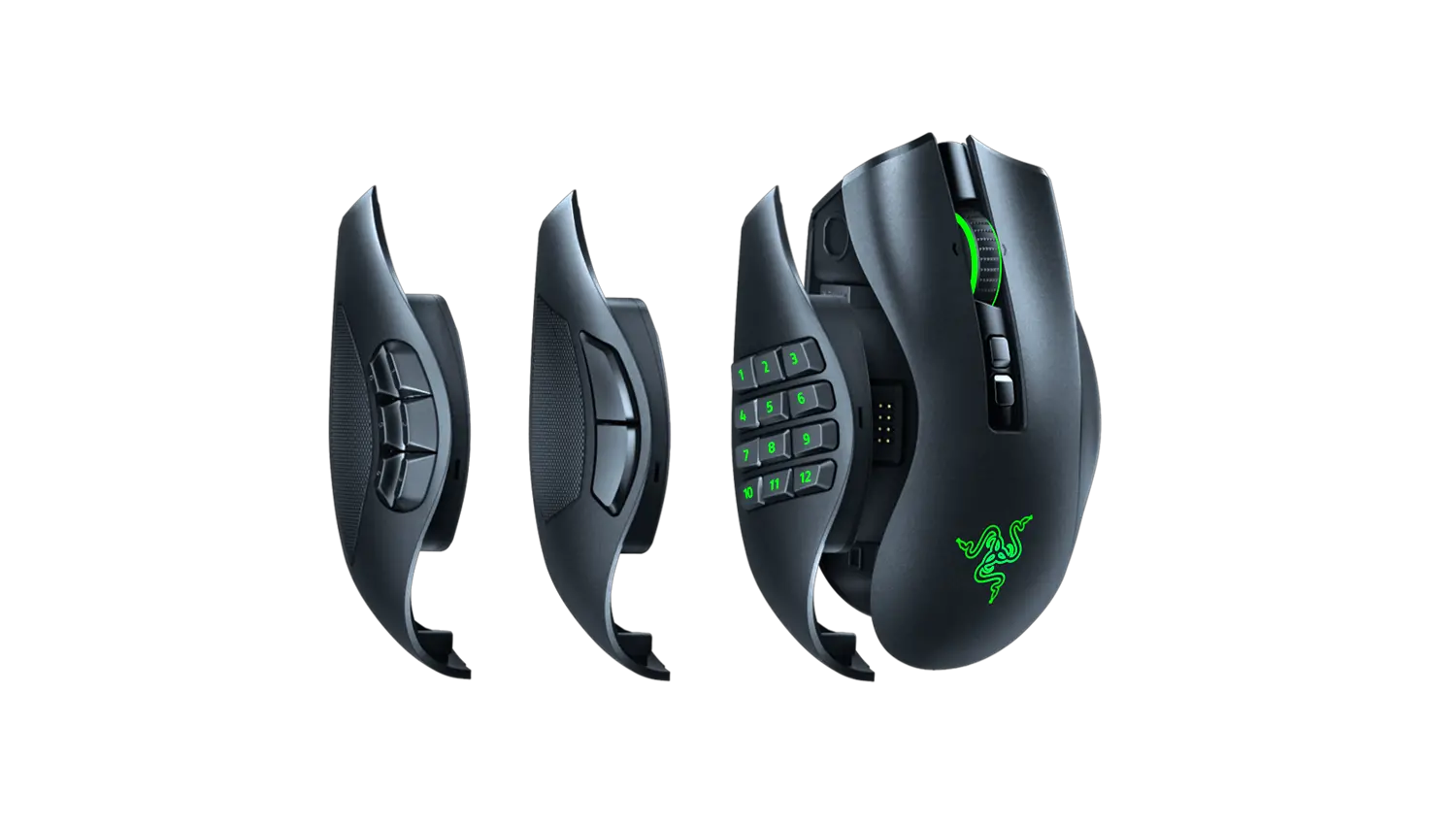
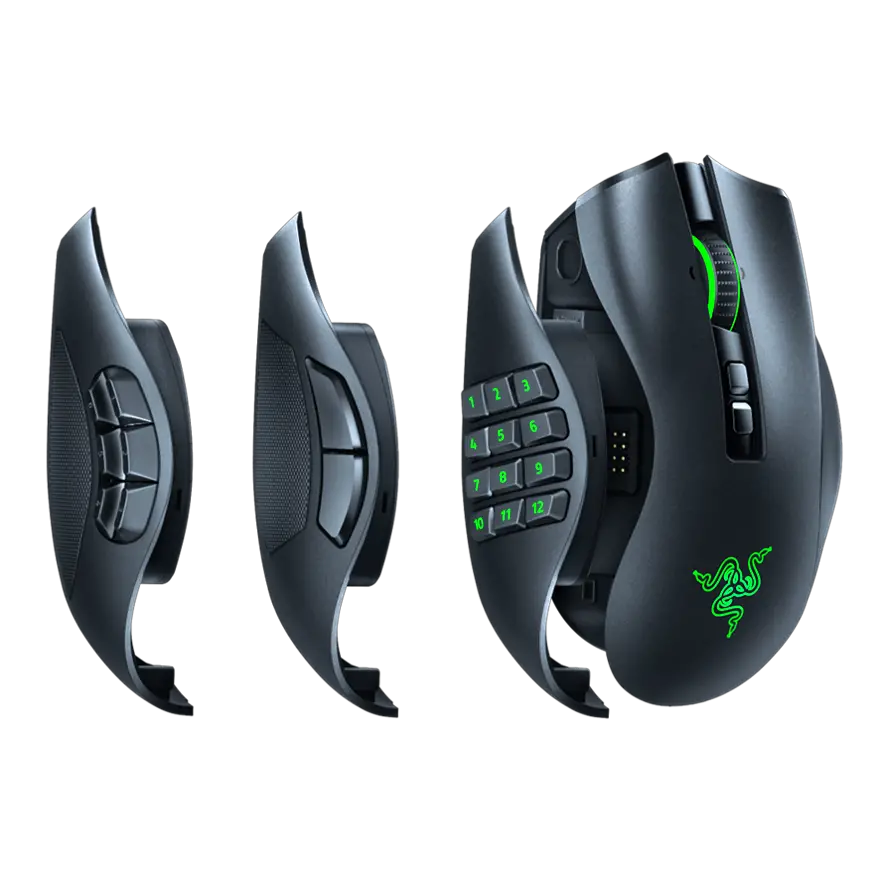
Why specialize in one genre, when you can rule them all? Adapt to every game with the Razer™ Naga Pro | RZ01-03420 — a wireless mouse upgraded with our latest Razer technologies, and equipped with 3 swappable side plates for the button layouts you need to master MMOs, battle royales and more.
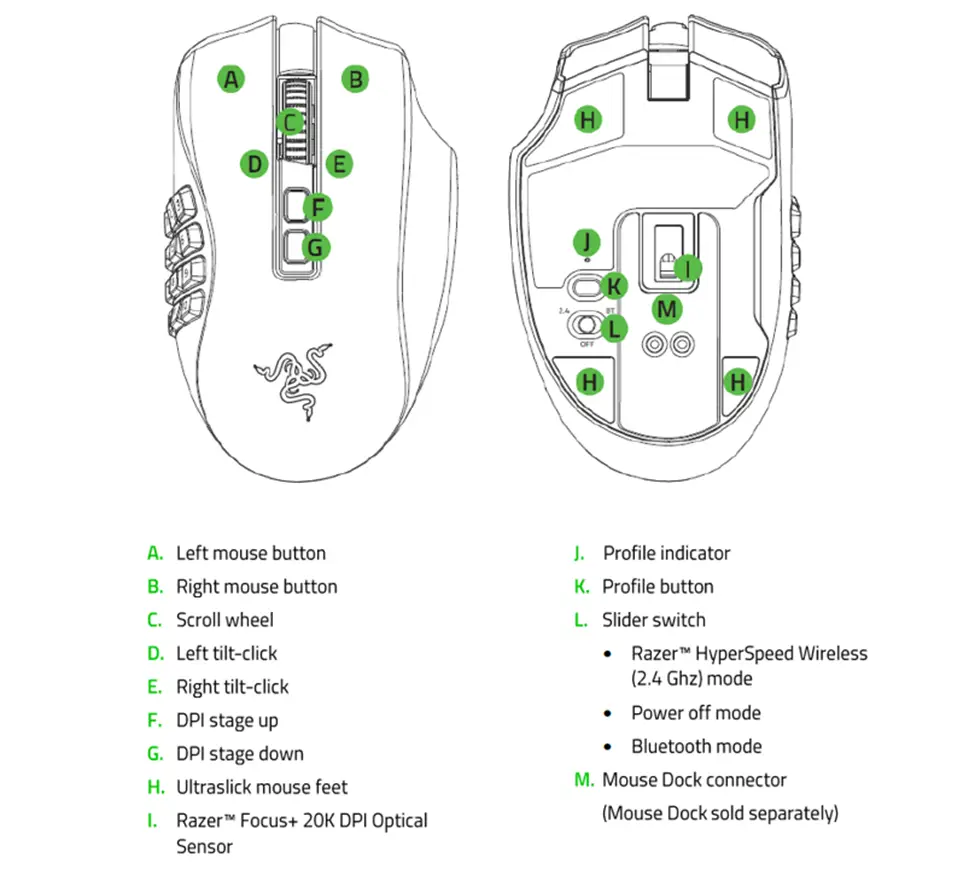
Device Layout
Full Technical Specifications
| Sensitivity | True 20,000 DPI Focus+ optical sensor with 99.6% resolution accuracy |
| Acceleration | Up to 650 inches per second (IPS) / 50 G acceleration |
| Ultrapolling | 1000 Hz polling rate |
| Razer Synapse Support | Razer Synapse 3 enabled |
| Razer Chroma |  Powered by Razer Chroma™ RGB with true 16.8 million customizable color options Powered by Razer Chroma™ RGB with true 16.8 million customizable color options |
| Inter-device Synchronization | Yes |
| On-the-Fly Sensitivity Adjustment | On-The-Fly Sensitivity Adjustment (Default stages : 400/800/1600/3200/6400) |
| Storage | Advanced on-board memory (4+1 profiles) |
| Connectivity | Dual wireless – Hyperspeed (2.4Ghz) and BLE |
| Design Factor | Ergonomic right-handed design with textured side-grips. |
| Approx. Dimensions | · L: 119 mm / 4.69 in · W: 74.5 mm / 2.93 in · H: 43 mm / 1.69 in |
| Approx. Weight | 117g / 0.257 lbs (Excluding dongle) |
| Gaming Console Compatibility | Compatible with Xbox One for basic input |
| Programmable Buttons | (19+1) programmable buttons (with 12-buttons panel) |
| Cable Type | 1.8 m / 6 ft Speedflex cable for charging and wired use |
| Razer Mechanical Switches | Razer™ Optical Mouse Switches rated for 70M clicks (M1/M2 only) |
| Scroll Type | Gaming-grade tactile scroll wheel with infinitely customizable resistance |
| Other Features | Advanced Lift-off/Landing distance customization Large 100% PTFE mouse feet (0.8 mm thick) |
What kind of mouse is the Razer Naga Pro?
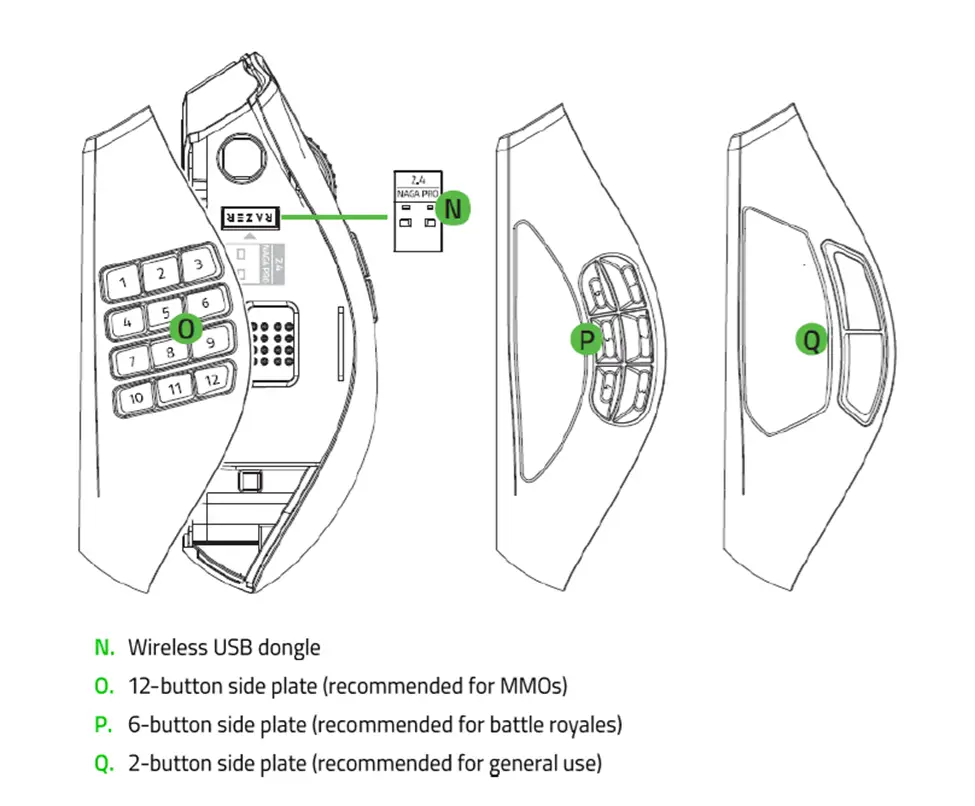
It is modular, it has 3 swappable side plates that you can install depending on your desired functionality. You can swap between a 2-button, 6-button, or a 12-button plate to meet your gaming needs.
What kind of sensor does the Razer Naga Pro have?
The Razer Naga Pro is equipped with a 20,000 DPI Razer™ Focus+ Optical Sensor. To learn more about Razer™ Focus+ Optical Sensor, click here.
What are the connections available on the Razer Naga Pro?
The Razer Naga Pro has 3 modes of connection – RazerTM HyperSpeed Wireless using the included 2.4GHz wireless dongle, Bluetooth and wired using the RazerTM Speedflex cable.
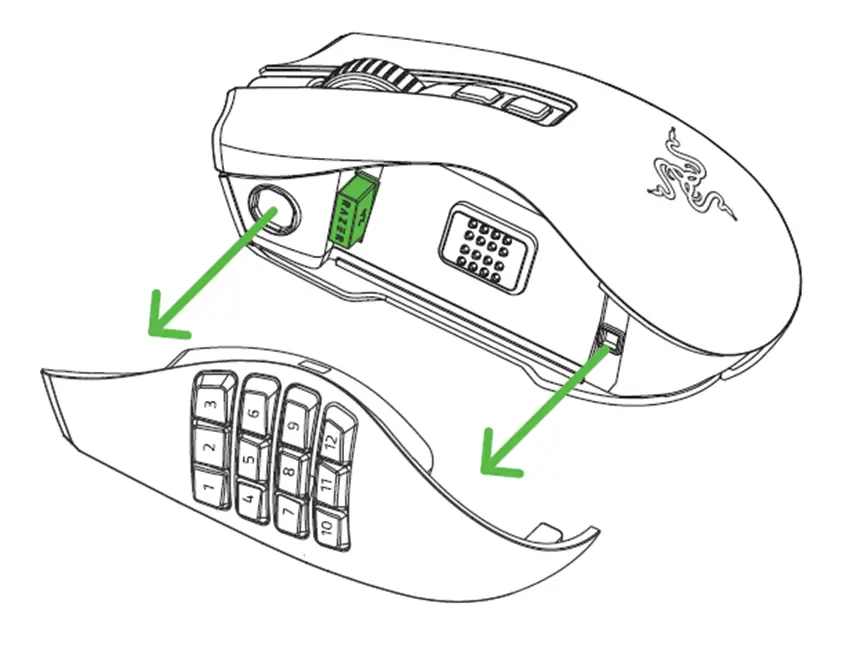
Where can I find the wireless USB dongle?
The USB dongle can be found by removing the attached side plate from the Naga Pro.
Is the Razer Naga Pro compatible with the Razer Mouse charging dock?
Yes, the Razer Naga Pro can charge seamlessly with the Razer Mouse charging dock. It is compatible with the Razer Mouse charging dock included with the Razer Viper Ultimate or Razer Basilisk Ultimate.
Does the Razer Naga Pro come with the Razer Mouse charging dock?
No, the Razer Naga Pro does not include a Razer Mouse charging dock.
How To
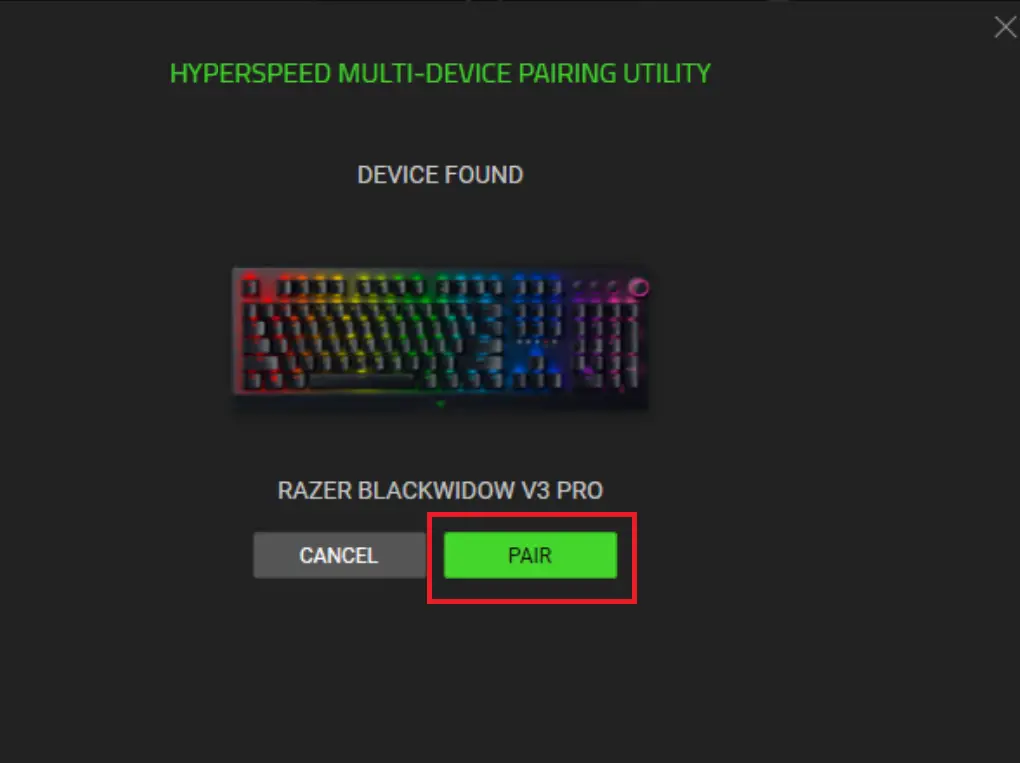
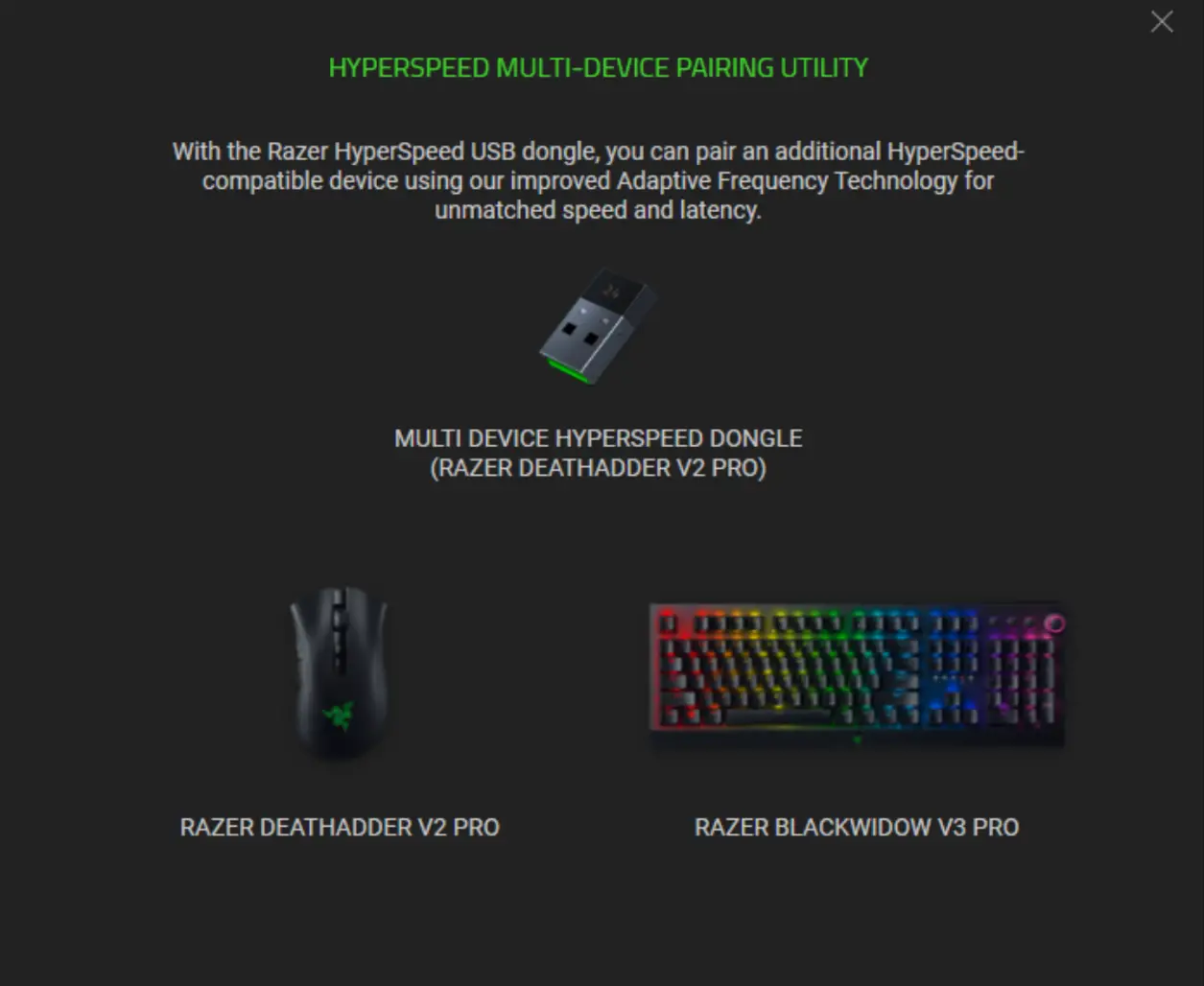
How to add a device to a multi-device dongle
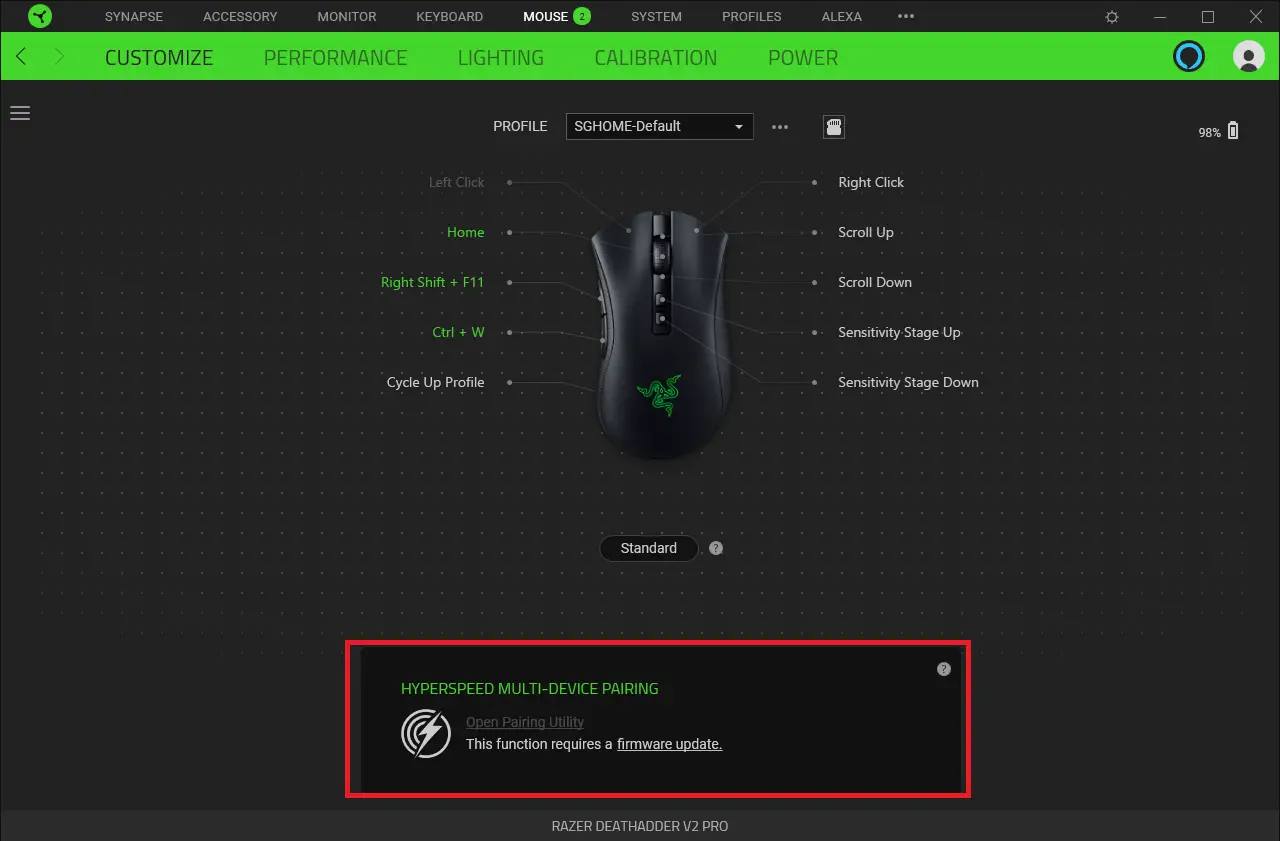
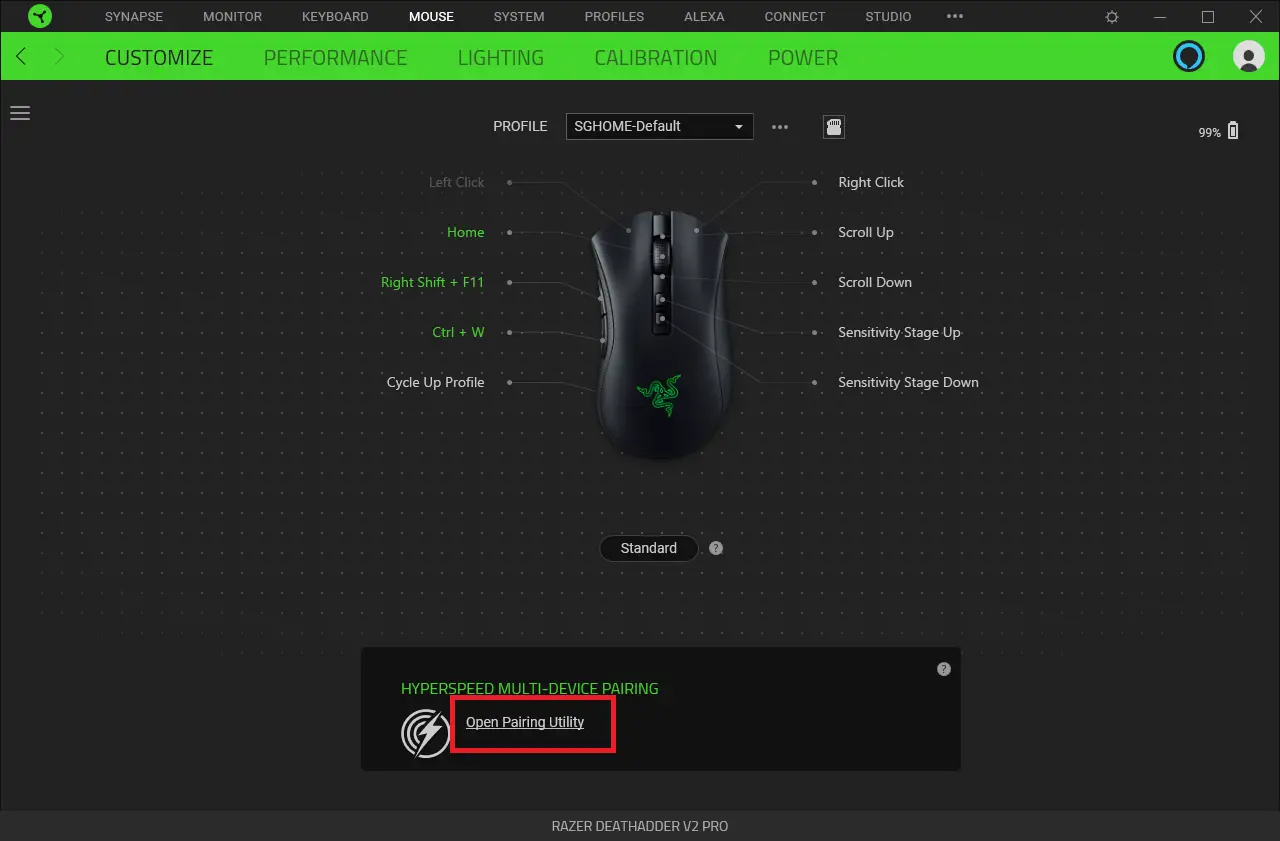
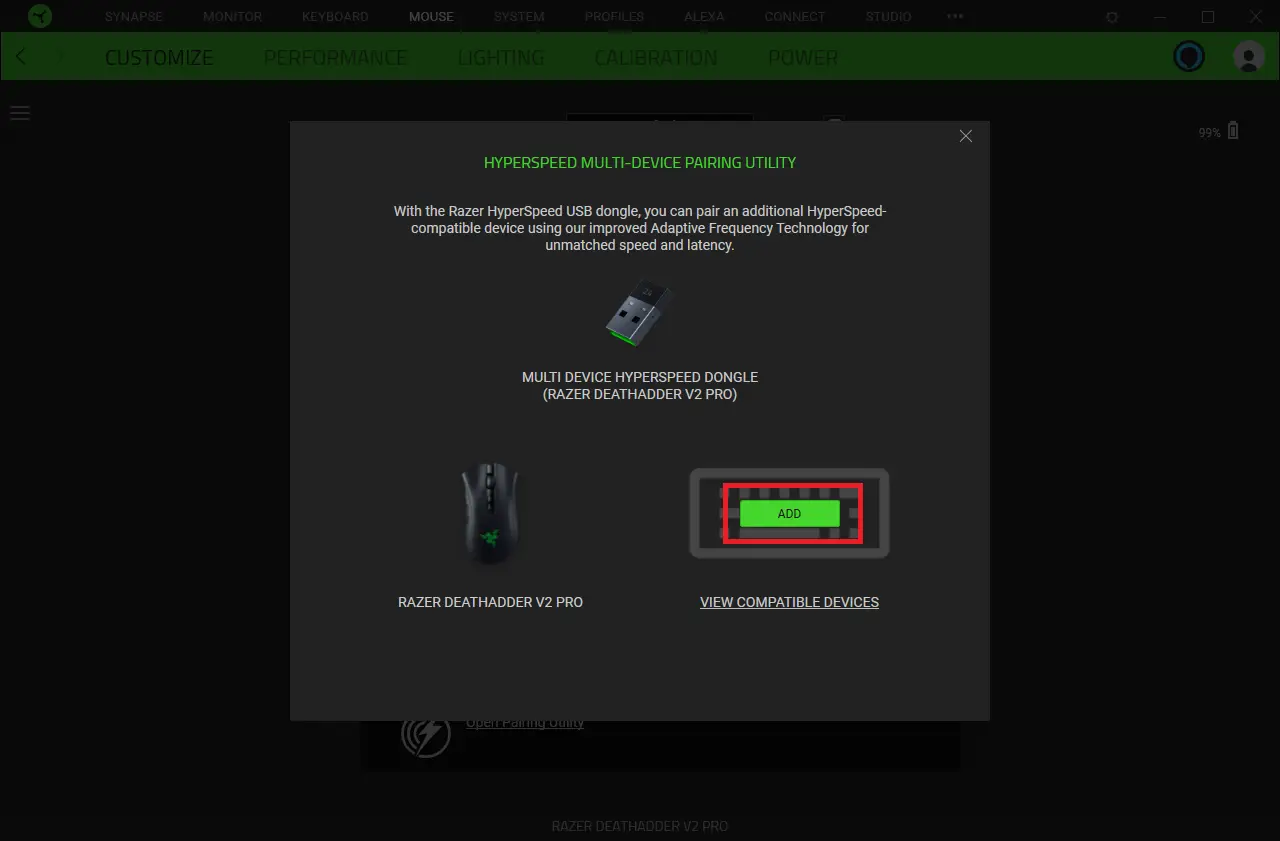
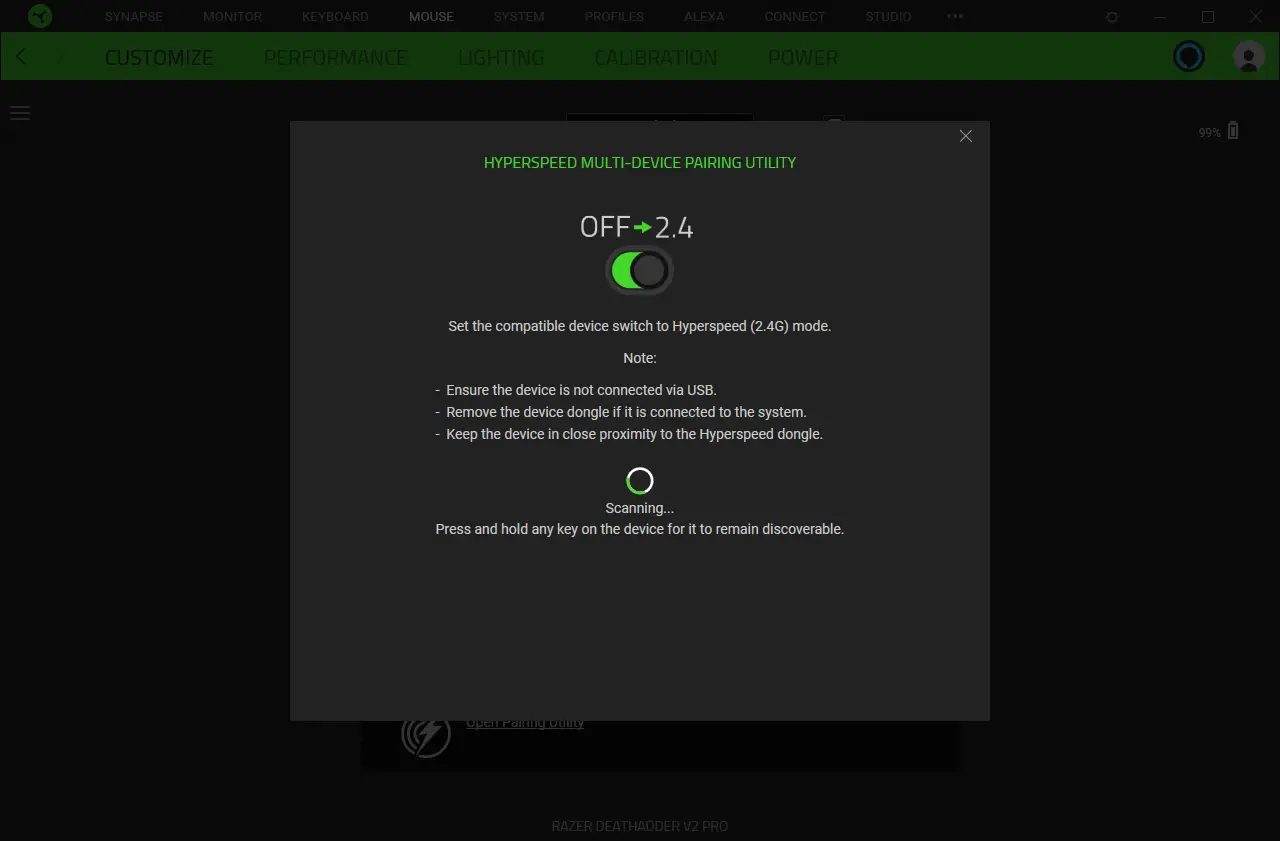
- Ensure the device is not connected via USB cable
- Remove the additional device’s USB dongle if it is connected to the system
- Keep the device in close proximity to the Hyperspeed dongle
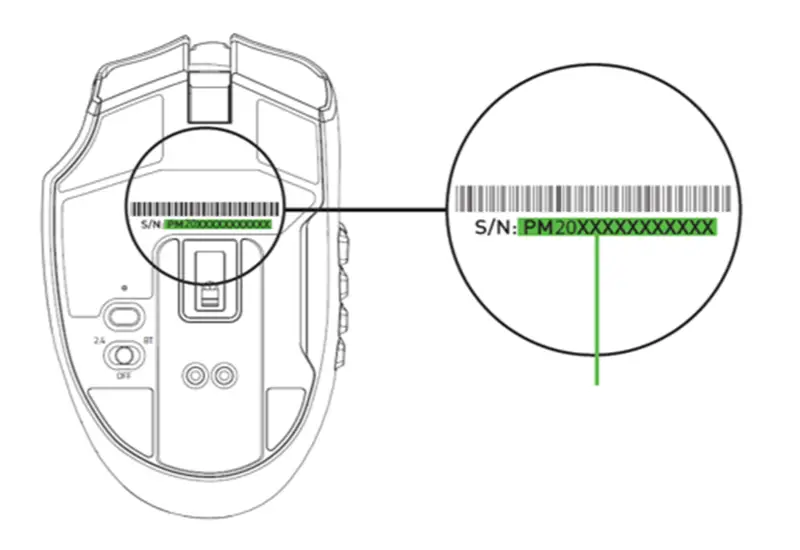
How to register the Razer™ Naga Pro?
To register your Razer mouse, take note of the serial number found at the bottom of the device and input it in razerid.razer.com.
How do I connect the Razer Naga Pro to my PC using RazerTM HyperSpeed Wireless?
Connecting your Razer Naga pro via Razer™ HyperSpeed Wireless (2.4 GHz) Mode is done with the following steps …read more
How to connect the Razer Naga Pro to the PC using Bluetooth
Connecting your Razer Naga pro via Bluetooth Mode is done with the following steps:
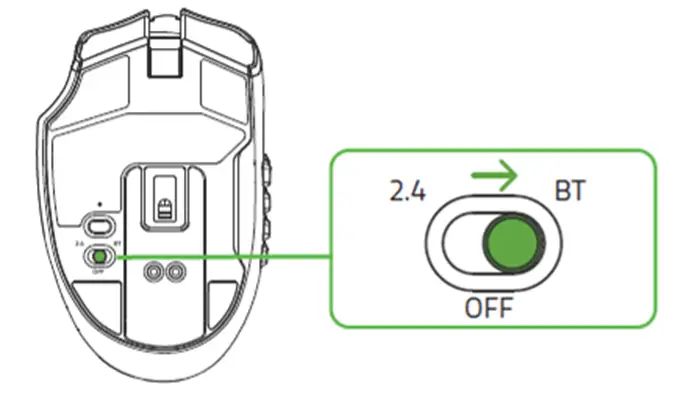
- Push the slider switch to Bluetooth mode.

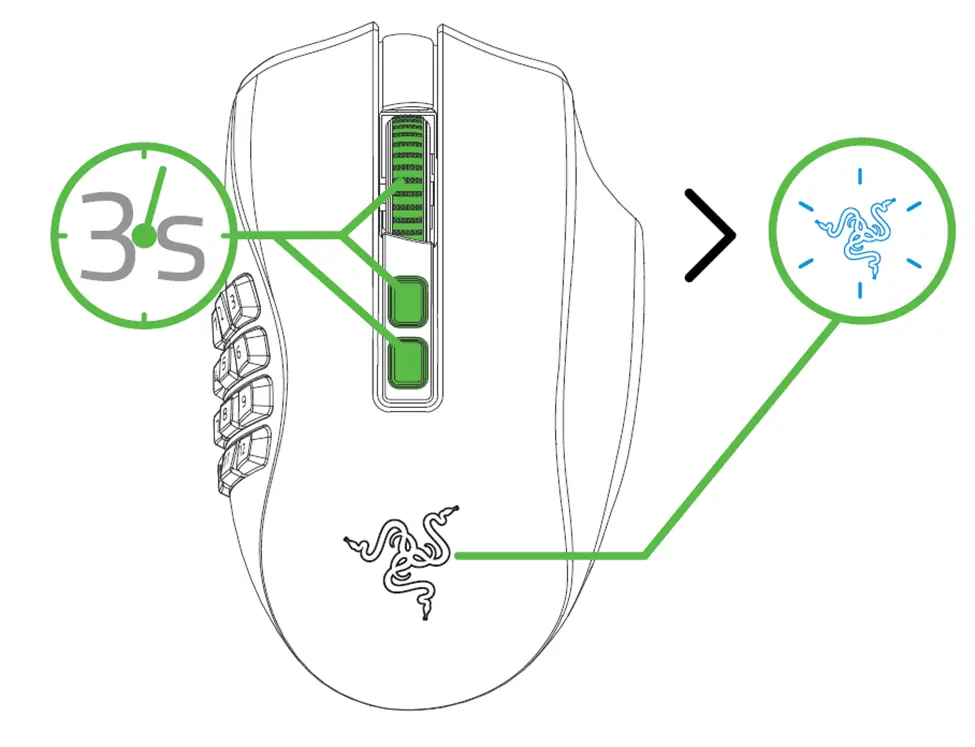
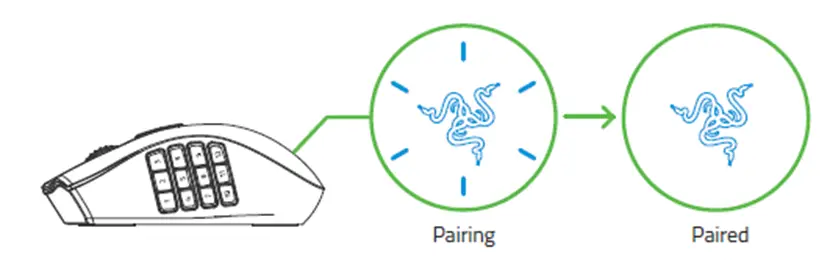
- Press and hold the scroll wheel, DPI stage up and DPI stage down buttons simultaneously for three seconds to activate pairing mode. The Razer logo will blink twice in repeated intervals to show that the device is in pairing mode.

- Activate Bluetooth on your device, search for new Bluetooth devices, and select Razer Naga Pro from the list of devices found.
- Wait until the mouse pairs with your device. When paired, the Razer logo will briefly turn static blue before displaying its current lighting effect.

Note: Once paired, your Razer Naga Pro will automatically reconnect to your device whenever in Bluetooth mode and within range. Keep the pairing devices within close proximity of each other for a faster and more stable connection.
Your Razer Naga Pro is now connected to your PC via Bluetooth and ready to use.
How do I charge my Razer Naga Pro?
Plug the charging cable from your computer’s USB port to your Razer Naga Pro. For best results, please fully charge the mouse before using it for the first time. A depleted battery will be fully charged in approximately 4 hours. This connection also acts as the wired mode for your Razer device.
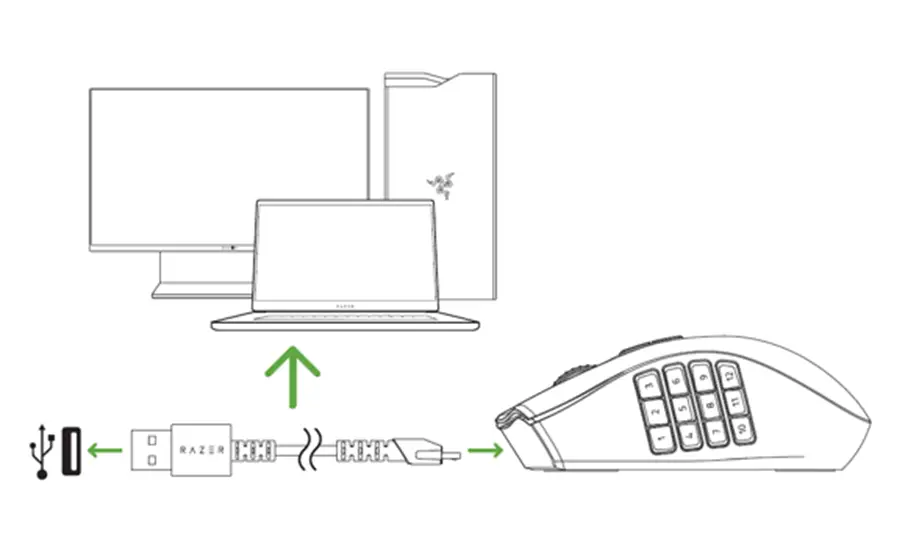
Note: The Razer Naga Pro requires a USB connection that can supply sufficient power to charge the device. The charging process may be affected when connecting to a non-powered USB hub or non-powered USB mostly found on keyboards and peripherals. It’s recommended to always connect the Razer Naga Pro directly to the USB port of your computer.
How do I clean my Razer™ mouse?
We cannot say with certainty what type of dirt and debris may be on your product, or how certain cleaning products may react with it, but we have had good luck cleaning Razer products using commonly available monitor cleaning wipes.
To clean the body of your Razer mouse, please take a monitor wipe and use gentle wiping motions. Do not scrub the surface of your Razer mouse. You can clean the sensor using a Q-Tip lightly coated with rubbing alcohol. Let the sensor dry for five minutes before attempting to use it.
Troubleshooting
When the mouse is paired to my laptop via Bluetooth, the connection intermittently cuts in and out. How do I fix this?
Try updating your Intel drivers by visiting: https://www.intel.com/content/www/us/en/support/intel-driver-support-assistant.html
Razer Naga Pro Side Button Modules are not backward compatible with Razer Naga Trinity and Vice Versa. Hence, it is not expected to work.
My Razer Naga Pro is taking a long time to add or switch profile in Synapse while on Bluetooth connection.
Bluetooth transmission is expectedly slower than Wired or Dongle connection. We recommend to use either the wired connection or wireless connection using the 2.4GHz dongle for quicker profile adding or switching in Synapse.
The number pad side module behaves the same way as the keyboard keys. Hence, it is expected to continue to execute until both Hypershift modifier key and number pad button are released.
Software & Downloads
Do I need to install additional software or drivers to use the Razer Naga Pro Click?
You may use the standard mouse functions by simply connecting the Razer™ Naga Pro to your computer using the USB cable, USB dongle or Bluetooth connection. However, you will need to install Synapse 3 in order to enable advanced features such as macro recording, profile settings, Chroma customizations and more.
Downloads
Razer Naga Pro Firmware Updater Guide – Download
Razer Naga Pro User Manual (German) – Download
Razer Naga Pro User Manual (Spanish) – Download
Razer Naga Pro User Manual (French) – Download
Razer Naga Pro User Manual (Korean) – Download
Razer Naga Pro User Manual (Japanese) – Download
Razer Naga Pro User Manual (Russian) – Download
Razer Naga Pro User Manual (Simplified chinese) – Download
Razer Naga Pro User Manual (Portuguese-Brazil) – Download
Razer Naga Pro User Manual (Traditional Chinese) – Download
Razer Naga Pro User Manual (English) – Download