 Quick Installation Guide
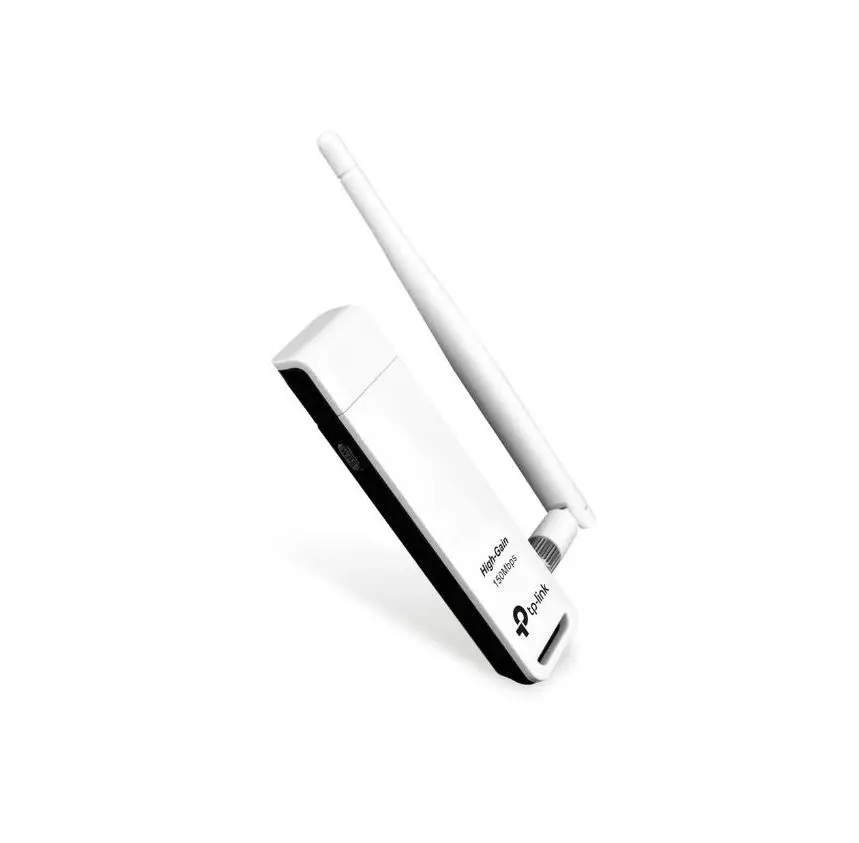
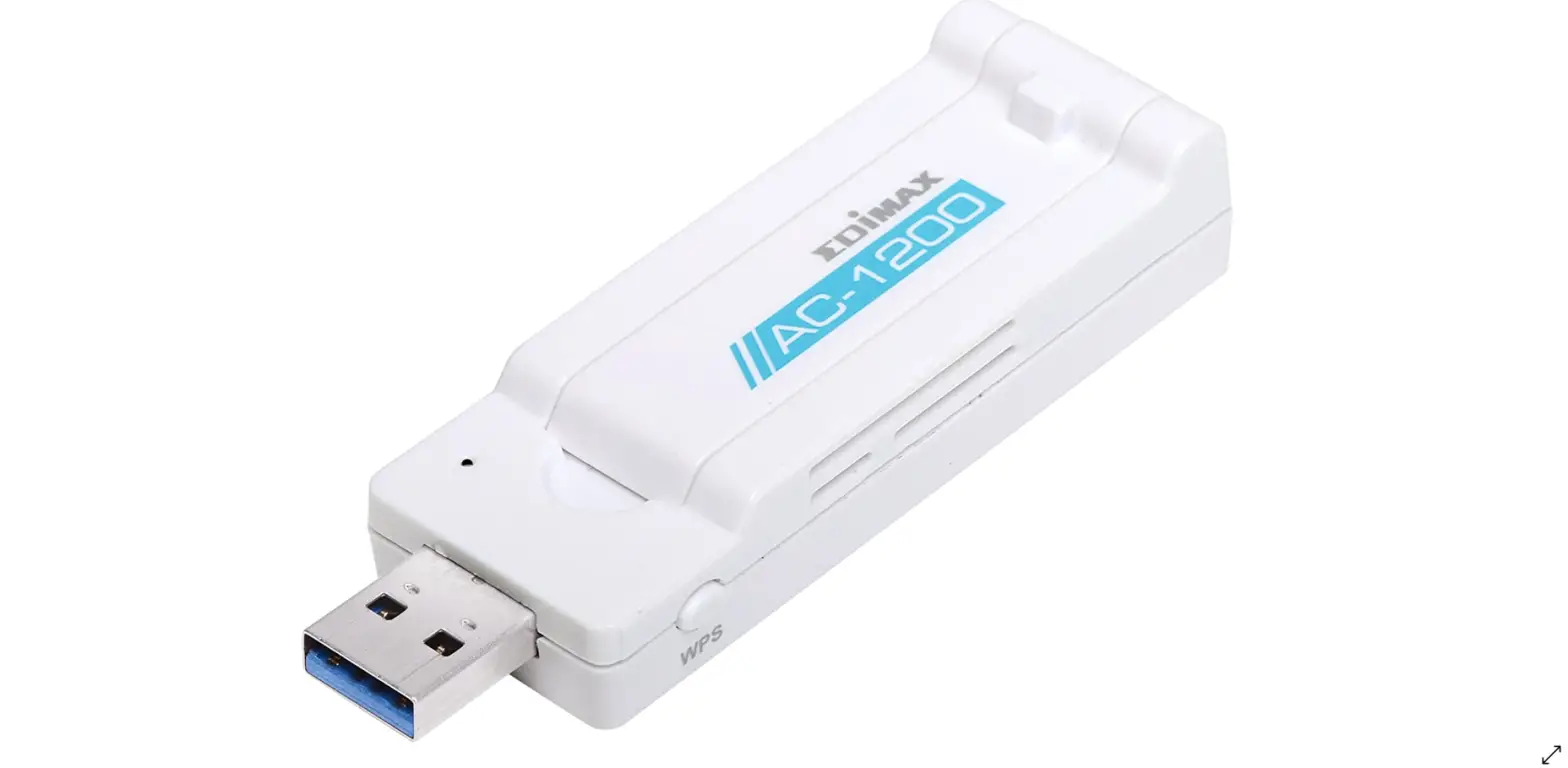
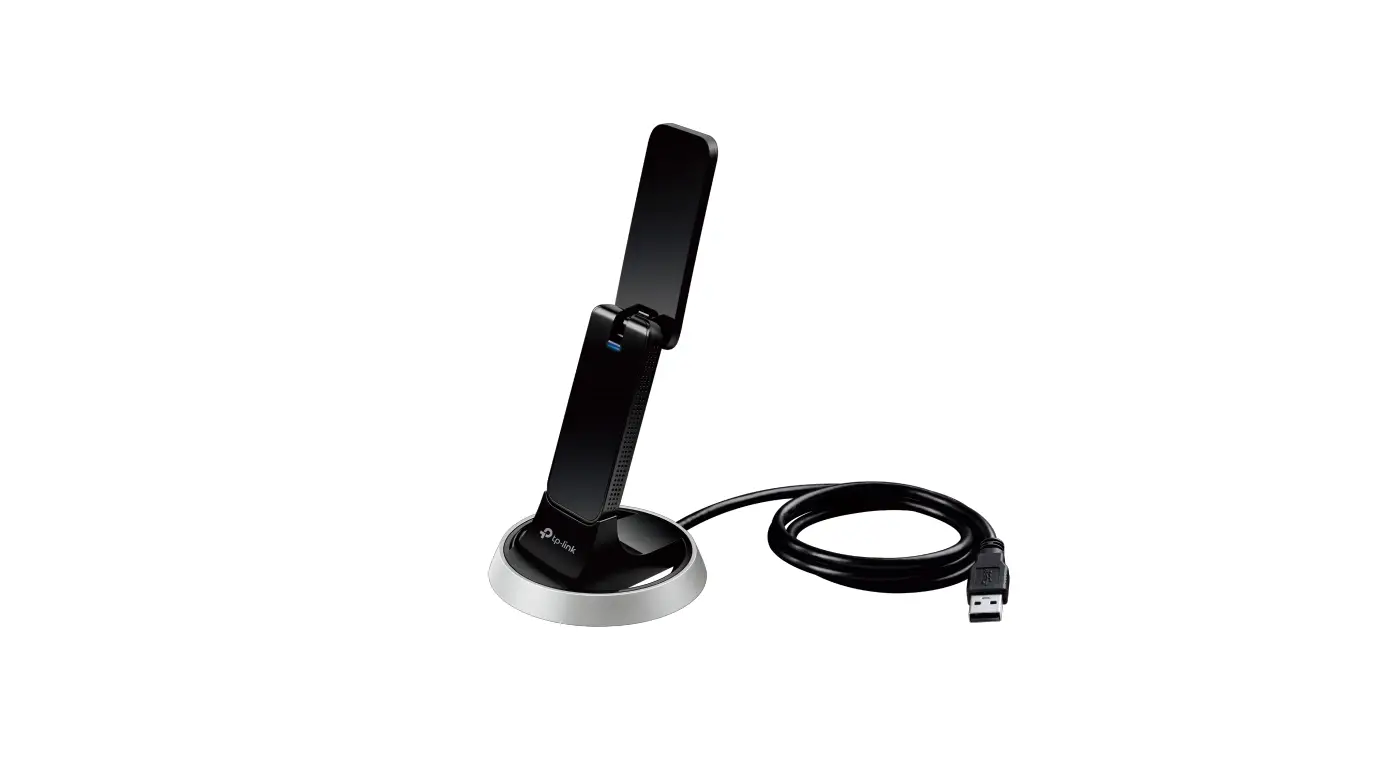
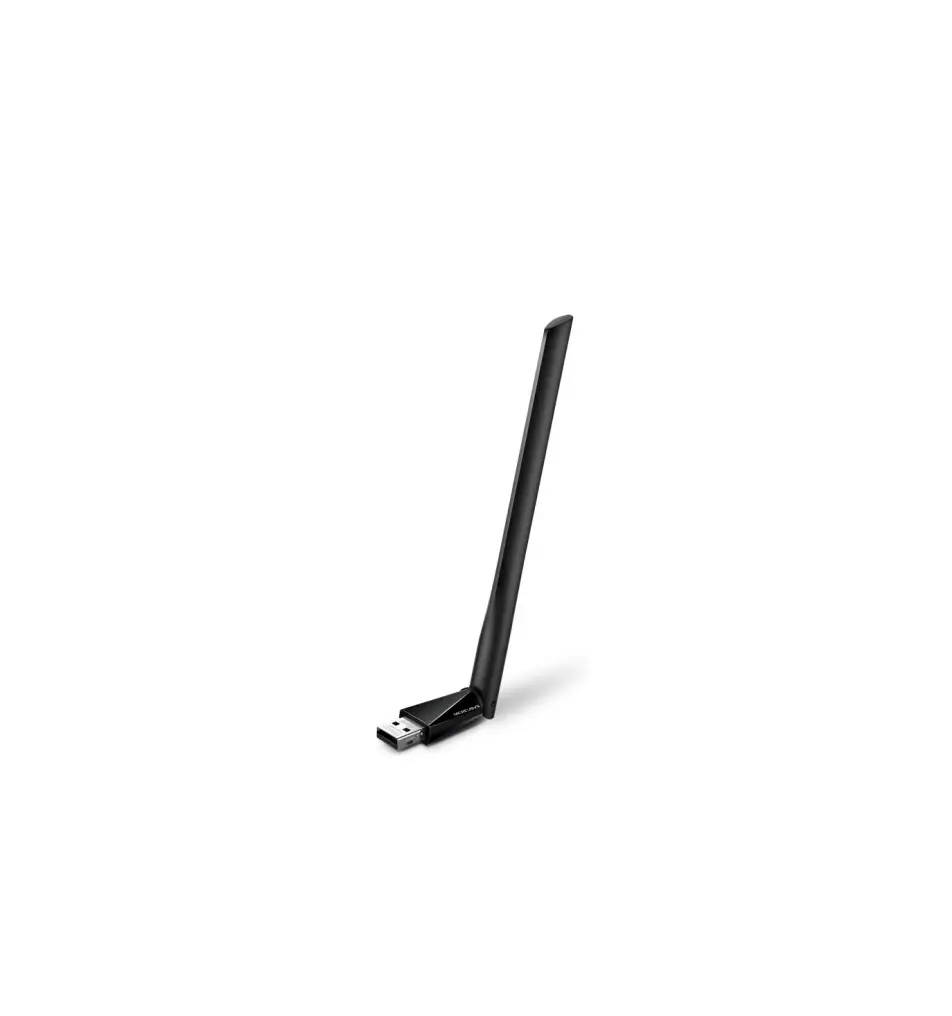
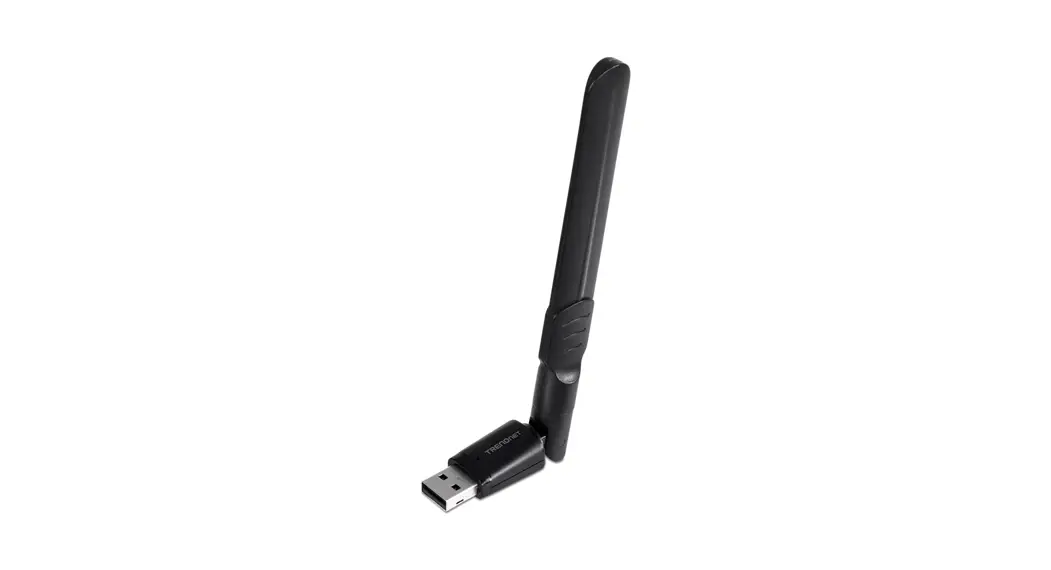
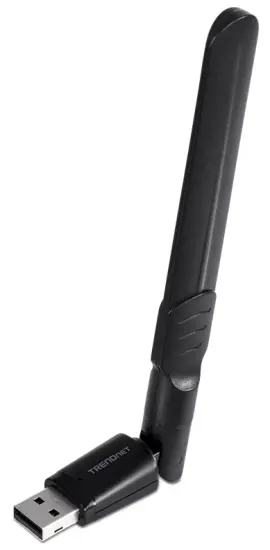 TEW-805UBH (V1)
Before You Start
Package Contents
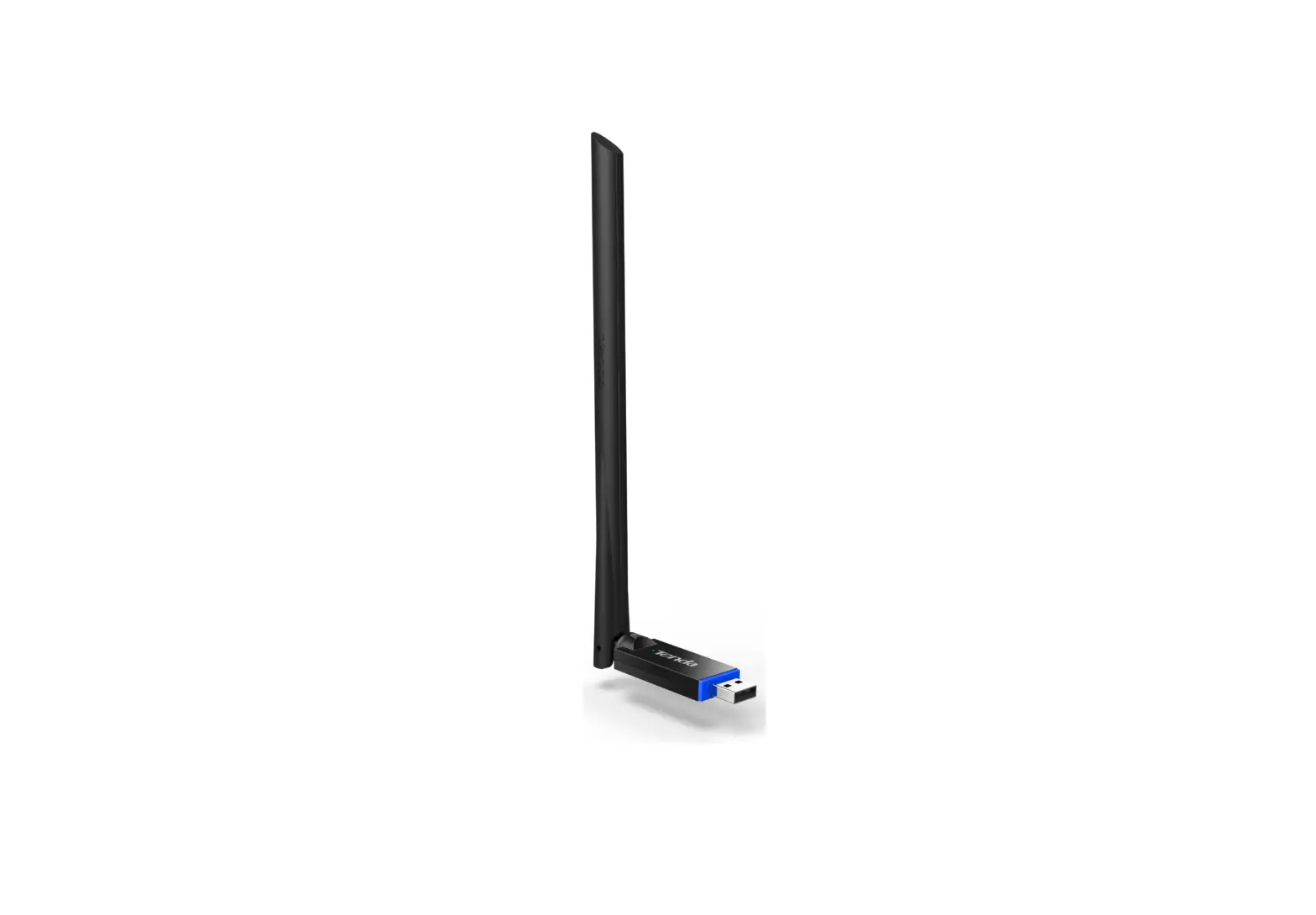
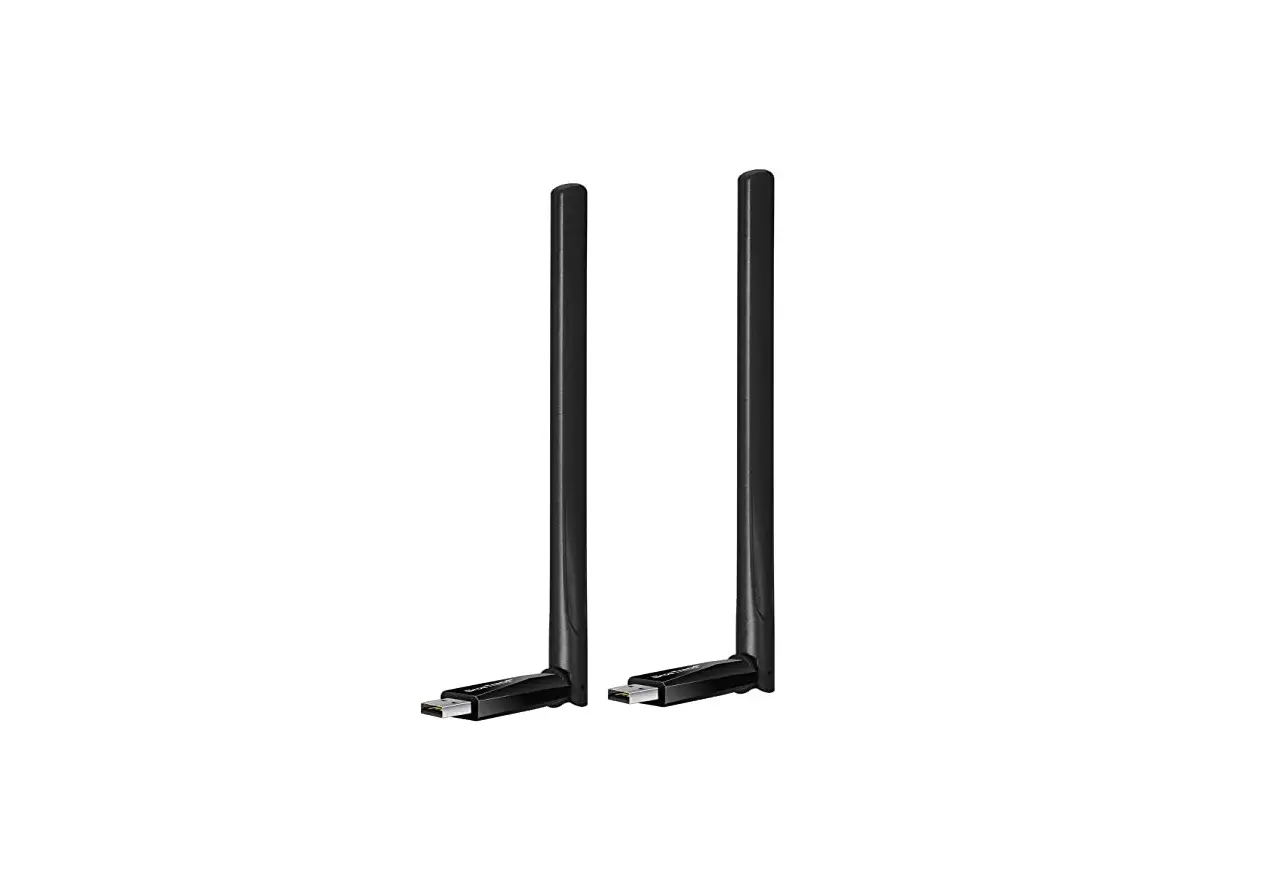
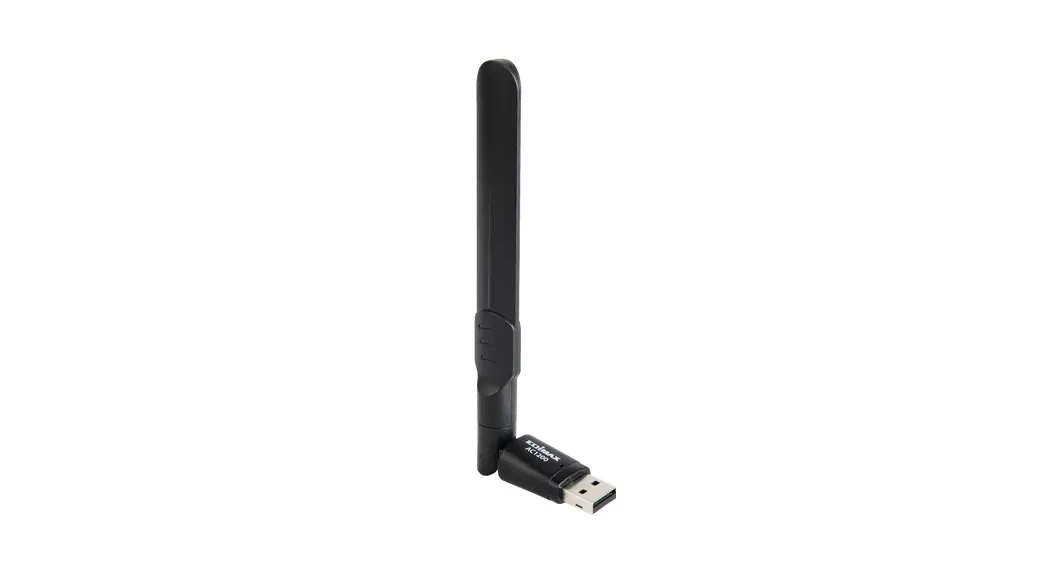
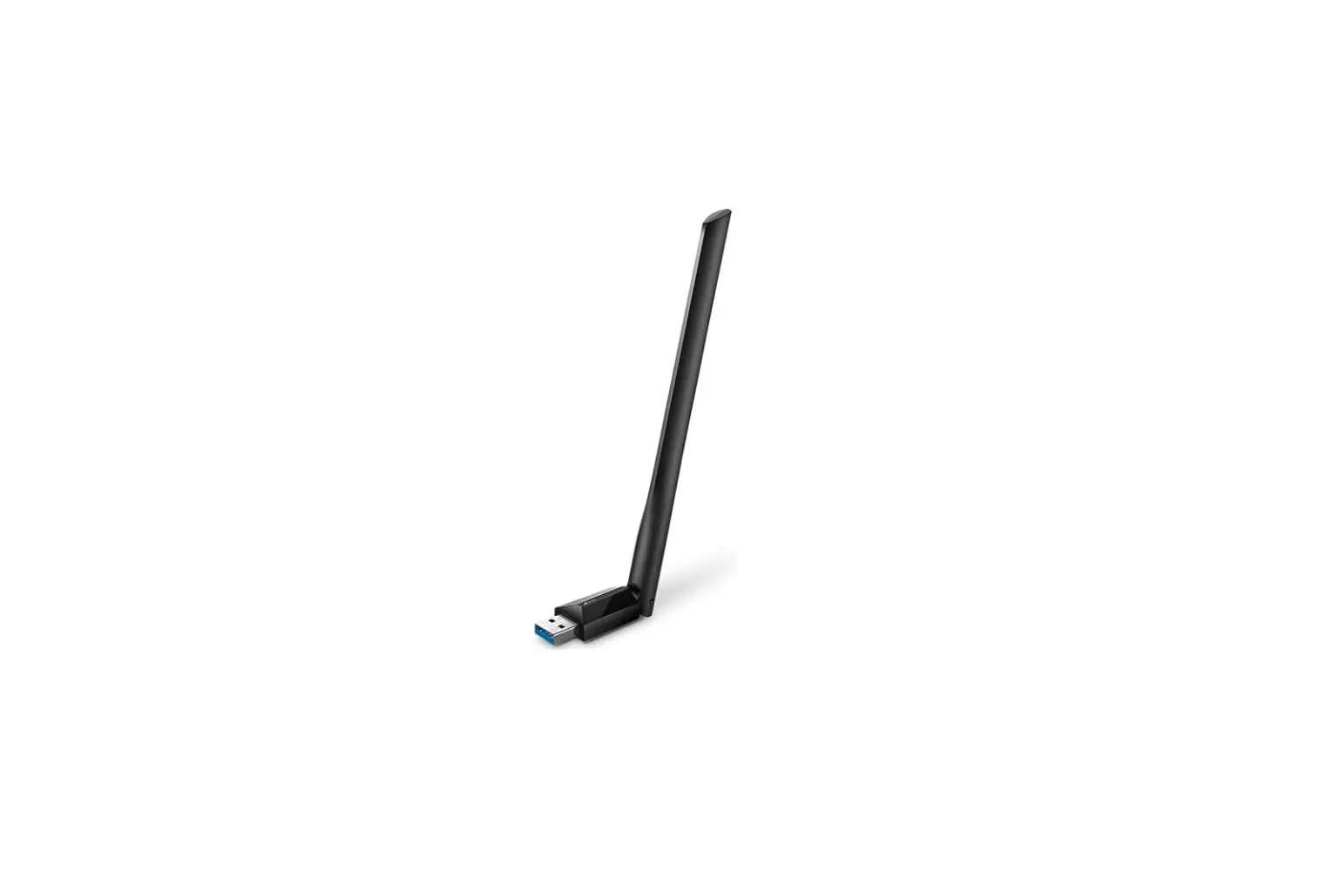
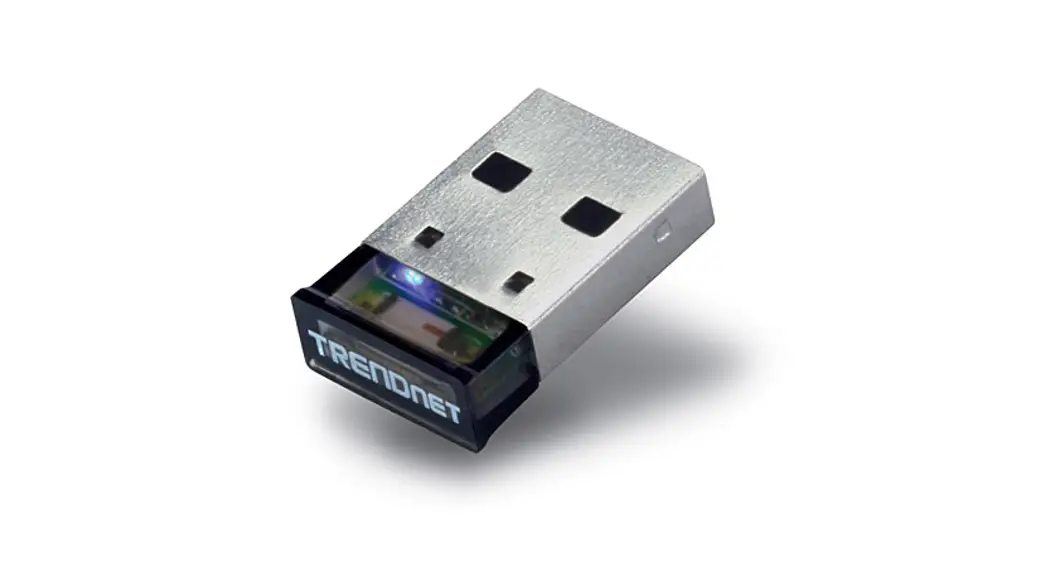
- TEW-805UBH
- Quick Installation Guide
- CD-ROM (Driver & User’s Guide)
Minimum Requirements
- Computer with USB 2.0 port or higher
- Operating System Compatibility:
• Windows® 10 , 8.1, 8, 7
• Mac OS® 10.9 or newer
Windows® OS Installation
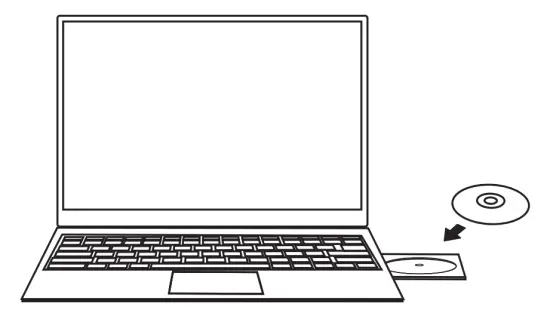
- Insert the included CD-ROM into your computer’s CD-ROM drive.
Note: If you do not have a CD-ROM drive, you can download the drivers from https://www.trendnet.com/support
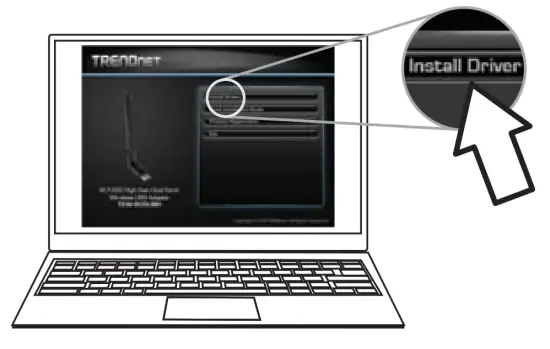
- At the CD Autorun Prompt window, click Run Autorun.exe.
Note: If the Autorun prompt does not appear automatically, open the CD contents and double-click Autorun.exe. - At the CD-ROM main menu, click Install Driver.

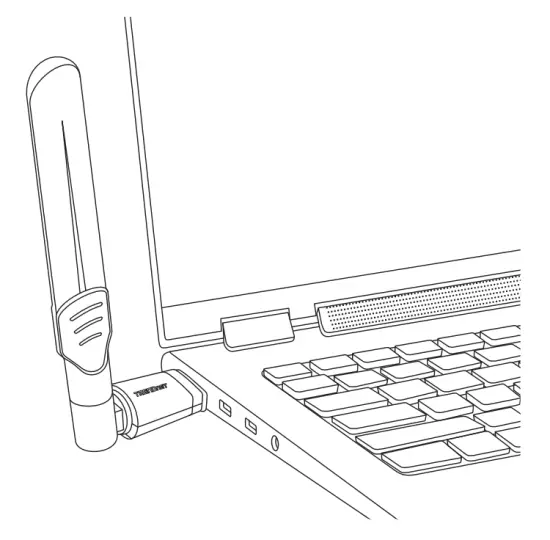
- Follow the InstallShield Wizard instructions and restart the computer once the installation is complete. After the computer has rebooted, plug the TEW-805UBH into an available USB port on your computer.

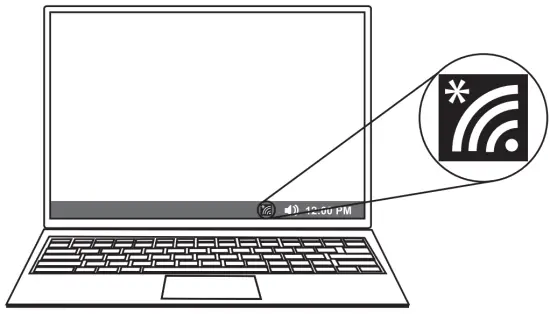
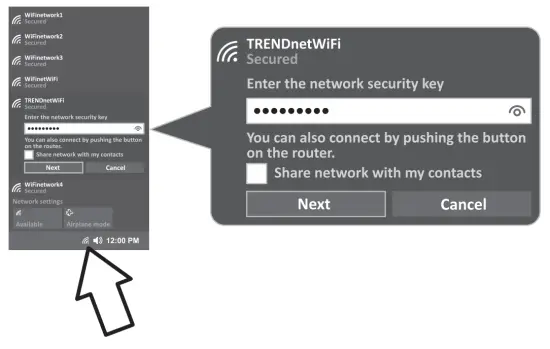
- Click on the wireless icon in the taskbar located in the bottom right corner.

- Select a wireless network, then enter the WiFi Key (password) and click Next.
- The status will display “Connected” to indicate a successful connection.
Note: If the connected message does not display, double check your WiFi key (password) and re-enter it.

Mac® OS Installation
- Go to https://www.trendnet.com/support to download the latest driver and double click to extract the files or you can access the files on the included CD.
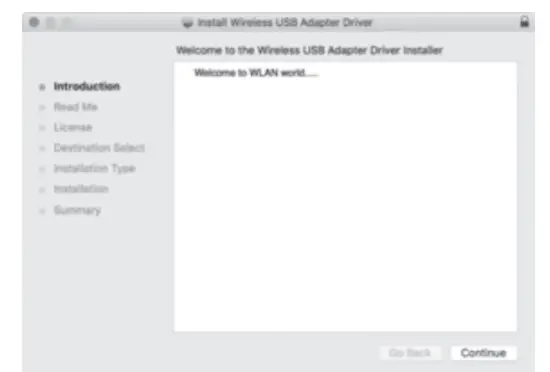
Note: Mini CDs can only be read by an optical tray, using an optical slot can damage your computer. - After you have extracted the files, double click the Installer. pkg file and follow the steps.

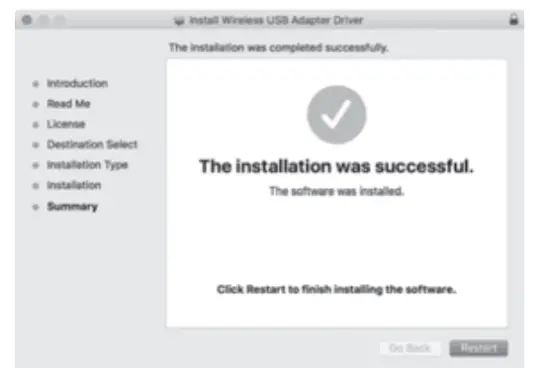
- After the installation is complete, you will be prompted to Restart.

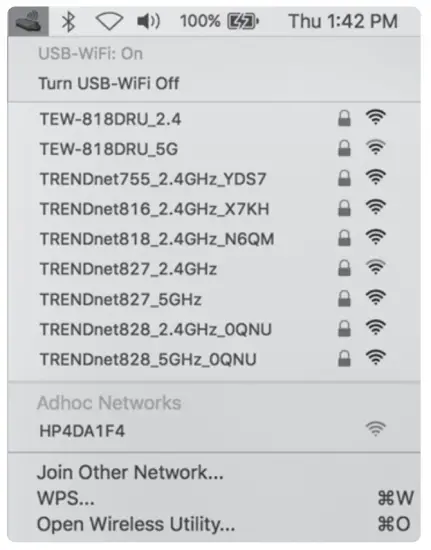
- After your computer has restarted, click on the wireless icon located in the menu bar at the top of your screen.

- Select your wireless network.

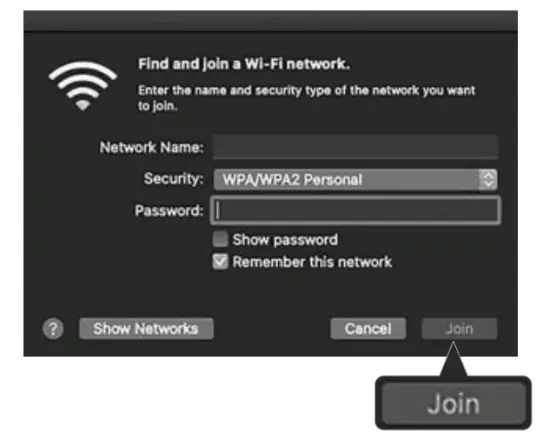
- Enter the WiFi key (Password) and click Join.

- After you have successfully connected to your network the icon at the menu bar will change to the signal strength you have.
 Note: If the connected message does not display, double check your Wi-Fi Key (Password) and re-enter it.
 Note: If the connected message does not display, double check your Wi-Fi Key (Password) and re-enter it.