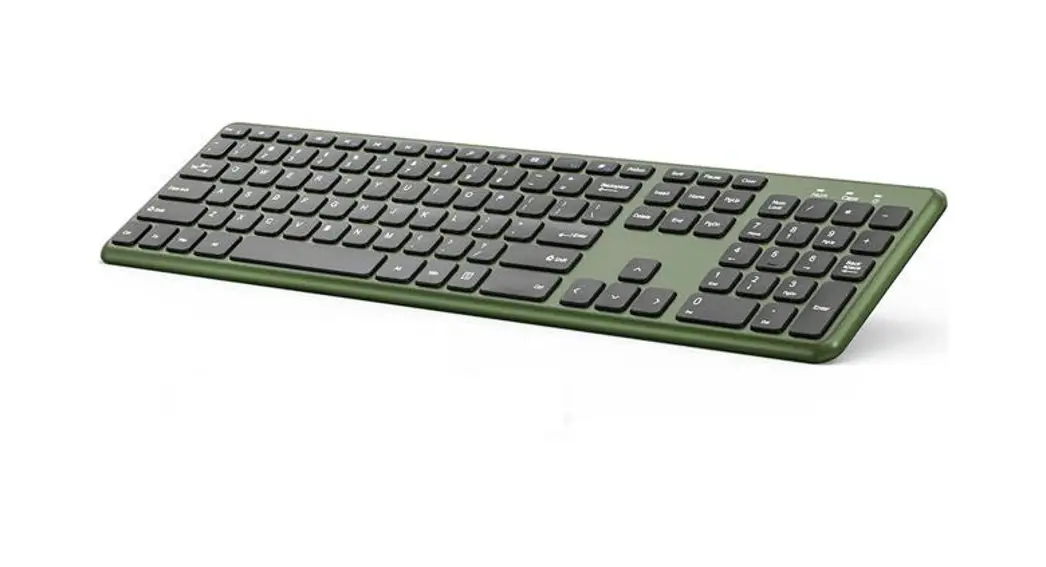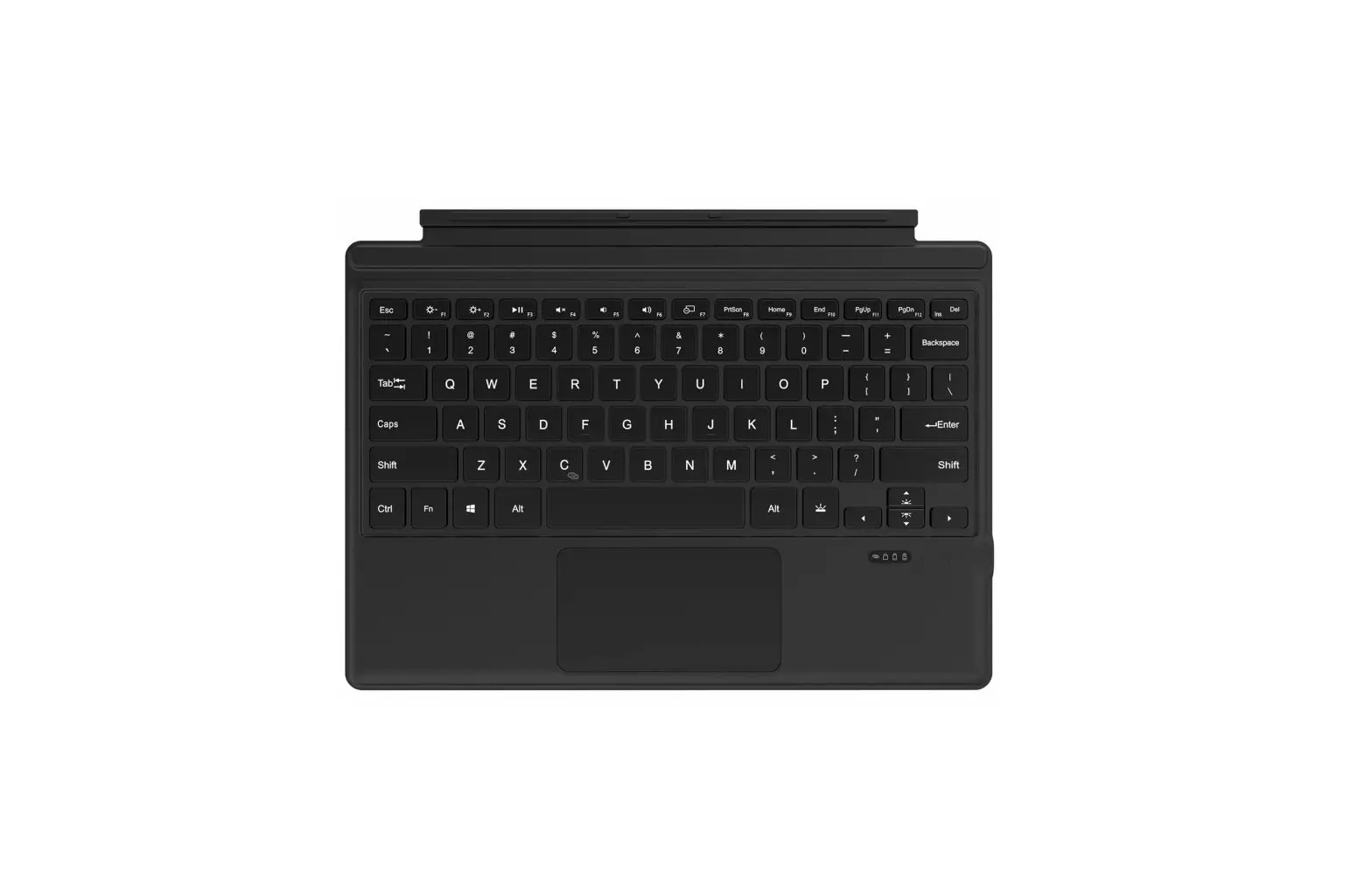
Uogic UK01 Wireless keyboard User Guide
Package Includes
- User Manual xl
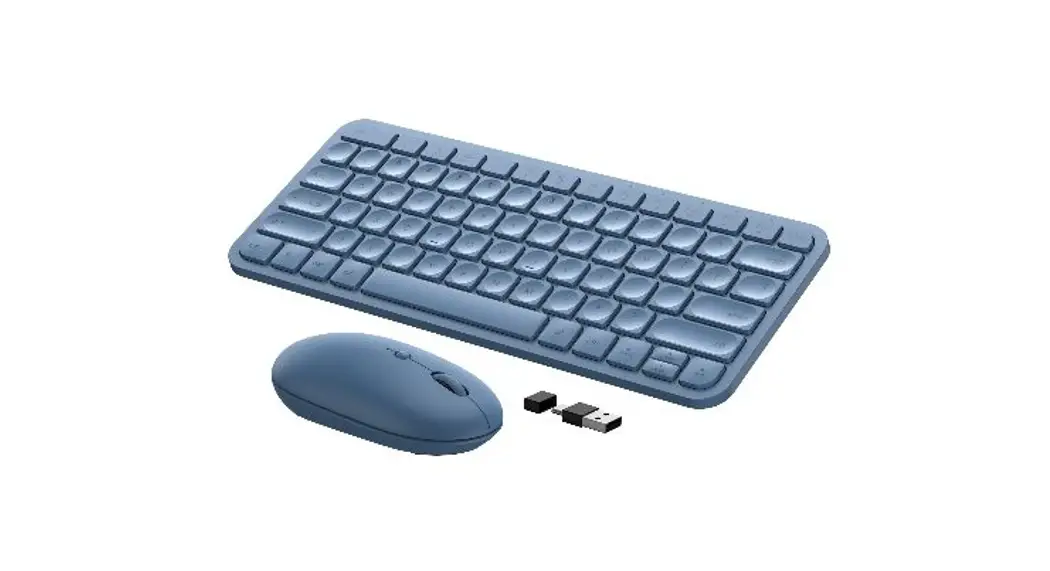
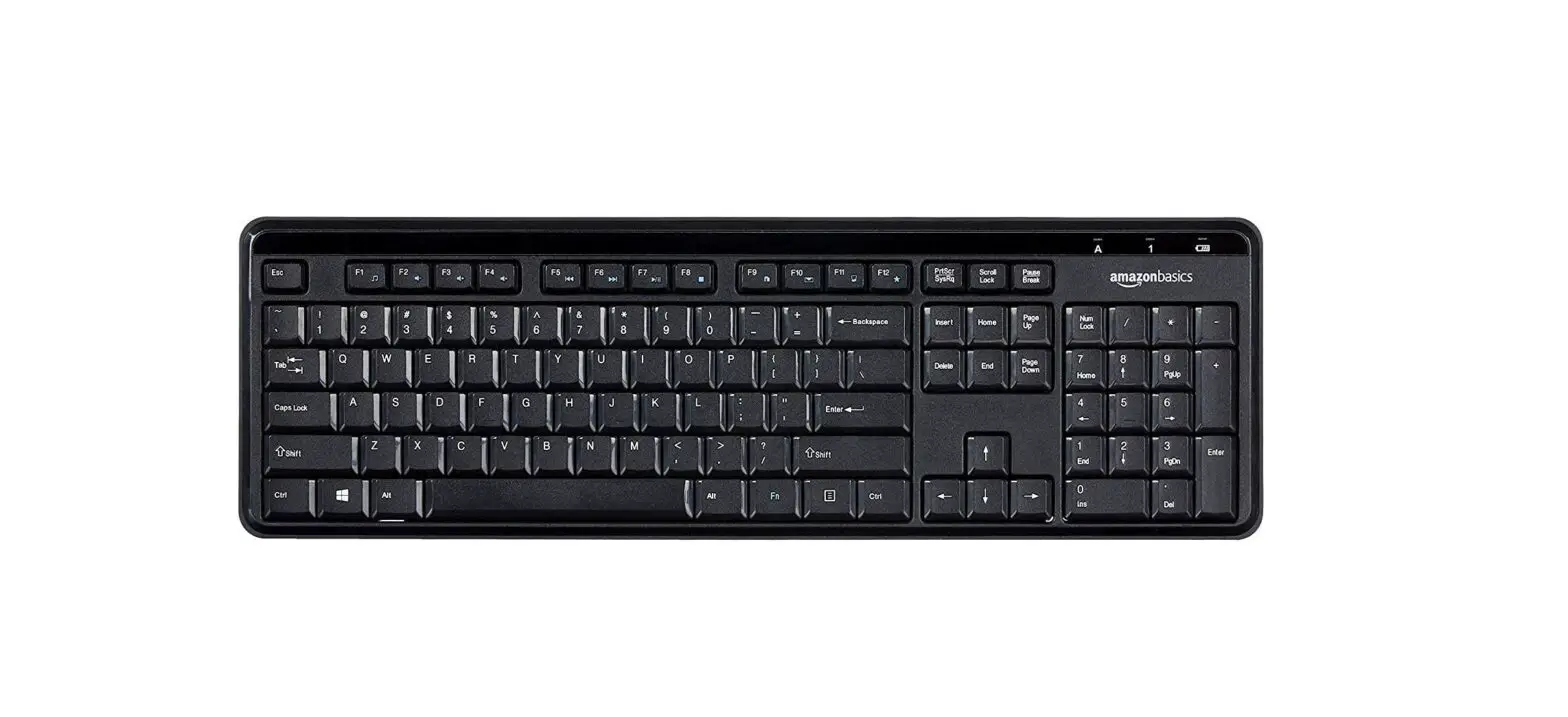
- Bluetooth Keyboard xl
- USB charger xl
Product Specifications
- Bluetooth 5. 0 Interface Standard
- Operating Distance Available: 10meters
- Modulation System: GFSK
- Operating Voltage: 3.7v
- Working Current: <3mA
- . Standby Current: <0.3mA
- Sleeping Current: <40uA
- Charging Current: > 200mA
- Standby Time: > 100days
- Charging Time: 2-3 hours
- Lithium Battery Capacity: 500mA (backlight keyboard model)
- Sustainable Working Time: > 100hours (when backlight turn off)
- Lithium Battery Life: 3years
- Key Strength: 80±10g
- Key Life: 5 million Stroke
- Operating Temperature: -10°C-+50°C
Getting Started Guide
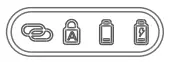
- Switching power and Bluetooth connection indicator: After entering the pairing mode, the indicator light flashes. After the connection is successful, it goes out. Long press the shutdown key to flash for 3 times and then it turns off.
- Caps Lock indicator: Lights up when the keyboard is in uppercase input.
- Low battery indicator: flashes when the battery is too low, prompting to charge.
- Charging indicator: It will light up when charging, and will be off after charging is completed.


ON/OFF button: press keep 3 seconds to on and press keep 3seonds to off
Reset key: When no button is pressed,use a needle to pry it here and press down
USBTYPE C Charging Dock: When the low battery lights on,please use the Original charging cable to charger it Switch


Bluetooth Keyboard Pairing
Windows device (take Surface as example)
- Open your tablet into start interface.
- Click setting option,and then click Change PC settings option.
- Into setting interface,click setting,add setting. Your tablet will into search matching state.
- Turnon the power of keyboard,press FN+C 1 seconds,into pairing state.
- The tablet will show device name of Uogic-keyboard,click it.
- No.password,find the keyboard Bluetooth on screen,connection successful.
Shortcuts Information
| Screen brightness+ |  | Mute |  | Colors Conversion |
 | Screen brightness- |  | Volume |  | Keypad backlight+ |
| Play/Pause |  | Volume |  | Keypad backlight- |
 | Bluetooth search |  | Touch Pad Switch |


Note: Only under the Windows systm can tealize these functions; Unable to realize these functions under the Android, under the Android system can only implement simple mouse function.
| One-finger gestures | Win10 gesture function | Finger gestures | Finger action
|
| Left-click like on a mouse |  | Single finger tap | |
| Moves the cursor |  | Drag your finger | |
| Move an item or select text |  | Tap, immediately tap and hold, then drag | |
| Two-fingers gestures | Right-click like on a mouse |  | Two fingers tap |
| Scroll though a screen vertically |  | Slide two fingers vertically | |
| Scroll though a screen horizontally |  | horizontally Slide two fingers | |
| Zoom in or out |  | Pinch your thumb and forefinger together or move them apart | |
| Three-fingers | Open Cortana |  | Three fingers tap |
| Display Multitasking View |  | swipe three fingers up | |
| gestures Show Desktop |  | Swipe three fingers down | |
| Wswitch apps |  | Swipe three fingers left or right | |
| Four-fingers gestures | Open Action Center |  | Four fingers tap |
 Attention:
- When not use for long time , suggest to close keyboard , in order to prolong battery lift.
- In order to get longer battery lift , charging before keyboard power light flashes, charging time must be better more than 2hours.
Energy saving sleep mode
When keyboard not use will be enter sleep mode after 15minutes,keyboard indicator will off , press any key 5s to wake it up when need use again , then keyboard indicator will tum on.
Troubleshooting
- Make sure the power is turned on
- Ensure keyboard operable distance
- Make sure the battery has power
- Ensure the device’ s Bluetooth was turned on
- Ensure the wireless keyboard was connected with the Bluetooth
- Ensure the wireless keyboard paired successfully
Cleaning
Washing , alcohol or a similar cleaning agent decontamination keyboard.
Charging
- Connect Genuine Parts USB cable B port to keyboard cradle
- Connect USB cable A port to power adapter or computer USB port.
- When charging , charge indicator lights will blinking , after full lights automatically turn off.
Fcc Statement
This device complies with part 15 of the FCC rules. Operation is subject to the following two conditions:
- This device may not cause harmful interference, and
- This device must accept any interference received, including interference that may cause undesired operation.
Changes or modifications not expressly approved by the party responsible for compliance could void the user’s authority to operate the equipment.
NOTE: This equipment has been tested and found to comply with the limits for a Class B digital device, pursuant to part 15 of the FCC Rules. These limits are designed to provide reasonable protection against harmful interference in a residential installation. This equipment generates uses and can radiate radio frequency energy and, if not installed and used in accordance with the instructions, may cause harmful interference to radio communications.
However, there is no guarantee that interference will not occur in a particular installation. If this equipment does cause harmful interference to radio or television reception, which can be determined by turning the equipment off and on, the user is encouraged to try to correct the interference by one or more of the following measures:
- Reorient or relocate the receiving antenna.
- Increase the separation between the equipment and receiver.
- Connect the equipment into an outlet on a circuit different from that to which the receiver is connected.
- Consult the dealer or an experienced radio/TV technician for help.
The device has been evaluated to meet general RF exposure requirement. The device can be used in portable exposure condition without restriction.