KJ-NAVI GT6128 Wireless Mirror Link
Please read this manual carefully when using the product
Please keep this instruction manual properly
Preface
Welcome to choose our CarplayBOX! In order for you to use this machine correctly, please read the machine manual carefully before using it. We are committed to providing you with better products and services!
Product Description
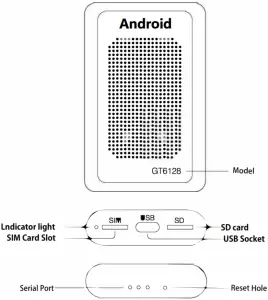
CarplayBOX connection
Reminder: This system only supports models with the original car with Carplay!
Insert the USB cable into the USB port of the car, and insert the other end of the USB cable into the bottom of the CarplayBOX. At this time, the indicator light.
It is flashing, and the connection is successful within 1 minute! (The indicator light is always on)
The first connection needs to be adapted to the car and the resolution, and the car and the car need to be clear, which is a normal phenomenon.
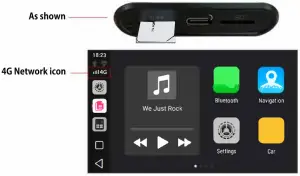
Insert the SIM card, (note: the SIM card notch outwards), you can use the network after the 4G icon lights up
4G Network connection
WiFi Connection
Enter local settings — Open wifi connection — Find wifi, enter the password to connect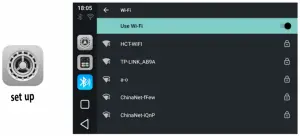
SD card Media playback
Insert the SD card, you can play music, film, video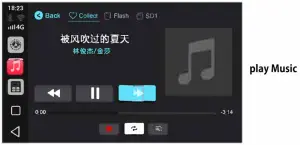
Wireless Carplay connection (Box connection)
- Connect the Bluetooth of the Apple mobile phone, a prompt window will pop up if the connection is successful, click to use Carplay
(The Bluetooth will automatically disconnect after the connection is successful. At this time, the mobile phone wifi will automatically maintain the connection with the hotspot of the car)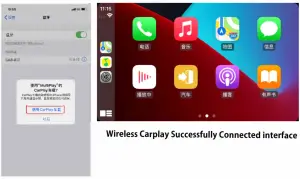
Note: If you want to use the original car screen Bluetooth, you need to disconnect the wireless Carplay first
Wireless AUTO connection
(The box is connected to the phone)
Connect the Bluetooth of your Android phone, you can use wireless AUTO after the connection is successful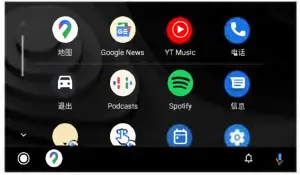
Wireless AUTO successfully connected interface
System upgrade
Put the upgrade package (update.zip) into the root directory of the SD card and insert it into the card slot. At this time, an upgrade confirmation box will pop up (please check the empty upgrade option), click OK, and the product will automatically upgrade, and it will restart after the upgrade is successful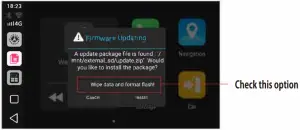
Common troubleshooting
- Can’t connect after the car starts: please re-plug the box and connect again.
- Abnormal phenomena such as dysfunction: please press the reset button RESET.
- The wireless Carplay cannot be connected: Please check if the Bluetooth of the mobile phone is turned on.
- The SD card is not easy to use: Please check whether the SD card is damaged, please reinsert the card or format it or replace it with a new card.
- 4G network cannot be used: please check whether the SIM card still has data
- The box cannot be connected: Please clear the car-machine connection record.
Product parameter
| Product number | RK0232 | GT0232 | GT0464 | |
Master | RK3566 | QCM2150 | QCM6125 | QCM6125 |
Configuration | 2+32G | 2+32G | 4+64G | 6+128G |
system | Androidll | AndroidlO | AndroidlO | AndroidlO |
| Interface | Carplay | Carplay | Carplay | Carplay |
The internet | wifi | wifi+4G | wifi+4G | wifi+4G |
Voltage | USB5V | USB5V | USB5V | USB5V |
| Current | < l.SA | < l.SA | < l.SA | < l.SA |
Product List
|
|
|
|
|
|
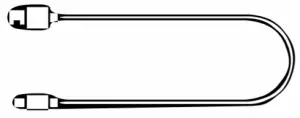 type-c
 Certificate of Conformity
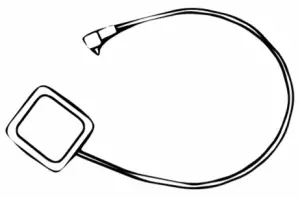 GPS Line
 GPS box
FCC Statement
This equipment has been tested and found to comply with the limits for a Class B digital device, pursuant to part 15 of the FCC Rules. These limits are designed to provide reasonable protection against harmful interference in a residential installation. This equipment generates, uses and can radiate radio frequency energy and, if not installed and used in accordance with the instructions, may cause harmful interference to radio communications. However, there is no guarantee that interference will not occur in a particular installation . If this equipment does cause harmful interference to radio or television reception, which can be determined by turning the equipment off and on, the user is encouraged to try to correct the interference by one or more of the following measures:
- Reorient or relocate the receiving antenna.
- Increase the separation between the equipment and receiver.
- Connect the equipment into an outlet on a circuit different from that to which the receiver is connected.
- Consult the dealer or an experienced radio/TV technician for help.
Caution: Any changes or modi cations to this device not explicitly approved by manufacturer could void your authority to operate this equipment. This device complies with part 15 of the FCC Rules. Operation is subject to the following two conditions: (1) This device may not cause harmful interference, and (2) this device must accept any interference received, including interference that may cause undesired operation.
RF Exposure Information
This equipment complies with FCC radiation exposure limits set forth for an uncontrolled environment. This equipment should be installed and operated with minimum distance 20cm between the radiator and your body.