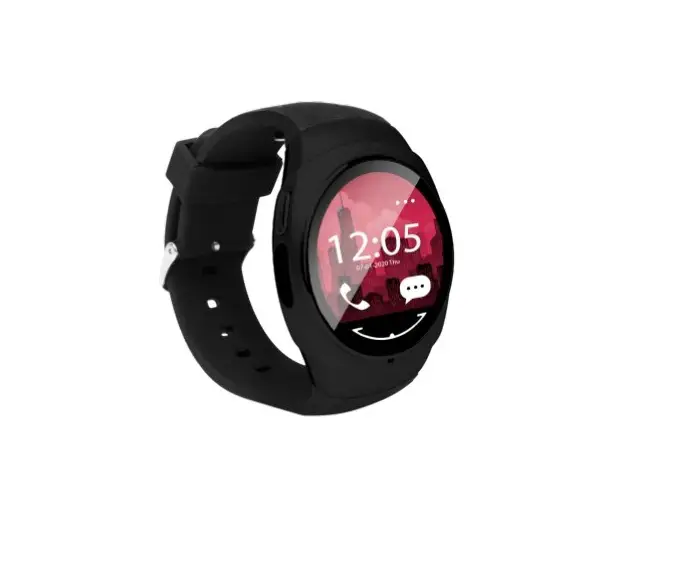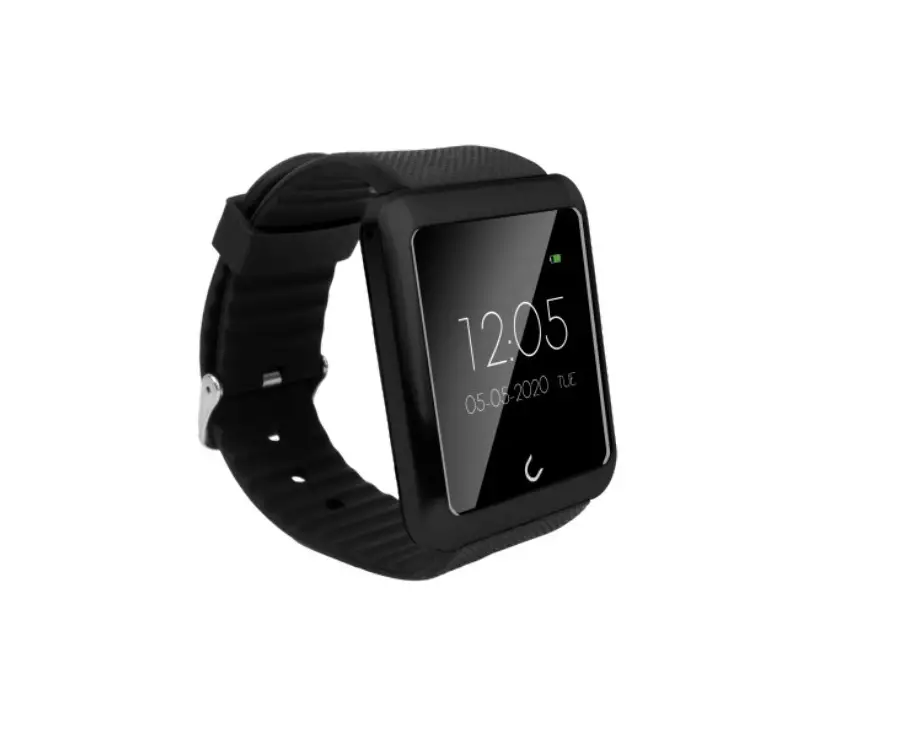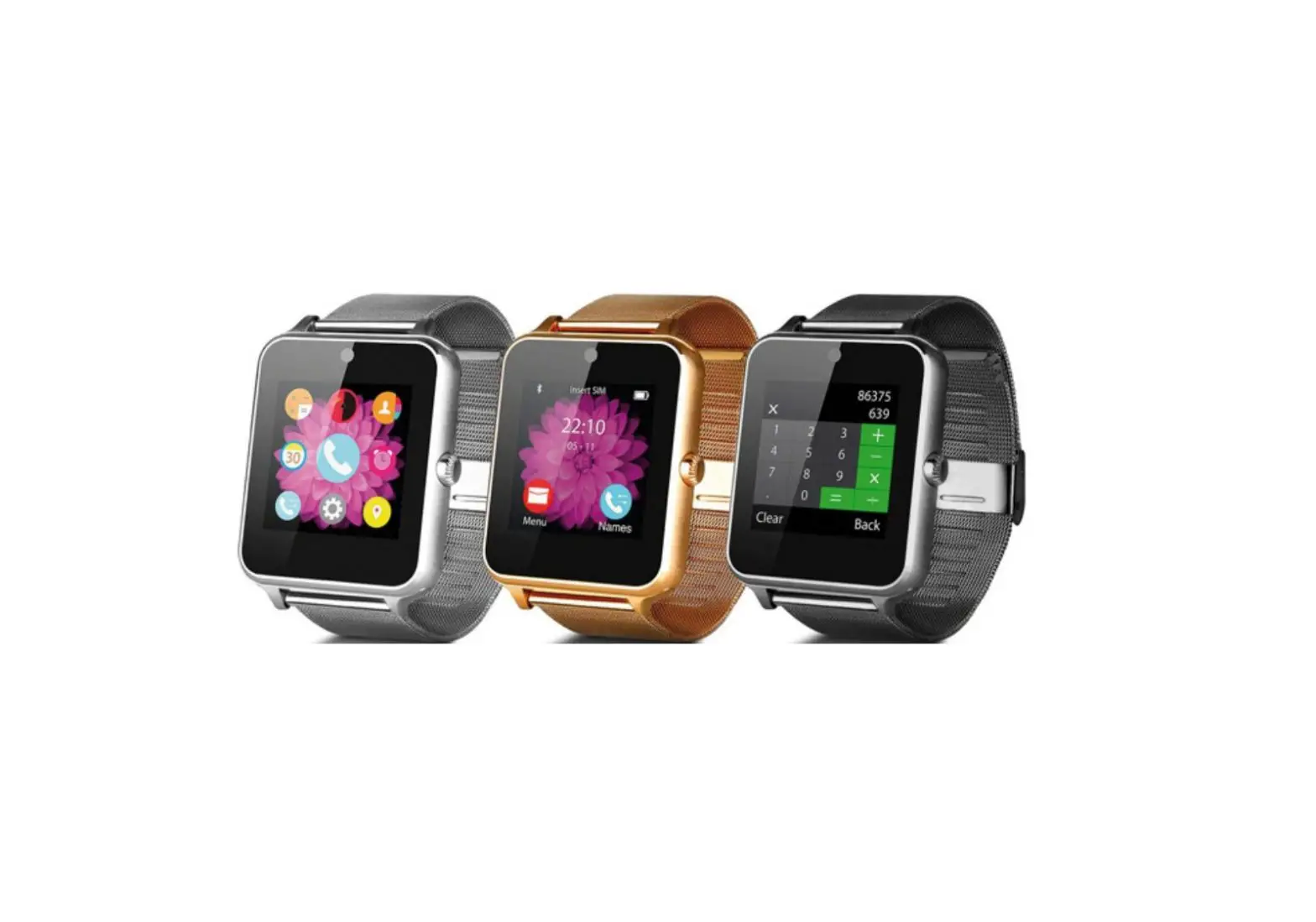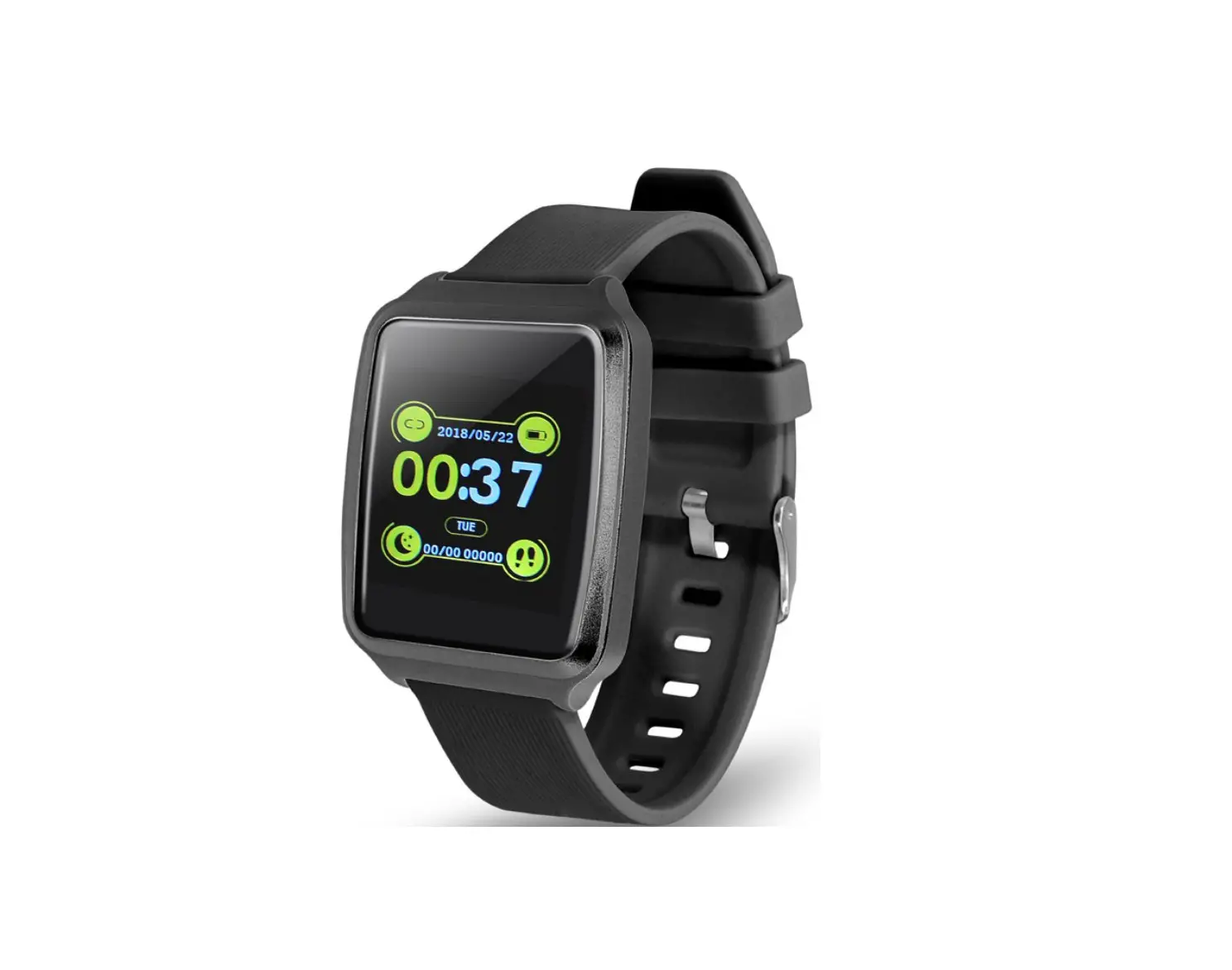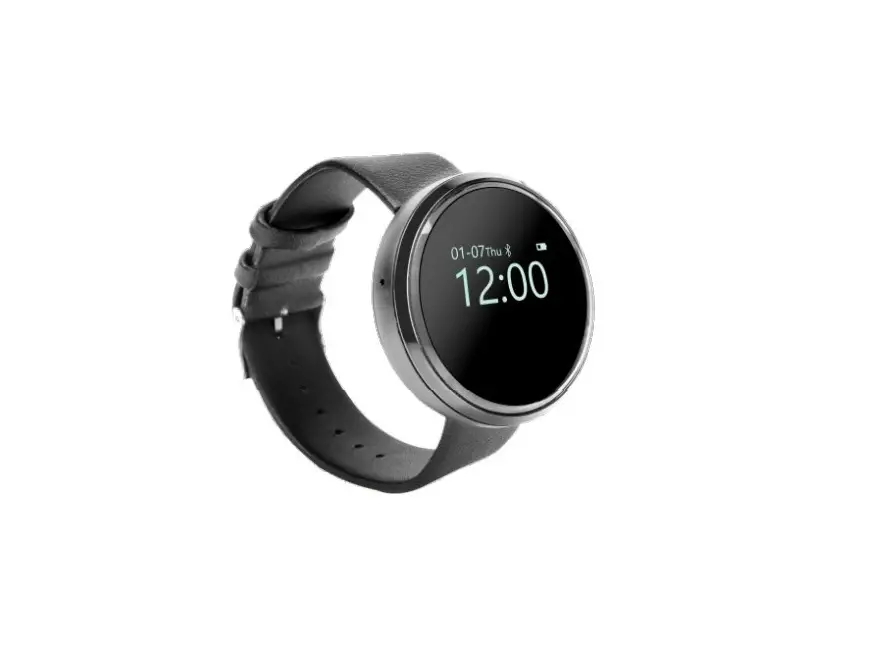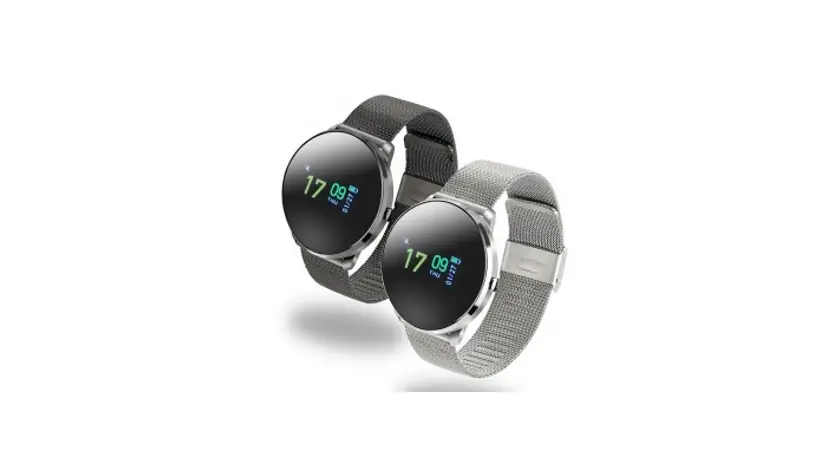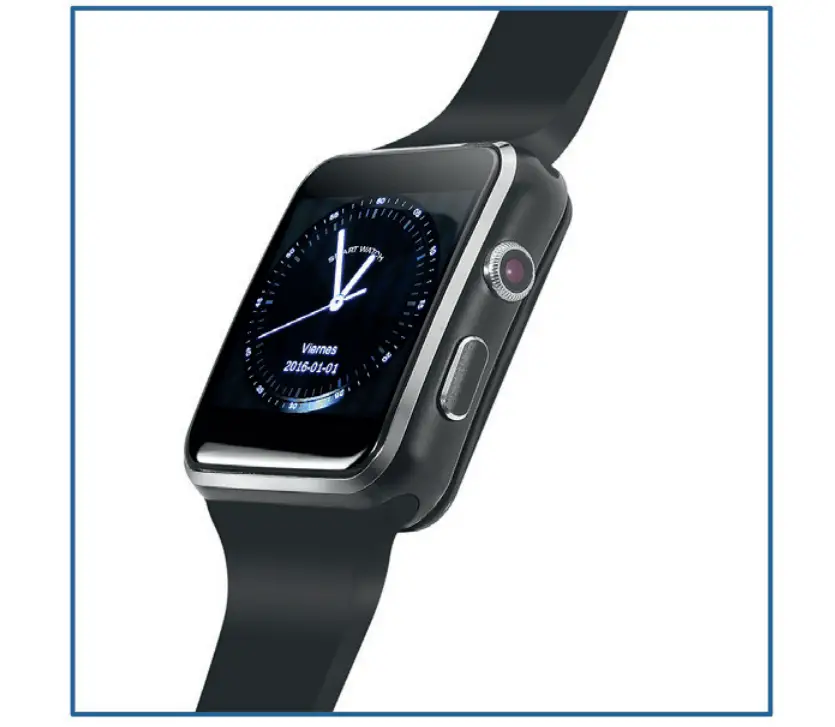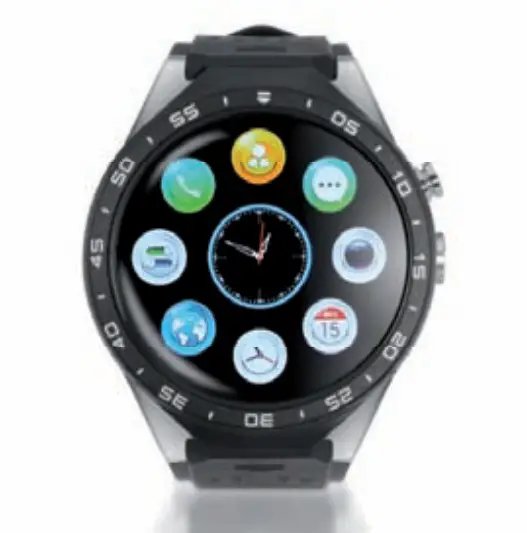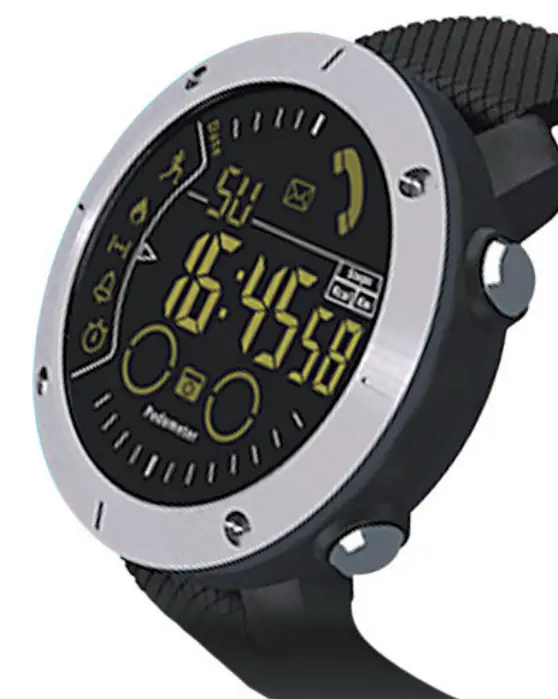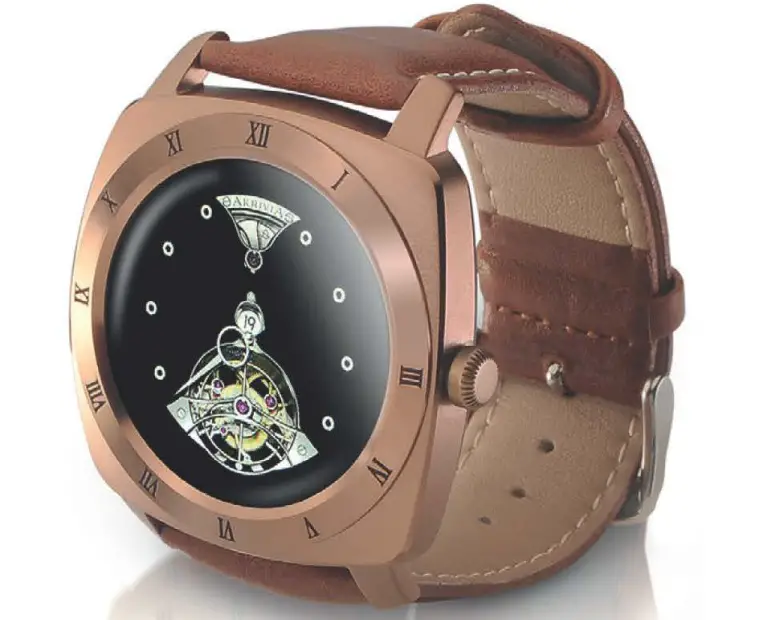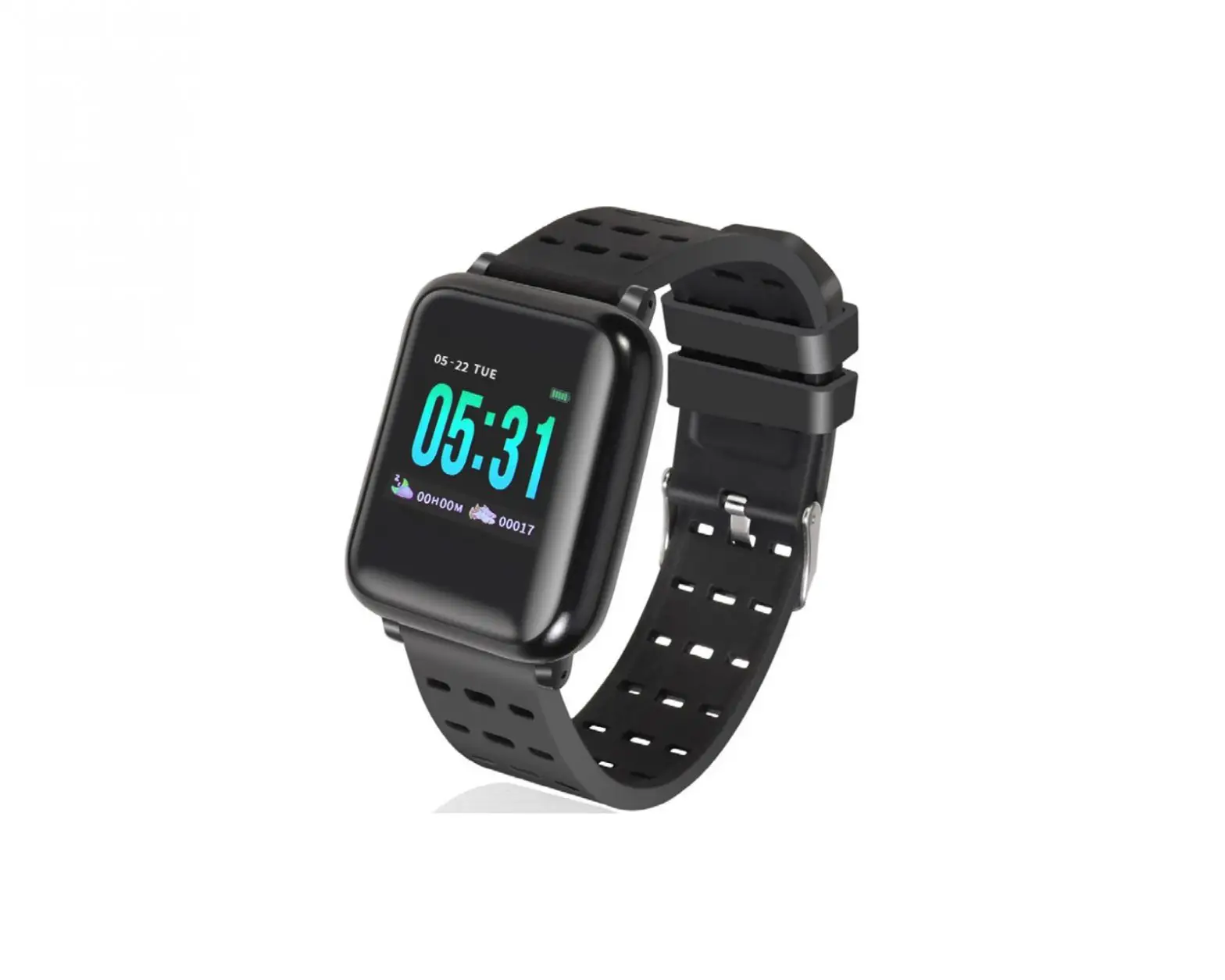
imperii SmartWatch Urban User Manual
Compatible system and requirement
 Android 4.4 or above
- iOS above 8.5 iphone5s
 Bluetooth 4.0
 Android 4.4 or above
 iOS above 8.5 iphone5s
 Bluetooth 4.0
Preparation
Please ensure that the battery is fully charged for the first time. If the battery is too low, please charge it for 2-2.5 hours. (Be sure to charge the battery for the first time. Under the shutdown state, the bracelet will display the charging icon. Under the boot condition, the battery bar on the main interface of the wristband will be in a flowing state.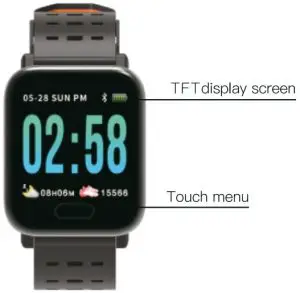
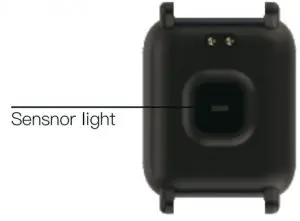
If the equipment ls not used for a long time, please be sure to recharge every 3 months
Connection Instruction
Mobile APP download Method
1: Scan the right QR code to download Method
2: Please download the “WearFit” in the ~App treasure~ search software on the Apple mobile phone Apple Store, Android mobile phone, click to download.
Scan the QR code to enter the app download address
Android
iOS
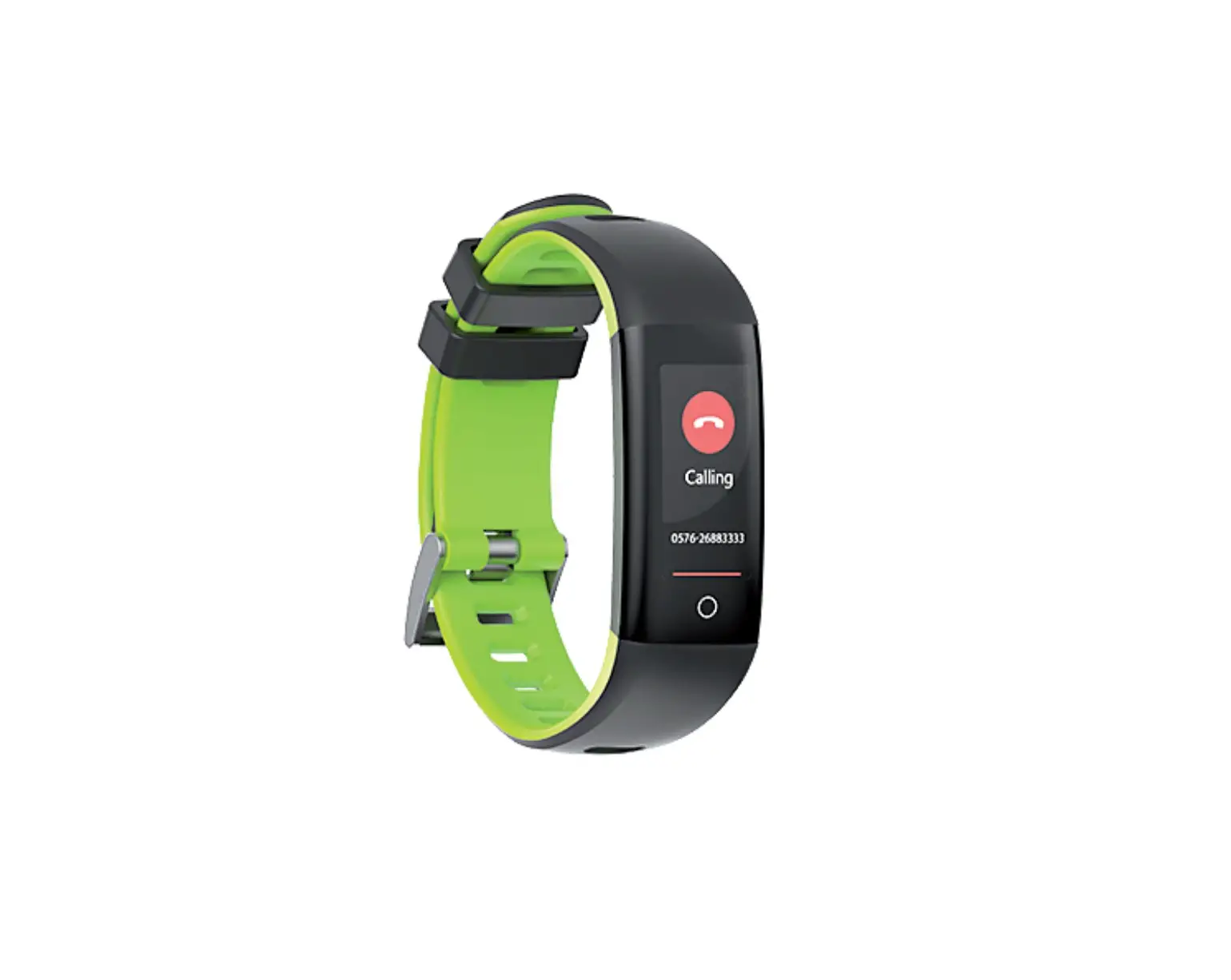
The bracelet function specifications
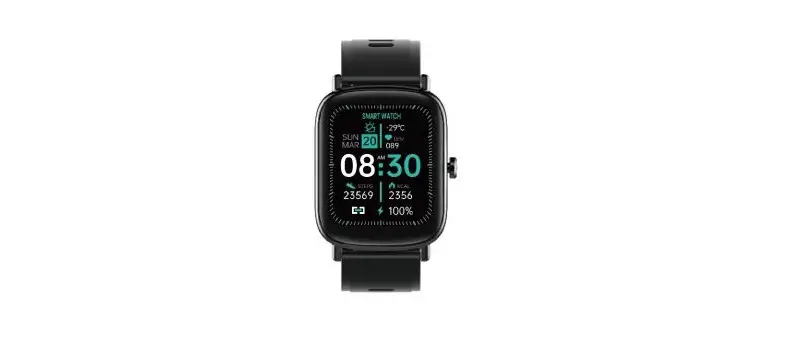
 Time mode: Electricity, Date, Sleep time,. Step count.(The time of the bracelet after connected the app will automatically synchronize with the time of the phone, and the time cannot be set on the wristband) Long press the switch dial.
 Sports information: Automatically record daily steps, calories, kilometers.
 Heart rate measurement: The whole point automatically measures the current heart rate, and can also be manually measured by the APP. The wristband switches to the heart rate measurement interface and presses long to enter the measurement. The measurement is automatically returned to the corresponding interface.
 Blood pressure measurement: The current point automatically measures the current blood pressure, and can also be manually measured by the APP. The wristband switches to the blood pressure measurement interlace and presses to enter the measurement. The measurement Is automatically returned to the Corresponding Interface.
 Blood Oxygen Measurement: the whole point automatically measures the current blood oxygen condition, and can also be manually measured by the APP. The wrist switch Ii switched to the blood oxygen measurement interlace and the long press is pressed to start the measurement, and the measurement is automatically returned to the corresponding interface.
 sleep monitoring: Automatically monitor daily sleep quality.
 Exercise mode: Long press in the exercise mode interlace, there are three modes of running, climbing, riding, long press on each mode Interface to start recording the movement time and calories generated, touch pause, long press to exit.
 Smart reminder: Open the reminder on the APP. When there are APP, call, SMS and other information on the phone, there is a corresponding reminder on the bracelet.
 More: Stopwatch (long press to enter, exit, tap start, pause), find the phone (long press search, tap pause), shut down (long press),Stopwatch (long press to enter, exit, tap start, pause), find the phone (long press search, tap pause), power off (long press to turn off), reset function (long press to return to time interlace), QR code (scan QR code Into the app download address) .
other functions: raise the hand to brighten, sedentary reminder, do not disturb mode, shake a photo, point measurement, WeChat sports, apple health, automatic language matching.
Q&A
Can’t search for a bracelet or connect when binding?
Android system:
- Please confirm that the mobile phone Bluetooth is turned on, and the Bluetooth logo is not displayed on the wristband (if the Bluetooth ring is displayed on the wristband, it indicates that it has been connected). Close to the bracelet, try searching and connecting again, and make sure the phone system is Android 4.4 or higher.
- If you still can’t connect, go to Phone Settings
 Application Management Authorization Management App Rights Management, find the application [WearFit], and mark all the permissions as “Allow”; then enter the phone settings GPS positioning to open the GPS location function of the phone. , restart your phone and try to connect.
10S system:
Please confirm that the mobile phone Bluetooth is turned on, and the Bluetooth logo is not displayed on the wristband (if the Bluetooth logo is displayed on the wristband, it indicates that it has been connected by other devices, please release the Bluetooth beforehand). After the Apple mobile phone is connected once, if you tum on the mobile phone Bluetooth again, the Bluetooth device will be connected by default, so you can go to the phone settings  Bluetooth ignore this device, the APP can detect the bracelet.
After the bracelet is bound, the display is not connected, or the connection is displayed but the power is 0%? At this point, the phone is not successfully bound to the bracelet. Please re-bind. APP no data display?
In the main interface, pull down and refresh the data manually to display the date in the APP. Automatically synchronizing data will only be synchronized when the phone’s bracelet is first connected, followed by automatic synchronization of data for each hour. In addition, the whole point measurement should be turned on. Our column diagram of step counting, heart rate and fatigue all read the whole point data. If It ls not open, the histogram has no data.After the APP pull-down Is refreshed, the data does not load?
App Settings Restore Bracelet Factory Settings Click to restore factory settings Button Shutdown Reboot the Bracelet to connect to the App. Normally use the bracelet and the data can be loaded.
Is the bracelet time out of sync after connecting the phone?
Phone Settings Application Management / Rights Management App Permissions Open Relink Bracelet App’s main interface pull-down refresh.
Basic Parameters
Screen size | 1.3 inches |
Bluetooth | Bluetooth 4.0 |
Waterproof rating | IP67 waterproof rating |
Battery Type | Polymer Battery |
Battery capacity | 180mAh |
Charging time | 2-2.5 Hours |
Wrist strap size | 258mm*20mm*3mm |
Charging method | Contact charging |
Packing | Smart Bracelet + Charging Clip + Manual |
Remark
- If there is any problem with the quality of the product or the use of the product please, contact the store directly, we will deal with it quickly.
- The measurement results of this product are for reference only and are not intended for any medical use or basis. Please follow the doctor’s instructions and must not self -diagnose and treat according to the measurement results .
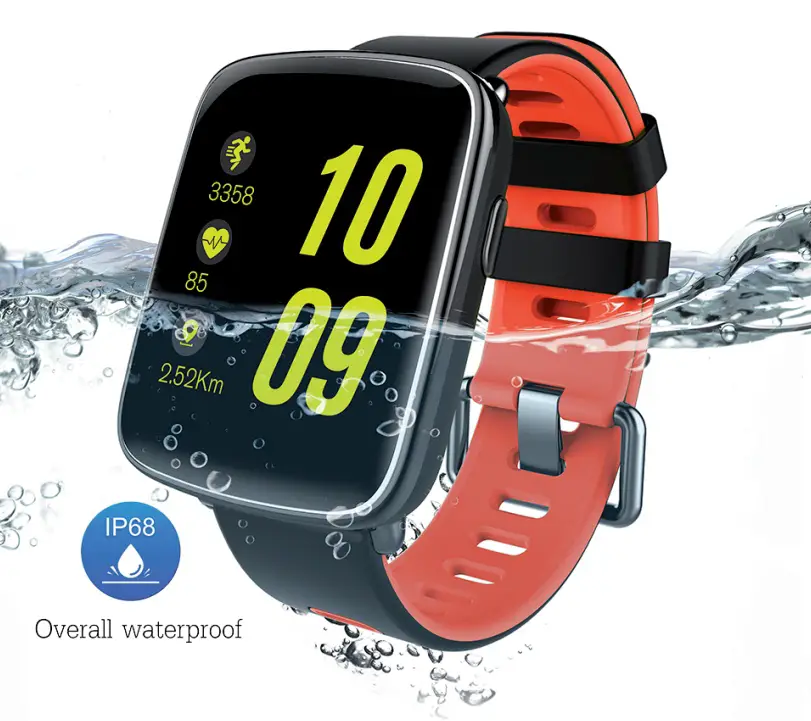
- The product waterproof rating Is IP67, can be used for waterproofing, not for diving and for a long time In the water. In addition, this product does not prevent hot water, because water vapor will affect the ring.
- The company reserves the right to modify the contents of this manual without prior notice without prior notice. Some functions are different in the corresponding software version, which is normal.
- This product contains a polymer battery. Do not leave this product in a high temperature environment for a long time. Do not place this product in an open flame.
TECHNICAL SERVICE
Visit: http://www.imperiielectronics.com/conatctenos

imperii SmartWatch Urban User Manual – Download [optimized]
imperii SmartWatch Urban User Manual – Download
imperii SmartWatch Urban User Manual – OCR PDF