
Vauxhall Connect
LEV user guide
Introducing Vauxhall Connect
Vauxhall Connect is the new way to stay connected whilst on the road. Smart technology systems help to keep you safe, following the most efficient route and up-to-date with the condition of your Vauxhall.
This guide shows you how to set up your account and subscribe to available services.
- Create a MyVauxhall account
- Add a vehicle to your account
- Subscribe to a service
- Activate Live Navigation
- Activate e-Remote
- Cabin temperature pre-conditioning
- Setting charging schedules
If your Vauxhall Retailer has previously set up your account and you have activated it, just download the MyVauxhall app and use the same user name and password to get started.

Vauxhall Connect
Create an account and link your vehicle
Create a new MyVauxhall account using the App
If your Retailer created your MyVauxhall website account, you will have received an email prompting you to activate. If you activated your account you can use the same login details across all Vauxhall systems – including the MyVauxhall app – and steps 4, 5, and 7 may not apply.
Step 1
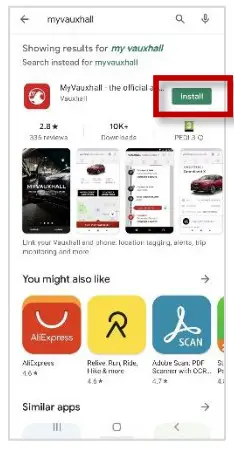
Search Vauxhall in the App/Play Store and Install.
Step 2
Open the App and SIGN UP to create a new account. If you already have an active MyVauxhall account use these details to SIGN IN.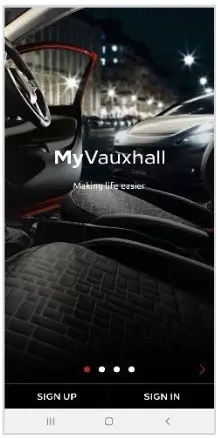
Step 3
The app collects information to help us improve your experience. If you are happy with this, click ACCEPT.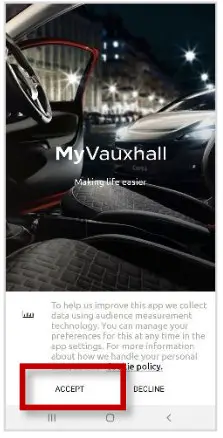
Step 4
Create your account by entering your personal details
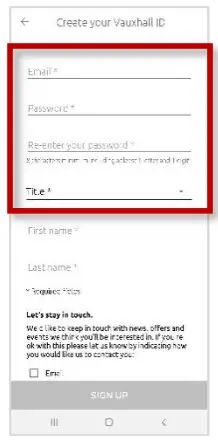
Step 5
We would like to stay in touch – if you’re happy with this select your preferred methods of contact and SIGN UP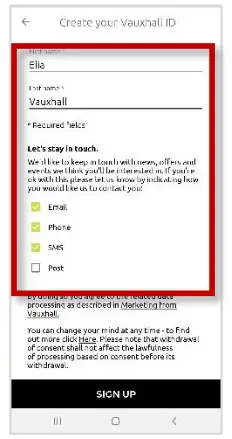 Step 6
Please read the Terms & Conditions of use and the Privacy Policy. Tick the check-box and CONTINUE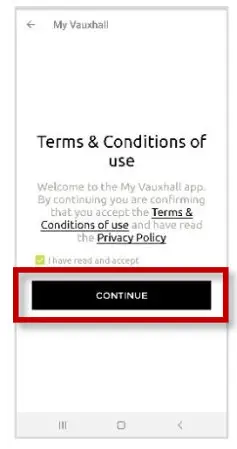 Step 7
Your account has been successfully created. If this is your first login you will be sent an email asking you to complete the activation, click OK to proceed to the login screen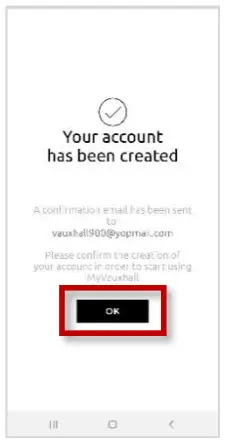
Link a vehicle to your account
If your Retailer has set your account up, your vehicle should already be linked.
If you need to add a vehicle – or change the existing one – follow the steps below.
Please note – you will need your Vehicle Identification Number (VIN) to link your vehicle to your account.
This can normally be found on the inside of the door pillar or on your V5 owner’s documentation.
Step 1
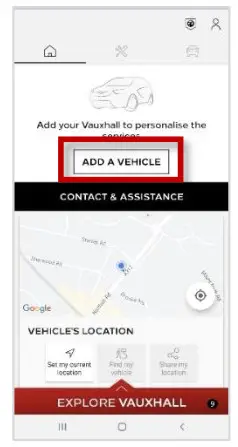
Tap ADD A VEHICLE
Step 2
Locate the VIN on your vehicle. Scan the VIN using the ‘Take a picture function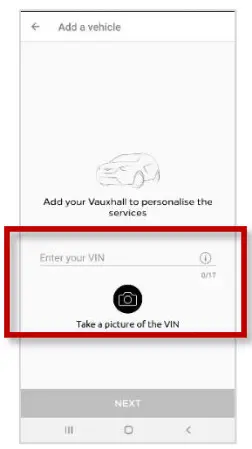
Step 3
Alternatively, enter the VIN manually. Please note the VIN only contains zero’s and one’s – not the letters O or I.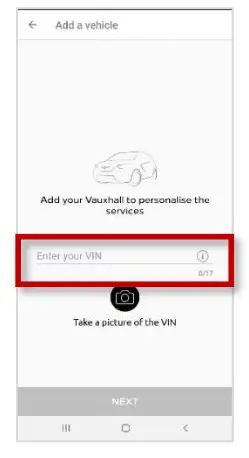
Step 4
Once the VIN meets the expected 17 digit requirements the NEXT tab will turn black and you can click through. 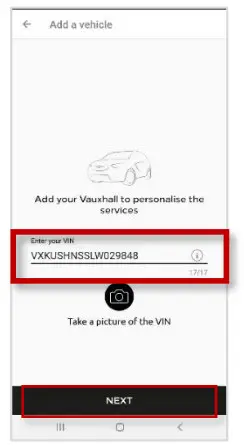 Step 5
Enter your vehicle’s current mileage and CONFIRM.
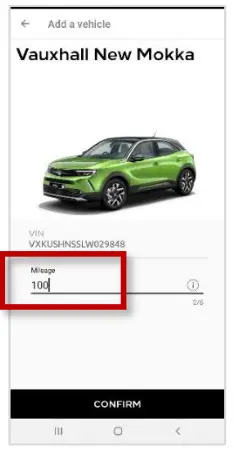
Step 6
Your home screen will now be populated with your vehicle information.
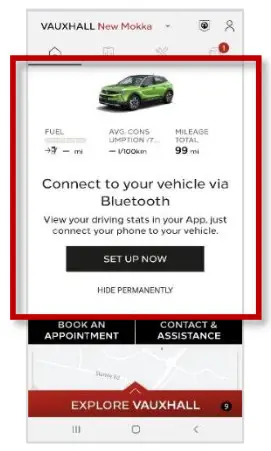 Your account is now ready for you to subscribe and activate the services you have available on your vehicle.
Vauxhall Connect
Subscribe to a service
Deactivate Privacy Mode
In order for the majority of the Vauxhall Connect services to function correctly, you will need to ensure that data sharing is made available in your vehicle.
Privacy Mode is activated as standard so will need to be deactivated.
For most Vauxhall vehicles equipped with a navigation system, follow these four steps.
For Grandland X customers, or if your vehicle is not equipped with a navigation system, press the e-Call & b-Call buttons together for 1 second to deactivate privacy mode.
You will hear a tone and an automated voice will advise that privacy mode is ‘deactivated’.
IMPORTANT
Privacy Mode must be deactivated in order for the e-call and b-call advanced functions to work. If left activated only minimal emergency functions are operational.
Step 1
From within the vehicle looking at the navigation screen, click on the icon in the upper right corner.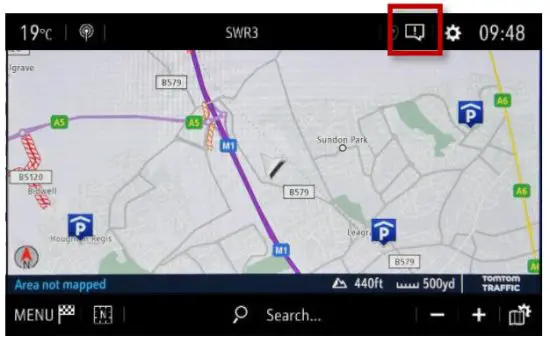
Step 2
Select ‘Private Mode’.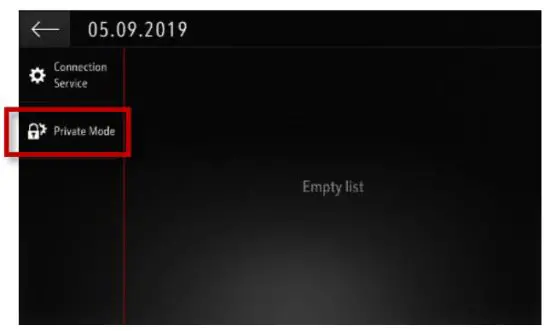
Step 3
Select ‘Sharing data and vehicle position’, then confirm your selection by clicking the tick icon.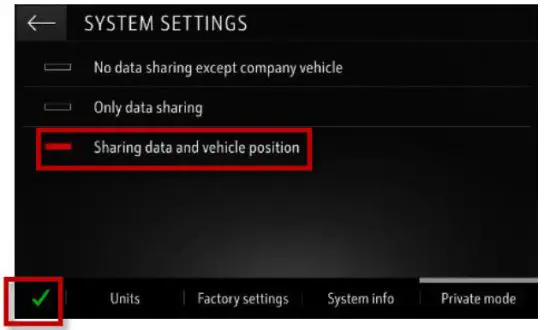
Step 4
On the connection screen, ‘Availability of connected services‘ will be ‘Available‘.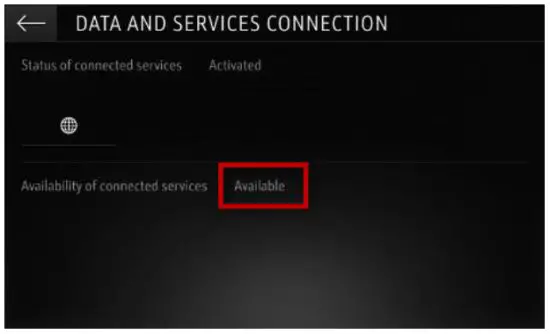
Subscribe to a Vauxhall Connect service
Now you’re ready to subscribe to the services. Repeat the steps below as many times as required in order to activate the services available for your vehicle – Live Navigation, Vehicle Status & Information and e-Remote
Step 1
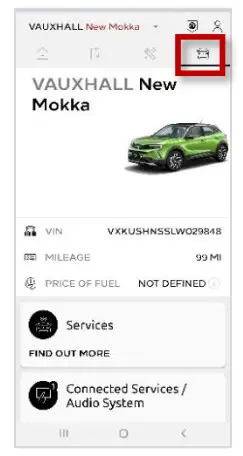
Tap on the vehicle icon.
 Step 2
Select SERVICES. 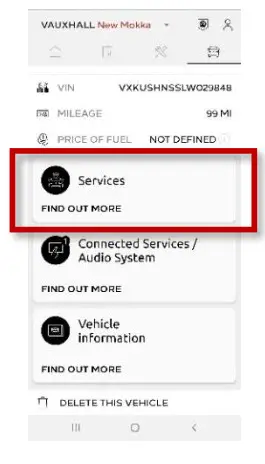 Step 3
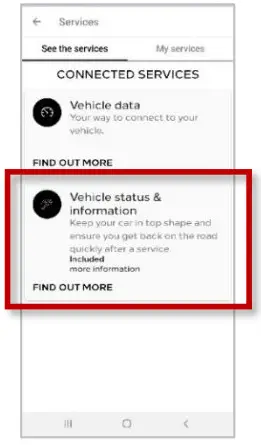
Select the service you wish to activate.
 Step 4
This will take you to the Vauxhall Connect store. Tap ORDER to proceed.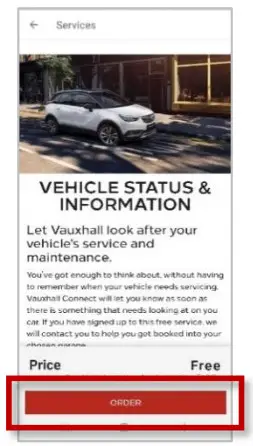
Step 5
If your service requires a telephone number to activate – enter it here.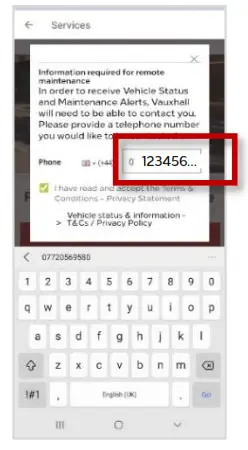
Step 6
Once you have read the terms &conditions of the service you are activating, tick the boxes and click VALIDATE.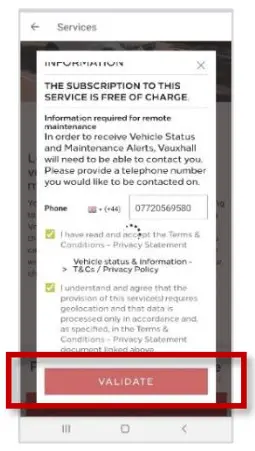
Step 7
Once the subscription is complete tap BACK TO YOUR SERVICES to return to the main App.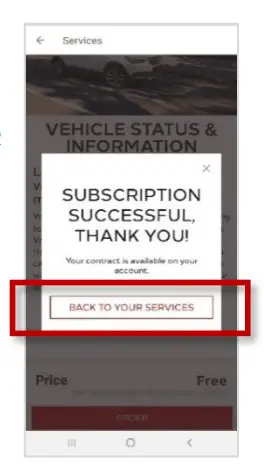 Step 8
You can also tap the Services button at any time to return to the App.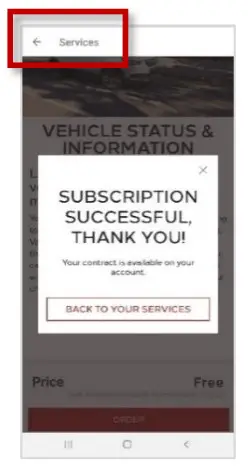
Some services will now be activated, however, some services require a few additional steps. Read on to understand how to activate these services.
To ensure the correct functioning of the Life Navigation service Privacy Mode must have been deactivated and you must have subscribed to the service – as described earlier.
To validate that Live Navigation is operational – enter your vehicle, start it up and wait until the infotainment system is ready.
Check that the TomTom Traffic icon is showing in the bottom right of the screen. If it is, the functionality is live.
If not, follow the steps shown.
Important – when activating this service please make sure you are in an open area with good network coverage, avoiding garages and underground car parks.
Step 1
In the navigation screen, check that the TomTom Traffic logo is showing bottom right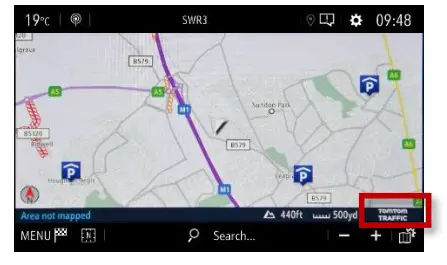
Step 2
If not, click the icon at the top right of the navigation system.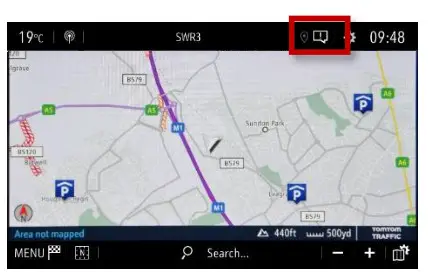
Step 3
To check the services are correctly set up click on ‘Connection services’.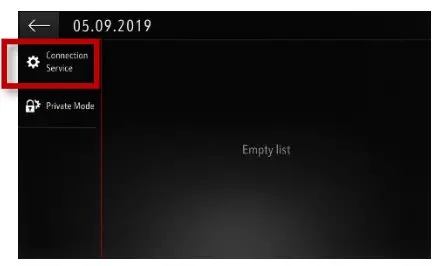
Step 4
On this screen, you should see ‘Status of connected services’ & ‘Availability of connected services‘ as ‘Activated’ & ‘Available‘. 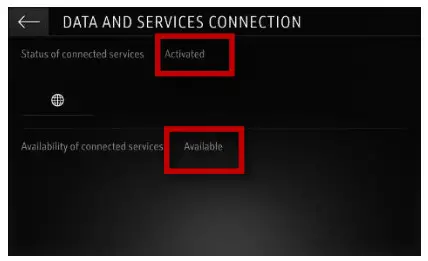
Step 6
If the ‘Status of connected services’ is showing as ‘Not activated’, please ensure you have deactivated Privacy Mode. Refer to page 7 of this guide.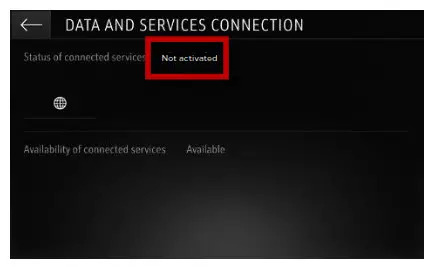
Step 7
If the ‘Availability of connected services’ is showing as ‘Not activated’, please ensure you have subscribed to the service. Refer to page 8 of this guide.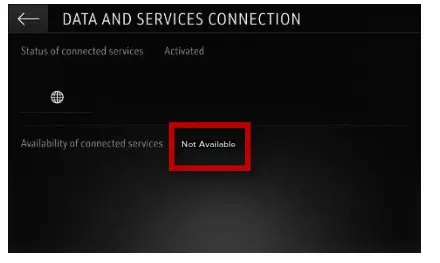

Vauxhall Connect
e-Remote services for LEVs
Activate e-remote – LEVs only
The e-Remote service links the app to the vehicle allowing remote access to useful functions like cabin pre-conditioning and charge scheduling.
This is an important 3 stage process, which ensures only you – and people you know – can have access to the service.
- Set a trusted mobile number – this will be the number used to receive access codes
- Register your phone and create a PIN to ensure your access is secure
- Link your smartphone to your vehicle – you will need to be inside your vehicle to complete this final step
Once you have subscribed to the e-remote service the authentication process will start automatically.
Stage 1 – set a trusted number
You will need to have a good network connection to receive SMS messages, but you do not need to be in your vehicle to perform these steps
Step 1
Read the general terms of the service and check the box.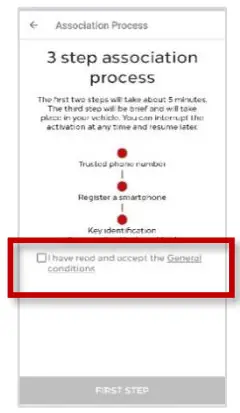
Step 2
Select FIRST STEP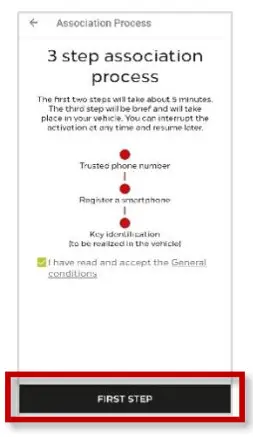
Step 3
Select DEFINE.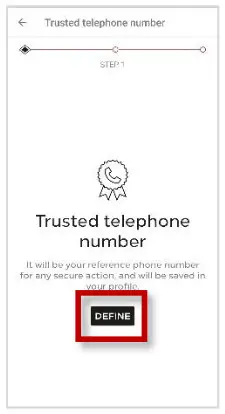
Step 4
Select the UK and enter your mobile number. Select NEXT STEP. You will receive a verification code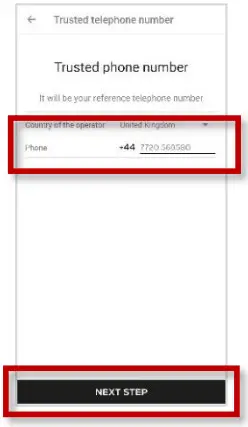
Step 5
Enter the verification code in the space provided and CONFIRM.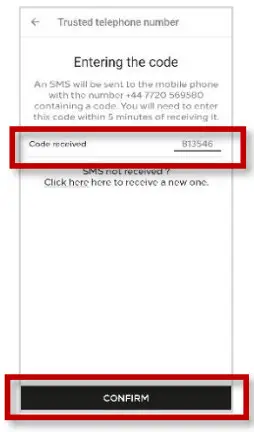
Step 6
Once successful, tap on CONTINUE to proceed to the next step.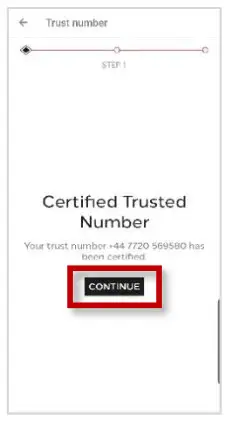
Activate e-remote – LEVs only
Stage 2 – Register your smartphone
At this stage, you will need a good network connection to receive SMS messages, but you do not need to be in your vehicle to perform these steps.
This part of the process can be used to add multiple phones to your account.
Step 7
Tap on the SAVE THIS SMARTPHONE button to start registering your device.
A verification code will be sent to your trusted phone number.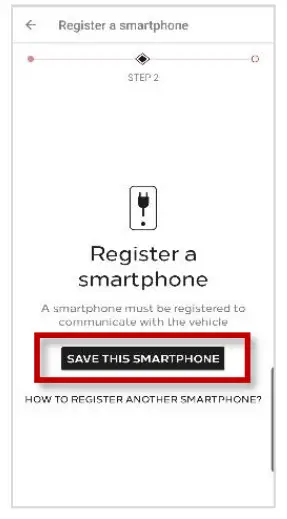
Step 8
Enter the verification code on the phone you are adding, and scroll down.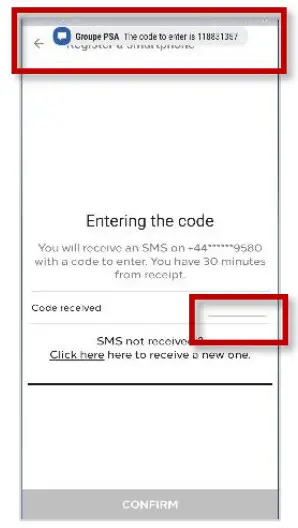
Step 9
Enter and re-enter a four-digit PIN of your choice (ensure it contains at least two different digits) and CONFIRM.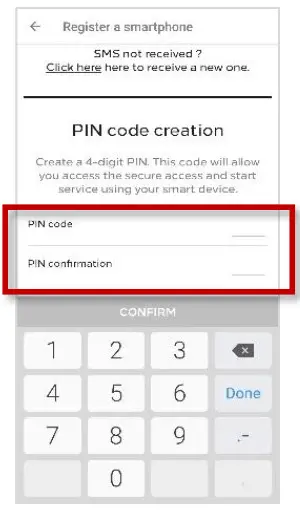
Step 10
Once successful click on CONTINUE.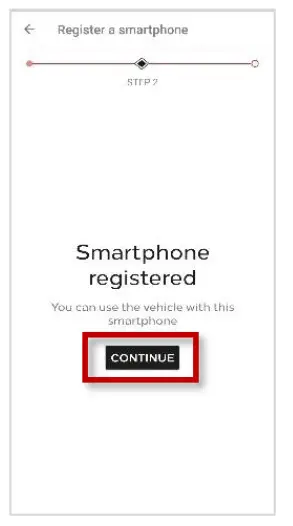
Stage 3 – Link your phone to your vehicle
At this stage, you will need to be in your vehicle and ensure it is in an open area with a good network connection – avoid enclosed spaces, such as garages or underground car parks.
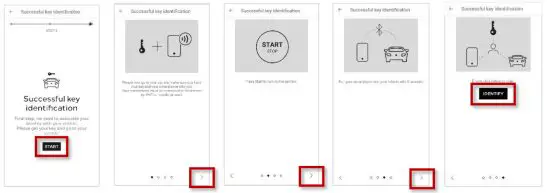
Steps 11 to 15 Once inside your vehicle tap the START button. Follow the identification steps, tapping on the arrow icons at the bottom of the screen to move forward and back through the steps.
This will require pairing your smart device to your vehicle using Bluetooth.
Step 16
Once successful, tap CONTINUE.
If this is the first time you are activating this service in your vehicle, read on.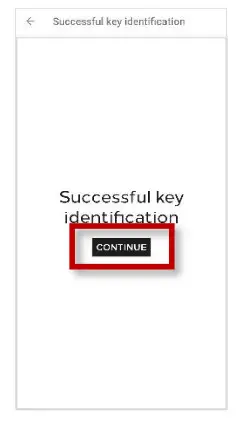
Step 17
Your vehicle may require a series of software updates to fully activate the e-Remote service.
This involves running and stopping the vehicle multiple times – which can take several minutes – but can be undertaken as part of the normal driving routine. The process will start automatically and the app will instruct you on what you need to do.
Please ensure you are in an open area with good network coverage to get the best results.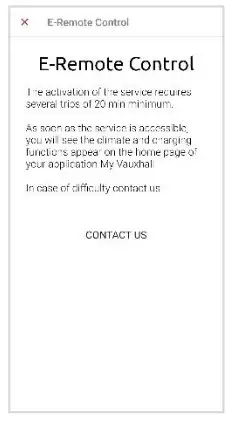
Using e-Remote
You are now ready to get the most out of your electric, or hybrid Vauxhall. Let’s start off with remote charging.
Please note: the vehicle must be plugged in to start charging and must be in an open area with a good network connection to receive the instruction from the App
Step 1
Tap on the CHARGE tab on your home screen underneath the image of your vehicle.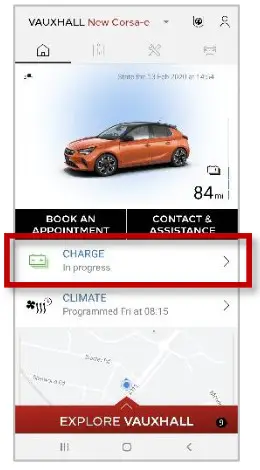
Step 2
You can then start charging immediately, or set a charging schedule.
To start charging immediately, tap the toggle button to the left.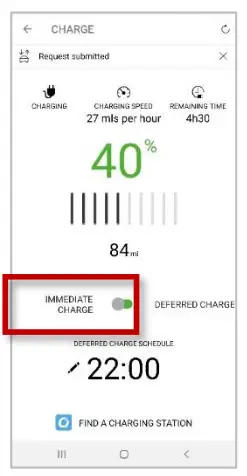
Step 3
To set a charging schedule, toggle right.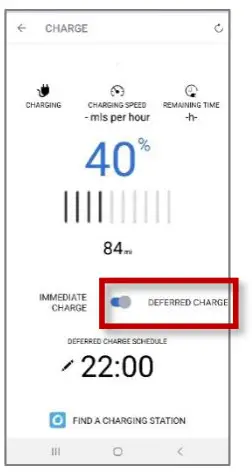
Step 4
Set the time you would like to start charging.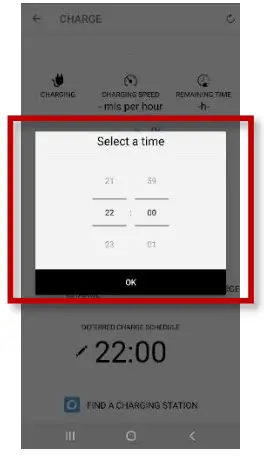
Step 5
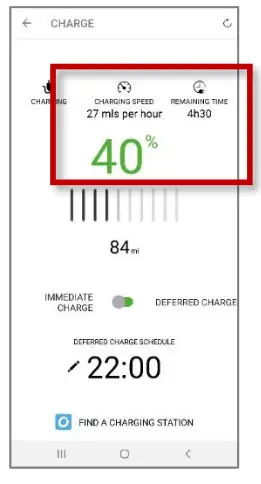
Once charging, the app will show the percentage charge you have, how many miles per hour your charge is currently adding, and how long before your vehicle is fully charged.
Step 6
Finally, activate your free six-month BP Pulse trial. To do this click on the ‘Find a charging station’ link at the bottom of the CHARGE screen.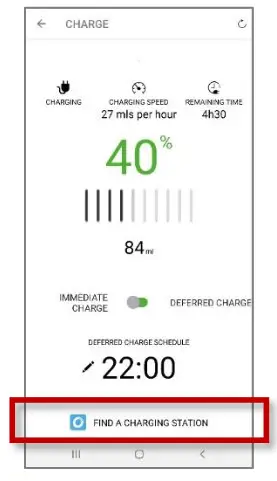 Step 7
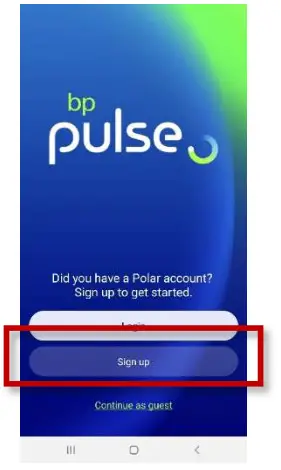
Download the app and sign up to create your BP Pulse account.
Now, let’s take a look at remote pre-conditioning.
Please note – in Electric Vehicles temperature control uses battery power and can therefore reduce the range of travel.
To avoid this you should always set preconditioning to run whilst the vehicle is on charge.
If you choose to run the service when not on charge, your vehicle must have a minimum 50% charge for EV, or 25% charge for PHEV.
Step 1
Tap on the CLIMATE tabin your home screen.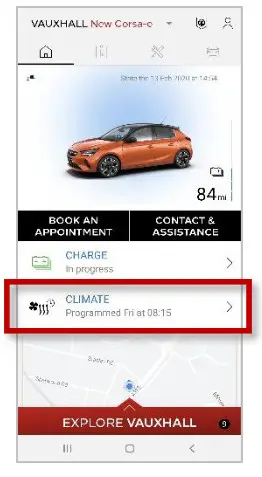
Step 2
To start your climate control immediately tap ACTIVATE. Your climate control will switch on to the temperature set when you were last in the car.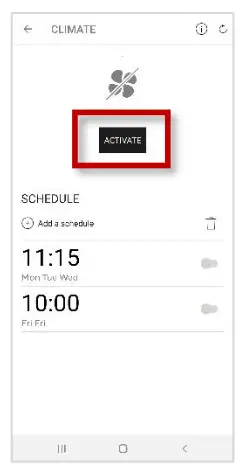
Step 3
If you wish to deactivate the climate control, tap stop.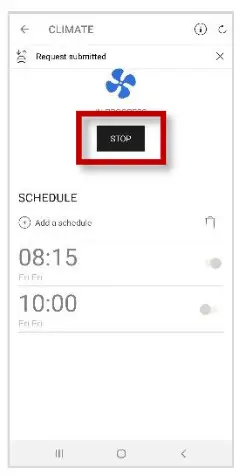
Step 4
The app will notify you once the cabin has achieved nominal temperature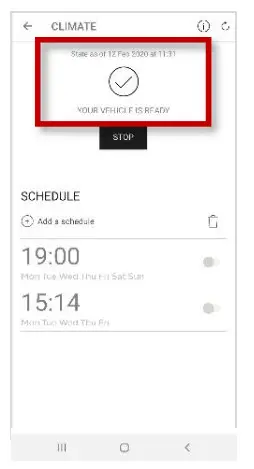
Step 5
To schedule an activation time, tap on Add a schedule. 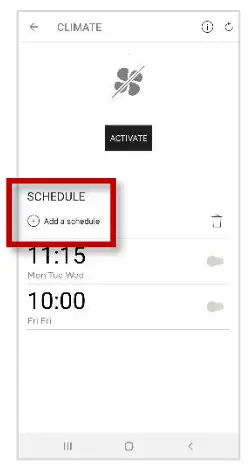
Step 6
Select a time and date for activation, then scroll down and tap OK.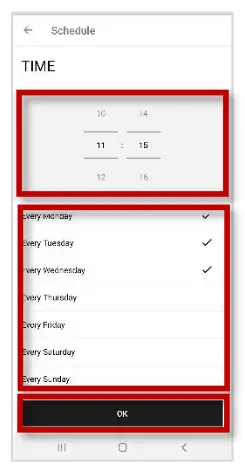
Step 7
Your scheduled activation will appear on the main climate screen. Tap the toggle switch to blue to ensure the program will run, or tap the waste bin icon to delete it.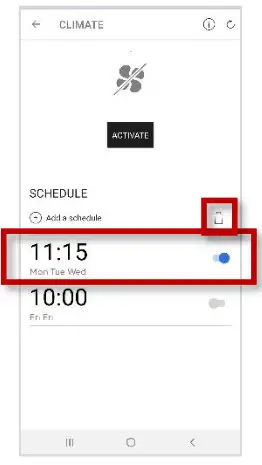
Please note: you will need to perform these steps at least an hour before the scheduled start time and the vehicle will need to be in an open area with a good network signal to receive the instruction.