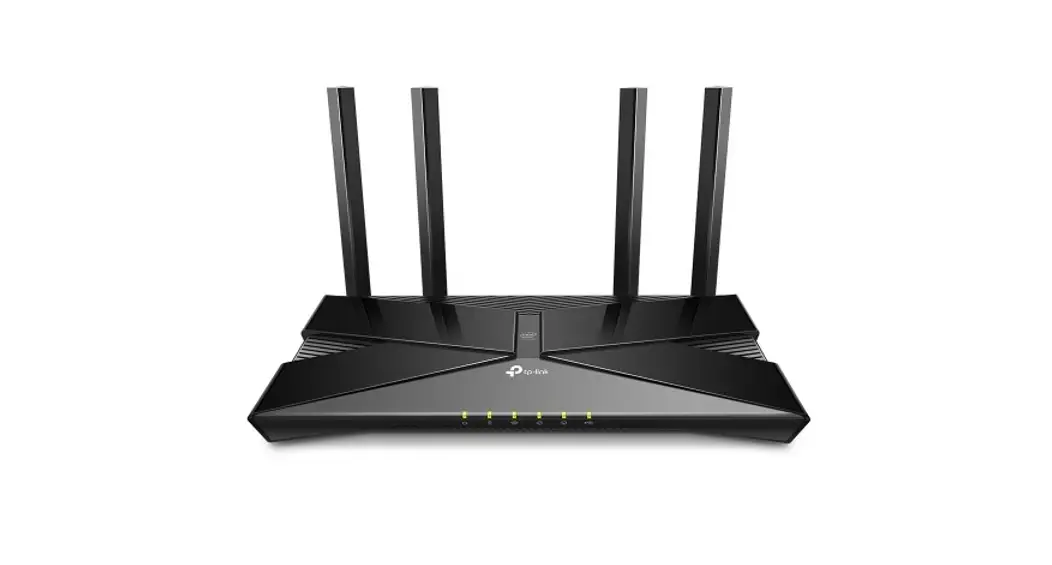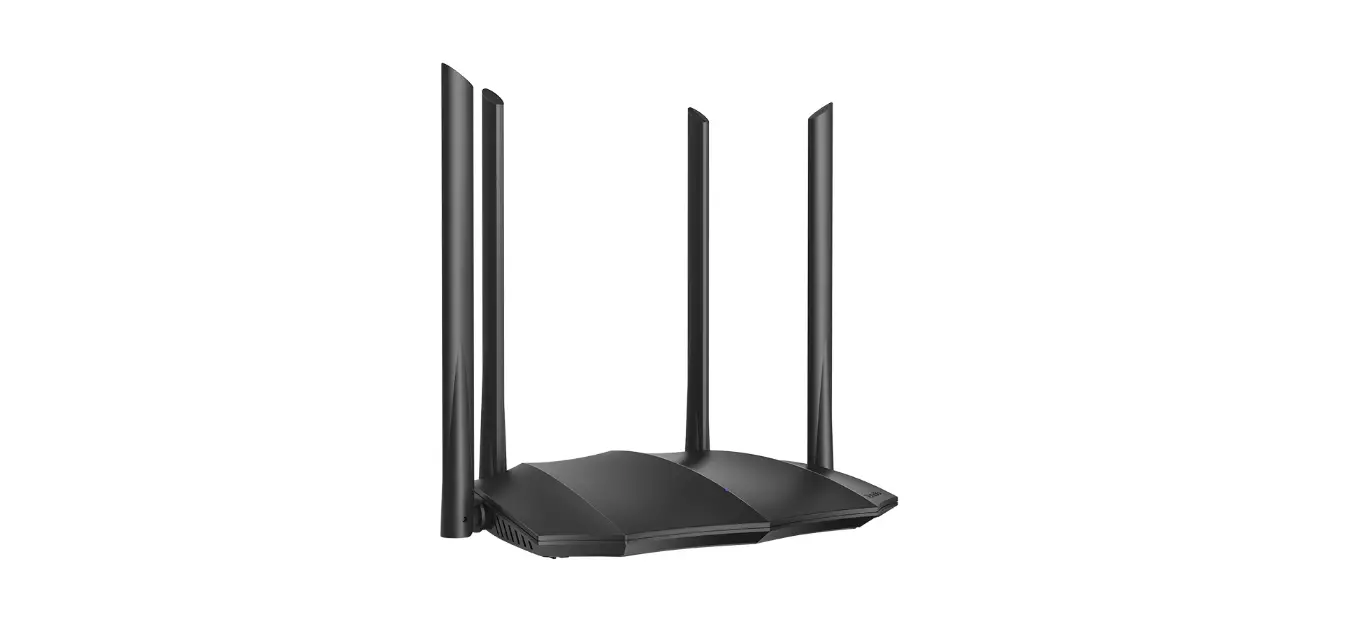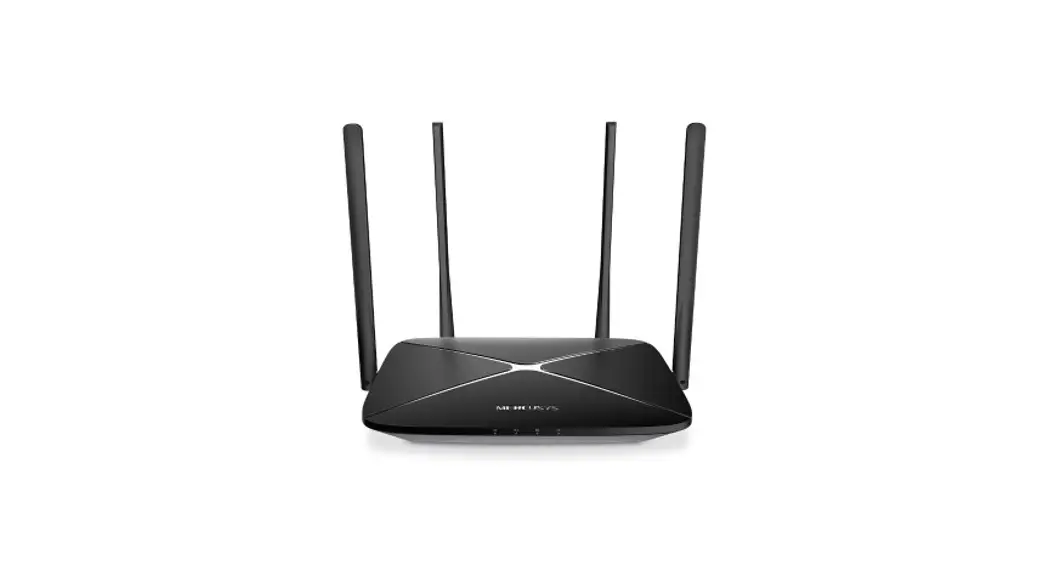

Model No: PRC3801
Quick Installation Guide
Dual-band gigabit wireless router
Version 3.00
Package Contents

Overview
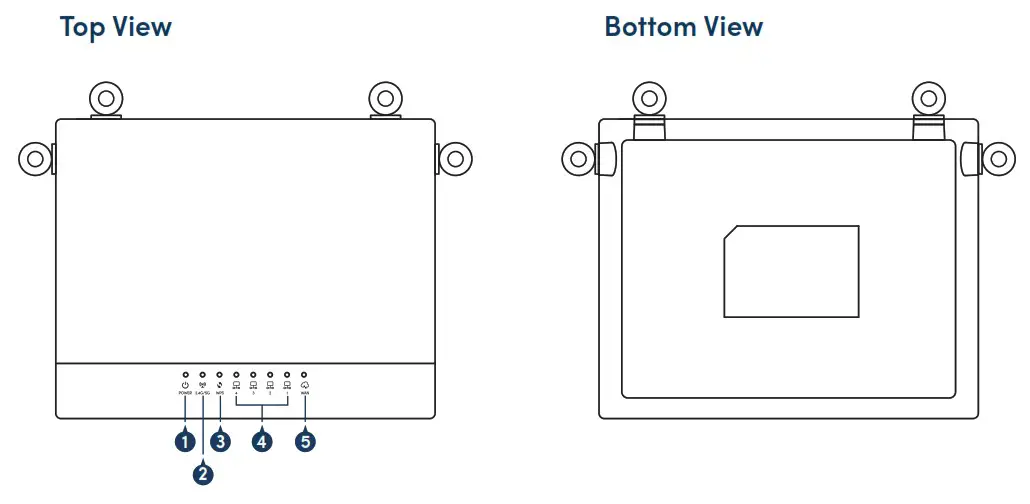
LED
| Number | LED | Description |
| 1 | Power | ON – Device is powered on OFF – Device is powered o |
| 2 | 2.4G/5G | ON – Wireless link established and active OFF – Wireless is turned o Blink – Wireless packet being transmitted |
| 3 | WPS | OFF – Idle Blink – WPS is being triggered |
| 4 | LAN 1-4 | ON – LAN link established and active OFF – No LAN Link Blink – LAN ethernet packet being transmitted |
| 5 | WAN | ON – WAN link established and active OFF – No WAN Link Blink – WAN ethernet packet being transmitted |
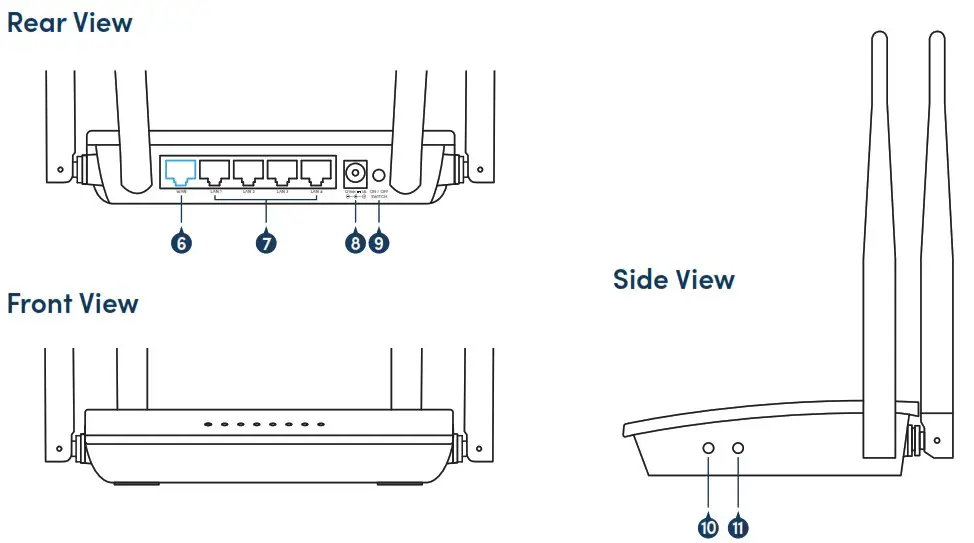
Ports/Buttons
| Number | Ports/Buttons | Description |
| 6 | WAN | The WAN port is to connect to the broadband access device. Usually connect to DSL / Cable modem, or to network switch at home/ o ce |
| 7 | LAN 1-4 | The LAN ports to connect local PC/Laptop to the router |
| 8 | Power | Power socket to connect the power adapter |
| 9 | Power Button | Power ON / OFF SWITCH |
| 10 | WPS | Press this button for at least 3 full seconds and the WPS LED will start blinking to start WPS |
| 11 | Reset | Press this button for at least 10 seconds to Reset device to its default settings |
Note:
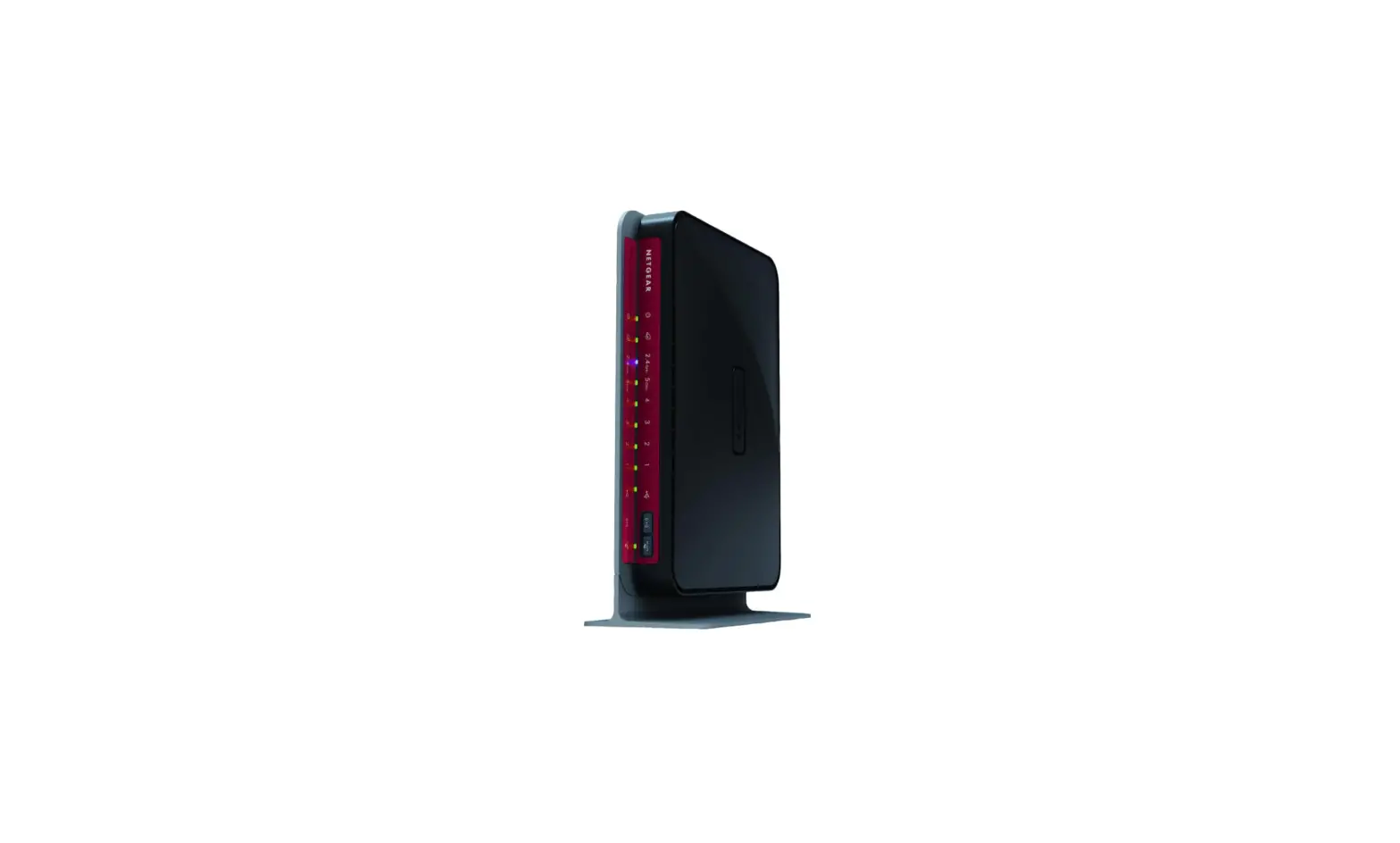
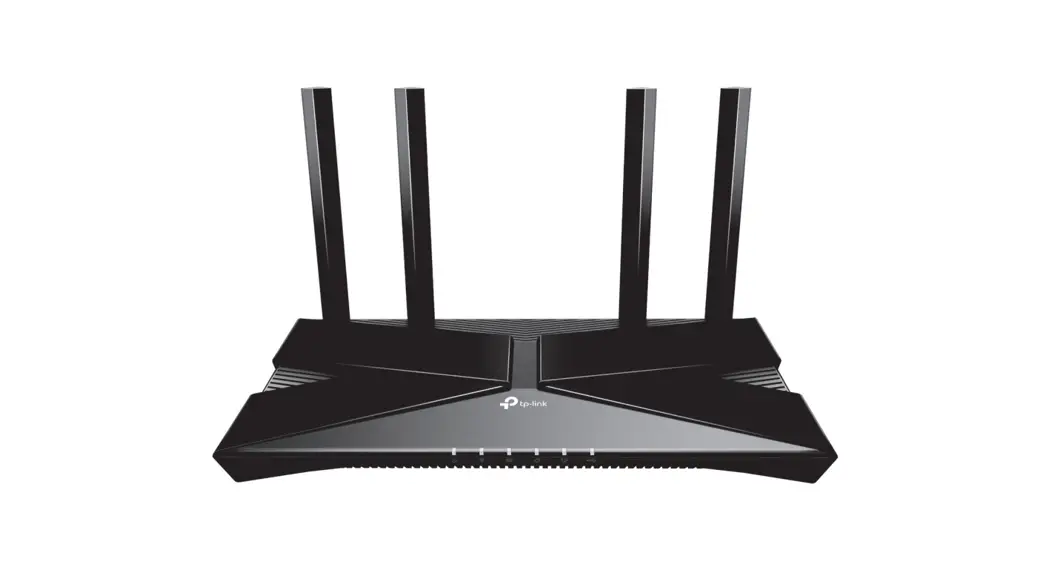
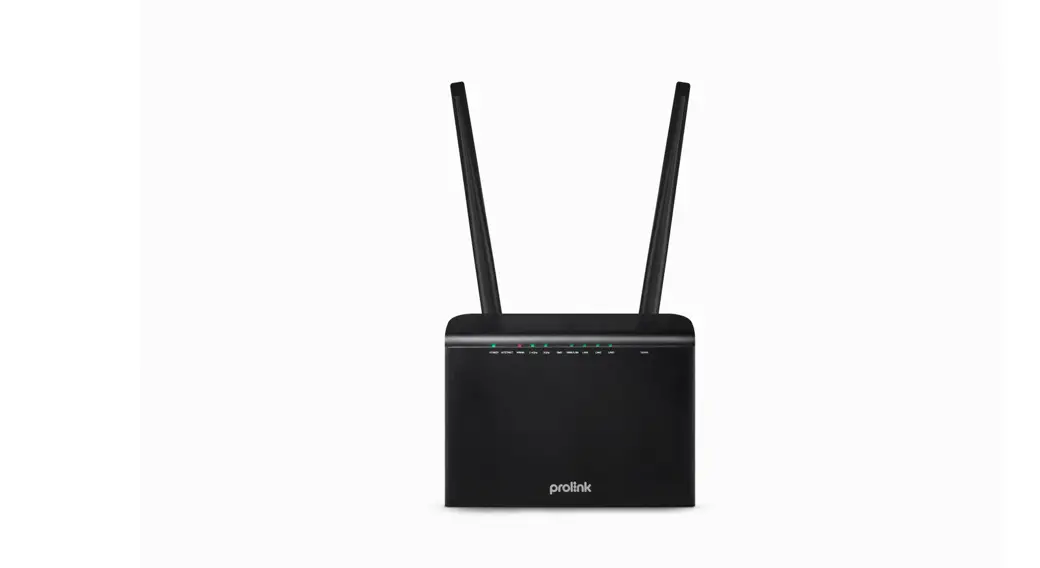
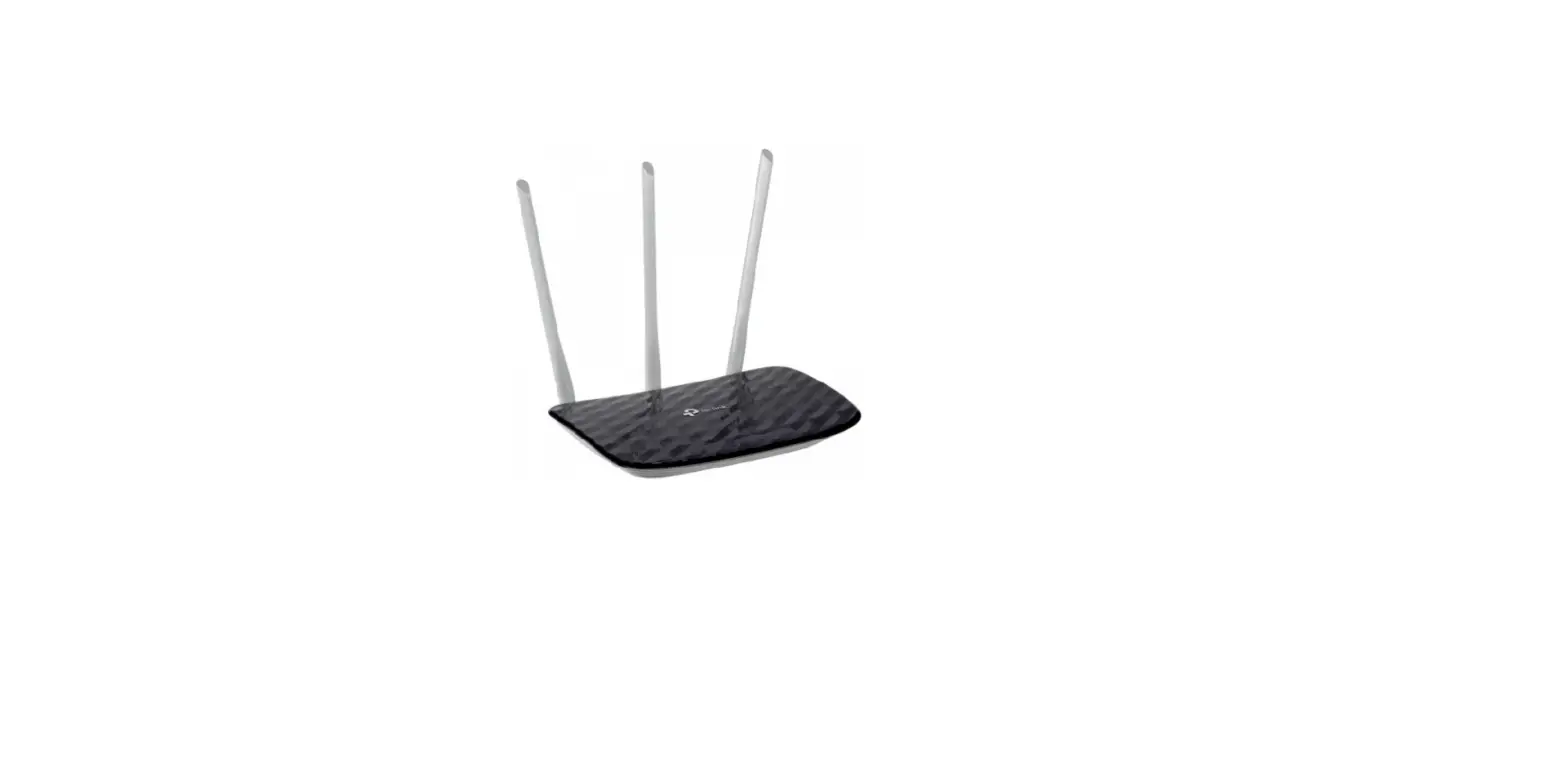
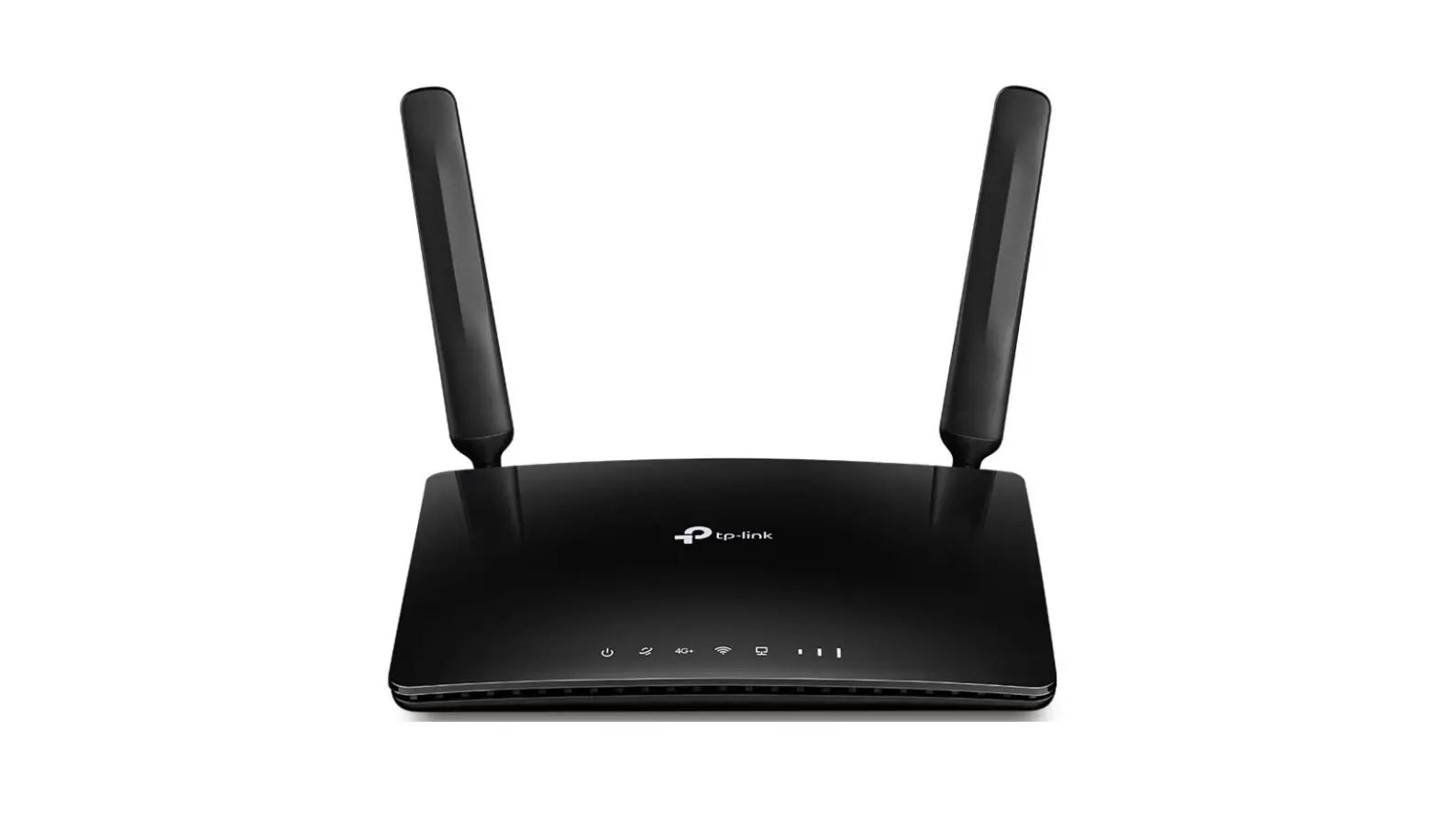
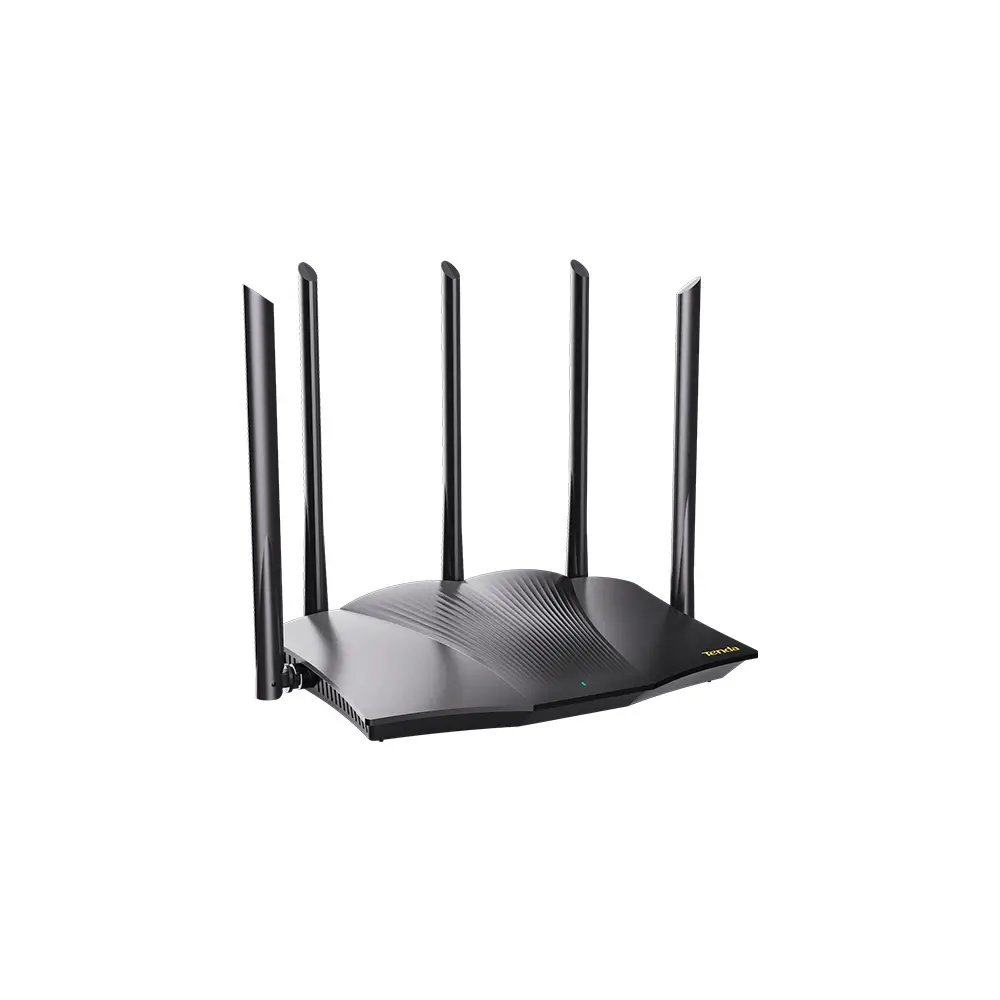
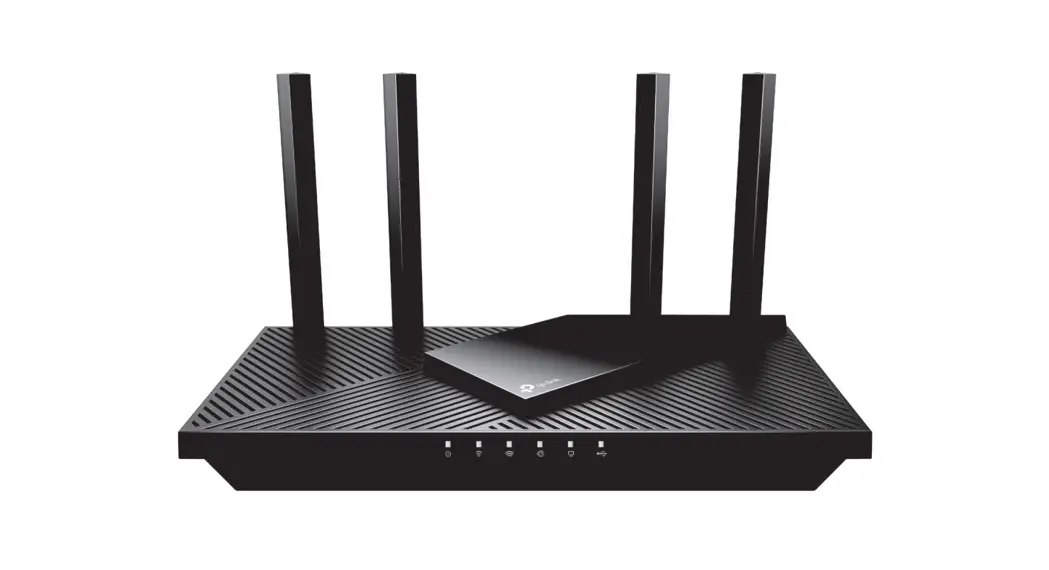
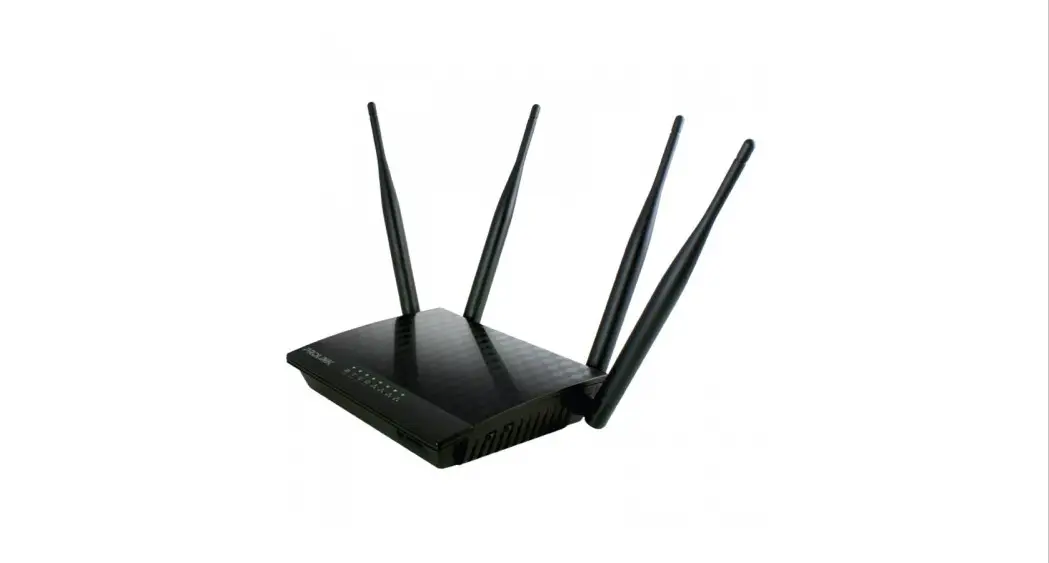
The illustrations in this document may appear dierent from your model.
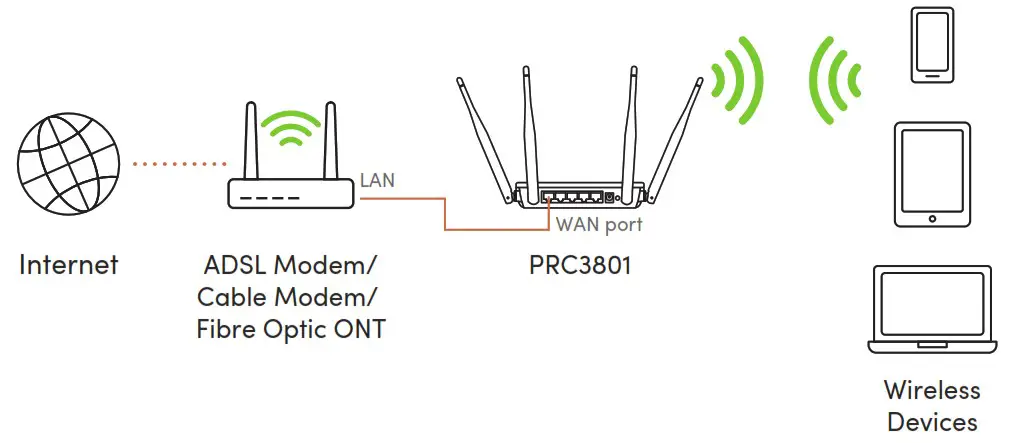
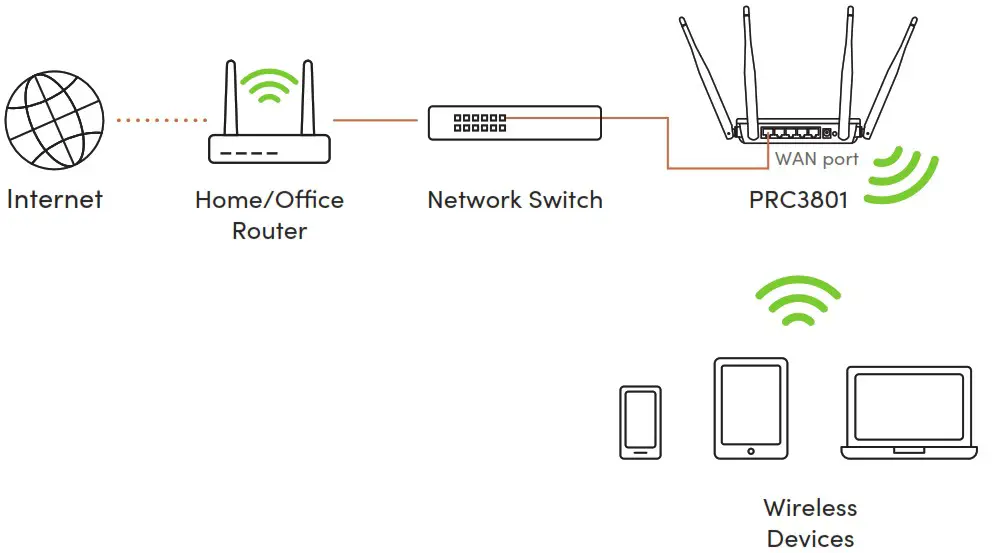
Application Diagram
- Connection via ADSL Modem / Cable Modem / Fibre Optic ONT

- Connect to Home / Office Network Switch

Router Configuration
Step 1: Hardware connections (Wired or Wireless)
Connect PRC3801 to your computer via Ethernet cable or Wireless connection.
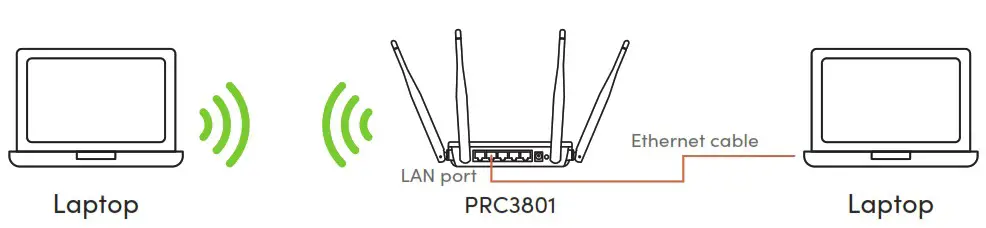
Note:
Wireless name and password can be obtained from the label pasted on the bottom of PRC3801
Step 2: Software Configurations via Web browser
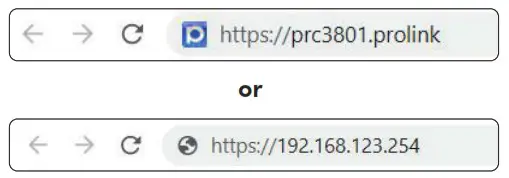
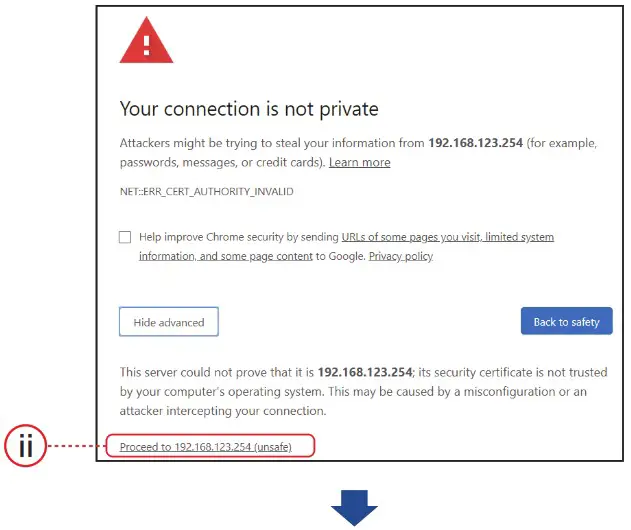
- Open an Internet Browser and enter https://prc3801.prolink or https://192.168.123.254 in the address field.

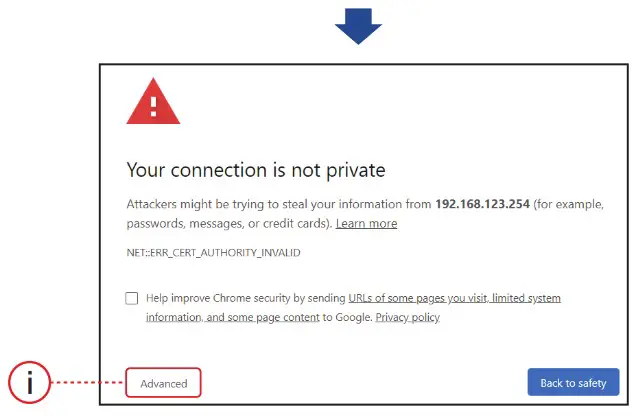
- Click “Advanced”, followed by “Proceed to …. ” to proceed.
https https://prc3801.prolink https://192.168.123.254
 Continue with
Point 3 – Login Page on EN6 - Enter Username and Password to login. Username and Password information can be found from Product Label.

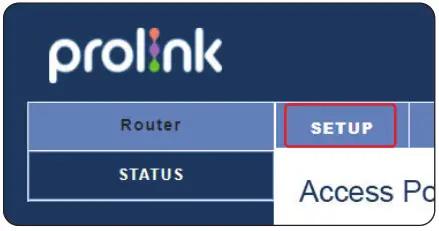
- Click SETUP
 Important:
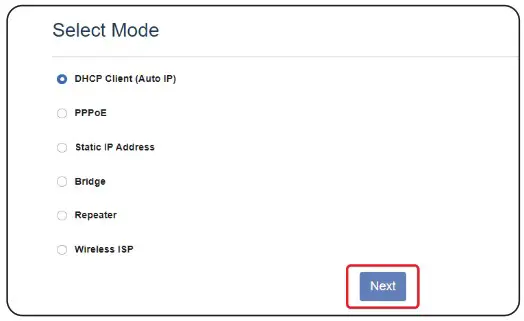
• Please complete the Setup Wizard in order to surf Internet - Select your WAN ACCESS TYPE* and Press NEXT.
 Notes:
1. For PPPoE users, please check the Username, Password or other Special Requirement from ISP and key in the required values.
2. For Cable Modem/Fibre Modem users, or connecting to home/office network switch, select DHCP Client mode (Router default setting).
EN6 - Set your preferred Wireless Network Name (SSID) and Wireless Security Key (Wi-Fi Password), tap SAVE & APPLY to proceed.

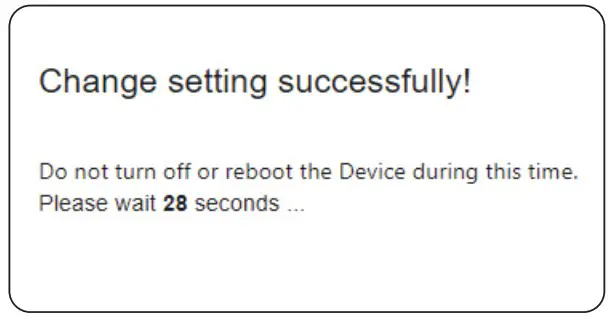
- PRC3801 will reboot and attempt internet connection.

 Continue with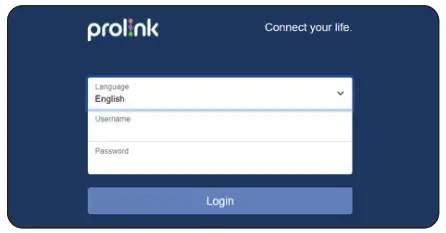
 Notes: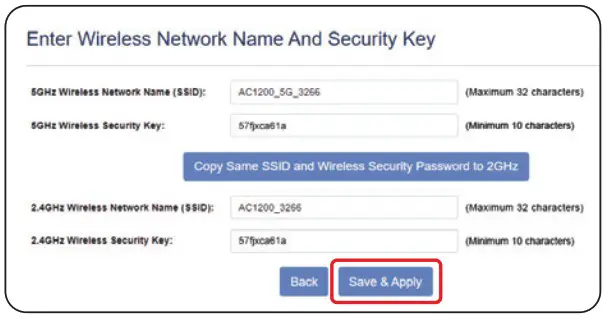
Worldwide Customer Care Centers
INDONESIA Office
PT PROLiNK INTIDATA NUSANTARA
Walk-In : Jl. Cideng Barat No. 79, Jakarta Pusat 10150, Indonesia.
Telephone : +62 21 3483 1777
Sale Enquiries : [email protected]
Technical Support : [email protected]
MALAYSIA Office
FIDA SYSTEMS (M) SDN BHD
Walk-In : 29 Jalan USJ 1/31, 47600 Subang Jaya, Selangor Darul Ehsan, Malaysia.
Telephone : +60 3 8024 9151
Sale Enquiries : [email protected]
Technical Support : [email protected]
SINGAPORE Office
FIDA INTERNATIONAL (S) PTE LTD
Walk-In : Block 16 Kallang Place #06-02, Kallang Basin Industrial Estate, Singapore 339156.
Telephone : +65 6357 0668
Sale Enquiries : [email protected]
Technical Support : [email protected]
Technical Support Hotline
INDONESIA : +62 21 3483 1717
MALAYSIA : +60 3 8023 9151
SINGAPORE : +65 6357 0666
Note: Closed on Saturdays, Sundays and local/regional Public Holidays.
Register online for your Product Warranty at www.prolink2u.com
Prolink is a registered trademark of Fida International (S) Pte Ltd. Other brands and product names are trademarks or registered trademarks of their respective holders. Product images are purely for illustrative purposes and may defer from the actual product. Specifications are subjected to changes without prior notice. Copyright © 2022 Fida International (S) Pte Ltd.
 Home | Prolink