
VIDEOS & COMPLETE MANUAL AT

GPS BIKE COMPUTER | SHORT MANUAL
REMARKS
 This manual is a quick guide.
You can access the detailed instructions by following this link:
CONTENTS
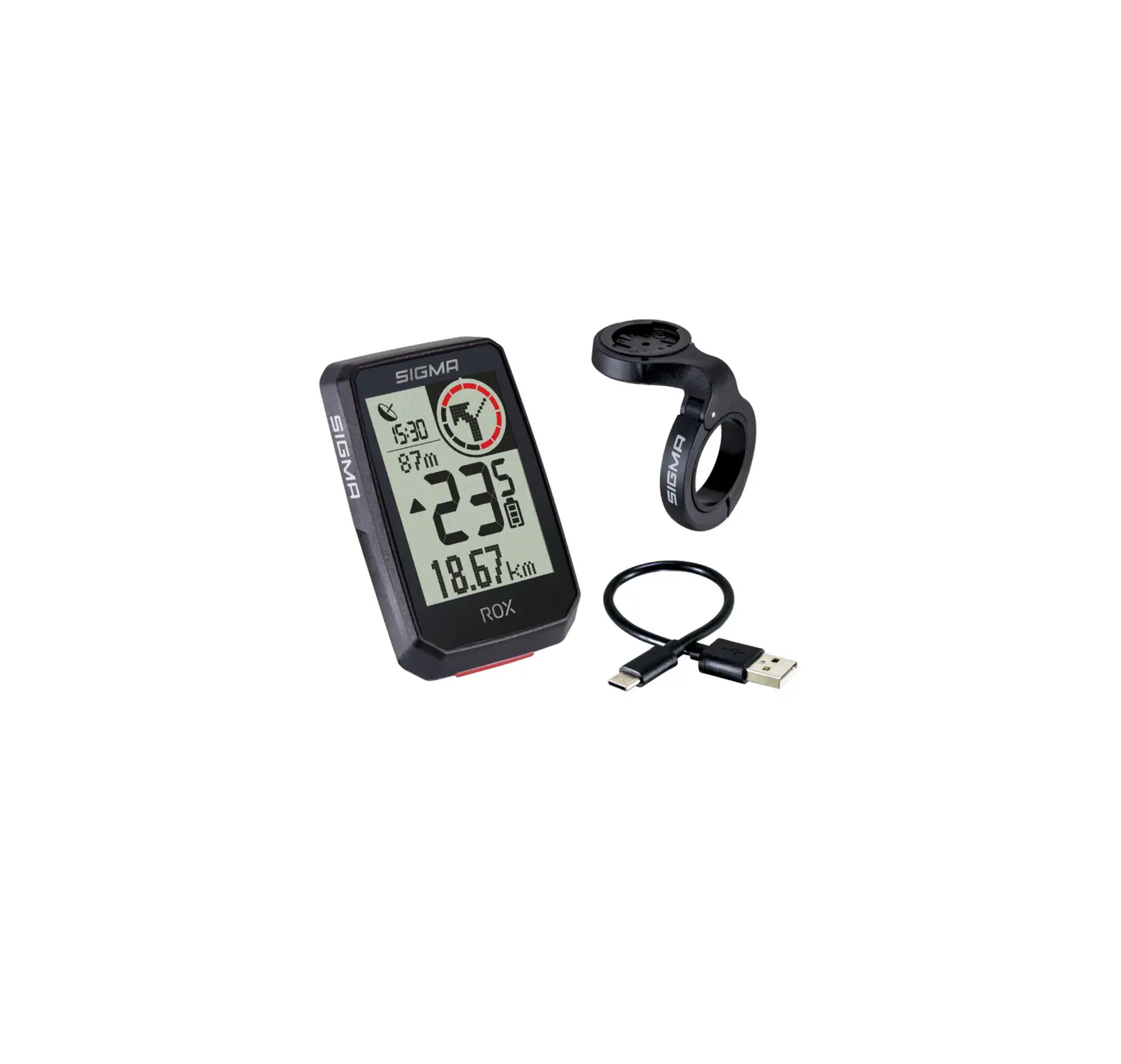
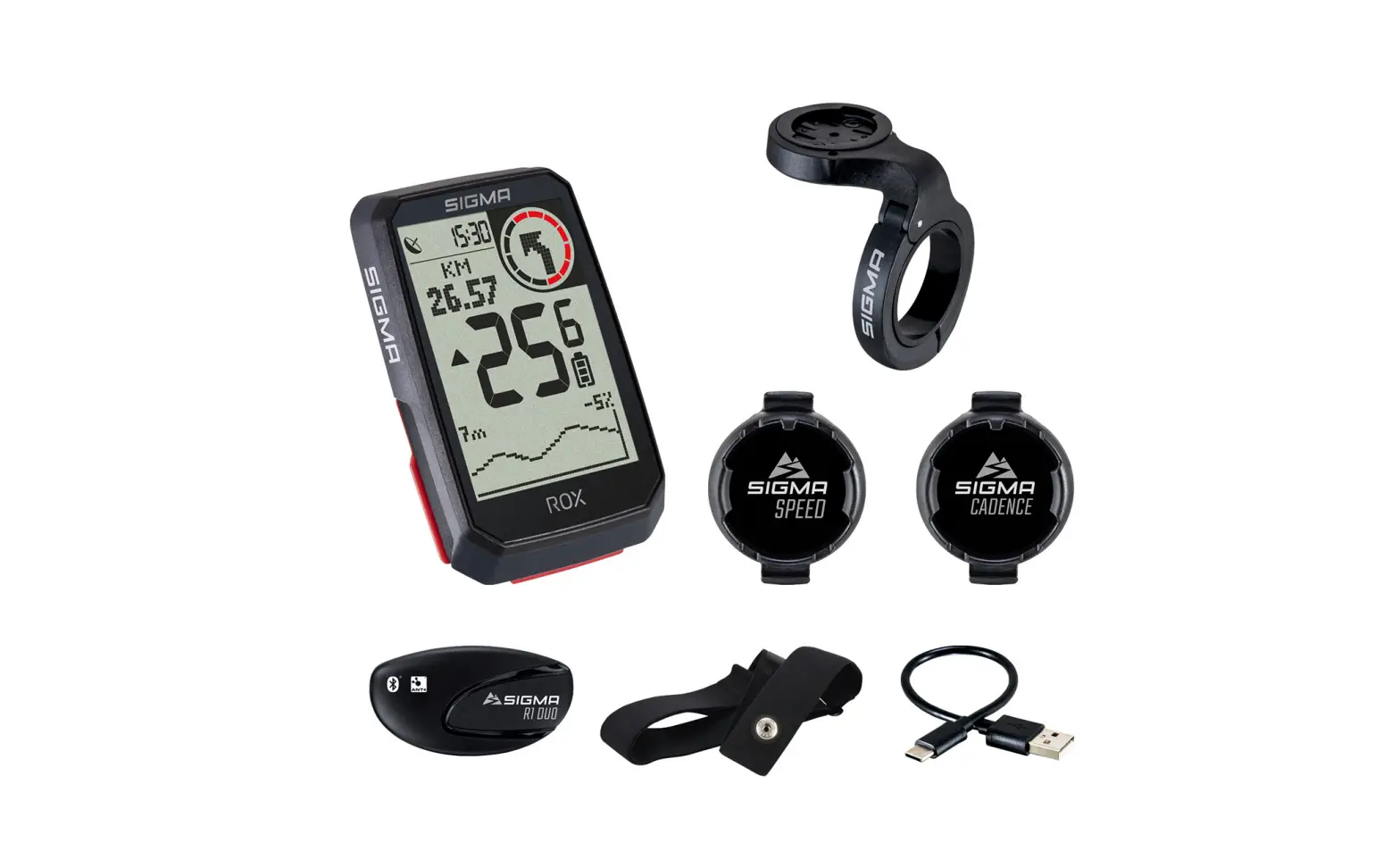
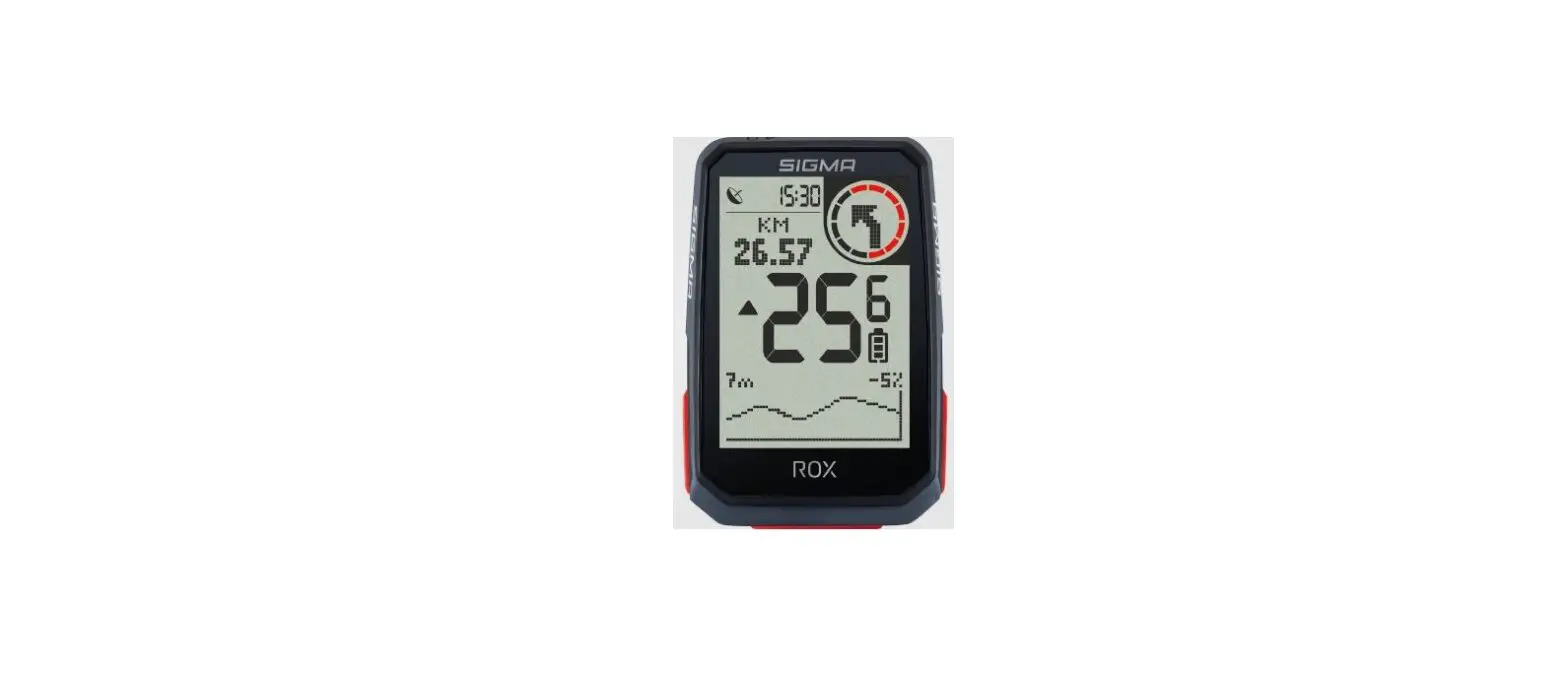
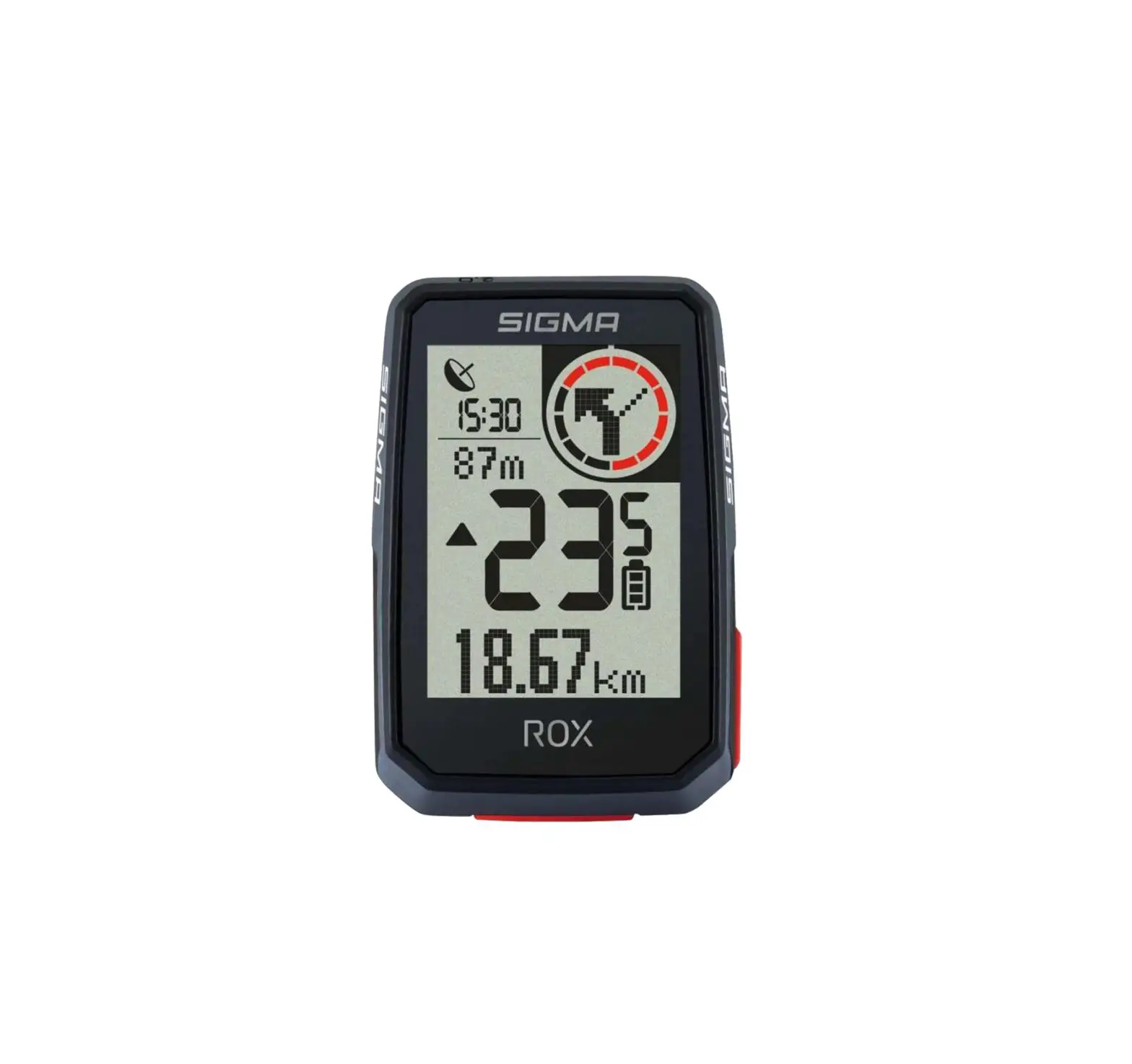
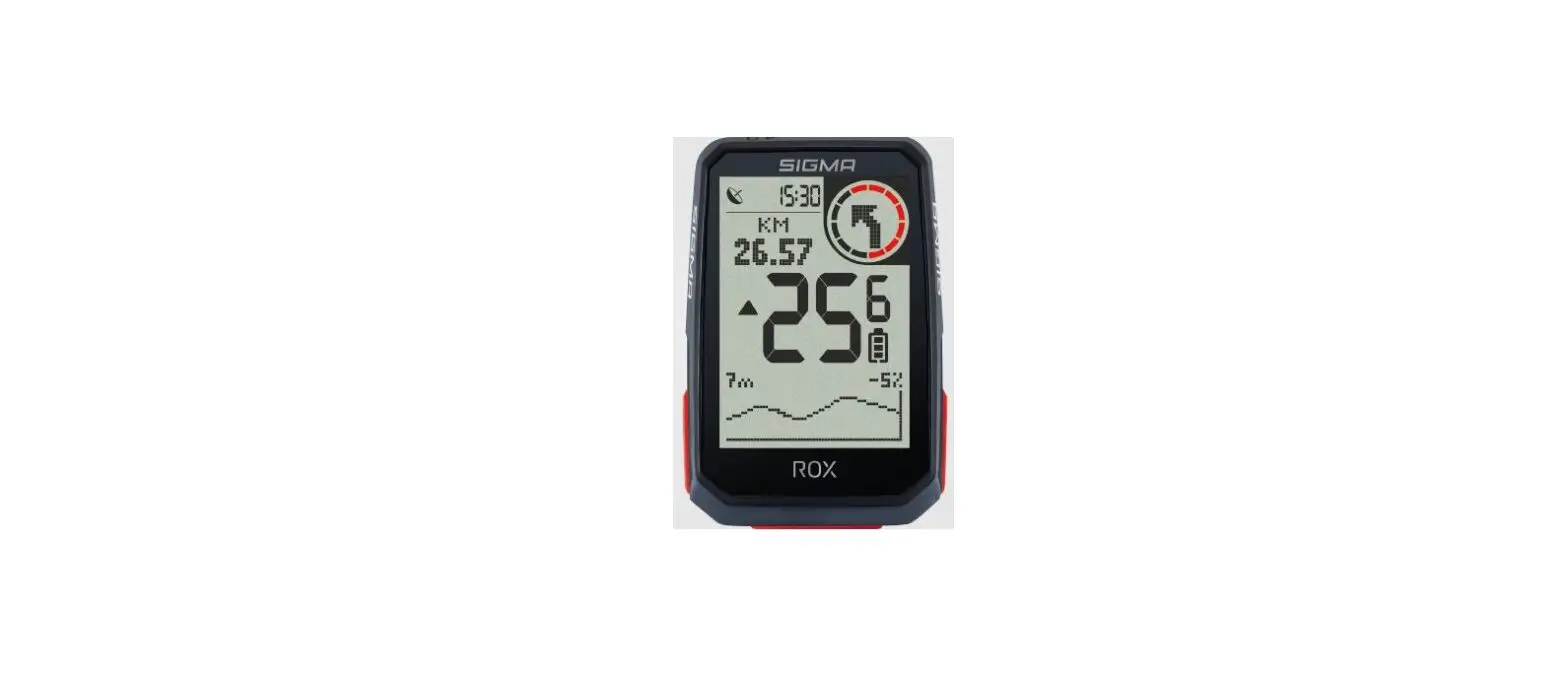
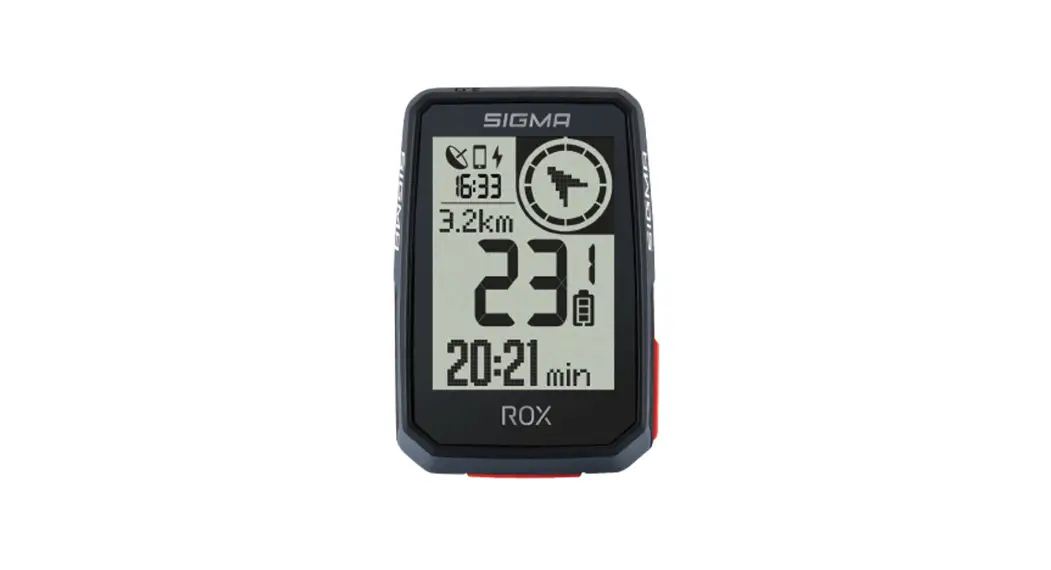
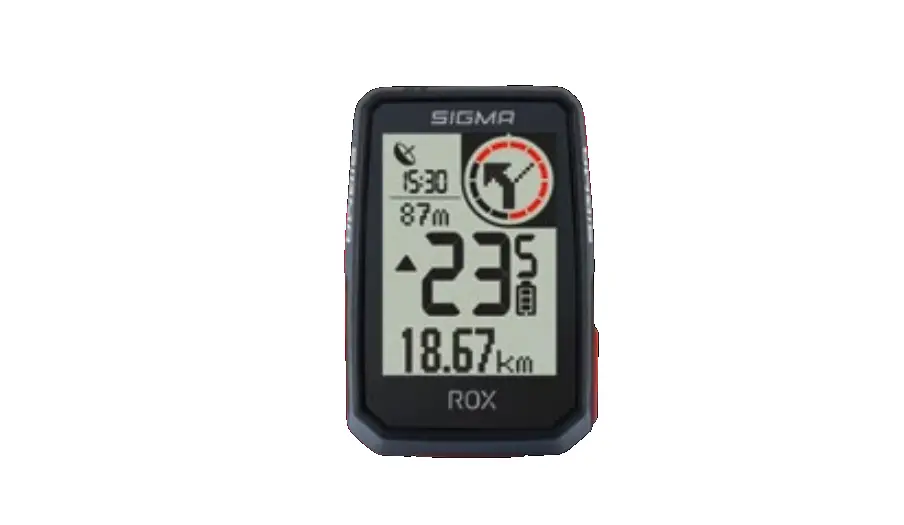
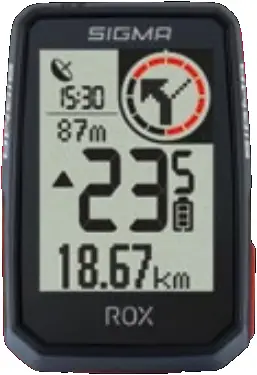
ROX 2.0
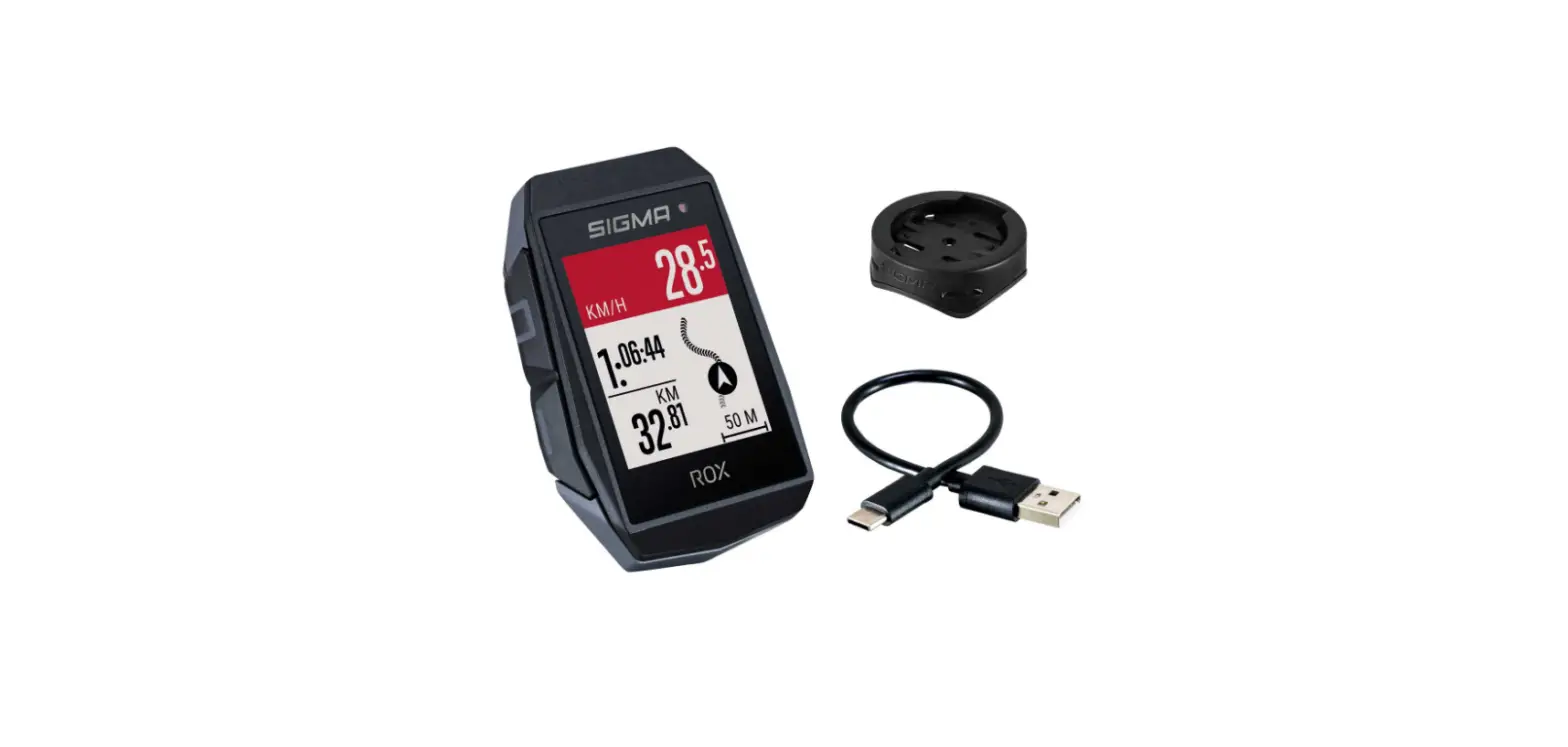
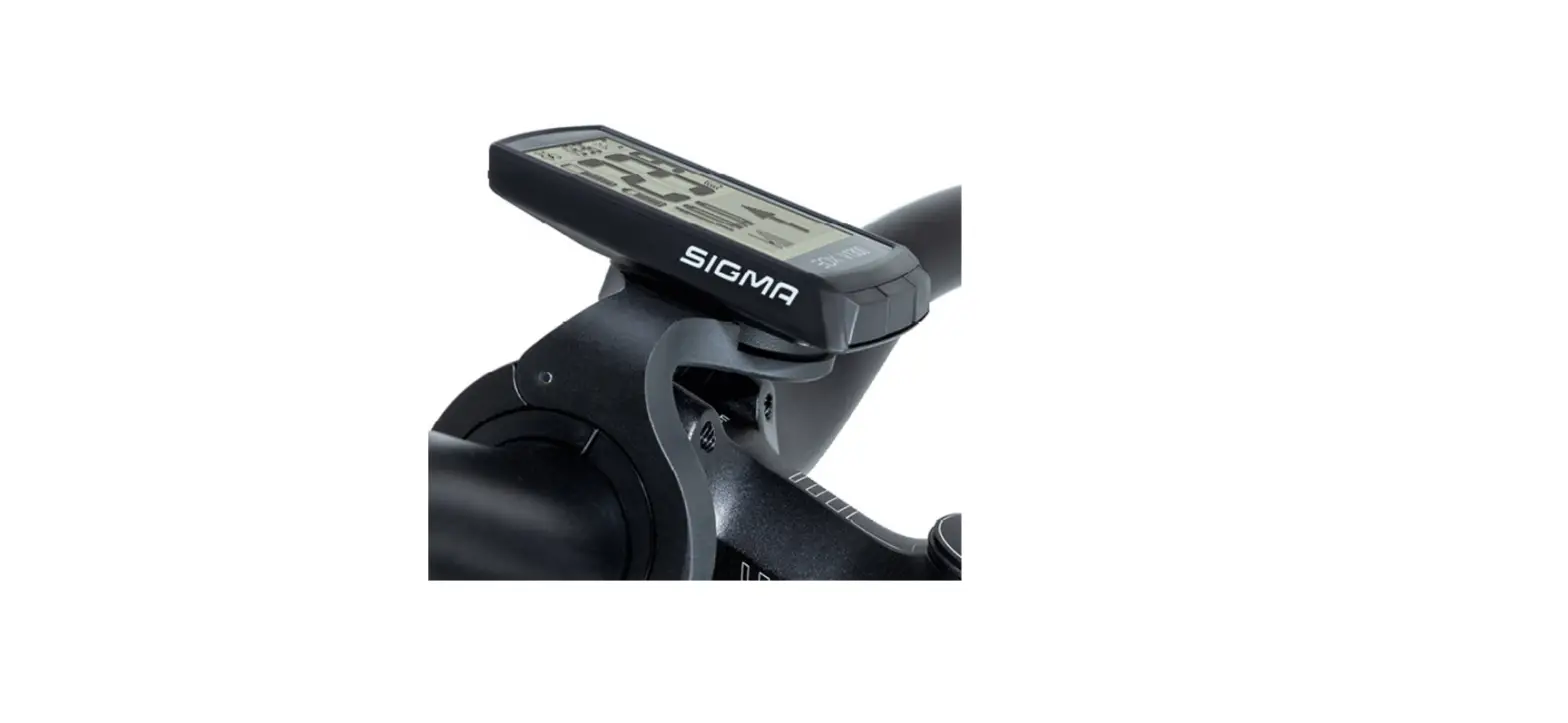
| TOP MOUNT SET
|
 |  |
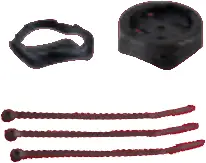 | 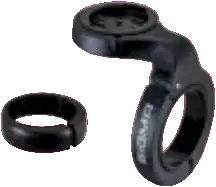 |
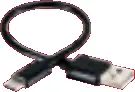 | 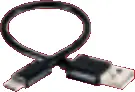 |
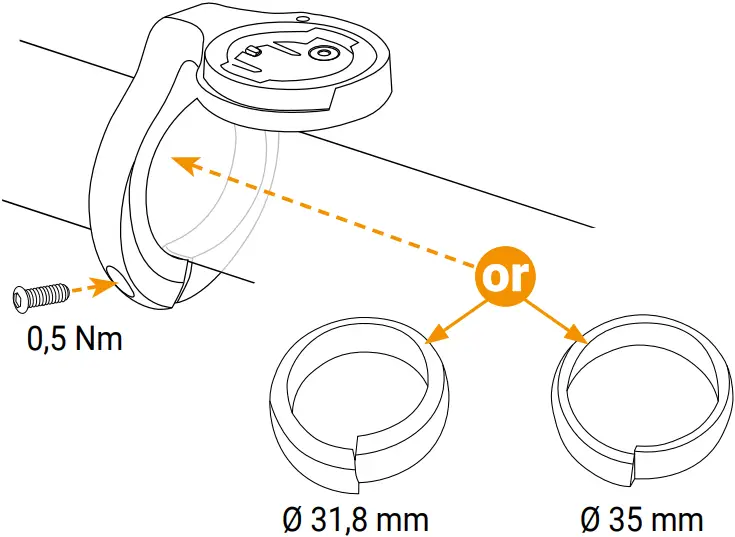
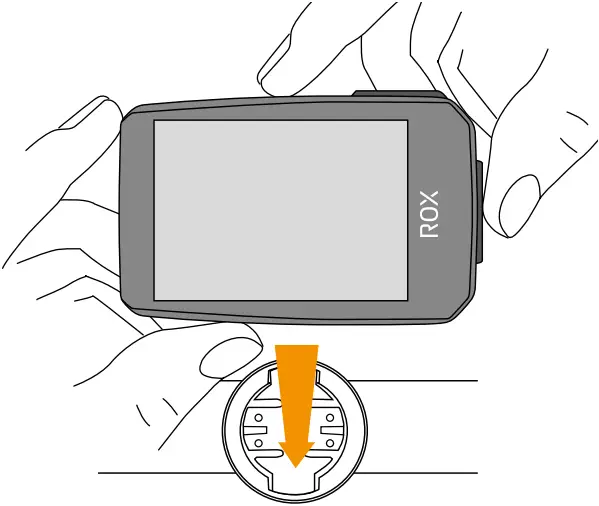
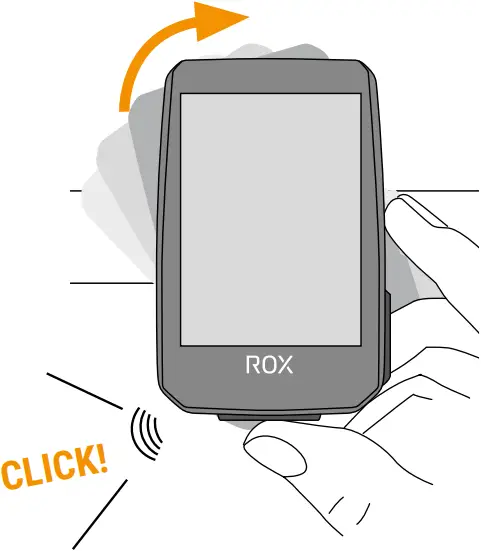
INSTALLATION
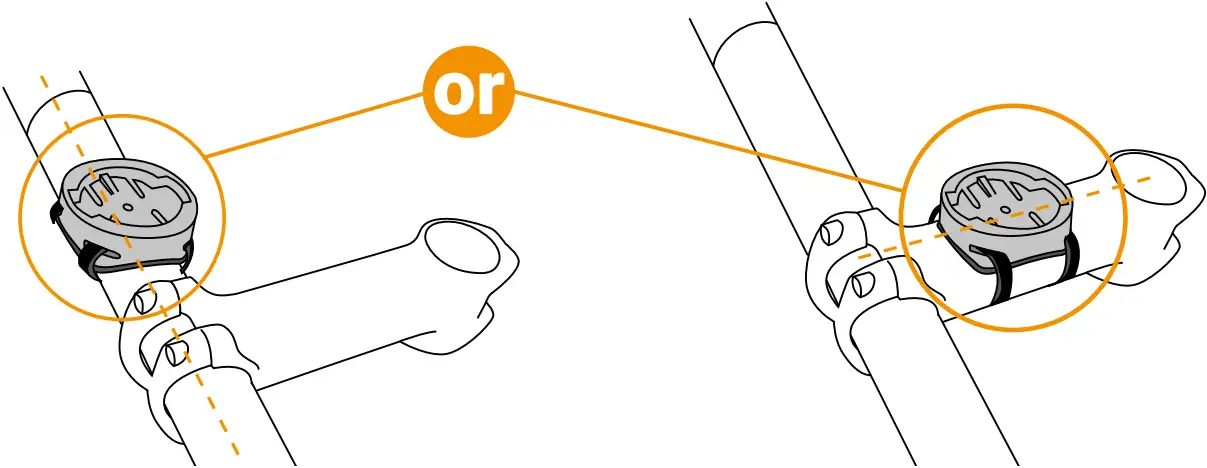
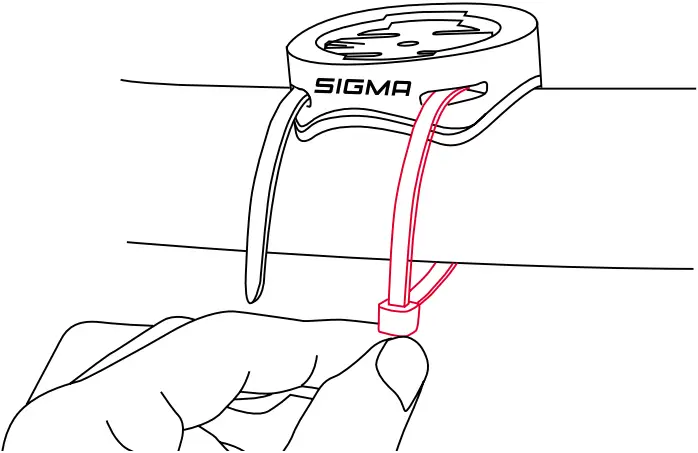
Available in set or sold separately!
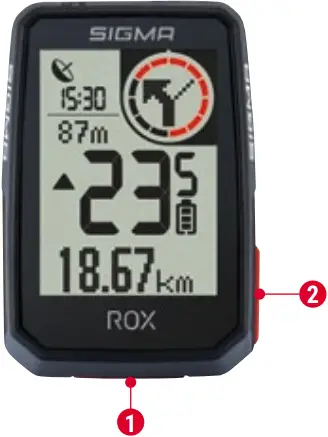 1 START/STOP/MENU Button
– Start training
– Stop training
– Confirm input
– One menu level down
– Switch on the device (press for 3s)
Press and hold button:
– Open and close menu
– One page forward
– Increase value
Press and hold button:
- Save and reset training values
FIRST START
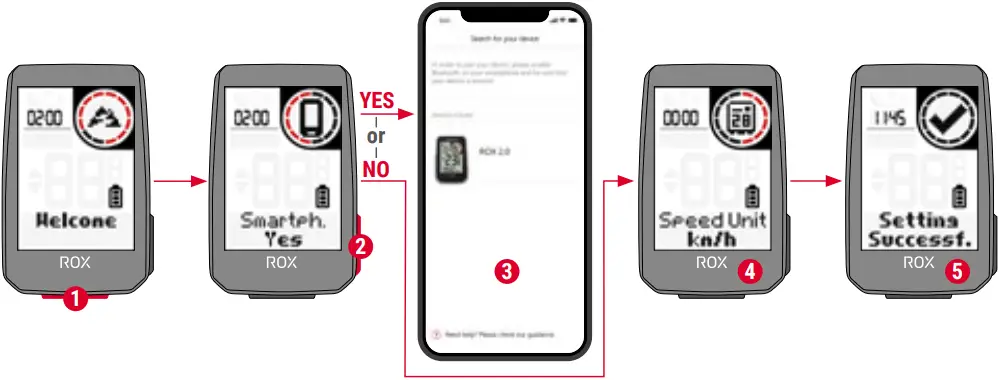
(1) Press START Button for 5s to Wake-Up.
(2) Choose YES to pair a Smartphone, choose NO to manually set the device.
(3) Download SIGMA RIDE App and follow App instructions to configure your device.
(4) OR set device and user settings manually.
(5) Enjoy your device and start your first ride!
TIP


SIGMA RIDE App
The app offers you many functions for setting up and customising the ROX 2.0. For more information on the app functions, see the “SIGMA RIDE app” page.
TRAINING
SIGMA RIDE App
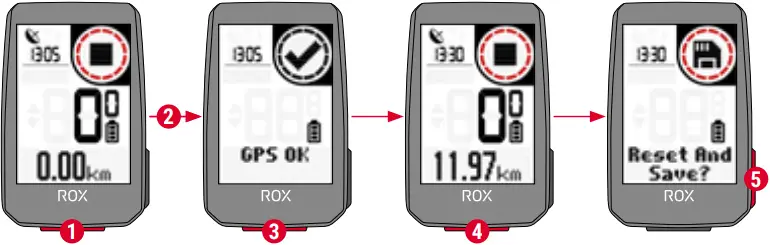
(1) Press START button for 3s to start the device.
(2) Don’t move and search for clear sky location for fast GPS fix.
(3) Wait for “GPS OK”. Press START button to start the training session.
(4) Press START button to stop the training session.
(5) Hold “+” button to reset training values and save your training.
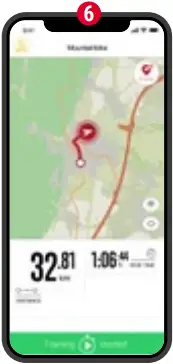
(6) Sync with Smartphone for full data analysis and sharing.
(1) Hold START button, when training is NOT started.
(2) You have access to the main menu with all the functions of the ROX 2.0.
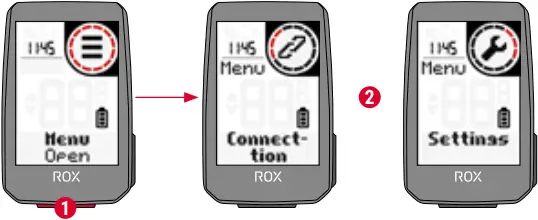
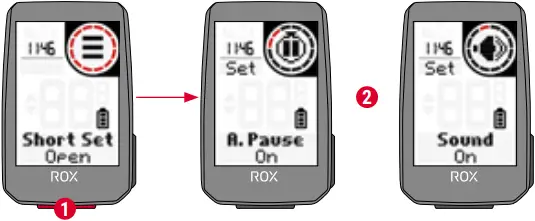
(1) Hold START button, when training is active or in auto pause.
(2) You can edit the most important settings during training.
SETTINGS
Example
SIGMA RIDE App
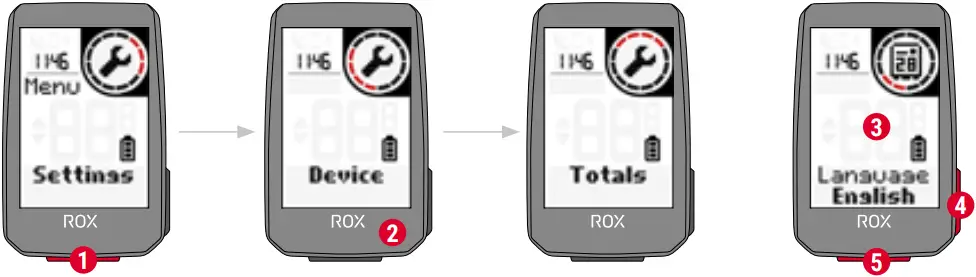
(1) Choose Settings in main menu to set the device.
(2) You can edit Device settings and Totals.
(3) Choose a setting you want to edit and press START button to set.
(4) Press “+” button to increase a value or to toggle through options.
(5) Press START button to confirm the settings
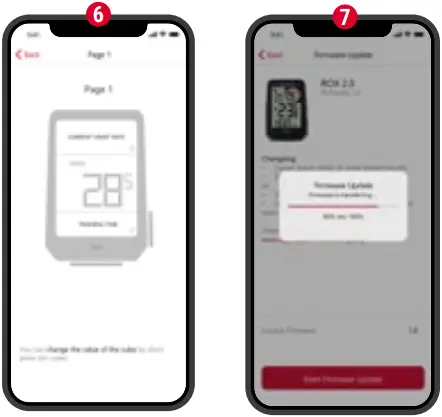
(6) Use the App to set your training views.
(7) Use the App or SIGMA DATA CENTER to update your firmware.
E-BIKE CONNECTION
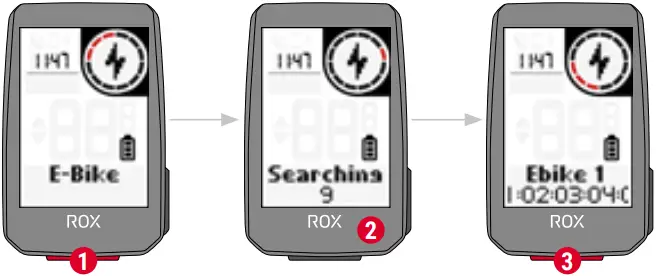
Check QR Code for compatible eBIKEs
goto.sigmasport.com/rox2-0-ebike
(1) Choose Main Menu > Connection > E-Bike to pair a new E-Bike or manage paired Bike.
(2) Make sure that E-Bike is switched on!
(3) Press START button to pair E-Bike.
SIGMA RIDE APP
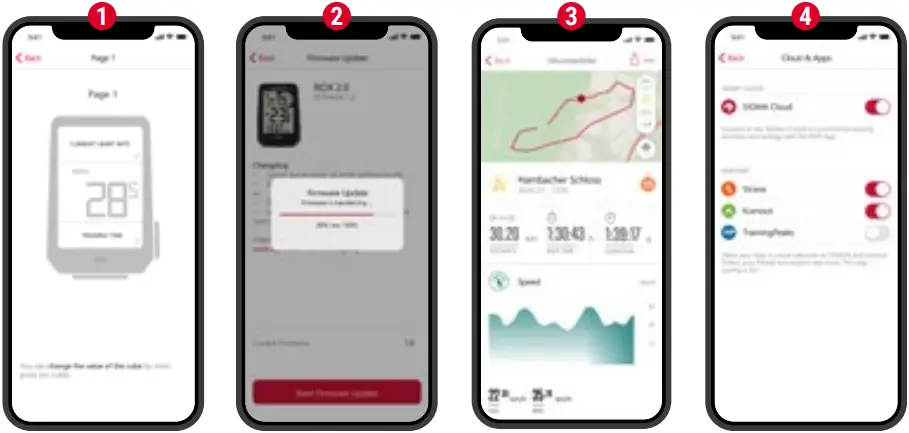
(1) Set Device and Training Views
(2) Firmware Update
(3) Analyze your training
(4) Share your data
and many more…
 TIP: Check for Firmware Updates regularly. To access the changelog, follow this link:
 goto.sigmasport.com/rox2-0-updates
CHARGING AND DATA TRANSFER
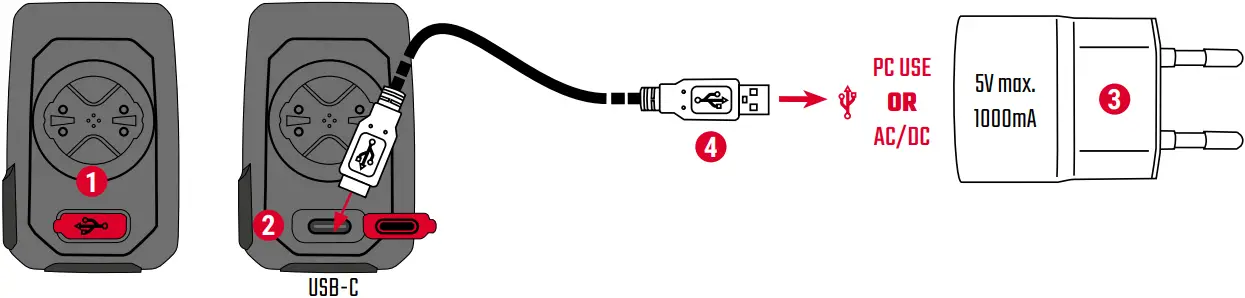
(1) Open USB Cover.
(2) Insert USB-C cable.
Check that the cable and port are dry!
(3) Charge with 5V max. 1000mA.
(4) Connect to PC for data transfer.
IMPORTANT: Please ensure that the USB cover is always closed before starting a training session.
TECHNICAL INFORMATION
| ROX 2.0 | |
| Battery type | Rechargeable 350 mAh, 3.7 V Battery |
| Operation temperature | 0 °C to 60 °C |
| Operation frequency | ANT+ 2.4 GHz @ 1 dBm nominal Bluetooth 2.4 GHz @ 1 dBm nominal GPS 1575.42 MHz (receiver only) GLONASS 1602 MHz (receiver only) |
| Transmission power | <4 dBm |
| Water and Dust rating | IPX7 |
You can find the CE declaration at: ce.sigmasport.com/rox20
You can find the UKCA declaration at: ukca.sigmasport.com/rox20
SIGMA-ELEKTRO GmbH
Dr.-Julius-Leber-Straße 15
67433 Neustadt/Weinstraße
Germany
[email protected]



081050/3
 ce.sigmasport.com/rox20
 goto.sigmasport.com/
 SIGMA SPORT - Bike Computer, Bike Lights, Data World