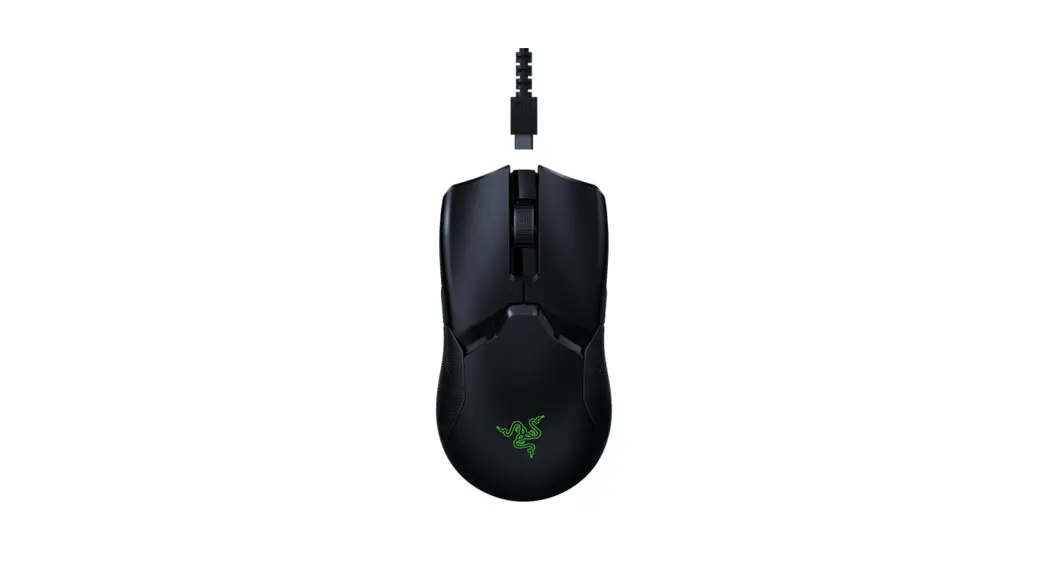
 FIRMWARE INSTALLATIO\ INSTRUCTIONS
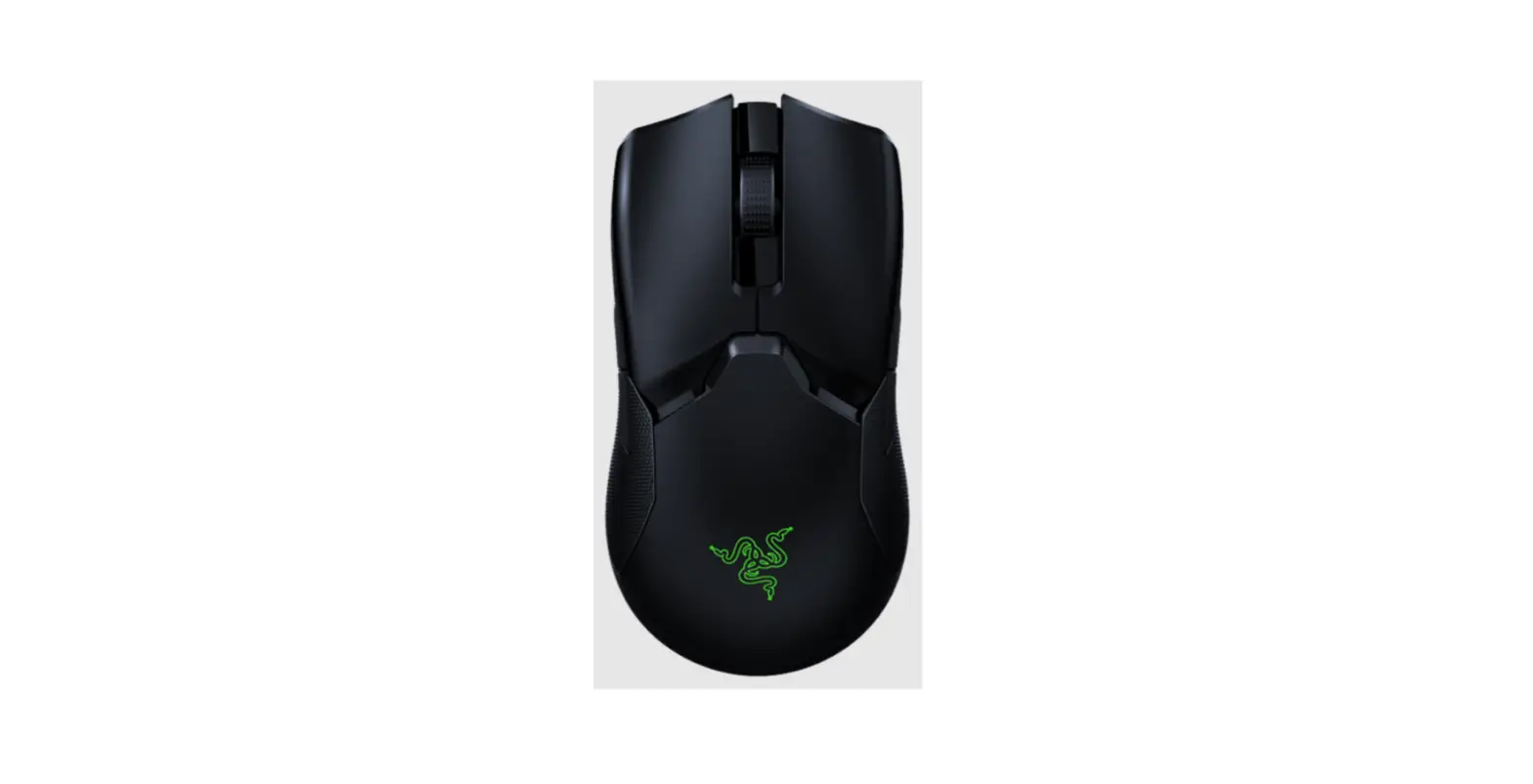
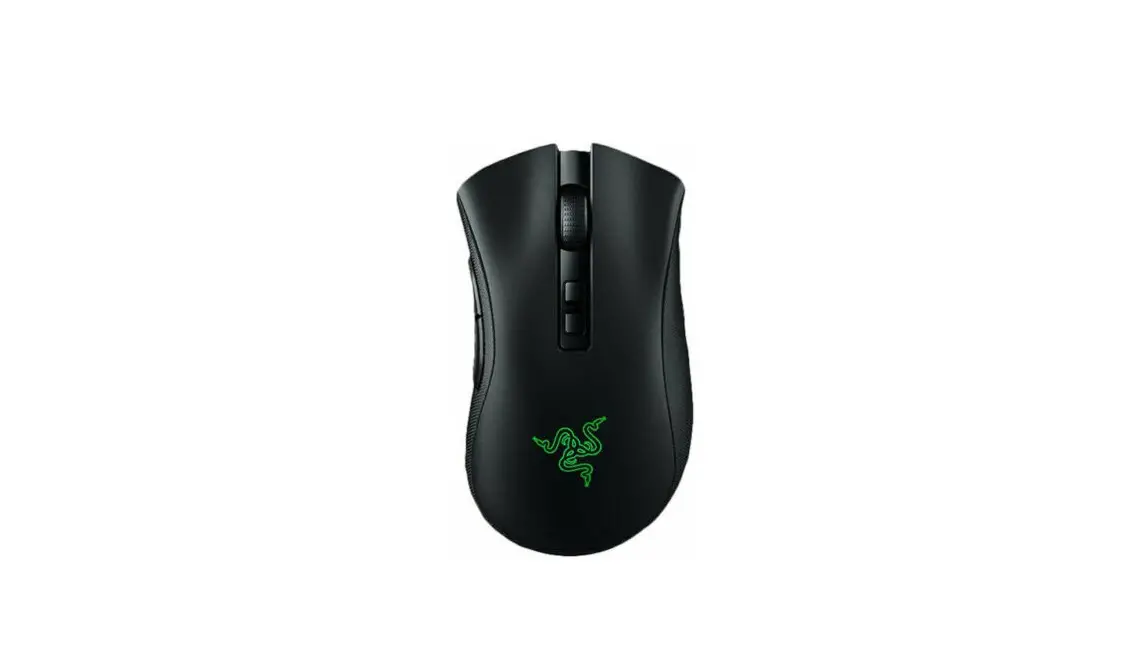
RAZER VIPER ULTIMATE FIRMWARE UPDATER GUIDE
UPDATER INFORMATION
APPLICABLE MODEL NUMBERS
- RZ01-03050
UPDATER NAME AND VERSION
ViperUltimate_ Mouse_ FirmwareUpdater_v1.03.02_r1
Download Link: htto://rzr.to/lw0G2
RELEASE NOTES:
- Fixed an issue where the mouse cursor jumps or skips when used with certain mouse mats.
PREPARATIONS
- Make your laptop is plugged into a wall outlet and not just running on battery before
- Save any open documents on your computer and close all other programs before attempting the update.
- Download the firmware from the link above.
Note: It is recommended to download and install the latest firmware version. - Once the file is ready, follow the installation steps below.
INSTALLATION PROCESS
- Run the updater.

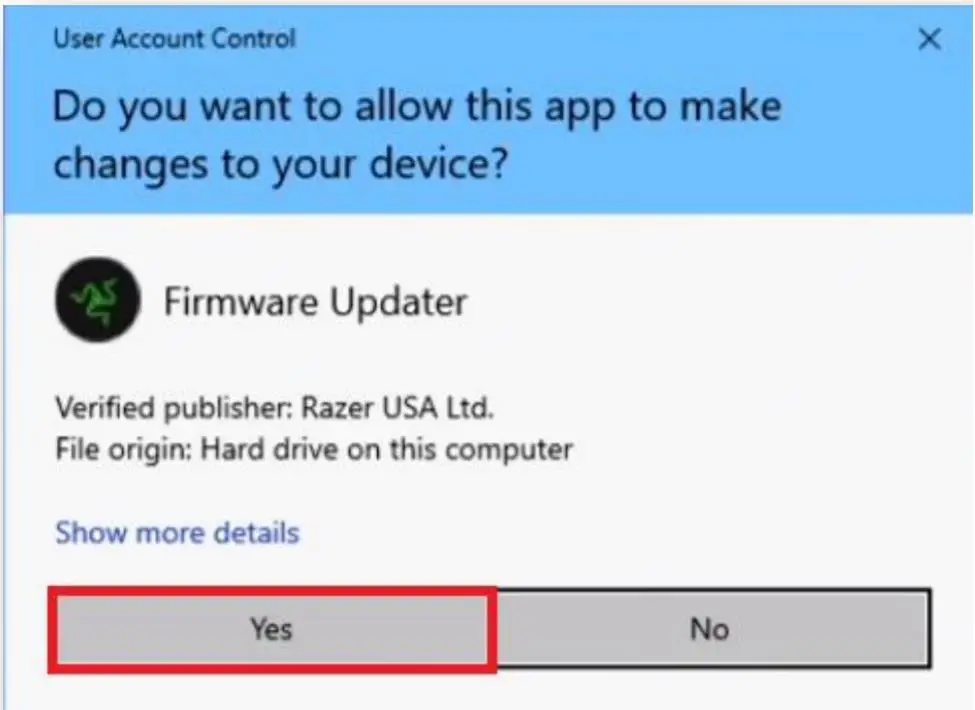
- You may be prompted to confirm changes on your device by the User Account Control. Click “Yes” to confirm these changes.

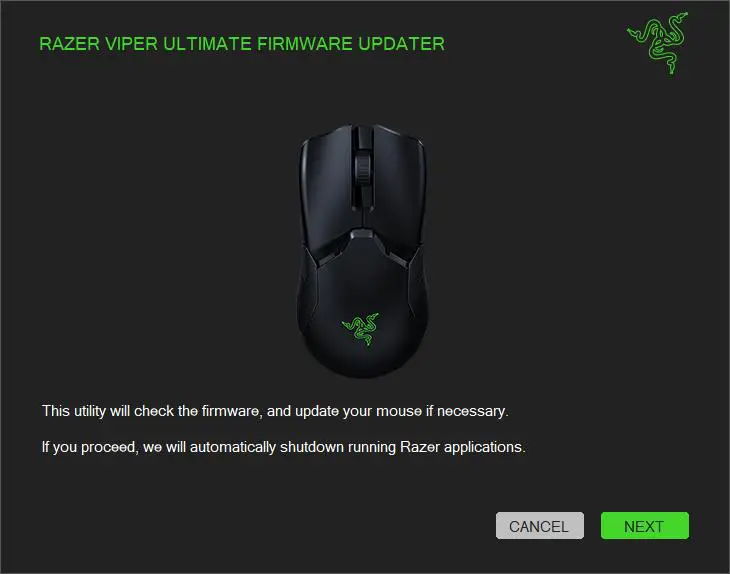
- Click “NEXT” to proceed. The installer will close all running Razer applications if vol. done so.

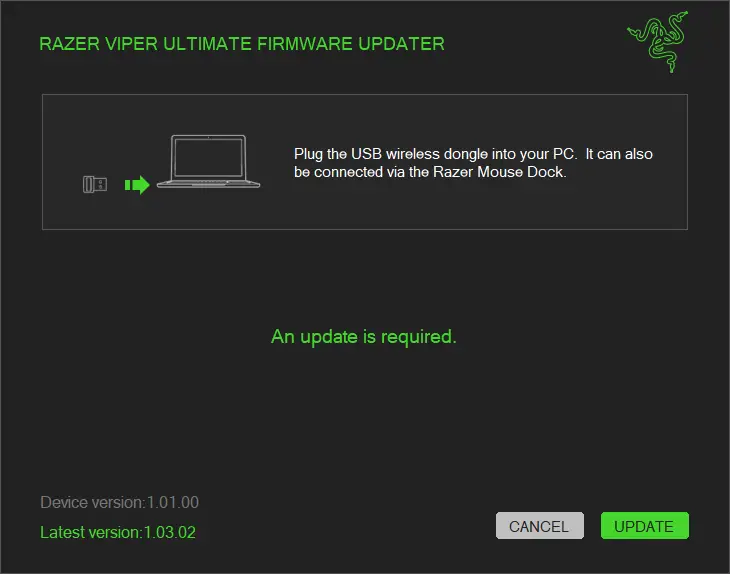
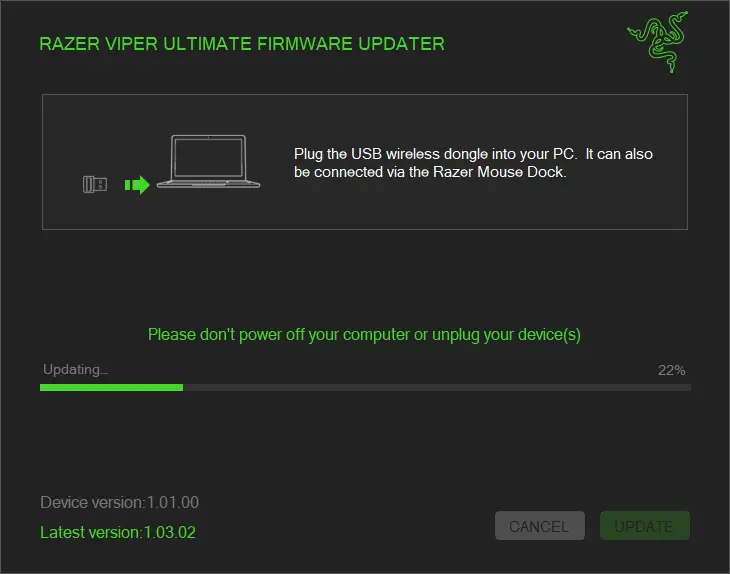
- Connect the USB wireless dongle to the computer and click “UPDATE”.
- Wait until the update process is complete. Do not interrupt.
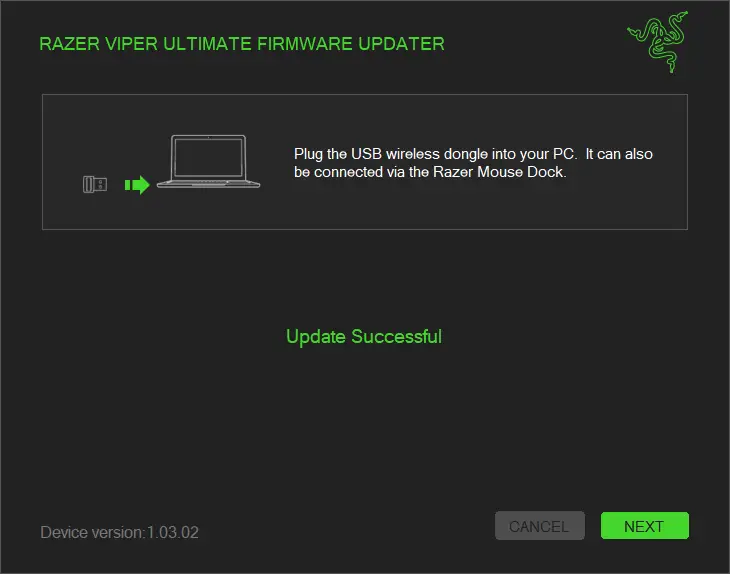
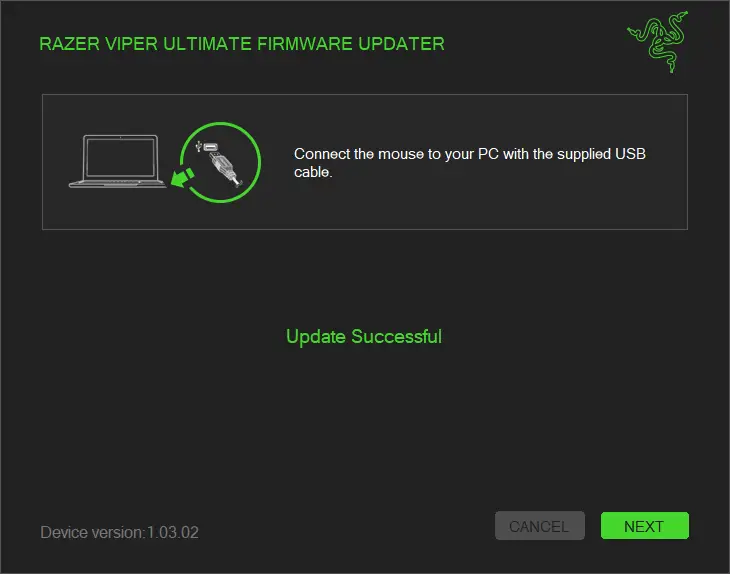
- The firmware update has been successful. Click “NEXT”.
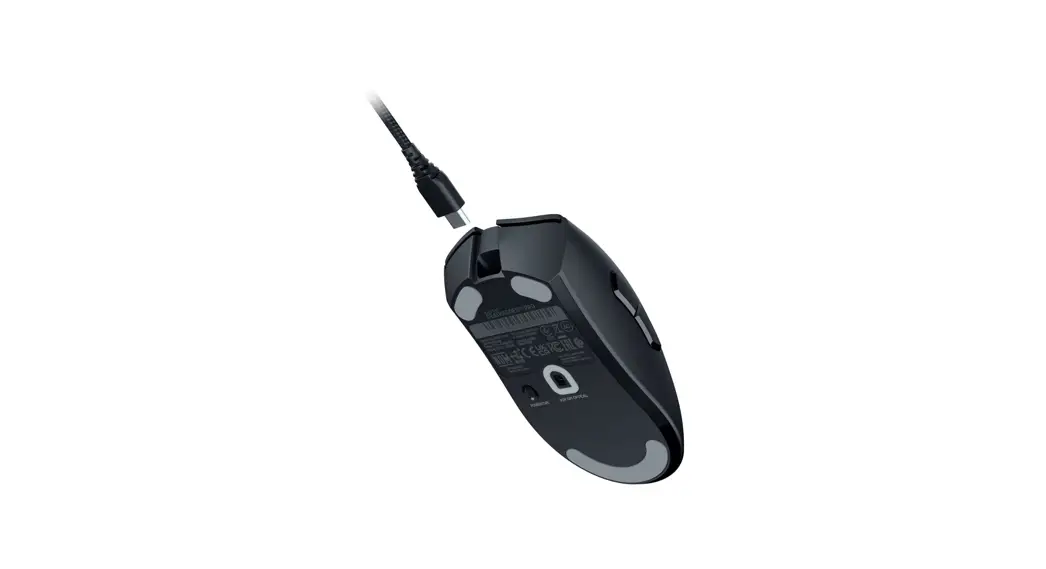
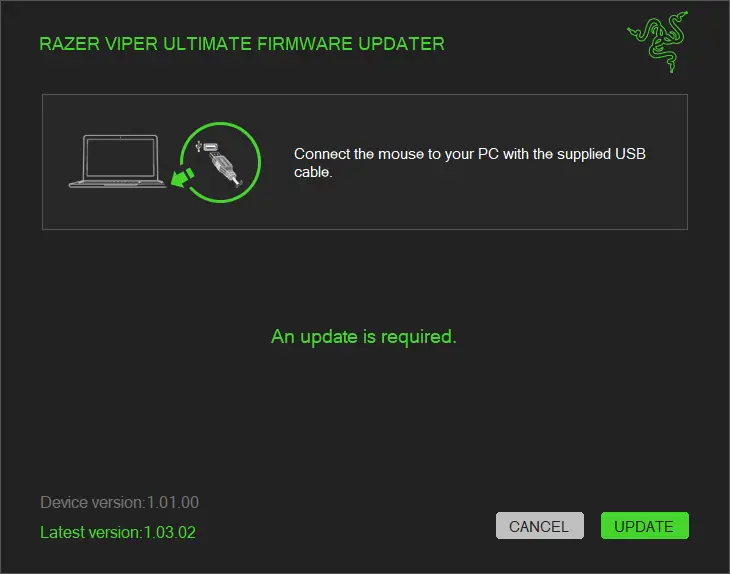
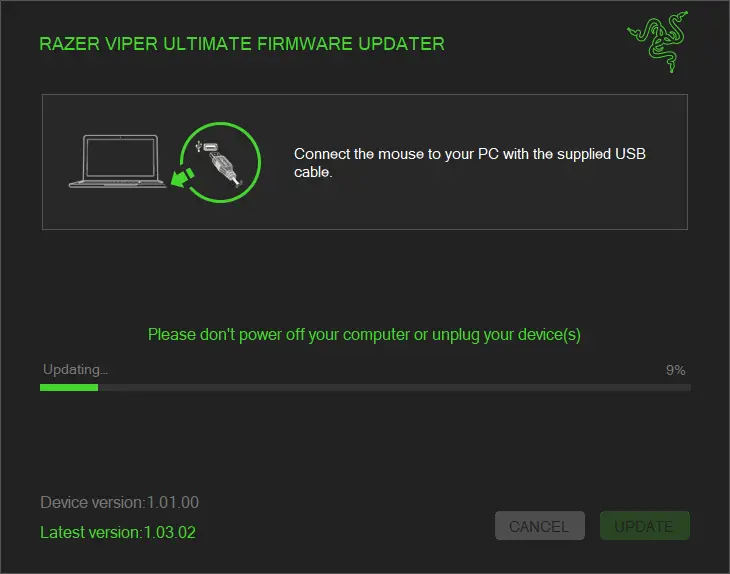
- Connect the Viper Ultimate to your PC with the supplied cable and then click”UPDATE.
- Wait until the process s complete.
- The firmware update has been successful. Click “NEXT”.
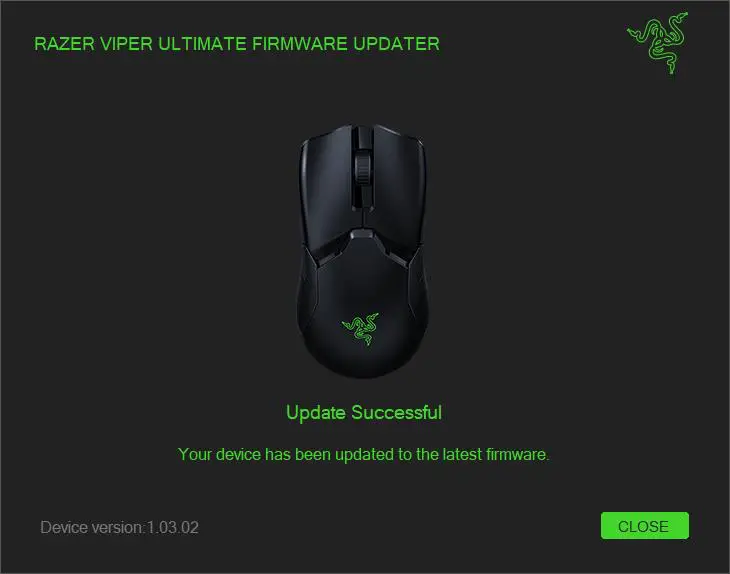
- When the installation is complete, click “CLOSE”.

 rzr.to/lw0G2