 Jabra
Jabra
Speak 510 Bluetooth and USB Speaker phone
User manual
© 2015 GN Audio A/S. All rights reserved. Jabra® is a registered trademark of GN Audio A/S. All other trademarks included herein are the property of their respective owners. The Bluetooth word mark and logos are owned by the Bluetooth SIG, Inc. and any use of such marks by GN Audio A/S is under license. Made in China
MODEL: PHS002W
Declaration of Conformity can be found on
www.jabra.com/doc
Welcome
Thank you for purchasing the Jabra Speak 510. We hope you will enjoy it!
JABRA SPEAK 510 FEATURES
- The answer, end, reject, and mute calls.
- Connect to computer via USB or Jabra Link 370.
- Connect wirelessly to mobile devices via Bluetooth.
- Portable design.
- Omni-directional microphone.
- Wideband audio for exceptional sound quality.
- LED, audio indicators, and voice guidance.
- Up to 15 hours of talk time.
- Interact with your voice assistant (phone dependent) or speed dial with the one-touch Smart button* (must be enabled in Jabra Direct).
*Newer Speak 510 variants (with the Smart button) have a Ver. ID beginning with D, or later. Older Speak 510 variants (without the Smart button) have a Ver. ID beginning with A, B, or C.
Newer Speak 5 10+ variants (with the Smart button) have a Ver. ID beginning with F, or later. Older Speak 510+ variants (without the Smart button) have a Ver. ID eginning with A, B, C, or D.
The Ver. ID can be found on the bottom of the Speak 510.
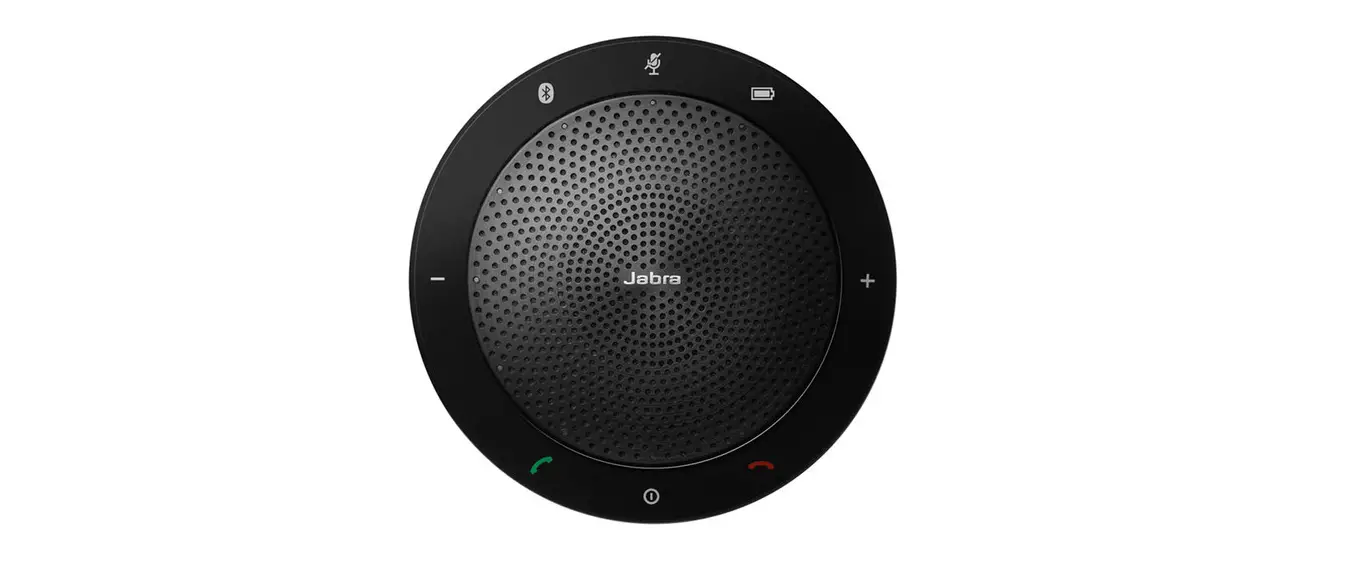
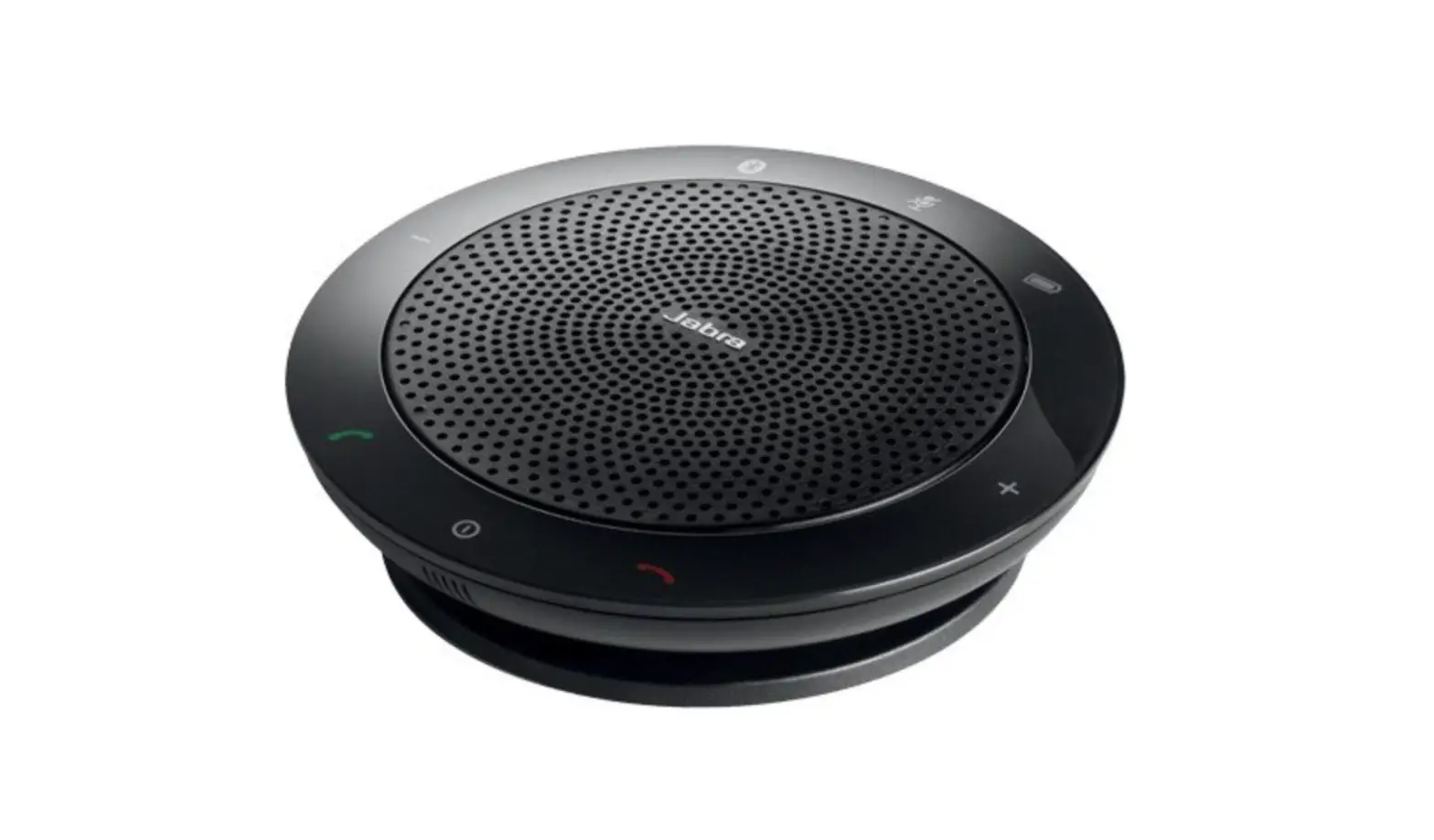
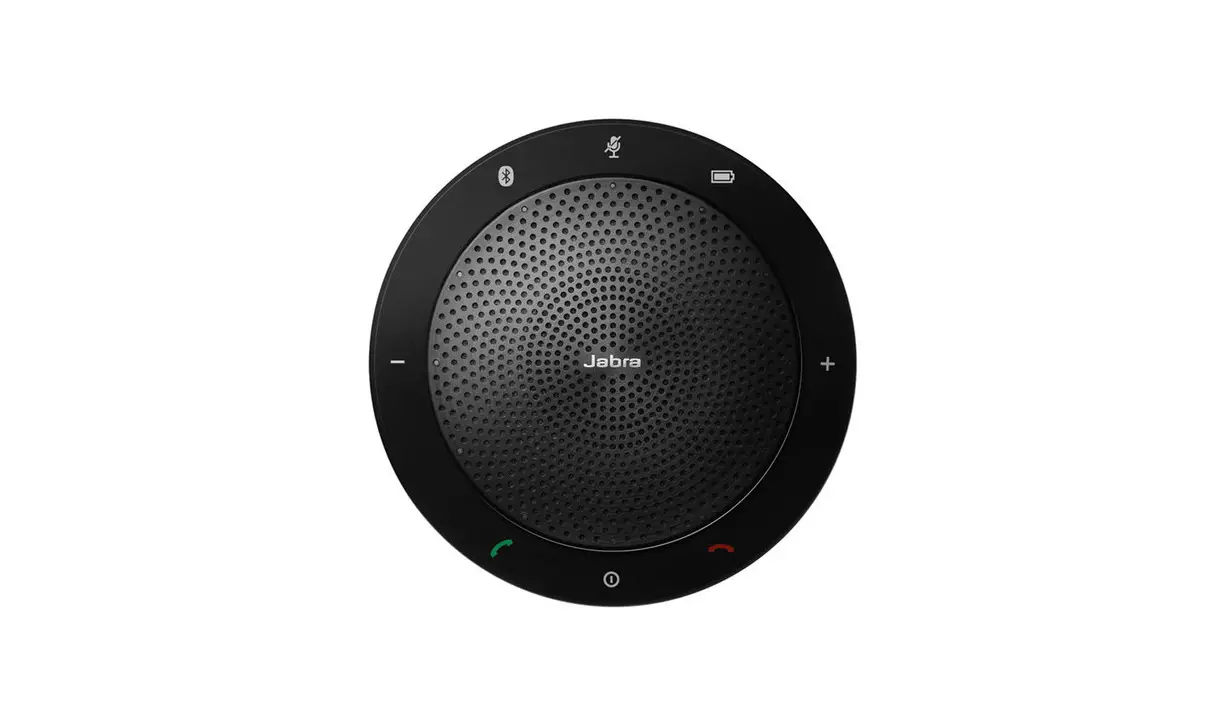
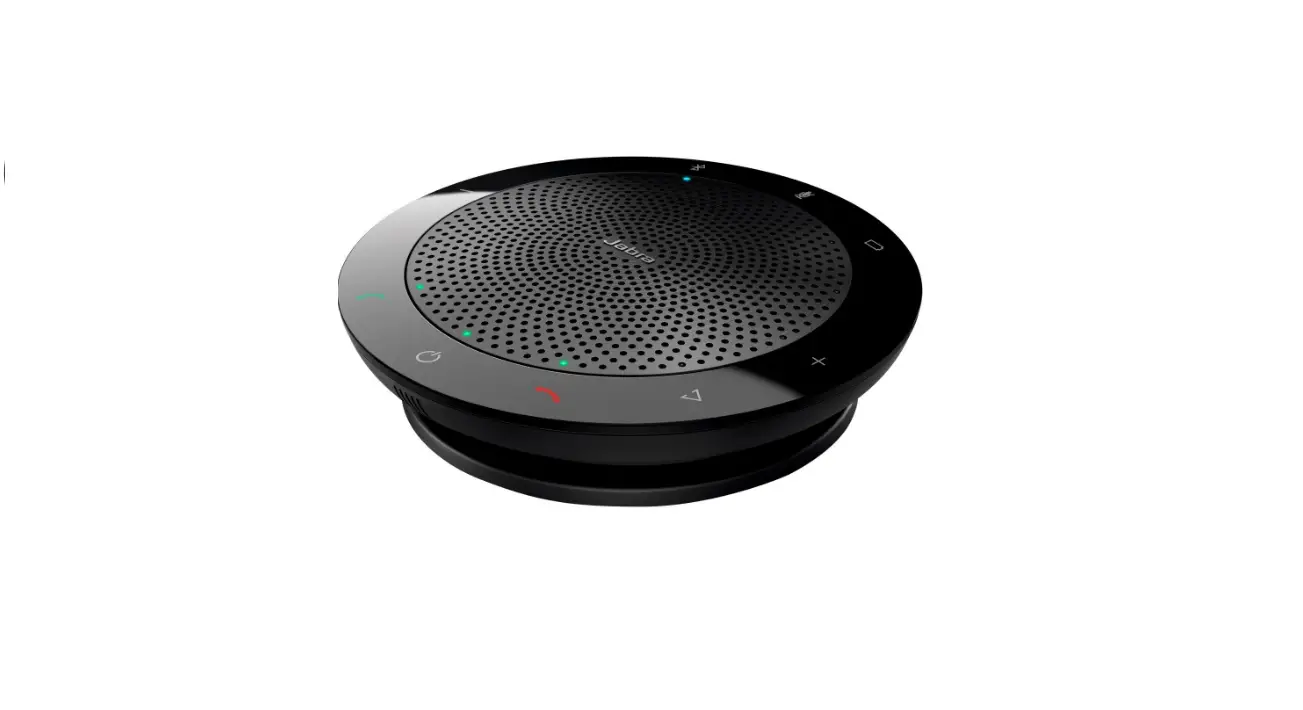
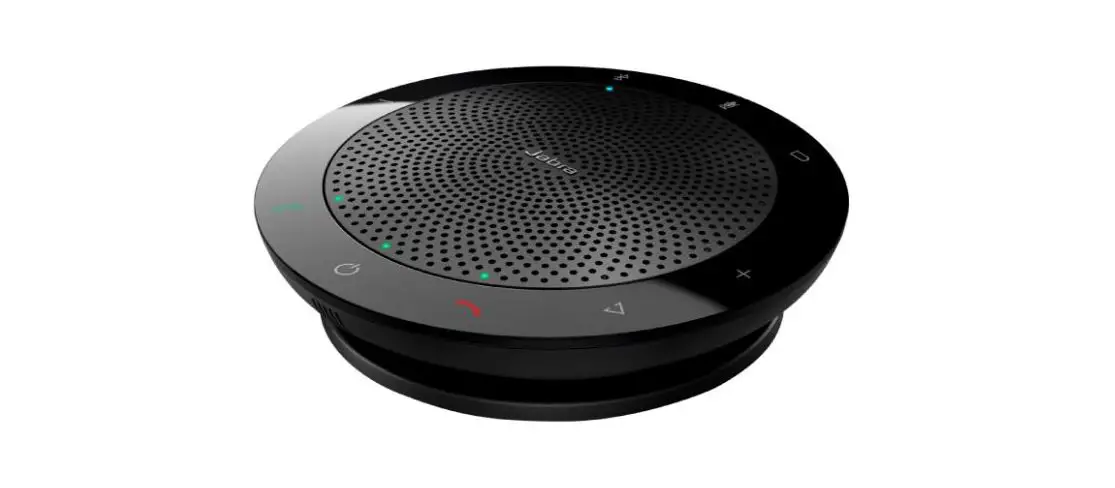
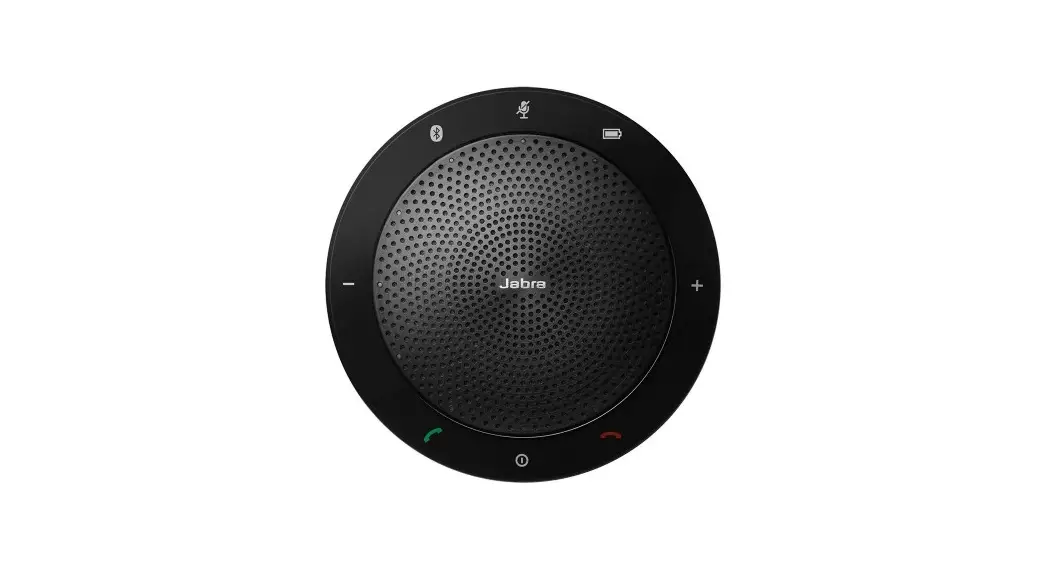
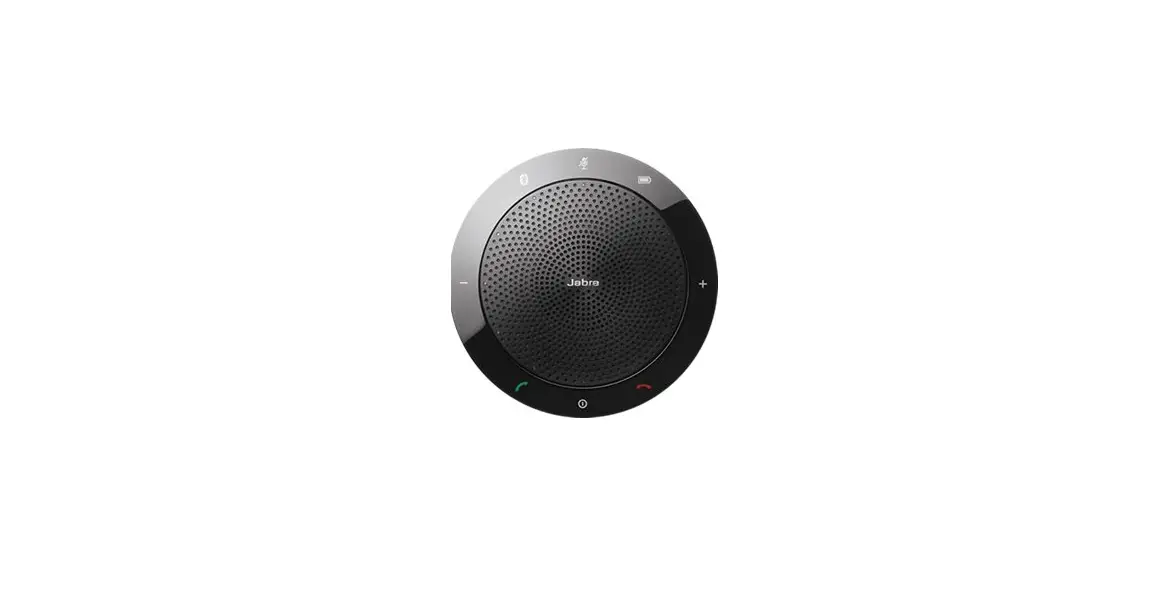
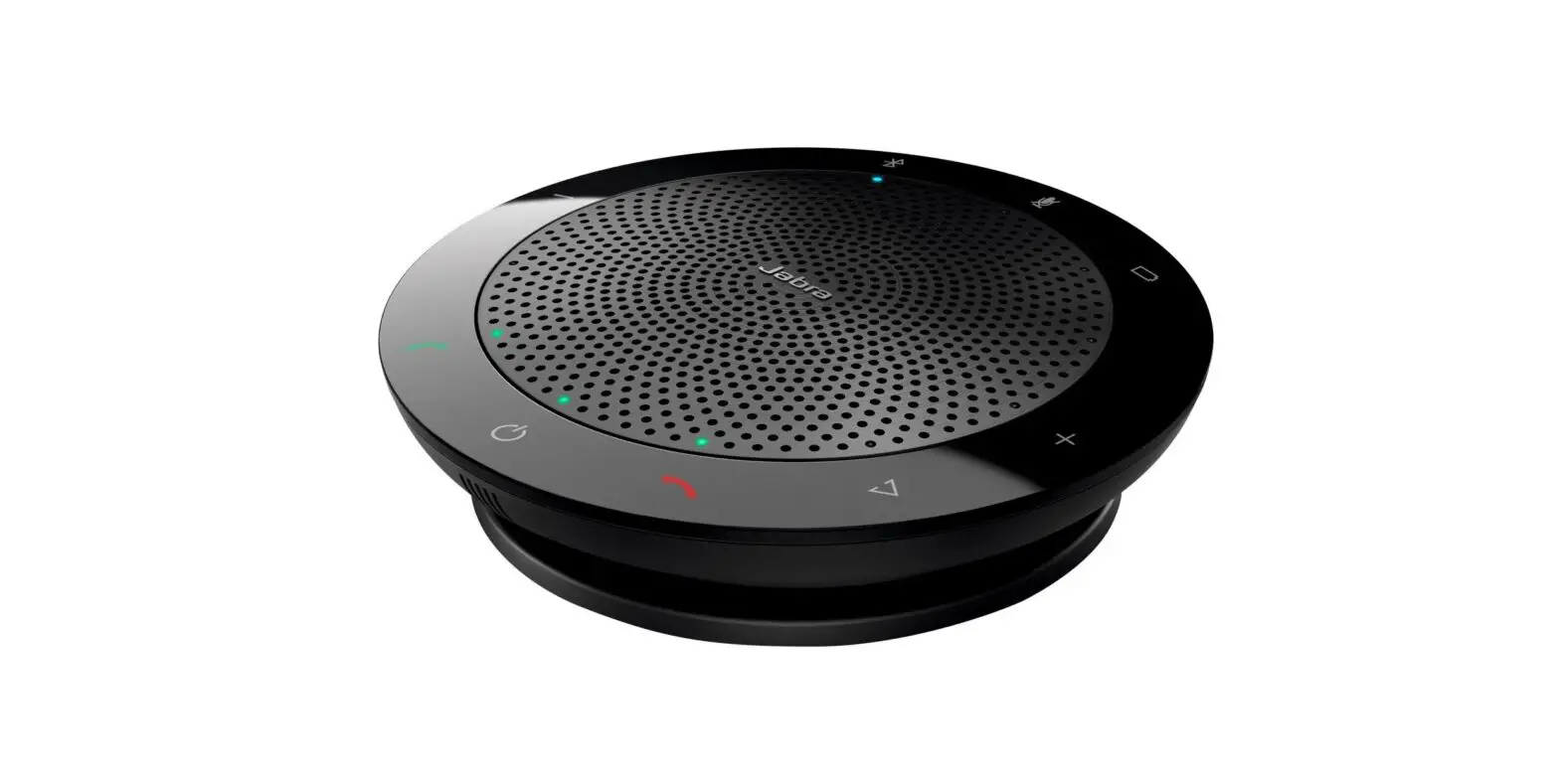
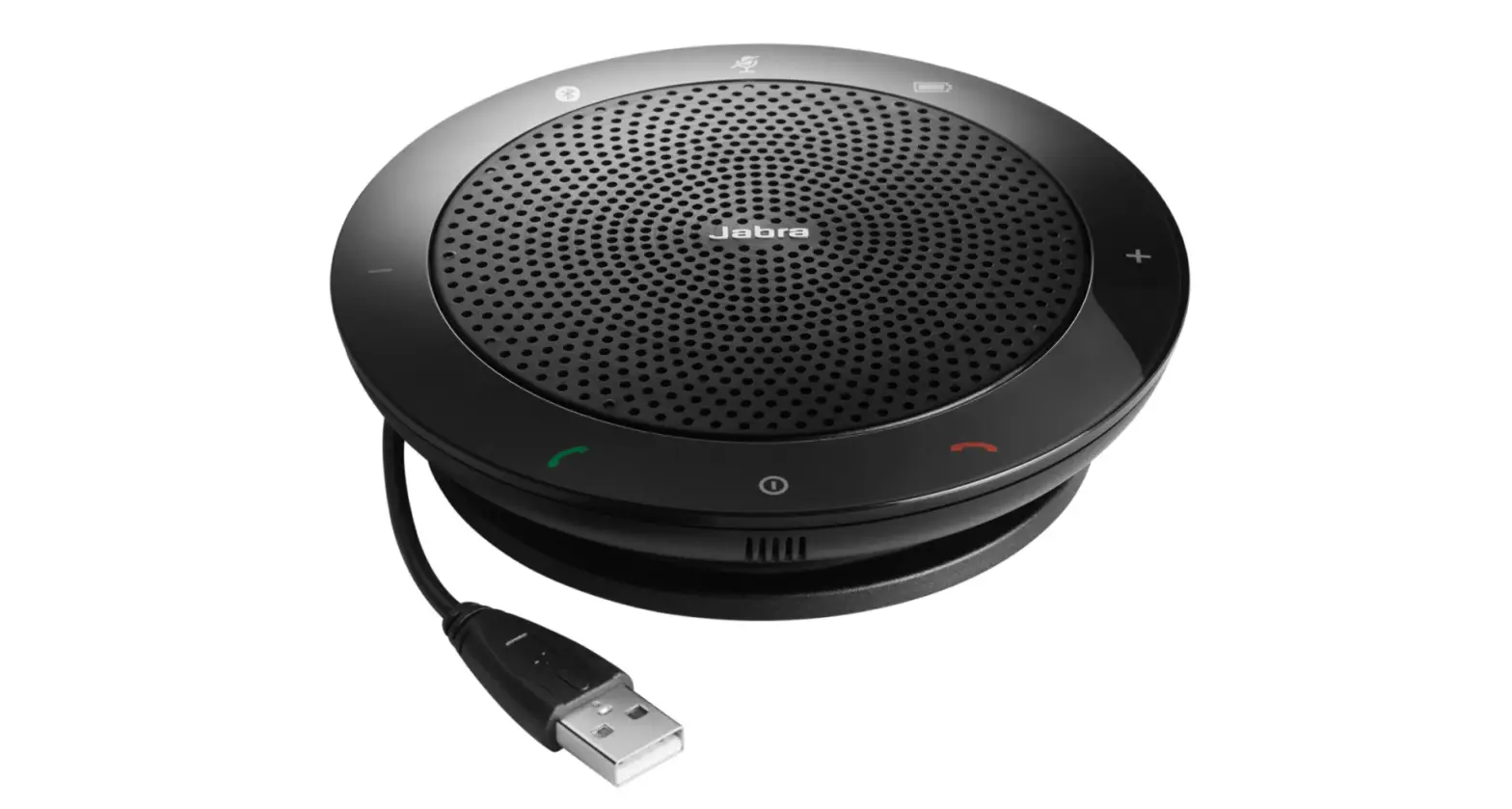
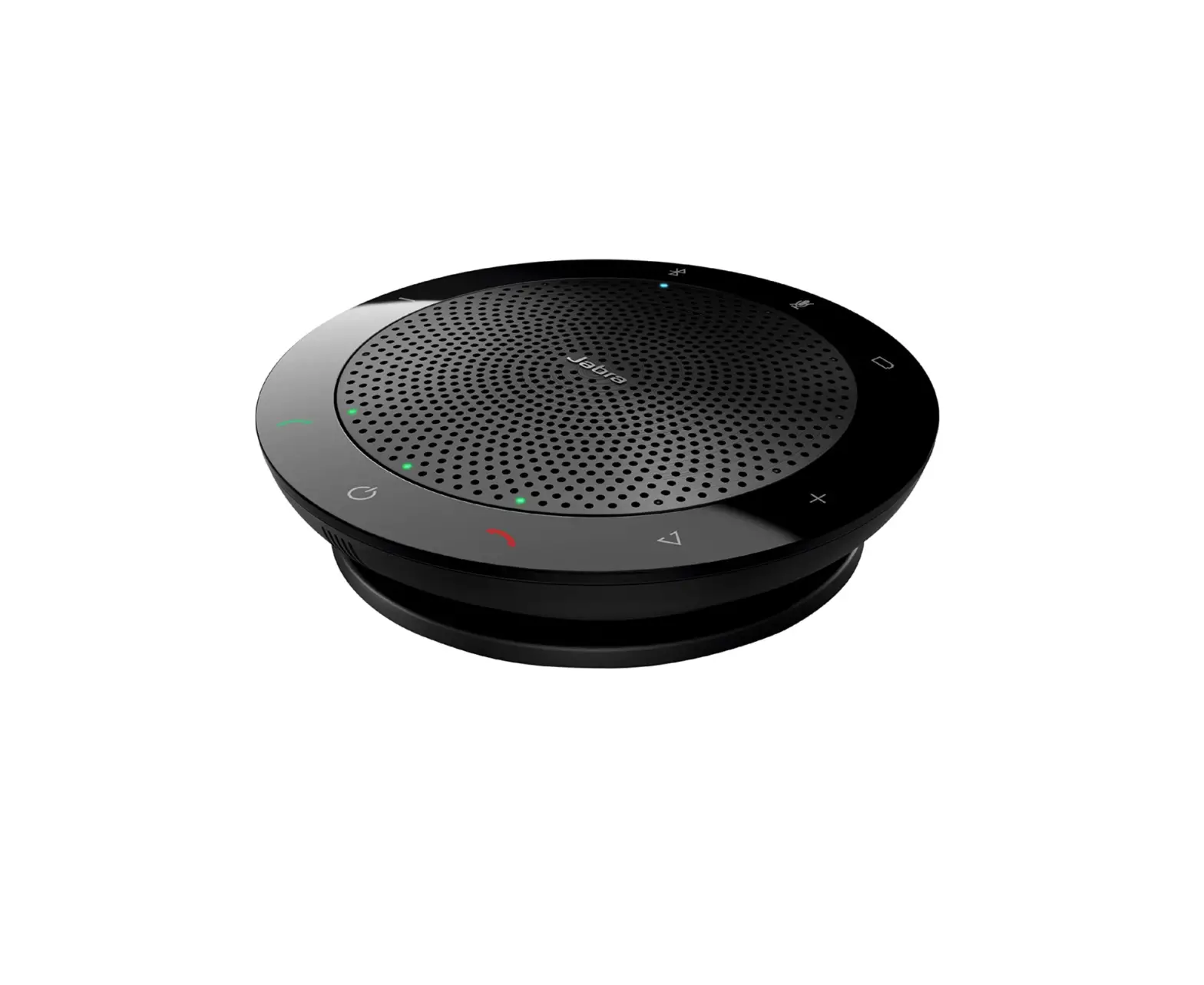
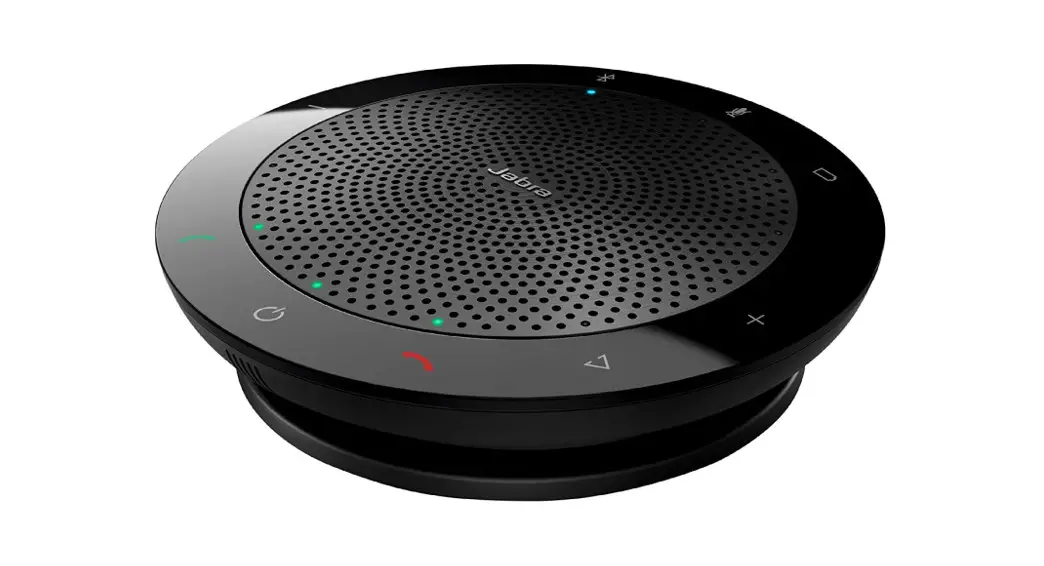
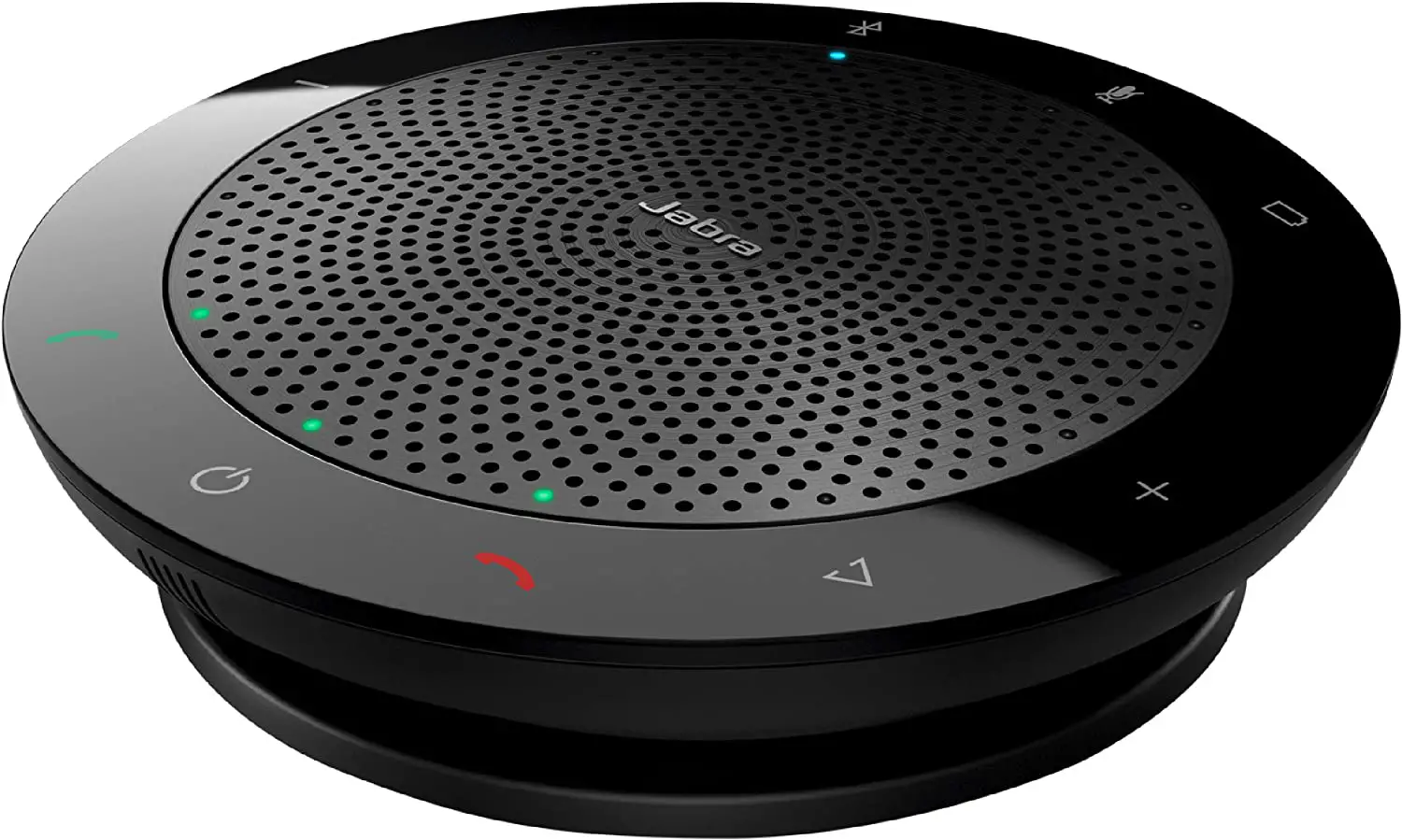
Speaker overview
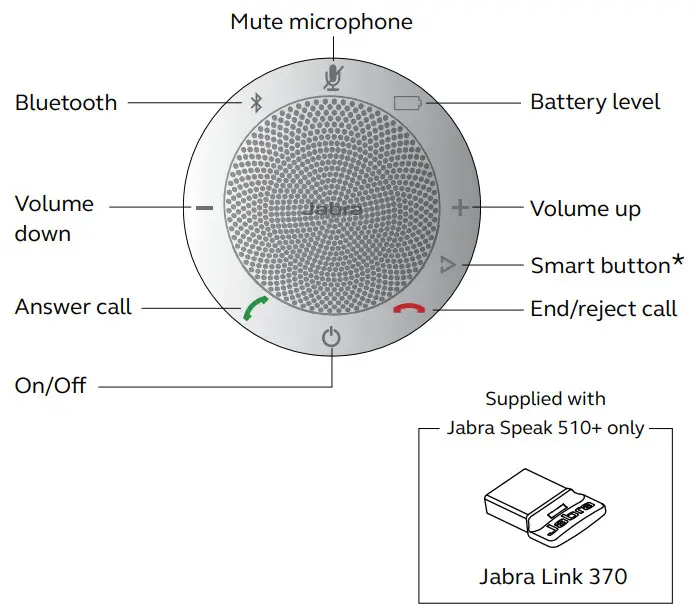
*Newer Speak 510 variants (with the Smart button) have a Ver. ID beginning with D, or later. Older Speak 510 variants (without the Smart button) have a Ver. ID beginning with A, B, or C.
Newer Speak 510+ variants (with the Smart button) have a Ver. ID beginning with F, or later. Older Speak 510+ variants (without the Smart button) have a Ver. ID beginning with A, B, C, or D.
The Ver. ID can be found on the bottom of the Speak 510.
Turn on the Jabra speak 510
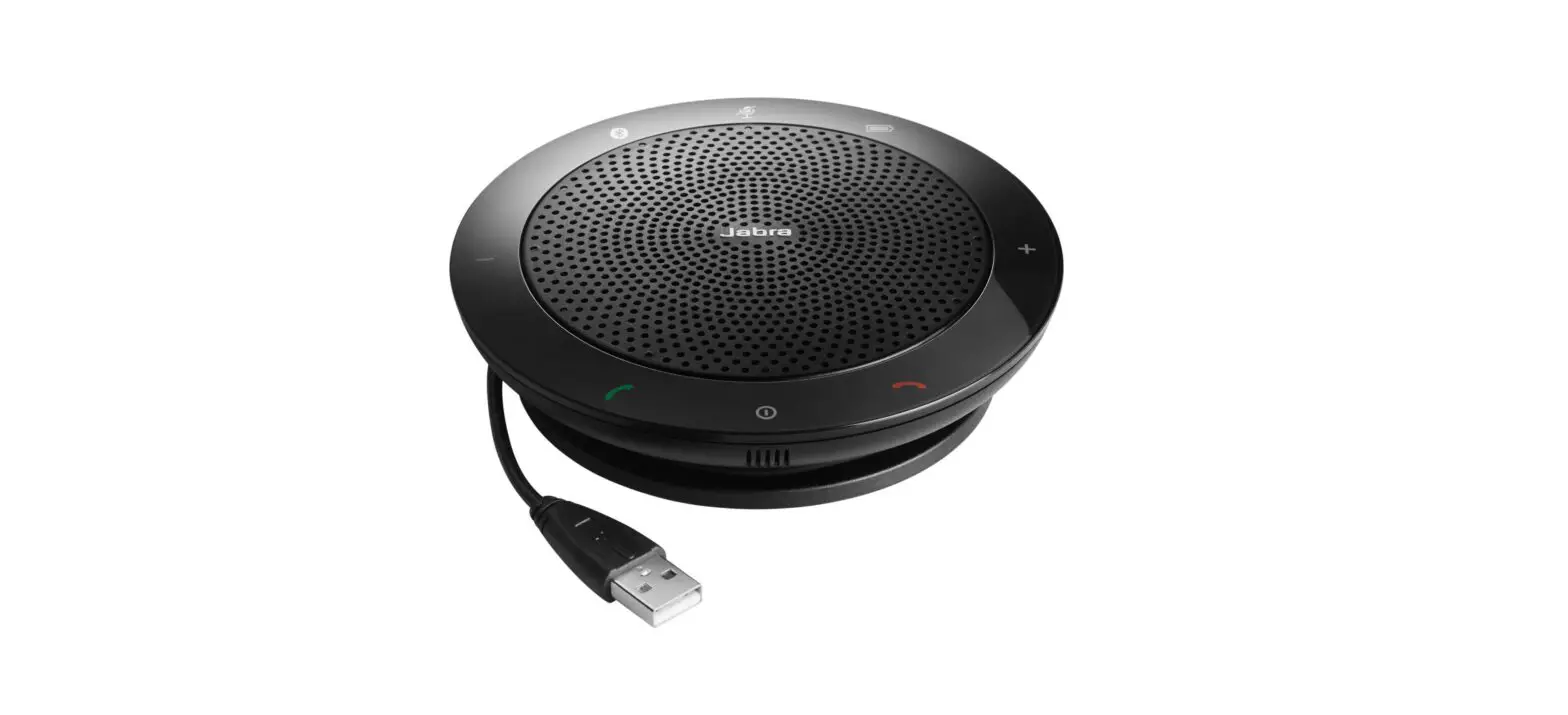
- Plug the Jabra Speak 510 USB cable into any available USB port on your computer, or
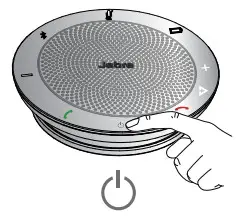
- Press and hold (2 secs) the On/Off button to turn the Jabra Speak 510 on or off.
Charging the Jabra Speak 510
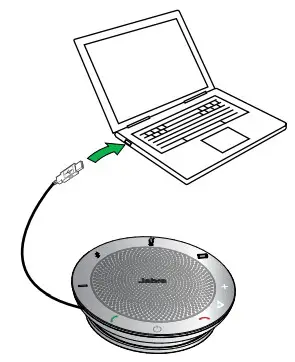
Plug the Jabra Speak 510 USB cable into any available USB port on your computer to charge the battery. The battery light is red when charging, and green for 1 minute when fully charged.
Connecting
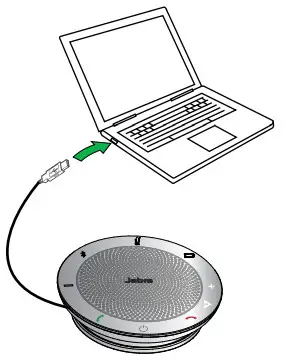
- Plug the Jabra Speak 510 USB cable into any available USB port on your computer.
- Select the Jabra Speak 510 as the default audio device in Windows Control Panel sound settings, and in your softphone audio settings.
Connect to Jabra Link 370
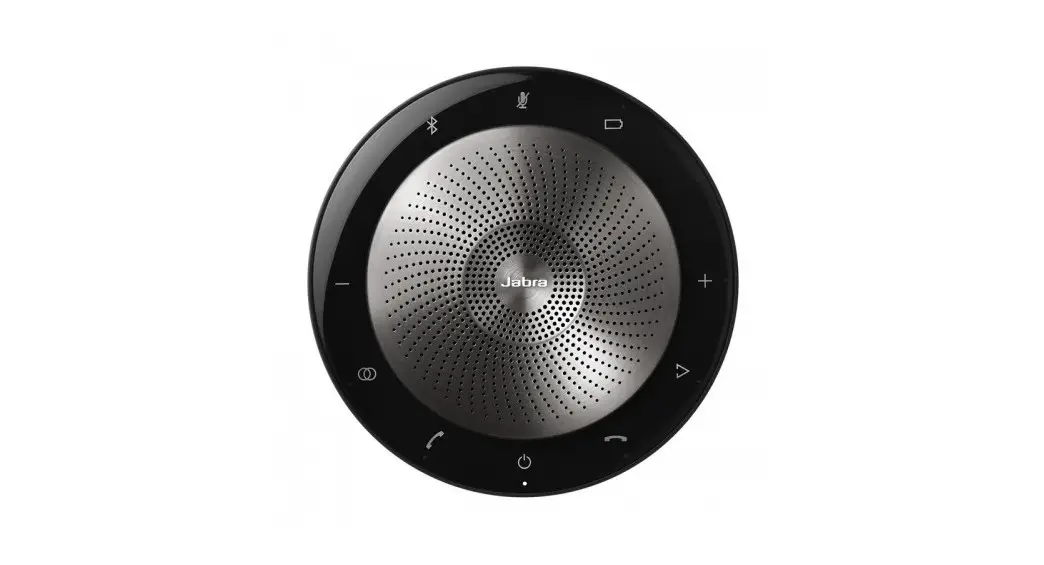
If using a Jabra Speak 510+, the speakerphone and Jabra Link 370 are pre-paired and ready to use out of the box.
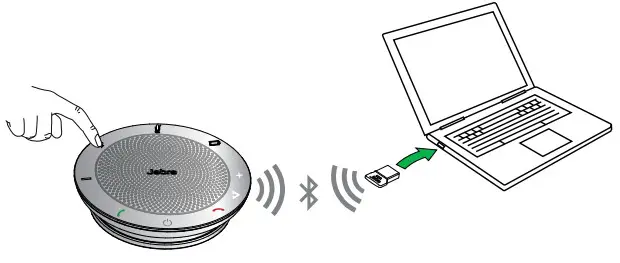
To connect the speaker and Jabra Link 370:
- Press and hold (2 secs) the Bluetooth button on the Jabra Speak 510 until the Bluetooth light flashes blue. Release the button when you hear the connection instructions.
- Plug the Jabra Link 370 into any available USB port on your computer.
- The connection is established when the light turns solid blue.
NOTE: Ensure that all Bluetooth devices previously connected to the Jabra Link 370 are switched off.
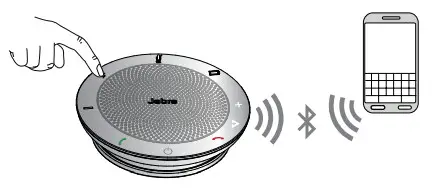
Connect to a mobile device (Bluetooth)
- Press and hold (2 secs) the Bluetooth button on the Jabra Speak 510 until the Bluetooth light flashes blue. Release the button when you hear the connection instructions.
- Enable Bluetooth on your mobile device, and select the Jabra Speak 510 from the list of available Bluetooth devices. If prompted for a password enter 0000.
Connect to Bluetooth headset
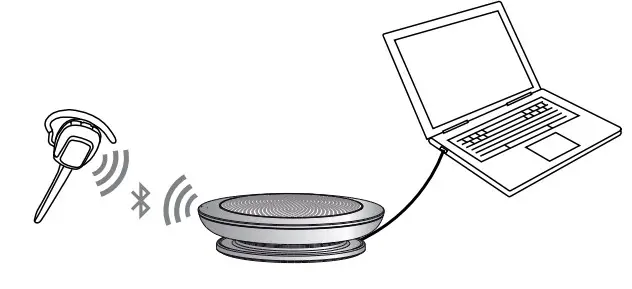
For privacy, a Bluetooth headset can be connected to the Jabra Speak 510.
- Plug the Jabra Speak 510 into any available USB port on your computer.
- Put the Bluetooth headset into pairing mode (refer to your headset manual for instructions).
- Press and hold (8 secs) the Bluetooth button on the Jabra Speak 510 until the Bluetooth light flashes blue and then flashes green.
Release the button when you hear ‘Connect to headset’. - The connection is established when the light turns solid blue.

How to use the Jabra Speak 510
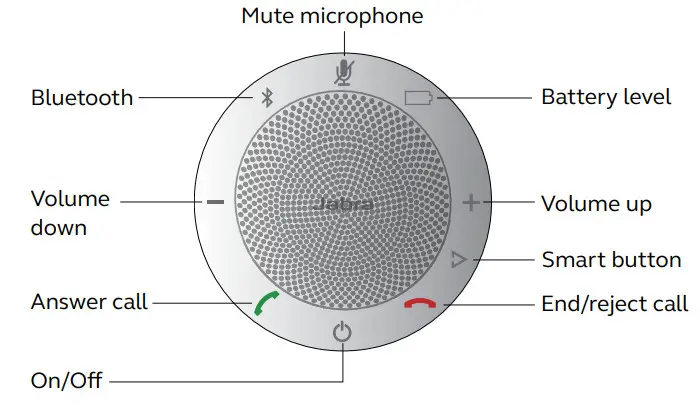
 | On/Off | Press and hold (2 secs) the On/Off button until the lights flash |
 | answer call | Tap the Answer call button |
 | End call | Tap the End/reject call button |
| Reject call | Tap the End/reject call button | |
 | Speaker volume | Tap the Volume up or Volume down button |
 | Battery status | Tap the Battery status button to display the current battery level |
 | Connect with new Bluetooth device | Press and hold (2 secs) the Bluetooth button to connect with a new Bluetooth device |
| Reconnect/ disconnect with Bluetooth device | Tap the Bluetooth button to reconnect/disconnect with a Bluetooth device | |
 | Mute microphone | Tap the Mute microphone button |
 | Voice assistant (off by default, Smartphone dependent) | Press the Start button (use Jabra Direct to enable voice assistants, e.g. Siri, Google Assistant, Cortana) |
| Speed dial (off by default, computer or Smartphone dependent) | Press the Start button (use Jabra Direct to enable speed dial) |
Multiple call handling
The Jabra Speak 510 can accept and handle multiple calls simultaneously.
| Put the current call on hold and answer an incoming call | Tap the Answer call button |
| Switch between held call and active call | Tap the Answer call button |
| Reject incoming call | Tap the End/reject call button |
Switch between Bluetooth devices
- Press and hold the Bluetooth button and tap the Volume Up or Volume down button to cycle between the connected devices. The connected devices will be announced.
- Release the Bluetooth button when the correct device is announced. The Jabra Speak 510 will establish a connection with the device(s). When a connection has been established the device(s) will be announced.
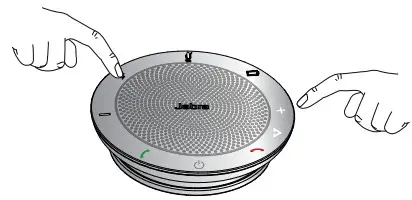
Voice guidance on/off
To turn voice guidance on/off, press and hold (8 secs) the Mute button until you hear ‘Voice guidance off’ or ‘Voice guidance on.
NOTE: Not all voice prompts will be disabled when voice guidance is turned off.
Smart button
The Smart button is off by default.
To use the Smart button to activate your smartphone’s voice assistant (e.g. Siri, Google Assistant, Cortana) or to speed dial a phone number on your smartphone or computer, install Jabra Direct on your computer and enable the Smart button in the Speak 510 settings.
Software
Jabra direct
Jabra Direct is software designed to support, manage and enable optimal functionality for Jabra devices. It is highly recommended to download and install Jabra Direct.
Download the latest version – jabra.com/direct
Update Jabra Speak 510 firmware
Firmware updates improve performance or add new functionality to Jabra devices.
To update firmware:
- Connect to a computer via USB.
- Download and install Jabra Direct.
- Check for the latest firmware via Jabra Direct.
You will receive notifications whenever there is an update for your device.
Support
FAQ
View the FAQs on Jabra.com/speak510.
How to care for your Jabra Speak 510
- Always store the Jabra Speak 510 with the power off and safely protected.
- Avoid storage at extreme temperatures (above 70°C/158°F or below -20°C/-4°F). This can shorten battery life and may affect operation. High temperatures may also degrade performance.
- Do not expose the Jabra Speak 510 to rain or other liquids.
 Jabra Direct - Engineered to optimize and personalize your headset
 Declarations of Conformity