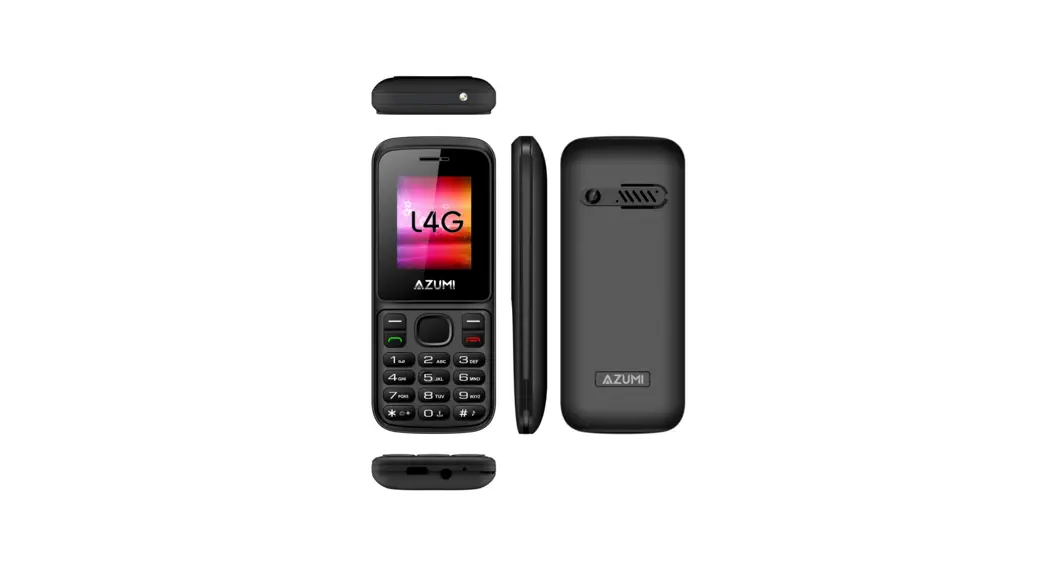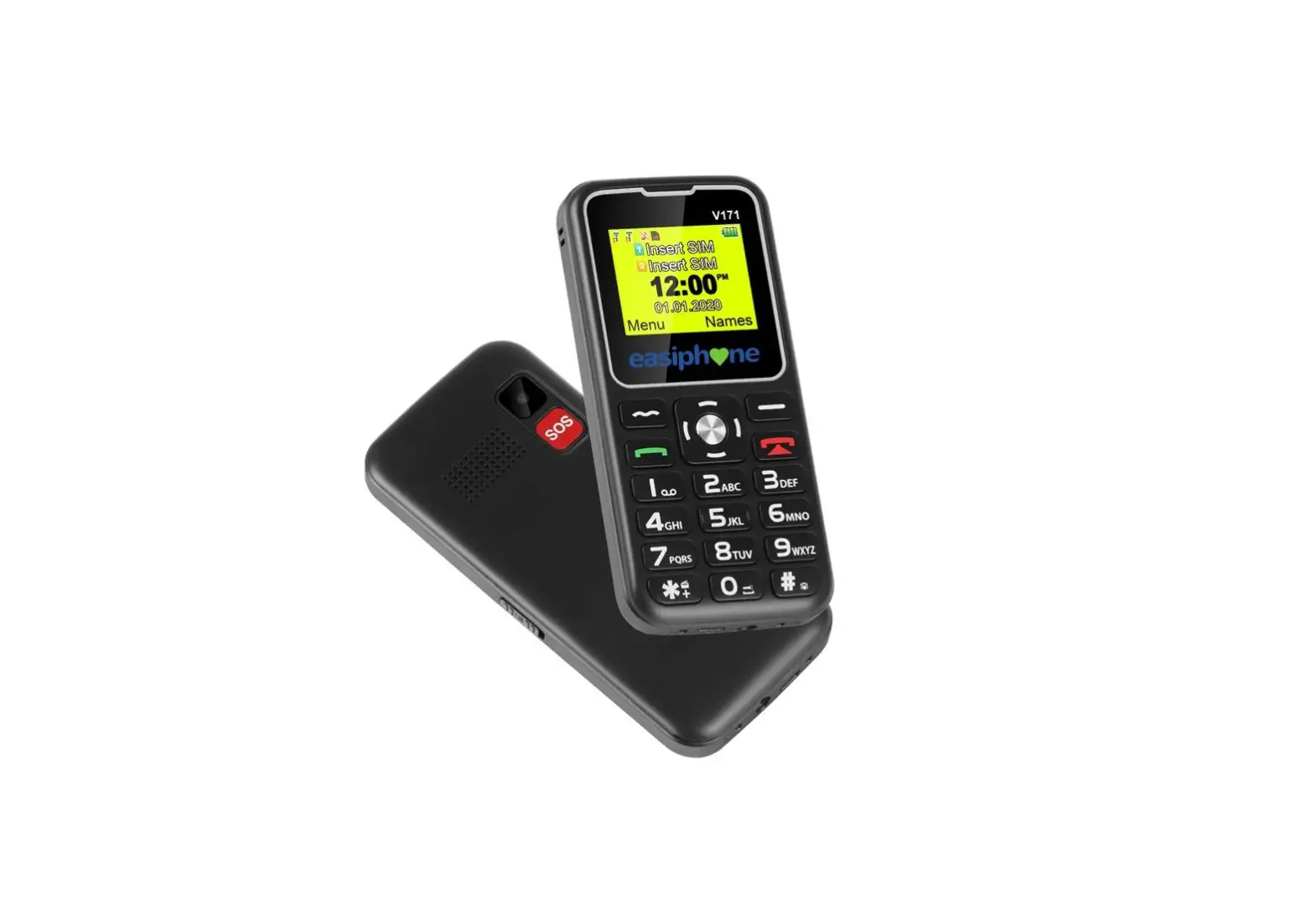
easiphone EZ22 Easy To Use Elderly Big Button Mobile Phone User Manual
Thank you for choosing Easiphone EZ22 SOS senior phone. With this device you can easily make phone calls, use the SOS emergency button, charge easily, send/receive SMS, listen to FM radio, enjoy music, use the flashlight etc.
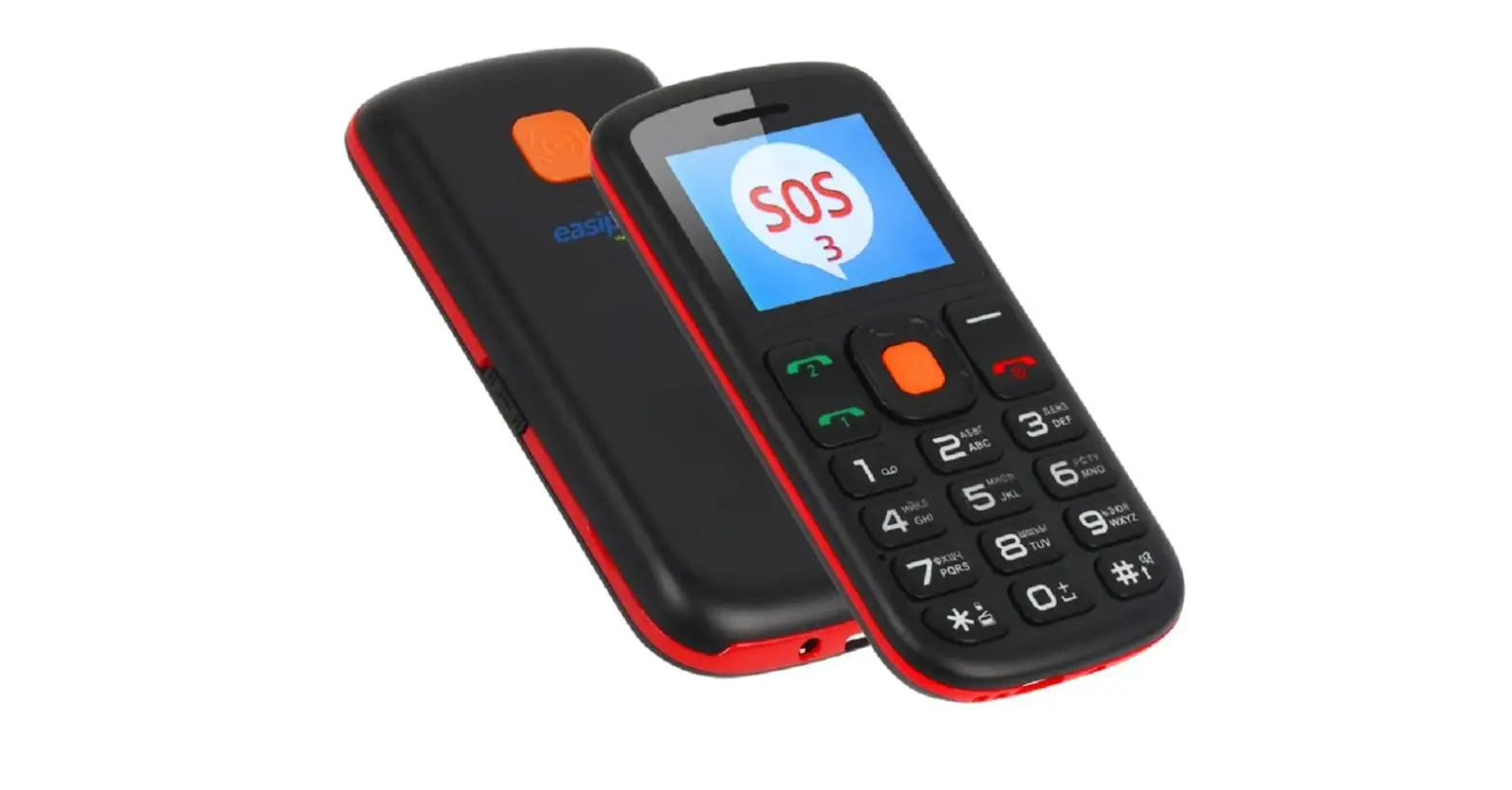
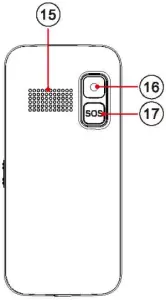
Diagram of external features
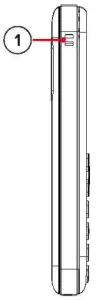
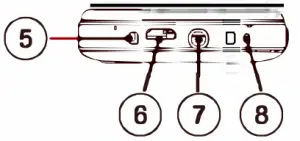
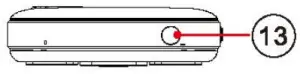
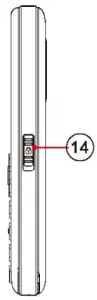
- Lanyard hole

- Earpiece
- Menu key
- Dial key
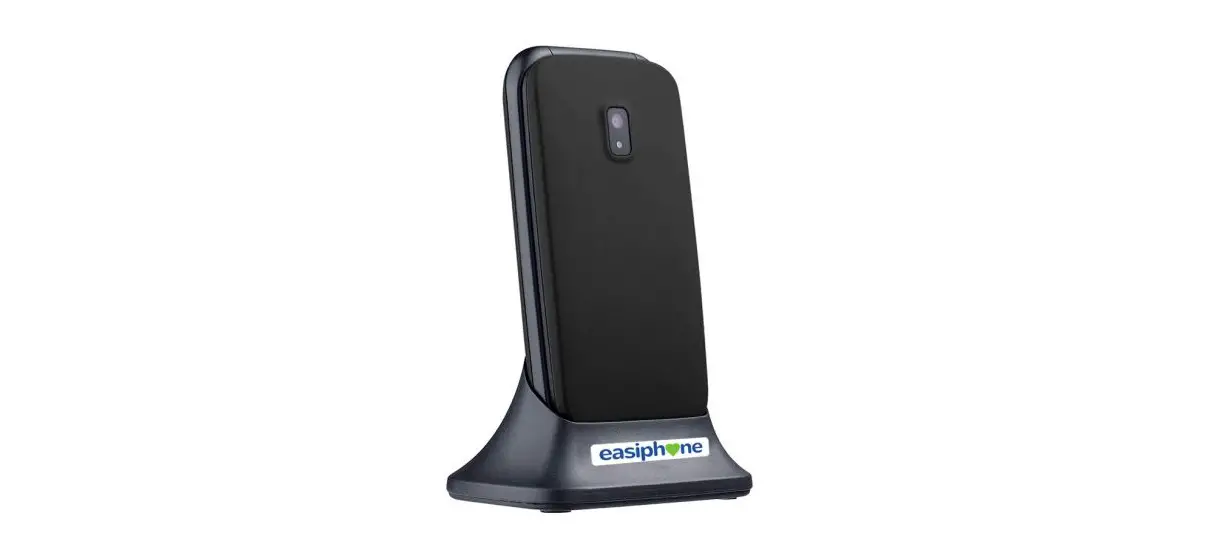
- Base connector
- Micro USB
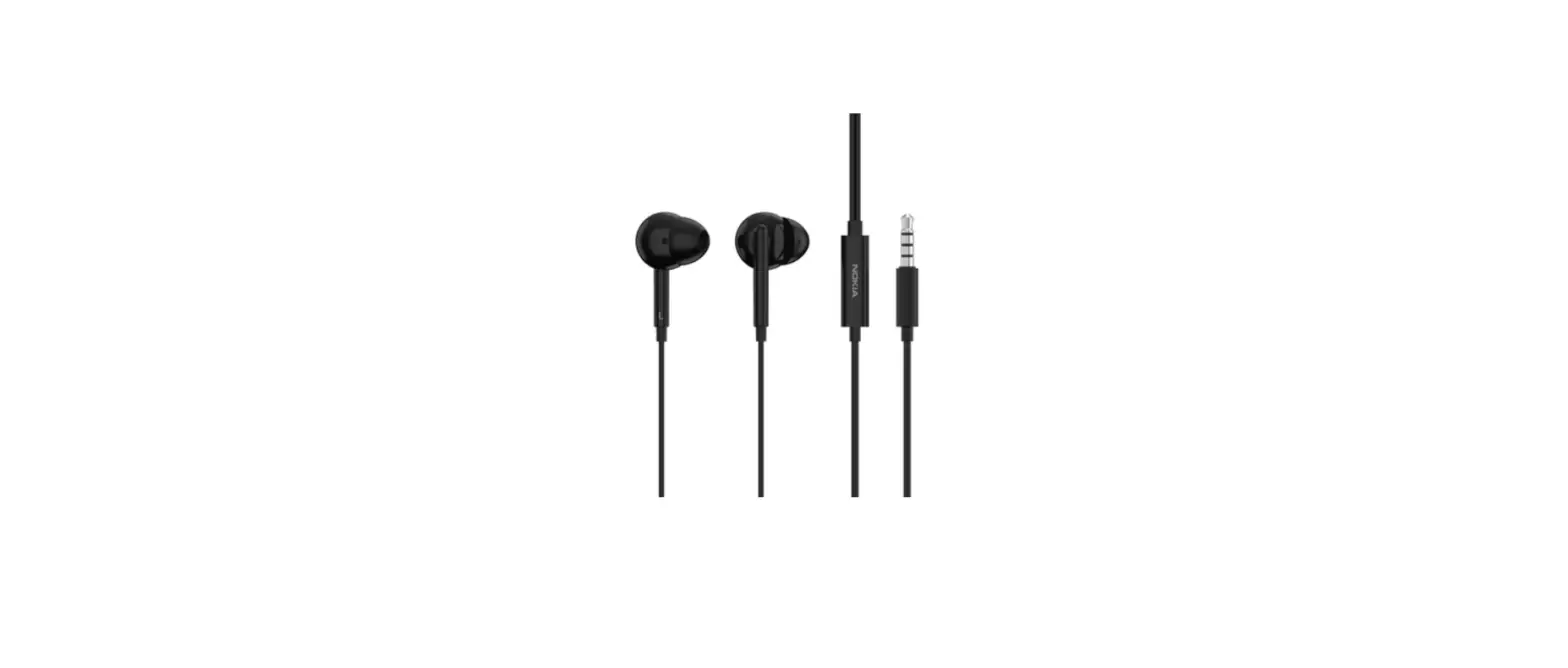
- Audio jack
- Microphone

- Confirmation key
- Hang up key
- Return key
- Navigation key

- Flashlight

- Unlock key

- Speaker
- Camera
- SOS Button

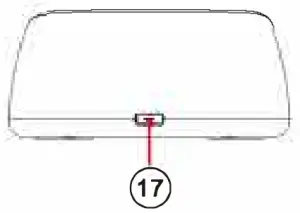
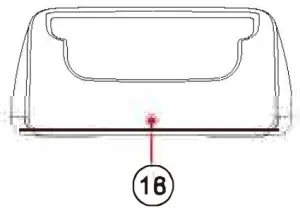
Base micro USB
- LED indicator

Install SIM card
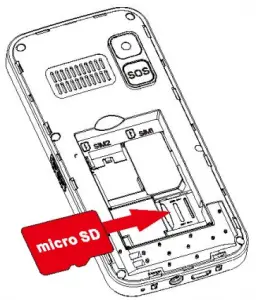
You can remove the back cover through the gap in the lower right corner, then you will see 2 SIM card slots and 1 micro SO slot. See figures below: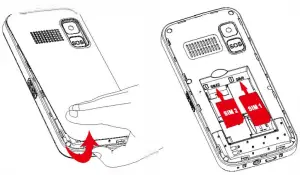
Place battery
After SIM card installed, please tear off the insulation label on battery connector and put battery into the phone properly, then put on the back cover.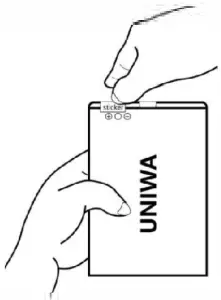
Turn on/off the phone
Long press  for 3 seconds on the keypad, the phone will be turned on/off.
Unlock keypad
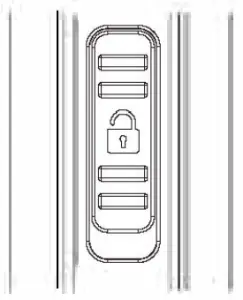
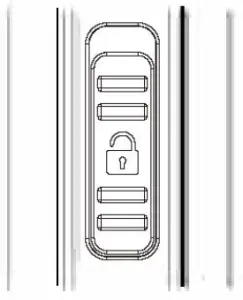
There is” slide to unlock” key on the right side of Easiphone EZ22. You can slide down to lock, slide up to unlock.
- Keypad Unlock

- Keypad Locked
Make a call / answer a call
You can input telephone numbers by pressing number buttons on keypad, then press key to make call. And you can press  to call contact from phonebook. When someone calls you, just press to answer the call.
Read SMS
When you receive new SMS (short message), there is an envelope icon in the upper left corner of the main interface, you can press Menu > Messaging> Ok> In box> OK to read SMS.
Save contact
Input telephone number on keypad and then press  to save, see figures below: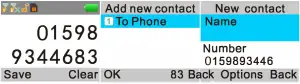
To access main menu, press on keypad. The menu tree is as follows:
- Messaging: Write message, lnbox, Outbox, Drafts, Outbox, Sent message, SMS settings
- Call center: Call history, Call settings, Magic voice
- Phone book: Add new contact
- Multimedia: Camera, Image viewer, Video recorder, Video player, Audio player, Sound recorder, FM radio, File manager
- SOS setting: Status, SOS number, SOS SMS on/off, SOS SMS, Warning tone status
- Organizer: Services, Bluetooth, Calculator, Calendar, Alarm, Torch, Family numbers
- Settings: Profiles, Phone settings, Security settings, Dual SIM settings, Connectivity, Restore settings.
lnstall memory card
The built-in memory of GSM mobile phone is very small, in order to use camera and multimedia function of Easiphone EZ22, a micro SD card is required(which is not included in standard package). The micro SO card must be placed into micro SO card slot as shown below:
Charge battery
If the phone shows low power or can’t be turned on, please charge it first. There are 2 ways for charging, see figures:
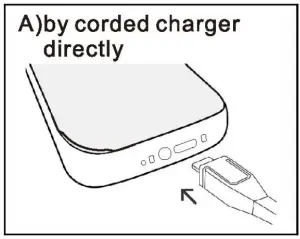
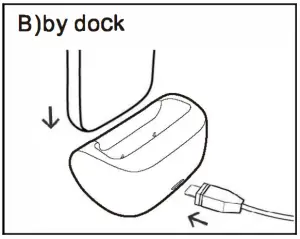
When you are using dock for charging, the indicator light on dock will turn red. If the phone is fully charged or has poor contact with the dock, the indicator will show green, so need reposition the phone until it is well connected with the dock.
Shortcut Keys
This key  is navigation key, you can press the top of it to FM radio, down to alarm, left to write message, right to profiles.
Set ringtone and ringtone volume
Select Menu >Settings> OK > Profiles> General> Options> Customize> Select>Ringtone > Change>Choose Ringtones from the list>OK . And you can adjust ringtone volume at the same menu by press key.
Quickly switch profiles
Long press  5 seconds to switch between three profiles: silent mode, meeting mode, and general mode(default mode).
Camera
You can open camera from Menu> Multimedia >Ok> Camera> Ok, then press  to take photo.
FM radio
Select Menu>Multimedia>OK>FM radio>Ok > Auto search> Yes to search channels and save them. After searching finished, you will see channels in channel list. And you can select the channel and press key to play. If you want to stop FM radio, just press ( key to stop it in FM radio interface.
Turn on/off flash light
Long press  key for 3 seconds, the flash light will be turned on/off.
Speed dial/Family numbers
When some contact is set as family number, you can speed dial him/her. The steps of setting family number is: Menu> Organizer> Ok> Family numbers>OK> Status >OK>On >OK> Done, and then you can set key 2-9 as family numbers by choosing contacts from phonebook(Save contacts in phonebook at first). See figures: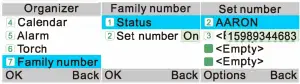
After some contact is set as family number, you don’t need to dial his/her full telephone numbers every time, just long press the corresponding key for 3 seconds in main menu state, then his/her phone number is dialed out.
Turn on/off SOS function
The steps of turning on SOS status are: Menu > SOS setting> OK > Status> On > Ok >Done, then you will see figure as follow: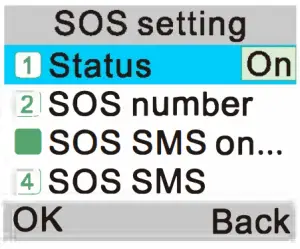
After SOS status is turned on, then set SOS number/SOS SMS/Warning tone status in this menu.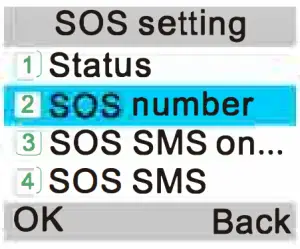
SOS Emergency Call
Long press  button on the back of the phone for 5 seconds, The phone will automatically dial the preset SOS contact and send SOS SMS to him/her.
You can set up to 5 contacts as SOS numbers and set 1 SOS SMS. At the same time, the phone will sound “wawuwawu’ alarm tone (the alarm tone can be turned off in SOS setting menu).
If you make SOS call accidentally, just press to stop it.
Alarm and Bluetooth
You can get alarm setting menu by steps: Menu> Organiser>Ok>Alarm>OK>Edit to set alarm. In the same “Organiser” menu, you can find “Bluetooth” setting too.
Reset the phone
Please backup your personal data and contacts before resetting the phone. The steps of resetting the phone is: Menu>Settings>OK> Restore settings>Ok>lnput phone password “1122” >OK . Then the phone will restart automatically and it is reset.
Product Specification
Model No. | Easiphone EZ22 |
| Dimensions | 120.7*56.7*14.7mm |
Weight | 81g (with battery) |
| Shell Material | Plastic |
Band | 2G:GSM850/900/1800/ 1900MHz |
| Chipset | MT6261D |
SIM | Dual SIM dual standby |
| Screen | 1.77 inch QQVGA horizontal display screen, 128*160px |
Phonebook | 300 |
| Message | SMS |
Earphone Jack | 3.5mm audio jack |
Speaker | 2030 box stereo speaker |
FM radio | Yes, wireless FM radio |
| Audio | 3GP, MP3 etc. |
Video | MPEG4, H.263. AVI etc. |
Camera | Single camera, 0.08MP back camera |
| Magic Voice | Yes, support |
Torch | LED flashlight |
| Vibrator | Yes, support |
Storage | Support TF card extend to 8GB maximally |
| BT | V2.0 |
Battery | Removable BL-5C 1000mAh Li-ion battery |
Stand by time | Up to 10 days |
Other features | E-book, WAP, sound recorder, alarm, calculator, calendar, family number etc. |
| Languages | English, French, Spanish, Polish, Portuguese, Tagalog, Italian, Deustch, Russian, Arabic. Hebrew, Indian, Chinese. |
Color | Black, red |
| Accessories | 1* BL-5C battery 1* Charger 1* Docking station 1* User manual |
 Warning
- The phone is not water proof resistant, please keep it dry.
- To prevent possible hearing damage, do not listen at high volume level for long time. Exercise caution when holding your device near your ear while the loudspeaker is in use.
Copyright© 2020 Easiphone