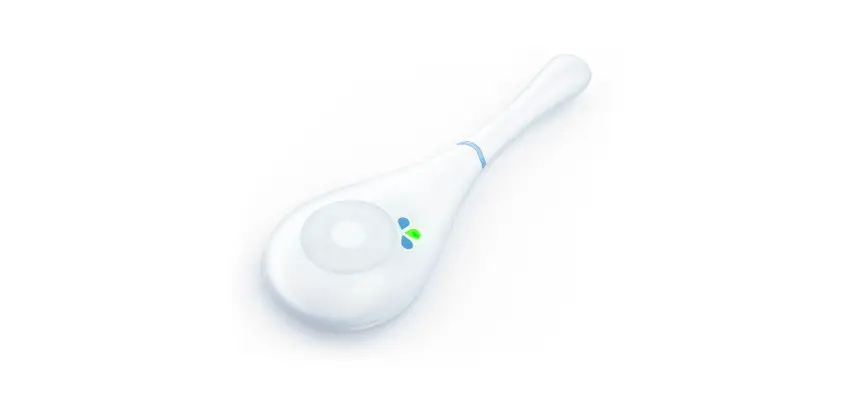

2.0 Your personal fertility tracker
User Guide
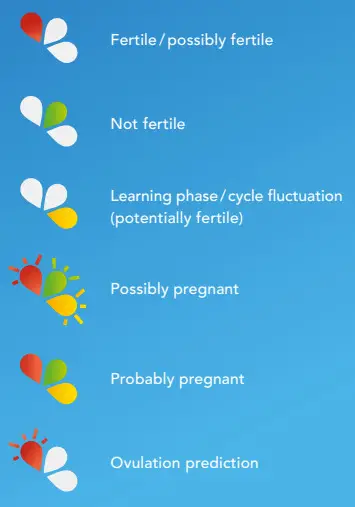
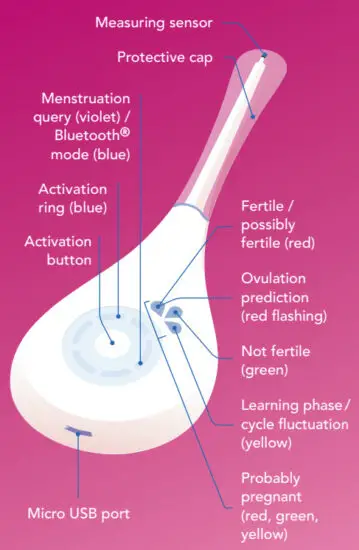
Daysy fertility indicators
Daysy informs you of your menstrual cycle status.
All features at a glance
Step 1: Charging your Daysy
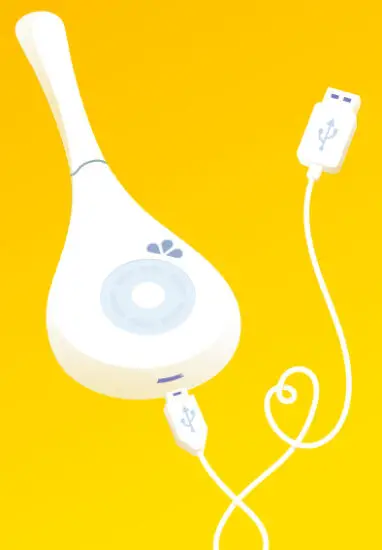
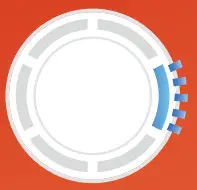
Connect your Daysy to the micro USB cable and the cable to a USB port. Press the activation button to see the charging status. The blue lights moving from bottom to top indicate Daysy is charging. All blue lights remain illuminated when Daysy is fully charged. Daisy will enter standby mode after 60 seconds but will continue charging. Simply press the activation button once to check the status.
Step 2: Measuring your temperature
Daysy needs to learn your cycle. To do so, you need to measure your basal body temperature every day under your tongue with your mouth closed. Press the activation button to start your Daysy. Press the button a second time to start the temperature measurement. We recommend that you sleep at least 3 consecutive hours before measuring and that you take your temperature after waking up, before getting up and becoming active.
Rotating blue LED:
Daysy is measuring your temperature.

Step 3: Entering your menstruation
You need to tell Daysy when you have your menstruation. To enter menstruation, press the activation button to start your Daysy, then press and hold the activation button again until the violet light is solid and you hear a “beep”. Confirm you are menstruating for each day of active bleeding and from the first day on for a minimum of 3 consecutive days.
 | Flashing violet LED: Daisy is asking for your menstruation input. |
 | Continuous violet LED: Daisy has confirmed your menstruation input. |
Step 4: Get more with the DaysyDay app
Connect your Daysy to the DaysyDay app to view all of your cycle data at a glance. To do this, open the app and press the activation button to start your Daysy. Activate Bluetooth by double-clicking the button, then follow the app’s instructions. Please note that your data can only be displayed after the first successful measurement. Each time you wish to transfer your data you must always make sure Daysy is in Bluetooth® mode.
 | Flashing blue LED: Daysy is connecting. |
 | Continuous blue LED: Daysy is connected. |
Do you have any questions about your Daysy?
Are you looking for further tips and other interesting information? Or would you like to find the right contact person for your personal questions? Then visit our website: daysy.me
Visit daysy.me/start for important information before beginning use of your Daysy.

References
 Your fertility tracker Daysy - 100 % natural and reliable!
-
Your fertility tracker Daysy - 100 % natural and reliable!
-
Dein Zykluscomputer Daysy - 100 % natürlich und sehr genau!
-
Tu ciclocomputador Daysy - ¡100% natural y muy preciso!
-
Ton ordinateur de cycle Daysy - 100 % naturel et très précis !
-
Il tuo ciclocomputer Daysy - 100% naturale e molto preciso!
-
Getting Started
 Your fertility tracker Daysy - 100 % natural and reliable!