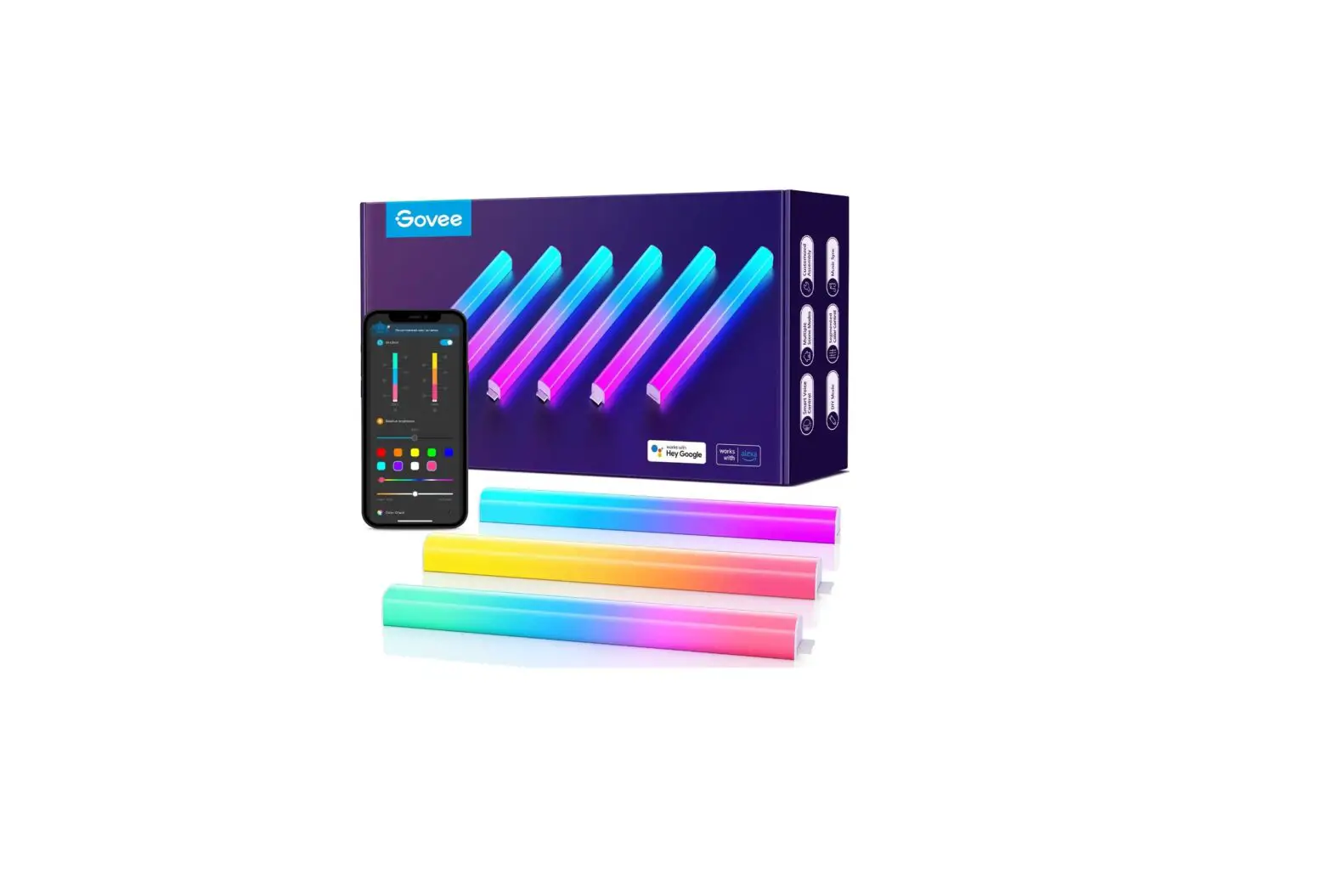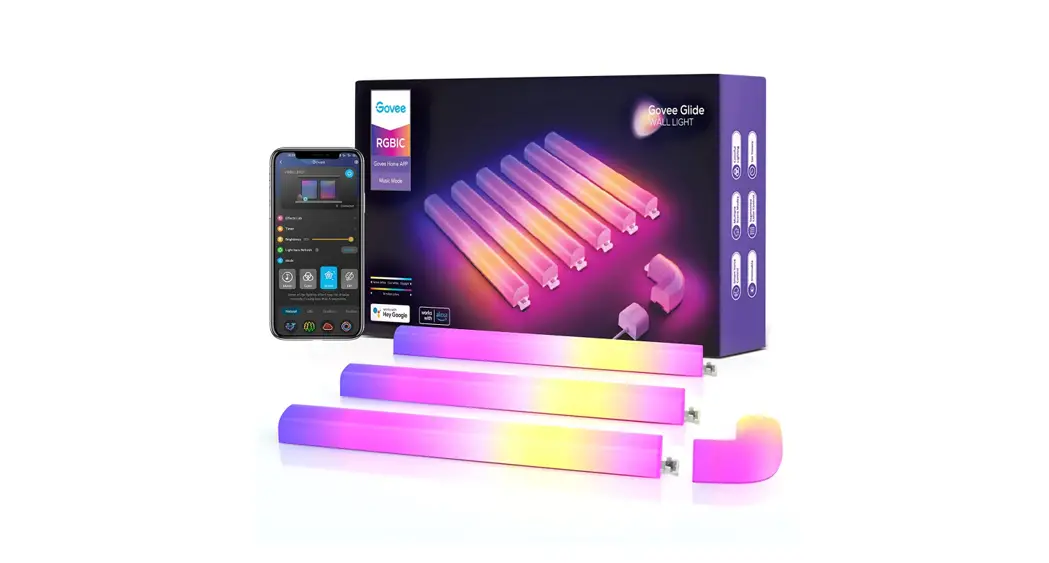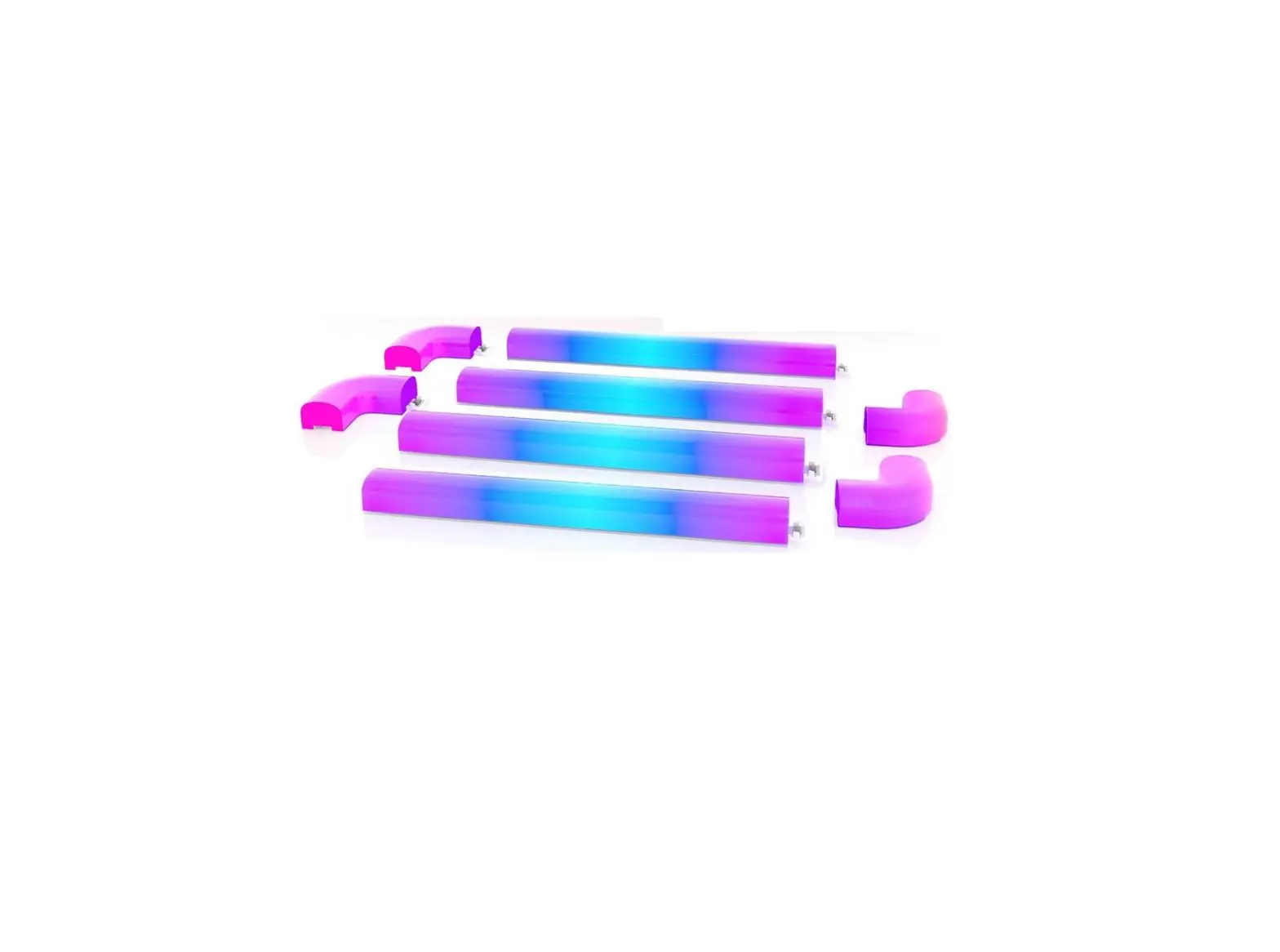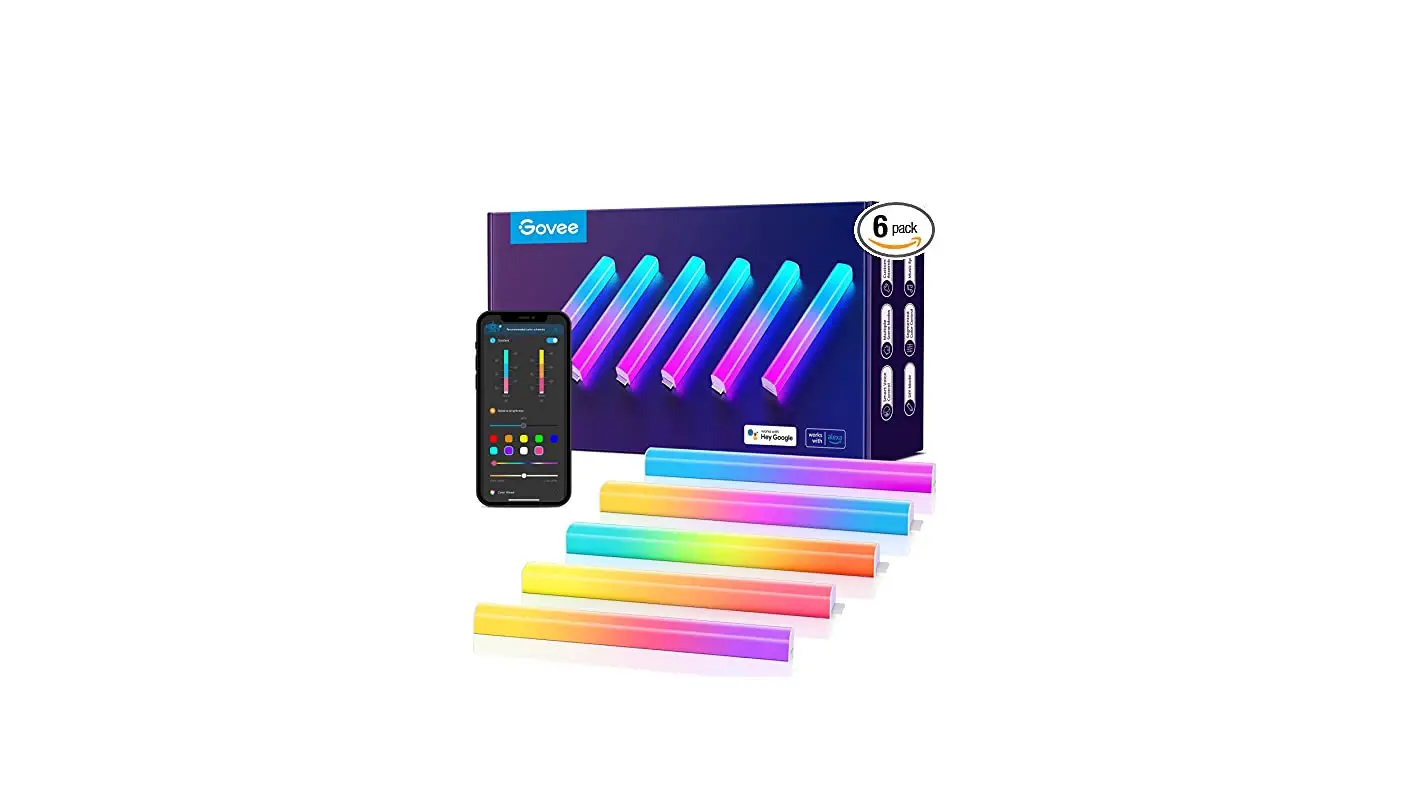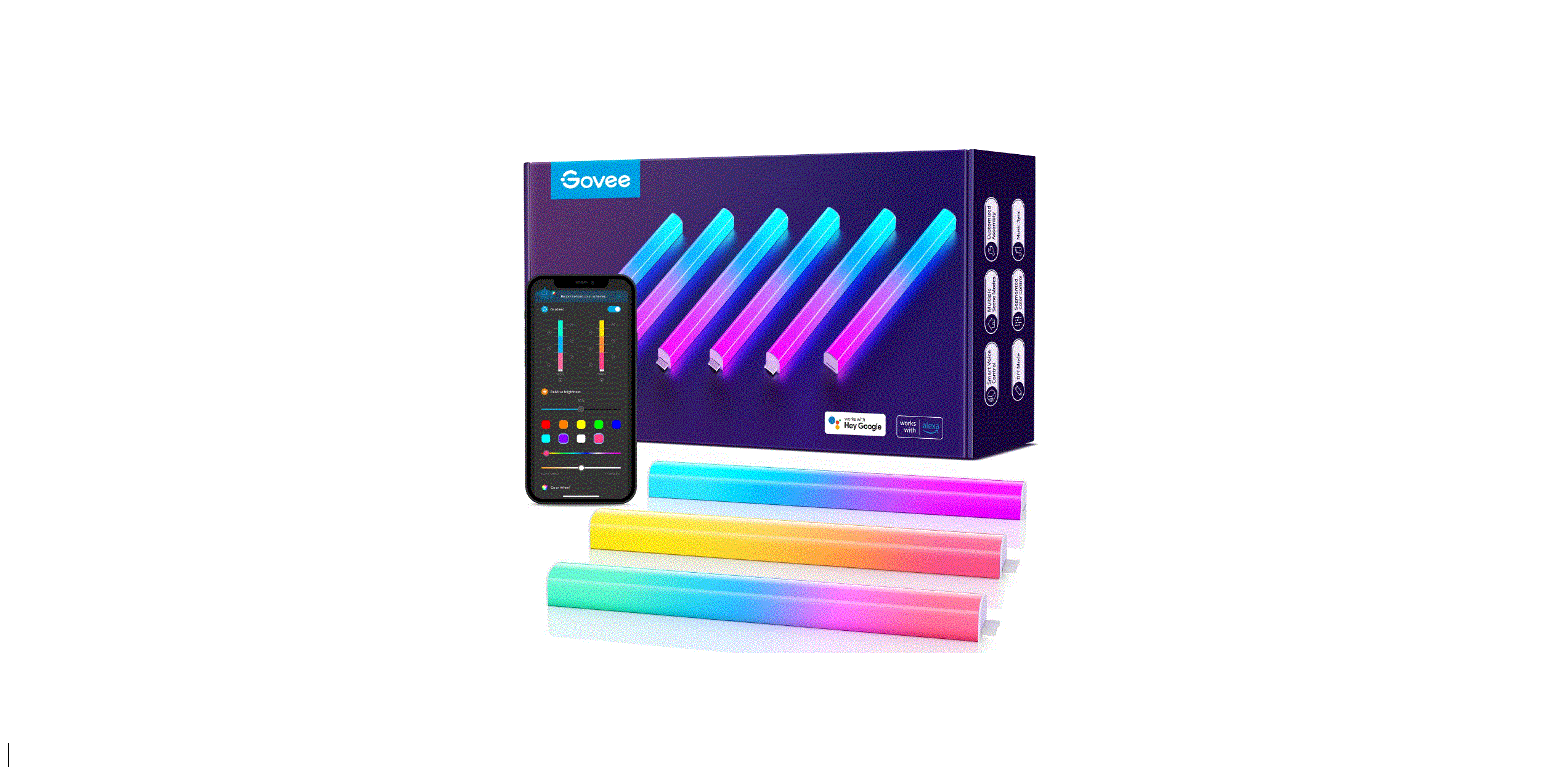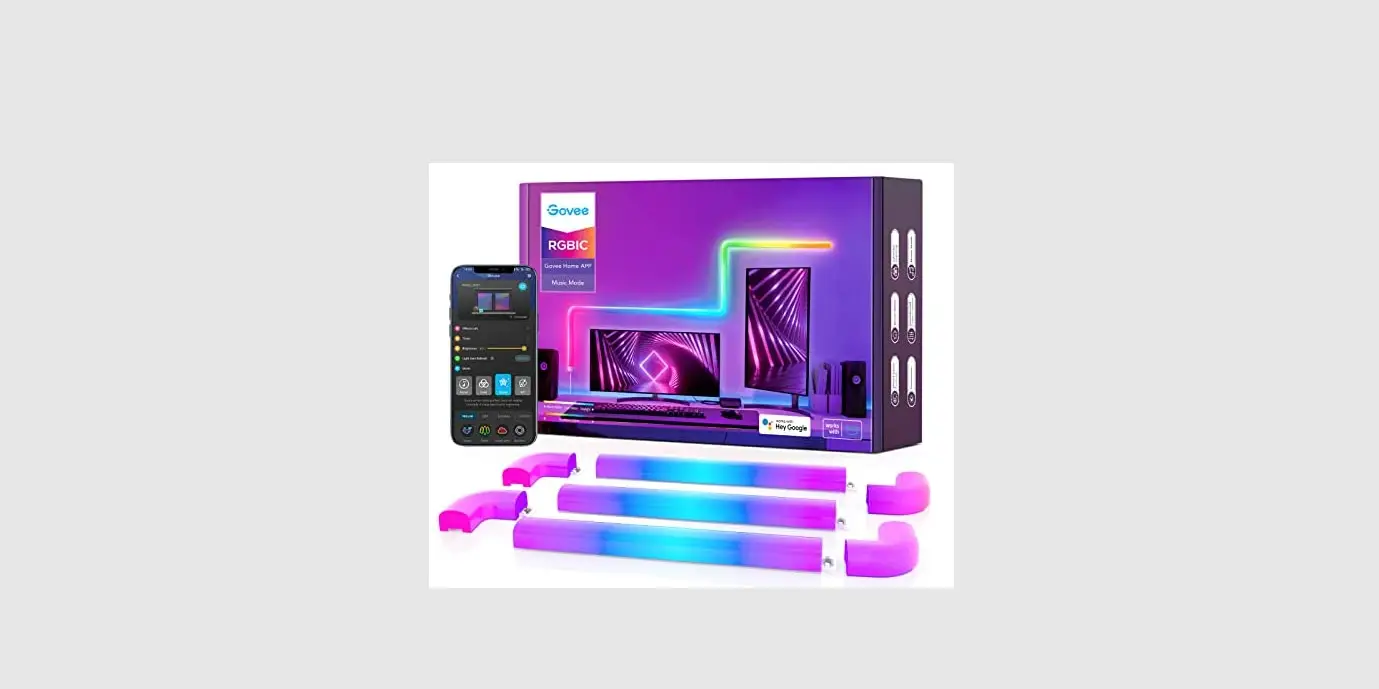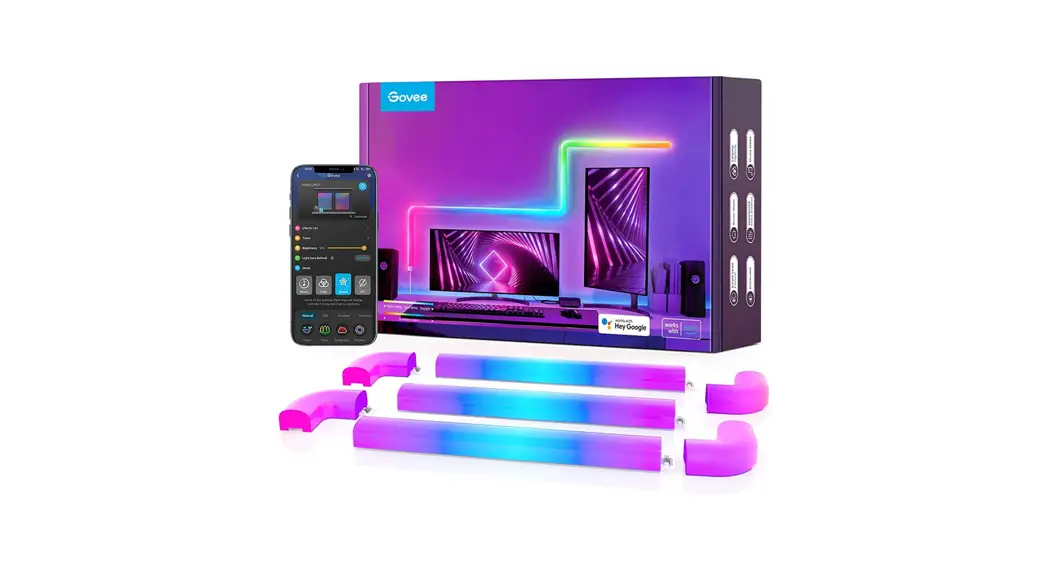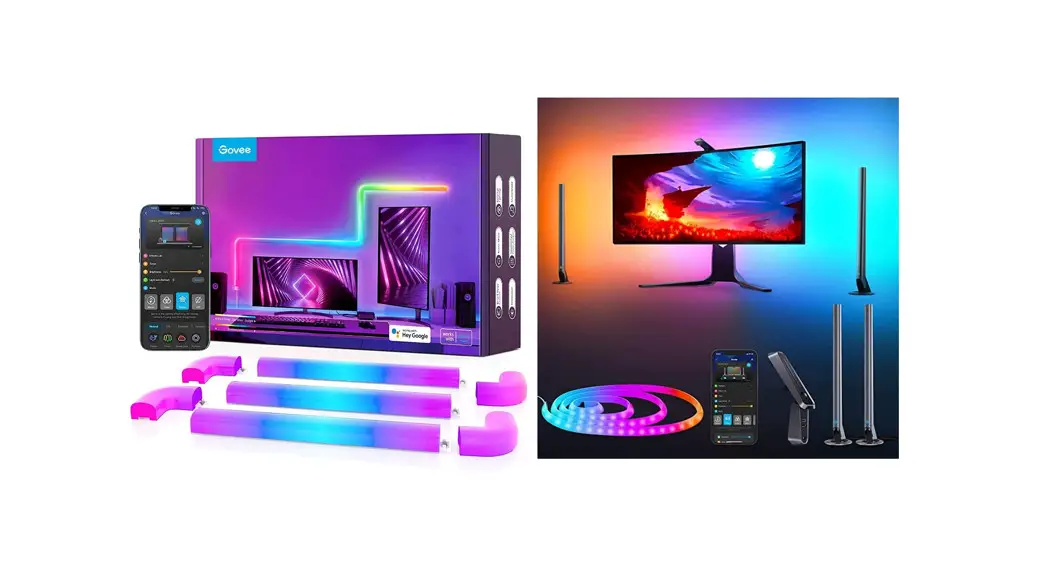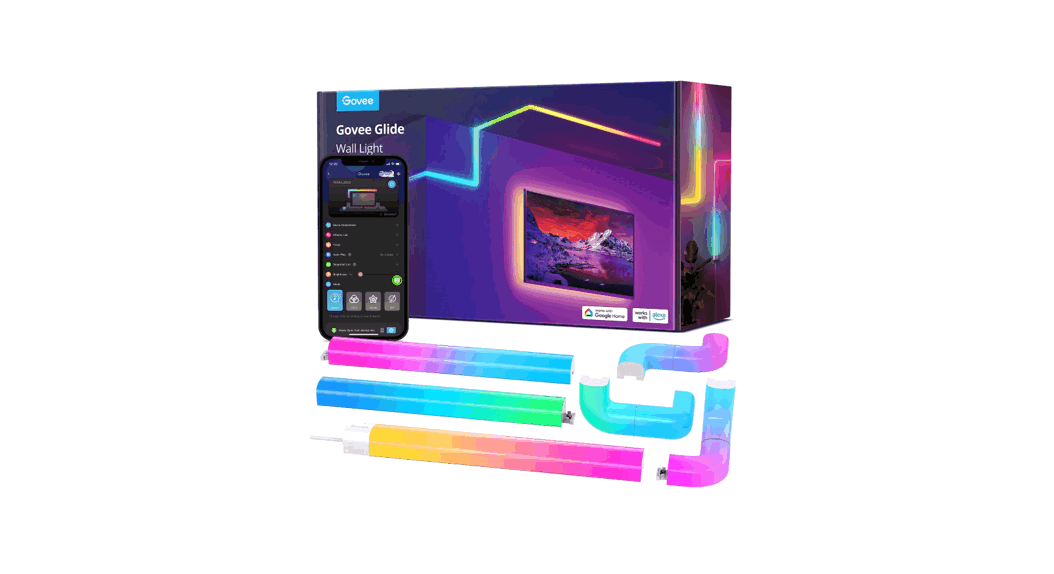
 Glide RGBIC 3D Wall Light
User Manual
B60621D3 Glide RGBIC 3D Wall Light
To Watch The Installation Video Tutorial
- Search “Govee Glide Wall Light” on Amazon or YouTube.
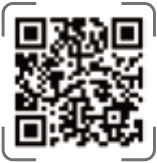
- Scan the QR code below to watch the installation video tutorial on the official
 https://app-h5.govee.com/user-manual/video/H6062XD3
Caution
- Do not power on until you have assembled all segments.
- This product is ideally used on smooth surfaces (e.g. glass, wood, etc); not suitable for uneven, bumpy or wet surfaces (e.g. brick, stucco, etc).
- Keep the product away from water. If you need to clean it, please use a dry rag.
- Clean and ensure the surface is completely dry before sticking the product on.
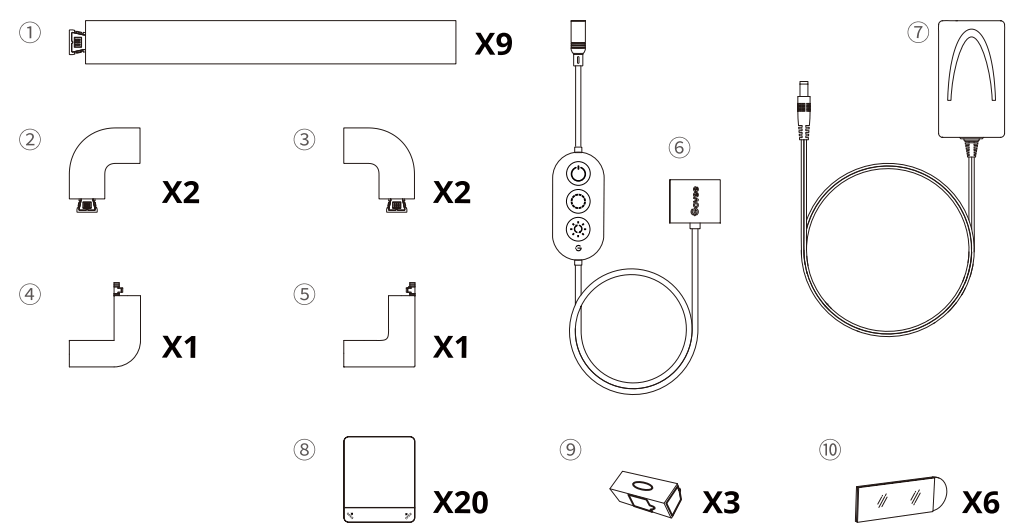
In the Box
- Segment (30cm) .
- Corner Piece A
- Corner Piece B
- Corner Piece C
- Corner Piece D
- Control Box and Input
- Adapter
- Fixing Tape
- Level
- Adhesive Tape (Optional)
Caution
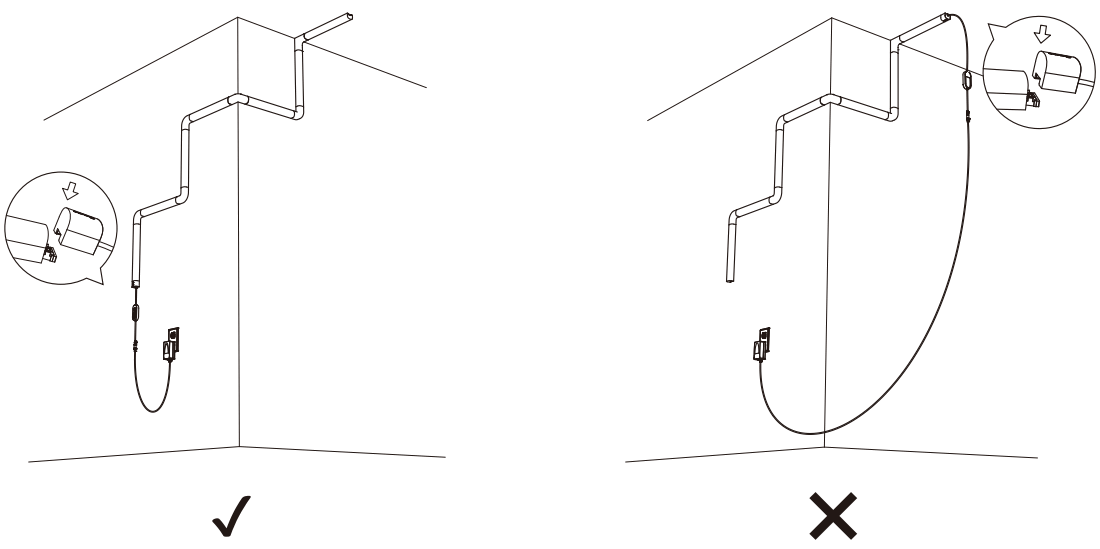
Please assemble the segments by starting from the farthest one away from the power. Please note that the convex end of the segment should connect to the input.
Before Installation
Step 1
Determine the layout (the amount of segments installed horizontally or vertically shall be decided by the layout).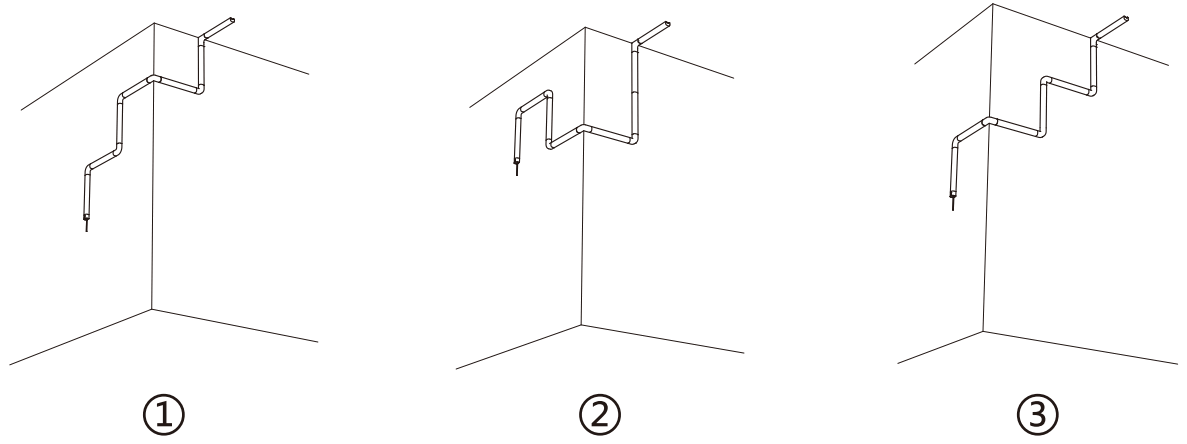
Step 2
Please note that the convex end of the segment should connect to the input, and the adapter should not stay too far away from the outlet.
Step 3
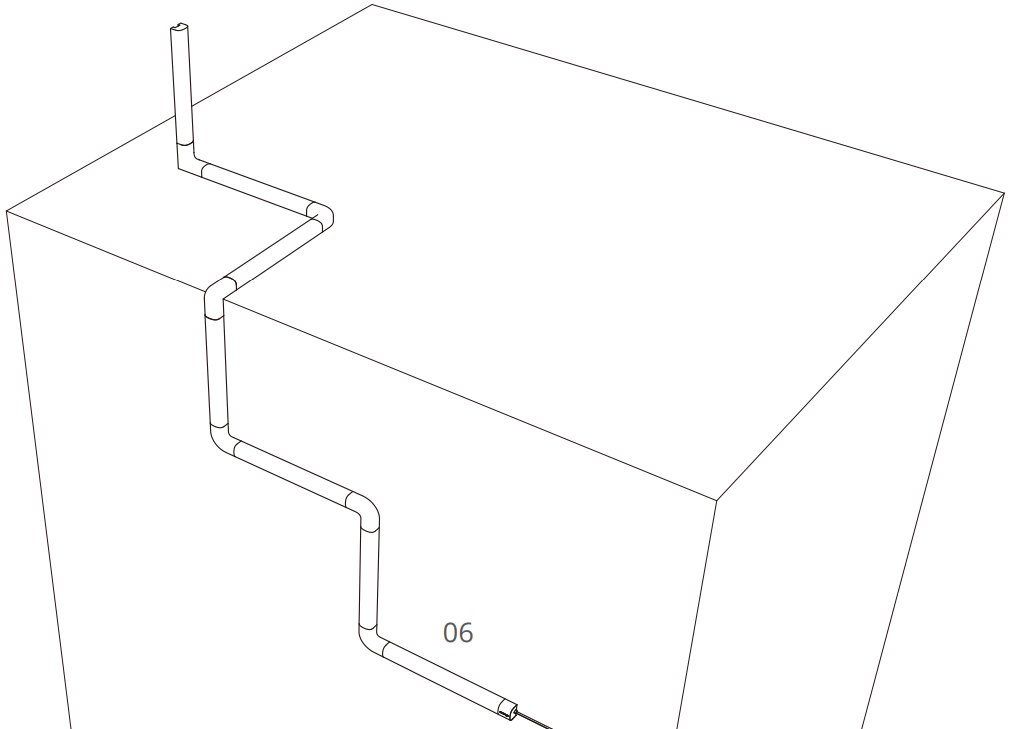
Assemble your layout with the assistance of a table (as shown in the first picture).
Step 4
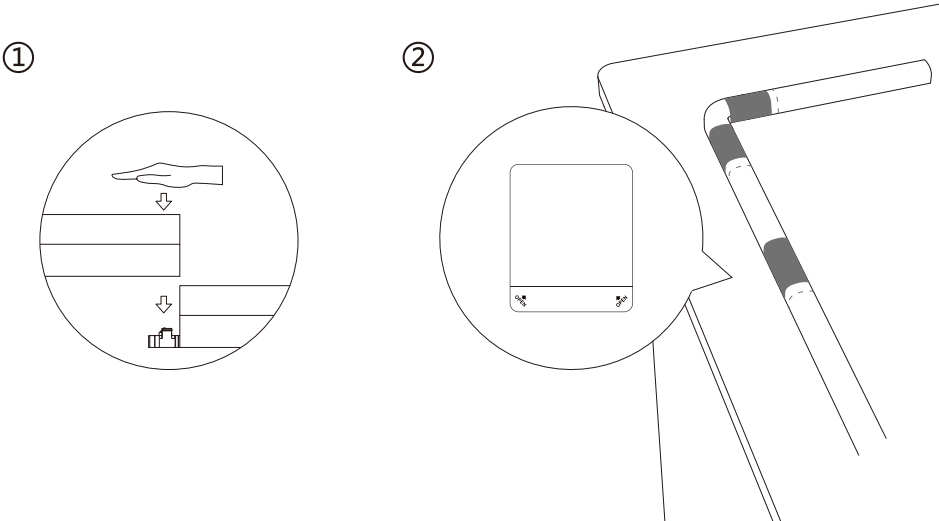
- Press down firmly until the segments “snap” into place.
- Reinforce all connecting parts with the fixing tape.
Step 5
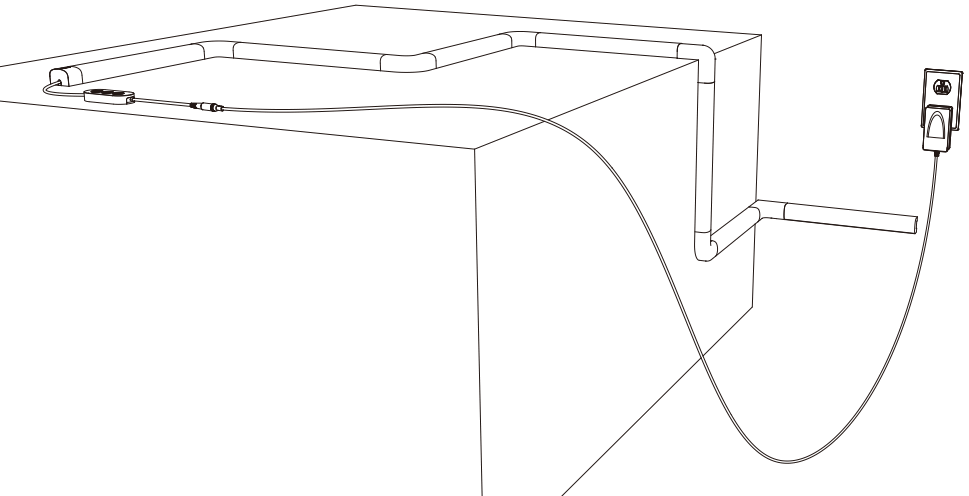
Connect the control box to the adapter. Power on to check if each segment is working.
Step 6
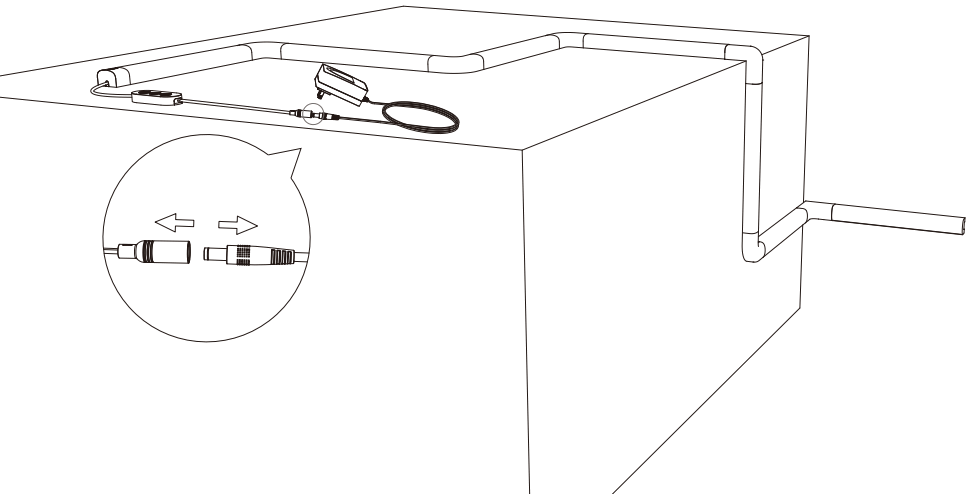
Power off and take down the adapter.
Installation Steps
Step 1
Disassemble from the demarcation point that is closest to the control box.
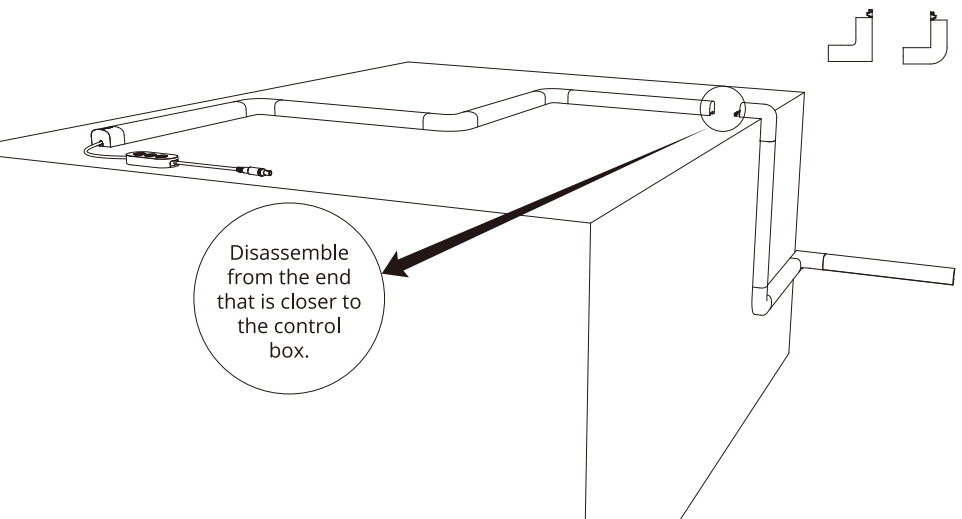
Step 2
Check i f it is possible to install the assembled segments of the current layout without the control box on where you plan to install them.
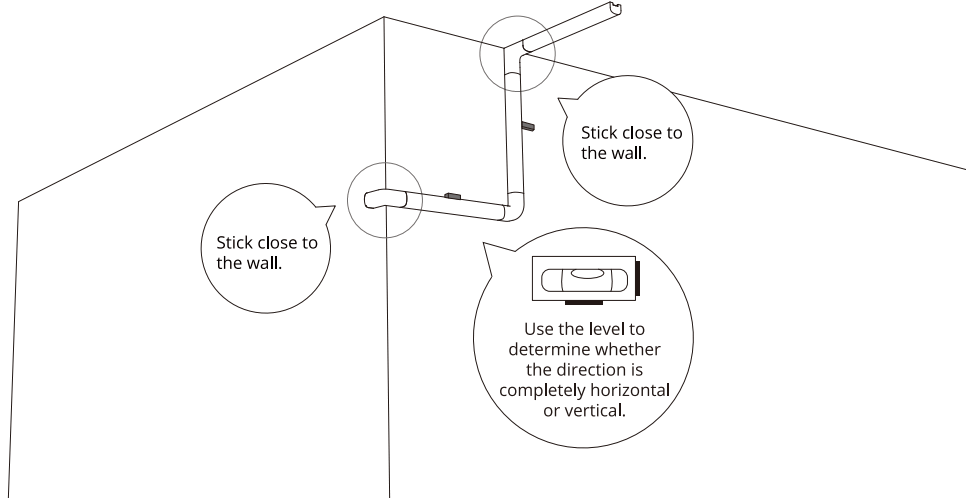
Step 3
Clean the surface and make s u r e there is no d u s t or debris on it.
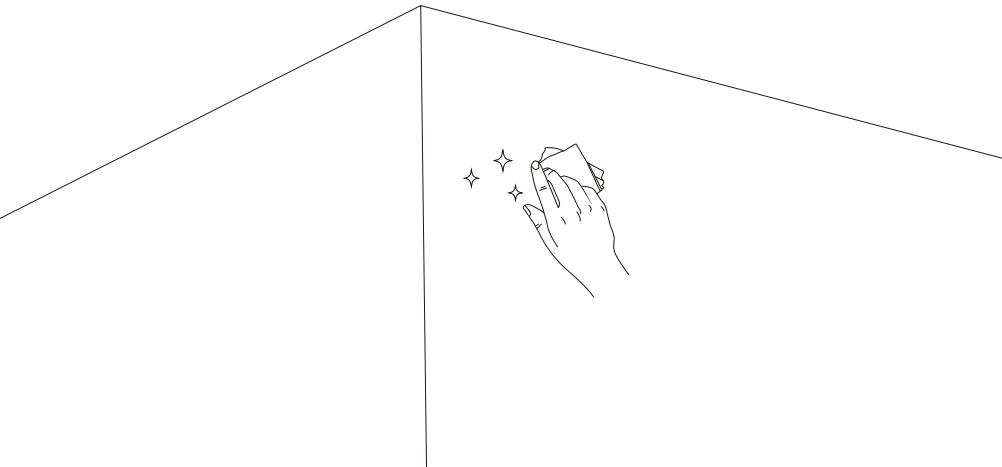
Step 4
Install the assembled segments without the control box on the wall.
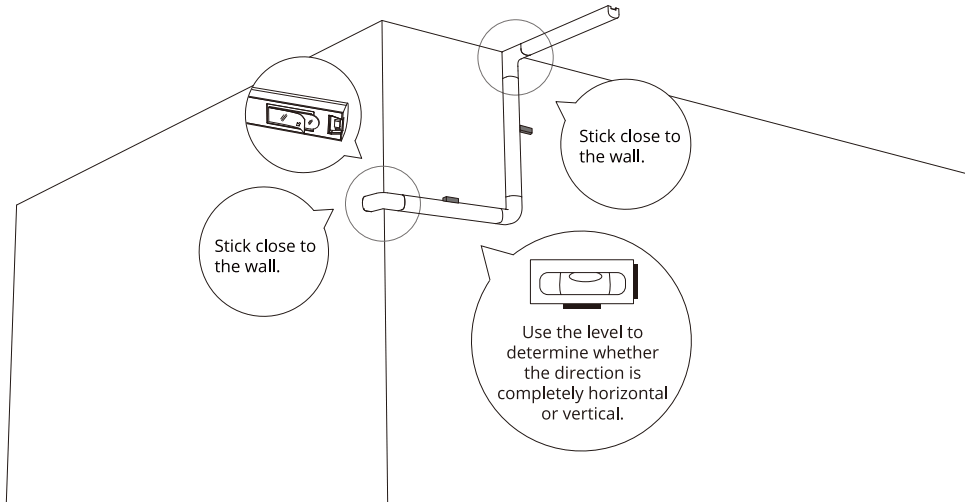
Step 5
Install the assembled segments with the control box on the wall.
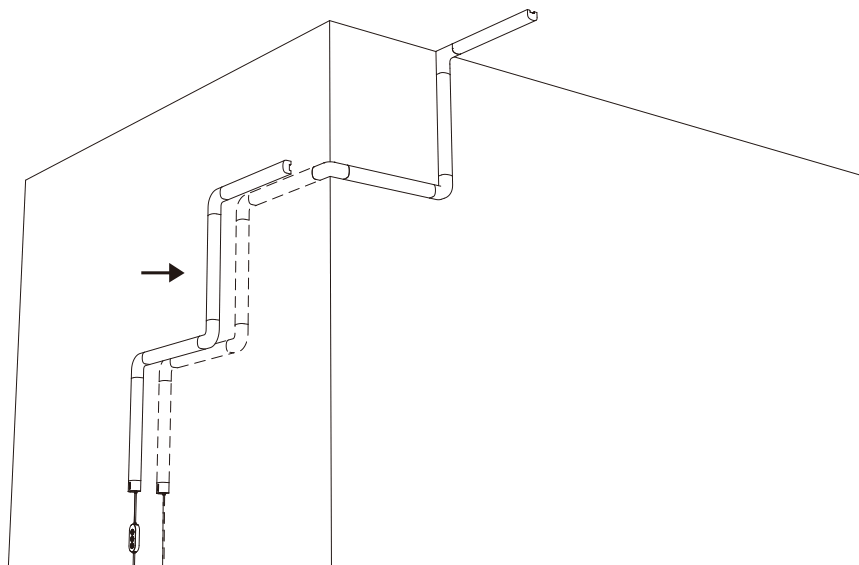
Step 6
Remove the fixing tape and press down on the light t o make sure it is firmly installed on the wall.
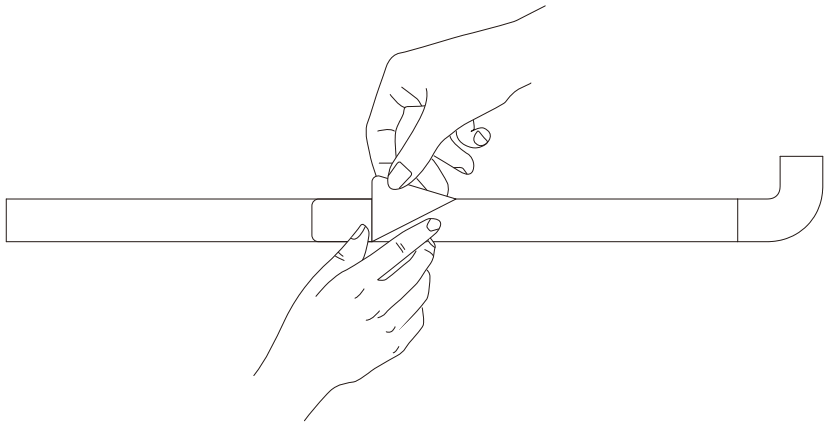
To Disassemble
Pull t o detach the segments and then remove the adhesive tape from the wall.
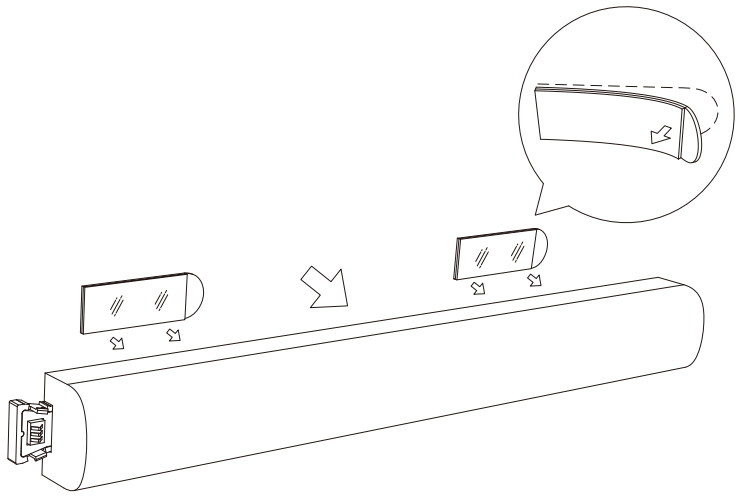
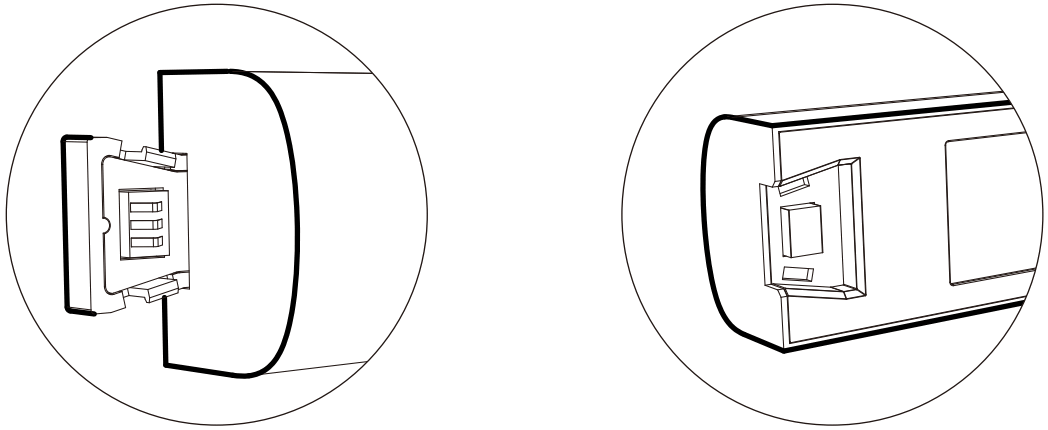
- If the newly added segments do not work, please disconnect the adapter and press down on the connecting parts of segments. After that, reconnect the adapter and refresh on the app.
- Please be careful not to cause falls that damage the product.
- Please pay attention to the edges that might cause i n j u r i e s during installation.
 https://www.govee.com/apps/qrcode
For FAQs and more information, please visit: www.govee.com