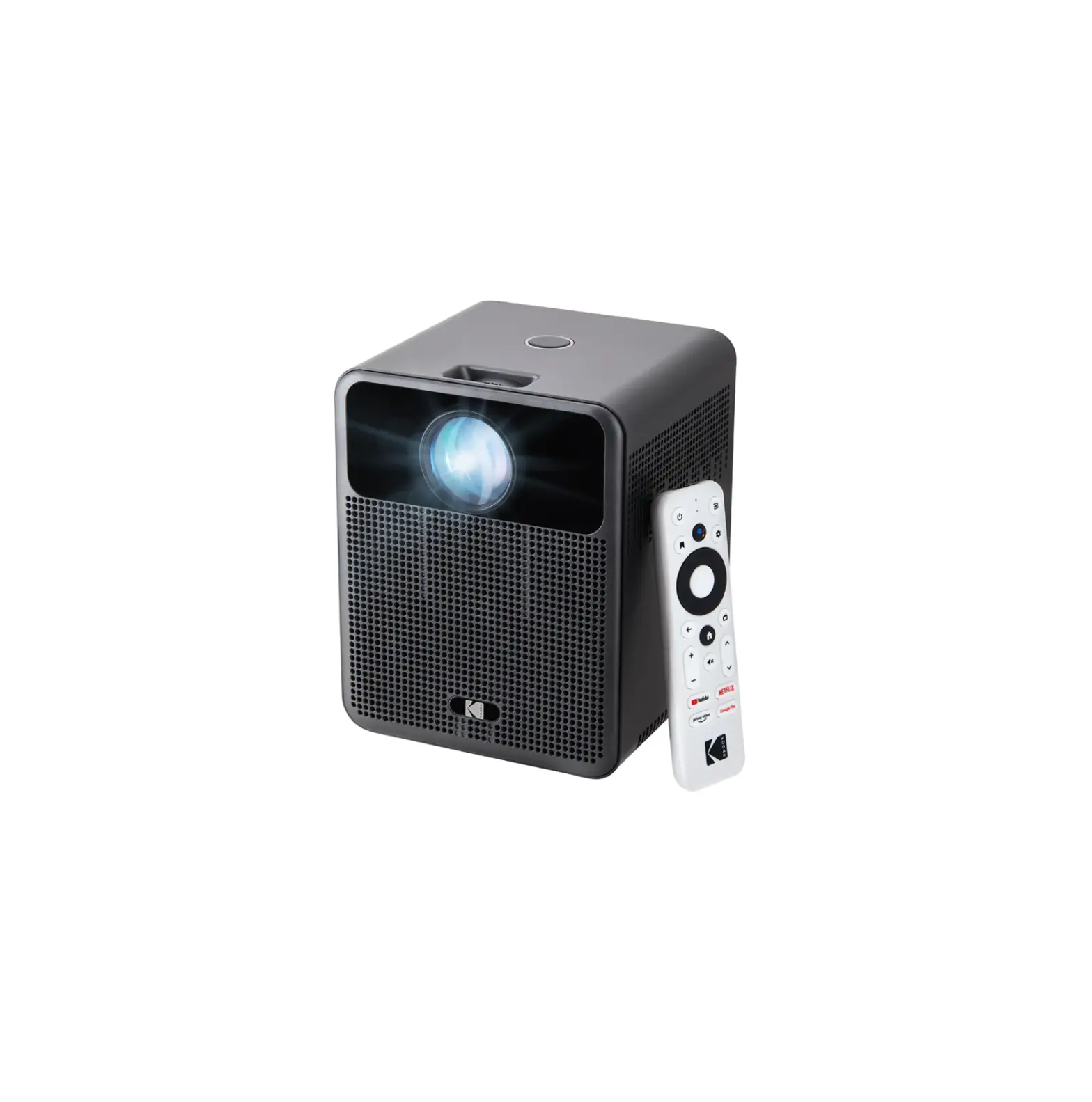
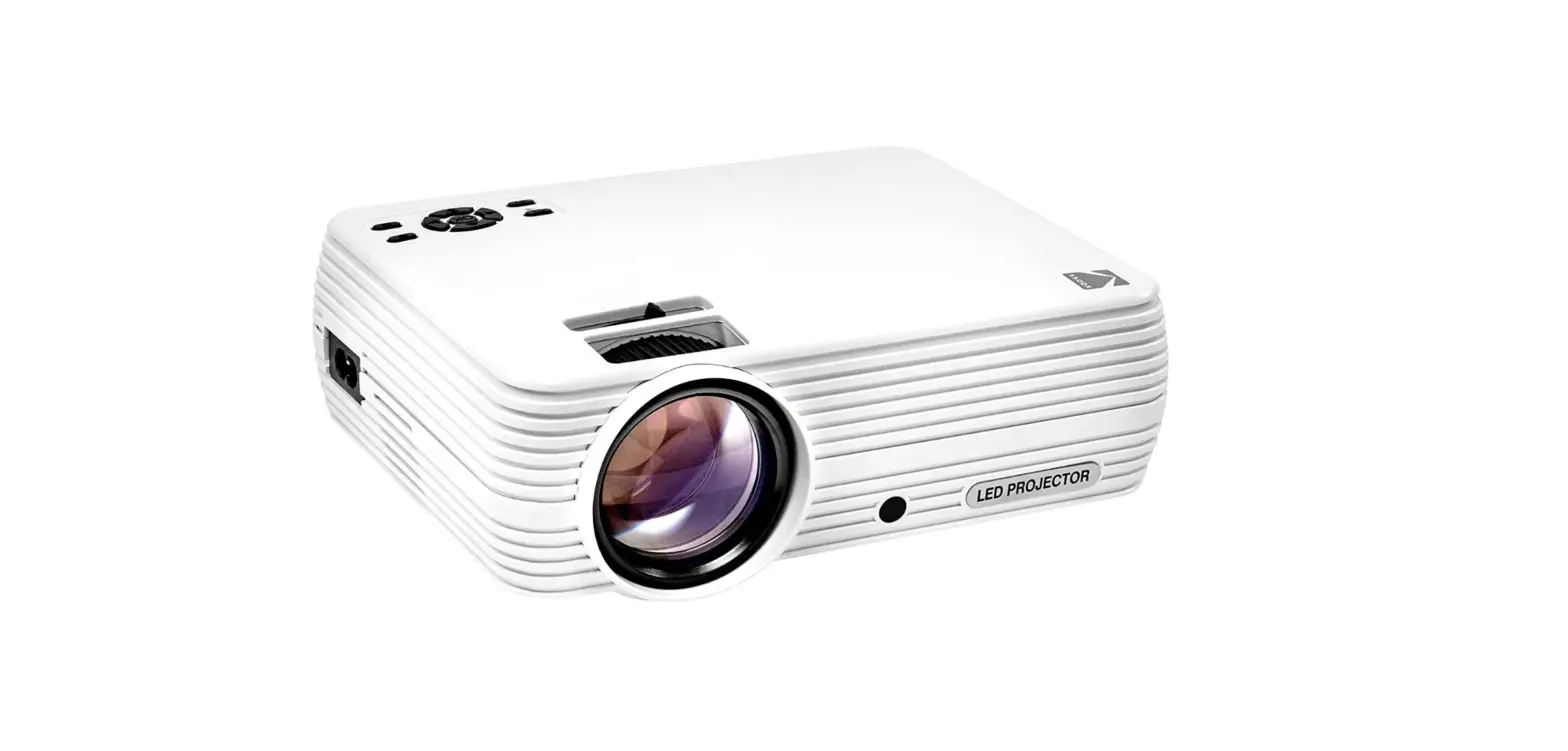
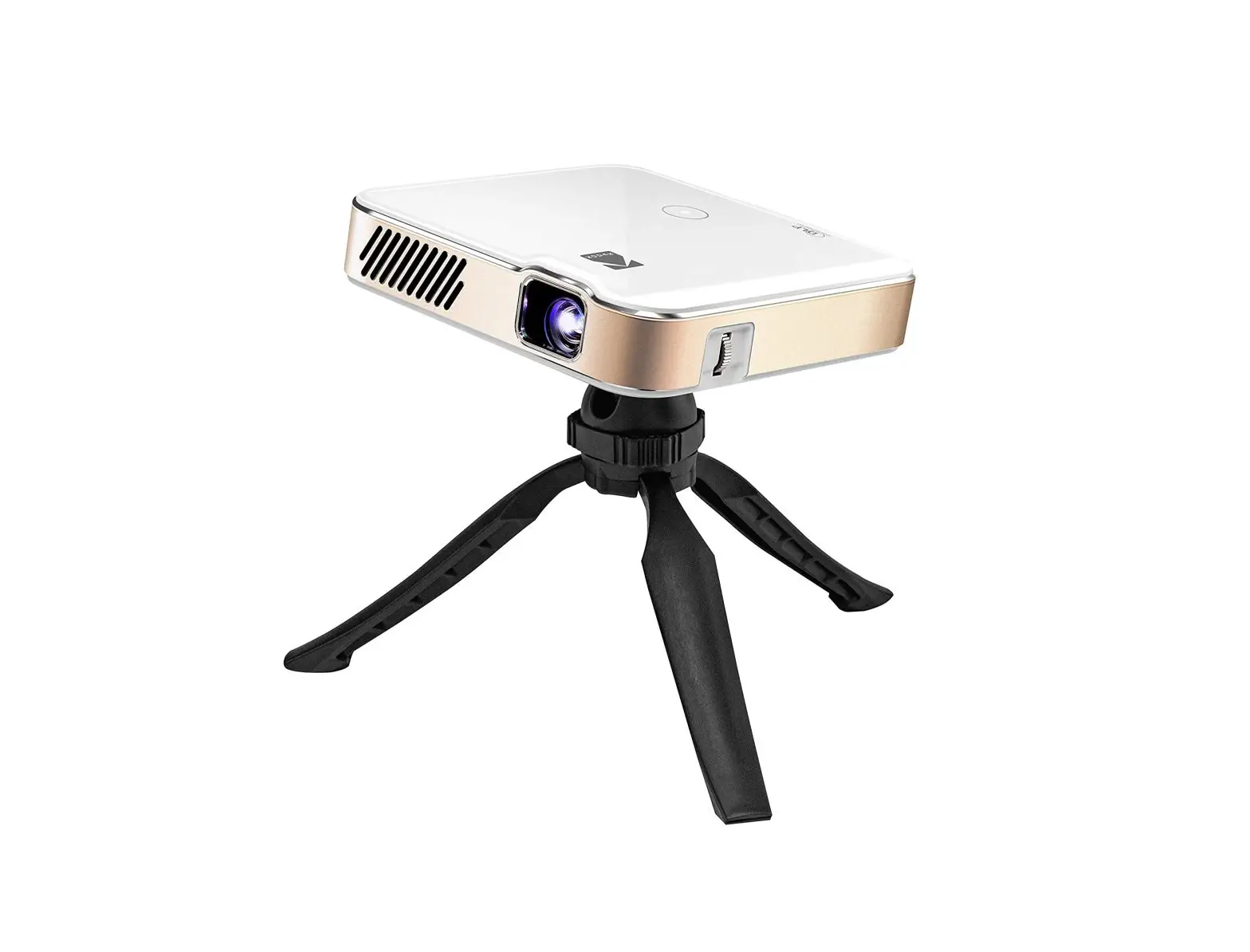
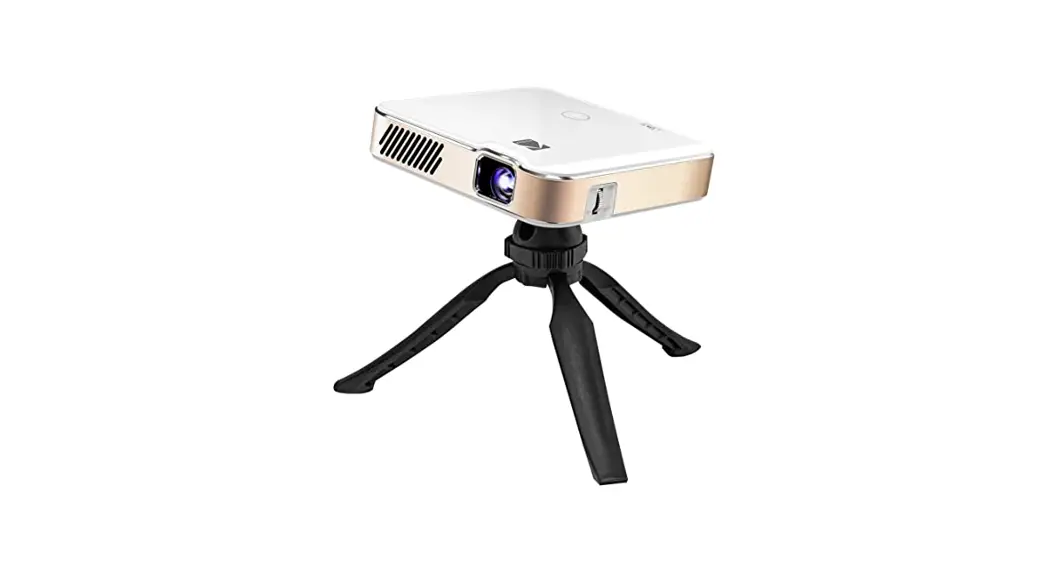
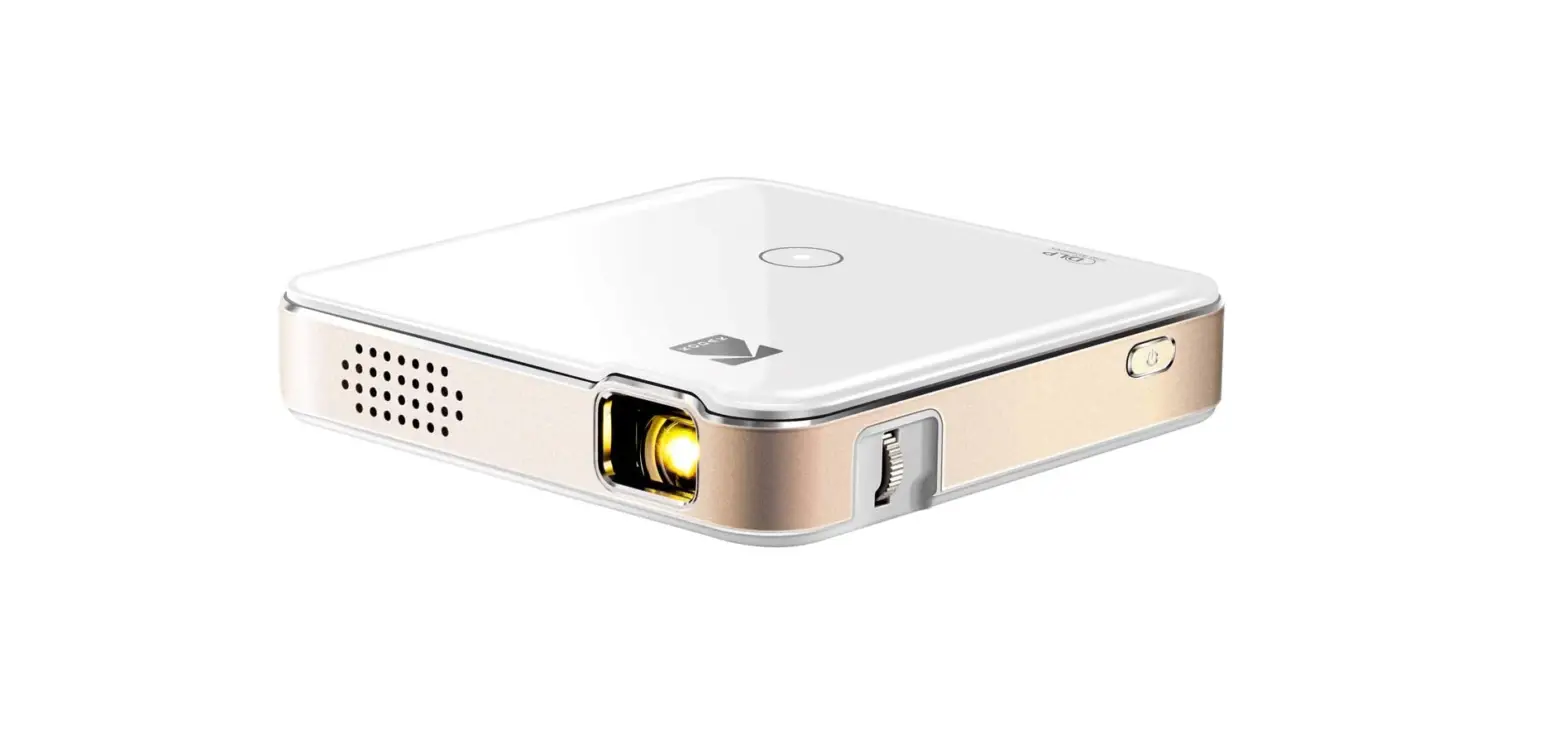
FLIK X10 Full HD Multimedia Projector
KODAK FLIK X10 Full HD Multimedia Projector
The KODAK FLIK X10 Full HD Multimedia Projector is a versatile
device that allows you to enjoy high-quality multimedia content in
your home. With its compact design and user-friendly features, this
projector is perfect for creating an immersive viewing
experience.
Specifications
- Dimensions: 3.5H | 7.7W | 7.7D (8.8 cm | 19.6 cm | 19.6
cm) - Installation required: No
- Adult assembly required: No
- Additional tools required: No
- Country of origin: China
- Warranty included: Yes
- Warranty length: 1 year
Package Contents
The package includes:
- KODAK FLIK X10 Full HD Multimedia Projector
- Remote control (two AAA batteries needed)
Safety Precautions
Before using the projector, please read and follow these safety
precautions:
- Read the user manual thoroughly before operation.
- Ensure that the projector is used in a well-ventilated area to
prevent overheating. - Avoid placing the projector near flammable materials.
- Do not expose the projector to water or moisture.
- Keep the projector away from children and pets.
Product Overview
The KODAK FLIK X10 Full HD Multimedia Projector features the
following:
- Power button
- Mute button
- OK/Confirm button
- Navigation buttons
- Back/Return button
- Source button
- Setting Menu button
- Volume Up/Down buttons
- Battery compartment (two AAA batteries needed for the remote
control)
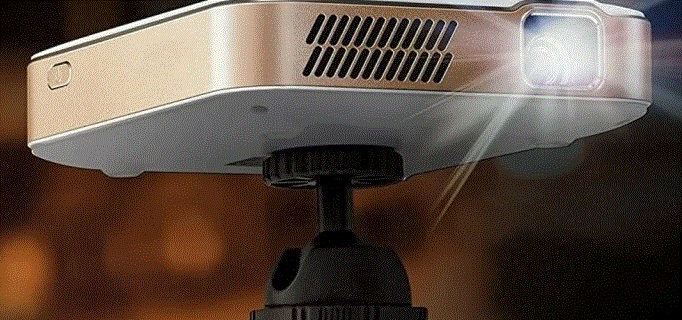
Mounting the Projector
The KODAK FLIK X10 Full HD Multimedia Projector can be placed on
a tabletop, set up on a tripod, or mounted on the ceiling. When
placing it on a tabletop, use the adjustable foot on the bottom of
the projector to elevate it at an angle if needed. When mounting
the projector on a tripod or ceiling mount, fasten it using the
tripod port at the bottom.
Using the Audio Out Jack
In addition to the built-in speakers, you can connect headphones
or a portable speaker to the 3.5 mm Audio Out Jack for audio
output.
Powering the Projector On/Off
To turn the projector on or off, press the Power button on top
of the projector or use the Power button on the remote control.
Using Different Media Sources
To switch between different media sources, tap the Source button
on top of the projector or use the Source button on the remote
control.
The projector offers various options for video playback, photo
viewing, and settings adjustment:
- Video: Access the Video page to play video files from a
connected USB device. - Photo: Access the Photo page to view photo files from a
connected USB device. - Setting: Access the Setting page to adjust display and color
settings.
Note: The Video and Photo options are only available when a USB
device is connected to the projector.
Video Page
In the Video page, navigate to the desired video file and press
the OK button to start playback. Use the Control Bar at the bottom
of the screen to select playback options.
For any further assistance or troubleshooting, refer to the
complete user manual provided with the product.
KODAK FLIK X10
FULL HD MULTIMEDIA PROJECTOR
User Manual
3.5″H | 7.7″W | 7.7″D (8.8 cm | 19.6 cm | 19.6 cm)
Please read all directions before using the product and retain this guide for reference.
CONTENTS
1 INTRODUCTION 2 SPECIFICATIONS 3 PACKAGE CONTENTS 4 SAFETY PRECAUTIONS 5 PRODUCT OVERVIEW 6 REMOTE CONTROL OVERVIEW 7 MOUNTING THE PROJECTOR 8 USING THE AUDIO OUT JACK 9 POWERING THE PROJECTOR ON/OFF 10 USING DIFFERENT MEDIA SOURCES 11 NAVIGATING YOUR PROJECTOR 12 VIDEO PAGE 13 PHOTO PAGE 14 HDMI® PAGE 15 SETTING PAGE 16 LANGUAGE MENU 17 ADJUSTING FOCUS 18 ADJUSTING VOLUME 19 DISPLAY MODE MENU 20 COLOR MENU 21 ROTATE MENU 22 ZOOM MENU 23 CONNECTING EXTERNAL DEVICES 24 CUSTOMER SERVICE 25 WARRANTY
3 3-4
4 4 5 6 6 6 7 7 7-8 8 8-9 9 9 10 10 10 11 11 11 12 12-13 13 14-15
1. INTRODUCTION
Thank you for purchasing the KODAK FLIK X10 Full HD Multimedia Projector. This User Guide is intended to provide you with guidelines to ensure that operation of this product is safe and does not pose risk to the user. Any use that does not conform to the guidelines described in this User Guide may void the limited warranty.
Please read all directions before using the product and retain this guide for reference. This product is intended for household use only. It is not intended for commercial use.
This product is covered by a limited one-year warranty. Coverage is subject to limits and exclusions. See warranty for details.
2. SPECIFICATIONS
Product type: Projector Product length: 7.7″ Product width: 7.7″ Product height: 3.5″ Native resolution: 1920 x 1080p Power input: 19 V, 3.78 A Display technology: LCD Light source: LED Light source life: 20,000 hours Brightness: 150 ANSI lumens Color saturation (NTSC): 100% Display colors: 16.7 million colors Pixel shape: Square Contrast ratio: 800:1 Aspect ratio: 16:9 Throw ratio: 1.3 Keystone correction: Keystone ± 12° Projection screen size: 40″ – 120″ Projection distance: 3.9′ 11.5′ (1.2 m – 3.5 m) Image input modes: HDMI input x 2, USB input x 1 Speakers: Dual 3-watt speakers Audio out: 3.5 mm Power on mode: 72 W Power off mode: 0.05 W Power source required: Yes (plug-in power)
3
Installation required: No Adult assembly required: No Additional tools required: No Country of origin: China Warranty included: Yes Warranty length: 1 year
3. PACKAGE CONTENTS
· KODAK FLIK X10 Full HD Multimedia Projector · Remote control · AC adapter with interchangeable plugs (US, UK, EU plugs) · HDMI® cable · User guide
4. SAFETY PRECAUTIONS
· Do not attempt to disassemble this projector for any reason. · Do not store the projector in areas where it will be exposed to high temperatures, humidity, or direct
sunlight. Exposure to any or all of these could permanently damage the projector. · Never handle the projector with damp or wet hands. This could damage the projector or create the
risk of electric shock. · Keep the projector out of the reach of children. · Never point the projector at someone else’s face or look directly into the projector light. The light is
bright and could cause damage. · Do not use products such as alcohol, gasoline, diluent, or any other organic solvent when cleaning
or attempting to clean this product. · Do not use this projector in an environment where it will be exposed to heavy dust or
humidity/moisture. · Never drop or shake the projector, as this could cause it to malfunction or permanently
damage the inside parts. · Do not use the projector while bathing or in a shower. · Do not place or store the projector where it can fall or be pulled into a tub or sink. · Do not place, drop, or submerge the projector in water or any other liquid. · If the projector somehow falls into water despite you taking all of the above precautions, please
do not reach into the water to retrieve it. Unplug it immediately and then retrieve it. · Take care that objects and liquids do not fall or spill onto the projector.
4
5. PRODUCT OVERVIEW
1. Power 2. Source 3. Volume Up 4. Volume Down 5. Focus Wheel 6. Keystone 7. Lens 8. DC Charging Port 9. HDMI® Input 1 10. HDMI® Input 2 11. USB Input 1 12. Audio Out Jack (3.5 mm) 13. IR Receiver 14. Adjustable Foot 15. Tripod Port
4 3 2 1
6
5
7
8 9
10
11
12 13
5
6. REMOTE CONTROL OVERVIEW
1. Power 2. Mute 3. OK/Confirm 4. Navigation Buttons 5. Back/Return 6. Source 7. Setting Menu 8. Volume Up/Down 9. Battery Compartment
(Two (2) AAA needed)
7. MOUNTING THE PROJECTOR
The KODAK FLIK X10 Full HD Multimedia Projector can be placed on a tabletop, set up on a tripod, or mounted up on the ceiling. When placed on a tabletop, use the adjustable foot on the bottom of the projector to elevate the projector at an angle if needed. When mounting the projector to the tripod or ceiling mount, fasten the projector using the tripod port at the bottom of the projector.
8. USING THE AUDIO OUT JACK
While the projector does include two (2) built-in speakers for regular use, you can also connect either headphones or a portable speaker to the 3.5 mm Audio Out Jack as shown in the image below.
6
9. POWERING THE PROJECTOR ON/OFF
To turn the projector on or off, press the Power button on top of the projector or press the Power button on the remote control.
10. USING DIFFERENT MEDIA SOURCES
You can use this projector with: · HDMI® Input 1 · HDMI® Input 2 · USB Input 1
To switch between source types, tap the Source button on top of the projector or use the Source button on the remote control.
11. NAVIGATING YOUR PROJECTOR
MAIN PAGE: · The Main Page is your start page for all operations with your projector. · When unit is powered on, the Main Page will load automatically. · To return to the Main Page at any time, press the Back button until the Main Page loads.
Video : Navigate to this icon and press the OK button to select. This will access the Video page, where your video files will be available for playback.
Photo : Navigate to this icon and press the OK button to select. This will access the Photo page, where your photo files will be available for playback.
7
HDMI®: Navigate to this icon and press the OK button to select. This will access the HDMI® page, where a HDMI® source can be selected.
Setting: Navigate to this icon and press the OK button to select. This will access the Setting page, where you can adjust the settings for your projector, such as Display and Color.
NOTE: The Video and Photo option will only be available when a USB device is connected to the projector. If no USB device is detected, then the Video and Photo option will be unavailable.
12. VIDEO PAGE
Your video files will be displayed. Navigate to the file you wish to open and press the OK button to begin playback. During playback, navigate to the Control Bar at the bottom of the screen and press the OK button to select your desired option.
Video Options on the Control Bar include:
Play/Pause Rewind Fast Forward Previous Next Stop Repeat All/Repeat None/ Repeat 1 Random On/Random Off
13. PHOTO PAGE
Set A Playlist Info Slow Forward Step Forward Go to Time Aspect Ratio
Your photo files will be displayed. Navigate to the file you wish to open and press the OK button to open the desired file. During playback, navigate to the Control Bar at the bottom of the screen and press the OK button to select your desired option.
8
Photo Options on the Control Bar include:
Play/Pause Previous Next Stop Repeat All/Repeat None/ Repeat 1 Random On/Random Off Music
Playlist Info Rotate Clockwise Rotate Counterclockwise Zoom In Zoom Out Slideshow
14. HDMI® PAGE
Your HDMI® sources will be displayed. Navigate to the HDMI® source you wish to use and press the OK button to confirm your selection.
NOTE: If the projector is powered on with a HDMI device already plugged in, then the projector will automatically go into the HDMI source that is connected.
15. SETTING PAGE
From the Setting Page, you can navigate to other menus using Navigation buttons on the remote. Adjust the language, zoom, display, and more from these menus.
9
16. LANGUAGE MENU
From the Setting Page, navigate to the Language option and press the OK button to confirm. In the Language Menu, different languages can be selected. Navigate through the language options and press the OK button to select your desired language.
17. ADJUSTING FOCUS
If the image on the screen appears fuzzy or unfocused when you turn the projector on, use the focus wheel on the top to correct the image. Move the wheel left or right until the image appears sharp and clear. The keystone dial behind the focus wheel allows you to adjust the viewing angle of the screen.
NOTE: For best performance, the projector must be located a minimum distance of 3.9 feet (1.2 meter) from the screen.
18. ADJUSTING VOLUME
To adjust the projector volume during playback, use the + and buttons on the top of the projector or the Volume buttons on the remote control.
10
19. DISPLAY MODE MENU
From the Setting Page, navigate to the Display Mode option and press the OK button to confirm. In the Display Mode Menu, different display modes can be selected. Navigate through the display modes and press the OK button to select your desired display mode.
20. COLOR MENU
From the Setting Page, navigate to the Color option and press the OK button to confirm. In the Color Menu, different color options can be selected. Navigate through the color options and press the OK button to select your desired color.
21. ROTATE MENU
From the Setting Page, navigate to the Rotate option and press the OK button to confirm. In the Screen Rotate Menu, different rotate options can be selected. Navigate through the rotate options and press the OK button to select your desired screen rotate option.
11
22. ZOOM MENU
From the Setting Page, navigate to the Zoom option and press the OK button to confirm. In the Zoom Menu, adjust the zoom of the screen. Use the directional buttons on the remote control and press the OK button to confirm your desired zoom.
23. CONNECTING EXTERNAL DEVICES
USB Drives To access photos or videos stored on any USB drive, simply insert the removable storage device into the USB port on the back of the projector. The projector will read the files directly from the drive. You can access them from the Main Page by selecting the Photo or Video options on the main page.
HDMI® Compatible Devices When using an HDMI compatible device, such as a laptop, personal computer, smartphone, tablet, video game console, or streaming device, connect an HDMI cable from the device to your projector to access the device on the projector. For some devices, you will require an HDMI-to-HDMI cable and/or adapters, which you will need to purchase separately. To make things a little easier, we’ve compiled this table of devices and adapters for your convenience.
NOTE: When using a streaming device such as a Fire TV Stick or a Roku® Streaming StickTM, you can power on the streaming device by connecting the USB cable to the USB port on the back of the projector.
12
Streaming devices with HDMI port
HDMI cable to streaming device
24. CUSTOMER SERVICE
Should you experience any problems with your product, please contact us before returning the item to the place of purchase. We’re here to help! U.S. Support: [email protected], 844-516-1539 International Support: [email protected], 844-516-1540
13
25. WARRANTY
LIMITED WARRANTY TO ORIGINAL CONSUMER
This KODAK FLIK X10 Full HD Multimedia Projector (“Product”), including any accessories included in the original packaging, as supplied and distributed new by an authorized retailer is warranted by C&A Marketing, Inc. (the “Company”) to the original consumer purchaser only, against certain defects in material and workmanship (“Warranty”) as follows:
To receive Warranty service, the original consumer purchaser must contact the Company or its authorized service provider for problem determination and service procedures. Proof of purchase in the form of a bill of sale or receipted invoice, evidencing that the Product is within the applicable Warranty period(s), MUST be presented to the Company or its authorized service provider in order to obtain the requested service.
Service options, parts availability, and response times may vary and may change at any time. In accordance with applicable law, the Company may require that you furnish additional documents and/or comply with registration requirements before receiving warranty service. Please contact our customer service for details on obtaining warranty service:
USA: [email protected], 844-516-1539 International: [email protected], +1-844-516-1540
Shipping expenses to the Company’s Return Facility are not covered by this warranty, and must be paid by the consumer. The consumer likewise bears all risk of loss or further damage to the Product until delivery to said facility.
EXCLUSIONS AND LIMITATIONS The Company warrants the Product against defects in materials and workmanship under normal use for a period of ONE (1) YEAR from the date of retail purchase by the original end-user purchaser (“Warranty Period”). If a hardware defect arises and a valid claim is received within the Warranty Period, the Company, at its sole option and to the extent permitted by law, will either (1) repair the Product defect at no charge, using new or refurbished replacement parts, (2) exchange the Product with a Product that is new or which has been manufactured from new or serviceable used parts and is at least functionally equivalent to the original device, or (3) refund the purchase price of the Product.
A replacement Product or part thereof shall enjoy the warranty of the original Product for the remainder of the Warranty Period, or ninety (90) days from the date of replacement or repair, whichever provides you longer protection. When a Product or part is exchanged, any replacement item becomes your property, while the replaced item becomes the Company’s property. Refunds can only be given if the original Product is returned.
This Warranty does not apply to:
(a) Any non-KODAK FLIK X10 Full HD Multimedia Projector, hardware or software, even if packaged or sold with the Product;
(b) Damage caused by use with non-KODAK FLIK X10 Full HD Multimedia Projector products; (c) Damage caused by accident, abuse, misuse, flood, fire, earthquake, or other external causes;
14
(d) Damage caused by operating the Product outside the permitted or intended uses described by the Company;
(e) Damage caused by third party services; (f) A Product or part that has been modified to alter functionality or capability without the
written permission of the Company; (g) Consumable parts, such as batteries, fuses and bulbs; (h) Cosmetic damage; or (i) If any KODAK FLIK X10 Full HD Multimedia Projector serial number has been removed or defaced.
This Warranty is valid only in the country where the consumer purchased the Product, and only applies to Products purchased and serviced in that country.
The Company does not warrant that the operation of the Product will be uninterrupted or error-free. The Company is not responsible for damage arising from your failure to follow instructions relating to its use.
NOTWITHSTANDING ANYTHING TO THE CONTRARY AND TO THE MAXIMUM EXTENT PERMITTED BY APPLICABLE LAW, THE COMPANY PROVIDES THE PRODUCT “AS-IS” AND “AS-AVAILABLE” FOR YOUR CONVENIENCE AND THE COMPANY AND ITS LICENSORS AND SUPPLIERS EXPRESSLY DISCLAIM ALL WARRANTIES AND CONDITIONS, WHETHER EXPRESSED, IMPLIED, OR STATUTORY, INCLUDING THE WARRANTIES OF MERCHANTABILITY, FITNESS FOR A PARTICULAR PURPOSE, TITLE, QUIET ENJOYMENT, ACCURACY, AND NON-INFRINGEMENT OF THIRD-PARTY RIGHTS. THE COMPANY DOES NOT GUARANTEE ANY SPECIFIC RESULTS FROM THE USE OF THE PRODUCT, OR THAT THE COMPANY WILL CONTINUE TO OFFER OR MAKE AVAILABLE THE PRODUCT FOR ANY PARTICULAR LENGTH OF TIME. THE COMPANY FURTHER DISCLAIMS ALL WARRANTIES AFTER THE EXPRESS WARRANTY PERIOD STATED ABOVE. YOU USE THE PRODUCT AT YOUR OWN DISCRETION AND RISK. YOU WILL BE SOLELY RESPONSIBLE FOR (AND THE COMPANY DISCLAIMS) ANY AND ALL LOSS, LIABILITY, OR DAMAGES RESULTING FROM YOUR USE OF THE PRODUCT. NO ADVICE OR INFORMATION, WHETHER ORAL OR WRITTEN, OBTAINED BY YOU FROM THE COMPANY OR THROUGH ITS AUTHORIZED SERVICE PROVIDERS SHALL CREATE ANY WARRANTY.
IN NO EVENT WILL THE COMPANY’S TOTAL CUMULATIVE LIABILITY ARISING FROM OR RELATED TO THE PRODUCT, WHETHER IN CONTRACT OR TORT OR OTHERWISE EXCEED THE FEES ACTUALLY PAID BY YOU TO THE COMPANY OR ANY OF ITS AUTHORIZED RESELLERS FOR THE PRODUCT AT ISSUE IN THE LAST YEAR FROM YOUR PURCHASE. THIS LIMITATION IS CUMULATIVE AND WILL NOT BE INCREASED BY THE EXISTENCE OF MORE THAN ONE INCIDENT OR CLAIM. THE COMPANY DISCLAIMS ALL LIABILITY OF ANY KIND OF ITS LICENSORS AND SUPPLIERS. IN NO EVENT WILL THE COMPANY OR ITS LICENSORS, MANUFACTURERS AND SUPPLIERS BE LIABLE FOR ANY INCIDENTAL, DIRECT, INDIRECT, SPECIAL, PUNITIVE OR CONSEQUENTIAL 29 DAMAGES (SUCH AS, BUT NOT LIMITED TO, DAMAGES FOR LOSS OF PROFITS, BUSINESS, SAVINGS, DATA OR RECORDS) CAUSED BY THE USE, MISUSE OR INABILITY TO USE THE PRODUCT.
Nothing in these terms shall attempt to exclude liability that cannot be excluded under applicable law. Some countries, states or provinces do not allow the exclusion or limitation of incidental or consequential damages or allow limitations on warranties, so certain limitations or exclusions may not apply to you. This warranty gives you specific legal rights, and you may have other rights that vary from state to state or province to province. Contact your authorized retailer to determine if another warranty applies.
Kodak does NOT manufacture this Product or provide any Warranty or support.
15
www.kodakphotoplus.com The Kodak trademark, logo, and trade dress are used under license from Eastman Kodak Company. HDMI, the HDMI logo, and High-Definition Multimedia Interface are trademarks or registered trademarks of HDMI Licensing, LLC in the United States and/or other countries. Amazon, Kindle, Echo, Alexa, Dash, Fire, and all related logos are trademarks of Amazon.com, Inc. or its affiliates. Roku is a registered trademark and Roku TV is a trademark of Roku, Inc. in the U.S. and in other countries. All other products, brand names, company names, and logos are trademarks of their respective owners, used merely to identify their respective products, and are not meant to connote any sponsorship, endorsement, or approval. Distributed by C&A Marketing, Inc., 114 Tived Lane East, Edison, NJ 08837 USA. © 2022. C&A IP Holdings LLC. All Rights Reserved. Made in China.
16
 Amazon.com. Spend less. Smile more.
 Kodak Photo Plus - Printomatic Instant Print Camera