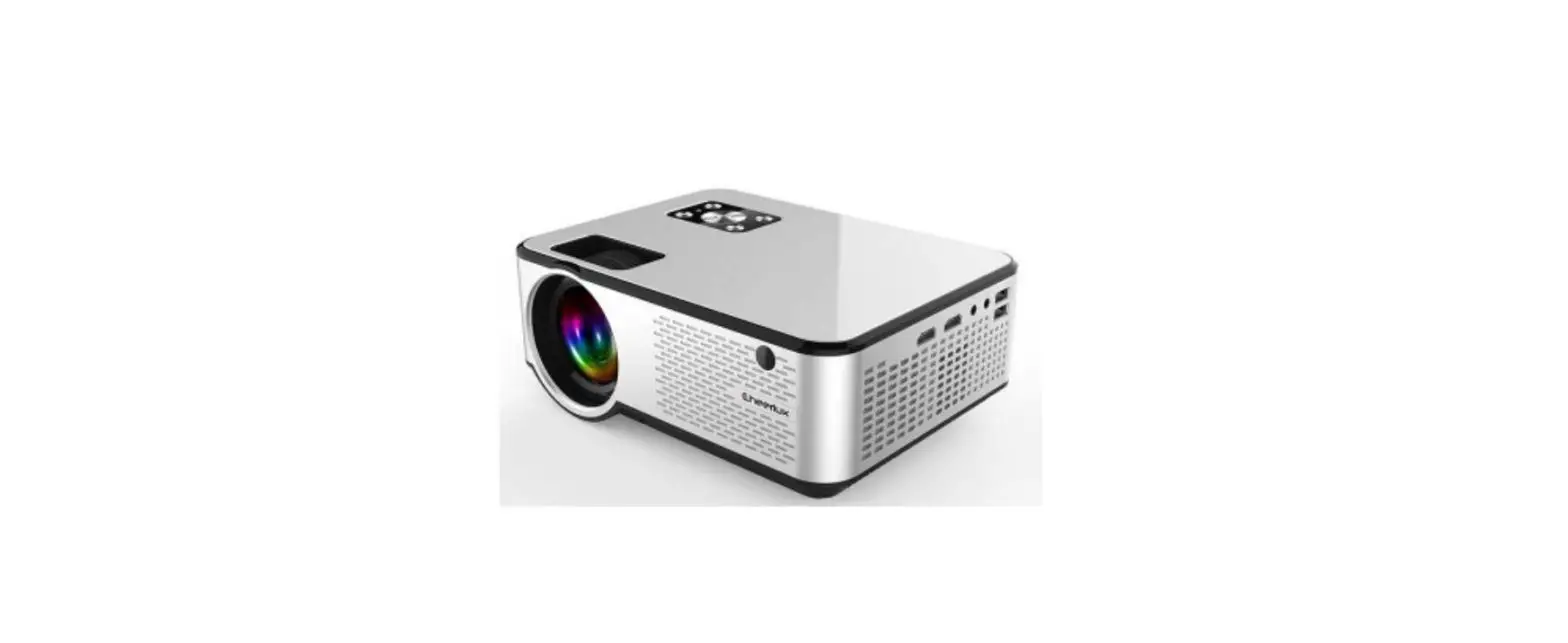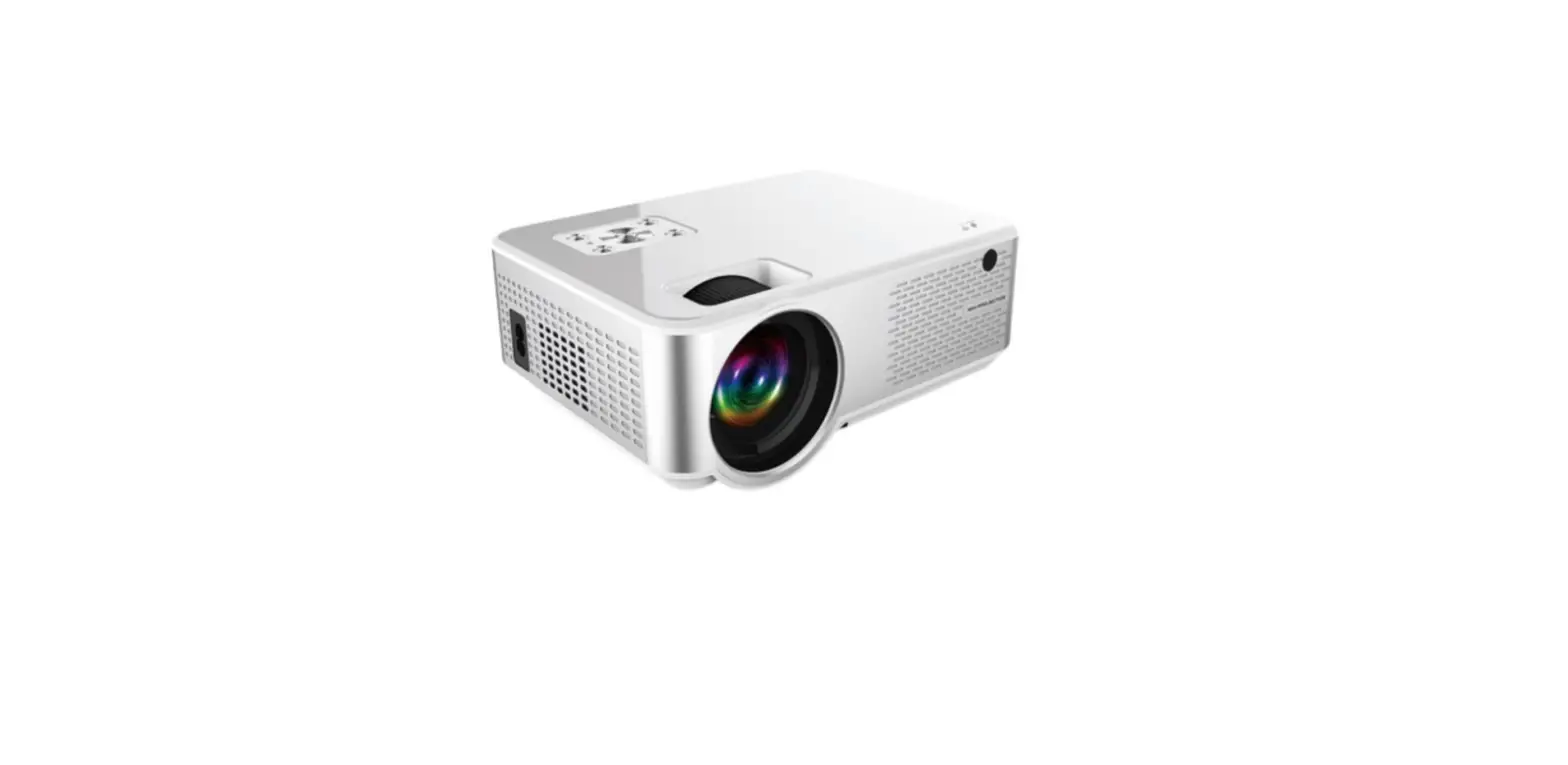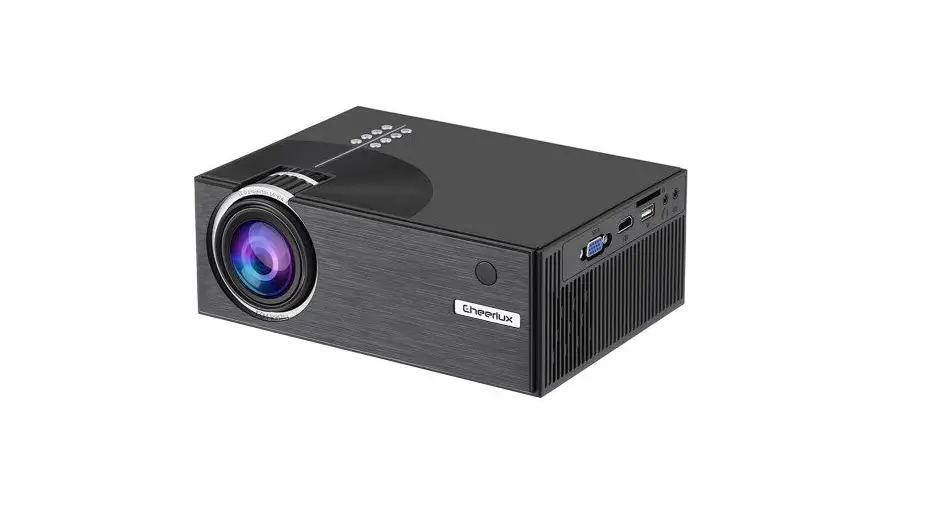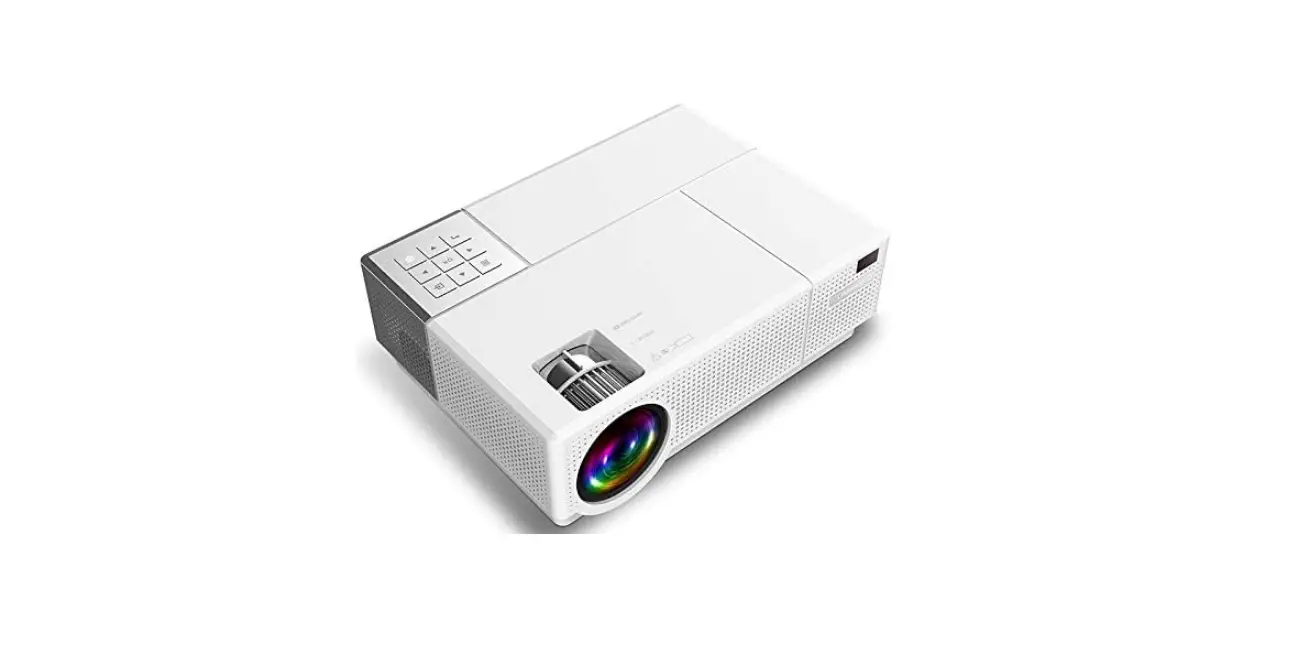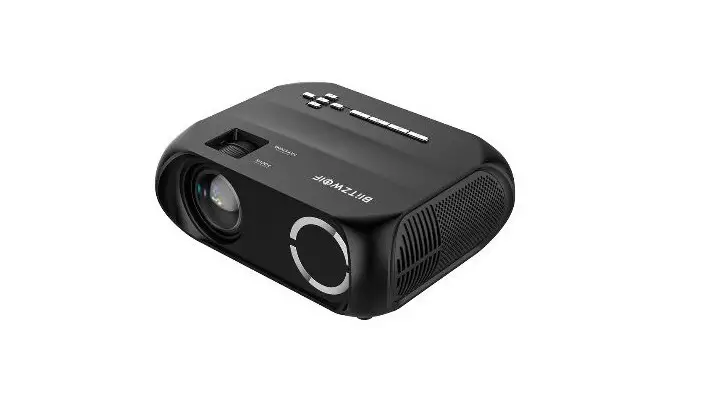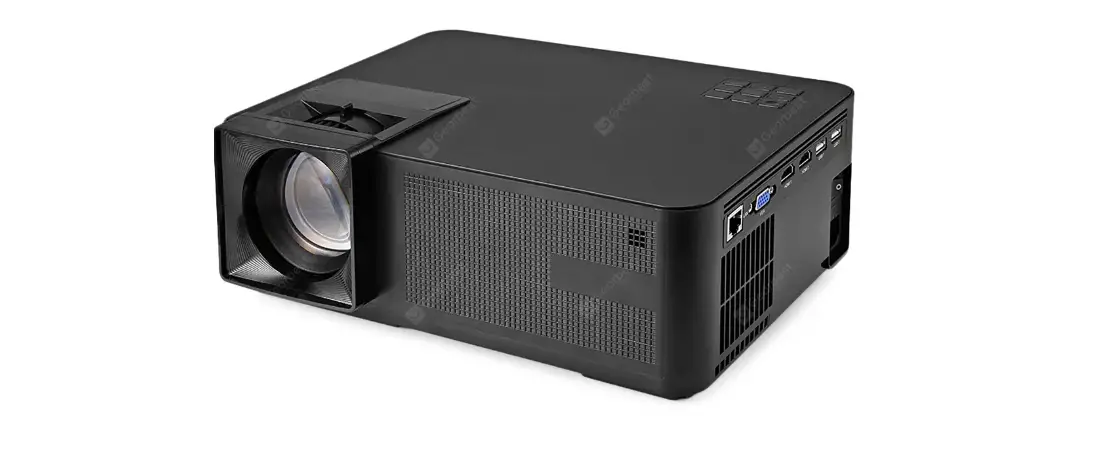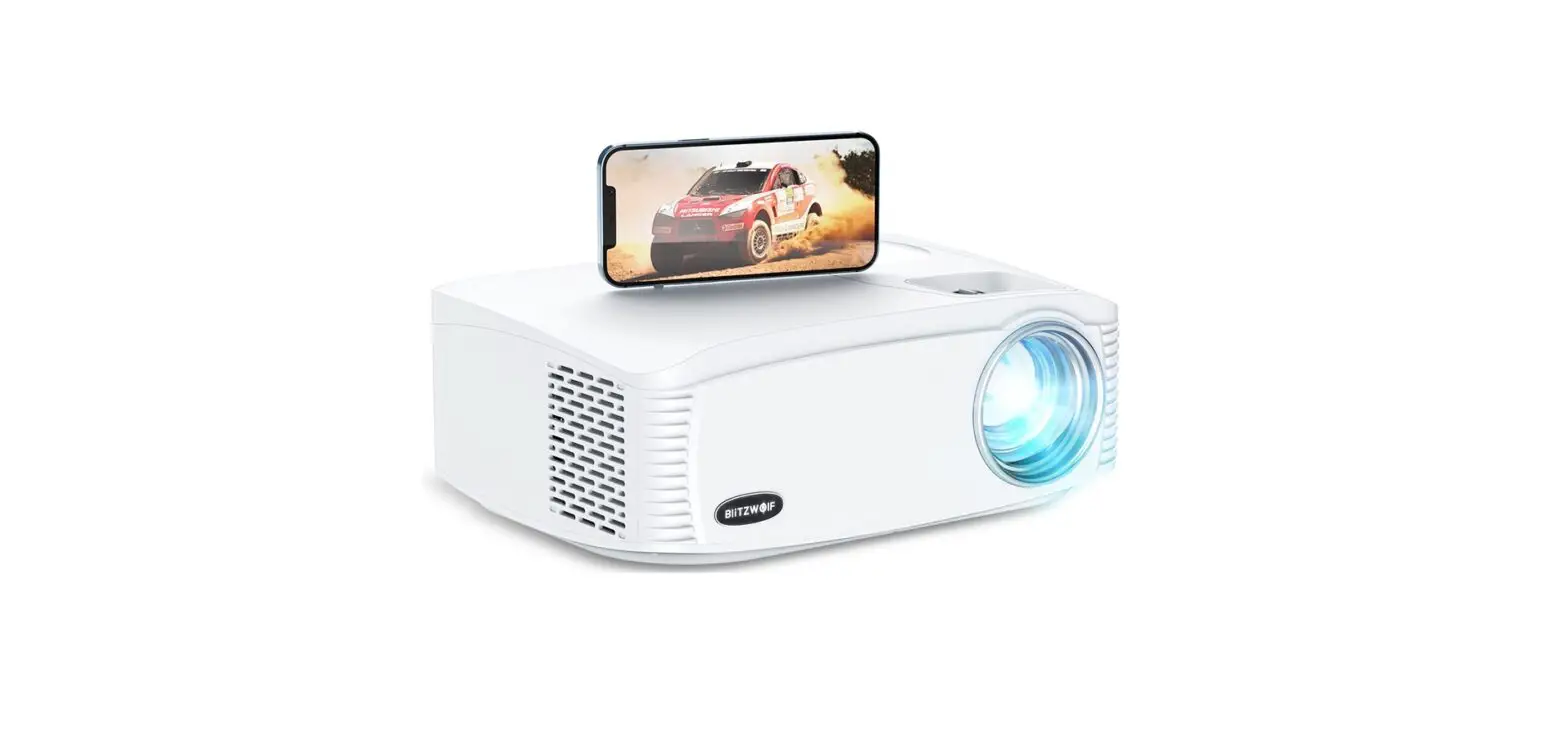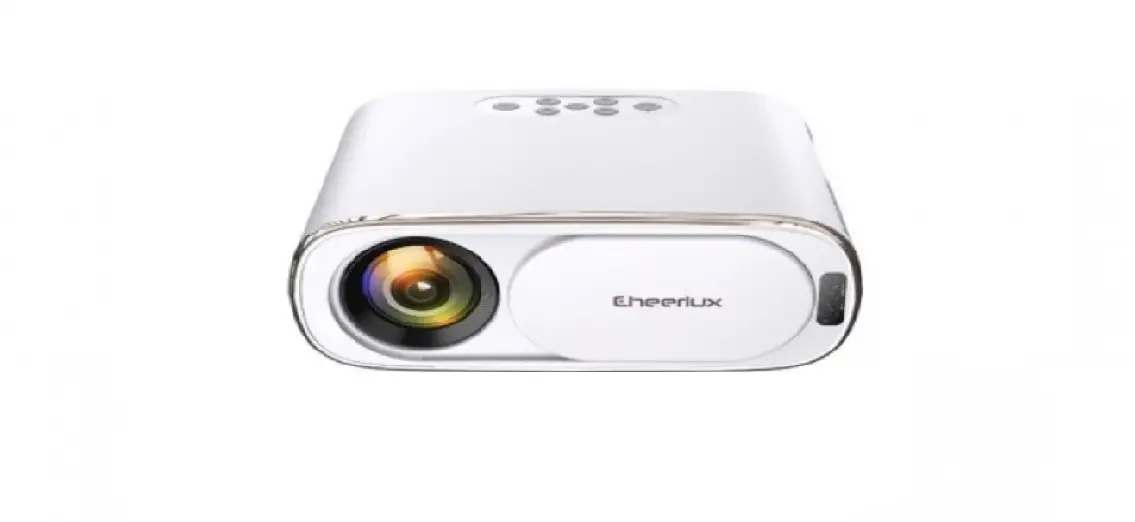

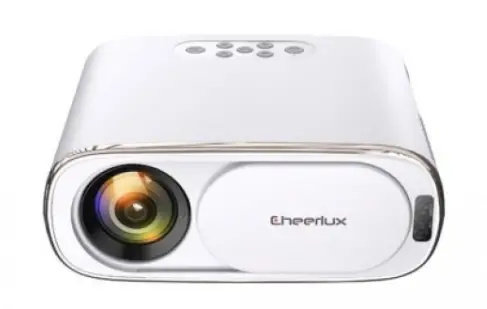
Cheerlux C16 1080P LED Projector
Precautions
Install
- For best results, use this unit in a darker room or with the curtains drawn.
- Please use the machine with care, dropping or impact may damage parts or cause blurred images. Display is abnormal.
Pay Attention To Waterproof - This product does not have waterproof function, in order to prevent electric shock and short circuit danger, water should be avoided. or water splashes, and objects containing liquids such as vases, drinking glasses, etc., should not be placed around the product.
Clean - Unplug the power cord first.
- Regularly clean the case with a damp cloth, neutral detergent can be used; do not use strong detergent or solvent ( such as alcohol or thinner).
- The lens should be cleaned with glasses cloth or lens paper, be careful not to scratch or scratch the lens.
- Please use a soft brush regularly to clean the vents and speaker parts of the unit, otherwise the ventilation The port will be clogged with dust. causing the machine to overheat, causing the machine to malfunction.
Power Supply - Please turn off the product after 4 hours of continuous work, and turn off the power for 30 minutes before turning ii on again use.
- Please use the power cord or adapter of the specified specification. If you need to replace it, please contact the supplier for line replacement.
- Use the power cord with care and avoid excessive bending; damage to the power cord may result in electric shock and misfire.
- After use, unplug the power cord from the power outlet. Warn
- The disconnecting device for this projector is the appliance input socket, appliance input socket on the product No other objects should be placed nearby to prevent the multimedia projector from being disconnected from the power supply.
This is a Class A product. This product may cause radio interference in the living environment. In this case, the user may be required to take practical measures against the interference.
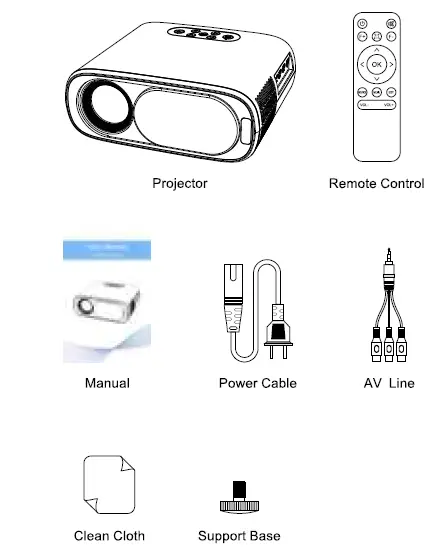
Packing List
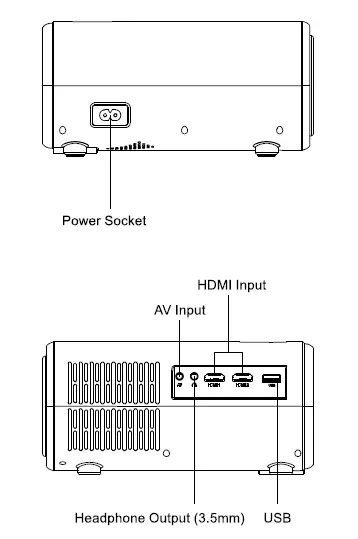
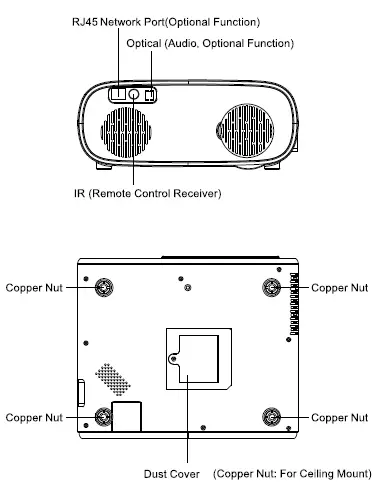
Product Description
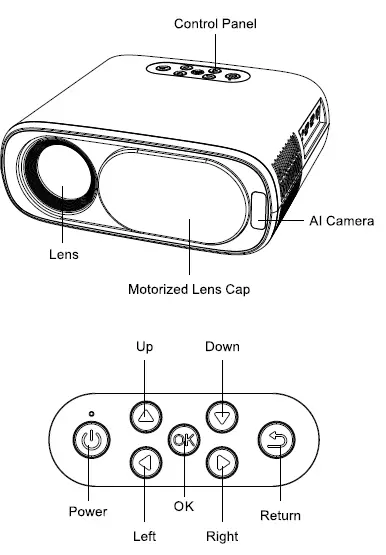
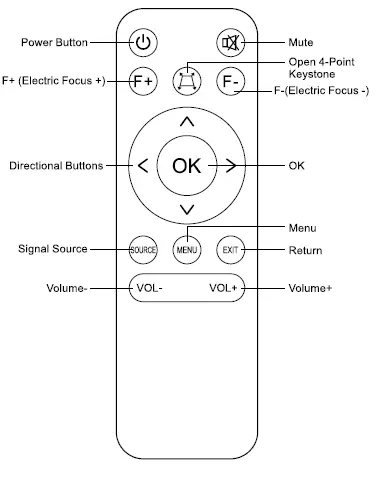
Remote Control Instructions
Connect To WIFI
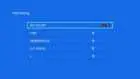
 Select “Settings” on the main interface
- Select “WiFi Settings”
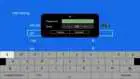
- Turn on the “WIFI “and make it connected
- Enter the password and click “Connect”
 Select “Settings” on the main interface
Auto Focus
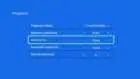
- Find ” Setting ” in the home page, Click” Setting “to choose” Projection image Setting”, and put the” Auto Focus” in ” Open ” condition, then the projector will enter into the Auto Focus mode, after finished the auto focus but the image still not clear, you can press” F+/F-” to do the electronic focus and make the image clear .

- This is the picture when the projectors is doing Auto focus.
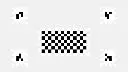
4-Point Keystone Correction
- Select “Settings” on the main interface
- Select “4-Point Keystone” after selecting “Projection Settings”
- Use the ” direction buttons” to Adjust it and press ” OK ” to choose the four corners until the picture are corrected.
 Select “Settings” on the main interface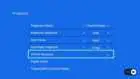
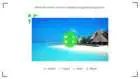
BT Settings
- Select “Settings” on the main interface
- Select “BT Setting”
- Make ” BT” in ” Manual Setting ” and try to match with the correct BT device.
 Select “Settings” on the main interface
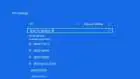
Screen Mirroring for Android Phone
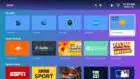
- Find ” Micas!” On the Home Page, click” Meas!” to connect with your Android Devices.

- Select “Screen Mirroring “or” Smart Mirroring” on your phone ( Note: different phones have different name).

- Choose “YC16” to share screen with projector.
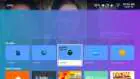 Find ” Micas!” On the Home Page, click” Meas!” to connect with your Android Devices.

Screen Mirroring For 105 System
- Find ” Cool Air Mirror” on the Home Page, Click it to Connect with your I0S Devices.
- Find “Screen Mirroring” on your I0S devices to share the screen with projector.
 Find ” Cool Air Mirror” on the Home Page, Click it to Connect with your I0S Devices.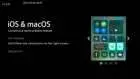
Android Cast
 Make sure that the projector and mobile phone are connected to the same WIFI, enter the main page and select “Android Cast” and follow the steps on the screen.
 Make sure that the projector and mobile phone are connected to the same WIFI, enter the main page and select “Android Cast” and follow the steps on the screen.
Source Selection 
Press” SOURCE” Button on the remote control to pop up the” SOURCE INPUT” on the screen .
Projection Size/AudioNideo Format
Distance provided is measured from lens to projected surface, for default 16:9 ratio settings.
| Projection Size | |
| Aspect Ratio | 16:9 |
| Screen Size | Projection Distance (m) |
| 50″ | 1.55 |
| 70″ | 2.17 |
| 100″ | 3.10 |
| 120″ | 3.72 |
Note: The above data is for reference only, please refer to the actual measurement
Multimedia File Specification
Image Format
| Support | File Extension |
| JEPG,PNG,BMP,MPO | .jpg / .png / .bmp |
Audio Format
| Support | File Extension |
| MPEG1,MPEG2,LPCM,MP3 | .avi/.ts/.daU.vob/.wav/mkv/.mp3/.mp4/.m4a |
Doesn’t Support:DolbyAC3/AAC, DTS, WMA, DivX, VC1, etc
Video Format(Bit Rate up to 30~40 Mbs)
| Support | File Extension |
| MPEG1,MPEG2,H.263,H.264,AVS,VC1, MJPEG,RV30,RV40,HEVC | .daU.ts/.mp4/.mpg/.mpeg/.avi/.mkv/.mov /.wmv/.asf/.flv/.3gp./.3gpp/.tp/.trp |
Doesn’t Support: MSVC/CRAM, MP42, GMC, IV32, RLE, cvid, RV20, DivX, RM, RMVB, VC1, FLV, etc.
Warranty Card
| User info | Username | |
| Contact Number | ||
| Zip Code | ||
| Mailing Address | ||
| Product information | Product Name | |
| Product Number | ||
| Product Serial Number | ||
| Sales information | Sales Unit | |
| Contact Number | ||
| Zip Code | ||
| Address | ||
| Sale Date | ||
| Installation And Commissioning Date | ||
| Invoice Number |
.
| Delivery Date: | Maintenance Staff Signature: |
| Cause of Issue: | |
| Troubleshooting: | |
| Service Point: | Delivery Date: |
| Delivery Date: | Maintenance Staff Signature: |
| Cause of Issue: | |
| Troubleshooting: | |
| Service Point: | Delivery Date: |