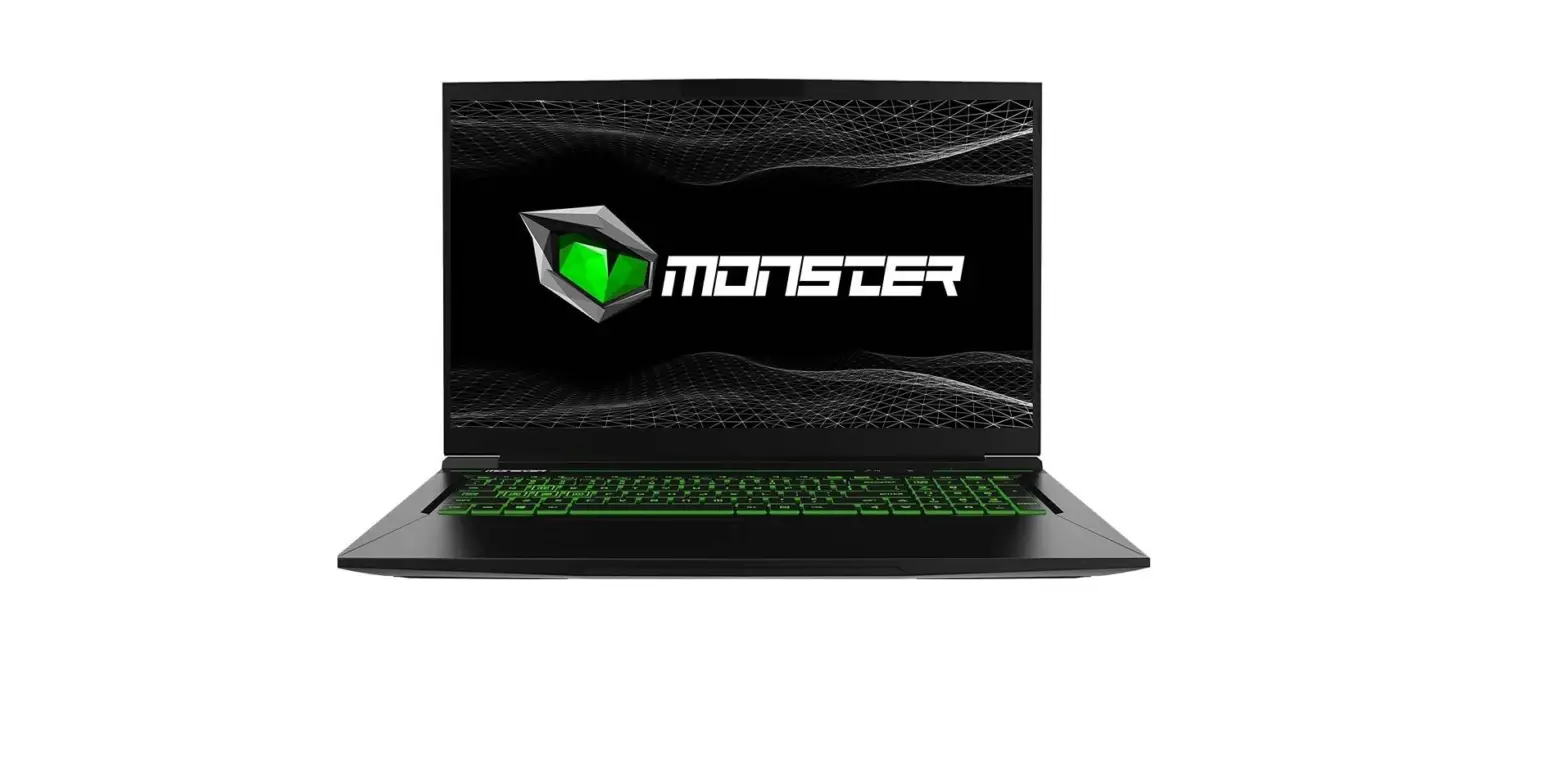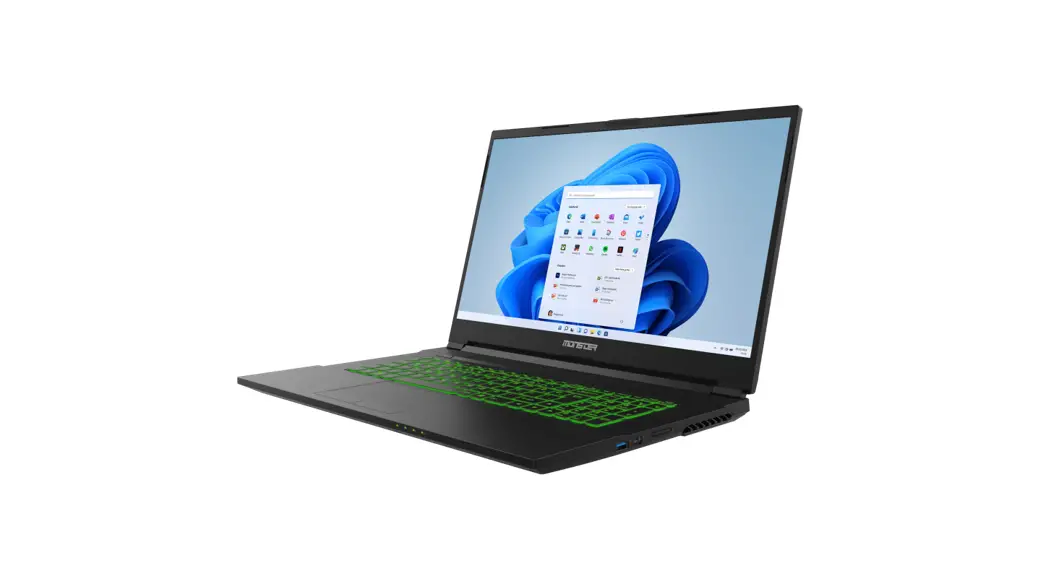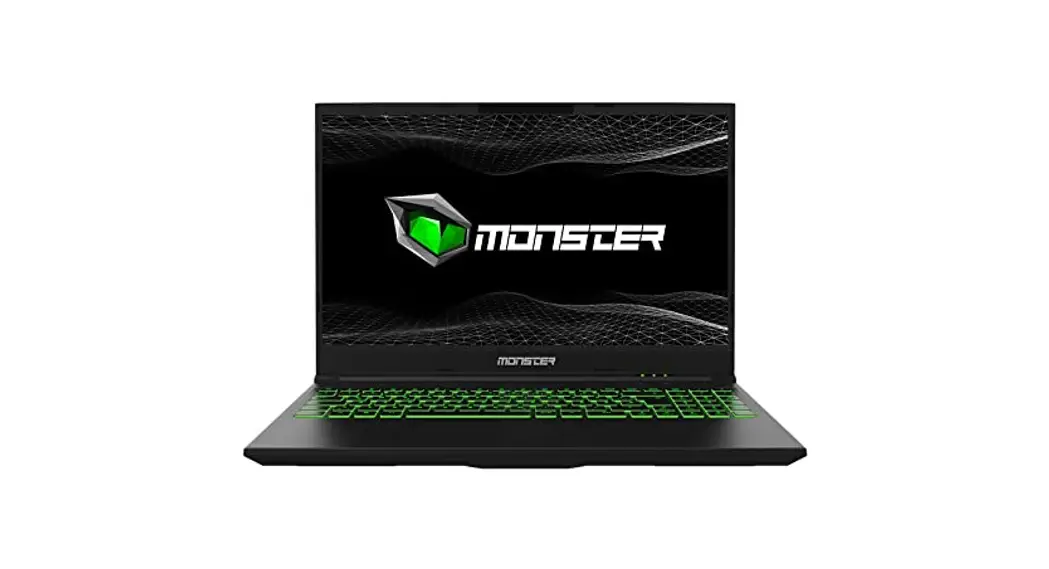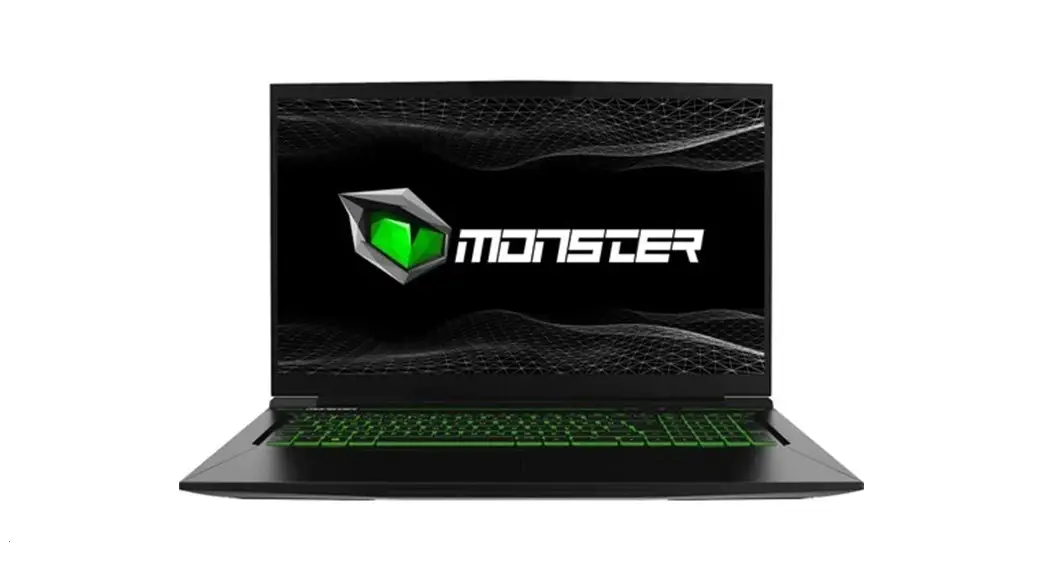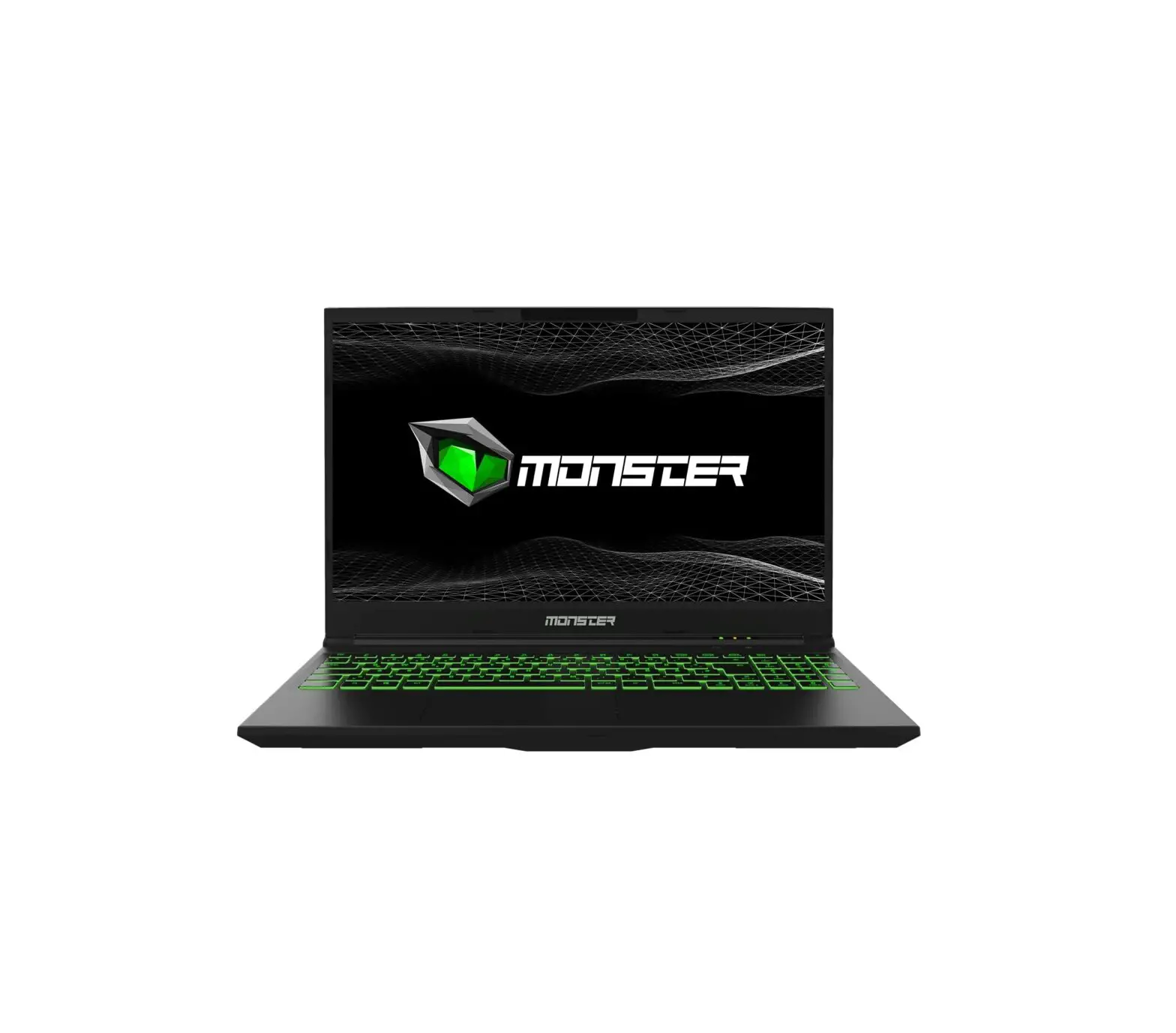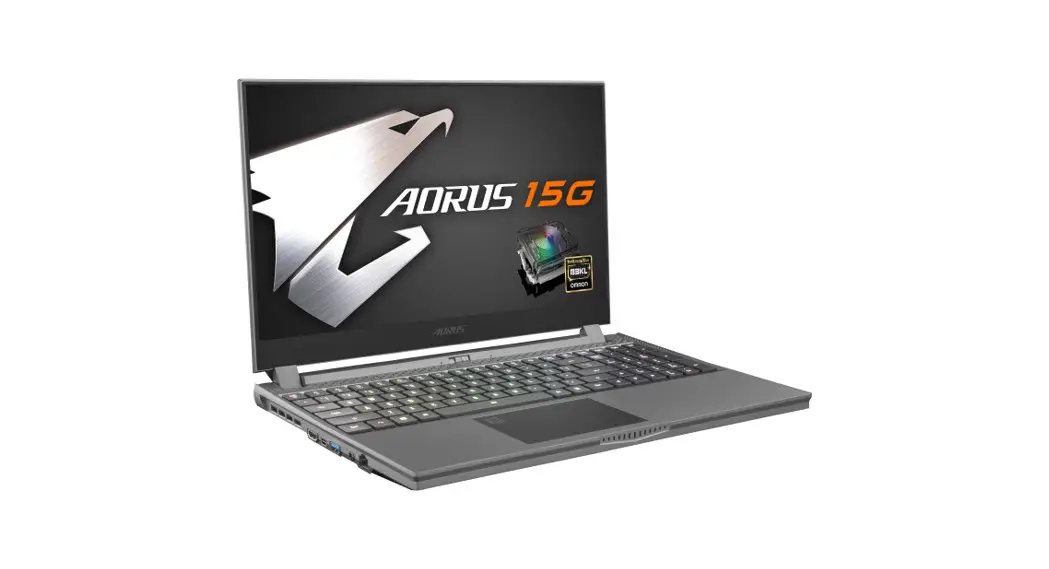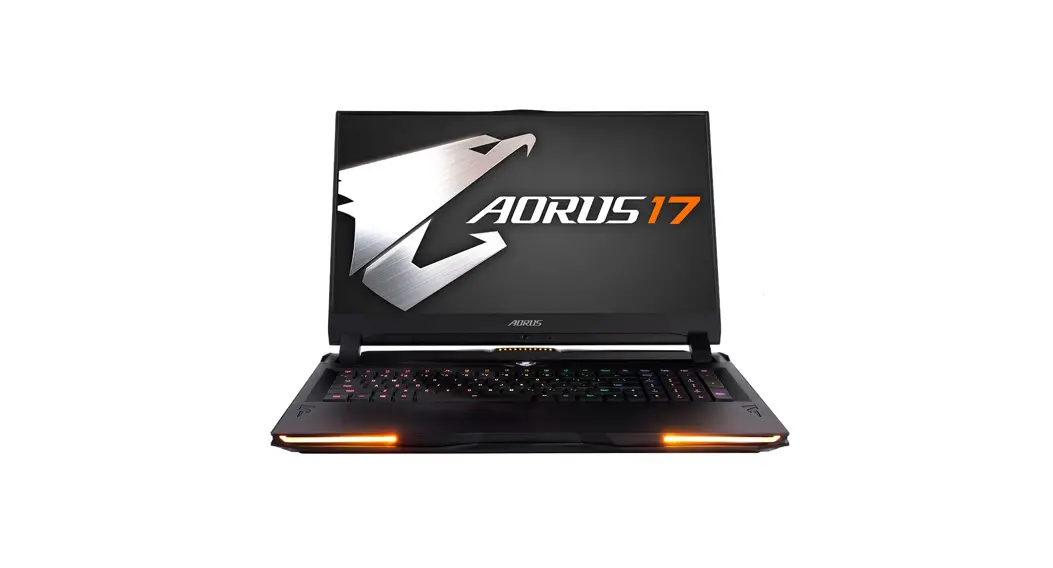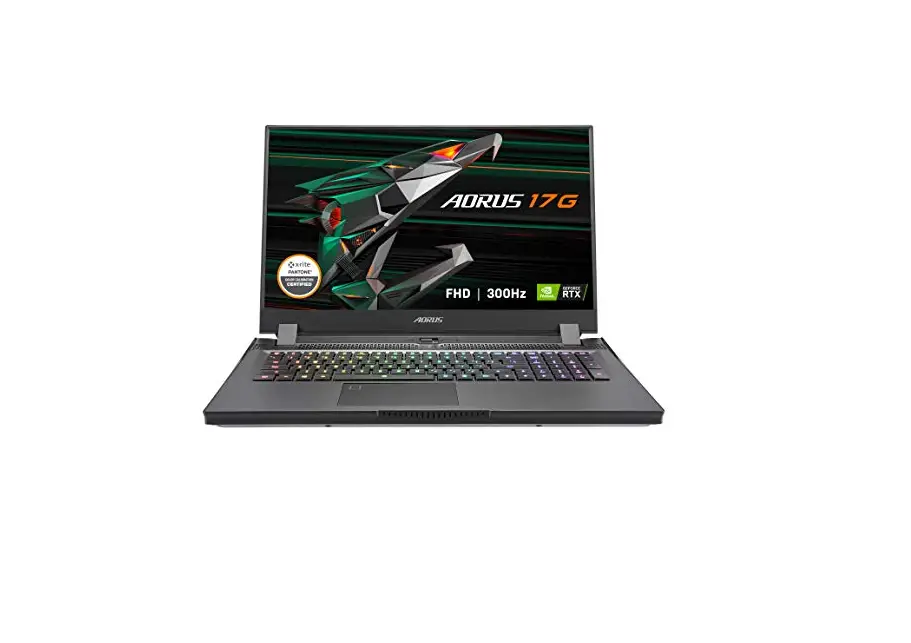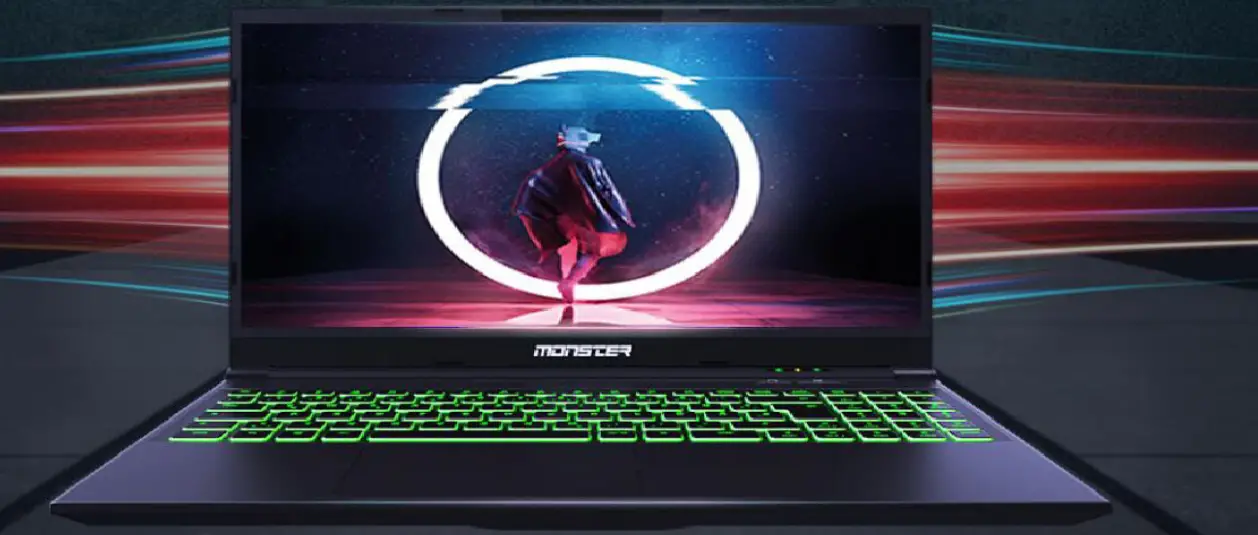

MONSTER Abra A5 V15.9 15.6 Inch Gaming Laptop

CHAPTER 1
Regulations Information
- CE compliance
This device is classed as a technical information equipment (ITE) in class B and is intended for use in living room and ofce. The CE-mark approves the conformity by the EU-guidelines:- EMC Directive 2014/30/EU,
- Low Voltage Directive 2014/35/EU(equals A2 : 2013),
- RF Directive 2014/53/EU
The unit can be operated at an ambient temperature of max. 35°C (95°F). Do not subject it to temperatures below 5°C (41°F) or above 40°C (104 °F).
CAUTION: –
- RISK OF EXPLOSION IF BATTERY IS REPLACED BY AN INCORRECT TYPE DISPOSE OF USED BATTERIES ACCORDING TO THE INSTRUCTIONS
PREVENTION OF HEARING LOSS - Listening to music at high volume levels and for extended durations can damage one’s hearing. In order to reduce the risk of damage to hearing, one should lower the volume to a safe, comfortable level, and reduce the amount of time listening at high levels. Headsets should comply with EN 50332-2 requirements.
FCC Information
FEDERAL COMMUNICATIONS COMMISSION INTERFERENCE STATEMENT
This equipment has been tested and found to comply with the limits for a Class B digital device, pursuant to part 15 of the FCC Rules. These limits are designed to provide reasonable protection against harmful interference in a residential installation. This equipment generates, uses and can radiate radio frequency energy and, if not installed and used in accordance with the instructions, may cause harmful interference to radio communications. However, there is no guarantee that interference will not occur in a particular installation. If this equipment does cause harmful interference to radio or television reception, which can be determined by turning the equipment off and on, the user is encouraged to try to correct the interference by one or more of the following measures:
- Reorient or relocate the receiving antenna.
- Increase the separation between the equipment and receiver.
- Connect the equipment into an outlet on a circuit different from that to which the receiver is connected.
- Consult the dealer or an experienced radio/TV technician for help.
CAUTION:
Any changes or modifications not expressly approved by the grantee of this device could void the user’s authority to operate the equipment.
RF Exposure Information (SAR)
This device meets the government’s requirements for exposure to radio waves. This device is designed and manufactured not to exceed the emission limits for exposure to radio frequency (RF) energy set by the Federal Communications Commission of the U.S. Government.
The exposure standard employs a unit of measurement known as the Specific Absorption Rate, or SAR. The SAR limit set by the FCC is 1.6 W/kg. Tests for SAR are conducted using standard operating positions accepted by the FCC with the EUT transmitting at the specified power level in different channels.
The FCC has granted an Equipment Authorization for this device with all reported SAR levels evaluated as in compliance with the FCC RF exposure guidelines. SAR information on this device is on file with the FCC and can be found under the Display Grant section of www.fcc.gov/eot/ea/fccid after searching on
FCC ID: 2AKHFAX201NG .
This device complies with Part 15 of the FCC Rules. Operation is subject to the following two conditions:
- this device may not cause harmful interference, and
- this device must accept any interference received, including interference that may cause undesired operation.
CAUTION:
Any changes or modifications not expressly approved by the grantee of this device could void the user’s authority to operate the equipment.
Safety Information
- Do not apply heavy pressure to the computer or subject it to any form of strong impact as this can damage the computer’s components or otherwise cause it to malfunction.

- Never cover or block the air vents including those located at the base of the computer. Never cover your computer or AC adaptor with any object.

- To keep your computer in prime operating condition, protect your work area from direct sunlight.

- Do NOT expose to or use near liquid, rain, or moisture. Do NOT use the modem during electrical storms.

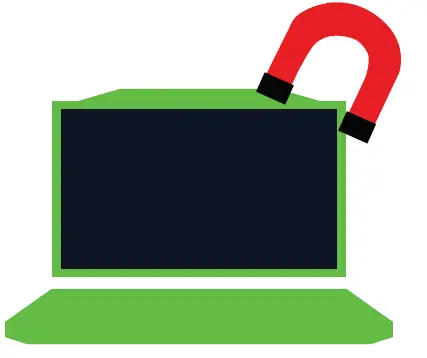
- Do not use or expose this device around magnetic Felds as magnetic interference may affect the performance of the device.





Conventions For This Manual
CAUTION: This message contains important information that must be followed for safe operation.
CHAPTER 2
Getting To Know The Basics
Product Specification
This User’s Manual provides technical information of instructions and illustrations on how to operate this notebook for the customer. Please read this manual carefully before using this notebook.
Physical Characteristic
| Dimension 359,8mm x 244.3mm x 25,85mm Weight 2,1 kg +/- 5% | |
Processor – CPU | |
| Support Processor | 10. Generation i5-10500H |
Graphic Card – GPU | |
| Graphic Card | 4 GB GTX 1650 |
Memory | |
| DDR4 | DDR4 2933MHz |
Storage | |
| HDD | 2,5” Sate HDD, 7mm |
| SSD | 2 Slot (NV Me) |
| M2 2280 | |
| Slot 1: NV Me/PCIEX4 | |
| Slot 2: NV Me/PCIEX4/SATAX1 | |
| RAID 0/1 Support | |
Webcam | |
| Webcam | 4mm HD webcam with D-MICx1 |
I/O Port | |
| DC-In | x1 |
| USB | x2 USB 3.1 (Gen1) |
| x1 USB 3.1 Tip C (Gen1) | |
| x1 USB 2.0 | |
| RJ45 | x1 |
| Card Reader | x1 (MMC/SD/SDHC/SDXC) |
| HDMI | x1 |
| Audio Out | x1 |
| Microphone In | x1 |
| Mini Display Out | x2 |
Audio | |
| Audio Codec | Realtek ALC274CG / AMP: Realtek ALC1306-CGT |
| Azalai standard support, D3 mode support, Smart AMP support | |
| Speaker | Build-in 2 speakers (2W / Each), Sound Blaster Cinema |
| Microphone | Digital Microphone Support |
Input | |
| Keyboard Pointing Device | Single zone RGB backlight support 340×109.2×3.6mm Touch pad 104mmx72mm |
Display | |
| LCD | 15.6″ 1920×1080,IPS/45% 120hz |
Communication Port | |
| Lan Wireless Lan | Supports 10/100/1000 Mb/Sec, PCI-E interface, DSM (Deep sleep mode) support M.2 2230 w/ CNVI interface (Intel WiFi6 AX series) IEEE802.11AX mode support, Intel 9 series Wi-Fi 9462, IEEE802.11AC mode support |
Power | |
| AC Adapter | Automatics Voltage adjustment between 100 and 240V AC |
| 50/60Hz, 120 Watts (19V/6.32A), 3 Pins-GK5MP5V/GK5MRFV | |
| Battery | Li- polymer Battery, SW Gas Gauge IC, soft pack, |
| 3 cells (3S1P 4100mAh) 46.74 W h | |
CAUTION: MODEL IS DESIGNED TO USE WITH THE DC INPUT: 19V / 6.32A
NOTE:
Please use the match adapter basing on the rating of BIOS, to avoid over-heat and abnormal of adapter.
Preparing your Computer
- Connect the AC adaptor’s DC output plug to the DC IN jack.

- The display panel can be opened to a wide range of angles for optimal viewing.

- Press the power button to turn on your notebook computer.

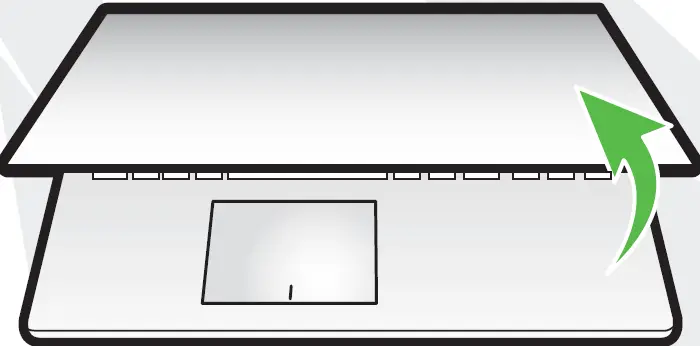
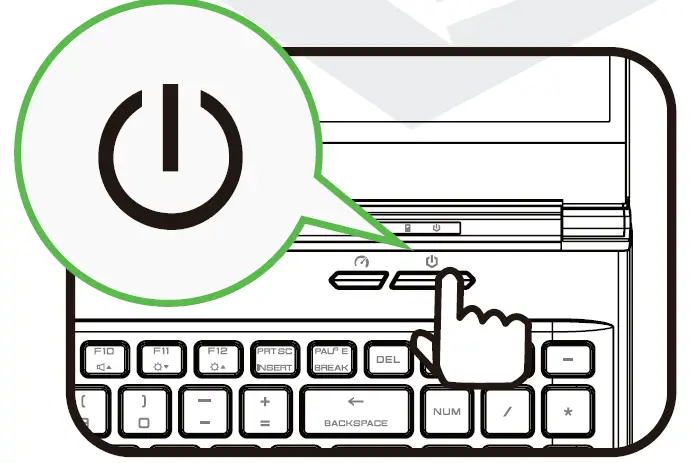
Product Overview
Please become familiar with each component before you operate the computer
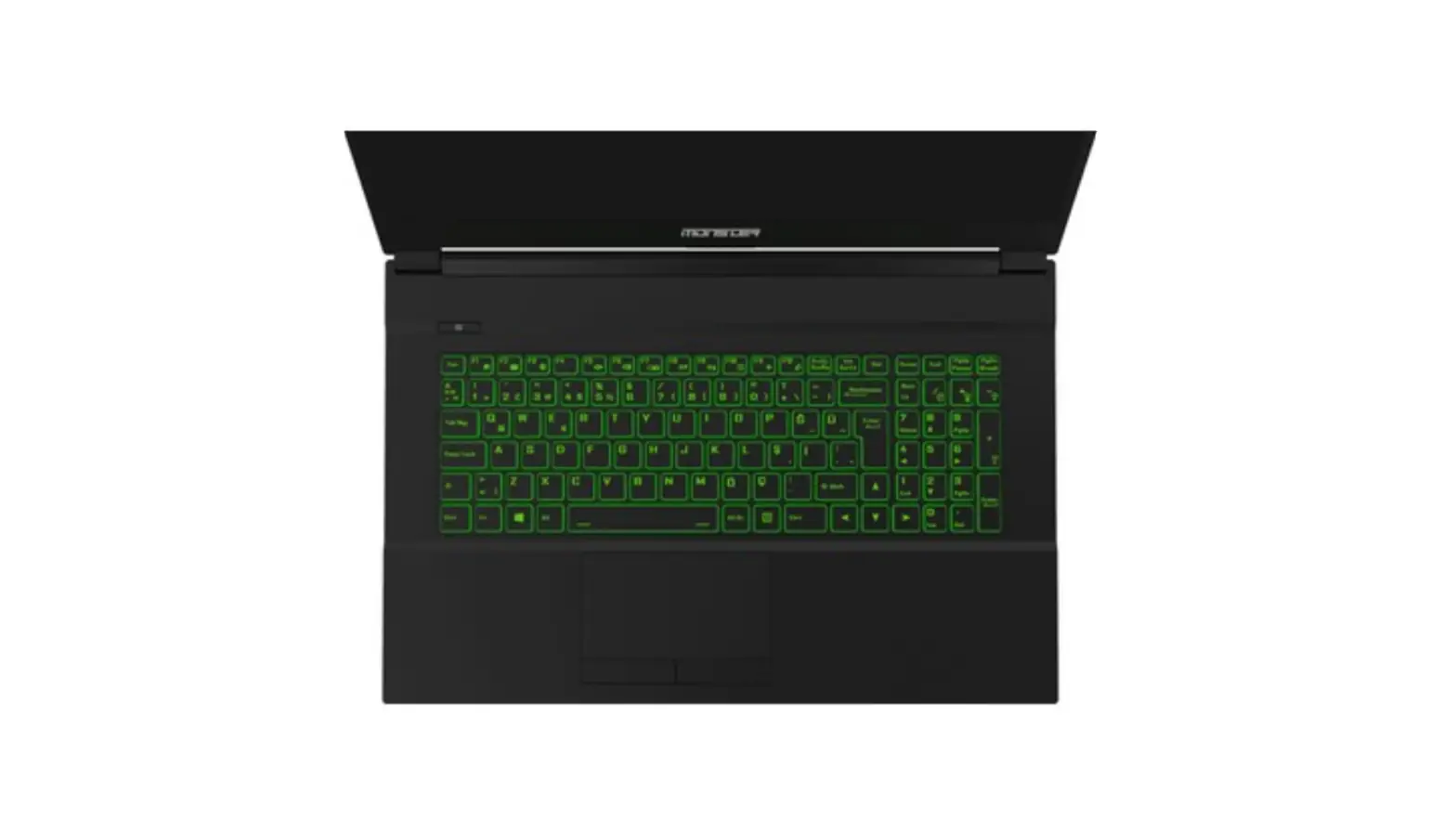
Top-Open View
NOTE:
The product’s color, I/O port, indicator location, and specification will de-pend upon the actually shipping product.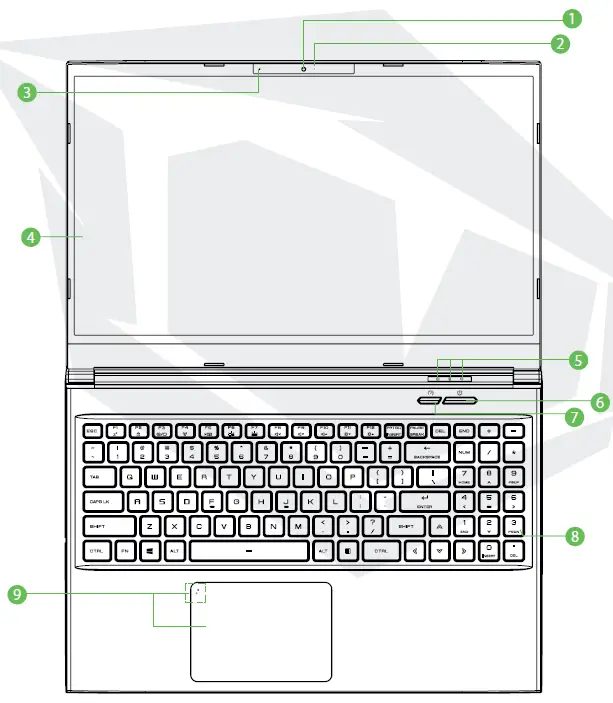
CAUTION: When you are not using the computer, keep the LCD screen closed to protect it from dust
- Webcam
A device that allows you to record video or take photographs with your computer. - Camera Status LED
The Camera Status LED shows the Camera status. - Microphone
Built-in microphone. - LCD Screen
Displays of your notebook computer. - Caps Lock Status
- ON (Green)
- Charging & Battery Indicator
- Charging: Orange
- Battery Low (<6%): Orange (3 Sec/Cycle)
- Charging finish (w/AC ): Green, (w/o AC): Off
- Power indicator
- Power ON: Green
- Suspend: Green , Slow / Smooth, Blinking Green (3Sec/Cycle) Power Off: OFF
- Power Button
Press this button to turn the computer’s power on or off. - Office / Game / Turbo Mode Switch
On screen display. - Keyboard
Full 15.6’’ KB with RGB backlight support. - Touchpad/Click pad
Touch-sensitive pointing device which functions like the mouse.
Front Side View
Bottom Side View
NOTE: The product’s thermal vent will depend upon the actually shipping product.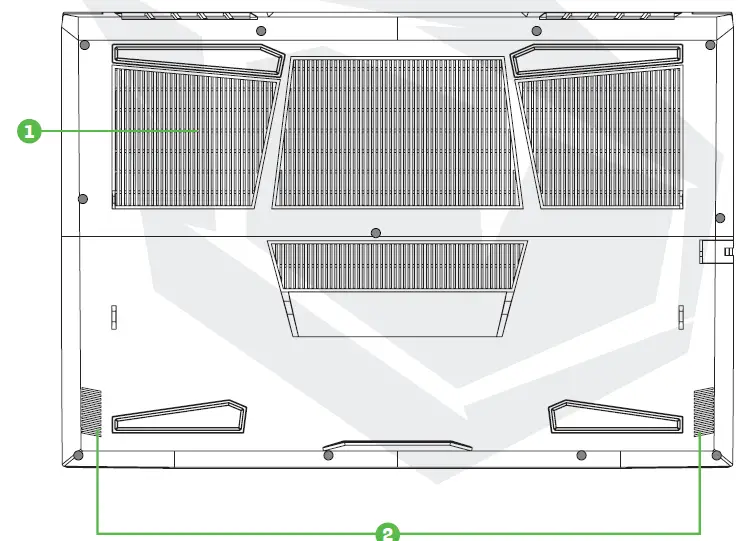
- Vents
The thermal vents are designed to cool the internal components and avoid overheating. - Speakers
HDD / RAM / SSD / WLAN Compartment View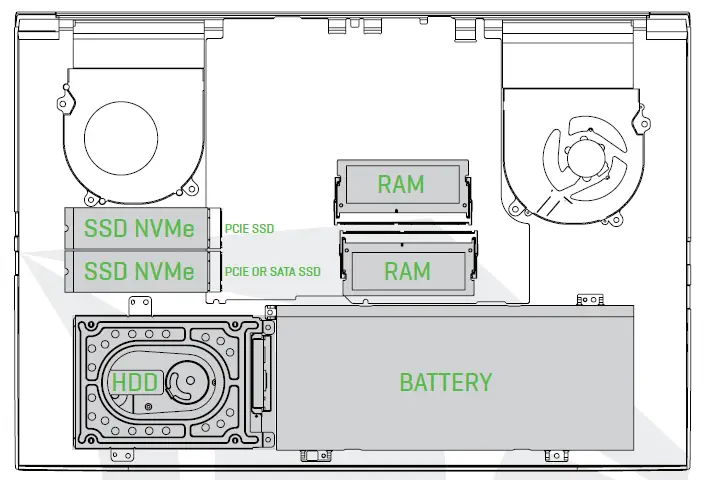 CAUTION:
If need to upgrade SATA SSD to PCIE SSD, Please contact technical support and after-sales service .
Do not put the computer on your LAP or other Parts of the body to avoid injury from the heat.
Right Side View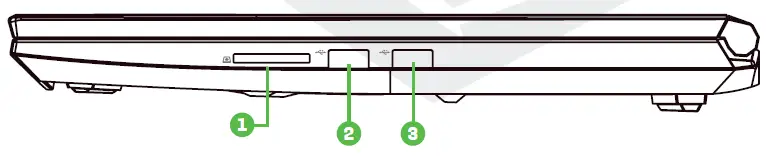
- 2 in 1 Card Reader
Insert memory card. - USB Ports
Connects an USB device. - USB Ports
Connects an USB device.
Left Side View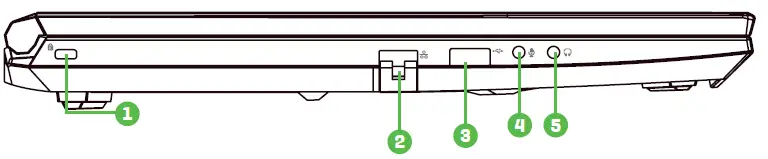
- Kensington® Lock Port
To be secured using Kensington® Lock Port security products. - Network Jack
This jack lets you connect to a LAN. - USB Ports
Connects an USB device. - Mic In Jack
Connects amplified speakers, headphones or microphone into this jack. - Audio Out Jack
Connects amplified speakers, headphones or microphone into this jack.
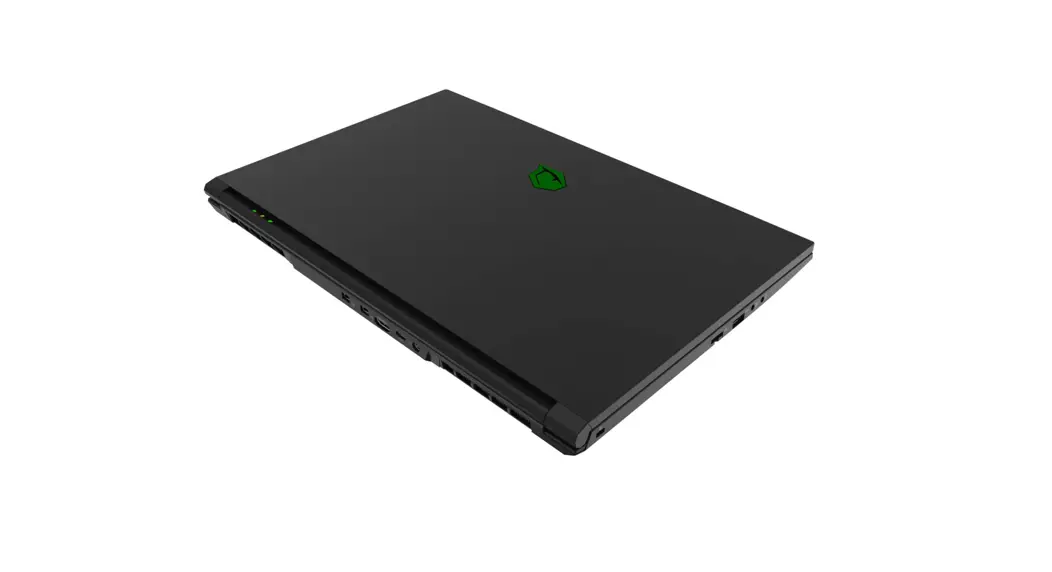
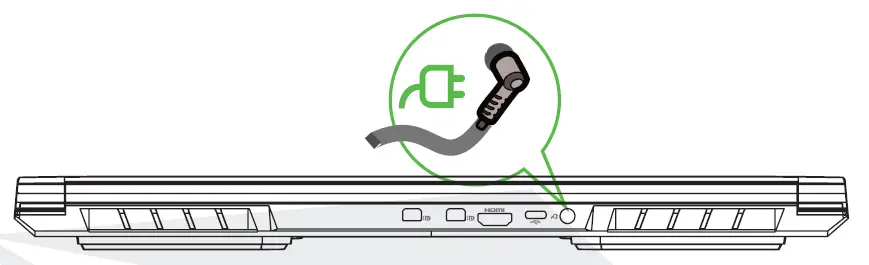
Back Side View
- Vents
The thermal vents are designed to cool the internal components and avoid overheating. - Mini Display Port
Supports high-definition digital video connections. - HDMI Port
Connected to the screen, or home theater system. - USB Type C Port
USB bellekler, klavye, fare gibi aygıtlar Buna takılabilir. - Power Connector
AC adaptor bu bağlantıya takın.
CHAPTER 3
AC Adapter
Please be noted that it is strongly recommended to connect the AC adapter and use the AC power while using this notebook for the frst time. When the AC adapter is connected, the battery is being charged immediately. Attach the AC adaptor when you need to charge the battery or you want to operate from AC power. It is also the fastest way to get started, because the battery pack will need to be charged before you can operate from battery power.
Note that the AC adapter included in the package is approved for your notebook; using other adapter model may damage either the notebook or other devices attached to it.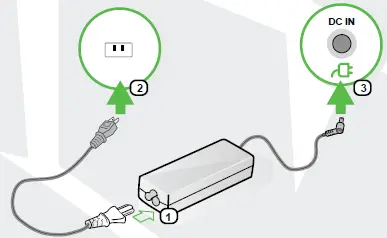

CAUTION:
The use of inferior extension cords may result in damage to your notebook. Your notebook comes with its own authorized AC adapter. Use of a different AC adapter or cable extension which is not authorized for use will void warranty protection if damage to hardware is found in association to said adapter or extension cable.
NOTE:
The power adapter may become warm to hot when in use. Be sure not to cover the adapter and keep it away from your body. Your adapter might look different depend on your region.
Knowing The Keyboard
The following defines the colored hot keys on the Keyboard. The colored commands can only be accessed by first pressing and holding the function key while pressing a key with a colored command.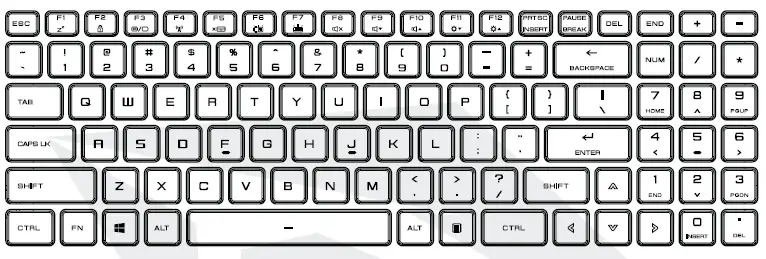
NOTE: The number of keys available on your keyboard will depend on which country/region your computer is configured for.
For Keyboard Users
To activate these functions, press the hot key associated with the desired function as below:
Keypad | Function Description |
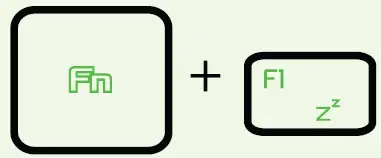
Suspend: | Press this key combination (Fn+F1) to enter sleep mode. |
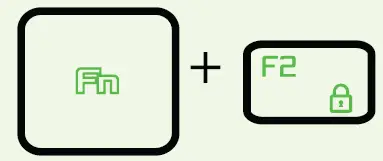
Windows Lock/On: | Press this key combination (Fn+F2) to turn Windows Lock/On . |
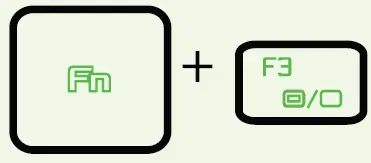
Display Mode: | Press this key combination (Fn+F3) to enable Display Mode. |
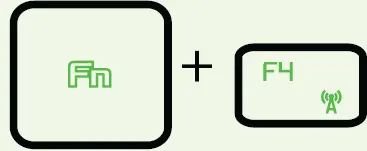
RADIO On/Off: | Press this key combination (Fn+F4) to turn all radios on or off. |
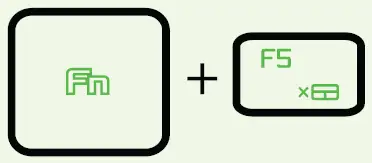
Touch pad On/Off: | Press this key combination (Fn+F5) to On/ Off Touch pad mode |
Keypad | Function Description |
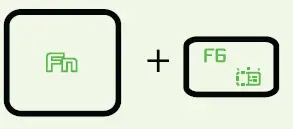
Keyboard Brightness down: | Press this key combination (Fn+F6) to decrease brightness of Keyboard. |
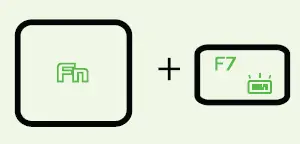
Keyboard Brightness up: | Press this key combination (Fn+F7) to increase brightness of Keyboard. |
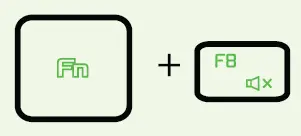
MUTE: | Press this key combination (Fn+F8) to enter MUTE mode. |
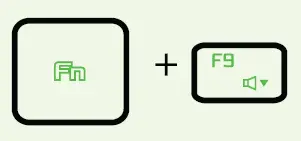
Volume down: | Press this key combination (Fn+F9) to enter Volume down mode. |
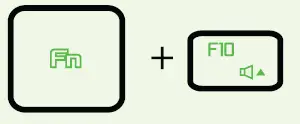
Volume up: | Press this key combination (Fn+F10) to enter Volume up mode. |
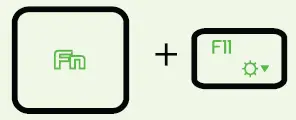
Brightness down: | Press this key combination (Fn+F11) to decrease brightness of LCD display. |
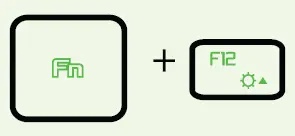
Brightness up: | Press this key combination (Fn+F12) to increase brightness of LCD display. |
Search Charm: | Press this key combination (Windows logo key+ Q) to open the search charm and search apps. |
Settings Charm | Press this key combination (Windows logo key+ I) to open the settings charm. |
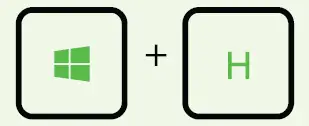
Share Charm : | Press this key combination (Windows logo key+ H) to open the share charm. |
Devices Charm: | Press this key combination (Windows logo key+ K) to open the devices charm. |



Using the touchpad / click pad
The touchpad / click pad is a rectangular electronic panel located just below your keyboard. You can use the static-sensitive panel of the touchpad / click pad and slide it to move the cursor. You can use the buttons below the touchpad as left and right mouse buttons.
Press the left 1 and right 2 buttons located on the edge of the touchpad / click pad to make selections and run functions. These two buttons are similar to the left and right buttons on a mouse. Tapping on the touchpad / click pad produces similar results.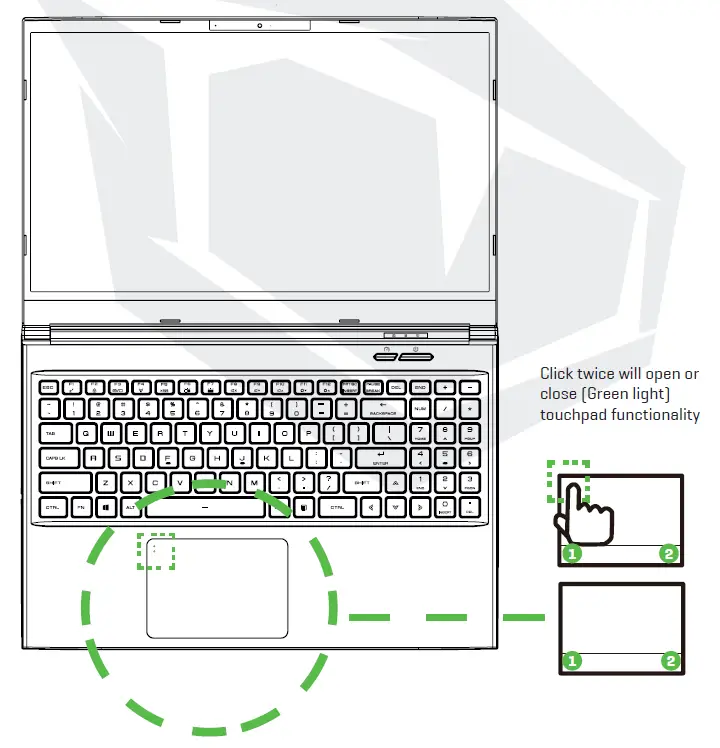
Touchpad Usage
Touch Pad Gesture
Modern touchpad gesture:
A modern touchpad should support the core touch gestures described in the following table.
Item | Gesture Name | Gesture |
1 | One Finger | Left Click – Double Click |
2 | Move Cursor | |
3 | Tap + Slide | |
4 | Two Finger | Scroll / Pan |
5 | Pinch – Zoom | |
6 | Three Finger | Multitasking Gesture |






CHAPTER 4
About Bios Setup
When To Use Bios Setup?
You may need to run the BIOS Setup when:
- An error message appears on the screen during the system booting up and is requested to run SETUP.
- You want to change the default settings for customized features.
- You want to reload the default BIOS settings.
How to Run BIOS Setup?
- To run the BIOS Setup Utility, turn on the notebook and press the [Del] key during the POST procedure.
- If the message disappears before you respond and you still wish to enter Setup, either restart the system by turning it OFF and ON, or simultaneously pressing [Ctrl]+[Alt]+[Del] keys to restart.
- Be noted that the screen snaps and setting options in this chapter are for your references only. The actual setting screens and options on your Notebook may be different because of BIOS update.
- The setup function only can be invoked by pressing [Del] or [F2] key during POST that provide a approach to change some setting and configuration the user prefer, and the changed values will save in the NVRAM and will take effect after the system rebooted. The setup uses a menu interface to allow the user to configure their system and the features are briefly listed as follow.
- Press [F7] key for Boot Menu.
NOTE: The drivers, BIOS and utilities bundled in the support DVD may vary by models and are subject to change without notice.
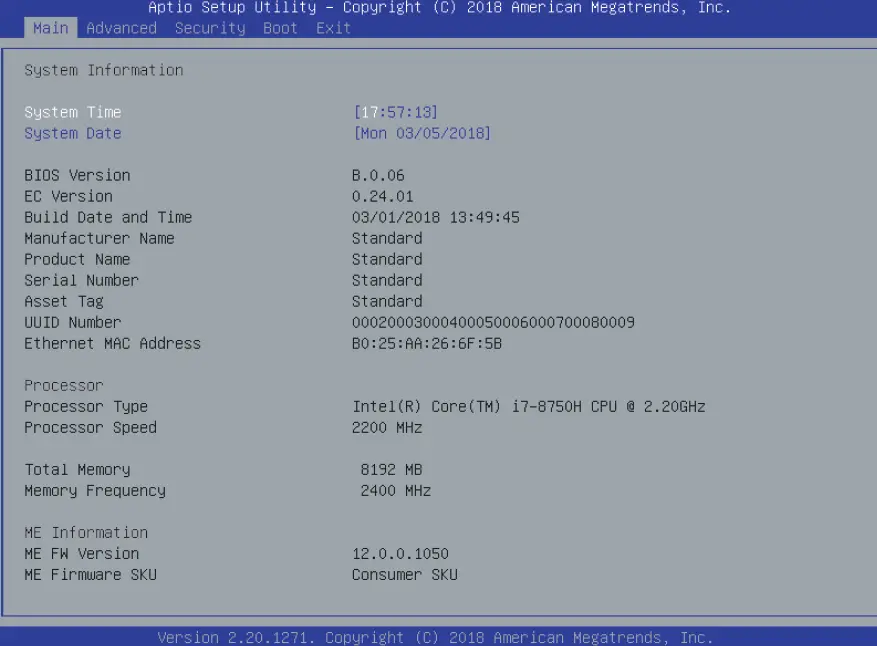
Once you enter the BIOS Setup Utility, the Main Menu will appear on the screen. Select the tags to enter the other menus.
Main Menu Show system overview about memory size and setting of system time and date.
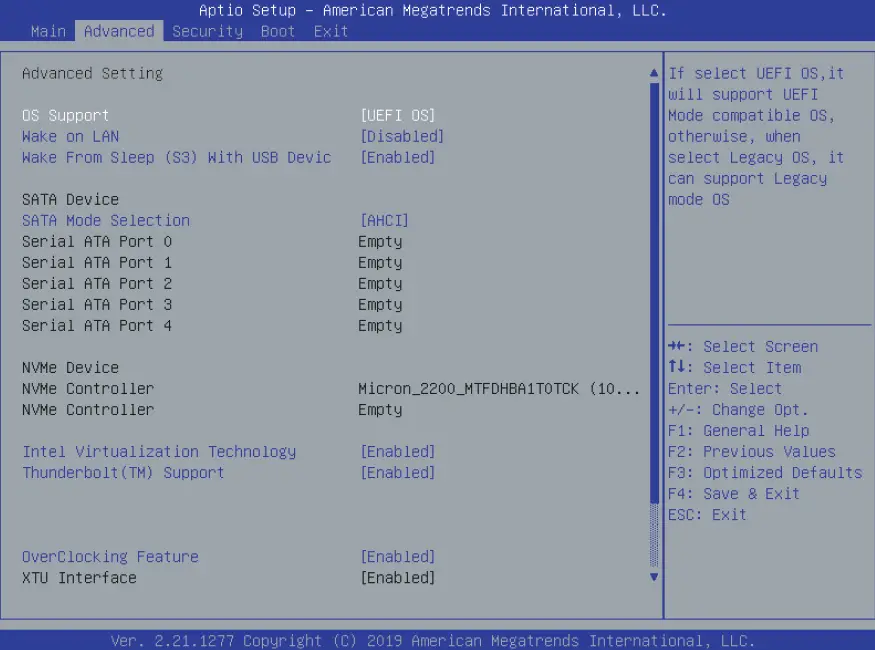
Advanced Menu To select the XD feature enable or disable XD feature only work with Intel platform + Window
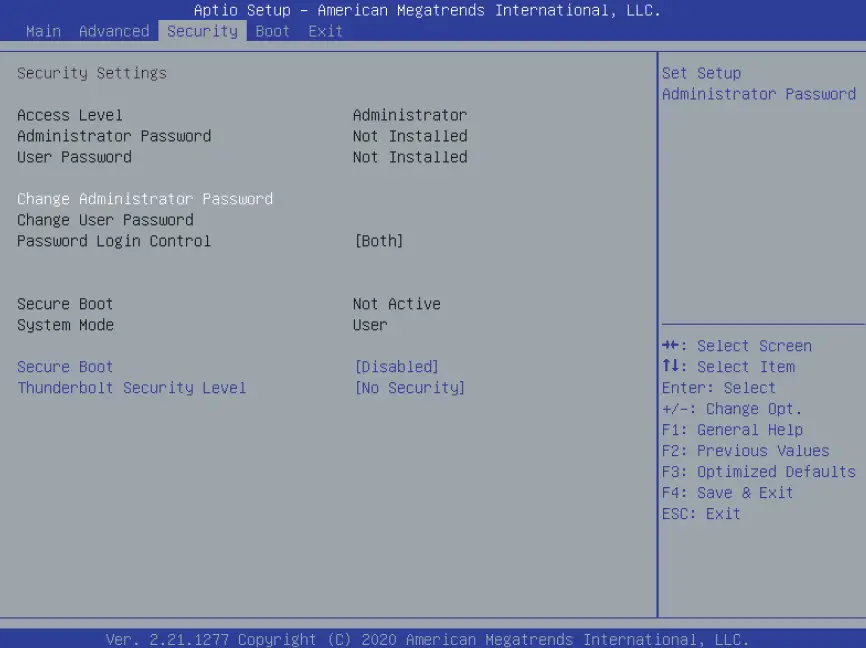
Security Menu Install or clear the password settings for supervisor and user.
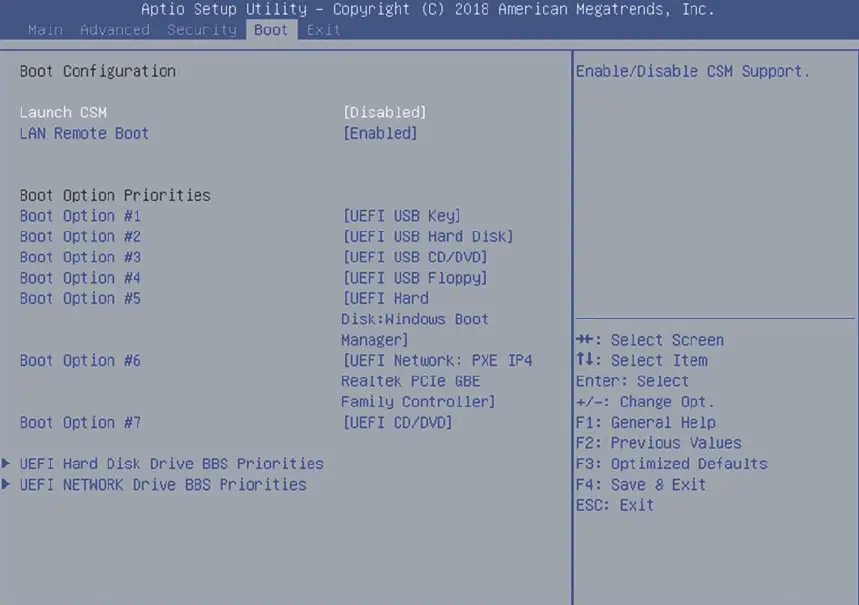
Boot Menu Configure Settings during System Boot.
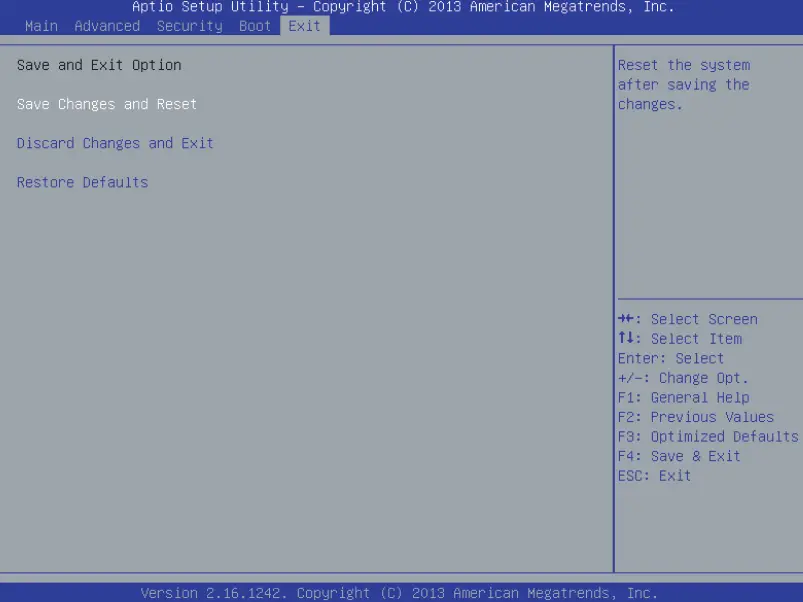
EXIT Menu Save or discard the changes before leaving the BIOS Setup Menu.
- Main Menu

- System Time
This item allows you to set the system time. There is a small internal (CMOS) battery which is designed to maintain your system clock. It is designed to maintain time even when the PC is powered down or in sleep mode. The time format is [hour: minute: second].Use [+] or [-] to configure system Time. - System Date
This item allows you to set the system date. The date format is [day: month: date: year]. Use [ENTER], [TAB] or [SHIFT-TAB] to select a field.
DAY
Day of the week, from Sun to Sat, which is determined by BIOS (read-only).
Month
(Month) The month from 01 (January) to 12 (December).
Date
(Date)date from 01 to 31.
Year
(Year) The year can be adjusted by users. - Total Memory
This allows you to see the total amount of memory.
- System Time
- Advanced Menu

- Wake on LAN: Enable/Disable integrated LAN to wake the system.
- Serial ATA HDD: It will show AHCI SATA HDD info.
- NV Me Device: It will show NV Me Device info.
- Intel Virtualization Technology: When enabled, a VMM can utilize the additional hardware capabilities provided by Vanderpool Technology.
- RAID mode reminder: Please update strip size in BIOS to 128K in order for RAID to optimize performance.
- Keyboard Back Light Features: Light Effect [Disabled/Breathing/Wave/Rain-bow/Marquee/Raindrop]Select keyboard light mode when power on.
- Over Clocking Feature: Performance Menu for Processor and Memory.
- Core Voltage Offset: [50] Specifies the Offset Voltage applied to the IA Core domain. This voltage is specified in millivolts. Uses Mailbox MSR 0x150, cmd 0x11. Range -500 to 500 mV.
- Offset Prefix [+/-]
- Thunderbolt(TM) Support : [Enabled/ Disabled]
- Security Menu

- Change Administrator Password
When this item is selected, a message box shall appear on the screen as below:- Type a maximum of 20-digit password and press [Enter].
- The password typed now will replace any previously set password from CMOS memory. You may also press [ESC] to abandon new password setting. It is extremely important to keep record for any BIOS password which is set as it can not be reset even with the removal of a CMOS battery for the security of your PC.
- Select Change User Password to give or to abandon password setting same as Change Administrator Password item above.
- Note that Administrator Password Feld allows users to enter and change the settings of the BIOS SETUP UTILITY, while User Password Feld only allows users to enter the BIOS SETUP UTILITY without having the authorization to make any change.
- The Password Check item is used to specify the type of BIOS password protection that is implemented.
- To clear a set Administrator Password/ User Password, just press [Enter] under Change Administrator Password/ Change User Password Feld when you are prompted to enter the password. A message box will pop up conforming password will be disabled. Once the password is disabled, the system will boot and user can enter setup without entering password.
- Key Management:
Enables expert user to modify Secure Boot Policy variables without full authentication.
- Change Administrator Password
- Boot Menu

- Boot Configuration: Configure Settings during System Boot.
- LAN Remote Boot [Disabled]: Boot from LAN or not.
- Set Boot Priority
Specifies the boot sequence from the available devices. A device enclosed in parenthesis has been disabled in the corresponding type menu. - Hard Disk Drive / USB Hard Disk Drive
Specifies the Boot Device Priority sequence.
- Exit Menu

- Save Changes and Reset
Exit system setup after saving the changes.F4 key can be used for this operation. - Discard Changes and Exit
Exit system setup without saving any changes. ESC key can be used for this operation. - Restore Defaults
Restore/Load Defaults values for all the setup options. F3 key can be used for this operation.
- Save Changes and Reset
 Federal Communications Commission | The United States of America