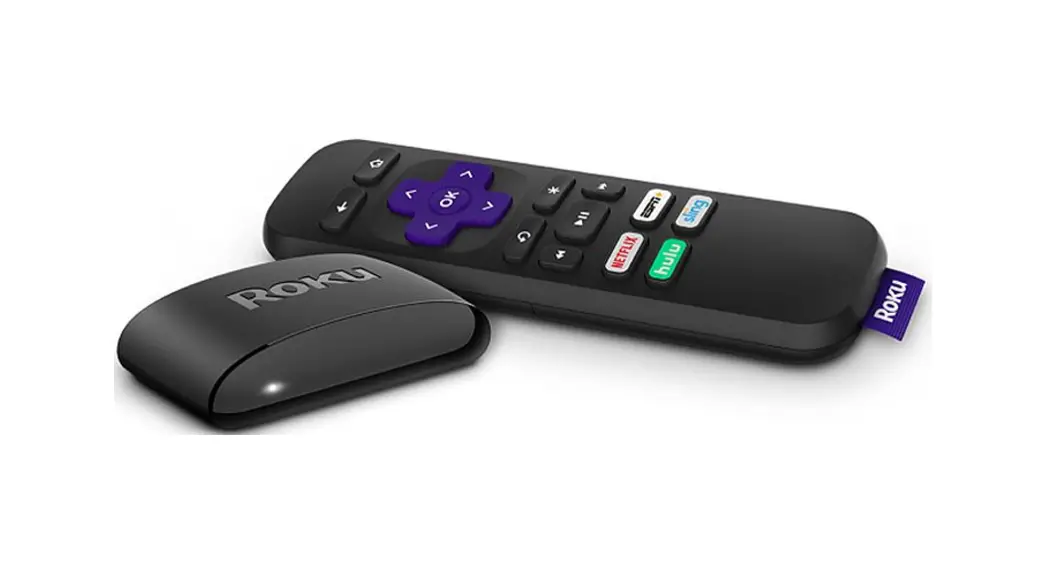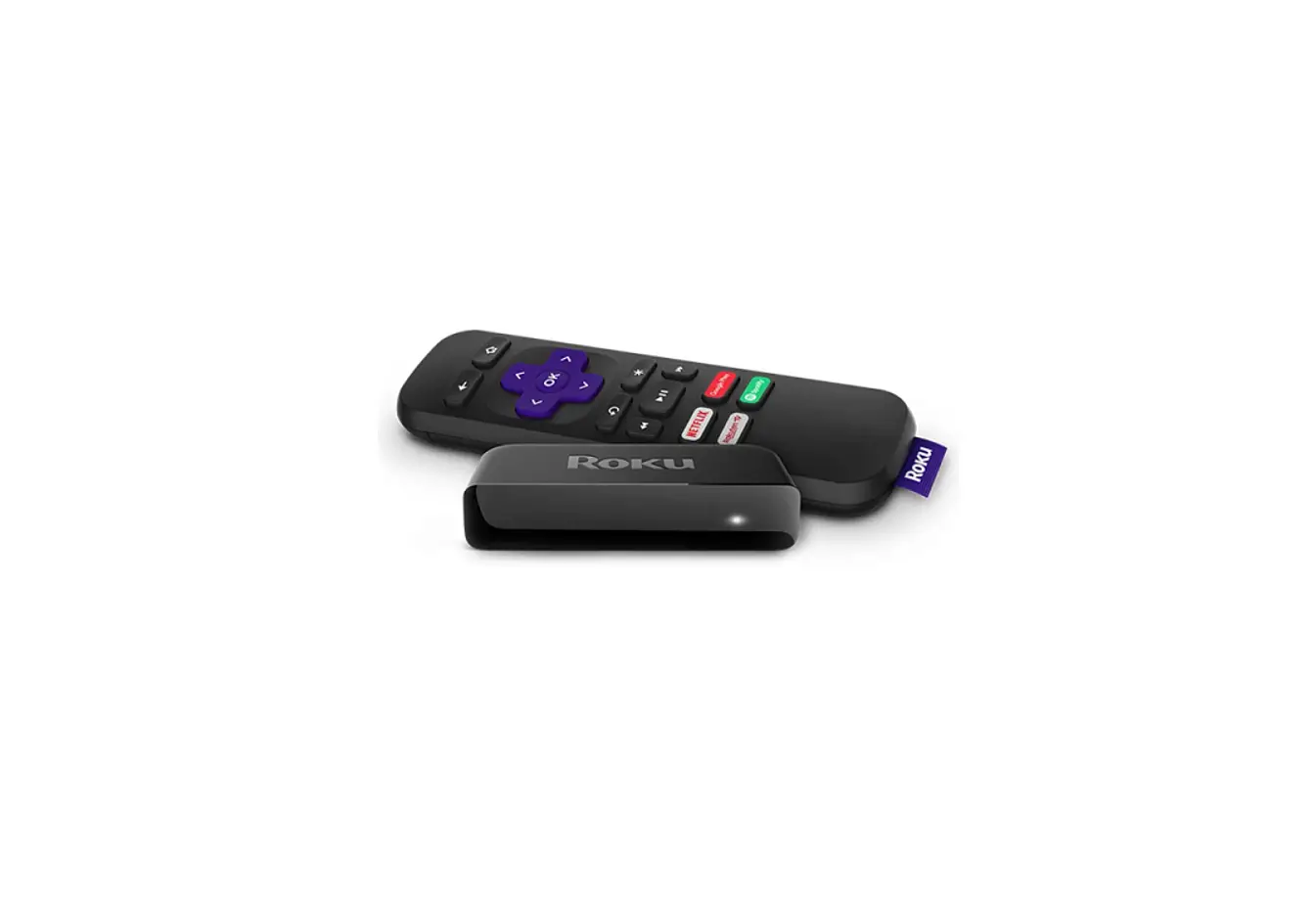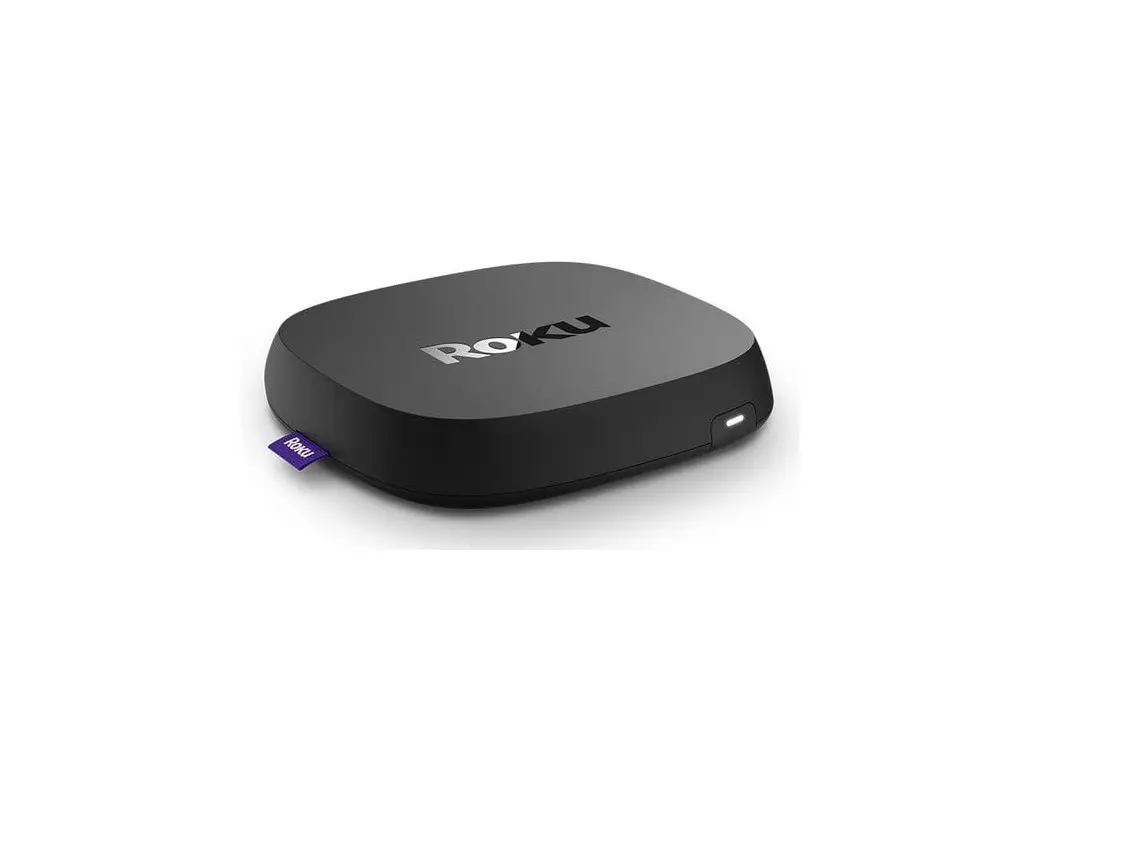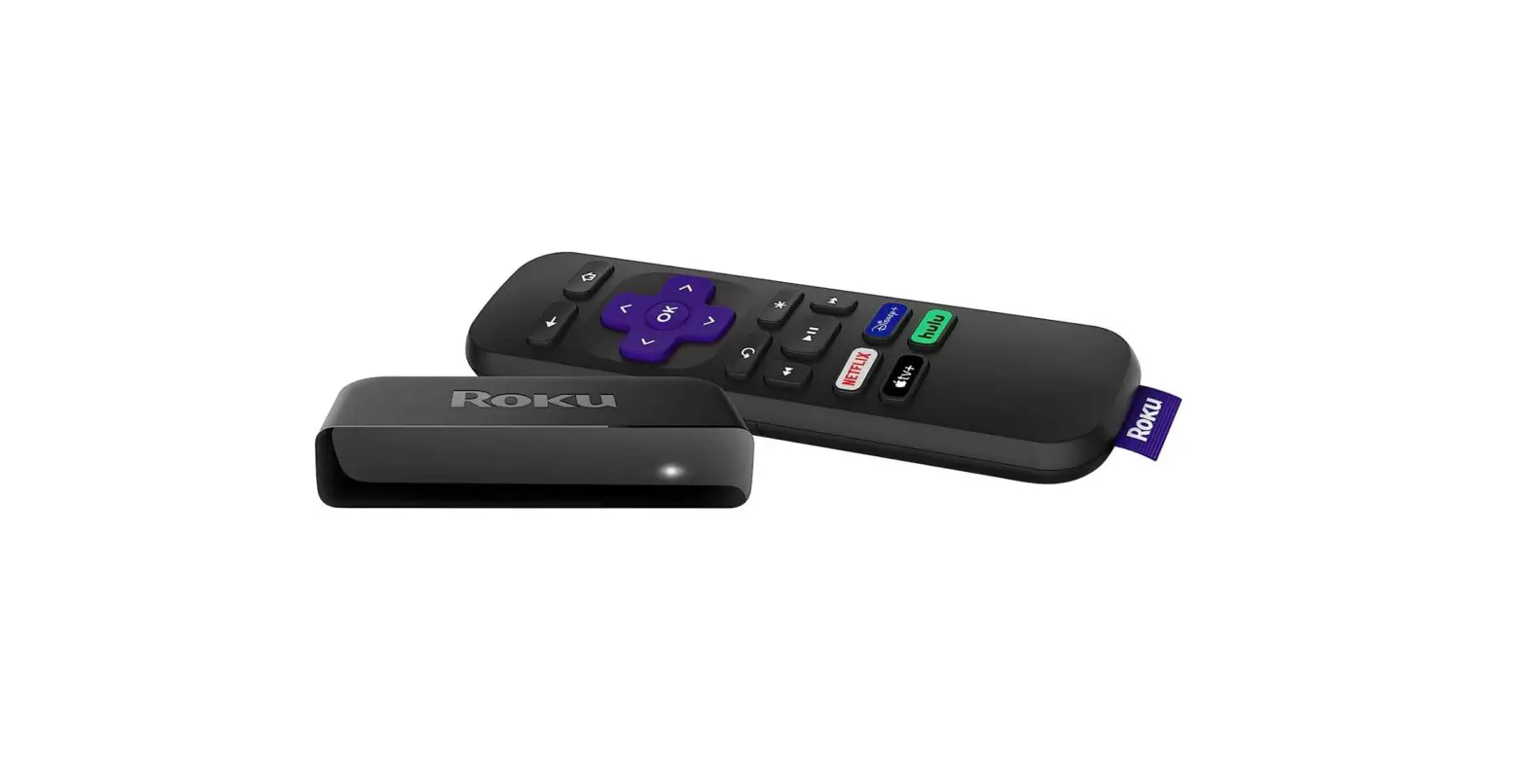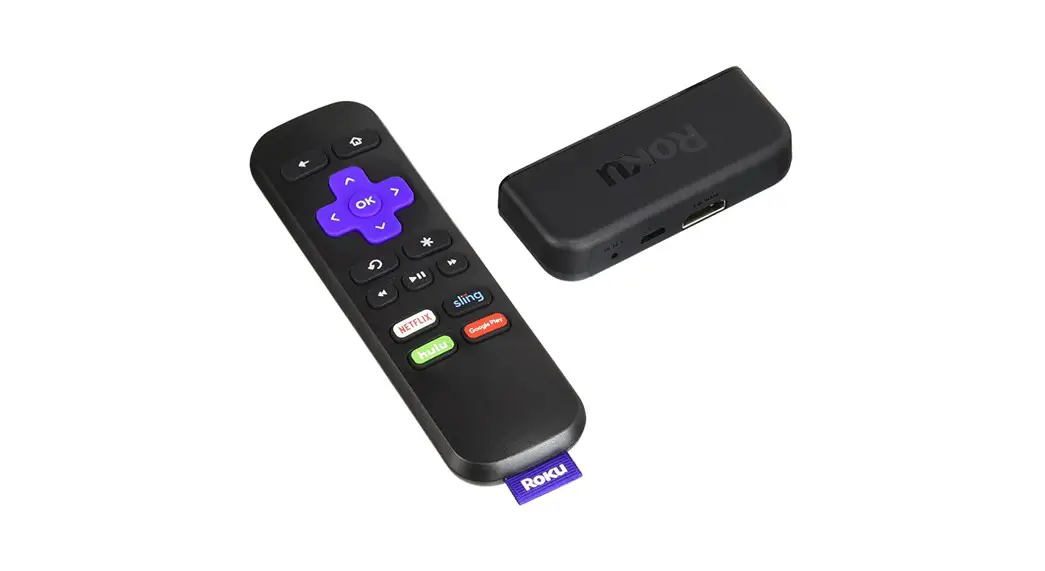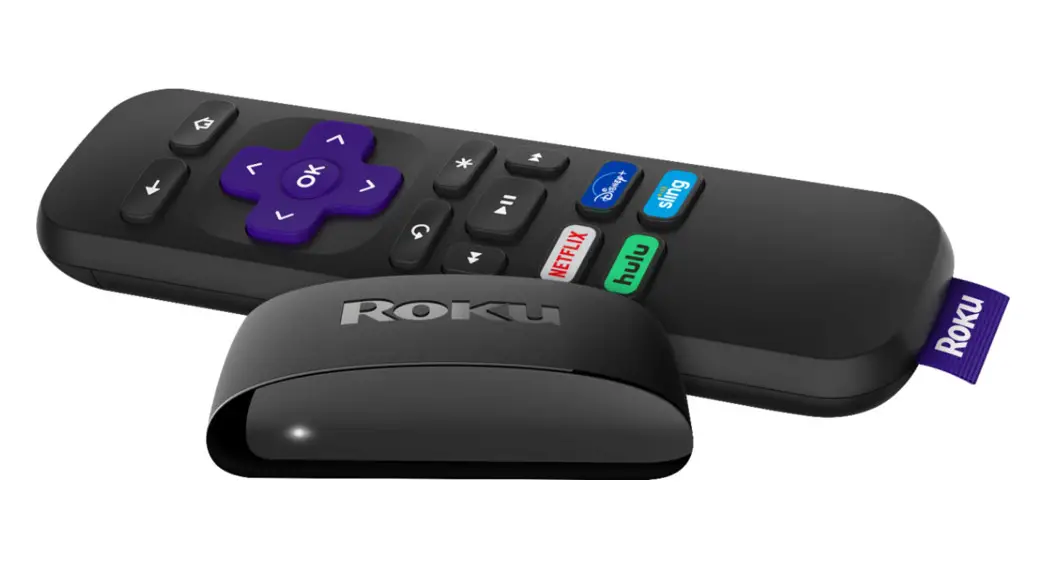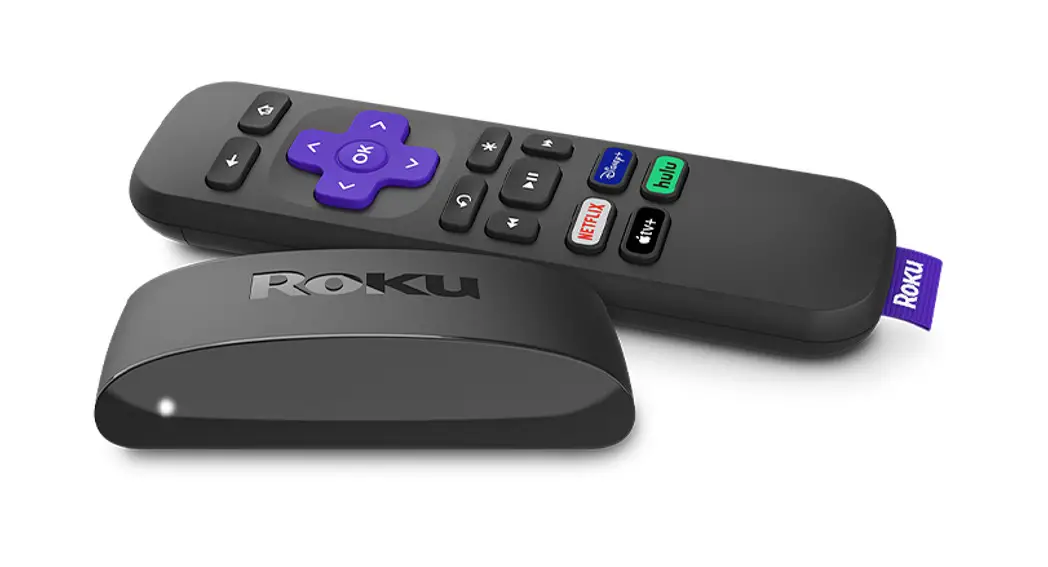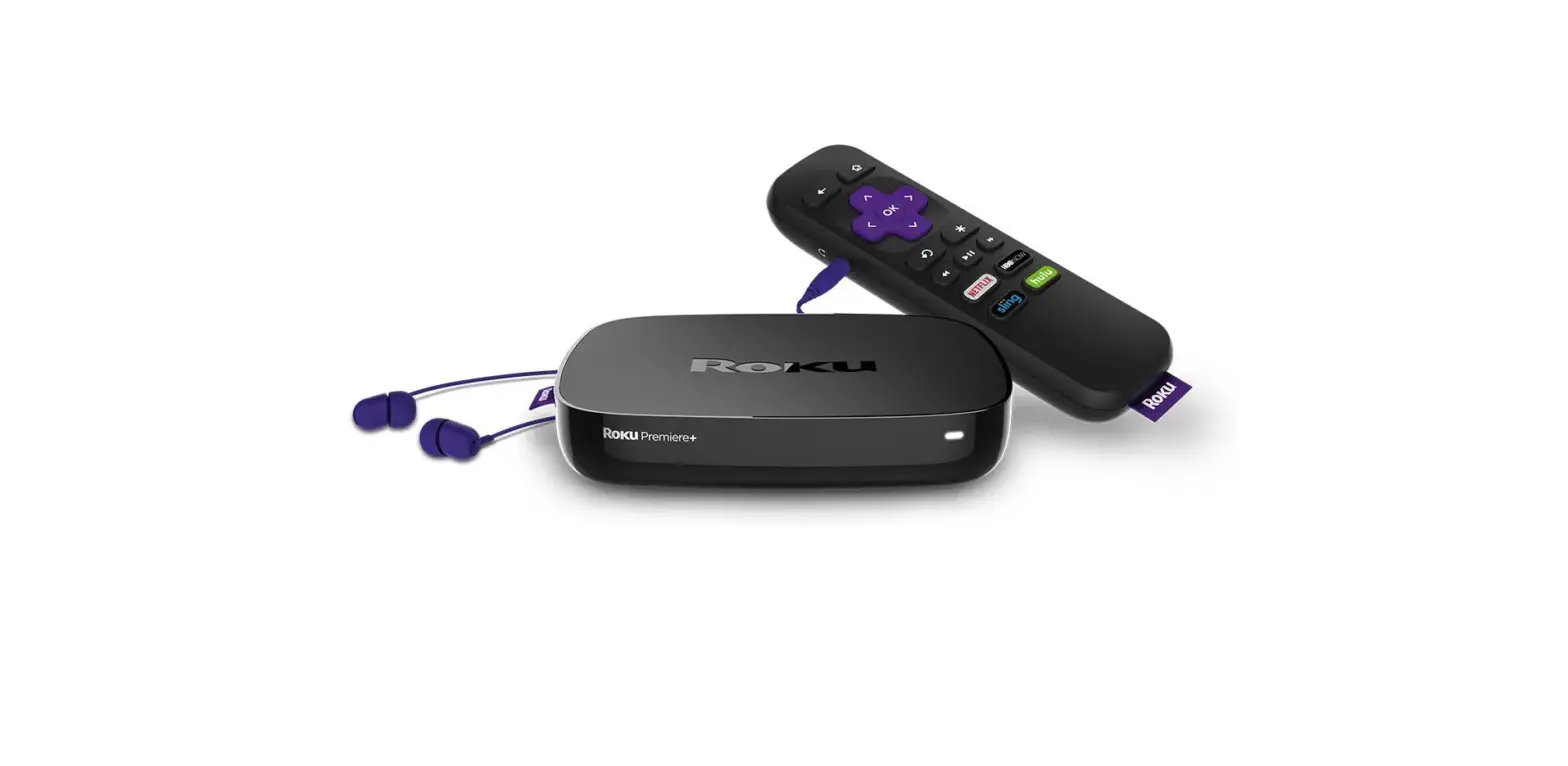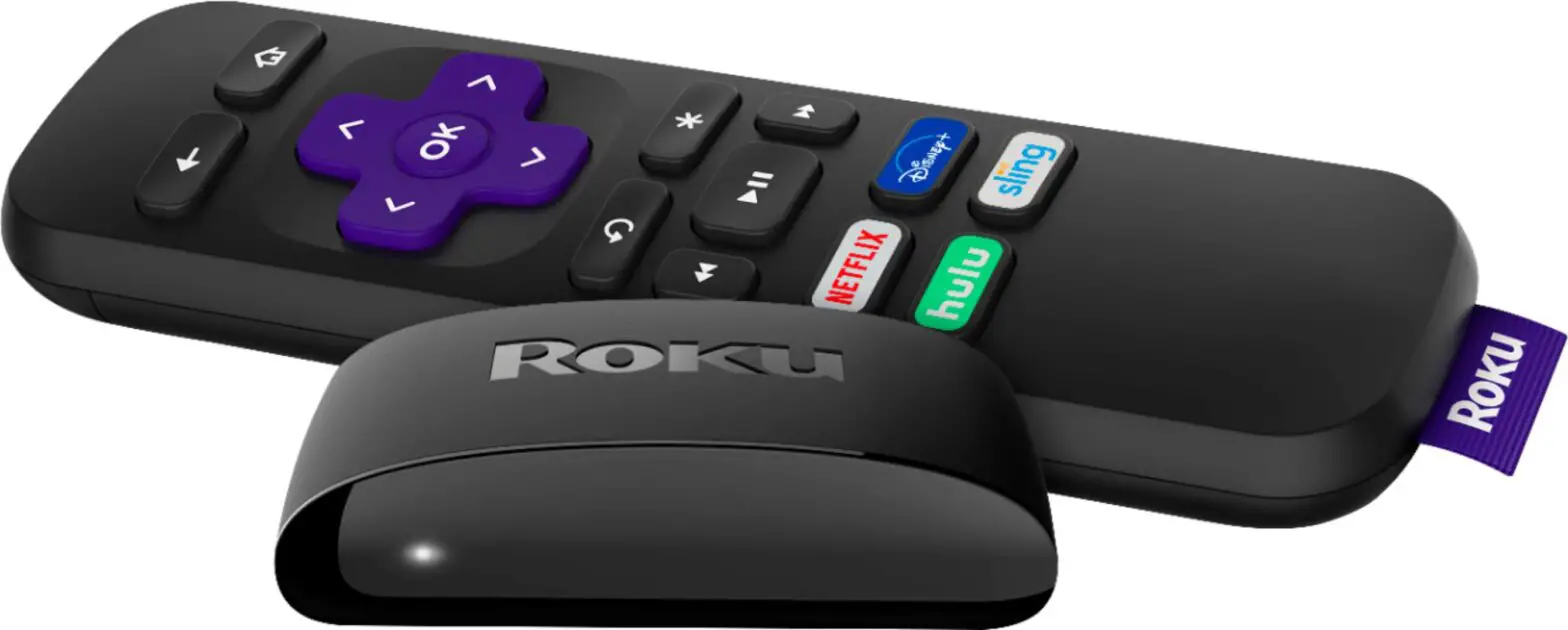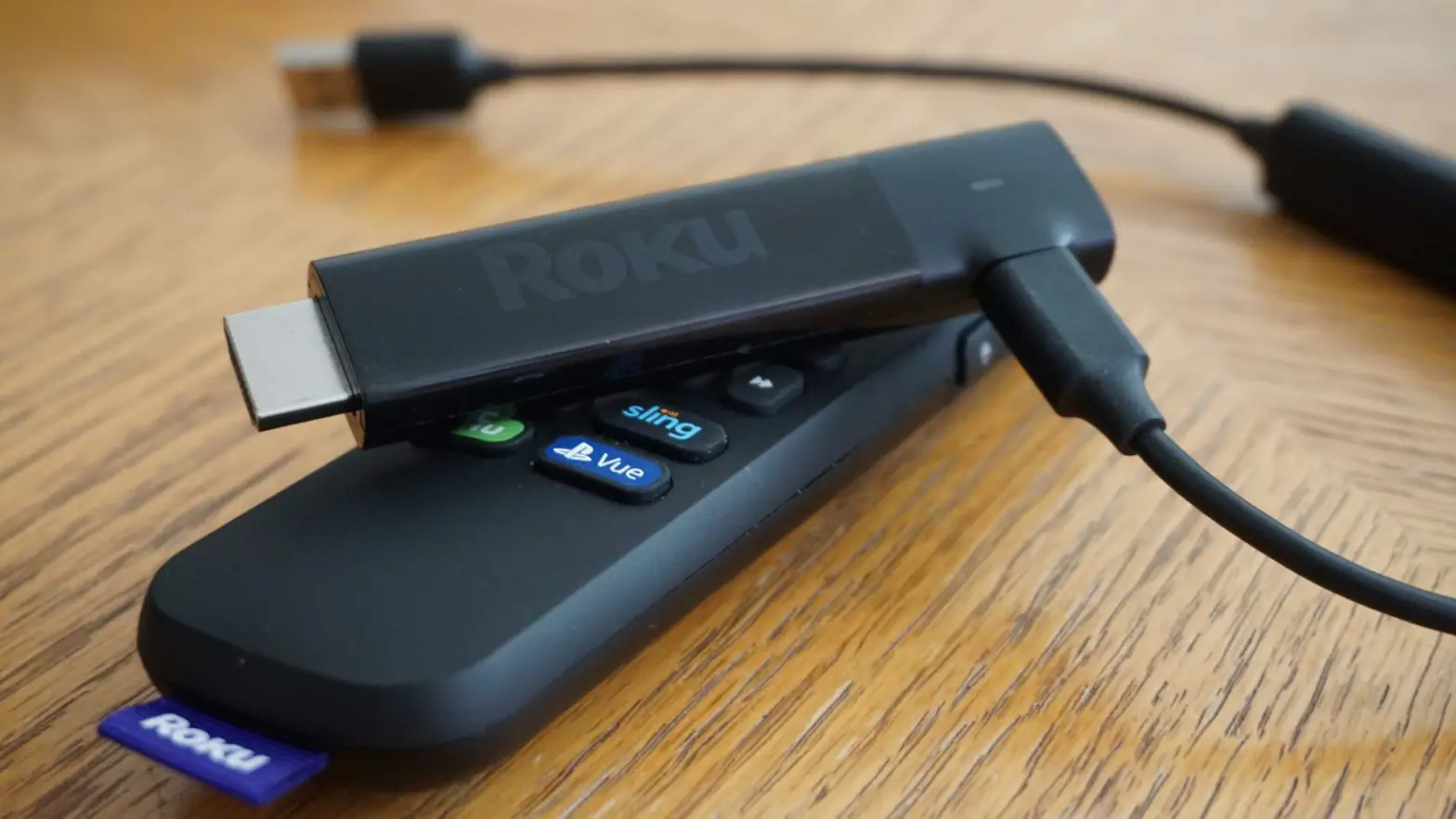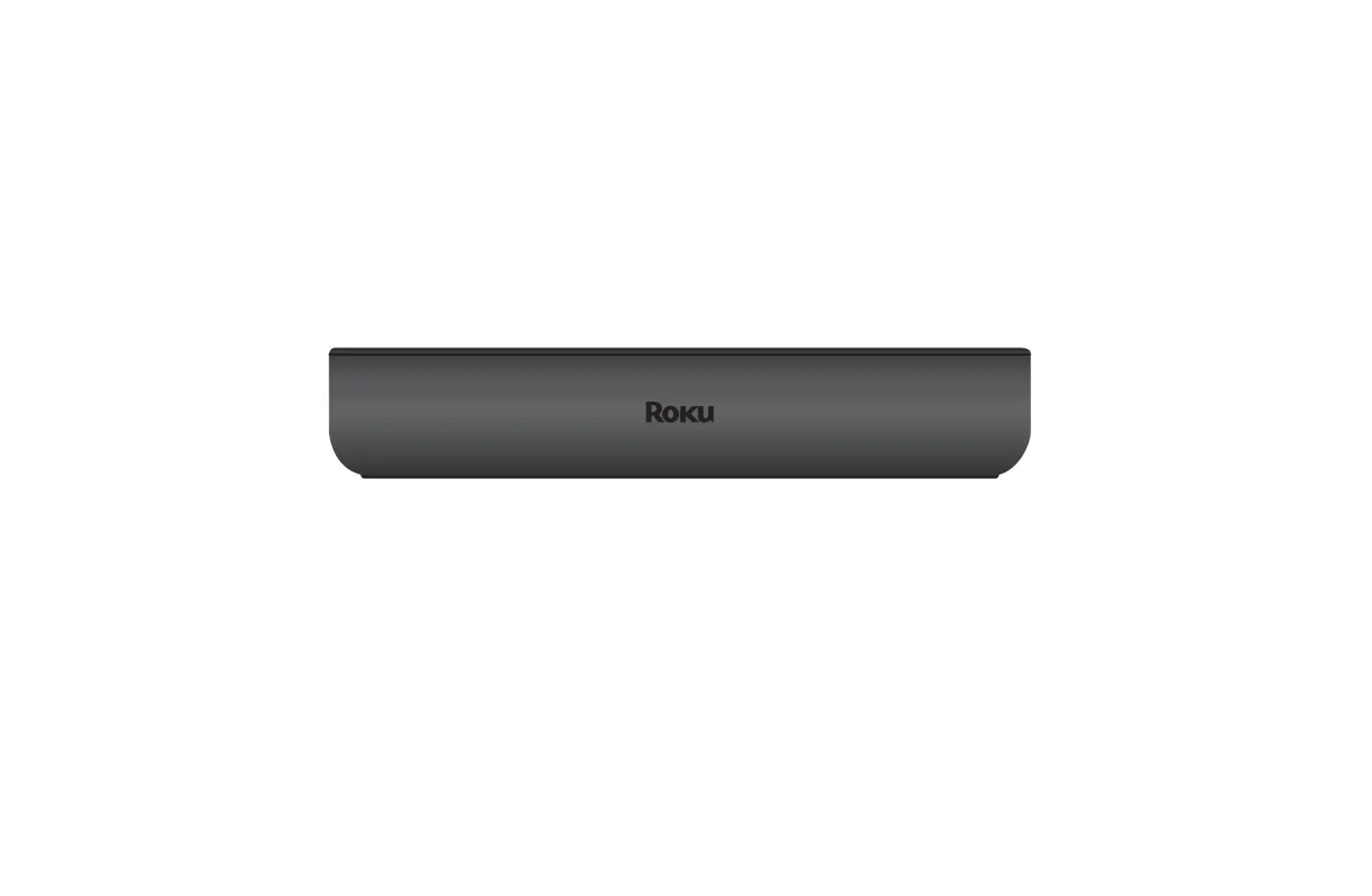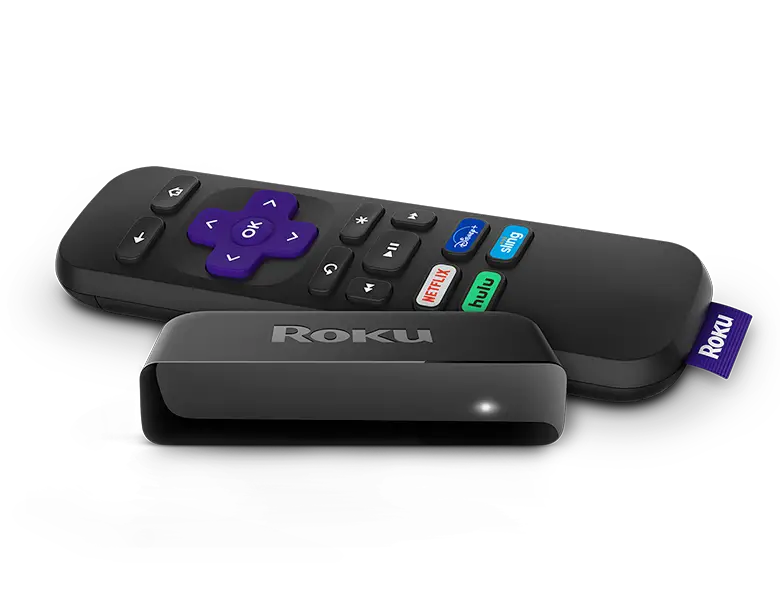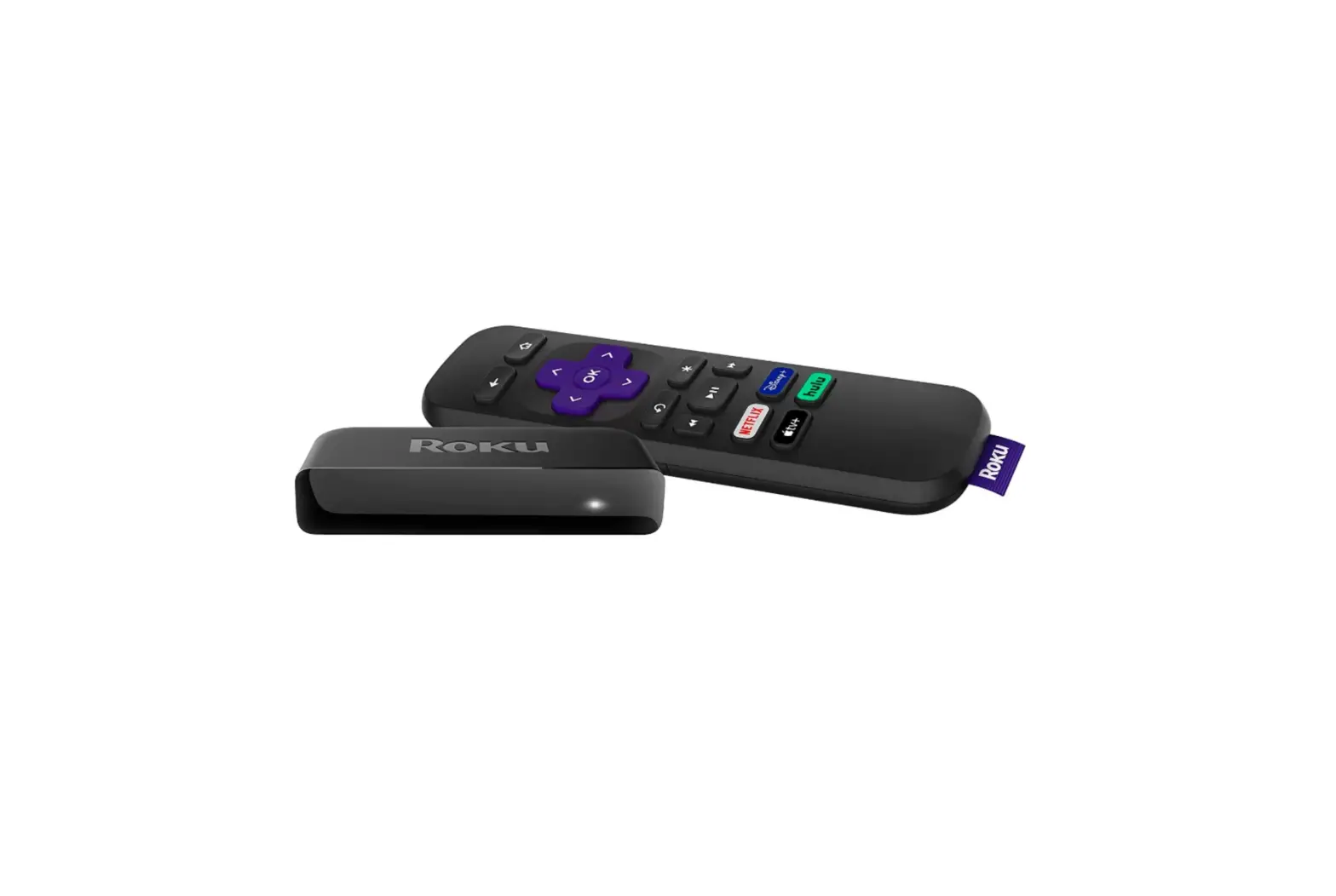
Roku 3920X Premiere Streaming Player
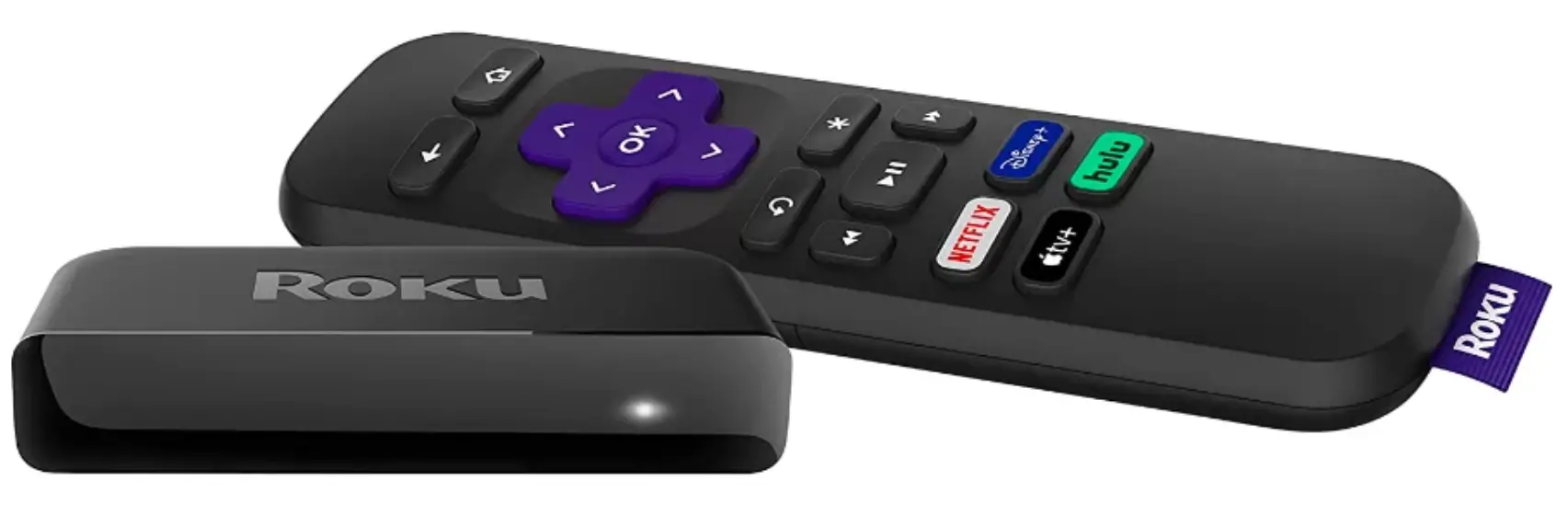
What’s included Setup
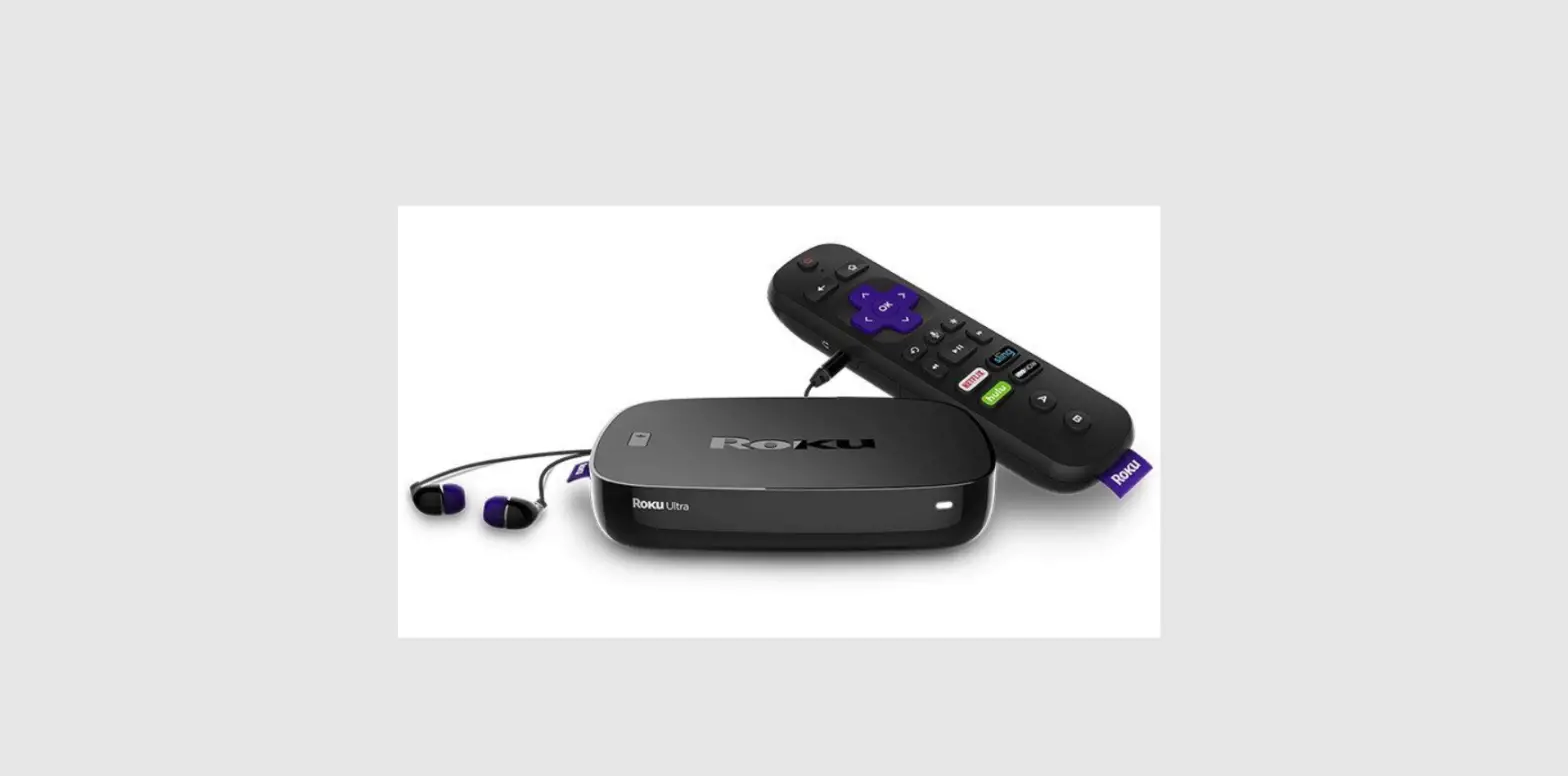
- Roku Premiere Streaming Player

- Removable Adhesive Strip

- Remote

- Power Adapter

- USB Power Cable

- Premium High Speed HDMI® Cable

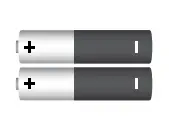
- Two AAA Batteries

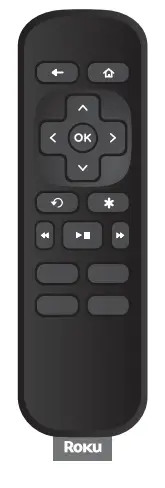
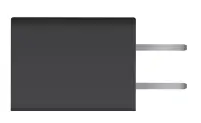
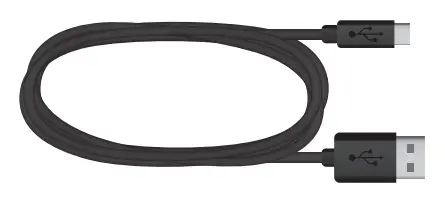
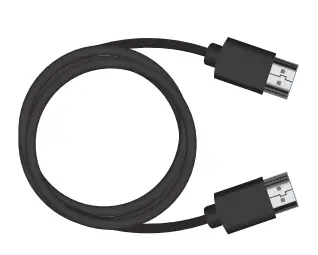
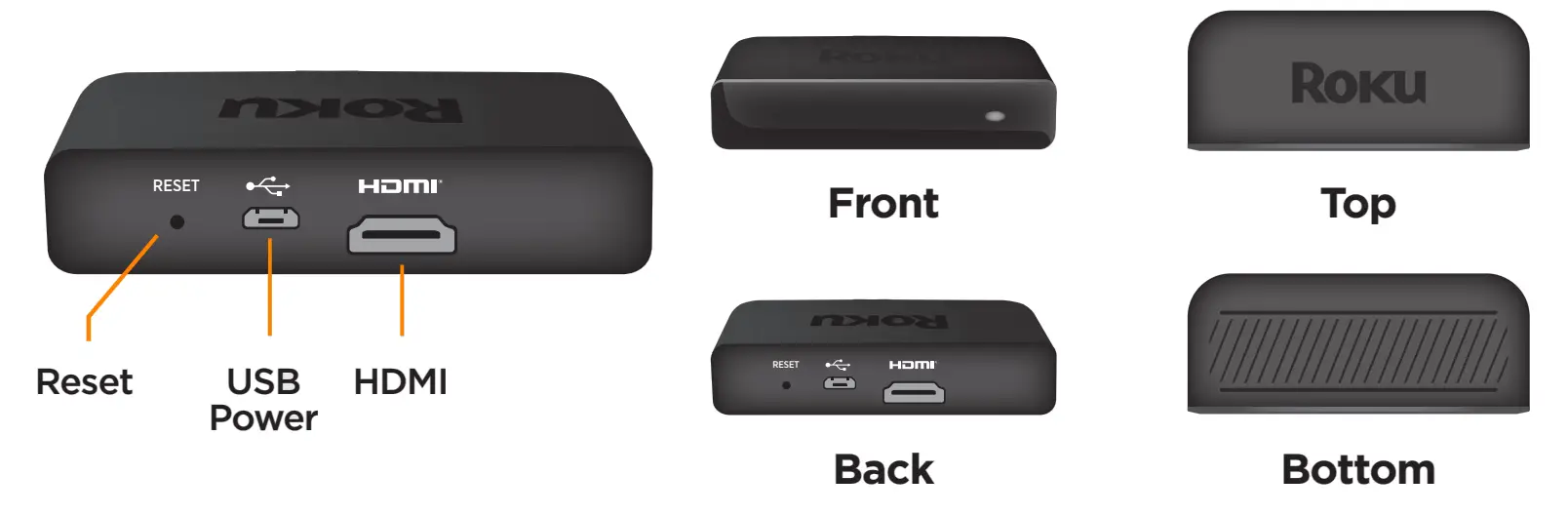
Roku Premiere Streaming Player details
Setup
TEP 1:
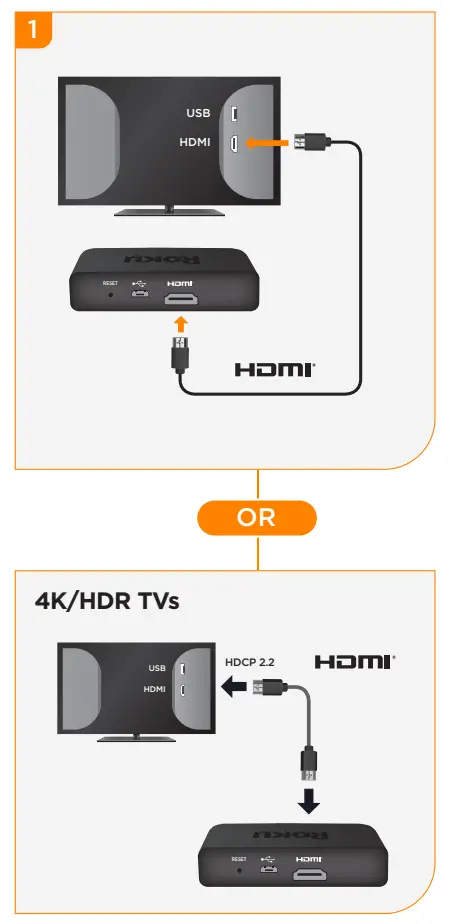
Connect to TV
Connect your streaming player to an HDMI port on the back of your TV using the Premium High Speed HDMI® Cable (included).
To stream 4K or HDR choose an HDMI port that supports HDCP 2.2. Use the Premium High Speed HDMI® Cable (included).
For help determining which port supports HDCP 2.2, visit go.roku.com/hdcp
STEP 2:
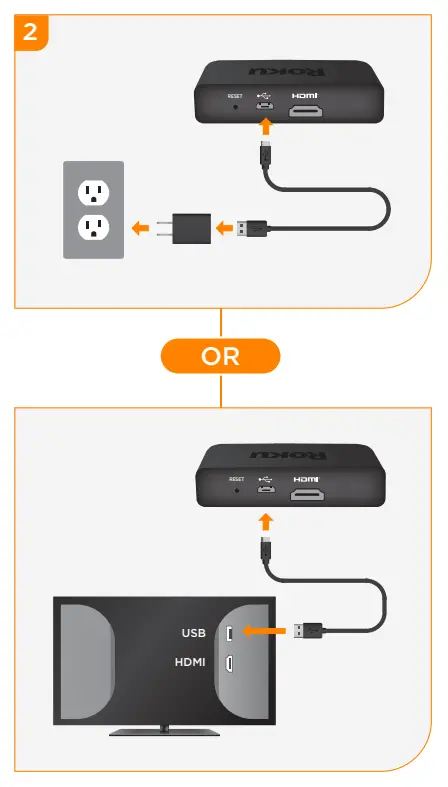
Connect to power
For the best streaming experience, use the included USB power cable and power adapter to connect your streaming player to a wall outlet.
Or use the included USB power cable to connect to the USB port on your TV.
NOTE: Not all TV USB ports provide enough power.
 WARNING: See a red light on your streaming player? That means the USB port on your TV is not providing enough power. Use the included power adapter instead.
For help, visit go.roku.com/lowpower
STEP 3:
Position Roku streaming player
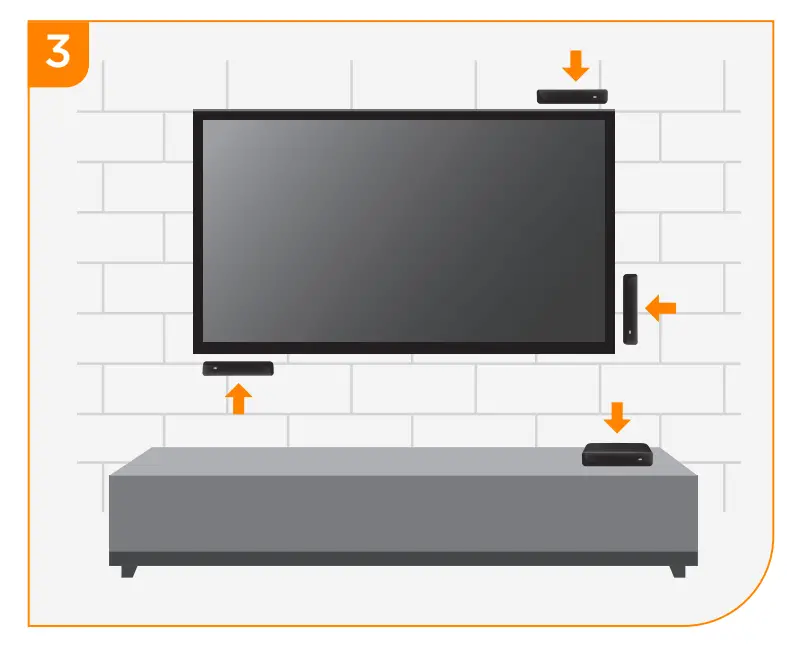
Place the streaming player near your TV
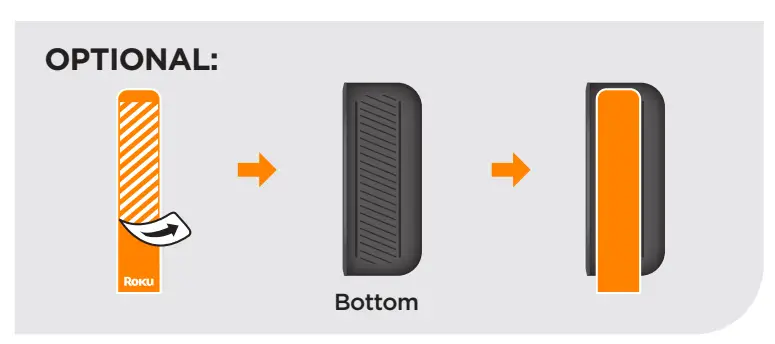
The streaming player can be attached to your TV with the included double-sided adhesive strip. The strip is for single-use and can be removed.
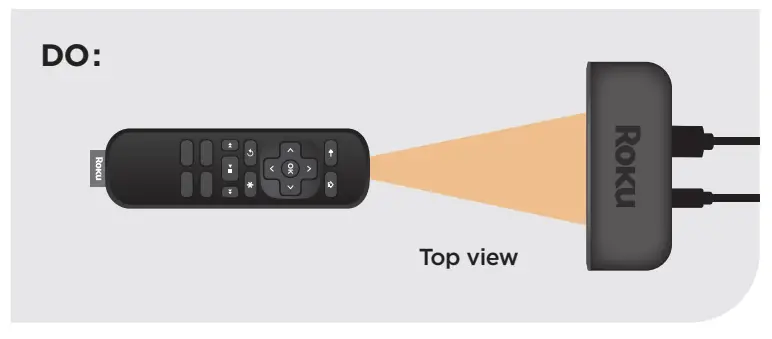
DO make sure that the front of your streaming player has direct line of sight with your remote control.
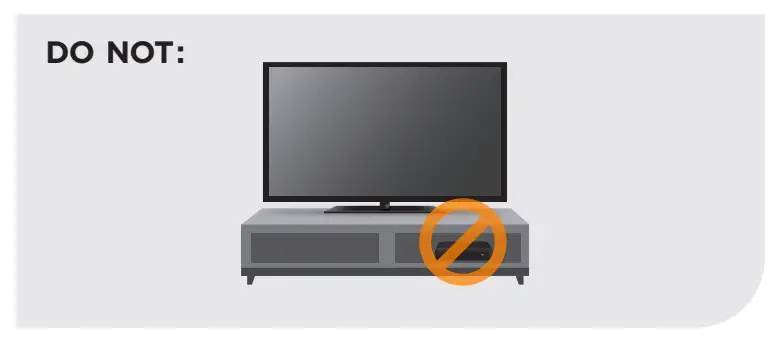
DO NOT place your streaming player behind the TV.
DO NOT place inside a TV cabinet. Doing so may cause overheating.
For proper use, see adhesive strip instructions located at the end of this Quick Start Guide.
STEP 4:
Power on TV and select input
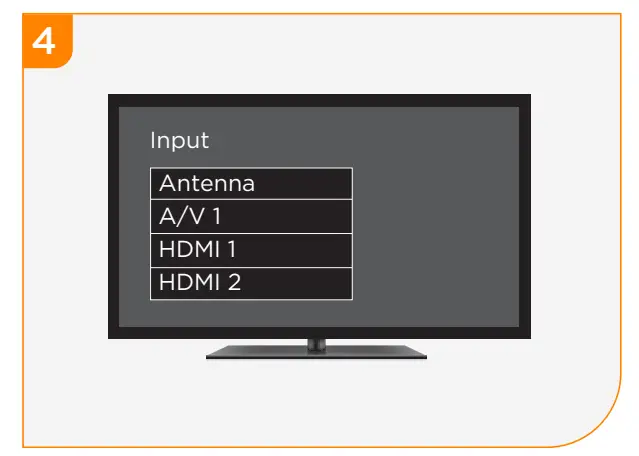
Use your TV remote to power on your TV and select the input you used to connect your streaming player.
For help on how to select the correct input, visit go.roku.com/selectinput
STEP 5:
Insert batteries
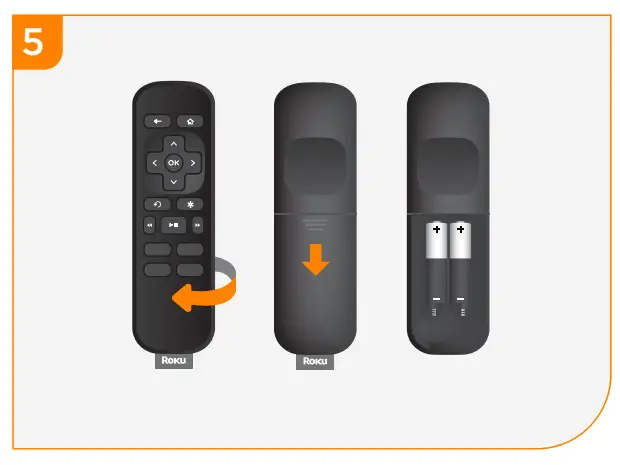
On the back side of the remote, slide open the battery cover. Insert included batteries placing the negative (-) ends in first.
Your remote should pair with your streaming player automatically.
For help pairing your remote, visit go.roku.com/remotehelp
STEP 6:
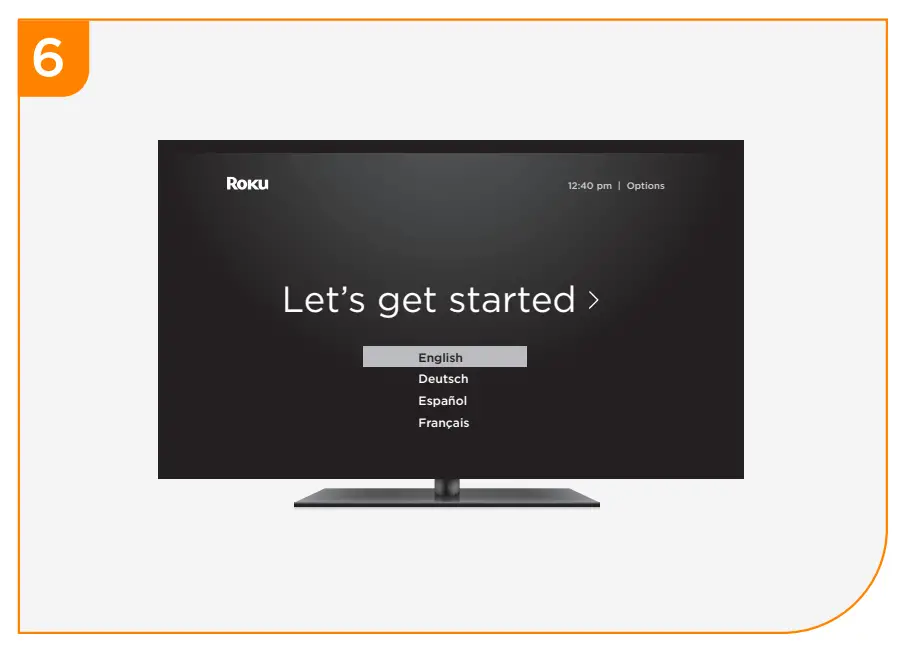
On-screen setup and activation
Follow the instructions on your TV screen.
Activate your streaming player by using your computer or smartphone to link to a Roku account
NOTE: Roku does not charge for activation support – beware of scams.
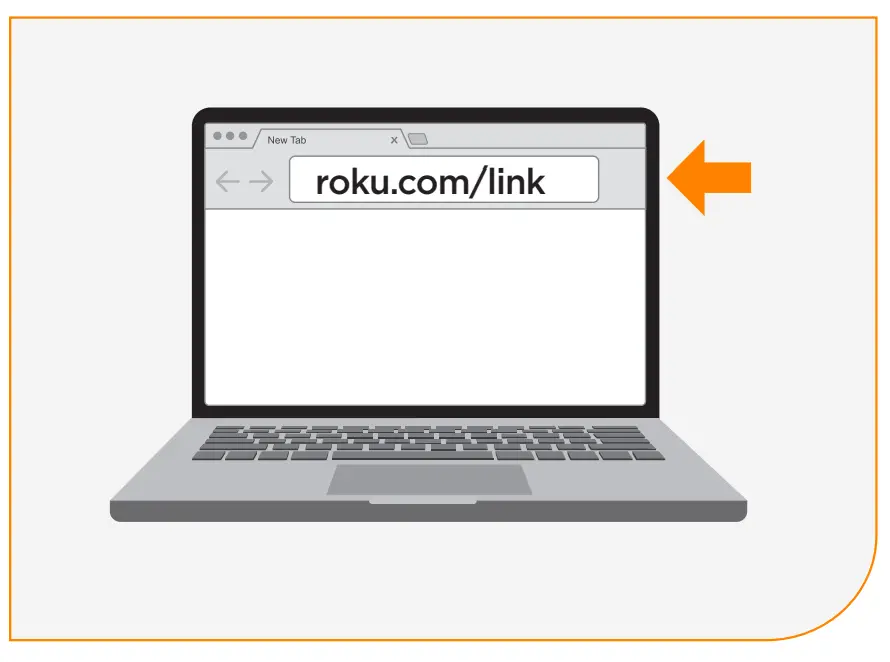
IMPORTANT: Make sure you type roku.com/link into the browser being careful not to misspell or add extra characters. Typing this incorrectly may take you to fraudulent websites.
Common questions
Why do I need to create a Roku account?
Before you can start streaming, channels must be downloaded and installed on your streaming player. To accomplish this, your streaming player must be linked to a Roku account. Witha Roku account, not only can you add channels from the Roku Channel Store, but you can also manage your subscriptions, view your purchase history, and update payment method. For more information, visit go.roku.com/whyaccount
Why do I need to enter a credit card?
Saving a payment method makes it easy to rent or buy movies on demand, subscribe to popular services, and enroll in free trials. Charges will not be made without your authorization. For more information, visit go.roku.com/paymenthelp
What should I do if my streaming player is not connecting to my wireless network?
Your streaming player connects to your wireless network the same as your laptop or smartphone. If these other devices can access the internet, then your streaming player should be able to do the same. Make sure to select the same network name, and enter the same password you use with the other devices. Remember that passwords are case-sensitive and easy to enter incorrectly. For more help, visit go.roku.com/wireless
Can I take my Roku streaming player with me when I travel?
Yes. You can bring your streaming player and watch your favorite entertainment when you travel. Remember to also bring the power adapter, remote and any cables you use to connect your streaming player at home, and make sure your destination has a good internet connection. You may need a computer or smartphone with wireless capabilities and a web browser to help get your streaming player connected to the network. For more details, visit go.roku.com/travelwithroku
Adhesive strip instructions
You have the option of attaching your streaming player to your TV using the included double-sided adhesive strip. This strip is removable and will not leave a sticky residue. However, it can only be used one time! Keep in mind that your streaming player requires a direct line of sight with your remote control. To order more strips, go to roku.com/accessories
To apply adhesive strip
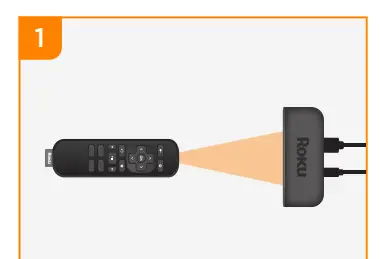
- Choose a flat surface to attach your streaming player. Before attaching make sure the area is clean and in line of sight to your remote.

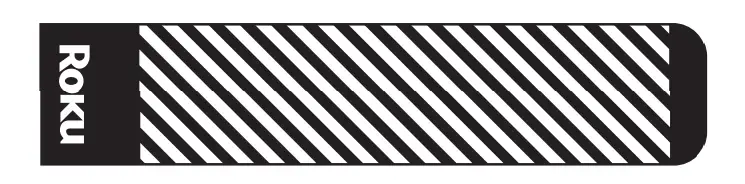
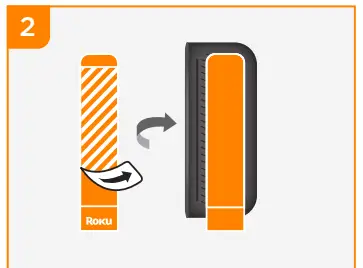
- Remove striped liner from the double-sided adhesive strip. Press adhesive to the bottom of the streaming player.

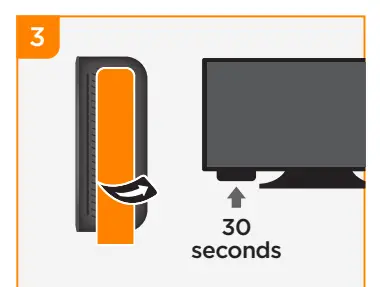
- Remove other liner. Firmly press streaming player to the desired location for 30 seconds.

To remove adhesive strip
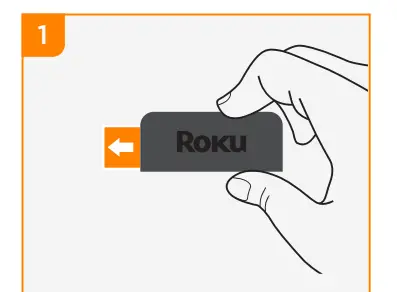
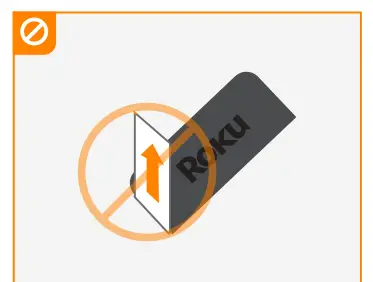
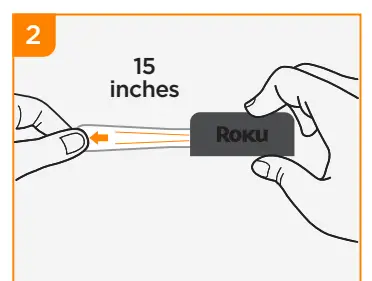
- Hold the streaming player in place. Gently pull adhesive strip sideways.

Do not pull the adhesive strip towards you.
- Stretch the strip slowly to the side (at least 15 inches) to release.

 Need more help getting started? go.roku.com/premiere
 Getting the most out of your Roku streaming player. go.roku.com/usingroku
 Tips, what’s streaming for free and more… blog.roku.com
© 2018 Roku, Inc. All rights reserved. ROKU and the ROKU logo are the registered trademarks of Roku, Inc. All other logos and trademarks herein not owned by Roku, Inc. are the property of their respective owners.

References
 Roku
Roku-
Getting to know your Roku Smart Home camera|Learn about smart home cameras
-
What to do if the red light is flashing, or you see a "low-power" warning|Fix a low-power issue
-
Why is a payment method required when creating a Roku account?|Why is a payment method needed?
-
Roku Setup Help | Official Roku Support
-
What to do if you cannot see the picture from your Roku® streaming player on your TV|No picture on your TV
-
How to use Hotel and Dorm Connect to connect to the internet|Hotel & Dorm Connect
-
Roku features help | Official Roku Support
-
Roku
-
How to connect your Roku® streaming device to the internet using Wi-Fi® or Ethernet|Set up or fix your internet connection
-
Roku
-
Roku
 Roku
Roku Getting to know your Roku Smart Home camera|Learn about smart home cameras
 Roku
Roku